Hardware Reference Guide
HP Compaq Elite 8300 Touch All-in-One Business
PC
HP Compaq Elite 8300 All-in-One Business PC
HP Compaq Pro 6300 All-in-One Business PC
© Copyright 2012 Hewlett-Packard Development Company, L.P. The information contained herein is subject to change without notice.
Windows is either a trademark or registered trademark of Microsoft Corporation in the United States and/or other countries. Intel and Core are trademarks of Intel Corporation in the U.S. and other countries. Bluetooth is a trademark owned by its proprietor and used by Hewlett-Packard Company under license.
The only warranties for HP products and services are set forth in the express warranty statements accompanying such products and services. Nothing herein should be
construed as constituting an additional warranty. HP shall not be liable for technical or editorial errors or omissions contained herein.
This document contains proprietary information that is protected by copyright. No part of this document may be photocopied, reproduced, or translated to another language without the prior written consent of Hewlett-Packard Company. Third Edition (October 2012) First Edition (April 2012)
About This Book
This guide provides basic information for upgrading this computer model.
WARNING! Text set off in this manner indicates that failure to follow directions could result in bodily harm or loss of life.
CAUTION: Text set off in this manner indicates that failure to follow directions could result in damage to equipment or loss of information.
NOTE: Text set off in this manner provides important supplemental information.
Table of contents
1 Product Features ... 1 Overview ... 1 Front Components ... 3 Side Components ... 4 Rear Components ... 4 Keyboard Features ... 5Adjusting the Tilt/Swivel Base ... 6
Height-adjustable/Recline Stand (Optional) ... 6
Waking the HP Compaq Elite 8300 Touch All-in-One Business PC ... 7
2 Hardware Repair and Upgrade ... 8
Warnings and Cautions ... 8
Additional Information ... 9
Installing the Rear Port Cover ... 9
Removing the Rear Port Cover ... 9
Connecting Power ... 10
Disconnecting Power ... 11
Installing a Security Lock ... 12
Installing an Access Panel Security Screw ... 12
Synchronizing the Optional Wireless Keyboard or Mouse ... 13
Removing Batteries from the Optional Wireless Keyboard or Mouse ... 14
Attaching the Computer to a Mounting Fixture ... 15
Connecting a Second Display ... 18
Locating Internal Components ... 20
Removing and Installing Memory ... 21
SODIMMs ... 21
DDR3-SDRAM SODIMMs ... 21
Populating SODIMM Sockets ... 23
Installing SODIMMs ... 23
Replacing the Battery ... 25
Replacing Drives ... 29
Replacing the Hard Disc Drive with a 3.5-inch Hard Disc Drive or a Single 2.5-inch Drive ... 29
Replacing the Hard Disc Drive with Two 2.5-inch Drives ... 33
Replacing the Optical Disc Drive ... 44
Appendix A Electrostatic Discharge ... 48
Preventing Electrostatic Damage ... 48
Grounding Methods ... 48
Appendix B Computer Operating Guidelines, Routine Care and Shipping Preparation ... 49
Computer Operating Guidelines and Routine Care ... 49
Optical Disc Drive Precautions ... 50
Shipping Preparation ... 50
1 Product Features
Overview
Figure 1-1 HP Compaq All-in-One Business PC
The HP Compaq All-in-One Business PC offers the following features: ● Integrated All-in-One form factor
● Full HD, LCD display (1920 x 1080) with LED backlighting
◦ 58.4-cm (23-inch) diagonal with optical touch
◦ 58.4-cm (23-inch) diagonal
◦ 54.6-cm (21.5-inch) diagonal ● Swivel pad under base of stand ● Adjustable tilt
● Optional height-adjustable and reclining stand
● Removable panel on the back of the computer allows users or technicians to easily and efficiently service the PC
● VESA mounting holes (100 mm x 100 mm) ● 2nd and 3rd generation Intel® Core™ processors
● Up to 2 TB hard disc drive, or up to 300 GB Solid State Drive
● Optional Tray-load HP SuperMulti DVD+/-RW SATA Optical Disc Drive or DVD-ROM disc drive ● Optional mSATA module that can be used as a cache or SSD for the Elite 8300 or as a second
drive for the Pro 6300
● Intel Q77 Express chipset – Intel vPro (HP Compaq Elite 8300 All-in-One Business PC)
● Intel Q75 Express chipset (HP Compaq Pro 6300 All-in-One Business PC)
● Two SODIMM slots with up to 16 GB of DDR3 SDRAM memory and dual channel memory support ● Intel integrated graphics
● DisplayPort video out (with audio) for second display support ● Optional MXM graphics card
● DP audio, DP to VGA/DVI/HDMI dongle support
● Integrated Gigabit Ethernet (Intel 82579 LM Gigabit Network Connection) ● Wireless connectivity (optional):
◦ Integrated 802.11 a/b/g/n or b/g/n wireless LAN module
◦ Bluetooth® 4.0
● Optional integrated full HD webcam and dual microphone array ● Premium stereo speakers
● Optional 6-in-1 media card reader ● 6 USB ports: 4 USB 3.0, 2 USB 2.0
● Choice of wired or wireless keyboard and mouse
◦ Wired USB keyboard and mouse
◦ Wired PS/2 keyboard and mouse
◦ Wireless keyboard and mouse
● Face Recognition for HP ProtectTools software with facial recognition auto-login capabilities (with optional webcam)
● Windows® 7 Professional 32-bit or 64-bit operating system ● 90-percent energy-efficient power supply
Front Components
Figure 1-2 Front Components
Table 1-1 Front Components
Component Component
1 Webcam with privacy shutter (optional) 7 Mute speaker 2 Dual microphone array (optional) 8 Reduce volume 3 Webcam activity LED (with optional webcam) 9 Increase volume 4 16:9 widescreen LED-backlit LCD display 10 Mute microphone
5 Power LED 11 Decrease brightness
6 High-performance stereo speakers 12 Increase brightness
Touch the icon area (7–12 above) to cause the icons to illuminate, then touch an icon to activate it. To change the volume or brightness, touch and hold the appropriate icon or touch it and repeat until the volume or brightness has reached the desired level.
To mute the speaker or microphone, just touch the appropriate icon. The icon remains illuminated until you touch it again to reactivate the speaker or microphone.
NOTE: If you mute or reactivate the speaker in a software application, the icon illuminates or darkens accordingly.
You cannot mute or reactivate the microphone from a software application.
Side Components
Figure 1-3 Side Components
Table 1-2 Side Components
Component Component
1 Hard disc drive activity LED 6 Tray-load optical disc drive 2 HP 6-in-1 media card reader (optional) 7 Optical disc drive eject button 3 (2) USB 3.0 ports 8 Optical disc drive activity LED 4 Microphone/line in jack 9 Power button
5 Headset/line out jack
Rear Components
Table 1-3 Rear Components
Component Component
1 Access panel 8 DisplayPort connector
2 Access panel latches 9 RJ-45 Gigabit Ethernet port 3 Security lock slot 10 Stereo audio line out
4 Power connector 11 Rear port cover
5 (2) PS/2 mouse and keyboard connectors 12 Serial port (optional) 6 (2) USB 2.0 ports 13 Access panel security screw 7 (2) USB 3.0 ports
Keyboard Features
Figure 1-5 Keyboard Features
Table 1-4 Keyboard Features
Component Component
1 Sleep 6 Mute Volume
2 Fast Reverse 7 Decrease Volume
3 Play/Pause 8 Increase Volume
4 Stop 9 Function
5 Fast Forward
Adjusting the Tilt/Swivel Base
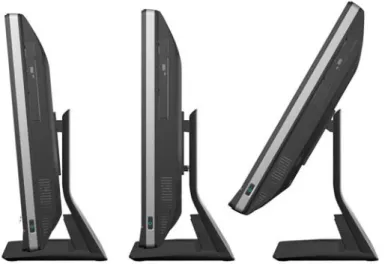
Tilt the computer forward up to -5 degrees or backward up to +30 degrees to set it to a comfortable eye level.
Figure 1-6 Adjusting Tilt
The tilt/swivel base has a swivel pad on the underside that allows you to swivel the computer up to 360 degrees left or right for the best viewing angle.
Figure 1-7 Adjusting Swivel
Height-adjustable/Recline Stand (Optional)
An optional stand may be purchased to allow ● height adjustment of 110 mm (4.3 inches) ● rotation from landscape to portrait position
WARNING! If the height-adjustable/recline stand is installed, before laying the computer down for service, first grasp the sides of the display and raise the display to the highest position.
Do not lay the computer down with the sliding stand in the low position. The stand may suddenly release, which could cause injury or damage to equipment.
Waking the HP Compaq Elite 8300 Touch All-in-One
Business PC
To wake the Touch All-in-One Business PC:
▲ To wake the computer from standby using the touch feature, swipe the screen or touch the screen
and hold for at least two seconds.
▲ To wake the computer from hibernation, press and release the power button.
This affects the Touch All-in-One Business PC equipped with one of the following operating systems: ● Windows 7 (all editions, 32-bit and 64-bit)
● Windows Vista Business (32-bit and 64-bit)
2 Hardware Repair and Upgrade
Warnings and Cautions
Before performing upgrades be sure to carefully read all of the applicable instructions, cautions, and warnings in this guide.
WARNING! To reduce the risk of personal injury from electrical shock, hot surfaces, or fire:
Disconnect the power cord from the wall outlet and allow the internal system components to cool before touching.
Do not plug telecommunications or telephone connectors into the network interface controller (NIC) receptacles.
Do not disable the power cord grounding plug. The grounding plug is an important safety feature. Plug the power cord in a grounded (earthed) outlet that is easily accessible at all times.
For your safety, do not place anything on power cords or cables. Arrange them so that no one may accidentally step on or trip over them. Do not pull on a cord or cable. When unplugging from the electrical outlet, grasp the cord by the plug.
To reduce the risk of serious injury, read the Safety & Comfort Guide. It describes proper workstation, setup, posture, and health and work habits for computer users, and provides important electrical and mechanical safety information. This guide is located on the Web at http://www.hp.com/ergo.
WARNING! Computers that are inappropriately situated on dressers, bookcases, shelves, desks, speakers, chests, or carts may fall over and cause personal injury.
Care should be taken to route all cords and cables connected to the computer so that they can not be pulled, grabbed, or tripped over.
WARNING! Energized and moving parts inside.
Disconnect power to the equipment before removing any access panels. Replace and secure all access panels before reenergizing the equipment.
CAUTION: Static electricity can damage the electrical components of the computer or optional equipment. Before beginning these procedures, ensure that you are discharged of static electricity by briefly touching a grounded metal object. See Electrostatic Discharge on page 48 for more
information.
When the computer is plugged into an AC power source, voltage is always applied to the system board. You must disconnect the power cord from the power source before opening the computer to prevent damage to internal components.
Additional Information
For more information on removing and replacing hardware components, the Computer Setup utility, and troubleshooting, refer to the Maintenance and Service Guide (available in English only) for your computer model at http://www.hp.com.
Installing the Rear Port Cover
1. Ensure that all cables are connected.
2. Place the cover against the computer (1), lining up the cable lock slot in the cover about 12 mm (0.5 inch) below the cable lock slot in the computer. Slide the cover up and into position (2).
Figure 2-1 Installing the Rear Port Cover
Removing the Rear Port Cover
1. If a cable lock is installed on the rear of the unit, remove the lock.
2. Grasp the rear port cover, then pull it down and off the computer.
Figure 2-2 Removing the Rear Port Cover
Connecting Power
1. If the rear port cover is installed, remove the cover.
2. Route the power connector through the opening in the stand to take advantage of the cable management feature.
3. Plug the power cord into the power connection on the rear of the computer (1).
4. Plug the three-pronged power plug into a power outlet (2).
Figure 2-3 Connecting Power
5. Route all peripheral cables through the stand opening and plug them into the appropriate ports as needed.
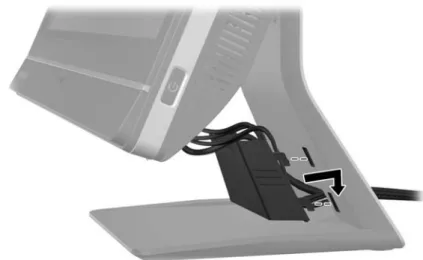
6. Hold the cable management cover under the cables, align the cover hooks with the slots in the stand, then insert the cover and slide it down.
Figure 2-4 Installing the Cable Management Cover
7. Replace the rear port cover.
8. Press the power button on the front of the computer to turn it on.
Disconnecting Power
1. Remove all removable media, such as compact discs or USB flash drives, from the computer.
2. Turn off the computer properly through the operating system, then turn off any external devices.
3. Remove the cable lock, if one is installed on the rear of the computer.
4. If the rear port cover is installed, remove the cover.
5. If the cable management cover is installed, slide it up and remove it.
6. Disconnect the power cord connector from the port.
Installing a Security Lock
The optional security lock enables you to secure your computer from theft. A cable lock is a key lock device that has a wire cable attached. You attach one end of the cable to your desk (or other stationary object) and the other end of the cable to the cable lock slot on the computer. Secure the cable lock with the key.
Figure 2-5 Installing a Cable Lock
Installing an Access Panel Security Screw
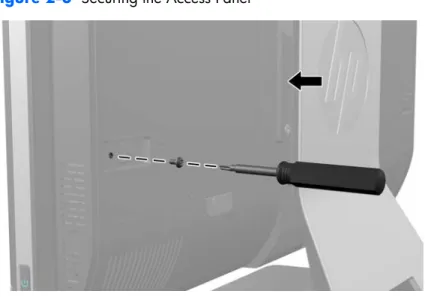
You may prevent access to internal components by securing the access panel. Screw a T15 tamper-resistant Torx screw through the left latch of the access panel to prevent removal of the panel.
Synchronizing the Optional Wireless Keyboard or
Mouse
The optional wireless keyboard and mouse are easy to set up. Just remove the battery tabs on both the keyboard and the mouse to activate the preinstalled batteries. Also, make sure the Power switch on the bottom of the mouse is in the On position (the keyboard does not have a Power switch). Then, turn on the computer and synchronize them as described below.
NOTE: For better mouse battery life and performance, avoid using your mouse on a dark or high-gloss surface, and turn mouse power off when not in use.
To synchronize the wireless keyboard and mouse:
1. Make sure the keyboard and mouse are next to the computer, within 30 cm (1 foot) and away from interference from other devices.
2. Turn on the computer.
3. Insert the wireless receiver into a USB port on the computer.
Figure 2-7 Installing the Wireless Receiver
4. Make sure the Power switch on the bottom of the mouse is in the On position.
5. Press and release the Connect button on the bottom of the mouse. The blue activity LED from the wireless receiver illuminates when the synchronization command has been received and turns off when synchronization is complete.
6. Press and release the Connect button on the bottom of the keyboard. The blue activity LED from the wireless receiver illuminates when the synchronization command has been received and turns off when synchronization is complete.
Figure 2-8 Synchronizing the Wireless Keyboard and Mouse
NOTE: If the procedure does not work, remove and then reinsert the wireless keyboard and mouse receiver from the back of the computer and then synchronize the keyboard and mouse again. If synchronization still does not work, remove and replace the batteries.
Removing Batteries from the Optional Wireless
Keyboard or Mouse
NOTE: The wireless keyboard and mouse are optional components.
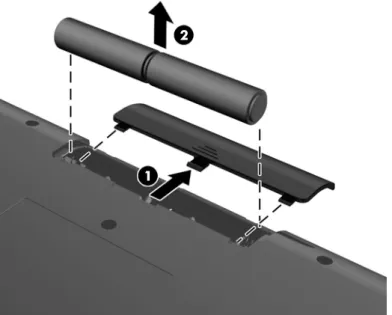
To remove batteries from the wireless keyboard, remove the battery door on the underside of the keyboard (1) and lift the batteries out of the battery compartment (2).
Figure 2-9 Removing Batteries from the Wireless Keyboard
To remove batteries from the wireless mouse, remove the battery door on the underside of the mouse (1) and lift the batteries out of the battery compartment (2).
Figure 2-10 Removing Batteries from the Wireless Mouse
Attaching the Computer to a Mounting Fixture
You can remove the computer from the stand and install it on a wall, monitor arm, or other mounting fixture. There is a VESA mount under the computer stand that is used for mounting the computer.
HP Compaq Elite 8300 Touch All-in-One Business PC
HP Compaq Elite 8300 All-in-One Business PC
HP Compaq Pro 6300 All-in-One Business PC
Computer Dimensions (without stand)
Height 387.1 mm 15.2 in 367.4 mm 14.5 in
Width 561.9 mm 22.1 in 521.9 mm 20.5 in
Depth 65.0 mm 2.6 in 65.0 mm 2.6 in
Computer Weight (without stand)
Minimum Configuration 7.65 kg (8300 Touch) 6.60 kg (8300) 16.9 lb (8300 Touch) 14.6 lb (8300) 6.63 kg 14.6 lb
With Options 9.35 kg (8300 Touch) 8.30 kg (8300)
20.6 lb (8300 Touch) 18.3 lb (8300)
7.88 kg 17.4 lb
VESA standard hole patterns
height x width 100 mm x 100 mm 3.94 in x 3.94 in 100 mm x 100 mm 3.94 in x 3.94 in
To remove the stand:
1. Remove all removable media, such as compact discs or USB flash drives, from the computer.
2. Turn off the computer properly through the operating system, then turn off any external devices.
3. Disconnect the power cord from the power outlet and disconnect any external devices.
CAUTION: You must disconnect the power cord and wait approximately 30 seconds for the power to drain before adding or removing memory modules. Regardless of the power-on state, voltage is always supplied to the memory modules as long as the computer is plugged into an active AC outlet. Adding or removing memory modules while voltage is present may cause irreparable damage to the memory modules or system board.
4. Remove/disengage any security devices that prohibit opening the computer.
5. Place the computer face down on a soft flat surface. HP recommends that you set down a blanket, towel, or other soft cloth to protect the bezel and screen surface from scratches or other damage.
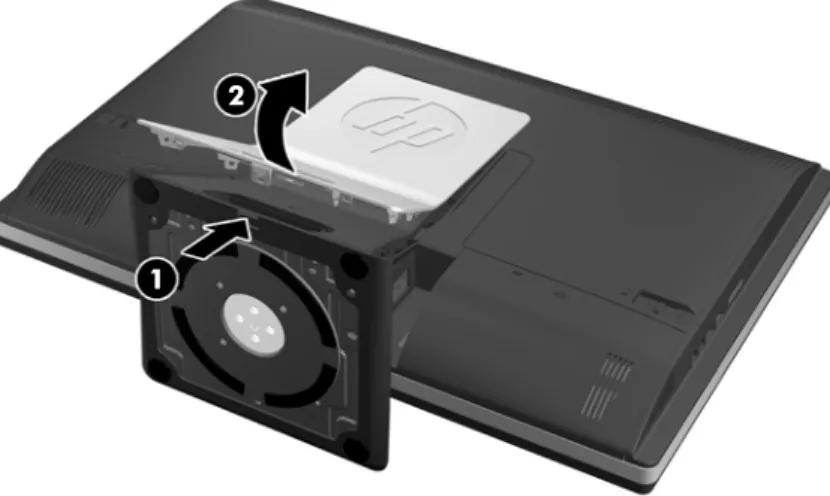
6. Push the release button (1) on the bottom of the stand and pull the back of the stand off (2).
Figure 2-11 Removing the back of the Stand
7. Push the base of the stand down (1), and loosen the captive screws securing the stand to the unit (2).
Figure 2-12 Releasing the Stand
8. Lift the stand up and off the computer to expose the VESA mounting holes.
Figure 2-13 Removing the Stand
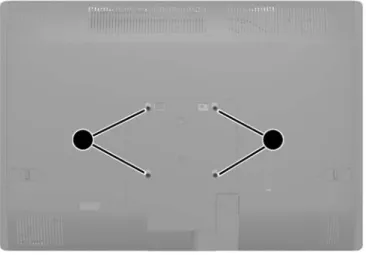
The computer is now ready to be attached to a VESA-compliant mounting fixture.
Figure 2-14 VESA Mounting Holes
Connecting a Second Display
The DisplayPort connector on the rear of the computer allows you to connect a second display to the computer.
If you are adding a second display that has a DisplayPort connector, then no DisplayPort video adapter is required. If you are adding a second display that does not have a DisplayPort connector, you can purchase a DisplayPort video adaptor from HP for your configuration.
To connect a second display:
1. Turn off power to the computer and the second display that you are connecting to the computer.
2. Remove the rear port cover on the computer.
3. If your second display has a DisplayPort connector, connect a DisplayPort cable directly between the DisplayPort connector on the rear of the computer and the DisplayPort connector on the second display.
Figure 2-15 Connecting a DisplayPort Cable
Figure 2-16 Connecting a Second Display
4. If your second display does not have a DisplayPort connector, connect a DisplayPort video adapter to the DisplayPort connector of the computer. Then connect a cable (VGA, DVI. or HDMI, depending on your application) between the adapter and a second display.
NOTE: When a display port adaptor is used, the rear port cover cannot be installed unless a display port extender cable is used in conjunction with the adaptor.
Figure 2-17 Connecting a Second Display Using a DisplayPort Adapter
5. Replace the rear port cover on the computer.
6. Turn on power to the computer and the second display.
NOTE: Use the graphics card software or the Windows Display Settings to configure the second display as a mirrored image of the primary display or an extension of the primary display.
Locating Internal Components
The following sections contain procedures for removing and replacing these internal components: ● Memory
● Hard disc drive, solid state drive, or self-encrypting drive ● Optical disc drive
Figure 2-18 Locating Internal Components
Component Component
1 Optical disc drive 4 Memory
2 Hard disc drive 5 mSATA connector
3 Battery
Removing and Installing Memory
The computer comes with double data rate 3 synchronous dynamic random access memory (DDR3-SDRAM) small outline dual inline memory modules (SODIMMs).
SODIMMs
The memory sockets on the system board can be populated with up to two industry-standard
SODIMMs. These memory sockets are populated with at least one preinstalled SODIMM. To achieve the maximum memory support, you can populate the system board with up to 16 GB of memory.
DDR3-SDRAM SODIMMs
For proper system operation, the SODIMMs must be: ● industry-standard 204-pin
● unbuffered non-ECC PC3-10600 DDR3-1600 MHz-compliant ● 1.5 volt DDR3-SDRAM SODIMMs
The DDR3-SDRAM SODIMMs must also:
● support CAS latency 11 DDR3 1600 MHz (11-11-11 timing)
● contain the mandatory Joint Electronic Device Engineering Council (JEDEC) specification In addition, the computer supports:
● 1-Gbit, 2-Gbit, and 4-Gbit non-ECC memory technologies ● single-sided and double-sided SODIMMS
● SODIMMs constructed with x8 and x16 SDRAMs; SODIMMs constructed with x4 SDRAMs are not supported
NOTE: The system will not operate properly if you install unsupported SODIMM memory. HP offers upgrade memory for this computer and advises that the consumer purchase it to avoid compatibility issues with unsupported third-party memory.
Populating SODIMM Sockets
The system will automatically operate in single channel mode, dual channel mode, or flex mode, depending on how the SODIMMs are installed. Refer to the following table to identify the SODIMM channel locations.
Table 2-1 Identifying SODIMM Locations
Location System Board Label Channel
Lower Socket SODIMM1 Channel A
Upper Socket SODIMM3 Channel B
● The system will operate in single channel mode if the SODIMM sockets are populated in one channel only.
● The system will operate in flex mode if the memory capacity of the SODIMM in Channel A is not equal to the memory capacity of the SODIMM in Channel B. In flex mode, the channel populated with the least amount of memory describes the total amount of memory assigned to dual channel and the remainder is assigned to single channel. If one channel will have more memory than the other, the larger amount should be assigned to channel A.
● The system will operate in a higher-performing dual channel mode if the memory capacity of the SODIMM in Channel A is equal to the memory capacity of the SODIMM in Channel B.
● In any mode, the maximum operational speed is determined by the slowest SODIMM in the system.
Installing SODIMMs
There are two memory sockets on the system board. To remove or install memory modules:
1. Remove all removable media, such as compact discs or USB flash drives, from the computer.
2. Turn off the computer properly through the operating system, then turn off any external devices.
3. Disconnect the power cord from the power outlet and disconnect any external devices.
CAUTION: You must disconnect the power cord and wait approximately 30 seconds for the power to drain before adding or removing memory modules. Regardless of the power-on state, voltage is always supplied to the memory modules as long as the computer is plugged into an active AC outlet. Adding or removing memory modules while voltage is present may cause irreparable damage to the memory modules or system board.
4. Remove/disengage any security devices that prohibit opening the computer.
5. Place the computer face down on a soft flat surface. HP recommends that you set down a blanket, towel, or other soft cloth to protect the bezel and screen surface from scratches or other damage.
6. Slide the access panel latches toward the edges of the unit, then slide the access panel toward the top of the computer until it slides off the unit.
Figure 2-19 Removing the Access Panel
7. To remove a memory module, press outward on the two latches on each side of the SODIMM (1), then pull the SODIMM out of the socket (2).
8. To install a memory module, slide the SODIMM into the socket at approximately a 30° angle (1), then press the SODIMM down (2) so that the latches lock it in place.
Figure 2-21 Installing a Memory Module
NOTE: A memory module can be installed in only one way. Match the notch on the module with the tab on the memory socket.
9. To replace the access panel, set the panel on the back of the computer, slightly above the stand, and slide it down into place.
Figure 2-22 Replacing the Access Panel
10. Reconnect the power cord and external devices.
11. Lock any security devices that were disengaged when the access panel was removed.
12. Turn on the computer. The computer automatically recognizes the additional memory when you turn on the computer.
Replacing the Battery
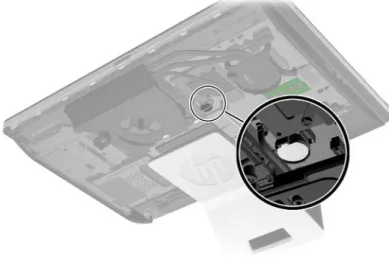
The battery is located on the system board on the lower right side of the fan. The battery that comes with the computer provides power to the real-time clock. When replacing the battery, use a battery
equivalent to the battery originally installed in the computer. The computer comes with a 3-volt lithium coin cell battery.
WARNING! The computer contains an internal lithium manganese dioxide battery. There is a risk of fire and burns if the battery is not handled properly. To reduce the risk of personal injury:
Do not attempt to recharge the battery.
Do not expose to temperatures higher than 60 °C (140 ºF).
Do not disassemble, crush, puncture, short external contacts, or dispose of in fire or water. Replace the battery only with the HP spare designated for this product.
CAUTION: Before replacing the battery, it is important to back up the computer CMOS settings. When the battery is removed or replaced, the CMOS settings will be cleared.
Static electricity can damage the electronic components of the computer or optional equipment. Before beginning these procedures, ensure that you are discharged of static electricity by briefly touching a grounded metal object.
NOTE: The lifetime of the lithium battery can be extended by plugging the computer into a live AC wall socket. The lithium battery is only used when the computer is NOT connected to AC power. HP encourages customers to recycle used electronic hardware, HP original print cartridges, and rechargeable batteries. For more information about recycling programs, go to http://www.hp.com/ recycle.
1. Remove all removable media, such as compact discs or USB flash drives, from the computer.
2. Turn off the computer properly through the operating system, then turn off any external devices.
3. Disconnect the power cord from the power outlet and disconnect any external devices.
CAUTION: You must disconnect the power cord and wait approximately 30 seconds for the power to drain before adding or removing memory modules. Regardless of the power-on state, voltage is always supplied to the memory modules as long as the computer is plugged into an active AC outlet. Adding or removing memory modules while voltage is present may cause irreparable damage to the memory modules or system board.
4. Remove/disengage any security devices that prohibit opening the computer.
5. Place the computer face down on a soft flat surface. HP recommends that you set down a blanket, towel, or other soft cloth to protect the bezel and screen surface from scratches or other damage.
6. Slide the access panel latches toward the edges of the chassis, then slide the access panel toward the top of the computer until it slides off the chassis.
Figure 2-23 Removing the Access Panel
The battery can now be seen on the lower right side of the fan.
Figure 2-24 Locating the Battery
7. To release the battery from its holder, squeeze the metal clamp that extends above one edge of the battery. When the battery pops up, lift it out (1).
8. To insert the new battery, slide one edge of the replacement battery under the holder’s lip with the positive side up. Push the other edge down until the clamp snaps over the other edge of the battery (2).
Figure 2-25 Removing and Replacing a Coin Cell Battery (Type 2)
9. To replace the access panel, set the panel on the back of the computer, slightly above the stand, and slide it down into place.
Figure 2-26 Replacing the Access Panel
10. Reconnect the power cord and external devices.
11. Lock any security devices that were disengaged when the access panel was removed.
12. Turn on the computer.
Replacing Drives
Replacing the Hard Disc Drive with a 3.5-inch Hard Disc Drive or a
Single 2.5-inch Drive
The hard disc drive is located behind the access panel on the left side of the computer (when viewed from behind). The drive is housed in a removable cage.
If you choose to install an optional 2.5-inch solid state drive (SSD) or self-encrypting drive (SED), you will need a drive adapter. The drive adapter may be part of the drive kit, or you may need to purchase it separately. It is recommended that you purchase a drive kit from HP that is designed to operate with the computer.
1. Remove all removable media, such as compact discs or USB flash drives, from the computer.
2. Turn off the computer properly through the operating system, then turn off any external devices.
3. Disconnect the power cord from the power outlet and disconnect any external devices.
CAUTION: Regardless of the power-on state, voltage is always present on the system board as long as the system is plugged into an active AC outlet. You must disconnect the power cord to avoid damage to the internal components of the computer.
4. Remove/disengage any security devices that prohibit opening the computer.
5. Place the computer face down on a soft flat surface. HP recommends that you set down a blanket, towel, or other soft cloth to protect the bezel and screen surface from scratches or other damage.
6. Slide the access panel latches toward the edges of the chassis, then slide the access panel toward the top of the computer until it slides off the chassis.
Figure 2-27 Removing the Access Panel
7. Pull the latch next to the lower side of the hard disc drive cage away from the cage to release it, then slide the cage toward the edge of the chassis and lift it out.
Figure 2-28 Removing the Hard Disc Drive Cage
8. Lift the latch on one side of the hard disc drive cage and pull the hard disc drive out of the cage.
9. Remove the four mounting screws from the hard disc drive. Be sure to keep the blue rubber grommets with each screw.
Figure 2-30 Removing the Mounting Screws
10. Screw the four mounting screws into the new hard disc drive. Be sure to keep the blue rubber grommets behind each screw.
Figure 2-31 Inserting the Mounting Screws
NOTE: If you choose to install an optional 2.5-inch solid state drive (SSD) or self-encrypting drive (SED), you must
1. mount the drive in a drive adapter
2. screw the four mounting screws into the drive adapter
11. Slide the new hard disc drive, or drive adapter holding an optional 2.5-inch drive, into the cage until it snaps in place. Be sure that the connector on the hard disc drive is at the opening of the cage.
Figure 2-32 Inserting the Hard Disc Drive into the Cage
12. With the hard disc drive connector facing toward the center of the chassis, place the hard disc drive cage into the chassis and slide it toward the center until it snaps into place.
13. To replace the access panel, set the panel on the back of the computer, slightly above the stand, and slide it down into place.
Figure 2-34 Replacing the Access Panel
14. Reconnect the power cord and external devices.
15. Lock any security devices that were disengaged when the access panel was removed.
16. Turn on the computer.
Replacing the Hard Disc Drive with Two 2.5-inch Drives
The hard disc drive is located behind the access panel on the left side of the computer (when viewed from behind). The drive is housed in a removable cage.
If you choose to install two optional 2.5-inch solid state drives (SSDs) or self-encrypting drives (SEDs), you will need a drive adapter. The drive adapter may be part of the drive kit, or you may need to purchase it separately. It is recommended that you purchase a drive kit with adapter and cable from HP that is designed to operate with the computer.
1. Remove all removable media, such as compact discs or USB flash drives, from the computer.
2. Turn off the computer properly through the operating system, then turn off any external devices.
3. Disconnect the power cord from the power outlet and disconnect any external devices.
CAUTION: Regardless of the power-on state, voltage is always present on the system board as long as the system is plugged into an active AC outlet. You must disconnect the power cord to avoid damage to the internal components of the computer.
4. Remove/disengage any security devices that prohibit opening the computer.
5. Place the computer face down on a soft flat surface. HP recommends that you set down a blanket, towel, or other soft cloth to protect the bezel and screen surface from scratches or other damage.
6. Slide the access panel latches toward the edges of the chassis, then slide the access panel toward the top of the computer until it slides off the chassis.
Figure 2-35 Removing the Access Panel
7. Push the release button (1) on the bottom of the stand and pull the back of the stand off (2).
8. Push the base of the stand down (1), and loosen the captive screws securing the stand to the chassis (2).
Figure 2-37 Releasing the Stand
9. Lift the stand up and off the computer.
Figure 2-38 Removing the Stand
10. Remove the screw (1) in the middle of the lower panel, and detach the lower panel from the chassis (2).
Figure 2-39 Removing the Lower Panel
12. Slide the metal plate left (1), then lift it off the chassis (2).
Figure 2-40 Removing the Metal Plate
13. Pull the latch next to the lower side of the hard disc drive cage away from the cage to release it, then slide the cage toward the edge of the chassis and lift it out.
Figure 2-41 Removing the Hard Disc Drive Cage
14. Lift the latch on one side of the hard disc drive cage and pull the hard disc drive out of the cage.
Figure 2-42 Removing the Hard Disc Drive from the Cage
15. Remove the four mounting screws from the hard disc drive. Be sure to keep the blue rubber grommets with each screw.
Figure 2-43 Removing the Mounting Screws
17. Screw the four mounting screws into the drive adapter holding the two 2.5-inch drives. Be sure to keep the blue rubber grommets behind each screw.
Figure 2-44 Inserting the Mounting Screws
18. Slide the drive adapter into the cage until it snaps in place. Be sure that the connectors on the hard disc drives are at the opening of the cage.
Figure 2-45 Inserting the Drive Adapter into the Cage
19. With the hard disc drive connectors facing toward the center of the chassis, place the hard disc drive cage into the chassis and slide it toward the center until it snaps into place.
Figure 2-46 Installing the Hard Disc Drive Cage
20. Connect the SATA cable to the blue SATA 1 connector and to the power connector next to the SATA 1 connector on the system board.
21. Be sure that excess cable length is out of the way and that cables are laying flat across the power supply. Connect the cable to the top drive.
Figure 2-48 Connecting the Top 2.5-inch Drive
22. Keeping the cables flat, match up the four holes in the plate with the four posts and set the metal plate on the chassis. Slide the plate firmly to the right to secure the plate.
Figure 2-49 Replacing the Metal Plate
23. Secure the metal plate to the chassis with the screws previously removed.
24. Slide the lower panel up onto the chassis (1), engaging the hooks on the lower edge. Be sure that the VESA mounting posts protrude through the corner holes of the center square and that the center hole is lined up with the screw hole.
Figure 2-50 Replacing the Lower Panel
26. Engage the hooks in the top of the stand in the two large holes in the top of the lower panel, and lower the stand onto the computer.
Figure 2-51 Replacing the Stand
27. Tighten the captive screws to secure the stand to the chassis.
28. Align the top of the back of the stand with the stand, and press it into place, working along the sides until it is in place.
Figure 2-52 Replacing the Back of the Stand
29. To replace the access panel, set the panel on the back of the computer, slightly above the stand, and slide it down into place.
Figure 2-53 Replacing the Access Panel
30. Reconnect the power cord and external devices.
31. Lock any security devices that were disengaged when the access panel was removed.
32. Turn on the computer.
Replacing the Optical Disc Drive
The optical disc drive is located above the hard disc drive on the left side of the computer (when viewed from behind).
1. Remove all removable media, such as compact discs or USB flash drives, from the computer.
2. Turn off the computer properly through the operating system, then turn off any external devices.
3. Disconnect the power cord from the power outlet and disconnect any external devices.
CAUTION: Regardless of the power-on state, voltage is always present on the system board as long as the system is plugged into an active AC outlet. You must disconnect the power cord to avoid damage to the internal components of the computer.
4. Remove/disengage any security devices that prohibit opening the computer.
5. Place the computer face down on a soft flat surface. HP recommends that you set down a blanket, towel, or other soft cloth to protect the bezel and screen surface from scratches or other damage.
6. Slide the access panel latches toward the edges of the chassis, then slide the access panel toward the top of the computer until it slides off the chassis.
Figure 2-54 Removing the Access Panel
7. Lift the tab at the back of the optical disc drive enclosure to release the drive.
Figure 2-55 Removing the Optical Disc Drive
8. Remove the two screws securing the optical disc drive bracket to the drive.
Figure 2-56 Removing the Optical Disc Drive Bracket
9. Secure the optical disc drive bracket to the new drive with the two screws.
10. Align the new optical disc drive with the opening in the side of the computer. Push the drive in firmly until it snaps into place.
NOTE: The optical disc drive can be installed in only one way.
Figure 2-58 Installing the Optical Disc Drive
11. To replace the access panel, set the panel on the back of the computer, slightly above the stand, and slide it down into place.
Figure 2-59 Replacing the Access Panel
12. Reconnect the power cord and external devices.
13. Lock any security devices that were disengaged when the access panel was removed.
14. Turn on the computer.
A Electrostatic Discharge
A discharge of static electricity from a finger or other conductor may damage system boards or other static-sensitive devices. This type of damage may reduce the life expectancy of the device.
Preventing Electrostatic Damage
To prevent electrostatic damage, observe the following precautions:
● Avoid hand contact by transporting and storing products in static-safe containers.
● Keep electrostatic-sensitive parts in their containers until they arrive at static-free workstations. ● Place parts on a grounded surface before removing them from their containers.
● Avoid touching pins, leads, or circuitry.
● Always be properly grounded when touching a static-sensitive component or assembly.
Grounding Methods
There are several methods for grounding. Use one or more of the following methods when handling or installing electrostatic-sensitive parts:
● Use a wrist strap connected by a ground cord to a grounded workstation or computer chassis. Wrist straps are flexible straps with a minimum of 1 megohm +/- 10 percent resistance in the ground cords. To provide proper ground, wear the strap snug against the skin.
● Use heelstraps, toestraps, or bootstraps at standing workstations. Wear the straps on both feet when standing on conductive floors or dissipating floor mats.
● Use conductive field service tools.
● Use a portable field service kit with a folding static-dissipating work mat.
If you do not have any of the suggested equipment for proper grounding, contact an HP authorized dealer, reseller, or service provider.
NOTE: For more information on static electricity, contact an HP authorized dealer, reseller, or service provider.
B Computer Operating Guidelines,
Routine Care and
Shipping Preparation
Computer Operating Guidelines and Routine Care
Follow these guidelines to properly set up and care for the computer:
● Keep the computer away from excessive moisture, direct sunlight, and extremes of heat and cold. ● Operate the computer on a sturdy, level surface. Leave a 10.2-cm (4-inch) clearance on all vented
sides of the computer to permit the required airflow.
● Never restrict the airflow into the computer by blocking any vents or air intakes. ● Never operate the computer with any of the access panels removed.
● Do not place computers so near each other that they are subject to each other’s recirculated or preheated air.
● If the computer is to be operated within a separate enclosure, intake and exhaust ventilation must be provided on the enclosure, and the same operating guidelines listed above will still apply. ● Keep liquids away from the computer and keyboard.
● Never cover the ventilation slots with any type of material.
● Install or enable power management functions of the operating system or other software, including sleep states.
● When cleaning the computer turn off power to the computer and unplug the power cord before you do any of the following:
◦ Wipe the exterior of the computer with a soft, damp cloth as needed. Using cleaning products may discolor or damage the finish.
◦ Do not use cleaners that contain any petroleum based materials such as benzene, thinner, or any volatile substance to clean the screen or cabinet. These chemicals may damage the computer.
◦ Wipe the screen with a soft, clean antistatic cloth. For more difficult cleaning situations, use a 50/50 mix of water and Isopropyl alcohol. Spray the cleaner onto a cloth and use the damp cloth to gently wipe the screen surface. Never spray the cleaner directly on the screen surface. It may run behind the bezel and damage the electronics.
◦ Occasionally clean the air vents on all vented sides of the computer. Lint, dust, and other foreign matter can block the vents and limit the airflow.
Optical Disc Drive Precautions
Be sure to observe the following guidelines while operating or cleaning the optical disc drive. ● Do not move the drive during operation. This may cause it to malfunction during reading.
● Avoid exposing the drive to sudden changes in temperature, as condensation may form inside the unit. If the temperature suddenly changes while the drive is on, wait at least one hour before you turn off the power. If you operate the unit immediately, it may malfunction while reading.
● Avoid placing the drive in a location that is subject to high humidity, extreme temperatures, mechanical vibration, or direct sunlight.
CAUTION: If any object or liquid falls into the drive, immediately unplug the computer and have it checked by an authorized HP service provider.
Shipping Preparation
Follow these suggestions when preparing to ship the computer:
1. Back up the hard disc drive files on optical media or external USB drives. Be sure that the backup media is not exposed to electrical or magnetic impulses while stored or in transit.
NOTE: The hard disc drive locks automatically when the system power is turned off.
2. Remove and store all removable media.
3. Turn off the computer and external devices.
4. Disconnect the power cord from the electrical outlet, then from the computer.
5. Disconnect the system components and external devices from their power sources, then from the computer.
NOTE: Ensure that all boards are seated properly and secured in the board slots before shipping the computer.
6. Pack the system components and external devices in their original packing boxes or similar packaging with sufficient packing material to protect them.
Index
A additional information 9 B battery replacement 25 C components front 3 internal 20 rear 4 side 4computer operating guidelines 49
D
DisplayPort video adapter, connecting 18
E
electrostatic discharge, preventing damage 48 F features keyboard 5 overview 1 front components 3 G grounding methods 48 H
hard disc drive, replacing 29 height adjustment 6
I
installation guidelines 8 installing
2.5-inch drive, single 29 2.5-inch drives, two 33 3.5-inch hard disc drive 29 access panel security screw 12 battery 25
cable lock 12 memory 23
optical disc drive 44 second display 18 internal components 20 K keyboard features 5 removing batteries 14 synchronizing wireless 13 M memory installing 23 removing 23 SODIMMs specifications 21 specifications 21
mounting the computer 15 mouse
removing batteries 14 synchronizing wireless 13
O
optical disc drive precautions 50 replacing 44 P power connecting 10 disconnecting 11 R rear components 4 rear port cover
installing 9 removing 9 removing battery 25 rotation 6
S
second display connection 18 security
access panel security screw location 12
cable lock slot location 12
shipping preparation 50 side components 4 SODIMM identification 23 location 23 specifications 21 specifications, memory 21 swivel adjustment 6
synchronizing wireless keyboard and mouse 13
T
tilt adjustment 6
V
ventilation guidelines 49 VESA mounting holes 15
W
warnings and cautions 8