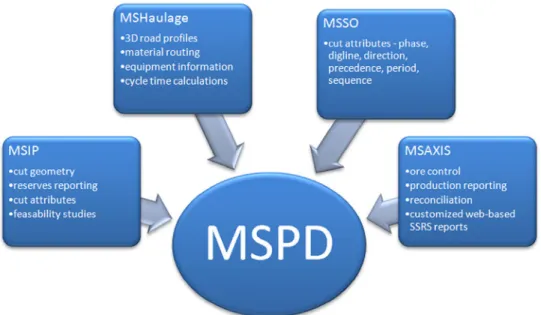
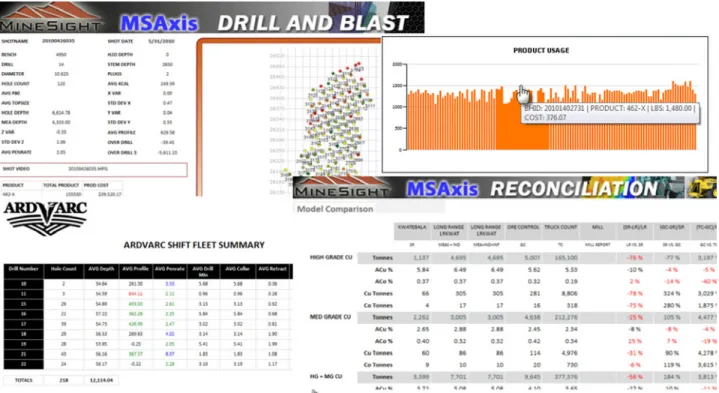
Figure 1The MineSight Planning Database (MSPD) coordinates the flow of data between MineSight products.
The MineSight Planning Database
Perhaps nothing is more crucial to integrating the overall mining process than a reliable and accessible hub for data management. The MineSight Planning Database, or MSPD, answers all your mine planning data access and storage needs. Using the proven client-server architecture in Microsoft® SQL Server®, information can easily be exchanged. From designing and planning through scheduling and production, MSPD ensures information is exchanged with integrity (Figure 1). And all of this information is at your fingertips thanks to the MSPD Manager.
What is the MsPD?
The MSPD is a hub for data utilized by the MineSight design, planning, scheduling and production programs. It is contained in a Microsoft SQL Server 2005 or 2008 database. Either the full SQL or Express versions are compatible. It is an open database with an exposed data model, which allows for easy queries, reports, and summaries. It also provides easy importing and exporting of external data, while ensuring secure read-write capability. It can be accessed and managed from within MineSight 3D using MSPD Manager, or through third-party tools, such as SQL Server Management Studio and SQL Server Reporting Services (SSRS).
The MSPD is key to managing the information necessary for mine development plans. It is used extensively to manage data in MineSight Interactive Planner (MSIP), MineSight Haulage, MineSight Schedule Optimizer (MSSO), and MineSight Axis (MSAxis). Figure 2 lists some of the types of data stored in the MSPD.
MsPD Basics
It helps to understand the architecture of an SQL – MSPD database system. The actual physical MSPD database is contained in the SQL database files, the .mdf and .ldf extension files stored on your server or local computer. To access an SQL database, set up an ODBC (Open DataBase Connectivity) “bridge” to link from MineSight to the MSPD database (Figure 3). Establishing this bridge allows you to connect to the database through the ODBC connection at any time easily. A new bridge can always be constructed to get there from virtually anywhere.
Figure 3 MineSight programs and the MSPD SQL database communicate with each other through a standard ODBC connection.
The MSPD Manager (Utilities | MSPD | MSPD Manager) helps satisfy MSPD database management needs from within the MineSight 3D interface. All of the underlying SQL tasks are performed behind the scenes to create new databases and manage existing databases with ease. The MSPD Manager is also accessible from the command line (MineSight\Scripts\ MineSight_Database_Manager.py).
GettinG starteD
Getting Connected
Whether you’re creating a new MSPD or managing an existing MSPD, first connect to your server. On the MSPD Manager | Connection tab, identify the server and login information to access the SQL database repository (Figure 4).
Once connected, all MSPDs created, attached, or restored while connected to this server will be available for management. To create a new MSPD that’s accessible from MineSight programs, follow these steps on the Utilities | MSPD menu. First, create an SQL database that will house the MSPD. Second, construct the ODBC connection to access that MSPD database from MineSight. Third, connect to the MSPD through that ODBC connection.
Creating a New MSPD
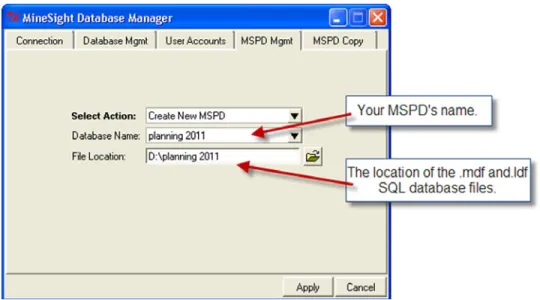
While connected to your server, create a new MSPD on the MSPD Manager | MSPD Mgmt tab (Figure 5). The specified file location is where the SQL database files will be located. These can be either stored locally on your computer, or on the server for numerous users to access.
Figure 5Creating a new MSPD database through the MSPD Manager will automatically add all the attributes and tables MineSight needs.
This will construct the MSPD SQL database, which consists of two files with a specified name and .mdf and .ldf extensions (Figure 6). This database contains all necessary attributes and tables for all the MineSight products that use them.
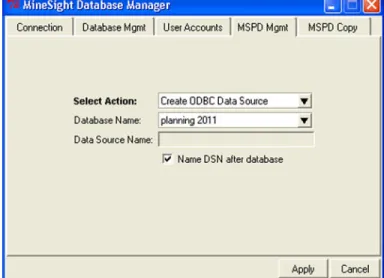
Figure 7Creating the ODBC connection identifies your MSPD to MineSight programs.
This will create an ODBC connection linking your MSPD to MineSight programs. Use the option ‘Name DSN after database’ to name your ODBC Data Source with the same name as the MSPD Database Name. This will avoid confusion as to which ODBC goes with which MSPD.
You are ready to use MSPD, through your ODBC connection, in all the MineSight programs that access the MSPD. All that
remains is to connect to it.
Connecting MineSight 3D to Your MSPD
Connect your current MineSight 3D session to MSPD, by using Utilities | MSPD | Connect to MSPD. A SelectData Source
dialog is presented, and the Machine Data Source tab lists your ODBC connections. Specify the ODBC connection for the MSPD you want to access (Figure 8).
Figure 8Connecting your MineSight session to your MSPD via the ODBC connection. to MineSight. Therefore, their security and integrity is vital.
Establishing the ODBC Connection
When accessing MSPD from within MineSight programs, you will often be asked to specify the ODBC connection, not select the MSPD directly. So the ODBC name is the one used most to identify with your MSPD.
Keeping track of your current MSPD connection is critical. Plans are only available via a proper connection through the correct ODBC and corresponding MSPD. MSIP will automatically connect to the ODBC->MSPD associated with the IP Plan. If the current connection differs from that associated with the plan, it will prompt you to switch to that connection. MSHaulage will connect to whichever connection is current, so be aware of your current connection at all times. If necessary, Disconnect and re-Connect to the needed ODBC->MSPD. In MSSO, the ODBC connections are not referenced, and each mining area is set to be associated with a specified MSPD directly.
ManaGinG your MsPD
Depend on MSPD Manager for the performance you need from MSPD. It efficiently manages your MSPDs from within
MineSight.
The MSPD Manager | Database Mgmt tab simplifies managing the MSPDs in your project (Figure 10).
Figure 10MSPD Manager’s Database Mgmt functions.
Attach an existing MSPD database by specifying the SQL .mdf and .ldf filenames. Once the files are attached, this database will be one of your MSPDs whenever you are logged into your server. Create an ODBC connection to access it with
MineSight programs. You can also Detach an existing MSPD database. When a database is detached, the data containing SQL .mdf and .ldf files are left intact on the disk, but the reference to the MSPD and its associated ODBC connection is removed. The bridge to the data can always be reconstructed by reattaching the files, and rebuilding the ODBC.
MSPD databases can also be backed up and restored via a single file, with a .bak extension, using the Backup and Restore
options. It’s a convenient way of backing up and sharing entire MSPDs.
Use the MSPD Manager | MSPD Mgmt tab for tasks more specific to the architecture of the MSPD, and for specific
MineSight purposes. (Figure 11).
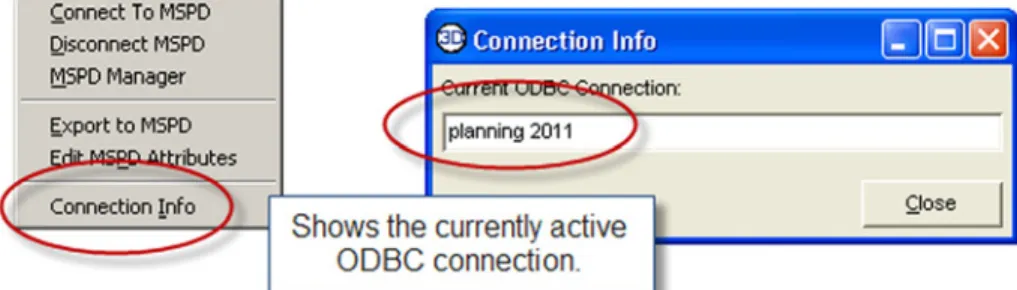
Use Utilities | MSPD | Connection Info to query and confirm your current connection (Figure 9).
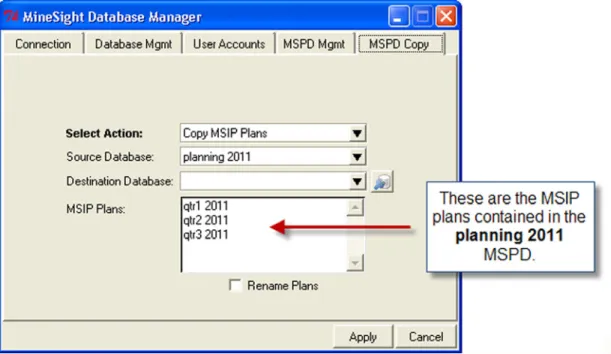
Here’s where the specific needs of MSIP, MSHaulage, and MSSO are addressed. For older existing databases, the new option Update MSPD, will bring in all attributes and tables needed for all the latest functionality of all the products. Information is easily exchanged between departments or tasks with the latest major enhancement to MSPD management – the MSPD Manager | MSPD Copy tab (Figure 12).
Figure 12MSPD Manager’s new MSPD Copy functions
Here, MSIP, MSHaulage, and MSSO attributes and plans can be easily copied between MSPDs on your computer, your server, and even between MSPDs on different servers
rePortinG your Plans
A benefit of utilizing an exposed SQL database to store the MSPD is that, in addition to the MineSight reporting tools, such as IP scripts and ARC reporting, the project information is also accessible by non-MineSight means, such as via Microsoft SQL Server Reporting Services (SSRS) reporting.
MineSight Axis setups exploit this to produce SSRS reports for ore control, production, and reconciliation. These SSRS reports incorporate not only MSPD data, but can gather and report alongside data from other production related data repositories (Figure 13). These include fleet management systems (Caterpillar® CAES, Caterpillar AQUILA™, Flanders Electric ARDVARC™, Modular DISPATCH®, Jigsaw Technologies), Laboratory Information Management Systems (LIMS) or other assay data sources, survey information, and blasting product information (Southwest Energy, Orica®).
SSRS reporting is flexible, easily formatted, and best of all web accessible, allowing non-MineSight personnel, such as management, to get the numbers they need in the format they need it in. You can also export to Excel for sharing and further post-processing.
soMe tiPs to KeePinG it all straiGht
To which MSPD is an ODBC connection associated?
Without a diligent naming protocol, you may need to figure out the associations between multiple MSPDs and multiple ODBC connections. ODBC connections are managed outside of MineSight, with the standard Windows tool under Control Panel | Administrative Tools | Data Sources (ODBC) (Figure 14).
w w w. m i n e s i g ht. co m
How to Visualize MSPD Data with Geometry Views
All geometry data contained in an MSPD can be easily viewed in MineSight 3D, and filtered and styled by attribute, using Geometry Views. For a detailed explanation of how to view your MSPD geometry via MS3D Geometry Views, refer to the online documentation under Basic Concepts | Data Object Types | Geometry View Objects, or click here for the newsletter article, Accessing MSPD Geometry via MS3D Geometry Views (2009).
The MineSight Planning Database has propelled mine planning and development out of the rigid database structures of the past and into the future of seamless data access and exchange.
For more information about the MSPD, consult the online documentation under Basic Concepts | MineSight Planning Database or User’s Guide |Utilities Menu | MSPD. Alternatively, visit www.minesight.com and Products | Short Term Planning or Production.
So, for example, to know which MSPD the ODBC connection named ‘east pit’ belongs to, select that ODBC from the list of User Data Sources, choose the Configure option to see how it’s configured, and click Next> to the third screen. Here you will find the MSPD database associated with that ODBC connection.
You can also delete redundant ODBC connections from this tool, if old ones are cluttering your list.
How to tell what Plans and Geometry Views are contained within an MSPD
With the new Copy functions in the MSPD Manager comes a convenient method to list all the plans and geometry contained within an MSPD. Simply select Copy IP Plans (or Haulage Plans, or Geometry Objects), select the Source Database (MSPD) you want to query, and in the scroll list will be all the plans or geometry view objects that exist within that MSPD (Figure 15).