User’s Guide
Version 6.4.2
Site Builder User’s Guide
This document is subject to change without notice. Though every effort was made to ensure the accuracy of this publication, there can be no guarantee as to the accuracy of the printed material. This document is protected by United States copyright law and may not be reproduced, distributed, transmitted, displayed, published or broadcast without prior written permission. All trademarks and service marks contained in this document are the property of their respective owners.
Preface:
About This Guide
Introduction . . . viii
Intended Audience . . . viii
Version Information . . . viii
Using Documentation . . . ix
Contents of This Guide. . . ix
Related Documentation . . . ix
Conventions . . . .x
Chapter 1:
Introduction
Web Concepts . . . 1-2
A Server for Every Need . . . 1-2 Name That Domain . . . 1-3 Language of the Web . . . 1-4
Planning Your Website . . . 1-5
Site Map . . . 1-5
Adding Content . . . 1-6
Templates and Designs . . . 1-6 Multi-page or Quickstart Templates . . . 1-6 Web Logs . . . 1-7 Site Add-Ons . . . 1-8 Rich Text Editor . . . 1-9
Website Management. . . 1-10
Site and Navigation Management . . . 1-10 Site Accessibility . . . 1-10 Customer Access Manager . . . 1-10 One-Click Publishing . . . 1-11
Product Catalogs . . . 1-12
eStore Builder. . . 1-12 MIVA Merchant. . . 1-12
Chapter 2:
Adding and Managing Content
Contents
iv
Getting Started . . . 2-2 Using the All My Sites Toolbar . . . 2-4 Using the Working Toolbar . . . 2-5
Building a Site . . . 2-8
Choosing a Template . . . 2-8 Naming the Site . . . 2-9 Choosing a Design. . . 2-11 Editing the Template Text . . . 2-11 Adding Your Own Content . . . 2-12 The Three P’s – Preview, Publish, and Promote . . . 2-13
Using Rich Text Editor (RTE) . . . 2-15
RTE Toolbar . . . 2-15 Inserting Links . . . 2-19 Inserting Pictures . . . 2-19 Inserting and Editing Tables . . . 2-21 Editing HTML . . . 2-22 Inserting Custom Characters and Emoticons. . . 2-23 Spell Checker . . . 2-24 E-store Builder . . . 2-24
Using the Picture Gallery . . . 2-25
Creating Galleries and Uploading Pictures . . . 2-27 Simple Picture Upload . . . 2-27 Bulk Picture Upload . . . 2-28 Adding a Picture and Changing Settings . . . 2-29 Managing Galleries . . . 2-30
Using Tables . . . 2-32
Editing a Table . . . 2-33 Table Options. . . 2-34 Column Options . . . 2-35 Row Options . . . 2-36 Cell Options . . . 2-36 Editing Forms . . . 2-37 Adding Elements . . . 2-38 Form Examples . . . 2-39
Using Site Add-Ons . . . 2-41
E-store Builder Site Add-Ons . . . 2-45 MIVA Merchant Site Add-Ons . . . 2-45
Managing Your Site . . . 2-46
Managing Pages . . . 2-46 Managing the Navigation Bar. . . 2-47 Creating Submenus . . . 2-48 Managing Customer Access . . . 2-49
Chapter 3:
Advanced Topics
Overview . . . 3-2
Adding HTML or Javascript . . . 3-3 Adding a Flash File . . . 3-3
Customizing a Design . . . 3-5
Accessing a Design . . . 3-5 Example – Abstract Red Design . . . 3-6 Example – Design_3012 . . . 3-11 Resetting a Design. . . 3-14
Chapter 4:
The E-store Builder
Introduction . . . 4-2 Creating a Catalog . . . 4-3
Setting Up Ordering Information . . . 4-4 Creating Categories . . . 4-5 Selecting a Product Layout . . . 4-6 Choosing Where to Display Your Catalog . . . 4-7
Managing Products and Categories . . . 4-9
Product Maintenance . . . 4-9 Category Maintenance . . . 4-10 Using a Spreadsheet to Populate Your Catalog . . . 4-10
Publishing Your Site . . . 4-12
Index
Contents
About This Guide
This guide explains the features of Site Builder and how you can use it to easily and quickly create a website. The topics discussed in this guide include:
z Introduction to the features of Site Builder
z How to get started in Site Builder and use it to build your website z Advanced topics such as including customizing a design
Preface Introduction
viii
Introduction
The Site Builder User’s Guide describes the features of Site Builder and how to use it to create a website. It contains feature descriptions, examples, and procedures. Specifically, this guide describes:
z The key features of Site Builder
z The process you follow to create a website
z Some procedures for more complex features of Site Builder z The process for adding a product catalog to your website
Intended Audience
This guide should be used by anyone who wants to create a website, or who needs to maintain a website already created in Site Builder.
To perform the procedures in this guide, you should be familiar with basic personal computer operation skills. No programming or software design skills are necessary.
Version Information
The information in this guide is accurate for version 6.4.2 of Site Builder. It includes information about the following products and tools:
z Site Builder z eStore Builder
Using Documentation
This section outlines the structure of the User’s Guide and explains other guides in the documentation set and their intended audiences.
Contents of This Guide
This guide consists of four chapters. The following table describes each chapter.
Related Documentation
For more information, you can access the online Help at any time when you’re using Site Builder. To access the online Help, just click Help on the toolbar.
Chapter Description
Chapter 1, Introduction Introduces the key features of Site Builder Chapter 2, Adding and Managing
Content
Describes how to get started in Site Builder, the process for building a website, and how to use specific features to build your website
Chapter 3, Advanced Topics Describes advanced topics such as including your own HTML, Javascript, or Flash file, or how to customize a design
Chapter 4, The E-store Builder Describes how to create and add a product catalog to your website using the eStore Builder
Preface Conventions
x
Conventions
Several text formatting conventions are used in this guide to make it easier to identify commands, keys, files, directories, properties, parameters and other items. The following table describes the typographical conventions used in this guide.
Formatting Is used to designate...
Bold Type The name of a menu, command, field, button, or link. For example:
On the File menu, click Open.
Italic Type A term being defined for the first time, the title of a guide or other document, or variable names.
Monospace Text that should be entered exactly as shown (including
punctuation) or examples of code. Here is an example of a command line:
1
Introduction
So you want to create a website. Great! But what does that really mean, and how do you know where to start? This chapter explains some basic web concepts, and describes how Site Builder can help you reach your goal of creating your own website.
This chapter contains the following topics: z Web Concepts
z Planning Your Website z Adding Content z Website Management z Product Catalogs
Introduction Web Concepts
1-2
Web Concepts
You’ve heard of the web, you’ve most likely been out there surfing, and now you’re ready to stake your claim with a website of your own. But how are all of these sites connected, and how do you know what to name your site? And finally, do you need to know how to program to create a website?
These are all daunting questions that might make you hesitate to even get started. But don’t run away yet - this section answers these questions. Without getting into too many technical descriptions that may leave you wondering “And I need to know this because...?”, this section aims to clarify the basics that can help you get started.
If you’d like to know more about the history of the web or the technical details of web communication protocols, there are many excellent books and sites out there already to provide that information.
A Server for Every Need
The Web is a system of interconnected documents housed on many types of computers. One of several master computers “serves up” these documents when requested. Your computer receives these documents that the master computer serves. You access the Web on your computer through a company that offers internet access, called an Internet Service Provider (ISP), and by viewing the documents through a browser such as Microsoft® Internet Explorer.
Master computers can be dedicated to different purposes, such as e-mail or storing files. The following table describes some of the most common types of master computers on the Web.
Computer Type Description
e-mail Stores and sends e-mail
FTP Stores many different kinds of files that you can request at will
Name That Domain
The domain name is, quite simply, the name of a site. When you’re browsing the web you may notice domain names ending with different extensions. Many of these extensions are reserved for specific types of sites, such as government or educational institutions. The following table lists some of the most common domain extensions on the Web.
If you go to a site that originates in a country other than the United States, you may also notice that the country’s identity is part of the domain name. Each country has an extension reserved for it.
When you create your site, you need to decide what to use as the descriptive part of your domain name. Try to use a short, easy-to-remember name that reflects the goals of your site. For example, if you create a site for your extended family to keep up with the news and happenings of your immediate family, you may use something like smithfamily as the descriptive part of the domain name. When your site is viewable on the Web, it may look like this: www.myhost.com/smithfamily
If you register the domain name yourself, it may look like this: www.smithfamily.com
Either way, the second part of the domain name is the descriptive part that makes your site unique from all the others.
You should also make sure that the website name is easy to spell, especially if you use it in e-mails. If the website name is difficult to spell, users could easily miss your site if they misspell it.
Web Stores Web pages and their associated files, such as graphics or sound clips
Computer Type Description
Domain Extension Description
.com Commercial sites, such as online stores .net Internet services, such as an e-mail site .org Non-profit sites
Introduction Web Concepts
1-4
Language of the Web
Hyper Text Markup Language, or HTML, is the programming language used to create Web documents. So why don’t you see this programming language when you view a Web page in your browser? Because the browser interprets the HTML and presents an easy-to-read document, hiding the programming language. HTML simply provides a universal language that all browsers read. Now you just need to find the nearest training center to learn HTML and then you’re all set to create your site – just kidding! The beauty of Site Builder is that you don’t need to know one bit of HTML to create a site. Everything from creating the look and feel of your site to making it viewable on the Web is handled for you. Site Builder even provides initial content to get you going, just in case you get a case of writer’s block. We’ll talk about more of the features and advantages of Site Builder later on.
Planning Your Website
So now that you know some basics about Web concepts, let’s get started planning your site. Consider the following questions:
z What do you want to accomplish with your site? Is it simply to share
information, or do you want to use it to drive sales to a business? Do you want to generate leads to your business by offering information about it on a website?
z What kind of information do you want to provide for visitors to your site? z Do you want visitors to be able to send information back to you, or to post
information on your site?
z If your site is for an online business, will you provide a product catalog for
online shopping? How many products will be in the catalog, and what type of payment will you accept?
It might be a good idea at this point to get out a pencil and paper and jot down answers to these questions. Based on the answers, you can decide how many pages and how interactive you want your site to be. For example, for each type of information you want to provide, you can create a new page to accomplish that goal.
It’s also a good idea to go to some of your favorite sites and note what you like or dislike about each site, then keep those things in mind as you plan your own site.
Site Map
After you determine the goal of your site, you could make a sketch an informal site map, which is a list of pages and how they would link to each other. You should also include a brief description of what content you’ll provide on each page.
Introduction Adding Content
1-6
Adding Content
Site Builder’s extensive features makes it easy to turn your plans for your site into a reality, and with very little effort. The whole point of Site Builder is to lead you through the steps of creating your site, with content-focused templates, designs, and extras such as easy-to-use forms, blogs, and customizable photo galleries.
Templates and Designs
Templates control the content, layout, and pages of your site, while designs
control the graphics, fonts, colors, and general look and feel of your site. Unlike other website building tools, Site Builder separates the tasks of adding content from designing the look and feel of your site. What does this do for you?
z Provides publish-ready starter content without the need to think about
design elements such as colors and fonts until later. Site Builder uses best practices to identify the content you need based on your site goals.
z You can offer the same content but with a different look and feel as design
trends change, and with little effort.
z The combination of over 100 templates with over 300 designs provides
for over 30,000 possible variations of websites.
Multi-page or Quickstart Templates
Whether you know exactly what you want to offer on your site or you don’t know where to start, Site Builder has templates to help you get started in either situation. Site Builder offers functionally-organized categories of templates that provide the content pages you’ll most likely need based on your site goals. The following table describes the template categories and the types of templates or subcategories of templates you might find in each.
Template Description
Recommended Lists templates used for some of the most common sites, such as for accountant, restaurant, and merchant services
Many templates are available from multiple category tabs in Site Builder. Before you choose a template, browse through the different categories of templates and take a look at a few that you think might be useful for your site.
Web Logs
Web logs, or blogs, are online entries about anything you want to
communicate, similar to a diary or a journal. They provide another way for you to create content that might be picked up by different search engines, and therefore generate more traffic and exposure to your site. This is very important if your site is for a business or created with a specific interest in mind.
Site Builder’s blogging service is fully integrated, seamlessly displaying blog entries to site visitors rather than “jumping” to another blogging service that doesn’t have the same design and feel of your site. This contributes to the overall cohesiveness of your site and makes for a better site visitor experience.
Other Offers functionally organized subcategories of templates such as:
z Most popular sites
z Personal sites
z Photo album sites
z Fan sites
z Especially for teens
z Greeting cards and special events
Business Offers the following subcategories of templates for businesses:
z Professional services
z Hospitality
z Building and manufacturing
z Shopping and sales
z Health and family
Organizations Contains templates you can use for different types of organizations. The following are some examples:
z About My Class
z Campaigning and Government
z Membership Organization
z Nonprofit Agency Site
Introduction Adding Content
1-8
You can also link your blog to an RSS file to make it available for distribution on other sites. This drives more visitors to your site and increases ranking and exposure.
Site Add-Ons
Site Builder provides extra services, or add-ons, that you can add to your site to provide little extras to site visitors. These services are self-contained and don’t require any programming – just select the add-on you want to use, then follow the steps to add it.
The following table describes some of the add-ons offered in Site Builder.
Add-On Description
Forms Forms allow visitors to interact with you by sending feedback, questions, e-mail addresses, or
recommendations to other potential visitors to your site. Site Builder offers a gallery of best practice form styles that are easily customizable to suite your needs, and that don’t require any complex set-up requirements such as determining character and field types. You can deploy a form in Site Builder with as little information and effort as entering a destination e-mail address. News Feeds powered by
Moreover and RSS Support
Both of these services allow you to offer dynamic content based on categories or from a specific site you’re approved. For example, you can offer the top stores from TIME magazine with news feeds, or you can set up a RSS feed from a photo account such as Flikr that updates your site as you send photos from your mobile phone to your Flikr account.
Custom HTML If you are familiar with HTML, you can add your own HTML to reference images, files, Javascript, media players, and plug-ins from any service provider. Site Builder makes it easy to add your own HTML by guiding you to the location selection. You only need to add the HTML.
Photo Gallery You can add multiple galleries to store different types of photos. For example, you can create a separate photo gallery for family photos, and keep business photos and images in another gallery. This allows easy access to photos without having to scroll through multiple page to find the image you want. You can also set photo display characteristics once on an admin page and have those characteristics apply to all displayed photos, saving time and effort when adding photos.
Rich Text Editor
The Rich Text Editor (RTE) support provides an enhanced set of controls, similar to word processing controls, to quickly and easily add and edit content. Site Builder’s RTE includes the ability to do the following:
z Spell check your site.
z Provide quick, direct links, call anchors, to website sections or pages.
This lets your site visitors find content easily and quickly.
z Create tables and insert pictures quickly and efficiently.
z Add depth and interest to your design with enhanced font and content
controls, such as emoticons.
Microsoft® MapPoint Maps You can easily add a map to your site by simply entering the address to which you want to navigate. Site Builder also allows you to place custom content around the map and choose the ideal location on your site for the map. All of this takes place on your site, not a third-party site, so there’s no undesired content to distract visitors from your site.
There are two types of map Site Add-Ons, and the one you get is determined by the package plan that you purchase:
z Hosted by Microsoft (free) – Links to Microsoft MapPoint
z Integrated into your site (for a fee)
For more information, see your sales representative. Site Map You can provide additional site navigation aid for your
site visitors by offering a site map. It’s as easy as selecting a page for display and publishing. Every time you publish your site the site map is updated
automatically with additional pages and sub-navigation additions.
Introduction
Website Management
1-10
Website Management
After you add content you can manage specific characteristics of your site, such as customizing the navigation bar, setting up sub-sites, and making your site more accessible to search engines. You can also make your site
password-protected and accessible to specific visitors only.
Site and Navigation Management
Site Builder allows you to change the look and order of items in the navigation bar, and to even create sub-navigation menu items as needed. This lets your visitors find pages deeper in your site with the weight of a complex navigation scheme. For example, if you have a top-level navigation menu of Building Supplies, you can create sub-navigation menus of Decks and Patios, Framing, and Retaining Walls. To change the navigation and create sub-navigation menus, you just drag and drop the sub-navigation items to the order you want.
Site Builder also gives you the ability to create any number of sub-sites off the top level domain, limited only by storage limitations by your plan. This lets you create full websites with variable content and to build additional sites for special occasions or family uses, all accessible from a single, central control panel. For example, if you have a domain of www.smithfamily.com for a family website, and you want to create a website for planning a family reunion, you could create the site www.reunion.smithfamily.com.
Site Accessibility
What good is a site if no one sees it, or at least if the visitors you’re targeting don’t visit it? All content in Site Builder is indexed, so it is important to write good content for better indexing by search engines. Good content and titles on your website will yield productive search results by search engines. Also, Site Builder lets you enter meta tags to help some search engines find your site. Although they aren’t required, meta tags help describe your site to a search engine and can help drive visitors to your site, if you enter thoughtful and accurate meta tags, and if the search engine supports meta tags. You can add meta tags for every page on your site.
Customer Access Manager
Site Builder gives you the ability to set unique user names and passwords per visitor to your site. You can use this feature to restrict access to your site, and to collect valuable visitor information. For example, you can offer a newsletter on your site that requires visitors to register. You can use this registration
information to acquire leads, export to e-mail marketing systems, or generate e-mail solicitations. If your site is for a business, this is a valuable marketing tool.
There are two tiers of customer access management in Site Builder, and the tier you have is determined by the plan you purchased.
z Basic – Customer access information is stored in an XML file and is
limited to five unique customer access logins.
z Advanced – Customer access information is stored in a database and has
capacity for many more customer access logins. You can export customer access information with the Advanced tier.
One-Click Publishing
Site Builder offers one-click site publishing, with no FTP settings to enter or set up. After you publish your initial site, you can publish additional sites as sub-sites of the initial site. The URL looks like:
Introduction Product Catalogs
1-12
Product Catalogs
If you use your site to conduct business, you can put a product catalog on your site. Using either eStore Builder or MIVA Merchant, you can add ecommerce features that make doing business on the Web a snap.
eStore Builder
eStore Builder is an easy-to-use and low-maintenance tool to created product catalogs containing a smaller number of items. It does not have a database, so the number of items you can put in your catalog and still have reasonable performance time is limited to around 250. eStore Builder includes built-in support for PayPal; this is the only way you can accept payments. Although it has a few limitations, it is highly usable and many ecommerce merchants prefer it. If you run a small business and just want to get your products out there, eStore Builder is an ideal option.
MIVA Merchant
MIVA Merchant is a full-featured ecommerce tool offering recognizable features such as the online shopping cart and an expansive catalog. It runs with a database, so you can put many more catalog options on your site and still get good response time. Payment transactions don’t actually take place within MIVA Merchant; you need a payment gateway such as Verisign to handle payments.
2
Adding and Managing Content
This chapter explains how to get started in Site Builder, and how to use some of the more powerful features for building and managing a website.
This chapter contains the following topics: z Navigating in Site Builder
z Building a Site
z Using Rich Text Editor (RTE) z Using the Picture Gallery z Using Tables
z Using Site Add-Ons z Managing Your Site
Adding and Managing Content Navigating in Site Builder
2-2
Navigating in Site Builder
Site Builder is very easy to use, and needs only minimal user instruction. This section explains the key pages in Site Builder that you’ll use to get started. Site Builder contains clearly written on-screen instructions and online help should you need more detailed information.
Getting Started
You should have received login instructions in your Welcome e-mail. To access Site Builder, enter your domain name and secret word. Look for the Site Builder link on the page and then click it.
The first time you log in, the All My Sites area doesn’t contain any sites.
As you can see on the picture above, to get started you either:
z Click Go! to choose a template.
More information about the process for building a site is offered later in this chapter in Building a Site on page 2-8. First let’s go through the rest of the page and the toolbar.
After you create one or more sites, all of your sites are listed.
All My Sites is the launching point for all websites created using Site Builder. This page contains many links and buttons to access tools and products that will help you build and manage your website.
Based on the plan you purchased, you may or may not see some of the products discussed on the All My Sites page. Contact your sales representative for more information.
The following table describes the sections on All My Sites.
Section Description
All My Sites Contains all of the sites that you create, either published or unpublished. This is the starting point to creating a site, as you can select a template or select from a list of templates to start your site. After you’ve created a site, the site name is listed here. Click the name of a site to edit.
Adding and Managing Content Navigating in Site Builder
2-4
Using the All My Sites Toolbar
The toolbar on All My Sites provides quick access to functions or services that help you build, enhance, and organize your websites.
The following table describes the buttons on this toolbar.
Help & Tips Provides links to the Guide for New Users, a tutorial introducing Site Builder, and a link for you to send feedback about what you like about Site Builder as well as make suggestions for improvements.
You can also access help from any page in Site Builder by clicking Help in the toolbar.
My Tools & Services Based on the plan you purchased, this section may look different. Product offerings in this area help you advertise your site and make it more likely to attract visitors. Some offerings that may appear are:
z E-Mail Marketer - Provides access to Constant Contact®, a leading provider of web-based e-marketing software for small to mid-sized businesses and organizations. Constant Contact is a Do-It-Yourself E-Mail Marketing™ tool you can use to create and send professional HTML e-mails in minutes. Constant Contact offers comprehensive online support resources to help you get your e-mail marketing campaign off the ground in minutes.
z Gift Certificate Manager - Provides a tool to create and manage gift certificates.
z Announce Your Site - Allows you to send an e-mail introducing or announcing an update to a website created in Site Builder. The e-mail includes a link to the site, and you can edit the scripted e-mail text to say whatever you choose.
For more information about any of these product offerings, contact your sales representative.
Section Description
Button Description
Web Site Tools Provides access to tools to manage and promote your website.
Using the Working Toolbar
The toolbar that is displayed at the bottom of a site when you edit it is different from the toolbar displayed on All My Sites. This toolbar has more buttons used for editing, adding, and managing content.The following shows the left side of the toolbar
The following shows the right side of the toolbar.
Advanced Options Takes you to the Advanced Options tab in Web Site Tools, where you can unpublish, delete, or copy a website.
As a note on good practices, you should always make a site copy after you publish a website.
Disk Space Takes you to the Account Management tab in Web Site Tools, where you can monitor the amount of disk space your website is currently using.
Picture Gallery Lets you choose a gallery of pictures to manage. Site Promotion Takes you to the Site Promotion tab in Web Site Tools,
where you can use the site promotion and eCommerce products to promote your website.
My Business Center Takes you back to My Business Center.
Help Displays page-specific Help topics. Every page in Site Builder has a unique Help topic associated with it. When you are building your website and you have a question about the function you are working with, you can click the Help button at the corner of the page you are working in to display information to assist you in successfully completing the task at hand.
Adding and Managing Content Navigating in Site Builder
2-6
The following table describes the buttons on this toolbar.
Button Description
Add Text Displays your site with prompts for areas where you can add more text. Clicking the prompt takes you a Rich Text Editor (RTE) you can use to add and format text. Add Picture Displays your site with prompts for areas where you can
add pictures. Clicking the prompt takes you to the picture gallery where you can choose pictures or clipart from multiple galleries.
Add Link Displays your site with prompts for areas where you can add links. Clicking the prompt lets you choose whether you want to add a link to one of the following:
z Another web page (URL)
z A mail message
z Another page on the site
Add Table Displays your site with prompts for areas where you can add a table. Clicking the prompt lets you choose to add a table from the table gallery, build your own table, or add a coupon or form.
Site Add-Ons Displays your site with prompts for areas where you can add Site Add-On. Clicking the prompt lets you choose from several types of add-ons, including:
z Recommended
z Business Tools
z Site Extras
z Multimedia
Add Page Provides a list of the types of pages you can add and lets you choose the properties, such as the title and navigation path, for it.
Change Look Allows you to edit your design, change a new design, or change the layout of your site.
Move Items Leads you through the steps to move items, such as text and pictures, to different positions on the site. Copy Items Leads you through the steps to copy items to different
positions on the site.
Delete Items Leads you through the steps to delete items from the site.
Preview Site Shows you what the site will look like when you publish it. The preview site is displayed in a new browser window.
Publish to Web If you have not published your site, leads you through the steps to publish it. If you’ve already published your site, republishes the latest version with any changes you made.
Promote Site Allows you to use the E-Mail Marketing tool to promote your site.
Picture Gallery Displays the Picture Gallery where you can upload and manage pictures on your website.
Site Organizer Allows you to perform site management duties, such as renaming, copying, or deleting a page on the site, changing the site navigation, or changing the design of a page on the site.
All My Sites Takes you back to All My Sites. My Business Center Take you back to My Business Center. Help Displays page-specific Help topics.
Adding and Managing Content Building a Site
2-8
Building a Site
Now that you have the general idea of what Site Builder can do and how to get started, let’s go through the stages of what you need to do to build a basic website.
This is just the flow of creating a basic website. You’re site may be more complex or even simpler. For details of how to do each task for each stage, see the online Help.
Choosing a Template
As was stated in Chapter 1, Introduction, a template controls the content, layout, and pages of your site. Site Builder has over 100 templates to choose from, so rather than list all of them here, take a minute to explore the
categories of templates in Site Builder. You’ll see that they’re are organized functionally, and most likely there is a template with starter content to fulfill your site needs.
Don’t be alarmed or surprised to see that you can’t see what the site will look like when you choose the template. Remember, you’ll create the look and feel of your site when you choose your design. The template just helps you focus on the goal and required information for your site.
Stage Description
1 - Choose a template. You can either choose a specific template, or choose from a list of templates organized by functional categories.
2 - Name the site. Name the site and choose pages. You can also choose whether to have a blog on your site.
3 - Choose the site design. You can either accept the suggested site design or choose one from Site Builder’s gallery of designs. 4 - Edit the template text. Templates come with default text that you should edit to
be your own.
5 - Add content. Add new text, pictures, link, or add-ons. This is the stage where you can really put your creative talents to work!
6 - Preview. Preview the site. See what the site will look like after it’s published.
7 - Publish. Publish the site. Make the site accessible on the Web. 8 - Promote. Promote the site. Let others know about your site.
The following is an example of the templates in the Professional Services sub-category of the Business templates category.
Naming the Site
After you choose your template, you’ll see that Site Builder offers some suggestions for the name of your site and the types of pages that you should include, based on the type of template you chose. While the site name doesn’t
Adding and Managing Content Building a Site
2-10
have to be the same as the domain name, the two should be understandably connected. You can change any of this information, and should change the name and footer information to your own.
If you’re very familiar with websites for the type of site you’re creating, you can also change the types of pages to include, but the pages that are suggested are based on best practices in website design and are the logical pages to start with. You can change the title of any page, and the following list describes different titles for similar types of pages.
z About Us, Profile
z Portfolio, Products, Services
z Referrals, References, Testimonials, Clients, Clients and Testimonials z FAQ, Ask the Expert, Questions and Answers
z Resources, Links and Resources
z News and Events, Upcoming Events and Specials, Parties and
Functions, Speaking Engagements
z Jobs, Careers
z Location, Directions, Map z Gift Certificates, Coupons
z Shop Online, Catalog, Purchase Services Online z Seminars, Classes, Workshops
You can also choose to add a blog to your site, creating a more information way for you to communicate with visitors to your site. Blogs also increase the chances of search engines picking up your site.
Choosing a Design
Designs control the graphics, fonts, colors, and general look and feel of your site. This is where your site really starts coming together and get a sense of what it will look like when it’s published. Site Builder offers over 300 designs, so there’s bound to be one that reflects your style.
You can either use the suggested design for your site or choose from the functionally-organized categories and sub-categories of designs offered by Site Builder. And you’re never stuck with the same design after you’ve created your site; you can change a site design at any time.
Editing the Template Text
Templates come with predefined content to help you get started and to give you an idea of what type of content you need to provide. You can change the predefined text to your own to better reflect your site goals, and should
Adding and Managing Content Building a Site
2-12
definitely change the location and contact information to be your own. Editing the template text is as easy as clicking the edit button for each type of information you want to change.
Site Builder has a Rich Text Editor (RTE) that makes it easy to edit text. For more information about using RTE, see Using Rich Text Editor (RTE) on page 2-15.
Adding Your Own Content
At this point your site is in good enough shape that you can skip this stage if you want and go straight to previewing and publishing your site. Site Builder has ensured that the site has all the necessary components to be functional on the Web.
But, if you want to get creative and jazz up your site a little more, maybe add a little something special for site visitors, now is your chance. Using the working toolbar at the bottom of the page, you can add text, pictures, links, pages,
tables, and add-ons such as a dynamic news feed or a form. When you choose to add any of these elements, Site Builder shows you just where to add it and leads you through the steps to add it.
For more information about:
z Adding text, see Using Rich Text Editor (RTE) on page 2-15. z Adding pictures, see Using the Picture Gallery on page 2-25. z Adding tables, see Using Tables on page 2-32.
z Adding a Site Add-On, see Using Site Add-Ons on page 2-41.
The Three P’s – Preview, Publish, and Promote
You’ve added everything you want and now you think you’re ready to make your site available on the Web. It’s always a good idea to preview your site first to see exactly what it will look like after it’s published. The first time you publish your site, you have the option of previewing it then.
Adding and Managing Content Building a Site
2-14
Also, the first time you publish your site, you’ll see the domain name you selected when you ordered your plan displayed in Site Builder. This is your base URL, and all new sites you publish after this one will be in a subdirectory to your base URL. This should be a short descriptive name that can be used for marketing and e-mail purposes.
To promote your site, Site Builder uses Constant Contact® to facilitate an e-mail campaign to get the word out about your site. Soon everyone will know about your site!
Using Rich Text Editor (RTE)
The RTE offers an easy, intuitive way to add text and tables anywhere you can add or edit text in Site Builder, such as when you:
z Add or edit text to a site z Add or edit a blog
z Add or edit products, categories, and set up order processing in E-store
Builder
z Use PayPal
The RTE supports multiple browsers and works in Internet Explorer and Mozilla Firefox. It also includes a server-side spell checker (English language only) and integrated table editing and formatting features. Another key feature is integrating linking, such as highlighting text and inserting a link to a URL, e-mail address, or page within the site.
The following is an example of the RTE when you add a blog.
RTE Toolbar
The RTE toolbar includes many of the text formatting features found in word processing software, such as Microsoft® Word. It also provides a visual way to access web authoring features like inserting links, pictures, and special characters, and an integrated spell checker.
Adding and Managing Content Using Rich Text Editor (RTE)
2-16
By default, the RTE displays two rows of buttons.
The following table summarizes the purpose of each button.
Row One Row Two
Button Description Button Description
Format text bold Cut text (remove to Clipboard)
Format text italic Copy text to Clipboard
Format text underline Paste text from Clipboard
Format text strikethough Paste as text (no formatting)
Select font family
Paste from Word document (includes formatting)
Set font size Search for text
Set background color Search and replace
Highlight selected text Align left
Format text superscript Align center
Format text subscript Align right
Toggle in the upper right corner expands a third row of advanced feature buttons, including table editing features.
Remove link Format as bulleted list (<ul>) Insert picture – opens Site
Builder Picture Chooser page
Format as numbered list (<ol>)
Insert custom characters or
symbols Decrease indent
Insert smileys Increase indent
Display TinyMCE help Undo previous action Display or hide the third row
of buttons (advanced HTML and table editing features)
Redo “undo” action
Edit raw HTML (displays content in separate window) Insert current date (date stamp)
Insert current time (timestamp)
Spell-check the text block
Row One Row Two
Adding and Managing Content Using Rich Text Editor (RTE)
2-18
The following table summarizes the purpose of each button.
Row Three – Table Editing Row Three – Advanced Formatting Button Description Button Description
Insert table Insert horizontal line
Format row properties Insert anchor (<a name=”name”>)
Format cell properties Apply one of these HTML tags: <p>, Address, Preformatted, or Headings 1 to 6
Insert row above current
row Clear formatting
Insert row below current row Clean up messy code
Remove selected row Align cell text from L to R
Insert column before current Align cell text from R to L
Insert column after current Open full-screen view
Remove selected column
Merge cells
Inserting Links
Insert Link displays the Add a Link page, which allows you to insert a link to an external web page (via URL), an e-mail address (mailto: reference), or a page in the Site Builder website.
Inserting Pictures
Insert Picture displays the Picture Gallery page. You can select only one picture to insert.
Adding and Managing Content Using Rich Text Editor (RTE)
2-20
Click Choose to insert the picture. The RTE’s Edit Picture page is displayed.
After you click Done, the RTE’s Edit Text page is displayed with the picture added at the insertion point.
NOTE: You can add galleries of images and multiple images through the Picture Gallery. This section just explains how to use the RTE to add images. For more information about the Picture Gallery, see Using the Picture Gallery on page 2-25
Inserting and Editing Tables
The RTE introduces an alternate way to create and edit tables. In many instances, it’s much easier to create a table in RTE than to use the Add Table button provided on the toolbar.
To insert a table, click Insert Table and define the table properties. Then, click Insert.
Adding and Managing Content Using Rich Text Editor (RTE)
2-22
With the RTE, you can edit formatting, text content, sizing, and table rows and columns from within the editor. Site Builder separates table layout from content.
Editing HTML
Edit HTML displays the HTML Source Editor. You can view the HTML coding behind the text and edit it. Editing in HTML is for advanced users who are familiar with HTML.
Inserting Custom Characters and Emoticons
Insert Custom Characters displays the list of custom characters you can insert.
Move the mouse over a character to see a preview and the associated HTML coding. Click a character to insert it in the text block at the insertion point.
Insert Emoticons displays the list of emoticons you can insert.
Adding and Managing Content Using Rich Text Editor (RTE)
2-24
Spell Checker
Spell Check toggles the spell checker (“on” to scan for errors, “off” to hide spelling errors). The spell checker scans all the text and highlights misspelled words. If does not find duplicate words, for example, “and and”.
NOTE: The spell checker is for the English language only.
E-store Builder
The E-store Builder uses the RTE for all detailed text descriptions:
z Add and Edit Product – Short description, long description, seller note z Order Processing – Process orders offline
z Edit a Category – Description
The local formatting you apply using the RTE is used in the published product catalog.
Using the Picture Gallery
The Picture Gallery allows you to:
z Group pictures by galleries
z Upload pictures individually and in bulk z Delete or choose pictures
z Move pictures between different galleries z Rename galleries that you create
z Make all images in a gallery available to visitors through an RSS feed
The Picture Gallery not only stores images that you upload, but it also contains over 5000 clipart images and photos in an online images gallery. You can edit and enhance these images the same way you would your own uploaded images.
Before you add a picture to a page on your website, you must upload the image to Site Builder’s Picture Gallery. To upload an image is to copy that image from your personal computer to your online Site Builder account where your website images are stored.
Adding and Managing Content Using the Picture Gallery
2-26
The following example shows the Picture Gallery page in Site Builder and identifies some key features.
1 Numbered steps provide improved guidance to users.
2 Uploaded pictures are grouped into galleries. You can select in which gal-lery to store a picture being uploaded. You can also create a new galgal-lery as part of the upload process and publish an entire gallery.
3 Manage a gallery – delete an entire gallery, add pictures to an existing gallery, create a new gallery.
4 Bulk upload – upload multiple images at one time.
5 Administer images – delete pictures or move pictures to another gallery. You can also choose more than one picture – all will be added to the web page.
6 Text or thumbnail display, with the ability to select multiple images, helps save time when selecting images.
7 You can view the URL where the picture gallery is available as an RSS feed.
To access the Picture Gallery, click Picture Gallery on the All My Sites toolbar or Add Picture on the working toolbar.
Creating Galleries and Uploading Pictures
Site Builder is delivered with two galleries:
z General – The top-level gallery
z Website Assets – A sub-level gallery within the General gallery. You can
use this gallery to separate your website images, such as buttons, navigations bars, and so on, from other pictures you upload. This gallery starts with no content, but it’s a helpful placeholder to help separate things used in building the site from personal images and pictures.
You can create other galleries for other groups of pictures; for example, if you want a gallery of pictures for your vacation to Italy, you can create a gallery named ItalyVacation.
After you upload pictures, Site Builder creates an assortment of sizes to use on your site – thumbnail, small, medium, large, and wide – and you don’t have to resize the core file to use any of them.
If you only want to upload pictures to an existing gallery, follow the same procedure, but don’t enter a new gallery name – in the Galleries list, select the gallery to which you want up upload pictures.
Simple Picture Upload When you upload pictures, you can indicate in which gallery to save them, either an existing gallery or a new gallery that you create at that time. If you want to create a new gallery for later use, and don’t have any pictures to upload into it yet, you can do that through the Gallery Administration page. For more information, see Managing Galleries on page 2-30.
To create a new gallery and upload pictures:
1 On the toolbar, click Add Picture.
2 On the web page, click Add It Here.
3 On the Picture Gallery page, click Simple Picture Upload.
Adding and Managing Content Using the Picture Gallery
2-28
5 After selecting the images to upload, click Done.
The Picture Gallery is displayed again, and the gallery you created is selected.
Bulk Picture Upload If you have many pictures to upload, use the Bulk Picture Upload utility. Bulk Picture upload lets you browse and copy files from your computer to your gallery.
To upload pictures in bulk:
1 On the toolbar, click Add Picture.
2 On the web page, click Add It Here.
3 On the Picture Gallery page, click Bulk Picture Upload.
4 On the Bulk Picture Upload page, click Add.
5 On the Site Builder Image Uploader, browse to the images you want to upload, select them, and then click Open.
The Bulk Image Upload page is displayed again with the images you selected.
Adding a Picture and Changing Settings
It’s easy to add a picture to a page in Site Builder. When you add a picture, you can change picture settings such as size, alignment, the title and caption, and whether to frame the picture or make it a link. You can also go back and change these settings after you add the picture.
The following table describes the picture settings.
NOTE: You’re not editing the physical image file; you’re changing how the image is displayed on the website page.
To add a picture:
1 On the toolbar, click Add Picture.
2 On the web page, click Add It Here.
3 On the Picture Gallery page, select the gallery containing the picture you want to add.
4 Select the picture you want to add from the gallery.
5 Click Choose Picture.
6 On the Add Picture page, click Done, or change the picture settings. The web page is displayed with the picture you added.
Setting Description
Size Select the size in which to display the image. You can either select by a specific number of pixels or the actual size. The thumbnail and clicked size are preset by default.
Alignment Select how to align the picture with the paragraph of text that follows the picture.
Title and Caption Enter a title, capture, and ALT text to display if visitors to your site have disabled images in their browser. Frame Select a frame style for the picture.
Linking Select whether to make this picture a link, and if so, select or enter where the link should go when clicked.
Adding and Managing Content Using the Picture Gallery
2-30
Managing Galleries
The Gallery Administration page allows you to view and change an existing gallery, create a new gallery, delete a gallery, choose it to be included on a web page, or choose to offer the picture gallery to visitors through an RSS feed.
You can access the Gallery Administration page by clicking Manage Galleries on the Picture Gallery page, or by adding a photo gallery through Site Ons. For more information about Site Ons, see Using Site Add-Ons on page 2-41.
NOTE: The RSS feed option is only available when you use the Add a Photo Gallery Site Add-On. When you add pictures to a website using the Add a Photo Gallery Site Add-On, all of the images in the gallery are displayed.
You can also rename any gallery except General and Website Assets on the Gallery Administration page – just click the gallery name and enter a new name.
The following table summaries how you can manage galleries.
When you select a gallery
and click... Then... Where you can...
the Picture Gallery page is displayed Select pictures to delete or move to a different gallery.
a warning message is displayed Click OK to delete the entire gallery and all of its pictures, or click Cancel.
the Upload Pictures page is displayed Enter a new gallery name and click Done. This is the only way to create an empty gallery for later use.
the Picture Gallery page is displayed Select pictures to insert into your page, delete, or move to a different gallery.
When you select a gallery
Adding and Managing Content Using Tables
2-32
Using Tables
Tables add a professional look to product listings, data, and images displayed on your site. Tables are used for various purposes; for example, forms, such as website surveys, information requests, and online comment cards are actually a type of table.
You can also use tables to create more content zones on a page. For example, you can add a three-column table, then hide the table cells and borders so it blends in with the base site color. This would give the illusion of a three-column layout, when it’s actually just a three-column table inserted into the page layout.
NOTE: You should be very familiar and comfortable with tables if you plan to use tables for additional content zones.
You can add tables using the Site Builder table facility or the RTE. For more information about adding tables using the RTE, see Using Rich Text Editor (RTE) on page 2-15.
When you access the Site Builder table feature, you can choose from the following tabs to start building your table or form.
If you purchased a plan that includes E-store Builder or MIVA Merchant, you can also create coupons by using the Create Coupon tab. This tab contains several styles of coupons to choose from. Change the text, pictures, and colors after you add the coupon.
Tab Description
Table Gallery Contains several table styles to choose from. You can change the text, pictures, color, and borders after you add the table.
Build Your Own Table For savvy users who are familiar with building tables, you can build you own table specifying the number of columns and rows, borders, cell padding, width, text settings, and printing options. Add content after you add the table.
Form Builder Contains several types of forms to choose from, such as e-mail, comment, and website survey. Change and add form elements and change colors after you add the form.
To add a table:
1 On the toolbar, click Add Table.
2 On the page, click Add It Here to indicate where the table should be inserted.
3 On the Add Table page, click the tab that has the table you want to add.
4 Scroll to the table, and then click Add.
Editing a Table
Site Builder has a powerful and comprehensive table editing feature. You can change the properties for each cell, row, and column, or for the entire table. To access the table editing features, click Edit Table at the bottom of the table. Clicking Edit Text for any element of the table brings you to the RTE. For more information on using the RTE, see Using Rich Text Editor (RTE) on page 2-15.
The following is an example of the Edit Table page.
Although this page looks quite complex, you can edit individual properties or entire table properties very easily. The following pages describe the properties you can edit for each section of a table.
Adding and Managing Content Using Tables
2-34
Table Options The top of the Edit Table page has several links, such as Border, Table Width, and Text Settings. Each link corresponds to a section at the bottom of the page. The following table describes the properties you can edit for each link.
On the graphical section of the Edit Table page, the table is divided into several sections. The properties in the Table Options section apply to the entire table. The following table describes the properties you can edit in the
Table Options section.
Property Description
Table border Select the width of the border around the table. You can also select another color for the border.
Cell padding Select the space, in pixels, between the table border and the contents of cells aligned with the table border. Cell border Select Cell Border to add grid lines between the table
cells. You can also select another color for the cell border.
Table background color Select a background color for the entire table.
Table width Select either Percent or Pixels for the unit of measure, and then enter the width for the table.
Printer friendly version Select whether to show a print option, and if so, the format for it:
z Printer friendly
z Print this
z Display text, such as Show a print version Text settings Select the text font, style, and size. These settings
override any other text settings that have already been set.
Property Icon Description
Table text color
Displays the Text Color page, where you can choose a color for the table text, or enter an HTML color value.
Table background color
Displays the Background Color page, where you can choose a color for the table background, or enter an HTML color value.
Table alignment
Displays the Cell Alignment page, where you can select the alignment for all of the cells in the table.
Column Options The Column Options section contains two buttons for changing the number of columns and the width of each column. If you click Add Column, Site Builder adds a column to the right of the last column in the table. If you click
Set Column Widths, the Height and Width page is displayed.
Change the width of a column by entering specific pixels or a percentage of the table, and then click Done.
The properties in the Column Options section apply to the each column. The following table describes the properties you can edit in the Column Options
section.
Property Icon Description
Move column left or right
Moves the entire column to the left or right.
Copy column Copies the entire column to the immediate right.
Delete column Deletes the entire column from the table.
Column text color
Displays the Text Color page, where you can choose a color for the column text, or enter an HTML color value.
Column background color
Displays the Background Color page, where you can choose a color for the column background, or enter an HTML color value.
Adding and Managing Content Using Tables
2-36
Row Options The Row Options section contains a button for changing the number of rows. If you click Add Row, Site Builder adds a row to the bottom of the table. The properties in the Row Options section apply to the each row. The following table describes the properties you can edit in the Row Options
section.
Cell Options The cell options aren’t labeled with a section title in the graphical section of the Edit Table page, but you can change properties for each cell in the table. The following table describes the properties you can edit for each cell in the table.
Column alignment
Displays the Cell Alignment page, where you can select the alignment for all of the cells in the column.
Property Icon Description
Property Icon Description
Move row up or down
Moves the entire row up or down.
Copy row Copies the entire row to the immediate bottom. Delete row Deletes the entire row from the table.
Row text color
Displays the Text Color page, where you can choose a color for the row text, or enter an HTML color value.
Row background color
Displays the Background Color page, where you can choose a color for the row background, or enter an HTML color value.
Row alignment
Displays the Cell Alignment page, where you can select the alignment for all of the cells in the row.
Property Icon Description
Cell text color
Displays the Text Color page, where you can choose a color for the cell text, or enter an HTML color value.
Editing Forms
Forms are invaluable as interactive lead-generating tools. Site Builder offers the following standard types of forms.
You can also create your own form from scratch.
After you select the type of form you want to add, you can the table that makes the form, the text and the elements of the form. When you click Edit Text to edit form text, the RTE is displayed. For more information about using the RTE, see Using Rich Text Editor (RTE) on page 2-15.
Cell background color
Displays the Background Color page, where you can choose a color for the cell background, or enter an HTML color value.
Cell background image Displays the Picture Gallery page, where you can choose the background image for the cell.
Cell alignment Displays the Cell Alignment page, where you can select the alignment for the cell.
Merge cell right or down Merges the cell with the cell to the immediate right or down.
Unmerge cells Returns the cells to their original position.
Property Icon Description
Form Description
E-mail Lets visitors to provide their e-mail address to you. Comment Lets visitors to send you comments about your website. Information request Lets visitors to request information about your products
or services.
Web site survey Lets visitors to provide targeted information about the usability of your website.
Customer request Lets potential customers to provide their contact information to you.
Adding and Managing Content Using Tables
2-38
To edit elements such as buttons and entry fields, click Edit Element. For example, in the following form input field, you can edit the element to validate for the e-mail address.
You can also edit the form settings, which are the original settings used to create the form.
Adding Elements When you add any type of form, you can add elements. If you create a form from scratch, Site Builder inserts a simple table and you can edit the table, the text, and add elements. To add an element to a form, click Add Element, and then click Add It Here where you want to add the element. You can add the following types of elements.
Element Description
Single-line text box A single line of text, useful for collecting a name, e-mail address, or other short text.
Multi-line text box A text box with a set width and height, useful for collecting more lengthy information such as comments. Selection list A list of limited choices from which users can choose.
You can also indicate whether to allow multiple list box selections, and the order in which to display the choices in the list.
All forms come with at least one Submit and one Reset button, but when you add elements, you can add more Submit and Reset buttons.
Form Examples The following are examples of some commonly used forms. E-Mail Form
Website Survey
Checkbox Useful for selecting more than one option. When offering more than one checkbox to allow multiple options, you must create each checkbox separately. For example, if you want to offer checkboxes for Referral, Advertisement, or Cold Call, you must add a checkbox element for each choice.
Radio button Useful for limiting visitors to only one choice from many choices. As with checkboxes, you must add a radio button element for each choice. Use the Name field when adding the radio button to group the radio buttons together.
Adding and Managing Content Using Tables
2-40
Customer Request Form
Using Site Add-Ons
Site Add-Ons are building blocks you can use to:
z Provide value for your visitors z Make money
z Add to your website’s professional appearance z Make your site more interactive
z Add fun options to your site
Some Site Add-Ons automatically create for you with the click of a few buttons what might take you hours to do by adding complicated HTML code to your website. Others help you set up partnerships with the Web servers of other companies who have advanced features that you can add to your site, such as driving directions, weather, or news.
Site Add-Ons are found on functionally-organized tabs in Site Builder:
z Recommended – Contains the Site Add-Ons that are most frequently
used and recommended to be on your site to add value.
z Business Tools – Contains Site Add-Ons specially selected for business
use.
z Site Extras – Contains Site Add-Ons that provide a little something extra
for visitors, but aren’t considered as must-be-there features for your site.
z Multimedia – Contains Site Add-Ons that provide some type of interactive
media for visitors.
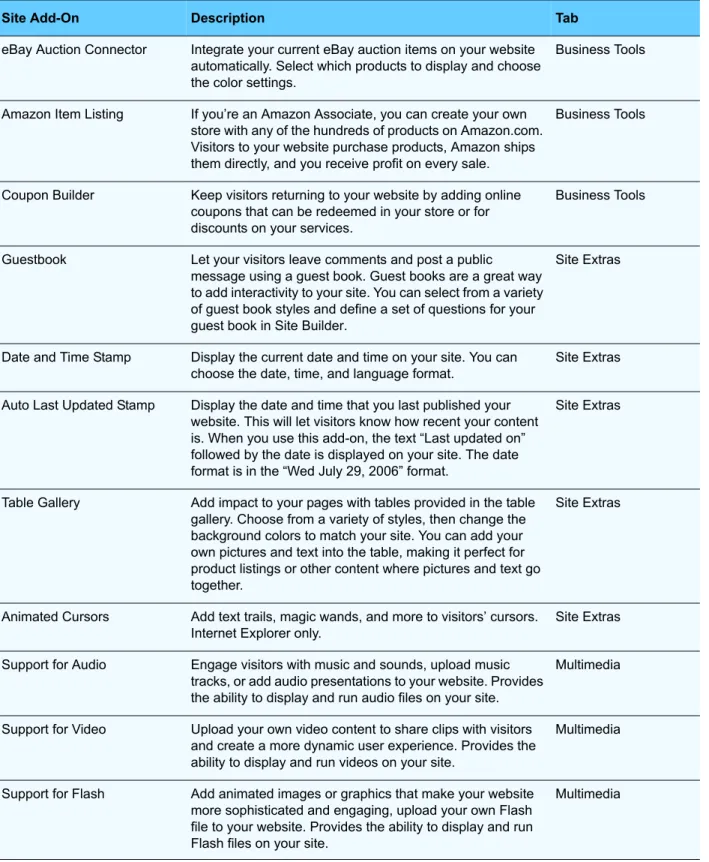
Some Site Add-Ons are offered on more than one tab, as they may fall into more than one category. The following table describes each Site Add-On and where you can find it.
Site Add-On Description Tab
Add a Photo Gallery Select a gallery to automatically include thumbnails of all pictures on a single web page. Visitors to your website can click a thumbnail to see a larger version of your picture. You can also make all of the images in a selected gallery available to visitors through an RSS feed.
When you add pictures using this Site Add-On, all of the images in the gallery you selected are displayed.
Recommended Site Extras Multimedia