How to install IntronBase on your computer
Alexander Leow
April 5, 2011
Contents
1 Introduction 2
1.1 Dependencies . . . 2 1.2 List of available download files . . . 2
2 Linux/Mac users 3
2.1 Apache web server . . . 3 2.2 Perl . . . 3 2.3 HTMLs, data & Perl scripts . . . 3
3 Windows users 4
3.1 Apache web server . . . 4 3.2 Perl Installation . . . 7 3.3 HTMLs, data & Perl scripts . . . 10
4 Risks and security 13
4.1 Security with Apache . . . 13 4.2 IntronBase and its risks . . . 13
1
Introduction
This guide will show you how to install IntronBase on your computer. We estimate that it will take you about 30 minutes. There are at most three steps to perform:
• Install Apache web server, if not done already.
• Install Perl and add missing modules, if not done already.
• Moving HTMLs, data and Perl scripts of IntronBase to right position
This manual is divided for Linux/Mac users and Windows user. Good luck!
1.1
Dependencies
• Perl, with cgi and dbi • Apache
1.2
List of available download files
• html.zip • data.zip • perl-linux.zip • perl-win.zip
2
Linux/Mac users
The installation for Linux users is quite simple because most software is already installed. This manual uses Fedora-Linux as an example. Root rights are re-quired for all commands. If you do not have these rights, contact your system administrator.
2.1
Apache web server
Start the httpd service. For Fedora-Linux you can do this by typing “service httpd start” in the terminal.
2.2
Perl
Install Perl and the perl-DBI package. You can do that with the system tool for adding/removing software or manually with the command “yum install perl perl-DBI” (terminal).
2.3
HTMLs, data & Perl scripts
Download the html.zip, data.zip and perl-linux.zip from the projects website (URL). Extract the html.zip and move all files and folders into the Apache HTML directory /var/www/html/. Then extract the data.zip and the perl-linux.zip and move all to Apache CGI directory/var/www/cgi-bin/.
Now open your web browser and enter the URL http://localhost. Con-gratulations, you are ready to use IntronBase.
3
Windows users
Because many Windows users may not be that familiar with web servers and Perl, this section contains more detailed instructions.
3.1
Apache web server
A web server is a software which allows your computer to answer to requests by the browser. Apache is one of the most frequently used web servers. Go to
http://httpd.apache.org/download.cgi
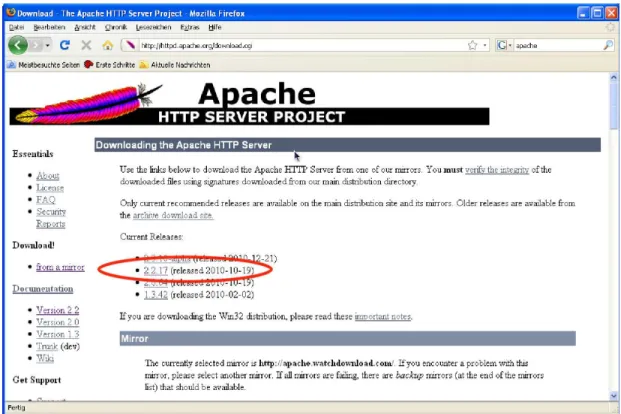
Choose the newest version that is not in the “alpha” status. In the shown example (Fig.1) this is 2.2.17.
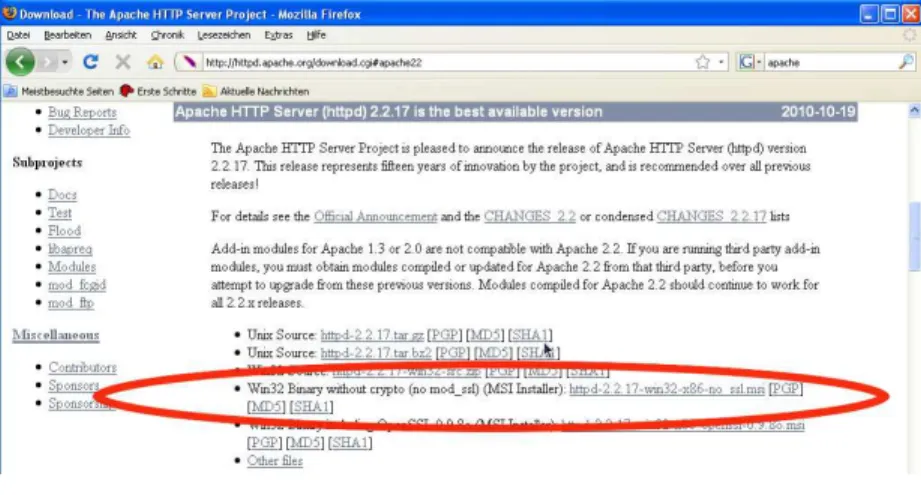
Choose a Win32 Binary and download it. It should be a MSI Installer so that you can install it like other software. In the example (Fig.2) this is “Win32 Binary without crypto (no mod ssl)(MSI Installer)”.
Figure 2: Apache Download Page
Now start the downloaded file to install the web server. Just accept the license and click “next” a few times (Fig.3) until the installation is finished.
After installation start your web browser (e.g. Firefox or IE) and enter the URLhttp://localhost(without www). If the result looks like Fig.4 your Apache web server is installed and working.
3.2
Perl Installation
The dynamic web pages of IntronBase are programmed in Perl. To execute them
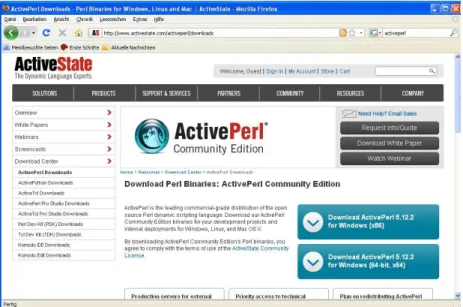
you need a Perl-interpreter. Go tohttp://www.activestate.com/activeperl/downloads
and download ActivePerl (Fig.5).
Figure 5: ActivePerl Download
Start the downloaded file and install ActivePerl. Also accept the license and click “next” a few times (Fig. 6) until the installation is finished.
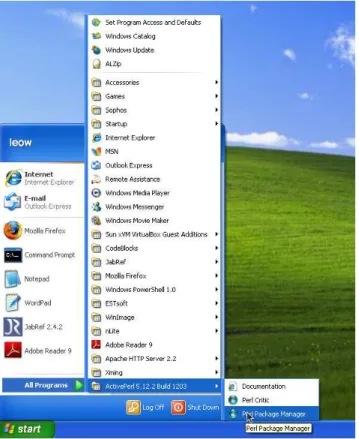
Now you have to install the Perl module DBI, that does not come with the installation. But ActivePerl has an easy tool to handle this, the Perl Pack-age ManPack-ager(PPM). Click on Windows “Start” button, “All Programs”, “Ac-tivePerl” and “Perl Package Manager” like in Fig.7.
Enter “dbi” in the search field at the top (Fig.8) and wait until the results are shown. Choose the DBI-package which is marked in (Fig. 8). Mark it for install by clicking on the package symbol with the plus (Fig.8) and install it by clicking on the green arrow pointing to the right (Fig. 9).
Figure 8: Perl Package Manager
3.3
HTMLs, data & Perl scripts
All necessary software is now installed on your computer. The only thing to do is to move the HTMLs, data, and Perl scripts of IntronBase to the right point.
Download the html.zip, data.zip and perl-win.zip form URL.
Extract the html.zip and move all files and folders to C:\ProgramFiles\ ApacheSoftwareFoundation\Apache2.2\htdocs\. The path can slightly dif-fer depending on the language which is used for Windows (e.q. German users:
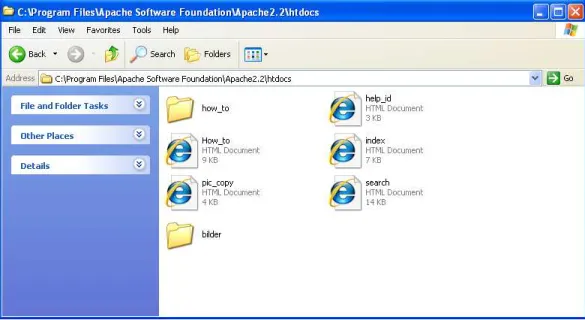
C:\Programme\...). The ...\htdocs\folder should now contain two folders (bilder and how to) and five html files (Fig.10).
Extract the data.zip and perl-win.zip and move all files and folders to C: \ProgramFiles\ApacheSoftwareFoundation\Apache2.2\cgi-bin\(again de-pending on your Windows language also C:\Programme\...or similar). The
...\cgi-bin\folder should now contain nine folders (one for every species) and 13 files (Fig.11).
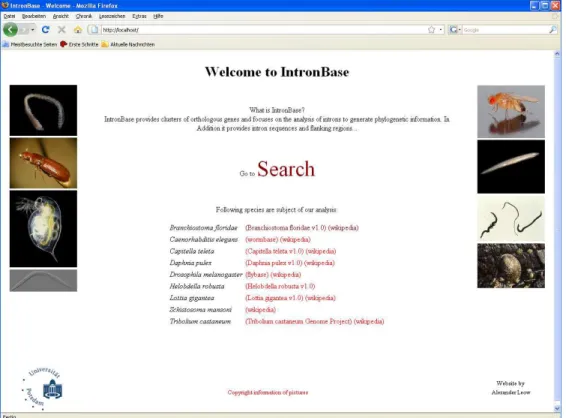
Now open your web browser and enter the URLhttp://localhost (with-outwww).
Figure 12: IntronBase
4
Risks and security
4.1
Security with Apache
Once you enabled the the Apache web server your computer is enabled to answer to request from the web. Thus, the possible risk of attacks via the internet increases. On general this is risk is minimized by your firewall, if it is enabled.
To be safe that Apache reject all request you have to make some changes in the httpd.conf, which is the configuration file of the Apache web server. The httpd.conf is located in the C:\ProgramFiles\ApacheSoftwareFoundation\ Apache2.2\conf\directory. Open the httpd.conf with a text editor (e.g. Word-pad) and the search the two lines “Order allow,deny” and “Allow from all”. They should appear at least two times in the document. Replace them by the three lines “Order deny,allow”,“Deny from all” and “Allow from 127.0.0.1” in all cases. After restart the Apache only request from your computer are answered. If want to make IntronBase available for other computers within your net-work, also the httpd.conf and the firewall has to be configured.
4.2
IntronBase and its risks
You have to keep in mind that there are risks if your firewall is disabled and your Apache is not prepared like mentioned before.
There is also the risk that IntronBase does not work correctly if you enter special characters or hundreds of characters into the input fields that IntronBase provides. There is also no guarantee that IntronBase works. There will be no liability for data loss or other costs caused by IntronBase.