FioranoMQ® 9
High Availability Guide
Entire contents © Fiorano Software and Affiliates. All rights reserved. Reproduction of this document in any form without prior written permission is forbidden. The information contained herein has been obtained from sources believed to be reliable. Fiorano disclaims all warranties as to the accuracy, completeness or
FioranoMQ 9 High Availability... 4
1.1 Introduction to HA ...4
1.1.1 Known HA implementations / solutions ...4
2.1 Introduction to Fiorano HA ...4
2.1.1 Terminology...5
2.1.2 Types of Fiorano HA ...6
2.1.2.1 Shared HA ...6
2.1.2.2 Replicated HA ...6
2.1.3 Requirements...6
2.1.3.1 Hardware ...6
2.1.3.2 Software ...6
3.1 Fiorano HA Concept...7
3.1.1 Replicated HA...7
3.1.1.1 Concept ...7
3.1.1.2 States and state transition ...7
3.1.1.3. How do failovers happen? ...7
3.1.1.4. What are the objects that are replicated? ...8
3.1.2. Shared HA ...8
3.1.2.1. Concept ...8
3.1.2.2. States and state transition ...8
3.1.2.3. How do failovers happens?...8
3.1.2.4. Database details? ...8
3.1.3 Advantages or disadvantages / how to determine which HA to use...9
4.1 Configurations of HA...9
4.1.1 Replicated HA... 12
4.1.1.1 Basic configurations ... 12
4.1.1.2 Advanced configurations... 17
4.1.2 Shared HA ... 22
4.1.2.1 Basic configurations ... 22
4.1.2.2 Advanced configurations... 28
5.1 Managing of HA server... 32
5.1.1 Replicated HA... 32
5.1.1.1 Launching the servers ... 32
5.1.1.2 Stopping the servers ... 35
5.1.1.3 Determining status of servers... 36
5.1.2 Shared HA ... 36
5.1.2.1 Launching the servers ... 36
5.1.2.2 Stopping the servers ... 39
5.1.2.3. Determining status of servers... 40
FioranoMQ 9 High Availability
1.1 Introduction to HA
Today's real-time enterprise solutions often deploy a messaging middleware that enables communication between various sub-components. This middleware is entrusted with important data that should be delivered reliably and as fast as possible to the recipient application. The middleware server might also be required to store this data in its data store until it is picked up.
A failure of this middleware message bus might bring the entire system down within seconds. Hence, it is absolutely imperative for the messaging backbone to provide its backup, which allows messaging operations to resume quickly in the event of a failure of the running server. This backup server should restore the state prior to failure of the original message server. Any data that was stored previously in the server's data store should be accessible through this backup server and most importantly this operation of shifting from one server to its backup should be automatic and transparent to the client application.
1.1.1 Known HA implementations / solutions
To enable any HA implementation one need to provide certain guarantees. In case active server is down, second server need to take all the existing connections and undelivered messages must be delivered. To achieve this task, the state information of servers must be exchanged between the two servers and database used by servers must be consistent. In order to make database consistent there are two methods one can use. First one is replicated database, where both servers has their own copy of database but on any changes to active server’s database those changes are propagated to passive server’s database. In this way consistency of these two servers is maintained. In the second implementation one can use a common shared database for both the servers. In this case only the active server makes changes to the common database. As this database is also available to passive server on failure of active server (say primary), when passive server (say secondary) takes over, it has all the changes made by Primary server.
2.1 Introduction to Fiorano HA
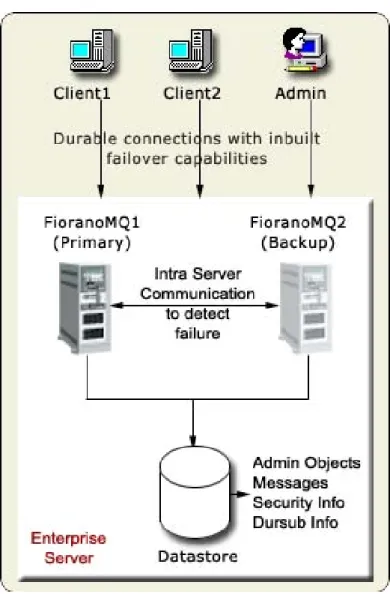
FioranoMQ Server (FioranoMQ Server) is designated with backup server when it runs on High Availability mode, which is started along with the primary FioranoMQ Server. In case the primary server is unavailable due to any reason, the backup server picks up all the messaging traffic immediately. This pair of primary and its backup server is known as an Enterprise Server and would be used to describe this pair throughout this document.
The Enterprise Server represents a Highly Available entity, which appears as a single FioranoMQ Server to its applications. JMS application connects to the primary FioranoMQ server when initializing, if available. If the primary server goes down due to any reason, all connections are automatically routed to the backup server and communications are restored immediately. Since, all this is transparent to the client application; the client application should not concern about reconnecting logic in its code as it is handled by FioranoMQ's runtime internally.
Figure 1: Enterprise Server
2.1.1 Terminology
Primary Server: The server running with Primary Profile.
Secondary Server: The server running with Secondary Profile.
Failover: The process of shifting from the primary server to the backup server or vice versa is
termed as Failover.
HA Layer configuration: The HA Layer configuration deals with configuring the peer server
details. The important configuration parameters defined in this layer are Primary (true or false), Lockfile, BackupHAPort, BackupHAIPAddress, GatewayServerIPAddress, and
GatewayServerPort. This configuration is required to be done in both replication and shared HA modes.
2.1.2 Types of Fiorano HA
FioranoMQ provides complete flexibility to administrators. There are two modes in which HA can be run:
1. Shared HA 2. Replicated HA
2.1.2.1 Shared HA
In this mode the database is shared between the active and passive servers. Whenever the active server goes down, the passive server becomes active and uses the database that is being shared.
2.1.2.2 Replicated HA
In this mode, the database is replicated from active server to the passive server. Also, whenever a server is disconnected from the network and reconnects, the database of the active server is replicated into the passive server. This data include message data, admin/security data as well as status information whatever changes are made when the passive server was down.
2.1.3 Requirements
Fiorano's HA solution is purely implemented in software and is not dependent on expensive hardware solutions.
2.1.3.1 Hardware
With Shared database option, one might want to use a RAID or SAN disks if using HA over Fiorano's proprietary file based data store for enhanced speed and stability, but these
hardware are not an essential component of Fiorano's HA solution. This hardware can also be avoided by using either replication support or using a central RDBMS server as the message store in the Enterprise Server.
2.1.3.2 Software
3.1 Fiorano HA Concept
3.1.1 Replicated HA
3.1.1.1 Concept
In Replicated HA, the database is replicated from the ACTIVE server to the PASSIVE server. This data include messages' data, admin/security data as well as status information whatever changes are made when the passive server was down. Also, whenever a server is
disconnected from the network and reconnects, the database of the active server is replicated into the passive server. In this case, both servers has their own copy of database but on any changes to active server’s database those changes are propagated to passive server’s database. In this way consistency of these two servers is maintained.
3.1.1.2 States and state transition
The following states occur in different phases of the servers in replication mode.
• ACTIVE: refers to normal working state. In this state the server accepts client
connections.
• PASSIVE: in this state the server monitors its active peer server and is in standby
mode.
• ACTIVE_TRANSITION_STATE: this occurs while the server is synchronizing with the
standby server and at the same time serving client applications.
• PASSIVE_TRANSITION_STATE: this occurs on standby server side while the active
server is synchronizing with the standby server.
• WAITING: this occurs when the server is waiting for the state of other server/ trying
to acquire lock on the lock file to become active. The server does not accept client connections in this state.
• STANDALONE: this occurs in a server when it is actively servicing client and the
other server is disconnected.
3.1.1.3. How do failovers happen?
In case the primary server becomes unavailable, all the client applications connected to it are automatically reconnected to the secondary server. The process of shifting from the primary server to the backup server or vice versa is transparent to the application. The client
application should not be concern about writing reconnect logic in its code. This is achieved by connecting to the server through a Durable Connection. In case a backup server is available, the Durable Connection would connect to the backup server else it waits for the server to restart. Further, it stores all the data sent during the disconnected period in a local repository and transfers this data as soon as the connection is re-established, thus making the system highly reliable and robust even in the case of network failures.
3.1.1.4. What are the objects that are replicated?
In the database following objects need to be replicated on Primary and Secondary server’s machine:
• PTP objects
• ACL objects
• Principal objects
• PubSub objects
• Admin objects
3.1.2. Shared HA
3.1.2.1. Concept
In this mode the database is shared between the active and passive servers. Whenever the active server goes down, the passive server becomes active and uses the database that is being shared. In this, only the active server makes changes to the common database. As this database is also available to passive server on failure of active server (say primary), when passive server (say secondary) takes over, it has all the changes made by Primary server.
3.1.2.2. States and state transition
• ACTIVE: refers to normal working state. In this state the server accepts connections
• PASSIVE: in this state the server monitors its active peer server and is in standby
mode.
• ACTIVATING: this occurs while the server is in transition to become active and
synchronizing with the database.
3.1.2.3. How do failovers happens?
In case the primary server becomes unavailable, all the client applications connected to it are automatically reconnected to the secondary server. The process of shifting from the primary server to the backup server or vice versa is transparent to the application. The client
application should not be concern about writing reconnect logic in its code. This is achieved by connecting to the server through a Durable Connection. In case a backup server is available, the Durable Connection would connect to the backup server else it waits for the server to restart. Further, it stores all the data sent during the disconnected period in a local repository and transfers this data as soon as the connection is re-established, thus making the system highly reliable and robust even in the case of network failures.
3.1.2.4. Database details?
3.1.3 Advantages or disadvantages / how to determine which HA to use
Both the HA implementations have their own advantages and disadvantages over each-other. These are pointed out here:
-In Replicated HA implementation there are two copies of database available, so in case of any database failure on one system, up-to-date database is available on second system. But for Shared HA implementation there is just one database available. So any corruption to this database leads to degradation of system performance.
• In Shared HA implementation, for each database store operation it needs just one disk-write. But for Replicated HA implementation for each operation on database it needs two disk-writes (one each for both the databases on Primary and secondary). Thus performance will be better with shared HA implementation.
• In Shared HA implementation, just one datastore is used contrary to replicated HA, where two datastores are used. So, Cost of storage is less in shared HA
implementation. But, for the normal operation of FioranoMQ it need not much storage space. Thus, storage factor cannot be considered as major one, while deciding which HA implementation to use.
From above discussion we can infer that, when reliability is preferred over performance use Replicated HA implementation and use Shared HA implementation when performance is preferred over reliability.
4.1 Configurations of HA
This section of the document provides details about the pre-configured HA profiles. These profiles can be found in %FIORANO_HOME%\fmq\profiles\FioranoMQ_HA_rpl and
FioranoMQ_HA_shared directories respectively.
Primary & Secondary Servers can be started simply by booting the container with these profiles. The table below lists the profiles to be used for Primary and Secondary Servers when setting up HA in Replication or Shared mode.
Mode Profile Directory Meant for
Replication fmq/profiles/FioranoMQ_HA_rpl/HAPrimary Primary Server Replication fmq/profiles/FioranoMQ_HA_rpl/HASeconda
ry Secondary Server
Shared fmq/profiles/FioranoMQ_HA_shared/
HAPrimary Primary Server
Shared fmq/profiles/FioranoMQ_HA_shared/
HASecondary Secondary Server
To launch the server on one of these profiles, use the following command: fmq.bat -profile %SELECTED_PROFILE%
For example, to launch the primary server in replication mode, use the following command: fmq.bat -profile FioranoMQ_HA_rpl/HAPrimary
Note: This document would refer the selected profile (in FioranoMQ_HA_rpl or
FioranoMQ_HA_shared directories) as %SELECTED_HA_PROFILE%. The possible values for %SELECTED_HA_PROFILE% are as shown in the table above.
Following steps need to be followed for configuring any HA profiles
1. Start Fiorano Studio. Select Tools >Configure FioranoMQ from the menu bar.
2. Select the directory pointing to %SELECTED_HA_PROFILE% from the dialog box and click the Open button.
3. Right-click on the selected profile, select FioranoMQ Replicated HA or FioranoMQ Shared HA option. User now can see a new window appeared with all the required configurable parameters. Now, configure all the required parameters.
Note: When configuring the server (in offline mode) through Studio, please ensure
that FioranoMQ Server is not running.
Configure BackupHAIPAddress & BackupHAPort of remote Server: HA Layer of an
FioranoMQ server connects to the backup server's HA Layer. In order to configure the back-up server's IP and Port, navigate to the node specified below and set the value of
BachupHAIPAddress and BachupHAPort displayed in the Properties of FioranoHAKRPCProvider pane.
%SELECT_HA_PROFILE%>Fiorano -> HAKRPCProvider -> FioranoHAKRPCObject
The default profiles have Backup HA IP address configured to localhost and BackupHA Port to 3000 in primary server and 2000 in secondary server. In other words, Primary Server's HA Layer in default profiles would try to connect at localhost on port 3000 while the Secondary's HA Layer would try to connect to localhost on port 2000 by default.
Note: The BackupHA Port here does not refer to the port on which backup server accepts the
client connections but the port on which it’s HA layer is listening. This should be same as the value of HAConnectionManager's port configured in the peer server.
Configure self - Port: This port refers to the port number on which HA Layer would accept
connection from its peer server. The default HA profiles have their HA Port configured for primary server as 2000 and secondary server as 3000. In order to configure Self port, navigate to the node specified below and modify the value of Port in the Properties of FioranoHAConnectionManager pane
%SELECTED_HA_PROFILE% >Fiorano -> FioranoHAConnectionManager
Note: A change in this parameter would require modifying BackupHAPort Configuration in the
peer server.
Configure Lock file: Full path of the file which will be used for determining the HA states.
This file should be present in the third machine and always be available to the HA servers with all permissions. The LockFile machine must be same as the machine whose IPAddress is given as GatewayServerIPAddress. In order to configure Lock file, navigate to the node specified below and modify the value of LockFile in the Properties of FioranoHAManager pane %SELECTED_HA_PROFILE% >Fiorano -> FioranoHAManager
Configure Gateway Server: HA Layer pings the gateway machine to determine the status of
network connectivity. The default profiles have gateway configured to localhost and should be changed to any third independent reliable machine (preferably to the physical router machine on the network). In order to configure Gateway Server, navigate to the node specified below and modify the value of GatewayServerIP Address and GatewayServerPort in the Properties of FioranoHAManager pane
%SELECTED_HA_PROFILE% >Fiorano -> FioranoHAManager
Configure isPrimary: Set Primary to true for primary FioranoMQ Server and false for backup
Server by modifying its value as shown in the Properties panel by clicking the node specified below.
%SELECTED_HA_PROFILE%->Fiorano->HA->HAManager FioranoHAManager
The default profiles are already configured. Hence, no change would be required when using them.
Common Configuration: HA requires enabling Durable Connections, Pinging and Auto
Revalidation support in FioranoMQ Server. This can be done by modifying the parameters specified below in the Properties panel.
%SELECTED_HA_PROFILE%->Fiorano-->etc -> FmqConfigLoader
• Set AllowDurableConnections Property to true.
• Set PingEnabled to true.
• Set EnableAutoRevalidation to true
Note: The pre-created profiles already come with this configuration and hence no change
would be required when working on them.
Right-click on the %SELECTED_HA_PROFILE% root node present under the Explorer tab on the left hand side of the Studio and select the Save option to save the configuration.
Example Configuration:
Parameter Primary Server Backup Server
url HAKRPCProvider http://164.164.128.128:1856 http://164.164.128.108:1956 BackupHAIP Address 164.164.128.108 164.164.128.128
Back upHAPort 3000 2000
HAConnectionManager Port
2000 3000 Common Config
Backup IP Address
164.164.128.108 164.164.128.128
Port 1956 1856
Enable
DurableConnections
True true
Parameter Primary Server Backup Server
url HAKRPCProvider http://164.164.128.128:1856 http://164.164.128.108:1956
HAManager isPrimary True false
Gateway IP Address 164.164.128.108 164.164.128.128
LockFile /home/fmq/Lock.dat /home/fmq/Lock.dat
After changing the HA Layer's configuration, the server's existing database should be cleared before restarting. The existing datastore can be cleared by executing the clearDB script in fmq/bin folder of your installation with profile name as an argument.
For example, in Windows:
• clearDB.bat FioranoMQ_HA_rpl\HAPrimary
• clearDB.bat FioranoMQ_HA_rpl\HASecondary
On the client-side the primary server URL has to be added as provider URL and secondary server URL has to be added to the backup URLs’.
4.1.1 Replicated HA
Configuring FioranoMQ HA in replication mode is much easier, as the pre-created profiles are mostly ready to be used (only the gateway IP needs to be modified). These profiles are pre-configured to demonstrate HA on a single machine. However one can easily setup HA on two different machines as well by properly configuring the HA Layer (as described below).
4.1.1.1 Basic configurations
One can configure replicated HA profile through changing Config.cfg file (text based configuration) or through Studio. Following section describe these options.
Text based
Profiles can now be configured through a text based properties file. Profiles can be found under the %FIORANO_HOME%\fmq\profiles\FioranoMQ_HA_rpl directory (say,
PROFILE_HOME). In order to configure replicated HA profile, edit Config.cfg file under %PROFILE_HOME%\HAPrimary\conf and %PROFILE_HOME%\HASecondary\conf.
1. The default entries in Config.cfg file looks like: ObjectName=Container
# HA Common Properties. #
#FMQGroup.BackupServerIp=localhost #FMQGroup.BackupServerPort=1956 #FMQGroup.BackupHAPort=3000
#FMQGroup.Port=2000
#FMQGroup.PingInterval=30000 #FMQGroup.LockFile=null
#FMQGroup.SocketCreationTimeout=10000 #FMQGroup.GatewayServerIPAddress=localhost #FMQGroup.GatewayServerPort=7
In front of every parameter, its default values are given.
2. Take the scenario of running HAPrimary on a machine with IPAddress:
192.169.1.22 and HASecondary on a machine with IPAddress: 192.169.1.200. GatewayServer address is given as 192.169.1.16 which is present in the network. If LockFile, say Lock.dat, has been shared from third system and mounted to /home/fmq1 on 192.168.1.22 system and to /home/fmq2 on 192.168.1.200 system, then on Primary profile these parameters should takes following value: ObjectName=Container
# HA Common Properties. #
FMQGroup.BackupServerIp=192.168.1.200 #FMQGroup.BackupServerPort=1956 #FMQGroup.BackupHAPort=3000
FMQGroup.BackupHAIPAddress=192.168.1.200 #FMQGroup.Port=2000
#FMQGroup.PingInterval=30000
FMQGroup.LockFile=/home/fmq1/Lock.dat #FMQGroup.SocketCreationTimeout=10000
FMQGroup.GatewayServerIPAddress=192.168.1.16 #FMQGroup.GatewayServerPort=7
On Secondary profile these parameters should takes following value: ObjectName=Container
# HA Common Properties #
FMQGroup.BackupServerIp=192.168.1.22 #FMQGroup.BackupServerPort=1856
FMQGroup.BackupHAIPAddress=192.168.1.22 #FMQGroup.BackupHAPort==2000
#FMQGroup.Port=3000
#FMQGroup.PingInterval=30000
FMQGroup.GatewayServerIPAddress=192.168.1.16 #FMQGroup.GatewayServerPort=7
FMQGroup.LockFile=/home/fmq2/Lock.dat #FMQGroup.SocketCreationTimeout=10000
Modified Config.cfg file need to be saved for both Primary and secondary profiles.
Studio
Note: Here, %SELECTED_HA_PROFILE% refers to FioranoMQ_HA_rpl\HAPrimary or
FioranoMQ_HA_rpl\HASecondary.
If replicated HA profile needs to be used, then open FioranoMQ_HA_rpl/HAPrimary and FioranoMQ_HA_rpl/HASecondary profile in Studio Profile Manager. Right-click on the profile and click on FMQ Replicated HA. The FMQ Replicated HA wizard appears.
You can configure all the required values from the wizard. After configuring the wizard, right-click the node and select Save option from the pop-up menu
The following properties are available in the FMQ HA replicated wizard.
BackupHAIPAddress
This IP represents the URL where another FioranoMQ HA server runs. In case this HA server fails then all the required synchronized data is present in backup HA server and HA layer connects to backup HA server.
BackupHAPort
This port represents the backup machine HA port on which another FioranoMQ Server runs.
Port
This port represents the FMQ Server HA port on which this HA Server runs.
LockFile
Full path of the file which will be used for determining the HA states. This file should be present in the third machine and always available to the HA servers with all permissions. The LockFile machine must be same as the machine whose IPAddress is given as
GatewayServerIPAddress.
GatewayServerIPAddress
This value represents the IP address of third machine which is always present in the network. This value must not be the machine where one of the FioranoMQ servers runs.
GatewayServerPort
This value represents the port to which any of the HA Servers pings. This port must not be used for some other purpose.
All IP addresses, ports should represent the correct values. Without modifying any of these values HAPrimary and HASecondary can run on a single machine.
Take the scenario of running HAPrimary on a machine with IPAddress: 192.169.1.22 and HASecondary on a machine with IPAddress: 192.169.1.200. Gatewayserver address is given as 192.169.1.16 which is present in the network. If LockFile, say Lock.dat, has been shared from third system and mounted to /home/fmq1 on 192.168.1.22 system and to /home/fmq2 on 192.168.1.200 system, then HAPrimary wizard looks like:
And HASecondary wizard looks like
4.1.1.2 Advanced configurations
Text based
Edit Config.cfg file under:
%FIORANO_HOME%\fmq\profiles\FioranoMQ_HA_rpl\HAPrimary\conf for HAPrimary and %FIORANO_HOME%\fmq\profiles\FioranoMQ_HA_rpl\HASecondary\conf for HASecondary
1. Port
Specify the Port on which HA Manager would listen for connection from the peer HA Server. Apart from the port that the HA Server uses to listen for connections from its clients, it must also listen for a connection from its HA Peer Server, in order to know the status of its peer.
This parameter is used to specify that port.
Valid values:
Default value is 2000 for Primary and 3000 for secondary profile.
Note: The port must be not in use by any other services. Configuration:
In Configs.cfg file this property can be found under HA common Properties. For example: #FMQGroup.Port=2000
User can change this value and for taking changes into effect uncomment the value, like- FMQGroup.Port=2500
2. NagleAlgo
Boolean determining whether Nagle's Algorithm is enabled or not in socket creation with peer HA Server. Nagle's algorithm is used in TCP/IP networks for congestion control. It works by coalescing a number of small outgoing messages, and sending them all at once. Specifically, as long as there is a sent packet for which the sender has received no acknowledgment, the sender should keep buffering its output until it has a full packet's worth of output, so that output can be sent all at once.
Valid values:
Default value is no
• yes - NagleAlgo is enabled
• no - NagleAlgo is not enabled
Configuration:
In Configs.cfg file this property can be found under HA Connection Manager Settings. For example:
#NagleAlgo=false
User can change this value and for taking changes into effect uncomment the value, like-
NagleAlgo=true
3. SocketInitializationTimeout
Time (in milliseconds) within any client socket should identify itself and able to exchange the version number with server. The version number exchange is an authentication mechanism that FioranoMQ employs.
Valid values:
Default value is 60000 (which is equal to a minute).
Configuration:
In Configs.cfg file this property can be found under HA Connection Manager Settings. For example:
#SocketInitializationTimeout=60000
User can change this value and for taking changes into effect uncomment the value, like- SocketInitializationTimeout=65000
4. ActiveLockReAcquisitionInterval
This parameter indicates the wait Interval between each attempt to acquire the lock for active server. This value should be in multiples of pingInterval/2 otherwise server may try to acquire the lock on the next multiple of pingInterval/2. Default value for this parameter is 30000.
Configuration:
In Configs.cfg file this property can be found under HA Manager Settings. For example:
User can change this value and for taking changes into effect uncomment the value, like-
ActiveLockReAcquisitionInterval=35000 5. PassiveLockReAcquisitionInterval
This parameter indicates the wait Interval for the passive server to acquire the lock when the link between active and passive server is down. This value should be greater than '2*ActiveLockReacquisitionInterval', otherwise an exception will be thrown. Server won't start if this value is not set properly. Default value for this parameter is 60000.
Configuration:
In Configs.cfg file this property can be found under HA Manager Settings. For example:
#PassiveLockAcquisitionInterval=60000
User can change this value and for taking changes into effect uncomment the value, like-
PassiveLockAcquisitionInterval=65000 6. PingInterval
This interval represents the duration after which HAServer pings the other HABackup server to find whether the server is running properly or not.
Configuration:
In Configs.cfg file this property can be found under HA Common Properties. For example:
#FMQGroup.PingInterval=30000
User can change this value and for taking changes into effect uncomment the value, like-
FMQGroup.PingInterval=35000 7. BackupRMIServerPort
Port of backup server on which Mx4j RMIConnector server will bind.
Configuration:
In Configs.cfg file this property can be found under HA KRPC Provider Settings. For example:
#BackupRMIServerPort=1858
User can change this value and for taking changes into effect uncomment the value, like-
BackupRMIServerPort=1958 8. RMIServerPort
Port on which Mx4j RMIConnector server will bind.
Configuration:
In Configs.cfg file this property can be found under RMI Connector Settings. For example:
#RMIServerPort=1859
User can change this value and for taking changes into effect uncomment the value, like-
RMIServerPort=1959 9. MaxWaitTimeout
Whenever an owning server realizes that there has been a change in its peer server's state, it must handle the change in its peer state by changing its state appropriately. While the owning server is changing state it starts a timer. If for some reason the state change is unable to complete after a reasonable amount of time then the owning server must realize that.
This parameter specifies the maximum waiting timeout in milliseconds for which the local server should wait for state transition to complete.
Configuration:
In Configs.cfg file this property can be found under HA Manager Settings. For example:
#MaxWaitTimeout=30000
User can change this value and for taking changes into effect uncomment the value, like-
MaxWaitTimeout=35000
Studio
All the properties listed in this section are described in text based configuration. 1. Port
This property can be found under:
Fiorano->HA->HAConnectionManager->FioranoHAConnectionManager->config through studio.
2. NagleAlgo
This property can be found under:
Fiorano->HA->HAConnectionManager->FioranoHAConnectionManager->config through studio.
3. SocketInitializationTimeout
This property can be found under:
Fiorano->HA->HAConnectionManager->FioranoHAConnectionManager->config through studio.
Figure: Configuring Port, NagleAlgo and SocketInitializationTimeout parameters from studio
4. ActiveLockReAcquisitionInterval
This property can be found under:
Fiorano->HA->HAManager->FioranoHAManager->config through studio. 5. PassiveLockReAcquisitionInterval
This property can be found under:
Fiorano->HA->HAManager->FioranoHAManager->config through studio. 6. PingInterval
This property can be found under:
Fiorano->HA->HAManager->FioranoHAManager->config through studio. 7. MaxWaitTimeout
This property can be found under:
8. BackupRMIServerPort
This property can be found under:
Fiorano->HA->HAKRPCProvider->FioranoHAKRPCProvider->config through studio. 9. RMIServerPort
This property can be found under:
Fiorano->jmx->RMIBasedJMXConnector->config through studio.
4.1.2 Shared HA
4.1.2.1 Basic configurations
One can configure Shared HA profile through changing Config.cfg file (text based configuration) or through Studio. Following section describe these options.
Text based
Profiles can now be configured through a text based properties file. Profiles can be found under the %FIORANO_HOME%\fmq\profiles\FioranoMQ_HA_shared directory (say, PROFILE_HOME). In order to configure shared HA profile, edit Config.cfg file under %PROFILE_HOME%\HAPrimary\conf and %PROFILE_HOME%\HASecondary\conf.
1. The default entries in Config.cfg file looks like: ObjectName=Container
# HA Common Properties. #
#FMQGroup.BackupServerIp=localhost #FMQGroup.BackupServerPort=1956 #FMQGroup.BackupHAIPAddress=localhost #FMQGroup.BackupHAPort=3000
#FMQGroup.Port=2000
#FMQGroup.PingInterval=30000
#FMQGroup.GatewayServerIPAddress=localhost #FMQGroup.GatewayServerPort=7
#FMQGroup.LockFile=null
#FMQGroup.SocketCreationTimeout=10000
In front of every parameter, its default values are given.
2. Take the scenario of running HAPrimary on a machine with IPAddress: 192.169.1.22 and HASecondary on a machine with IPAddress: 192.169.1.200. GatewayServer address is given as 192.169.1.16 which is present in the network. If LockFile, say Lock.dat, has been shared from third system and mounted to /home/fmq1 on
192.168.1.22 system and to /home/fmq2 on 192.168.1.200 system, then on Primary profile these parameters should takes following value:
ObjectName=Container # HA Common Properties. #
FMQGroup.BackupServerIp=192.168.1.200 #FMQGroup.BackupServerPort=1956
FMQGroup.BackupHAIPAddress=192.168.1.200 #FMQGroup.BackupHAPort=3000
#FMQGroup.Port=2000
#FMQGroup.PingInterval=30000
FMQGroup.GatewayServerIPAddress=192.168.1.16 #FMQGroup.GatewayServerPort=7
FMQGroup.LockFile=/home/fmq1/Lock.dat #FMQGroup.SocketCreationTimeout=10000
On Secondary profile these parameters should takes following value: ObjectName=Container
# HA Common Properties #
#FMQGroup.BackupServerPort=1856
FMQGroup.BackupHAIPAddress=192.168.1.22 #FMQGroup.BackupHAPort==2000
#FMQGroup.Port=3000
#FMQGroup.PingInterval=30000
FMQGroup.GatewayServerIPAddress=192.168.1.16 #FMQGroup.GatewayServerPort=7
FMQGroup.LockFile=/home/fmq2/Lock.dat #FMQGroup.SocketCreationTimeout=10000
Modified Config.cfg file need to be saved for both Primary and secondary profiles.
Studio
If shared HA needs to be used, then open FioranoMQ_HA_shared/HAPrimary and
FioranoMQ_HA_shared/HASecondary profile in Studio Profile Manager. Right-click on the profile and click on FMQ Shared HA. The FMQ Shared HA wizard appears.
You can configure all the required values from the wizard. After configuring the wizard, right-click the node and select Save option from the pop-up menu
The following properties are available in the FMQ HA replicated wizard.
BackupHAIPAddress
This IP represents the URL where another FioranoMQ HA server runs. In case this HA server fails then all the required synchronized data is present in backup HA server and HA layer connects to backup HA server.
BackupHAPort
This port represents the backup machine HA port on which another FioranoMQ Server runs.
Port
This port represents the FMQ Server HA port on which this HA Server runs.
BackupRMIServerPort
Port of backup server on which Mx4j RMIConnector server will bind.
RMIServerPort
PingInterval
This interval represents the duration after which HAServer pings the other HABackup server to find whether the server is running properly or not.
LockFile
Full path of the file which will be used for determining the HA states. This file should be present in the third machine and always available to the HA servers with all permissions. The LockFile machine must be same as the machine whose IPAddress is given as
GatewayServerIPAddress.
GatewayServerIPAddress
This value represents the IP address of third machine which is always present in the network. This value must not be the machine where one of the FioranoMQ servers runs.
GatewayServerPort
This value represents the port to which any of the HA Servers pings. This port must not be used for some other purpose.
ActiveLockReAcquisitionInterval
This parameter indicates the wait Interval between each attempt to acquire the lock for active server. This value should be in multiples of pingInterval/2 otherwise server may try to acquire the lock on the next multiple of pingInterval/2. Default value for this parameter is 30000.
PassiveLockReAcquisitionInterval
This parameter indicates the wait Interval for the passive server to acquire the lock when the link between active and passive server is down. This value should be greater than
'2*ActiveLockReacquisitionInterval', otherwise an exception will be thrown. Server won't start if this value is not set properly. Default value for this parameter is 60000.
All IP addresses, ports should represent the correct values. Without modifying any of these values HAPrimary and HASecondary can run on a single machine.
Take the scenario of running HAPrimary on a machine with IPAddress: 192.169.1.22 and HASecondary on a machine with IPAddress: 192.169.1.200. Gatewayserver address is given as 192.169.1.16 which is present in the network. If LockFile, say Lock.dat, has been shared from third system and mounted to /home/fmq1 on 192.168.1.22 system and to /home/fmq2 on 192.168.1.200 system, then HAPrimary wizard looks like:
4.1.2.2 Advanced configurations
Text based
Edit Config.cfg file under
%FIORANO_HOME%\fmq\profiles\FioranoMQ_HA_shared\HAPrimary\conf for HAPrimary and %FIORANO_HOME%\fmq\profiles\FioranoMQ_HA_shared\HASecondary\conf for HASecondary.
1. Port
Specify the Port on which HA Manager would listen for connection from the peer HA Server. Apart from the port that the HA Server uses to listen for connections from its clients, it must also listen for a connection from its HA Peer Server, in order to know the status of its peer.
This parameter is used to specify that port.
Valid values:
Default value is 2000 for Primary and 3000 for secondary profile.
Note: The port must be not in use by any other services. Configuration:
In Configs.cfg file this property can be found under HA common Properties. For example: #FMQGroup.Port=2000
User can change this value and for taking changes into effect uncomment the value, like- FMQGroup.Port=2500
2. NagleAlgo
Boolean determining whether Nagle's Algorithm is enabled or not in socket creation with peer HA Server. Nagle's algorithm is used in TCP/IP networks for congestion control. It works by coalescing a number of small outgoing messages, and sending them all at once. Specifically, as long as there is a sent packet for which the sender has received no acknowledgment, the sender should keep buffering its output until it has a full packet's worth of output, so that output can be sent all at once.
Valid values:
Default value is no
• yes - NagleAlgo is enabled • no - NagleAlgo is not enabled
Configuration:
In Configs.cfg file this property can be found under HA Connection Manager Settings. For example: #NagleAlgo=false
User can change this value and for taking changes into effect uncomment the value, like- NagleAlgo=true
3. SocketInitializationTimeout
Time (in milliseconds) within any client socket should identify itself and able to exchange the version number with server. The version number exchange is an authentication mechanism that FioranoMQ employs.
Valid values:
Default value is 60000 (which is equal to a minute).
Configuration:
In Configs.cfg file this property can be found under HA Connection Manager Settings. For example: #SocketInitializationTimeout=60000
User can change this value and for taking changes into effect uncomment the value, like- SocketInitializationTimeout=65000
4. ActiveLockReAcquisitionInterval
This parameter indicates the wait Interval between each attempt to acquire the lock for active server. This value should be in multiples of pingInterval/2 otherwise server may try to acquire the lock on the next multiple of pingInterval/2. Default value for this parameter is 30000.
Configuration:
In Configs.cfg file this property can be found under HA Manager Settings. For example: #ActiveLockReAcquisitionInterval=30000
User can change this value and for taking changes into effect uncomment the value, like- ActiveLockReAcquisitionInterval=35000
5. PassiveLockReAcquisitionInterval
This parameter indicates the wait Interval for the passive server to acquire the lock when the link between active and passive server is down. This value should be greater than '2*ActiveLockReacquisitionInterval', otherwise an exception will be thrown. Server won't start if this value is not set properly. Default value for this parameter is 60000.
Configuration:
In Configs.cfg file this property can be found under HA Manager Settings. For example: #PassiveLockAcquisitionInterval=60000
User can change this value and for taking changes into effect uncomment the value, like- PassiveLockAcquisitionInterval=65000
6. PingInterval
This interval represents the duration after which HAServer pings the other HABackup server to find whether the server is running properly or not.
Configuration:
In Configs.cfg file this property can be found under HA Common Properties. For example: #FMQGroup.PingInterval=30000
User can change this value and for taking changes into effect uncomment the value, like- FMQGroup.PingInterval=35000
7. BackupRMIServerPort
Port of backup server on which Mx4j RMIConnector server will bind.
Configuration:
In Configs.cfg file this property can be found under HA KRPC Provider Settings. For example: #BackupRMIServerPort=1858
User can change this value and for taking changes into effect uncomment the value, like- BackupRMIServerPort=1958
8. RMIServerPort
Port on which Mx4j RMIConnector server will bind.
Configuration:
In Configs.cfg file this property can be found under RMI Connector Settings. For example: #RMIServerPort=1859
User can change this value and for taking changes into effect uncomment the value, like- RMIServerPort=1959
Studio
All the properties listed in this section are described in text based configuration. 1. Port
This property can be found under:
Fiorano->HA->HAConnectionManager->FioranoHAConnectionManager->config through studio.
2. NagleAlgo
This property can be found under:
Fiorano->HA->HAConnectionManager->FioranoHAConnectionManager->config through studio.
3. SocketInitializationTimeout
This property can be found under:
Fiorano->HA->HAConnectionManager->FioranoHAConnectionManager->config through studio.
Figure: Configuring Port, NagleAlgo and SocketInitializationTimeout parameters from studio
4. ActiveLockReAcquisitionInterval
This property can be found under:
Fiorano->HA->HAManager->FioranoHAManager->config through studio. 5. PassiveLockReAcquisitionInterval
This property can be found under:
Fiorano->HA->HAManager->FioranoHAManager->config through studio. 6. PingInterval
This property can be found under:
7. BackupRMIServerPort
This property can be found under:
Fiorano->HA->HAKRPCProvider->FioranoHAKRPCProvider->config through studio. 8. RMIServerPort
This property can be found under:
Fiorano->jmx->RMIBasedJMXConnector->config through studio.
5.1 Managing of HA server
5.1.1 Replicated HA
5.1.1.1 Launching the servers
While launching the Enterprise Server, the launch sequence within the two servers is not important. Either server (primary or backup) can be started first. On start up, the servers establish a communication path between each other in order to exchange information regarding proper functioning of all servers. The servers can be launched by using the fmq (bat/sh) script (available in the fmq/bin directory of the installation package), and supplying the %SELECTED_HA_PROFILE% as an argument. Different methods to run HA profiles are described here.
5.1.1.1.1 Console
Windows:
When launching the Primary HA Server in Replicated Mode, the command line would be: fmq.bat –profile FioranoMQ_HA_rpl/HAPrimary
For Secondary HA server in Replicated Mode, the command line would be: fmq.bat –profile FioranoMQ_HA_rpl/HASecondary
Unix:
When launching the Primary HA Server in Replicated Mode, the command line would be: ./fmq.sh –profile FioranoMQ_HA_rpl/HAPrimary -nobackground
For Secondary HA server in Replicated Mode, the command line would be: ./fmq.sh –profile FioranoMQ_HA_rpl/HASecondary -nobackground
5.1.1.1.2 Background
Unix:
When launching the Primary HA Server in Replicated Mode, the command line would be: ./fmq.sh –profile FioranoMQ_HA_rpl/HAPrimary
For Secondary HA server in Replicated Mode, the command line would be: ./fmq.sh –profile FioranoMQ_HA_rpl/HASecondary
5.1.1.1.3 Service
HA replicated profiles can be made to run as service. Detailed procedure based on platform is provided here.
Windows:
Any profile present under %FMQ_DIR%/profiles can be made to run as NT service. Steps for installing HA profile as NT Service:
1. Open a command prompt
2. Goto to %FMQ_DIR%\bin\service directory
3. To install FioranoMQ Kernel as NT service, run the command install-fmq-service.bat -profile FioranoMQ_HA_rpl/HAPrimary or install-fmq-service.bat -profile FioranoMQ_HA_rpl/HASecondary
4. After installation you should be able to see "FioranoMQ <%PROFILE_NAME%>" NT service installed.
5. Start the NT Service. Logs for NT service run can be viewed in %FMQ-DIR%\bin\service\logs\%PROFILE_NAME%.log.
Linux:
For enabling Replicated HA profiles as service, there is a script “fmq-linux” available in fmq/bin/service directory of FioranoMQ installation directory. Follow the procedures listed here:
1. Set the FIORANO_HOME at line 8 of fmq-linux file.
2. fmq-linux by default runs FioranoMQ Profile, to run Primary profile change the name of the profile on line 16 to FioranoMQ_HA_rpl/HAPrimary. To run Secondary profile, change the name of the profile on line 16 to FioranoMQ_HA_rpl/HASecondary. 3. Copy the file fmq-linux in "/etc/init.d".
4. Give Executable Permission, "chmod +x fmq-linux". 5. To start as a service, type "./fmq-linux start". 6. To stop the server, type "./fmq-linux stop".
7. To run this as a service with system startup, type "chkconfig --add fmq-linux". This will launch the service whenever the system is started.
SOLARIS:
For enabling Replicated HA profiles as service, there is a script “fmq-solaris” available in fmq/bin/service directory of FioranoMQ installation directory. Follow the procedures listed here:
1. Set the FIORANO_HOME at line 9 of fmq-solaris file.
2. fmq-solaris by default runs FioranoMQ Profile, to run Primary profile change the name of the profile on line 19 to FioranoMQ_HA_rpl/HAPrimary. To run Secondary profile, change the name of the profile on line 16 to FioranoMQ_HA_rpl/HASecondary. 3. Copy the file fmq-solaris in "/etc/init.d".
4. Give Executable Permission, "chmod +x fmq-solaris". 5. To start as a service, type "./fmq-solaris start". 6. To stop the server, type "./fmq-solaris stop".
7. To run this as a service with system startup create the links from "/etc/init.d" using the following commands
To start the service at startup:
ln -s fmq-solaris /etc/rc3.d/S86fmq-solaris
Note: If the priority level '86' which is specified in the link already exists in the run
level (rc3.d), then select a number which doesn't exist there.
Example: If you want to set the priority 71 then create the link using the following
command in "/etc/init.d"
8. Set JAVA_HOME in <FIORANO_HOME>/fiorano_vars.sh
Note: Even if you set JAVA_HOME in your .bashrc or .bash_profile, it won't be set at
startup.
So JAVA_HOME must be set in "fiorano_vars.sh" script file.
5.1.1.2 Stopping the servers
5.1.1.2.1 Console
Windows:
When stopping the Primary HA Server in Replicated Mode with RMIPort 1858, the command line would be:
shutdown-fmq.bat -rmiPort 1858
For Secondary HA server in Replicated Mode with RMIPort 1859, the command line would be: shutdown-fmq.bat -rmiPort 1859
Unix:
When stopping the Primary HA Server in Replicated Mode with RMIPort 1858, the command line would be:
./shutdown-fmq.sh -rmiPort 1858
For Secondary HA server in Replicated Mode with RMIPort 1859, the command line would be: ./shutdown-fmq.sh -rmiPort 1859
5.1.1.2.2 Background
Unix:
When stopping the Primary HA Server in Replicated Mode with RMIPort 1858, the command line would be:
./shutdown-fmq.sh -rmiPort 1858
For Secondary HA server in Replicated Mode with RMIPort 1859, the command line would be: ./shutdown-fmq.sh -rmiPort 1859
5.1.1.2.3 Service
Windows:
1. To remove FioranoMQ Kernel NT service, run the command uninstall-fmq-service.bat -profile %PROFILE_NAME%
2. Un-Install should stop and remove NT service for given profile from the services list.
Linux:
To remove initially created service type "chkconfig --del fmq-linux". This will remove the previously added service
SOLARIS:
To stop the service at shutdown/reboot type:
ln -s fmq-solaris /etc/rc3.d/K45fmq-solaris
Note: It is recommended to choose low priority level for shutdown.
5.1.1.3 Determining status of servers
It is easy to determine the status of server while running through console, as status of servers are printed on console. It can also be determined by running ServerStatus.java file available in fmq/samples/JMX directory of FioranoMQ installation directory. Details about running this file are available in readme file in the same directory.
5.1.1.4 Log details
Just like the base FioranoMQ server, the HA server can log into files, consoles, or use any other custom-made logger. The type of logging is controlled through the Loggers module in Fiorano Studio. Options to log all information on the console or save all logs into a log or error file, is provided through Console-based and File-based logging respectively.
5.1.2 Shared HA
5.1.2.1 Launching the servers
While launching the Enterprise Server, the launch sequence within the two servers is not important. Either server (primary or backup) can be started first. On start up, the servers establish a communication path between each other in order to exchange information regarding proper functioning of all servers. The servers can be launched by using the runContainer script (available in the fmq/bin directory of the installation package), and supplying the %SELECTED_HA_PROFILE% as an argument.
In order to run shared HA profiles we need to specify dbPath as extra command line
argument. This is the path where run folder will be created and this must be pointing to the same directory for both the profiles (Primary and Secondary). It would be better if this shared db is on third machine (other than machines where Primary and Secondary profiles are running). For sharing db from third machine, use same method as specified for sharing LockFile. Different methods to run HA profiles are described here. It is supposed that shared db is mounted, for Primary server, on /home/fmq1/shared for Linux machine ( C:\fmq1\share on Windows machine) and, for Secondary server, /home/fmq2/shared on Linux machine ( C:\fmq2\share on Windows machine).
5.1.2.1.1 Console
Windows:
When launching the Primary HA Server in shared Mode, the command line would be: fmq.bat –profile FioranoMQ_HA_shared/HAPrimary –dbPath C:\fmq1\share
For Secondary HA server in shared Mode, the command line would be: fmq.bat –profile FioranoMQ_HA_shared/HASecondary –dbPath C:\fmq2\share
Unix:
When launching the Primary HA Server in shared Mode, the command line would be: ./fmq.sh –profile FioranoMQ_HA_shared/HAPrimary –nobackground –dbPath /home/fmq1/share
For Secondary HA server in shared Mode, the command line would be:
./fmq.sh –profile FioranoMQ_HA_shared/HASecondary –nobackground –dbPath /home/fmq2/share
5.1.2.1.2 Background
Unix:
When launching the Primary HA Server in shared Mode, the command line would be: ./fmq.sh –profile FioranoMQ_HA_shared/HAPrimary –dbPath /home/fmq1/share For Secondary HA server in shared Mode, the command line would be:
./fmq.sh –profile FioranoMQ_HA_shared/HASecondary –dbPath /home/fmq2/share
5.1.2.1.3 Service
Windows
Any profile present under %FMQ_DIR%/profiles can be made to run as NT service. Steps for installing HA profile as NT Service:
1. Open a command prompt
2. Goto to %FMQ_DIR%\bin\service directory
3. To install FioranoMQ Kernel as NT service, run the command
install-fmq-service.bat -profile FioranoMQ_HA_shared/HAPrimary or install-fmq-service.bat -profile FioranoMQ_HA_shared/HASecondary
4. After installation you should be able to see "FioranoMQ <%PROFILE_NAME%>" NT service installed.
5. Start the NT Service. Logs for NT service run can be viewed in %FMQ-DIR%\bin\service\logs\%PROFILE_NAME%.log.
Linux:
For enabling Shared HA profiles as service, there is a script “fmq-linux” available in fmq/bin/service directory of FioranoMQ installation directory. Follow the procedures listed here:
1. Set the FIORANO_HOME at line 8 of fmq-linux file.
2. fmq-linux by default runs FioranoMQ Profile, to run Primary profile change the name of the profile on line 16 to FioranoMQ_HA_shared/HAPrimary. To run Secondary profile changes the name of the profile on line 16 to FioranoMQ_HA_shared/HASecondary. 3. Copy the file fmq-linux in "/etc/init.d".
4. Give Executable Permission, "chmod +x fmq-linux". 5. To start as a service, type "./fmq-linux start". 6. To stop the server, type "./fmq-linux stop".
7. To run this as a service with system startup, type "chkconfig --add fmq-linux". This will launch the service whenever the system is started.
SOLARIS:
For enabling Shared HA profiles as service, there is a script “fmq-solaris” available in fmq/bin/service directory of FioranoMQ installation directory. Follow the procedures listed here:
1. Set the FIORANO_HOME at line 9 of fmq-solaris file.
2. fmq-solaris by default runs FioranoMQ Profile, to run Primary profile change the name of the profile on line 19 to FioranoMQ_HA_shared/HAPrimary. To run Secondary profile changes the name of the profile on line 16 to FioranoMQ_HA_shared/HASecondary. 3. Copy the file fmq-solaris in "/etc/init.d".
4. Give Executable Permission, "chmod +x fmq-solaris". 5. To start as a service, type "./fmq-solaris start". 6. To stop the server, type "./fmq-solaris stop".
7. To run this as a service with system startup create the links from "/etc/init.d" using the following commands
To start the service at startup:
ln -s fmq-solaris /etc/rc3.d/S86fmq-solaris
Note: If the priority level '86' which is specified in the link already exists in the run
level (rc3.d), then select a number which doesn't exist there.
Example: If you want to set the priority 71 then create the link using the following
command in "/etc/init.d"
ln -s fmq-solaris /etc/rc3.d/S71fmq-solaris To stop the service at shutdown/reboot:
ln -s fmq-solaris /etc/rc3.d/K45fmq-solaris
Note: It is recommended to choose low priority level for shutdown
Note: Even if you set JAVA_HOME in your .bashrc or .bash_profile, it won't be set at
startup.
So JAVA_HOME must be set in "fiorano_vars.sh" script file.
5.1.2.2 Stopping the servers
5.1.2.2.1 Console
Windows:
When stopping the Primary HA Server in shared Mode with RMIPort 1858, the command line would be:
shutdown-fmq.bat -rmiPort 1858
For Secondary HA server in shared Mode with RMIPort 1859, the command line would be: shutdown-fmq.bat -rmiPort 1859
Unix:
When stopping the Primary HA Server in shared Mode with RMIPort 1858, the command line would be:
./shutdown-fmq.sh -rmiPort 1858
For Secondary HA server in shared Mode with RMIPort 1859, the command line would be: ./shutdown-fmq.sh -rmiPort 1859
5.1.2.2.2 Background
Unix:
When stopping the Primary HA Server in shared Mode with RMIPort 1858, the command line would be:
./shutdown-fmq.sh -rmiPort 1858
For Secondary HA server in shared Mode with RMIPort 1859, the command line would be: ./shutdown-fmq.sh -rmiPort 1859
5.1.2.2.3 Service
Windows:
1. To remove FioranoMQ Kernel NT service, run the command uninstall-fmq-service.bat -profile %PROFILE_NAME%
2. Un-Install should stop and remove NT service for given profile from the services list.
Linux:
To remove initially created service type "chkconfig --del fmq-linux". This will remove the previously added service
SOLARIS:
To stop the service at shutdown/reboot type:
ln -s fmq-solaris /etc/rc3.d/K45fmq-solaris
Note: It is recommended to choose low priority level for shutdown.
5.1.2.3. Determining status of servers
It is easy to determine the status of server while running through console, as status of servers are printed on console. It can also be determined by running ServerStatus.java file available in fmq/samples/JMX directory of FioranoMQ installation directory. Details about running this file are available in readme file in the same directory.
5.1.2.4. Log details
Just like the base FioranoMQ server, the HA server can log into files, consoles, or use any other custom-made logger. The type of logging is controlled through the Loggers module in Fiorano Studio. Options to log all information on the console or save all logs into a log or error file, is provided through Console-based and File-based logging respectively.
6.1 Troubleshooting
1) What if HA servers are not able to run?
This might be related to HA properties. Please verify whether the following properties are configured to use same values in the backup server.
1. ActiveLockReAcquisitionInterval 2. PassiveLockAcquisitionInterval 3. PingInterval
4. GatewayServerIPAddress 5. GatewayServerPort 6. LockFile
2) While running HA Profile following error message is thrown to console:
Lock file::null is not specified properly.
========================================================== =============================
Either file is not valid or lock file machine is not allowing to verify permissions on lock, Unable to boot the server
========================================================== =============================
This will occurs when Lock file is not specified. So, please make sure to specify Lock file.
3) What if HA servers are not able to run, while launched as a service?
Look in the logs runContainer_output_log and runContainer_error_log. These logs have all the error and messages thrown at run time.
7.1 Best practices.
• For database store use SAN disks. This is not necessary for running HA profiles, but they are more reliable and data can be retrieved in case of failure.
• Make sure to have Lockfile and Gateway server on same machine.
• Use nfs-4 for mounting files.
• In case of shared HA profiles give Separate addresses for storing server logs. This will make debugging easy.
8.1 FAQ
What is high availability?
High availability is a system design protocol and associated implementation that ensures a certain absolute degree of operational continuity during a given measurement period. Today's real-time enterprise solutions often deploy a messaging middleware that enables communication between various sub-components. This middleware is entrusted with important data that should be delivered reliably and as fast as possible to the recipient application. The middleware server might also be required to store this data in its data store until it is picked up. A failure of this middleware message bus might bring the entire system down within seconds. Hence, it is absolutely imperative for the messaging backbone to provide its backup, which allows messaging operations to resume quickly in the event of a failure of the running server. This backup server should restore the state prior to failure of the original message server. Any data that was stored previously in the server's data store should be accessible through this backup server and most importantly this operation of shifting from one server to its backup should be automatic and transparent to the client application.