Rev. O
TSM Series
Serial Console Servers
RSM Series
Remote Site Managers
RSM-xRy Series
Remote Site Managers with Power Control
Products Covered:
TSM Series RSM Series RSM-xRy Series TSM-40 Models RSM-16 Models RSM-16R16 Models TSM-24 Models RSM-8 Models RSM-8R8 Models
TSM-8 Models RSM-2R4 Models
Installation Instructions
Secure Racking
If Secure Racked units are installed in a closed or multi-unit rack assembly, they may require further evaluation by Certification Agencies. The following items must be considered.
1. The ambient within the rack may be greater than room ambient. Installation should be such that the amount of air flow required for safe operation is not
compromised. The maximum temperature for the equipment in this environment is 45°C. Consideration should be given to the maximum rated ambient.
2. Installation should be such that a hazardous stability condition is not achieved due to uneven loading.
Input Supply
1. Check nameplate ratings to assure there is no overloading of supply circuits that could have an effect on overcurrent protection and supply wiring.
2. When installing 48 VDC rated equipment, it must be installed only per the following conditions:
A. Connect the equipment to a 48 VDC supply source that is electrically isolated from the alternating current source. The 48 VDC source is to be connected to a 48 VDC SELV source.
B. Input wiring to terminal block must be routed and secured in such a manner that it is protected from damage and stress. Do not route wiring past sharp edges or moving parts.
C. A readily accessible disconnect device, with a 3 mm minimum contact gap, shall be incorporated in the fixed wiring.
Grounding
Reliable earthing of this equipment must be maintained. Particular attention should be given to supply connections when connecting to power strips, rather than direct connections to the branch circuit.
No Serviceable Parts Inside; Authorized Service Personnel Only
Do not attempt to repair or service this device yourself. Internal components must be serviced by authorized personnel only.• Shock Hazard - Do Not Enter • Lithium Battery
CAUTION: Danger of explosion if battery is incorrectly replaced. Replace only with same or equivalent type recommended by the manufacturer. Discard used batteries according to the manufacturer's instructions.
Disconnect Power
If any of the following events are noted, immediately disconnect the unit from the outlet and contact qualified service personnel:
1. If the power cord becomes frayed or damaged.
2. If liquid has been spilled into the device or if the device has been exposed to rain or water.
Disconnect Power Before Servicing
Before attempting to service or remove this unit, please make certain to disconnect the power supply cable(s) from the power source(s).
Two Power Supply Cables
Note that some TSM/RSM series units and RSM-xRy series units feature two separate power inlets and a separate power supply cable for each power inlet.
In addition, RSM-16R16 series units feature four separate power inlets and a separate power supply cable for each power inlet. Make certain to disconnect all power supply cables from their power source before attempting to service or remove the unit.
Modem Cables
CAUTION: To reduce the risk of fire, use only No. 26 AWG or larger (e.g., 24 AWG) UL Listed or CSA Certified Telecommunication Line Cord.
FCC Part 15 Regulation
This equipment has been tested and found to comply with the limits for a Class A digital device, pursuant to part 15 of the FCC Rules. These limits are designed to provide reasonable protection against harmful interference when the equipment is operated in a commercial environment. This equipment generates, uses, and can radiate radio frequency energy and, if not installed and used in accordance with the instruction manual, may cause harmful interference to radio communications. Operation of this equipment in a residential area is likely to cause harmful interference in which case the user will be required to correct the interference at his own expense.
This device complies with part 15 of the FCC Rules. Operation is subject to the following two conditions: (1) This device may not cause harmful interference, and (2) this device must accept any interference received, including interference that may cause undesired operation
WARNING: Changes or modifications to this unit not expressly approved by the party responsible for compliance could void the user’s authority to operate the equipment
EMC, Safety, and R&TTE Directive Compliance
The CE mark is affixed to this product to confirm compliance with the following European Community Directives:
• Council Directive 89/336/EEC of 3 May 1989 on the approximation of the laws of Member States relating to electromagnetic compatibility;
and
• Council Directive 73/23/EEC of 19 February 1973 on the harmonization of the laws of Member States relating to electrical equipment designed for use within certain voltage limits;
and
• Council Directive 1999/5/EC of 9 March on radio equipment and
telecommunications terminal equipment and the mutual recognition of their conformity.
Industry Canada - EMI Information
This Class A digital apparatus complies with Canadian ICES-003.
Cet appareil numérique de la classe A est conforme à la norme NMB-003 du Canada. This product meets the applicable Industry Canada technical specifications
The Ringer Equivalence Number is an indication of the maximum number of devices allowed to be connected to a telephone interface. The termination on an interface may consist of any combination of devices subject only to the requirement that the sum of the RENs of all the devices does not exceed five.
1. Introduction . . . 1-1 2. Unit Description . . . 2-1
2.1. TSM Series - Front Panel . . . 2-1 2.2. TSM Series - Back Panel . . . 2-2 2.3. RSM Series - Front Panel . . . 2-4 2.4. RSM Series - Back Panel . . . 2-5 2.5. RSM-16R16 Series - Front Panel . . . 2-6 2.6. RSM-16R16 Series - Back Panel . . . 2-7 2.7. RSM-8R8 Series - Front Panel . . . 2-8 2.8. RSM-8R8 Series - Back Panel . . . 2-10 2.9. RSM-2R4 Series - Front Panel . . . 2-11 2.10. RSM-2R4 - Back Panel . . . 2-12 2.11. Front Panel Button Functions . . . 2-13
3. Getting Started . . . 3-1
3.1. Apply Power to the TSM/RSM . . . 3-1 3.2. Connect Your PC to the TSM/RSM . . . 3-1 3.3. Communicating with the TSM/RSM . . . 3-2 3.4. Connecting Ports and Switching Outlets . . . 3-3 3.5. The WMU Enterprise Management Solution . . . 3-5
4. Hardware Installation . . . 4-1
4.1. Connecting the Power Supply Cables . . . 4-1 4.1.1. Connect the TSM/RSM to Your Power Supply . . . 4-1 4.1.2. Installing the Power Supply Cable Keeper . . . 4-1 4.1.3. DC Powered Units . . . 4-2 4.2. Connecting the Network Cable . . . 4-2 4.3. The Internal Modem Port . . . 4-2 4.4. Connection to Switched Outlets . . . 4-3 4.5. Connecting Devices to the TSM/RSM Serial Ports . . . 4-3 4.6. Emergency Shut Off Function . . . 4-3
5. Basic Configuration . . . 5-1
5.1. Communicating with the TSM/RSM Unit . . . 5-1 5.1.1. The Text Interface . . . 5-1 5.1.2. The Web Browser Interface . . . 5-3 5.1.3. Access Via PDA . . . 5-4 5.2. Configuration Menus . . . 5-5 5.3. Defining System Parameters . . . 5-6 5.3.1. The Real Time Clock and Calendar . . . 5-9 5.3.2. The Serial Port Invalid Access Lockout Feature . . . 5-11 5.3.3. Log Configuration . . . 5-14 5.3.3.1. The Audit Log and Alarm Log Configuration Options . . . 5-14 5.3.3.2. The Temperature Log . . . 5-15 5.3.3.3. Reading, Downloading and Erasing Logs . . . 5-15 5.3.4. Callback Security . . . 5-16 5.3.5. Scripting Options . . . 5-17 5.3.5.1. Automated Mode . . . 5-20 5.3.6. Power Configuration (RSM-8R8-CM Series Units Only) . . . 5-21
5. Basic Configuration (continued)
5.5. Managing User Accounts . . . 5-25 5.5.1. Viewing User Accounts . . . 5-25 5.5.2. Adding User Accounts . . . 5-25 5.5.3. Modifying User Accounts . . . 5-28 5.5.4. Deleting User Accounts . . . 5-28 5.6. The Plug Group Directory . . . 5-29 5.6.1. Viewing Plug Groups . . . 5-30 5.6.2. Adding Plug Groups . . . 5-30 5.6.3. Modifying Plug Groups . . . 5-31 5.6.4. Deleting Plug Groups . . . 5-31 5.7. Defining Plug Parameters . . . 5-32 5.7.1. The Boot Priority Parameter . . . 5-34 5.7.1.1. Example 1: Change Plug 3 to Priority 1 . . . 5-34 5.7.1.2. Example 2: Change Plug 4 to Priority 2 . . . 5-35 5.8. Serial Port Configuration . . . 5-36 5.8.1. RS232 Port Modes . . . 5-37 5.8.2. The Serial Port Configuration Menu . . . 5-38 5.8.3. Copying Parameters to Several Serial Ports (Text Interface Only) . . . 5-45 5.9. Network Configuration . . . 5-46 5.9.1. Network Port Parameters . . . 5-48 5.9.2. Network Parameters . . . 5-49 5.9.2.1. Modem Pooling . . . 5-54 5.9.3. IP Security . . . 5-55 5.9.3.1. Adding IP Addresses to the Allow and Deny Lists . . . 5-56 5.9.3.2. Linux Operators and Wild Cards . . . 5-57 5.9.3.3. IP Security Examples . . . 5-57 5.9.4. Static Route . . . 5-58 5.9.5. Domain Name Server . . . 5-58 5.9.6. SNMP Access Parameters . . . 5-59 5.9.7. SNMP Trap Parameters . . . 5-61 5.9.8. LDAP Parameters . . . 5-62 5.9.8.1. Adding LDAP Groups . . . 5-64 5.9.8.2 Viewing LDAP Groups . . . 5-65 5.9.8.3. Modifying LDAP Groups . . . 5-65 5.9.8.4. Deleting LDAP Groups . . . 5-65 5.9.9. TACACS Parameters . . . 5-66 5.9.10. RADIUS Parameters . . . 5-69 5.9.10.1. Dictionary Support for RADIUS . . . 5-70 5.9.11. Email Messaging Parameters . . . 5-72 5.10. Save User Selected Parameters . . . 5-73 5.10.1. Restore Configuration . . . 5-73
6. Reboot Options . . . 6-1
6.1. Ping-No-Answer Reboot . . . 6-2 6.1.1. Adding Ping-No-Answer Reboots . . . 6-2 6.1.2. Viewing Ping-No-Answer Reboot Profiles . . . 6-4 6.1.3. Modifying Ping-No-Answer Reboot Profiles . . . 6-4 6.1.4. Deleting Ping-No-Answer Reboot Profiles . . . 6-4 6.2. Scheduled Reboot . . . 6-5 6.2.1. Adding Scheduled Reboots . . . 6-5 6.2.2. Viewing Scheduled Reboot Actions . . . 6-6 6.2.3. Modifying Scheduled Reboots . . . 6-6 6.2.4. Deleting Scheduled Reboots . . . 6-6
7. Alarm Configuration . . . 7-1
7.1. The Over Current Alarms (RSM-8R8-CM Series Only) . . . 7-2 7.1.1. Over Current Alarms - Load Shedding and Auto Recovery . . . 7-4 7.2. The Over Temperature Alarms . . . 7-6 7.2.1. Over Temperature Alarms - Load Shedding and Auto Recovery . . . 7-8 7.3. The Lost Communication Alarm . . . 7-10 7.4. The Ping-No-Answer Alarm . . . 7-12 7.4.1. Ping-No-Answer Notification - TSM and RSM Series Units . . . 7-12
7.4.1.1. Defining Ping No Answer IP Addresses -
TSM and RSM Series Units . . . 7-12 7.4.1.2. Configuring the Ping No Answer Alarm -
TSM and RSM Series Units . . . 7-14 7.4.2. Ping-No-Answer Alarm - RSM-xRy Series Units . . . 7-15 7.5. The Serial Port Invalid Access Lockout Alarm . . . 7-17
7.6 The Power Cycle Alarm . . . 7-19
7.7. Buffer Threshold Alarm . . . 7-20 7.8. The Plug Current Alarm (RSM-8R8-CM Series Only) . . . 7-22 7.9. The No Dialtone Alarm . . . 7-25 7.10. The Lost Voltage Alarm (Dual Power Inlet Units Only) . . . 7-27
8. The Status Screens . . . 8-1
8.1. Product Status . . . 8-1 8.2. The Network Status Screen . . . 8-1 8.3. The Port Status Screen . . . 8-2 8.4. The Port and Plug Status Screens . . . 8-3 8.5. The Plug Group Status Screen . . . 8-4 8.6. The Current Metering Status Screen (RSM-8R8-CM Series Only) . . . 8-5 8.7. The Current History Screen (RSM-8R8-CM Series Only) . . . 8-6 8.8. The Power Range Status Screen (RSM-8R8-CM Series Only) . . . 8-7 8.9. The Power History Screen (RSM-8R8-CM Series Only) . . . 8-8 8.10. The Port Diagnostics Screen . . . 8-9 8.11. Alias Status Screen . . . 8-9 8.12. The Alarm Status Screen . . . 8-9 8.13. The Port Parameters Screens . . . 8-10 8.14. The Event Logs . . . 8-11 8.14.1. The Audit Log . . . 8-11 8.14.2. The Alarm Log . . . 8-11 8.14.3. The Temperature Log . . . 8-11
9. Operation . . . 9-1
9.1. Connecting and Disconnecting Serial Ports - Text Interface . . . 9-1 9.1.1. Any-to-Any Mode . . . 9-1 9.1.1.1. Connecting Ports - Text Interface . . . 9-2 9.1.1.2. Disconnecting Ports - Text Interface . . . 9-4 9.1.1.3. The Port Control Screen - Web Browser Interface . . . 9-6 9.1.1.4. Defining Hunt Groups - Text Interface . . . 9-7 9.1.2. Passive Mode . . . 9-8 9.1.3. Buffer Mode . . . 9-8 9.1.3.1. Reading Data from Buffer Mode Ports - Text Interface . . . 9-8 9.1.3.2. Port Buffers . . . 9-10 9.1.4. Modem Mode . . . 9-11 9.1.5. Modem PPP Mode . . . 9-11 9.2. Controlling Power - Web Browser Interface . . . 9-12 9.2.1. The Plug Control Screen - Web Browser Interface . . . 9-12 9.2.2. The Plug Group Control Screen - Web Browser Interface . . . 9-13
9. Operation (continued)
9.3. Controlling Power - Text Interface . . . 9-14 9.3.1. The Port and Plug Status Screen - Text Interface . . . 9-14 9.3.2. Switching and Reboot Commands - Text Interface . . . 9-15 9.3.2.1. Applying Commands to Several Plugs - Text Interface . . . 9-17 9.4. Manual Operation . . . 9-18 9.5. Logging Out of Command Mode . . . 9-18 9.6. Emergency Shut Off Function . . . 9-18
10. Telnet & SSH Functions . . . 10-1
10.1. Network Port Numbers . . . 10-1 10.2. SSH Encryption . . . 10-1 10.3. The Direct Connect Feature . . . 10-2 10.3.1. Standard Telnet Protocol, SSH and Raw Socket . . . 10-2 10.3.2. Configuration . . . 10-2 10.3.3. Connecting to a Serial Port using Direct Connect . . . 10-4 10.3.4. Terminating a Direct Connect Session . . . 10-7 10.4. IP Aliasing . . . 10-8 10.5. Creating an Outbound Telnet Connection . . . 10-9 10.6. Creating an Outbound SSH Connection . . . 10-10
11. Syslog Messages . . . 11-1 11.1. Configuration . . . 11-1 12. SNMP Traps . . . 12-1 12.1. Configuration: . . . 12-1 13. Operation via SNMP . . . 13-1 13.1. TSM/RSM SNMP Agent . . . 13-1 13.2. SNMPv3 Authentication and Encryption . . . 13-1 13.3. Configuration via SNMP . . . 13-2 13.3.1. Viewing Users . . . 13-3 13.3.2. Adding Users . . . 13-3 13.3.3. Modifying Users . . . 13-3 13.3.4. Deleting Users . . . 13-3 13.4. Plug Control via SNMP . . . 13-4 13.4.1. Controlling Plugs . . . 13-4 13.4.2. Controlling Plug Groups . . . 13-5 13.5. Configuring Serial Ports . . . 13-6 13.6. Viewing Unit Status via SNMP . . . 13-7 13.6.1. System Status - Ethernet Port Mac Addresses . . . 13-7 13.6.2. Plug Status . . . 13-7 13.6.3. Unit Temperature Status . . . 13-7 13.6.4. Alarm Status . . . 13-8 13.7. Sending Traps via SNMP . . . 13-9
14 Setting Up SSL Encryption . . . 14-1
14.1. Creating a Self Signed Certificate . . . 14-2 14.2. Creating a Signed Certificate . . . 14-3 14.3. Downloading the Server Private Key . . . 14-4 14.4. TLS Mode . . . 14-5
15. Saving and Restoring Configuration Parameters . . . 15-1
15.1. Sending Parameters to a File . . . 15-1 15.1.1. Downloading & Saving Parameters via Text Interface . . . 15-1 15.1.2. Downloading & Saving Parameters via Web Browser Interface . . . 15-2 15.2. Restoring Downloaded Parameters . . . 15-2
16. Upgrading TSM/RSM Firmware . . . 16-1
16.1. WMU Enterprise Management Software (Recommended) . . . 16-1 16.2. The Upgrade Firmware Function (Alternate Method) . . . 16-1
17. Command Reference Guide . . . 17-1
17.1. Command Conventions . . . 17-1 17.2. Command Summary . . . 17-2 17.3. Command Set . . . 17-3 17.3.1. Display Commands . . . 17-3 17.3.2. Control Commands . . . 17-7 17.3.3. Configuration Commands . . . 17-14 Appendices: A. Specifications . . . Apx-1
A.1. Standard TSM Series Units and Standard RSM Series Units . . . Apx-1 A.2. RSM-xRy Series Units. . . Apx-2
B. Serial Interface Description . . . Apx-3
B.1. Serial Port (RS232) . . . Apx-3 B.2. TSM and RSM-xRy Series RJ45 Serial Ports . . . Apx-4 B.3. RSM Series DB9M Serial Ports . . . Apx-5
C. Connecting Devices to RJ45 Serial Ports . . . Apx-6
C.1. Straight RJ-45 Cables and Rollover RJ-45 Cables . . . Apx-6 C.2. Connecting DB-9M DTE Devices . . . Apx-7 C.3. Connecting DB-25F DTE Devices . . . Apx-8 C.4. Connecting DB-25F DCE Devices . . . Apx-9 C.5. Connecting RJ-45 DCE Devices . . . Apx-10 C.6. DX9F-NULL-RJ Snap Adapter . . . Apx-10
List of Figures
2.1. TSM Series - Front Panel (Model TSM-24 Shown) . . . 2-1
2.2. TSM-8 Series Units - Back Panel . . . 2-2
2.3. TSM-24 Series Units - Back Panel . . . 2-2
2.4. TSM-40 Series Units - Back Panel . . . 2-2
2.5. RSM Series - Front Panel (Model RSM-8 Shown) . . . 2-4
2.6. RSM-8 - Back Panel. . . 2-5
2.7. RSM-16 - Back Panel. . . 2-5
2.8. RSM-16R16 Series - Front Panel . . . 2-6
2.9. RSM-16R16-1 Series - Back Panel . . . 2-7
2.10. RSM-16R16-2 Series - Back Panel . . . 2-7 2.11. RSM-8R8 Series - Front Panel . . . 2-8 2.12. RSM-8R8-1 - Back Panel . . . 2-10 2.13. RSM-8R8-2 - Back Panel . . . 2-10 2.14. RSM-2R4 Series - Front Panel . . . 2-11 2.15. RSM-2R4-1F - Back Panel . . . 2-12 2.16. RSM-2R4-2F - Back Panel . . . 2-12
4.1. Terminal Block Assembly (TSM Series, DC Units Only) . . . 4-2
4.2. Terminal Block Assembly (RSM Series, DC Units Only) . . . 4-2
5.1. Boot Priority Example 1 . . . 5-34
5.2. Boot Priority Example 2 . . . 5-35
14.1. Web Access Parameters (Text Interface Only) . . . 14-1
B.1. TSM Series and RSM-xRy Series RS232 Port Interface (RJ45) . . . Apx-3
B.2. RSM Series RS232 Port Interface (DB9) . . . Apx-3
C.1. Straight Cables . . . Apx-6
C.2. Rollover Cables . . . Apx-6
C.3. DX9F-DTE-RJ Snap Adapter Interface . . . Apx-7
C.4. Connecting DB-9M DTE Devices to TSM and RSM-xRy Series Units . . . Apx-7
C.5. DX25M-DTE-RJ Snap Adapter Interface . . . Apx-8
C.6. Connecting DB-25F DTE Devices to TSM RSM-xRy Series Units . . . Apx-8
C.7. DX25M-DCE-RJ Snap Adapter Interface. . . Apx-9
C.8. Connecting DB-25F DCE Devices to TSM and RSM-xRy Series Units . . . Apx-9
C.9. Connecting RJ-45 DCE Devices to TSM and RSM-xRy Series Units . . . Apx-10
This User's Guide covers three WTI product lines: TSM Series Serial Console Servers, RSM Series Remote Site Managers and RSM-xRy Series Remote Site Managers with Power Control . All four of these product lines are designed to simplify the process of remotely managing vital network elements located at distant network equipment sites and off-site facilities. The TSM and RSM lines both provide remote access to console port command functions on faraway network elements. RSM-xRy Series units provide remote access to console ports on distant network equipment and also include the ability to remotely control power switching and reboot functions at the remote network equipment site.
Security and Co-Location Features:
Secure Shell (SSHv2) encryption and address-specific IP security masks help to prevent unauthorized access to command and configuration functions.
The TSM/RSM provides four different levels of security for user accounts: Administrator, SuperUser, User and ViewOnly. The Administrator level provides complete access to all serial port and switched plug functions, status displays and configuration menus. The SuperUser level allows control of serial ports and plugs, but does not allow access to configuration functions. The User level allows access to only a select group of Administrator-defined serial ports and plugs. The ViewOnly level allows you to check unit status, but does not allow control of serial ports or switched outlets or access to configuration menus. The TSM/RSM includes full Radius, LDAP and TACACS capability, DHCP, an IP Address filter and an invalid access lockout feature. An Audit Log records all user access, login and logout times and command actions, and an Alarm Log records user-defined alarm events.
Environmental Monitoring and Management:
The TSM/RSM can constantly monitor temperature levels, ping response and other factors. If the TSM/RSM detects that user defined thresholds for these values have been exceeded, the unit can promptly provide notification via email, SNMP, or Syslog. When temperature readings exceed user-defined critical values, the TSM/RSM can also intelligently decrease the amount of heat being generated within the rack by temporarily shutting down nonessential devices; when readings return to acceptable levels, the TSM/RSM can restore power to those devices to return to normal operating conditions. The TSM/RSM also records temperature readings to a convenient log file.
In addition to the capabilities described above, RSM-8R8-CM series units include current monitoring capabilities, allowing the unit to monitor and report current, power and voltage conditions at remote equipment sites. If current or power usage exceeds user-defined threshold values, the RSM-8R8-CM can also generate alarms and shut down user-designated non-essential devices.
WTI Management Utility
TSM/RSM units include the WTI Enterprise Management Utility (WMU,) which allows you to manage multiple WTI units via a single menu. For more information on the Enterprise Management Utility, please refer to the WMU User’s Guide, which can be downloaded from the WTI web site at: http://www.wti.com/t-product-manuals.aspx.
Model Numbers Covered
This User’s Guide discusses several different models from our TSM Series, RSM Series, RSM-xRy Series product lines. Throughout this User's Guide, all of these units are referred to as the "TSM/RSM." In addition, when power control features are discussed, all RSM-16R16 models, RSM-8R8 models and RSM-2R4 models are referred to as "RSM-xRy Series Units.
Typographic Conventions
^ (e.g. ^X) Indicates a control character. For example, the text "^X" (Control X) indicates the [Ctrl] key and the [X] key must be pressed simultaneously.
COURIER FONT Indicates characters typed on the keyboard.
For example, /RB or /ON 2.
[Bold Font] Text set in bold face and enclosed in square brackets, indicates a specific key. For example, [Enter] or [Esc].
< > Indicates required keyboard entries:
For Example: /P <n>.
[ ] Indicates optional keyboard entries. For Example: /P [n].
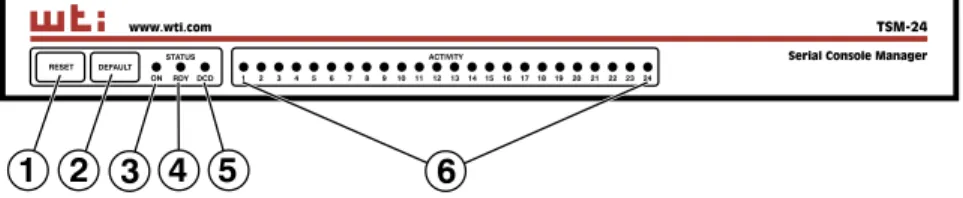
2.1. TSM Series - Front Panel
As shown in Figure 2.1, the TSM front panel includes the following components:
RESET: Can be used to restart the TSM operating system as described in Section 2.11.
DEFAULT: Can be used to initialize the TSM to default parameters as described in Section 2.11.
ON: Lights when AC Power is applied.Ã
RDY: (Ready) Flashes to indicate that the unit is operational.
DCD: (Data Carrier Detect) Lights when the DCD signal is present.
ACTIVITY LEDs: A series of LEDs, which will light when a CTS signal is detected, and will flash during data transmission to indicate activity at the corresponding port.• TSM-8 series units include 8 Activity LEDs • TSM-24 series units include 24 Activity LEDs • TSM-40 series units include 40 Activity LEDs.
STATUS DEFAULT RESET ON RDY DCD ACTIVITY 1 2 3 4 5 6 7 8 910111213 14 15 1617 18 192021 22 23 24 www.wti.com TSM-24
Serial Console Manager
1 2 3 4 5
6
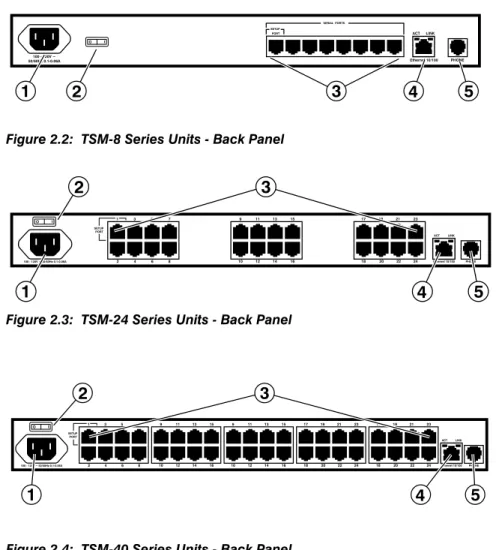
2.2. TSM Series - Back Panel
As shown in Figures 2.2, 2.3 and 2.4, the TSM Back Panel includes the following components:
Power Inlet: An IEC-320-C14 inlet, for connection to your 100 to 240 VAC power supply.Notes:
• 48 VDC powered models include a terminal block assembly (see
Figure 4.1) in place of the power inlet. For more information, please refer to Section 4.1.3.
• Some TSM series units include an optional, secondary IEC-320-C14 power inlet. This allows connection to a secondary power source in power redundancy applications.
Power On/Off Switch Master Power Switch.Note: The Power On/Off Switch is not present on TSM series units that include
I O Ethernet 10/100 PHONE ACTLINK 100 - 120V ~ 50/60Hz 0.1-0.06A SETUP PORT SERIAL PORTS 1 2 3 4 5
Figure 2.2: TSM-8 Series Units - Back Panel
I O Ethernet 10/100 PHONE ACT LINK 100 - 120V ~ 50/60Hz 0.1-0.06A 1 3 5 7 9 11 13 15 10 12 14 16 17 19 21 23 18 20 22 24 8 6 4 2 SETUP PORT
1
2
3
4
5
Figure 2.3: TSM-24 Series Units - Back Panel
I O Ethernet 10/100 PHONE ACT LINK 100 - 120V ~ 50/60Hz 0.1-0.06A 1 3 5 7 9 11 13 15 10 12 14 16 9 11 13 15 10 12 14 16 17 19 21 23 18 20 22 24 17 19 21 23 18 20 22 24 8 6 4 2 SETUP PORT 1 2 3 4 5
RS232 Serial Ports: For connection to console ports on target devices. Standard RJ45 connectors configured as DTE ports. The RS232 ports are similar to a serial port on a PC. When connecting a modem, use a standard serial cable. When connecting a PC or other DTE device, please refer to Section 4.5 and Appendix B and Appendix C.• TSM-8 series units include 8 Serial Ports. • TSM-24 series units include 24 Serial Ports. • TSM-40 series units include 40 Serial Ports.
Ã
Network Port(s): An RJ45 Ethernet port for connection to your 10/100Base-T, TCP/IP network. Note that the TSM features a default, IPv4 format IP address (192.168.168.168). This allows you to connect to the unit without first assigning an IP address. Note that the Network Port also includes two, small LED indicators for Link and Data Activity. For more information on Network Port configuration, please refer to Section 5.9.Notes:
• Some TSM series units include an optional, secondary RJ45 Ethernet port. This allows the TSM to be connected to both a primary network and secondary network.
• When two Network Ports are present, the top Network Port is ETH0; the bottom Network Port is ETH1.
• When connecting only a single network cable to a TSM series unit that includes the optional, secondary Network Port, make certain to connect to Port ETH0.
Phone Line Port (Internal Modem Port): When the Internal Modem option is present, the phone line port is used for connection to your external phone line.2.3. RSM Series - Front Panel
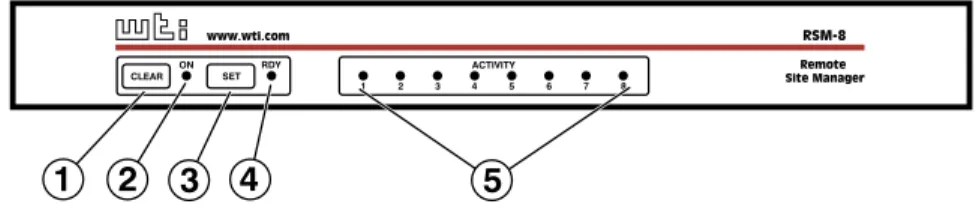
As shown in Figure 2.5, the RSM front panel includes the following components:
CLEAR: Can be used to restart the RSM operating system as described in Section 2.11.
ON: Lights when AC Power is applied.
SET: Can be used to initialize the RSM to default parameters as described in Section 2.11.Ã
RDY: (Ready) Flashes to indicate unit is operational.
ACTIVITY LEDs: A series of LEDs, which will light when a CTS signal is detected, and will flash during data transmission to indicate activity at the corresponding port.• RSM-8 series units include 8 Activity LEDs • RSM-16 series units include 16 Activity LEDs
CLEAR ON SET RDY ACTIVITY
1 2 3 4 5 6 7 8
www.wti.com RSM-8
Remote Site Manager
1 2 3 4
5
2.4. RSM Series - Back Panel
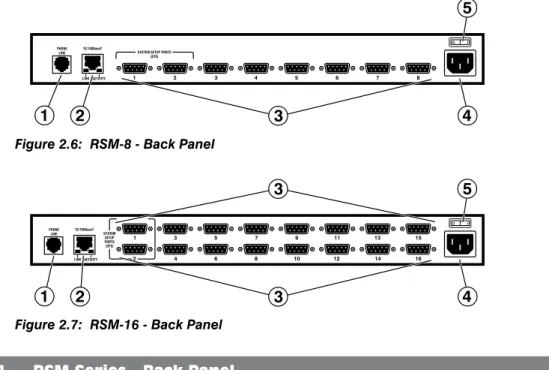
As shown in Figures 2.6 and 2.7, the RSM Back Panel includes the following components:
Phone Line Port (Internal Modem Port): When the Internal Modem is present, the phone line port is used for connection to your external phone line.
Network Port: An RJ45 Ethernet port for connection to your 10/100Base-T, TCP/IP network. Note that the RSM features a default, IPv4 format IP address (192.168.168.168). This allows you to connect to the unit without first assigning an IP address. Note that the Network Port also includes two, small LED indicators for Link and Data Activity. For more information on Network Port configuration, please refer to Section 5.9.
RS232 Serial Ports: For connection to console ports on target devices. Standard DB9 connectors configured as DTE ports. The RS232 ports are similar to a serial port on a PC. When connecting a modem, use a standard serial cable. When connecting a PC or other DTE device, please refer to Section 4.5 and Appendix B and Appendix C.• RSM-8 series units include 8 Serial Ports. • RSM-16 series units include 16 Serial Ports.
Ã
Power Inlet: An IEC-320-C14 inlet, for connection to your 100 to 240 VAC power supply. Note that RSM-16DC (-48 VDC powered models) include a terminal block assembly (see Figure 4.2) in place of the power inlet. For more information, please refer to Section 4.1.3.
Power On/Off Switch: Master Power SwitchO I
PHONE LINE
10/100BaseT LINK ACTIVITY
SYSTEM SETUP PORTS (DTE)
1 2 3 4 5 6 7 8
1 2 3 4
5
Figure 2.6: RSM-8 - Back Panel
O I PHONE LINE 10/100BaseT LINK ACTIVITY 2 1 3 4 5 6 7 8 9 10 11 12 13 14 15 16 SYSTEM SETUP PORTS (DTE) 1 2 3 3 4 5
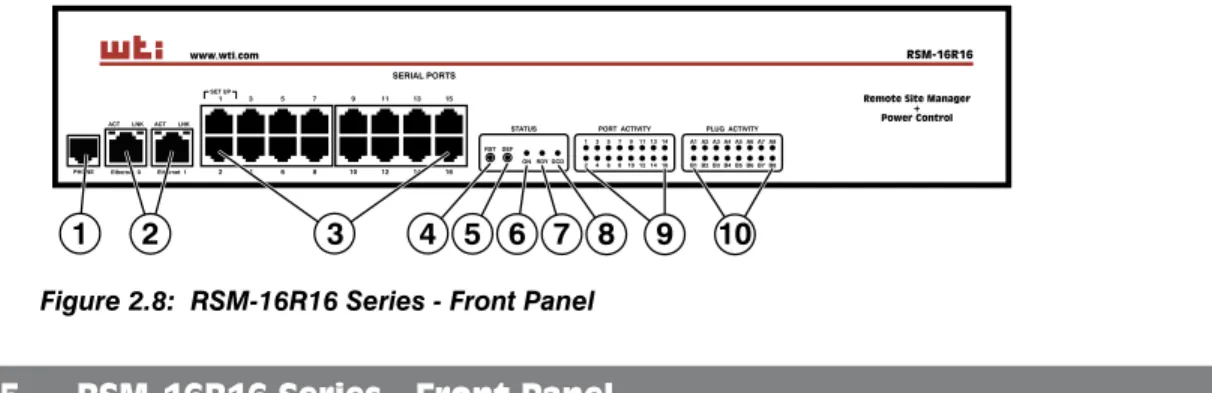
2.5. RSM-16R16 Series - Front Panel
As shown in Figure 2.8, the RSM-16R16 series front panel includes the following components:
Phone Line Port (Internal Modem Port): When the Internal Modem is present, the phone line port is used for connection to your external phone line.
Network Ports: Two Ethernet ports for connection to your primary and secondary 10Base-T or 100Base-T, TCP/IP networks. Note that the RSM-16R16 features a default, IPv4 format IP address (192.168.168.168). This allows you to connect to the unit without first assigning an IP address. The Network Ports also include two LED indicators for Link and Data Activity. For more information on port configuration, please refer to Section 5.9.Notes:
• The left Network Port is ETH0; the right Network Port is ETH1.
• When connecting a single network cable to an RSM-16R16 series unit (Dual Ethernet Ports,) make certain to connect to Port ETH0.
Serial Ports: For connection to console ports on target devices. Standard RJ45 connectors configured as DCE ports. For more information on connecting devices to the serial ports, please refer to Section 4.5 and Appendix B and Appendix C.Ã
Port Activity Indicators: A series of LEDs, which will light when a CTS signal is detected and flash during data transmission to indicate activity at the port.
RESET Button: Restarts the RSM-16R16 as described in Section 2.11.
DEFAULT Button: Switches all plugs Off or sets plugs to default values as described in Section 2.11.
ON Indicator: Lights when AC Power is applied to the unit.
RDY Indicator: (Ready) Flashes to indicate the unit is ready to receive commands.
DCD Indicator: The Data Carrier Detect indicator.
Plug Activity Indicators: A series of sixteen LED indicators which light when power is applied to the corresponding switched outlet.Note: Providing that power is still present at the secondary power inlet for a given branch, the Plug Activity indicators for that branch will blink on and off
www.wti.com RSM-16R16
Remote Site Manager + Power Control SET UP SERIAL PORTS 1 3 5 7 9 11 13 15 2 4 6 8 10 12 14 16 PLUG ACTIVITY PORT ACTIVITY STATUS ACT LNK ACT LNK Ethernet 0 Ethernet 1 PHONE RST DEF ON RDY DCD 13579 11 13 14 2468 10 12 14 16 A1 A2 A3 A4 A5 A6 A7 A8 B1 B2 B3 B4 B5 B6 B7 B8 1 2 3 4 5 6 7 8 9 10
2.6. RSM-16R16 Series - Back Panel
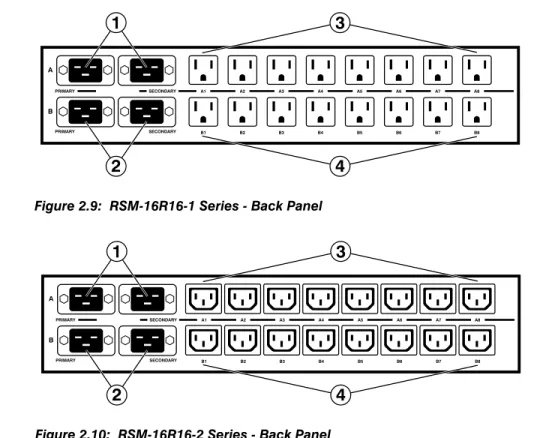
As shown in Figures 2.9 and 2.10, the RSM-16R16 series back panel includes the following components:
Branch A Power Inlets: Two IEC-320-C20 inlets that supply power to Branch A. Each branch includes two inlets to allow connection to both a primary power supply and secondary (fallback) power supply to Branch A. Also includes cable keepers (not shown.)
Branch B Power Inlets: Two IEC-320-C20 inlets that supply power to Branch B. Each branch includes two inlets to allow connection to both a primary power supply and secondary (fallback) power supply to Branch B. Also includes cable keepers (not shown.)
Branch A Switched Outlets: Eight switched AC outlets that are powered by the Branch A Power Inlets.• RSM-16R16-1: Eight (8) each, NEMA 5-15R Outlets.
• RSM-16R16-2: Eight (8) each, IEC320-C13 Outlets.
Ã
Branch B Switched Outlets: Eight switched AC outlets that are powered by the Branch B Power Inlets.• RSM-16R16-1: Eight (8) each, NEMA 5-15R Outlets.
• RSM-16R16-2: Eight (8) each, IEC320-C13 Outlets.
A PRIMARY SECONDARY SECONDARY PRIMARY B A1 A2 A3 A4 A5 A6 A7 A8 B1 B2 B3 B4 B5 B6 B7 B8
1
2
3
4
Figure 2.9: RSM-16R16-1 Series - Back Panel
A PRIMARY SECONDARY SECONDARY PRIMARY B A1 A2 A3 A4 A5 A6 A7 A8 B1 B2 B3 B4 B5 B6 B7 B8
1
2
3
4
2.7. RSM-8R8 Series - Front Panel
As shown in Figure 2.11, the RSM-8R8 series front panel includes the following components:
Phone Line Port (Internal Modem Port): When the optional Internal Modem is present, the phone line port is used for connection to your external phone line.
Network Port(s): RJ45 Ethernet port(s) for connection to your 10Base-T or 100Base-T, TCP/IP network. The RSM-8R8 features a default, IPv4 format address (192.168.168.168). This allows you to connect to the unit without first assigning an IP address. The Network Port also includes two LED indicators for Link and Data Activity. For more information on port configuration, please refer to Section 5.9.Note:
• Some RSM-8R8 series units include an optional, secondary Ethernet Port. This allows the RSM-8R8 to be connectd to both a primary network and secondary network.
• When two Network Ports are present, the top Network Port is ETH0; the bottom Network Port is ETH1.
• When connecting only a single network cable to an RSM-8R8 series unit that includes the optional, secondary Network Port, make certain to connect to Port ETH0.
Serial Ports: For connection to console ports on target devices. Standard RJ45 connectors configured as DCE ports. For more information on connecting devices to the serial ports, please refer to Section 4.5 and Appendix B and Appendix C.Ã
ACTIVITY Indicators: A series of LEDs, which will light when a CTS signal is detected, and will flash during data transmission to indicate activity at the corresponding port.
RESET Button: Restarts the RSM-8R8 as described in Section 2.11.
DEFAULT Button: Switches all plugs Off or sets plugs to default values as described in Section 2.11.
ON Indicator: An LED Indicator which lights when AC Power is applied to the unit.Ethernet PHONE
ACT LINK
www.wti.com RSM-8R8
Remote Site Manager + Power Control
SET UP SERIAL PORTS
1 2 3 4 5 6 7 8 ACTIVITY 1 2 3 4 5 6 7 8 RESETDEFAULT STATUS ON RDY DCD OUTPUT STATUS 1 2 3 4 5 6 7 8 1 2 3 4 5 6 7 8 9 10
RDY Indicator: (Ready) Flashes to indicate that the unit is ready to receive commands.
DCD Indicator: The Data Carrier Detect indicator.
Output Status Indicators: A series of eight LED indicators which light when power is applied to the corresponding switched outlet.Note: Providing that power is still present at the secondary power inlet, the Output Status indicators will blink on and off when the primary power source is lost or disconnected.
2.8. RSM-8R8 Series - Back Panel
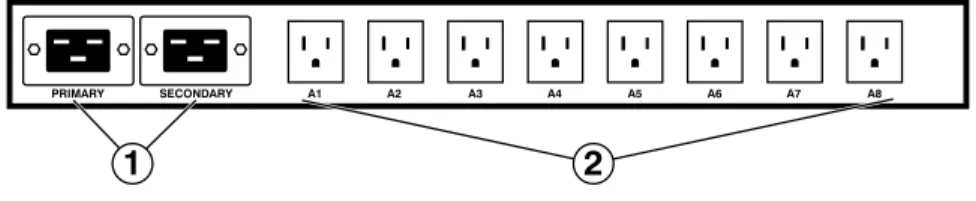
As shown in Figures 2.12 and 2.13, the RSM-8R8 series back panel includes the following components:
Power Inlets: IEC-320-C20 inlet(s,) for connection to your power supply. Note that Some RSM-8R8 series units include an optional,secondary power inlet. This allows the RSM-8R8 to connected to both a primary power supply and a secondary power supply for power redundancy applications.
Switched Outlets: Eight AC Outlets that can be switched On, Off or rebooted in response to user commands:• RSM-8R8-1 Series: Eight (8) each, NEMA 5-15R Outlets.
• RSM-8R8-2 Series: Eight (8) each, IEC320-C13 Outlets.
PRIMARY SECONDARY A1 A2 A3 A4 A5 A6 A7 A8
1
2
Figure 2.12: RSM-8R8-1 - Back Panel
Figure 2.13: RSM-8R8-2 - Back Panel
PRIMARY SECONDARY A1 A2 A3 A4 A5 A6 A7 A8
2.9. RSM-2R4 Series - Front Panel
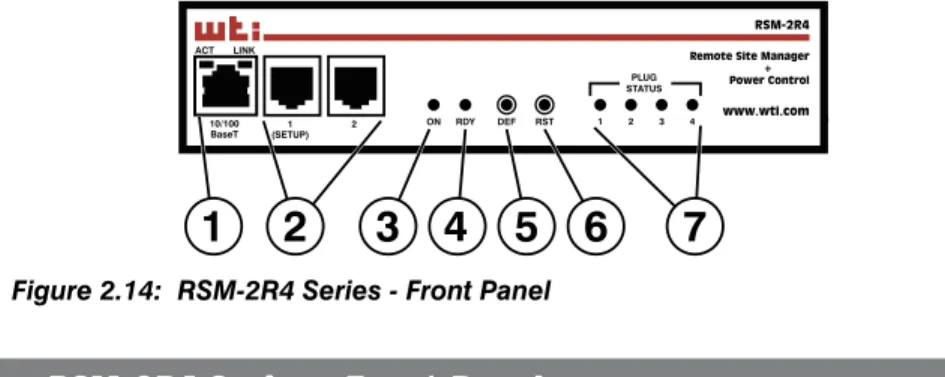
As shown in Figure 2.14, the RSM-2R4 front panel includes the following components:
Network Port: An RJ45 Ethernet port for connection to your 10/100Base-T, TCP/ IP network. Note that the RSM-2R4 features a default, IPv4 format IP address and a default IPv6 format IP address (192.168.168.168). This allows you to connect to the unit without first assigning an IP address. Note that the Network Port also includes two, small LED indicators for Link and Data Activity. For more information on Network Port configuration, please refer to Section 5.9.Note: RSM-2R4 Series units are not available with an internal modem port.
Serial Ports: For connection to console ports on target devices. Standard RJ45 connectors configured as DCE ports. For more information on connecting devices to the serial ports, please refer to Section 4.5 and Appendix B and Appendix C.
ON Indicator: An LED Indicator which lights when AC Power is applied to the unit.Ã
RDY Indicator: (Ready) Flashes to indicate that the unit is ready to receive commands.
DEFAULT Button: Switches all plugs Off or sets plugs to default values as described in Section 2.11.
RESET Button: Restarts the RSM-2R4 as described in Section 2.11.
Output Status Indicators: A series of four LED indicators which light when power is applied to the corresponding switched outlet.10/100 BaseT ACT LINK
www.wti.com RSM-2R4 Remote Site Manager + Power Control
1 2 1
(SETUP) 2 ON RDY DEF RST 3 4 PLUG STATUS
3
1
2
3 4 5 6
7
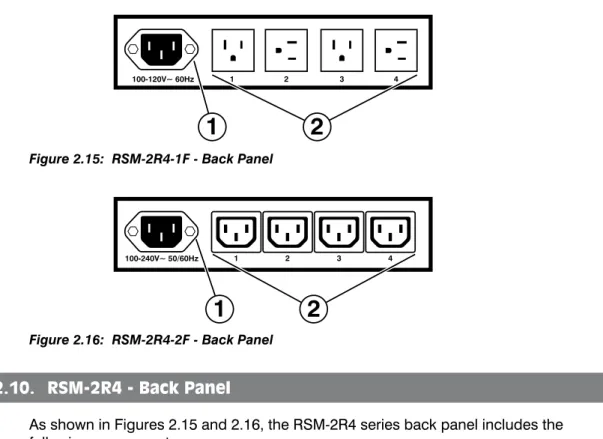
2.10. RSM-2R4 - Back Panel
As shown in Figures 2.15 and 2.16, the RSM-2R4 series back panel includes the following components:
Power Inlet: An IEC-320-C14 inlet, for connection to your 100 to 240 VAC power supply.
Switched Outlets: Four AC Outlets that can be switched On, Off or rebooted in response to user commands:• RSM-2R4-1F: Four (4) each, NEMA 5-15R Outlets.
• RSM-8R8-2F: Four (4) each, IEC320-C13 Outlets.
100-120V~ 60Hz 1 2 3 4
1
2
Figure 2.15: RSM-2R4-1F - Back Panel
Figure 2.16: RSM-2R4-2F - Back Panel
100-240V~ 50/60Hz 1 2 3 4
2.11. Front Panel Button Functions
The front panel buttons can be used to perform several functions described below:
Notes:
• Front Panel button functions can also be disabled via the System Parameters menu, as described in Section 5.3.
• When the TSM/RSM is reset to factory defaults, all user-defined configuration parameters will be cleared and the default “super” user account will also be restored.
• When the TSM/RSM is reinitialized, all ports will be disconnected. • During the reboot procedure, all port activity LEDs will flash once.
1. Reboot Operating System - Keep User-Defined Parameters:
a) Press and hold the CLEAR (or RESET) button for five seconds, and then release.
b) The TSM/RSM operating system will reboot; all user-defined parameters will be retained.
2. Reboot Operating System - Reset All Parameters to Factory Defaults:
a) Simultaneously press both the SET (or DEFAULT) button and the CLEAR (or RESET) button, hold them for five seconds, and then release.
b) The TSM/RSM operating system will reboot; all user-defined parameters will be reset to factory default settings.
Note: The RDY Indicator will continue to blink for about 45 seconds while parameters are being erased and keys are rebuilt. The RDY Indicator will then stop blinking during the reboot.
This section describes a simplified installation procedure for the TSM/RSM hardware, which will allow you to communicate with the unit in order to demonstrate basic features and check for proper operation.
Note that this Quick Start procedure does not provide a detailed description of unit configuration, or discuss advanced operating features in detail. For more information, please refer to the remainder of this User’s Guide.
3.1. Apply Power to the TSM/RSM
Refer to the safety precautions listed at the beginning of this User's Guide, and then connect the unit to an appropriate power source. Connect the power supply cable to the unit’s power inlet, snap the Cable Keeper into place, and then connect the cable to an appropriate power supply. Please refer to the power rating label on the unit concerning power requirements and maximum load. Note that some TSM/RSM series units feature two power inlets and RSM-16R16 series units include four power inlets. When power is applied to the TSM/RSM, the ON LED on the instrument front panel should light, and the RDY LED should begin to flash within 90 seconds. This indicates that the unit is ready to receive commands.
3.2. Connect Your PC to the TSM/RSM
The TSM/RSM can either be controlled by a local PC Serial Port, controlled via modem, or controlled via TCP/IP network. In order to select parameters, connect ports or control outlets, commands are issued to the TSM/RSM via either the Network Port, Modem Port or Serial Setup Port.
• Network Port: Connect the your 10Base-T or 100Base-T network interface to the TSM/RSM 10/100Base-T Network Port.
• Serial Port: Use the supplied Ethernet cable and RJ45 to DB-9 adapter to connect your PC COM port to Serial Port 1 (the System SetUp Port.) For a description of the Serial Port Interface, please refer to Appendix B.
• Modem: If the TSM/RSM includes an Internal Modem, connect your external phone line to the TSM/RSM Phone Line (Modem) Port.
Notes:
• When connecting your network cable to a TSM/RSM unit that includes two Ethernet ports, make certain to connect to Port ETH0.
• Note that an external modem can also be connected to the TSM/RSM serial ports as described in Section 4.5, Appendix B and Appendix C.
• For cable recomendatations and other information on connecting devices to the TSM/RSM unit, please refer to Appendix B and Appendix C.
3.3. Communicating with the TSM/RSM
When properly installed and configured, the TSM/RSM will allow command mode access via Telnet, Web Browser, SSH client, modem, or local PC. However, in order to ensure security, both Telnet and Web Browser access are disabled in the default state. To enable Telnet and/or Web Browser access, please refer to Section 5.9.2.
Notes:
• Default TSM/RSM serial port parameters are set as follows: 9600 bps, RTS/ CTS Handshaking, 8 Data Bits, One Stop Bit, No Parity. Although these parameters can be easily redefined, for this Quick Start procedure, it is recommended to configure your communications program to accept the default parameters.
• The TSM/RSM features a default IP Address (192.168.168.168) and a default Subnet Mask (255.255.255.0.) This allows network access to command mode, providing that you are contacting the TSM/RSM from a node on the same subnet. When attempting to access the TSM/RSM from a node that is not on the same subnet, please refer to Section 5.9 for further configuration instructions.
• When connecting only a single network cable to a TSM/RSM unit that
includes two Ethernet ports, make certain to connect to Port ETH0 (the upper Ethernet Port.)
1. Access Command Mode: The TSM/RSM includes two separate user interfaces; the Text Interface and the Web Browser Interface. The Text Interface is available via Local PC, SSH Client, Telnet, or Modem and can be used to both configure the TSM/RSM and create connections between ports. The Web Browser interface is only available via TCP/IP network, and can be used to configure the unit, but cannot create connections between ports.
a) Via Local PC: Start your communications program and then press [Enter].
b) Via SSH Client: Start your SSH client, enter the default IP address (192.168.168.168) for the TSM/RSM and invoke the connect command. c) Via Web Browser: Make certain that Web Browser access is enabled as
described in Section 5.9.2. Start your JavaScript enabled Web Browser, enter the default IPv4 format TSM/RSM IP address (192.169.168.168) in the Web Browser address bar, and then press [Enter].
d) Via Telnet: Make certain that Telnet access is enabled as described in Section 5.9.2. Start your Telnet client, and enter the TSM/RSM's default IPv4 format IP address (192.168.168.168).
e) Via Modem: Use your communications program to dial the number for the line connected to the TSM/RSM’s Phone Line port.
2. Username / Password Prompt: A message will be displayed, which prompts you to enter your username (Login) and password.. The default username is "super" (all lower case, no quotes), and the default password is also "super". If a valid username and password are entered, the TSM/RSM will display either the Main Menu (Web Browser Interface) or the Port Status Screen (SSH, Telnet, or Modem.)
Notes:
• The default Username is "super". • The default Password is "super"
• If a Login Banner has been defined as described in Section 5.3, then a banner page will appear before the command interface is displayed. The Login Banner can be used to display legal warnings or other information.
3. Review Help Menu: If you are communicating with the TSM/RSM via the text interface (SSH, Telnet or Modem), type /H and press [Enter] to display the Help Menu, which lists all available TSM/RSM commands. Note that the Help Menu is not available via the Web Browser Interface.
3.4. Connecting Ports and Switching Outlets
Although both the Text Interface and Web Browser Interface allow you to select
configuration parameters, the Text Interface is always used when invoking commands to connect ports. If you have previously accessed command mode via the Web Browser Interface, exit command mode (log out), then re-enter command mode using the Text Interface as described in Section 3.3.
Proceed as follows to connect ports and switch outlets:
1. Review the Help Menu: At the Text Interface command prompt, type /H and press [Enter] to display the Help Menu, which provides a basic listing of all available TSM/RSM commands.
2. Creating Connections Between Ports: The TSM/RSM can perform two different types of port connections; Resident Connections and Third Party Connections: a) Resident Connection: Your resident port issues a /C command to connect to
a second port.
i. To connect your resident port to Port 3, type /C 3 [Enter]. While you are connected to Port 3, the unit will not recognize additional commands issued via your resident port. However, the unit will recognize a Resident Disconnect Sequence issued at either connected port.
ii. Issue the Resident Disconnect Sequence (Logoff Sequence); type ^X (press [Ctrl] and [X] at the same time).
b) Third Party Connection: Your resident port issues a /C command to create a connection between two other ports.
i. To connect Port 3 to Port 4, type /C 3 4 [Enter].
ii. While Ports 3 and 4 are connected, your resident port will still recognize commands. Type /S [Enter] to display the Status Screen. The "STATUS" column should now list Ports 3 and 4 as connected and the other ports as "Free".
iii. Issue a Third Party Disconnect command; type /D 3 [Enter]. The unit will display the "Are you Sure (y/n)?" prompt. Type y and press [Enter] to disconnect.
iv. Type /S [Enter] to display the Status Screen. The "STATUS" column should now list Ports 3 and 4 as "Free".
Note: Although the Web Browser Interface cannot be used to connect TSM/ RSM serial ports, it can be used to disconnect TSM/RSM serial ports as described in Section 9.1.1.3.
3. Controlling Outlets (RSM-xRy Series Models Only): You may wish to perform the following tests in order to make certain that the switched outlets are functioning properly.
Notes:
• Switched outlets can also be controlled via the Web Browser Interface as described in Section 9.2.
• The Switched Outlets are not present on standard TSM Series units or standard RSM Series Units.
a) Reboot Outlet: At the command prompt, type /BOOT 1 and press [Enter]. The status indicator for Plug 1 should go Off, pause for a moment and then go back On, indicating that the boot cycle has been successfully completed. b) Switch Outlet Off: At the command prompt, type /OFF 1 and then press
[Enter]. The status indicator for Plug 1 should go Off, indicating that the command has been successfully completed. Leave Plug 1 in the "Off" state, and then proceed to the next step.
c) Switch Outlet On: At the command prompt, type /ON 1 and press [Enter]. The status indicator for Plug 1 should then go back On, indicating that the command has been successfully completed.
3.5. The WMU Enterprise Management Solution
The WMU Enterprise Management Solution provides a centralized interface that can be used to configure, manage and control multiple WTI out-of-band management devices spread throughout a large corporate network infrastructure. When installed at your network operation center or support facility, the WMU eliminates the need to individually access WTI units in order to perform firmware updates, control power switching
functions, edit user accounts and perform other management and control functions. The WMU software and user's guide can be downloaded at:
ftp://wtiftp.wti.com/pub/TechSupport/WMU/WtiManagementUtilityInstall.exe
This completes the Quick Start procedure for the TSM/RSM. Prior to placing the unit into operation, it is recommended to refer to the remainder of this user’s guide for important information regarding advanced configuration capabilities and more detailed operation instructions. If you have further questions regarding the TSM/RSM unit, please contact WTI Customer Support as described in Appendix D.
4.1. Connecting the Power Supply Cables
4.1.1. Connect the TSM/RSM to Your Power Supply
Refer to the cautions listed below and at the beginning of this User's Guide, and then connect the TSM/RSM unit to an appropriate power supply.
CAUTIONS:
• Before attempting to install this unit, please review the warnings and cautions listed at the front of the user’s guide.
• This device should only be operated with the type of power source indicated on the instrument nameplate. If you are not sure of the type of power service available, please contact your local power company. • Reliable earthing (grounding) of this unit must be maintained. Particular
attention should be given to supply connections when connecting to power strips, rather than directly to the branch circuit.
• Some TSM/RSM include an optional, secondary power inlet in order to allow connection to a secondary power supply.
• RSM-16R16 series units include four power inlets split between two branches.
4.1.2. Installing the Power Supply Cable Keeper
The TSM/RSM includes a cable keeper, which is designed to prevent the AC power supply cable from being accidentally disconnected from the unit.
When attaching power supply cable(s) to the unit, first swing the cable keeper out of the way, then plug the power cable securely into the power input. When the cable is in place, snap the cable keeper over the plug to secure the cable to the unit.
4.1.3. DC Powered Units
When connecting a DC Powered TSM Series or RSM Series unit to your DC Power source, note that the DC terminal block is designed for connection to two separate power sources. First remove the protective cover from the terminal block, attach the wires from the -48 VDC power sources to the screw terminals, connect the ground line to the labeled ground screw, tighten the screw terminals, making certain that the wires are securely fastened, and then replace the protective cover.
4.2. Connecting the Network Cable
The Network Port is an RJ45 Ethernet jack, for connection to a TCP/IP network. Connect your 100Base-T cable to the Network Port. Some TSM/RSM series units include an optional, secondary Network port in addition to the primary network port. RSM-16R16 series units include two Network Ports.
Note that the TSM/RSM includes a default IPv4 protocol IP address (192.168.168.168) and a default IPv4 protocol subnet mask (255.255.255.0.) When installing the TSM/RSM in a working network environment, it is recommended to define network parameters as described in Section 5.9.
Note: When connecting your network cable to a TSM/RSM unit that includes two Ethernet ports make certain to connect to Port ETH0.
4.3. The Internal Modem Port
If your TSM/RSM unit includes the optional internal modem, connect an RJ11 phone line to the Internal Modem port. For information on Modem Port configuration, please refer to Section 5.8. Note that an external modem can also be connected to the TSM/RSM serial ports as described in Section 4.5, Appendix B and Appendix C.
-48V
-48V 0 -48V 0
0.1A Ground Screw
Figure 4.1: Terminal Block Assembly (TSM Series, DC Units Only) -48V 0.1A
0 -48V A -48VB
GROUND SCREW
4.4. Connection to Switched Outlets
Connect the power cord from your switched device to one of the AC Outlets located on the RSM-xRy series unit back panel. Note that when power is applied to the RSM-xRy series unit, the AC Outlets will be switched “ON” by default.
Note: Power control features are not available on standard TSM Series Units or standard RSM Series units. Switched Outlets are only available on RSM-xRy series units.
4.5. Connecting Devices to the TSM/RSM Serial Ports
TSM/RSM units feature either RJ45 RS232 connectors or DB9 RS232 format connectors, wired in a DCE configuration; TSM and RSM-xRy series units feature RJ45 connectors and standard RSM Series units feature DB9 format connectors. In the default state, the serial ports are configured for 9600 bps, no parity, 8 data bits, 1 stop bit. For a description of the serial port interface, please refer to Appendix B.
When properly configured, the serial ports can be connected to almost any device that includes an RS232 console port. In addition, the serial ports can also be used to allow local users to configure and control the TSM/RSM unit; Ports 1 is designated as a "Set Up Port", and accordingly cannot be reconfigured as a buffer mode or passive mode port in order to ensure the port's availability for local communication with the TSM/RSM.
Notes:
• For cable recomendatations and other information on connecting devices to the TSM/RSM unit, please refer to Appendix B and Appendix C.
• To connect external modems, router switches, or other DTE and DCE devices to the TSM/RSM serial ports, please refer to Appendix C for information regarding cables and adapters.
After connecting new devices to TSM/RSM Serial Ports, access the TSM/RSM command mode and select communication parameters for each serial port as described in
Section 5.8. This completes the TSM/RSM installation instructions. Please proceed to the next Section for instructions regarding basic unit configuration.
4.6. Emergency Shut Off Function
RSM-xRy series units also include an Emergency Shut Off function, that can be used to immediately shut off all RSM power outlets in case of emergency. For more information regarding the Emergency Shut Off feature, please contact WTI Tech Support at
This section describes the basic configuration procedure for all TSM/RSM units. For more information on Alarm Configuration, please refer to Section 7.
5.1. Communicating with the TSM/RSM Unit
In order to configure the TSM/RSM, you must first connect to the unit, and access command mode. Note that, the TSM/RSM offers two separate configuration interfaces; the Web Browser Interface and the Text Interface.
In addition, the TSM/RSM also offers three different methods for accessing command mode; via network, via modem, or via local console. The Web Browser interface is only available via network, and the Text Interface is available via network (SSH or Telnet), modem or local PC.
5.1.1. The Text Interface
The Text Interface (also known as the "Command Line Interface" or "CLI") consists of a series of simple ASCII text menus, which allow you to set options and define parameters by entering the number for the desired option using your keyboard, and then typing in the value for that option.
Since the Web Browser Interface and Telnet accessibility are both disabled in the default state, you will need to use the Text Interface to contact the unit via Local PC or SSH connection when setting up the unit for the first time. After you have accessed command mode using the Text Interface, you can then enable Web Access and Telnet Access, if desired, in order to allow future communication with the unit via Web Browser or Telnet. You will not be able to contact the unit via Web Browser or Telnet until you have enabled those options.
Once Telnet Access is enabled, you will then be able to use the Text Interface to communicate with the TSM/RSM via local PC, Telnet or SSH connection. You can also use the Text Interface to access command mode via an external modem installed at one of the TSM/RSM's serial ports.
In order to use the Text Interface, your installation must include:
• Access via Network: The TSM/RSM must be connected to your TCP/IP Network, and your PC must include a communications program (such as HyperTerminal.)
• Access via Modem: A phone line must be connected to the TSM/RSM's internal modem. In addition, your PC must include a communications program.
• Access via Local PC: Your PC must be connected to an TSM/RSM Serial Port, the Serial Port must be configured for Any-to-Any Mode, and your PC must include a communications program. Serial Port 1 is designated as a Set Up Port, and by default, is configured for communication with a local control device.
To access command mode via the Text Interface, proceed as follows:
Notes:
• When communicating with the unit for the first time, you will not be able to contact the unit via Telnet until you have accessed command mode, via Local PC or SSH Client, and used the Network Parameters Menu to enable Telnet as described in Section 5.9.
• Some TSM/RSM series units include an optional, secondary Ethernet Port in addition to the primary Ethernet port in order to allow connection to both a primary and secondary network.
• When connecting only one network cable to a TSM/RSM unit that includes two Ethernet ports, make certain to connect the cable to Port ETH0 (the upper Ethernet Port.)
1. Contact the TSM/RSM Unit:
a) Via Local PC: Start your communications program and press [Enter]. Wait for the connect message, then proceed to Step 2.
b) Via Network: The TSM/RSM includes a default IPv4 format IP address (192.168.168.168) and a default IPv4 format subnet mask (255.255.255.0.) This allows you to contact the unit from any network node on the same subnet, without first assigning an IP Address to the unit. For more information, please refer to Section 5.9.
i. Via SSH Client: Start your SSH client, and enter the TSM/RSM’s IP Address. Invoke the connect command, wait for the connect message, then proceed to Step 2.
ii. Via Telnet: Start your Telnet Client, and then Telnet to the TSM/RSM’s IP Address. Wait for the connect message, then proceed to Step 2.
c) Via Modem: Use your communications program to dial the number for the phone line that you have connected to the TSM/RSM's internal modem port. 2. Login / Password Prompt: A message will be displayed, which prompts you to
enter a username (login name) and password. The default username is "super" (all lower case, no quotes), and the default password is also "super".
Note: If a Login Banner has been defined as described in Section 5.3, then a banner page will appear before the command prompt is displayed. The Login Banner can be used to display legal warnings or other information.
5.1.2. The Web Browser Interface
The Web Browser Interface consists of a series of web forms, which can be used to select configuration parameters and perform reboot operations, by clicking on radio buttons and/or entering text into designated fields.
Note: In order to use the Web Browser Interface, Web Access must first be enabled via the Text Interface Network Parameters Menu (/N), the TSM/RSM must be connected to a TCP/IP network, and your PC must be equipped with a JavaScript enabled web browser.
1. Start your JavaScript enabled Web Browser, key the TSM/RSM’s default IPv4 format IP address (192.168.168.168) into the web browser’s address bar, and
press [Enter].
2. Username / Password Prompt: A message box will prompt you to enter your username and password. The default username is "super" (all lower case, no quotes), and the default password is also "super".
Note: If a Login Banner has been defined as described in Section 5.3, then a banner page will appear before the command prompt is displayed. The Login Banner can be used to display legal warnings or other information.
5.1.3. Access Via PDA
In addition to the Web Browser Interface and Text Interface, the TSM/RSM command mode can also be accessed by PDA devices. Note however, that due to nature of most PDAs, only a limited selection of TSM/RSM operating and status display functions are available to users who communicate with the unit via PDA.
When the TSM/RSM is operated via a PDA, only the following functions are available:
• Product Status Screen (Unit Info) (Section 8.1) • Port Status Screen (Section 8.3)
• Port and Plug Status Screen (Section 8.4; RSM-xRy Series Only) • Plug Group Status Screen (Section 8.5; RSM-xRy Series Only) • Plug Control Screen (Section 9.2.1; RSM-xRy Series Only) • Plug Group Control Screen (Section 9.2.2; RSM-xRy Series Only)
Notes:
• The Plug Status Screen, Plug Group Status Screen, Plug Control Screen and Plug Group Control Screen are only available on RSM-xRy Series units. • Power Control and Plug Status features are not available on standard TSM
Series units and RSM Series units.
• PDA users are not allowed to change or review TSM/RSM configuration parameters.
For more information on these functions, please refer to the appropriate section listed next to each function in the list above.
To configure the TSM/RSM for access via PDA, first consult your IT department for appropriate settings. Access the TSM/RSM command mode via the Text Interface or Web Browser interface as described in this section, then configure the TSM/RSM's Network Port accordingly, as described in Section 5.9.
In most cases, this configuration will be adequate to allow communication with most PDAs. Note however, that if you wish to use a BlackBerry® to contact the TSM/RSM, you must first make certain to configure the BlackBerry to support HTML tables, as described below:
1. Power on the BlackBerry, and then click on the BlackBerry Internet Browser Icon. 2. Press the Menu button, and then choose "Options."
3. From the Options menu, choose "Browser Configuration," then verify to make certain that "Support HTML Tables" is checked (enabled.)
4. Press the Menu button, and select "Save Options."
When you have finished communicating with the TSM/RSM via PDA, it is important to always close the session using the PDA's menu functions, rather than by simply closing the browser window, in order to ensure that the TSM/RSM has completely exited from command mode, and is not waiting for the inactivity timeout period to elapse. For example, to close a session on a BlackBerry, press the Menu button and then choose "Close."
5.2. Configuration Menus
Although the Web Browser Interface and Text Interface (Command Line Interface) provide two separate means for selecting parameters, both interfaces allow access to the same set of basic parameters, and parameters selected via one interface will also be applied to the other. To access the configuration menus, proceed as follows:
• Text Interface: Refer to the Help Screen (/H) and then enter the appropriate command to access the desired menu. When the configuration menu appears, key in the number for the parameter you wish to define, and follow the instructions in the resulting submenu.
• Web Browser Interface: Use the links and fly-out menus on the left hand of the screen to access the desired configuration menu. To change parameters, click in the desired field and key in the new value or select a value from a pull-down menu. To apply newly selected parameters, click on the "Change Parameters" button at the bottom of the menu or the "Set" button next to the field.
The following sections describe options and parameters that can be accessed via each of the configuration menus. Please note that essentially the same set of parameters and options are available to both the Web Browser Interface and Text Interface.
Notes:
• Configuration menus are only available when you have logged into command mode using a password that permits Administrator Level commands.
SuperUser accounts are able to view configuration menus, but are not allowed to change parameters.
• Configuration menus are not available when you are communicating with the TSM/RSM via PDA
• When defining parameters via the Text Interface, make certain to press the
[Esc] key several times to completely exit from the configuration menu and save newly defined parameters. When parameters are defined via the Text Interface, newly defined parameters will not be saved until the "Saving Configuration" message has been displayed and the cursor returns to the command prompt.