SmartNode 4520 and 4110 Series
VoIP Gateway Routers
Quick Start Guide
Approval—Models that are equipped with FXO interfaces have been approved for connection to the public telecommunication network.
Zulassung—Modelle, die mit FXO Schnittstellen ausgerüstet sind, sind für Anschaltung an das öffentliche Telekommunikationsnetz genehmigt.
Approvazione—I modelli che sono dotato con le interfacce di FXO sono stato approvato per collegamento alla rete di telecomunicazion pubblica.
Aprobación—Los modelos que se equipan los interfaces de FXO se han aprobado para la con-exión a la red de telecomunicación pública.
Approbation—Des modéles qui sont équipés des interfaces de FXO ont été approuvés pour le raccordement au réseau de télécommunication public.
1.0 Power up the SmartNode
1. Connect the SmartNode to a power source using the included power supply and cable.
2. When the Power LED stops blinking and remains lit, the SmartNode is ready to configure.
2.0 Connect the SmartNode to your PC
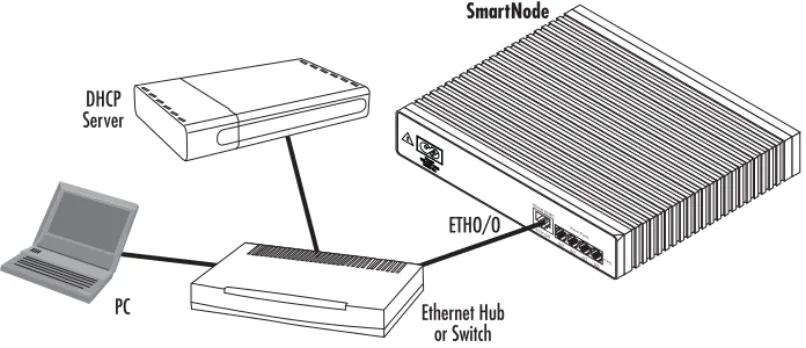
Note For factory default IP address information, see Appendix A.0 on page 7.Option 1:Connect to a network that has a DHCP server (SN4520 & SN4110).Using the included black Ethernet cable, connect the SmartNode RJ-45 Ethernet WAN port,
labeled ETH0/0 (see figure 1), to an Ethernet hub or switch on the same network as your PC. WAN interface
ETH0/0 is configured as DHCP client.
• The SmartNode contains no user serviceable parts. The equipment shall be
returned to Patton Electronics for repairs, or repaired by qualified service personnel.
• Mains Voltage: Do not open the case when the power cord is connected. For
systems without a power switch, line voltages are present within the power supply when the power cord is connected. The mains outlet that is utilized to power the SmartNode router shall be within 10 feet (3 meters) of the device, shall be easily accessible, and protected by a circuit breaker
• The SmartNode is not shipped with power cables. For AC powered units,
ensure that the power cable used meets all applicable standards for the country in which it is to be installed, and that it is connected to a wall outlet which has earth ground.
• Hazardous network voltages are present in WAN ports regardless of whether
power to the SmartNode is ON or OFF. To avoid electric shock, use caution when near WAN ports. when detaching the cables, detach the end away from the SmartNode first.
• Do not work on the system or connect or disconnect cables during periods of
lightning activity.
The terminal block header to which the wires are secured provides the disconnect for the SmartNode. Take proper measures to ensure that it is not permanently fastened to the receptacle mounted on the chassis.
WARNING
Figure 1. Connecting the SmartNode to your PC through a hub or switch
Figure 2. Connecting the SmartNode directly to your PC
Option 2: Connect directly to a PC (SN4520 only).
LAN interface ETH0/1 is configured as DHCP server (see figure 2).
1. Configure your PC as a DHCP client.
Note The procedures below are for Microsoft Windows. For another operating system, refer to the operating instruction that came with your PC.
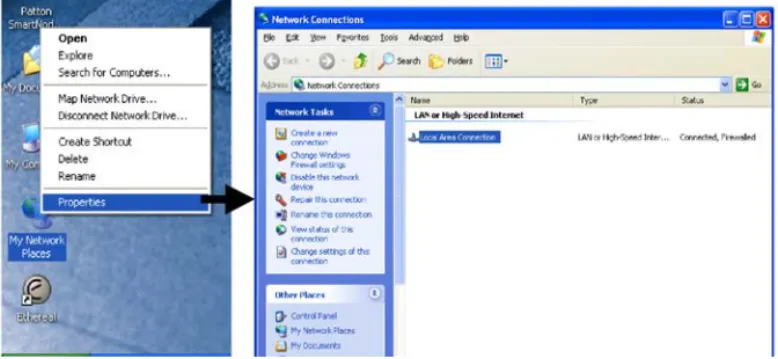
2. Right-click on My Network Places and select Properties in the context menu (see figure 3).
DHCP Server Ethernet Hub or Switch SmartNode PC ETHO/O 0/3 0/2 0/1 0/0 Voice Ports FXS ETH 0/0 0/3 0/2 0/1 0/0 Voice Ports FXS SmartNode 4520 PC ETHO/1 ETH 0/1 ETH 0/0
Figure 3. Displaying the Network Connections window
Figure 4. Displaying the Internet Properties (TCP/IP) Properties window
3. Double-click on Local Area Connection and click on Properties to open the Internet Protocol (TCP/IP) Properties window (see figure 4).
4. Select Obtain an IP address automatically and Obtain DNS server address automatically options.
5. Click OK to save changes and close the properties windows.
6. Using the included black Ethernet cable, connect the SmartNode RJ-45 Ethernet LAN port labeled ETH0/1
directly to the Ethernet port on your PC (see figure 2 on page 3).
Option 3: Connect the SmartNode console port to your PC
(SN4520 & SN4110). If your PC has an RS-232 serial COM port, you may use it to connect the
Smart-Node Console port. Refer to the SmartNode 4520/4110 User Manual located at
3.0 Start the SmartNode Discovery Tool
1. Open a web browser and go to www.patton.com/SNDiscovery. A list of SmartNode utilities displays. Iden-tify the SmartNode Discovery Tool item in the list. Click the Download link and agree to the service terms to save the file to your PC.
2. At your PC, double-click the SNDiscovery.exe file name to activate the tool. The SmartNode Discovery Tool window will display the IP Address, MAC Address, Device Type (model number) and Build (software release) of your SmartNode.
If your SmartNode does not appear:
• Make sure the SmartNode and your PC are on the same routed subnet • Make sure any firewall programs on your PC are disabled
4.0 Access the Command Line Interface
1. In the Discovery Tool window, select the IP address of your SmartNode.
3. In the telnet window, enter the username administrator. At the password prompt simply press the
enter key. The SmartNode will respond by displaying its IP address as the command line prompt.
4. After you log in your SmartNode will be running in operator execution mode (indicated by > character in the command line prompt). To enter configuration mode, use the commands enable and configure.
10.10.22.50>enable
10.10.22.50#configure
10.10.22.50(cfg)#
You may now start to configure the SmartNode from scratch using the CLI commands, but we recommend that
you start your configuration from a template. See section 5.0 “Download a configuration example,
adapt it to your network, and load it onto the SmartNode” on page 6 for further details.
For a detailed description of the CLI refer to the SmartWare Software Configuration Guide
(SCG) available online at www.patton.com/smartnode.
5.0 Download a configuration example, adapt it
to your network, and load it onto the SmartNode
Patton provides a collection of configuration templates on the support page at
www.patton.com/smart-node—one of which may be similar enough to your application that you can use it to speed up configuring the
SmartNode. Simply download the configuration note that matches your application to your PC. Adapt the config-uration as described in the configconfig-uration note to your network (remember to modify the IP address) and copy the modified configuration to a TFTP server. The SmartNode can now load its configuration from this server.
Note If your application is unique and not covered by any of Patton’s configuration templates, you can man-ually configure the SmartNode instead of loading a configuration file template. In that case, refer to the
SmartNode Series SmartWare Software Configuration Guide for information on configuring the SmartNode device.
In this example we assume an TFTP server resides on the host with the IP address 10.10.1.11 and the
configura-tion file named SN.cfg resides in the root directory of the TFTP server.
10.10.22.50(if-ip)[eth0]#copy tftp://10.10.1.11/SN.cfg startup-config
Download...100%
10.10.22.50(if-ip)[eth0]#
10.10.22.50(if-ip)[eth0]#reload
Running configuration has been changed.
Do you want to copy the 'running-config' to the 'startup-config'? Press 'yes' to store, 'no' to drop changes : no
Press 'yes' to restart, 'no' to cancel : yes
The system is going down
6.0 Additional Information
For detailed information about configuring and operating guidance, set up procedures, and troubleshooting,
refer to the SN4520 & 4110 User Manual available online at
www.patton.com/manuals/SN4520-4110.pdf and the SmartWare Software Configuration Guide available online at www.patton.com/smart-node.
A.0 Factory default IP address information
When you issue the reload command, the SmartNode will ask if you want to copy the running configuration to the startup configuration. Since you just downloaded a con-figuration file to the startup concon-figuration you must answer this question with NO. Otherwise, the downloaded configuration will be overwritten and lost!
Item IP Addresss(es) Network Mask
WAN interface Ethernet 0 (ETH 0/0) DHCP client DHCP client
*LAN interface Ethernet 1 (ETH 0/1)
* The SmartNode 4520 factory-default configuration includes a DHCP server run-ning on the ETH 0/1. All Ethernet ports are pre-configured and active.
192.168.1.1 255.255.255.0 *DHCP server address range 192.168.1.10–192.168.1.19 255.255.255.0
B.0 Customer and Technical Support
Toll-Free VoIP support: call sip:[email protected] with a VoIP SIP client
Online support: www.patton.com
E-mail support: [email protected]—answered within 1 business day
Telephone support:
• Standard: +1 (301) 975-1007 (USA), Monday–Friday: 8:00 am to 5:00 pm EST (1300 to
2200 UTC/GMT)
• Alternate: +41 (0)31 985 25 55 (Switzerland), Monday–Friday: 8:00 am to 5:00 pm CET (0900 to 1800
UTC/GMT)
Fax: +1 (253) 663-5693 (USA) or +41 (0)31 985 25 26 (Switzerland)
C.0 Compliance Information
C.1 Compliance EMC Compliance: • FCC Part 15, Class A • EN55022, Class A • EN55024 Safety Compliance: • UL60950-1/CSA C22.2 No. 60950-1 • IEC 60950-1 • EN60950-1 • AS/NZS 60950-1 PSTN Regulatory Compliance: • FCC Part 68 • CS-03 • TBR-21 • AS/ACIF S002 • AS/ACIF S003C.2 Radio and TV interference
The SmartNode router generates and uses radio frequency energy, and if not installed and used properly—that is, in strict accordance with the manufacturer’s instructions—may cause interference to radio and television reception. The SmartNode router have been tested and found to comply with the limits for a Class B computing device in accordance with specifications in Subpart B of Part 15 of FCC rules, which are designed to provide rea-sonable protection from such interference in a commercial installation. However, there is no guarantee that interference will not occur in a particular installation. If the SmartNode router does cause interference to radio or television reception, which can be determined by disconnecting the unit, the user is encouraged to try to correct the interference by one or more of the following measures: moving the computing equipment away from the receiver, re-orienting the receiving antenna and/or plugging the receiving equipment into a different AC outlet (such that the computing equipment and receiver are on different branches).
C.3 FCC Part 68 (ACTA) statement (FXO ports)
This equipment complies with Part 68 of the FCC rules and the requirements adopted by ACTA. On the bottom side of this equipment is a label that contains—among other information—a product identifier in the format
US:AAEQ##TXXXX. If requested, this number must be provided to the telephone company. The method used to connect this equipment to the premises wiring and telephone network must comply with the applicable FCC Part 68 rules and requirements adopted by the ACTA.
If this equipment causes harm to the telephone network, the telephone company will notify you in advance that temporary discontinuance of service may be required. But if advance notice isn’t practical, the telephone com-pany will notify the customer as soon as possible. Also, you will be advised of your right to file a complaint with the FCC if you believe it is necessary.
The telephone company may make changes in its facilities, equipment, operations or procedures that could affect the operation of the equipment. If this happens the telephone company will provide advance notice in order for you to make necessary modifications to maintain uninterrupted service.
If trouble is experienced with this equipment, for repair or warranty information, please contact our company. If the equipment is causing harm to the telephone network, the telephone company may request that you discon-nect the equipment until the problem is resolved.
Connection to party line service is subject to state tariffs. Contact the state public utility commission, public ser-vice commission or corporation commission for information
C.4 Industry Canada Notice (FXO ports)
This equipment meets the applicable Industry Canada Terminal Equipment Technical Specifications. This is
con-firmed by the registration number. The abbreviation IC before the registration number signifies that
registra-tion was performed based on a Declararegistra-tion of Conformity indicating that Industry Canada technical specificaregistra-tions were met. It does not imply that Industry Canada approved the equipment.
This Declaration of Conformity means that the equipment meets certain telecommunications network protective, operational and safety requirements. The Department does not guarantee the equipment will operate to the user’s satisfaction. Before installing the equipment, users should ensure that it is permissible to be connected to the facilities of the local telecommunications company. The equipment must also be installed using an acceptable method of connection. In some cases, the company’s inside wiring associated with a single line individual service may be extended by means of a certified connector assembly (telephone extension cord). The customer should
Repairs to some certified equipment should be made by an authorized maintenance facility designated by the supplier. Any repairs or alterations made by the user to this equipment, or equipment malfunctions, may give the telecommunications company cause to request the user to disconnect the equipment. Users should ensure for their own protection that the ground connections of the power utility, telephone lines and internal metallic water pipe system, are connected together. This protection may be particularly important in rural areas.
C.5 EC Declaration of Conformity
(See section C.7 “EG-Konformitätserklärung” for German version.)
Product Description: SmartNode 4110 and 4520 Series
The products described above in the form as delivered are in conformity with the provisions of the following European Directive:
R&TTE Directive 1999/5/EC
Guidelines of the European Parliament and the Committee for the Harmonization of the Legal Regu-lations of the Member States concerning radio equipment and telecommunications terminal equip-ment and the mutual recognition of their conformity.
The signed Declaration of Conformity can be downloaded from
www.patton.com/certifications/. C.6 Approval
Models that are equipped with FXO ports have been approved for connection to the public telecommunication network.
The safety advice in the documentation accompanying the products shall be obeyed. The conformity to the above directive is indicated by the CE sign on the device.
C.7 EG-Konformitätserklärung
(see section C.5 “EC Declaration of Conformity” for English version)
Produktbezeichnung: SmartNode 4110 und 4520
Die bezeichneten Produkte stimmen in der von uns in Verkehr gebrachten Ausführung mit den Vorschriften fol-gender Richtlinie überein:
R&TTE 1999/5/EG
Richtlinie des europäischen Parlaments und des Rates zur Angleichung der Rechtsvorschriften der Mitgliedstaaten über Funkanlagen und Telekommunikations-Endeinrichtungen und die gegenseitige Anerkennung ihrer Konformität.
Die unterzeichnete Konformitätserklärung kann heruntergeladen werden von:
www.patton.com/certifications/. C.8 Zulassung
Der SmartNode ist für die Anschaltung an das öffentliche Telekommunikationsnetz zugelassen. Er darf durch jed-ermann an eine FXO Schnittstelle angeschlossen und in Betrieb genommen werden.
Die Sicherheitshinweise in der mitgelieferten Produktdokumentation sind zu beachten. Die Konformität mit der oben erwähnten Richtlinie wird durch das CE-Zeichen auf dem Gerät bestätigt.
Copyright statement
Copyright © 2012, Patton Electronics Company. All rights reserved.
The information in this document is subject to change without notice. Patton Electronics assumes no liability for errors that may appear in this document.
Trademarks statement
The term SmartNode is a trademark of Patton Electronics Company. All other trademarks presented in this
docu-ment are the property of their respective owners.
Warranty
For warranty, trademark and compliance information, refer to the SmartNode 4520 & 4110 User Manual located
online atwww.patton.com/manuals.
In accordance with the requirements of council directive 2002/96/EC on Waste of Electrical and Electronic Equipment (WEEE), ensure that at end-of-life you separate this product from other waste and scrap and deliver to the WEEE collection system in your country for recycling.