---
---
- ----
- - ---
- -
-
---_ ---_ ---_
0---_
.-IBM 3191 Display Station
Problem Solving Guide 1
Problem Determination
1. Does an operator message appear on the screen?
No Yes
6 - J
Operator Messages
Go to Operator Messages on page 2; then find your symbol from the chart, and perform the action.
2. Does the alarm sound continuously OR not at all7
No Yes
Go to Alarm Problems on 10. page 5; then find your
symptom from the chart, and perform the action.
Go to Other Problems on
page 8; then find your
L..._", symptom from the chart, and
perform the action.
GA 18-2455-1
File No. 3270/4300-09 I
Operator Messages
Note:
1. There are some differences between the operator messages for the IBM 3191 Display Station attached to the following Group A and those for the IBM 3191 Display Station attached to the following Group B.
Group A: IBM 3174, IBM 3274, IBM 3276, IBM 4321, IBM 4331, and IBM 4361
Group B: IBM 4701 and IBM 4702
When your IBM 3191 Display Station is attached to the Group B, see those operator guide books.
2.
See the User's Guide GA18-2454, for the meanings of the following symbols.Symbol Action
>C ':( You must wait for the function to complete.
>C SYSTEM Wait or press the Reset key.
>C~ nn
>C ~ nnn (n: 0-9)
>C~nn Press the Reset key and
>C~nnn retry the operation. (n: 0-9) If the symptom still
>C PROG nn appears, contact your >C PROG nnn supervisor.
(n: 0-9)
>C 7+ Press the Reset key and >C 7+ retry the operation.
>C of >C of
Symbol Action Symbol Action
)0;> Press the Reset key. Correct LK 1. Set the power switch to
a
the entry. (Off) .
)( ~ NUM Press the Reset key and enter 2. Pull out the keyboard
a numeral. cable from the logic element.
)(-S Press the Reset key to restore
the keyboard.
)(~ Press the Reset key.
)(02%% Ensure that the keyboard 3. Set the power switch to I
setup switches are set (On).
correctly. 4. Does "LK" still appear?
If the symbol still appears,
contact your supervisor. YES, the logic element is
failing.
)(C-f Press the Reset key. Go to another manual
)(0-" 1. Turn the security key (Problem Solving Guide
counterclockwise. 2) "Logic Element" on
page 9.
NO, the keyboard is failing.
Go to another manual (Problem Solving Guide
2. Turn the security key 2) "Keyboard" on page 7.
clockwise.
3. Does ")( 0-" " still appear? K
YES, the logic element is failing.
Go to another manual (Problem Solving Guide 2) "Logic Element" on page 9.
NO, continue the
operation. 3. Set the power switch to I
~nn Contact your supervisor. (On).
~nnn 4. Does "K" still appear?
TEST Go to the symptom, "Test YES, the keyboard is
pattern appears at power on failing.
time." on pa e 6. Go to another manual
L The logic element is failing. (Problem Solving Guide
Go to another manual 2) "Keyboard" on page 7.
(Problem Solving Guide 2) NO, continue the
Alarm Problems
Other Problems
Symptom Action
I
Symptom Action Alarm 1. Set the power switch toI
An 1. Set the power switch tocontinues
a
(Off); then wait for a unexpected°
(Off).to sound. few seconds. I character (a 2. Make sure the keyboard 2. Set the power switch to character setup switches are set as
different
I (On). from what shown on the label. 3. Does the alarm still should
~
continue to sound? appear) is
displayed.
YES, the logic element ~
~
is failing.
Go to another manual (Problem Solving
Guide 2) "Logic 3. Does the keyboard setup Element" on page 9. switches match the label? NO, continue the
operation.
,
YES, go to "Keyboard Alarm does 1. Turn the volume control Test" on page 16. not sound. knob fully clockwise. NO, set the keyboardJJ
I
setup switches correctly.
_ 0 I
I.
Test pattern 1. Set the power switch to~
'
I/
appears at°
(Off); then wait for a~~
power-on few seconds.-
~
7
time. 2. Set the power switch to~
~
I (On).~-
3. Does the test pattern 2. Continue the operation. still appear?"~
~sE;g~~~
-
-.; ... :-.
-Did the alarm sound after YES, the keyboard is
imi1m~g
you continued the II r~~~::::::::l:::::::::"i :!~
ilii
failing.operation? "," Go to another manual
(Problem Solving YES, turn the volume Guide 2) "Keyboard" control knob to a on page 7.
comfortable sound NO, continue the level; then continue the operation.
operation. A single
The keyboard is failing.
NO, the logic element character is
Go to another manual is failing. typed, but
(Problem Solving Guide 2) Go to another manual multiple "Keyboard" on page 7. (Problem Solving characters
Guide 2) "Logic are Element" on page 9. displayed.
Symptom
Keys are pressed, but do not change on the screen.
Action
1
.
Is the power-on lighton?
POW"'iL
;
g:t
~
'r-,."....-."T..-:<t;,.-,,~ ~ 0 I
fIT, '
YES, go to step 2.
NO, go to "Power-on
Light problem" on
page 18.
2. Make sure the communication cable is firmly connected.
3. Does the system
indicator appear?
t::l
o 0
l
~
T 1( @I , @],
I, i,
S,
or4700 )
YES, go to step 4.
NO, go to "Logic Test"
on page 14.
4. Does the problem still appear?
Symptom
I Characters
on the screen are moving vertically or horizontally.
H igh-intensit character problem.
Action
1. Set the power switch to
a
(Off).2
.
Wait five seconds.3. Set the power switch to
I (On).
4. Does the alarm continue
to sound?
YES, the logic element
is failing.
Go to another manual
(Problem Solving
Guide 2) "Logic
Element" on page 9.
NO, the video element
is failing.
Go to another manual (Problem Solving Guide 2) "Video
Element" on page 2.
1. Turn the brightness and contrast knob to a
comfortable viewing level. 2. Does the problem still exist?
YES, the video
element is failing.
Go to another manual (Problem Solving
Guide 2) "Video
Element" on page 2.
NO, continue the
operation.
YES, go to "Keyboard Test" on page 16. NO, continue the
operation.
Symptom Action Symptom Action
r=~~~~~~~~---~ ,~~~~~--~~~---~
Screen is 1. Set the power switch to Screen is
completely 0 (Off). completely
blank. 2. Make sure the video blank.
cable is firmly connected.
3
.
Set the power switch toI (On).
4. Is the power-on light
on?
~l
Power,on LightJ
Y
.
~
YES, go to step 5.
NO, go to "Power-on
Light Problem" on page 18.
5
.
Turn the brightness andcontrast knob fully
clockwise.
II
]
6. Turn the security key
fully clockwise.
(Continued on next page.)
(Continued)
7
.
Does the problem stillexist?
YES, go to step 8.
NO, continue the
operation.
8
.
Set the power switch too
(Off).9.
Disconnect the videocable from the logic
element.
10.
Set the power switchto I (On).
11. Is the whole screen
bright?
YES, the logic element
is failing.
Go to another manual (Problem Solving
Guide 2) "Logic
Element" on page 9.
NO, the video element is failing.
Go to another manual (Problem Solving Guide 2) "Video Element" on page 2.
Symptom q Action
•
•
•
•
•
•
•
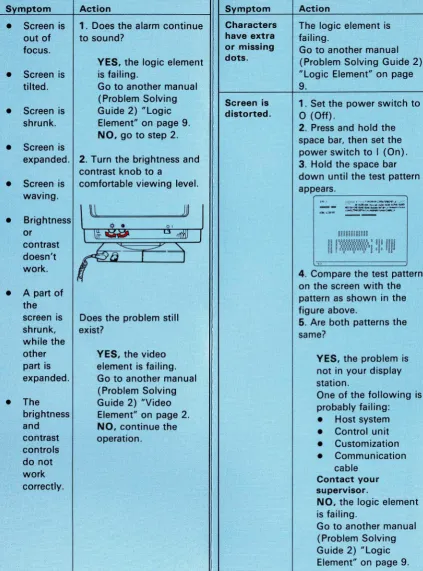
Screen is out of focus.
Screen is tilted.
Screen is shrunk.
Screen is
1. Does the alarm continue to sound?
YES, the logic element is failing.
Go to another manual (Problem Solving Guide 2) "Logic Element" on page 9.
NO, .go to step 2.
expanded. 2. Turn the brightness and contrast knob to a
Screen is comfortable viewing level. waving. Brightness or contrast doesn't work.
A part of the screen is shrunk, vyhile the other part is expanded. The brightness and contrast controls do not work correctly.
Does the problem still exist?
YES, the video element is failing. Go to another manual (Problem Solving Guide 2) "Video Element" on page 2.
NO, continue the operation.
Symptom
Characters have extra or missing
dots.
Screen is
distorted.
Action
The logic element is failing.
Go to another manual (Problem Solving Guide 2) "Logic Element" on page
9.
1. Set the power switch to
o
(Off).2. Press and hold the space bar, then set the power switch to I (On). 3. Hold the space bar down until the test pattern appears.
:;~~;~;::=~:;J;;~~~
.:"l.::>ot<", .. , _ _ ~"
-4. Compare the test pattern on the screen with the pattern as shown in the figure above.
5. Are both patterns the same?
YES, the problem is not in your display station.
One of the following is probably failing: • Host system • Control unit • Customization • Communication
cable
Contact your supervisor.
NO, the logic element is failing.
Go to another manual (Problem Solving Guide 2) "Logic Element" on page 9.
[image:6.432.3.427.8.579.2]S mptom
Only a horizontal line and a cursor are displayed.
The keyboard clicker does not sound.
Action
1. Make sure the communication cable is firmly connected.
2. Does the system indicator appear?
o
'
rn
(
~, ®,
I,
i,
S,
or4700 )
YES, press the Reset key; then continue the operation.
NO, go to "Logic Test" on page 14.
1. Press the Clicker On/Off key.
122/124-key Keyboard
104/106-key Keyboard
IfJ)
+
~
IBM Enhanced Keyboard
~
+
~
2. Does a short beep sound when a key is pressed?
YES, continue the operation.
NO, the logic element
is failing.
Go to another manual (Problem Solving Guide 2) "Logic Element" on page 9.
13
Logic Test
1 . Set the power switch to
a
(Off).2. Disconnect the communication cable.
3. Press and hold the space bar, then set the power switch to I (On).
4. Hold the space bar down until the test pattern appears.
HII"II ···"I:·"'III.e\2J4~7a~~·@<_I· .•
:.--... , , ,loi io~U~itt, ~~~: .. , cuU 'Iuili >GulW: iOuiOl
aUI()J'<II(ICUiotleo.:..c,l)..o;.Uc~llrtJII.l'lClpqnl"vw.
y :ut,; !;al(OO~~ I J~Ll9O'QIIsrUVIIXT Z~~; •
-
-000000000000 000000000000
00 0000000000000 0 DOD DODO
00 0 0 DOD 0 0 DO DO 0 0 0 DO DO 0 0 DO 0 0000000000000 0 0000 00 000000000000 0 DOll DODO 00 . 0 ~Oll 0 DO
5. Are only a horizontal line and a cursor displayed?
YES, the keyboard is failing. Go to another manual (Problem Solving Guide 2) "Keyboard" on page
7.
NO, go to step 6.
(Continued on next page.)
6. Press and hold the Alt key; then press the Test key. ('T' appears in the operator information area on the screen.)
122/124-key Keyboard 104/106-key Keyboard
rt:ll
+
n
~ ~
IBM Enhanced Keyboard
7. Press the PF1 key.
122/124-key Keyboard 104/106-key Keyboard
IBM Enhanced Keyboard
A
Ej
8. Does 'LL' appear in the operator information area on the screen?
LL
YES, the logic element is failing. Go to another manual (Problem Solving Guide 2) "Logic Element" on page 9.
NO. one of the following is probably failing:
• Host system
• Communication cable • Logic element
• Customization
Contact your supervisor.
15
Keyboard Test
1. Set the power switch to
a
(Off). 2. Set the setup switches as shown on the label.3. Press and hold the space bar down; set the power switch to I (On).
4. Hold the space bar down until the test pattern appears.
--
HI J" H • ,. "'I:" "'lIleI2J~5007e'l6S'!<_"'.:.--•..•... '. ai :eillhiu ,iI\I~~U' O~U; '~H :cuMl: itlUiOl
oII([ltJJ.<III(IQ..oOCI00:w.I:Io....::.atI(41If1',J.I.nop~n!" ...
~: .. ',;;."I(D(' ... ,J~l~TVVWXT.~;.
-
-DDDDOOOQOOOO 000000000000
00000000000000000000000
OOOOOOCODoaoooo OODODOD 00 (] 0000000000000 0 0000 00 D 00000000000 (] 000 0000 0 0 ' (] (] [] (] (] 00
5. Are only a horizontal line and a cursor displayed?
YES. the keyboard is failing.
Go to another manual (Problem Solving Guide 2) "Keyboard" on page
7.
NO, go to step 6.
(Continued on next page.)
6. Press the key that fails, except the Reset key (displayed as X on the screen.)
Does the equivalent key shown on the screen change from
0
to . , or vice versa?~- ~~s~~~i~~:~: Note: When a
104/106-key Keyboard is used, the key pad as shown in the figure appears on the screen.
YES. go to step 7.
NO. the keyboard is failing. Go to another manual (Problem Solving Guide 2) "Keyboard" on page
7.
7. The setup switch field of the screen represents the on or off (1 or 0) condition of the switches located under the
ke:;
/l
1
~i:~~:e
~
p
~
~
~
~
Do the setup switches match the display on the screen?
YES. go to step 8.
NO. the keyboard is failing. Go to another manual (Problem Solving Guide 2) "Keyboard" on page
7.
8. Press the Reset key.
Is the screen changed?
YES. go to "Logic Test" on page 14.
NO. the keyboard is failing.
Go to another manual (Problem Solving Guide 2) "Keyboard" on page 7.
17
Power-on Light Problems
1. Make sure the power cord is firmly connected at both ends (wall outlet and video element).
2. Make sure the power switch is set to I (On).
3. Is the power-on light on?
YES. continue the operation.
NO. go to step 4.
4. Set the power switch to
a
(Off). 5. Disconnect the keyboard cable from the logic element.6. Set the power switch to I (On).
7. Is the power-on light on?
YES. the keyboard is failing.
Go to another manual (Problem Solving Guide 2) "Keyboard" on page 7.
NO. go to step 8.
(Continued on next page.)
8. Set the power switch to 0 (Off).
I 9. Disconnect the video cable from the
logic element.
10. Set the power switch to I (On).
11. Is the power-on light on?
YES, the logic element is failing.
Go to another manual (Problem
Solving Guide 2) "Logic Element" on
page 9.
NO, go to step 12.
12. Set the power switch to 0 (Off).
13. Do you have another IBM 3191 Display Station?
YES, replace the power cord with one from the other IBM 3191 Display
Station.
Go to step 14.
NO, the video element is failing. Go to another manual (Problem Solving Guide 2) "Video Element" on
page 2.
14. Set the power switch to I (On).
15. Does the power-on light come on?
YES, the original power cord is failing.
Go to another manual (Problem
Solving Guide 2) "Power Cord" on
page 18.
NO, the video element is failing.
Go to another manual (Problem
Solving Guide 2) "Video Element" on
page 2.
19
GA18-2455-Gl
Second Edition (January 1987)
Changes are made periodically to the information herein; any such changes will be reported in subsequent revisions or Technical Newsletters.
References in this publication to I BM products,
programs. or services do not imply that IBM intends to make these available in all countries in which IBM operates. Any reference to an IBM program product in this publication is not intended to state or imply that only IBM's program product may be used. Any functionally equivalent program may be used instead.
Publications are not stocked at the address given below. Requests for IBM publications should be made to your I BM representative or to the I BM branch office serving your locality.
Address comments concerning the content of this publication to I BM Corporation, Publications Development, Department 6R1 J, 180 Kost Road. Mechanicsburg, PA 17055 U.S.A. I BM may use or distribute whatever information you supply in any way it believes appropriate without incurring any
obligation to you.
© Copyright International Business Machines Corporation 1986. 1987