()'lC?- S7"33
-aD
010 -S0C>:5. ~
of
a'lL' . SLD , "-00 S
9'7..,S--o~o- ;s ~,c'l
-
D~() 10'
-S'-'
b "l. ~C"O'St Printing MAR 1986
:1 --·
4400 SERIES
OPERATING
SYSTEM
REFERENCE
NtFw
::p;.
l.et \-\ 0 0
CsfT, ,
D \_(\ ~ f .1'-->'\1?f'. \-
J\ eiL4"; Y 0
'-l
,);:
rz:
~ ~(~, 'fi-PW{2..1Si!\J '-1£
r
F~, t~J.-J) ,...) fi=" ~'if : C
'E" _
''If () t\, b,~'·\ ~ D.p ,. \ i'f.
(.;Wi \'
~i"i? ' - /\ J\ "1--1\ b~_",1 - t- \J - ) w-t 'cl:'t!' ,,' \ f',J:::::, \ 1"'T ~
Please Check for
CHANGE INFORMATION
at the Rear of This Manual
TEKTRONIX is a registered trademark of Tektronix, Inc ..
Smalltalk-80 is a trademark of Xerox Corp.
UniFLEX is a registered trademark of Technical Systems Consultants, Inc.
Portions of this manual are reprinted with permission of the copyright holder. Technical Systems Consultants, Inc., of Chapel Hill, North Carolina.
The operating system software copyright information is embedded in the code. It can be read via the "info" utility.
WARRANTY FOR SOFTWARE PRODUCTS
Tektronix warrants that this software product will conform to the specifications set forth herein, when used properly in the specified operating environment, for a period of three (3) months from the date of shipment, or if the program is installed by Tektronix, for a period of three (3) months from the date of installation. If this software product does not conform as warranted, Tektronix will provide the remedial services specified below. Tektronix does not warrant that the functions contained in this software product will meet Customer's requirements or that operation of this software product will be uninterrupted or error-free or that all errors will be corrected.
In order to obtain service under this warranty, Customer must notify Tektronix of the defect before the expiration of the warranty period and make suitable arrangements for such service in accordance with the instructions received from Tektronix. If Tektronix is unable, within a reasonable time after receipt of such notice, to provide the remedial services specified below, Customer may terminate the license for the software product and return this software product and any associated materials to Tektronix for credit or refund.
This warranty shall not apply to any software product that has been modified or altered by Customer. Tektronix shall not be obligated to furnish service under this warranty with respect to any software product a) that is used in an operating environment other than that specified or in a manner inconsistent with the Users Manual and documentation or b) when the software product has been integrated with other software if the result of such integration increases the time or difficulty of analyzing or serviCing the software product or the problems ascribed to the software product.
TEKTRONIX DISCLAIMS ANY IMPLIED WARRANTIES OF MERCHANTABILITY OR FITNESS FOR A PARTICULAR PURPOSE. TEKTRONIX' RESPONSIBILITY TO PROVIDE REMEDIAL SERVICE WHEN SPECIFIED, REPLACE DEFECTIVE MEDIA OR REFUND CUSTOMER'S PAYMENT IS THE SOLE AND EXCLUSIVE REMEDY PROVIDED TO CUSTOMER FOR BREACH OF THIS WARRANTY. TEKTRONIX WILL NOT BE LIABLE FOR ANY INDIRECT, SPECIAL, INCIDENTAL OR CONSEQUENTIAL DAMAGES IRRESPECTIVE OF WHETHER TEKTRONIX HAS ADVANCE NOTICE OFTHE POSSIBILITY OF SUCH DAMAGES.
PLEASE FORWARD ALL MAIL TO:
Artificial Intelligence Machines
Tektronix, Inc.
This manual supports the following versions of this product: 4404 Version 1.5, 4405 Version 1.1, and
4406 Version 1.1 •
REV DATE DESCRIPTION
SECTION 1 INTRODUCTION
ABOUT THIS MANUAL
WHERE TO FIND INFORMATION MANUAL SYNTAX CONVENTIONS
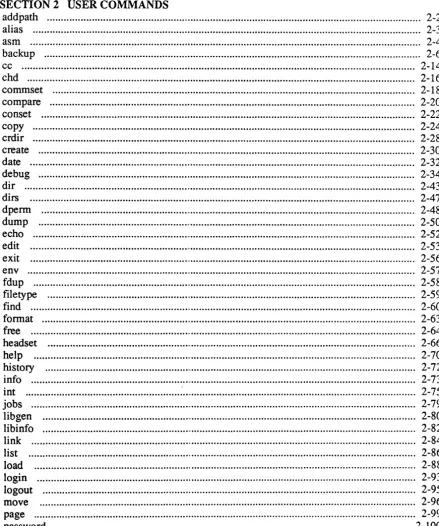
SECTION 2 addpath alias USER COMMANDS 1-1 1-1 1-2 2-2 2-3 asm ... 2-4 backup ... 2-6 cc ... 2-14 chd ... 2-16 commset
compare conset copy crdir
... 2-18 ... 2-20 2-22 2-24 2-28 ... 2-30 2-32 ... 2-34 2-43 2-47 ... 2-48 ... ' ... 2-50 create date debug dir dirs dperm dump echo edit
... , ... 2-52 2-53 exit ... ', ... 2-56 env fdup file type find format free headset help history info int jobs libgen libinfo link list load login logout 2-57 2-58 ... , ... 2-59 2-60 ... 2-63 2-64 ... 2-66 2-70 ... 2-72 2-73 2-75 2-79 ... ' ... 2-80 ... ' ... 2-82 2-84 2-86 2-88
... 2-93
... 2-95 move
page password
2-96 2-99
relinfo ... , ... 2-108 remote ... 2-110 remove ... 2-112 rename ... 2-115 restore ... ... ... ... ... ... ... ... 2-117 script ... 2-123 set ... 2-138 shell... ... ... ... ... ... ... ... ... ... 2-139 status ... ... ... ... ... ... .... ... ... ... 2-148 stop ... 2-152 strip ... 2-153 tail ... 2-154 touch ... ... .... ... ... .... ... ... 2-155 unalias ... 2-157 unset ... 2-158
update ... ... ... ... .... ... ... ... 2-159 wait ... 2-162
SECTION 3 SYSTEM UTILITIES
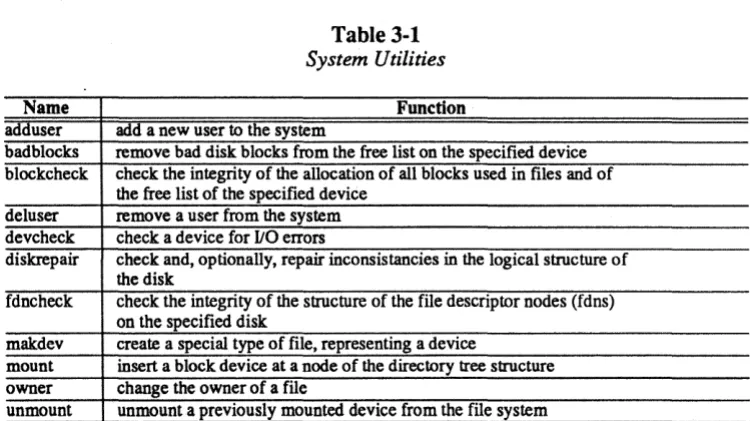
SYSTEM UTILITY DESCRIPfIONS ... 3-1 adduser ... ... ... ... ... ... ... 3-2 badblocks ... ... ... ... ... ... 3-4 blockcheck ... ... ... ... ... ... ... ... 3-5 deluser ... ... ... ... ... ... ... ... ... 3-6 devcheck ... ... ... ... ... .... ... ... 3-8 diskrepair ... ... ... 3-10 fdncheck ... 3-22 makdev ... ... ... 3-23 mount ... 3-26 owner ... 3-28 unmount ... 3-30
SECTION 4 edit
Command Input From a File F ataI Errors
EDITOR COMMANDS Using Strings
Specifying a Column Number Using the Don't-Care Character The Command Repeat Character Using the EOL Character Using Tabs
Length of Text Lines Commands ENVIRONMENT COMMANDS dkl dk2 esave eset header kl k2 lkl Ik2 numbers
renumber ... " ... . set ... " ... . tab
verify
zone ... , ... . SYSTEM COMMANDS abort edit log stop u wait
x ... . CURRENT LINE MOVERS
bottom
insert ... 4-34 merge ... 4-35 move ... 4-35 overlay ... 4-36 overlay ... 4-37 print ... 4-37 replace ... 4-38 text ... 4-39 null ... 4-39 DISK COMMANDS ... 4-40 flush ... 4-40 new ... 4-40 read ... 4-41 write ... 4-42 EDITOR MESSAGES ... 4-43
SECTION 5 TERMINAL EMULATION
<ED> Erase in Display ... 5-11 <EL> Erase in Line ... ... 5-11 <EM> Character (#25) ... ... ... ... ... ... ... ... 5-11 <EMI> Enable Manual Input ... ... ... ... 5-12 <ENQ> Character (#5) ... 5-12 <EOT> Character (#4) ... 5-12 <ESC> Character (#27) ... 5-12 <ETB> Character (#23) ... 5-12 <ETX> Character (#3) ... 5-13 <FF> Form Feed Character ... 5-13 <PS> Character (#28) ... ... 5-13 <GS> Character (#29) ... 5-13 <lIT> Horizontal Tab Character ... 5-13 <lITS> Horizontal Tab Set ... ... 5-14 <HVP> Horizontal and Vertical Position ... 5-14 <ICH> Insert Character ... ... ... 5-14 <IL> Insert Line ... ... 5-14 <IND> Index ... ... ... 5-15 <IRM> Insertion/Replacement Modt~ ... 5-15 <KAM> Keyboard Action Mode ... 5-15 <LF> Line Feed Character ... 5-16 <LNM> Line-Feed/New-Line Mode ... 5-16 <NAK> Character (#21) ... ~ ... 5-16 <NEL> Next Line ... ... ... 5-16 <NUL> Character (#0) ... 5-17 <PU1> Private Use 1 ... 5-17 <Report-Syntax-Mode> ... 5-17 <RI> Reverse Index . ... .... ... ... ... ... ... .... ... ... ... ... ... 5-17 <RIS> Reset to Initial State ... ... ... 5-18 <RM> Reset Mode ... ~ ... 5-18 <RS> Character (#30) ... 5-19
<SCS> Select Character Set ... 5-20
<Select-Code> ... 5-20 <SGR> Select Graphic Rendition ... 5-21 <SI> Shift In Character ... 5-22 <SM> Set Mode ... 5-22
<SO> Shift Out Character ... 5-23
<TEKID> Identify Terminal ... 5-28 <TEKKP AM> Keypad Application Mode ... 5-28 <TEKKPNM> Keypad Numeric Mode ... 5-28 <TEKMBREP> Mouse Button and Graphic Cursor Position Reporting ... 5-29
ANSI Terminal Emulator Mouse Button and Position Reporting ... 5-30 <TEKOM> Origin Mode ... 5-31 <TEKRC> Restore Cursor .. ... ... ... ... ... ... ... ... 5-31 <TEKREQTP ARM> Request Terminal Parameters ... ... ... ... ... ... 5-31 <TEKRGCR> Request Graphic Cursor Position Report ... 5-32
<TEKSC> Save Cursor ... 5-32 <TEKSCNM> Screen Mode ... 5-32 <TEKSGCRT> Select Graphic Cursor Report Type ... 5-33 <TEKSTBM> Set Top and Bottom Margins ... 5-33 <US> Character (#31) ... 5-34 <VT> Vertical Tab Character ... 5-34
KEYBOARD DETAILS ... ... ... ... ... ... 5-34 Shift, Ctrl, and Caps Lock Keys ... 5-34 Default ANSI Mode Meanings of Keys ... ... ... ... ... 5-35 Alphanumeric Keys ... 5-35 Numeric Pad Keys ... 5-37
Joydisk Keys . ... ... ... 5-38 Function Keys . ... ... ... ... ... ... ... ... ... ... ... ... ... ... ... ... 5-38 Special Function Keys ... 5-39
SECTION 6 ACCESSING SYSTEM RESOURCES
INTRODUCTION ... 6-1 DEVICE DRIVERS ... ... 6-1 SCSI Peripherals ... 6-1 Console Device . ... ... ... ... ... ... 6-1 Communications Port ... 6-2
Sound Generator ... ... ... ... ... 6-2
Controlling the Sound Device ... 6-2
Idev/sound Operation and Commands ... 6-2
Frequency Control ... ... .... ... ... ... ... ... ... ... ... ... ... ... 6-3
Controlling Attenuation ... 6-3
Controlling the Noise Generator .... ... ... ... 6-4
Control Registers . ... 6-5
Sound Examples ... 6-6 Printer Port ... ... ... ... ... ... ... ... ... ... ... .... ... ... 6-10 Other Devices .. ... ... ... ... .... ... ... ... ... ... .... ... ... ... ... ... 6-10 DISPLAY, MOUSE, AND KEYBOARD SUPPORT ... 6-11
Cursor and Mouse Tracking ... ... ... ... ... ... 6-11 FLOATING POINT SUPPORT ... 6-11
Appendix A 4404 HARDWARE DEPENDENCIES
Display Memory ... A-3
1/0 and ROM Memory Space ... A-3 Processor Board I/O ... A-4 Peripheral Board I/O ... A-4
Appendix B 4405 HARDW ARE DEPENDENCIES
DISPLAY SUPPORT ... B-1 Display Panning ... B-1 MEMORY USE ... B-3 Overall Address Space ... B-3 Physical Memory ... B-3 Display Memory ... B-3
1/0 and ROM Memory Space ... B-3 Processor Board I/O ... B-4 Peripheral Board I/O ... "... B-4
Appendix C 4406 HARDWARE DEPENDENCIES
DISPLAY SUPPORT ... C-l MEMORY USE ... C-I Overall Address Space ... ... ... C-I Physical Memory ... C-I Display Memory ... C-2
1/0 and ROM Memory Space ... C-2 Processor Board I/O ... C-2 Peripheral Board I/O ... C-2
Figures
A-I. 640 X 480 Window Into 1024 X 1024 Bit-Map. .. ... A-2 B-1. 640 X 480 Window Into 1024 X 1024 Bit-Map. .. ... B-2
Examples
4-1.. . ... 4-28 4-2.. . ... 4-34 4-3.. .. ... 4-36 4-4.. . ... 4-37 4-5.. . ... 4-39
Tables
INTR~ODUCTION
ABOUT THIS
MANU~~L
This manual is the primary user's and programmer's reference to the 4400 operating system and hardware support. This manual contains summaries of the commands and utilities included with your 4400 as standard software, and a summary of how to invoke and use each command. This manual does not attempt to show you how to put commands together to perfonn a task; that infonnation is covered in the 4400 User's Manual. The User's Manual also contains a complete list of the other manuals available for thl~ 4400 series.
This manual has the following sections:
• User Commands
• System Utilities
• Text Editor
• Tenninal Emulation
In addition, the appendices contain information about the hardware of the 4400 series of products.
WHERE TO FIND INF'ORMATION
You have several important sources of information on the 4400:
• This manual, the 4400 Series Operating System Reference manual, contains the syntax and details of commands and utilities. This manual also contains details about a text editor and a remote terminal emulator.
• The 4400 Series Assembly Language Reference manual contains the details of the assembler and linking loader.
• The 4400 Series C Language Refl~rence manual contains detail about the
"c"
programming language.• The 4400 Users manual contains basic infonnation on system installation, startup, installing software, and the other "how to put commands together" discussions. See the index of the User's manual to find. how to perform particular tasks.
• The on-line "help" utility contains a brief description of the syntax of user commands.
• The Introduction to Smalltalk-80{ tm) manual contains details and a short tutorial on the Smalltalk-80 programming Iangu(llge.
MANUAL SYNTAX CONVENTIONS
Throughout this manual, the 4400 User's Manual, and in the on-line help files, the following syntax conventions apply:
1. Words standing alone on the command line are keywords. They are the words recognized by the system and should be typed exactly as shown.
2. Words enclosed by angle brackets ("<" and ">") enclose descriptions of variables that are replaced with a specific argument. If an expression is enclosed only in angle brackets, it is an essential part of the command line. For example, in the line:
addusr <user name>
you must specify the name of the user in place of the expression <user_name>.
3. Words or expressions surrounded by square brackets ("[" and "]") are optional. You may omit these words or expressions if you wish.
4. If the word "list" appears as part of a term, that term consists of one or more elements of the type described in the term, separated by spaces. For example:
<file name list> -
-consists of a series (one or more) of file names separated by spaces.
USER COMMANDS
addpath
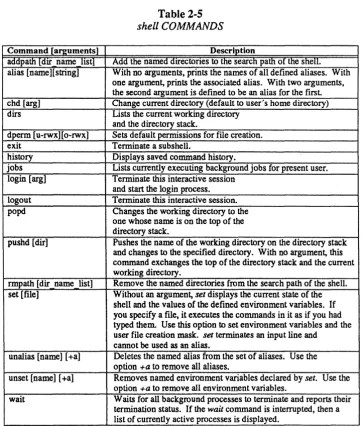
Add the specified directories to the search path of the shell. This is a shell command.
SYNTAX
addpath <dir name list>
DESCRIPTION
This addpath command, which is part of the shell program, adds the specified directories to the search path of the shell. This is done by altering the shell environment variable PATH.
ARGUMENTS
<dir name list> -
-
list of directory names to add to the search path.EXAMPLE
addpath fete
This example adds the directory tete to the shell search path, by adding the directory to the environment variable PATH.
SEE ALSO
alias
Defines or reports the list of alternate names (aliases) for a command sequence.
SYNTAX
alias [<alias_name>] [<string>]
DESCRIPTION
The alias command, which is part of tht~ shell program, defines or reports the list of alternate names (aliases) for a command sequence. With no arguments alias outputs the list of aliases defined. If one argument is given the associated alias is printed. If two arguments are given then the first is defined to be an alias for the second. Command line arguments are extracted via the
shell conventions.
ARGUMENTS
name of the alias. <alias name>
<string> may consist of combinations of utility commands and environment variables surrounded by either single or double quotes (i.e. IIcopy $*"),
EXAMPLES
alias long 'dir +1 $* I page +30'
This example will create an alias long that will invoke the command dir +1, and pause every 30 lines until you press the space bar.
alias
This example will display the currently defined aliases.
SEE ALSO
asm
The asm command is the MC68000/680 10 relocating assembler.
SYNTAX
asm <file name list> [+befFlLnsStu] (+o=<file_name>]
DESCRIPTION
The asm command is used to assemble a program written in the standard 68000 instructions set. The assembler accepts most of the standard mnemonics for instructions, and fully supports the
68000/68010/68020 instruction set. For more information, refer to 4400 Series Assembly Language Reference.
ARGUMENTS
<file _name_list>
OPTIONS
b
e
f
F
L
n
o=<file name>
s
S
u
List of the names of files and directories to process. Default is the working directory.
Suppress binary output.
Suppress summary information.
Disable field formatting.
Enable fix mode. (Comments that begin with a semicolon, It;", are assembled. )
Produce a listing of the assembled source.
Produce listing of input file during the first pass.
Produce decimal line numbers with the listing.
Specifies the name of the binary file.
Produce a listing of the symbol table.
Limit symbols internally to 8 characters.
EXAMPLES
asm asmfile
Assembles the source file asmfile and produces the relocatable binary file asmfile.r. The assembler sends summary information to standard output, but produces no source listing. Any errors detected are sent to standard outpUlt.
asm test.a +euo=test.r
Assembles the file test. a and produces the relocatable file test.r. No summary information is produced, and all unresolved references are classified as external. If the assembler detects no errors during the assembly, the user sees :no output from this command.
asm test.a test2.a test3.a +blns
Assembles the three files, but produces no binary output. A listing with a symbol table is sent to standard output. The listing includes decimal line numbers.
SEE ALSO
backup
Copy files from the file system to the floppy device or streaming tape device.
SYNTAX
backup [+AbBCdlpr] [+a=days] [+t[=file_name]] [+T[=<length>]] [<file_name_list>] [<dir_name_list>]
DESCRIPTION
The backup command is used to create and maintain archival backups of files or directories on the system. It can operate in three distinct modes, selected by options: catalog mode, create mode, and append mode. Catalog mode prints a list of the files on an existing backup. Create mode copies the specified files or directories to the backup device, and destroys any data that is already on the backup device. Append mode adds the specified files or directories to existing files on the the backup device. Thus, it is possible to append, to an existing backup device, a file whose path name is identical with one already backed up.
The backup command stores files and directories on the diskette (I devlfloppy) by default or on the optional streaming tape drive (Idev/tapec). The backup command uses a unique file structure, which is completely different from the standard operating system file structure. Therefore,
/ deY/floppy or / dev/ tapec must not be mounted onto the file system using the mount command. The only way to read devices written by backup is to use restore. The only other command that you should use on a backup device is devcheck.
The backup diskette should be formatted before the back up operation begins. Although the file structure created by the format command is destroyed by backup, the raw track formatting is essential. During the back up process, you can request that backup formats diskettes before writing to them. Do this by pressing
f
followed by Return, rather than Return when backup prompts you to Hit C/R to continue:.The backup tape may not be formatted, but the retensioning option If rlt may be specified to avoid
reading-errors.
Backups may extend over more than one volume of the backup medium. There are no restrictions on the sizes of files copied. If necessary, backup breaks files into segments and stores each segment on a different volume.
As files are backed up, backup also stores the file owner ID number, permissions, and time/date stamp of the file. This is used by restore when retrieving the files. After the files are restored, they appear just as they were at the time of the backup. The user should be aware of several potential problems.
among many machines is to always bac:kup and restore the files from the public user, which exists on all machines. In any event, the user system can backup and restore any file as well as change ownership and permissions.
ARGUMENTS
<file name list> - -<dir name list>
-
-List of the nanles of files to process. Default is the working directory.
List of the nanles of directories to process.
If you specify a directory name as an argument in create or append mode, the program processes only the files within that directory. If you also specify the "d" option, the program restores all files within the given directory and its subdirectories.
OPTIONS
a=<days> A b B C d e p rt[ =<file _ name>]
T[=length]
Copy only those files that are no older than the specified number of days. A value of 0 specifies files created since midnight on the current day; a value of 1 specifies files created since midnight of the previous day, and so forth.
Append to an existing backup.
Print sizes of files in bytes.
Do not back up files that end in It .bak
u •
Print a catalog of the files on an existing backup. If you specify "C", all of the names in the <fille_name_list> are ignored.
Back up entire directory structures.
Erase entire streaming tape before any action.
List file names as they are copied.
Prompt user with each file name to determine whether or not the backup procedure should bl~ performed on that particular file.
Retension streaming tape cartridge before any action. Using this option may avoid reading errors from the streaming tape drive. This option must be used in conjunction with the + T option.
Back up only files that have been created or modified since the date in the specified file. Whc:m the backup is finished, update the date in the file. If you do not specify a file, the default is .backup.time.
Backup to the streaming tape instead of the floppy. The default parameter for the tape length is 450 feet. To backup to a 300 foot tape, use +T=300.
With no options, backup is quiet. The "1" option allows you to see what the program is actually doing.
If you specify the "t" option, but the . backup. time file specified as its argument does not yet exist,
backup copies all the files and directories listed on the command line. Thus, a user may obtain a
EXAMPLES
backup +1
Backs up all files in the working directo:ry to the device Idevljloppy. The file names are listed as they are copied to the device.
backup +ld fi1el fi1e2 dirl dir2
Copies (in order) the files filel and file2, then all files and sub-directories contained in the directories dirl and dir2, listing the file names as they are copied.
backup +ld fi1el file2 dirl dir2 +a=5
Performs the same function as the previous example, except it copies only those files that are five days old or less.
backup +It
Creates the same backup as the first exalmple, but only copies the files created or modified after the time contained in the file .backup.time. If this file does not exist, all the files are copied and the file .backup.time is created.
backup +lAt=backup_time
Adds a set of files to an existing backup. In particular, it adds exactly the files that were created or modified since the creation of the fille backup _time. This is the most direct way to create incremental backups of your files. The le:ngth of time between backups should reflect the amount of activity you spend developing programs, etc.
backup +IT
NOTES
• When using append mode, the program appends files to the last volume, requesting additional volumes as necessary. If there are many volumes in an existing set of diskettes, place the last volume (diskette) in the backup device. In this case a message is issued indicating the voulme is not the first and prompts for permission to continue. Respond with a "y" and a CIR to the prompt. The program then appends files to that volume, requesting new volumes as necessary.
• As files are backed up, backup makes an indication of the path name for each file. When files are restored, the program uses the path name to place the file in its proper directory location. If the path name is relative (i.e., does not begin with tit), the path name of the restored directory is also relative. Thus, files backed up with a relative path name may be restored to a directory location different from the one in which they were created.
An example should make this clear. If the working directory is backed up, either by specifying no source files or by using the directory name".", the files are backed up with a relative path of It.". When these files are restored, they are placed in the directory" .". This directory might not be the same directory they originally came from. This feature allows the manipulation of entire file systems in a general fashion. To specify a unique directory location for a file, you should specify its entire path name, starting with If!".
MESSAGES
Backup to <file_name>
Update backup on <file_name>
These messages are printed when backup begins. They notify you of the function about to be performed.
Several of the following messages prompt you for a positive or negative response. The program interprets any response that does not begin with an upper or lowercase "nit as a positive response.
Copy <file_name> (yin)?
If you specify the "pit option, the program prints this prompt before it takes any action. A response of "n" or "Nit indicates that the operation should not be performed for the given file. Any other response is interpreted as yes.
Device model name?
Do you wish to abort append function and create a new backup?
This message is printed at the initiation of the append operating mode if an invalid header (indicating a bad backup format) is detected. You can now abort from append mode and switch to create mode.
Format program name?
This prompt is issued in response to a format request for the next diskette volume. It indicates that the program could not find a format program name in the file I etcIJormat.control. You should respond with format since you are backing up on a diskette. You can not format a streaming tape cartridge.
Insert next volume -- Hit C/R to continue: .
This prompt is issued when the progranl needs a new backup diskette or tape cartridge. You should type a carriage return only when the next device has been placed in the drive. When creating new backups or when appending to an old backup, with diskettes, you may enter the character tlf', followed by a carriage return. If the program is in append mode, it automatically switches to create mode and starts a new backup. The tlf' indicates that the diskette has been inserted in the drive, but that it must be formatted before continuing. In this case the program first checks the file I etc/format. control for a ftormat program name, and if found formats the diskette.
If it cannot find this file, it then prompts you for the format program necessary to format the diskette. Subsequent format operations during this backup operation use the same information; thus, all diskettes that were not previously formatted must have the same characteristics (e.g. double-sided, double-density).
The program prints these messages as it takes the corresponding action during a creation operation.
This is Volume #<nurnber_l> -- Expected Volume #<number_2> -- Contin'--:
The program expects you to insert volum,es in sequential order. If a volume appears out of order,
backup prints this message. If you type a.nything except an tin" or an "N" as the first character of the response to the message, backup ignores the fact that the volumes are out of order and continues with the backup. Otherwise, it prompts you for another volume.
Volume name?
Each set of backup volumes has a name. You should enter a name that describes the contents, in response to this prompt. The name may contain as many as 126 characters.
Volume <number> of <vol_name>
ERROR MESSAGES
***
Invalid Volume Ht:ader -- Not a "backup" disk***
The program validates each backup volurrle before using it. If this validation fails, the program prints this message to indicate that something is wrong. You then have another chance to insert the proper volume and continue. If validation fails while the program is in append mode, you may abort from append mode and create a totally new backup instead.Write error! - file <file name>
An 110 error occurred during the transfer of a file to the backup. An auxiliary message is printed indicating the nature of the error: The program tries to recover from any error and continue.
backup: unknown options: '+<char>'
The option specified by <char> is not a valid option to the backup command.
**
Warning: directory <dir name> is too large!**
Some directories ~Tere ignored**
Warning: directory <dir name> is too large!**
Some files were igrnoredThe program uses some internal tables during the back up process. If the limits of these tables are exceeded (highly unlikely), these messages are printed.
SEE ALSO
cc
Invoke the
"c"
compiler.SYNTAX
cc <file name list> [+acDfiIlLmMnNoOpPqrRsStUvwx] [+i=<dir_name» [+l=<lib=name>] [+o=<file_name>]
ARGUMENTS
<file name list>
-
-OPTIONS
a
c
List of the names of files and directories to process. Default is the working directory.
Produce as output assembly language source files with an .a extension and stop.
Put comments in the assembly language file.
D<name> [=<defn>] Command line "#define". This option must appear by itself.
f
i=<dir name>
I
l=<lib name>
L
m
M
n
N
o==<file name>
o
pp
q
Produce an output module suitable for firmware.
Specify a directory for "#include" files. This option must appear by itself.
Produce as output intermediate language files with an ".i" extension and stop.
Specify a library name to be passed to the loader. This option must appear by itself.
Produce a source listing and write it to standard output.
Produce load and module maps from the loader.
Leave the combined output as one" .r" file.
Run the first pass only, do not produce any output.
Produce a listing without expanding #include files. Specify the output file name.
Run the assembly language optimizer.
Use stand alone pre-processor.
Produce intermediate (.p) files and stop.
r
R
t
u
v
w
Produce as output relocatable modules with an II .r" extension and stop.
Produce as outpUlt relocatable modules with an It .r" extension, and
continues to produces an executable module.
Produce a shared-text, executable output module.
Produce a line-fee:d character ($OA) for "\n" rather than the default of carriage return ($OD).
Show each phase of the compilation process (verbose mode).
Warn about duplicate n#define" statements.
Pass the options to the loader for processing.
For a full discussion of the
"c"
com.piler, refer to the manual 4400 Series C Language Programmer's Reference.NOTE
The
"c"
stand-alone pre-processor is the file /binlcpasses/cprep.If
you want to use it with anoth.er program, it takes its input from stdin and writes its output to stdout.EXAMPLES
cc blocks.c +0 +l=graphics
Compiles the program blocks.c, requesting the assembly language optimizer and passing the library graphics to the loader.
cc labels.c +vLNr
Compiles the program lablels.c in verbose mode. The compiler produces a source listing, without expanding any "#include" files, creating only a relocatable module labels.r.
cc access. c labels.:r +o=access
Compiles the source program access and the relocatable module labels.r producing a single binary output file access.
cc rand.c +i=/mark/include +DTHROWS=300 +t +o=dice
Compiles the program rand.c, specifing a directory lmark/include for #include files and specifying a command line define of TlfROWS to equal 300. A shared-text binary output file dice is produced.
SEE ALSO
chd
Change the user's working directory.
SYNTAX
chd [<dir_name>]
DESCRIPTION
The ehd command, which is part of both the shell and script programs, changes the user's working directory to the directory specified on the command line. If no directory is specified, the default is the user's home directory (the directory entered on logging in). The user must have execute permission in the directory specified.
ARGUMENTS
<dir name>
EXAMPLES
The name of the directory to use as the working directory. Default is the user's home directory.
chd Imark
Changes the working directory to the directory lmark.
chd book
Changes the working directory to the directory book, which resides in the current working directory.
chd
ERROR MESSAGES
Cannot change directories.
The operating system returned an error when the script program tried to change directories. This message is preceded by an interpretation Clf the error produced by the operating system.
SEE ALSO
commset
Set or display the configuration of the communications port.
SYNTAX
cornmset [<options_list>]
DESCRIPTION
This utility allows you to examine or set certain I/O options on the RS-232 communications port.
With no argument, it reports the current setting of the options.
OPTIONS
The option strings are selected from the following set:
baud=nnn
=external =nnnlmmm =default
Set the transmit and receive baud rates. Valid values are 50, 75, 110, 134, 150, 300, 600, 1200, 1800, 4800, 9600, 19200 and 38400. The keyword external specifies that the external clock should be used for the baud rate. The default of 9600 is used if the keyword default is entered. If two values are entered, then the first specifies the transmit rate and the second specifies the receive rate, otherwise both rates are set to the same value.
flag=dtr
=input =output -inout =none =default
Set the type of flagging to be used. The keyword dtr specifies that the DTR and
crs
signals should be used to flag input and output full conditions. The keywords inputand output specify that DC3/DC 1 (CTL-S/CTL-Q) flagging should be used for input or output, respectively. The keyword inout specifies that DC3/DCl (CTL-S/CTL-Q)
parity =even
=odd =high =low =none =default
Set the type of parity to be used. The keyword even specifies that even parity be used. The keyword odd specifies that odd parity be used. The keyword high specifies that the parity bit should always be a one. The keyword low specifies that the parity bit should always be a zero. The keyword none specifies that the parity bit is treated as data. The default is low parilY.
stop=n
=default
Set the number of stop bits to be used. Valid values are 1 and 2. The default is one stop bit.
crS=disable
reset
=enable
Select whether to use the Clear-to-Send (CTS) data signal for communication protocol. Disabling CTS me:ans to ignore the signal condition. With CTS enabled, a CTS signal must be received before transmission is enabled.
Reset the communications port, flushing any pending data and setting all options to their default values.
show
Display the current settings for the options. This is the same as if no option is specified.
C IMPLEMENTATION NOTES
The commset command uses the ttyset and ttyget system calls to communicate option settings to the communications port device driver.
SEE ALSO
conset
compare
Compare two text files line by line and prints the differences.
SYNTAX
compare <file name 1> <file name 2> [+<window_size>]
DESCRIPTION
The compare command compares two text files and indicates how they differ. The information provided is usually sufficient to allow the user to change one file into the other. By default, the
compare command considers that it is in the same place in each of the files if three lines match.
The output from the command reports sets of lines which have been deleted from, added to, or changed in either file. These messages are written from the point of view of how to change the first file into the second file. For instance, the message
***** File <file name 1> lines deleted *****
-
-means that if the lines following the message are deleted from <file _ name _1>, the two files will be the same.
The program also reports the presence of additional lines in a file with the following message:
***** File <file name 1> lines inserted *****
This message means that if the lines following the message are inserted to <file name 1 >, the
two files will be the same. -
-If a set of lines is deleted from one file and the following line is changed as well, compare reports all those lines as lines that have been changed rather than inserted or deleted.
The compare command can handle files of any size, but can only process 250 lines at a time. If the files differ in any spot by 250 lines, the program reports 250 lines changed in each file and continues comparing them.
ARGUMENTS
<file name 1 > - -<file name 2> -
-OPTIONS
<window size>
The name of the first file to use.
The name of the file to compare to <file_name _1 >
EXAMPLES
compare /michael/test /cathy/test
Compares the file test in the directory Imichael to the file test in the directory I cathy.
compare test test.bak +5
Compares the two files test and test.bak in the working directory. The window size for the comparison is five lines.
ERROR MESSAGES
Syntax: compare <fil€!_name_l> <file_name_2> [+<window_size>]
conset
Set or display the configuration of the console port.
SYNTAX
conset <options_list>
DESCRIPTION
The utility conset allows you to examine and set certain 110 options on the console port. With no argument, it reports the current setting of the options.
OPTIONS
The option strings are selected from the following set:
+ raw -raw +echo -echo +tabs -tabs +becho -becho + schar -schar +xon -xon +any -any +cml -eml chardel=<n> linedel =<n> +screensave -screensave
Set or clear the raw mode.
Enable or disable character echoing.
Enable or disable automatic tab expansion.
Enable or disable spacelbackspace to erase on backspace.
Enable or disable single character mode.
Enable or disable CfRL-S/CfRL-Q (DC3/DC 1) flagging to suspend output.
Enable or disable any character to restart suspended output.
Enable or disable RETURNs, to be displayed as returnlline-feed.
n is a hex number specifying a character to be used as the delete character. n is a hex number specifying a character to be used as line delete character.
+video -video
+cursor -cursor
+track -track
+mousepan -mousepan
+diskpan -diskpan
show
default
Select normal video (black on white) or inverse video.
Select make graphic cursor visible or invisible.
Enable or disable graphic cursor tracking the mouse.
Enable or disable Jnouse panning of the viewport.
Enable or disable joydisk panning of viewport.
Display the curre:nt settings for the options. This is the same as if no option is specified.
Restore default settings.
C IMPLEMENTATION NOTE:S
The conset command uses the ttyset and ttyget system calls to communicate the raw, echo, tabs, becho, schar, xon, any, cmI, chardel and linedel option settings to the console port device driver and it uses system traps to implement the: screensave, video, cursor, track, mousepan, and diskpan options.
SEE ALSO
copy
Copy a file or directory to the specified file or directory, or copy one or more files to the specified directory.
SYNTAX
copy <file_name_l> <file_name_2> [+bBcdDlLnopPt] copy <file_name_list> <dir_name_2> [+bBcdDFlLMnopPt] copy <dir_name_I> <dir name 2> [+bBcdDFILMnopPt]
DESCRIPTION
Three forms of the copy command exist The first form makes a copy of a file and gives it the specified name. The second form makes one copy of each specified file and places all copies in the specified directory. The last component of each file name is preserved in the new directory. The third form copies the contents of one directory to another.
In any case, if no file exists which has the same name as the name specified for the new copy, the
copy command creates one. If a file with that name already exists, it is deleted and recreated before copying takes place. Thus, the original contents of the file is lost and replaced by the contents of the file being copied. In addition, any links to the original file are broken.
The new file has the same permissions as the original file. The owner of the new file is always the user who executes the command. The user must have execute permission in the directory in which copies are to be made. He or she must also have write permission for the file being copied to and, unless the "0" option is specified, in the directory that is to contain the new copy.
ARGUMENTS
<file name 1> -
-<file name 2> - -<file name list> -
-<dir name 1> -
-<dir name 2> -
-The name of the file to copy.
The name of the new copy of the original file.
A list of the names of the files to copy to the specified directory.
The name of the source directory.
OPTIONS
b B c do
F L M n o p P tEXAMPLES
Do not copy a file u.nless it already exists in the destination directory.
Don't copy files ending in .bak.
Do not copy a file if it already exists in the destination directory. Cannot be used with n.
Copy directory structure for all named directories.
ImpJicity specify 1he high level directory names. This option works properly only in conjunction with the +d option. When used together with
+d, + D preserves the source directory structure within the destination directory.
Copy/convert a directory to a regular file.
List the name of eac:h file as it is copied and the name of the new copy.
Do not unlink the destination file.
Convert RETURN/new-line to LINE-FEEO/new-Iine
Copy a file if it is newer than the copy in the destination directory. If no copy exists, perforrrl the copy.
Retain original file ownership.
Prompt for permission to copy each file.
Preserve all the characteristics of the file - the modification time and the ownership of the source file.
Do not copy source directory unless destination directory exists.
copy parts parts.bak
Copies the file named parts to a file named parts.bak. If a file named parts.bak already exists, it is deleted and recreated before copying takl~s place.
copy letter /mark/letter +p
copy test_l test_2 memo /mark +10
Copies the files test_1, test_2, and memo to the directory /mark. The names of the new files are Imarkitest 1, Imarkltest 2, and lmarkimemo. If a file with one of these names already exists, the
copy comiiland overwrites its contents without warning (the user does not need write permission in the directory Imark). The name of each file and the name of the new copy are listed as copying takes place. The command aborts immediately if it encounters an error (e.g., one of the files listed does not exist).
Each copy created by these commands has the same permissions as the original file. The owner of all copied files is the user executing the command.
copy dir_l /mark +dnolDLP
Copies the directory dir _1, and any sub-directories, to the directory /mark. For source files in the destination directory a copy is made only if the source file is newer. the files are listed as they are copied; preserving ownership, links, and modification times. The source directory structure dir _1 will be preserved exactly in the directory /mark.
ERROR MESSAGES
Entry does not exist: <file name>
The user asked for a copy of a nonexistent file.
<file name 1> and <file name 2> are the same file
A file may not be copied onto itself. Both <file_name_1> and <file_name_2> refer to the same file. (If their names are not the same, they are links to the same file.)
May not copy a directory: <dir_name>
The user asked for a copy of a directory. Directories may not be copied.
May not copy a special file: <file_name>
The user asked for a copy of a block or character file. Such files may not be copied.
Must be a directory: <file_name>
The form of the copy command being used requires the last argument to be an existing directory; <file_name> is not an existing directory.
Path cannot be followed: <file name>
Permissions deny access to file: <file_name>
The pennissions associated with <file _name> or with the path leading to <file_name> prevent the user from accessing the file.
Read error on file: <file name>
A physical read error occurred while reading <file_name>.
Syntax: copy <file_name_l> <file_name_2> [+bBcdDlLnopPt] copy <file_name_list> <dir_name> [+bBcdDFlLMnopPt]
The copy command expects at least two arguments. This message indicates that the argument count is wrong.
Write error on file: <file name>
A physical write error occurred while writing to <file name>.
SEE ALSO
crdir
Create a directory.
SYNTAX
crdir <dir name list>
-
-DESCRIPTION
The crdir command creates a directory for each name listed as an argument to the command. The user must have write permission in the directory in which the new directory is created. Each new directory contains the entry tt.", which represents the directory itself, and the entry tf •• " , which
represents its parent directory.
By default, crdir creates a directory with 7WXrwX permissions. However, any default permissions
set by the dperm command override these permissions. The owner may, of course, change the permissions at any time by using the perms command.
ARGUMENTS
<dir name list> -
-EXAMPLES
A list of the names of directories to create. All of the components of the directory name (path name), except the last component, must already exist.
crdir book
Creates the directory book in the working directory.
crdir /sarah/book
ERROR MESSAGES
Error creating <dir name>: <reason>
The operating system returned an error when crdir tried to create the specified directory. This message is followed by an interpretation of the error returned by the operating system.
Error linking <dir_name> to its . file: <reason>
The operating system returned an error when crdir tried to link the "." entry to the directory itself. This message is followed by an interpretation of the error returned by the operating system.
Error linking .. to parent of <dir_name>: <reason>
The operating system returned an error when crdir tried to link the newly created directory to its parent. This message is followed by an interpretation of the error returned by the operating system.
Error setting owner for <dir_name>: <reason>
Initially, the crdir command creates the new directory with the owner system. It then changes the owner to the user who executed the command. In this case, the operating system returned an error when crdir tried to change the owner of the directory. This message is followed by an interpretation of the error returned by the operating system.
Syntax: crdir <dir_name_list>
The crdir command expects at least one argument. This message indicates that the argument count is wrong.
SEE ALSO
create
Create an empty file for each file name on the command line.
SYNTAX
create <file name list>
DESCRIPTION
The create command creates an empty file for each name specified on the command line. If the file does not exist, it is created with rw-rw- permissions (unless altered with the dperm command), and the owner is the user who executes the command. If the file already exists, the owner and permissions remain intact However, the file is truncated to a length of O. You need write permission in the directory that you are creating a new file.
ARGUMENTS
<file name>
EXAMPLES
The name of the file to create. The last component of a file name may not contain more than 55 characters. The create command ignores any additional characters.
create test
Creates the file test in the user's working directory.
create /julie/test
ERROR MESSAGES
Error creating <file name>: <reason>
The operating system returned an error when create tried to create <file_name>. This message is followed by an interpretation of the error returned by the operating system.
Syntax: create <file_name_list>
The create command requires at least one argument. This message indicates that the argument count is wrong.
SEE ALSO
date
Display or set the time and date.
SYNTAX
date [ [<mm>-<dd>[-<yy>]] <hr>:<min>[:<sec>] ] [+s]
DESCRIPTION
The date command has two fonns: with arguments and without. Any user may execute the date command without any arguments. In response, the system returns the current date and time. The user system may also use the date command with arguments to set the system date and time. If the user system uses the +s option, the system reads the hardware clock and sets the date and time accordingly.
ARGUMENTS
<mm>
<dd>
<yy>
<hr>
<min>
<sec>
OPTIONS
s
A number from 1 to 12 inclusive representing the month.
A number from 1 to 31 inclusive representing the day.
A two-digit number representing the last two digits of the year.
A number from 0 to 23 inclusive representing the hour. (Time must be expressed as 24-hour-clock time.)
A number from 0 to 59 representing minutes past the hour.
A number from 0 to 59 representing seconds past the minute. The default is O.
EXAMPLES
date 7-13-84 15:47:28
Sets the date to July 13, 1984, and the time to 3:47:28 P.M.
date 11:53
Sets the time to 11 :53 A.M. The date defaults to the date stored in memory and the value for seconds defaults to zero.
date 7-13 17:5
Sets the date to July 13 and the time to 5:05 P.M. The value for the year defaults to the stored value, and the value for seconds default:; to zero.
date
Displays the date and time currently stored in memory.
date +s
Sets the date and time to correspond to that in the system hardware clock.
ERROR MESSAGES
Invalid <arg> specified.
The value specified for the argument shown in the error message is not within the acceptable range.
Only the system manager may change the date!
The user who tried to change the date is not the system manager.
Syntax: date [ [<rnm>-<dd> [ -<yy>]] <hr>: <min> [ : <sec>]
debug
debug invokes a machine-language debugging system.
SYNTAX
DESCRIPTION
The debug command is used to aid in the testing and debugging of machine-language programs. Because all programs are ultimately translated into machine language, any program may be debugged using debug.
The debug command is used to examine or modify the image of a machine-language program. This image can be (1) a post-mortem memory dump of a program which has been aborted by the operating system, (2) a program image file, or (3) a program which is currently executing under the control of debug. If no image file is specified on the command line, the default is the file
core in the working directory. The debug command examines the file to determine whether it is a
core image or an executable image file. If it is neither, debug issues the message Invalid image type and terminates. The third type of image may be created only by specifying the name of an executable image on the command line, followed by executing "x" command to create the controlled task.
The commands available with debug allow the user to examine memory locations within the program image, to modify memory locations, to set breakpoints, to execute single instructions (to single step through the program), to examine and change registers, and more. Some commands, such as single step, are applicable only when debug is being used to control the execution of a task. However, most commands are available for use with all image types.
ARGUMENTS
OPTIONS
The debug command normally works in an interactive environment. The basic command structure is designed to be simple to use and to remember. In general, each command name is a single character, which may be followed by one or more expressions.
Expressions may include the operators" +" and "_It, which are evaluated from left to right unless parentheses are used. Expressions may also include any of the following terms:
$<num>
<num>
#<num>
<symbol>
<register>
The hexadecimal value of <num>.
The hexadecimal value of <num>. If this form is used, the number must start with a digit. If it starts with a character, debug interprets it as a symbol.
The decimal value of <num>.
The value of the specified symbol. Symbol names must be completely specified - that is, all char characters are significant.
The contents of the specified register. The register may be DO through D7, AO through A 7, SR, or PC. The letters used in specifying a register may be either uppercase or lowercase. A It. tf means, the last memory address
accessed.
debug includes these commands:
+ ? b B c d g G I k K m M n q r
Execute a shell cOlmmand.
Display the value of an expression in multiple formats.
Display the help rnenu.
Set a breakpoint.
List the breakpoinlts that are currently set.
Clear one or all brl!akpoints.
Dump a section of memory.
Continue execution of a program.
Execute the program until reaching a branch or a breakpoint.
Disassemble instructions.
Initialize symbol table.
Terminate the currently executing task.
Remove any pending signals for the controlled task.
Modify bytes in memory.
Display the current memory map.
Display the command line for the task.
Terminate debug.
R
s
S
T
x
<CR>
Set the contents of a register.
Execute a single instruction.
Set a temporary breakpoint at the instruction following the current instruction and execute the current instruction.
Trace instructions until reaching a branch or a breakpoint.
Create a task to be executed under the control of debug.
A carriage return performs the same as the Itt command, but with no address.
The following paragraphs describe debug commands in more detail:
+ <shell command>
This command allows the user to execute a single shell command without exiting debug.
=
<expression>This command displays the value of the expression symbolically, in hexadecimal, and in decimal.
?
This command displays a menu of commands available from debug.
b <location> [<count>]
The "b" command sets a breakpoint at the given location. When the program is executed, the instruction at the given location is replaced by a special instruction which indicates to the operating system that the user wants to break the flow of the program. When this instruction is executed in the program, the operating system suspends the program and notifies debug, which prints the location of the breakpoint and returns to command mode. If the user specifies a count, the breakpoint is executed <count> times before execution is halted and debug notified. Once the count is exceeded, execution is halted every time the breakpoint is encountered unless it is reset by another "b" command or cleared.
B
The "B" command lists each breakpoint which is currently set as well as the corresponding <count> if it is nonzero.
c [<address>]
d <address_I> [<address_2_or_count>]
The "d" command dumps the hexadecirnal contents and the ASCII equivalents of a range of memory locations. Memory is displayed sixteen addresses to a line. Nonprintable characters are represented in ASCII by a period.
If the user specifies only one argument, the command displays the contents of the specified address. If the user specifies two arguments and the second one is greater than the first, the command interprets the second argument as an address. It displays the contents of memory from the first specified address to the second, inclusive. If the user specifies two arguments and the second one is less than or equal to the first, the command interprets the second argument as a count. It displays the contents of memory beginning at the first address and continuing for the number of addresses specified by the second argument.
The dump may be aborted by typing the return key during the dump_ CTRL-C does not abort the command.
g
The "g" command continues the execution of a controlled task. Execution continues until the program terminates, receives a signal or encounters a breakpoint. The user may use this command only when executing a controlled task.
G
The "G" command executes the program. until it encounters any branch instruction, any call instruction, or any breakpoint.
i [<address_I> [<addJ:-ess_2_or_count>]]
The "i" command displays the contents of memory from the first specified address to the second, inclusive. If the user specifies two arguments and the second one is less than or equal to the first, the command interprets the second argu.ment as a count. The "i" command interprets the specified location or range of locations as machine-language instructions and advances the location counter to the start of the last complete instruction within the specified range. If the user specifies no second argument or if the range specified by the second argument is shorter than the complete instruction, the command displays the instruction which begins at the starting address but does not move the location counter. A carriage return by itself is equivalent to the command "i", except that the location counter is advanced to the beginning of the next instruction.
I
The "I" command initializes debug's intern.al symbol table. The symbol table is used to interpret symbolic addresses and values. The "I" cOlnmand prompts for the name of the file containing the symbol table to use. The file must be a binary image file. This command is normally for use with a core image file, because such files do not contain any symbolic infonnation. Once the symbol table is initialized, however, a core image file can be interpreted symbolically.
K
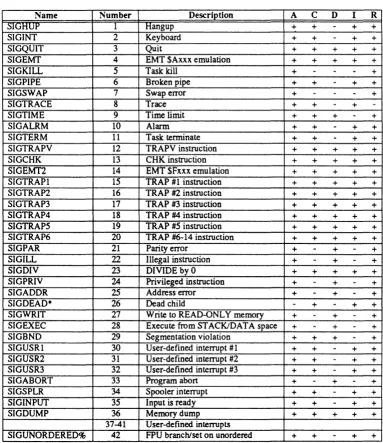
When a task running under the control of debug receives a signal, the operating system notifies
debug and suspends the task. The debug program then enters command mode, allowing the user to execute any debug command. A user who wishes to ignore the signal may do so by entering the "K" command. A user who wisht~s the signal to take effect should simply continue the program with the "g" (or a similar) cOII11nand.
m <address>
The "m" command modifies the contents of one or more memory locations in the image file. In response to this command, debug first displays the specified address and its contents. The user may change the contents by entering any expression, may leave the contents as is by entering a period, or may terminate the command by entering just a carriage return. Unless the user terminates the command, debug modifies the contents if appropriate, displays the next address with its contents, and waits for input from the user.
If the image file is a core dump or an executable file, the file itself is modified. If the image file is a controlled task (i.e., an "x" command has been executed), only the memory of that task is altered. The executable file from which debug created the task is not changed. Therefore, when patching code the user should be aware l:hat patches are applied only to the executing image file.
M
The "M" command displays a map of the logical addresses available to the task image. If the image is either a core dump or a controlled task, the map contains the ranges of addresses being used by the program. These ranges may change whenever the program executes a break or a
stack system call. If the image is an eXE~cutable file, the tlMtt command displays the ranges of the addresses of the TEXT and DAT AlBSS segments.
n
The "n" command displays the command line which was used to create the task. This is merely a display of the command arguments passed to the program when it was created. In most cases the command line consists of the shell command used to invoke the program. The command line for a controlled task looks just like the corrlmand line entered with the "x" command that created it, except that the "x" is replaced by the program name.
r
R <register_name> <expression>
The "R" command, which may be used only if the image file is a controlled task, alters the contents of a register. The register may be 00 through D7, AO through A 7, SR, or PC. The letters used in specifying a register may be either upper- or lowercase. The supervisor portion (the upper byte) of the status register may not be altered.
s
The "s" command executes a single machine-language instruction. When the instruction is complete, debug displays the state of the task (including the new program counter) and the next instruction to be executed. The" sIt command uses system facilities provided by the operating system. Thus, the user may safely single-step through macro operations such as system calls.
S
The It S" command sets a temporary breakpoint at the instruction following the current instruction.
This breakpoint is removed as soon as it is encountered. If another If SIt command is executed
before the breakpoint is encountered, it removes the original breakpoint. This command may be used with any instruction, but it is normally used with a call to a subroutine.
T
The "T" command executes the program until it encounters any branch instruction, any call instruction, or any breakpoint After the execution of every instruction, debug displays the address of the next instruction and the instruction itself.
x [<arguments>] [<I/O_redirection>]
The "x" command creates a controlled task from an image file. In order to execute this command, the user must first invoke debug with the name of an executable image file as the argument. The task is halted before execution of its first instruction, so that debug can accept commands to control its execution.
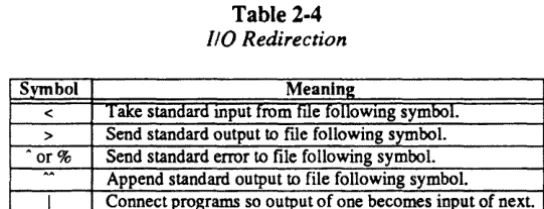
IJO redirection may be accomplished using the character "<" to redirect standard input, fI >" to
redirect standard output, and "%" to redirect standard error. No provisions are made for using either append mode (») or implied mapping (>%).
NOTE
ERROR MESSAGES
Breakpoint table full!
The user has already set the maximum number of breakpoints.
Can't access core/image <image_file_name>
The operating system returned an error when debug tried to access the specified file. Most probably, either the file does not exist or the u