I
User Guide
FlexIP SoftPhone
© Copyright by TADIRAN TELECOM BUSINESS SYSTEMS LTD., 2004. All rights reserved worldwide.
All trademarks contained herein are the property of their respective holders.
The information contained in this document is proprietary and is subject to all relevant
copyright, patent and other laws protecting intellectual property, as well as any specific
agreement protecting TADIRAN TELECOM BUSINESS SYSTEMS LTD.'s (herein referred
to as the “Manufacturer”) rights in the aforesaid information. Neither this document nor the
information contained herein may be published, reproduced or disclosed to third parties, in
whole or in part, without the express, prior, written permission of the Manufacturer. In
addition, any use of this document or the information contained herein for any purposes other
than those for which it was disclosed is strictly forbidden.
The Manufacturer reserves the right, without prior notice or liability, to make changes in
equipment design or specifications.
Information supplied by the Manufacturer is believed to be accurate and reliable. However, no
responsibility is assumed by the Manufacturer for the use thereof nor for the rights of third
parties which may be effected in any way by the use thereof.
Any representation(s) in this document concerning performance of the Manufacturer's
product(s) are for informational purposes only and are not warranties of future performance,
either express or implied. The Manufacturer's standard limited warranty, stated in its sales
contract or order confirmation form, is the only warranty offered by the Manufacturer in
relation thereto.
Table of Contents
1 About this Manual
1 Document Description ... 1-1
2 Special Symbols Used in this Manual ... 1-1
3 Related Documentation... 1-1
2 Installation and Configuration
1 Minimum Requirements... 2-1
PC Hardware ... 2-1
PC Operating System ... 2-1
Coral ... 2-1
2 Installation Instructions... 2-2
Pre-Installation Requirements ... 2-2
FlexIP Softphone Application... 2-2
Configuration ... 2-5
Microsoft Outlook Synchronization ... 2-6
Handset Installation ... 2-8
Sound Configuration ... 2-11
3 Getting Started
1
About this Manual
The FlexIP SoftPhone User Guide is designed to be used as an installation and quick start guide for users of the FlexIP SoftPhone. It describes the installation of the necessary software and gives general overview and usage instructions for the SoftPhone. For more detailed information, the user is directed towards the software on-line help.
Indicates important information demanding special attention.
1
Document Description
2
Special Symbols Used in this Manual
3
Related Documentation
Subject Manual
Installation of Voice over IP equipment
Voice Over IP Installation Manual
Detailed explanation of SoftPhone features
FlexIP SoftPhone online help
Keyset (including SoftPhone) feature codes at a glance
Quick Reference Guide to Feature Access Codes
alla
tio
n an
d Con
fig
urati
on
2
Installation and Configuration
PC Hardware
CPU: Pentium III 500Mhz
Memory: 128MB RAM
Disk space: 30MB
Sound card (full duplex)
Headset, Handset, or speaker/microphone
Network Interface Card (NIC) or dialup connection
Internet connection bandwidth: 56Kbps (ADSL or cable connection recommended)
Free USB port
Screen resolution of 1024 x 768 recommended
PC Operating System
Windows NT4 / 2000 (with Service Pack 2) / XP
Coral
d Con
fig
urati
on
Pre-Installation Requirements
Before you install the FlexIP SoftPhone, inform your system administrator of the MAC address
of your PC. Your system administrator must register this MAC address in the call agent
database to enable the SoftPhone to operate.
To determine the MAC address of your PC. enter ipconfig/all at the DOS prompt
( > Run > CMD). The MAC address is in the format xx-xx-xx-xx-xx-xx.
The Coral System Administrator should define the following parameters in the PI: Sizes (Route: Siz) - KEYSETS_IP
Numbering Plan (Route: NPL) - IP_KEYSET IP Ports: Keysets (Route: IP, 1, 0) - all parameters Keyset Definitions (Route: Key) - SOFTSET
FlexIP Softphone Application
Install the FlexIP SoftPhone in the following way:
1. Insert the FlexIP SoftPhone Installation CD and locate the SoftPhone installation file (SoftPhoneSetup_xx.exe, where xx is the version number).
2. Double-click the installation file. Follow the on-screen instructions to install your FlexIP SoftPhone, as described over the following pages.
alla
tio
n an
d Con
fig
urati
on
3. Click Next to continue installation.
4. After reading the license agreement, select I accept the terms of the license agreement
and click Next to continue.
d Con
fig
urati
on
6. Click Install. The FlexIP SoftPhone is now installed on your computer.
alla
tio
n an
d Con
fig
urati
on
Configuration
1. Launch the FlexIP SoftPhone by selecting > Programs > SoftPhone > SoftPhone, or by clicking on the desktop icon .
The SoftPhone application initiates and the following screen is presented.
2. The MAC (physical) address of your PC is displayed. Click OK.
3. At the prompt, enter the IP address or DNS name of the UGW card in your call agent and click OK. Ask your system administrator for the IP address or DNS name. If you are connecting via a Coral Sentinel, enter the IP address of the Sentinel in this field.
4. If your PC has more than one IP address (for example: a laptop used to connect both to the office network and for home internet use interchangeably), the following message will
be displayed:
Select the IP address from the drop-down menu and click OK. The SoftPhone will now initialize.
d Con
fig
urati
on
Microsoft Outlook Synchronization
If you wish to work with Microsoft Outlook features (See “Using the Directory” on page 3-8 and online help for further details), take the following steps:
1. Exit the SoftPhone application (See “Exiting the FlexIP SoftPhone” on page 3-4).
2. Open the Directory configuration file (directory_cfg.txt). The default location is:
C:\Documents and Settings\your user name\SoftPhone\directory_cfg.txt
3. To synchronize your SoftPhone with the current logged in user in Outlook, manually change one or more of the following parameters in this file as required:
To enable the SoftPhone to use the Outlook Calendar state,
change user.outlook.state to true
To enable the SoftPhone to recognize names from the Directory when you receive
incoming calls, change user.outlook.directory to true
To enable the SoftPhone to use Outlook Contacts,
change user.outlook.contacts to true.
4. Select File > Save to save the changes.
5. Relaunch the FlexIP SoftPhone by selecting
> Programs > SoftPhone > SoftPhone, or by clicking on the desktop icon .
6. If you configured the SoftPhone to operate in conjunction with Outlook Contacts, the SoftPhone will attempt to retrieve your Outlook Contact details upon initialization.
alla
tio
n an
d Con
fig
urati
on
To allow the SoftPhone to access your contacts, click Yes.
d Con
fig
urati
on
Handset Installation
The FlexIP SoftPhone supports generic and brand specific (“Tiger Jet”) handsets. You may
communicate using a generic handset in the same manner as you would a normal handset.
The Tiger Jet handset has the additional feature of enabling you to dial direct from the set. To
facilitate this, you must install the handset drivers in the following way:
1. Plug the handset into a spare USB port. The Install New Hardware wizard will start automatically.
alla
tio
n an
d Con
fig
urati
on
3. Select Search for a suitable driver for my device (recommended) and click Next.
d Con
fig
urati
on
alla
tio
n an
d Con
fig
urati
on
Sound Configuration
Setting the Sound Preferences:
1. Press and select Preferences.
2. Select the Audio tab.
3. In the Devices section, you can designate the ring and phone devices that can be used by the Softphone. Select the device from the drop-down menu:
The Ring Device is the device that the Softphone will use whenever there is an alerting call. To configure the SoftPhone to ring via the PC’s external speakers, select your sound
card in this field.
The Phone Device is the device used by the Softphone for voice communication. To communicate via the handset, select USB Audio Device in this field.
d Con
fig
urati
on
Adjusting the system volume:
Depending upon your system settings, it may be necessary to adjust the sound of your
recording device so that your conversing party can hear you clearly.
To adjust the volume level heard by your conversing party:
1. Select > Settings > Control Panel > Sound and Multimedia and select the
Audio tab.
ing S
ta
rted
3
Getting Started
The FlexIP SoftPhone is a comprehensive software-based application, designed to offer a full
range of features and capabilities that combines all the benefits of a standard phone with the
convenience and flexibility of an interactive software application.
Like any telephone, the SoftPhone can receive and make phone calls, forward incoming calls,
automatically answer or play a recorded message and more.
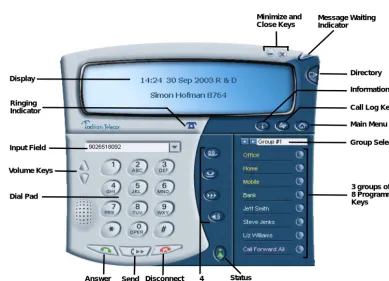
Figure 3-1 FlexIP SoftPhone
1
Overview
Input Field Dial Pad Display
3 groups of 8 Programmable Keys
Message Waiting Indicator
Directory
The SoftPhone has the look, feel and functionality of a FlexSet-IP phone, with many additional
features that make it ideally suited for the corporate work environment.
The SoftPhone’s unique features include the following:
A standard 12 key interface lets you select numbers and make phone calls. Using your mouse or keyboard, you can enter numbers, select contacts, enter and save important
phone numbers, select your preferences, and more.
Four Function Keys enable you to quickly access your predefined functions (such as Speaker, Hold, Conference, etc.).
Dial from any application.
Dial by name.
Programmable User keys enable you to create up to 24 quick keys to access friends, program actions such as Do Not Disturb, Call Forwarding, Follow Me options or any of
the other rich array of keyset features, and more, using easy, intuitive programming.
A personal directory
Extensive Contacts list lets you store personal information on hundreds of co-workers, friends and family, and access them with a single click.
A Rules Wizard enables you to predetermine how your phone reacts in a given situation. When you are out of the office, set the phone to forward calls to someone else. If you are
ing S
ta
rted
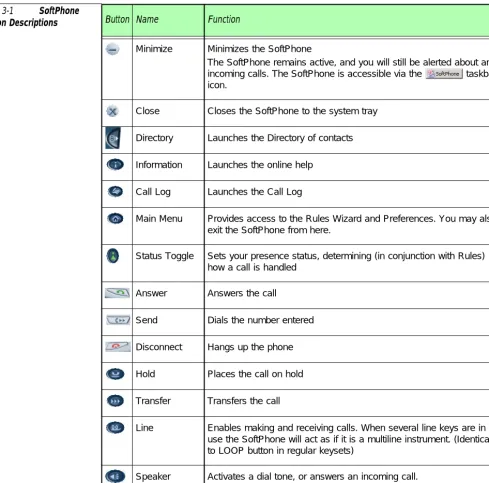
Table 3-1 SoftPhone
Button Descriptions Button Name Function
Minimize Minimizes the SoftPhone
The SoftPhone remains active, and you will still be alerted about any incoming calls. The SoftPhone is accessible via the taskbar icon.
Close Closes the SoftPhone to the system tray
Directory Launches the Directory of contacts
Information Launches the online help
Call Log Launches the Call Log
Main Menu Provides access to the Rules Wizard and Preferences. You may also exit the SoftPhone from here.
Status Toggle Sets your presence status, determining (in conjunction with Rules) how a call is handled
Answer Answers the call
Send Dials the number entered
Disconnect Hangs up the phone
Hold Places the call on hold
Transfer Transfers the call
Line Enables making and receiving calls. When several line keys are in use the SoftPhone will act as if it is a multiline instrument. (Identical to LOOP button in regular keysets)
Starting the FlexIP SoftPhone
To start the SoftPhone:
From the Windows Taskbar, select > Programs > SoftPhone > SoftPhone
or
Click on the desktop icon
Minimizing the FlexIP SoftPhone
Click in the upper right corner to minimize the SoftPhone.
The SoftPhone remains active, and you will still be alerted about any incoming calls. The
SoftPhone is accessible via the taskbar icon.
Maximizing the FlexIP SoftPhone
Double-click in the Windows system tray to maximize the SoftPhone.
Closing the FlexIP SoftPhone
Click in the upper right corner to close the SoftPhone.
The SoftPhone remains active and you will still be notified of incoming calls. The icon
will remain in the system tray only.
Exiting the FlexIP SoftPhone
To exit the SoftPhone:
Click the Main Menu icon and select Exit
or
Right-click on in the system tray and select Exit
or
Right-click on in the taskbar an select Close
ing S
ta
rted
Making a Call
The SoftPhone lets you make outgoing calls using many of the methods you might currently
use on a standard phone and more, as described in full in the on-line help.
Making a call via the keypad
To enter the number using the keypad:
1. Enter the number by clicking on the appropriate numbers on the SoftPhone keypad or the handset keypad, or manually typing the numbers into the input field.
2. If you have enabled Direct on the Preferences page (as explained in the online help), your call is dialed in real time as you enter the numbers.
If you have enabled Via Send, click to make the call.
3. When you have finished the call, click or to close the phone connection.
Making a call using other methods
Using the easy-to-use interface, you can make a call using any one of the following methods:
Select a number from your Directory (“dial by name”, right-click or hot key activation)
Select a number from the recently dialed calls list
Select a user-programmable key
Select a number from the Call Log
Make a call from any application
Receiving a Call
When the SoftPhone detects an incoming call, it immediately alerts you to the call in the
following ways:
Audible ring
Pop-up notification
Flashing LED on the Softphone's upper right corner (only when SoftPhone interface is active)
Speaker icon flashes (only when SoftPhone interface is active)
The telephone icon on the SoftPhone becomes animated and "wave" lines appear, as indicated below:
Ringing:
Not ringing:
(only when SoftPhone interface is active)
If the incoming call is from someone in your list of programmed user keys, the associated key will flash (only when SoftPhone interface is active)
To answer the call, select one of the following:
Click
Click the pop up notification that appears when an incoming call is received
Click to answer the call.
If someone from your programmed list calls you, the LED beside that name will flash, and you can click on the button to answer the call.
If you created an auto-answer rule for a specific number (as explained on page 3-9 and in the online help), the call will be answered automatically, as per the rule definition. However, if you
ing S
ta
rted
Using the Call Log
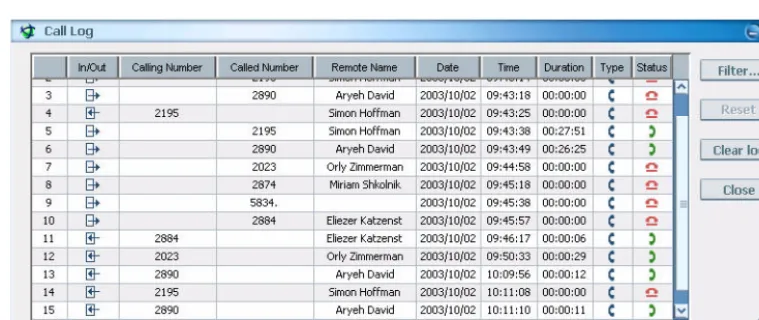
The Call Log details all incoming and outgoing calls that have been made using the SoftPhone.
Click to launch the Call Log.
Figure 3-2 Call Log
Sorting the Call Log view
Calls can be sorted according to column by clicking on the column heading, enabling you to
see the information you want at a glance, clearly and logically.
Filtering the Call Log view
You can filter both current and future information in the Call Log to find specific information
or locate a specific number. If a filter is defined and a call enters the call log (either incoming
or outgoing) that matches the filter criteria, the Call Log display is automatically updated. If it
does not match the filter, it enters the Call Log, but is not displayed. It will be included in the
list when you delete the current filters.
Making a call
You can easily make a call to a number that exists in your Call Log, either to a number that
you have called or to a number of someone who called you. To makes a call, highlight a call
Using the Directory
Full functionality will be available in a future phase.
The SoftPhone features an advanced Directory option that enables you to store contact
information for your colleagues, friends and family. You can add, edit and delete contacts freely
from the contacts section. You can also search for a contact.
The SoftPhone displays existing Microsoft Outlook contacts. Any changes you make to the
contacts in the SoftPhone also affect your contacts list in Outlook.
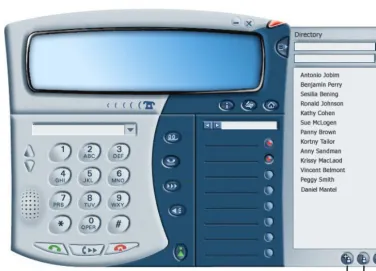
Additionally, you can call a number directly from the stored contact information in the
Directory by dragging the name of the person you wish to call to the input field above the
keypad, or by right-clicking the name of the person and selecting Make Call from the menu. Click to launch the Directory.
Figure 3-3 Directory
ing S
ta
rted
Working with Rules
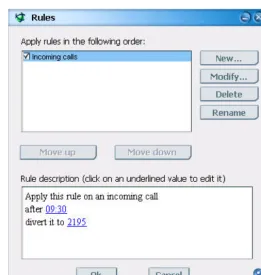
You can create personal routing rules that are applied to incoming calls automatically. You can
also add cumulative rules to create a hierarchical list of rules applied to incoming calls that
match one or more criteria.
These rules can be created and modified using the Rules Wizard.
Click and select Rules Wizard. The Rules Wizard window appears. Figure 3-4 Rules Wizard
Creating Rules
You can define various conditions under which to apply a rule, such as calls from/to a specific
number, calls arriving when you are in a specific state or calls received before/after specific
date/time. You can then determine an action that will apply to the call, such as auto-answering
the call or diverting the call to an alternate destination.
Additionally, you may automatically launch a chosen file or application upon receipt of the
incoming call.