Chapter 12 Mouse and Keyboard (Main Page)
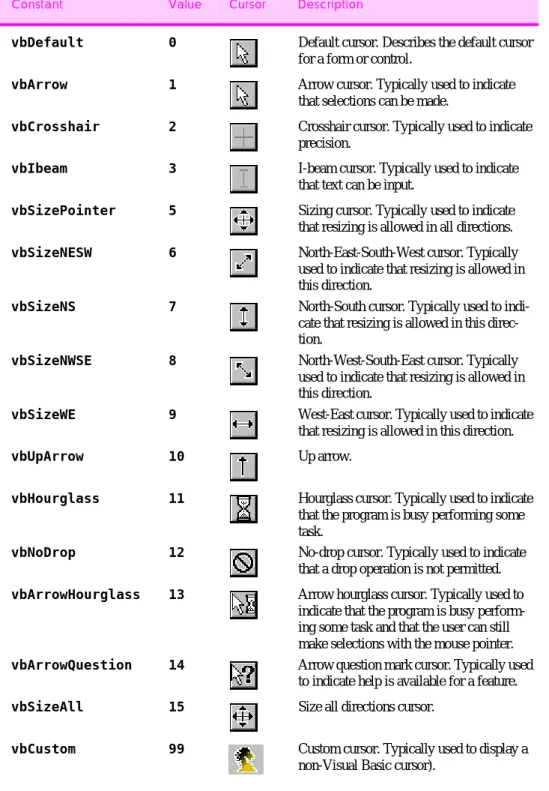
12.1 MousePointer constants.
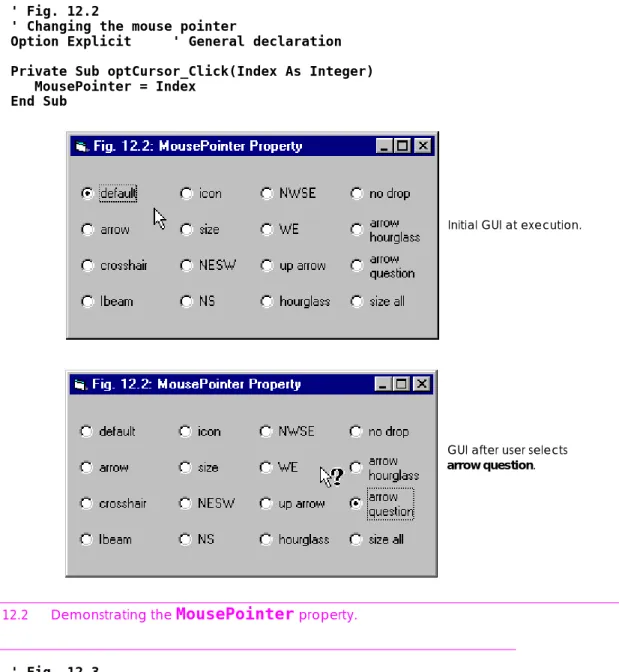
12.2 Demonstrating the MousePointer property. 12.3 Demonstrating mouse events.
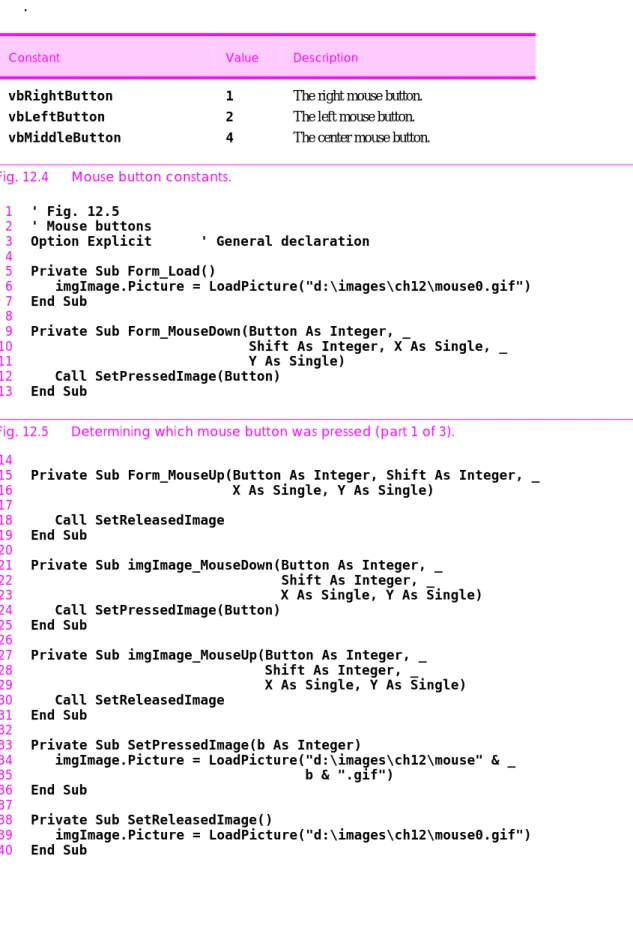
12.4 Mouse button constants.
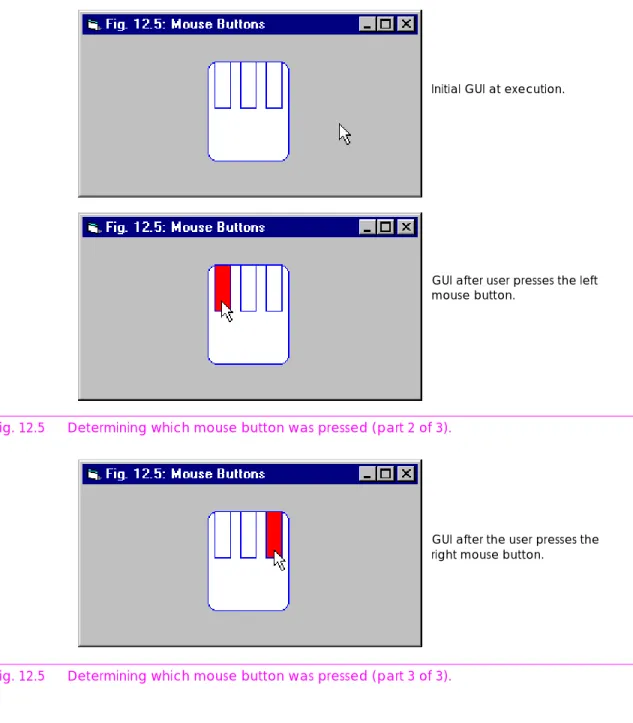
12.5 Determining which mouse button was pressed. 12.6 Constants associated with variable Shift .
12.7 Determining which combination of Shift , Ctrl or Alt
was pressed.
12.8 Button and Shift bit fields. 12.9 Constants used with method Drag. 12.10 Demonstrating manual drag-and-drop. 12.11 Demonstrating automatic drag-and-drop. 12.12 Common key event constants.
12.13 Demonstrating key events.
Constant Value Cursor Description
vbDefault 0 Default cursor. Describes the default cursor
for a form or control.
vbArrow 1 Arrow cursor. Typically used to indicate
that selections can be made.
vbCrosshair 2 Crosshair cursor. Typically used to indicate
precision.
vbIbeam 3 I-beam cursor. Typically used to indicate
that text can be input.
vbSizePointer 5 Sizing cursor. Typically used to indicate
that resizing is allowed in all directions.
vbSizeNESW 6 North-East-South-West cursor. Typically
used to indicate that resizing is allowed in this direction.
vbSizeNS 7 North-South cursor. Typically used to
indi-cate that resizing is allowed in this direc-tion.
vbSizeNWSE 8 North-West-South-East cursor. Typically
used to indicate that resizing is allowed in this direction.
vbSizeWE 9 West-East cursor. Typically used to indicate
that resizing is allowed in this direction.
vbUpArrow 10 Up arrow.
vbHourglass 11 Hourglass cursor. Typically used to indicate
that the program is busy performing some task.
vbNoDrop 12 No-drop cursor. Typically used to indicate
that a drop operation is not permitted. vbArrowHourglass 13 Arrow hourglass cursor. Typically used to
indicate that the program is busy perform-ing some task and that the user can still make selections with the mouse pointer. vbArrowQuestion 14 Arrow question mark cursor. Typically used
to indicate help is available for a feature.
vbSizeAll 15 Size all directions cursor.
vbCustom 99 Custom cursor. Typically used to display a
non-Visual Basic cursor).
1 ' Fig. 12.2
2 ' Changing the mouse pointer
3 Option Explicit ' General declaration 4
5 Private Sub optCursor_Click(Index As Integer) 6 MousePointer = Index
7 End Sub
Fig. 12.2 Demonstrating the
MousePointer
property.1 ' Fig. 12.3
2 ' Demonstrating mouse events
3 Option Explicit ' General declaration 4
5 Private Sub Form_Load()
6 Call Randomize ' Randomize
7 End Sub
8
9 Private Sub cmdClear_Click() 10 Call Cls ' Clear Form
11 End Sub
12
13 Private Sub Form_Click()
14
Initial GUI at execution.
GUI after user selects arrowquestion.
19 Case 2 20 ForeColor = vbMagenta 21 Case 3 22 ForeColor = vbRed 23 Case 4 24 ForeColor = vbBlue 25 End Select 26 27 End Sub 28
29 Private Sub Form_DblClick() 30
31 ' Randomly set Form BackColor 32 Select Case (1 + Int(Rnd() * 4)) 33 Case 1
34 BackColor = vbWhite 35 Case 2
36 BackColor = vbYellow
Fig. 12.3 Demonstrating mouse events (part 1 of 3). 37 Case 3 38 BackColor = vbGreen 39 Case 4 40 BackColor = vbCyan 41 End Select 42
43 ' Change chkMove BackColor to Form's BackColor 44 chkMove.BackColor = BackColor
45 End Sub
46
47 Private Sub Form_MouseDown(Button As Integer, _
48 Shift As Integer, X As Single, _ 49 Y As Single)
50
51 CurrentX = X ' Set x coordinate 52 CurrentY = Y ' Set y coordinate 53 Print "MouseDown"
54 End Sub
55
56 Private Sub Form_MouseUp(Button As Integer, _
57 Shift As Integer, X As Single, _ 58 Y As Single) 59 60 ' Reverse coordinates 61 CurrentX = Y 62 CurrentY = X 63 Print "MouseUp" 64 End Sub 65
66 Private Sub Form_MouseMove(Button As Integer, _
67 Shift As Integer, X As Single, _ 68 Y As Single)
69
70 ' If checked enable printing operations 71 If chkMove.Value = 1 Then 72 CurrentX = X 73 CurrentY = Y 74 Print "MouseMove" 75 End If 76
77 End Sub
Fig. 12.3 Demonstrating mouse events (part 2 of 3).
Fig. 12.3 Demonstrating mouse events (part 3 of 3).
Initial GUI at execution.
GUI after user has clicked mouse in sev-eral different locations.
GUI after user has pressed Clear and then clicked EnableMouseMove and moved the mouse.
.
1 ' Fig. 12.5 2 ' Mouse buttons
3 Option Explicit ' General declaration 4
5 Private Sub Form_Load()
6 imgImage.Picture = LoadPicture("d:\images\ch12\mouse0.gif")
7 End Sub
8
9 Private Sub Form_MouseDown(Button As Integer, _
10 Shift As Integer, X As Single, _ 11 Y As Single)
12 Call SetPressedImage(Button)
13 End Sub
Fig. 12.5 Determining which mouse button was pressed (part 1 of 3). 14
15 Private Sub Form_MouseUp(Button As Integer, Shift As Integer, _ 16 X As Single, Y As Single)
17 18 Call SetReleasedImage
19 End Sub
20
21 Private Sub imgImage_MouseDown(Button As Integer, _ 22 Shift As Integer, _ 23 X As Single, Y As Single) 24 Call SetPressedImage(Button)
25 End Sub
26
27 Private Sub imgImage_MouseUp(Button As Integer, _ 28 Shift As Integer, _ 29 X As Single, Y As Single) 30 Call SetReleasedImage
31 End Sub
32
33 Private Sub SetPressedImage(b As Integer)
34 imgImage.Picture = LoadPicture("d:\images\ch12\mouse" & _ 35 b & ".gif")
36 End Sub
37
38 Private Sub SetReleasedImage()
39 imgImage.Picture = LoadPicture("d:\images\ch12\mouse0.gif")
40 End Sub
Constant Value Description
vbRightButton 1 The right mouse button.
vbLeftButton 2 The left mouse button.
vbMiddleButton 4 The center mouse button.
Fig. 12.5 Determining which mouse button was pressed (part 2 of 3).
Fig. 12.5 Determining which mouse button was pressed (part 3 of 3).
Constant Value Description
vbShiftMask 1 Status of the Shift key.
vbCtrlMask 2 Status of the Ctrl key.
vbAltMask 4 Status of the Alt key.
Fig. 12.6 Constants associated with variable
Shift
.Initial GUI at execution.
GUI after user presses the left mouse button.
GUI after the user presses the right mouse button.
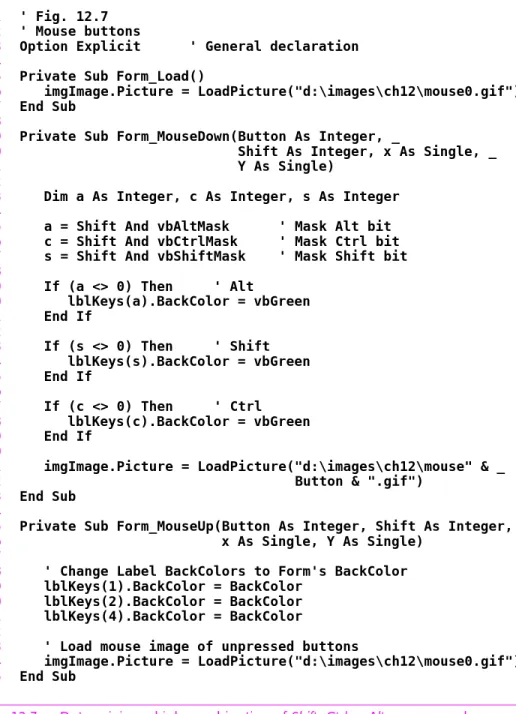
1 ' Fig. 12.7 2 ' Mouse buttons
3 Option Explicit ' General declaration 4
5 Private Sub Form_Load()
6 imgImage.Picture = LoadPicture("d:\images\ch12\mouse0.gif")
7 End Sub
8
9 Private Sub Form_MouseDown(Button As Integer, _
10 Shift As Integer, x As Single, _ 11 Y As Single)
12
13 Dim a As Integer, c As Integer, s As Integer
14
15 a = Shift And vbAltMask ' Mask Alt bit 16 c = Shift And vbCtrlMask ' Mask Ctrl bit 17 s = Shift And vbShiftMask ' Mask Shift bit
18 19 If (a <> 0) Then ' Alt 20 lblKeys(a).BackColor = vbGreen 21 End If 22 23 If (s <> 0) Then ' Shift 24 lblKeys(s).BackColor = vbGreen 25 End If 26 27 If (c <> 0) Then ' Ctrl 28 lblKeys(c).BackColor = vbGreen 29 End If 30
31 imgImage.Picture = LoadPicture("d:\images\ch12\mouse" & _ 32 Button & ".gif")
33 End Sub
34
35 Private Sub Form_MouseUp(Button As Integer, Shift As Integer, _ 36 x As Single, Y As Single)
37
38 ' Change Label BackColors to Form's BackColor 39 lblKeys(1).BackColor = BackColor
40 lblKeys(2).BackColor = BackColor 41 lblKeys(4).BackColor = BackColor
42
43 ' Load mouse image of unpressed buttons
44 imgImage.Picture = LoadPicture("d:\images\ch12\mouse0.gif")
45 End Sub
Fig. 12.7 Determining which combination of Shift, Ctrl or Alt was pressed (part 1 of 2).
Fig. 12.7 Determining which combination of Shift, Ctrl or Alt was pressed (part 2 of 2).
Initial GUI at execution.
GUI after user presses the right mouse button while Ctrl is held down.
GUI after user presses the left mouse but-ton while Shift is held down.
Fig. 12.8
Button
andShift
bit fields.1 ' Fig. 12.10
2 ' Demonstrating manual drag-and-drop
3 Option Explicit ' General declaration 4 Dim mCurrentCell As Integer ' General declaration 5
6 Private Sub Form_Load() 7 Dim x As Integer 8
9 mCurrentCell = 2 ' Lower left corner
10
11 For x = 1 To 64
12
13 If x Mod 2 Then
14 picSquare(x).Picture = LoadPicture("d:\images\ch12\" & _ 15 "w_marble.jpg") 16 Else
17 picSquare(x).Picture = LoadPicture("d:\images\ch12\" & _ 18 "b_marble.jpg") 19 End If
20
21 Next x
Constant Value Description
vbCancelDrag 0 Cancels drag-and-drop operation. Event
proce-dure DragDrop is not called.
vbBeginDrag 1 Begins drag-and-drop operation. Event
proce-dure DragDrop is called.
vbEndDrag 2 Terminates drag-and-drop operation. Event
procedure DragDrop is called. Fig. 12.9 Constants used with method
Drag
.... M R L
Least significant bits Most significant bits
Button bit field
... A C S
Least significant bits Shift bit field
Key M R L A C S
Bit representing middle mouse button Bit representing right mouse button Bit representing left mouse button Bit representing Alt key
Bit representing Ctrl key Bit representing Shift key Most significant bits
24 "b_knight.jpg")
25 End Sub
26
27 Private Sub picSquare_MouseDown(Index As Integer, _ 28 Button As Integer, _ 29 Shift As Integer, _ 30 x As Single, Y As Single)
31
32 ' If on the PictureBox displaying the image 33 ' then enable dragging.
34 If Index = mCurrentCell Then
35 picSquare(mCurrentCell).Drag vbBeginDrag
36 End If
37
38 End Sub
Fig. 12.10 Demonstrating manual drag-and-drop (part 1 of 4). 39
40 Private Sub picSquare_DragOver(Index As Integer, _ 41 Source As Control, _
42 x As Single, Y As Single, _ 43 State As Integer)
44
45 ' Display icon while dragging over a PictureBox
46 picSquare(Index).DragIcon = LoadPicture("d:\images" & _ 47 "\ch12\knight.cur")
48 End Sub
49
50 Private Sub picSquare_DragDrop(Index As Integer, _ 51 Source As Control, _ 52 x As Single, Y As Single) 53
54 ' Draw image at new position 55 If Index Mod 2 Then
56 picSquare(Index).Picture = LoadPicture("d:\images\ch" & _ 57 "12\w_knight.jpg")
58 Else
59 picSquare(Index).Picture = LoadPicture("d:\images\ch" & _ 60 "12\b_knight.jpg")
61 End If
62
63 ' Remove last image only if the drop is at 64 ' a different location.
65 If mCurrentCell <> Index Then 66 If Source.Index Mod 2 Then
67 Source.Picture = LoadPicture("d:\images\ch12" & _ 68 "\w_marble.jpg") 69 Else
70 Source.Picture = LoadPicture("d:\images\ch12" & _ 71 "\b_marble.jpg") 72 End If
73
74 End If
75
76 ' Update current image position 77 mCurrentCell = Index
Fig. 12.10 Demonstrating manual drag-and-drop (part 3 of 4).
Fig. 12.10 Demonstrating manual drag-and-drop (part 4 of 4).
Initial GUI at execution.
GUI when the user is performing a drag operation. Note the change in the mouse pointer. Since a drop has not occurred, the original image is still visible.
1 ' Fig. 12.11
2 ' Demonstrating Automatic drag-and-drop 3 Option Explicit ' General declaration 4
5 Private Sub Form_Load() 6 Dim a As Integer 7
8 ' Set all DragMode properties to Automatic 9 For a = cmdButton.LBound To cmdButton.UBound 10 cmdButton(a).DragMode = 1 ' Automatic
11 Next a
12
13 End Sub
14
15 Private Sub Form_DragDrop(Source As Control, X As Single, _ 16 Y As Single)
17
18 Dim w As Integer, h As Integer
19
20 ' Center control on mouse pointer 21 w = X - Source.Width / 2
22 h = Y - Source.Height / 2
23
24 ' Move button to location where drop occurs 25 Call Source.Move(w, h)
26 End Sub
Fig. 12.11 Demonstrating automatic drag-and-drop (part 1 of 2).
Fig. 12.11 Demonstrating automatic drag-and-drop (part 2 of 2).
Constant ASCII value(s) Description
vbKeyA - vbKeyZ 65-90 A key through Z key.
vbKeyNumpad0 - vbKeyNumpad9
96-105 Keypad numeric keys 0 through 9.
vbKey0 - vbKey9 48-57 Numeric keys 0 through 9.
vbKeyF1 - vbKeyF16 112-127 Function keys F1 through F16.
vbKeyDecimal 110 Decimal point key (Period key).
vbKeyBack 8 Backspace key.
vbKeyTab 9 Tab key.
vbKeyReturn 13 Return key (or Enter key).
vbKeyShift 16 Shift key.
vbKeyControl 17 Ctrl key.
vbKeyCapital 20 Caps Lock key.
vbKeyEscape 27 Escape key.
vbKeySpace 32 Space bar.
vbKeyInsert 45 Insert key.
GUI after user has dragged and dropped three buttons. A drag-and-drop operation is occurring on a button.
GUI after user has dragged and dropped all buttons.
1 ' Fig. 12.13
2 ' Demonstrating KeyDown, KeyUp, and KeyPress
3 Option Explicit ' General declaration 4 Dim mTitleString As String ' General declaration 5
6 Private Sub Form_Load()
7 ' Store Caption value for use in KeyPress 8 mTitleString = Caption & Space$(5)
9 End Sub
10
11 Private Sub Form_KeyDown(KeyCode As Integer, Shift As Integer)
12
13 ' Determine which, if any, of the Shift, Ctrl, 14 ' or Alt keys is pressed
15 Select Case Shift
16 Case vbShiftMask ' Shift 17 ForeColor = vbYellow
18 Case vbAltMask ' Alt 19 ForeColor = vbRed
20 Case vbCtrlMask ' Ctrl 21 ForeColor = vbGreen
22 Case vbShiftMask + vbAltMask ' Shift + Alt 23 ForeColor = vbBlue
Fig. 12.13 Demonstrating key events (part 1 of 3).
24 Case vbShiftMask + vbCtrlMask ' Shift + Ctrl 25 ForeColor = vbMagenta
26 Case vbAltMask + vbCtrlMask ' Alt + Ctrl 27 ForeColor = vbCyan
28 Case vbAltMask + vbCtrlMask + vbShiftMask ' All three 29 Call Cls
30 End Select
31
32 ' Test for letter key
33 If KeyCode >= vbKeyA And KeyCode <= vbKeyZ Then 34 Print Chr$(KeyCode); ' Print the character 35 ElseIf KeyCode = vbKeyReturn Then ' Return key 36 Print ' Print on next line
37 End If
38
39 End Sub
40
41 Private Sub Form_KeyPress(KeyAscii As Integer) 42 ' Update title bar to display the key pressed 43 Caption = mTitleString & "(" & Chr$(KeyAscii) & ")"
44 End Sub
45
46 Private Sub Form_KeyUp(KeyCode As Integer, Shift As Integer) 47 ' When key is released, change ForeColor to black
vbKeyDelete 46 Delete key.
Constant ASCII value(s) Description
Fig. 12.13 Demonstrating key events (part 2 of 3).
Fig. 12.13 Demonstrating key events (part 2 of 2).
Initial GUI at execution.
GUI after user has typed text.
GUI after user has held Shift, Ctrl and Alt
1 ' Fig. 12.14
2 ' Demonstrating the KeyPreview property.
3 Option Explicit ' General declaration 4
5 Private Sub Form_Load() 6 Call Randomize
7
8 ' Allow Form to get key events first 9 KeyPreview = True
10 End Sub
11
12 Private Sub Form_KeyPress(KeyAscii As Integer)
13
14 ' Only allow numeric keys
15 If KeyAscii >= vbKey0 And KeyAscii <= vbKey9 Then 16 txtInput.Text = txtInput.Text & Chr$(KeyAscii)
17 End If
18
19 End Sub
20
21 Private Sub txtInput_KeyPress(KeyAscii As Integer) 22 KeyAscii = 0 ' Disable event handling
23 End Sub
24
25 Private Sub txtInput_KeyUp(KeyCode As Integer, Shift As Integer)
26
27 Select Case Int(Rnd() * 3) 28 Case 0 29 txtInput.BackColor = vbYellow 30 Case 1 31 txtInput.BackColor = vbCyan 32 Case 2 33 txtInput.BackColor = vbRed 34 End Select 35 36 End Sub
Fig. 12.14 Demonstrating property
KeyPreview
.Initial GUI at execution.
GUI after user enters a series of numbers.