White Paper
EMC Solutions Group
Abstract
This paper provides reference architecture for a Microsoft private cloud solution hosting SharePoint, Exchange, and SQL Server. The solution uses Microsoft System Center 2012 with ESI for Windows Suite to manage an infrastructure of multiple hypervisors (Microsoft Hyper-V, VMware® ESXi™) and multiple storage arrays (EMC® VNX®, EMC Symmetrix® VMAX®).
February 2013
EMC MANAGEMENT INTEGRATION FOR
MICROSOFT PRIVATE CLOUD
EMC Symmetrix VMAX, EMC VNX, EMC Storage Integrator (ESI) for
Windows Suite, Microsoft System Center 2012
•
Application to infrastructure management and monitoring
•
Optimized storage for elastic infrastructures
Copyright © 2013 EMC Corporation. All Rights Reserved.
EMC believes the information in this publication is accurate as of its publication date. The information is subject to change without notice.
The information in this publication is provided “as is.” EMC Corporation makes no representations or warranties of any kind with respect to the information in this publication, and specifically disclaims implied warranties of
merchantability or fitness for a particular purpose.
Use, copying, and distribution of any EMC software described in this publication requires an applicable software license.
For the most up-to-date listing of EMC product names, see EMC Corporation Trademarks on EMC.com.
All trademarks used herein are the property of their respective owners. Part Number H11228.1
3 EMC Management Integration for Microsoft Private Cloud
EMC Symmetrix VMAX, EMC VNX, EMC Storage Integrator
for Windows Suite, Microsoft System Center 2012
Table of contents
Executive summary ... 7 Business case ... 7 Solution overview ... 7 Key results ... 7 Introduction... 8 Purpose ... 8 Scope ... 8 Audience ... 8 Terminology ... 8 Technology overview ... 10 Overview ... 10 EMC VNX5700 ... 10 EMC VMAX 10K ... 10 EMC FAST VP ... 11 EMC Unisphere ... 11ESI for Windows Suite ... 11
ESI for Windows ... 11
ESI Management Packs for SCOM ... 11
ESI PowerShell Toolkit ... 11
EMC SMI-S Provider ... 11
EMC PowerPath/VE ... 12
Microsoft System Center 2012 ... 12
SCVMM 2012 ... 12
SCO 2012 ... 12
SCOM 2012 ... 12
SCOM MPs ... 13
Multi-hypervisor environments ... 13
Microsoft Windows Server 2012 Hyper-V ... 13
VMware ESXi 5.0.1 ... 13
Solution architecture and configuration ... 14
Overview ... 14
Physical environment ... 14
Hardware resources ... 15
Software resources ... 15
Storage layout ... 17 EMC VNX5700 ... 17 EMC VMAX 10K ... 17 Storage configuration ... 18 VNX5700 storage allocation ... 19 EMC FAST VP ... 19
VMAX 10K storage allocation ... 20
System management design and configuration ... 21
Overview ... 21
EMC components ... 21
Interoperability with Microsoft components ... 21
Monitor and report ... 22
ESI Management Packs ... 23
Storage monitoring with ESI Management Packs ... 25
Application monitoring with SCOM MPs... 27
SQL Server ... 27 SharePoint ... 28 Exchange ... 29 Reporting ... 29 Host utilization ... 30 Chargeback ... 31 Cloud management ... 32 Hyper-V management ... 32 ESXi management ... 33 Storage management ... 36 Components ... 36
EMC storage discovery ... 37
Storage pool management... 37
LUN creation with SCVMM ... 38
Workflow management ... 39
SCO preparation steps ... 39
Runbook Designer ... 39
Step 1: Virtual machine creation and deployment ... 40
Step 2: Storage provisioning ... 41
Application design and configuration ... 44
Overview ... 44
Co-location of SQL Server and SharePoint volumes ... 44
SQL Server 2012 ... 44
Design and requirements ... 44
5 EMC Management Integration for Microsoft Private Cloud
EMC Symmetrix VMAX, EMC VNX, EMC Storage Integrator
for Windows Suite, Microsoft System Center 2012
SharePoint 2010 ... 45
Design ... 45
Configuration ... 45
SharePoint 2010 user requirements ... 46
Exchange 2010 ... 47
Exchange Server 2010 user requirements ... 47
Exchange Server 2010 building-block design ... 47
Exchange Server 2010 DAG design ... 48
ESXi virtual machine design for Exchange Server 2010 ... 49
Hyper-V Cluster ... 50
ESXi 5.0.1 cluster ... 50
Validation ... 51
Overview ... 51
Test methodology ... 51
Functional testing of System Center 2012 with EMC components ... 51
SCOM 2012 SP1 with ESI Management Pack testing ... 51
SCO 2012 SP1 with ESI PowerShell ... 51
EMC VNX in-tier rebalance functionality ... 53
Application performance across the environment ... 53
SQL Server... 54
SharePoint ... 54
Microsoft Exchange Load Generator ... 55
Test results ... 55
SCOM test and result ... 55
Test 1: Remove disk to validate warning by SCOM monitoring view ... 55
Test 2: Reboot VNX SP to validate warning in SCOM ... 56
Test 3: Power off host server to validate warning in SCOM ... 56
SCO test for creation of VM with automatic provisioning of storage ... 56
EMC VNX rebalance functional test ... 58
SQL Server results ... 59
SharePoint 2010 results ... 59
Storage pool utilization results ... 60
LUN allocation results ... 60
Co-location of SQL Server and SharePoint volumes on VNX5700 ... 61
Exchange Server 2010 results on VMAX 10K ... 61
Conclusion ... 63
Summary ... 63
References... 64
White papers ... 64
Product documentation ... 64
7 EMC Management Integration for Microsoft Private Cloud
EMC Symmetrix VMAX, EMC VNX, EMC Storage Integrator
for Windows Suite, Microsoft System Center 2012
Executive summary
Organizations are increasingly looking to transform to a fully virtualized cloud infrastructure to both improve their service delivery and build a foundation to deliver IT as a service. This journey can be both daunting and confusing because
administrators face the challenge of managing the wide range of ever-changing technologies across the modern data center.
EMC can help guide organizations along this path, taking you step by step to your cloud and making it simpler to manage and more efficient to operate.
A typical scenario is an organization running a Microsoft Windows environment that wants to adopt or already has adopted both Microsoft Hyper-V and VMware®
hypervisor platforms, along with having a number of storage arrays across its data centers.
Managing such a multi-hypervisor, multi-array architecture is now simplified through the close integration of EMC Storage Integrator (ESI) for Windows Suite with Microsoft System Center 2012 Service Pack (SP) 1. The integration of these EMC and Microsoft products provides IT departments with a centralized platform to manage the
application and storage infrastructure for the whole data center.
Administrators can now take advantage of ESI for Windows Suite to manage, monitor, and automatically deploy EMC storage, along with the EMC Fully Automated Storage Tiering (FAST™) suite of technologies for intelligent storage self-optimization, for both the EMC® VNX® and EMC VMAX® series arrays.
This solution showcases a mixed Microsoft application workload (Microsoft Exchange 2010, Microsoft SharePoint 2010, and Microsoft SQL Server 2012), hosted on
Windows Server 2012 Hyper-V and VMware ESXi™ 5.0.1 clusters, to provide a multi-hypervisor environment found in today’s corporate infrastructures. The environment is managed by Microsoft System Center 2012 SP1.
The key findings of this solution are as follows:
• The ESI Management Packs for System Center Operations Manager (SCOM) provide the ability for SCOM 2012 SP1 to monitor the health and performance of EMC storage systems.
• The EMC SMI-S Provider allows System Center Virtual Machine Manager (SCVMM) 2012 SP1 to easily manage and provision EMC storage.
• ESI PowerShell allows automated provisioning and allocation of EMC storage with System Center Orchestrator (SCO) 2012 SP1.
• SCVMM 2012 SP1 provides simplified and centralized management of both ESXi and Hyper-V virtualization platforms.
• The new VNX feature of automatic in-tier rebalance, following storage-pool tier expansion, balances disk utilization.
• FAST VP policies allow co-location of multiple workloads (such as SQL Server and SharePoint) in the same storage pool, which simplifies storage design without compromising performance.
Business case
Solution overview
Introduction
The objective of this solution is to demonstrate EMC’s integration with Microsoft System Center 2012 SP1, which allows support for Windows Server 2012 for the management of a Microsoft private cloud environment. The solution leverages System Center modules through ESI and SMI-S, using ESI Management Packs for SCOM, for example. SCVMM in System Center 2012 SP1 introduces a number of new changes for storage provider and automation support.
The scope of this solution is to test and validate the management of a Microsoft private cloud infrastructure leveraging System Center 2012 SP1 and highlight the integration with EMC storage through SMI-S and ESI for Windows Suite.
The following System Center 2012 SP1 components are validated:
• Virtual Machine Manager
• Orchestrator
• Operations Manager
The solution demonstrates EMC’s integration with System Center 2012 SP1 to:
• Manage EMC infrastructure using SCVMM and SCO
• Monitor EMC infrastructure using SCOM and SCOM MPs
The solution also validates the support for Windows Server 2012 with Hyper-V with the EMC VNX and VMAX series storage arrays.
This white paper is intended for EMC employees, partners, and customers, including IT planners, storage architects, application administrators, and EMC field personnel who are tasked with deploying such a solution in a customer environment. It is assumed that the reader is familiar with the various components of the solution. Table 1 lists the terminology used in this solution paper.
Table 1. Terminology
Term Full name/definition
BDM Background Database Maintenance
cmdlets command-lets
DAG Database availability group
ESI EMC Storage Integrator
FAST VP Fully Automated Storage Tiering for Virtual Pools, which
provides automatic storage tiering at the sub-LUN level
Flash Flash drive technology
Purpose
Scope
Audience
9 EMC Management Integration for Microsoft Private Cloud
EMC Symmetrix VMAX, EMC VNX, EMC Storage Integrator
for Windows Suite, Microsoft System Center 2012
Term Full name/definition
IOPS Input/output operations per second; a measure of disk
performance in terms of I/O command-processing throughput per second
LoadGen A simulation tool to measure the impact of MAPI, OWA,
ActiveSync, IMAP, POP, and SMTP clients on Exchange servers
LUN Logical unit number; an identifier used to describe and
identify logical storage objects of a storage subsystem
OLTP Online transaction processing (such as a workload from
a trading or banking application)
RAID Redundant Array of Independent/Inexpensive Disks
SAS Serial Attached SCSI
SCO System Center Orchestrator
SCOM System Center Operations Manager
SCOM MPs System Center Operations Manager Management Packs
SCVMM System Center Virtual Machine Manager
SMI-S Storage Management Initiative - Specification
Technology overview
The following components are used in this solution:
• EMC VNX5700
• EMC VMAX 10K
• EMC FAST VP
• EMC Unisphere®
• ESI 2.1 for Windows Suite
• EMC SMI-S Provider
• EMC PowerPath®/VE
• Microsoft System Center 2012 SP1
SCVMM 2012 SP1
SCO 2012 SP1
SCOM 2012 SP1
SCOM MPs
• Multi-hypervisor environments
Microsoft Windows Hyper-V Server 2012
VMware ESXi 5.0.1
EMC VNX5700 is a high-end, enterprise storage array comprising a system bay that includes a storage-processor enclosure and two storage processors, with disk-array enclosures, and separate storage bays that can scale up to 500 disk drives. VNX5700 arrays support multiple drive technologies, including Flash, Serial Attached SCSI (SAS), Near-Line SAS (NL-SAS) drives, and the full range of RAID types. The VNX series is powered by Intel Xeon processors, for intelligent storage that automatically and efficiently scales in performance while ensuring data integrity, security, and 24/7 uptime for mission-critical environments.
EMC Symmetrix® VMAX 10K is a new enterprise storage platform built to provide customers with unmatched, enterprise-level reliability, availability, and serviceability. The Symmetrix VMAX 10K leverages the EMC Virtual Matrix Architecture and is a 100 percent virtually provisioned system. EMC Virtual Provisioning™ gives a host, application, or file system the view that it has more storage than is physically provided. Physical storage is allocated only when the data is written, rather than when the application is initially configured. This eliminates manual calculations and also can reduce power and cooling costs by decreasing the amount of idle storage capacity in the array.
Symmetrix VMAX 10K is designed for easy installation, setup, and use. It is delivered preconfigured, and installation takes less than four hours. The VMAX 10K is an ideal Overview
EMC VNX5700
11 EMC Management Integration for Microsoft Private Cloud
EMC Symmetrix VMAX, EMC VNX, EMC Storage Integrator
for Windows Suite, Microsoft System Center 2012
EMC FAST VP is available in both the VNX and VMAX series storage arrays. Both implementations, although they work slightly differently, allow data to be tiered automatically in pools made up of more than one drive type and more than one RAID type between tiers. Tiered storage creates separate domains within the pool, based on performance capabilities of devices within the pool.
The FAST VP software algorithmically promotes and demotes user data between the tiers based on data access patterns. This ensures that the most frequently accessed data resides on the fastest storage devices, and infrequently accessed data resides on more economical and high-capacity bulk storage.
EMC Unisphere makes it easy to manage VNX and VMAX systems from anywhere with a simple, integrated user interface for distributed storage environments. The
Unisphere dashboard provides a single screen for at-a-glance management and reporting. It enables administrators to gain instant and actionable knowledge about the environment.
ESI for Windows Suite is a set of tools for Microsoft Windows and Microsoft applications administrators. The suite includes ESI for Windows, ESI Management Packs for SCOM, and ESI PowerShell Toolkit (PSToolkit).
ESI for Windows
ESI for Windows provides the ability to view, provision, monitor, and manage block and file storage for Microsoft Windows and Microsoft SharePoint. ESI supports the EMC Symmetrix VMAX series, EMC VNX and VNXe® series, and CLARiiON® CX™ fourth-generation (CX4) series of storage arrays. ESI also supports storage provisioning and discovery for Windows virtual machines running on Microsoft Hyper-V, Citrix
XenServer, and VMware vSphere®. ESI Management Packs for SCOM
ESI Management Packs for SCOM enable storage infrastructure management in a single user interface. With the SCOM integration, Windows administrators have the ability to discover storage assets, map physical and logical objects, and manage alerts and roll-up health states, with configurable parameter thresholds. Platforms supported are VMAX series and VNX series for both block and file.
ESI PowerShell Toolkit
ESI PSToolkit is a powerful utility designed for administrators and users of Windows to assist in storage system management. PSToolkit cmdlets enable storage system administrators to obtain storage system information; create and delete storage pools, storage groups, and storage volumes; and map and mask the pools, groups, and volumes to available host servers. This toolkit enables administrators to efficiently create automated scripts that help in the dynamic creation and deletion of virtual machines on an as-needed basis.
EMC SMI-S Provider V4.4 supports the Storage Networking Industry Association (SNIA) Storage Management Initiative (SMI), providing an American National
Standards Institute (ANSI) standard for storage management. The SMI has developed EMC FAST VP
EMC Unisphere
ESI for Windows Suite
EMC SMI-S Provider
a standard management interface that has culminated in a comprehensive specification, SMI-S. The specification defines the open storage management interface that enables the interoperability of multi-vendor storage-management technologies. These technologies are used to monitor and control storage resources in multi-vendor or SAN topologies.
EMC PowerPath/Virtual Edition (VE) software is used on the ESXi hosts in the VMware high availability (HA) cluster. PowerPath allows the host to connect to a LUN through more than one storage processor port on the EMC VNX series; this is known as multipathing. PowerPath optimizes multipathed LUNs through load-balancing algorithms. Port-load balancing equalizes the I/O workload over all available channels. Hosts connected to the VMAX benefit from multipathing, which provides the following advantages:
• Failover from port to port on the same storage processor, maintaining an even system load and minimizing LUN trespassing on VNX
• Port-load balancing across storage processor ports and host bus adapters (HBAs)
• Higher bandwidth attachment from host to storage system
Microsoft System Center 2012 SP1 is a comprehensive, unified management platform that enables easy and efficient management of IT environments, including
virtual/physical server infrastructures and client devices, for both traditional data centers and private clouds.
SCVMM 2012
SCVMM is a management solution for the virtualized data center, enabling you to configure and manage your virtualization host, networking, and storage resources in order to create and deploy virtual machines and services across the virtual
infrastructure. SCO 2012
SCO provides a workflow management solution for the data center. It enables
administrators to automate the creation, monitoring, and deployment of resources in the environment.
SCOM 2012
SCOM provides organizations with a flexible and cost-effective solution for
monitoring their storage, computers, networks, and applications in a single console view. Operators can gain rapid insight into the state of their environment as well as receive alerts generated for availability, performance, configuration, and security situations.
EMC PowerPath/VE
Microsoft System Center 2012
13 EMC Management Integration for Microsoft Private Cloud
EMC Symmetrix VMAX, EMC VNX, EMC Storage Integrator
for Windows Suite, Microsoft System Center 2012
SCOM MPs
SCOM MPs contain settings that enable agents to monitor a specific service or application in SCOM. These settings include discovery information that allows management servers to automatically detect and begin monitoring objects, a knowledge base that contains error and troubleshooting information, rules and monitors that generate alerts, and reports.
SCOM MPs might also contain tasks, diagnostics, and recovery tools and guidance to help fix problems.
Most companies have adopted some form of virtualization within their
infrastructures, typically through the use of VMware ESXi or Microsoft Hyper-V virtualization technology. Many companies who initially chose one product over another often find themselves running both Hyper-V and ESXi together with the challenge of administering and monitoring a multi-hypervisor environment. This solution shows how to administer and monitor both Microsoft Hyper-V and VMware ESXi.
Microsoft Windows Server 2012 Hyper-V
Microsoft Windows Server 2012 Hyper-V is a hypervisor-based server virtualization product that can be installed as both software and "bare-metal" configurations. VMware ESXi 5.0.1
VMware ESXi 5.0.1 is a "bare-metal" hypervisor, which means software is installed directly on the physical server.
Both Hyper-V and ESXi virtualization technologies enable the partitioning of resources into multiple virtual machines, allowing organizations to improve server utilization, reduce costs, and react more quickly to changing infrastructure and business needs.
Multi-hypervisor environments
Solution architecture and configuration
This solution architecture validates a private cloud infrastructure for companies looking for enterprise consolidation with simplified management. System Center 2012 SP1 is used to manage compute, network, and storage resources in a multi-hypervisor, multi-array environment running mixed workloads of SQL Server 2012, SharePoint 2010, and Exchange 2010.
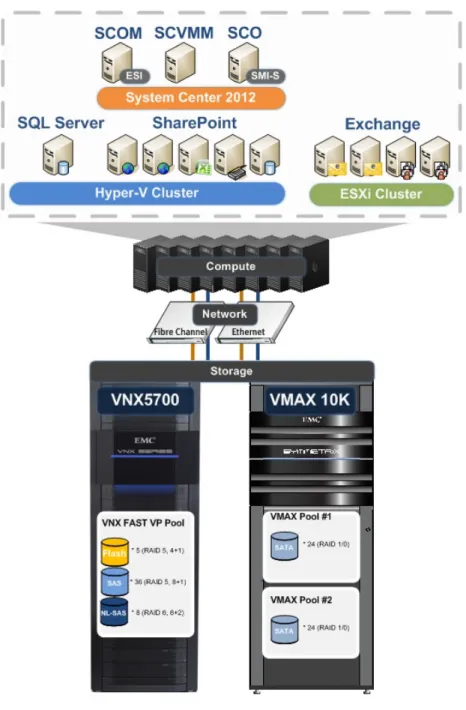
Figure 1 displays the physical architecture of the solution.
Figure 1. Solution architecture Overview
Physical environment
15 EMC Management Integration for Microsoft Private Cloud
EMC Symmetrix VMAX, EMC VNX, EMC Storage Integrator
for Windows Suite, Microsoft System Center 2012
Table 2 details the hardware resources used in this solution. Table 2. Hardware resources
Equipment Quantity Configuration
Storage platform 1
1
VNX5700 VMAX 10K
Switches 2 2 * 40-port Fabric Interconnect switches
Physical server 1 Single Chassis - 8 * blades Intel Xeon E7 2860:
• Two sockets each blade
• 10 cores per socket
• 256 GB memory each blade
Table 3 details the software resources used in this solution. Table 3. Software resources
Resource Quantity Version Purpose
EMC VMAX 10K operating environment
1 5876-85.59 VMAX 10K operating
environment EMC VNX block
operating environment 1 05.32.000.5.011 VNX operating environment
ESI 1 2.1 Provisioning new storage
and enhanced storage views and reporting
EMC PowerPath/VE 2 5.5.1 Advanced multipathing for
ESXi host HBAs
Windows Server 4 2012 Hyper-V Server operating
system
Windows Server 9 2008 R2 Enterprise
Edition, x64, SP1
Server operating system
VMware ESXi 2 5.0.1 Hypervisor software
Microsoft SQL Server 2 2012 Enterprise
Edition Database servers for: • SQL Server OLTP
• SharePoint
Microsoft SQL Server 1 2008 R2 Database Server for
Microsoft System Center
Microsoft SharePoint 1 2010 SP1 August
2012 cumulative update
SharePoint farm
EMC SMI-S Provider 1 4.4 Storage management
support for EMC arrays Hardware
resources
Software resources
Resource Quantity Version Purpose
SCVMM 1 2012 SP1 Virtual infrastructure
management
SCOM 1 2012 SP1 Environment health
monitor
SCO 1 2012 SP1 Workflow management
Table 4, Table 5, and Table 6 detail the environment workload profiles used in validating this solution.
Table 4. Microsoft SQL Server 2012 workload profile
Profile characteristic Quantity/Type/Size
SQL Server instances 1
OLTP database (OLTP_DB) 50,000 users/500 GB
Workload type OLTP-like (90:10 read/write ratio)
Table 5. Microsoft SharePoint 2010 workload profile
Profile characteristic Quantity/Type/Size
Total user count 15,000 users with 2 WFEs
Total data 4.3 TB
Content DB sizes 4 TB
200 GB 100 GB
Number of Content DBs 3
Document size range 200 KB to 2 MB, average 335 KB
Total site collection count 3
Size per site 10 GB to 400 GB
Sites per site collection 10 to 100
Total site count 120
Table 6. Microsoft Exchange 2010 workload profile
Profile characteristic Quantity/Type/Size
Number of Exchange 2010 users 5,000
Number of Mailbox Server virtual machines 2
Number of database availability groups
(DAGs) and database copies 1 DAG with 2 copies
17 EMC Management Integration for Microsoft Private Cloud
EMC Symmetrix VMAX, EMC VNX, EMC Storage Integrator
for Windows Suite, Microsoft System Center 2012
Profile characteristic Quantity/Type/Size
Number of users per Mailbox Server 5,000 total mailboxes
(2,500 active and 2,500 passive during normal operating conditions)
User profile (in DAG configuration) 100 messages/user/day (0.10 IOPS)
Read/write ratio 3:2 in a DAG configuration
Mailbox size Start at 500 MB, grow to 2 GB
Target average message size 75 KB
Deleted-items retention window 14 days
Logs protection buffer 3 days
24 x 7 background database maintenance
configuration Enabled
This solution used both a VNX5700 and VMAX 10K to provide storage. Both arrays allowed the provisioning of storage with different RAID types for each tier:
• The VNX storage array was provisioned with a single mixed storage pool to host OS, SharePoint, and SQL Server volumes.
Note Co-location of SQL Server and SharePoint workloads is discussed further in the EMC FAST VP and Test results sections.
• The VMAX 10K was provisioned with two pools, each of which hosted Exchange DAG copies.
Note Both a VNX5700 and VMAX 10K were used in this solution in order to showcase management of a multi-array environment.
EMC VNX5700
Starting with a mixed pool of 18 SAS disks in a RAID 5 configuration and 8 NL-SAS disks in a RAID 6 configuration, we included an additional 18 SAS disks in the pool to validate the new in-tier rebalance feature of the VNX. We added another five Flash disks to the pool to validate the extreme performance improvements offered by solid state drives for OLTP-like workloads. FAST VP was enabled throughout testing. EMC VMAX 10K
With efficiency in mind, we pooled Exchange DAG copies into two common virtually provisioned (thin) pools, because Microsoft recommends separating DAG
active/passive members to different physical disks. Each of the log and data storage devices in DAG 1 and DAG 2 consisted of 24 x 2 TB SATA drives; a total of 48 drives serviced the Exchange workload. We configured the pools using RAID 1, and the storage was allocated on demand (as requested from the Exchange servers) and wide striped across the thinly provisioned pools.
This section shows the storage configurations used in the EMC VNX5700 and Symmetrix VMAX 10K arrays.
Table 7 details the VNX5700 storage configuration for the solution. Table 7. EMC VNX5700 storage configuration
RAID type Pool/RAID group Disk configuration Purpose RAID 5
8+1
Pool 0
18 x 600 GB SAS Hyper-V hosted OS volumes,
SQL databases, SharePoint configuration, search and temp databases, log files
RAID 6 6+2
8 x 2 TB NL-SAS SharePoint content databases
RAID 5 8+1
18 x 600 GB SAS Pool expansion for performance
RAID 5 4+1
5 x 100 GB Flash Pool expansion for
extreme performance
HS RG 492 1 x 100 GB Flash Hot spare
HS RG 493 and RG 494 2 x 600 GB SAS Hot spare
HS RG 495 1 x 2 TB NL-SAS Hot spare
Table 8 details the VMAX 10K storage configuration for the solution. Table 8. EMC VMAX 10K storage configuration
RAID type Pool/RAID group Disk configuration Purpose
RAID 1 DAG1 24 x 2T SATA drives To host Exchange DB
and log of DAG 1, ESXi hosted OS volumes
RAID 1 DAG2 24 x 2T SATA drives To host Exchange DB
and log of DAG 2, ESXi hosted OS volumes
HS N/A 2 x 2T SATA drives Hot spare
Storage configuration
19 EMC Management Integration for Microsoft Private Cloud
EMC Symmetrix VMAX, EMC VNX, EMC Storage Integrator
for Windows Suite, Microsoft System Center 2012
We configured the VNX5700 storage pool enabled by EMC FAST VP to host a total of ten LUNs, as shown in Table 9. The LUNs hosted virtual machine operating system files, along with SQL Server data, log, and TempDB files, for both the SQL Server OLTP database and SharePoint web farm.
Table 9. VNX5700 LUN configuration with three-tier storage pool enabled by FAST VP LUN name Tier RAID type LUN capacity (GB) FAST VP policy
Admin_VM_OS RAID 5 650 Auto App_VM_OS 700 SQL_Data 600 SQL_TempDB_Logs 300 SP_ContentDatabase_Log 480 SP_ConfigDB 120 SearchDB_TempDBs 1,100 SP_SearchDB_TempDB_Log 110 SP_Index_Query 500
SP_ContentDatabases RAID 6 5,000 Lowest
We used EMC FAST VP to provide automated storage optimization across a three-tier pool design consisting of the following drives:
• Flash: For extreme performance
• SAS: For performance
• NL-SAS: For capacity
RAID 5 was used for both the Flash and SAS tiers in this solution to provide a good compromise between performance and capacity, and a low total cost of ownership (TCO). Available with the latest VNX FLARE code is a new RAID (8+1) configuration type for storage pools that lowers the number of parity disks required for larger storage pool tiers.RAID 6 (6+2) was used for the NL-SAS tier. Providing protection against double disk failure, RAID 6 is a good choice for production data on NL-SAS. Although the latest VNX FLARE also offers a new 14+2 RAID configuration in storage pools, this solution kept to a 6+2 configuration, which was sufficient for capacity requirements.
Table 9 shows the configuration including the tiering policies used. As SharePoint content database I/O characteristics are generally large random read/writes, the tiering policy for the LUN that hosts this data was set to pin the data to the “lowest available tier.” This allowed segregation of this particular I/O to the NL-SAS tier within the pool.
Remaining LUN tiering policies were set to “start high then auto-tier,” allowing EMC FAST VP to automatically relocate data at a sub-LUN level based on I/O activity, prioritizing the 1 GB slices within each LUN so that the most active data was relocated to the higher-performing tier.
VNX5700 storage allocation
Table 10 details the storage LUNs provisioned for the solution from the VMAX 10K array, which hosted the Exchange environment that included data and OS volumes for the Exchange virtual machines.
Table 10. VMAX 10K LUN design for Exchange
LUN name RAID type Storage pool User capacity (GB) Databases_LUN_1 RAID 1 DAG 1 17,000 Log_LUN_1 RAID 1 1,000 EXHT01_OS RAID 1 60 EXMBX01_OS RAID 1 60 Databases_LUN_2 RAID 1 DAG 2 17,000 Log_LUN_2 RAID 1 1,000 EXHT02_OS RAID 1 60 EXMBX02_OS RAID 1 60 VMAX 10K storage allocation
21 EMC Management Integration for Microsoft Private Cloud
EMC Symmetrix VMAX, EMC VNX, EMC Storage Integrator
for Windows Suite, Microsoft System Center 2012
System management design and configuration
This solution uses the following EMC and Microsoft components to provide a centralized management platform for an enterprise-level private cloud using EMC storage infrastructure. The ESI and SMI-S components serve as the enablers for the operations carried out by the Microsoft components, and their relationships are explained in this section.
EMC components
EMC components include:
• ESI for Windows Suite
ESI for Windows Suite includes the ESI Management Packs for SCOM, providing storage discovery and health monitoring. The suite also includes ESI
PowerShell for storage provisioning.
• SMI-S
The EMC SMI-S Provider allows discovery and management of EMC storage in SCVMM.
Note These components are free to EMC customers. Interoperability with Microsoft components
Microsoft components include:
• SCOM 2012 SP1
SCOM 2012 SP1 with ESI Management Packs provides discovery and monitoring of EMC storage.
ESI Management Packs use the ESI Service to communicate with storage.
ESI Management Packs and ESI Service should be installed together.
• SCVMM 2012 SP1
SCVMM 2012 SP1 provides management of both Hyper-V and ESXi clusters. Along with discovery and management of EMC storage, it also provides the ability to provision virtual machines through the EMC SMI-S Provider. EMC SMI-S is installed on the SCO server as an SMI-S provider.
Note Management of ESXi clusters requires vCenter Server.
• SCO 2012 SP1
SCO uses runbooks to perform repeatable operations such as:
Automated virtual machine provisioning
Automated storage provisioning using ESI PowerShell Overview
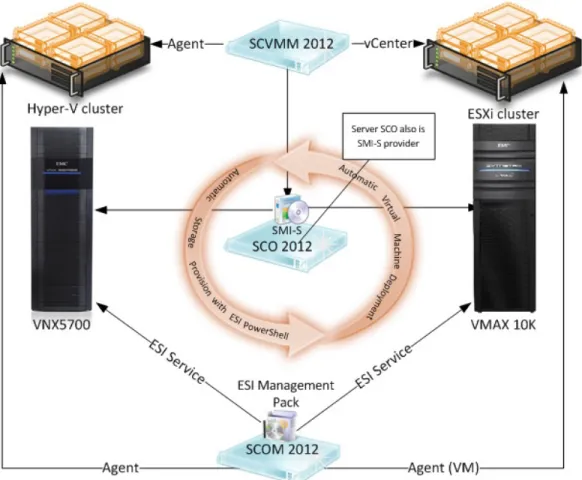
Figure 2 is a visual representation of the relationship between the EMC and Microsoft components.
Figure 2. System management design for the solution
Note SMI-S cannot be installed on the SCVMM management server or SCOM server. This section highlights the application and storage monitor features available in SCOM and also lists some key steps required for discovery and monitoring of EMC storage using SCOM 2012 SP1 with ESI Management Packs. This solution also uses SCOM 2012 SP1 to discover and monitor the health, performance, and availability of the entire virtual infrastructure across Exchange, SQL Server, and Sharepoint
applications as well as the operating systems and hypervisors.
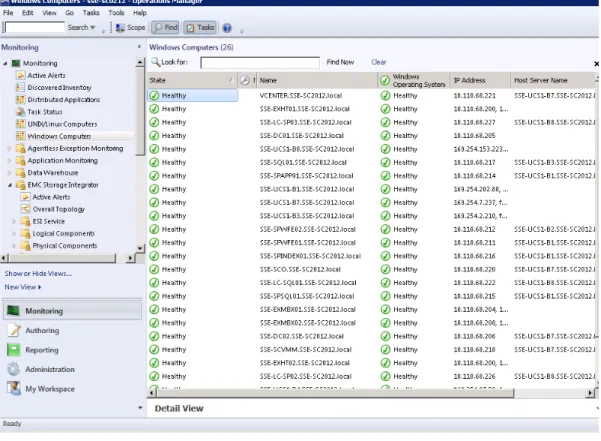
Figure 3 shows SCOM 2012 monitoring all Windows servers including Windows Server 2012 and Hyper-V hosts.
23 EMC Management Integration for Microsoft Private Cloud
EMC Symmetrix VMAX, EMC VNX, EMC Storage Integrator
for Windows Suite, Microsoft System Center 2012
Figure 3. SCOM 2012 management console ESI Management Packs
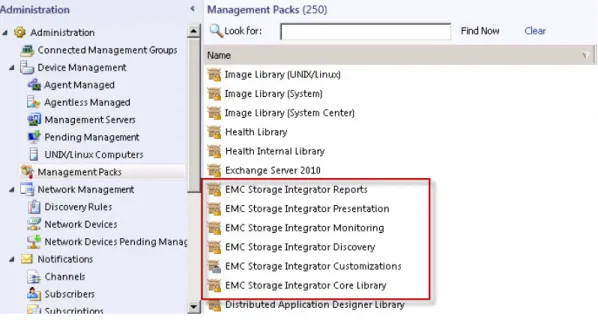
The following six ESI Management Pack files are provided free of charge to EMC customers:
• EMC.ESI.Library.mp: Defines the monitors of storage systems supported by ESI and system components in SCOM.
• EMC.ESI.Discovery.mp: Contains all of the discoveries for all of the storage systems and system components as defined in the library.
• EMC.ESI.Monitoring.mp: Contains the monitors, rules, and diagnostics for the storage systems and system components.
• EMC.ESI.Presentation.mp: Presents the storage system and system component folders and views in SCOM.
• EMC.ESI.Reporting.mp: Reports the health and capacity of the storage systems and system components.
• EMC.SI.Customization.xml: Contains all of the overrides and customizations for your specific storage environment. Import this management pack only during an initial installation. If you import it again, you will lose all of your previous overrides and customizations.
Figure 4. ESI Management Packs in SCOM
For example, the ESI Monitoring Management Pack is used to discover EMC storage system components. The discovery and monitoring of these components is through SCOM agents. The monitoring agent retrieves data from the ESI Service by using a RESTful HTTPS connection, which in turn retrieves the data from the storage systems. The monitoring data is inserted into the SCOM database.
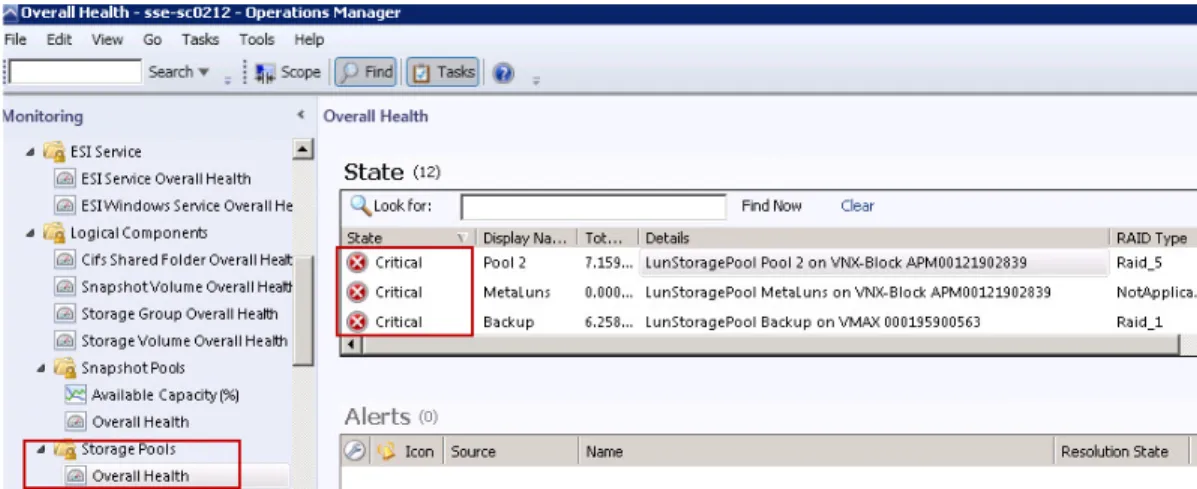
Figure 5 shows the overall topology of storage systems used in this solution. A capacity alarm was configured to trigger an alert when storage pool utilization went above 90 percent. Storage pool capacity was then exceeded, triggering the alerts as shown in the diagram.
25 EMC Management Integration for Microsoft Private Cloud
EMC Symmetrix VMAX, EMC VNX, EMC Storage Integrator
for Windows Suite, Microsoft System Center 2012
The ESI Managements Packs are installed and imported on the SCOM server, with the ESI Service providing the communications link between ESI and the SCOM
Management Group.
Figure 6 shows the ESI Service Overall Health status view available in the SCOM monitoring view.
Figure 6. ESI Service health status
Perform the following steps to enable storage monitoring in SCOM: 1. Install ESI Service on SCOM.
2. Install the ESI Management Packs for SCOM. 3. Add the storage system into ESI Service. 4. Import ESI Management Packs into SCOM.
Note EMC Storage Integrator for Windows Suite Product Guide provides detailed ESI setup and configuration instructions.
Storage monitoring with ESI Management Packs
After storage monitoring was enabled in SCOM, the VNX5700 and VMAX 10K were discovered. This allowed alerts for any possible problems with disk devices, power supplies, storage pools, and other hardware being monitored by SCOM.
Figure 7. Storage Group Overall Health monitoring view
Figure 8 shows that storage pool monitoring is available in SCOM. As previously noted, SCOM was intentionally configured to trigger alerts when storage pools exceeded 90 percent capacity utilization. These alerts, which show a critical error state, notify you that the storage pool capacity needs to be expanded.
27 EMC Management Integration for Microsoft Private Cloud
EMC Symmetrix VMAX, EMC VNX, EMC Storage Integrator
for Windows Suite, Microsoft System Center 2012
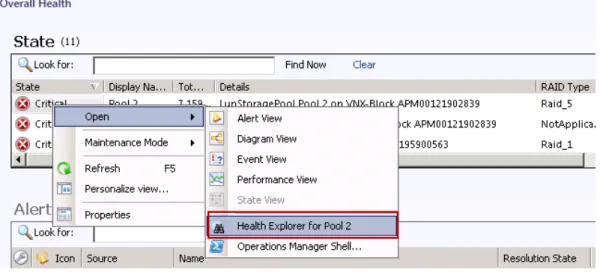
For detailed information about the error state, right-click the error state, select Open, and choose Health Explorer, as shown in Figure 9.
Figure 9. How to view detailed information about error states
SCOM allows monitoring of server components such as CPU and memory. Figure 10 shows the CPU Module Overall Health view available in SCOM.
Figure 10. CPU Module Overall Health in SCOM monitoring view Application monitoring with SCOM MPs
SQL Server
The SQL Server Management Pack provides both proactive and reactive monitoring for Microsoft SQL Server 2005, SQL Server 2008, SQL Server 2008 R2, and SQL Server 2012. Monitoring of SQL Server components such as database engine instances, databases, and SQL Server agents is available.
Figure 11 shows SCOM 2012 monitoring SQL Server. Because disk usage capacity for the two servers exceeded the set thresholds, warning states were triggered.
Figure 11. SCOM 2012 SQL Server monitoring view SharePoint
By detecting, sending alerts for, and automatically correlating critical events, the SharePoint Management Pack helps indicate, correct, and prevent possible service outages or configuration problems, allowing you to proactively manage SharePoint servers and identify issues before they become critical. The management pack monitors and provides alerts for automatic notification of events indicating service outages, performance degradation, and health monitoring.
Figure 12 shows SCOM monitoring the SharePoint farm. When disk usage capacity for the four servers exceeded set thresholds, warning states were triggered.
29 EMC Management Integration for Microsoft Private Cloud
EMC Symmetrix VMAX, EMC VNX, EMC Storage Integrator
for Windows Suite, Microsoft System Center 2012
Exchange
The Microsoft Exchange Server 2010 Management Pack includes a complete health model, extensive protocol synthetic transaction coverage, and a full complement of diagnostics-based alerts and service-oriented reporting, including mail flow
statistics.
Figure 13 shows SCOM Exchange 2010 monitoring. When disk usage capacity for two of the servers exceeded set thresholds, warning states were triggered.
Figure 13. SCOM Exchange 2010 monitoring view Reporting
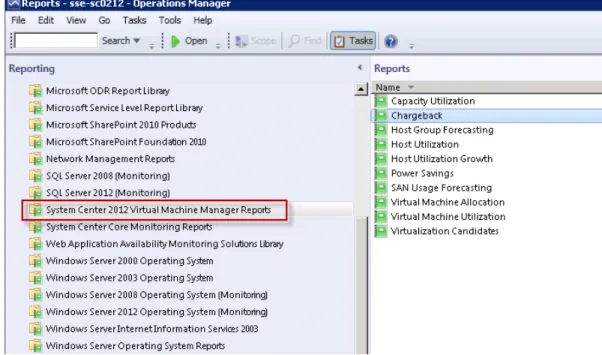
SCOM 2012 with SCVMM Management Packs provides administrators with an easy way to gather data and generate reports about a private cloud. After the SCVMM Management Packs are imported into SCOM, administrators can generate reports for tracking the logical and physical consumption of resources within the private cloud fabric (storage, network, and compute).
Figure 14. System Center 2012 Virtual Machine Manager Reports screen
The following descriptions of two reports highlight this feature’s functionality. Host utilization
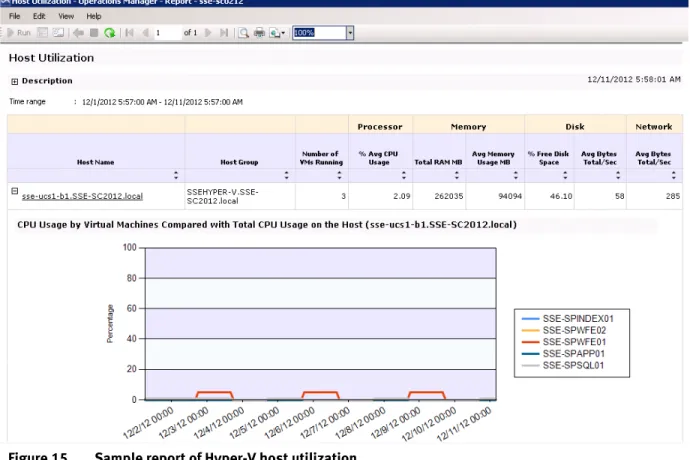
Figure 15 shows host utilization for one of the Hyper-V nodes, which is hosting several virtual machines. This allows administrators to gain an understanding of the utilization of host resources.
31 EMC Management Integration for Microsoft Private Cloud
EMC Symmetrix VMAX, EMC VNX, EMC Storage Integrator
for Windows Suite, Microsoft System Center 2012
Figure 15. Sample report of Hyper-V host utilization Chargeback
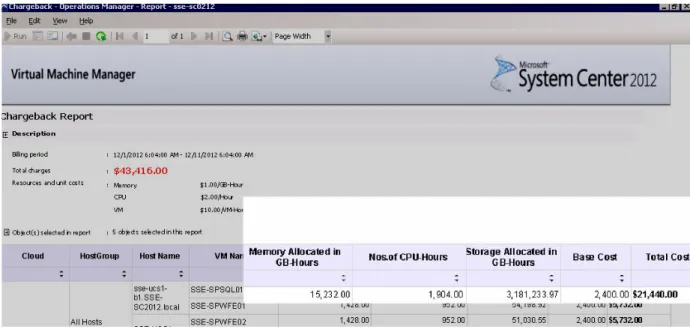
SCOM SP1 includes basic chargeback reporting functionality. The following fields should be completed in the parameter header of the Chargeback report to help provide meaningful results:
• Date Range: Provide date range of the report.
• Objects: Identify, for example, virtual machines that are deployed to the cloud.
• Billing Units: Assign a cost to memory, CPU, or a base cost for a virtual machine. Figure 16 shows the parameter header in the Chargeback report with billing units highlighted.
Figure 17 shows the result of a sample report run in the solution. This report would allow an organization’s finance department to process the resulting cross-charge as required.
Figure 17. Sample report for chargeback in SCOM 2012
SCVMM 2012 SP1 provides an interface to manage Hyper-V, ESXi, and a variety of EMC storage arrays through EMC’s close integration with System Center.
Note SCVMM 2012 SP1 must be installed on Windows Server 2012. Hyper-V management
The solution includes one Hyper-V cluster containing four nodes, all running Windows Server 2012 Datacenter Edition. The nodes were added to SCVMM 2012 SP1 and properties were configured, allowing for configuration of virtual machines and other functions such as live migration and storage migration.
Note Refer to theTechnical Documentation Download for System Center 2012 —
Virtual Machine Manager paper on Microsoft’s website
(http://go.microsoft.com/fwlinkhttp://go.microsoft.com/fwlink/p/?LinkID=2 65115/p/?LinkID=265115).
Cloud
33 EMC Management Integration for Microsoft Private Cloud
EMC Symmetrix VMAX, EMC VNX, EMC Storage Integrator
for Windows Suite, Microsoft System Center 2012
Figure 18 shows SCVMM 2012 SP1 managing the Windows Server 2012 features on the four Hyper-V nodes.
Figure 18. SCVMM 2012 managing Hyper-V features of Windows Server 2012 ESXi management
SCVMM 2012 SP1 support for ESXi is optimized for virtual machine and service management. SCVMM 2012 SP1 integrates directly with VMware vCenter Server. The SCVMM console lets you manage day-to-day operations of VMware ESXi hosts and host clusters, such as the discovery and management of ESXi hosts, and the ability to create, manage, store, place, and deploy virtual machines on ESXi hosts. Advanced fabric management, such as the configuration of port groups, standard and
distributed virtual switches, vMotion, and Storage vMotion, must be done through vCenter Server. By integrating with vCenter Server to manage ESXi hosts, SCVMM 2012 SP1 can recognize and support VMware features such as vMotion.
Figure 19 shows that SCVMM 2012 SP1 manages the VMware ESXi hosts in this solution.
Figure 20 shows that SCVMM 2012 manages all Hyper-V and ESX hosts in the environment.
Figure 20. SCVMM 2012 managing both Hyper-V and ESXi environments The following key steps are required to manage ESXi 5.0.1:
1. In the Fabric management menu, click Add Resources, and then add the vCenter Server as shown in Figure 21.
Figure 21. Adding the vCenter in SCVMM console
2. Add the ESXi hosts to SCVMM SP1.
3. Retrieve certificates from the ESXi hosts. Right-click on each ESXi host and choose Properties, and then click Retrieve under management tab as shown in Figure 22 .
35 EMC Management Integration for Microsoft Private Cloud
EMC Symmetrix VMAX, EMC VNX, EMC Storage Integrator
for Windows Suite, Microsoft System Center 2012
Figure 22. Retrieval of certificate from ESXi host
Actions like vMotion can be done using SCVMM 2012 SP1. Figure 23 shows SCVMM 2012 SP1 performing vMotion on the ESXi cluster.
Storage management
Besides managing and monitoring virtual environments, SCVMM 2012 SP1 also provides new storage discovery, storage classification, and storage allocation
features. You can discover, classify, and provision storage on EMC arrays through the SCVMM console. SCVMM 2012 SP1 fully automates the assignment of storage to a Hyper-V host or Hyper-V host cluster, and tracks storage that is managed by SCVMM. Note Storage automation through SCVMM 2012 SP1 is only supported for Hyper-V
hosts.
To enable these storage features, SCVMM 2012 SP1 uses the new Microsoft Storage Management Service to communicate with external arrays through an SMI-S provider. The Storage Management Service is installed by default during the installation of SCVMM 2012 SP1.
EMC provides the EMC SMI-S Provider that was installed on the SCO server in this solution. The provider is then added to the SCVMM management console as shown in Figure 24.
Figure 24. Storage overview of SCVMM 2012 SP1 Components
Figure 24 shows the four subcategories under the storage section:
• Classification and pools: Storage classifications enable you to assign user-defined storage classifications to discovered storage pools, typically by quality of service (QoS). For example, you could assign a classification of GOLD to storage pools that have the highest performance and availability.
• Providers: SMI-S provider server.
• Arrays: Storage arrays that are discovered.
Refer to Configuring Storage in VMM Overview on Microsoft TechNet
37 EMC Management Integration for Microsoft Private Cloud
EMC Symmetrix VMAX, EMC VNX, EMC Storage Integrator
for Windows Suite, Microsoft System Center 2012
• File Servers: SCVMM 2012 SP1 includes support for designating network file shares on Windows Server 2012 computers as the storage location for virtual machine files, such as configuration, virtual hard disk (.vhd/.vhdx) files and checkpoints. This functionality leverages the new 3.0 version of the Server Message Block (SMB) protocol that was introduced in Windows Server 2012. EMC storage discovery
EMC provides its own SMI-S provider for SCVMM 2012 SP1. To configure SCVMM to discover the EMC storage systems, perform the following key steps:
1. Set up the SMI-S provider server.
2. Add the storage system into the SMI-S provider server.
3. Configure the SMI-S provider in SCVMM 2012 SP1 by expanding the storage pane. Right-click Providers, select Add storage devices, input the SMI-S provider server IP address, as shown in Figure 25, and assign Run As account for this provider.
Figure 25. SMI-S provider configuration
Note For detailed information about SMI-S provider setup and configuration, refer to the SMI-S provider release notes.
Storage pool management
SCVMM cannot create storage pools, but management of existing storage pools and creation of LUNs within pools is possible. To configure storage pools of EMC storage:
1. Expand arrays node under storage pane.
2. Right-click one of the EMC arrays and choose Properties.
Figure 26 shows the properties of storage pools on VMAX 10K.
Figure 26. Managing storage pools on EMC storage LUN creation with SCVMM
Following the selection of storage pools that SCVMM can manage, LUN creation is possible as shown in Figure 27.
1. Right-click the storage pane and choose Create Logical Unit. 2. Define in which storage pool you want to create this LUN. 3. Define name and size with thin or thick provision.
39 EMC Management Integration for Microsoft Private Cloud
EMC Symmetrix VMAX, EMC VNX, EMC Storage Integrator
for Windows Suite, Microsoft System Center 2012
Figure 27. Create logical unit with SCVMM
This section shows how SCO 2012 SP1 and ESI PowerShell are used together to automatically provision virtual machines and concurrently provision the required storage.
In SCO 2012 SP1 a runbook can automatically create and deploy virtual machines and provision storage as well as perform numerous other activities. The SCO 2012 SP1 Runbook Designer is used to design and manage runbooks, where all activities can be connected and the running order set.
SCO preparation steps
Before designing a runbook, complete the following steps on the SCO server: 1. Install and import SCVMM Integration Pack.
2. Install ESI and ESI PowerShell.
3. Set the PowerShell execution policy to unrestricted.
Note For SCO installation and IP install and import, refer to Microsoft Technet at technet.microsoft.com.
Runbook Designer
In this section, we design a runbook to complete the following steps: 1. Create virtual machine and deploy it on the server.
2. Provide storage provisioning. Workflow
Figure 28 shows the Runbook Designer GUI.
Figure 28. Runbook Designer GUI
Step 1: Virtual machine creation and deployment
The SCVMM Integration Pack provides virtual environment management activities such as “Create virtual machine” and “Move virtual machine.” Figure 29 shows the available SCVMM activities.
Figure 29. Available SCVMM activities
In the SCVMM activites, select Create VM From Template; this activity automatically creates virtual machines from an existing template and deploys them on a dedicated host or cluster.
41 EMC Management Integration for Microsoft Private Cloud
EMC Symmetrix VMAX, EMC VNX, EMC Storage Integrator
for Windows Suite, Microsoft System Center 2012
Figure 30. Properties of “Create VM From Template” activity Step 2: Storage provisioning
After the virtual machine is created, ESI PowerShell scripts are used to provide the storage provisioning for the virtual machine. In SCO 2012, we can use the “Run.Net Script” activity and select PowerShell as the language.
To provision storage to the virtual machine:
1. Create a disk in a storage pool and assign it to the required host.
Figure 31 shows the Details properties of the “Create Disk with ESI PowerShell” activity.
Figure 31. Details properties of “Create Disk with ESI PowerShell” activity 2. Add the disk to the virtual machine that was just created as shown in
Figure 32.
43 EMC Management Integration for Microsoft Private Cloud
EMC Symmetrix VMAX, EMC VNX, EMC Storage Integrator
for Windows Suite, Microsoft System Center 2012
Note The ESI PSToolkit module must be imported before running other cmdlets. For detailed information about ESI PSToolkit, refer to the EMC Storage Integrator for Windows Suite Online Help.
Now SCO is ready to start the automation process. The test results are shown in the Validation section.
Application design and configuration
The environment was configured to support an application profile consisting of a single SQL Server 2012 instance, a sized SharePoint farm, and a medium-sized Exchange implementation consisting of two DAG copies.
In this solution SQL Server and SharePoint were collocated in a single three-tier (heterogeneous) pool, enabled by FAST VP and consisting of Flash, SAS, and NL-SAS drives, on the VNX5700. The Exchange DAG copies were each hosted in their own (homogenous) pool of SATA drives.
Co-location of SQL Server and SharePoint volumes
Co-location of application workloads such as SQL Server and SharePoint can help simplify storage layout. Attention should be paid to the type of the I/O workloads when doing this. In this solution, an OLTP SQL Server workload was located with SharePoint in a three-tier storage pool. SharePoint content databases are generally large random read/writes. The tiering policy for the LUN that hosts this data was set to pin the data to the “lowest available tier” of NL_SAS disks, allowing segregation of this particular I/O to the NL-SAS tier within the pool.
The remaining LUNs hosting files have smaller random (data files), semi-random (TempDB), or sequential (log files) workloads to be automatically tiered across the remaining Flash and SAS tiers via FAST VP. The results of this approach are shown in Table 23.
If an environment is required to support Data Warehouse (DW) workloads, then consider using dedicated storage pools to isolate DW workloads. These workloads generally consist of predominantly larger I/O sizes from 64 KB to 256 KB and read/write ratios of 95:5. Isolation to separate disks can reduce the impact of DW workloads on critical OLTP database performance. TempDB can also encounter heavy use in DW workloads and its location should be carefully selected to reduce impact. Locating OLTP and DW workloads to separate SQL instances where possible ensures application performance.
Ideally, Exchange workloads should be segregated with each DAG copy located in its own pool. In this configuration, two pools of SATA drives were configured on the VMAX 10K.
Design and requirements
As shown in Table 11, the SQL Server 2012 configuration consisted of one instance hosting a single 500 GB database named OLTP_DB. A heavy OLTP-like workload with a read/write ratio of approximately 90:10 was run against the database that has a total user count of 50,000.
Overview
45 EMC Management Integration for Microsoft Private Cloud
EMC Symmetrix VMAX, EMC VNX, EMC Storage Integrator
for Windows Suite, Microsoft System Center 2012
Table 11. SQL Server user requirements
Profile characteristic Quantity/Type/Size
SQL Server Instances 1
OLTP database (OLTP_DB) 50,000 users/500 GB
Workload type OLTP-like (90:10 read/write ratio)
Configuration
The database was made up of nine data files in a single 600 GB VHDX file that was hosted in a dedicated LUN. The transaction log file for OLTP_DB was collocated with the four TempDB files and one TempDB log file in a separate 300 GB VHDX file, again located to a dedicated LUN.
TempDBs in OLTP environments generally produce small semi-random I/O, while Log files produce small sequential writes. In this solution locating these together
provided a simple design while still guaranteeing performance. This allowed the OLTP_DB data file workload, which was of a random nature, to have uninterrupted access to its own dedicated VHDX/LUN.
This kind of layout and separation is a good idea when looking for a simple and well-balanced layout. Figure 12 shows the virtual machine configuration.
Table 12. SQL Server virtual machine configuration Virtual machine
role Quantity vCPU Memory (GB)
Boot disk VHDX (GB)
SQL Server 1 16 32 60
Design
The SharePoint farm was designed as a medium-sized farm with two WFEs, one crawl server, one Microsoft SQL Server, and an application server. The farm was a
publishing portal with site collections containing several Document Center sites. The entire farm, including boot volumes for the virtual machines and content databases, was stored on a single large mixed-storage pool.
The farm consisted of three ContentDBs (4 TB, 100 GB, and 200 GB). Configuration
We designed the storage for performance and capacity; the ContentDBs were stored on NL-SAS disks in a RAID6 6+2 configuration. ContentDBs were pinned to the NL-SAS tier in a mixed storage pool. The rest of the farm was stored in the same mixed
storage pool, but not pinned to the lowest tier. SharePoint 2010
SharePoint 2010 user requirements
Table 13 lists the SharePoint user requirements in this solution. Table 13. SharePoint user requirements
Item Value
Total user count 15,000 with 2 WFEs
Usage profile(s) (%browse/% search/%modify/%download)
60%/10%/10%/20%
User concurrency 10%
Table 14 details the SharePoint virtual machine configuration. Table 14. SharePoint virtual machine configuration
Virtual machine
role Quantity vCPU Memory (GB)
Boot disk VHDX (GB)
Web and Query 2 4 6 60
Application 1 2 4 60
Index 1 4 8 60
SQL Server 1 8 64 60
Table 15 details the virtual machine disk configurations for the SharePoint farm. Table 15. Virtual machine disk configurations for SharePoint farm
Virtual machine role
Number of
virtual machines VHDX disk size Description
WFE and Query 2 60 GB Boot
200 GB Query Application 1 60 GB Boot Index 1 60 GB Boot 100 GB Index SQL Server 1 60 GB Boot 5 TB ContentDBs 470 GB ContentDB Logs 1TB Temp DBs 115 GB TempDB Logs 105 GB Config DBs
47 EMC Management Integration for Microsoft Private Cloud
EMC Symmetrix VMAX, EMC VNX, EMC Storage Integrator
for Windows Suite, Microsoft System Center 2012
Microsoft Exchange Server 2010 introduces DAG as the new HA mechanism to replace legacy HA technologies. This section provides the design details for virtualization, DAG setup, and storage design for Exchange Server 2010 as deployed in this solution. Exchange Server 2010 user requirements
Table 16 details the Exchange Server 2012 user requirements in this solution. Table 16. Exchange user requirements
Item Value
Number of Exchange 2010 users 5,000
Number of Mailbox Server virtual machines 2
Number of DAGs and database copies 1 DAG with 2 copies
Number of users per Mailbox Server 5,000 total mailboxes
(2,500 active and 2,500 passive during normal operating conditions)
User profile (in DAG configuration) 100 messages/user/day (0.10 IOPS)
Read/write ratio 3:2 in a DAG configuration
Mailbox size Start at 500 MB, grow to 2 GB
Target average message size 75 KB
Deleted items retention window 14 days
Logs protection buffer 3 days
24 x 7 BDM configuration Enabled
Exchange Server 2010 building-block design
Sizing and configuring storage for use with Exchange Server 2010 can be a
complicated process driven by many variables and factors that vary from organization to organization. Properly configured Exchange storage, combined with a correctly sized server and network infrastructure, can guarantee smooth Exchange operations and the best user experience.
One method that can simplify the sizing and configuration of large Microsoft
Exchange Server 2010 environments is to define a unit of measure called a building block. A building block represents the required amount of resources needed to support a specific number of Exchange 2010 users on a single virtual machine. You can derive the number of required resources from a specific user profile type, mailbox size, and disk requirement.
For more information about the EMC building-block methodology for Exchange 2010, refer to the EMC white paper Microsoft Exchange 2010 Storage Best Practices and Design Guidance for EMC Storage.
Table 17 shows the detailed building-block information for this solution. Table 17. Exchange building block
Item Value
Number of Exchange users per Mailbox
Server 5,000 total mailboxes (2,500 active and 2,500 passive during
normal operating conditions)
Mailbox size Start at 500 MB, grow to 2 GB
Number of databases per Mailbox Server 10 (5 active/5 passive)
User mailboxes per database 500
Database LUN size 1.8 TB (sizing for 2 GB mailbox)
Log LUN size 100 GB
The requirements include starting with a user mailbox size of 500 MB with the ability to grow seamlessly to 2 GB. This can be accomplished easily using the Symmetrix VMAX 10K Virtual Provisioning feature.
Symmetrix Virtual Provisioning technology builds on the base thin-provisioning functionality to have a large thin device (that is, volume) configured and presented to the host while consuming physical storage from a shared pool only as needed. Symmetrix Virtual Provisioning can improve storage capacity utilization and simplify storage management by presenting the application with sufficient capacity for an extended period of time, reducing the need to provision new storage frequently and avoiding the cost of allocated but unused storage.
Exchange Server 2010 DAG design
This solution uses the Exchange 2010 DAG feature to provide HA for Exchange databases. A DAG is a group of up to 16 Mailbox Servers that hosts a set of
databases and provides automatic database-level recovery from failures that affect individual servers or databases.
Each Mailbox Server in this solution was configured with ten databases: five active and five passive. All databases were balanced and distributed between Mailbox Servers within the DAG and between the ESXi nodes to eliminate a single point of failure. Figure 33 shows the DAG database distribution.
49 EMC Management Integration for Microsoft Private Cloud
EMC Symmetrix VMAX, EMC VNX, EMC Storage Integrator
for Windows Suite, Microsoft System Center 2012
ESXi virtual machine design for Exchange Server 2010
This solution deployed all the Exchange 2010 servers as ESXi virtual machines. Four Exchange 2010 Mailbox Servers were configured in a DAG to provide HA for
databases. Each Mailbox Server virtual machine was set up on a separate ESXi host server for additional redundancy.
From the HUB/CAS servers, the HUB/CAS combined role had a 1:1 CPU core ratio to the Mailbox Server. Therefore, the solution included four HUB/CAS servers as virtual machines, which were separated into different ESXi hosts. Furthermore, we deployed the Exchange Server 2010 Client Access array and network load balancer to provide load balancing between the Client Access servers.
For the Exchange virtual machines, we based the memory and CPU requirements on Microsoft best practices. For more information, refer to the following papers on Microsoft TechNet:
• Understanding the Mailbox Database Cache (
http://technet.microsoft.com/en-us/library/ee832793.aspx)
• Mailbox Server Processor Capacity Planning (
http://technet.microsoft.com/en-us/library/ee712771.aspx)
Table 18 provides a summary of the Exchange virtual machine configuration. Table 18. Exchange virtual machine configuration
Virtual machine
role Quantity vCPU Memory (GB)
Boot disk VMDK (GB)
Mailbox 2 8 24 100
HUB/CAS 2 4 8 100
All the database and log LUNs for the Exchange Mailbox Server virtual machine were configured as VMDK disks in ESXi. Table 19 provides detailed information on the Exchange virtual machine pass-through disk configuration.
Table 19. Exchange virtual machine disk configuration Virtual machine role Number of virtual machines VMDK disks Description Number of VMDK disks on each virtual machine
Mailbox 2 1.7 TB Database LUNs 10
This solution deploys a Hyper-V cluster consisting of four nodes to increase the availability of virtual machines and applications. When determining where to place the virtual machines, consideration of load balancing and failure protection in your plan is important. You should distribute virtual machines with the same application roles as the different Hyper-V root servers, as shown in Table 20.
Table 20. Hyper-V cluster deployment
VM role vCPU Memory (GB)
Node 1 SharePoint SQL Server 8 64
SharePoint WFE 4 6
SharePoint WFE 4 6
Total 16 76
Node 2 SharePoint App Server 2 4
SharePoint Crawl Server 4 8
Total 6 12
Node 3 SQL Server 16 64
Total 16 64
In addition to the Hyper-V cluster, this solution also uses an ESXi 5.0.1 cluster. The Exchange 2010 virtual machine is distributed between the two nodes, as shown in Table 21.
Table 21. ESXI 5.0.1 cluster deployment
VM role vCPU Memory (GB)
Node 1 Exchange Mailbox Server 8 24
Exchange Hub/CAS Server 4 8
Total 12 32
Node 2 Exchange Mailbox Server 8 24
Exchange Hub/CAS Server 4 8
Total 12 32
Hyper-V Cluster
51 EMC Management Integration for Microsoft Private Cloud
EMC Symmetrix VMAX, EMC VNX, EMC Storage Integrator
for Windows Suite, Microsoft System Center 2012
Validation
The testing section covers the following areas:
• Functionality and integration of ESI for Windows Suite
Provisioning
Automated storage provisioning as part of virtual machine creation
• New features available on the VNX
Support for different RAID types across tiers
In-tier storage rebalance
New RAID configuration types
− RAID 5, 8+1 (used in SAS tier)
− RAID 6, 14+2 (not used)
• Co-location of SQL and SharePoint workloads in a storage pool enabled by EMC FAST VP
• Validating a multi-hypervisor, multi-array environment running SQL Server, SharePoint, and Exchange workloads
Functional testing of System Center 2012 with EMC components
To validate the functionality of System Center 2012 SP1, the following scenarios were covered.
SCOM 2012 SP1 with ESI Management Pack testing
To verify that SCOM 2012 SP1 with ESI Management Packs can provide realtime monitoring of EMC storage systems, the following tests were completed:
• Remove disk and check if SCOM shows alert
• Reboot storage processor (SP) and check if SCOM shows alert SCO 2012 SP1 with ESI PowerShell
To verify the use of ESI PowerShell with SCO and SCVMM Integration Pack to automate storage provisioning, perform the following steps:
1. Create a new runbook in the SCO Runbook Designer and assign the following activities in the order provided:
a. Create virtual machine from Template. b. Create disk with ESI PowerShell.
c. Add a disk to virtual machine with ESI PowerShell.
Note “Create disk” used here refers to the creation of a Hyper-V virtual volume (VHDX file).
Overview
ESI PowerShell extends additional options to the user by enabling creation not only of a virtual volume, but also of a new EMC Array LUN, and
assigning the appropriate virtual volumes to the new storage LUN. Optionally, this LUN can be included as a Clustered Shared Volume (CSV).
This functionality is a powerful tool, enabling administrators to automate repeatable complex storage operations.
2. Run the sequence with the Runbook Tester, as shown in Figure 34.
Figure 34. Runbook Tester
3. Run Orchestrator Console. After confirming that the runbook can run
smoothly, check the runbook into the Runbook Designer and use Orchestrator Console to run it. Orchestrator Console, shown in Figure 35, is a web console for SCO; it is a placeholder to run and manage runbooks.
53 EMC Management Integration for Microsoft Private Cloud
EMC Symmetrix VMAX, EMC VNX, EMC Storage Integrator
for Windows Suite, Microsoft System Center 2012
Figure 35. Orchestrator Console
EMC VNX in-tier rebalance functionality
To test the functionality of the in-tier rebalance feature with VNX testing methodology, perform the following steps:
1. Create an initial storage pool consisting of:
18 * SAS 600 GB 10k disks
8 * NL-SAS 2TB disks
2. Add additional disks to the SAS tier to expand the VNX storage pool:
18 * SAS 600 GB 10k disks
3. Add additional Flash drives to the storage pool to create an extreme performance tier:
5 * 100 GB Flash drives
During testing, performance was measured at each stage. Application performance across the environment
This solution also validated the performance for the final configuration across all applications in the environment.