© 2011 Course Technology, Cengage Learning
ALL RIGHTS RESERVED. No part of this work covered by the copyright herein may be reproduced, transmitted, stored or used in any form or by any means—graphic, electronic, or mechanical, including but not limited to photocopying, recording, scanning, digitizing, taping, Web distribution, information networks, or information storage and retrieval systems, except as permitted under Section 107 or 108 of the 1976 United States Copyright Act—without the prior written permission of the publisher.
Library of Congress Control Number: 2010936687 ISBN-13: 978-0-538-47461-0
ISBN-10: 0-538-47461-0
Course Technology
20 Channel Center Street Boston, MA 02210 USA
Some of the product names and company names used in this book have been used for identifi cation purposes only and may be trademarks or registered trademarks of their respective manufacturers and sellers.
Any fi ctional data related to persons or companies or URLs used throughout this book is intended for instructional purposes only. At the time this book was printed, any such data was fi ctional and not belonging to any real persons or companies. Course Technology, a part of Cengage Learning, reserves the right to revise this publication and make changes from time to time in its content without notice. The programs in this book are for instructional purposes only. They have been tested with care, but are not guaranteed for any particular intent beyond educational purposes. The author and the publisher do not off er any warranties or representations, nor do they accept any liabilities with respect to the programs.
Cengage Learning is a leading provider of customized learning solutions with offi ce locations around the globe, including Singapore, the United Kingdom, Australia, Mexico, Brazil, and Japan. Locate your local offi ce at:
www.cengage.com/global
Cengage Learning products are represented in Canada by Nelson Education, Ltd.
To learn more about Course Technology, visit
www.cengage.com/coursetechnology
To learn more about Cengage Learning, visit www.cengage.com
Purchase any of our products at your local college store or at our preferred online
store: www.cengagebrain.com
Principles of HTML, XHTML, and DHTML: The Web Technologies Series
Don Gosselin
Marie Lee: Executive Editor Acquisitions Editor: Brandi Shailer Senior Product Manager: Alyssa Pratt Development Editor: Dan Seiter Editorial Assistant: Jacqueline Lacaire Production Service: Integra
Content Project Manager: Lisa Weidenfeld Art Director: Faith Brosnan
Text Designer: Shawn Girsberger Cover Designer: Cabbage Design Company Cover image: © CSA Images
Copyeditor: Michael Beckett Proofreader: Suzanne Huizenga Indexer: Rich Carlson
Marketing Manager: Shanna Shelton Compositor: Integra
For product information and technology assistance, contact us at
Cengage Learning Customer & Sales Support, 1-800-354-9706
For permission to use material from this text or product, submit all requests online at cengage.com/permissions
Further permissions questions can be emailed to
C H A P T E R
1
Introduction to Web
Page Development
In this chapter you will:
Study the history of the World Wide Web
Learn about the basics of Extensible Markup
Language (XML)
Th is book teaches you how to use HTML to develop Web pages. HTML was the fi rst language used for creating traditional Web pages that are displayed in Web browsers on desktop computers and work-stations. However, because the Web is expanding to other types of media such as mobile phones and iPads, you need to use XHTML so that your Web pages are compatible with these devices. XHTML is a stricter form of HTML that requires Web page syntax to adhere to a specifi c set of rules and XML standards. HTML and XHTML will continue to coexist for some time, so you need to understand both languages and the diff erences between them. Th e good news is that XHTML is almost identical to HTML, which means that the tech-niques you use in both languages are virtually interchangeable. Which language should you use to develop your Web pages? Ideally, you would always use XHTML because its stricter rules will make your Web pages compatible with devices other than traditional Web browsers. XHTML also makes your Web pages compatible with the Americans with Disabilities Act (ADA), allowing handicapped people to read them. For this reason, many corporate Web sites publish their Web pages using XHTML. However, for some smaller Web sites, it is sometimes easier to use HTML. HTML can be more fl exible when it comes to Web page design, although virtually every HTML page can be reproduced with XHTML if you know the rules.
Introduction to the World Wide Web
Th e Internet is a vast network that connects computers all over the world. Th e original plans for the Internet grew out of a series of memos written by J.C.R. Licklider of the Massachusetts Institute of Technology (MIT) in August 1962, in which he discussed his concept of a “Galactic Network.” Licklider envisioned a global computer network through which users could access data and programs from any site on the network. Th e Internet was actually developed in the 1960s by the Advanced Research Projects Agency (ARPA) of the U.S. Department of Defense, which later changed its name to Defense Advanced Research Projects Agency (DARPA). Th e goal of the early Internet was to connect the main computer systems of various uni-versities and research institutions that were funded by ARPA. Th is fi rst implementation of the Internet was referred to as the ARPANET. More computers were connected to the ARPANET in the years fol-lowing its initial development in the 1960s, although access to the system was restricted by the U.S. government, primarily to academic researchers, scientists, and the military.
became common in business and everyday life. By the end of the 1980s, businesses and individual computer users began to recognize the global communications capabilities and potential of the Internet, and they convinced the U.S. government to allow commercial access to it. In 1990 and 1991, Tim Berners-Lee created what would become the World Wide Web, or the Web, at the European Laboratory for Particle Physics (CERN) in Geneva, Switzerland, as a way to easily access cross-referenced documents on the CERN computer network. When other academics and scientists saw the usefulness of access-ing cross-referenced documents usaccess-ing Berners-Lee’s system, the Web as we know it was born. Th is method of accessing cross-referenced documents, known as hypertext linking, is probably the most impor-tant aspect of the Web because it allows you to open other Web pages quickly. A hypertext link, or hyperlink or link, contains a reference to a specifi c Web page that you can click to open that Web page.
A common misconception is that the words Web and Internet are synony-mous. The Web is only one part of the Internet, and is a means of communi-cating on the Internet. The Internet is composed of other communication elements, such as e-mail systems that send and receive messages. However, because of its enormous infl uence on computing, communications, and the economy, the World Wide Web is arguably the most important part of the Internet today and is the primary focus of this book.
A document on the Web is called a Web page and is identifi ed by a unique address called the Uniform Resource Locator, or URL. A URL is also commonly referred to as a Web address. A URL is a type of Uniform Resource Identifier (URI), which is a generic term for many types of names and addresses on the Web. A Web site is a location on the Internet where an individual, company, or organization keeps its Web pages and related fi les (such as graphic and video fi les). You dis-play a Web page on your computer screen by using a program called a Web browser. A person can retrieve and open a Web page in a Web browser either by entering a URL in the Web browser’s address box or by clicking a hypertext link. When a user wants to access a Web page using either method, the user’s Web browser sends a Web server a request for the Web page. A Web server is a computer that delivers Web pages. Th e Web server’s reaction to the user’s request is called the response.
Understanding Web Browsers
You can choose from a number of diff erent browsers, but at the time of this writing, Mozilla Firefox is the most popular browser on the market. Th e fi rst browser, NCSA Mosaic, was created in 1993 at
If you want to learn more about the history of the Internet, the Internet Society (ISOC) maintains a list of links at www.isoc.org/ internet/history/.
3
the University of Illinois and was the fi rst program to allow users to navigate the Web by using a graphical user interface (GUI). In 1994, Netscape released Navigator, which soon controlled 75 percent of the market. Netscape maintained its control of the browser market until 1996, when Microsoft entered the competition with the release of Internet Explorer, and the so-called browser wars began between Microsoft and Netscape.
Th e browser wars began over Dynamic Hypertext Markup Language (DHTML)—a combination of various technologies, including HTML and JavaScript—which allows a Web page to change after it has been loaded by a browser. Examples of DHTML functionality include the ability to position text and elements, change document background color, and create eff ects such as animation. Early versions of Internet Explorer and Navigator included DHTML elements that were incompatible. Furthermore, Microsoft and Netscape each wanted its version of DHTML to become the industry standard. To settle the argument, the World Wide Web Consortium set out to create a platform-independent and browser-neutral version of DHTML. Th e World Wide Web Consortium, or W3C, was established in 1994 at MIT to oversee the development of Web technology standards. While the W3C was drafting a recommendation for DHTML, versions 4 of Internet Explorer and Navigator each added a number of propri-etary DHTML elements that were completely incompatible with the other browser. As a result, when working with advanced DHTML techniques such as animation, a programmer had to write a diff er-ent set of HTML code for each browser. Unfortunately for Netscape, the W3C adopted as the formal standard the version of DHTML in version 4 of Internet Explorer, which prompted many loyal Netscape users to defect to Microsoft.
The W3C does not actually release a version of a particular technology. Instead, it issues a formal recommendation for a technology, which essen-tially means that the technology is (or will be) a recognized industry standard.
One benefi t of the browser wars is that they forced the Web industry to rapidly develop and adopt advanced Web page standards (including JavaScript, CSS, and DHTML) that are consistent across browsers. In 2004, Internet Explorer appeared to be winning the browser wars, as it controlled 95 percent of the market. Yet, in the past few years, Internet Explorer has lost signifi cant market share to Mozilla Firefox. Th e Firefox Web browser is open source software developed by the Mozilla organization (www.mozilla.org). Open source refers to software for which the source code can be freely used and modifi ed. Prior to ver-sion 6, the Netscape Web browser was called Navigator or Netscape Navigator. With the release of version 6, however, Netscape dropped Navigator from the browser name. In this book, therefore, Navigator Web browser refers to versions older than version 6, and Netscape Web browser refers to version 6 and later. DHTML is actu-ally a combina-tion of HTML, JavaScript, and Cascading Style Sheets (CSS). The style sheets in CSS refer to a standard set by the W3C for man-aging Web page formatting.
approximately 41 percent, while Firefox now controls about 47 percent of the market (according to the W3 Schools browser statistics page at
www.w3schools.com/browsers/browsers_stats.asp). One of the most fascinating aspects of Firefox is that it’s essentially an open source version of the Netscape browser. So, in a fi gurative sense, the original Netscape browser has risen from the ashes to resume battle with its arch nemesis, Internet Explorer—and it’s winning at the time of this writing. Healthy competition is good for any market, so the renewed hostilities in the browser wars might encourage vendors to continue improving browser quality and capabilities, and to adopt and adhere to Web page standards.
Creating Web Pages
Originally, people created Web pages using a language called Hypertext Markup Language (HTML). Web pages, therefore, are also commonly referred to as HTML pages or HTML documents. A markup language is a set of characters or symbols that defi nes a document’s logical structure—that is, it specifi es how a document should be printed or displayed. HTML is based on an older language called Standard Generalized Markup Language, or SGML, which defi nes the data in a document independent of how the data will be displayed. In other words, SGML separates the data in a document from the way that data is formatted. Each element in an SGML docu-ment is marked according to its type, such as paragraphs, headings, and so on. Like SGML, HTML was originally designed as a way of defi ning the elements in a document independent of how they would appear. HTML was not intended to be used for designing the actual appearance of the pages in a Web browser, but the language gradually evolved to have this capability.
Basic HTML Syntax
HTML documents are text documents that contain formatting instructions, called tags, which determine how data is displayed on a Web page. HTML tags range from formatting commands that make text appear in boldface or italics to controls that allow user input, such as option buttons and check boxes. Other HTML tags allow you to display graphic images and other objects in a document or Web page. Tags are enclosed in brackets (< >), and most consist of an opening tag and a closing tag that surround the text or other items they format or control. Th e closing tag must include a forward slash ( / ) immediately after the opening bracket. For example, to make a line of text appear in boldface, you use the opening tag <b> and the closing tag </b>. Any text between this pair of tags appears in boldface when you open the HTML document in a Web browser.
This textbook uses the terms Web pages and HTML documents interchange-ably. 5
A tag pair and any data it contains are an element. Th e information within an element’s opening and closing tags is its content. Some ele-ments do not require a closing tag; they are called empty elements because you cannot use a tag pair to enclose text or other elements. For instance, the <hr> element, which inserts a horizontal rule on a Web page, does not include a closing tag. You simply place the <hr> element anywhere in an HTML document where you want the horizontal rule to appear.
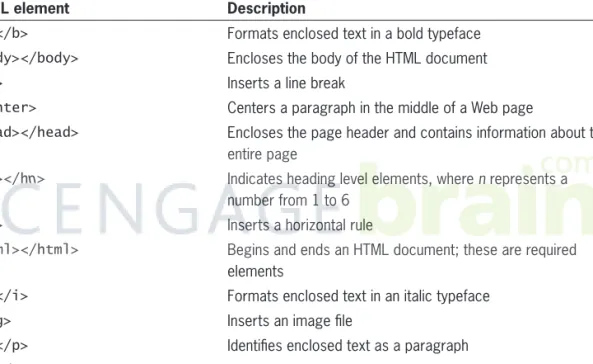
HTML has literally hundreds of elements. Table 1-1 lists some of the more common elements.
HTML element Description
<b></b> Formats enclosed text in a bold typeface
<body></body> Encloses the body of the HTML document
<br> Inserts a line break
<center> Centers a paragraph in the middle of a Web page
<head></head> Encloses the page header and contains information about the entire page
<hn></hn> Indicates heading level elements, where n represents a number from 1 to 6
<hr> Inserts a horizontal rule
<html></html> Begins and ends an HTML document; these are required elements
<i></i> Formats enclosed text in an italic typeface
<img> Inserts an image fi le
<p></p> Identifi es enclosed text as a paragraph
<u></u> Formats enclosed text as underlined
Table 1-1 Common HTML elements
All Web pages must use the <html> element as the root element. A root element contains all the other elements in a document, and tells a Web browser to assemble any instructions between the tags into a Web page. Th e opening and closing <html>. . . </html> tags are required and contain all the text and other elements that make up the HTML document.
Two other important elements are the <head> element and the <body> element. Th e <head> element contains information used by the Web browser; you place it at the beginning of a document, after the opening <html> tag. You place several elements within the <head> HTML docu-ments must have a fi le extension of .htm or .html. 6
A <head> element must contain a <title> element. With the
exception of the <title> element, elements in the <head> element do not aff ect the display of the HTML document. Th e <head> element and the elements within it are referred to as the document head. Next comes the <body> element; the text and elements it contains are the document body.
When you open an HTML document in a Web browser, the docu-ment is assembled and formatted according to the instructions contained in its elements. Th e process by which a Web browser assembles and formats an HTML document is called parsing or rendering. Th e following example shows how to make a phrase appear in boldface in an HTML document:
<p>Receive <b>50% off</b> your next purchase!</p> HTML is not case sensitive, so you can use <B> in place of <b>. However, XHTML is case sensitive, and you must use lowercase letters for elements. Th erefore, this book uses lowercase letters for all elements. (You will learn about XHTML shortly.)
You use various parameters, called attributes, to confi gure many HTML elements. You place an attribute before the closing bracket of the opening tag, and separate it from the tag name or other attributes with a space. You assign a value to an attribute using the syntax attribute="value". For example, you can confi gure the <img> element, which embeds an image in an HTML document, with a number of attributes, including src. Th e src attribute specifi es the fi lename of an image fi le or video clip. To include the src attribute within the <img> element, you type <img src="mygraphic.gif">. When a Web browser parses or renders an HTML document, it ignores nonprinting characters such as tabs and line breaks; the fi nal document that appears in the Web browser includes only recognized HTML elements and text. You cannot use line breaks in the body of an HTML document to insert spaces before and after a paragraph; the browser recognizes only paragraph <p> and line break <br> ele-ments for this purpose. In addition, most Web browsers ignore mul-tiple, contiguous spaces on a Web page and replace them with a single space. Th e following code shows the document head and a portion of the document body for the Web page shown in Figure 1-1.
<html> <head>
<title>Home</title>
<meta http-equiv="Content-Type"
content="text/html; charset=utf-8"> <link href="style.css" rel="stylesheet" type="text/css">
</head>
7
<body>
<table width="100%" border="0" cellspacing="0" cellpadding="0" style="height: 100%"> <tr>
<td valign="top"> </td> . . .
Figure 1-1 Global Warming Web page
Creating an HTML Document
Because HTML documents are text fi les, you can create them in any text editor, such as Notepad or WordPad, or any word-processing application capable of creating simple text fi les. If you use a text edi-tor to create an HTML document, you cannot view the fi nal result until you open the document in a Web browser. Instead of a text editor or word processor, you could choose to use an HTML edi-tor, which is an application designed specifi cally for creating HTML documents. Some popular HTML editors, such as Macromedia Dreamweaver and Microsoft Expression Web, have graphical inter-faces that allow you to create Web pages and immediately view the results, similar to the WYSIWYG (what-you-see-is-what-you-get) interface in word-processing programs. In addition, many current Most screen
captures of Web pages in this book were taken in Mozilla Firefox 3.5, running on the Windows XP operating system. Different Web browsers might render the parts of a Web page slightly differently from other browsers. The appearance of a Web browser itself can also vary across platforms. If you are not using Firefox and Windows XP, your Web pages and browser might not match the fi gures in this book.
Like text editors, HTML editors create simple text fi les, but they automate the process of applying elements. For example, suppose you are creating a document in Word. You can add boldface to a heading in the document simply by clicking a toolbar button. Th en, when you save the fi le as an HTML document, Word automatically adds the <b> element to the text in the HTML document.
Any HTML editor can greatly simplify the task of creating Web pages. However, HTML editors automatically add many unfamiliar elements and attributes to documents that might confuse you and distract from the learning process. Th erefore, in this book you create Web pages using a simple text editor.
Before you begin the fi rst exercise, be certain to extract the data fi les, which you can download from Course Technology’s Web site at www.course.com. Use the 474610_Data.exe fi le to install the data fi les on Windows operating systems and the 474610_Data.jar fi le to install the data fi les on UNIX/Linux operating systems. Th e 474610_Data.exe and 474610_Data.jar fi les automatically create directories where you can store the exercises and projects you create in this book and install any necessary data fi les. By default, the directories and data fi les are installed for Windows platforms in C:\Course Technology\Programming\HTML\Data Files and for UNIX/Linux platforms in usr/local/course/programming/html/ data_fi les. Th e data fi le directories contain separate directories for each chapter, which in turn contain the Chapter, Exercises, and Projects directories.
Save the exercises and projects you create in the main body of each chapter within the Chapter directory. Save the Reinforcement Exercises and Discovery Projects you create at the end of each chapter in the Exercises and Projects directories, respectively.
Next, you will create a simple HTML document that contains some of the tags you have seen in this section. You can use any text editor, such as Notepad or WordPad.
To create an HTML document:
1. Start your text editor and create a new document, if necessary.
2. Type the following tags to begin the HTML document. Remember that all HTML documents must begin and end with the <html>. . .</html> tag pair.
<html> </html>
Many people who are new to creating Web pages are surprised that you can-not use a Web browser to create an HTML document. The Course Technology directory might also contain data fi les for other books you have used from Course Technology.
9
3. Add the following <head> and <title> tags between the <html>. . . </html> tag pair. Th e title will appear in your Web browser’s title bar. Remember that the <head>. . . </head> tag pair must include the <title>. . . </title> tag pair.
<head>
<title>Web Page Example</title> </head>
4. Next, add the following document body tags above the closing </html> tag:
<body> </body>
5. Type the following tags and text between the <body>. . . </body> tag pair to create the body of the HTML document. <h1>This line uses the heading 1 tag</h1>
<p>This line includes <br> a line break</p> <p>The following line is a horizontal rule</p> <hr>
<h2>This line uses the heading 2 tag</h2> <h3>This line uses the heading 3 tag</h3>
<p>This <b>line</b> <i>contains</i> <sup>text</sup> <sub>formatting</sub></p>
6. Save the fi le as FirstWebPage.html in your Chapter folder for Chapter 1. Some text editors automatically add their own extension to a document. Notepad, for instance, adds an extension of .txt. Be sure your document is saved with the extension .html.
Some Web servers do not correctly interpret spaces within the names of HTML fi les—for example, Hello World.html has a space between Hello and World. Th erefore, fi lenames in this book do not include spaces.
7. Close the FirstWebPage.html fi le and then open it in Firefox or another Web browser. (You open a local HTML fi le in Firefox by selecting Open File from the File menu; other Web browsers use similar commands.) Figure 1-2 displays the FirstWebPage.html fi le as it appears in Firefox.
Figure 1-2 FirstWebPage.html in Firefox
8. Close your Web browser window.
Understanding Web Development
Web page design, or Web design, refers to the visual design and creation of the documents that appear on the World Wide Web. Most businesses today—both prominent and small—have Web sites. To attract and retain visitors, and to stand out from the crowd, Web sites must be exciting and visually stimulating. High-quality Web design plays an important role in attracting fi rst-time and repeat visitors. However, the visual aspect of a Web site is only one part of the story. Equally important is the content of the Web site and how that content is structured.
Web design is an extremely important topic. However, this book is not about Web design, even though you will certainly learn many Web design concepts and techniques as you work through the chap-ters ahead. Instead, this book touches on both Web page authoring and Web development. Web page authoring (or Web authoring) refers to the creation and assembly of the tags, attributes, and data that make up a Web page. Th ere is a subtle but important distinction between Web design and Web page authoring: Web design refers
11
to the visual and graphical design aspects of creating Web pages, whereas Web page authoring refers to the physical task of assem-bling the Web page tags and attributes. Web development, or Web programming, refers to the design of software applications for a Web site. Generally, a Web developer works “behind the scenes” to develop software applications that access databases and fi le systems, com-municate with other applications, and perform other advanced tasks. Th e programs created by a Web developer will not necessarily be seen by a visitor to a Web site, although the visitor will certainly use the developer’s programs, particularly if the Web site writes and reads data to and from a database.
Th ere are countless ways of combining the hundreds of HTML tags to create interesting Web pages. One technique that professional Web authors use to increase their HTML skill is examining the underlying HTML tags of a Web page that they admire. All Web browsers con-tain commands that allow you to view the underlying HTML code for a Web page; in Firefox you select Page Source from the View menu, and in Internet Explorer you select the Source command from the View menu.
Th e open nature of HTML makes it possible for anyone to easily see how another Web author created a Web page. However, you should
never copy another Web page author’s work and attempt to pass it off as your own. As a responsible member of the Web community, you should examine the HTML code behind a Web page only to improve your own skills. Th e potential theft of another Web page author’s hard work and intellectual property is no small concern. Not only is it unscrupulous to steal another Web page author’s code and page designs, in many cases it is illegal, especially if the work is copyrighted. Th roughout this book, you will examine the underlying HTML code from various published Web sites. However, you will examine this code only to understand the techniques used to create specifi c elements on a Web page and to improve your own skills, not to hijack someone else’s hard work.
Working with Well-Formed Web Pages
HTML fi rst became an Internet standard in 1993 with the release of version 1.0. Th e next version, HTML 2.0, was released in 1994 and included many core HTML features, such as forms and the ability to bold and italicize text. However, many of the standard features that are widely used today, such as using tables to organize text and graphics on a page, were not available until the release of HTML 3.2 in 1996. Th e current version of HTML, 4.01, was released in 1999. Another term that you might often see in relation to Web devel-opment is Webmaster. Although there is some dispute over exactly what the term means, typically a Webmaster is responsible for the day-to-day mainte-nance of a Web site, including the monitoring of Web site traffi c and ensuring that the site’s hardware and software are running properly. The duties of a Webmaster often require knowledge of Web page design, authoring, and development.
be the last version and would be replaced with Extensible Hypertext Markup Language, or XHTML, which is the next-generation markup language for creating Web pages. XHTML version 1.0 was introduced in 2000. However, browser vendors were reluctant to implement the new XHTML features because they did not feel that the specifi ca-tions served the needs of modern Web development. For this reason, in 2004 the Web Hypertext Application Technology Working Group (WHATWG) was formed independently of the W3C to promote the development of HTML separately from XHTML. Th e standard that WHATWG developed eventually became known as HTML 5, and includes an XHTML implementation. In 2007, the W3C voted to recognize WHATWG’s HTML 5 specifi cation as the standard for the next generation of HTML. Th en, in 2009 the W3C stopped work on XHTML 2.0 and offi cially recognized that HTML 5 would be the next-generation standard for both HTML and XHTML.
XHTML was developed because earlier versions of HTML were use-ful only for rendering documents in traditional Web browsers like Firefox or Internet Explorer. Th is approach worked well as long as browsers running on computers were the main source of requests for fi les over the Web. Th ese days, however, many types of devices besides computers use the Web. For example, mobile phones are commonly used to browse the Web. An application that can retrieve and process HTML and XHTML documents is called a user agent. A user agent can be a traditional Web browser, a mobile phone, or even an application such as a crawler for a search engine that simply collects and processes data instead of displaying it. Although user agents other than browsers can process HTML, they are not ide-ally suited to the task, primarily because HTML is more concerned with how data appears than with the data itself. As Web browsers have evolved over the years, they have added extensions (elements and attributes) to HTML to provide functionality for displaying and formatting Web pages. For instance, one extension to the original HTML language is the <font> element, which allows you to specify the font for data in an HTML document. Th e <font> element has nothing to do with the type of data in an HTML document. Instead, its sole purpose is to display data in a specifi c typeface within a Web browser.
For two primary reasons, HTML is not suitable for user agents other than Web browsers. First, as discussed earlier, HTML originally evolved into a markup language that focuses more on the appearance of data than with the data itself. Recall that HTML is based on SGML, which defi nes the data in a document independently of how it will be displayed. Tags like the <font> tag violate this rule.
This book primarily focuses on HTML 5 tech-niques, although keep in mind that it may take years before some of the techniques are available in all major Web browsers.
13
Second, most Web browsers allow you to write sloppy HTML code. For instance, earlier you learned that all HTML documents
should begin with <html> and end with </html>, and should include <head>. . . </head> and <body>. . . </body> tag pairs. In practice, however, you can omit any of these tags from an HTML docu-ment and a Web browser will still render the page correctly. In fact, although many tags require a closing tag, you can often omit it and the Web page will usually render properly.
To illustrate the point, you will create an HTML document that does not include the <html>, <head>, and <body> tags, which are techni-cally required.
To create an HTML document that does not include all of the required tags:
1. Create a new document in your text editor.
2. Without including any <html>, <head>, or <body> tags, type the following statements. Notice that the closing tags are missing for the <p> tags and the last <b> tag.
<h1>Understanding Client/Server Architecture</h1> <p>To be successful in Web development, you need to understand the basics of client/server architecture. There are many defi nitions of the terms <i>client</i> and <i>server</i>. In traditional client/server
architecture, the <b>server</b> is usually some sort of database from which a client requests information. <p>from <i>JavaScript 5th Edition</i><br>
by <b>Don Gosselin
3. Save the fi le as Architecture.html in the Chapter folder for Chapter 1.
4. Close the Architecture.html fi le and then open it in Firefox or another Web browser. Even though the HTML document does not include all of the required tags, the Web browser dis-plays it properly, as shown in Figure 1-3.
Figure 1-3 Architecture.html fi le in Firefox
5. Close your Web browser window.
Languages based on SGML use a Document Type Definition, or DTD, to defi ne the tags and attributes that you can use in a docu-ment and the rules the docudocu-ment must follow when it includes them. When a document conforms to an associated DTD, it is said to be valid. When a document does not conform to an associated DTD, it is invalid. For example, you may have a DTD that defi nes tags and elements in a document that will be used by a Human Resources department. Th e DTD may include tags such as <employee_name>, <position>, and <salary>. Th e DTD may also defi ne attributes such as employeeID that can be used in the <employee_name> tag. Additionally, the Human Resources DTD may defi ne rules about how the tags and attributes can be used in a document. For instance, it may require that the <employee_name>, <position>, and <salary> tags be contained within a <department> tag.
Some languages that are based on SGML are not required to use DTDs. XML documents, for instance, can be created with or without a DTD. You will study XML in the next section.
Because earlier versions of HTML were based on SGML, it requires a DTD, and the HTML DTD is built directly into Web browsers. Th e HTML DTD defi nes tags such as <html>, <head>, and <body> and
You can check whether a docu-ment conforms to an associated DTD by using a program called a validat-ing parser. You will use a validating parser later in this chapter.
15
defi nes rules that you must follow when authoring your documents. For instance, one rule in the HTML DTD states that you must include a <title> tag with a <head> tag. However, because most Web brows-ers allow you to write sloppy code, this rule—and almost every other rule defi ned in the HTML DTD—is usually ignored. Note that you cannot edit the HTML DTD or create your own version, although other SGML-based languages do allow you to create your own DTDs. When a Web browser opens an HTML document, it fi rst compares the document to the DTD. If an HTML document is missing any required tags, the HTML DTD supplies them, allowing the Web browser to render the page correctly. However, if an HTML docu-ment uses any tags that are not defi ned in the HTML DTD, the browser ignores them. Because Web browsers operate on a standard computer, they have plenty of processing power to determine the missing required tags in a poorly written document and render the document into a Web page. Additionally, the DTD in a Web browser can be as large as necessary to defi ne the W3C-approved tags and attributes, along with any extensions implemented by the browser. But again, user agents such as mobile phones do not have the pro-cessing power to interpret sloppy code or the ability to process any extensions that handle the display and formatting of data.
To address these issues and provide a common standard for Web page development, the W3C created XHTML, which combines the tags and attributes of HTML with the structure of a language called XML. To be successful with XHTML, you must fi rst understand a little about XML, which you will study next. Later in this chapter, you will study how XHTML diff ers from HTML and how to create XHTML documents.
Short Quiz 1
1. How and why was the Internet fi rst developed? 2. What were the “browser wars”?
3. Explain basic HTML syntax.
4. What are the diff erences between Web page design, Web page authoring, and Web development?
5. Why was XHTML developed? HTML 5 is the fi rst version of the lan-guage that is not based on SGML. To ensure back-ward compatibil-ity with older browsers, you should save XHTML documents with an extension of .html or .htm, just like HTML documents. 16
Understanding the Basics of XML
Extensible Markup Language, or XML, is a text-based format for organizing data. Like HTML, XML is based on SGML. Version 1.0 of XML achieved recommendation status by the W3C in 1998 and was still current at the time of this writing. Although XML is a markup language like HTML, it is not a replacement for HTML. XML is pri-marily a way of defi ning and organizing data, and does not include the display capabilities of HTML. Th e user agent that receives the XML document decides how to display it. In fact, a user agent may not display an XML document at all, but instead may store the infor-mation in a database or use it to perform a calculation.
In XML, as in HTML, you refer to a tag pair and the data it contains as an element. All elements must have an opening and a closing tag, and the data within these tags is called its content. One concept that can be diffi cult to grasp is that XML does not specify any elements or attributes. Instead, you defi ne your own elements and attributes to describe the data in your document. Th e following code is an example of an XML document that defi nes several elements to describe the data associated with an automobile:
<auto> <make manufacturer="GM">Chevrolet</make> <model>Corvette</model> <year>1967</year> <color>Red</color> </auto>
Th e preceding code is the most basic form of an XML document. In order for your XML documents to be properly structured, they must also include an XML declaration and adhere to XML’s syntax rules. You will study these requirements in the rest of this section.
The XML Declaration
XML documents should begin with an XML declaration, which speci-fi es the version of XML being used. You are not required to include an XML declaration because currently only one version of XML exists (1.0). However, it’s a good practice to always include the XML declaration because XML will almost certainly evolve into other ver-sions that contain features not found in version 1.0. Specifying the version with the XML declaration will help ensure that any user agent or application that parses an XML document will know which version to use (assuming that newer versions will be released).
You can use three attributes with the XML declaration: version, standalone, and encoding. All three are optional, but you should at
XML 1.0 has undergone some minor revisions since 1998, although the version number hasn’t changed. A second edi-tion of XML, 1.1, was published in February 2004 and contains fea-tures that make some XML tasks easier to implement. However, XML 1.1 is not widely supported and is recom-mended only for users who need its unique features.
17
least include the version attribute, which designates the XML version number (currently “1.0”). Th e following statement is an XML declaration that includes only the version attribute:
<?xml version="1.0"?>
Th e encoding attribute of the XML declaration designates the lan-guage used by the XML document. Although English is the primary language used on the Web, it is not the only one. As a considerate resident of the international world of the Web, use the encoding attri-bute of the XML declaration to designate the character set for your XML document. English and many western European languages use the iso-8859-1 character set. Th erefore, you should use the following XML declaration in your documents:
<?xml version="1.0" encoding="iso-8859-1"?>
Th e standalone="yes" attribute indicates that the document does not require a DTD to be rendered correctly. Unlike HTML, XML documents do not require a DTD for proper rendering. Because XML does not include predefi ned elements, it does not need a DTD to defi ne them. However, some XML documents may benefi t from a DTD, especially if multiple XML documents share the same elements. If your XML document requires a DTD, you assign the standalone attribute a value of “no”. However, if you are certain that your XML document will not require a DTD, you assign the standalone attribute a value of “yes”. For instance, you use the following XML declaration for any XML documents that do not require a DTD: <?xml version="1.0" encoding="iso-8859-1"
standalone="yes"?>
Next you create a simple XML document that contains your mailing address.
To create an XML document that contains your mailing address:
1. Start your text editor and create a document.
2. Add the following XML declaration that includes the version,encoding, and standalone attributes: <?xml version="1.0" encoding="iso-8859-1"
standalone="yes"?>
3. Type the following opening tag to begin the document: <Mailing_Address> The XML declaration is not actually a tag, but a processing instruction, which is a special state-ment that passes infor-mation to the user agent or application that is pro-cessing the XML docu-ment. You can easily recognize processing instructions because they begin with <? and end with ?>.
4. Next, add the following elements that contain your mailing address. Be sure to replace the text within each tag pair with your own information.
<Name>your name</Name><Address>your address</Address> <City>your city</City><State>your state</State> <Zip>your zip code</Zip>
5. Type the closing mailing address tag, as follows: </Mailing_Address>
6. Save the fi le as MailingAddress.xml in the Chapter folder for Chapter 1.
7. Close the MailingAddress.xml fi le in your text editor.
Parsing XML Documents
When a Web browser opens an HTML document that is not written properly, such as a document without the closing </html> tag, the browser ignores the error and renders the page. In contrast, XML documents must adhere to strict rules. Th e most important rule is that all elements must be closed. When a document adheres to XML’s syntax rules, it is said to be well formed. You will study XML’s rules for writing well-formed documents in the next section.
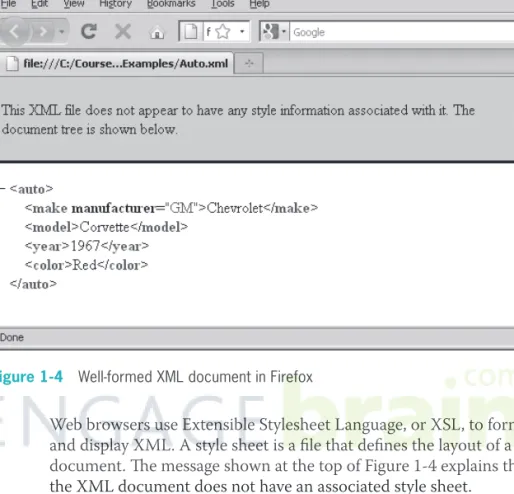
You use a program called a parser to check whether an XML docu-ment is well formed. Th ere are two types of parsers: non-validating and validating. A non-validating parser simply checks whether an XML document is well formed; if it is, the parser displays the docu-ment’s XML elements and data. A validating parser checks whether an XML document is well formed and whether it conforms to an associated DTD. Firefox and other browsers have the capability to act as non-validating parsers. For instance, if you open the automobile XML document in Firefox and the document is well formed, Firefox will correctly parse and display it, as shown in Figure 1-4.
Be sure to type an exten-sion of .xml and not .html or .txt. The W3C uses the term well formedness, although gram-matically it sounds strange, so this book uses the term well formed.
19
Figure 1-4 Well-formed XML document in Firefox
Web browsers use Extensible Stylesheet Language, or XSL, to format and display XML. A style sheet is a fi le that defi nes the layout of a document. Th e message shown at the top of Figure 1-4 explains that the XML document does not have an associated style sheet.
If an XML document is not well formed, the parser displays the error. For example, if the automobile XML document is missing the closing </auto> tag, it is not well formed. In this case, most Web browsers will point to the error, as shown in Figure 1-5.
Figure 1-5 XML document that is not well formed in Internet Explorer
Next, you will parse the mailing address XML document you created in the last exercise.
To parse a document:
1. Open the MailingAddress.xml fi le in Firefox or another browser that can be used as a non-validating parser. Th e easiest way to open an XML document in Firefox is to type the complete path to the fi le, as shown in Figure 1-6. If you created the document correctly, your Web browser window should look like the fi gure. If you did not create the document correctly, fi x any errors that appear in the browser window and reload the document.
21
Figure 1-6 MailingAddress.xml fi le in Firefox
2. Close your Web browser window.
Writing Well-Formed Documents
Well-formed XML documents allow user agents to read the docu-ment’s data easily. User agents expect XML data to be structured according to specifi c rules, which allows the user agent to read data quickly without having to decipher the data structure.
In this section, you will study the syntax, or rules, for writing well-formed XML documents. Th e most important of these rules are:
• All XML documents must have a root element.
• XML is case sensitive.
• All XML elements must have a closing tag.
• XML elements must be properly nested.
• Attribute values must appear within quotation marks.
• Empty elements must be closed. Next, you will study each of these rules.
All XML Documents Must Have a Root Element
A root element contains all the other elements in a document. Th e <html>. . . </html> element is the root element for HTML docu-ments, although most Web browsers do not require a document to include it. XML documents, however, require a root element that you defi ne yourself. For instance, the root element for the XML automobile data document is the <auto> element. If you do not include a root element, the XML document will not be well formed. Th e following version of the XML automobile data document is not well formed because it is missing the <auto> root element:
<?xml version="1.0" encoding="iso-8859-1" standalone="yes"?>
<make>Ford</make><model>Mustang</model> <year>1967</year><color>Red</color>
Next, you will start creating an XML document that stores data asso-ciated with fi ction books. You will develop a simple example of an XML document that a bookstore or publisher might use to organize its inventory.
To create an XML document that stores data:
1. Create a new document in your text editor.
2. Type the XML declaration, as follows:
<?xml version="1.0" encoding="iso-8859-1" standalone="yes"?>
3. Next, type the opening and closing tags for a root element named <books>:
<books> </books>
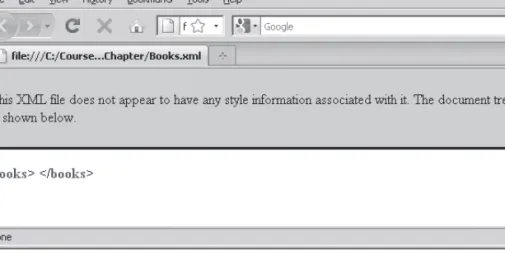
4. Save the fi le as Books.xml in the Chapter folder for Chapter 1, and then open the fi le in Firefox. Your Web browser should look like Figure 1-7.
23
Figure 1-7 Books.xml in Firefox
5. Close your Web browser.
XML Is Case Sensitive
Unlike HTML tags, XML tags are case sensitive. For instance, it makes no diff erence whether the bold tag is uppercase or lowercase in an HTML document. Both of the following HTML statements will be rendered properly in a Web browser:
<B>This line is bold.</B> <b>This line is also bold.</b>
You can even mix and match the case tags in an HTML document, as in the following statements:
<B>This line is bold.</b> <b>This line is also bold.</B>
With XML, however, you cannot mix the case of elements. For instance, if you have an opening tag named <color> that is all lower-case, you must also use lowercase letters for the closing tag, as follows: <color>Red</color>
If you use a diff erent case for the opening and closing tags, they will be treated as separate tags, resulting in a document that is not well formed. Th e following statement is incorrect because the case of the opening and closing tags does not match:
<color>Red</COLOR>
For practice, you will introduce a case error into your sample XML
To introduce a case error into the Books.xml document:
1. Return to the Books.xml fi le in your text editor.
2. Modify the closing </books> tag so it is uppercase. Your fi le should appear as follows:
<?xml version="1.0" encoding="iso-8859-1" standalone="yes"?>
<books> </BOOKS>
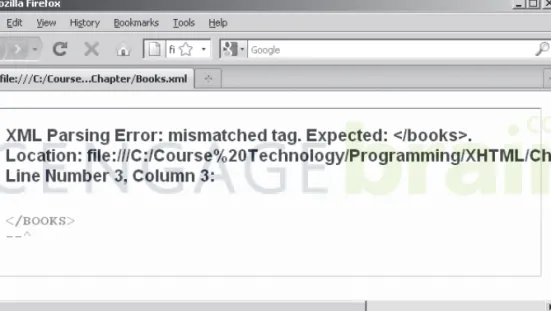
3. Save the Books.xml fi le and then open it in Firefox. You should receive an error like the one shown in Figure 1-8. As you can see, the closing </BOOKS> tag does not match the <books> start tag.
Figure 1-8 Case sensitivity error in Firefox
4. Return to the Books.xml fi le in your text editor and change the closing </BOOKS> tag back to lowercase letters, then save the fi le.
5. Return to the Web browser window that displays the Books.xml fi le and refresh the window. You can refresh Firefox by clicking the Refresh button. Th e fi le should open correctly.
6. Close your Web browser.
All XML Elements Must Have a Closing Tag
As mentioned earlier, most Web browsers usually ignore errors in an HTML document that is not properly structured and is missing closing tags. One common example is the paragraph element (<p>).
25
Th e <p> element should be used to mark a block of text as a single paragraph by enclosing the text within a <p>. . . </p> tag pair, as follows:
<p>All roads lead to Rome.</p>
Many Web authors, however, do not follow this convention and place a <p> tag at the end of a block of text to create a new paragraph as follows:
All roads lead to Rome.<p>
One reason you can omit closing tags is that Web browsers usually treat HTML documents as text that contains formatting elements. XML, however, is designed to organize data, not display it. As a result, instead of documents consisting of text that contains elements, as is the case with HTML, XML documents consist of elements that contain text. All elements must have a closing tag or the document will not be well formed. For instance, in the automobile data XML document you saw earlier, each element had a corresponding closing tag. Th e following version of the document is illegal because there are no corresponding closing tags for the <make>, <model>, <year>, and <color> elements:
<?xml version="1.0" encoding="iso-8859-1" standalone="yes"?>
<auto>
<make>Ford<model>Mustang <year>1967<color>Red </auto>
Next, you will add two <book> elements to the Books.xml fi le. Each <book> element will contain the title of a book.
To add two <book> elements to the Books.xml fi le:
1. Return to the Books.xml fi le in your text editor.
2. Modify the document as follows to include two <book> ele-ments. Be sure to add the elements within the <books> root element. For now, do not include the closing </book> tag. <?xml version="1.0" encoding="iso-8859-1"
standalone="yes"?> <books>
<book>A Farewell to Arms <book>Of Mice and Men </books>
You may have noticed that the XML declaration does not include a closing tag. This is because the XML declaration is not actually part of the document; it only declares the docu-ment as an XML document.
3. Save the Books.xml fi le, and then open it in Firefox. You should receive an error like the one shown in Figure 1-9. Th e error is raised because Firefox cannot fi nd the ending tag for the <book> elements.
Figure 1-9 Missing closing tag error raised in Firefox
4. Return to the Books.xml fi le in your text editor and add the closing </book> tags to each of the <book> elements, then save the fi le.
<?xml version="1.0" encoding="iso-8859-1" standalone="yes"?>
<books>
<book>A Farewell to Arms</book> <book>Of Mice and Men</book> </books>
5. Return to the Web browser window that displays the Books.xml fi le and refresh the window. Your Web browser should look like Figure 1-10.
27
Figure 1-10 Books.xml after adding the closing </book> tags
6. Close your Web browser.
XML Elements Must Be Properly Nested
Nesting refers to how elements are placed inside other elements. For example, in the following code, the <i> element is nested within the <b> element, while the <b> element is nested within the <p> element. <p><b><i>This paragraph is bold
and italicized.</i></b></p>
In an HTML document, it makes no diff erence how the elements are nested. Examine the following HTML statement, which applies bold and italics to the text within a paragraph:
<p><b><i>This paragraph is bold and italicized.</b></p></i>
In the preceding code, the opening <i> element is nested within the <b> element, which in turn is nested within the <p> element. Notice, however, that the closing </i> element is outside the closing </p> element. Th is <i> element is the innermost element. In XML, each innermost element must be closed before another element is closed. In the preceding statement, the <b> and <p> elements are closed before the <i> element. Although the order in which elements are closed makes no diff erence in HTML, the statement must be written as follows to be correct in XML:
As another example, consider the following version of the auto mobile data XML document. Th e code is not well formed because the <make> and <model> elements are not properly nested.
<?xml version="1.0" encoding="iso-8859-1" standalone="yes"?> <auto> <make>Ford <model>Mustang</make> </model> <year>1967</year><color>Red</color> </auto>
For the preceding XML code to be well formed, the <model> element must be closed before the <make> element, as follows:
<?xml version="1.0" encoding="iso-8859-1" standalone="yes"?> <auto> <make>Ford <model>Mustang</model> </make> <year>1967</year><color>Red</color> </auto>
Next, you will modify the <book> elements in the Books.xml fi le to include nested elements that describe more detailed information about each book.
To modify the Books.xml fi le to include nested elements:
1. Return to the Books.xml fi le in your text editor.
2. Replace the <book> element for A Farewell to Arms with the following nested elements that contain information on the book’s title and author. Notice that the <title> and <author> elements are nested within the <book> element, and that the <fi rst_name> and <last_name> elements are nested within the <author> element.
<book>
<title>A Farewell to Arms</title> <author>
<fi rst_name>Ernest</fi rst_name> <last_name>Hemingway</last_name> </author>
</book>
3. Next, replace the <book> element for Of Mice and Men with the following nested elements:
<book>
<title>Of Mice and Men</title> <author>
29
<last_name>Steinbeck</last_name> </author>
</book>
4. Save the Books.xml fi le, and then open it in Firefox. Your Web browser should look like Figure 1-11.
Figure 1-11 Books.xml after adding nested elements
5. Close your Web browser.
Attribute Values Must Appear Within Quotation Marks
Th e value assigned to an attribute in an HTML document can be either contained in quotation marks or assigned directly to the attri-bute, provided there are no spaces in the value being assigned. For example, recall that a common HTML attribute is the src attribute of the image element (<img>). You assign to the src attribute the name of an image fi le that you want to display in your document.
Th e following code shows two <img> elements. Even though the fi rst element includes quotation marks around the value assigned to the src attribute and the second element does not, both statements will function correctly.
<img src="dog.gif">Image of a dog</img> <img src=cat.gif>Image of a cat</img>
With XML, you must place quotation marks around the values assigned to an attribute. An example is the company attribute of the <manufacturer> element you saw earlier in the automobile data XML document. You must include quotation marks around the value assigned to the company attribute using a statement similar to <manufacturer company="General Motors"/>. Omitting the quotation marks from this statement results in a document that is not well formed.
Next, you will add an attribute named publisher to each of the <book> elements in your example XML document. Th e publisher attribute stores a value containing the name of each book’s publisher.
To add a publisher attribute to each of the <book> elements:
1. Return to the Books.xml fi le in your text editor.
2. Modify the opening tag for the A Farewell to Arms<book> element so it includes the publisher attribute with an assigned value of “Scribner”:
<book publisher="Scribner">
3. Modify the opening tag for the Of Mice and Men<book> ele-ment so it includes the publisher attribute with an assigned value of “Penguin”:
<book publisher="Penguin">
4. Save the Books.xml fi le, and then open it in Firefox. Your Web browser should look like Figure 1-12.
You also can-not include an empty attri-bute in an element. You must assign a value to an attribute or exclude the attribute from the element. For instance, the statement
<manufacturer company /> is incorrect because no value is being assigned to the
company attribute.
31
Figure 1-12 Books.xml after adding attributes
5. Close your Web browser.
Empty Elements Must Be Closed
Several elements in HTML do not have corresponding ending tags, including the <hr> element, which inserts a horizontal rule into the document, and the <br> element, which inserts a line break. Elements that do not require an ending tag are called empty elements because you cannot use them as a tag pair to enclose text or other elements. You can create an empty element in an XML document by adding a single slash (/) before the tag’s closing bracket to close the element. Most often, you use an empty element for an element that does not require content, such as an image. For instance, in the XML docu-ment of automobile data, you may create a <photo> element with a single attribute that stores the name of an image fi le. Th is image fi le
contains a photograph of the automobile. An example of the <photo> empty element is shown in the following XML code:
<?xml version="1.0" standalone="yes"?> <auto>
<photo image_name="mustang.jpg"/> <make>Ford</make><model>Mustang</model> <year>1967</year><color>Red</color> </auto>
Next, you will add an empty element named publication to the Books.xml fi le. Th is element contains a single attribute that stores the original publication year for each book.
To add an empty element to an XML document:
1. Return to the Books.xml fi le in your text editor.
2. Add a nested empty publication element to the A Farewell to Arms<book> element, as follows:
<book publisher="Scribner"> <publication year="1929" /> <title>A Farewell to Arms</title> <author>
<fi rst_name>Ernest</fi rst_name> <last_name>Hemingway</last_name> </author>
</book>
3. Now add an empty publication element to the Of Mice and Men<book> element, as follows:
<book publisher="Penguin"> <publication year="1937" /> <title>Of Mice and Men</title> <author>
<fi rst_name>John</fi rst_name> <last_name>Steinbeck</last_name> </author>
</book>
4. Save the Books.xml fi le, and then open it in Firefox. Your Web browser should look like Figure 1-13.
Remember that the primary pur-pose of XML is to defi ne and orga-nize data. An empty image element like the one shown in the XML automobile document only provides the name of the associated image fi le—it does not display the image. However, you can display an image from an XML document if you use CSS and XSL.
33
Figure 1-13 Books.xml after adding empty elements
5. Close your Web browser.
Combining XML and HTML
In this section, you studied how XML is used for defi ning data. Although XML was designed primarily to defi ne data, you can also use it to create Web pages. You can create formatted Web pages using XML and Extensible Stylesheet Language, or XSL, which is a specifi cation for formatting XML in a Web browser.
With the growing need to create Web pages that can be easily dis-played in all user agents, it is clear that an alternative to HTML is needed. For a number of reasons, however, it is not clear that XML and XSL currently provide an adequate alternative to HTML. First, getting Web page authors and developers to abandon existing HTML techniques is asking a lot. Second, learning XML and XSL is more
diffi cult than learning HTML. Finally, many older browsers simply do not support XML.
To make the transition to XML-based Web pages easier, the W3C combined XML and HTML to create XHTML, which is almost iden-tical to HTML, except that it uses strict XML syntax to describe the parts of a document. XHTML is actually considered to be an XML application because it is written in XML, and the XHTML language must adhere to the same requirements as XML. One of XHTML’s chief advantages is that XHTML documents are backward compat-ible with older browsers, provided you follow several simple rules that you will study next.
Short Quiz 2
1. What is an XML declaration and how is it defi ned?
2. How do you ensure that an XML document is well formed? 3. What is a root element in XML and HTML documents? 4. What does it mean that XML documents must be properly
nested?
5. How do you close an empty XML element?
Structuring Web Pages
Although you will work primarily with HTML 5 documents in this book, this section explains how to structure both HTML 5 and XHTML documents. Both HTML 5 and XHTML require a <!DOCTYPE> declaration and the <html>, <head>, and <body> elements. Th e <!DOCTYPE>declaration states the XHTML version of the document. Th e <!DOCTYPE> declaration for HTML 5 is simply <!DOCTYPE HTML>. Th e following elements are all you need to write a well-formed HTML 5 Web page:
<!DOCTYPE HTML> <html>
<head>
<title>title</title> </head> <body> . . . </body> </html> 35
Th e <!DOCTYPE> declaration for XHTML is a little more complex and requires one of three DTDs: Transitional, Frameset, or Strict. Recall that a DTD defi nes the elements and attributes that you can use in a document. By writing your Web pages so that they use only the ele-ments and attributes that are defi ned in one of the XHTML DTDs, you can ensure that your document is well formed.
Understanding Backward Compatibility
To be backward compatible with older browsers, XHTML docu-ments must have an extension of .html or .htm, just like HTML documents. You must also follow several rules to ensure that the code within your XHTML documents is backward compatible. Recall that XML requires empty elements to include a slash before the closing bracket to close the element. Th is rule also applies to XHTML. However, older browsers that do not support XML ignore the element when they see the slash immediately following the ele-ment name in an empty eleele-ment. You can ensure that older browsers are able to read empty elements in a well-formed XHTML document by adding a space between the element name and the closing slash. Older browsers simply ignore the space and the slash and render the element normally. Browsers that support XHTML recognize the slash as closing the empty element. For instance, to properly close the horizontal rule (<hr>) empty element and ensure that it is backward compatible with older browsers, you use the statement <hr />. Be sure to include the space and slash for all empty elements, including the often-used <br> and <img> elements.
Defi ning the XHTML
<!DOCTYPE>
Declaration
Th e syntax for the XHTML <!DOCTYPE> declaration is
<!DOCTYPE html type "public identifi er" "URL">. Th e html attribute of the <!DOCTYPE> declaration identifi es the root element of the document; for XHTML documents this attribute value should always be html. You replace the type attribute of the <!DOCTYPE> declaration with PUBLIC or SYSTEM. You use a type of PUBLIC if the DTD is available on the Web or SYSTEM if the DTD is available on the local computer. If you use a type of PUBLIC, you must also include the public identifi er attribute within quotation marks. A public identifier is a text string used to identify a DTD on the Web. For instance, the public identifi er for one of the XHTML DTDs is "-//W3C//DTD XHTML 1.0 Strict//EN". Th e fi nal attribute in the <!DOCTYPE> declaration is the Universal Resource Locator (URL) of One big
differ-ence between XML and XHTML is that XML does not contain any predefi ned elements, while XHTML contains almost all the elements that are available in HTML. However, because XHTML is based on XML, you need to follow the XML rules for creating well-formed documents.
For some newer brows-ers and certain types of XHTML docu-ments, you must use the .xml or .xhtml extension to exe-cute the XML contained within the document. You will use the .xhtml exten-sion when you study mul-timedia and executable content in Chapter 7.
Th e public identifi ers for XHTML 1.0 are built into current Web browsers and other user agents. However, if the user agent does not recognize the public identifi er, it attempts to locate the DTD using the URL.
Here is a simple XHTML document. <!DOCTYPE html
PUBLIC "-//W3C//DTD XHTML 1.0 Strict//EN"
"http://www.w3.org/TR/xhtml1/DTD/xhtml1-strict.dtd"> <html>
<head>
<title>Basic XHTML Document</title> </head>
<body>
<p>President Obama is from Hawaii.</p> </body>
</html>
Understanding XHTML DTDs
As you learned earlier, the World Wide Web Consortium (W3C) created XHTML to make the transition to XML-based Web pages easier. To facilitate the transition, the W3C provided three types of XHTML DTDs: Transitional, Frameset, and Strict.
Transitional DTD
One goal of XHTML is to separate the way a document is structured from the way it is displayed. To accomplish this, several common HTML formatting and display elements and attributes have been deprecated in XHTML 1.0. Elements and attributes that are consid-ered to be obsolete and that will eventually be eliminated are said to be deprecated. Th e Transitional DTD allows you to continue using deprecated elements along with the well-formed document require-ments of XML. Table 1-2 lists the elerequire-ments that are deprecated in XHTML 1.0, but that are still available in the Transitional DTD.
Element Description
<applet> Executes Java applets
<basefont> Specifi es the base font size
<center> Centers text
<dir> Defi nes a directory list
<font> Specifi es a font name, size, and color
<s> or <strike> Formats strikethrough text
<u> Formats underlined text
Table 1-2 HTML elements that are deprecated in XHTML 1.0
If an XHTML document is missing the <!DOCTYPE> declaration, it automatically reverts to a standard HTML document. 37
Th e <basefont>, <center>, <font>, <s>, <strike>, and <u> elements are deprecated in favor of Cascading Style Sheets (CSS). Th e
<applet> element is deprecated in favor of the <object> element; the <dir> and <menu> elements are deprecated in favor of unordered lists; a