Denny Xu
Grid Qian
Brian Fitzpatrick
Ben Clare
Red Hat JBoss Developer Studio
7.0
JBoss SOAP Web Services User
Guide
Guide
Provides information relating to SOAP Web Services for JBoss.
Denny Xu Grid Qian Brian Fitzpatrick Ben Clare Edited by Isaac Ro o sko v
Legal Notice
Copyright © 2011 Red Hat.
This document is licensed by Red Hat under the Creative Commons Attribution-ShareAlike 3.0 Unported License. If you distribute this document, or a modified version of it, you must provide attribution to Red Hat, Inc. and provide a link to the original. If the document is modified, all Red Hat trademarks must be removed.
Red Hat, as the licensor of this document, waives the right to enforce, and agrees not to assert, Section 4d of CC-BY-SA to the fullest extent permitted by applicable law.
Red Hat, Red Hat Enterprise Linux, the Shadowman logo, JBoss, MetaMatrix, Fedora, the Infinity Logo, and RHCE are trademarks of Red Hat, Inc., registered in the United States and other countries. Linux ® is the registered trademark of Linus Torvalds in the United States and other countries. Java ® is a registered trademark of Oracle and/or its affiliates.
XFS ® is a trademark of Silicon Graphics International Corp. or its subsidiaries in the United States and/or other countries.
MySQL ® is a registered trademark of MySQL AB in the United States, the European Union and other countries.
Node.js ® is an official trademark of Joyent. Red Hat Software Collections is not formally related to or endorsed by the official Joyent Node.js open source or commercial project.
The OpenStack ® Word Mark and OpenStack Logo are either registered trademarks/service marks or trademarks/service marks of the OpenStack Foundation, in the United States and other countries and are used with the OpenStack Foundation's permission. We are not affiliated with, endorsed or
sponsored by the OpenStack Foundation, or the OpenStack community. All other trademarks are the property of their respective owners.
Abstract
The JBoss SOAP Web Services User Guide explains how to use the JBoss Web Services module to implement SOAP web services in Java.
. . . . . . . . . . . . . . . . . . . . . . . . . . . . . . . . . . . . . . . .
Table of Contents
PrefaceChapter 1. JBoss SOAP Web Services Runtime and Tools support Overview 1.1. Key Features of JBossWS
Chapter 2. Creating a Simple Web Service 2.1. Generation
Chapter 3. Creating a Web Service using JBossWS runtime 3.1. Creating a Dynamic Web project
3.2. Configure JBoss Web Service facet settings
3.3. Creating a Web Service from a WSDL document using JBossWS runtime 3.4. Creating a Web service from a Java bean using JBossWS runtime
Chapter 4 . Creating a Web Service Client from a WSDL Document using JBoss WS Chapter 5. JBoss Web Services and the development environment
5.1. Preferences
5.2. Default Server and Runtime
Chapter 6. Sample Web Service wizards 6.1. Sample Web Service
6.1.1. Generation 6.1.2. Deployment
Chapter 7. Web Service Test View 7.1. Preliminaries
7.2. Testing a Web Service
Getting Help and Giving Feedback A.1. Do You Need Help?
A.2. Give us Feedback Revision History 3 4 4 5 5 9 9 11 14 21 27 31 31 34 36 41 41 43 4 6 48 48 51 51 51 52
Preface
This manual uses several conventions to highlight certain words and phrases and draw attention to specific pieces of information. To get more information on these conventions please refer to the
Docum ent Conventions manual, which can be found on the Red Hat Documentation website under the JBoss Developer Studio section.
Chapter 1. JBoss SOAP Web Services Runtime and Tools
support Overview
JBoss SOAP Web Services is a web service framework developed as a part of the JBoss Application Server. It implements the JAX-WS specification. JAX-WS (Java API for XML Web Services) defines a programming model and run-time architecture for implementing web services in Java, targeted at the Java Platform, Enterprise Edition 5 (Java EE 5).
JBossWS integrates with most current JBoss Application Server releases as well as earlier ones, that did implement the J2EE 1.4 specifications. Even though JAX-RPC, the web service specification for J2EE 1.4, is still supported JBossWS does put a clear focus on JAX-WS.
JBossWS Tools work with the JBossWS Runtime. Users can easily create, deploy and run a Web Service(WSDL based) and a Web Service Client using JBossWS Tool and JBossWS Runtime. Also JBossWS Tool gives a way to test a web service running on a server.
1.1. Key Features of JBossWS
For a start, we propose you to look through the table of main features of JBossWS Runtime:
Table 1.1. Key Functionality for JBossWS
Feature Benefit
JAX-RPC and JAX-WS support JBossWS implements both the JAX-WS and JAX-RPC specifications.
EJB 2.1, EJB3 and JSE endpoints
JBossWS supports EJB 2.1, EJB3 and JSE as Web Service Endpoints.
WS-Security 1.0 for XML Encryption/Signature of the SOAP message
WS-Security standardizes authorization, encryption, and digital signature processing of web services.
JBoss AS JBoss Application Server 5 (JavaEE 5 compliant) web service stack. Support for MTOM/XOP and
SwA-Ref
Message Transmission Optimization Mechanism (MTOM) and XML-binary Optimized Packaging (XOP) more efficiently serialize XML Infosets that have certain types of content.
Chapter 2. Creating a Simple Web Service
This chapter describes how to create a simple web service.2.1. Generation
A simple web service can be created by using the Sim ple Web Service wizard as described in Procedure 2.1, “Generate a simple web service”
Procedure 2.1. Generate a simple web service
1. Access the New - Select a wizard dialog
a. Right click on the project name in the Project Explorer view. b. Select New → Other.
c. Expand the Web Services folder and click on the Simple Web Service option. Result:
Figure 2.1. The New - Other (Wizard selection) dialog
2. Access the Simple Web Service dialog Click the Next button to proceed.
Result:
The Sim ple Web Service - Project and Web Service Details dialog displays.
Figure 2.2. Simple Web Service - Project and Web Service Details
3. Define the service attributes
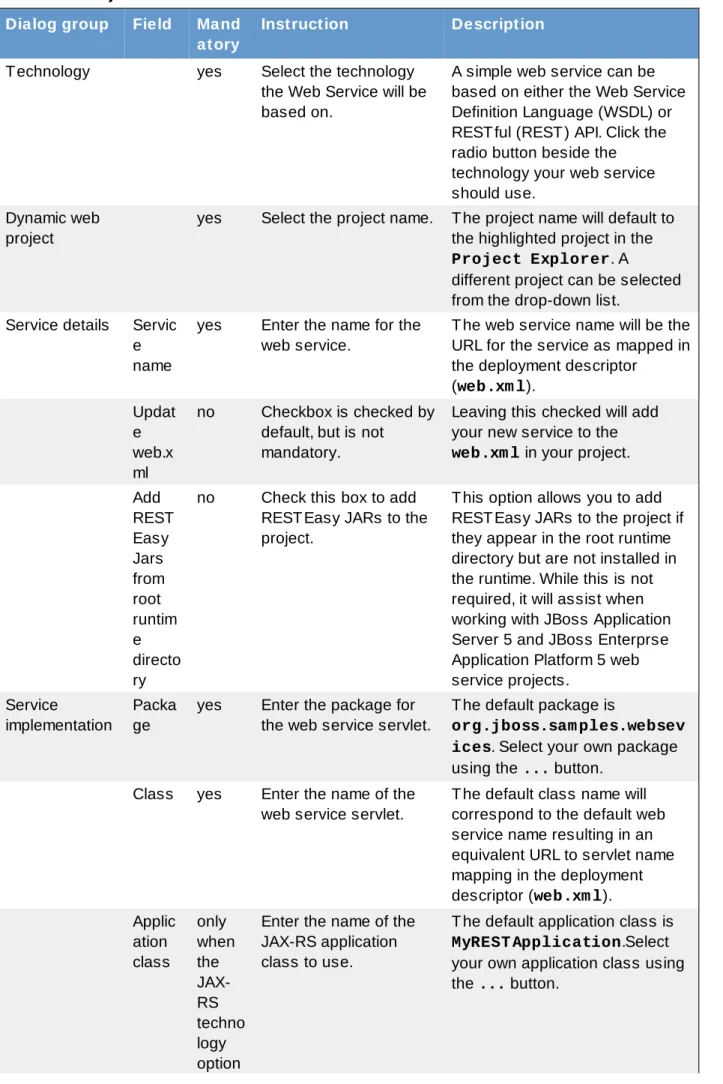
Define the project, web service, package and class names according to the options displayed in Table 2.1, “Project and Web Service Details”
Table 2.1. Project and Web Service Details
Dialog group Field Mand atory
Instruction Description
Technology yes Select the technology the Web Service will be based on.
A simple web service can be based on either the Web Service Definition Language (WSDL) or RESTful (REST) API. Click the radio button beside the technology your web service should use.
Dynamic web project
yes Select the project name. The project name will default to the highlighted project in the
Project Explorer. A
different project can be selected from the drop-down list.
Service details Servic e name
yes Enter the name for the web service.
The web service name will be the URL for the service as mapped in the deployment descriptor
(web.xm l). Updat e web.x ml no Checkbox is checked by default, but is not
mandatory.
Leaving this checked will add your new service to the
web.xm l in your project. Add REST Easy Jars from root runtim e directo ry
no Check this box to add RESTEasy JARs to the project.
This option allows you to add RESTEasy JARs to the project if they appear in the root runtime directory but are not installed in the runtime. While this is not required, it will assist when working with JBoss Application Server 5 and JBoss Enterprse Application Platform 5 web service projects.
Service
implementation
Packa ge
yes Enter the package for the web service servlet.
The default package is
org.jboss.sam ples.websev ices. Select your own package using the ... button.
Class yes Enter the name of the web service servlet.
The default class name will correspond to the default web service name resulting in an equivalent URL to servlet name mapping in the deployment descriptor (web.xm l). Applic ation class only when the JAX-RS techno logy option
Enter the name of the JAX-RS application class to use.
The default application class is
MyREST Application.Select your own application class using the ... button.
is select ed 4. Generate the web service
Click the Finish button to complete the web service setup. Result:
The web service classes will be generated and the web.xm l file updated with the deployment details if the Update web.xm l option was selected.
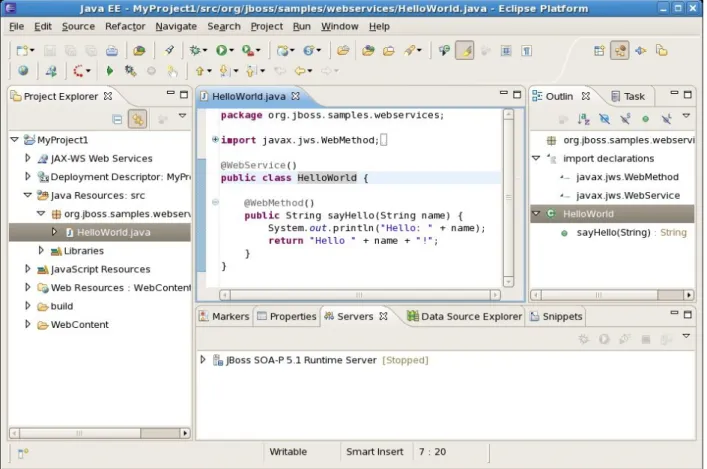
Figure 2.3. Created Simple Web Service
Chapter 3. Creating a Web Service using JBossWS runtime
In this chapter we provide you with the necessary steps to create a Web Service using JBossWS runtime. First you need to create a Dynamic Web project:3.1. Creating a Dynamic Web project
Before creating a web service, you should have a Dynamic Web Project created:
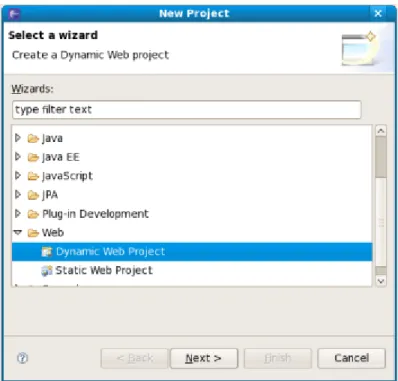
Figure 3.1. Dynamic Web Project
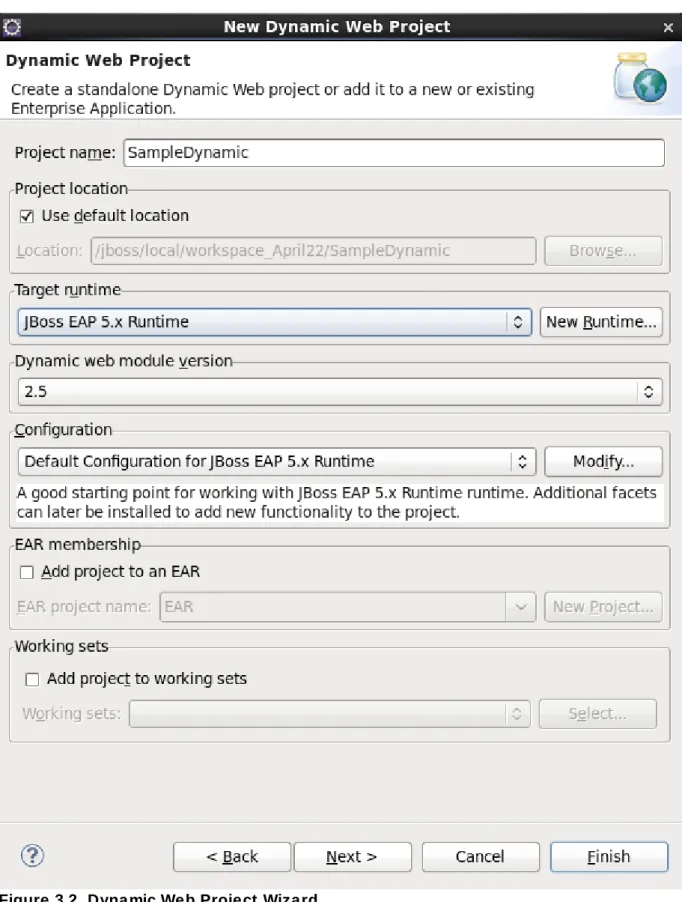
Create a Web project by selecting New > Project... > Dynamic Web project. Enter the following information:
Project Name: enter a project name
Target runtime: any server depending on your installation. If it is not listed, click New button and browse to the location where it is installed to. You may set Target Runtime to None, in this case, you should read the section Section 3.2, “Configure JBoss Web Service facet settings”.
Figure 3.2. Dynamic Web Project Wizard
Configuration: You may Section 3.2, “Configure JBoss Web Service facet settings” by clicking the Modify... button. The opened page is like Figure 3.4.
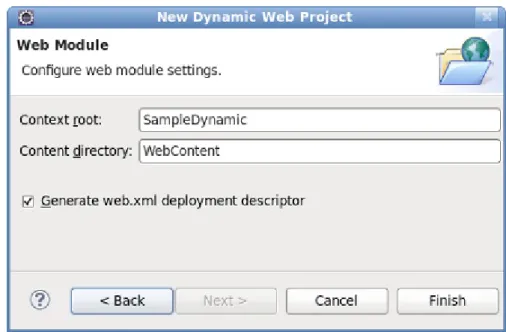
Configure Web Module values:
Figure 3.3. Web Module Settings Configuration
If you added the JBoss Web Service facet to the project, now the Finish button is unavailable. You must click Next button to set more information about the JBoss Web Service facet. The page is like Figure 3.5. Then click on the Finish button.
If you didn't add the JBoss Web Service facet to the project, click on the Finish button. Next you will need to add JBoss Web Service facet to the project.
3.2. Configure JBoss Web Service facet settings
If you have already created a new Dynamic Web project and not set the JBoss Web Service facet to the project, the next step is to add JBoss Web Service facet to the project. Right-click on the project, select its Properties and then find Project Facets in the tree-view on the left-side of the project properties dialog. Tick on the check box for JBoss Web Services. You will see what like this:
Figure 3.4 . Choose JBoss Web Service Facet
At the bottom-left of the right-side of the project properties dialog, there is a error link: Further
configuration required... . You must click the link to set more information about JBoss Web Service facet. Click on the Further configuration required... link. In the opened window
Figure 3.5. Configure JBoss Web Service Facet
Server Supplied JBossWS Runtime: If you have already set a JBoss runtime to the project's target runtime, you may choose Server Supplied JBossWS Runtime and then click Ok to finish the configuration of JBoss Web Service facet.
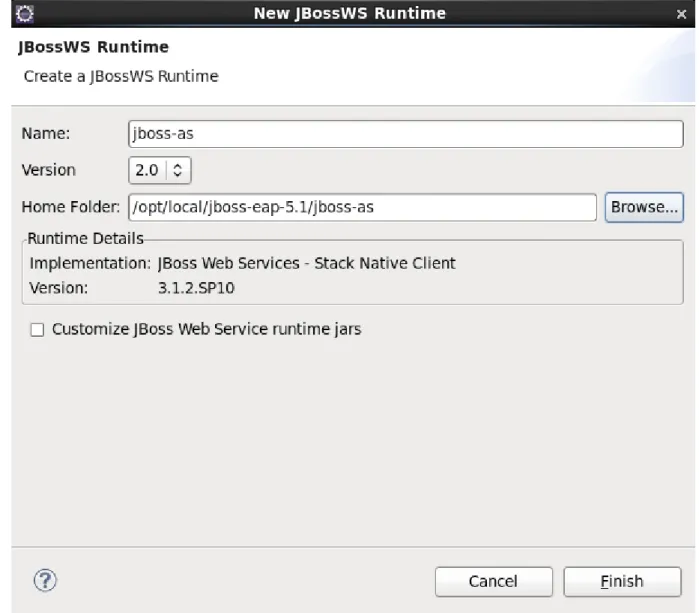
If the project has no Target Runtime settings, you should check the second radio button and specify a JBossWS runtime from the list. You also can create a new JBossWS runtime, click on the New... button will bring you to another dialog to configure new JBossWS runtime.
Figure 3.6. Configure JBossWS Runtime
See how to configure a new JBossWS runtime in the Chapter 5, JBoss Web Services and the
development environment section.
After setting the information about JBoss Web Service facet, for saving the result, you should click the Apply or OK button at the bottom-right of the right-side of the project properties dialog.
3.3. Creating a Web Service from a WSDL document using
JBossWS runtime
In this chapter we provide you with the necessary steps to create a Web Service from a WSDL document using JBossWS runtime.
Make sure that you have already created a dynamic Web project with JBoss Web Service facet installed and set the necessary preferences through the Preference menu.
See how to make it in the Section 3.1, “Creating a Dynamic Web project”, Section 3.2, “Configure JBoss Web Service facet settings” and Chapter 5, JBoss Web Services and the development environment sections.
To create a Web Service using JBossWS runtime select File > New > Other > Web Services > Web Service to run Web Service creation wizard.
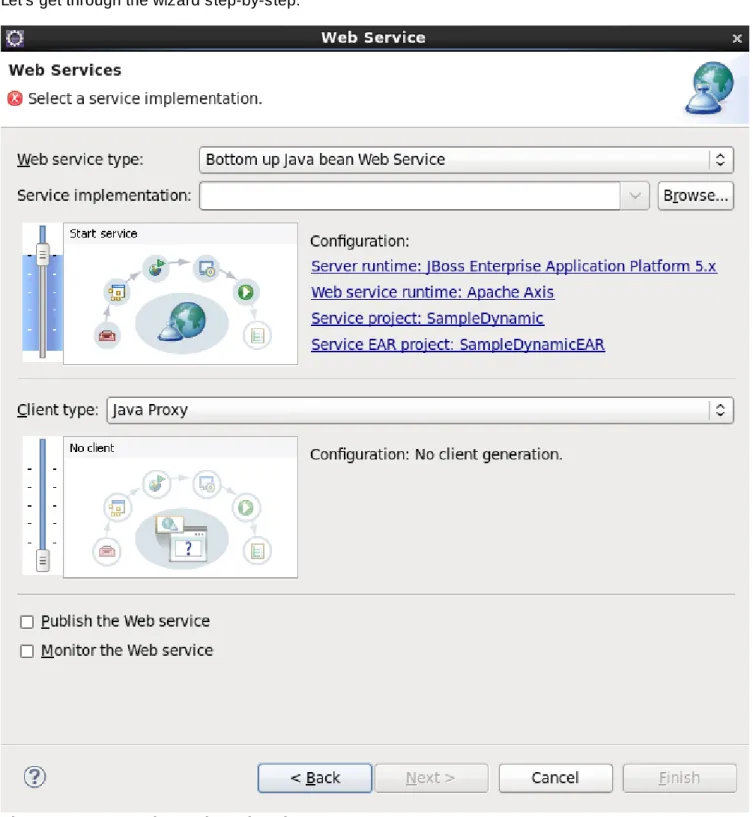
Let's get through the wizard step-by-step:
Figure 3.7. New Web Service Wizard
Select the stages of Web service development that you want to complete using the slider: Develop: this will develop the WSDL definition and implementation of the Web service. This includes such tasks as creating modules that will contain generated code, WSDL files, deployment descriptors, and Java files when appropriate.
EAR when required by the target application server.
Deploy: this will create the deployment code for the service.
Install: this will install and configure the Web module and EARs on the target server.
Start: this will start the server once the service has been installed on it. The server-config.wsdd file will be generated.
Test: this will provide various options for testing the service, such as using the Web Service Explorer or sample JSPs.
Select your server: the default server is displayed. If you want to deploy your service to a different server click the link to specify a different server.
Select your runtime: ensure the JBoss WS runtime is selected.
Select the service project: the project selected in your workspace is displayed. To select a different project click on the project link. If you are deploying to JBoss Application Server you will also be asked to select the EAR associated with the project. Ensure that the project selected as the Client Web Project is different from the Service Web Project, or the service will be overwritten by the client's generated artifacts.
If you want to create a client, select the type of proxy to be generated and repeat the above steps for the client. The better way is to create a web service client project separately.
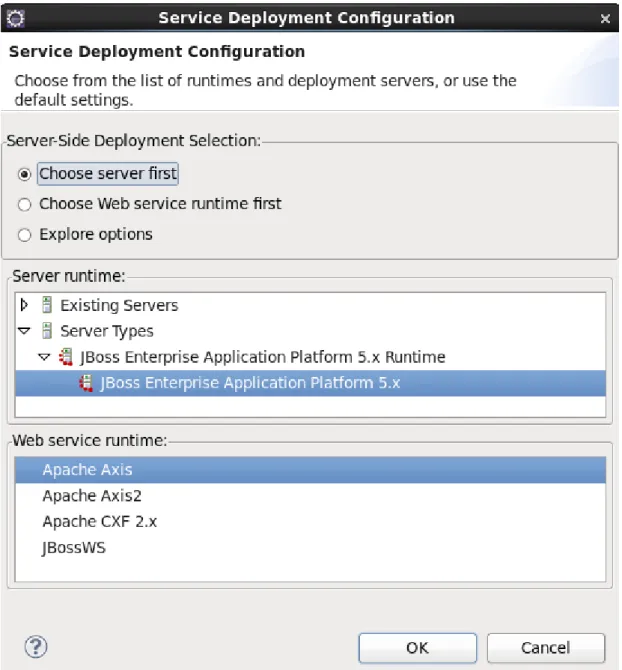
First, please select Top down Java bean Web Service from the Web Service type list, and select a WSDL document from workspace, click on the Server name link on the page will bring you to another dialog. Here you can specify the server to a JBoss Server and Web Service runtime to JBossWS runtime:
Figure 3.8. Select Server and Web Service runtime
Figure 3.9. New Web Service Wizard
Click on the Next button to proceed:
Figure 3.10. New Web Service Wizard
WSDL Service : display the services in your WSDL file, you can select one to generate Web Service. Source Folder : display the source codes folder in your web project, you can select one to generate java codes.
Package name : input a package name. You can click the Browse button to choose one. If you don't input a package name, system will generate one for you.
JAX-WS specificaiton : display the supported JAX-WS version, include, 2.0, 2.1, 2.2 Catalog file : specify a catalog file.
Binding files : specify some binding files that are used by your WSDL file
binding extension support. Only work based on JBossWS 3.0 or later.
Generate default Web Service Implementation classes : select it if you want to generate empty implementation classes for the selected WSDL Service.
Update the default Web.xml : update the Web.xml file with your Web Service servlets configured. Additional Options : the senior options for the generating process. Only for the senior user. Click on the Next or on the Finish button to generate code.
Once the Web Service code is generated, you can view the implementation class and add business logic to each method.
Figure 3.11. The generated implementation Java code
View the Web.xml file:
Figure 3.12. Web.xml
In the next chapter you will find out how to create a Web service from a Java bean.
3.4. Creating a Web service from a Java bean using JBossWS
runtime
To create a Web service from a bean using JBoss WS:
Setup Chapter 5, JBoss Web Services and the development environment. Create Section 3.1, “Creating a Dynamic Web project”.
Note
To use the Sim ple Web Service wizard to create this Web Service, replace the Class and
Application Class fields with your specific classes, within the instructions in Chapter 2,
Creating a Simple Web Service.
Section 3.2, “Configure JBoss Web Service facet settings” Create a Web Service from a java bean:
Switch to the Java EE perspective Window → Open Perspective → Java EE.
In the Project Explorer view, select the bean that you created or imported into the source folder of your Web project.
Figure 3.13. Select the Bean Created
Click File → New → Other. Select Web Services in order to display various Web service wizards. Select the Web Service wizard. Click on the Next button.
Figure 3.14 . New Web Service
On the first Web Service wizard page: select Bottom up Java bean Web service as your Web service type, and select the Java bean from which the service will be created:
Figure 3.15. Set Web Service Common values
Click on the Next button.
Figure 3.16. Set Web Service values for Code Generation
Generate WSDL file: select it, you will get a generated WSDL file in your project. But this wsdl's service address location values are not a real address.
After the Web service has been created, the following option can become available depending on the options you selected: Update the default web.xml file. If selected, you may test the web service by Explorer.
Click on the Next button.
On this page, the project is deployed to the server. You can start the server and test the web service. If you want to publish the web service to a UDDI registry, you may click the Next button to publish it. If not, you may click the Finish button.
Figure 3.17. Start a Server
After the Web Service has been created, the following options may become available depending on the options selected:
the generated web services code
If you selected to generate a WSDL file, you will get the file in your project's wsdl folder.
Figure 3.18. The Generated HelloWorldService.wsdl File in the wsdl Folder
If you selected to update the default web.xml, you will test the web service in the browser. Open the Explorer, input the url for the web service according to web.xml plus ?wsdl, you will get the WSDL file from Explorer.
Figure 3.19. The Updated web.xml file
In the next chapter you will be able to create a Web Service Client from a WSDL document using JBoss WS.
Chapter 4. Creating a Web Service Client from a WSDL
Document using JBoss WS
To create a Web Service Client from a WSDL Document using JBoss WS you need to fulfil the following steps:
Setup Chapter 5, JBoss Web Services and the development environment. Section 3.1, “Creating a Dynamic Web project”.
Section 3.2, “Configure JBoss Web Service facet settings”.
Then you can create a Web Service Client from a WSDL document:
Switch to the Java EE perspective Window > Open Perspective > Java EE.
Click File > New > Other. Select Web Services in order to display the various Web service wizards. Select the Web Service Client wizard. Click on the Next button.
Figure 4 .1. New Web Service Client
The first and the second Web Service Client wizard pages are the same as for Section 3.3, “Creating a Web Service from a WSDL document using JBossWS runtime”.
Figure 4 .2. Set Web Service Common values
Figure 4 .3. Set Web Service values related to WSDL file
The only difference is:
Client Type: Support of Java Proxy only. Click on the Finish button.
After the Web Service Client has been created, the following may occur depending on the options you selected:
the generated web service and client codes a client sample class.
Figure 4 .4 . Client Sample Class
JBoss WS use a Java class to test Web Service. A client sample class will be generated, you may run this client as a java application to call a web service.
Note:
To run client sample as a Java application you need a JBoss Runtime in build path. Red Hat JBoss Developer Studio 7.0 JBoss SOAP Web Services User Guide
Chapter 5. JBoss Web Services and the development
environment
In this chapter you will learn how to change preferences and set the default server runtime.
5.1. Preferences
In this section you will know how JBoss Web Services preferences can be modified during the development process.
To navigate to the preferences page click on Window → Preferences → JBoss Tools → Web
Services → JBossWS Preferences
On this page you can manage the JBoss Web Services Runtime. Use the appropriate buttons to Add
more runtimes or to Remove those that are not needed.
Figure 5.1. JBossWS Preferences Page
Clicking on the Add or Edit button will open the form where you can configure a new JBossWS runtime and change the JBossWS runtime path and modify the name and version of the existing JBossWS runtime settings. Click Finish to apply the changes.
Figure 5.2. Edit JBossWS Runtime
WS container allows Source and Javadoc locations to be set via the Properties dialog on each contained JAR: right-click on any JAR file in the Project Explorer view, select Properties. Choose Java Source Attachm ent and select the location (folder, JAR or ZIP) containing new source for the chosen JAR using one of the suggested options (workspace, external folder or file), or enter the path manually.
Figure 5.3. Classpath Container: Java Source Attachment
Click on Apply and then on OK.
To change the Javadoc location choose Javadoc Location and specify URL to the documentation generated by Javadoc. The Javadoc location will contain a file called package-list.
Figure 5.4 . Classpath Container: Javadoc Location
Click on Apply and then OK.
5.2. Default Server and Runtime
Open Window → Preferences → Web Services → Server and Runtime. On this page, you can specify a default server and runtime.
Note
For ease of use, set the runtime to JBoss WS.
After the server and runtime are specified, click on the Apply button to save the values. Red Hat JBoss Developer Studio 7.0 JBoss SOAP Web Services User Guide
Chapter 6. Sample Web Service wizards
JBoss Tools includes wizards for the creation of sample web services. These include:
Create a Sam ple Web Service for a JAX-WS web service
This wizard is used within a Dynamic Web project. A dynamic web project can be created by following the steps in Procedure 6.1, “Creating a dynamic web project”.
Procedure 6.1. Creating a dynamic web project
1. Access the New Project Dialog Select File → New → Project Result:
The New Project screen displays. 2. Define the Project Type
a. Click the Dynam ic Web Project label by expanding the Web folder. b. Click the Next button to proceed.
Result:
The New Dynam ic Web Project screen displays.
Figure 6.1. Dynamic Web Project Attributes
3. Define the Project Attributes
Define the Dynamic Web Project attributes according to the options displayed in Table 6.1, “New Dynamic Web Project”
Table 6.1. New Dynamic Web Project Field Mandato ry Instruction Description Project name
yes Enter the project name. The project name can be any name defined by the user. Project
location
yes Click the Use default
location checkbox to define the project location as the Eclipse workspace or define a custom path in the Location field.
The default location corresponds to the Eclipse workspace.
Target runtime
no Select a pre-configured runtime from the available options or configure a new runtime environment.
The target runtime defines the server to which the application will be deployed.
Dynamic web module version
yes Select the required web module version.
This option adds support for the Java Servlet API with module versions corresponding to J2EE levels as listed in Table 6.2, “New Dynamic Project - Dynamic web module version”.
Configura tion
yes Select the project configuration from the available options.
The project can be based on either a custom or a set of pre-defined configurations as described in Table 6.3, “New Dynamic Project - Configuration”. EAR
members hip
no Add the project to an existing EAR project.
The project can be added to an existing EAR project by selecting the checkbox. Once checked, a new EAR project can be defined by clicking the New Project
button. Working
sets
no Add the project to an existing working set.
A working set provides the ability to group projects or project attributes in a customized way to improve access. A new working set can be defined once the
Select button has been clicked.
Table 6.2. New Dynamic Project - Dynamic web module version
Option Description
2.2 This web module version corresponds to the J2EE 1.2 implementation. 2.3 This web module version corresponds to the J2EE 1.3 implementation. 2.4 This web module version corresponds to the J2EE 1.4 implementation. 2.5 This web module version corresponds to the JEE 5 implementation. Red Hat JBoss Developer Studio 7.0 JBoss SOAP Web Services User Guide
Table 6.3. New Dynamic Project - Configuration
Option Description
<custom> Choosing from one of the pre-defined configurations will minimise the effort required to set up the project.
BIRT Charting Web Project A project with the BIRT Charting Runtime Component. BIRT Charting Web Project A project with the BIRT Reporting Runtime Component. CXF Web Services Project
v2.5
Configures a project with CXF using Web Module v2.5 and Java v5.0.
Default Configuration for JBoss 5.0 Runtime
This option is a suitable starting point. Additional facets can be installed later to add new functionality.
Dynamic Web Project with Seam 1.2
Configures a project to use Seam v1.2. Dynamic Web Project with
Seam 2.0
Configures a project to use Seam v2.0. Dynamic Web Project with
Seam 2.1
Configures a project to use Seam v2.1. Dynamic Web Project with
Seam 2.2
Configures a project to use Seam v2.2. JBoss WS Web Service
Project v3.0
Configures a project with JBossWS using Web Module v2.5 and Java v5.0.
JavaServer Faces v1.2 Project
Configures a project to use JSF v1.2.
Minimal Configuration The minimum required facets are installed. Additional facets can be chosen later to add functionality to the project. 4. Access the Java sub-dialog
Click Next to proceed. Result:
The New Dynam ic Web Project - Java dialog displays. 5. Define the source and output folders
Define the Dynamic Web Project source and output folders by adding or editing folders as required.
6. Access the Web Module sub-dialog
Click Next to proceed. Result:
Figure 6.2. New Dynamic Web Project - Web Module
7. Enter the web module settings
Define the settings as listed in Table 6.4, “New Dynamic Web Project - Web Module” including the root folder for path names in the web project context and the name of the web content directory.
Table 6.4 . New Dynamic Web Project - Web Module
Field Mandato ry
Instruction Description
Context root
yes Enter the context root for the project.
The context root identifies a web application to the server and which URLs to delegate to the application.
Content directory
yes Enter the directory name for the web content.
Web resources such as html, jsp files and graphic files will be written to the specified content directory. Generate web.xml deployme nt descriptor
no Check this box to generate a deployment descriptor for the project.
URL to servlet mappings and servlet authentication details are written to the deployment
descriptor enabling the web server to serve requests. 8. Open the Java EE perspective.
a. Click the Finish button to complete the project setup. Result:
If not already set, a dialog will appear prompting the user to open the relevant perspective. b. Click the Yes button to display the Java EE perspective.
Result:
The project is configured and the Java EE perspective is displayed. Red Hat JBoss Developer Studio 7.0 JBoss SOAP Web Services User Guide
6.1. Sample Web Service
These sections describe how to generate and deploy a sample web service.
6.1.1. Generation
A sample web service can be created by using the Create a Sam ple Web Service wizard as described in Procedure 6.2, “Generate a sample web service”
Procedure 6.2. Generate a sample web service
1. Access the New - Select a wizard dialog
a. Right click on the project name in the Project Explorer view. b. Select New → Other.
c. Click the Create a Sam ple Web Service label by expanding the Web Services folder.
Result:
The New - Select a wizard dialog displays with the selected wizard type highlighted. 2. Access the Generate a Sample Web Service dialog
Click the Next button to proceed. Result:
The Generate a Sam ple Web Service - Project and Web Service Nam e dialog displays.
3. Define the service attributes
Define the project, web service, package and class names according to the options displayed in Table 6.5, “Project and Web Service Name”
Table 6.5. Project and Web Service Name
Dialog group Field Mand atory
Instruction Description
Dynamic Web Project
yes Enter the project name. The project name will default to the highlighted project in the
Project Explorer. A
different project can be selected from the list or entered directly in the editable drop-down list. Web Service Name yes Enter the name for the
web service.
The web service name will be the url for the service as mapped in the deployment descriptor (web.xm l).
Sample Web Service Class
Packa ge
yes Enter the package for the web service servlet.
The default package for the sample web service will be displayed.
Class yes Enter the name of the web service servlet.
The default class name will correspond to the default web service name resulting in an equivalent url to servlet name mapping in the deployment descriptor (web.xm l). 4. Generate the web service
Click the Finish button to complete the web service setup. Result:
The web service classes will be generated and the web.xml file updated with the deployment details.
5. Browse the HelloWorld.java class
Double click the HelloWorld.java class and note the annotated class name and method. These annotations identify the web service entities to the server.
Figure 6.4 . web.xml
6. Browse the web.xml deployment decriptor
Double click the web.xm l file and note the servlet mapping as defined in Figure 6.3, “Generate a Sample Web Service - Project and Web Service Name”. Note also that:
the main servlet for the application is org.jboss.sam ples.webservices.HelloWorld
which is given the custom name HelloWorld; and
the main servlet is mapped to the particular url /HelloWorld [1].
Figure 6.5. web.xml
Upon start up, the server will write a WSDL file to the server-profile/data/wsdl/ directory and the WSDL can be accessed with http://localhost:8080/ProjectName/[1]?WSDL or,
http://localhost:8080/WebServiceSample/HelloWorld?WSDL.
6.1.2. Deployment
Procedure 6.3, “Export the project as a Web Archive (WAR)”.
Procedure 6.3. Export the project as a Web Archive (WAR)
1. Access the Export dialog
a. Right click on the project name in the Project Explorer view. b. Select Export → WAR file.
Result:
The Export- WAR Export dialog displays with the selected web project highlighted.
Figure 6.6. Export - WAR Export dialog
2. Complete the export dialog
Define the WAR file attributes as described in Table 6.6, “Export - War Export” Red Hat JBoss Developer Studio 7.0 JBoss SOAP Web Services User Guide
Table 6.6. Export - War Export
Field Manda
tory
Instruction Description
Web project yes Enter the web project name.
The project name will default to the highlighted project in the Project Explorer. A different project can be selected from the list or entered directly in the editable drop-down list. Destination yes Enter or browse to the
destination.
Set the destination as the build
folder to store the WAR file within the project. Alternatively, deploy the project directly to the deploy
directory of the target server profile. Optimize for a
specific server runtime
no Select this box to optimize the WAR file for deployment to the targeted runtime.
The list of available runtimes will be those configured during the project set-up or by selecting File → New → Server.
3. Deploy the application
Copy the file to the deploy directory of the required target server profile, such as the all profile. Note that the WAR file destination may have already been set as the deploy directory in Step 2.
Chapter 7. Web Service Test View
JBoss Tools provides a view to test web services. The Web Services T est View can be displayed by following the steps in Procedure 7.1, “Web Services Test View”.
Procedure 7.1. Web Services Test View Access the Show View dialog
1. Select Window → Show View → Other Result:
The Show View dialog displays.
2. Click on the Web Services T ester label by expanding the JBoss T ools Web Services
node and click OK. Result:
The Web Services test view displays.
Figure 7.1. Web Service Test View
Note
You can also access this view by right-clicking on a WSDL file of a project in the Project Explorer and selecting Web Services → Test in JBoss Web Service Tester from the context menu. This will open the Web Service T ester with the details of the selected WSDL file.
The main components of the Web Service Tester View are: WSDL path/button bar (Table 7.1, “WSDL path/button bar”) Request details panel (Table 7.2, “Request details panel”) Response details panel (Table 7.3, “Response details panel”) Red Hat JBoss Developer Studio 7.0 JBoss SOAP Web Services User Guide
Table 7.1. WSDL path/button bar
Component Description
Editable dropdown list Enter the location of the WSDL file or HTTP address of the service to be tested. The combo box requires the path to the WSDL in a URI format. Combo box Select the type of service to test. The options are JAX-WS or any other
option to test a JAX-RS service using HTTP request methods (PUT,
GET, POST, DELET E or OPT IONS). Toolbar button - Get
From WSDL
Click this button to display the Select WSDL dialog. Enter the URL,
File system location or Eclipse Workspace location of the WSDL file. Given a valid file, the dialog will allow selection of the Port and
Operation to test. Once selected, the request details will be displayed in the Request Details panel.
Toolbar button -Invoke
Once the WSDL file has been selected, the service can be invoked by clicking this button. Response details will be displayed in the Response Details panel.
Table 7.2. Request details panel
Component Description
Prompt for Basic Authentication
Select this check box to send a username and password with the request. Entering the user details for each subsequent request is not necessary as the details are stored in memory.
Headers Enter (Add) one or more nam e=value pairs. These headers will be passed with the invocation request at the HTTP level where possible. Parameters As for header information, enter one or more nam e=value pairs by
clicking the Add button.
Body Enter the JAX-WS SOAP request messages or input for JAX-RS service invocations in this text box.
Table 7.3. Response details panel
Component Description
Response headers The headers returned by the service invocation will be displayed in this panel.
Response body The JAX-WS and JAX-RS response bodies will be displayed in this box. The raw text returned from the web service invocation can be displayed by clicking the Show Raw button. The output will be embedded in a html browser by clicking the Show in Browser button. The output can alternatively be displayed in the Eclipse editor as xml or raw text (depending on the response content type) by clicking the Show in Editor button.
Parameters As for header information, enter one or more nam e=value pairs by clicking the Add button.
Body Enter JAX-WS SOAP request messages and input for JAX-RS service invocations in this text box.
7.1. Preliminaries
The following procedure describes the steps to perform before testing a web service.
Procedure 7.2. Testing a web service Preliminary steps
Prior to testing a web service:
1. The Web Service T est View should be opened as described in Procedure 7.1, “Web Services Test View”;
Result:
The Web Service T est View displays.
Figure 7.2. Web Service Test View
2. A web service has been deployed to the deploy directory of the chosen server profile. 3. The server has been started with run.sh -c <profile>
7.2. Testing a Web Service
A JAX-WS web service can be tested by using the Web Service T ester View displayed in Figure 7.1, “Web Service Test View”. The JAX-WS test is specified by:
1. Selecting the JAX-WS combobox option. 2. Entering the location of the WDSL file.
Step 2 can be performed in a number of ways including:
entering the location directly in the editable dropdown list; or
clicking the Get from WSDL file button and entering the URL, Eclipse workspace or File system details.
Procedure 7.3, “Testing a JAX-WS web service” demonstrates testing the WebServiceSample project developed in Procedure 6.2, “Generate a sample web service”.
Procedure 7.3. Testing a JAX-WS web service
1. Following the preliminary steps described in Procedure 7.2, “Testing a web service”, select JAX-WS from the available combo box options.
Result:
The SOAP message details are displayed in the Request Body textbox of the Request Details panel.
Figure 7.3. JAX-WS Body Text
2. Enter the location of the WSDL file in the editable dropdown list. The location for the
WebServiceSample web service is http://localhost:8080/WebServiceSample/HelloWorld?WSDL 3. Click the Invoke button.
Result:
The Select WDSL dialog appears.
Figure 7.4 . Select WSDL
Select the Service, Port and Operation from the comboboxes and click OK. Results:
The <soap:Body/> section of the SOAP message is filled with the SayHello message details.
Figure 7.5. JBoss Tools Project Creation
The response header details are returned.
Figure 7.6. JBoss Tools Project Creation
The response message body is displayed in the Response Body textbox.
Figure 7.7. JBoss Tools Project Creation
These results indicate a successful test.
Getting Help and Giving Feedback
A.1. Do You Need Help?
If you experience difficulty with a procedure described in this documentation, visit the Red Hat Customer Portal at http://access.redhat.com. Through the customer portal, you can:
search or browse through a knowledgebase of technical support articles about Red Hat products. submit a support case to Red Hat Global Support Services (GSS).
access other product documentation.
Red Hat also hosts a large number of electronic mailing lists for discussion of Red Hat software and technology. You can find a list of publicly available mailing lists at https://www.redhat.com/mailman/listinfo. Click on the name of any mailing list to subscribe to that list or to access the list archives.
A.2. Give us Feedback
If you find a typographical error, or know how this guide can be improved, we would love to hear from you. Submit a report in Bugzilla against the product JBoss Developer Studio and the component
SOAP Web Services User Guide. The following link will take you to a pre-filled bug report for this product: http://bugzilla.redhat.com/.
Fill out the following template in Bugzilla's Description field. Be as specific as possible when describing the issue; this will help ensure that we can fix it quickly.
Document URL:
Section Number and Name:
Describe the issue:
Suggestions for improvement:
Additional information:
Revision History
Revision 7.0.0-1.4 00 2013-10-31 Rüdiger Landmann
Rebuild with publican 4.0.0
Revision 7.0.0-1 Fri Sep 13 2013 Michelle Murray
Released for 7.0.0