Vanguard Applications Ware
IP and LAN Feature Protocols
©2008 Vanguard Networks 25 Forbes Blvd.
Foxboro, MA 02035 (508) 964-6200 All rights reserved Printed in U.S.A.
Restricted Rights Notification for U.S. Government Users
The software (including firmware) addressed in this manual is provided to the U.S.
Government under agreement which grants the government the minimum “restricted rights” in the software, as defined in the Federal Acquisition Regulation (FAR) or the Defense Federal Acquisition Regulation Supplement (DFARS), whichever is applicable. If the software is procured for use by the Department of Defense, the following legend applies:
Restricted Rights Legend
Use, duplication, or disclosure by the Government is subject to restrictions as set forth in
subparagraph (c)(1)(ii) of the
Rights in Technical Data and Computer Software clause at DFARS 252.227-7013.
If the software is procured for use by any U.S. Government entity other than the Department of Defense, the following notice applies:
Notice
Notwithstanding any other lease or license agreement that may pertain to, or accompany the delivery of, this computer software, the rights of the Government regarding its use, reproduction, and disclosure are as set forth in FAR 52.227-19(C).
Proprietary Material
Eric Young is a contributor to the soft encryption module. Copyright (C) 1995-1998 Eric Young ([email protected]) All rights reserved.
THIS SOFTWARE IS PROVIDED BY ERIC YOUNG ``AS IS'' AND
ANY EXPRESS OR IMPLIED WARRANTIES, INCLUDING, BUT NOT LIMITED TO, THE IMPLIED WARRANTIES OF MERCHANTABILITY AND FITNESS FOR A PAR-TICULAR PURPOSE ARE DISCLAIMED. IN NO EVENT SHALL THE AUTHOR OR CONTRIBUTORS BE LIABLE FOR ANY DIRECT, INDIRECT, INCIDENTAL, SPE-CIAL, EXEMPLARY, OR CONSEQUENTIAL DAMAGES (INCLUDING, BUT NOT LIMITED TO, PROCUREMENT OF SUBSTITUTE GOODS OR SERVICES; LOSS OF USE, DATA, OR PROFITS; OR BUSINESS INTERRUPTION) HOWEVER CAUSED AND ON ANY THEORY OF LIABILITY, WHETHER IN CONTRACT, STRICT LIABIL-ITY, OR TORT (INCLUDING NEGLIGENCE OR OTHERWISE) ARISING IN ANY WAY OUT OF THE USE OF THIS SOFTWARE, EVEN IF ADVISED OF THE POSSIBILITY OF SUCH DAMAGE.
Information and software in this document are proprietary to Vanguard Networks (or its Sup-pliers) and without the express prior permission of an officer, may not be copied, reproduced, disclosed to others, published, or used, in whole or in part, for any purpose other than that for which it is being made available. Use of software described in this document is subject to the terms and conditions of the Software License Agreement.
This document is for information purposes only and is subject to change without notice.
To comment on this manual, please go to http://www.vanguardnetworks.com/cgi-bin/prod-uctsupport.cgi
Part No. T100-17, Rev E Publication Code: TK First Printing: April 2005
SSH Server
Overview 1
Functional Description ... 1-2 Supported Features ... 1-3 Configuring ONS User Configuration: Local User Configuration Record .. 1-6 Configuring SSH Client Configuration Parameters... 1-7 Configuring SSH Server Configuration Record ... 1-9 Configuring SSH Server Configuration Record Parameters ... 1-10 Generating Server Key Pair ... 1-11 Vanguard SSH Server Configuration Samples ... 1-13 SSH Server Statistics ... 1-15 Managing SSH Server Configurations ... 1-17 Examining Configurations ... 1-18 Listing Configurations ... 1-19 Deleting Local User Configurations ... 1-20 Deleting SSH Record Configuration ... 1-21 Deleting RSA Key Pair ... 1-22
SSH Server Configuration Samples
Overview 1
SSH Configuration Samples
Overview 1
PuTTY Configuration and Connection Examples ... B-2 SecureCRT Configuration and Connection Examples ... B-8
Overview
Introduction
Note
This feature is supported by Release 6.5.R000 and later releases. Releases prior to Point Release 6.5.P04A support hardware encryption only and 6.5.P04A and later releases support both hardware encryption (SSH) and software encryption (SoftSSH). Each release requires different Software License for Vanguard Software Builder. For further details, refer to Supported Platforms on page 3. Vanguard’s Secure Shell (SSH) protocol secures connections between systems. It can be used to secure remote logins and other network services over an insecure network. SSH provides strong authentication and secure communication over unsecured channels. It is intended as a replacement for rlogin, vsh, and rsh. SSH can also be used to secure forwarding of arbitrary TCP connections.
Vanguard’s SSH supports SSH2 protocol only. The SSH2 protocol contains improvements to security, performance, functionality, and portability over the previous SSH1 protocol.
SSH protects against the network attacks listed below.
• IP spoofing, where a remote host sends packets that seem to come from a trusted host. SSH can also protect a local network from spoofers.
• IP source routing, where a remote host sends packets that seem to come from a trusted host.
• DNS spoofing, where an attacker forges server name records.
• Interception of clear text passwords and other data by intermediate hosts. • Manipulation of data by personnel at intermediate hosts.
• Attacks based on monitoring X authenticating data and spoofing connection to the X11 server.
The SSH protocol consists of three major components:
• Transport Layer Protocol provides server authentication, confidentiality, and integrity with errorlesss forward secrecy.
• User Authentication Protocol authenticates the client to the server.
• Connection Protocol multiplexes the encrypted tunnel into several logical channels.
Encrypted SSH Tunnel Secure
Connection Insecure Network
Secure Connection
Functional Description
Overview SSH is currently used for CTP access only. The SSH server acts as a remote access
server.
SSH Protocol Architecture
In SSH communication, a secure transport layer is created so the client knows it is communicating securely with the correct server. The communication is encrypted using a symmetric cipher.
Transport Layer The SSH TCP/IP transport layer is security-enhanced by encrypting and decrypting data and data packets as they are sent and received. In addition, the transport layer provides server authentication. The layer permits:
• Key exchange
• Choice of the public key algorithm for use
• Choice of the symmetric encryption algorithm for use • Choice of the message authentication algorithm for use • Choice of the hash algorithm for use
Note
The Vanguard SSH Server does not support compression. Note
The TCP port defined for SSH is port 22. This port cannot be changed.
Authentication Layer
SSH authentication layer authenticates the client-side user to the server. It runs over the SSH transport layer protocol.
Client-side authentication methods supported: • Password authentication method • Public key authentication method
Connection Layer SSH connection layer multiplexes the encrypted tunnel into several logical channels. It also manages the SSH sessions. It runs over the SSH user authentication protocol and transport layer protocol.
Public Key Management
SSH manages Public Keys by allowing the user to: • Generate key pair for the RSA server • Import client public keys
Supported Features
Introduction This section describes algorithms and authentication methods supported by the Vanguard SSH Server.
Encryptions
• 3DES-CBC
• AES-CBC
NoteAES-CBS is supported by Release 7.1.R00A and later. It requires a hardware encryption card, ECC SIMM or AEC PMC.
Data Integrity
• HMAC-SHA1
• HMAC-MD5
Key Exchange Method
• Diffie-Hellman-Group1-SHA1
• Diffie-Hellman Group Exchange-SHA1
Public Key Algorithm
• SSH-RSA
NoteData compression is not supported by the Vanguard SSH.
Supported Platforms
• Releases prior to 6.5.P04A support SSH with hardware encryption ONLY
and require Security License for Vanguide, selecting both SSH and IPSec
to create an image:
• Release 6.5P04A and later supports both hardware encryption (SSH) and
software encryption (SoftSSH).
Table 1: Supported Platforms Prior to Release 6.5P04A
Product No SIMM DCC ECC AEC
V340 N/A N/A N/A N/A
V342 N/A N/A Supported N/A
V340 E N/A N/A Supported N/A
6435/55 N/A N/A N/A N/A
7310/7330 N/A N/A N/A Supported
NOTE: ECC SIMM for v342 and v340 E and AEC PMC Card for 7300 are required to use this feature with releases prior to 6.5P04A
Table 2: Supported Platforms After Release 6.5P04A and
Prior to 7.0.R000
Product No SIMM DCC ECC AEC
V340 SoftSSH SoftSSH N/A N/A
V342 SoftSSH SoftSSH SSH N/A
V340 E SoftSSH N/A SSH N/A
6435/55 SoftSSH SoftSSH N/A N/A
7310/7330 N/A N/A N/A SSH
6840 N/A N/A N/A N/A
6841 N/A N/A N/A *SSH
NOTE: *6840/6841 was supported by 6.5.P30A
Table 3: Supported Platforms
A
fter
R
elease 7.0.R000 and
Prior to 7.1.R00A
Product No SIMM DCC ECC AEC
242D SoftSSH N/A HardSSH N/A
V340 SoftSSH SoftSSH N/A N/A
V340 E SoftSSH N/A HardSSH N/A
V342 SoftSSH SoftSSH HardSSH N/A
6435/55 SoftSSH SoftSSH N/A N/A
7310/7330 N/A N/A N/A HardSSH
6840 N/A N/A N/A N/A
6841 N/A N/A N/A HardSSH
3400 N/A N/A N/A *HardSSH
NOTES: • From 7.0.R000, no need to include IPSec in an image to use the SSH feature.
• 7.0.R000 and 7.0.R00A require either IP+ or Security License to build an image with Vanguide Software Builder.
• *Point Release 7.0.P12A for 3400 only requires IP+, SNA+, Multiservice, or Security to create an image with Vanguide Software Builder.
Table 4: Supported Platforms after release 7.1.R00A
Product No SIMM DCC ECC AEC
242D SoftSSH N/A HardSSH N/A
V340 SoftSSH SoftSSH N/A N/A
V340 E SoftSSH N/A HardSSH N/A
V342 SoftSSH SoftSSH HardSSH N/A
6435/55 SoftSSH SoftSSH N/A N/A
7310/7330 N/A N/A N/A HardSSH
6840 Basic SSH (SoftSSH) N/A N/A N/A
6841 N/A N/A N/A HardSSH
3400 Basic SSH (SoftSSH) N/A N/A HardSSH
NOTES: • 7.1.R00A and later require a license, IP+, SNA+, Multiservice or Security License, to build an image for 242D, V340 Series, and 7300 with Vanguide Software Builder.
• 7.1.R00A and later provide two SSH Security features, BASIC SSH (Software SSH) and ACCELERATED SSH (Hardware SSH) for 3400 and 6840/41 to create a SSH image with Vanguide. IP+/ IPSafe, SNA+, and Multiservice Licenses support BASIC SSH. Security License supports ACCELERATED SSH, which both 3DES-CBC and AES-CBC are available.
• No need to include IPSec in an image to use the SSH feature. • Difference between Soft and Hard SSH is use of accelerator
Configuring ONS User Configuration: Local User Configuration
Record
Introduction The Local User Configuration record is used as a profile for a SSH Client access to Vanguard SSH Server. It defines User Name, Password, and Public Key.
Follow these steps...
To configure a user name, password, and a client public key if necessary, follow these steps to access the Local User Configuration Menu:
Step Process
1 Update System Parameters from the CTP Main menu. The Update System Parameters menu, similar to that shown in Figure 2 is dis-played.
2 Select ONS User Configuration. The Local User Configuration param-eters appear in sequence.
Configuring SSH Client Configuration Parameters
Parameters The Local User Configuration can have 64 entries and each entry contains these parameters.
Note
No boot is required to take effect configuration changes. User Name:
Password:
Verify Password:
User Privilege:
Range: 0-64 alphanumeric characters, use the space character to blank field Default (blank)
Description ONS User Name
Range: 0-32 alphanumeric characters, use the space character to blank field Default (blank)
Description ONS User Password
Range: 0-32 alphanumeric characters, use the space character to blank field Default (blank)
Description ONS User Password
Range: Read-Only,Diagnostic,Basic-Plus,Medium-Level,High-Level,Ser-vice,Engineering
Default Read-Only
Description ONS User Password
Read-Only: Privileges to Examine, List, Monitor and Status Menus
Diagnostic: Privileges to “Read-Only” + Diagnostic Menu Basic-Plus: Privileges to “Diagnostic” + Booting and Lan Control Medium-Level: Privileges to “Basic-Plus” + Basic Configuration High-Level: Privileges to “Medium-Level” + Port configuration and Others
Service: Privileges to “High-Level” + User Management Configu-ration.
User Public Key:
Range: 0-300 alphanumeric characters, use the space character to blank field
Default (blank)
Configuring SSH Server Configuration Record
Introduction The SSH Server Configuration Record defines what public key algorithm and
authentication method Vanguard SSH uses.
Follow these steps...
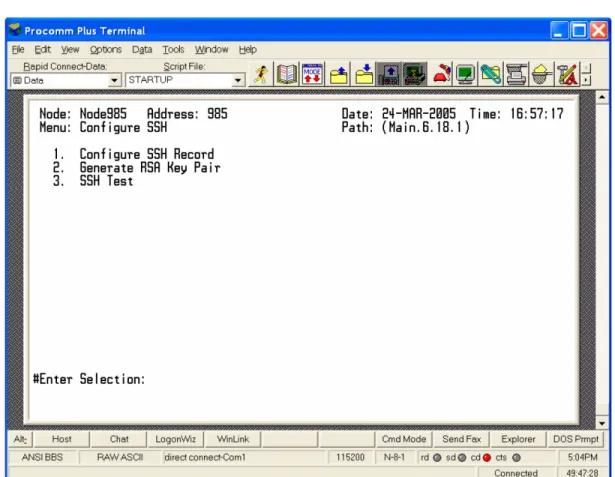
To configure a user name, password, and a client public key if necessary, follow these steps to access the Configure SSH Menu:
Figure 3. Configure SSH Menu
Online Help Entering a ? displays online Help for the current parameter option on the screen.
Step Process
1 Select Configure -> Configure Network Security -> Configure SSH from the CTP Main menu. The Configure SSH menu appears, similar to that shown in Figure 3 is displayed.
2 Select Configure SSH. The SSH Record configuration parameters appear in sequence.
Configuring SSH Server Configuration Record Parameters
Parameters The SSH Server Configuration Record contains these parameters.
Note
No boot is required to take effect configuration changes. SSH Server Enable/Disable:
SSH Authentication Method:
Range: Disabled,RSA Enabled,DSS Enabled
Default Disabled
Description Enable/Disable SSH Server.
Range: Password,Public Key
Default Password
Description SSH Authentication Methods. Multiple choices can be done like: Password+Public Key
Generating Server Key Pair
Introduction The Generate RSA Key generates a key pair for the server. You must generate a key pair at least once. Once the key pair is generated, you do not have to regenerate it unless it is required. The key size is by default 1,024 bits and is not configurable.
Note
Vanguard SSH supports RSA only.
Follow these steps...
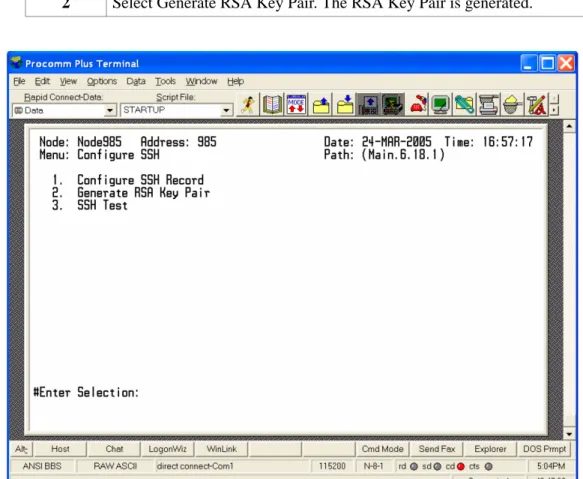
To generate a key pair, follow these steps to access Generate RSA Key Pair Menu:
Figure 4. Configure SSH Menu
Step Process
1 Select Configure -> Configure Network Security -> Configure SSH fro the CTP Main menu. The Configure SSH menu appears, similar to that shown in Figure 4 is displayed.
---Node: Node985 Address: 985 Date: 24-MAR-2005 Time: 18:05:39
Menu: Configure SSH Path: (Main.6.18.1) 1. Configure SSH Record
2. Generate RSA Key Pair 3. SSH Test
#Enter Selection: 2
Generate SSH Server RSA Key Pair
WARNING: If you proceed this could take several minutes to finish. No further notices will be made...Do you want to proceed? (y/n): y RSA key pair generation done.
The RSA Public Key:
AAAAB3NzaC1yc2EAAAADAQABAAAAgQCtCcE7QKGPBXKKBOLDIu+lTRi1Y8k8cTgAC LEb02bQnmZ05FNR4gDqkW+qEs1xrl6TtJyX3nu28LwP5O7VcrgWS5hDtad8nhMBuZ TTeizSjXbzhivPFckYyKVrdXlE4vQG9H+jW91pEbTYhYtHS+dT1c+8Z1Rx8muzQrq 6Frez7Q==
Press any key to continue ( ESC to exit ) ...
---
---Note
If the Soft Encryption module is installed, the following copyright message will be displayed as well as the information above:
Eric Young is a contributor to the soft encryption module. Copyright (C) 1995-1998 Eric Young ([email protected]) All rights reserved.
THIS SOFTWARE IS PROVIDED BY ERIC YOUNG ``AS IS'' AND ANY EXPRESS OR IMPLIED WARRANTIES, INCLUDING, BUT NOT LIMITED TO, THE IMPLIED WARRANTIES OF MERCHANTABILITY AND FITNESS FOR A PARTICULAR PURPOSE ARE DISCLAIMED. IN NO EVENT SHALL THE AUTHOR OR CONTRIBUTORS BE LIABLE FOR ANY DIRECT, INDIRECT, INCIDENTAL, SPECIAL, EXEMPLARY, OR CONSEQUENTIAL DAMAGES (INCLUDING, BUT NOT LIMITED TO, PROCURE-MENT OF SUBSTITUTE GOODS OR SERVICES; LOSS OF USE, DATA, OR PROF-ITS; OR BUSINESS INTERRUPTION) HOWEVER CAUSED AND ON ANY THEORY OF LIABILITY, WHETHER IN CONTRACT, STRICT LIABILITY, OR TORT (INCLUD-ING NEGLIGENCE OR OTHERWISE) ARIS(INCLUD-ING IN ANY WAY OUT OF THE USE OF THIS SOFTWARE, EVEN IF ADVISED OF THE POSSIBILITY OF SUCH DAMAGE.
Vanguard SSH Server Configuration Samples
Introduction This section shows two examples of how to configure Vanguard SSH Server.
Note
Type “atds” or “ATDS” to login. Do not use “atds0” or “ATDS0”.
Example 1: Password ONLY
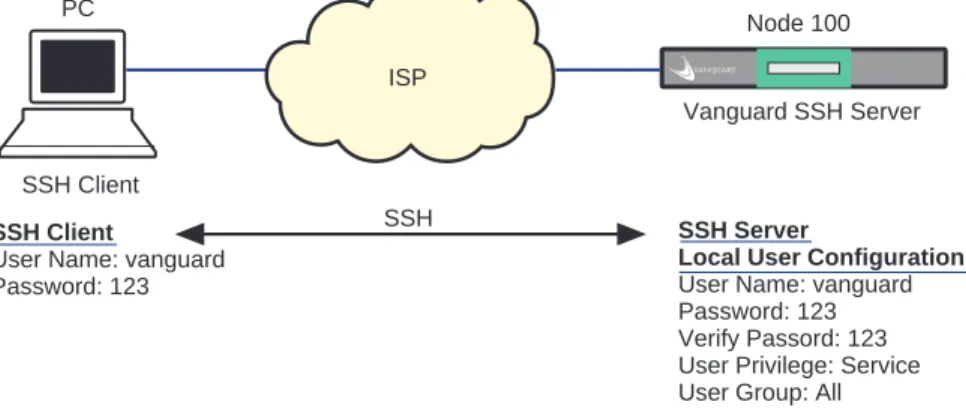
Figure 5 shows the SSH configuration for using the Password authentication method only.
Figure 5. Password Authentication Method Only
SSH Server
Local User Configuration User Name: vanguard Password: 123 Verify Passord: 123 User Privilege: Service User Group: All User Public Key: (blank) SSH Record Configuration
SSH Sever Enable/Disable: RSA Enabled SSH Authentication Method: Password SSH Client
User Name: vanguard Password: 123
ISP
Vanguard SSH Server SSH Client
PC
Node 100
Example 2:
Password + Public Key
Figure 6 shows the SSH configuration for using both the Password and Public Key authentication methods.
Figure 6. Password and Public Key Authentication Methods
Note
Make sure to copy the public key to User Public Key precisely. You MUST copy the public key LINE-BY-LINE, not including any spaces and new lines.
Note
When copying the public key generated by SSH Client’s Key Generator Wizard, you must copy the part of key in GREEN. No space or new line is included in the copied key.
SSH Server
Local User Configuration User Name: vanguard Password: 123 Verify Passord: 123 User Privilege: Service User Group: All User Public Key:
AAAAB3NzaC1yc2EAAAABJQA AAIBzcR5KLAsGvwpATzA6e24 CkEaaa5+zycGD2vY81P91C/ XBgsAqmbzNlyZkmrMxZy6Ryt7 Oeeow/a53BskzfNyG4GM4hy9f BmWeyRT6zGWKuZcIUZ/WK3 CCL9hv+fpthZ8ewOGFuhTFtaE xVMvXN1gs+O0S8Y5K9tk234iq aDe+xw==
SSH Record Configuration
SSH Sever Enable/Disable: RSA Enabled SSH Authentication Method:
Password+Public Key SSH Client
User Name: vanguard Passphrase: SSH123 Password: 123
Public Key Generated SSH Client Key Generator ssh-rsa AAAAB3NzaC1yc2EAAAABJQA AAIBzcR5KLAsGvwpATzA6e24 CkEaaa5+zycGD2vY81P91C/ XBgsAqmbzNlyZkmrMxZy6Ryt7 Oeeow/a53BskzfNyG4GM4hy9f BmWeyRT6zGWKuZcIUZ/WK3 CCL9hv+fpthZ8ewOGFuhTFtaE xVMvXN1gs+O0S8Y5K9tk234iq aDe+xw== rsa-key-20050217 ISP
Vanguard SSH Server
SSH Client PC
Node 100
SSH Server Statistics
Introduction This section describes how to view SSH Server statistics.
Follow these steps...
Type of Statistics
You can generate the following statistics:
• SSH Server RSA Public Key Statistics
Figure 7. SSH Statistics
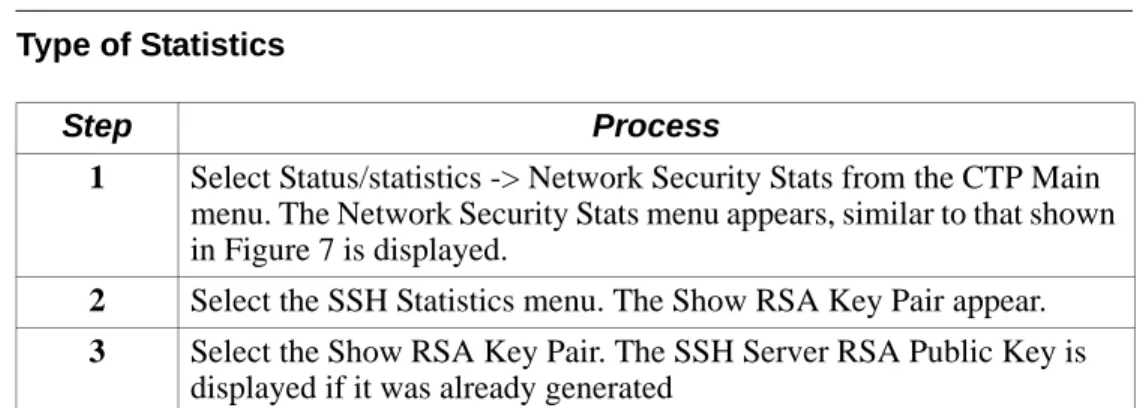
Step Process
1 Select Status/statistics -> Network Security Stats from the CTP Main menu. The Network Security Stats menu appears, similar to that shown in Figure 7 is displayed.
2 Select the SSH Statistics menu. The Show RSA Key Pair appear. 3 Select the Show RSA Key Pair. The SSH Server RSA Public Key is
displayed if it was already generated
Node: Address: Date: Time:
Menu: SSH StatisticsPath: (Main.6) 1. Show RSA Key Pair
What You See In This Screen
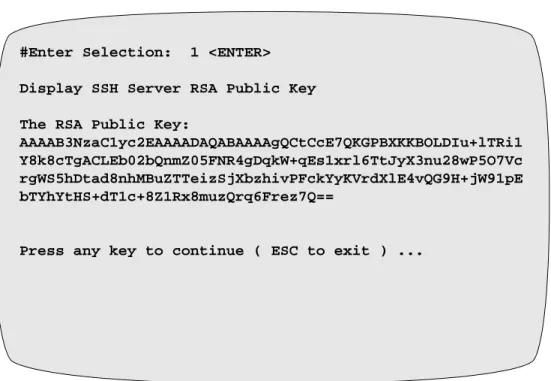
Figure 8. Example of RSA Key Pair Status
#Enter Selection: 1 <ENTER> Display SSH Server RSA Public Key The RSA Public Key:
AAAAB3NzaC1yc2EAAAADAQABAAAAgQCtCcE7QKGPBXKKBOLDIu+lTRi1 Y8k8cTgACLEb02bQnmZ05FNR4gDqkW+qEs1xrl6TtJyX3nu28wP5O7Vc rgWS5hDtad8nhMBuZTTeizSjXbzhivPFckYyKVrdXlE4vQG9H+jW91pE bTYhYtHS+dT1c+8Z1Rx8muzQrq6Frez7Q==
Managing SSH Server Configurations
Introduction This section describes routine configuration management tasks you can perform with SSH Server.
Tasks You can perform these tasks:
• Examine configurations • List configurations
• Delete Local User Configuration entries, SSH Server Record, and RSA Key Pair.
Examining Configurations
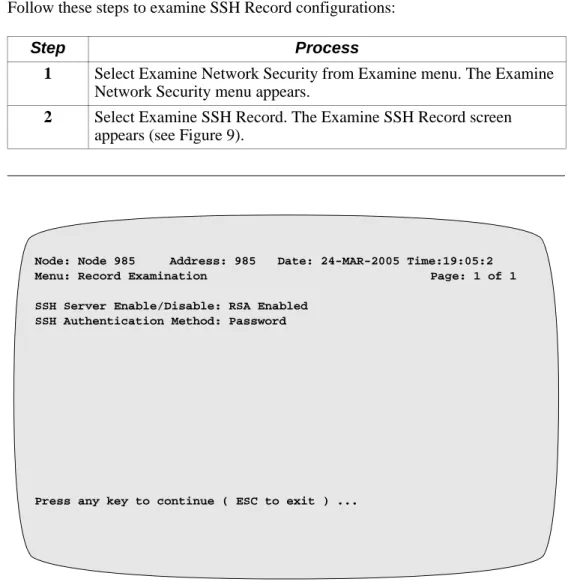
How to... Follow these steps to examine SSH Record configurations:
Example
Figure 9. Examine SSH Record Screen
Step Process
1 Select Examine Network Security from Examine menu. The Examine Network Security menu appears.
2 Select Examine SSH Record. The Examine SSH Record screen appears (see Figure 9).
Node: Node 985 Address: 985 Date: 24-MAR-2005 Time:19:05:2 Menu: Record Examination Page: 1 of 1 SSH Server Enable/Disable: RSA Enabled
SSH Authentication Method: Password
Listing Configurations
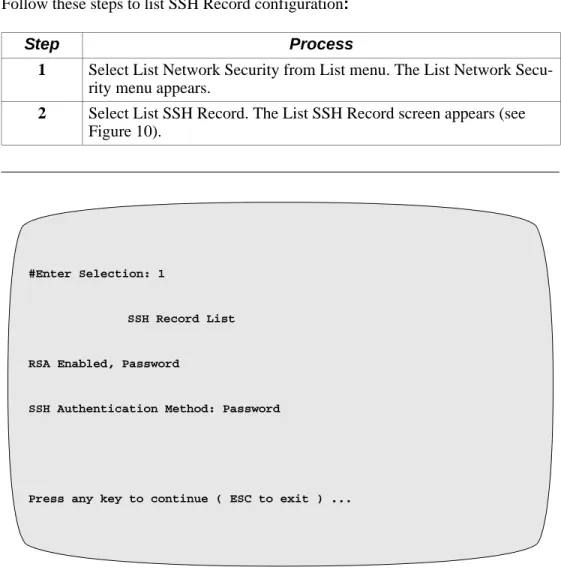
How to... Follow these steps to list SSH Record configuration:
Example
Figure 10. List SSH Record Screen
Step Process
1 Select List Network Security from List menu. The List Network Secu-rity menu appears.
2 Select List SSH Record. The List SSH Record screen appears (see Figure 10).
#Enter Selection: 1
SSH Record List RSA Enabled, Password
SSH Authentication Method: Password
Deleting Local User Configurations
Follow thesesteps...
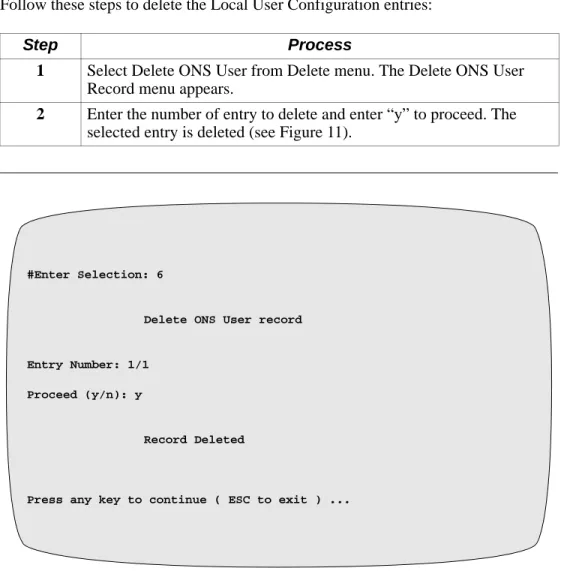
Follow these steps to delete the Local User Configuration entries:
Example
Figure 11. Delete ONS User Menu
Step Process
1 Select Delete ONS User from Delete menu. The Delete ONS User Record menu appears.
2 Enter the number of entry to delete and enter “y” to proceed. The selected entry is deleted (see Figure 11).
#Enter Selection: 6
Delete ONS User record Entry Number: 1/1
Proceed (y/n): y
Record Deleted
Deleting SSH Record Configuration
How to... Follow these steps to delete SSH Record Configuration:
Example
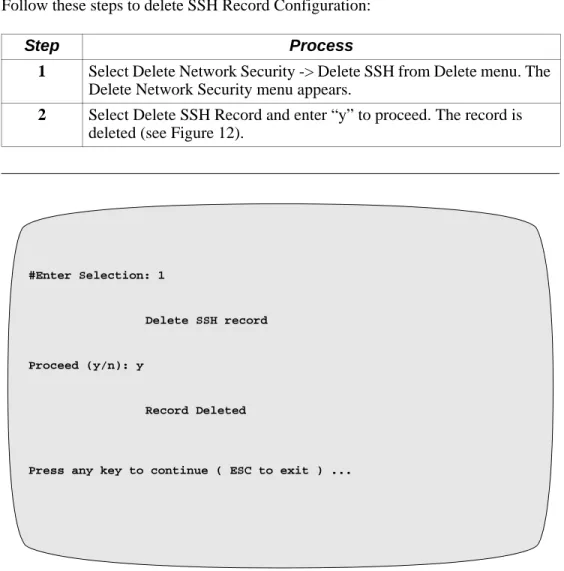
Figure 12. Delete SSH Record Menu
Step Process
1 Select Delete Network Security -> Delete SSH from Delete menu. The Delete Network Security menu appears.
2 Select Delete SSH Record and enter “y” to proceed. The record is deleted (see Figure 12).
#Enter Selection: 1
Delete SSH record Proceed (y/n): y
Record Deleted
How to... Follow these steps to delete the RSA Key Pair:
Example
Figure 13. Delete RSA Key Pair Screen
Step Process
1 Select Delete Network Security -> Delete SSH from Delete menu. The Delete Network Security menu appears.
2 Select Delete RSA Key Pair and enter “y” to proceed. The record is deleted (Figure 13)
#Enter Selection: 2
Delete SSH Server RSA Public Key
Are you sure you want to delete the RSA key pair? (y/n): y Record Deleted
SSH Server Configuration Samples
Overview
Introduction This appendix provides configuration samples for Vanguard SSH Server. For further details on the configuration parameters, please refer to “Configuring SSH Server Configuration Record.
Configuring SSH Server is very simple. And it is no need to boot configuration changes to take effect. Once those changes are saved, they will be activated. Below are the basic configuration samples for the Password only and Public Key authentication methods.
Note
The node needs an IP configuration for an SSH session. Make sure to configure the IP related parameters and boot the node to activate those configuration changes BEFORE you start configuring SSH related parameters.
Example 1: Password ONLY
The section below describes how to configure the SSH Server to use Password authentication method.
ONS User Configration [Main.8.6]
Local User Configuration:
Entry Number: 1/1
[1] User Name: (blank)/ leah1
[1] Password: ********/123
[1] Verify Password: ********/123
[1] User Privilege: Read-Only/Service
[1] User Group: All/
[1] User Public Key: (blank)/ Note
Leave User Public Key blank if SSH Authentication Method in SSH Record is set to Password ONLY.
Configure SSH Record
[Main.6.18.1]
Configure SSH Record:
SSH Server Enable/Disable: RSA Enabled
AAAAB3NzaC1yc2EAAAADAQABAAAAgQDK5cDsTucR1W8Q bdM1RuLdUHsAOt6b2dJV+DA3rcUiu1b8dQ0c8S/BDdDCrfJ9X/ gSTxxdCyfti7jA1K+8n7jnJM3cY9dDB1ZfBcSe5siB5p7sdkjfUVv hH7ZBebY0Y/glnhLmlQfB1QLlTxK84EqHdttF/C9Q/gcWjIoC/cgV/w==
Note
Make certain to generate RSA Key Pair. Without the RSA Public Key, the feature is disabled.
Example 2: Password + Public Key
This example shows how to configure SSH Server to use Password and Public Key at the same time.
ONS User Configuration [Main.8.6]
Local User Configuration:
Entry Number: 2/2
[2] User Name: (blank)/ leah2
[2] Password: ********/123
[2] Verify Password: ********/123
[2] User Privilege: Read-Only / Service
[2] User Group: All/
[2] User Public Key: (blank)/
AAAAB3NzaC1yc2EAAAABJQAAAIBzcR5KLAsGvwpATzA6e24CkEaaa5+zycGD2vY81P91C/ XBgsAqmbzNlyZkmrMxZy6Ryt7Oeeow/a53BskzfNyG4GM4hy9fBmWeyRT6zGWKuZcIUZ/ WK3CCL9hv+fpthZ8ewOGFuhTFtaExVMvXN1gs+O0S8Y5K9tk234iqaDe+xw==
Note
The copied alphanumeric characters in User Public Key must match to the key generated by SSH Client’s Key Generation Wizard EXACTLY. Make certain to copy the key LINE-BY-LINE to User Public Key parameter because the copied key must not include any space or new line.
Configure SSH Record
[Main.6.18.1}
Configure SSH Record:
SSH Server Enable/Disable: RSA Enabled
SSH Authentication Method: Password+Public Key
Note
The copied alphanumeric characters in User Public Key must match to the key generated by SSH Client’s Key Generation Wizard EXACTLY. Make certain to
AAAAB3NzaC1yc2EAAAADAQABAAAAgQDK5cDsTucR1W8QbdM 1RuLdUHsAOt6b2dJV+DA3rcUiu1b8dQ0c8S/BDdDCrfJ9X/
gSTxxdCyfti7jA1K+8n7jnJM3cY9dDB1ZfBcSe5siB5p7sd
kjfUVvhH7ZBebY0Y/glnhLmlQfB1QLlTxK84EqHdttF/C9Q/gcWjIoC/cgV/w==
Note
Make certain to generate RSA Key Pair. Without the RSA Public Key, the feature is disabled. However, it is not necessary to generate an RSA key every time when making configuration changes. The node uses the same generated key unless it is deleted from Delete Menu.
SSH Configuration Samples
Overview
Introduction This appendix provides configuration samples for SSH client applications such as PuTTY version 0.58 and SecureCRT version 5.0.4, showing the corresponding configuration parameters of Vanguard SSH Server.
As PuTTY and SecureCRT update their applications to fix their own known bugs on a regular basis, please make sure to read Vanguard Release Notice and their updates before using this feature. For further details on the SSH client applications, please refer to their user manuals.
PuTTY Configuration and Connection Examples
Introduction This section introduces two connection examples, using PuTTY version 0.58.
Example 1: Password ONLY
Figure 1 shows how to configure PuTTY to connect to Vanguard SSH Server with Password authentication method. For further details on PuTTY configurations, please refer to PuTTY’s user manual.
Figure B-1. PuTTY Configuration with Password Authentication Method
At prompt, enter User Name and Password configured in Local User Configuration. Example:
Login as: leah1<ENTER>
[email protected]’s password: 123<ENTER> OK
Enter IP addressed assigned to Vanguard SSH Server.
Select SSH.
Select “Open.” 1
2
Figure B-2. Vanguard Main Menu Screen
Example 2: Password + Public Key
Example 2 describes how to configure PuTTY to connect to Vanguard SSH Server with both Password and Public Key authentication methods at the same time. For further details on PuTTY configurations, please refer to PuTTY’s user manual.
Note
"OK" prompts might appear a couple of times. Please keep typing "atds" or “ATDS” until Main Menu appears.
puttygen.exe: Generate Public Key
To generate public and private keys with PuTTY Key Generator, run puttygen.exe and refer to the steps in Figure 3 and the procedures that follow.
Select Generate. 1
SSH Server Configuration: ONS User Configuration
Local User Configuration [Main.8.6]
Entry Number: 1/2
[2] User Name: (blank)/ leah2 [2] Password: ********/ABC [2] Verify Password: ********/ABC [2] User Privilege: Read-Only / Service [2] User Group: All/
[2] User Public Key: (blank)/
AAAAB3NzaC1yc2EAAAABJQAAAIEAwLQrvofAJWbASQ48KnjiN5t3pX6H I3wQQ1M4CTEMofZEW81c6yZT9fP5kBgRx2CAK1Ut/FWd7/OOkXxB4/ 8AYbkTJqywgYI5YlrRETsPUYg1wwf+AoA60h7sGcHHi4FznlQZ3rcsJk 69PEBB0sUnrZPl2QPKoxTvb+fkZZhCBxU=
Note
The copied alphanumeric characters in User Public Key must match to the key generated by SSH Client’s Key Generation Wizard EXACTLY. Make certain to copy the key LINE-BY-LINE to User Public Key parameter because the copied key must not include any space or new line.
SSH Server Configuration: SSH Record
SSH Record Configuration [Main.6.18.1]
SSH Server Enable/Disable: RSA Enabled/
SSH Authentication Method: Password/ Password +Public Key
SSH Server Configuration: Generate RSA Key Pair
Generate SSH Server RSA Key Pair [Main.6.18.2] The RSA Public Key:
AAAAB3NzaC1yc2EAAAADAQABAAAAgQDK5cDsTucR1W8Qb dM1RuLdUHsAOt6b2dJV+DA3rcUiu1b8dQ0c8S/BDdDCrfJ9X/ gSTxxdCyfti7jA1K+8n7jnJM3cY9dDB1ZfBcSe5siB5p7sdkjfUVvh H7ZBebY0Y/glnhLmlQfB1QLlTxK84EqHdttF/C9Q/gcWjIoC/cgV/ w== Note
Make certain to generate RSA Key Pair. Without the RSA Public Key, the feature is disabled. However, it is not necessary to generate an RSA key every time when making configuration changes. The node uses the same generated key unless it is deleted from Delete Menu.
PuTTY: Private Key To connect to a Vanguard SSH Server using PuTTY Private Key refer to the steps in Figure 4.
Select the private key saved for Private key file for authentication.
Enter an IP address to get access to Vanguard SSH Server via SSH.
Select “Open.” 1
2
Enter both User Name configured in Local User Configuration and Passphrase created when generating public and private keys with PuTTY Key Generator: puttygen.exe.
Note
You must enter the passphrase EXACTLY as the one created with PuTTY Key Generator.
Login as: leah2<ENTER>
Passphrase for key “rsa-key-20052017”: leah123 [email protected]’s password: ABC<ENTER> OK
Type “atds” or “ATDS”<ENTER> to login. Note
Do not type “atds0” or “ATDS0”.
Figure B-5. Vanguard Main Menu Screen
Note
SecureCRT Configuration and Connection Examples
Introduction This section introduces two connection examples using SecureCRT version 5.0.4.
Basic
Configuration
Figure 6 and the procedures that follow describle how to configure SecureCRT to connect to Vanguard SSH Server with the Password authentication method. For further details on SecureCRT configurations, please refer to SecureCRT’s user manual.
Select “New Session” and Select “Connect”.
Select “SSH2” and Select “Next”.
Type the IP address assigned to SSH Server and User Name configured in Local User Configuration in Username.
1
2
Type an arbitrary session name for the configuration.
Note
You must make changes to SSH configuration in Global Options.
Ensure that you DESELECT the following:
Add keys to agent Enable OpenSSH agent forwarding Enable deprecated GSSAPI 5
6
7 Select OK.
SSH2
SSH Server Configuration: ONS User Configuration
Entry Number: 1/2
[2] User Name: (blank)/ leah1 [2] Password: ********/abc [2] Verify Password: ********/abc [2] User Privilege: Read-Only / Service [2] User Group: All/
[2] User Public Key: (blank)/
SSH Server Configuration: SSH Record
SSH Record Configuration [Main.6.18.1]
SSH Server Enable/Disable: RSA Enabled/ SSH Authentication Method: Password/ Password
SSH Server Configuration: Generate RSA Key Pair
Generate SSH Server RSA Key Pair [Main.6.18.2] The RSA Public Key:
AAAAB3NzaC1yc2EAAAADAQABAAAAgQDK5cDsTucR1W8Qb dM1RuLdUHsAOt6b2dJV+DA3rcUiu1b8dQ0c8S/BDdDCrfJ9X/ gSTxxdCyfti7jA1K+8n7jnJM3cY9dDB1ZfBcSe5siB5p7sdkjfUVvh H7ZBebY0Y/glnhLmlQfB1QLlTxK84EqHdttF/C9Q/gcWjIoC/cgV/ w== Note
Make certain to generate RSA Key Pair. Without the RSA Public Key, the feature is disabled. However, it is not necessary to generate an RSA key every time when making configuration changes. The node uses the same generated key unless it is deleted from Delete Menu.
Example 1: Password ONLY
To connect to Vanguard SSH Server using Password Only refer to the steps in Figure 7.
Select “Connect”.
Type the password configured to User Name in Local User Configuration [main.8.6.] Example:
Username: leah1
Password: abc <ENTER>
Type “atds” or “ATDS” <ENTER> to login.
Note
Do not type “atds0” or “ATDS0”.
1
2
Example 2: Password + Public Key
The example below shows how to configure SecureCRT to connect to Vanguard SSH Server with Password and Public Key authentication methods. For further details on SecureCRT configurations, please refer to SecureCRT’s user manual.
To generate a Public Key using SecureCRT, refer to the steps in Figure 8.
Generate a Public Key:
Select Tools > Create Public Key… Select “Next”.
Select “RSA”.
Select “Next””. 1
2
3
Enter an arbitrary passphrase and click “Next”.
Example:
Passphrase: leah123
Keep on moving the mouse and once “Next” button is available to select, click “Next”.
Select “Next””. 6
5
Save the generated key and select “Finish”.
8
Select “Yes” when using Public Key. Otherwise, select “No”. It can be configured later as well in SSH2 of Global Options as shown below:
Figure B-8. SecureCRT Configuration with Public Key Authentication Method (Continued)
Public Key: Identity.pub
Open the file, Identity.pub, or xxxxx.pub saved with a different name. Copy the key line-by-line to User Public Key in Local User Configuration.
Select Options > Session Options. Make changes to Username to “leah3” which will be configured in Figure 10: User Name in Local User Configuration .
SSH Server Configuration: ONS User Configuration
Local User Configuration [Main.8.6]
Entry Number: 1/3
[3] User Name: (blank)/leah3
[3] Password: ********/abc [3] Verify Password: ********/abc [3] User Privilege: Service/
[3] User Group: All/
[3] User Public Key: (blank)/
AAAAB3NzaC1yc2EAAAADAQABAAAAgQDSTL9O2NZ4Ju+iVSOFxmc Bc5jeJjeyJ/QOJ5BFLeY+S4fip+bbF2gDWy3FrQpwjvVl1acbx0yFU1P/ eceghO7gJk8M16kim2cduG5NGwZSuLv8wm46SW+HVuLZOIpRcsXJU kauSGxn595ev6lyter51WAaNyT/ZfLFUrghbwvwIQ==
Note
The copied alphanumeric characters in User Public Key must match to the key generated by Key Generation Wizard, not missing even a single character.
To connect to a Vanguard SSH Server with Password and Public Key authentication methods, refer to the steps in Figure 10.
Figure B-10. Connecting to a Vanguard SSH Server with SecureCRT
Select “Connect”.
Type Password configured in Local User Configuration. Example:
Password: abc <ENTER>
Type “atds” or “ATDS” and press ENTER to login.
Note
Do not type “atds0” or “ATDS0”.
1
2
3
4
Type Passphrase configured in SecureCRT when generating the public key in Figure 8.
Example:
Numerics
3DES-CBC encryption 1-3
B
Blank name users 1-6
C
Choice of the hash algorithm 1-2
Choice of the message authentication algorithm 1-2
Choice of the public key algorithm 1-2
Choice of the symmetric encryption algorithm 1-2
Configuration and Connection Examples PuTTY B-2
SecureCRT B-8
Configuration Samples SSH B-1
Configure SSH Menu 1-9, 1-11
Configuring ONS User Configuration 1-6
Configuring SSH Client Configuration Parameters 1-7
Configuring SSH Server Configuration Record 1-9
Configuring SSH Server Configuration Record Parameters 1-10
D
Data compression 1-3
Delete Local User Configuration entries 1-17
Delete ONS User Menu 1-20
Delete RSA Key Pair 1-17
Delete RSA Key Pair Screen 1-22
Delete SSH Record Menu 1-21
Delete SSH Server Record 1-17
Deleting Local User Configurations 1-20
Deleting RSA Key Pair 1-22
Deleting SSH Record Configuration 1-21
Diffie-Hellman-Group Exchange-SHA1 key ex-change method 1-3
Diffie-Hellman-Group1-SHA1 key exchange method 1-3
DNS spoofing 1-1
E
G
Generating Server Key Pair 1-11
H
HMAC-MD5 data integrity 1-3
HMAC-SHA1 data integrity 1-3
I
IP source routing 1-1
IP spoofing 1-1
K
Key exchange 1-2
L
List configurations 1-17
List SSH Record Screen 1-19
Listing Configurations 1-19
M
Managing SSH Server Configurations 1-17
N
Network Security Stats 1-15
O
Online Help 1-6
P
Password and Public Key Authentication Methods 1-14
Password Authentication Method Only 1-13
PuTTY Configuration and Connection Examples B-2
R
rlogin replacement by SSH 1-1
Server Configuration Samples SSH A-1
SSH Configuration Samples B-1
SSH Connection Protocol 1-1
SSH CTP access only 1-2
SSH Server Configuraton Samples A-1
SSH Server Statistics 1-15
SSH Transport Layer Protocol 1-1
SSH User Authentication Protocol 1-1
SSH2 Protocol Support 1-1
SSH-RSA public key algorithm 1-3
Symmetric Cipher 1-2
T
TCP port defined 1-2
Typical SSH Application 1-1
U
Update System Parameters Menu 1-6
V
Vanguard SSH Server Configuration Samples 1-13