Enterprise Knowledge Platform 5.6
eCommerce Setup Guide
Document Information
Document ID: EN560
Document title: EKP 5.6 eCommerce Setup Guide Version: 1.1
Document date: 15 April 2009
This document may be revised from time to time. Please check NetDimensions Support site at www.netdimensions.com/support for updates to this and other documents or send an e-mail to [email protected] to request the most recent version.
Please report any errors or feedback with this document by sending an e-mail to [email protected].
Copyright Information
Copyright 2000-2009 by NetDimensions Ltd. All Rights Reserved.
Information in this document is subject to change without notice. The software described herein is furnished under a license agreement, and it may be copied only in accordance with the terms of that agreement. No part of this publication may be reproduced, transmitted, or translated in any form or by any means without the prior written permission of NetDimensions Ltd.
All company and product names used herein may be trademarks or registered trademarks of their respective companies unless stated otherwise.
How to Contact NetDimensions Support
+852 2122 4588 1 866 206 6698 US toll-free number +852 2122 4588 [email protected] www.netdimensions.com/support
General Enquiries
+852 2122 4500 +852 2122 4588 [email protected] www.netdimensions.comTable of Contents
Description ...1
About This Guide ... 1
If You Need Help ... 1
Prerequisites ...2
1. Setup Payment Gateway ... 2
2. Enable Online Payment ... 2
Setup...3
1. Catalog Configuration ... 3
2. Look and Feel ... 5
ECommerce Top ... 6
Catalog View ... 7
eCommerce Login Page ... 8
Payment Page ... 9
3. eCommerce Site Access ... 10
User View ... 11
Description
About This Guide
This guide will lead you through the steps of setting up an eCommerce site with EKP. With the setup, both EKP users/non-EKP users can browse and shop for courses within available catalogs before login. Once they are ready for checkout, they will then login to EKP (or register for an account through self-registration) to proceed for payment process.
In order to facilitate an efficient eCommerce site, the following capabilities have been added:
• Catalog permission setting for users who have not logged in
- Administrators can now control what is being seen by outsiders, therefore, administrators can keep “members-only” catalogs private from the outside world
• Search catalogs without logging in
- Search is a helpful function for users to look up for courses. For users who have not logged in, they will only get search result from limited catalogs (catalogs that are configured for users without logging in).
• View shopping cart before login
- Users can now review their selected shopping items before logging in/ registering for an account and before proceeding to the payment process.
Enhancements include:
• Simpler, cleaner navigation and checkout screens for end users
• Course searching and flexibility in defining the appearance of catalog content to the user, leveraging the ability released in EKP 5.5. to designate different display formats for catalogs.
• Simplified workflow
If You Need Help
If you cannot resolve a configuration problem using this guide or the online help, or if you should have any queries related to the technology employed within EKP, your first line of contact should be as described in your Technical Support Contract.
For other queries, or if you are not sure whom to contact, NetDimensions Ltd. may be contacted at [email protected]. Please also refer to the support section of the NetDimensions web site at www.netdimensions.com for the latest information regarding various services.
2
Prerequisites
1.
Setup Payment Gateway
To setup an ECommerce site, a payment gateway must be configured for the system. (Please note that a proper EKP license is required in order to configure a payment gateway adapter in EKP.) Here is a list of available payment gateways that are already integrated with EKP*:
• Paymentech by Chase
• PayflowPro by PayPal
• PayDollar by AsiaPay
Depending on the payment gateway, there are different settings for each gateway, please refer to the EKP WIKI for more details.
2.
Enable Online Payment
The option, Enable online payment, must be enabled in System Configuration.
Figure 1: System configuration to enable Online Payment
(If the license does not allow payment gateway integration, the checkbox will be disabled and thus online payment cannot be enabled.)
*
If there are other payment gateways that you would like EKP to integrate with, you are always welcome to contact us for details.
Setup
1.
Catalog Configuration
To start, an administrator has to configure catalog properties so that course content is available for users to view before logging into the system. This setting is independent of the regular permission settings of a catalog, since users who have not logged in are not identifiable, therefore regular permission settings will not work for them.
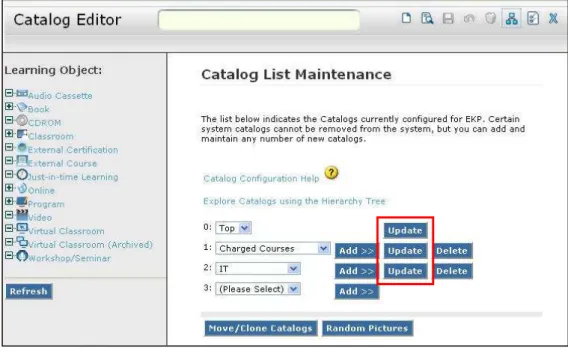
From the top menu of Catalog Editor, you can access the Catalog List Maintenance.
Figure 2: Icon to Access Catalog List Maintenance
From there, you can pick a catalog and update its properties.
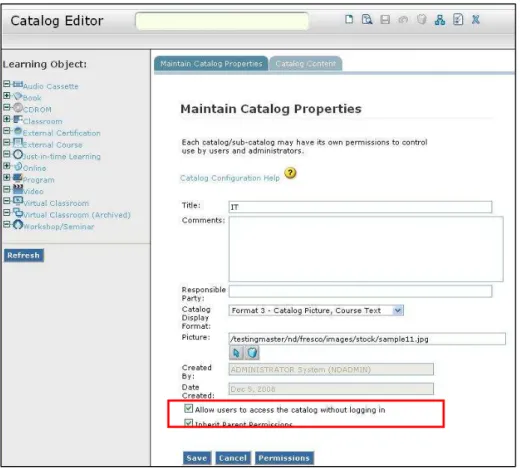
4 An “Allow users to access the catalog without logging in” indicator is provided as a configuration option for Catalog Properties. Checking the property will allow courses within the catalog to be viewable by users who have not logged in. In order for users to navigate down to a specific sub-catalog . (If it is configured to be viewable by outsiders) its direct parent hierarchy will be viewable as well.
For example, for the following catalog structure:
Figure 4: Sample Catalog Structure
If Catalog C1 is configured to be accessible without logging in, both Catalog A and Catalog B1 will be accessible as well.
2.
Look and Feel
The overall layout and design of this eCommerce layout is very flexible to manage; administrators can customize several parts of the site, so that a unique looking EKP eCommerce site can be created.
Figure 6 : General View of the eCommerce Site
6 Let’s look at the components one by one:
ECommerce Top
The top frame of the eCommerce site is basically a wm file (eCommerceOLTop.wm) where the contents of the file is HTML along with some placeholders for dynamic content that use the Velocity Template Language (VTL).
First of all, the original wm file can be used as a reference for customization. It can be extracted from the file WEB-INF/lib/ekp.jar using a zip utility. It is located at the directory
com/netdimension/tx/eCommerce within the ekp.jar. After modifying the page, the customized eCommerceOLTop.wm file will be placed in the WEB-INF/conf directory.
Resource file like pictures and other support files (e.g. html help file, user agreement file) can be placed in the following directories:
- Images: /images/eCommerce
- Other support files: /nd/fresco/eCommerce
Figure 8 : Sample ECommerce Top
Figure 8 is an example of the default ECommerce Top displayed content. There are several quick links and these links can be connected using the following transaction code:
- Login: ECOMMERCELOGIN - Catalog: STRUCTUREDCATALOG - Shopping Cart: EDITSHOPPINGCART
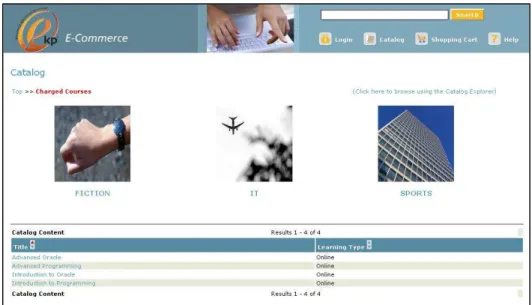
Catalog View
Figure 9: Catalog View from an eCommerce Site
The presentation style of a catalog and its content is actually one of the properties of the catalog, and this can be configured in Catalog Editor.
Figure 10: Catalog Display Format selection
Administrators can pick the most suitable display format for each catalog that fit their eCommerce sites the best.
8
eCommerce Login Page
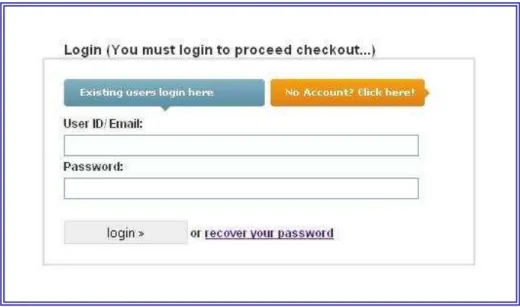
Figure 11: Sample eCommerce Login Form
The eCommerce login page is also a wm file (eCommerceLogin.wm), which can be customized easily by editing the HTML. The original wm file can be found within WEB-INF/lib/ekp.jar at location com/netdimension/tx/eCommerce. After editing the file, the customized eCommerceLogin.wm file should be placed in the WEB-INF/conf directory.
For any resource files that are required, like pictures and information pages, place them in the following directories (same as ‘ECommerce Top’ mentioned in previous sections):
- Images: /images/eCommerce
- Other support files: /nd/fresco/eCommerce
There is a major element that is required for the eCommerce login form, <INPUT type="hidden" name="isECommerce" value="true">. This hidden field will let the system knows that the login is from the eCommerce site, so that the system will perform eCommerce related logic for the login (For example, go back to the eCommerce login page instead of the regular EKP login page when the login fails).
Also, there are other elements that are required for the eCommerce login form to work (same as the regular EKP login form), for example, <INPUT type="text" name="UID"> for User IDand <INPUT type="password" name="PWD"> for Password. Please refer to the document EN199 – “Adding the Login Form to Any Web Page” for details.
Payment Page
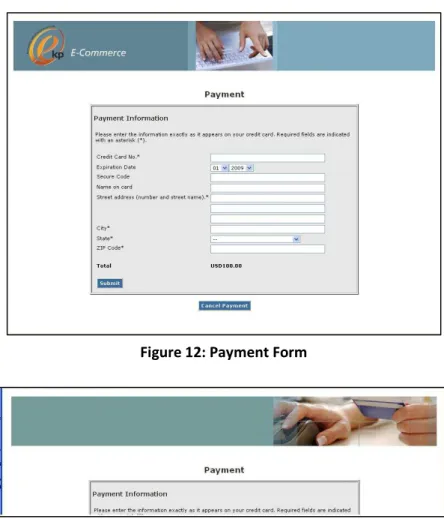
Figure 12: Payment Form
Figure 13: Payment Form with Default Banner
The banner for the Payment page is usually skin-dependent. If no banner is configured for the skin (thus, no ecommerceheaderbg.jpg is defined in the directory
nd/fresco/styles/skin_name/images/decorate), the default banner will be picked up (Figure 13). In order to make the whole eCommerce site more consistent, you can make use of the background of the ECommerce Top and use it as the default banner of the Payment page (Figure 12).
This can be done by making a copy of the background picture and renaming the file to
10
3. eCommerce Site Access
The eCommerce site can be accessed using the transaction code PUBLICCATALOGTX. If the eCommerce site is designed to be the default page of your EKP, you can change the default static index.html so that http://hostname will take users to the eCommerce site directly instead of the regular login page.
Here is the sample code of the index.html: <html>
<head>
<meta http-equiv="Refresh" content="0;
URL=servlet/ekp/PUBLICCATALOGTX" />
<title>Welcome to The Enterprise Knowledge Platform</title> </head>
User View
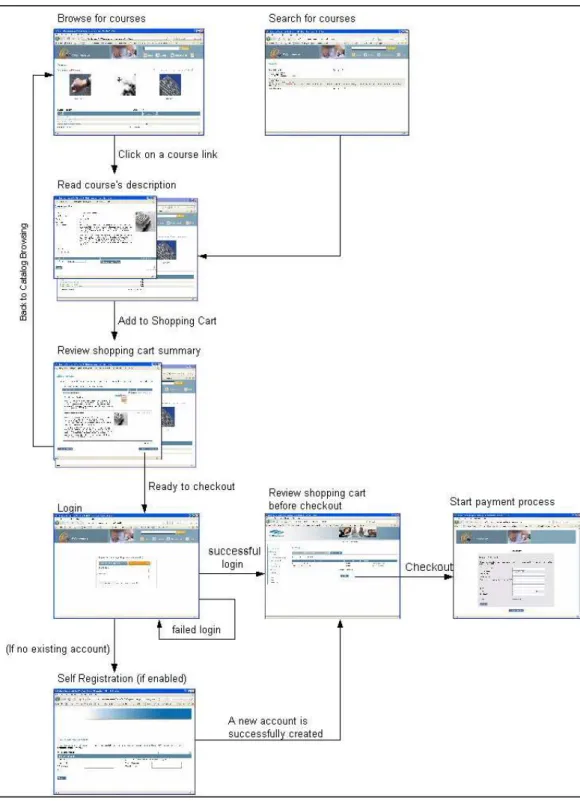
The following is the user experience workflow for the eCommerce site.
12
Appendix:
Major Placeholders in wm Files
$info.getContextPrefix() - context path for the application, for example, http://host/contextPath/index.html.
The following is the sample code to add an image to a wm file:
<img src="/$info.getContextPrefix()/images/eCommerce/hd-self-register.gif" alt="Self Register">
And the following is the sample code to link to a transaction:
<a href=/$info.getContextPrefix()/servlet/ekp/ECOMMERCELOGIN target='fresco_main'>Login</a>
____________________________________________________________________
(Only eCommerceLogin.wm file can use the following placeholders)
$target – target page to forward after a successful login.
The following code should be added to the opening <form> tag of the eCommerce login form (inside eCommerceLogin.wm):
#if ($target != "")
<input type="hidden" name="target" value="$target" /> #end
If the above code is missing from the eCommerce login page, EKP will always redirect user to the default start page after logging in.
For the eCommerce site, the default target page after login is the Shopping Cart page. The purpose of it is to allow users to have a final review of the shopping cart before checking out (Users might get discount after logging in depends on their payment plan setup).
$selfRegistrationEnabled – a flag to tell if Self Registration is enabled in System Configuration. Some clients might not allow self-registration on their site