vSphere Availability
ESXi 6.0
vCenter Server 6.0
This document supports the version of each product listed and
supports all subsequent versions until the document is
replaced by a new edition. To check for more recent editions
of this document, see http://www.vmware.com/support/pubs.
You can find the most up-to-date technical documentation on the VMware Web site at: http://www.vmware.com/support/
The VMware Web site also provides the latest product updates.
If you have comments about this documentation, submit your feedback to: [email protected]
Copyright © 2009–2015 VMware, Inc. All rights reserved. Copyright and trademark information.
VMware, Inc.
3401 Hillview Ave. Palo Alto, CA 94304 www.vmware.com
About vSphere Availability 5
Updated Information 7
1
Business Continuity and Minimizing Downtime 9
Reducing Planned Downtime 9 Preventing Unplanned Downtime 10
vSphere HA Provides Rapid Recovery from Outages 10 vSphere Fault Tolerance Provides Continuous Availability 11
2
Creating and Using vSphere HA Clusters 13
How vSphere HA Works 13 vSphere HA Admission Control 22 vSphere HA Interoperability 28
Creating and Configuring a vSphere HA Cluster 31 Best Practices for vSphere HA Clusters 39
3
Providing Fault Tolerance for Virtual Machines 45
How Fault Tolerance Works 45 Fault Tolerance Use Cases 46
Fault Tolerance Requirements, Limits, and Licensing 46 Fault Tolerance Interoperability 47
Preparing Your Cluster and Hosts for Fault Tolerance 49 Using Fault Tolerance 51
Best Practices for Fault Tolerance 55 Legacy Fault Tolerance 57
vSphere Availability describes solutions that provide business continuity, including how to establish vSphere® High Availability (HA) and vSphere Fault Tolerance.
Intended Audience
This information is for anyone who wants to provide business continuity through the vSphere HA and Fault Tolerance solutions. The information in this book is for experienced Windows or Linux system
This vSphere Availability publication is updated with each release of the product or when necessary. This table provides the update history of the vSphere Availability publication.
Revision Description
001435-01 n Minor revisions.
n Added note about FT support for disk-only snapshots created for vStorage APIs - Data Protection (VADP) backups. See “vSphere Features Not Supported with Fault Tolerance,” on page 47. 001435-00 Initial release.
Business Continuity and Minimizing
Downtime
1
Downtime, whether planned or unplanned, brings with it considerable costs. However, solutions to ensure higher levels of availability have traditionally been costly, hard to implement, and difficult to manage. VMware software makes it simpler and less expensive to provide higher levels of availability for important applications. With vSphere, organizations can easily increase the baseline level of availability provided for all applications as well as provide higher levels of availability more easily and cost effectively. With vSphere, you can:
n Provide higher availability independent of hardware, operating system, and applications. n Reduce planned downtime for common maintenance operations.
n Provide automatic recovery in cases of failure.
vSphere makes it possible to reduce planned downtime, prevent unplanned downtime, and recover rapidly from outages.
This chapter includes the following topics:
n “Reducing Planned Downtime,” on page 9 n “Preventing Unplanned Downtime,” on page 10
n “vSphere HA Provides Rapid Recovery from Outages,” on page 10 n “vSphere Fault Tolerance Provides Continuous Availability,” on page 11
Reducing Planned Downtime
Planned downtime typically accounts for over 80% of data center downtime. Hardware maintenance, server migration, and firmware updates all require downtime for physical servers. To minimize the impact of this downtime, organizations are forced to delay maintenance until inconvenient and difficult-to-schedule downtime windows.
vSphere makes it possible for organizations to dramatically reduce planned downtime. Because workloads in a vSphere environment can be dynamically moved to different physical servers without downtime or service interruption, server maintenance can be performed without requiring application and service downtime. With vSphere, organizations can:
n Eliminate downtime for common maintenance operations. n Eliminate planned maintenance windows.
The vSphere vMotion® and Storage vMotion functionality in vSphere makes it possible for organizations to reduce planned downtime because workloads in a VMware environment can be dynamically moved to different physical servers or to different underlying storage without service interruption. Administrators can perform faster and completely transparent maintenance operations, without being forced to schedule inconvenient maintenance windows.
Preventing Unplanned Downtime
While an ESXi host provides a robust platform for running applications, an organization must also protect itself from unplanned downtime caused from hardware or application failures. vSphere builds important capabilities into data center infrastructure that can help you prevent unplanned downtime.
These vSphere capabilities are part of virtual infrastructure and are transparent to the operating system and applications running in virtual machines. These features can be configured and utilized by all the virtual machines on a physical system, reducing the cost and complexity of providing higher availability. Key availability capabilities are built into vSphere:
n Shared storage. Eliminate single points of failure by storing virtual machine files on shared storage,
such as Fibre Channel or iSCSI SAN, or NAS. The use of SAN mirroring and replication features can be used to keep updated copies of virtual disk at disaster recovery sites.
n Network interface teaming. Provide tolerance of individual network card failures. n Storage multipathing. Tolerate storage path failures.
In addition to these capabilities, the vSphere HA and Fault Tolerance features can minimize or eliminate unplanned downtime by providing rapid recovery from outages and continuous availability, respectively.
vSphere HA Provides Rapid Recovery from Outages
vSphere HA leverages multiple ESXi hosts configured as a cluster to provide rapid recovery from outages and cost-effective high availability for applications running in virtual machines.
vSphere HA protects application availability in the following ways:
n It protects against a server failure by restarting the virtual machines on other hosts within the cluster. n It protects against application failure by continuously monitoring a virtual machine and resetting it in
the event that a failure is detected.
n It protects against datastore accessibility failures by restarting affected virtual machines on other hosts
which still have access to their datastores.
n It protects virtual machines against network isolation by restarting them if their host becomes isolated
on the management or Virtual SAN network. This protection is provided even if the network has become partitioned.
Unlike other clustering solutions, vSphere HA provides the infrastructure to protect all workloads with the infrastructure:
n You do not need to install special software within the application or virtual machine. All workloads are
protected by vSphere HA. After vSphere HA is configured, no actions are required to protect new virtual machines. They are automatically protected.
n You can combine vSphere HA with vSphere Distributed Resource Scheduler (DRS) to protect against
vSphere HA has several advantages over traditional failover solutions:
Minimal setup After a vSphere HA cluster is set up, all virtual machines in the cluster get failover support without additional configuration.
Reduced hardware cost and setup
The virtual machine acts as a portable container for the applications and it can be moved among hosts. Administrators avoid duplicate configurations on multiple machines. When you use vSphere HA, you must have sufficient resources to fail over the number of hosts you want to protect with vSphere HA. However, the vCenter Server system automatically manages resources and configures clusters.
Increased application availability
Any application running inside a virtual machine has access to increased availability. Because the virtual machine can recover from hardware failure, all applications that start at boot have increased availability without increased computing needs, even if the application is not itself a clustered application. By monitoring and responding to VMware Tools heartbeats and restarting nonresponsive virtual machines, it protects against guest operating system crashes.
DRS and vMotion integration
If a host fails and virtual machines are restarted on other hosts, DRS can provide migration recommendations or migrate virtual machines for balanced resource allocation. If one or both of the source and destination hosts of a migration fail, vSphere HA can help recover from that failure.
vSphere Fault Tolerance Provides Continuous Availability
vSphere HA provides a base level of protection for your virtual machines by restarting virtual machines in the event of a host failure. vSphere Fault Tolerance provides a higher level of availability, allowing users to protect any virtual machine from a host failure with no loss of data, transactions, or connections.
Fault Tolerance provides continuous availability by ensuring that the states of the Primary and Secondary VMs are identical at any point in the instruction execution of the virtual machine.
If either the host running the Primary VM or the host running the Secondary VM fails, an immediate and transparent failover occurs. The functioning ESXi host seamlessly becomes the Primary VM host without losing network connections or in-progress transactions. With transparent failover, there is no data loss and network connections are maintained. After a transparent failover occurs, a new Secondary VM is respawned and redundancy is re-established. The entire process is transparent and fully automated and occurs even if vCenter Server is unavailable.
Creating and Using vSphere HA
Clusters
2
vSphere HA clusters enable a collection of ESXi hosts to work together so that, as a group, they provide higher levels of availability for virtual machines than each ESXi host can provide individually. When you plan the creation and usage of a new vSphere HA cluster, the options you select affect the way that cluster responds to failures of hosts or virtual machines.
Before you create a vSphere HA cluster, you should know how vSphere HA identifies host failures and isolation and how it responds to these situations. You also should know how admission control works so that you can choose the policy that fits your failover needs. After you establish a cluster, you can customize its behavior with advanced options and optimize its performance by following recommended best practices. NOTE You might get an error message when you try to use vSphere HA. For information about error
messages related to vSphere HA, see the VMware knowledge base article at http://kb.vmware.com/kb/1033634.
This chapter includes the following topics:
n “How vSphere HA Works,” on page 13 n “vSphere HA Admission Control,” on page 22 n “vSphere HA Interoperability,” on page 28
n “Creating and Configuring a vSphere HA Cluster,” on page 31 n “Best Practices for vSphere HA Clusters,” on page 39
How vSphere HA Works
vSphere HA provides high availability for virtual machines by pooling the virtual machines and the hosts they reside on into a cluster. Hosts in the cluster are monitored and in the event of a failure, the virtual machines on a failed host are restarted on alternate hosts.
When you create a vSphere HA cluster, a single host is automatically elected as the master host. The master host communicates with vCenter Server and monitors the state of all protected virtual machines and of the slave hosts. Different types of host failures are possible, and the master host must detect and appropriately deal with the failure. The master host must distinguish between a failed host and one that is in a network partition or that has become network isolated. The master host uses network and datastore heartbeating to determine the type of failure.
Master and Slave Hosts
When you add a host to a vSphere HA cluster, an agent is uploaded to the host and configured to
communicate with other agents in the cluster. Each host in the cluster functions as a master host or a slave host.
When vSphere HA is enabled for a cluster, all active hosts (those not in standby or maintenance mode, or not disconnected) participate in an election to choose the cluster's master host. The host that mounts the greatest number of datastores has an advantage in the election. Only one master host typically exists per cluster and all other hosts are slave hosts. If the master host fails, is shut down or put in standby mode, or is removed from the cluster a new election is held.
The master host in a cluster has a number of responsibilities:
n Monitoring the state of slave hosts. If a slave host fails or becomes unreachable, the master host
identifies which virtual machines need to be restarted.
n Monitoring the power state of all protected virtual machines. If one virtual machine fails, the master
host ensures that it is restarted. Using a local placement engine, the master host also determines where the restart should be done.
n Managing the lists of cluster hosts and protected virtual machines.
n Acting as vCenter Server management interface to the cluster and reporting the cluster health state.
The slave hosts primarily contribute to the cluster by running virtual machines locally, monitoring their runtime states, and reporting state updates to the master host. A master host can also run and monitor virtual machines. Both slave hosts and master hosts implement the VM and Application Monitoring features.
One of the functions performed by the master host is to orchestrate restarts of protected virtual machines. A virtual machine is protected by a master host after vCenter Server observes that the virtual machine's power state has changed from powered off to powered on in response to a user action. The master host persists the list of protected virtual machines in the cluster's datastores. A newly elected master host uses this
information to determine which virtual machines to protect.
NOTE If you disconnect a host from a cluster, all of the virtual machines registered to that host are
unprotected by vSphere HA.
Host Failure Types and Detection
The master host of a vSphere HA cluster is responsible for detecting the failure of slave hosts. Depending on the type of failure detected, the virtual machines running on the hosts might need to be failed over.
In a vSphere HA cluster, three types of host failure are detected:
n Failure- A host stops functioning.
n Isolation- A host becomes network isolated.
n Partition- A host loses network connectivity with the master host.
The master host monitors the liveness of the slave hosts in the cluster. This communication is done through the exchange of network heartbeats every second. When the master host stops receiving these heartbeats from a slave host, it checks for host liveness before declaring the host to have failed. The liveness check that the master host performs is to determine whether the slave host is exchanging heartbeats with one of the datastores. See “Datastore Heartbeating,” on page 21. Also, the master host checks whether the host responds to ICMP pings sent to its management IP addresses.
If a master host is unable to communicate directly with the agent on a slave host, the slave host does not respond to ICMP pings, and the agent is not issuing heartbeats it is considered to have failed. The host's virtual machines are restarted on alternate hosts. If such a slave host is exchanging heartbeats with a datastore, the master host assumes that it is in a network partition or network isolated and so continues to monitor the host and its virtual machines. See “Network Partitions,” on page 20.
Host network isolation occurs when a host is still running, but it can no longer observe traffic from vSphere HA agents on the management network. If a host stops observing this traffic, it attempts to ping the cluster isolation addresses. If this also fails, the host declares itself as isolated from the network.
The master host monitors the virtual machines that are running on an isolated host and if it observes that they power off, and the master host is responsible for the virtual machines, it restarts them.
NOTE If you ensure that the network infrastructure is sufficiently redundant and that at least one network
path is available at all times, host network isolation should be a rare occurrence.
Determining Responses to Host Issues
If a host fails and its virtual machines must be restarted, you can control the order in which the virtual machines are restarted with the VM restart priority setting. You can also configure how vSphere HA responds if hosts lose management network connectivity with other hosts by using the host isolation response setting. Other factors are also considered when vSphere HA restarts a virtual machine after a failure.
The following settings apply to all virtual machines in the cluster in the case of a host failure or isolation. You can also configure exceptions for specific virtual machines. See “Customize an Individual Virtual Machine,” on page 39.
VM Restart Priority
VM restart priority determines the relative order in which virtual machines are allocated resources after a host failure. Such virtual machines are assigned to hosts with unreserved capacity, with the highest priority virtual machines placed first and continuing to those with lower priority until all virtual machines have been placed or no more cluster capacity is available to meet the reservations or memory overhead of the virtual machines. A host then restarts the virtual machines assigned to it in priority order. If there are insufficient resources, vSphere HA waits for more unreserved capacity to become available, for example, due to a host coming back online, and then retries the placement of these virtual machines. To reduce the chance of this situation occurring, configure vSphere HA admission control to reserve more resources for failures. Admission control allows you to control the amount of cluster capacity that is reserved by virtual machines, which is unavailable to meet the reservations and memory overhead of other virtual machines if there is a failure.
The values for this setting are Disabled, Low, Medium (the default), and High. The Disabled setting is ignored by the vSphere HA VM/Application monitoring feature because this feature protects virtual machines against operating system-level failures and not virtual machine failures. When an operating system-level failure occurs, the operating system is rebooted by vSphere HA, and the virtual machine is left running on the same host. You can change this setting for individual virtual machines.
NOTE A virtual machine reset causes a hard reboot of the guest operating system, but does not power cycle
the virtual machine.
The restart priority settings for virtual machines vary depending on user needs. Assign higher restart priority to the virtual machines that provide the most important services.
For example, in the case of a multitier application, you might rank assignments according to functions hosted on the virtual machines.
n Medium. Application servers that consume data in the database and provide results on web pages. n Low. Web servers that receive user requests, pass queries to application servers, and return results to
users.
If a host fails, vSphere HA attempts to register to an active host the affected virtual machines that were powered on and have a restart priority setting of Disabled, or that were powered off.
Host Isolation Response
Host isolation response determines what happens when a host in a vSphere HA cluster loses its
management network connections, but continues to run. You can use the isolation response to have vSphere HA power off virtual machines that are running on an isolated host and restart them on a nonisolated host. Host isolation responses require that Host Monitoring Status is enabled. If Host Monitoring Status is disabled, host isolation responses are also suspended. A host determines that it is isolated when it is unable to communicate with the agents running on the other hosts, and it is unable to ping its isolation addresses. The host then executes its isolation response. The responses are Power off and restart VMs or Shutdown and restart VMs. You can customize this property for individual virtual machines.
NOTE If a virtual machine has a restart priority setting of Disabled, no host isolation response is made.
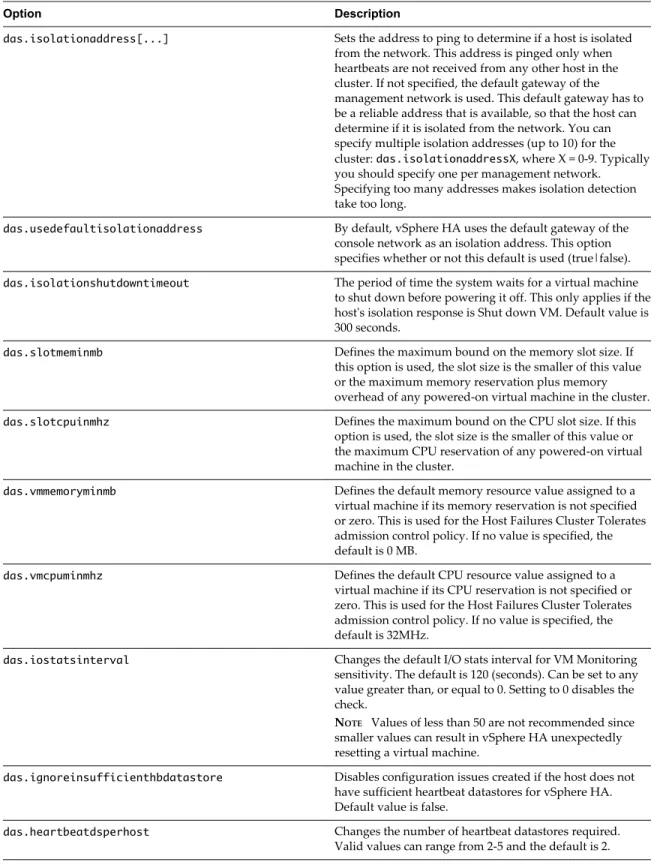
To use the Shutdown and restart VMs setting, you must install VMware Tools in the guest operating system of the virtual machine. Shutting down the virtual machine provides the advantage of preserving its state. Shutting down is better than powering off the virtual machine, which does not flush most recent changes to disk or commit transactions. Virtual machines that are in the process of shutting down take longer to fail over while the shutdown completes. Virtual Machines that have not shut down in 300 seconds, or the time specified in the advanced option das.isolationshutdowntimeout, are powered off.
After you create a vSphere HA cluster, you can override the default cluster settings for Restart Priority and Isolation Response for specific virtual machines. Such overrides are useful for virtual machines that are used for special tasks. For example, virtual machines that provide infrastructure services like DNS or DHCP might need to be powered on before other virtual machines in the cluster.
A virtual machine "split-brain" condition can occur when a host becomes isolated or partitioned from a master host and the master host cannot communicate with it using heartbeat datastores. In this situation, the master host cannot determine that the host is alive and so declares it dead. The master host then attempts to restart the virtual machines that are running on the isolated or partitioned host. This attempt succeeds if the virtual machines remain running on the isolated/partitioned host and that host lost access to the virtual machines' datastores when it became isolated or partitioned. A split-brain condition then exists because there are two instances of the virtual machine. However, only one instance is able to read or write the virtual machine's virtual disks. VM Component Protection can be used to prevent this split-brain condition. When you enable VMCP with the aggressive setting, it monitors the datastore accessibility of powered-on virtual machines, and shuts down those that lose access to their datastores.
To recover from this situation, ESXi generates a question on the virtual machine that has lost the disk locks for when the host comes out of isolation and cannot reacquire the disk locks. vSphere HA automatically answers this question, allowing the virtual machine instance that has lost the disk locks to power off, leaving just the instance that has the disk locks.
Factors Considered for Virtual Machine Restarts
After a failure, the cluster's master host attempts to restart affected virtual machines by identifying a host that can power them on. When choosing such a host, the master host considers a number of factors. File accessibility Before a virtual machine can be started, its files must be accessible from one
of the active cluster hosts that the master can communicate with over the network
Virtual machine and host compatibility
If there are accessible hosts, the virtual machine must be compatible with at least one of them. The compatibility set for a virtual machine includes the effect of any required VM-Host affinity rules. For example, if a rule only permits a virtual machine to run on two hosts, it is considered for placement on those two hosts.
Resource reservations Of the hosts that the virtual machine can run on, at least one must have sufficient unreserved capacity to meet the memory overhead of the virtual machine and any resource reservations. Four types of reservations are considered: CPU, Memory, vNIC, and Virtual flash. Also, sufficient network ports must be available to power on the virtual machine.
Host limits In addition to resource reservations, a virtual machine can only be placed on a host if doing so does not violate the maximum number of allowed virtual machines or the number of in-use vCPUs.
Feature constraints If the advanced option has been set that requires vSphere HA to enforce VM to VM anti-affinity rules, vSphere HA does not violate this rule. Also, vSphere HA does not violate any configured per host limits for fault tolerant virtual machines.
If no hosts satisfy the preceding considerations, the master host issues an event stating that there are not enough resources for vSphere HA to start the VM and tries again when the cluster conditions have changed. For example, if the virtual machine is not accessible, the master host tries again after a change in file
accessibility.
Limits for Virtual Machine Restart Attempts
If the vSphere HA master agent's attempt to restart a VM, which involves registering it and powering it on, fails, this restart is retried after a delay. vSphere HA attempts these restarts for a maximum number of attempts (6 by default), but not all restart failures count against this maximum.
For example, the most likely reason for a restart attempt to fail is because either the VM is still running on another host, or because vSphere HA tried to restart the VM too soon after it failed. In this situation, the master agent delays the retry attempt by twice the delay imposed after the last attempt, with a 1 minute minimum delay and a 30 minute maximum delay. Thus if the delay is set to 1 minute, there is an initial attempt at T=0, then additional attempts made at T=1 (1 minute), T=3 (3 minutes), T=7 (7 minutes), T=15 (15 minutes), and T=30 (30 minutes). Each such attempt is counted against the limit and only six attempts are made by default.
Other restart failures result in countable retries but with a different delay interval. An example scenario is when the host chosen to restart virtual machine loses access to one of the VM's datastores after the choice was made by the master agent. In this case, a retry is attempted after a default delay of 2 minutes. This attempt also counts against the limit.
Finally, some retries are not counted. For example, if the host on which the virtual machine was to be restarted fails before the master agent issues the restart request, the attempt is retried after 2 minutes but this failure does not count against the maximum number of attempts.
Virtual Machine Restart Notifications
vSphere HA generates a cluster event when a failover operation is in progress for virtual machines in the cluster. The event also displays a configuration issue in the Cluster Summary tab which reports the number of virtual machines that are being restarted. There are four different categories of such VMs.
n VMs being placed: vSphere HA is in the process of trying to restart these VMs
n VMs awaiting a retry: a previous restart attempt failed, and vSphere HA is waiting for a timeout to
expire before trying again.
n VMs requiring additional resources: insufficient resources are available to restart these VMs. vSphere
HA retries when more resources become available, for example a host comes back online.
n Inaccessible Virtual SAN VMs: vSphere HA cannot restart these Virtual SAN VMs because they are not
accessible. It retries when there is a change in accessibility.
These virtual machine counts are dynamically updated whenever a change is observed in the number of VMs for which a restart operation is underway. The configuration issue is cleared when vSphere HA has restarted all VMs or has given up trying.
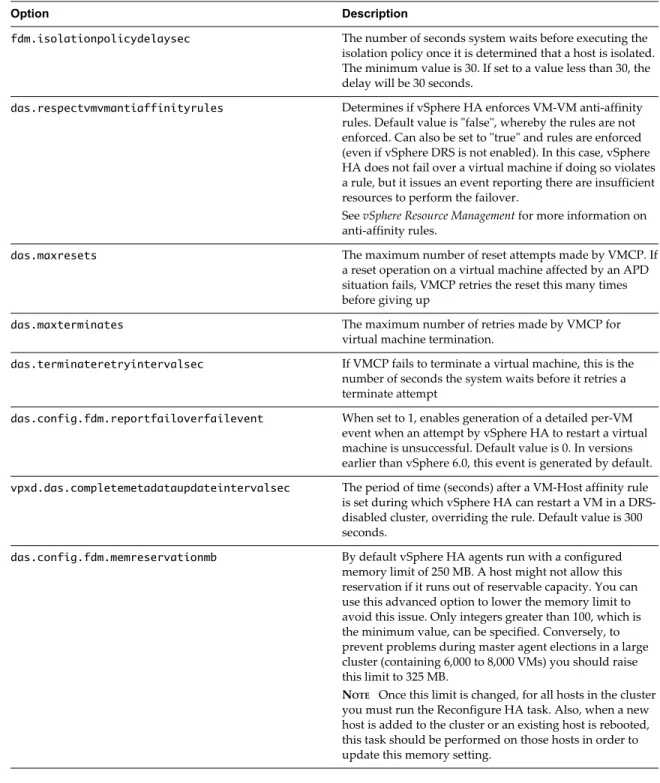
In vSphere 5.5 or earlier, a per-VM event is triggered for an unsuccessful attempt to restart the virtual machine. This event is disabled by default in vSphere 6.x and can be enabled by setting the vSphere HA advanced option das.config.fdm.reportfailoverfailevent to 1.
VM and Application Monitoring
VM Monitoring restarts individual virtual machines if their VMware Tools heartbeats are not received within a set time. Similarly, Application Monitoring can restart a virtual machine if the heartbeats for an application it is running are not received. You can enable these features and configure the sensitivity with which vSphere HA monitors non-responsiveness.
When you enable VM Monitoring, the VM Monitoring service (using VMware Tools) evaluates whether each virtual machine in the cluster is running by checking for regular heartbeats and I/O activity from the VMware Tools process running inside the guest. If no heartbeats or I/O activity are received, this is most likely because the guest operating system has failed or VMware Tools is not being allocated any time to complete tasks. In such a case, the VM Monitoring service determines that the virtual machine has failed and the virtual machine is rebooted to restore service.
Occasionally, virtual machines or applications that are still functioning properly stop sending heartbeats. To avoid unnecessary resets, the VM Monitoring service also monitors a virtual machine's I/O activity. If no heartbeats are received within the failure interval, the I/O stats interval (a cluster-level attribute) is checked. The I/O stats interval determines if any disk or network activity has occurred for the virtual machine during the previous two minutes (120 seconds). If not, the virtual machine is reset. This default value (120 seconds) can be changed using the advanced option das.iostatsinterval.
To enable Application Monitoring, you must first obtain the appropriate SDK (or be using an application that supports VMware Application Monitoring) and use it to set up customized heartbeats for the
applications you want to monitor. After you have done this, Application Monitoring works much the same way that VM Monitoring does. If the heartbeats for an application are not received for a specified time, its virtual machine is restarted.
You can configure the level of monitoring sensitivity. Highly sensitive monitoring results in a more rapid conclusion that a failure has occurred. While unlikely, highly sensitive monitoring might lead to falsely identifying failures when the virtual machine or application in question is actually still working, but heartbeats have not been received due to factors such as resource constraints. Low sensitivity monitoring results in longer interruptions in service between actual failures and virtual machines being reset. Select an option that is an effective compromise for your needs.
The default settings for monitoring sensitivity are described in Table 2-1. You can also specify custom values for both monitoring sensitivity and the I/O stats interval by selecting the Custom checkbox.
Table 2‑1. VM Monitoring Settings
Setting Failure Interval (seconds) Reset Period
High 30 1 hour
Medium 60 24 hours
Low 120 7 days
After failures are detected, vSphere HA resets virtual machines. The reset ensures that services remain available. To avoid resetting virtual machines repeatedly for nontransient errors, by default, virtual machines will be reset only three times during a certain configurable time interval. After virtual machines have been reset three times, vSphere HA makes no further attempts to reset the virtual machines after subsequent failures until after the specified time has elapsed. You can configure the number of resets using the Maximum per-VM resets custom setting.
NOTE The reset statistics are cleared when a virtual machine is powered off then back on, or when it is
migrated using vMotion to another host. This causes the guest operating system to reboot, but is not the same as a 'restart' in which the power state of the virtual machine is changed.
If a virtual machine has a datastore accessibility failure (either All Paths Down or Permanent Device Loss), the VM Monitoring service suspends resetting it until the failure has been addressed.
VM Component Protection
If VM Component Protection (VMCP) is enabled, vSphere HA can detect datastore accessibility failures and provide automated recovery for affected virtual machines.
VMCP provides protection against datastore accessibility failures that can affect a virtual machine running on a host in a vSphere HA cluster. When a datastore accessibility failure occurs, the affected host can no longer access the storage path for a specific datastore. You can determine the response that vSphere HA will make to such a failure, ranging from the creation of event alarms to virtual machine restarts on other hosts.
Types of Failure
There are two types of datastore accessibility failure:
PDL PDL (Permanent Device Loss) is an unrecoverable loss of accessibility that occurs when a storage device reports the datastore is no longer accessible by the host. This condition cannot be reverted without powering off virtual machines.
APD APD (All Paths Down) represents a transient or unknown accessibility loss or any other unidentified delay in I/O processing. This type of accessibility issue is recoverable.
Configuring VMCP
VM Component Protection is enabled and configured in the vSphere Web Client. To enable this feature, you must select the Protect against Storage Connectivity Loss checkbox in the edit cluster settings wizard. The storage protection levels you can choose and the virtual machine remediation actions available differ depending on the type of database accessibility failure.
PDL failures A virtual machine is automatically failed over to a new host unless you have configured VMCP only to Issue events.
APD events The response to APD events is more complex and accordingly the configuration is more fine-grained.
After the user-configured Delay for VM failover for APD period has elapsed, the action taken depends on the policy you selected. An event will be issued and the virtual machine is restarted conservatively or aggressively. The conservative approach does not terminate the virtual machine if the success of the failover is unknown, for example in a network partition. The aggressive approach does terminate the virtual machine under these conditions. Neither approach terminates the virtual machine if there are insufficient resources in the cluster for the failover to succeed.
If APD recovers before the user-configured Delay for VM failover for APD period has elapsed, you can choose to reset the affected virtual machines, which recovers the guest applications that were impacted by the IO failures. NOTE If either the Host Monitoring or VM Restart Priority settings are disabled, VMCP cannot perform
virtual machine restarts. Storage health can still be monitored and events can be issued, however. For more information on configuring VMCP, see “Configure Virtual Machine Responses,” on page 34.
Network Partitions
When a management network failure occurs for a vSphere HA cluster, a subset of the cluster's hosts might be unable to communicate over the management network with the other hosts. Multiple partitions can occur in a cluster.
A partitioned cluster leads to degraded virtual machine protection and cluster management functionality. Correct the partitioned cluster as soon as possible.
n Virtual machine protection. vCenter Server allows a virtual machine to be powered on, but it can be
protected only if it is running in the same partition as the master host that is responsible for it. The master host must be communicating with vCenter Server. A master host is responsible for a virtual machine if it has exclusively locked a system-defined file on the datastore that contains the virtual machine's configuration file.
n Cluster management. vCenter Server can communicate with the master host, but only a subset of the
slave hosts. As a result, changes in configuration that affect vSphere HA might not take effect until after the partition is resolved. This failure could result in one of the partitions operating under the old configuration, while another uses the new settings.
Datastore Heartbeating
When the master host in a vSphere HA cluster can not communicate with a slave host over the management network, the master host uses datastore heartbeating to determine whether the slave host has failed, is in a network partition, or is network isolated. If the slave host has stopped datastore heartbeating, it is
considered to have failed and its virtual machines are restarted elsewhere.
vCenter Server selects a preferred set of datastores for heartbeating. This selection is made to maximize the number of hosts that have access to a heartbeating datastore and minimize the likelihood that the datastores are backed by the same LUN or NFS server.
You can use the advanced option das.heartbeatdsperhost to change the number of heartbeat datastores selected by vCenter Server for each host. The default is two and the maximum valid value is five.
vSphere HA creates a directory at the root of each datastore that is used for both datastore heartbeating and for persisting the set of protected virtual machines. The name of the directory is .vSphere-HA. Do not delete
or modify the files stored in this directory, because this can have an impact on operations. Because more than one cluster might use a datastore, subdirectories for this directory are created for each cluster. Root owns these directories and files and only root can read and write to them. The disk space used by vSphere HA depends on several factors including which VMFS version is in use and the number of hosts that use the datastore for heartbeating. With vmfs3, the maximum usage is approximately 2GB and the typical usage is approximately 3MB. With vmfs5 the maximum and typical usage is approximately 3MB. vSphere HA use of the datastores adds negligible overhead and has no performance impact on other datastore operations. vSphere HA limits the number of virtual machines that can have configuration files on a single datastore. See Configuration Maximums for updated limits. If you place more than this number of virtual machines on a datastore and power them on, vSphere HA protects a number of virtual machines only up to the limit. NOTE A Virtual SAN datastore cannot be used for datastore heartbeating. Therefore, if no other shared
storage is accessible to all hosts in the cluster, there can be no heartbeat datastores in use. However, if you have storage that can be reached by an alternate network path that is independent of the Virtual SAN network, you can use it to set up a heartbeat datastore.
vSphere HA Security
vSphere HA is enhanced by several security features. Select firewall ports
opened
vSphere HA uses TCP and UDP port 8182 for agent-to-agent communication. The firewall ports open and close automatically to ensure they are open only when needed.
Configuration files protected using file system permissions
vSphere HA stores configuration information on the local storage or on ramdisk if there is no local datastore. These files are protected using file system permissions and they are accessible only to the root user. Hosts without local storage are only supported if they are managed by Auto Deploy.
Detailed logging The location where vSphere HA places log files depends on the version of host.
n For ESXi 5.x hosts, vSphere HA writes to syslog only by default, so logs
are placed where syslog is configured to put them. The log file names for vSphere HA are prepended with fdm, fault domain manager, which is a
service of vSphere HA.
n For legacy ESXi 4.x hosts, vSphere HA writes to /var/log/vmware/fdm on
n For legacy ESX 4.x hosts, vSphere HA writes to /var/log/vmware/fdm.
Secure vSphere HA logins
vSphere HA logs onto the vSphere HA agents using a user account, vpxuser, created by vCenter Server. This account is the same account used by vCenter Server to manage the host. vCenter Server creates a random password for this account and changes the password periodically. The time period is set by the vCenter Server VirtualCenter.VimPasswordExpirationInDays setting. Users with administrative privileges on the root folder of the host can log in to the agent.
Secure communication All communication between vCenter Server and the vSphere HA agent is done over SSL. Agent-to-agent communication also uses SSL except for election messages, which occur over UDP. Election messages are verified over SSL so that a rogue agent can prevent only the host on which the agent is running from being elected as a master host. In this case, a configuration issue for the cluster is issued so the user is aware of the problem.
Host SSL certificate verification required
vSphere HA requires that each host have a verified SSL certificate. Each host generates a self-signed certificate when it is booted for the first time. This certificate can then be regenerated or replaced with one issued by an authority. If the certificate is replaced, vSphere HA needs to be reconfigured on the host. If a host becomes disconnected from vCenter Server after its certificate is updated and the ESXi or ESX Host agent is restarted, then vSphere HA is automatically reconfigured when the host is reconnected to vCenter Server. If the disconnection does not occur because vCenter Server host SSL certificate verification is disabled at the time, verify the new certificate and reconfigure vSphere HA on the host.
vSphere HA Admission Control
vCenter Server uses admission control to ensure that sufficient resources are available in a cluster to provide failover protection and to ensure that virtual machine resource reservations are respected.
Three types of admission control are available.
Host Ensures that a host has sufficient resources to satisfy the reservations of all virtual machines running on it.
Resource Pool Ensures that a resource pool has sufficient resources to satisfy the reservations, shares, and limits of all virtual machines associated with it. vSphere HA Ensures that sufficient resources in the cluster are reserved for virtual
machine recovery in the event of host failure.
Admission control imposes constraints on resource usage and any action that would violate these constraints is not permitted. Examples of actions that could be disallowed include the following:
n Powering on a virtual machine.
n Migrating a virtual machine onto a host or into a cluster or resource pool. n Increasing the CPU or memory reservation of a virtual machine.
Of the three types of admission control, only vSphere HA admission control can be disabled. However, without it there is no assurance that the expected number of virtual machines can be restarted after a failure. Do not permanently disable admission control, however you might need to do so temporarily, for the following reasons:
n If you need to violate the failover constraints when there are not enough resources to support them--for
example, if you are placing hosts in standby mode to test them for use with Distributed Power Management (DPM).
n If an automated process needs to take actions that might temporarily violate the failover constraints (for
example, as part of an upgrade or patching of ESXi hosts as directed by vSphere Update Manager).
n If you need to perform testing or maintenance operations.
Admission control sets aside capacity, but when a failure occurs vSphere HA uses whatever capacity is available for virtual machine restarts. For example, vSphere HA places more virtual machines on a host than admission control would allow for user-initiated power ons.
NOTE When vSphere HA admission control is disabled, vSphere HA ensures that there are at least two
powered-on hosts in the cluster even if DPM is enabled and can consolidate all virtual machines onto a single host. This is to ensure that failover is possible.
Host Failures Cluster Tolerates Admission Control Policy
You can configure vSphere HA to tolerate a specified number of host failures. With the Host Failures Cluster Tolerates admission control policy, vSphere HA ensures that a specified number of hosts can fail and sufficient resources remain in the cluster to fail over all the virtual machines from those hosts. With the Host Failures Cluster Tolerates policy, vSphere HA performs admission control in the following way:
1 Calculates the slot size.
A slot is a logical representation of memory and CPU resources. By default, it is sized to satisfy the requirements for any powered-on virtual machine in the cluster.
2 Determines how many slots each host in the cluster can hold. 3 Determines the Current Failover Capacity of the cluster.
This is the number of hosts that can fail and still leave enough slots to satisfy all of the powered-on virtual machines.
4 Determines whether the Current Failover Capacity is less than the Configured Failover Capacity (provided by the user).
If it is, admission control disallows the operation.
NOTE You can set a specific slot size for both CPU and memory in the admission control section of the
vSphere HA settings in the vSphere Web Client.
Slot Size Calculation
Slot size is comprised of two components, CPU and memory.
n vSphere HA calculates the CPU component by obtaining the CPU reservation of each powered-on
virtual machine and selecting the largest value. If you have not specified a CPU reservation for a virtual machine, it is assigned a default value of 32MHz. You can change this value by using the
n vSphere HA calculates the memory component by obtaining the memory reservation, plus memory
overhead, of each powered-on virtual machine and selecting the largest value. There is no default value for the memory reservation.
If your cluster contains any virtual machines that have much larger reservations than the others, they will distort slot size calculation. To avoid this, you can specify an upper bound for the CPU or memory component of the slot size by using the das.slotcpuinmhz or das.slotmeminmb advanced options, respectively. See “vSphere HA Advanced Options,” on page 37.
You can also determine the risk of resource fragmentation in your cluster by viewing the number of virtual machines that require multiple slots. This can be calculated in the admission control section of the vSphere HA settings in the vSphere Web Client. Virtual machines might require multiple slots if you have specified a fixed slot size or a maximum slot size using advanced options.
Using Slots to Compute the Current Failover Capacity
After the slot size is calculated, vSphere HA determines each host's CPU and memory resources that are available for virtual machines. These amounts are those contained in the host's root resource pool, not the total physical resources of the host. The resource data for a host that is used by vSphere HA can be found on the host's Summary tab on the vSphere Web Client. If all hosts in your cluster are the same, this data can be obtained by dividing the cluster-level figures by the number of hosts. Resources being used for
virtualization purposes are not included. Only hosts that are connected, not in maintenance mode, and that have no vSphere HA errors are considered.
The maximum number of slots that each host can support is then determined. To do this, the host’s CPU resource amount is divided by the CPU component of the slot size and the result is rounded down. The same calculation is made for the host's memory resource amount. These two numbers are compared and the smaller number is the number of slots that the host can support.
The Current Failover Capacity is computed by determining how many hosts (starting from the largest) can fail and still leave enough slots to satisfy the requirements of all powered-on virtual machines.
Advanced Runtime Info
When you select the Host Failures Cluster Tolerates admission control policy, the Advanced Runtime Info pane appears in the vSphere HA section of the cluster's Monitor tab in the vSphere Web Client. This pane displays the following information about the cluster:
n Slot size.
n Total slots in cluster. The sum of the slots supported by the good hosts in the cluster.
n Used slots. The number of slots assigned to powered-on virtual machines. It can be more than the
number of powered-on virtual machines if you have defined an upper bound for the slot size using the advanced options. This is because some virtual machines can take up multiple slots.
n Available slots. The number of slots available to power on additional virtual machines in the cluster.
vSphere HA reserves the required number of slots for failover. The remaining slots are available to power on new virtual machines.
n Failover slots. The total number of slots not counting the used slots or the available slots. n Total number of powered on virtual machines in cluster.
n Total number of hosts in cluster.
n Total good hosts in cluster. The number of hosts that are connected, not in maintenance mode, and have
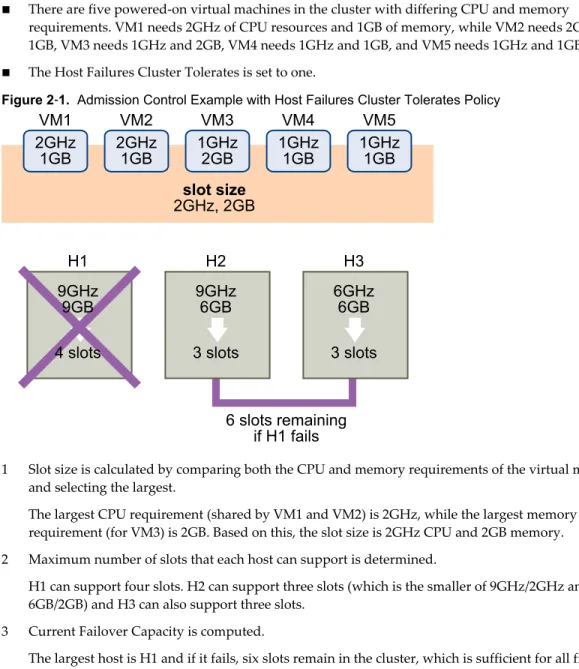
Example: Admission Control Using Host Failures Cluster Tolerates Policy
The way that slot size is calculated and used with this admission control policy is shown in an example. Make the following assumptions about a cluster:
n The cluster is comprised of three hosts, each with a different amount of available CPU and memory
resources. The first host (H1) has 9GHz of available CPU resources and 9GB of available memory, while Host 2 (H2) has 9GHz and 6GB and Host 3 (H3) has 6GHz and 6GB.
n There are five powered-on virtual machines in the cluster with differing CPU and memory
requirements. VM1 needs 2GHz of CPU resources and 1GB of memory, while VM2 needs 2GHz and 1GB, VM3 needs 1GHz and 2GB, VM4 needs 1GHz and 1GB, and VM5 needs 1GHz and 1GB.
n The Host Failures Cluster Tolerates is set to one.
Figure 2‑1. Admission Control Example with Host Failures Cluster Tolerates Policy
6 slots remaining
if H1 fails
slot size
2GHz, 2GB
2GHz
1GB
2GHz
1GB
1GHz
2GB
1GHz
1GB
1GHz
1GB
VM1
9GHz
9GB
4 slots
H1
9GHz
6GB
3 slots
H2
6GHz
6GB
3 slots
H3
VM2
VM3
VM4
VM5
1 Slot size is calculated by comparing both the CPU and memory requirements of the virtual machines and selecting the largest.
The largest CPU requirement (shared by VM1 and VM2) is 2GHz, while the largest memory requirement (for VM3) is 2GB. Based on this, the slot size is 2GHz CPU and 2GB memory. 2 Maximum number of slots that each host can support is determined.
H1 can support four slots. H2 can support three slots (which is the smaller of 9GHz/2GHz and 6GB/2GB) and H3 can also support three slots.
3 Current Failover Capacity is computed.
The largest host is H1 and if it fails, six slots remain in the cluster, which is sufficient for all five of the powered-on virtual machines. If both H1 and H2 fail, only three slots remain, which is insufficient. Therefore, the Current Failover Capacity is one.
Percentage of Cluster Resources Reserved Admission Control Policy
You can configure vSphere HA to perform admission control by reserving a specific percentage of cluster CPU and memory resources for recovery from host failures.
With the Percentage of Cluster Resources Reserved admission control policy, vSphere HA ensures that a specified percentage of aggregate CPU and memory resources are reserved for failover.
With the Cluster Resources Reserved policy, vSphere HA enforces admission control as follows: 1 Calculates the total resource requirements for all powered-on virtual machines in the cluster. 2 Calculates the total host resources available for virtual machines.
3 Calculates the Current CPU Failover Capacity and Current Memory Failover Capacity for the cluster. 4 Determines if either the Current CPU Failover Capacity or Current Memory Failover Capacity is less
than the corresponding Configured Failover Capacity (provided by the user). If so, admission control disallows the operation.
vSphere HA uses the actual reservations of the virtual machines. If a virtual machine does not have reservations, meaning that the reservation is 0, a default of 0MB memory and 32MHz CPU is applied. NOTE The Percentage of Cluster Resources Reserved admission control policy also checks that there are at
least two vSphere HA-enabled hosts in the cluster (excluding hosts that are entering maintenance mode). If there is only one vSphere HA-enabled host, an operation is not allowed, even if there is a sufficient percentage of resources available. The reason for this extra check is that vSphere HA cannot perform failover if there is only a single host in the cluster.
Computing the Current Failover Capacity
The total resource requirements for the powered-on virtual machines is comprised of two components, CPU and memory. vSphere HA calculates these values.
n The CPU component by summing the CPU reservations of the powered-on virtual machines. If you
have not specified a CPU reservation for a virtual machine, it is assigned a default value of 32MHz (this value can be changed using the das.vmcpuminmhz advanced option.)
n The memory component by summing the memory reservation (plus memory overhead) of each
powered-on virtual machine.
The total host resources available for virtual machines is calculated by adding the hosts' CPU and memory resources. These amounts are those contained in the host's root resource pool, not the total physical resources of the host. Resources being used for virtualization purposes are not included. Only hosts that are connected, not in maintenance mode, and have no vSphere HA errors are considered.
The Current CPU Failover Capacity is computed by subtracting the total CPU resource requirements from the total host CPU resources and dividing the result by the total host CPU resources. The Current Memory Failover Capacity is calculated similarly.
Example: Admission Control Using Percentage of Cluster Resources Reserved
Policy
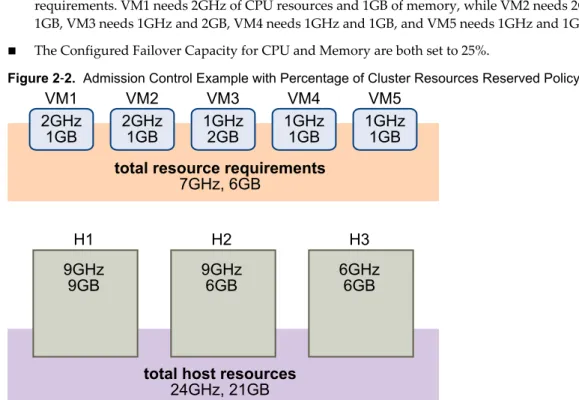
The way that Current Failover Capacity is calculated and used with this admission control policy is shown with an example. Make the following assumptions about a cluster:
n The cluster is comprised of three hosts, each with a different amount of available CPU and memory
resources. The first host (H1) has 9GHz of available CPU resources and 9GB of available memory, while Host 2 (H2) has 9GHz and 6GB and Host 3 (H3) has 6GHz and 6GB.
n There are five powered-on virtual machines in the cluster with differing CPU and memory
requirements. VM1 needs 2GHz of CPU resources and 1GB of memory, while VM2 needs 2GHz and 1GB, VM3 needs 1GHz and 2GB, VM4 needs 1GHz and 1GB, and VM5 needs 1GHz and 1GB.
n The Configured Failover Capacity for CPU and Memory are both set to 25%.
Figure 2‑2. Admission Control Example with Percentage of Cluster Resources Reserved Policy
total resource requirements
7GHz, 6GB
total host resources
24GHz, 21GB
2GHz
1GB
2GHz
1GB
1GHz
2GB
1GHz
1GB
1GHz
1GB
VM1
9GHz
9GB
H1
9GHz
6GB
H2
6GHz
6GB
H3
VM2
VM3
VM4
VM5
The total resource requirements for the powered-on virtual machines is 7GHz and 6GB. The total host resources available for virtual machines is 24GHz and 21GB. Based on this, the Current CPU Failover Capacity is 70% ((24GHz - 7GHz)/24GHz). Similarly, the Current Memory Failover Capacity is 71% ((21GB-6GB)/21GB).
Because the cluster's Configured Failover Capacity is set to 25%, 45% of the cluster's total CPU resources and 46% of the cluster's memory resources are still available to power on additional virtual machines.
Specify Failover Hosts Admission Control Policy
You can configure vSphere HA to designate specific hosts as the failover hosts.
With the Specify Failover Hosts admission control policy, when a host fails, vSphere HA attempts to restart its virtual machines on any of the specified failover hosts. If this is not possible, for example the failover hosts have failed or have insufficient resources, then vSphere HA attempts to restart those virtual machines on other hosts in the cluster.
To ensure that spare capacity is available on a failover host, you are prevented from powering on virtual machines or using vMotion to migrate virtual machines to a failover host. Also, DRS does not use a failover host for load balancing.
NOTE If you use the Specify Failover Hosts admission control policy and designate multiple failover hosts,
DRS does not attempt to enforce VM-VM affinity rules for virtual machines that are running on failover hosts.
The Current Failover Hosts appear in the vSphere HA section of the cluster's Summary tab. The status icon next to each host can be green, yellow, or red.
n Green. The host is connected, not in maintenance mode, and has no vSphere HA errors. No powered-on
virtual machines reside on the host.
n Yellow. The host is connected, not in maintenance mode, and has no vSphere HA errors. However,
n Red. The host is disconnected, in maintenance mode, or has vSphere HA errors.
Choosing an Admission Control Policy
You should choose a vSphere HA admission control policy based on your availability needs and the
characteristics of your cluster. When choosing an admission control policy, you should consider a number of factors.
Avoiding Resource Fragmentation
Resource fragmentation occurs when there are enough resources in aggregate for a virtual machine to be failed over. However, those resources are located on multiple hosts and are unusable because a virtual machine can run on one ESXi host at a time. The default configuration of the Host Failures Cluster Tolerates policy avoids resource fragmentation by defining a slot as the maximum virtual machine reservation. The Percentage of Cluster Resources policy does not address the problem of resource fragmentation. With the Specify Failover Hosts policy, resources are not fragmented because hosts are reserved for failover.
Flexibility of Failover Resource Reservation
Admission control policies differ in the granularity of control they give you when reserving cluster resources for failover protection. The Host Failures Cluster Tolerates policy allows you to set the failover level as a number of hosts. The Percentage of Cluster Resources policy allows you to designate up to 100% of cluster CPU or memory resources for failover. The Specify Failover Hosts policy allows you to specify a set of failover hosts.
Heterogeneity of Cluster
Clusters can be heterogeneous in terms of virtual machine resource reservations and host total resource capacities. In a heterogeneous cluster, the Host Failures Cluster Tolerates policy can be too conservative because it only considers the largest virtual machine reservations when defining slot size and assumes the largest hosts fail when computing the Current Failover Capacity. The other two admission control policies are not affected by cluster heterogeneity.
NOTE vSphere HA includes the resource usage of Fault Tolerance Secondary VMs when it performs
admission control calculations. For the Host Failures Cluster Tolerates policy, a Secondary VM is assigned a slot, and for the Percentage of Cluster Resources policy, the Secondary VM's resource usage is accounted for when computing the usable capacity of the cluster.
vSphere HA Interoperability
vSphere HA can interoperate with many other features, such as DRS and Virtual SAN.
Before configuring vSphere HA, you should be aware of the limitations of its interoperability with these other features or products.
Using vSphere HA with Virtual SAN
You can use Virtual SAN as the shared storage for a vSphere HA cluster. When enabled, Virtual SAN aggregates the specified local storage disks available on the hosts into a single datastore shared by all hosts. To use vSphere HA with Virtual SAN, you must be aware of certain considerations and limitations for the interoperability of these two features.
ESXi Host Requirements
You can use Virtual SAN with a vSphere HA cluster only if the following conditions are met:
n The cluster's ESXi hosts all must be version 5.5 or later. n The cluster must have a minimum of three ESXi hosts.
Networking Differences
Virtual SAN has its own network. When Virtual SAN and vSphere HA are enabled for the same cluster, the HA interagent traffic flows over this storage network rather than the management network. The
management network is used by vSphere HA only when Virtual SAN is disabled. vCenter Server chooses the appropriate network when vSphere HA is configured on a host.
NOTE Virtual SAN can only be enabled when vSphere HA is disabled.
If you change the Virtual SAN network configuration, the vSphere HA agents do not automatically pick up the new network settings. So to make changes to the Virtual SAN network, you must take the following steps in the vSphere Web Client:
1 Disable Host Monitoring for the vSphere HA cluster. 2 Make the Virtual SAN network changes.
3 Right-click all hosts in the cluster and select Reconfigure for vSphere HA. 4 Re-enable Host Monitoring for the vSphere HA cluster.
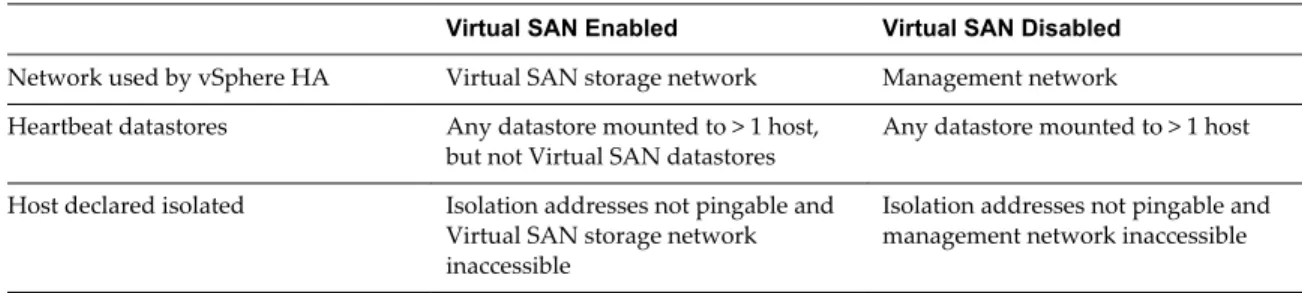
Table 2-2 shows the differences in vSphere HA networking when Virtual SAN is used or not. Table 2‑2. vSphere HA networking differences
Virtual SAN Enabled Virtual SAN Disabled
Network used by vSphere HA Virtual SAN storage network Management network Heartbeat datastores Any datastore mounted to > 1 host,
but not Virtual SAN datastores Any datastore mounted to > 1 host Host declared isolated Isolation addresses not pingable and
Virtual SAN storage network inaccessible
Isolation addresses not pingable and management network inaccessible
Capacity Reservation Settings
When you reserve capacity for your vSphere HA cluster with an admission control policy, this setting must be coordinated with the corresponding Virtual SAN setting that ensures data accessibility on failures. Specifically, the Number of Failures Tolerated setting in the Virtual SAN rule set must not be lower than the capacity reserved by the vSphere HA admission control setting.
For example, if the Virtual SAN rule set allows for only two failures, the vSphere HA admission control policy must reserve capacity that is equivalent to only one or two host failures. If you are using the Percentage of Cluster Resources Reserved policy for a cluster that has eight hosts, you must not reserve more than 25% of the cluster resources. In the same cluster, with the Host Failures Cluster Tolerates policy, the setting must not be higher than two hosts. If less capacity is reserved by vSphere HA, failover activity might be unpredictable, while reserving too much capacity overly constrains the powering on of virtual machines and inter-cluster vMotion migrations.
Using vSphere HA and DRS Together
Using vSphere HA with Distributed Resource Scheduler (DRS) combines automatic failover with load balancing. This combination can result in a more balanced cluster after vSphere HA has moved virtual machines to different hosts.
When vSphere HA performs failover and restarts virtual machines on different hosts, its first priority is the immediate availability of all virtual machines. After the virtual machines have been restarted, those hosts on which they were powered on might be heavily loaded, while other hosts are comparatively lightly loaded. vSphere HA uses the virtual machine's CPU and memory reservation and overhead memory to determine if a host has enough spare capacity to accommodate the virtual machine.
In a cluster using DRS and vSphere HA with admission control turned on, virtual machines might not be evacuated from hosts entering maintenance mode. This behavior occurs because of the resources reserved for restarting virtual machines in the event of a failure. You must manually migrate the virtual machines off of the hosts using vMotion.
In some scenarios, vSphere HA might not be able to fail over virtual machines because of resource constraints. This can occur for several reasons.
n HA admission control is disabled and Distributed Power Management (DPM) is enabled. This can
result in DPM consolidating virtual machines onto fewer hosts and placing the empty hosts in standby mode leaving insufficient powered-on capacity to perform a failover.
n VM-Host affinity (required) rules might limit the hosts on which certain virtual machines can be placed. n There might be sufficient aggregate resources but these can be fragmented across multiple hosts so that
they can not be used by virtual machines for failover.
In such cases, vSphere HA can use DRS to try to adjust the cluster (for example, by bringing hosts out of standby mode or migrating virtual machines to defragment the cluster resources) so that HA can perform the failovers.
If DPM is in manual mode, you might need to confirm host power-on recommendations. Similarly, if DRS is in manual mode, you might need to confirm migration recommendations.
If you are using VM-Host affinity rules that are required, be aware that these rules cannot be violated. vSphere HA does not perform a failover if doing so would violate such a rule.
For more information about DRS, see the vSphere Resource Management documentation.
vSphere HA and DRS Affinity Rules
If you create a DRS affinity rule for your cluster, you can specify how vSphere HA applies that rule during a virtual machine failover.
The two types of rules for which you can specify vSphere HA failover behavior are the following:
n VM anti-affinity rules force specified virtual machines to remain apart during failover actions. n VM-Host affinity rules place specified virtual machines on a particular host or a member of a defined
group of hosts during failover actions.
When you edit a DRS affinity rule, select the checkbox or checkboxes that enforce the desired failover behavior for vSphere HA.
n HA must respect VM anti-affinity rules during failover -- if VMs with this rule would be placed
n HA should respect VM to Host affinity rules during failover --vSphere HA attempts to place VMs
with this rule on the specified hosts if at all possible.
NOTE vSphere HA can restart a VM in a DRS-disabled cluster, overriding a VM-Host affinity rules mapping
if the host failure happens soon (by default, within 5 minutes) after setting the rule.
Other vSphere HA Interoperability Issues
To use vSphere HA, you must be aware of the following additional interoperability issues.
VM Component Protection
VM Component Protection (VMCP) has the following interoperability issues and limitations:
n VMCP does not support vSphere Fault Tolerance. If VMCP is enabled for a cluster using Fault
Tolerance, the affected FT virtual machines will automatically receive overrides that disable VMCP.
n VMCP does not detect or respond to accessibility issues for files located on Virtual SAN datastores. If a
virtual machine's configuration and VMDK files are located only on Virtual SAN datastores, they are not protected by VMCP.
n VMCP does not detect or respond to accessibility issues for files located on Virtual Volume datastores.
If a virtual machine's configuration and VMDK files are located only on Virtual Volume datastores, they are not protected by VMCP.
n VMCP does not protect against inaccessible Raw Device Mapping (RDM)s.
IPv6
vSphere HA can be used with IPv6 network configurations, which are fully supported if the following considerations are observed:
n The cluster contains only ESXi 6.0 or later hosts.
n The management network for all hosts in the cluster must be configured with the same IP version,
either IPv6 or IPv4. vSphere HA clusters cannot contain both types of networking configuration.
n The network isolation addresses used by vSphere HA must match the IP version used by the cluster for
its management network.
n IPv6 cannot be used in vSphere HA clusters that also utilize Virtual SAN.
In addition to the previous restrictions, the following types of IPv6 address types are not supported for use with the vSphere HA isolation address or management network: link-local, ORCHID, and link-local with zone indices. Also, the loopback address type cannot be used for the management network.
NOTE To upgrade an existing IPv4 deployment to IPv6, you must first disable vSphere HA.
Creating and Configuring a vSphere HA Cluster
vSphere HA operates in the context of a cluster of ESXi (or legacy ESX) hosts. You must create a cluster, populate it with hosts, and configure vSphere HA settings before failover protection can be established. When you create a vSphere HA cluster, you must configure a number of settings that determine how the feature works. Before you do this, identify your cluster's nodes. These nodes are the ESXi hosts that will provide the resources to support virtual machines and that vSphere HA will use for failover protection. You should then determine how those nodes are to be connected to one another and to the shared storage where your virtual machine data resides. After that networking architecture is in place, you can add the hosts to the cluster and finish configuring vSphere HA.