HP MediaSmart Server
User’s Guide
Version Update 1.1.1
i
Contents
Welcome to HP MediaSmart Server
Chapter 1: Installing
Overview of the HP MediaSmart Server Setup 1-1 Before Starting 1-2
Connecting the server 1-5
Turning on the HP MediaSmart Server 1-6 Checking the Server Lights 1-7
Updating Your Firewall’s Trusted Program List 1-7 Installing the Software on the First Computer 1-8
Congratulations! You are ready to start using your server 1-12
Chapter 2: Getting Started
Opening the Windows Home Server Console 2-1
Setting up the HP MediaSmart Server using the Assistant 2-2 Task 1 of 6: Setup HP Software Update 2-5
Task 2 of 6: Create User Accounts 2-7 Task 3 of 6: Configure Remote Access 2-13
Task 4 of 6: Configure your HP Photo Webshare 2-17 Task 5 of 6: Turn on Media Sharing 2-19
Task 6 of 6: Learn more about your HP MediaSmart Server 2-20 Installing the Software on Additional Home Computers 2-21 Setting up Additional Home Computers 2-23
Chapter 3: Server Console
MediaSmart Server tab 3-1 Windows Home Server tabs 3-2Version ii
Chapter 4: Control Center
Accessing the Control Center 4-1 MediaSmart tab 4-1Tools tab 4-2
Help & Support tab 4-3
Chapter 5: Photo Webshare
Before You Begin 5-1Logging on to HP Photo Webshare 5-4 Webshare home page 5-5
Managing Webshare User Accounts 5-6
About the Types of Webshare User Accounts 5-7 Managing Visitors 5-8
Managing Groups 5-12 Creating an album to share 5-13
Naming your album 5-14
Adding photos to your album 5-14 Sharing an album 5-17
Notifying visitors by email 5-18
Viewing, printing, and saving photos 5-19 Viewing photos 5-19
Buying prints 5-21 Saving photos 5-22
Presenting slideshows 5-23 Changing a Visitor’s Password 5-23 Frequently Asked Questions 5-23
Chapter 6: Using the Server
Shared folders 6-2
Windows Home Server Console Help for shared folders 6-2 Accessing shared folders from your computer 6-2
Backing up and restoring a computer 6-4 Expanding server storage 6-5
iii Installing and removing an external USB disk drive, eSATA drive,
SATA port multiplier 6-9
Adding and removing drives from server storage 6-11 Removing a hard drive from the server 6-12
Replacing the system drive 6-16 Removing the system drive 6-16 Re-installing the new system drive 6-20 Securing your server from intruders 6-22 Streaming media 6-27
Setting up iTunes on the server and the client computer 6-29 Network health 6-30
How to add shared folders to network places 6-31 Hardware status 6-32
Remote access 6-33
How to map and disconnect a drive letter 6-34
Chapter 7: Troubleshooting
HP MediaSmart Server troubleshooting tips: 7-1 What to do if the server is unresponsive 7-2 Power-on indicator is off 7-3
Why is the hard drive light-bar purple? 7-3 Why is the hard drive light-bar red? 7-3
Why is the server’s health indicator light red? 7-4 Computer Recovery 7-5
What to do about hardware warning messages? 7-5 Using Server Recovery and Factory Reset 7-7
File transfer failure 7-13
If you cannot access the Windows Home Server 7-14 Health indicator codes 7-14
Network connection troubleshooting tips: 7-16 Network connection issues 7-16
No available port on network router 7-20 Why did URL not work? 7-20
What do firewall blocking messages mean? 7-21 Webshare troubleshooting tips: 7-21
Version iv
Why can’t I share my album? 7-22
How to add photos from your photos shared folder to your Webshare. 7-23
Unable to upload images. 7-23
How do you make Webshare work in the home? 7-23 Why am I getting a certificate error? 7-24
Upload Photos requires ActiveX control to be loaded? 7-24 Clicking on photo Webshare on CC Does Not Open. 7-24 Webshare administrator cannot delete Visitor account. 7-24 Visitor can create a photo album and add pictures but the album
doesn't display. 7-24
Visitor can create a photo album and add pictures but the album doesn't display the pictures. 7-24
Visitor cannot download pictures and sees a message telling them that they cannot download pictures. 7-25
Visitor cannot add pictures and sees a message telling them that they can't add pictures. 7-25
Visitor has created an album (or albums) and wants to delete the album but cannot. 7-25
Visitor has changed their password, now they can't log into Webshare. 7-25
Selecting URL from address field in web browser loads “page that opens cannot be closed without closing the entire application”. 7-26
Webshare user is unable to log out of Webshare. 7-26 Trouble uploading large files to Webshare. 7-26
Clicking on Photo Webshare on CC causes command error. 7-26 Browser cannot display the page when accessing through URL. 7-26 Other common troubleshooting tips 7-27
How to find the server software and firmware information. 7-27 The first backup is taking a long time. 7-27
What are optimum data throughput speeds for different network interfaces? 7-28
iTunes troubleshooting tips 7-28
iTunes aggregator does not appear to be working. 7-29
Song selection from the server is not updating with new additions. 7-29
v Podcasts not showing in playlist. 7-29
Microsoft Windows Home Server troubleshooting tips 7-29 Server low on space. 7-29
Cannot connect to server shares. 7-30 Email troubleshooting tips 7-30
Why do I need email address for visitors and Home Server users? 7-30
Why do I need to set-up Webshare notifications? 7-31 How do I find what my SMTP server is? 7-31
Do I need to do an SMTP email configuration? 7-31
If you have chosen to use your own email provider to send Photo Webshare announcements and these email announcements have not been received by the people on your lists. 7-31
Emailed link not opening. 7-31 Email is not received. 7-32
Media Streaming troubleshooting tips 7-32 Why my files do not show up on DMA? 7-32 File doesn't appear. 7-33
Server not showing up. 7-34
Media Files (audio/Video) of supported format aren't seen by device. 7-34
Why can I play and stream DRM content my home computer but I can not stream it from my HP MediaSmart Server? 7-34
What value does TZO domain names provide beyond the Microsoft Live option: 7-35
Chapter 8: Product information
Product specifications 8-1Regulatory statements 8-5
WM-DRM 10 licensed technology 8-7
Limited warranty and technical support statement 8-8
Chapter 9: Licenses, Copyrights and Notices for Open
Source Components
Apache License 9-1 BSD License 9-7
Version vi
ImageMagick License 9-8 JSON License 9-12 Codehaus License 9-13
GNU General Public License (GPL, Version 2, June 1991) 9-13
Glossary
1-1
Welcome to HP MediaSmart Server
The HP MediaSmart Server is a home server for families with multiple computers on a home network who want to enjoy their digital experiences when and where they want. The HP MediaSmart Server includes remote access to files, automatic computer backups, virtually unlimited storage expendability, media streaming to the entertainment center, and HP’s new Photo Webshare.
Help is available from most windows on the HP MediaSmart Server.
HP Help
HP Help includes the types of help shown in the following table. Additionally, the online User’s Guide provides links to topics in the Windows Home Server Help.
Windows Home Server Console Help
Some tasks, such as creating users and using shared folders, are done through the Windows Home Server Console.
1 At the computer, double-click the Windows Home Server icon in the system tray.
2 Log on to the Windows Home Server Console.
User’s Guide—Contains online help, installation instructions, guidance for set up, using the product, tutorials, recovery information, and other important information.
Online Help—A Help button is available on most pages.
HP Support Web site—Additional support and informational articles are available at http://www.hp.com/support.
Version Update 1.1.1 1-2
3 Click Help in the upper right corner, indicated by a icon, or click help buttons on dialog boxes.
Table 1: Windows Home Server Console Help
Main Topics Description
Welcome to the Windows Home Server
Console Learn what the Windows Home Server tray icon colors mean. This topic also provides an overview of adding user accounts, organizing files, configuring backups, and customizing server settings.
Computers & Backup Explains how backups work and how to configure, restore, and troubleshoot backups.
User Accounts How to add users to your server.
Shared Folders Adding, opening, removing, viewing the history of shared folders, and using folder duplication.
Server Storage View, add, repair, and remove hard drives from total storage.
Network Health What health notifications mean and what to do about them.
Windows Home Server Settings How to configure backups, passwords, media sharing, remote access, add-ins, resources, and more.
Remote Access How to set up the server to easily access your files away from home.
Installing 1-1
1
Installing
In this chapter you’ll connect the HP MediaSmart Server to you home network and install the software on your first home computer.
What’s in this chapter
» Overview of the HP MediaSmart Server Setup » Before Starting
» Connecting the server
» Turning on the HP MediaSmart Server » Checking the Server Lights
» Updating Your Firewall’s Trusted Program List » Installing the Software on the First Computer
» Congratulations! You are ready to start using your server
Overview of the HP MediaSmart Server Setup
Complete the following steps to set up the HP MediaSmart Server on your home network.
To set up the HP MediaSmart Server
1 Connect the HP MediaSmart Server to your network and turn it on. For additional information, see Connecting the server on page 1-5. 2 Update the trusted programs list for any firewall or anti-virus software on
your computer.
For additional information, see Updating Your Firewall’s Trusted Program List on page 1-7.
3 Install the HP MediaSmart Server software on one computer. For additional information, see Installing the Software on the First Computer on page 1-8.
Installing Version Update 1.1.1 1-2
For additional information, see Setting up the HP MediaSmart Server using the Assistant on page 2-2.
5 Install the HP MediaSmart Server software on additional computers. For additional information, see Installing the Software on Additional Home Computers on page 2-21.
Before Starting
Important information about locating and using the HP MediaSmart Server. • Locating the server
• Network Requirements
• Supported operating systems
• Wireless support
• Additional Software
Locating the server
Find a suitable place to locate your HP MediaSmart Server before you install the software on your computers. The location you choose must have either an available wired network connection to your broadband router or a switch connected to your broadband router.
The server also requires adequate ventilation to ensure it does not get too hot: • Do not locate the server in an unventilated space.
• Make sure that the server’s front and back panels are not blocked. • Check that the location of the server is not too hot. Maximum
Installing 1-3
Network Requirements
To successfully use the HP MediaSmart Server, your network must meet the following requirements:
Supported operating systems
The following operating systems are supported to work with the HP MediaSmart Server:
Table 1: Network Requirements
Requirement Recommended
Server connection 100 Mbps to 1000 Mbps (Gigabit Ethernet) wired connection
Home computers One or more computers running a
supported operating system with a wired or wireless network connection. For a list of supported operating systems, see
Supported operating systems on page 1-3. Internet connection Broadband connection, such as DSL or
cable, required for remote access functionality.
Router An external Internet broadband router with 100 Mbps (or faster) Ethernet connection to the server for remote access functionality and wired or wireless connections to the computers on the network.
Additionally, your router must have DHCP
enabled to provide an automatic IP address to the server.
Table 2: Supported operating systems
Windows Vistaa Windows XPb
Windows Vista Home Basic Windows XP Home with Service Pack 2 (SP2)
Windows Vista Home N (European Union
Installing Version Update 1.1.1 1-4
Note: The HP MediaSmart Server does not support client computers running 64-bit operating systems.
Wireless support
You must connect the HP MediaSmart Server to your router (or switch) with an Ethernet cable. The server does not support wireless connection to your router. However, computers connected wirelessly to a wireless access point or router are supported.
Additional Software
Internet Explorer 6.0 or later is required to run the HP MediaSmart Server software. Download Internet Explorer from www.microsoft.com/downloads. iTunes 7.1 or later is required for combining household music libraries and streaming music with iTunes. Download iTunes from www.apple.com/itunes/ download.
Windows Vista Home Premium Windows XP Media Center Edition 2005 with SP2 and Rollup 2
Windows Vista Business Windows XP Media Center Edition 2005 with SP2
Windows Vista Business N (European
Union only) Windows XP Media Center Edition 2004 with SP2 Windows Vista Enterprise Windows XP Tablet Edition with SP2 Windows Vista Ultimate
a. Remote access is not support by Windows Vista Home (all versions); the Business, Enterprise, and Ultimate versions of Windows Vista support remote access. For more information, see Why can't I connect to some computers? in the Windows Home Server Console Help.
b. Windows XP Professional and Windows XP Media Center Editions support remote access. Windows XP Home does not support remote access.
Table 2: Supported operating systems
Installing 1-5
Connecting the server
How you connect the HP MediaSmart Server to your network depends on the network configuration.
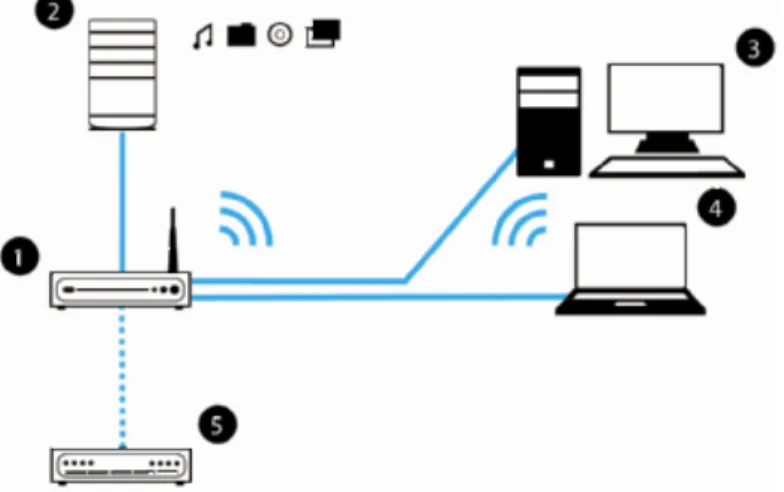
Figure 1: Connecting the HP MediaSmart Server to the network
This example shows a broadband router connecting the following: • HP MediaSmart Server
• Desktop computer
• Laptop with a wireless adapter
• TV connected to a network-enabled media streaming device, such as an Xbox 360
• Remote users connecting to the HP MediaSmart Server and home network through an Internet browser
The server requires a DHCP-enabled router to get its IP address. By default, most routers include a DHCP server. For more information, check your router documentation.
Caution:If you have wireless functionality on your network, be sure to enable your router’s security settings, such as WPA or WEP, to protect your network. See the documentation that came with your router.
Installing Version Update 1.1.1 1-6
Turning on the HP MediaSmart Server
Connect the HP MediaSmart Server to a power source and to a router.
Figure 2: Connecting to power and powering on
To power on the server
1 Plug in. Plug one end of the power cord into the server’s power receptacle and the other end into an electrical outlet.
2 Connect. Connect one end of the Ethernet cable to the server and the other end to an available Ethernet port on your router or to a switch that is connected to your router.
3 Power on. Press the Power button on the back of the server.
The server takes approximately 60 seconds to startup. The indicator lights blink and change color throughout the startup process. Wait for all of the server lights to be solid before proceeding with the software installation.
Important: Do not attach USB devices to the HP MediaSmart Server during initial setup. For additional information, see the Troubleshooting on page 7-1.
Installing 1-7
Checking the Server Lights
The lights on the front of the HP MediaSmart Server indicate the status of the server. After the HP MediaSmart Server startup completes and prior to the first software installation, the indicator lights show:
• Hard drives—solid purple • Network—solid blue • Health—solid purple
After you complete the software installation, all lights should be solid blue. If the lights are not solid blue, see the following:
• Why is the hard drive light-bar purple? on page 7-3
• Why is the hard drive light-bar red? on page 7-3
• Power-on indicator is off on page 7-3
• Why is the server’s health indicator light red? on page 7-4
Updating Your Firewall’s Trusted Program List
The HP MediaSmart Server Software Installation Disc installs several programs that enable your computer to communicate with the HP
MediaSmart Server over your network. Software firewalls installed on your computer can block this communication and prevent the computer from locating the HP MediaSmart Server on your network. The following steps are recommended before installing the HP MediaSmart Server programs:
• Launch your firewall and anti-virus software and update the trusted programs list.
• Verify that your firewall and anti-virus software is set to "Learn" new programs. After the HP MediaSmart Server software is installed, the firewall should prompt you to allow the installed programs to communicate with the server.
• If you are using a firewall or anti-virus program that cannot automatically update its trusted software list, please contact the firewall or anti-virus software vendor to find out how to manually add software to the trusted
Installing Version Update 1.1.1 1-8
software list. Then, visit http://www.hp.com/go/support for a list of software to add.
Installing the Software on the First Computer
Use the Software Installation Disc to install both the HP MediaSmart Server software and the Windows Home Server Connector software.
The software installation consists of the following: • HP Update (if not already installed)
• Windows components—Windows Installer 3.1 and .NET 2.0 or later software. (Installed only if they are not already on the computer) • HP MediaSmart Server software
• Windows Home Server Connector
• Windows Home Server Setup—the setup runs only on the first computer where the software is installed.
Checking for Administrative Privileges
You must have administrative privileges on your home computer to install the software. Complete the following instructions for Windows Vista or Windows XP to view or change user account settings.
• In Windows Vista, click Start, Control Panel, and then User Accounts and Family Safety.
• In Windows XP, click Start, click Control Panel, and then double-click
User Accounts.
Inserting the Software Installation Disc
The Software Installation Disc first installs the HP MediaSmart Server software and then the Microsoft Home Server Connector software on your computer.
Sidebar: Hubs and Network Health Light
Some network hubs, as opposed to switches or routers, may reduce performance between your computer and the HP MediaSmart Server, or the hub may prevent your computer from communicating with the server. If this is a problem, the network health indicator light on the front of the server will be off. Replacing the hub with a switch may improve the network performance or restore connectivity.
Installing 1-9
1 Insert the Software Installation Disc into a computer connected to your network. The installation starts.
2 Follow the instructions on each installation page. The remainder of this chapter describes important parts of the installation, but not every step is described.
Note: Computers running Windows Vista may display User Account Control messages, such as “A program needs your permission to Continue.” Click
Continue.
About the HP MediaSmart Server Software
The HP MediaSmart Server software installs first. This software is used to • Provide a single point of access for all of the server’s features,
• Share photos and videos quickly and securely over the Web using HP Photo Webshare,
• Centralize your iTunes music library, and more!
Note: Click User’s Guide on this dialog box if you need additional assistance with the installation and setup.
Click Next to display and accept the end user license agreement.
Installing the HP MediaSmart Server
Click Install and follow the instructions on each page.
The following components are installed if they are not already on your computer. This installation may restart your computer and take several minutes.
• Windows Installer 3.1
• Microsoft .Net Framework 2.0 • HP Update
The HP MediaSmart Server software automatically installs after the
components. Once the HP software is installed, the Windows Home Server Connector install begins.
About the Windows Home Server Connector
The Windows Home Server Connector:Installing Version Update 1.1.1 1-10
• Connects your computer to the server.
• Automatically backs up your computer every night.
• Monitors the health of the network and computers running Windows Vista.
• Enables configuration of the server from your computer.
Windows Home Server Setup runs only once—on the first computer where you install the Windows Home Server Connector software.
Finding the Server
The Windows Home Server Connector installations looks for and connects to your HP MediaSmart Server. If the installation cannot find your server, see Troubleshooting on page 7-1.
Once the server is found, click Next to continue the installation.
Initializing Windows Home Server
The Windows Home Server initialization begins and can take several hours depending on your hardware. Please wait while Windows Home Server: • Configures your hardware
• Recovers your data
• Starts Windows Home Server
Naming the HP MediaSmart Server
Type a name for your server. Server names can be: • 15 characters maximum with no spaces• Letters (at least one), numbers and hyphens
Note: This is the only time you can name your server. It cannot be changed later. The default name is HPSERVER. Write down the server name if you change it.
Setting the Server Password
On the Windows Home Server password page, you are asked to create a strong password. A strong password must be at least 7 characters long and must fulfill three of the following four requirements:
Installing 1-11
• Uppercase characters • Lowercase characters • Numbers
• Symbols (such as !, @, and #)
Note: A password hint can be seen by anyone who clicks the Password hint button. It is recommended that you write your password down somewhere safe.
Important:The server password is not the same as a user password. For additional information on user accounts and passwords see, Task 2 of 6: Create User Accounts on page 2-7.
Help Protect Windows Home Server Automatically
Windows Home Server Setup automatically downloads and installs relevant important updates from Windows Update to help make your home server more secure.
Choose if you want Windows Home Server to continue automatically downloading updates after Setup and click the next arrow.
Note: It is recommended that you turn on Automatic Windows Updates.
Customer Experience Improvement Program
Join the Customer Experience Improvement Program (CEIP) and help make Windows Home Server even better. CEIP collects information about your hardware and home server usage without interrupting you. No information collected is used to identify or contact you.
Choose if you want to participate in this program and click the next arrow.
Windows Error Reporting
To help understand the problems you may encounter with Windows Home Server, Windows Error Reporting can automatically report them to Microsoft. Any personal information inadvertently collected in the reports will not be used.
Installing Version Update 1.1.1 1-12
Checking for Windows Home Server Updates
The Windows Home Server installation checks for any relevant important updates. This may take some time to complete, but does not require additional information from you.
Important: Do not restart or turn off your home server during the update process.
Checking for HP MediaSmart Server Updates
The HP MediaSmart Server installation checks for any updates. Installing updates ensures that you experience the full functionality and optimal performance of the HP MediaSmart Server.
Important: Do not restart or turn off your home server during the update process.
When do you log on to the server?
Introducing the HP MediaSmart Server Assistant
The server installation is complete. When you click OK, the Assistantremains at the bottom of the page to guide you through setting up your HP MediaSmart Server.
A green check mark appears for each completed step. Once all of the steps are complete, the Assistant link at the top of the page turns green. For additional information, see Setting up the HP MediaSmart Server using the Assistant on page 2-2.
Congratulations! You are ready to start using your
server
Some HP MediaSmart Server features, such as backups and shared folders, are pre-configured and ready to go as soon as the first software installation is complete. Other features require some set up before you can use them.
Backups
After running the Software Installation Disc on your first home computer it is automatically added to the list of computers that are backed up by the HP
Installing 1-13 MediaSmart Server each night. Run the Software Installation Disc on
additional home computers to enable them to communicate with the server and to add them to nightly backups.
To customize the hard-drive volumes to back up, or to exclude folders from the backup
1 At the computer, double-click the Windows Home Server icon in the task tray and log on.
Figure 3: Windows Home Server system tray icon
2 Click the Backups & Computers tab.
Shared Folders and Media Sharing
Start copying digital assets from your computer to shared folders on the HP MediaSmart Server.
1 At the computer, double-click the HP MediaSmart Server desktop icon.
Figure 4: HP MediaSmart Server desktop icon
2 Copy Photos, Music, or Videos to the appropriate shared folder or click Server to create shared folders for other digital content.
Note: From the Media Sharing page on the Windows Home Server
Settings tab, you can turn on digital media streaming for the Photos, Music, or Videos shared folders. Click On for each folder that you want to stream from.
Set up Additional Features
Features such as HP Software Update, User Accounts, Remote Access, Photo Webshare, and Media Sharing require some setup. The Assistant guides you through setting up your server. Using the Assistant is optional but
Installing Version Update 1.1.1 1-14
recommended to ensure that the most frequently used server features are set up correctly.
1 At the computer, double-click the Windows Home Server icon in the task tray and log on.
The MediaSmart Server tab should be active.
2 Follow the instructions in the Assistant at the bottom of the page. See Setting up the HP MediaSmart Server using the Assistant on page 2-2 for detailed instructions on using the Assistant.
2
Getting Started
After completing the first installation, use this chapter to set up the HP MediaSmart Server.
What’s in this chapter
» Opening the Windows Home Server Console
» Setting up the HP MediaSmart Server using the Assistant » Task 1 of 6: Setup HP Software Update
» Task 2 of 6: Create User Accounts » Task 3 of 6: Configure Remote Access
» Task 4 of 6: Configure your HP Photo Webshare » Task 5 of 6: Turn on Media Sharing
» Task 6 of 6: Learn more about your HP MediaSmart Server » Installing the Software on Additional Home Computers » Setting up Additional Home Computers
Opening the Windows Home Server Console
You can access the Windows Home Server Console in the following ways: • To open the Windows Home Server Console from the start menu
• To open the Windows Home Server Console from the HP MediaSmart Server desktop icon
• To open the Windows Home Server Console from the system tray
To open the Windows Home Server Console from the start menu
1 At the computer, click Start, All Programs, and then select Windows Home Server Console.
Getting Started Version Update 1.1.1 2-2
To open the Windows Home Server Console from the HP MediaSmart Server desktop icon
This method requires that during installation you selected to create a desktop shortcut to the HP MediaSmart Server.
1 From the computer desktop, double-click HP MediaSmart Server icon.
Figure 5: Desktop HP MediaSmart Server icon
2 In the Control Center, click the Tools tab. 3 Click Home Server Console.
4 Log on to the Windows Home Server Console.
To open the Windows Home Server Console from the system tray
1 At the computer, double-click the Windows Home Server icon in the system tray.
2 Log on to the Windows Home Server Console.
Setting up the HP MediaSmart Server using the Assistant
After running the Software Installation Disc on the first computer, the installer displays the Windows Home Server Console with the MediaSmart Server tab selected. Additionally, the Assistant displays at the bottom of the page and describes the most important tasks for configuring the HP MediaSmart Server. This topic includes the following:
• About the Assistant
• Opening and Closing the Assistant
• Using the Assistant Task Indicators
Getting Started 2-3 Figure 6: The Assistant displays with suggested configuration tasks
About the Assistant
The Assistant guides you through setting up your server. Using the Assistant is optional but recommended to ensure that the most frequently used server features are set up correctly.
• Task 1 of 6: Set up HP Software Update—Set up HP Software Update to automatically check for HP MediaSmart Server and computer updates. For more information, see Task 1 of 6: Setup HP Software Update on page 2-5.
• Task 2 of 6: Create User Accounts—Create a guest server account or individual user accounts to seamlessly connect to shared folders on the HP MediaSmart Server from your home computers. Individual user accounts with strong passwords are required to access the server from outside the home or to set up HP Photo Webshare. Remote access must also be enabled to set up Webshare. Task 3 of 6: Configure
Remote Access guides you through setting up remote access. For more information, see Task 2 of 6: Create User Accounts on page 2-7.
• Task 3 of 6: Configure Remote Access—Create a domain name and configure your router to enable access to your HP MediaSmart Server and HP Photo Webshare from a web browser anywhere on the
Getting Started Version Update 1.1.1 2-4
Internet. For more information, see Task 3 of 6: Configure Remote Access on page 2-13.
• Task 4 of 6: Configure your HP Photo Webshare—Set up Webshare managers, email, and visitor upload limits. Before configuring Webshare, create at least one user account with remote access enabled and configure remote access settings. For more information, see Task 4 of 6: Configure your HP Photo Webshare on page 2-17.
• Task 5 of 6: Turn on Media Sharing—Turn on media sharing to stream music, videos, or pictures to supported digital media players or digital media receivers in your home network. For more information, see Task 5 of 6: Turn on Media Sharing on page 2-19.
• Task 6 of 6: Learn more about your HP MediaSmart Server—Click the link to open the online User’s Guide to learn about using all of the HP MediaSmart Server features. For more information, see Task 6 of 6: Learn more about your HP MediaSmart Server on page 2-20.
Opening and Closing the Assistant
1 At the computer, double-click the Windows Home Server icon in the system tray and log on.
2 Click the MediaSmart Server tab.
3 Click Assistant in the upper right corner to toggle between opening and closing the Assistant.
The Assistant opens to the first incomplete task or closes at the bottom of the Windows Home Server.
Using the Assistant Task Indicators
The Assistant task indicators are in the lower right corner of the page. They tell you at a glance which tasks are complete and which ones still need to be set up.
• Incomplete tasks. Incomplete tasks have yellow indicators. Roll over the yellow indicators with your mouse to see descriptions of the tasks. Click a yellow indicator to jump directly to that step in the Assistant.
Note: If a previous step needs to be completed before the step you selected, the Configure button is greyed out and the text above the
Getting Started 2-5 button tells you what step needs to be done prior to completing the current step.
• Complete tasks. Complete tasks have a green check mark. After all of the tasks are complete, the Assistant button at the top of the page turns green.
Other HP MediaSmart Server Settings
While the Assistant guides you through setting up several HP MediaSmart Server features, there are some features that it does not describe. The MediaSmart Server tab of the Windows Home Server also contains the following items:
• LED brightness control—move the slider to adjust the brightness of the lights on the front of the HP MediaSmart Server.
• Server Settings for iTunes—enable or disable this feature, set up a password, change the name displayed for the HP MediaSmart Server in iTunes. For more information, see Setting up iTunes on the server and the client computer on page 6-29.
Task 1 of 6: Setup HP Software Update
Use the HP MediaSmart software update to keep your server and home computers current with the latest HP software, online help, and new features. HP MediaSmart software update does not update the Microsoft Windows Home Server operating system. For information about updating Windows Home Server, see Configuring Windows Update in the Windows Home Server Console Help.
This topic includes the following:
• Configuring HP MediaSmart software update
Getting Started Version Update 1.1.1 2-6
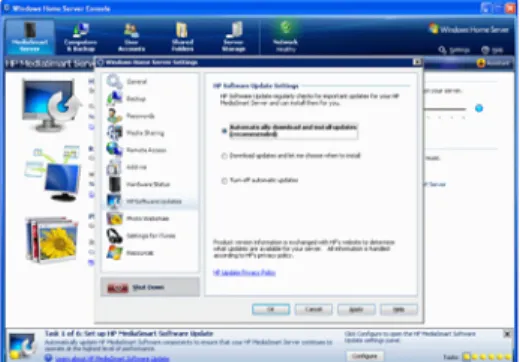
Figure 7: Step 1 of 6: Setup HP Software Update
Configuring HP MediaSmart software update
1 At the computer, double-click the Windows Home Server icon in the system tray.
2 Log on to the Windows Home Server Console. 3 Go to task 1 of the Assistant and click Configure.
For additional information, see Opening and Closing the Assistant on page 2-4. If you are not following the Assistant, click the MediaSmart Server tab and click Configure under HP MediaSmart software updates.
The Windows Home Server Settings page displays with HP Software Updates selected in the left menu.
Getting Started 2-7
4 In HP Software Updates, select one of the following options:
Client computer updates
If the update requires a software change on your network computers, the updated software is installed on the computers by the server. Here’s what happens:
1 A notification displays on the client computers indicating that the HP MediaSmart Server wants to download the HP software update to the computers.
2 After the update is downloads, the install begins.
Note: Home computers may not be able to communicate with the server if updates are installed on the server but they have not been installed on the home computer.
Task 2 of 6: Create User Accounts
After you complete the installation of the HP MediaSmart Server and the Windows Home Server Connector software to your computer, you are ready
Table 3: HP Software Update settings options
Option Additional information
Automatically download and install
updates (recommended) Requires no user action.Downloads and installs updates on the server in the background. If necessary the server will automatically reboot.
Download updates and let me choose
when to install Requires user action.Your computer notifies you that an update has been downloaded and is ready to install on the server. Additionally, the
Install link turns blue under HP MediaSmart software updates.
To update the server after an update is downloaded, click Install under HP MediaSmart software updates in the Windows Home Server Console.
Getting Started Version Update 1.1.1 2-8
to add user accounts for other family members in your household. The HP MediaSmart Server supports two types of user accounts: guest and individual.
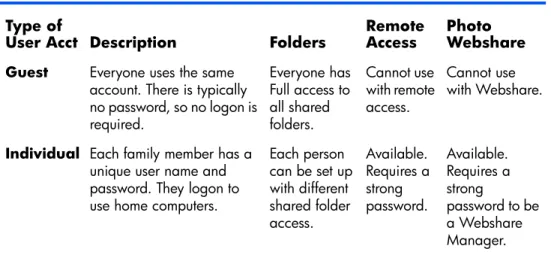
Use the table below to determine which type of user account best suits your needs.
This topic includes the following: • Enabling the Guest Account
• Creating Individual User Accounts
For additional information on user accounts, see the following help topics in the Windows Home Server help.
• Why do I need user accounts?
• Why should logon names match?
• Which user accounts password policy should I choose?
Enabling the Guest Account
If you want everyone to use the same logon account to access the HP MediaSmart Server, enable the guest account. If the guest account is enabled with no password, family members are not required to logon when they use home computers. Additionally, all family members can have Full access to all shared folders through the guest account.
Table 4: Choosing the type of user account to suit your needs Type of
User Acct Description Folders Remote Access Photo Webshare Guest Everyone uses the same
account. There is typically no password, so no logon is required.
Everyone has Full access to all shared folders. Cannot use with remote access. Cannot use with Webshare.
Individual Each family member has a unique user name and password. They logon to use home computers.
Each person can be set up with different shared folder access. Available. Requires a strong password. Available. Requires a strong
password to be a Webshare Manager.
Getting Started 2-9 Figure 8: Step 2 of 6: Create User Accounts, Enabling the Guest Account
Important:If you enable the guest account, everyone that connects to your home network has the same privileges. That may mean that they all have full access to shared folders and other resources on your server. To protect your home network from unwanted connections, see Securing your server from intruders on page 6-22.
Note: The guest account cannot be used to access the server from outside of the home using remote access and it cannot be used with HP Photo
Webshare.
To enable the guest account
1 At the computer, double-click the Windows Home Server icon in the system tray.
2 Log on to the Windows Home Server Console.
3 Go to task 2 of the Assistant and click the User Accounts tab at the top of the page.
For additional information, see Opening and Closing the Assistant on page 2-4. If you are not following the Assistant, click the User Accounts
tab.
Getting Started Version Update 1.1.1 2-10
4 Click Enable Guest.
Creating Individual User Accounts
If family members want to access information on your home network from an Internet café, coffee shop, or other location outside of your home, they need individual user accounts with strong passwords. At least one individual user account with a strong password is also required to create a Webshare Manager and to set up HP Photo Webshare. For additional information, see Task 4 of 6: Configure your HP Photo Webshare on page 2-17.
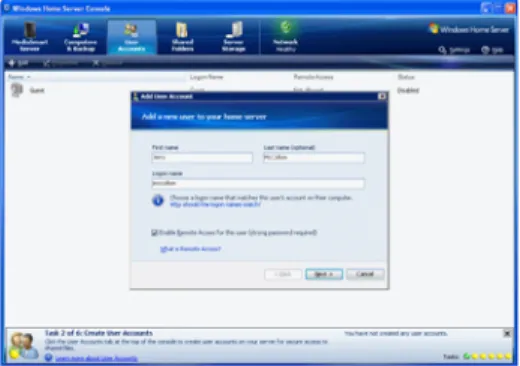
Figure 9: Step 2 of 6: Create User Accounts, Creating Individual User Accounts
Important: When you create user accounts on the server, use logon names and passwords that match the logon names and passwords of existing user accounts on your home computers. Creating matching user accounts enables family members to automatically log on to the server when they log on to their home computer.
If the user accounts and passwords do not match, you will be prompted to type a user name and password when you open the server’s shared folders. If your computer does not have a password or if the computer uses a factory default user name, you can change these parameters to eliminate the need to enter your user name and password when you access a shared folder.
Getting Started 2-11
Do I need to create user accounts on each home computer?
Computer user accounts are created on each home computer that connects to the server. Likewise, if three family members share a home computer, each family member should have an individual user account on that computer. For instance, if Mom and Dad share a computer, you will create user
accounts for both of them on the computer that they share. If the children, Jill and Bobby, have their own computers, you can create one user account for each of them and only on the computer that they use.
Another option is to set up user accounts for all family members on all computers.Then, each family member can log on to any home computer and access the server seamlessly.
To create a user account for a home computer running Windows XP
1 At the computer, click Start, Control Panel, and then User Accounts.
2 Click Add to create a user account.
-or-Click Change an Account to change a logon name or password for an existing account.
A strong password is suggested to ensure security and is required to use remote access or HP Photo Webshare. A strong password must be at least 7 characters long and must fulfill three of the following four character criteria:
Uppercase characters Lowercase characters Numbers
Symbols (such as !, @, #, and so on.)
A password hint helps you remember your password. The password hint can be seen by anybody who clicks the link to display it.
Getting Started Version Update 1.1.1 2-12
To create a user account for a home computer running Windows Vista
1 At the computer, click Start and then Control Panel.
2 Under User Accounts and Family Safety, select Add or remove user accounts.
Add user accounts or make changes to existing user accounts.
A strong password is suggested to ensure security. A strong password must be at least 7 characters long and must fulfill three of the following four character criteria:
Uppercase characters Lowercase characters Numbers
Symbols (such as !, @, #, and so on.)
A password hint helps you remember your password. The password hint can be seen by anybody who clicks the link to display it.
To create user accounts on the server
1 At the computer, double-click the Windows Home Server icon in the system tray.
2 Log on to the Windows Home Server Console.
3 Go to task 2 of the Assistant and click the User Accounts tab at the top of the page.
For additional information, see Opening and Closing the Assistant on page 2-4. If you are not following the Assistant, click the User Accounts
tab.
The User Accounts Setup dialog displays.
4 Click Set Policy to force a password strength for all user accounts and click OK. (optional)
User accounts that are enabled for remote access in the Add User Account Wizard in step 6 below, require a strong password regardless of what is selected on the Set Policy page.
5 Click OK on the User Accounts Setup dialog to begin creating user accounts.
Getting Started 2-13
6 Click Add, and then complete the Add User Account Wizard. Use only the following characters for names:
Uppercase letters—A, B, C, and so on. Lowercase letters—a, b, c, and so on. Numbers—0, 1, 2, 3, 4, 5, 6, 7, 8, 9
Symbols—use only: dash - underscore _ period . space [ ]
7 Check to enable remote access if the family member wants to access the home network from outside of the home of if they want to use HP Photo Webshare.
8 Repeat for each user account that you want to add.
Task 3 of 6: Configure Remote Access
To access your Photo Webshare from a Web browser outside of your home network, or to easily access your files and home computers while you are away from home, you must configure remote access.
Getting Started Version Update 1.1.1 2-14
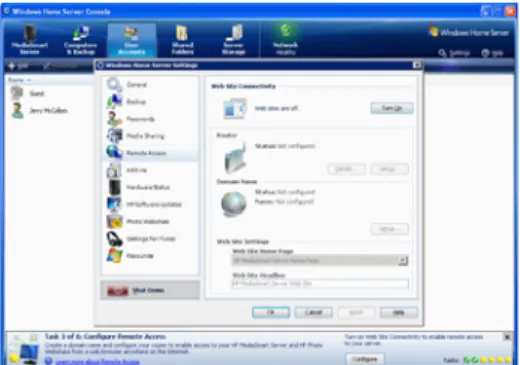
Figure 10: Step 3 of 6: Configure Remote Access
To access Remote Access configuration
1 At the computer, double-click the Windows Home Server icon in the system tray.
2 Log on to the Windows Home Server Console. 3 Go to task 3 of the Assistant and click Configure.
For additional information, see Opening and Closing the Assistant on page 2-4. If you are not using the Assistant, click the MediaSmart Server tab and click Configure under Remote Access settings. The Windows Home Server Settings page displays with Remote Access selected in the left menu.
Web Site Connectivity
You must turn on Web Site Connectivity to use remote access or to allow visitors access to your Photo Webshare. For more information, see Turning your Web site connectivity on or off in the Windows Home Server Console Help.
Getting Started 2-15
Router
You must configure your router to access your HP Photo Webshare from outside the home network and to use remote access. After clicking Setup, the server automatically tries to configure your broadband router. For more information, see Configuring your broadband router in the Windows Home Server Console Help.
Domain Name
A Domain Name is a Web address. It allows you to access your HP
MediaSmart Server and HP Photo Webshare from the Internet. For instance, if you registered MyFamily.hpshare.net for your HP MediaSmart Server, you would use this address to connect to your server using remote access. Additionally, this address is part of the URL for accessing an album on your Photo Webshare.
To set up a domain name
1 Click the Setup button for Domain Name.
2 Follow the instructions in the Domain Name Setup. The following topics provide guidance for setting up your Domain Name:
Select Domain Name and DNS hosting service About HP Personal Domain Name by TZO.COM About TZO.COM Custom Domain Names
About Windows Live Personalized Domain Name
Select Domain Name and DNS hosting service
The HP MediaSmart Server provides three alternatives for setting up a domain name:
• HP Personal Domain Name by TZO.COM • TZO.COM Custom Domain Name
• Windows Live Custom Domains
When choosing which service to use, consider the following:
• TZO domain names allow you to automatically notify Photo Webshare visitors when new photos are available through email without having to set up an SMTP email server.
Getting Started Version Update 1.1.1 2-16
• TZO domains names allow easy remote access, even if your broadband ISP blocks port 80. Blocking port 80 prevents a Web browser from reaching the server.
• With the TZO.COM Custom Domain Name option, you can create a domain name with any name that is not already registered.
About HP Personal Domain Name by TZO.COM
HP Personal domain name is free for the first year. After the first year, the cost is a nominal $9.99 per year, as of September 2007.
An HP personal domain name has two parts:
• Personalized name—enter a name of your choice. TZO.COM will check your choice against existing names. If the name you picked already exists, TZO provides a list of alternatives.
• Second part of the name—choose from an assortment of domain names such as hphomeserver.com or hpshare.net.
Each part is combined so the Domain Name looks like
MyFamily.hphomeserver.com.
About TZO.COM Custom Domain Names
With this option, you can create a domain name with any name you want, like MyName.com, as long as that name is not already registered. A domain name has several components:
• Top-level or first-level domain names—all domain names end in a small list of generic names, such as .com or .net, or in a country code, such as .es or .fr.
• Second-level domain names—the part or parts of the domain name located to the left of the top-level domain name. For example, “MyName” in MyName.com.
About Windows Live Personalized Domain Name
Microsoft also offers a service to get a personalized domain name for your server. Using Windows Live Personalized Domain Name requires email SMTP configuration to use Webshare.
Getting Started 2-17
To set up email SMTP settings for Webshare
1 Double-click the Windows Home Server icon in the system tray. 2 Log on to the Windows Home Server Console.
3 Click Settings in the upper right corner. 4 Click Photo Webshare in the left menu.
5 On the right side under Webshare Notifications, click Configure. 6 Select Use my own email provider to send Webshare
announcements and click Next.
7 Type the name and email address to use in your Webshare notifications and click Next.
8 Type the SMTP server information and click Next.
Contact your Internet service provider if you do not know your SMTP server information.
9 Click Send Sample Announcement to test the configuration. 10 Click Finish.
Task 4 of 6: Configure your HP Photo Webshare
Personalize your Photo Webshare, set up email notifications, create Webshare managers, and determine visitor upload limits.
Getting Started Version Update 1.1.1 2-18
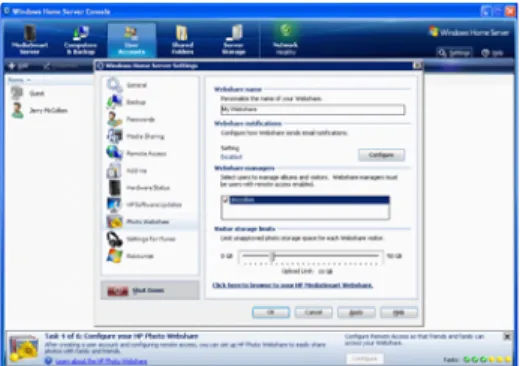
Figure 11: Step 4 of 6: Configure your HP Photo Webshare
To access Photo Webshare settings
1 Double-click the Windows Home Server icon in the system tray. 2 Log on to the Windows Home Server Console.
3 Go to task 4 of the Assistant and click Configure.
For additional information, see Opening and Closing the Assistant on page 2-4. If you are not following the Assistant, click the MediaSmart Server tab and click Configure under Photo Webshare Settings. The Windows Home Server Settings page displays with HP Photo Webshare selected in the left menu.
The following options are available:
Webshare name—name your Photo Webshare. This will be at the
top of every Photo Webshare page and in the email announcements.
Webshare notifications—allows you to send email notifications to
announce additions or changes to a Photo Webshare Album. For more information, see Notifying visitors by email on page 5-18. To configure, click the Configure or Modify button. For information on configuring this option, see Photo Webshare notifications on page 2-19.
Getting Started 2-19
Webshare managers—all users are listed. A check mark indicates
who can create, edit, or remove albums and visitors.
Visitor storage limits—set the amount of disk space that visitors
can use for uploading photos and video clips before they are approved by a Webshare manager.
Photo Webshare notifications
The following options are available:• Use the TZO service to send Photo Webshare announcements on your behalf—available only if you have previously selected to use the TZO service. For more information, see About HP Personal Domain Name by TZO.COM on page 2-16 or About TZO.COM Custom Domain Names on page 2-16.
• Use your own email provider to send Photo Webshare announcements— send email through your own email service. Some web-based email services, such as Hotmail, are not supported.
If choosing to use your own email provider to send Photo Webshare announcements, you must enter your email account information, including the name of the SMTP server. You can get this information from your email provider or from the email account settings on your email program. • Do not send any Photo Webshare announcements.
Task 5 of 6: Turn on Media Sharing
Turn on media sharing to stream music, videos, or pictures to supported digital media players or digital media receivers.
Getting Started Version Update 1.1.1 2-20
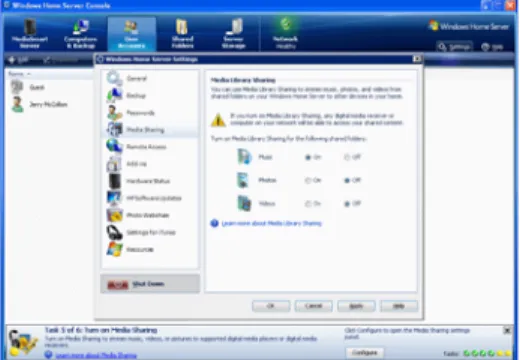
Figure 12: Step 5 of 6: Turn on Media Sharing
To turn on media sharing
1 Double-click the Windows Home Server icon in the system tray. 2 Log on to the Windows Home Server Console.
3 Go to task 5 of the Assistant and click Configure.
For additional information, see Opening and Closing the Assistant on page 2-4. If you are not following the Assistant, click Settings in the upper right corner of the Windows Home Server Console and click
Media Sharing.
4 Click On for each folder that you want to enable media streaming. 5 Click OK.
Task 6 of 6: Learn more about your HP MediaSmart
Server
This step does not require any set up. It takes you to the HP MediaSmart Server User’s Guide where you can learn about of the server’s features.
Getting Started 2-21 Figure 13: Step 6 of 6: Learn more about your HP MediaSmart Server
To open the HP MediaSmart Server User’s Guide
1 Double-click the Windows Home Server icon in the system tray. 2 Log on to the Windows Home Server Console.
3 Go to task 6 of the Assistant and click the User’s Guide link.
For additional information, see Opening and Closing the Assistant on page 2-4. If you are not following the Assistant, click Help in the upper right corner of the Windows Home Server Console to open the HP MediaSmart Server User’s Guide.
Installing the Software on Additional Home Computers
After completing the steps in the Assistant on the first computer, use the Software Installation Disc to install the HP MediaSmart Server and Windows Home Server Connector software on the other computers on the home network. Install the software on one computer at time.
If you misplaced or damaged your Software Installation Disc, you can install the software for your computer directly from the server. For more information, see To install from the server using Windows XP on page 2-22 or To install from the server using Windows Vista on page 2-23.
Getting Started Version Update 1.1.1 2-22
To install from the Software Installation Disc
1 Insert the Software Installation Disc into a computer connected to the home network.
You must have administrative privileges to install. For additional
information, seeInstalling the Software on the First Computer on page 1-8.
2 Follow the instructions on the installation wizards.
The installation process is identical to installing on the first computer except for the following:
The Windows Home Server Setup does not run.
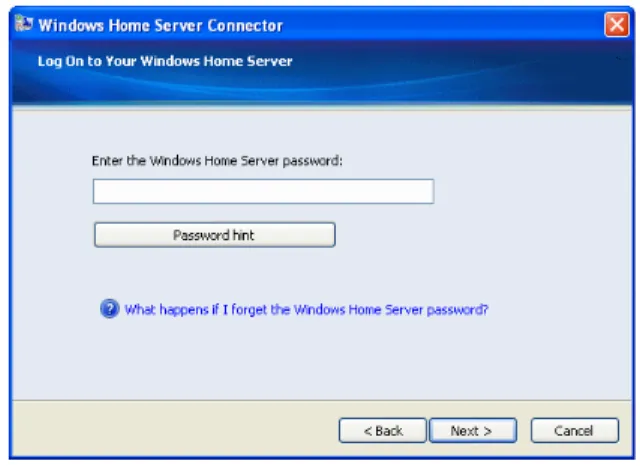
Your server password is required to install, as shown in the following
figure:
Figure 14: Log on to Windows Home Server
To install from the server using Windows XP
1 At the computer, click Start, and then click My Computer. 2 Do one of the following:
Click My Network Places.
Under Other Places, click My Network Places.
3 In the Add Network Place Wizard, use the following (UNC) network address:
Getting Started 2-23 For example, \\HPSERVER\software
When the wizard completes, you should see software on server in the My Network Places window.
4 Double-click the network place, and then open the Home Server Connector Software folder.
5 Double-click Install.exe and follow the instructions on the installation wizards.
To install from the server using Windows Vista
1 At the computer, click Start, and then click Network. 2 Under Network Tasks, click Add a network place.
3 In the Network Place Wizard, use the following UNC network address:
\\<name of the server>\software For example, \\HPSERVER\software
When the wizard completes, you should see the name you chose for the network place in the window.
4 Double-click the network place, and then open the Home Server Connector Software folder.
5 Double-click Install.exe and follow the instructions on the installation wizards.
Note: Network discovery must be turned on to access the server. See To ensure that Network Discovery is turned on on page 7-17.
Setting up Additional Home Computers
After installing the software on the Software Installation Disc, there are a few setup options for you to consider.
• The home computer is automatically set up to be backed up each night. If you want to customize back up settings for this computer, see Backing up and restoring a computer on page 6-4.
• If you created individual user accounts in Windows Home Server for one or more family members that use this computer, you also need to set up computer user accounts for them if you want them to be able to access
Getting Started Version Update 1.1.1 2-24
features on the server without logging on. For additional information, see Task 2 of 6: Create User Accounts on page 2-7.
• If there is an iTunes library on this computer that you want to include in an aggregated iTunes library on the server, set up this computer to copy its iTunes library to the server. For additional information, see To setup copying your iTunes library to the server on page 6-29.
Server Console 3-1
3
Server Console
The Windows Home Server Console is where you manage and configure the HP MediaSmart Server.
What’s in this chapter
» MediaSmart Server tab
Tools and settings for managing the HP MediaSmart Server. » Windows Home Server tabs
Overview of Windows Home Server functionality.
MediaSmart Server tab
The MediaSmart tab contains the tools and settings for managing the HP features.
HP MediaSmart software update
Use the HP MediaSmart software update to keep your server and client computers updated with the latest software, online help, and new features.
LED Brightness Control
Move the slider to adjust the brightness of the lights on the front of the HP MediaSmart Server. If you turn the LEDs off, the power light will remain on, but will be dim.
Remote access settings
Configure remote access settings to access your files away from home or to allow your friends and family to access your Photo Webshare. For more information, see Task 3 of 6: Configure Remote Access on page 2-13.
Server Settings for iTunes
Put your iTunes music library and playlists on the server for playback to any computer or notebook running iTunes on your home network. Enable or disable this feature, set up a password, change the name displayed for the
Server Console Version Update 1.1.1 3-2
HP MediaSmart Server in iTunes. For more information, see Setting up iTunes on the server and the client computer on page 6-29.
Photo Webshare settings
Set up Webshare managers, email, and visitor upload limits. For more information, see Task 4 of 6: Configure your HP Photo Webshare on page 2-17.
Windows Home Server tabs
The Windows Home Server enables you to share, store, access, and automatically protect your pictures, videos, music, and files. It contains the following tabs:
• Computers & Backups—view and customize backups. Also, view the status of your home computers running Windows Vista. For more
information, see Computers & Backup in the Windows Home Server Console Help.
• User Accounts—add, remove, and modify user accounts. For more information, see User Accounts in the Windows Home Server Console Help.
• Shared Folders—add, open, remove, and view the properties of the shared folders on your server. For more information, see Shared Folders in the Windows Home Server Console Help.
• Server Storage—view, add, repair, and remove hard drives from server storage. For more information, see Server Storage in the Windows Home Server Console Help.
• Network—displays health notifications from your server and your home computers running Windows Vista. For more information, see Network Health in the Windows Home Server Console Help.
• Settings—configure general settings, such as date and time, backups, passwords, media sharing, remote access, add-ins, resources, and more. For more information, see Server Settings in the Windows Home Server Console Help.
Control Center 4-1
4
Control Center
The Control Center is the starting point for accessing the features of the HP MediaSmart Server. The Control Center has three tabs:
What’s in this chapter
» MediaSmart tab
Access your Photo Webshare and shared folders. » Tools tab
Tools and settings for configuring your server. » Help & Support tab
Learn to use the HP MediaSmart Server and connect to online support.
Accessing the Control Center
The Control Center desktop icon and system tray icon are available only if you selected to create them during installation.
The Control Center can be accessed from the following:
MediaSmart tab
Use this tab to access Your Albums in Photo Webshare and your shared folders.
Windows Start menu—at the computer, click Start, All Programs, and then select HP MediaSmart Server.
Desktop icon —at the computer, double-click the HP MediaSmart Server icon on the desktop.
System tray icon —at the computer, double-click the HP MediaSmart Server icon on the system tray.
Control Center Version Update 1.1.1 4-2
Photo Webshare
Figure 15: Photo Webshare on the MediaSmart tab
Opens Photo Webshare on the Your Albums page in a Web browser
window. For information about using Photo Webshare, see Photo Webshare on page 5-1.
Shared Folders
Shared folders are places to help you get started saving and organizing your files so that you can share them with other people on your network.
If the logon name for the user account on your server does not match the logon name for your computer, you must enter a user name and password. For information about creating matching user accounts, see Why should logons names match? in the Windows Home Server Console Help.
Tools tab
Use the tools and settings on this tab to configure your HP MediaSmart Server.
Server—opens a folder that displays a list of all your shared folders.
Photos—opens a folder that displays a list of photos and photo subfolders.
Music—opens a folder that displays a list of music and music subfolders.
Video—opens a folder that displays a list of video and video subfolders.
Home Server Console—opens the Windows Home Server Console, where you manage and configure the server. For more information, see Server Console on page 3-1.
Backup now—immediately backs up your computer. All files not backed up since the last nightly backup are backed up. For more information, see Backup Now in the Windows Home Server Console Help.
Control Center 4-3
Help & Support tab
Get information about using, configuring, and getting accessories for your HP MediaSmart Server.
Settings for iTunes—automatically copies your iTunes music library and playlists to the server for playback on any computer running iTunes on your home network. For more information, see Setting up iTunes on the server and the client computer on page 6-29.
User’s Guide—contains installation information, setup instructions, how to use the server, tutorials, and other important information. Online support—go to the HP Support web site, where you can get more information about the HP MediaSmart Server.
Need accessories?—get accessories for your server and shop HP Home & Home Office.
Control Center Version Update 1.1.1 4-4
Photo Webshare 5-1
5
Photo Webshare
What’s in this chapter
» Before You Begin
» Logging on to HP Photo Webshare » Webshare home page
» Managing Webshare User Accounts » Creating an album to share
» Notifying visitors by email
» Viewing, printing, and saving photos » Changing a Visitor’s Password » Frequently Asked Questions
Securely share your photos and video clips with friends and family directly from your HP MediaSmart Server using HP Photo Webshare.
• Easily set up a secure, personal web address* to be used for remote access and by visitors to your HP Photo Webshare.
• Set up groups for sharing the different photo albums, such as family, ski club, and soccer team.
• Give specific visitors permission to add their own photos for sharing. • HP Photo Webshare links to Snapfish for easy photo printing. *Free and charge options (for personal domain name) are available.
Before You Begin
Some set up is required before logging on to the HP Photo Webshare for the first time. Check that the following configuration steps are complete.
• Enable at least one user account with remote access
• Select at least one user account to be a Webshare Manager