www.zyxel.com
P-660HW-Tx v3
802.11g Wireless ADSL 2+ 4-port Gateway
User’s Guide
Version 3.4011/2008 Edition 1
DEFAULT LOGIN
IP Address http://192.168.1.1 User Password user
About This User's Guide
Intended Audience
This manual is intended for people who want to configure the ZyXEL Device using the web configurator. You should have at least a basic knowledge of TCP/IP networking concepts and topology.
Related Documentation
• Quick Start Guide
The Quick Start Guide is designed to help you get up and running right away. It contains information on setting up your network and configuring for Internet access.
"
It is recommended you use the web configurator to configure the ZyXEL
Device.
• Supporting Disc
Refer to the included CD for support documents. • ZyXEL Web Site
Please refer to www.zyxel.com for additional support documentation and product certifications.
User’s Guide Feedback
Help us help you. Send all User’s Guide-related comments, questions or suggestions for improvement to the following address, or use e-mail instead. Thank you!
The Technical Writing Team, ZyXEL Communications Corp., 6 Innovation Road II,
Science-Based Industrial Park, Hsinchu, 300, Taiwan.
E-mail: [email protected]
Disclaimer
Graphics in this book may differ slightly from the product due to differences in operating systems, operating system versions, or if you installed updated firmware/software for your device. Every effort has been made to ensure that the information in this manual is accurate.
Document Conventions
Warnings and Notes
These are how warnings and notes are shown in this User’s Guide.
1
Warnings tell you about things that could harm you or your ZyXEL Device.
"
Notes tell you other important information (for example, other things you may
need to configure or helpful tips) or recommendations.
Syntax Conventions
• The P-660HW-Tx v3 may be referred to as the “ZyXEL Device”, the “device”, the “system” or the “product” in this User’s Guide.
• Product labels, screen names, field labels and field choices are all in bold font.
• A key stroke is denoted by square brackets and uppercase text, for example, [ENTER] means the “enter” or “return” key on your keyboard.
• “Enter” means for you to type one or more characters and then press the [ENTER] key. “Select” or “choose” means for you to use one of the predefined choices.
• A right angle bracket ( > ) within a screen name denotes a mouse click. For example,
Maintenance > Log > Log Setting means you first click Maintenance in the navigation panel, then the Log sub menu and finally the Log Setting tab to get to that screen. • Units of measurement may denote the “metric” value or the “scientific” value. For
example, “k” for kilo may denote “1000” or “1024”, “M” for mega may denote “1000000” or “1048576” and so on.
• “e.g.,” is a shorthand for “for instance”, and “i.e.,” means “that is” or “in other words”.
Icons Used in Figures
Figures in this User’s Guide may use the following generic icons. The ZyXEL Device icon is not an exact representation of your ZyXEL Device.
Table 1 Common Icons
ZyXEL Device Computer Notebook
Server DSLAM Firewall
Switch Router Internet Cloud
Safety Warnings
1
For your safety, be sure to read and follow all warning notices and instructions.
• Do NOT use this product near water, for example, in a wet basement or near a swimming pool.
• Do NOT expose your device to dampness, dust or corrosive liquids. • Do NOT store things on the device.
• Do NOT install, use, or service this device during a thunderstorm. There is a remote risk of electric shock from lightning.
• Connect ONLY suitable accessories to the device.
• Do NOT open the device or unit. Opening or removing covers can expose you to dangerous high voltage points or other risks. ONLY qualified service personnel should service or disassemble this device. Please contact your vendor for further information. • Make sure to connect the cables to the correct ports.
• Place connecting cables carefully so that no one will step on them or stumble over them. • Always disconnect all cables from this device before servicing or disassembling.
• Use ONLY an appropriate power adaptor or cord for your device. Connect it to the right supply voltage (for example, 110V AC in North America or 230V AC in Europe). • Do NOT allow anything to rest on the power adaptor or cord and do NOT place the
product where anyone can walk on the power adaptor or cord.
• Do NOT use the device if the power adaptor or cord is damaged as it might cause electrocution.
• If the power adaptor or cord is damaged, remove it from the device and the power source. • Do NOT attempt to repair the power adaptor or cord. Contact your local vendor to order a
new one.
• Do not use the device outside, and make sure all the connections are indoors. There is a remote risk of electric shock from lightning.
• Do NOT obstruct the device ventilation slots, as insufficient airflow may harm your device.
• Use only No. 26 AWG (American Wire Gauge) or larger telecommunication line cord. • Antenna Warning! This device meets ETSI and FCC certification requirements when
using the included antenna(s). Only use the included antenna(s).
• If you wall mount your device, make sure that no electrical lines, gas or water pipes will be damaged.
Your product is marked with this symbol, which is known as the WEEE mark. WEEE stands for Waste Electronics and Electrical Equipment. It means that used electrical and electronic products should not be mixed with general waste. Used electrical and electronic equipment should be treated separately.
Contents Overview
Introduction ... 31
Introducing the ZyXEL Device ... 33
Introducing the Web Configurator ... 45
Wizard Setup for Internet Access ... 57
Bandwidth Management Wizard ... 69
Wizard ... 75
Wizard Setup for Internet Access ... 77
Bandwidth Management Wizard ... 89
Network ... 95
WAN Setup ... 97
LAN Setup ...115
Wireless LAN ... 127
Network Address Translation (NAT) ... 147
Security ... 157
Firewalls ... 159
Firewall Configuration ... 173
Content Filtering ... 195
Advanced ... 199
Static Route ... 201
Bandwidth Management ... 205
Dynamic DNS Setup ... 217
Remote Management Configuration ... 221
Universal Plug-and-Play (UPnP) ... 233
Maintenance ... 245
System ... 247
Logs ... 253
Tools ... 271
Diagnostic ... 277
Troubleshooting and Specifications ... 279
Troubleshooting ... 281
Table of Contents
About This User's Guide ... 3
Document Conventions... 4
Safety Warnings... 6
Contents Overview ... 9
Table of Contents... 11
List of Figures ... 21
List of Tables... 27
Part I: Introduction... 31
Chapter 1 Introducing the ZyXEL Device ... 33
1.1 Overview ... 33
1.2 Ways to Manage the ZyXEL Device ... 33
1.3 Configuring Your ZyXEL Device’s Security Features ... 34
1.3.1 Control Access to Your Device ... 34
1.3.2 Wireless Security ... 34
1.3.3 Firewall ... 35
1.3.4 NAT ... 35
1.3.5 Content filter ... 35
1.3.6 UPnP ... 35
1.4 Maintaining Your ZyXEL Device ... 35
1.5 Features ... 36
1.5.1 Wireless Features ... 38
1.6 Applications for the ZyXEL Device ... 39
1.6.1 Protected Internet Access ... 40
1.6.2 LAN to LAN Application ... 40
1.7 LEDs ... 41
1.8 Splitters and Microfilters ... 41
1.8.1 Connecting a POTS Splitter ... 41
1.8.2 Telephone Microfilters ... 42
2.1 Web Configurator Overview ... 45
2.2 Accessing the Web Configurator ... 45
2.3 Resetting the ZyXEL Device ... 48
2.3.1 Using the Reset Button ... 48
2.4 Navigating the Web Configurator ... 48
2.4.1 Navigation Panel ... 48
2.4.2 Status Screen ... 50
2.4.3 Status: Any IP Table ... 53
2.4.4 Status: WLAN Status ... 53
2.4.5 Status: Bandwidth Status ... 54
2.4.6 Status: Packet Statistics ... 54
2.4.7 Changing Login Password ... 56
Chapter 3 Wizard Setup for Internet Access... 57
3.1 Introduction ... 57
3.2 Internet Access Wizard Setup ... 57
3.2.1 Automatic Detection ... 59
3.2.2 Manual Configuration ... 59
3.3 Wireless Connection Wizard Setup ... 64
3.3.1 Manually assign a WPA-PSK key ... 66
3.3.2 Manually assign a WEP key ... 67
Chapter 4 Bandwidth Management Wizard... 69
4.1 Introduction ... 69
4.2 Predefined Media Bandwidth Management Services ... 69
4.3 Bandwidth Management Wizard Setup ... 70
Part II: Wizard ... 75
Chapter 5 Wizard Setup for Internet Access... 77
5.1 Introduction ... 77
5.2 Internet Access Wizard Setup ... 77
5.2.1 Automatic Detection ... 79
5.2.2 Manual Configuration ... 79
5.3 Wireless Connection Wizard Setup ... 84
5.3.1 Manually assign a WPA-PSK key ... 86
Chapter 6
Bandwidth Management Wizard... 89
6.1 Introduction ... 89
6.2 Predefined Media Bandwidth Management Services ... 89
6.3 Bandwidth Management Wizard Setup ... 90
Part III: Network... 95
Chapter 7 WAN Setup... 97
7.1 WAN Overview ... 97
7.1.1 Encapsulation ... 97
7.1.2 Multiplexing ... 98
7.1.3 Encapsulation and Multiplexing Scenarios ... 98
7.1.4 VPI and VCI ... 99
7.1.5 IP Address Assignment ... 99
7.1.6 Nailed-Up Connection (PPP) ... 99
7.1.7 NAT ... 100
7.2 Metric ... 100
7.3 Traffic Shaping ... 100
7.3.1 ATM Traffic Classes ... 101
7.4 Zero Configuration Internet Access ... 102
7.5 Internet Connection ... 102
7.5.1 Configuring Advanced Internet Connection Setup ... 104
7.6 Configuring More Connections ... 106
7.6.1 More Connections Edit ... 107
7.6.2 Configuring More Connections Advanced Setup ...110
7.7 Traffic Redirect ...111
7.8 Configuring WAN Backup ...112
Chapter 8 LAN Setup... 115
8.1 LAN Overview ...115
8.1.1 LANs, WANs and the ZyXEL Device ...115
8.1.2 DHCP Setup ...116
8.1.3 DNS Server Address ...116
8.1.4 DNS Server Address Assignment ...116
8.2 LAN TCP/IP ...117
8.2.1 IP Address and Subnet Mask ...117
8.2.2 RIP Setup ...118
8.2.4 Any IP ...119
8.3 Configuring LAN IP ... 120
8.3.1 Configuring Advanced LAN Setup ... 121
8.4 DHCP Setup ... 122
8.5 LAN Client List ... 123
8.6 LAN IP Alias ... 124
Chapter 9 Wireless LAN... 127
9.1 Wireless Network Overview ... 127
9.2 Wireless Security Overview ... 128
9.2.1 SSID ... 128
9.2.2 MAC Address Filter ... 128
9.2.3 User Authentication ... 128
9.2.4 Encryption ... 129
9.3 General Wireless LAN Screen ... 130
9.3.1 No Security ... 131
9.3.2 WEP Encryption ... 132
9.3.3 WPA-PSK/WPA2-PSK ... 133
9.3.4 WPA/WPA2 ... 135
9.3.5 Wireless LAN Advanced Setup ... 137
9.3.6 MAC Filter ... 138
9.4 WiFi Protected Setup ... 139
9.4.1 Push Button Configuration ... 139
9.4.2 PIN Configuration ... 139
9.4.3 How WPS Works ... 141
9.4.4 Example WPS Network Setup ... 142
9.4.5 Limitations of WPS ... 144
9.5 The WPS Screen ... 145
9.6 The WPS Station Screen ... 146
Chapter 10 Network Address Translation (NAT)... 147
10.1 NAT Overview ... 147
10.1.1 NAT Definitions ... 147
10.1.2 What NAT Does ... 148
10.1.3 How NAT Works ... 148
10.1.4 NAT Application ... 148
10.1.5 NAT Mapping Types ... 149
10.2 SUA (Single User Account) Versus NAT ... 150
10.3 NAT General Setup ... 150
10.4 Port Forwarding ... 151
10.4.2 Port Forwarding: Services and Port Numbers ... 152
10.4.3 Configuring Servers Behind Port Forwarding (Example) ... 152
10.5 Configuring Port Forwarding ... 153
10.5.1 Port Forwarding Rule Edit ... 154
Part IV: Security ... 157
Chapter 11 Firewalls... 159
11.1 Firewall Overview ... 159
11.2 Types of Firewalls ... 159
11.2.1 Packet Filtering Firewalls ... 159
11.2.2 Application-level Firewalls ... 160
11.2.3 Stateful Inspection Firewalls ... 160
11.3 Introduction to ZyXEL’s Firewall ... 160
11.3.1 Denial of Service Attacks ... 161
11.4 Denial of Service ... 161
11.4.1 Basics ... 161
11.4.2 Types of DoS Attacks ... 162
11.5 Stateful Inspection ... 164
11.5.1 Stateful Inspection Process ... 165
11.5.2 Stateful Inspection and the ZyXEL Device ... 166
11.5.3 TCP Security ... 166
11.5.4 UDP/ICMP Security ... 167
11.5.5 Upper Layer Protocols ... 167
11.6 Guidelines for Enhancing Security with Your Firewall ... 168
11.6.1 Security In General ... 168
11.7 Packet Filtering Vs Firewall ... 169
11.7.1 Packet Filtering: ... 169
11.7.2 Firewall ... 169
11.8 Triangle Route ... 170
11.8.1 The “Triangle Route” Problem ... 170
11.8.2 The “Triangle Route” Solutions ... 171
Chapter 12 Firewall Configuration ... 173
12.1 Access Methods ... 173
12.2 Firewall Policies Overview ... 173
12.3 Rule Logic Overview ... 174
12.3.1 Rule Checklist ... 174
12.3.3 Key Fields For Configuring Rules ... 175
12.4 Connection Direction ... 175
12.4.1 LAN to WAN Rules ... 176
12.4.2 Alerts ... 176
12.5 General Firewall Policy ... 176
12.6 Firewall Rules Summary ... 177
12.6.1 Configuring Firewall Rules ... 179
12.6.2 Customized Services ... 182
12.6.3 Configuring a Customized Service ... 182
12.7 Example Firewall Rule ... 183
12.8 Predefined Services ... 187
12.9 Anti-Probing ... 189
12.10 DoS Thresholds ... 190
12.10.1 Threshold Values ... 190
12.10.2 Half-Open Sessions ... 191
12.10.3 Configuring Firewall Thresholds ... 191
Chapter 13 Content Filtering ... 195
13.1 Content Filtering Overview ... 195
13.2 Configuring Keyword Blocking ... 195
13.3 Configuring the Schedule ... 196
13.4 Configuring Trusted Computers ... 197
Part V: Advanced ... 199
Chapter 14 Static Route ... 201
14.1 Static Route ... 201
14.2 Configuring Static Route ... 201
14.2.1 Static Route Edit ... 202
Chapter 15 Bandwidth Management... 205
15.1 Bandwidth Management Overview ... 205
15.2 Application-based Bandwidth Management ... 205
15.3 Subnet-based Bandwidth Management ... 205
15.4 Application and Subnet-based Bandwidth Management ... 206
15.5 Scheduler ... 206
15.5.1 Priority-based Scheduler ... 206
15.6 Maximize Bandwidth Usage ... 207
15.6.1 Reserving Bandwidth for Non-Bandwidth Class Traffic ... 207
15.6.2 Maximize Bandwidth Usage Example ... 207
15.6.3 Bandwidth Management Priorities ... 209
15.7 Over Allotment of Bandwidth ... 209
15.8 Configuring Summary ... 209
15.9 Bandwidth Management Rule Setup ...211
15.9.1 Rule Configuration ... 212
15.10 Bandwidth Monitor ... 214
Chapter 16 Dynamic DNS Setup ... 217
16.1 Dynamic DNS Overview ... 217
16.1.1 DYNDNS Wildcard ... 217
16.2 Configuring Dynamic DNS ... 217
Chapter 17 Remote Management Configuration ... 221
17.1 Remote Management Overview ... 221
17.1.1 Remote Management Limitations ... 222
17.1.2 Remote Management and NAT ... 222
17.1.3 System Timeout ... 222
17.2 WWW ... 222
17.3 Telnet ... 223
17.4 Configuring Telnet ... 223
17.5 Configuring FTP ... 224
17.6 SNMP ... 225
17.6.1 Supported MIBs ... 226
17.6.2 SNMP Traps ... 227
17.6.3 Configuring SNMP ... 227
17.7 Configuring DNS ... 228
17.8 Configuring ICMP ... 229
17.9 TR-069 ... 230
Chapter 18 Universal Plug-and-Play (UPnP)... 233
18.1 Introducing Universal Plug and Play ... 233
18.1.1 How do I know if I'm using UPnP? ... 233
18.1.2 NAT Traversal ... 233
18.1.3 Cautions with UPnP ... 233
18.2 UPnP and ZyXEL ... 234
18.2.1 Configuring UPnP ... 234
18.3.1 Installing UPnP in Windows Me ... 235
18.3.2 Installing UPnP in Windows XP ... 236
18.4 Using UPnP in Windows XP Example ... 237
18.4.1 Auto-discover Your UPnP-enabled Network Device ... 238
18.4.2 Web Configurator Easy Access ... 241
Part VI: Maintenance... 245
Chapter 19 System ... 247
19.1 General Setup ... 247
19.1.1 General Setup and System Name ... 247
19.1.2 General Setup ... 247
19.2 Time Setting ... 249
Chapter 20 Logs ... 253
20.1 Logs Overview ... 253
20.1.1 Alerts and Logs ... 253
20.2 Viewing the Logs ... 253
20.3 Configuring Log Settings ... 254
20.3.1 Example E-mail Log ... 256
20.4 Log Descriptions ... 257
Chapter 21 Tools... 271
21.1 Firmware Upgrade ... 271
21.2 Configuration Screen ... 273
21.2.1 Backup Configuration ... 273
21.2.2 Restore Configuration ... 274
21.2.3 Back to Factory Defaults ... 275
21.3 Restart ... 275
Chapter 22 Diagnostic ... 277
22.1 General Diagnostic ... 277
22.2 DSL Line Diagnostic ... 278
Chapter 23
Troubleshooting... 281
23.1 Power, Hardware Connections, and LEDs ... 281
23.2 ZyXEL Device Access and Login ... 282
23.3 Internet Access ... 283
23.4 Reset the ZyXEL Device to Its Factory Defaults ... 284
Chapter 24 Product Specifications ...285
24.1 General ZyXEL Device Specifications ... 285
24.2 Wall-mounting Instructions ... 288
24.2.1 M4 Tap Screw and Masonry Plug ... 289
Part VIII: Appendices and Index ... 291
Appendix A Setting Up Your Computer’s IP Address ... 293
Appendix B Pop-up Windows, JavaScripts and Java Permissions ... 317
Appendix C IP Addresses and Subnetting ... 325
Appendix D Wireless LANs ... 335
Appendix E Command Interpreter... 349
Appendix F NetBIOS Filter Commands... 355
Appendix G Internal SPTGEN ... 357
Appendix H Legal Information ... 373
Appendix I Customer Support ... 377
List of Figures
Figure 1 Protected Internet Access Applications ... 40
Figure 2 LAN-to-LAN Application Example ... 40
Figure 3 LEDs ... 41
Figure 4 Connecting a POTS Splitter ... 42
Figure 5 Connecting a Microfilter ... 43
Figure 6 Connecting a Microfilter and Y-Connector ... 43
Figure 7 ZyXEL Device with ISDN ... 44
Figure 8 Password Screen ... 46
Figure 9 Change Password at Login ... 47
Figure 10 Select a Mode ... 47
Figure 11 Web Configurator: Main Screen ... 48
Figure 12 Status Screen ... 51
Figure 13 Status: Any IP Table ... 53
Figure 14 Status: WLAN Status ... 53
Figure 15 Status: Bandwidth Status ... 54
Figure 16 Status: Packet Statistics ... 55
Figure 17 System General ... 56
Figure 18 Select a Mode ... 57
Figure 19 Wizard: Welcome ... 58
Figure 20 Auto Detection: No DSL Connection ... 58
Figure 21 Auto Detection: Failed ... 59
Figure 22 Auto-Detection: PPPoE ... 59
Figure 23 Internet Access Wizard Setup: ISP Parameters ... 60
Figure 24 Internet Connection with PPPoE ... 61
Figure 25 Internet Connection with RFC 1483 ... 61
Figure 26 Internet Connection with ENET ENCAP ... 62
Figure 27 Internet Connection with PPPoA ... 63
Figure 28 Connection Test Failed-1 ... 63
Figure 29 Connection Test Failed-2. ... 64
Figure 30 Connection Test Successful ... 64
Figure 31 Wireless LAN Setup Wizard 1 ... 65
Figure 32 Wireless LAN Setup Wizard 2 ... 65
Figure 33 Manually assign a WPA-PSK key ... 66
Figure 34 Manually assign a WEP key ... 67
Figure 35 Wireless LAN Setup 3 ... 68
Figure 36 Internet Access and WLAN Wizard Setup Complete ... 68
Figure 37 Select a Mode ... 70
Figure 39 Bandwidth Management Wizard: General Information ... 71 Figure 40 Bandwidth Management Wizard: Configuration ... 72 Figure 41 Bandwidth Management Wizard: Complete ... 73 Figure 42 Select a Mode ... 77 Figure 43 Wizard: Welcome ... 78 Figure 44 Auto Detection: No DSL Connection ... 78 Figure 45 Auto Detection: Failed ... 79 Figure 46 Auto-Detection: PPPoE ... 79 Figure 47 Internet Access Wizard Setup: ISP Parameters ... 80 Figure 48 Internet Connection with PPPoE ... 81 Figure 49 Internet Connection with RFC 1483 ... 81 Figure 50 Internet Connection with ENET ENCAP ... 82 Figure 51 Internet Connection with PPPoA ... 83 Figure 52 Connection Test Failed-1 ... 83 Figure 53 Connection Test Failed-2. ... 84 Figure 54 Connection Test Successful ... 84 Figure 55 Wireless LAN Setup Wizard 1 ... 85 Figure 56 Wireless LAN Setup Wizard 2 ... 85 Figure 57 Manually assign a WPA-PSK key ... 86 Figure 58 Manually assign a WEP key ... 87 Figure 59 Wireless LAN Setup 3 ... 88 Figure 60 Internet Access and WLAN Wizard Setup Complete ... 88 Figure 61 Select a Mode ... 90 Figure 62 Wizard: Welcome ... 91 Figure 63 Bandwidth Management Wizard: General Information ... 91 Figure 64 Bandwidth Management Wizard: Configuration ... 92 Figure 65 Bandwidth Management Wizard: Complete ... 93 Figure 66 Example of Traffic Shaping ... 101 Figure 67 Internet Connection (PPPoE) ... 103 Figure 68 Advanced Internet Connection Setup ... 105 Figure 69 More Connections ... 107 Figure 70 More Connections Edit ... 108 Figure 71 More Connections Advanced Setup ...110 Figure 72 Traffic Redirect Example ...111 Figure 73 Traffic Redirect LAN Setup ...112 Figure 74 WAN Backup Setup ...112 Figure 75 LAN and WAN IP Addresses ...115 Figure 76 Any IP Example ...119 Figure 77 LAN IP ... 120 Figure 78 Advanced LAN Setup ... 121 Figure 79 DHCP Setup ... 122 Figure 80 LAN Client List ... 124 Figure 81 Physical Network & Partitioned Logical Networks ... 125
Figure 82 LAN IP Alias ... 125 Figure 83 Example of a Wireless Network ... 127 Figure 84 Wireless LAN: General ... 130 Figure 85 Wireless: No Security ... 132 Figure 86 Wireless: Static WEP Encryption ... 133 Figure 87 Wireless: WPA-PSK/WPA2-PSK ... 134 Figure 88 Wireless: WPA/WPA2 ... 135 Figure 89 Advanced ... 137 Figure 90 MAC Address Filter ... 138 Figure 91 Example WPS Process: PIN Method ... 141 Figure 92 How WPS works ... 142 Figure 93 WPS: Example Network Step 1 ... 143 Figure 94 WPS: Example Network Step 2 ... 143 Figure 95 WPS: Example Network Step 3 ... 144 Figure 96 Network > Wireless LAN > WPS ... 145 Figure 97 Network > Wireless LAN > WPS Station ... 146 Figure 98 How NAT Works ... 148 Figure 99 NAT Application With IP Alias ... 149 Figure 100 NAT General ... 150 Figure 101 Multiple Servers Behind NAT Example ... 153 Figure 102 NAT Port Forwarding ... 153 Figure 103 Port Forwarding Rule Setup ... 154 Figure 104 Firewall Application ... 161 Figure 105 Three-Way Handshake ... 162 Figure 106 SYN Flood ... 163 Figure 107 Smurf Attack ... 163 Figure 108 Stateful Inspection ... 165 Figure 109 Ideal Setup ... 170 Figure 110 “Triangle Route” Problem ... 171 Figure 111 IP Alias ... 171 Figure 112 Firewall: General ... 176 Figure 113 Firewall Rules ... 178 Figure 114 Firewall: Edit Rule ... 180 Figure 115 Firewall: Customized Services ... 182 Figure 116 Firewall: Configure Customized Services ... 183 Figure 117 Firewall Example: Rules ... 184 Figure 118 Edit Custom Port Example ... 184 Figure 119 Firewall Example: Edit Rule: Destination Address ... 185 Figure 120 Firewall Example: Edit Rule: Select Customized Services ... 186 Figure 121 Firewall Example: Rules: MyService ... 187 Figure 122 Firewall: Anti Probing ... 189 Figure 123 Firewall: Threshold ... 192 Figure 124 Content Filter: Keyword ... 196
Figure 125 Content Filter: Schedule ... 197 Figure 126 Content Filter: Trusted ... 198 Figure 127 Example of Static Routing Topology ... 201 Figure 128 Static Route ... 202 Figure 129 Static Route Edit ... 203 Figure 130 Subnet-based Bandwidth Management Example ... 206 Figure 131 Bandwidth Management: Summary ... 210 Figure 132 Bandwidth Management: Rule Setup ...211 Figure 133 Bandwidth Management Rule Configuration ... 212 Figure 134 Bandwidth Management: Monitor ... 215 Figure 135 Dynamic DNS ... 218 Figure 136 Remote Management: WWW ... 222 Figure 137 Telnet Configuration on a TCP/IP Network ... 223 Figure 138 Remote Management: Telnet ... 224 Figure 139 Remote Management: FTP ... 225 Figure 140 SNMP Management Model ... 226 Figure 141 Remote Management: SNMP ... 227 Figure 142 Remote Management: DNS ... 229 Figure 143 Remote Management: ICMP ... 230 Figure 144 Enabling TR-069 ... 231 Figure 145 Configuring UPnP ... 234 Figure 146 Add/Remove Programs: Windows Setup: Communication ... 235 Figure 147 Add/Remove Programs: Windows Setup: Communication: Components ... 236 Figure 148 Network Connections ... 236 Figure 149 Windows Optional Networking Components Wizard ... 237 Figure 150 Networking Services ... 237 Figure 151 Network Connections ... 238 Figure 152 Internet Connection Properties ... 239 Figure 153 Internet Connection Properties: Advanced Settings ... 239 Figure 154 Internet Connection Properties: Advanced Settings: Add ... 240 Figure 155 System Tray Icon ... 240 Figure 156 Internet Connection Status ... 241 Figure 157 Network Connections ... 242 Figure 158 Network Connections: My Network Places ... 243 Figure 159 Network Connections: My Network Places: Properties: Example ... 243 Figure 160 System General Setup ... 248 Figure 161 System Time Setting ... 249 Figure 162 View Log ... 254 Figure 163 Log Settings ... 255 Figure 164 E-mail Log Example ... 257 Figure 165 Firmware Upgrade ... 271 Figure 166 Firmware Upload In Progress ... 272 Figure 167 Network Temporarily Disconnected ... 272
Figure 168 Error Message ... 273 Figure 169 Configuration ... 273 Figure 170 Configuration Restore Successful ... 274 Figure 171 Temporarily Disconnected ... 274 Figure 172 Configuration Restore Error ... 275 Figure 173 Restart Screen ... 275 Figure 174 Diagnostic: General ... 277 Figure 175 Diagnostic: DSL Line ... 278 Figure 176 Wall-mounting Example ... 289 Figure 177 Masonry Plug and M4 Tap Screw ... 289 Figure 178 Windows XP: Start Menu ... 294 Figure 179 Windows XP: Control Panel ... 294 Figure 180 Windows XP: Control Panel > Network Connections > Properties ... 294 Figure 181 Windows XP: Local Area Connection Properties ... 295 Figure 182 Windows XP: Internet Protocol (TCP/IP) Properties ... 296 Figure 183 Windows Vista: Start Menu ... 297 Figure 184 Windows Vista: Control Panel ... 297 Figure 185 Windows Vista: Network And Internet ... 297 Figure 186 Windows Vista: Network and Sharing Center ... 298 Figure 187 Windows Vista: Network and Sharing Center ... 298 Figure 188 Windows Vista: Local Area Connection Properties ... 299 Figure 189 Windows Vista: Internet Protocol Version 4 (TCP/IPv4) Properties ... 300 Figure 190 Mac OS X 10.4: Apple Menu ... 301 Figure 191 Mac OS X 10.4: System Preferences ... 301 Figure 192 Mac OS X 10.4: Network Preferences ... 302 Figure 193 Mac OS X 10.4: Network Preferences > TCP/IP Tab. ... 302 Figure 194 Mac OS X 10.4: Network Preferences > Ethernet ... 303 Figure 195 Mac OS X 10.4: Network Utility ... 303 Figure 196 Mac OS X 10.5: Apple Menu ... 304 Figure 197 Mac OS X 10.5: Systems Preferences ... 304 Figure 198 Mac OS X 10.5: Network Preferences > Ethernet ... 305 Figure 199 Mac OS X 10.5: Network Preferences > Ethernet ... 306 Figure 200 Mac OS X 10.5: Network Utility ... 306 Figure 201 Ubuntu 8: System > Administration Menu ... 307 Figure 202 Ubuntu 8: Network Settings > Connections ... 307 Figure 203 Ubuntu 8: Administrator Account Authentication ... 308 Figure 204 Ubuntu 8: Network Settings > Connections ... 308 Figure 205 Ubuntu 8: Network Settings > Properties ... 309 Figure 206 Ubuntu 8: Network Settings > DNS ... 309 Figure 207 Ubuntu 8: Network Tools ... 310 Figure 208 openSUSE 10.3: K Menu > Computer Menu ...311 Figure 209 openSUSE 10.3: K Menu > Computer Menu ...311 Figure 210 openSUSE 10.3: YaST Control Center ... 312
Figure 211 openSUSE 10.3: Network Settings ... 312 Figure 212 openSUSE 10.3: Network Card Setup ... 313 Figure 213 openSUSE 10.3: Network Settings ... 314 Figure 214 openSUSE 10.3: KNetwork Manager ... 314 Figure 215 openSUSE: Connection Status - KNetwork Manager ... 315 Figure 216 Pop-up Blocker ... 317 Figure 217 Internet Options: Privacy ... 318 Figure 218 Internet Options: Privacy ... 319 Figure 219 Pop-up Blocker Settings ... 319 Figure 220 Internet Options: Security ... 320 Figure 221 Security Settings - Java Scripting ... 321 Figure 222 Security Settings - Java ... 321 Figure 223 Java (Sun) ... 322 Figure 224 Mozilla Firefox: Tools > Options ... 323 Figure 225 Mozilla Firefox Content Security ... 323 Figure 226 Network Number and Host ID ... 326 Figure 227 Subnetting Example: Before Subnetting ... 328 Figure 228 Subnetting Example: After Subnetting ... 329 Figure 229 Conflicting Computer IP Addresses Example ... 333 Figure 230 Conflicting Computer IP Addresses Example ... 333 Figure 231 Conflicting Computer and Router IP Addresses Example ... 334 Figure 232 Peer-to-Peer Communication in an Ad-hoc Network ... 335 Figure 233 Basic Service Set ... 336 Figure 234 Infrastructure WLAN ... 337 Figure 235 RTS/CTS ... 338 Figure 236 WPA(2) with RADIUS Application Example ... 345 Figure 237 WPA(2)-PSK Authentication ... 346 Figure 238 Displaying Log Categories Example ... 350 Figure 239 Displaying Log Parameters Example ... 350 Figure 240 Routing Command Example ... 351 Figure 241 Backup Gateway ... 353 Figure 242 Routing Command Example ... 354 Figure 243 Configuration Text File Format: Column Descriptions ... 357 Figure 244 Invalid Parameter Entered: Command Line Example ... 358 Figure 245 Valid Parameter Entered: Command Line Example ... 358 Figure 246 Internal SPTGEN FTP Download Example ... 359 Figure 247 Internal SPTGEN FTP Upload Example ... 359
List of Tables
Table 1 Common Icons ... 5 Table 2 ADSL Standards ... 36 Table 3 LEDs ... 41 Table 4 Web Configurator Screens Summary ... 49 Table 5 Status Screen ... 51 Table 6 Status: Any IP Table ... 53 Table 7 Status: WLAN Status ... 54 Table 8 Status: Packet Statistics ... 55 Table 9 Internet Access Wizard Setup: ISP Parameters ... 60 Table 10 Internet Connection with PPPoE ... 61 Table 11 Internet Connection with RFC 1483 ... 61 Table 12 Internet Connection with ENET ENCAP ... 62 Table 13 Internet Connection with PPPoA ... 63 Table 14 Wireless LAN Setup Wizard 1 ... 65 Table 15 Wireless LAN Setup Wizard 2 ... 65 Table 16 Manually assign a WPA key ... 66 Table 17 Manually assign a WEP key ... 67 Table 18 Media Bandwidth Management Setup: Services ... 69 Table 19 Bandwidth Management Wizard: General Information ... 71 Table 20 Bandwidth Management Wizard: Configuration ... 72 Table 21 Internet Access Wizard Setup: ISP Parameters ... 80 Table 22 Internet Connection with PPPoE ... 81 Table 23 Internet Connection with RFC 1483 ... 81 Table 24 Internet Connection with ENET ENCAP ... 82 Table 25 Internet Connection with PPPoA ... 83 Table 26 Wireless LAN Setup Wizard 1 ... 85 Table 27 Wireless LAN Setup Wizard 2 ... 85 Table 28 Manually assign a WPA key ... 86 Table 29 Manually assign a WEP key ... 87 Table 30 Media Bandwidth Management Setup: Services ... 89 Table 31 Bandwidth Management Wizard: General Information ... 91 Table 32 Bandwidth Management Wizard: Configuration ... 92 Table 33 Internet Connection ... 103 Table 34 Advanced Internet Connection Setup ... 105 Table 35 More Connections ... 107 Table 36 More Connections Edit ... 108 Table 37 More Connections Advanced Setup ...110 Table 38 WAN Backup Setup ...113Table 39 LAN IP ... 121 Table 40 Advanced LAN Setup ... 121 Table 41 DHCP Setup ... 123 Table 42 LAN Client List ... 124 Table 43 LAN IP Alias ... 126 Table 44 Types of Encryption for Each Type of Authentication ... 129 Table 45 Wireless LAN: General ... 130 Table 46 Wireless No Security ... 132 Table 47 Wireless: Static WEP Encryption ... 133 Table 48 Wireless: WPA-PSK/WPA2-PSK ... 134 Table 49 Wireless: WPA/WPA2 ... 136 Table 50 Wireless LAN: Advanced ... 137 Table 51 MAC Address Filter ... 138 Table 52 Network > Wireless LAN > WPS ... 145 Table 53 Network > Wireless LAN > WPS Station ... 146 Table 54 NAT Definitions ... 147 Table 55 NAT Mapping Types ... 149 Table 56 NAT General ... 151 Table 57 Services and Port Numbers ... 152 Table 58 NAT Port Forwarding ... 154 Table 59 Port Forwarding Rule Setup ... 155 Table 60 Common IP Ports ... 161 Table 61 ICMP Commands That Trigger Alerts ... 164 Table 62 Legal NetBIOS Commands ... 164 Table 63 Legal SMTP Commands ... 164 Table 64 Firewall: General ... 177 Table 65 Firewall Rules ... 178 Table 66 Firewall: Edit Rule ... 180 Table 67 Customized Services ... 182 Table 68 Firewall: Configure Customized Services ... 183 Table 69 Predefined Services ... 187 Table 70 Firewall: Anti Probing ... 190 Table 71 Firewall: Threshold ... 192 Table 72 Content Filter: Keyword ... 196 Table 73 Content Filter: Schedule ... 197 Table 74 Content Filter: Trusted ... 198 Table 75 Static Route ... 202 Table 76 Static Route Edit ... 203 Table 77 Application and Subnet-based Bandwidth Management Example ... 206 Table 78 Maximize Bandwidth Usage Example ... 207 Table 79 Priority-based Allotment of Unused and Unbudgeted Bandwidth Example ... 208 Table 80 Fairness-based Allotment of Unused and Unbudgeted Bandwidth Example ... 208 Table 81 Bandwidth Management Priorities ... 209
Table 82 Over Allotment of Bandwidth Example ... 209 Table 83 Media Bandwidth Management: Summary ... 210 Table 84 Bandwidth Management: Rule Setup ...211 Table 85 Bandwidth Management Rule Configuration ... 212 Table 86 Services and Port Numbers ... 214 Table 87 Dynamic DNS ... 218 Table 88 Remote Management: WWW ... 223 Table 89 Remote Management: Telnet ... 224 Table 90 Remote Management: FTP ... 225 Table 91 SNMP Traps ... 227 Table 92 Remote Management: SNMP ... 228 Table 93 Remote Management: DNS ... 229 Table 94 Remote Management: ICMP ... 230 Table 95 TR-069 Commands ... 231 Table 96 Configuring UPnP ... 234 Table 97 System General Setup ... 248 Table 98 System Time Setting ... 250 Table 99 View Log ... 254 Table 100 Log Settings ... 255 Table 101 System Maintenance Logs ... 257 Table 102 System Error Logs ... 258 Table 103 Access Control Logs ... 258 Table 104 TCP Reset Logs ... 259 Table 105 Packet Filter Logs ... 259 Table 106 ICMP Logs ... 260 Table 107 CDR Logs ... 260 Table 108 PPP Logs ... 260 Table 109 UPnP Logs ... 261 Table 110 Content Filtering Logs ... 261 Table 111 Attack Logs ... 262 Table 112 IPSec Logs ... 262 Table 113 IKE Logs ... 263 Table 114 PKI Logs ... 266 Table 115 Certificate Path Verification Failure Reason Codes ... 267 Table 116 802.1X Logs ... 267 Table 117 ACL Setting Notes ... 268 Table 118 ICMP Notes ... 268 Table 119 Syslog Logs ... 270 Table 120 RFC-2408 ISAKMP Payload Types ... 270 Table 121 Firmware Upgrade ... 271 Table 122 Maintenance Restore Configuration ... 274 Table 123 Diagnostic: General ... 277 Table 124 Diagnostic: DSL Line ... 278
Table 125 Hardware Specifications ... 285 Table 126 Firmware Specifications ... 285 Table 127 Standards Supported ... 287 Table 128 IP Address Network Number and Host ID Example ... 326 Table 129 Subnet Masks ... 327 Table 130 Maximum Host Numbers ... 327 Table 131 Alternative Subnet Mask Notation ... 327 Table 132 Subnet 1 ... 329 Table 133 Subnet 2 ... 330 Table 134 Subnet 3 ... 330 Table 135 Subnet 4 ... 330 Table 136 Eight Subnets ... 330 Table 137 24-bit Network Number Subnet Planning ... 331 Table 138 16-bit Network Number Subnet Planning ... 331 Table 139 IEEE 802.11g ... 339 Table 140 Wireless Security Levels ... 340 Table 141 Comparison of EAP Authentication Types ... 343 Table 142 Wireless Security Relational Matrix ... 346 Table 143 NetBIOS Filter Default Settings ... 356 Table 144 Abbreviations Used in the Example Internal SPTGEN Screens Table ... 360 Table 145 Menu 1 General Setup ... 360 Table 146 Menu 3 ... 360 Table 147 Menu 4 Internet Access Setup ... 363 Table 148 Menu 12 ... 365 Table 149 Menu 15 SUA Server Setup ... 365 Table 150 Menu 21.1 Filter Set #1 ... 367 Table 151 Menu 21.1 Filer Set #2 ... 368 Table 152 Menu 23 System Menus ... 370 Table 153 Menu 24.11 Remote Management Control ... 371 Table 154 Command Examples ... 372
P
ART
I
Introduction
Introducing the ZyXEL Device (33) Introducing the Web Configurator (45)
C
H A P T E R
1
Introducing the ZyXEL Device
This chapter introduces the main applications and features of the ZyXEL Device. It also introduces the ways you can manage the ZyXEL Device.
1.1 Overview
The ZyXEL Device is an is an ADSL2+ gateway that allows super-fast, secure Internet access over analog (POTS) or digital (ISDN) telephone lines (depending on your model).
In the ZyXEL Device product name, “H” denotes an integrated 4-port switch (hub) and “W” denotes an included wireless LAN card that provides wireless connectivity.
Model names ending in “1”, for example P-660HW-T1, denote a device that works over the analog telephone system, POTS (Plain Old Telephone Service). Model names ending in “3” denote a device that works over ISDN (Integrated Services Digital Network).
The DSL RJ-11 (ADSL over POTS models) or RJ-45 (ADSL over ISDN models) connects to your ADSL-enabled telephone line.
"
Only use firmware for your ZyXEL Device’s specific model. Refer to the label
on the bottom of your ZyXEL Device.
Connect your computer(s) to the ZyXEL Device. The ZyXEL Device uses the phone line to provide high-speed Internet access to the computer(s). You can continue to use the phone line for regular phone calls as well. See the Quick Start Guide for instructions to make these connections.
1.2 Ways to Manage the ZyXEL Device
Use any of the following methods to manage the ZyXEL Device.
• Web Configurator. This is recommended for everyday management of the ZyXEL Device using a (supported) web browser. See Chapter 2 on page 45.
• FTP. Use File Transfer Protocol for firmware upgrades and configuration backup/restore. • SPTGEN. SPTGEN is a text configuration file that you can edit and upload to the ZyXEL
Device. This is especially convenient if you need to configure many ZyXEL Devices of the same type. See Appendix G on page 357.
• TR-069. This is a standard that defines how your ZyXEL Device can be managed by a management server.
1.3 Configuring Your ZyXEL Device’s Security Features
Your ZyXEL Device comes with a variety of security features. This section summarizes these features and provides links to sections in the User’s Guide to configure security settings on your ZyXEL Device. Follow the suggestions below to improve security on your ZyXEL Device and network.
1.3.1 Control Access to Your Device
Ensure only people with permission can access your ZyXEL Device.
• Control physical access by locating devices in secure areas, such as locked rooms. Most ZyXEL Devices have a reset button. If an unauthorized person has access to the reset button, they can then reset the device’s password to its default password, log in and reconfigure its settings.
• Change any default passwords on the ZyXEL Device, such as the password used for accessing the ZyXEL Device’s web configurator (if it has a web configurator). Use a password with a combination of letters and numbers and change your password regularly. Write down the password and put it in a safe place.
• Avoid setting a long timeout period before the ZyXEL Device’s web configurator
automatically times out. A short timeout reduces the risk of unauthorized person accessing the web configurator while it is left idle.
See Chapter 19 on page 247 for instructions on changing your password and setting the timeout period.
• Configure remote management to control who can manage your ZyXEL Device. See Chapter 17 on page 221 for more information. If you enable remote management, ensure you have enabled remote management only on the IP addresses, services or interfaces you intended and that other remote management settings are disabled.
1.3.2 Wireless Security
Wireless devices are especially vulnerable to attack. If your ZyXEL Device has a wireless function, take the following measures to improve wireless security.
• Enable wireless security on your ZyXEL Device. Choose the most secure encryption method that all devices on your network support. See Chapter 9 on page 127 for directions on configuring encryption. If you have a RADIUS server, enable WPA(2) user
identification on your network so users must log in. This method is more common in business environments.
• Use WPS’s PIN method to set up your wireless network instead of using the push-button method. The PIN method is more secure than the push-button method as it ensures only selected devices are added to your wireless network. See Section 9.5 on page 145 for more information on using the WPS PIN method.
• Hide your wireless network name (SSID). The SSID can be regularly broadcast and unauthorized users may use this information to access your network. See Chapter 9 on page 127 for directions on using the web configurator to hide the SSID.
• Enable the MAC filter to allow only trusted users to access your wireless network or deny unwanted users access based on their MAC address. See Section 9.2.2 on page 128 for directions on configuring the MAC filter.
1.3.3 Firewall
See Chapter 12 on page 173 for more information on the following security measures. • Ensure the firewall is turned on. Traffic initiated from your WAN is blocked by default. • Set the firewall to block ICMP requests.
• Enable do not respond to requests for unauthorized services.
• If you have a backup gateway (for example, backup Internet access) on your network, disable the Bypass Triangle Routes feature and enable IP Alias to put your backup gateway on a different subnet.
• Avoid raising the maximum number of NAT sessions per host unnecessarily as it increases the possibility of unauthorized connections, such as connections caused by a computer virus.
1.3.4 NAT
• Enable NAT (Network Address Translation) to make devices on your network “invisible” to those outside your network (unless you configure port-forwarding rules for them). • Applications such as games or file-sharing can be configured so they are visible from
other networks by using port-forwarding. Ensure only applications you want are configured to port-forward.
See Chapter 10 on page 147 for instructions on these measures.
1.3.5 Content filter
• You can block web services including cookies, ActiveX and Java. While these services can be misused, they can also enhance the functionality of a website. To block these services, follow the instructions in Chapter 13 on page 195.
1.3.6 UPnP
• Disable UPnP (Universal Plug and Play) unless you specifically want applications (for example, games or file-sharing applications) on your network to pass through your firewall unchecked.
1.4 Maintaining Your ZyXEL Device
Do the following things regularly to keep your ZyXEL Device running.
• Back up the configuration (and make sure you know how to restore it). Restoring an earlier working configuration may be useful if the device becomes unstable or even crashes. If you forget your password, you will have to reset the ZyXEL Device to its factory default settings. If you backed up an earlier configuration file, you would not have to totally re-configure the ZyXEL Device. You could simply restore your last
configuration.
1.5 Features
High Speed Internet Access
The ZyXEL Device is compatible with the ADSL/ADSL2/ADSL2+ standards. Maximum data rates attainable for each standard are shown in the next table.
"
If your ZyXEL Device does not support Annex M, the maximum ADSL2/2+
upstream data rate is 1.2 Mbps. ZyXEL Devices which work over ISDN do not
support Annex M.
"
The standard your ISP supports determines the maximum upstream and
downstream speeds attainable. Actual speeds attained also depend on the
distance from your ISP, line quality, etc.
Triple Play Service
The ZyXEL Device is a Triple Play Gateway, capable of simultaneously transferring data, voice and video over the Internet. The Gateway possesses advanced Quality of Service (QoS) features to provide a high standard of Triple Play delivery.
Zero Configuration Internet Access
Once you connect and turn on the ZyXEL Device, it automatically detects the Internet connection settings (such as the VCI/VPI numbers and the encapsulation method) from the ISP and makes the necessary configuration changes. In cases where additional account information (such as an Internet account user name and password) is required or the ZyXEL Device cannot connect to the ISP, you will be redirected to web screen(s) for information input or troubleshooting.
Table 2 ADSL Standards
DATA RATE STANDARD UPSTREAM DOWNSTREAM
ADSL 832 kbps 8Mbps
ADSL2 3.5Mbps 12Mbps
Any IP
The Any IP feature allows a computer to access the Internet and the ZyXEL Device without changing the network settings (such as IP address and subnet mask) of the computer, when the IP addresses of the computer and the ZyXEL Device are not in the same subnet.
Firewall
The ZyXEL Device is a stateful inspection firewall with DoS (Denial of Service) protection. By default, when the firewall is activated, all incoming traffic from the WAN to the LAN is blocked unless it is initiated from the LAN. The ZyXEL Device firewall supports TCP/UDP inspection, DoS detection and prevention, real time alerts, reports and logs.
Content Filtering
Content filtering allows you to block access to forbidden Internet web sites, schedule when the ZyXEL Device should perform the filtering and give trusted LAN IP addresses unfiltered Internet access.
Traffic Redirect
Traffic redirect forwards WAN traffic to a backup gateway when the ZyXEL Device cannot connect to the Internet, thus acting as an auxiliary if your regular WAN connection fails.
Media Bandwidth Management
ZyXEL’s Media Bandwidth Management allows you to specify bandwidth classes based on an application and/or subnet. You can allocate specific amounts of bandwidth capacity
(bandwidth budgets) to different bandwidth classes.
Universal Plug and Play (UPnP)
Using the standard TCP/IP protocol, the ZyXEL Device and other UPnP enabled devices can dynamically join a network, obtain an IP address and convey its capabilities to other devices on the network.
PPPoE (RFC2516)
PPPoE (Point-to-Point Protocol over Ethernet) emulates a dial-up connection. It allows your ISP to use their existing network configuration with newer broadband technologies such as ADSL. The PPPoE driver on the ZyXEL Device is transparent to the computers on the LAN, which see only Ethernet and are not aware of PPPoE thus saving you from having to manage PPPoE clients on individual computers. The ZyXEL Device also includes PPPoE idle time-out (the PPPoE connection terminates after a period of no traffic that you configure) and PPPoE Dial-on-Demand (the PPPoE connection is brought up only when an Internet access request is made).
Network Address Translation (NAT)
Network Address Translation (NAT) allows the translation of an Internet Protocol address used within one network (for example a private IP address used in a local network) to a different IP address known within another network (for example a public IP address used on the Internet).
Dynamic DNS Support
With Dynamic DNS support, you can have a static hostname alias for a dynamic IP address, allowing the host to be more easily accessible from various locations on the Internet. You must register for this service with a Dynamic DNS service provider.
DHCP
DHCP (Dynamic Host Configuration Protocol) allows the individual clients (computers) to obtain the TCP/IP configuration at start-up from a centralized DHCP server. The ZyXEL Device has built-in DHCP server capability enabled by default. It can assign IP addresses, an IP default gateway and DNS servers to DHCP clients. The ZyXEL Device can now also act as a surrogate DHCP server (DHCP Relay) where it relays IP address assignment from the actual real DHCP server to the clients.
IP Alias
IP Alias allows you to partition a physical network into logical networks over the same Ethernet interface. The ZyXEL Device supports three logical LAN interfaces via its single physical Ethernet interface with the ZyXEL Device itself as the gateway for each LAN network.
TR-069 Compliance
TR-069 is a DSL Forum standard that defines how CPE (Customer Premise Equipment), for example your ZyXEL Device, can be managed over the WAN by an Auto Configuration Server (ACS) such as ZyXEL’s CNM Access. TR-069 is based on sending RPCs (Remote Procedure Call) between an ACS and a client device. RPCs are sent in XML (Extensible Markup Language) format over HTTP or HTTPS.
Housing
Your ZyXEL Device's compact and ventilated housing minimizes space requirements making it easy to position anywhere in your busy office.
4-port Switch
A combination of switch and router makes your ZyXEL Device a cost-effective and viable network solution. You can connect up to four computers to the ZyXEL Device without the cost of a hub. Use a hub to add more than four computers to your LAN.
1.5.1 Wireless Features
Wireless LAN
The ZyXEL Device supports the IEEE 802.11g standard, which is fully compatible with the IEEE 802.11b standard, meaning that you can have both IEEE 802.11b and IEEE 802.11g wireless clients in the same wireless network.
"
The ZyXEL Device may be prone to RF (Radio Frequency) interference from
other 2.4 GHz devices such as microwave ovens, wireless phones, Bluetooth
enabled devices, and other wireless LANs.
Wi-Fi Protected Access
Wi-Fi Protected Access (WPA) is a subset of the IEEE 802.11i security specification standard. Key differences between WPA and WEP are user authentication and improved data
encryption.
WPA2
WPA 2 (IEEE 802.11i) is a wireless security standard that defines stronger encryption, authentication and key management than WPA.
Both WPA and WPA2 improve data encryption by using Temporal Key Integrity Protocol (TKIP), Message Integrity Check (MIC) and IEEE 802.1x. In addition to TKIP, WPA2 also uses Advanced Encryption Standard (AES) in the Counter mode with Cipher block chaining Message authentication code Protocol (CCMP) to offer stronger encryption.
Antenna
The ZyXEL Device is equipped with one 3dBi fixed antenna to provide clear radio signal between the wireless stations and the access points.
WEP Encryption
WEP (Wired Equivalent Privacy) encrypts data frames before transmitting over the wireless network to help keep network communications private.
Output Power Management
Output power management is the ability to set the level of output power.
There may be interference or difficulty with channel assignment when there is a high density of APs within a coverage area. In this case you can lower the output power of each access point, thus enabling you to place access points closer together.
Wireless LAN MAC Address Filtering
Your ZyXEL Device can check the MAC addresses of wireless stations against a list of allowed or denied MAC addresses.
1.6 Applications for the ZyXEL Device
1.6.1 Protected Internet Access
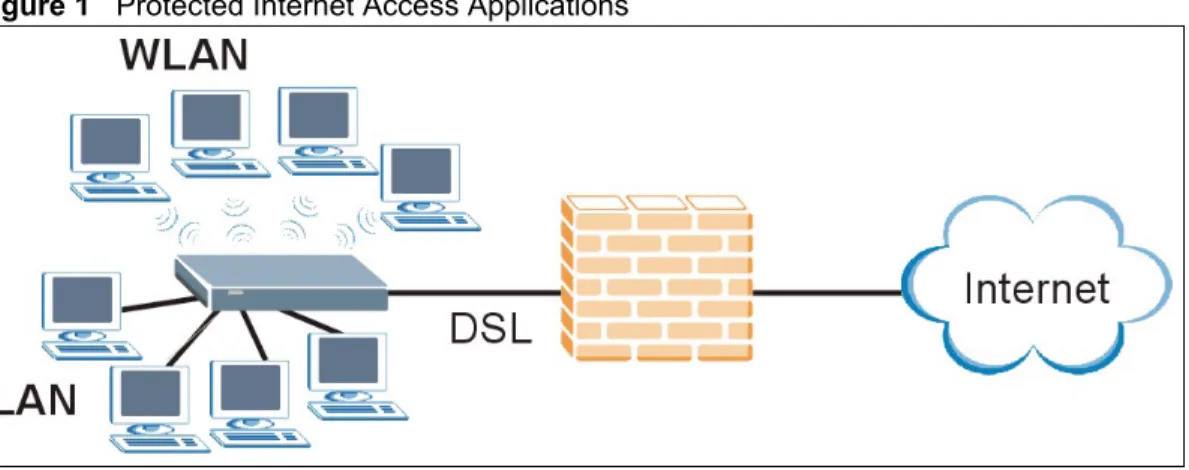
The ZyXEL Device is the ideal high-speed Internet access solution. It is compatible with all major ADSL DSLAM (Digital Subscriber Line Access Multiplexer) providers and supports the ADSL standards as shown in Table 2 on page 36. In addition, the ZyXEL Device with the wireless features allows wireless clients access to your network resources.
The ZyXEL Device provides protection from attacks by Internet hackers. By default, the firewall blocks all incoming traffic from the WAN. The firewall supports TCP/UDP
inspection and DoS (Denial of Services) detection and prevention, as well as real time alerts, reports and logs.
Figure 1 Protected Internet Access Applications
1.6.2 LAN to LAN Application
You can use the ZyXEL Device to connect two geographically dispersed networks over the ADSL line. A typical LAN-to-LAN application example is shown as follows.
1.7 LEDs
Figure 3 LEDs
1.8 Splitters and Microfilters
1.8.1 Connecting a POTS Splitter
When you use the Full Rate (G.dmt) ADSL standard, you can use a POTS (Plain Old Telephone Service) splitter to separate the telephone and ADSL signals. This allows
simultaneous Internet access and telephone service on the same line. A splitter also eliminates the destructive interference conditions caused by telephone sets.
Table 3 LEDs
LED COLOR STATUS DESCRIPTION
POWER Green On The ZyXEL Device is receiving power and functioning
properly.
Blinking The ZyXEL Device is booting or performing diagnostics.
Red On Power to the ZyXEL Device is too low.
Off The system is not ready or has malfunctioned. ETHERNET
1,2,3,4
Green On The ZyXEL Device has a successful Ethernet connection.
Blinking The ZyXEL Device is sending/receiving data. Off The ZyXEL Device is not connected to the LAN.
WPS/WLAN Green On The wireless network is activated.
Blinking The ZyXEL Device is sending/receiving data through the wireless LAN.
Orange Blinking The ZyXEL Device is setting up a WPS connection. Off The wireless LAN is not ready or has failed.
DSL Green On The DSL line is up.
Blinking The ZyXEL Device is initializing the DSL line.
Off The DSL line is down.
INTERNET Green On The Internet connection is up.
Blinking The ZyXEL Device is sending/receiving data. Off The Internet connection is down.
Install the POTS splitter at the point where the telephone line enters your residence, as shown in the following figure.
Figure 4 Connecting a POTS Splitter
1 Connect the side labeled “Phone” to your telephone.
2 Connect the side labeled “Modem” or “DSL” to your ZyXEL Device.
3 Connect the side labeled “Line” to the telephone wall jack.
1.8.2 Telephone Microfilters
Telephone voice transmissions take place in the lower frequency range, 0 - 4KHz, while ADSL transmissions take place in the higher bandwidth range, above 4KHz. A microfilter acts as a low-pass filter, for your telephone, to ensure that ADSL transmissions do not interfere with your telephone voice transmissions. The use of a telephone microfilter is optional.
1 Locate and disconnect each telephone.
2 Connect a cable from the wall jack to the “wall side” of the microfilter.
3 Connect the “phone side” of the microfilter to your telephone as shown in the following figure.
4 After you are done, make sure that your telephone works. If your telephone does not work, disconnect the microfilter and contact either your local telephone company or the provider of the microfilter.
Figure 5 Connecting a Microfilter
You can also use a Y-Connector with a microfilter in order to connect both your modem and a telephone to the same wall jack without using a POTS splitter.
1 Connect a phone cable from the wall jack to the single jack end of the Y-Connector.
2 Connect a cable from the double jack end of the Y-Connector to the “wall side” of the microfilter.
3 Connect another cable from the double jack end of the Y-Connector to the ZyXEL Device.
4 Connect the “phone side” of the microfilter to your telephone as shown in the following figure.
Figure 6 Connecting a Microfilter and Y-Connector
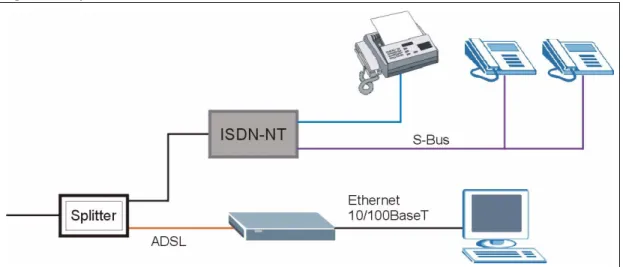
ZyXEL Device With ISDN
This section relates to people who use their ZyXEL Device with ADSL over ISDN (digital telephone service) only. The following is an example installation for the ZyXEL Device with ISDN.
C
H A P T E R
2
Introducing the Web
Configurator
This chapter describes how to access and navigate the web configurator.
2.1 Web Configurator Overview
The web configurator is an HTML-based management interface that allows easy ZyXEL Device setup and management via Internet browser. Use Internet Explorer 6.0 and later or Netscape Navigator 7.0 and later versions. The recommended screen resolution is 1024 by 768 pixels.
In order to use the web configurator you need to allow:
• Web browser pop-up windows from your device. Web pop-up blocking is enabled by default in Windows XP SP (Service Pack) 2.
• JavaScripts (enabled by default). • Java permissions (enabled by default).
See the chapter on troubleshooting if you need to make sure these functions are allowed in Internet Explorer.
2.2 Accessing the Web Configurator
"
Even though you can connect to the ZyXEL Device wirelessly, it is
recommended that you connect your computer to a LAN port for initial
configuration.
1 Make sure your ZyXEL Device hardware is properly connected (refer to the Quick Start Guide).
2 Prepare your computer/computer network to connect to the ZyXEL Device (refer to the Quick Start Guide).
4 Type "192.168.1.1" as the URL.
5 A window displays as shown. Enter the default admin password 1234 to configure the wizards and the advanced features or enter the default user password user to view the status only. Click Login to proceed to a screen asking you to change your password or click Cancel to revert to the default password.
Figure 8 Password Screen
6 If you entered the user password, skip the next two steps and refer to Section 2.4.2 on page 50 for more information about the Status screen.
If you entered the admin password, it is highly recommended you change the default admin password. Enter a new password between 1 and 30 characters, retype it to confirm and click Apply. Alternatively click Ignore to proceed to the main menu if you do not want to change the password now.
"
If you do not change the password at least once, the following screen appears
every time you log in with the admin password.
Figure 9 Change Password at Login
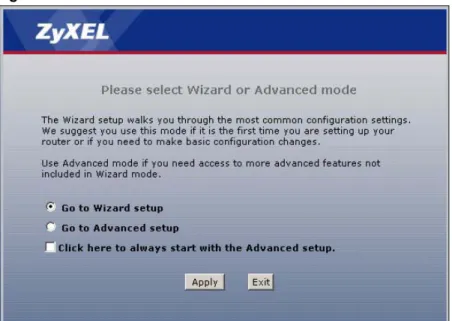
7 Select Go to Wizard setup and click Apply to display the wizard main screen. Otherwise, select Go to Advanced setup and click Apply to display the Status screen. Figure 10 Select a Mode
"
The management session automatically times out when the time period set in
the
Administrator Inactivity Timer
field expires (default five minutes). Simply
log back into the ZyXEL Device if this happens to you.
2.3 Resetting the ZyXEL Device
If you forget your password or cannot access the web configurator, you will need to use the
RESET button at the back of the ZyXEL Device to reload the factory-default configuration file. This means that you will lose all configurations that you had previously and the password will be reset to “1234”.
2.3.1 Using the Reset Button
1 Make sure the POWER LED is on (not blinking).
2 Press the RESET button for ten seconds or until the POWER LED begins to blink and then release it. When the POWER LED begins to blink, the defaults have been restored and the ZyXEL Device restarts.
2.4 Navigating the Web Configurator
2.4.1 Navigation Panel
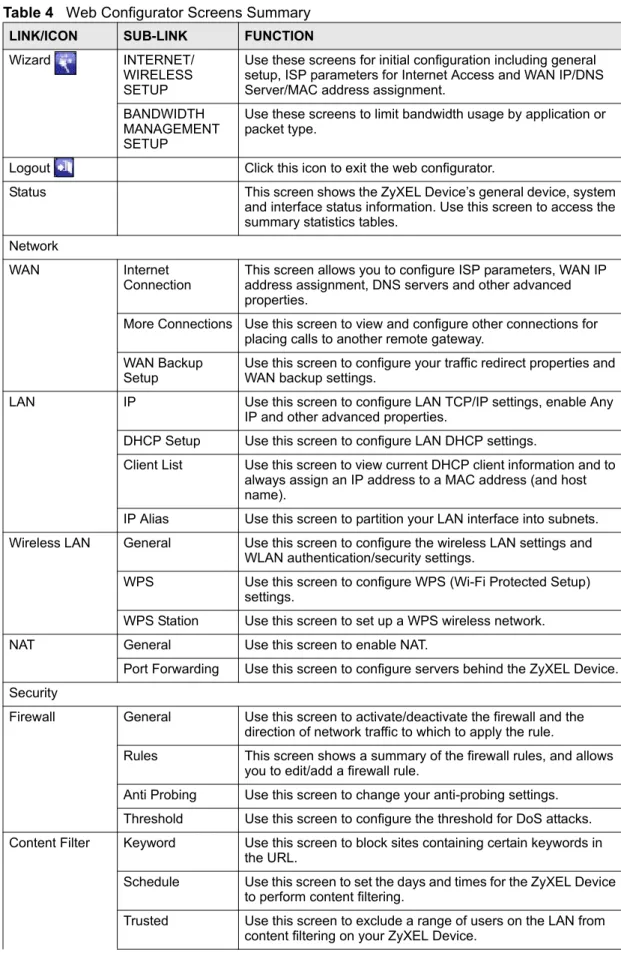
After you enter the admin password, use the sub-menus on the navigation panel to configure ZyXEL Device features. The following table describes the sub-menus.
Figure 11 Web Configurator: Main Screen
Use the submenus to configure ZyXEL Device features.
Click the Logout icon at any time to exit the web configurator.
The following table describes the labels in this screen. Table 4 Web Configurator Screens Summary
LINK/ICON SUB-LINK FUNCTION Wizard INTERNET/
WIRELESS SETUP
Use these screens for initial configuration including general setup, ISP parameters for Internet Access and WAN IP/DNS Server/MAC address assignment.
BANDWIDTH MANAGEMENT SETUP
Use these screens to limit bandwidth usage by application or packet type.
Logout Click this icon to exit the web configurator.
Status This screen shows the ZyXEL Device’s general device, system
and interface status information. Use this screen to access the summary statistics tables.
Network
WAN Internet
Connection This screen allows you to configure ISP parameters, WAN IP address assignment, DNS servers and other advanced properties.
More Connections Use this screen to view and configure other connections for placing calls to another remote gateway.
WAN Backup
Setup Use this screen to configure your traffic redirect properties and WAN backup settings.
LAN IP Use this screen to configure LAN TCP/IP settings, enable Any
IP and other advanced properties.
DHCP Setup Use this screen to configure LAN DHCP settings.
Client List Use this screen to view current DHCP client information and to always assign an IP address to a MAC address (and host name).
IP Alias Use this screen to partition your LAN interface into subnets. Wireless LAN General Use this screen to configure the wireless LAN settings and
WLAN authentication/security settings.
WPS Use this screen to configure WPS (Wi-Fi Protected Setup) settings.
WPS Station Use this screen to set up a WPS wireless network.
NAT General Use this screen to enable NAT.
Port Forwarding Use this screen to configureservers behind the ZyXEL Device. Security
Firewall General Use this screen to activate/deactivate the firewall and the direction of network traffic to which to apply the rule.
Rules This screen shows a summary of the firewall rules, and allows you to edit/add a firewall rule.
Anti Probing Use this screen to change your anti-probing settings. Threshold Use this screen to configure the threshold for DoS attacks. Content Filter Keyword Use this screen to block sites containing certain keywords in
the URL.
Schedule Use this screen to set the days and times for the ZyXEL Device to perform content filtering.
Trusted Use this screen to exclude a range of users on the LAN from content filtering on your ZyXEL Device.
2.4.2 Status Screen
The following summarizes how to navigate the web configurator from the Status screen. Some fields or links are not available if you entered the user password in the login password screen (see Figure 8 on page 46).
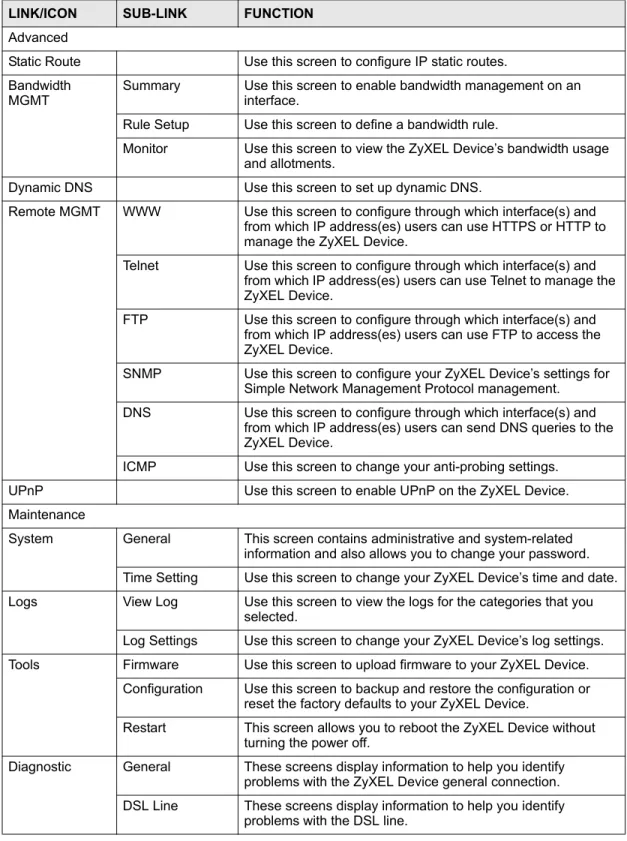
Advanced
Static Route Use this screen to configure IP static routes.
Bandwidth
MGMT Summary Use this screen to enable bandwidth management on an interface. Rule Setup Use this screen to define a bandwidth rule.
Monitor Use this screen to view the ZyXEL Device’s bandwidth usage and allotments.
Dynamic DNS Use this screen to set up dynamic DNS.
Remote MGMT WWW Use this screen to configure through which interface(s) and from which IP address(es) users can use HTTPS or HTTP to manage the ZyXEL Device.
Telnet Use this screen to configure through which interface(s) and from which IP address(es) users can use Telnet to manage the ZyXEL Device.
FTP Use this screen to configure through which interface(s) and from which IP address(es) users can use FTP to access the ZyXEL Device.
SNMP Use this screen to configure your ZyXEL Device’s settings for Simple Network Management Protocol management.
DNS Use this screen to configure through which interface(s) and from which IP address(es) users can send DNS queries to the ZyXEL Device.
ICMP Use this screen to change your anti-probing settings.
UPnP Use this screen to enable UPnP on the ZyXEL Device.
Maintenance
System General This screen contains administrative and system-related information and also allows you to change your password. Time Setting Use this screen to change your ZyXEL Device’s time and date. Logs View Log Use this screen to view the logs for the categories that you
selected.
Log Settings Use this screen to change your ZyXEL Device’s log settings. Tools Firmware Use this screen to upload firmware to your ZyXEL Device.
Configuration Use this screen to backup and restore the configuration or reset the factory defaults to your ZyXEL Device.
Restart This screen allows you to reboot the ZyXEL Device without turning the power off.
Diagnostic General These screens display information to help you identify problems with the ZyXEL Device general connection. DSL Line These screens display information to help you identify
problems with the DSL line.
Table 4 Web Configurator Screens Summary (continued)
Figure 12 Status Screen
The following table describes the labels shown in the Status screen. Table 5 Status Screen
LABEL DESCRIPTION
Refresh Interval Select a number of seconds or None from the drop-down list box to refresh all screen statistics automatically at the end of every time interval or to not refresh the screen statistics.
Apply Click this button to refresh the status screen statistics. Device Information
Host Name This is the System Name you enter in the Maintenance > System > General screen. It is for identification purposes.
Model Number This is your ZyXEL Device’s model name.
MAC Address This is the MAC (Media Access Control) or Ethernet address unique to your ZyXEL Device.
ZyNOS Firmware
Version This is the ZyNOS Firmware version and the date created. ZyNOS is ZyXEL's proprietary Network Operating System design. DSL Firmware
Version This field displays the current version of the device’s DSL modem code. WAN Information
DSL Mode This is the standard that your ZyXEL Device is using. IP Address This is the WAN port IP address.
IP Subnet Mask This is the WAN port IP subnet mask.
Default Gateway This is the IP address of the default gateway, if applicable.
VPI/VCI This is the Virtual Path Identifier and Virtual Channel Identifier that you entered in the wizard or WAN screen.
LAN Information