TB400
User Manual
Version 6.11.43.14
Table of Contents
1. INTRODUCTION ... 4
1.1 Hardware Specification ... 4
1.1.1 Exterior Appearance ... 4
2. SYSTEM SET UP ... 5
2.1 Installation of BRI Module. ... 5
2.2 Ethernet Line Connection ... 5
2.3 Power Supply Connection ... 6
3. NEOGATE CONFIGURATION ... 6 3.1 Manager Login ... 6 3.2 BRI Settings ... 7 3.2.1 Module List ... 7 3.2.2 BRI Settings ... 8 3.2.2.1 Basic Settings ... 8
3.2.2.2 CallerID Prefix Settings ... 8
3.2.2.3 Advanced Settings ... 9 3.2.2.4 DOD settings... 11 3.3 VOIP Settings ... 11 3.3.1 Trunks ... 11 3.3.1.1 VOIP Account ... 11 3.3.1.2 Voip Trunk ... 13 3.3.1.3 Service Provider ... 14 3.3.1.4 Advanced Setting ... 15 3.3.1.5 DOD settings... 16 3.3.2 SIP settings ... 16 3.3.2.1 General ... 16 3.3.2.2 NAT ... 17 3.3.2.3 Codes... 19 3.3.2.4 QOS ... 19 3.3.2.5 Advance settings ... 20 3.3.3 IAX settings ... 20 3.3.3.1 General ... 20 3.4 Route settings ... 21 3.4.1 Routes list ... 21
3.4.1.1 New calling route ... 21
3.4.2 Black list ... 24 3.5 Network Settings ... 25 3.5.1 LAN settings ... 25 3.5.2Firewall ... 26 3.5.3 VLAN settings ... 29 3.5.4 VPN Settings ... 31 3.5.5 DDNS Settings ... 31
3.6 System Settings ... 32
3.6.1 Options ... 32
3.6.2 Password Settings ... 33
3.6.3 Date and Time ... 33
3.6.4 Backup and Restore... 34
3.6.5 Reset and Reboot ... 34
3.6.6 Firmware Update... 35
3.7 Reports ... 36
3.7.1 Call Logs ... 36
3.7.2 System Info ... 36
1. Introduction
NeoGate Gateway for Maximum Efficiency & Cost Savings
NeoGate TB400 is a device for connecting BRI Network to VoIP Network directly, which can support two-way communication: BRI to VoIP or VoIP to BRI.
It is the best solution ever to connect IP-based telephone systems, soft switches, and IP-PBXs to BRI network.
1.1 Hardware Specification
1.1.1 Exterior Appearance
1) Front Side
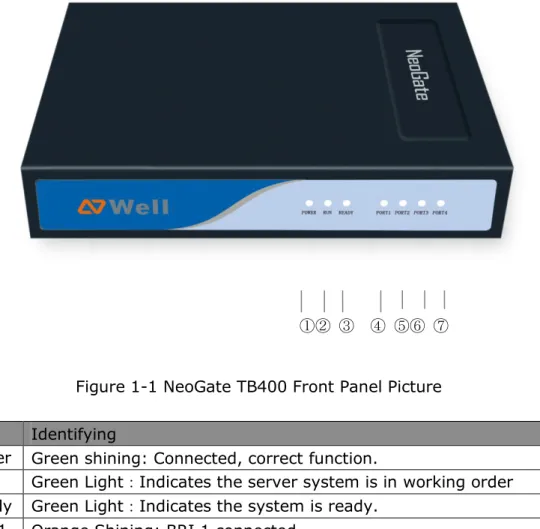
Figure 1-1 NeoGate TB400 Front Panel Picture
No. Identifying
①Power Green shining: Connected, correct function.
②RUN Green Light:Indicates the server system is in working order
③Ready Green Light:Indicates the system is ready.
④BRI 1 Orange Shining: BRI 1 connected
⑤BRI 2 Orange Shining: BRI 2 connected ⑥BRI 3 Orange Shining: BRI 3 connected
⑦BRI 4 Orange Shining: BRI 4 connected
2) Back Side
2. System set up
2.1 Installation of BRI Module.
Open the case of NeoGate, adjust the pins to the slots and insert then insert the spins into the slots.
Note1: Please turn off the device when installing the modules.
2.2 Ethernet Line Connection
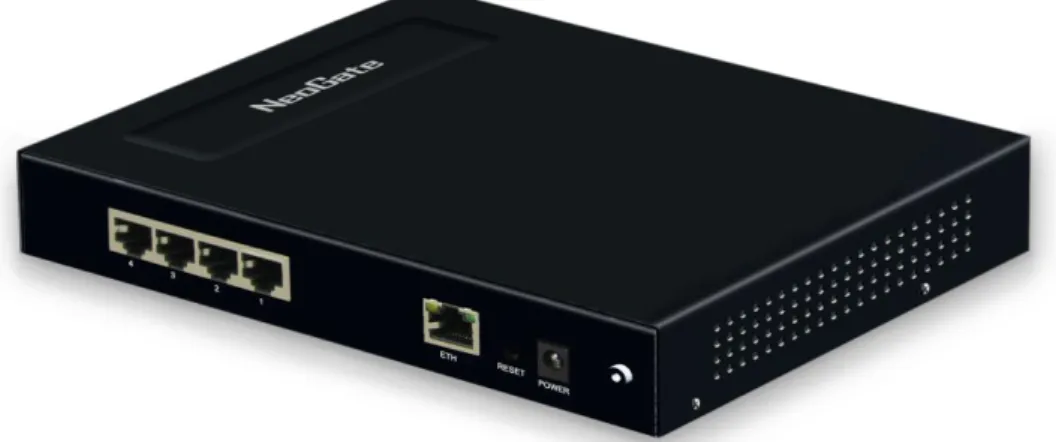
Figure 1-2 NeoGate TB400 Back Side Picture
the other end of the Ethernet line with a hub, switch, router, LAN or WAN. Once connected, check the status of the LED indicator. The orange LED indicates connected successfully, while green indicates the port is working property
2.3 Power Supply Connection
NeoGate utilizes the high-performance switch power, which supply the enough voltage and electrical energy that required by NeoGate system.
AC Input: 100~240V DC Output: 12V,1A
Please follow the steps below to connect the NeoGate unit to a power outlet:
Connect the small end of the power cable to the power input port on the NeoGate back panel, and plug the other end of the cable into a 100VAC power outlet.
Check the Power LED on the front panel. A solid green LED indicates that power is being supplied correctly.
3. NeoGate Configuration
3.1 Manager Login
From your web browser, input the IP address of the NeoGate server.
If this is the first time you are configuring NeoGate, please use the default settings below:
IP Address: http://192.168.5.150 Username: admin
Figure 3-1
3.2 BRI Settings
3.2.1 Module List
You can check the information of the status of BRI modules and trunks. Click edit to configure the trunk.
OK: The port is idle.
Disconnected: No line connects to this port.
3.2.2 BRI Settings
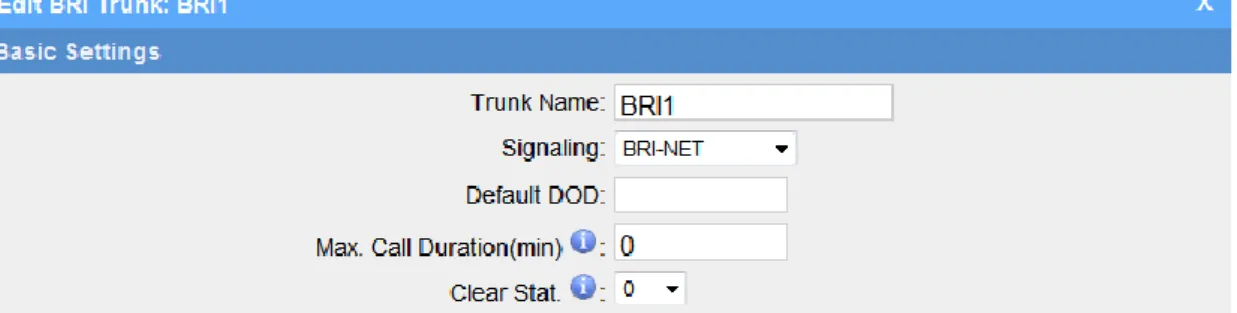
3.2.2.1 Basic Settings
Figure 3.2.2.1 Trunk Name: A name of this Trunk. Ex: 'BRI1' etc.
Signaling: You can choose the signaling of BRI. It supports BIR-NET, BRI-NET-PTMP, BRI CPE, BRI-CPE-PTMP.
Default DOD: You can set the default DOD here.
Max. Call Duration (min)/Per Month: Defines the maximum call duration within a month through this SIM card. (0 it means unlimited)
Clear Stat: Set the day in a month on which the statistics data on Max. Call Duration are deleted. This parameter is ignored if set to 0.
3.2.2.2 CallerID Prefix Settings
You can add prefix to the incoming call here.
3.2.2.3 Advanced Settings
Figure 3.2.2.3
·Switch Type:
National: National ISDN type2 (common in US) ni1: National ISDN type1
dms100: Nortel DMS100 4ess: AT&T 4ESS
5ess: Lucent 53SS Euroisdn: Euro ISDN
Qsig: Minimalistic protocol to build a ‘network’ with two or more pbx of different vendors.
·PRI Dialplan
Sets an option required for some (rare) switches that require a dialplan parameter to be passed. This option is ignored by most PRI switches. It may be necessary on a few pieces of hardware. This option can almost always be left unchanged from the default.
·PRI Local Dialplan
Sets an option required for some (rare) switches that require a dialplan parameter to be passed. This option is ignored by most PRI switches. It may be necessary on a few pieces of hardware. This option can almost always be left unchanged from the default.
·Reset Interval
Set the time in seconds between restart of unused channels. Some PBXs don't like channel restarts. so set the interval to a very long interval e.g. 100000000 or 'never' to disable *entirely*. If you are in Israel, the following is important: As Bezeq in Israel doesn't like the B-Channel resets happening on the lines, it is best to set the resetinterval to 'never' when installing a box in Israel. Our past experience also shows that this parameter may also cause issues on local switches in the UK and China.
·Overlap Dial
Whether MyPBX can dial this switch using overlap digits. If you need Direct Dial-in (DDI; in German \"Durchwahl\") you should change this to yes, then MyPBX will wait after the last digit it receives.
·PRI Indication
Tells how MyPBX should indicate Busy() and Congestion() to the switch/user. Accepted values are:
inband: MyPBX plays indication tones without answering; not available on all PRI/BRI subscription lines
outofband: MyPBX disconnects with busy/congestion information code so the switch will play the indication tones to the caller. Busy() will now do same as setting PRI_CAUSE=17 and Hangup().
·Enable Facility
To enable transmission of facility-based ISDN supplementary services (such as caller name from CPE over facility), enable this option.
·Nsf
Used with AT&T PRIs.If outbound calls are being rejected due to \"Mandatory information element missing\" and the missing IE is 0x20, then you need this setting.
·Echo Cancellation
Disable or enable echo cancellation.
·Hide CallerID
3.2.2.4 DOD settings
Spare DOD for each numbers, which is higher than the default DOD in priority
Figure 3.2.2.4
3.3 VOIP Settings
3.3.1 Trunks
We can create multiply trunks here to the provider in this page
3.3.1.1 VOIP Account
In this mode, we can create sip account in NeoGate, which will be regarded as SIP server, so that other IP PBX or soft switch can register to NeoGate directly
Figure 3.3.1.1
· Name
Define the name of this trunk
· Type
Choose the type of this trunk, SIP or IAX, the default is SIP
· Transport
Define the transport here, UDP, TCP or TLS, the default is UDP (recommend)
· Account
The user name you defined to register this trunk
· Password
The password to register this trunk
·Enable SRTP
Define whether SRTP is enabled
·Enable IP restriction
Check this option to enhance the VoIP security for NeoGate. If this option is enabled, only the permitted IP or Subnet mask will be able to register. In this way, the VoIP security will be enhanced.
·Permitted ‘IP address/Subnet mask’
The input format should be ‘IP address’+’/’+’Subnet mask’.
e.g."192.168.5.100/255.255.255.255" means only the device whose IP address is 192.168.5.100 is allowed to register this extension number.
e.g."192.168.5.0/255.255.255.0" means only the device whose IP address is 192.168.5.XXX is allowed to register this extension number
3.3.1.2 Voip Trunk
‘voip trunk’, which is used to register to another SIP Server or SIP Proxy.
·Name
Define the name of this Voip trunk
· Type
Choose the type of this trunk, SIP or IAX, the default is SIP
· Transport
Define the transport here, UDP, TCP or TLS, the default is UDP (recommend)
· Hostname/IP
Service provider’s hostname or IP address.5060 is the standard port number used by SIP protocol. Don’t change this part if it is not required.
· Domain
Put the VoIP provider’s server domain name here.
· Username
Put the username of SIP account. Used for SIP trunk registration.
· Authorization name
Used for SIP authentication. Leave this blank if not required.
· Password
Put the password of SIP account.
· From User
All outgoing calls from this SIP Trunk will use the From User (In this case the account name for SIP Registration) in From Header of the SIP Invite.
· Outbound Proxy Server
A proxy that receives requests from a client, even though which may not be the server resolved by the Request-URI.
·Enable SRTP
Define whether SRTP is enabled
·Caller ID
Define the default caller id of this trunk (default DOD)
Figure 3.3.1.2
3.3.1.3 Service Provider
·NameDefine the name of this Voip trunk
· Type
Choose the type of this trunk, SIP or IAX, the default is SIP
· Transport
Define the transport here, UDP, TCP or TLS, the default is UDP (recommend)
· Hostname/IP
Note: 5060 is the standard port number used by SIP protocol. Don’t change this part if it is not required.
Figure 3.3.1.3
3.3.1.4 Advanced Setting
·Max. Call Duration (min)Set the maximum call duration here. 0 means no limit.
·Clear Stat
The date of each month the system will clear the call history.
·DTMF Mode
You can set the DTMF mode here (rfc2833,info,inband,auto, default is rfc2833).
·Max. Channels
Set the maximum channels here. 0 means no limit.
·Allowed Codecs
Choose the codes allowed here. (Default u-law, a-law, GSM)
3.3.1.5 DOD settings
Figure 3.3.1.5
Spare DOD for each numbers, which is higher than the default DOD in priority
3.3.2 SIP settings
3.3.2.1 General
·UDP Port
Port use for sip registrations, Default is 5060.
·RTP Port Start
Beginning of RTP port range
·RTP Port End
End of RTP port range
·Max Registration/Subscription Time
Put down the maximum duration (in seconds) of a SIP registration. Default is 3600 seconds.
·Min Registration/Subscription Time
Put down the minimum duration (in seconds) of a SIP registration. Default is 60 seconds.
·Default Incoming/Outgoing Registration Time
Default Incoming/Outgoing Registration Time: Default is 30 seconds.
·Register Attempts
The number of SIP REGISTER messages to send to a SIP Registrar before giving up. Default is 4 (no limit).
·Register Timeout
Put down the number of seconds to wait for a response from a SIP Registrar before timed out. Default is 20 seconds.
3.3.2.2 NAT
Note: Configuration of this section is only required when using remote extensions.
Figure 3.3.2.2
·Enable STUN
STUN (Simple Traversal of UDP through NATs) is a protocol for assisting devices behind a NAT firewall or router with their packet routing.
·STUN Address
The STUN server allows clients to find out their public address, the type of NAT they are behind and the internet side port associated by the NAT with a particular local port. This information is used to set up UDP communication between the client and the VOIP provider and so establish a call.
·External IP Address
Put down the IP address that will be associated with outbound SIP messages if the system is in a NAT environment.
·External Host
Alternatively you can specify an external host, and the system will perform DNS queries periodically.
This setting is only required when your public IP address is not static. It is recommended that a static public IP address be used with this system. Please contact your ISP for more information.
·External Refresh Interval
If an external host has been supplied, you may specify how often the system will perform a DNS query on this host. This value is specified in seconds.
·Local Network Identification
It’s used to identify the local network using a network number/subnet mask pair when the system is behind a NAT or firewall.
'192.168.0.0/255.255.0.0' : All RFC 1918 addresses are local networks; '10.0.0.0/255.0.0.0' : Also RFC1918;
'172.16.0.0/12':Another RFC1918 with CIDR notation; '169.254.0.0/255.255.0.0' : Zero conf local network. Please refer to RFC1918 for more information.
·NAT Mode
Global NAT configuration for the system. The options for this setting are as follows:
Yes = Use NAT. Ignore address information in the SIP/SDP headers and reply to the sender's IP address/port.
No = Use NAT mode only according to RFC3581.
Never = Never attempt NAT mode or RFC3581 support. Route = Use NAT but do not include report in headers.
·Allow RTP Reinvite
By default, the system will route media steams from SIP endpoints through itself. Enabling this option causes the system to attempt to negotiate the endpoints to route packets to each other directly, bypassing the system. It is not always possible for the system to negotiate endpoint-to-endpoint media routing.
3.3.2.3 Codes
If G729 is enabled, please input the license here.
Figure 3.3.2.3
3.3.2.4 QOS
QOS (Quality of Service) is a major issue in VOIP implementations. The issue is how to guarantee that packet traffic for a voice or other media connection will not be delayed or dropped due interference from other lower priority traffic. When the network capacity is insufficient, QoS could provide priority to users by setting the value.
Figure 3.3.2.4
3.3.2.5 Advance settings
Define where to get the DID and the caller ID
Figure 3.3.2.5 ·From field
Define where to get the caller ID
·To field
Define where to get the DID
3.3.3 IAX settings
If the trunk you have created is IAX, you need configure some details here
3.3.3.1 General
Figure 3.3.3 ·Bind Port
·Bandwidth
Low/medium/high with this option you can control which codec to be used.
·Min Registration Time
Minimum duration (in seconds) of a IAX2 registration. Default is 60 seconds.
·Max Registration Time
Maximum duration (in seconds) of a IAX2 registration. Default is 1200 seconds.
3.4 Route settings
3.4.1 Routes list
Calling routing mainly works for guides outgoing/incoming calls to go through trunks.
Figure 3.4.1
Click ‘New Calling Route’ and fill in the corresponding information in the popup window.
3.4.1.1 New calling route
·Route NamePut the name of this Calling Route. ex: 'Local' or 'Long Distance' etc.
·Days of week
The scope of time which is allowed to make calls via this route.
·Dial pattern
Outbound calls that match this dial pattern will use this outbound route. There are a number of dial pattern characters that have special meanings:
X : Any Digit from 0-9 Z : Any Digit from 1-9 N : Any Digit from 2-9
[12345-9] : Any digit in the brackets (in this example, 1,2,3,4,5,6,7,8,9) The ‘.’ Character will match any remaining digits. E.g.” 9011.” will match any phone number that starts with 9011, excluding 9011 itself.
The ‘!’ will match any remaining digits, and causes the matching process to complete as soon as it can be determined that no other matches are possible.
Example 1: NXXXXXX will match any 7 digits phone number.
Example 2: 1NXXNXXXXX will match a phone number starting with a 1, followed by a 3-digit area code, and then 6 digit number.
·Strip digits from front
Allows the user to specify the number of digits that will be stripped from the front of the phone number before the call is placed. For example, if users must press 0 before dialing a phone number, one digit should be stripped from the dial string before the call is placed.
·Prepend these digits before dialing
These digits will be prepended to the phone number before the call is placed. For example, if a trunk requires 10 digit dialing, but users are more comfortable with 7 digit dialing, this field could be used to prepend a 3 digit area code to all 7 digit phone numbers before calls are placed. When using analog trunks, a 'w' character may also be prepended to provide a slight delay before dialing.
·password
Set password for this route
·Strategy
Define the strategy to select trunk.
Default: Select the trunk from the first. Sequence: Select the trunk next the last used. Balance: Select the trunk last recently used.
·Inbound Caller Pattern
Inbound calls that match this dial pattern will use this route. The rule is the same as Dial Pattern.
·DID Number
Define the expected DID Number if this trunk passes DID on incoming calls. Leave this field blank to match calls with any or no DID info. Only service provider, E1 trunks, BRI trunks or SIP trunks need to be configured with this setting.
You can also use pattern matching to match a range of numbers. The following patterns may be used:
X : Any Digit from 0-9 Z : Any Digit from 1-9 N : Any Digit from 2-9
[12345-9] : Any digit in the brackets (in this example, 1,2,3,4,5,6,7,8,9) The ‘.’ Character will match any remaining digits. For example, 9011. will match any phone number that starts with 9011, excluding 9011 itself.
The ‘!’ will match none remaining digits, and causes the matching process to complete as soon as it can be determined that no other matches are possible.
Example 1: NXXXXXX will match any 7 digits phone number.
Example 2: 1NXXNXXXXX will match a phone number starting with a 1, followed by a 3-digit area code, and then 6 digit number.
For more information, please refer to Appendix G How to Use DID.
·Direct/DID Associated Number
Define number for DID number. You can only input number and ‘-‘in this field, and the format can be xxx or xxx-xxx. The count of the number must be only one or equal the count of the DID number.
·Inbound Trunks
Choose the inbound trunks.
·Outbound Trunks
Figure 3.4.1.1
3.4.2 Black list
Blacklist is used to block an incoming/outgoing call for the numbers you have set here
Figure 3.4.2
3.5 Network Settings
3.5.1 LAN settings
Figure 3.5.1 ·DHCP
If this option is set, NeoGate will use DHCP to get an available IP address from your local network. Not recommended.
·Enable SSH
This is the advance way to access the device, you can use the putty software to access the device. In the SSH access, you can do more advance setting and debug.
Set the host name for NeoGate.
·IP Address
Set the IP Address for NeoGate.
·Subnet Mask
Set the subnet mask for NeoGate.
·Gateway
Set the gateway for NeoGate.
·Primary DNS
Set the primary DNS for NeoGate.
·Secondary DNS
Set the secondary DNS for NeoGate. ·IP Address2
Set the second IP Address for NeoGate.
·Subnet Mask2
Set the second subnet mask for NeoGate.
3.5.2Firewall
Firewalls are used to prevent unauthorized Internet users from accessing private networks connected to the Internet, especially intranets. All
messages entering or leaving the intranet pass through the firewall, which examines each message and blocks those that do not meet the specified security criteria.
Figure 3.5.2.1 1) Enable Firewall
Enable the firewall to protect the device. 2) Common Rules
·Name
A name for this rule , e.g. ‘HTTP’.
·Description
Simple description for this rule . E.g.: Accept the specific host to access the web interface for configuration.
·Protocol
The protocols for this rule .
·Port
Initial port should be on the left and end port should be on the right. The end port must be equal to or greater than start port.
·IP
The IP address for this rule . The format of IP address is: IP/mask Ex: 192.168.5.100/255.255.255.255 for IP 192.168.5.100
Ex: 216.207.245.47/255.255.255.255 for IP 216.207.245.47
Ex:192.168.5.0/255.255.255.0 for IP from 192.168.5.0 to 192.168.5.255 .
·Action
Accept: Accept the access from remote hosts. Drop: Drop the access from remote hosts. Ignore: Ignore the access.
Figure 3.5.2.2 3) Auto Defense
·Port
Auto defense port, e.g.: 8022.
·Protocol
Auto defense protocol , TCP or UDP.
·Rate
The maximum packets or connections can be handled per unit time.
E.g.: (Port: 8022 Protocol: TCP Rate: 10/minute) means maximum 10 TCP connection to port 8022 can be handled per minute, the eleventh connection will be refused directly.
Figure 3.5.2.3 4) SIP Defense
·Port
The port used for SIP protocol.
·Protocol
Choose the protocol need to be protect, etc: UDP.
·SIP Packets
The SIP packets allowed in specific time interval .
·Time Interval
The time interval to receive SIP packets .
For example, SIP packets 90, time interval 60 means 90 SIP packets are allowed in 60 seconds.
Figure 3.5.2.4 5) Other Settings
·Disable Ping
Enable this item, net ping from remote hosts will be dropped.
·Drop All
When you enable ‘Drop All’ feature, system will drop all packets or connection from other hosts if there are no other rules defined. To avoid locking the devices, at least one ‘TCP’ accept common rule must be created for port used for SSH access, port used for HTTP access and port sued for CGI access.
3.5.3 VLAN settings
A VLAN is a logical local area network (or LAN) that extends beyond a single traditional LAN to a group of LAN segments, given specific configurations.
Figure 3.5.3 ·NO.1
Click the NO.1 you can edit the first VLAN over Lan.
·VLAN Number
.The VLAN Number is a unique value you assign to each VLAN on a single device.
·VLAN IP Address
Set the IP Address for NeoGate VLAN.
·VLAN Subnet Mask
Set the Subnet Mask for NeoGate VLAN.
·VLAN Gateway
Set the Gateway for NeoGate VLAN.
·NO.2
Click the NO.2 you can edit the first VLAN over Lan.
·VLAN Number
.The VLAN Number is a unique value you assign to each VLAN on a single device.
·VLAN IP Address
Set the IP Address for NeoGate VLAN.
·VLAN Subnet Mask
Set the Subnet Mask for NeoGate VLAN.
·VLAN Gateway
3.5.4 VPN Settings
A virtual private network (VPN) is a method of computer networking--typically using the public internet--that allows users to privately share information between remote locations, or between a remote location and a business' home network. A VPN can provide secure information transport by authenticating users, and encrypting data to prevent unauthorized persons from reading the information transmitted. The VPN can be used to send any kind of network traffic securely. NeoGate TB supports OpenVPN.
Figure 3.5.4 ·Enable VPN
·Import VPN Config
Import configuration file of OpenVPN. Don't configure 'user' and 'group' in the 'config' file.
3.5.5 DDNS Settings
DDNS(Dynamic DNS) is a method / protocol / network service that provides the capability for a networked device, such as a router or computer system using the Internet Protocol Suite, to notify a Domain Name System (DNS) name server to change, in real time, the active DNS configuration of its configured hostnames, addresses or other information.
·Enable DDNS ·DDNS Server
·Password
User account’s password .
·Host Name
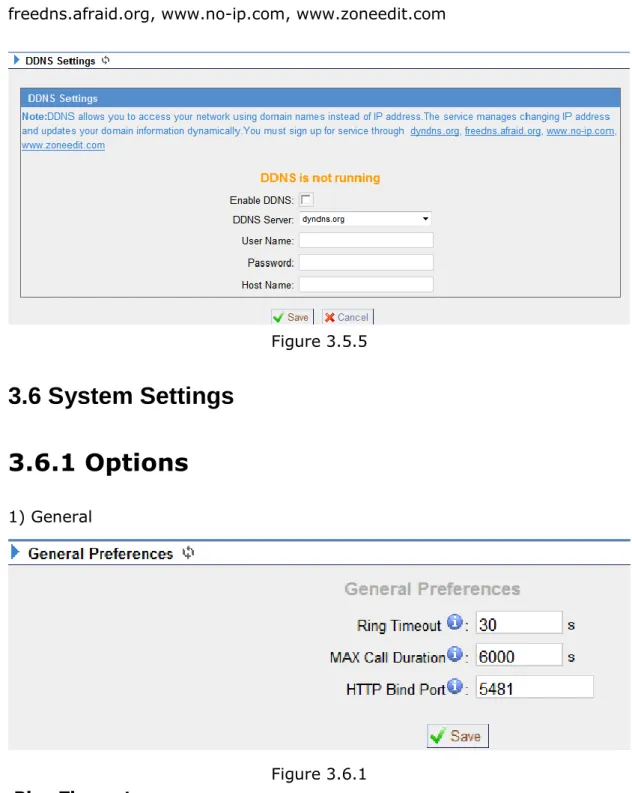
Note: DDNS allows you to access your network using domain names instead of IP address. The service manages changing IP address and updates your domain information dynamically. You must sign up for service through dyndns.org, freedns.afraid.org, www.no-ip.com, www.zoneedit.com
Figure 3.5.5
3.6 System Settings
3.6.1 Options
1) General Figure 3.6.1 ·Ring Timeout.MAX Call Duration
The absolute maximum amount of time permitted for a call. A setting of 0 disables the timeout. Default value is 6000s.
·HTTP Bind Port/Web Access Port Port use for HTTP sessions. Default: 80
3.6.2 Password Settings
The default password is ‘password’. To change the password, enter the new password and click update. The system will then prompt you re-login using your new password
Figure 3.6.2
3.6.3 Date and Time
Set the date and time for NeoGate.Figure 3.6.3
3.6.4 Backup and Restore
You can backup your configure in this page. After back up, you can see the back up in the list. You can restore the configure in this page also.
Note: the restore will only work after reboot.
Figure 3.6.4
3.6.5 Reset and Reboot
·Reboot SystemWarning: Rebooting the system will terminate all active calls! ·Reset to Factory Defaults
Warning: A factory reset will erase all configuration data on the system. Please do not turn off the system until the RUN light begins blinking. Any power interruption during this time could cause damage to the system.
Figure 3.6.5
3.6.6 Firmware Update
Upgrading of the firmware is possible through the Administrator web interface using a TFTP Server or an HTTP URL.
Enter your TFTP Server IP address and firmware file location, then click start to update the firmware.
Note:
1. If enabled ‘Reset configs’, System will restore to factory default settings. 2. When update the firmware, please don’t turn off the power.
3.7 Reports
3.7.1 Call Logs
The call Log captures all call details, including Source, Destination, Start Time, End Time, Duration, Billable Duration, Disposition, Communication Type, etc. Administrator can export CDR data to a CSV file.
Figure 3.7.1
3.7.2 System Info
General:Information about hardware version, firmware version and system uptime.
LAN:
Information about hostname, MAC address, IP address, subnet mask, gateway, Primary DNS and Secondary DNS.
Disk Usage:
Disk usage information.
Memory Usage:
Figure 3.7.2
4. Application
Application 1
Figure 4-1
Figure 4-2