Motherboard
P8B-X
E6811
Second Edition V2 July 2011
Copyright © 2011 ASUSTeK COMPUTER INC. All Rights Reserved.
No part of this manual, including the products and software described in it, may be reproduced, transmitted, transcribed, stored in a retrieval system, or translated into any language in any form or by any means, except documentation kept by the purchaser for backup purposes, without the express written permission of ASUSTeK COMPUTER INC. (“ASUS”).
Product warranty or service will not be extended if: (1) the product is repaired, modified or altered, unless such repair, modification of alteration is authorized in writing by ASUS; or (2) the serial number of the
product is defaced or missing.
ASUS PROVIDES THIS MANUAL “AS IS” WITHOUT WARRANTY OF ANY KIND, EITHER EXPRESS OR IMPLIED, INCLUDING BUT NOT LIMITED TO THE IMPLIED WARRANTIES OR CONDITIONS OF MERCHANTABILITY OR FITNESS FOR A PARTICULAR PURPOSE. IN NO EVENT SHALL ASUS, ITS DIRECTORS, OFFICERS, EMPLOYEES OR AGENTS BE LIABLE FOR ANY INDIRECT, SPECIAL, INCIDENTAL, OR CONSEQUENTIAL DAMAGES (INCLUDING DAMAGES FOR LOSS OF PROFITS, LOSS OF BUSINESS, LOSS OF USE OR DATA, INTERRUPTION OF BUSINESS AND THE LIKE), EVEN IF ASUS HAS BEEN ADVISED OF THE POSSIBILITY OF SUCH DAMAGES ARISING FROM ANY DEFECT OR ERROR IN THIS MANUAL OR PRODUCT.
SPECIFICATIONS AND INFORMATION CONTAINED IN THIS MANUAL ARE FURNISHED FOR INFORMATIONAL USE ONLY, AND ARE SUBJECT TO CHANGE AT ANY TIME WITHOUT NOTICE, AND SHOULD NOT BE CONSTRUED AS A COMMITMENT BY ASUS. ASUS ASSUMES NO RESPONSIBILITY OR LIABILITY FOR ANY ERRORS OR INACCURACIES THAT MAY APPEAR IN THIS MANUAL, INCLUDING THE PRODUCTS AND SOFTWARE DESCRIBED IN IT.
Products and corporate names appearing in this manual may or may not be registered trademarks or
Contents
Contents ... iii
Notices ... vii
Federal Communications Commission Statement ...vii
Canadian Department of Communications Statement ...vii
REACH ...vii
Safety information ... viii
Electrical safety ... viii
Operation safety ... viii
About this guide ... ix
How this guide is organized ...ix
Where to find more information ...ix
Conventions used in this guide ...x
Typography ...x
P8B-X specifications summary ... xi
Chapter 1:
Product introduction
1.1 Welcome! ... 1-3 1.2 Package contents ... 1-3 1.3 Serial number label ... 1-4 1.4 Special features ... 1-4
1.4.1 Product highlights ... 1-4 1.4.2 Innovative ASUS features ... 1-6
Chapter 2:
Hardware information
2.1 Before you proceed ... 2-3 2.2 Motherboard overview ... 2-5
2.2.1 Placement direction ... 2-5 2.2.2 Screw holes ... 2-5 2.2.3 Motherboard layout ... 2-6 2.2.4 Layout contents ... 2-8
2.3 Central Processing Unit (CPU) ... 2-10
2.3.1 Installing the CPU ... 2-10 2.3.2 Installing the CPU heatsink and fan ... 2-13 2.3.3 Uninstalling the CPU heatsink and fan ... 2-14
Contents
2.3.4 Installing the CPU heatsink in rack ... 2-15
2.4 System memory ... 2-16 2.4.1 Overview ... 2-16 2.4.2 Memory Configurations ... 2-16 2.4.3 Installing a DIMM ... 2-17 2.4.4 Removing a DIMM ... 2-17 2.5 Expansion slots ... 2-18
2.5.1 Installing an expansion card ... 2-18
2.5.2 Configuring an expansion card ... 2-18 2.5.3 Interrupt assignments ... 2-19 2.5.4 PCI Express x8 slot (x4 link) ... 2-20 2.5.5 PCI Express x16 slot (x16 link) ... 2-20 2.5.6 PCI Express x1 slots (x1 link) ... 2-20 2.5.7 PCI slots ... 2-20 2.5.8 Connecting the thermal sensor cable ... 2-21
2.6 Jumpers ... 2-22 2.7 Connectors ... 2-26
2.7.1 Rear panel connectors ... 2-26 2.7.2 Internal connectors ... 2-27
Chapter 3:
Powering up
3.1 Starting up for the first time ... 3-3 3.2 Powering off the computer ... 3-4
3.2.1 Using the OS shut down function ... 3-4 3.2.2 Using the dual function power switch ... 3-4
Chapter 4:
BIOS setup
4.1 Managing and updating your BIOS ... 4-3
4.1.1 ASUS CrashFree BIOS 3 utility ... 4-3 4.1.2 ASUS EZ Flash Utility ... 4-4 4.1.3 BUPDATER utility... 4-5
4.2 BIOS setup program ... 4-7
4.2.1 BIOS menu screen ... 4-8 4.2.2 Menu bar ... 4-8 4.2.3 Menu items ... 4-9
Contents
4.2.4 Submenu items ... 4-9 4.2.5 Navigation keys ... 4-9 4.2.6 General help ... 4-9 4.2.7 Configuration fields ... 4-9 4.2.8 Pop-up window ... 4-9 4.2.9 Scroll bar ... 4-9 4.3 Main menu ... 4-104.3.1 System Date [Day xx/xx/xxxx] ... 4-10 4.3.2 System Time [xx:xx:xx] ... 4-10 4.3.3 Security ... 4-10
4.4 Event Logs menu ... 4-12 4.5 Advanced menu ... 4-14 4.5.1 ACPI Settings ... 4-14 4.5.2 Trusted Computing ... 4-15 4.5.3 WHEA Configuration ... 4-15 4.5.4 CPU Configuration ... 4-16 4.5.5 North Bridge ... 4-18 4.5.6 South Bridge ... 4-18 4.5.7 SATA Configuration ... 4-19 4.5.8 Intel TXT(LT) Configuration ... 4-20 4.5.9 USB Configuration ... 4-20
4.5.10 Onboard Devices Configuration ... 4-21 4.5.11 APM ... 4-23 4.5.12 Serial Port Console Redirection ... 4-24
4.6 Monitor menu ... 4-26 4.7 Boot menu ... 4-27 4.8 Tool menu ... 4-29 4.9 Exit menu ... 4-29
Chapter 5:
RAID configuratio
n
5.1 Setting up RAID ... 5-3
5.1.1 RAID definitions ... 5-3 5.1.2 Installing hard disk drives ... 5-4 5.1.3 Setting the RAID item in BIOS ... 5-4
Contents
5.1.4 RAID configuration utilities ... 5-4
5.2 Intel® Rapid Storage Technology Option ROM Utilitys ... 5-5
5.2.1 Creating a RAID set ... 5-6 5.2.2 Creating a Recovery set ... 5-7 5.2.3 Deleting a RAID set ... 5-9 5.2.4 Resetting disks to Non-RAID ... 5-10 5.2.5 Recovery Volume Options ...5-11 5.2.6 Exiting the Intel® Rapid Storage Technology utility ... 5-12
5.2.7 Rebuilding the RAID ... 5-12 5.2.8 Setting the Boot array in the BIOS Setup Utility ... 5-14
Chapter 6:
Driver installation
Chapter summary ... 6-2 6.1 RAID driver installation ... 6-3
6.1.1 Creating a RAID driver disk ... 6-3 6.1.2 Installing the RAID controller driver ... 6-6
6.2 Intel® chipset device software installation ... 6-9
6.3 LAN driver installation ... 6-11 6.4 VGA driver installation... 6-14
6.4.1 XGI Volari Z9s VGA Driver (R1.0x) ... 6-14 6.4.2 ASPEED AST1100 VGA Driver (R2.0x) ... 6-16
6.5 Management applications and utilities installation ... 6-18
6.5.1 Running the support DVD ... 6-18 6.5.2 Drivers menu ... 6-18 6.5.3 Utilities menu ... 6-19 6.5.4 Make disk menu ... 6-19 6.5.5 Contact information ... 6-19
Appendix:
Reference information
A.1 P8B-X block diagram (R1.0x) ...A-3 A.2 P8B-X block diagram (R2.0x) ...A-4 ASUS contact information ... 1
Notices
Federal Communications Commission Statement
This device complies with Part 15 of the FCC Rules. Operation is subject to the following two conditions:
• This device may not cause harmful interference, and
• This device must accept any interference received including interference that may cause undesired operation.
This equipment has been tested and found to comply with the limits for a Class B digital device, pursuant to Part 15 of the FCC Rules. These limits are designed to provide reasonable protection against harmful interference in a residential installation. This equipment generates, uses and can radiate radio frequency energy and, if not installed and used in accordance with manufacturer’s instructions, may cause harmful interference to radio communications. However, there is no guarantee that interference will not occur in a particular installation. If this equipment does cause harmful interference to radio or television reception, which can be determined by turning the equipment off and on, the user is encouraged to try to correct the interference by one or more of the following measures:
• Reorient or relocate the receiving antenna.
• Increase the separation between the equipment and receiver.
• Connect the equipment to an outlet on a circuit different from that to which the receiver is connected.
• Consult the dealer or an experienced radio/TV technician for help.
Canadian Department of Communications Statement
This digital apparatus does not exceed the Class B limits for radio noise emissions from digital apparatus set out in the Radio Interference Regulations of the Canadian Department of Communications.
This class B digital apparatus complies with Canadian ICES-003.
The use of shielded cables for connection of the monitor to the graphics card is
required to assure compliance with FCC regulations. Changes or modifications
to this unit not expressly approved by the party responsible for compliance could void the user’s authority to operate this equipment.
REACH
Complying with the REACH (Registration, Evaluation, Authorization, and Restriction
of Chemicals) regulatory framework, we publish the chemical substances in our products at ASUS REACH website at http://csr.asus.com/english/REACH.htm.
Safety information
Electrical safety
• To prevent electrical shock hazard, disconnect the power cable from the
electrical outlet before relocating the system.
• When adding or removing devices to or from the system, ensure that the power cables for the devices are unplugged before the signal cables are connected. If possible, disconnect all power cables from the existing system before you add a device.
• Before connecting or removing signal cables from the motherboard, ensure that all power cables are unplugged.
• Seek professional assistance before using an adapter or extension cord. These devices could interrupt the grounding circuit.
• Make sure that your power supply is set to the correct voltage in your area. If you are not sure about the voltage of the electrical outlet you are using, contact your local power company.
• If the power supply is broken, do not try to fix it by yourself. Contact a qualified service technician or your retailer.
Operation safety
• Before installing the motherboard and adding devices on it, carefully read all the manuals that came with the package.
• Before using the product, make sure all cables are correctly connected and the power cables are not damaged. If you detect any damage, contact your dealer immediately.
• To avoid short circuits, keep paper clips, screws, and staples away from connectors, slots, sockets and circuitry.
• Avoid dust, humidity, and temperature extremes. Do not place the product in any area where it may become wet.
• Place the product on a stable surface.
• If you encounter technical problems with the product, contact a qualified
service technician or your retailer.
DO NOT throw the motherboard in municipal waste. This product has been designed to enable proper reuse of parts and recycling. This symbol of the crossed out wheeled bin indicates that the product (electrical and electronic equipment) should not be placed in municipal waste. Check local regulations for disposal of electronic products.
DO NOT throw the mercury-containing button cell battery in municipal waste. This symbol of the crossed out wheeled bin indicates that the battery should not
About this guide
This user guide contains the information you need when installing and configuring
the motherboard.
How this guide is organized
This user guide contains the following parts:
• Chapter 1: Product introduction
This chapter describes the features of the motherboard and the new technologies it supports.
• Chapter 2: Hardware information
This chapter lists the hardware setup procedures that you have to perform when installing system components. It includes description of the switches, jumpers, and connectors on the motherboard.
• Chapter 3: Powering up
This chapter describes the power up sequence and ways of shutting down the system.
• Chapter 4: BIOS setup
This chapter tells how to change system settings through the BIOS Setup menus. Detailed descriptions of the BIOS parameters are also provided.
• Chapter 5: RAID configuration
This chapter provides instructions for setting up, creating, and configuring
RAID sets using the available utilities.
• Chapter 6: Driver installation
This chapter provides instructions for installing the necessary drivers for different system components.
• Appendix: Reference information
This appendix includes additional information that you may refer to when
configuring the motherboard.
Where to find more information
Refer to the following sources for additional information and for product and software updates.
1. ASUS websites
The ASUS website provides updated information on ASUS hardware and software products. Refer to the ASUS contact information.
2. Optional documentation
Your product package may include optional documentation, such as warranty
flyers, that may have been added by your dealer. These documents are not
Conventions used in this guide
To make sure that you perform certain tasks properly, take note of the following symbols used throughout this manual.
Typography
Bold text Indicates a menu or an item to select.
Italics Used to emphasize a word or a phrase.
<Key> Keys enclosed in the less-than and greater- than sign means that you must press the enclosed key.
Example: <Enter> means that you must press the Enter or Return key.
<Key1+Key2+Key3> If you must press two or more keys
simultaneously, the key names are linked with a plus sign (+).
Example: <Ctrl+Alt+Del>
Command Means that you must type the command
exactly as shown, then supply the required item or value enclosed in brackets. Example: At the DOS prompt, type the command line: format A:/S
DANGER/WARNING: Information to prevent injury to yourself when trying to complete a task.
CAUTION: Information to prevent damage to the components when trying to complete a task.
NOTE: Tips and additional information to help you complete a task.
IMPORTANT: Instructions that you MUST follow to complete a task.
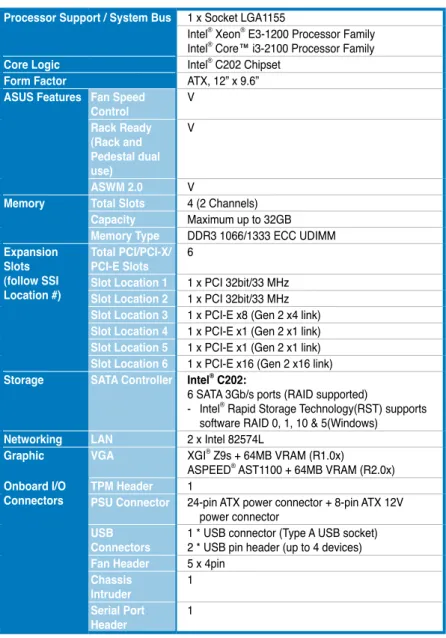
P8B-X specifications summary
Processor Support / System Bus 1 x Socket LGA1155
Intel® Xeon® E3-1200 Processor Family Intel® Core™ i3-2100 Processor Family
Core Logic Intel® C202 Chipset
Form Factor ATX, 12” x 9.6”
ASUS Features Fan Speed
Control V Rack Ready (Rack and Pedestal dual use) V ASWM 2.0 V
Memory Total Slots 4 (2 Channels)
Capacity Maximum up to 32GB
Memory Type DDR3 1066/1333 ECC UDIMM
Expansion Slots (follow SSI Location #) Total PCI/PCI-X/ PCI-E Slots 6
Slot Location 1 1 x PCI 32bit/33 MHz
Slot Location 2 1 x PCI 32bit/33 MHz
Slot Location 3 1 x PCI-E x8 (Gen 2 x4 link)
Slot Location 4 1 x PCI-E x1 (Gen 2 x1 link)
Slot Location 5 1 x PCI-E x1 (Gen 2 x1 link)
Slot Location 6 1 x PCI-E x16 (Gen 2 x16 link)
Storage SATA Controller Intel® C202:
6 SATA 3Gb/s ports (RAID supported)
- Intel® Rapid Storage Technology(RST) supports software RAID 0, 1, 10 & 5(Windows)
Networking LAN 2 x Intel 82574L
Graphic VGA XGI® Z9s + 64MB VRAM (R1.0x)
ASPEED® AST1100 + 64MB VRAM (R2.0x)
Onboard I/O
Connectors TPM HeaderPSU Connector 124-pin ATX power connector + 8-pin ATX 12V
power connector
USB
Connectors 1 * USB connector (Type A USB socket) 2 * USB pin header (up to 4 devices)
Fan Header 5 x 4pin
Chassis
Intruder 1
Serial Port
Header 1
P8B-X specifications summary
*Specifications are subject to change without notice. Rear I/O
Connectors External Serial Port 1
External USB Port 2 VGA Port 1 RJ-45 2 PS/2 KB/Mouse 1 Monitoring CPU Temperature V FAN RPM V
Environment Operation temperature: 10°C – 35°C
Non operation temperature: -40°C – 70°C
Non operation humidity: 20% – 90% (Non condensing)
1
Product
introduction
This chapter describes the motherboardChapter summary
1
1.1 Welcome! ... 1-3 1.2 Package contents ... 1-3 1.3 Serial number label ... 1-4 1.4 Special features ... 1-4
1.1
Welcome!
Thank you for buying an ASUS® P8B-X motherboard!
The motherboard delivers a host of new features and latest technologies, making it another standout in the long line of ASUS quality motherboards!
Before you start installing the motherboard, and hardware devices on it, check the items in your package with the list below.
1.2
Package contents
Check your motherboard package for the following items.
If any of the above items is damaged or missing, contact your retailer.
Standard Gift Box
Pack Standard Bulk Pack
Cables SATA 3G cable 6
--Accessories IO shieldPlate for LGA1155 11 11
Application CD Support CD 1 1
Documentation User Guide 1 1
1.4
Special features
1.4.1
Product highlights
Latest processor technology
This motherboard supports the latest Intel® Xeon® E3-1200/Core™ i3-2100
processors in LGA1155 package, which has memory and PCI Express controller integrated to support 2-channel (4 DIMMs) DDR3 memory and 16 PCI Express 2.0 lanes, providing great graphics performance. Intel® Xeon® E3-1200/Core™ i3-2100
processor is one of the most powerful and energy efficient CPU in the world.
Intel Dynamic Turbo Boost Techonology
Intel® Dynamic Turbo Boost Technology opportunistically and automatically
allows the processor to run faster than the marked frequency if the processor is operating below power, temperature and current limits. This technology increases performance of both multi-threaded and single-threaded workloads.
Intel Hyper Threading
The thread-level parallelism on each processor makes more efficient use of the
processor resources, higher processing throughout and improved performance on today's multi-threaded software.
Intel
®EM64T
The motherboard supports Intel® processors with the Intel® EM64T (Extended
Memory 64 Technology). The Intel® EM64T feature allows your computer to run on
64-bit operating systems and access larger amounts of system memory for faster
and more efficient computing.
1.3
Serial number label
Before requesting support from the ASUS Technical Support team, you must take note of the motherboard's serial number containing 12 characters xxS2xxxxxxxx
shown as the figure below. With the correct serial number of the product, ASUS
Technical Support team members can then offer a quicker and satisfying solution to your problems. xxS2xxxxxxxx P8B-X Made in China 合格
DDR3 memory support
The P8B-X supports UDIMM DDR3 memory that features data transfer rates of 1333/1066 MHZ to meet the higher bandwidth requirements of server and workstation applications. The 2-channel DDR3 architecture boosts system performance, eliminating bottlenecks with peak bandwidth of up to 21GB/s. Furthermore, the supply voltage for the memory is reduced from 1.8 V for DDR2 to just 1.5V for DDR3. This voltage reduction limits the power consumption and heat generation of DDR3 which makes it an ideal memory solution.
PCIe 2.0
This motherboard supports the latest PCIe 2.0 device for twice the current speed and bandwidth. This enhances system performance while still providing backward compatibility to PCIe 1.0 devices.
Intel
®82574L LAN Solution
The motherboard comes with dual Gigabit LAN controllers and ports which provide a total solution for your networking needs. The onboard Intel® 82574L Gigabit LAN
controllers use the PCI Express interface and could achieve network throughput close to Gigabit bandwidth.
Enhanced Intel SpeedStep Technology (EIST)
The Enhanced Intel SpeedStep Technology (EIST) intelligently manages the CPU resources by automatically adjusting the CPU voltage and core frequency depending on the CPU loading and system speed or power requirement.
Serial ATA II technology
The motherboard supports the Serial ATA II 3 Gb/s technology through the Serial ATA interface and Intel® C202 chipset. The Serial ATA II specification provides
twice the bandwidth of the current Serial ATA products with a host of new features, including Native Command Queuing (NCQ), Power Management (PM)
Implementation Algorithm, and Hot Swap. Serial ATA allows thinner, more flexible
cables with lower pin count and reduced voltage requirements.
USB 2.0 technology
The motherboard implements the Universal Serial Bus (USB) 2.0 specification,
dramatically increasing the connection speed from the 12 Mbps bandwidth on USB 1.1 to a fast 480 Mbps on USB 2.0. USB 2.0 is backward compatible with USB 1.1.
Temperature, fan, and voltage monitoring
The CPU temperature is monitored to prevent overheating and damage. The system fan rotations per minute (RPM) is monitored for timely failure detection. The chip monitors the voltage levels to ensure stable supply of current for critical components.
1.4.2
Innovative ASUS features
ASUS Fan Speed technology
The ASUS Fan Speed technology smartly adjusts the fan speeds according to the
2
Chapter 2:
Hardware
information
This chapter lists the hardware setupprocedures that you have to perform when installing system components. It includes description of the jumpers and connectors on the motherboard.
Chapter summary
2
2.1 Before you proceed ... 2-3 2.2 Motherboard overview ... 2-5 2.3 Central Processing Unit (CPU) ... 2-10 2.4 System memory ... 2-16 2.5 Expansion slots ... 2-18 2.6 Jumpers ... 2-22 2.7 Connectors ... 2-26
2.1
Before you proceed
Take note of the following precautions before you install motherboard components or change any motherboard settings.
• Unplug the power cord from the wall socket before touching any component.
• Use a grounded wrist strap or touch a safely grounded object or a metal object, such as the power supply case, before handling components to avoid damaging them due to static electricity.
• Hold components by the edges to avoid touching the ICs on them. • Whenever you uninstall any component, place it on a grounded antistatic
pad or in the bag that came with the component.
• Before you install or remove any component, ensure that the power supply is switched off or the power cord is detached from the power supply. Failure to do so may cause severe damage to the motherboard, peripherals, and/or components.
Onboard LEDs
1. Standby Power LED (SB_PWR1)
The motherboard comes with a standby power LED. The green LED lights up to indicate that the system is ON, in sleep mode, or in soft-off mode. This is a reminder that you should shut down the system and unplug the power cable before removing or plugging in any motherboard component. The illustration below shows the location of the onboard LED.
2.2
Motherboard overview
Before you install the motherboard, study the configuration of your chassis to ensure that the motherboard fits into it.
To optimize the motherboard features, we highly recommend that you install it in an
ATX 1.1 compliant chassis.
2.2.1
Placement direction
When installing the motherboard, ensure that you place it into the chassis in the correct orientation. The edge with external ports goes to the rear part of the chassis as indicated in the image below.
2.2.2
Screw holes
Place nine (9) screws into the holes indicated by circles to secure the motherboard to the chassis.
DO NOT overtighten the screws! Doing so can damage the motherboard. Ensure to unplug the chassis power cord before installing or removing the motherboard. Failure to do so can cause you physical injury and damage motherboard components!
Place this side towards the rear of the chassis
2.2.3
Motherboard layout
2.2.4
Layout contents
Slots/Soocket Page
1. CPU sockets 2-10
2. DDR3 sockets 2-16
3. PCI Express x16 / PCI Express x8 / PCI Express x1 / PCI slots 2-20
Jumpers Page
1. Clear RTC RAM (CLRTC1) 2-22
2. VGA controller setting (3-pin VGA_SW1) 2-23
3. CPU Fan and Chassis Fan control setting
(3-pin CPUFAN_SEL1, CHAFAN_SEL1) 2-24
4. LAN controller setting (3-pin LAN_SW1, LAN_SW2) 2-24 5. Force BIOS recovery setting (3-pin RECOVERY1) 2-25
Rear panel connectors Page
1. PS/2 mouse port (green) 2-26
2. PS/2 keyboard port (purple) 2-26
3. USB 2.0 ports 1 and 2 2-26
4. Serial (COM1) port 2-26
5. Video Graphics Adapter port 2-26
6. LAN 1 (RJ-45) port 2-26
Internal connectors Page
1. Serial ATA connectors
(7-pin SATA1, SATA2, SATA3, SATA4, SATA5, SATA6) 2-27 2. Hard disk activity LED connector (4-pin HDLED1) 2-28
3. USB connector (10-1 pin USB34, USB56; A-Type USB7) 2-29 4. Thermal sensor cable connectors (3-pin TR1) 2-29 5. CPU, front and rear fan connectors
(4-pin CPU_FAN1, FRNT_FAN1, FRNT_FAN2, FRNT_FAN3,
REAR_FAN1) 2-30
6. Serial General Purpose Input/Output connector (6-1 pin SGPIO1) 2-31
7. Serial port connectors (10-1 pin COM2) 2-31
8. TPM connector (20-1-pin TPM) 2-32
9. ATX power connectors (24-pin EATXPWR1, 8-pin EATX12V1) 2-33
10. System panel connector (20-1 pin PANEL1) 2-34
2.3.1
Installing the CPU
To install a CPU:
1. Locate the CPU socket on the motherboard.
Before installing the CPU, ensure that the socket box is facing toward you and the load lever is on your left.
2.3
Central Processing Unit (CPU)
The motherboard comes with a surface mount LGA1155 socket designed for the Intel® Xeon E3-1200/Core™ i3-2100 processor.
• Upon purchase of the motherboard, ensure that the PnP cap is on the socket and the socket contacts are not bent. Contact your retailer immediately if the PnP cap is missing, or if you see any damage to the PnP cap/socket contacts/motherboard components. ASUS will shoulder the cost of repair only if the damage is shipment/transit-related.
• Keep the cap after installing the motherboard. ASUS will process Return
Merchandise Authorization (RMA) requests only if the motherboard comes
with the cap on the LGA1155 socket.
• The product warranty does not cover damage to the socket contacts resulting from incorrect CPU installation/removal, or misplacement/loss/ incorrect removal of the PnP cap.
To prevent damage to the socket pins, do not remove the PnP cap
A
B
Load lever
2. Press the load lever with your thumb (A), and then move it to the right (B) until it is released from the retention tab.
3. Lift the load lever in the direction of the arrow until the load plate is completely lifted.
The CPU fits in only one correct
orientation. DO NOT force the CPU into the socket to prevent bending the connectors on the socket and damaging the CPU!
Load plate Gold triangle mark Alignment keys CPU notches
5. Position the CPU over the socket, ensuring that the gold triangle is on the bottom-left corner of the socket,
and then fit the socket alignment
keys into the CPU notches. 4. Remove the PnP cap from the CPU
socket by lifting the tab only.
PnP cap
7. Close the load plate (A), and then push down the load lever (B), ensuring that the front edge of the load plate slides under the retention knob (C).
C B
A
Some heatsinks come with pre-applied thermal paste. If so, skip this step.
The Thermal Interface Material is toxic and inedible. DO NOT eat it. If it gets into your eyes or touches your skin, wash it off immediately, and seek professional medical help.
8. Insert the load lever under the retention tab.
6. Apply some Thermal Interface Material to the exposed area of the CPU that the heatsink will be in contact with, ensuring that it is spread in an even thin layer.
2.3.2
Installing the CPU heatsink and fan
The Intel® LGA1155 processor requires a specially designed heatsink and fan
assembly to ensure optimum thermal condition and performance.
• When you buy a boxed Intel® processor, the package includes the CPU fan and heatsink assembly. If you buy a CPU separately, ensure that you use only Intel®-certified multi-directional heatsink and fan.
• Your Intel® LGA1155 heatsink and fan assembly comes in a push-pin design and requires no tool to install.
• Use an LGA1155-compatible CPU heatsink and fan assembly only. The LGA1155 socket is incompatible with the LGA775 and LGA1366 sockets in
size and dimension.
Orient the heatsink and fan assembly such that the CPU fan cable is closest to the CPU fan connector.
To install the CPU heatsink and fan: 1. Place the heatsink on top of the
installed CPU, making sure that the four fasteners match the holes on the motherboard.
2. Push down two fasteners at a time in a diagonal sequence to secure the heatsink and fan assembly in place. A A B B 1 1 A B B A
If you purchased a separate CPU heatsink and fan assembly, ensure that the Thermal Interface Material is properly applied to the CPU heatsink or CPU before you install the heatsink and fan assembly.
Ensure that you have installed the motherboard to the chassis before you install the CPU fan and heatsink assembly.
3. Connect the CPU fan cable to the connector on the motherboard labeled CPU_FAN1.
DO NOT forget to connect the CPU fan connector! Hardware monitoring errors can occur if you fail to plug this connector.
2.3.3
Uninstalling the CPU heatsink and fan
To uninstall the CPU heatsink and fan: 1. Disconnect the CPU fan cable from
the connector on the motherboard. 2. Rotate each fastener
counterclockwise.
3. Pull up two fasteners at a time in a diagonal sequence to disengage the heatsink and fan assembly from the motherboard. A A B B A A B B
2.3.4
Installing the CPU heatsink in rack
The Intel® 1155 processor requires a specially designed heatsink to ensure
optimum thermal condition and performance.
• Ensure that you use qualified heatsink assembly only.
• Ensure that you have applied the thermal interface material to the top of the CPU before installing the heatsink and fan.
1. Peel off the sticker on the heatsink metal plate and affix the plate to the back
of the motherboard, matching the standoffs to the heatsink screw holes.
2. Use a Phillips screwdriver to tighten the four heatsink screws in a diagonal sequence.
2.4
System memory
2.4.1
Overview
The motherboard comes with four Double Data Rate 3 (DDR3) Dual Inline Memory Modules (DIMM) sockets.
A DDR3 module has the same physical dimensions as a DDR2 DIMM but is notched differently to prevent installation on a DDR2 DIMM socket. DDR3 modules are developed for better performance with less power consumption.
The figure illustrates the location of the DDR3 DIMM sockets:
2.4.2
Memory Configurations
You may install 1 GB, 2 GB, 4 GB, 8GB Unbuffered with ECC DDR3 DIMMs into
the DIMM sockets using the memory configurations in this section.
UDIMM DIMM Slot
Per ChannelDIMM Populated per Channel DIMM Type Speed Rank per DIMM
2 1 Unbuffered DDR3 ECC 1066/1333 Single Rank,
Dual Rank
2 2 Unbuffered DDR3 ECC 1066/1333 Single Rank,
Dual Rank
• Always install DIMMs with the same CAS latency. For optimum
compatibility, it is recommended that you obtain memory modules from the same vendor.
• Install the DDR to the A2 or B2 (orange slot) when installing only one memory module to the motherboard.
2.4.4
Removing a DIMM
1. Simultaneously press the retaining clips outward to unlock the DIMM.
2. Remove the DIMM from the socket.
2.4.3
Installing a DIMM
3. Hold the DIMM by both of its ends, then insert the DIMM vertically into the socket. Apply force to both ends of the DIMM simultaneously until the retaining clips snap back into place, and the DIMM cannot be pushed in any further to ensure proper sitting of the DIMM.
Ensure to unplug the power supply before adding or removing DIMMs or other system components. Failure to do so may cause severe damage to both the motherboard and the components.
1. Unlock a DIMM socket by pressing the retaining clips outward.
2. Align a DIMM on the socket such that the notch on the DIMM matches the DIMM slot key on the socket.
A DIMM is keyed with a notch so that it fits in only one direction. DO NOT force
a DIMM into a socket in the wrong direction to avoid damaging the DIMM.
Support the DIMM lightly with your fingers when pressing the retaining clips. The DIMM might get damaged when it flips out with extra force.
Always insert the DIMM into the socket VERTICALLY to prevent DIMM notch damage.
Locked Retaining Clip
3
3 1
2
1
Unlocked retaining clip DIMM notch
DIMM slot key
1
1 2
2.5
Expansion slots
In the future, you may need to install expansion cards. The following subsections describe the slots and the expansion cards that they support.
2.5.1
Installing an expansion card
To install an expansion card:
1. Before installing the expansion card, read the documentation that came with it and make the necessary hardware settings for the card.
2. Remove the system unit cover (if your motherboard is already installed in a chassis).
3. Remove the bracket opposite the slot that you intend to use. Keep the screw for later use.
4. Align the card connector with the slot and press firmly until the card is
completely seated on the slot.
5. Secure the card to the chassis with the screw you removed earlier. 6. Replace the system cover.
2.5.2
Configuring an expansion card
After installing the expansion card, configure the it by adjusting the software
settings.
1. Turn on the system and change the necessary BIOS settings, if any. See Chapter 4 for information on BIOS setup.
2. Assign an IRQ to the card. Refer to the tables on the next page. 3. Install the software drivers for the expansion card.
Ensure to unplug the power cord before adding or removing expansion cards. Failure to do so may cause you physical injury and damage motherboard components.
When using PCI cards on shared slots, ensure that the drivers support “Share
IRQ” or that the cards do not need IRQ assignments. Otherwise, conflicts will
arise between the two PCI groups, making the system unstable and the card inoperable.
* These IRQs are usually available for ISA or PCI devices.
IRQ Priority Standard function
0 1 System Timer
1 2 Keyboard Controller
2 - Programmable Interrupt
3* 11 Communications Port (COM2) 4* 12 Communications Port (COM1)
5* 13
--6 14 Floppy Disk Controller
7* 15
--8 3 System CMOS/Real Time Clock
9* 4 ACPI Mode when used
10* 5 IRQ Holder for PCI Steering 11* 6 IRQ Holder for PCI Steering 12* 7 PS/2 Compatible Mouse Port
13 8 Numeric Data Processor
14* 9 Primary IDE Channel 15* 10 Secondary IDE Channel
2.5.3
Interrupt assignments
2.5.4
PCI Express x8 slot (x4 link)
The onboard PCI Express x8 slot provides one x4 link to C202. This slot supports various server class high performance add-on cards.
2.5.5
PCI Express x16 slot (x16 link)
The onboard PCI Express x16 slot provides x16 link to CPU. This slot supports VGA cards and various server class high performance add-on cards.
2.5.6
PCI Express x1 slots (x1 link)
The onboard PCI Express x1 slots provide x1 link to C202. This slot supports VGA cards and various server class high performance add-on cards.
2.5.7
PCI slots
The PCI slots support cards such as a LAN card, USB card, and other cards that
comply with PCI 2.3 specifications.
PCIEx16 slot (x16 link)
PCI slots PCIEx1 slots
2.5.8
Connecting the thermal sensor cable
Follow the steps below to connect the thermal sensor cable to the connector on your motherboard.
1. Locate the TR1 connector on the motherboard.
2. Connect the thermal sensor cable to the connector.
3. Place the other end of the thermal sensor cable to the device you would like to monitor temperature.
The photos above are for reference only. Follow the main layout in previous section to locate the TR1 connector on your motherboard.
2.6
Jumpers
1. Clear RTC RAM (CLRTC1)
This jumper allows you to clear the Real Time Clock (RTC) RAM in CMOS. You can clear the CMOS memory of date, time, and system setup parameters by erasing the CMOS RTC RAM data. The onboard button cell battery powers the RAM data in CMOS, which include system setup information such as system passwords.
To erase the RTC RAM:
1. Turn OFF the computer and unplug the power cord.
2. Move the jumper cap from pins 1–2 (default) to pins 2–3. Keep the cap on pins 2–3 for about 5–10 seconds, then move the cap back to pins 1– 2.
3. Plug the power cord and turn ON the computer.
4. Hold down the <Del> key during the boot process and enter BIOS setup to re-enter data.
Except when clearing the RTC RAM, never remove the cap on CLRTC jumper default position. Removing the cap will cause system boot failure!
If the steps above do not help, remove the onboard battery and move the jumper again to clear the CMOS RTC RAM data. After the CMOS clearance, reinstall the battery.
2. VGA controller setting (3-pin VGA_SW1)
This jumper allows you to enable or disable the onboard VGA controller. Set to pins 1–2 to activate the VGA feature.
R1.0x
4. LAN controller setting (3-pin LAN_SW1, LAN_SW2)
These jumpers allow you to enable or disable the onboard Intel® 82574L
Gigabit LAN controllers. Set to pins 1-2 to activate the Gigabit LAN feature.
3. CPU Fan and Chassis Fan control setting (3-pin CPUFAN_SEL1, CHAFAN_SEL1)
These jumpers allow you to switch for fan pin selection. The CPUFAN_SEL1 jumper is for the CPU fan control and the CHAFAN_SEL1 jumper is for the front fans and rear fans control. Set to pins 1–2 when using 4-pin fans or pins 2–3 when using 3-pin fans.
• If you use a 4-pin fan but set the jumper to pin 2-3, the fan you installed may not work.
• If you use a 3-pin fan but set the jumper for a 4-pin fan, the fan control will not work and the fan you installed will always run at full speed.
5. Force BIOS recovery setting (3-pin RECOVERY1) (R1.0x only)
This jumper allows you to quickly update or recover the BIOS settings when it becomes corrupted.
To update the BIOS (for R1.0x):
1. Prepare a USB flash disk that contains the original or latest BIOS for the
motherboard (XXXXXX.ROM) and the BUPDATER.EXE utility. 2. Set the jumper to pins 2–3.
3. Insert the USB flash and turn on the system to update the BIOS.
4. Shut down the system.
5. Set the jumper back to pins 1–2. 6. Turn on the system.
2.7
Connectors
2.7.1
Rear panel connectors
1. PS/2 mouse port (green). This port is for a PS/2 mouse.
2. PS/2 keyboard port (purple). This port is for a PS/2 keyboard.
3. USB 2.0 ports 1 and 2. These two 4-pin Universal Serial Bus (USB) ports are available for connecting USB 2.0 devices.
4. Serial (COM1) port. This 9-pin communication port is for pointing devices or other serial devices.
5. Video Graphics Adapter port. This port is for a VGA monitor or other VGA-compatible devices.
6. LAN 1 (RJ-45) port. This port allows Gigabit connection to a Local Area Network (LAN) through a network hub. Refer to the table below for the LAN port LED indications.
7. LAN 2 (RJ-45) port. This port allows Gigabit connection to a Local Area Network (LAN) through a network hub. Refer to the table below for the LAN port LED indications.
LAN port LED indications
LAN port SPEED
LED ACT/LINK
LED
Activity/Link LED Speed LED
Status Description Status Description
OFF No link OFF 10 Mbps connection
GREEN Linked ORANGE 100 Mbps connection BLINKING Data activity GREEN 1 Gbps connection
2.7.2
Internal connectors
1. Serial ATA connectors(7-pin SATA1, SATA2, SATA3, SATA4, SATA5, SATA6)
Supported by the Intel® C202 chipset, these connectors are for the Serial ATA
signal cables for Serial ATA hard disk drives that allows up to 3Gb/s of data transfer rate.
If you installed Serial ATA hard disk drives, you can create a RAID 0, RAID 1,
RAID 10, or RAID 5 configuration.
The actual data transfer rate depends on the speed of Serial ATA hard disks installed.
2. Hard disk activity LED connector (4-pin HDLED1)
This LED connector is for the storage add-on card cable connected to the SATA or SAS add-on card. The read or write activities of any device connected to the SATA or SAS add-on card causes the front panel LED to light up.
3. USB connector (10-1 pin USB34, USB56; A-Type USB7)
These connectors are for USB 2.0 ports. Connect the USB module cables to connectors USB34 and USB56, then install the modules to a slot opening at the back of the system chassis. These USB connectors comply with USB 2.0
4. Thermal sensor cable connectors (3-pin TR1)
This connector is for temperature monitoring. Connect the thermal sensor cable to this connector and place the other end to the device, which you want to monitor temperature.
5. Parallel port connector (26-1 pin LPT1)
This connector is for a parallel port. Connect the parallel port module cable to this connector, then install the module to a slot opening at the back of the system chassis.
6. CPU, front and rear fan connectors
(4-pin CPU_FAN1, FRNT_FAN1, FRNT_FAN2, FRNT_FAN3, REAR_FAN1)
The fan connectors support cooling fans of 350 mA–740 mA (8.88 W max.) or a total of 3.15 A–6.66 A (53.28 W max.) at +12V. Connect the fan cables to the fan connectors on the motherboard, ensuring that the black wire of each cable matches the ground pin of the connector.
• DO NOT forget to connect the fan cables to the fan connectors. Insufficient air flow inside the system may damage the motherboard components.
• These are not jumpers! DO NOT place jumper caps on the fan connectors! • All fans feature the ASUS Smart Fan technology.
7. Serial General Purpose Input/Output connector (6-1 pin SGPIO1)
This connector is used for the SGPIO peripherals for the Intel Rapid Storage Technology RAID SATA LED.
8. Serial port connectors (10-1 pin COM2)
This connector is for the serial (COM) port. Connect the serial port module cable to one of these connectors, then install the module to a slot opening at the back of the system chassis.
9. TPM connector (20-1 pin TPM)
This connector supports a Trusted Platform Module (TPM) system, which can
securely store keys, digital certificates, passwords, and data. A TPM system
also helps enhance network security, protects digital identities, and ensures platform integrity.
10. ATX power connectors
(24-pin EATXPWR1, 8-pin EATX12V1)
These connectors are for an ATX power supply plugs. The power supply
plugs are designed to fit these connectors in only one orientation. Find the proper orientation and push down firmly until the connectors completely fit.
• DO NOT forget to connect the 24+8-pin power plugs; otherwise, the system
will not boot up.
• Use of a PSU with a higher power output is recommended when configuring
a system with more power-consuming devices. The system may become unstable or may not boot up if the power is inadequate.
• This motherboard supports ATX2.0 PSU or later version.
• Ensure that your power supply unit (PSU) can provide at least the minimum power required by your system.
11. System panel connector (20-pin PANEL1)
This connector supports several chassis-mounted functions.
1. System power LED (3-pin PLED)
This 3-pin connector is for the system power LED. Connect the chassis power LED cable to this connector. The system power LED lights up when you turn on the system power, and blinks when the system is in sleep mode.
2. Message LED (2-pin MLED)
This 2-pin connector is for the message LED cable that connects to the front message LED. The message LED is controlled by Hardware monitor to indicate an abnormal event occurance.
3. System warning speaker (4-pin SPEAKER)
This 4-pin connector is for the chassis-mounted system warning speaker. The speaker allows you to hear system beeps and warnings.
4. Hard disk drive activity LED (2-pin HDDLED)
This 2-pin connector is for the HDD Activity LED. Connect the HDD
Activity LED cable to this connector. The IDE LED lights up or flashes
when data is read from or written to the HDD.
5. Power button/soft-off button (2-pin PWRSW)
This connector is for the system power button. Pressing the power button turns the system on or puts the system in sleep or soft-off mode depending on the BIOS settings. Pressing the power switch for more than four seconds while the system is ON turns the system OFF.
6. Reset button (2-pin RESET)
This 2-pin connector is for the chassis-mounted reset button for system reboot without turning off the system power.
12. Auxiliary panel connector (20-pin AUX_PANEL1)
This connector is for additional front panel features including front panel SMB, locator LED and switch, chassis intrusion, and LAN LEDs.
1. Front panel SMB (6-1 pin FPSMB)
These leads connect the front panel SMBus cable.
2. LAN activity LED (2-pin LAN1_LED, LAN2_LED)
These leads are for Gigabit LAN activity LEDs on the front panel.
3. Chassis intrusion (4-1 pin CHASSIS)
These leads are for the intrusion detection feature for chassis with intrusion sensor or microswitch. When you remove any chassis component, the sensor triggers and sends a high-level signal to these leads to record a chassis intrusion event. The default setting is short CASEOPEN and GND pin by jumper cap to disable the function.
4. Locator LED (2-pin LOCATORLED1 and 2-pin LOCATORLED2)
These leads are for the locator LED1 and LED2 on the front panel. Connect the Locator LED cables to these 2-pin connector. The LEDs will light up when the Locator button is pressed.
5. Locator Button/Swich (2-pin LOCATORBTN)
These leads are for the locator button on the front panel. This button queries the state of the system locator.
3
Chapter 3:
Powering up
This chapter describes the power up sequence, and ways of shutting down the system.
Chapter summary
3
3.1 Starting up for the first time ... 3-3 3.2 Powering off the computer ... 3-4
3.1
Starting up for the first time
1. After making all the connections, replace the system case cover. 2. Be sure that all switches are off.
3. Connect the power cord to the power connector at the back of the system chassis.
4. Connect the power cord to a power outlet that is equipped with a surge protector.
5. Turn on the devices in the following order: a. Monitor
b. External storage devices (starting with the last device on the chain) c. System power
6. After applying power, the system power LED on the system front panel case lights up. For systems with ATX power supplies, the system LED lights up when you press the ATX power button. If your monitor complies with “green” standards or if it has a “power standby” feature, the monitor LED may light up or switch between orange and green after the system LED turns on.
The system then runs the power-on self-test or POST. While the tests are running, the BIOS beeps or additional messages appear on the screen. If you do not see anything within 30 seconds from the time you turned on the power, the system may have failed a power-on test. Check the jumper settings and connections or call your retailer for assistance.
7. At power on, hold down the <Del> key to enter the BIOS Setup. Follow the instructions in Chapter 4.
3.2
Powering off the computer
3.2.1
Using the OS shut down function
If you are using Windows® 2008 Server:
1. Click the Start button, move the cursor to the triangle on the right of Log off, and then click Shut Down.
2. From the Shutdown Event Tracker, select the option that best describes why you want to shut down the computer.
3. Ensure that the Planned check box is checked. 4. If necessary, key in comments.
5. Click OK.
3.2.2
Using the dual function power switch
While the system is ON, pressing the power switch for less than four seconds puts the system to sleep mode or to soft-off mode, depending on the BIOS setting. Pressing the power switch for more than four seconds lets the system enter the soft-off mode regardless of the BIOS setting.
4
Chapter 4:
BIOS setup
This chapter tells how to change the system settings through the BIOS Setup menus. Detailed descriptions of the BIOS parameters are also provided.
Chapter summary
4
4.1 Managing and updating your BIOS ... 4-3 4.2 BIOS setup program ... 4-7 4.3 Main menu ... 4-10 4.4 Event Logs menu ... 4-12 4.5 Advanced menu ... 4-14 4.6 Monitor menu ... 4-26 4.7 Boot menu ... 4-27 4.8 Tool menu ... 4-29 4.9 Exit menu ... 4-29
4.1
Managing and updating your BIOS
The following utilities allow you to manage and update the motherboard Basic Input/Output System (BIOS) setup:1. ASUS CrashFree BIOS 3 (To recover the BIOS using a bootable USB flash disk drive when the BIOS file fails or gets corrupted.)
2. ASUS EZ Flash 2 (Updates the BIOS using a USB flash disk.)
3. BUPDATER utility (Updates the BIOS in DOS mode using a bootable USB
flash disk drive.)
Refer to the corresponding sections for details on these utilities.
Save a copy of the original motherboard BIOS file to a bootable USB flash
disk drive in case you need to restore the BIOS in the future. Copy the original motherboard BIOS using the BUPDATER utility.
4.1.1
ASUS CrashFree BIOS 3 utility
The ASUS CrashFree BIOS 3 is an auto recovery tool that allows you to restore
the BIOS file when it fails or gets corrupted during the updating process. You can update a corrupted BIOS file using a USB flash drive that contains the updated BIOS file.
Prepare a USB flash drive containing the updated motherboard BIOS before
using this utility.
Recovering the BIOS from a USB flash drive
To recover the BIOS from a USB flash drive:
1. Insert the USB flash drive with the original or updated BIOS file to one USB
port on the system.
2. The utility will automatically recover the BIOS. It resets the system when the
BIOS recovery finished.
DO NOT shut down or reset the system while recovering the BIOS! Doing so would cause system boot failure!
The recovered BIOS may not be the latest BIOS version for this motherboard.
3. Press <Tab> to switch to the Drive field.
4. Press the Up/Down arrow keys to find the USB flash disk that contains the
latest BIOS, and then press <Enter>. 5. Press <Tab> to switch to the Folder Info field.
6. Press the Up/Down arrow keys to find the BIOS file, and then press <Enter>
to perform the BIOS update process. Reboot the system when the update process is done.
4.1.2
ASUS EZ Flash Utility
The ASUS EZ Flash Utility feature allows you to update the BIOS without having to use a DOS-based utility.
Before you start using this utility, download the latest BIOS from the ASUS website at www.asus.com.
To update the BIOS using EZ Flash Utility
1. Insert the USB flash disk that contains the latest BIOS file to the USB port.
2. Enter the BIOS setup program. Go to the Tool menu to select ASUSEZ Flash Utility and press <Enter> to enable it.
Flash Info
MODEL: P8B-E-4L VER: 0303 DATE: 12/31/2010 Exit
[Enter] Select or Load [Tab] Switch [Up/Down/PageUp/PageDown/Home/End] Move [Esc] Exit [F2] Backup fs0:\
Drive Folder Info
fs0:\ 12/09/10 10:23p 4194304 P8B-E-4L.ROM fs1:\
ASUSTek EZ Flash BIOS ROM Utility V00.75
File Infor
MODEL: VER: DATE:
4.1.3
BUPDATER utility
The succeeding BIOS screens are for reference only. The actual BIOS screen displays may not be the same as shown.
The BUPDATER utility allows you to update the BIOS file in DOS environment using a bootable USB flash disk drive with the updated BIOS file.
Updating the BIOS file
To update the BIOS file using the BUPDATER utility:
1. Visit the ASUS website at www.asus.com and download the latest BIOS file for the motherboard. Save the BIOS file to a bootable USB flash disk drive.
2. Copy the BUPDATER utility (BUPDATER.exe) from the ASUS support
website at support.asus.com to the bootable USB flash disk drive you created
earlier.
3. Boot the system in DOS mode, then at the prompt, type: BUPDATER /i[filename].ROM
where [filename] is the latest or the original BIOS file on the bootable USB flash disk drive, then press <Enter>.
A:\>BUPDATER /i[file name].ROM
• This function can support devices such as a USB flash disk with FAT 32/16
format and single partition only.
• DO NOT shut down or reset the system while updating the BIOS to prevent system boot failure!
Ensure to load the BIOS default settings to ensure system compatibility and stability. Press <F5> and select Yes to load the BIOS default settings.
The utility verifies the file, then starts updating the BIOS file.
DO NOT shut down or reset the system while updating the BIOS to prevent system boot failure!
ASUSTek BIOS Update for DOS V1.06 (09/08/04)
Current ROM Update ROM
Note Writing BIOS:
FLASH TYPE: MXIC 25L1605A
PATH: BOARD: P8B-X VER: 0201 DATE: 12/01/2010 BOARD: P8B-X VER: 0202 DATE: 12/09/2010
5. The utility returns to the DOS prompt after the BIOS update process is completed. Reboot the system from the hard disk drive.
The BIOS update is finished! Please restart your system. C:\>
4.2
BIOS setup program
This motherboard supports a programmable firmware chip that you can update
using the provided utility described in section 4.1 Managing and updating your BIOS.
Use the BIOS Setup program when you are installing a motherboard, reconfiguring your system, or prompted to “Run Setup.” This section explains how to configure
your system using this utility.
Even if you are not prompted to use the Setup program, you can change the
configuration of your computer in the future. For example, you can enable the
security password feature or change the power management settings. This
requires you to reconfigure your system using the BIOS Setup program so that the computer can recognize these changes and record them in the CMOS RAM of the firmware chip.
The firmware chip on the motherboard stores the Setup utility. When you start up
the computer, the system provides you with the opportunity to run this program.
Press <Del> during the Power-On Self-Test (POST) to enter the Setup utility;
otherwise, POST continues with its test routines.
If you wish to enter Setup after POST, restart the system by pressing
<Ctrl+Alt+Delete>, or by pressing the reset button on the system chassis. You can also restart by turning the system off and then back on. Do this last option only if
the first two failed.
The Setup program is designed to make it as easy to use as possible. Being a menu-driven program, it lets you scroll through the various sub-menus and make your selections from the available options using the navigation keys.
• The default BIOS settings for this motherboard apply for most conditions to ensure optimum performance. If the system becomes unstable after changing any BIOS settings, load the default settings to ensure system compatibility and stability. Press <F5> and select Yes to load the BIOS default settings.
• The BIOS setup screens shown in this section are for reference purposes only, and may not exactly match what you see on your screen.
• Visit the ASUS website (www.asus.com) to download the latest BIOS file for
4.2.2
Menu bar
The menu bar on top of the screen has the following main items:
Main For changing the basic system configuration
Event Logs For changing the event log settings
Advanced For changing the advanced system settings
Monitor For displaying the system temperature, power status, and changing the fan settings
Boot For changing the system boot configuration
Tool For configuring options for special functions
Exit For selecting the exit options
To select an item on the menu bar, press the right or left arrow key on the keyboard until the desired item is highlighted.
4.2.1
BIOS menu screen
Version 2.01.1204. Copyright (C) 2010 American Megatrends, Inc. Aptio Setup Utility - Copyright (C) 2010 American Megatrends, Inc.
Main Event Logs Advanced Monitor Boot Tool Exit
Set the Date, Use Tab to switch between Data elements.
→←: Select Screen ↑↓: Select Item Enter: Select Item +/-: Change Opt. F1: General Help F2: Previous Values F5: Optimized Defaults F10: Save & Exit ESC: Exit
BIOS Information
BIOS Version 0305 x64
Build Date 01/05/2011
CPU Information
Intel(R) Xeon(R) CPU E31230 @ 3.20GHz Memory Information
Total Memory 1024 MB
System Date [Mon 01/17/2011] System Time [15:07:28]
Access Level Administrator
Security Navigation keys General help Menu bar Submenu item Configuration fields Menu items
4.2.3
Menu items
The highlighted item on the menu bar displays the specific items for that menu. For
example, selecting Main shows the Main menu items.
The other items (Event Logs, Advanced, Monitor, Boot, Tool, and Exit) on the menu bar have their respective menu items.
4.2.4
Submenu items
A solid triangle before each item on any menu screen means that the item has a submenu. To display the submenu, select the item and press <Enter>.
4.2.5
Navigation keys
At the bottom right corner of a menu screen are the navigation keys for the BIOS setup program. Use the navigation keys to select items in the menu and change the settings.
4.2.6
General help
At the top right corner of the menu screen is a brief description of the selected item.
4.2.7
Configuration fields
These fields show the values for the menu items. If an item is user-configurable, you can change the value of the field opposite the item. You cannot select an item that is not user-configurable.
A configurable field is enclosed in brackets, and is highlighted when selected. To change the value of a field, select it and press <Enter> to display a list of options.
4.2.8
Pop-up window
Select a menu item and press <Enter> to display a pop-up window with the
configuration options for that item.
4.2.9
Scroll bar
A scroll bar appears on the right side of a menu screen when there are items that
do not fit on the screen. Press the Up/Down arrow keys or <Page Up> /<Page
4.3
Main menu
When you enter the BIOS Setup program, the Main menu screen appears. The Main menu provides you an overview of the basic system information, and allows you to set the system date, time, language, and security settings.
4.3.1
System Date [Day xx/xx/xxxx]
Allows you to set the system date.
4.3.2
System Time [xx:xx:xx]
Allows you to set the system time.
4.3.3
Security
The Security menu items allow you to change the system security settings.
Aptio Setup Utility - Copyright (C) 2010 American Megatrends, Inc.
Main Event Logs Advanced Monitor Boot Tool Exit
Set Setup Administrator Password
Password Description
If ONLY the Administrator's password is set, then this only limits access to Setup and is only asked for when entering Setup
If ONLY the User's password is set, then this is a power on password and must be entered to boot or enter Setup. In Setup the User will have Administrator rights
Administrator Password Not Installed
User Password Not Installed
Administrator Password User Password
• If you have forgotten your BIOS password, erase the CMOS Real Time Clock (RTC) RAM to clear the BIOS password. See section 2.6 Jumpers
for information on how to erase the RTC RAM.
• The Administrator or User Password items on top of the screen show
Aptio Setup Utility - Copyright (C) 2010 American Megatrends, Inc.
Main Event Logs Advanced Monitor Boot Tool Exit
Set the Date, Use Tab to switch between Data elements.
BIOS Information
BIOS Version 0305 x64
Build Date 01/05/2011
CPU Information
Intel(R) Xeon(R) CPU E31230 @ 3.20GHz Memory Information
Total Memory 1024 MB
System Date [Mon 01/17/2011] System Time [15:07:28]
Access Level Administrator