--...
Q)
U)
"----_____
---""""
::l
AMBASSADOR USER GUIDE
OCTOBER, 1982
Ann Arbor Terminals, Inc. 6175 Jackson Road Ann Arbor MI 48103
Copyright 1982 by Ann Arbor Terminals, Inc. The material contained in this document is furnished only, and is subject to change. The techniques proprietary and should be treated
Ambassador User Guide TABLE OF CONTENTS
CONTENTS
INTRODUCTION In trod uc ti on Using the Manual
Notational Conventions System Overview
CHECKOUT & INSTALLATION
Unpacking •••.•••••••••••••••••••••••••••••••••••••
Initial Turn-On ••••••••••••••••••••••••••••••••••• Ini tial Checkou t •••••••••••••••••••••••••••••••••• Installation •••••••••••••••••••••••••••••••••••••• Printer Installation •••••••••••••••••••••••••••••• SETUP
Using Setup Mode •••••••••••••••••••••••••••••••••• Saving the Setups ••••••••••••••••••••••••••••••••• Other Set up Ex its ••••••••••••••••••••••••••••••••• Host Control •••••••••••••••••••••••••••••••••••••• Setup Notation •••••••••••••••••••••••••••••••••••• Line A User Convenience Modes ••••••••••••••••••• Line B Send Parameters •••••••••••••••••••••••••• Line C Print Parameters ••••••••••• ~ ••••••••••••• Line D Other Modes •••••••••••••••••••••••••••••• KEYBOARD
Keyboard Layout
Modes that Affect the Keyboard Controls that Affect the Keyboard
Programmable Key Strings •••••••••••••••••••••••••• Main Keypad Descr ip tion .•••••••••••••••••••••••••• Control Keypad Description •••••••••••••••••••••••• Function Keypad Description .•••••••••••••••••••••• DISPLAY
Display Features
Modes that Affect the Display Controls that Affect the Display
Display Definitions ••••••••••••••••••••••••••••••• Writing the Display ... . Flow Control of Received Data ••••••••••••••••••••• Zooming the Display .•••••••••••••••••••••••••••••• Moving the Window
(wI
Cursor) ••••••••••••••••••••• Moving the Window (w/o Cursor) .••.•••••••••••••••• Using the Host Areas •••••••••••••••••••••••••••••• Setting up Multiple Pages ••••••••••••••••••••••••• Setting up Multiple Windows ••••••••••••••••••••••• Using the Alternate Cursor •••••••••••••••••••••••• Highlighting the DisplayCURSOR CONTROLS
Modes that Affect the Cursor Controls
Moving the Cursor ••••••••••••••••••••.•••••••••••• Reading the Cursor Position .•....••.•••••.••••••••
Ambassador User Guide TABLE OF CONTENTS
Save/Restore Cursor Position
Using Columnar Tabs ••••••••••••••••••••••••••••••• Using Page Tabs ••••••••••••••••••••••••••••••••••• EDITING CONTROLS
Modes that Affect the Editing Controls Definitions
Erasing the Display Editing the Display
Using the zSDP Control in Editing SEND CONTROLS
Modes that Affect Transmission Initializing Transmission
Flow Control of Transmitted Data
Aborting a Transmission ••••••••••••••••••••••••••• Header and Trailer Strings •••••••••••••••••••••••• Using the Transfer Pointer •••••••••••••••••••••••• Using Selected Areas •••••••••••••••••••••••••••••• Using Guarded Areas ••••••••••••••••••••••••••••••• PRINTER
Using the Printer Printer Setups Flow Con tro 1
Top-of-Page Control Using Remote Copy Using Local Copy Using Page Print
Modes the Affect Page Print Using
Using Using
the Transfer Pointer ••••••••••••••••••••• 9 • • Selected Areas •••••••••••••••••••••••••••••• Guarded Areas
FORMS
Definitions
Modes that Affect Form-Filling
Creating a Form ••••••••••••••••••••••••••••••••••• Ex amp Ie Form . . . . Edi ting the Form
Initializing the Form ••••••••••••••••••••••••••••• Entering Data into the Form ••••••••••••••••••••••• Sending the Entered Data
Correcting and Re-Sending
Printing the Entered Data
...
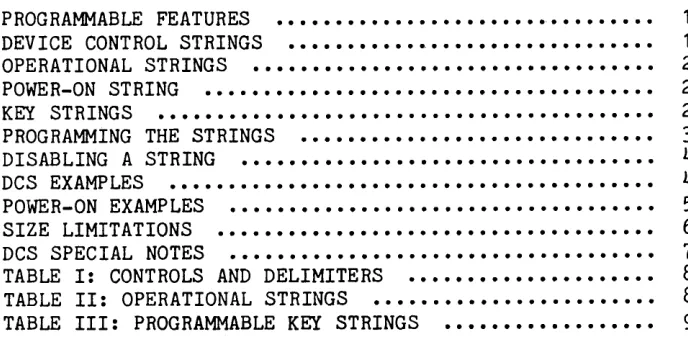
PROGRAMMABLE STRINGSProgrammable Features ••••••••••••••••••••••••••••• Device Control Strings •••••••••••••••••••••••••••• Operational Strings ••••••••••••••••••••••••••••••• Power-on String ••••••••••••••••••••••••••••••••••• Key Strings
...
Programming the Strings...
Disabling a String...
DeS Examples...
DA16
6-3 6-4
6 ... 5
7-1 7-1 7-2 7-3 7-4 8-1 8-2 8-3 8-3 8-4 8-4 8-5 8-6 9-1 9-1 9-2 9-3 9-4 9-5 9-8 9-9 9-9 9-10 9-11 10-1 10-2 10-2 10-3 10-4 10-6 10-7 10-8 10-9 10-11 11-1 11-1 11-2 11-2 11-2 11-3 11-4 11-4
Ambassador User Guide
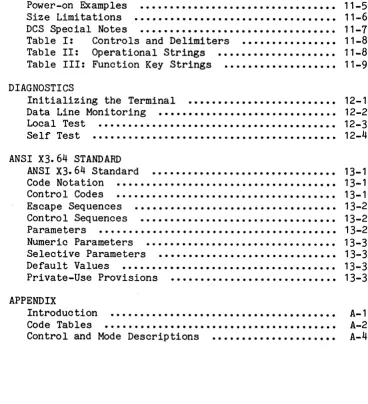
Power-on Examples Size Limitations DCS Special Notes
[image:5.613.115.483.91.494.2]TABLE OF CONTENTS
...
...
...
Table I: Controls and Delimiters Table II: Operational Strings Table III: Function Key Strings DIAGNOSTICS
Initializing the Terminal
...
Data Line Monitoring...
Local TestSelf Test
...
ANSI X3.64 STANDARDANSI X3.64 Standard
...
Code NotationControl Codes
...
...
Escape Sequences ••••••••••••••••••••••••••• ~ •••••• Control Sequences ••••••••••••••••••••••••••••••••• Parameters •••••••••••••••••••••••••••••••••••••••• Numeric Parameters...
Selective Parameters...
Default Values...
Private-Use Provisions...
APPENDIXIntroduction
Code Tables
...
...
Control and Mode DescriptionsDA16
11-5 11-6 11-7 11-8 11-8 11-9
12-1 12-2 12-3 12-4
13-1 13-1 13-1 13-2 13-2 13-2 13-3 13-3 13-3 13-3
A-1 A-2 A-4
Ambassador User Guide INTRODUCTION
CONTENTS
INTRODUCTION •••••••••••••••••••••••••••••••••••••••••
USING THE MANUAL •••••••••••••••••••••••••••••••••••••
NOTATIONAL CONVENTIONS •••••••••••••••••••••••••••••••
SY STEM OVERVIEW
INTRODUCTION.
DA16
Page
1
2 3
5
Page 1-1
The Ann Arbor Ambassador is an advanced, user-configurable, full-featured, ANSI-standard terminal.
ADVANCED. The Ambassador gives you a 15-inch screen wi th large crisp charac-ters. If you've been working at a 12-inch, you'll appreciate the difference. You can 'zoom' up to 60 lines onto the screen whenever you want (to see what a printou t will look like, or to see something that scrolled by too fast, or just for context), while working normally at whatever screen format you find most comfortable (all the way down to 18 lines). No other terminal gives you that capability_
And the Ambassador is fast. Anything that would slow down the terminal is done with hardware. (Most terminals do everything they can with firmware to save cost but, if that costs you time, it's no savings.) For example, when you insert a line into the Ambassador's display, you're not moving all the data that follows, in memory. That takes time. With the Ambassador, you're just up-dating a couple of line pointers (that control the order in which the lines are displayed).
USER-CONFIGURABLE. The Ambassador does everything possible to make your life easier. It lets you set whether you want a key click, or a margin bell. Whether you want your keys to repeat, and how fast. Whether you want a block or an underline cursor, and whether you want it to blink. It gives you a PAUSE key with which you can start and stop data from the host, including stepping in a line at a time (or a window at a time).
It gives you lots of Programmable keys, and not just the ones up in the Func-tion pad, bu t the whole Numeric pad, and the corner keys on the Main array. You can load them with your most-used host (or application) commands, for one keystroke execution, or with control strings that execute complex special functions you want to perform.
It gives you a Programmable Power-on string, so that if you don't like some of our design decisions (like our default key codes or tab stop positions), you can change them. The Power-on string is executed each time the terminal is powered on. Load it with the key codes, or tab stop positions, you want, and the terminal initializes to your choices.
Ambassador User Guide INTRODUCTION DA16 Page 1-2
from the screen or host or both, easily, with complete control of the content and the format of the printout. And we've tried to provide these functions in a form that is natural, logically consistent, and without exceptions.
ANSI-STANDARD. The Ambassador is based on the ANSI standard, X3. 64, which standardized the coding to be used for control of display and printer termi-nals. Nearly all of the significant terminal manufacture:rs and software houses now support the standard. This means that you can buy (or write) software without worrying about what terminal is going to be used. And it means that you're no longer tied to one terminal source. When a better termi-nal comes along, you can upgrade to it without obsoleting any of the software
that you've done or are using.
The Ambassador provides all of the relevant ANSI controls (even some that tend to be redundant; what we consider redundant, some software writer mi.ght not, so we include them all). We've added several private-use controls, that we feel considerably extend the versatility of the ANSI set. (And we've been careful to make them useful, but not necessary. The Ambassador remains a powerful terminal, even if only pure ANSI is used.)
It provides all of the relevant ANSI modes, and a bundle of private-use modes. Some of the added modes are for tailoring the terminal to your individual preferences, some of them are for more versatility, and others are for fine-tuning the standard. (Where a difference of interpretation might result, we've tried to provide a mode to accommodate it.)
USING THE MANUAL
The manual is divided into 13 sec tions and an appendix, not all of which will be of interest to every reader. The sections are summarized below to help guide you to the sections of interest. Section 2 is for the person installing the Terminal. Sections 1, 3, 4, and the first couple of pages of 5, should be be read by all users. The remaining sections are for the programmer, and the serious user who wishes to take full advantage of the Ambassador's capabili-ties.
1. INTRODUCTION. Contains an overview of the Manual and the Terminal. 2. CHECKOUT & INSTALLATION. How to un-pack, install, and checkout the Terminal (and Printer, if applicable)
3. SETUP MODE. How to use the SETUP key to locally control the Ambassador's modes.
4. KEYBOARD. Describes the Ambassador's Keyboard, and how ~o use it. 5. DISPLAY. Describes the Ambassador's Display, how to write to it, and how to tailor it to your use.
6. CURSOR CONTROLS. How to use the Ambassador's controls to move and po-sition the cursor.
Ambassador User Guide INTRODUCTION DA16 Page 1-3
B.
SEND CONTROLS. How to use the Ambassador's controls to send data from its display memory to the host.9. PRINTER. How to set up and use the Printer.
10. FORMS MODE. How to use Forms mode for off-line data entry.
11. PROGRAMMABLE STRINGS. How to program the Ambassador's Programmable keys and other Programmable strings.
12. DIAGNOSTICS. How to initialize the Ambassador, and use its diagnostic features.
13. ANSI STANDARD. A brief review of the ANSI standard as it relates to the Ambassador.
APPENDIX. A summary of all of the Ambassador's controls and modes, ar-ranged by code and by mnemonic, for reference.
NOTATIONAL CONVENTIONS
NOTES. The following forms are used to direct the reader's attention to im-portant material.
NOTE: CAUTION: WARNING: KEY NOTATIONS. sequences:
Contains restated or supplemtary information.
Contains information necessary to correct operation. Contains information necessary to physical safety.
The following notation is used in referring to keys and key
Keys are referred to by their legend, eg, ESC refers to the ESC key, SETUP to the SETUP key, RESET to the RESET key, etc.
Keys that are to be depressed together are shown with a hyphen between them, eg, CTRL-A means to type the A key with the CTRL key depressed. Keys that are to be depressed sequentially are shown with a space between them, eg, ESC [ Z means to type the keys ESC, [, and Z in sequence, releasing each before depressing the next.
CODE NOTATIONS. The following notation is used in referring to codes and code sequences:
Single codes are denoted by a character followed by the character code, eg, Z (5/10). The character code notation conforms to the ANSI standard, eg, 5/10 is the same as 5A hex.
A Space-code (2/0) is denoted by the symbol Sp. A New-line code is denot-ed by the symbol NL.
Ambassador User Guide INTRODUCTION DA16 Page
1-4
Nul tip Ie-code controls (escape and control sequences) are denoted by the ANSI control mnemonic followed by its code sequence, eg, CBT (ESC [ Z). The space between codes is for clarity only , and is not part of the se-quence. Long sequences are sometimes shown with segments of the sequence on separate lines (for clarity and ease of annotation); no NL is implied by this separation. Spaces and New-lines are included in sequences only if explicitly represented (by Sp and NL).
Some controls (control sequences) permit the inclusion of decimal parame-ters:
The notation, Pn, refers to a decimal numeric parameter, eg, CUF (ESC [ Pn C). A value up to decimal 255 (ie, the code sequence 3/2 3/5 3/5) may be included in the control at the Pn position. A parameter value of 0, 1, or omission of the parameter are equivalent, unless otherwise specified in the description of the control, eg, the code sequences ESC [ 0 C, ESC [ 1 C, and ESC [ C, all move the cursor one column forward.
The notation, Ps, refers to a decimal selective parameter, eg, EL (ESC [ Ps K). A selective parameter selects from a list of functions de-fined in the description of the control. The values are passed in de-cimal, but valid values are limited to the defined list. A parameter value of 0, or omission of the parameter, refer to the first function in the list, unless otherwise specified in the description of the con-tro I, eg, the code sequences ESC [ 0 K and ESC [ K both erase from cursor to end of line.
The notation, Pn •• Pn or Ps •• Ps, refers to multiple parameters. When multiple parameters are passed, they must be separated by a ; (3/11). In the case of numeric parameters, their position in the sequence is important. Therefore, they are usually shown written out, eg, CUP
(ESC [ Pn1 ; Pn2 H). (In this instance, the value of Pn1 specifies the Line number, and the value of Pn2 the Column number.) In the case of selective parameters, their position in the sequence is not important. Therefore, they are usually not written out, eg, SGn (ESC [ Ps •• Ps m). As many functions may be selected from the list as desired, and in any order, eg, the code sequences ESC [ 1 ; 5 ; 7 m, ESC [ 7 ; 1 ; 5 m, and ESC [ 5 ; 7 ; 1 m, all result in subsequent characters being -writ-ten with a bold, blinking, reversed rendition.
Modes are denoted by the ANSI mode mnemonic followed by its Setup location and mode number, eg, LNM (0,20) means that the mode LNM can be found on Setup line D, and its mode number (for use with the Set/Reset Mode con-troIs) is 20.
A lower-case 'z' preceding any mnemonic means that the control (or mode) is 'private-use', ie, its function was not provided for in the ANSI stan-dard. For example, zKCM (A,26) is a private-use mode that has been added
Ambassador User Guide INTRODUCTION DA16
will be incorporated into later reVlSlons of the standard, and assigned different codes (in the code space reserved for
fu-ture standardization). Ann Arbor intends to support future
revisions o~ the standard, adding newly-assigned standard
codes, and maintaining existing pri va te-use codes, wherever possible.
SY STEM OVERVIEW.
Page 1-5
A simplified block diagram of the Terminal system is shown below. The
Termi-nal consists of a Keyboard (KYBD) and a Visual Display Unit (VDU). The
Termi-nal communicates with a Computer (HOST), and may have a Printer (PNTR) at-tached.
KYBD
->
VDU SCREEN
D ISP LAY MEMORY
x
v
1 1 1
-D-I-S-P-LAY P
ROC-ES-S-O-R-KBUF
v
1 1
I
FIFO
PNTR
->
<-
HOST1 __________________ _
->
The Keyboard is used to enter data. The entries are buffered in a Keystroke
Buffer (KBUF) in the VDU, and go either to the Display Processor (in Monitor
SRM, see below) or to the Host (in Simul taneous SRM). Data sent, or echoed
back, by the Host are buffered in a received-data FIFO (first-in, first-out
buffer), and go to the Display Processor. The Display Processor acts on the
data according to the codes it receives. Displayable character codes are
passed on to the Display Memory (and, typically, displayed on the Screen),
and/or to the Printer. Control codes (and code sequences) are acted upon, and
perform their specified function according to the present settings of the Terminal's modes.
SRM SEND-RECEIVE MODE (B,12). This is a basic mode of the Terminal, as
it determines the method of communication to be used with the host.
In the set state, the Terminal is said to be in Simul taneous SRM (aka conversational mode, on-line entry, etc).
nal in this mode. In Simultaneous SRM, the
nected. from the VDU. Keyboard inputs are
keyed. (In the diagram above, the output
Ambassador User Guide INTRODUCTION DA16 Page 1-6
direc:tly to the Host. The Display Processor does nothing with the data (except to pass it on.) The host will typically echo the inputs back to the VDU, whereupon they are buffered through the FIFO, acted upon by the Display Processor, and displayed (if graphic characters) or executed (if controls) •
In the reset state, the Terminal is said to be in Monitor SRM (aka block
mode~, off-line entry, etc). In Monitor SRM, the keyboard inputs are not sent to the host as they are keyed. They are, instead, displayed and exe-cuted locally, and the resultant display subsequently sent to the host as a block. (In the diagram above, the keyboard inputs are acted upon by the Display Processor directly. The FIFO is not used by the operator; it may be used by the Host to buffer data to the Printer and/or to Display Memory. )
There are two other communication 'modes' in which the Terminal may be used. zHDM HALF DUPLEX MODE (B,40). Permits the outgoing data to be sent to the Host and wrapped back locally into the Terminal's FIFO. This mode may be used with hosts that cannot support echoback. If used with echoback, double-writing of characters results.
LOCAL TEST MODE. Permits the outgoing data to be wrapped back locally into the Terminal's FIFO, and not sent to the Host. The two-key sequence, SETUP T, puts the Terminal into Local Test; the two-key sequence, SETUP SETUP, returns it to normal operation; see Diagnostics section. During Local Test, the Host is unable to write to the terminal.
If the Host supports an Xon/Xoff protocol, the Terminal's FIFO can be made to 'handshake' with the Host by setting Auto Xon/Xoff Mode.
zAXM AUTO XON/XOFF MODE (B,37). Permits the Terminal to send Xon/Xoff codes to the Host to regulate the flow of received data. During Terminal operation, the FIFO is being filled by the Host, and emptied by the Display Processor. If the Display Processor falls behind, because of a seri.es of slow controls or because the operator has used the PAUSE key to suspend processing, the FIFO gradually fills. When the FIFO is 'almost full', an Xoff code is sent to the Host to suspend further transmission. When the Display Processor catches up, and the FIFO becomes 'almost emp-ty', an Xon code is sent to the Host to resume transmission. The Xon and Xoff codes used by the Host are typically the control codes DC1 (1/1) and DC3 (1/3), respectively. However, they can be set to any ASCII code re-quired by, or convenient to, the Host by changing their values at the end of Setup line B; see Setup Mode section.
If the Host does not support an Xon/Xoff protocol, the data coming from the Host may need to be 'padded', ie, pad characters inserted for time delay. The Ambassador does not normally provide a pad charac ter (so that the full ASCII code set may be passed to the Printer). However, the NUL (0/0) code can be used as a pad character, if required, by setting Ignore NUL Mode.
Ambassador User Guide CHECKOUT & INSTALLATION DA16
CONTENTS Page
UNP ACK ING • • • • • • • • • • • • • • • • • • • • • • • • • • • • • • • • • • • • • • • • • • • • 1
INITIAL TURN-ON •••••••••••••••••••••••••••••••••••••• 1
INITIAL CHECKOUT ••••••••••••••••••••••••••••••••••••• 2
INSTALLATION ••••••••••••••••••••••••••••••••••••••••• 3
PRINTER INSTALLATION ••••••••••••••••••••••••••••••••• 4
UNPACKING
Page 2-1
Inspect the shipping carton for signs of damage before opening. If there is any evidence of damage, notify the carrier and Ann Arbor.
Remove the terminal from the shipping carton. The following items should be enclosed:
Video display unit (VDU) Keyboard with attached cable Computer cable
Printer cable User's guide
NOTE: The D-Case Keyboard is shipped in a separate carton.
Inspect the contents for damage. If damage is found, notify the carrier and Ann Arbor.
You may wish to save the shipping carton to facilitate return of the equipment for Factory Service should that become required.
INITIAL TURN-ON
Remove the rear-access door from the VDU. It is attached by a slot-head screw at the base of the door.
For the E-Case, connect the Keyboard cable plug to the black connector closest to the door. The connector is keyed; it plugs in with the cable issuing out the door. It inserts easily; don't force it~ Once inserted, press in lightly at top and bottom to be sure that it's well seated. For the D-Case, this con-nector is extended to the front underside of the VDU. Raise the front of the unit slightly and plug in the keyboard thereo
CAUTION: If you have occasion to un-plug this cable, please use the pull-tab provided. Pulling on the cable can damage the cable's interconnect at the plugu
Plug the line cord into a standard three-pin 115VAC wall socket. If not pos-sible, use a two-pin socket with proper ground wire attached and connected to ground.
Ambassador User Guide CHECKOUT
&
INSTALLATION DA16 Page 2-2audio tone as the unit turns on.
Allow the tube to warm up. During this time, the terminal is performing its internal self-diagnostic tests. If it finds no errors, the cursor will appear in the upper-left corner of the screen. If it finds an error, and is able, it will display an appropriate error message on the screen. If not able, it will cause the audio to "chirp". See Diagnostics section for an explanation of the errors and possible courses of action.
You may wish to adjust the brightness of the characters. The contrast control on the E-Case is located on the front panel below the screen. On the D-case, it is located on the rear panel below the door. It is recommended that the brightness be set at the minimum comfortable level to prolong the life of the tube and to minimize phosphor burn.
NOTE: Notice that the cursor is brighter than the characters. It is displayed with the 'bold' graphic rendition. You may adjust the differential between the 'normal' and 'bold' rendi-tions with a trimpot located on the logic board near the key-board connector.
INITIAL CHECKOUT
Depress the SETUP key on the keyboard. This will bring Setup line A to the bottom of the screen. Turn to the Setup Mode section, and review how to step through, change, and save the contents of these lines.
Suggested settings for initial checkout are shown below: A 1111 1111 0000 0000
B 9600 0100 1000 0000 0000 0000 0000 17 19 C 0 0 0 0 1200 0100 1100
D 0111 1000 0000 0000 0
After setting up the lines as shown (or as you want them), 'Save' them as ex-plained in the Setup Mode section. This will ensure that the terminal powers up with the settings you've chosen.
Now, go back into Setup mode (by typing the SETUP key) and exit to Local Test (by typing the letter T). The terminal is now in Local. As you type keys on the keyboard, the generated character codes are passed to the terminal's com-munications interface but, instead of being passed on to the terminal's outgo-ing data line, are instead wrapped back into its data input. You are in ef-fect simulating the host from the keyboard.
Observe the Monitor line at the bottom of the screen. This line displays the character codes as they are processed by the terminal; see Diagnostics sec"':' tion. As you type keys on the keyboard, you can observe what codes are being entered and processed.
Ambassador User Guide CHECKOUT & INSTALLATION DA16 Page 2-3
generated by the key is displayed in the Monitor line and the cursor moves on the screen. Try some other control keys and see what's generated. Try typing in some control sequences, and observe their effect. Examples:
ESC [ 10 C -Moves the cursor right 10 columns
ESC [ 10 ; 10 H -Moves the cursor to line 10, column 10 ESC [ 1 K -Erases from beginning of line to cursor
ESC [ 10 @ -Inserts 10 spaces
ESC [ 10 P -Deletes 10 characters
At this point you can skip to INSTALLATION if you wish to continue on-line. If you wish to continue off-line, try programming some of the PF (Programmed Function) keys; see Programmable Strings section. Any control sequence, that can be typed in, can be loaded into a Programmable key and, thereafter, exe-cuted with a single keystroke.
By using the Setup lines to change terminal modes, and the programmable keys to facilitate entry of terminal controls, you can explore their interaction to whatever extent you wish before involving the host.
INSTALLATION
NOTE: The following describes installation of the terminal to RS232 Data Communications Equipment. Ann Arbor provides ac-cessory cables to mate with other interfaces. If one of these is ordered, installation instructions are included with the accessory cable.
Install the Computer cable through the rear access door. The small connector plugs into the bottom connector on the daughter board. (The upper connector is for the Printer cable.) The key (long centered rib) faces the main board. The connector snaps in easily; don "t force it.
The other end of the cable is a standard RS232 DTE interface: PIN SIGNAL
2 Transmit Data 3 Receive Data 4 Request to Send 5 Clear to Send
7 Signal Ground
20 Data Terminal Ready
NOTE: The Clear to Send input to the terminal may be used (to enable/ disable transmission from the terminal) or left open (= 'on' cond i tion) •
Connect the RS232 connector to the host or the data communications equipment. Bring Setup line B to the screen. Set the Baud Rate, Parity, and number of Stop Bits, and exit by typing the letter M.
Ambassador User Guide CHECKOUT & INSTALLATION DA16
displayed at the bottom of the screen, permitting the codes echoed from the host to be observed; see Diagnostics section~
Page 2-4
Try operating with the host. The Monitor line displays the codes being actu-ally received from the host. If garbage is being received, check your Baud Rate, or check (or try a different) Parity or Stop Bit setting.
If nothing is being received, make certain (1) you're not in Setup mode, (2) the SRM (Send Receive) setting in Line B is 1, and (3) the KAM (Key-board Action) setting in Line B is
o.
If you're still receiving nothing, disconnect the Computer cable at the RS232 interface, short pins 2 and 3 together (which wraps the terminal's outgoing data line back into its incoming data line), and observe on the Data Monitor whether the terminal is actually sending your key entries and sending them correctly. This isolates the problem to the terminal or the external equipment.
If you've changed any of your Setup settings in the process of going on-line wi th the host, you'll want to 'Save' them before proceeding. Check each of the Setup lines against the diagrams given previously to make sure you've changed only settings you're familiar with. Remember that when you 'Save' the settings you save all four lines at their present state.
When you've completed the installation (including the printer, as described below, if applicable), replace the door. The I/O cables are best brought out at the base of the door; the keyboard cable through either side. The door clamps the cables in place.
PRINTER INSTALLATION
NOTE: The following describes installation of an RS232-compatible printer to the terminal. The Ambassador supports such printers whether they use RS232 signals, or DC1/DC3 codes, for ready/busy control; see Printer section. Ann Arbor provides accessory cables to mate with other interfaces. If one of these is ordered, installation instructions are includ-ed with the accessory cable.
Install the Printer cable through the rear access door. The small connector plugs into the upper connector on the daughter board. The key (long centered rib) faces the main board. The connector snaps in easily; don't force it. The other end of the cable is a standard RS232 DCE interface:
Pin 2. Transmit Data. Data output from the printer. The terminal recog-nizes DC3 as a command to disable or suspend printing, and DC1 to enable or resume printing. It ignores all other codes.
Pin 3. Receive Data. Data input to the printer.
Ambassador User Guide CHECKOUT
&
INSTALLATION DA·16 Page 2-5Pin 8. Carrier Detect. Control input to the printer. The terminal holds this line in the 'on' condition.
Pin 7. Signal Ground
Pin 20. Data Terminal Ready. Control output from the printer. An 'off' (ie, -V) condition on this pin causes the terminal to disable or suspend printing. An 'on' (ie, +V) condition causes it to enable or resume print-ing. The terminal recognizes no connection at the interface (ie, open) as an 'on' condition.
Connect the RS232 connector to the printer.
Bring Setup line C to the screen, and make the settings required for your printer; see Printer section, Printer Setups.
Exit back on-line (by typing either the SETUP or M key), and try printing. Type the PRINT key to start a Page Print. Type the BREAK key to abort it. If you're using the suggested settings, you're printing from top of screen to cursor (ie, Transfer Termination Mode
=
0) so be certain you have the cursor down into the tex t.If you're not printing, check the interface requirements in your printer manual. Make sure your printer isn't holding pin 20 low (open is OK), and that it isn't expecting 'on' levels at other than pins 6 and 8. (If it is, you'll have to tie them up to pins 6 or 8, or some other 'on' source.) If you have a second Ambassador available, try printing to it. (Discon-nect the printer and plug the first Ambassador's Printer cable into the second Ambassador's Computer cable.) This permits you observe the printed da ta codes (on the second Ambassador's Monitor line). Depressing CTRL-S (on the second Ambassador's keyboard), ie, generating DC3, should cause the printing to stop; depressing CTRL-Q, ie, generating DC1, should cause it to resume.
Alternatively, use Remote Copy to type directly to the printer; see Printer section, Using Remote Copy. Go into Local Test (by typing the 2-key sequence, SETUP T). Then go into Remote Copy (by typing the 3-key se-quence, ESC [v). Now characters and control codes entered from the key-board go directly to the printer. Hold down a key (eg, with a pencil between keys) to generate a repetitive character stream to the printer for debug. (Depressing CTRL-C returns the terminal from Remote Copy. Typing SETUP SETUP returns the terminal from Local Test.)
Use of either of these will help you isolate the problem.
Ambassador User Guide SETUP DA16
CONTENTS Page
USING SETUP MODE • • • • • • • • • • • • • • • • • • • • • • • • • • • • • • • • • • • • • 1 SAVING THE SETUPS •• • •• •• •• • • • • •• • •• •• • • ••• • • •• •• ••••• 1
OTHER SETUP EXITS •••••••••••••••••••••••••••••••••••• 1
HOST CONT RO L • • • • • • • • • • • • • • • • • • • • • • • • • • • • • • • • • • • • • • • • • 2
SETUP NOTATION • • • • • • • • • • • • • • • • • • • • • • • • • • • • • • • • • • • • • • • 2
LINE A - USER CONVENIENCE MODES •••••••••••••••••••••• 3
LINE B - SEND PARAMETERS ••••••••••••••••••••••••••••• 3
LINE C - PRINT PARAMETERS ••••••••••••••••••••••••••••
4
LINE D - OTHER MODES ••••••••••••••••••••••••••••••••• 4
USING SETUP MODE
Page 3-1
The Ambassador's Setup mode is an especially versatile feature. It permits
you to review and alter most of the terminal's features and characteristics by bringing functionally-defined Setup lines (A - D) to the screen.
To enter Setup mode, type the SETUP key located above the main keypad. This
brings Setup line A to the screen at the bottom of your work area. If there
was data there, it's still there; it was just pushed down into memory below
the screen. It will return when you leave Setup mode. The cursor is
displayed over the letter A. You may use the DOWN-ARROW key on the Control
keypad to step through the lines A through D sequentially, and the UP-ARROW key to step back through them.
To change a setting, simp ly move the cursor to the setting using the
RIGHT-and LEFT-ARROW keys on the Control keypad. Note that the setting names
au-tomatically display in the right-half of the line. When the cursor is
posi-tioned over the desired setting, use the T-SET key to set (or advance) the setting, or the T-CLR key to reset (or decrease) it.
To exit Setup mode, simply type the SETUP key again. The Setup line will
disappear and the line it displaced will return to the screen.
SAVING THE SETUPS
The setting changes made above are temporary. They will be lost when the
ter-minal is turned off (or reset), and will be restored to their power-on values
when the terminal is turned back on. If you wish to change their power-on
value as well, simply type the letter S (Save), instead of the SETUP key, to
exit Setup mode. This saves all of your present Line A-D settings in
non-volatile memory.
OTHER SETUP EXITS
There are other Setup exits that you will find useful. See the Diagnostics
section for a more complete description.
Exiting Setup mode by typing the letter M (Monitor) brings a Monitor line to
receiv-Ambassador User Guide SETUP DA16 Page 3-2
ing from the host (including control codes), in real time, without affecting your display or normal terminal operation. Depressing the SETUP key twice re-moves the line from the screen.
Exiting Setup mode by typing the letter T (Test) puts the terminal into Local and brings up the Monitor line. Keyboard entries are wrapped back into the terminal, as received data, and are displayed on the Monitor line so that you can see exactly what you are entering. Depressing the SETUP key twice returns the terminal on-line, and removes the line from the screen.
Exiting Setup mode by typing the letter X (Xparent) puts the terminal into Transparent mode. All codes subsequently entered or received are displayed and not acted upon. Typing the SETUP key twice returns the terminal to normal operation.
Exiting Setup mode by typing the letter Y or Z causes the terminal to go into self-test. In either case the tests can be aborted by holding down any key. HOST CONTROL
Most of the settings can also be changed by the host. Notice that some set-tings have a number displayed in parentheses following their name. The host may control these settings by sending that number as part of an SM/RM (Set/Reset Mode) control sequence. The host may control the page and margin settings of the printer (Line C) wi th the control zSPF (Set Print Format). The host cannot control the baud rate or parity settings on either the host (Line B) or printer (Line C) ports.
Since the SETUP key is programmable (see Programmable Strings sec tion) , the host may disable the key to prevent operator access to the Setup lines.
SETUP NOTATION
The contents of the Setup lines are listed on the following pages. Terminal modes are shown with their mnemonics. A description of the modes can be found in the Appendix, arranged alphabetically by their mnemonic.
A mode is referred to as 'reset' if it's value is zero; 'set' if it's value is one. In most cases, the mode name implies the set state, eg, setting Key Click Mode (zKCM) enables key click. For some ANSI modes the opposi te is true, 13g, resetting Format Effec tor Transfer Mode (FETM) enables their transfer and, for others, the name is non-descriptive, eg, setting Send-Receive Mode (SRM) enables Simultaneous SRM (ie, on-line entry). The ANSI committee defined their 'reset' state to be (what they beleived would be) the most used state.
Ambassador User Guide SETUP DA16 Page 3-3
LINE A - USER CONVENIENCE MODES. This line displays a number of terminal modes that are primarily for the convenience of the user.
zBKCM Block Cursor Mode (31) zBNCM Blinking Cursor Mode (32) zKCM Key Click Mode (26)
zMBM Margin Bell Mode (25) zKPCM Key Pad Control Mode (27) zRLM Return key CRLF Mode (29) zKRM Key Repeat Mode (28) zFRM Fast Repeat Mode (47) zAPM Auto Pause Mode (38) zSSM Slow Scroll Mode (39) zHAM Hold in Area Mode (48)
zFIM Function-key Initialize Mode (50) zTPDM Transfer Pointer Display Mode (41) zCLIM Caps Lock Invert Mode (53)
Reserved Reserved
LINE B - SEND PARAMETERS. This line displays the parameters tha t tailor the inpu t/ ou tpu t channe I to the host compu ter.
Baud Rate (110-19200)
Parity (OO=Odd 01=Even 10=Space 11=Mark) Stop Bits (0=1 1=2)
Parity Detection (O=Off 1=On)
SRM Send-Receive Mode ( 12) 1= Simultaneous SRM zHDM Half-Duplex Mode (40)
KAM Keyboard Action Mode (2) 0= Keyboard enabled zAKDM Auto Keyboard Disable Mode (46)
TTM Transfer Termination Mode (16) 0= To cursor GATM Guarded Area Transfer Mode (1)
SATM Selected Area Transfer Mode ( 17) 0= Transfer MATM Multiple Area Transfer Mode (15)
FETM Format Effector Transfer Mode (14) 0= Transfer zFSTM Field Separator Transfer Mode (44)
zCSTM Column Separator Transfer Mode (43 ) zGRTM Graphic Rendition Transfer Mode (45) zAXM Auto Xon/Xoff Mode (37)
zLTM Line Transfer Mode (42 ) zMKM Meta Key Mode (52) zMMM Meta Monitor Mode (57) zINM Ignore NUL Mode (54)
Ambassador User Guide
Reserved
XON Code (0-127) XOFF Code (0-127)
SETUP DA16 Page 3-4
LINE C - PRINT PARAMETERS. This line displays the parameters that tailor the output channel to the printer.
Printed Lines (0-126) Total Lines (0-126) Left Margin (0-254) New-Line Pads (0-254) Baud Rate (110-19200)
Parity (OO=Odd 01=Even 10=Space 11=Mark) Stop Bits (0=1 1=2)
zGAPM Guarded Area Print Mode (49)
New-Line Character (01=LF 10=CR 11=CRLF) Form Feed (O=NLs 1=FF)
Reserved
LINE D .- OTHER MODES. This line displays the remaining terminal modes that are not displayed on the previous lines.
zICM Invisible Cursor Mode (56) zWFM Wrap Forward Mode (33) zWBM Wrap Backward Mode (34)
zDBM Destructive Backspace Mode (30) zDDM
zSPM TSM ERM
DEL-character Display Mode (35) Scroll-Page Mode (36)
Tabulation Stop Mode (18) Erasure Mode (6)
LNM LF New Line Mode (20 ) zCNM CR New Line Mode (55)
Reserved Reserved Reserved Reserved Reserved Reserved
0= Columnar tab stops 0= Erase unprotected only
Ambassador User Guide KEYBOARD DA16
CONTENTS Page
KEY BOARD LAY OUT • • • • • • • • • • • • • • • • • • • • • • • • • • • • • • • • • • • • • • 1
MODES THAT AFFECT THE KEYBOARD ••••••••••••••••••••••• 1 CONTROLS THAT AFFECT THE KEYBOARD •••••••••••••••••••• 2 . PROG RAMMABLE KEY STRINGS • • • • • • • • • • • • • • • • • • • • • • • • • • • • • 2 MAIN KEYPAD DESCRIPTION •••••••••••••••••••••••••••••• 3 CONTROL KEYPAD DESCRIPTION ••••••••••••••••••••••••••• 5 FUNCTION KEYPAD DESCRIPTION •••••••••••••••••••••••••• 6
KEYBOARD LAY OUT
Page 4-1
The Ambassador has a typewriter-style keyboard, consisting of a 62-key Main keypad, a 12-key Control pad (to the right), and a 20-key Function pad (above). The operation of these keypads, under the various modes available to the user, is described in this section.
MODES THAT AFFECT THE KEYBOARD
The following modes affec t your use of the keyboard. The ir settings may be reviewed, and changed as desired, on the Setup lines; see Setup section. The Setup line letter, and mode number, are shown in parentheses following the name. Detailed descriptions of these modes can be found in the Appendix.
zKCM KEY CLICK MODE (A,26). Turns on key click. zMBM MARGIN BELL MODE (A,25). Turns on margin bell.
zKPCM KEY PAD CONTROL MODE (A,27). Inverts the Control keypad in respect to the SHIFT key.
z RLM RETURN KEY CRLF MODE ( A, 29) • Lets the RETURN key genera te CR or CRLF. Note: The modes LNM (LF New Line) and zCNM (CR New Line) determine which code(s) do a new-line action when received by the terminal.
Ambassador User Guide KEYBOARD DA16 Page 4-2
zFRM FAST REPEAT MODE (A,41). Selects a faster repeat rate.
zFIM FUNCTION-KEY INITIALIZE MODE (A, 50). Loads the PF keys with codes at power-on.
zCLIM CAPS LOCK INVERT MODE (A, 54). Enables lower-case entry, wi th the SHIFT key, when the CAPS LOCK key is down.
KAM KEYBOARD ACTION MODE (B,2). below) .
Locks the keyboard (see Controls
zMKM META KEY MODE (B,52). Changes the PAUSE key to a META SHIFT key. zDBM DESTRUCTIVE BACKSPACE MODE (D,30). Lets the BACKSPACE key do a
des-tructive backspace.
CONTROLS THAT AFFECT THE KEYBOARD
The keyboard can be locked and unlocked with the controls DMI/EMI. When the keyboard is locked, key entry is inhibited (attempted entries result in an er-ror 'beep') and the cursor is not displayed. If this happens accidentally, go into Setup (the SETUP key is not inhibited) and reset the KAM (Keyboard Action Mode) setting on Line B.
DMI DISABLE MANUAL INPUT (ESC '). Locks the keyboard. EMI ENABLE MANUAL INPUT (ESC b). Unlocks the keyboard.
PROGRAMMABLE KEYS
38 0 f the Ambassador's keys are user programmable. These are shown shaded on
the Keyboard Layout diagram. They may be programmed with frequently used host (or application) commands, for one keystroke execution, or with terminal con-trol strings, to execute special-purpose functions, or with null, to disable keys (like SETUP and RESET) for operator-restricted applications.
Many of the keys are programmable on more than one level (ie, they can be pro-grammed to generate different strings, unshifted and shifted), for a total of 60 programmable key strings. The strings can be programmed with any sequence of ASCII codes, up to a total of 320 codes, with no restrictions on number of codes per key. In addition, each string can be programmed as Local-only (the string is executed locally, regardless of the setting of SRM), as Transmit-only (the string is transmitted to the host, regardless of the setting of SRM) , and/or as Repeating (the string is repeated, after a delay, as long as the key is held down).
In addition, the Ambassador provides a programmable non-volatile Power-on string that may be used (among other purposes) to automatically configure the keyboard in a desired way each time the terminal is turned on.
Ambassador User Guide KEYBOARD DA16 Page 4-3
MAIN KEYPAD DESCRIPTION
The Main keypad consists of alphabetic keys (single legend), non-alphabetic keys (2 legends), the CTRL key, and several other keys for terminal control. For each group, the code (or control) generated by the keys is tabulated and, for the terminal control keys, a short description is given of the function performed by the key (when its control is received by the terminal). A more complete description of the controls may be found in the Appendix.
ALPHABETIC KEYS. The 26 alphabetic keys generate lower-case codes unless ei-ther of the SHIFT keys, or the CAPS LOCK key, are down. Wi th the CAPS LOCK key down, the keys generate upper-case codes, unshifted and shifted. (The keys may be made to generate lower-case codes, shifted, by setting zCLIM.)
---UNSHIFTED SHIFTED
===================
a (6/1)
b (6/2)
c (6/3)
d (6/4)
e (6/5)
f (6/6)
g (6/7)
h (6/8)
i (6/9)
A (4/1)
B (4/2)
C (4/3)
D (4/4)
E (4/5)
F (4/6)
G (4/7)
H (4/8)
I (4/9)
---UNSHIFTED SHIFTED
---j (6/10) k (6/11)
1 (6/12) m (6/13) n (6/14) o (6/15)
p (7/0)
q (7/1)
r (7/2)
J (4/10) K (4/11) L (4/12) M (4/13) N (4/14)
o
(4/15)P (5/0)
Q (5/1)
R (5/2)
---UNSHIFTED SHIFTED
---s (7/3)
t (7/4)
u (7/5)
v (7/6) w (7/7)
x (7/8)
y (7/9) z (7/10)
S (5/3) T (5/4)
U (5/5)
V (5/6)
W (5/7)
X (5/8)
Y (5/9)
z
(5/10)NON-ALPHABETIC KEYS. The non-alphabetic keys generate the lower-legend codes unless either of the SHIFT keys are down. The CAPS LOCK key does not affect the codes generated by these keys. The SPACE BAR generates the code 2/0~ both unshifted and shifted.
---
---
---
---
---UNSHIFTED SHIFTED UNSHIFTED SHIFTED UNSHIFTED SHIFTED
===================
---
---~------
---1 (3/---1) (2/1) 8 (3/8)
*
(2/10) [ (5/11 ) { (7/11) 2 (3/2) @ (4/0) 9 (3/9) ( (2/8) ] (5/13) } (7/13)3 (3/3) II (2/3) 0 (3/0 ) ) (2/9) (3/11 ) (3/10) 4 (3/4) $ (2/4)
-
(2/13) (5/15),
(2/7)"
(2/2) 5 (3/5) % (2/5)=
(3/13) + (2/11) (2/12)<
(3/12)Ambassador User Guide KEYBOARD DA16 Page 4-4
CTRL (CONTROL) KEY. With the CTRL key depressed, the preceding keys generate control codes. (The CTRL key resets the two high-order bits of the normal code. )
---CODE KEY
---NUL (0/0) SOH (0/1) STX (0/2) ETX (0/3) EOT (0/4) ENQ (0/5) ACK (0/6) BEL (0/7) BS (0/8) HT (0/9) LF (0/10)
CTRL-@ CTRL-A CTRL-B CTRL-C CTRL-D CTRL-E CTRL-F CTRL-G CTRL-H CTRL-I CTRL-J
---
---~~~~~---CODE KEY
---
---~-~---VT (0/11 ) FF (0/12) CR (0/13) SO (0/14) SI (0/15) DLE (1/0) DC1 (1/1) DC2 (1/2) DC3 (1/3) DC4 (1/4) NAK (1/5)
CTRL-K CTRL-L CTRL-M CTRL-N CTRL-O CTRL-P CTRL-Q CTRL-R CTRL-S CTRL-T CTRL-U
---CODE KEY
---SYN (1/6) ETB (1/7) CAN (1/8) EM (1/9) SUB (1/10) ESC (1/11) FS (1/12) GS (1/13) RS (1/14) US (1/15)
CTRL-V CTRL-W CTRL-X CTRL-Y CTRL-Z CTRL-[ CTRL-\ CTRL-] CTRL-A
CTRL-Note: NUL may also be genera ted by CTRL-Sp (spacebar), RS by CTRL-. (period), and US by CTRL-/ (slash), to avoid use of the SHIFT key.
OTHER KEYS. The remaining keys on the Main keypad generate terminal control functions as tabulated below. Note:
*
indicates a programmable string.---
--_._---KEY-
---ESC TAB PAUSE BR8AK LINE FEED BACKSPACE RETURN DEL MOVE UP MOVE DOWN---UNSHIFTED
---ESC (1/11)
*
HT (0/9)*
Local string*
Short break LF (0/10) BS ( 0/8)*
CR (0/13) DEL (7/15)*
Local string*
Local string---SHIFTED
---CSI (ESC [ )
*
CBT (ESC [ Z)*
Local string*
Long breakSame as unshifted Same as unshifted Same as unshifted Same as unshifted
*
Local string*
Local stringTAB. Moves the cursor forward to the nex t tab stop (unshifted) , or back-ward to the last tab stop (shifted).
PAUSE. If zAXM (Auto Xoff/Xon Mode) is set, permits start/stop of displayed data from the host; see Display section, Flow Control of Re-ceived Data. If zMKM (Meta Key Mode) is set, acts as a Meta shift key; see zMKM.
BREAK. Forces the outgoing data line to its Space level for about 1/L second (unshifted) or 3-1/2 seconds (shifted).
LINE FEED. Moves the cursor to the same column in the next line, or to the beginning of the next line, depending on the setting of LNM (LF New Line Mode).
Ambassador User Guide KEYBOARD DA16 Page 4-5
Mode) is set, it also erases the character at that position.
RETURN. Moves the cursor to the beginning of the ac ti ve line, or to the beginning of the next line, depending on the setting of zCNM (CR New Line Mode). If zRLM (Return Key CRLF Mode) is set, the key generates CRLF (in-stead of just CR).
DEL. The DEL character is ignored, or displayed, depending on the set-ting of zDDM (DEL-character Display Mode).
MOVE UP & MOVE DOWN. If the opera tor's window is smaller than the page size set by the host (see Display section), these keys permit viewing the full page by moving the window up or down a line at a time (unshifted) or in full-screen steps (shifted). If CTRL is depressed, the screen 'Zoom' feature is activated. The MOVE UP key moves additional data lines onto the screen. The MOVE DOWN key moves them off, spreading out the display.
CONTROL KEYPAD
The Control pad consists of a block of 12 keys located to the right of the Main keypad. If zKCPM is reset, it provides for numeric data entry (unshift-ed) and terminal control func tions (shift(unshift-ed). If zKCPM is set, it provides for terminal control functions (unshifted) and numeric data entry (shifted). The table below assumes zKCPM reset. Note:
*
indicates a programmable string.---
---
---
---
---KEY UNSHIFTED SHIFTED
---
---
---
---
---HOME/5 5 (3/5)
*
CUP (ESC [ H) UP-ARROW/8 8 (3/8)*
CUU (ESC [ A) DN-ARROW/2 2 (3/2)*
CUB (ESC [ B)RT-ARROW/6 6 (3/6)
*
CUF (ESC [ C) LT-ARROW/4 4 (3/4)*
CUD (ESC [ D) T-SET/9 9 (3/9)*
HTS (ESC H) T-CLR/7 7 (3/7)*
TBC (ESC [ g) SSA/1 1 (3/1)*
SSA (ESC F) ESA/3 3 (3/3)*
ESA (ESC G)0
*
0 (3/0) NoneENTER
*
CR (0/13) Same as unshifted HOME. Moves the cursor to the beginning of the page. UP-ARROW. Moves the cursor up one line.DN-ARROW. Moves the cursor down one line. RT-ARROW. Moves the cursor right one column. LT-ARROW. Moves the cursor left one column. T-SET. Sets a tab stop at the cursor position. T-CLR. Clears a tab stop at the cursor position.
Ambassador User Guide KEYBOARD DA16 Page 4-6
SSA. Writes a start-of-selected-area symbol to the screen. ESA. Writes an end-of-selected-area symbol to the screen. ENTER. Acts the same as the Return key on the Main keypad.
FUNCTION KEYPAD
The Function keypad consists of a row of 20 keys located above the Main keypad. Note:
*
indicates a programmable string.=======
=============---
---KEY UNSHIFTED SHIFTED
--- =============
--- --- --- --- --- --- ---
---RESET
*
RIS (ESC c) Same as unshifted SETUP*
Local string Same as unshifted PF1*
SS3 (ESC 0 A)*
SS3 (ESC 0 M) PF2*
SS3 (ESC 0 B)*
SS3 (ESC 0 N) PF3*
SS3 (ESC 0 C)*
SS3 (ESC 0 0)PFl.~
*
SS3 (ESC 0 D)*
SS3 (ESC 0 P) PF5* SS3 (ESC 0 E)
*
SS3 (ESC 0 Q)PF6
*
SS3 (ESC 0 F)*
SS3 (ESC 0 R) PF7*
SS3 (ESC 0 G)*
SS3 (ESC 0 S) PFH*
SS3 (ESC 0 H)*
SS3 (ESC 0 T) PF9*
SS3 (ESC 0 I)*
SS3 (ESC 0 U) PF10*
SS3 (ESC 0 J)*
SS3 (ESC 0 V) PF'I1*
SS3 (ESC 0 K)* SS3 (ESC 0 W)
PF12*
SS3 (ESC 0 L)*
SS3 (ESC 0 X) ERASE*
EL (ESC [ K)*
ED (ESC [ J)EDIT
*
zTI (ESC 6) Same as unshiftedDELETE
*
DCH (ESC [ P)*
DL (ESC [ M) INSERT*
ICH (ESC [ @)*
IL (ESC [ L) PRINT*
Me
(ESC [ i)*
Local stringSEND
*
None Same as unshiftedRESET. Resets the terminal to its power-on state.
SETUP. Puts the terminal into Setup mode, permitting review or alteration of the terminal's characteristics.
PF1-12. No action. These codes may have special meaning to the host. If zFIM (Function-key Ini tialize Mode) is reset, the keys will ini tialize to null (ie, no codes).
ERASE. Erases from cursor to end of line (unshifted) , or to end of page (shifted) •
EDIT. Toggles the terminal into and out of Edit mode~ Characters typed dUl"ing Edit mode are inserted at the cursor posi tion and push following characters to the right instead of overwriting them.
Ambassador User Guide KEYBOARD DA16 Page
4-7
INSERT. Moves the character at the cursor position to the right, opening a space. With SHIFT depressed, moves the entire line containing the cur-sor down, opening an empty line.
PRINT. Transmits the displayed data to a local printer. With SHIFT depressed, toggles the printer into and out of copying the received data stream.
Ambassador User Guide DISPLAY DA16
CONTENTS Page
DISPLAY FEATURES ••••••••••••••••••••••••••••••••••••• MODES THAT AFFECT THE
DISPLAy...
1
CONTROLS THAT AFFECT THEDISPLAy...
2 DISPLAY DEFINITIONS ••••••••••••••••••.•••••••••••••.• 3 WRITING THE DISPLAY • • • • • • • • • • • • • • • • • • • • • • • • • • • • • • • • • • 4 FLOW CONTROL OF RECEIVED DATA •••••••••••••••••••••••• 5 ZOOMING THEDISPLAy...
6 MOVING THE WINDOW (w/ Cursor) .••••••••••••••••••••••• 7MOVING THE WINDOW (w/o Cursor) •••••..•••••••••••••••• 7
USING THE HOST AREAS • • • • • • • • • • • • • • . • • • • . • • • • • • • • • • • • • 8 SETTING UP MULTIPLE PAGES • • • • • • • • • • • • • • • • • • • • • • • • . • • • 8 SETTING UP MULTIPLE WINDOWS ••••••••.••••••••••••••••• 9
USING THE ALTERNATE CURSOR ••••••••••••••••••••••••••• 9
HIGHLIGHTING THE DISPLAY .••••••••••.••.•••••••••••••• 10
DISPLAY FEATURES
Page 5-1
The Ambassador has a large 15-inch non-glare screen tha t can display up to 60 lines of information. A versatile array of modes and controls permi ts the user to tailor the display for maximum convenience, efficiency, and individual comfort. The use of these modes and controls is described and illustrated in this section.
MODES THAT AFFECT THE DISPLAY
The following modes affect your use of the display. Their settings can be re-viewed, and changed as desired, on the Setup lines; see Setup section. The Setup line letter, and mode number, are shown in parentheses following the name. Detailed descriptions of these modes can be found in the Appendix.
zBKCM BLOCK CURSOR MODE (A,31). Selects an underline or block cursor sym-bol.
zBNCM BLINKING CURSOR MODE (A,32). Causes the cursor symbol to blink. zAPM AUTO PAUSE MODE (A,38). Permits the operator to regulate the flow of data onto the Screen with the PAUSE key (if the host supports an Xon/Xoff protocol; see zAXM).
zSSM SLOW SCROLL MODE (A,39). Regulates the flow of data onto the Screen to a fixed rate of about 4 lines/second (if the host supports an Xon/Xoff protocol) .
zAXM AUTO XON/XOFF MODE (B,37). Permits start/stop codes to be sent to the host to regulate the flow of data to the terminal.
Ambassador User Guide DISPLAY DA16 Page 5-2
zWFM WRAP FORWARD MODE (D,33). Permits the cursor to wrap forward at end of line (to the beginning of the next line).
zDDM DEL-CHARACTER DISPLAY MODE (D,35). Permits display of the DEL-character (for systems that don't use DEL as a pad, or time-out, charac-ter) •
zSPM SCROLL-PAGE MODE (D,36). Inhibits additional data entry at end of Page.
LNM LF NEW LINE MODE (D,20). Selects CTRL-J (LF) as the new-·line code (instead of CRLF).
zCNM CR NEW LINE MODE (D, 55). Selec ts CTRL-M (CR) as the new-·line code (instead of CRLF).
zACM ALTERNATE CURSOR MODE (,51). Enables an alternate (aka blind) cur-sor. The alternate cursor may write anywhere in Display Memory, whereas the primary cursor is limited to the (working) Page.
CONTROLS THAT AFFECT THE DISPLAY
The following controls affect the display. The code sequence (that executes them) is shown in parentheses following the name. The code sequence may be generated by the host, typed from the keyboard, or programmed into a function key; see Programmable Strings section. Detailed descriptions of these con-trols can be found in the Appendix.
zTFC TOGGLE FAST-BLINK CURSOR (ESC 5). Toggles the cursor symbol between its 'normal' display (as selected by zBKCM and zBKNM) and a fast-blinking block, for operator attention or warning.
zSDP SET DISPLAY PARAMETERS (ESC [ Pn •• Pn p). Parti tions both the Display Memory and Screen according to the parameters, Pn; see Display De-finitions below. This control encompasses functions variously known as line lock, memory lock, split screen, etc.
SD SCROLL DOWN (ESC l Pn T). Moves the displayed text down (or the Window up) the number of lines specified by Pn (if Window is smaller than Page!; see Display Definitions below).
SU down) Page) •
SCROLL UP (ESC L Pn S). Moves the displayed text up (or the Window the number of lines specified by Pn (if Window is smaller than
SGR SET GRAPHIC RENDITION (ESC [ Ps •• Ps m). Selects the graphic rendi-tion (aka highlights, visual attributes, etc.) with which all following characters received will be displayed; see Highlighting the Display, below.
zCGR CHANGE GRAPHIC RENDITION (ESC 9). Changes the graphic rendition of all following characters in the Page to that selected by the last SGR
Ambassador User Guide DISPLAY DA16 Page 5-3
DISPLAY DEFINITIONS
Certain terms are used in describing the Ambassador's display features. They are shown in the diagrams below, and defined following, to clarify their usage.
DISPLAY MEMORY SCREEN
---
---
---1 1
1 UPPER HOST AREA 1 UPPER HOST AREA
1 1
1---
1---1 1
1 1 WINDOW'
1 PAGE 1
1 1
1
1---1 1
1---
1 LOWER HOST AREA1 1
1 LOWER HOST AREA
---
---1 Status Line (Optional)
---
---
---INACTIVE MEMORY
---DISPLAY MEMORY: That portion of memory that is available to hold the results of keyboard and data transfer operations. The size of the Ambassador's DISPLAY MEMORY is 60 lines x 80 charac ters. It contains the following seg-ments (starting from DISPLAY MEMORY address line 1): UPPER HOST AREA, PAGE, LOWER HOST AREA, and INACTIVE MEMORY.
ACTIVE MEMORY: That portion of DISPLAY MEMORY that is assigned to hold the results of subsequent keyboard and data transfer operations. It may be set to any size from 18 to 60 lines, inclusive, with the zSDP control (1 st
parame-ter). It is initialized to 60 lines at power-on.
INACTIVE MEMORY: The remaining (ie, unassigned) portion of DISPLAY MEMORY. NOTE: The zSDP control does not affect the contents of DISPLAY MEMORY; only the partitioning. Any data that was partitioned into INACTIVE MEMORY by a zSDP control can be retrieved by another zSDP control partitioning it into ACTIVE MEMORY.
UPPER HOST AREA: The upper-most portion of ACTIVE MEMORY, declared to be out-side of the operator's working PAGE. Its size may be set with the zSDP con-trol (2nd parameter). It is initialized to 0 lines at power-on.
Ambassador User Guide DISPLAY DA16 Page 5-4
PAGE: The portion of ACTIVE MEMORY between the UPPER and LOWER HO