UNISYS
ALLY®
Software
Development
Environment
UNIFY
Developer Notes
Copyright © 1987 Unisys Corporation. All rights reserved.Unisys is a trademark of Unisys Corporation. ALLY is a registered trademark of
Foundation Computer Systems, Inc. Foundation Computer Systems is
NO WARRANTIES OF ANY NATURE ARE EXTENDED BY THE DOCUMENT. Any product and related material disclosed herein are only furnished pursuant and subject to the terms and conditions of a duly executed Program Product License or Agreement to purchase or lease equipment. The only warranties made by Unisys, if any, with respect to the products described in this document are set forth in such License or Agreement. Unisys cannot accept any financial or other responsibility that may be the result of your use of the information in this document or software material, including direct, indirect, special or consequential damages.
You should be very careful to ensure that the use OT this information and! or software material complies with the laws, rules, and regulations of the jurisdictions with respect to which it is used.
The information contained herein is subject to change without notice. Revisions may be issued to advise of such changes and/or additions.
Foundation Computer Systems (Foundation) has written this manual for use by Foundation customers. The information con-tained in this manual shall not be reproduced in whole or in part without Foundation's prior written approval.
Foundation reserves the right to make changes in specifications and other information contained in this 'manual without prior notice. The reader should, in all cases, consult Foundation to determine whether any such changes have been made.
ALL Y is a registered trademark of Foundation Computer Systems, Inc.
UNIFY is a registered trademark of Unify Corporation.
This manual describes ALLY release 2.0.
The ALLY Software Development Environment can run on many computers, operating systems, and data access methods. Therefore, the ALLY manuals are generic-they describe the system-independent features of ALLY.
These developer notes provide information about version 2.0 of ALLY, which supports version 4.0 of the UNIFY Relational Database Management System. These notes are a supplement to the standard set of manuals provided with ALLY.
These notes include information about:
• using ALLY with UNIFY
• building a UNIFY Base Data Source Definition (Base DSD)
• modifications you can make and options you can select to further define a UNIFY Base DSD
The section of these developer notes titled ""Building a UNIFY Base DSD" is designed as a supplement to the ""Data Source Definitions" chapter of the Dialog User's Guide (UP-12505).
We assume that you are familiar with UNIFY as well as with ALLY and the Dialog. Before reading the developer notes, you should read the documentation conventions that are provided in the preface of the Dialog User's Guide.
UNIFY Developer Notes
Using ALLY with UNIFY ... 2
Names ... 2
Data Types ... 3
Environment Variables ... 5
Building a UNIFY Base DSD ... 7
Optional Steps for Base DSD Fields ... 9
Options Inheritable by Forms/Reports ... ... 11
Base DSD Keys ... 13
Reading Records in Sorted Order ... 14
Modifying a UNIFY Base DSD ... 15
ALLY Development Language (ADL) and UNIFY ... 16
Concurrency ... ... 16
Contents
Figures
1 Sample UNIFY Database ... 1
2 UNIFY Base Data Source Definition Path ... 7
3 Create a Base Data Source Definition ... 8
4 Options Inheritable by a Form/Report Subform ... 12
5 Key Characteristics Subform ... . . . 13
6 Fields Assigned to a Key Subform ... 14
The UNIFY Relational Database Management System is a collec-tion of programs that enable you to create databases and to enter, modify, retrieve, and sort data.
A UNIFY database consists of a group of tables. In UNIFY documentation, tables are sometimes referred to as record types. For consistency with the forms of the Dialog, we use the term table in this document.
A table is composed of records, and a record is composed of fields. Figure 1 shows a sample UNIFY database composed of two tables. Table (Record type) Table (Record type) Table name
/
Suppliersup_id sup_name address
2000 Acme Manufacturing 4120 S. Walnut
2010 BlB Supplies 152 Crescent Dr.
2020 H. Terry & Son 2000 Alton Ct.
Item
item_id id_num unit unit-price terms
1000 2000 ea 4.22 net 10
1001 2010 doz 16.46 net 30
1002 2000 ea 3.15 net 10
1003 2020 gross 94.25 net 10
Reid name
Record
Field
F002-0900-00
Figure 1. Sample UNIFY Database
UNIFY Developer Notes
Using ALLY with UNIFY
When ALLY builds a UNIFY Base DSD, it reads information about a table from the UNIFY database. The fields of the Base DSD that ALLY builds correspond to the fields defined for the UNIFY table.
The only way to build a UNIFY Base DSD is to create it automat-ically from an existing UNIFY table. You cannot use the Dialog to create a UNIFY table or to create individual fields in a UNIFY Base DSD. Also, you cannot change the Base DSD type of a non-UNIFY Base DSD to UNIFY.
To perform data queries and modifications, ALLY communicates directly with the UNIFY database. You can enhance the perfor-mance of your application by using UNIFY to build B-tree indexes for:
• fields assigned to the local key of an ALLY foreign key link
• fields that are used frequently in queries
• fields assigned to an ALLY primary key
When developing an application, you should use the advanced features of ALLY and not the advanced features of UNlFY. ALL Y provides its own capabilities for defining advanced charac-teristics like default and initial values of fields.
ALL Y allows you to assign passwords to form/report fields or to assign special characteristics to fields so that they cannot be modi-fied. Use ALLY's security features instead of UNIFY's.
Names
The name you assign to a UNIFY Base DSD need not be the same as the name of the UNIFY table from which you build the Base DSD. The Base DSD name can contain up to eighty
When ALLY creates a Base DSD from a UNIFY table, it creates a Base DSD field to correspond to each UNIFY field. The UNIFY short name for each field becomes the name of the corresponding Base DSD field. The UNIFY short name and long name are also saved as characteristics of the Base DSD field. These characteristics are part of the field's definition and are independent from the Ba"e DSD field's name.
You can change the Base DSD field's name at any time. It does not have to match the UNIFY short name. However, the short name that is part of the field's definition must match the UNIFY short name.
Data Types
ALL Y's data types support seven of UNIFY's nine data types:
ALLY
Data TypeNUMBER
CHAR DATE
Supports UNI}'Y Data Type
NUMERIC FLOAT AMOUNT
STRING DATE LONGDATE
TIME
UNIFY Developer Notes
Date Fields
When you build a Base DSD from a Ul\iIFY table that includes a field with the DATE, LONGDATE, or TIME data type, ALLY creates a date field in the Base DSD. This field has ALLY's default format for dates (MMlDD/YY).
If the UNIFY data type of the field is LONGDA TE or TIME, you should change the Base DSD field's output format. To do this, create a date format and then assign it to the Base DSD field. (Alternatively, you could assign the date format to a form/report field.)
For LONGDATE fields, create a date format with the date pic-ture "MMIDD/YYYY." For TIME fields, create a date format with the date picture "HH24:MI."
Use the Create a Date Format form (menu path 3 5 3 1 from the Dialog's main menu) to create the date format. Exit from this form to display the form called Date Format-Characteristics, and specify the date format's date picture. To assign the date format to the Base DSD field, use the Date Field-Initial and Null Values. Data Formats form (menu path 3 1 2
< >
2 2< >
2 from the Dialog's main menu).Combination Fields
ALL Y also supports combination fields.
When you build a Base DSD from a UNIFY table. ALLY creates Base DSD fields for all of the fields that comprise a combination field. However, ALLY does not create a Base DSD field that corresponds to the combination field itself.
Environment Variables
When you use ALLY with UNIFY. there are two ways to ensure that ALLY will find the UNIFY files you want to use:
1) Execute all ALLY applications (including the Dialog) from the directory that contains the UNIFY database.
2) Use an operating system environment variable.
There are two UNIFY environment variables that affect ALLY's ability to locate your UNIFY files:
• DBPATH
• DBNAME
Both of these environment variables can be set from your operat-ing system shell.
If you are using the C shell, use the following syntax when setting these environment variables:
setenv variable_name ,'alue
If you are using the Bourne shell, use the following syntax:
variable_name = value
If you are using the Bourne shell, you must then export the environment variable by typing:
export variable_name
There are two ways to unset an environment variable. If your operating system supports the 'unsetenv' command, type:
unsetenv variable_name
For example,
unsetenv DBNAME
If your operating system does not support ·unsetenv·. reset the variable, using a different value. For example,
UNIFY Developer Notes
Using DBPATH
If your UNlFY files are not located in the directory from which you will start ALLY, use the environment variable DBP A TH to indicate the directory in which your UNIFY files can be found. For example,
setenv DBPA TH laJusr/alexlemp
If you use DBPA TH, all of your UNIFY data files (file.db, file.dbr, and unify.db) and all .idx files must be in the directory you specify.
When you build a UNIFY Base DSD, ALLY does not store the value of DBPATH. At runtime, ALLY does not verify that the current setting of DBPA TH is the same as the setting in effect when the Base DSDs were created. Therefore, when you develop or run an ALLY application, be sure that DBPATH (if set) is set to access the UNIFY database you want to use.
Using DBNAME
Use the environment variable DBN AME to indicate that your UNIFY database file has a name other than the default name (which is file.db). For example, if your database file is called empfile.db, you would type:
setenv DBNAME empfile.db
If you set DBNAME before creating a UNIFY database, UNlFY assigns the name you specify to the database file you create.
We recommend that you do not set this environment variable when executing an ALLY application that uses a UNIFY data-base. When you build a Base DSD to describe a UNlFY table, ALL Y maintains the database file's name as part of the Base
DSD. At runtime, ALLY looks for a file with the file name stored in the Base DSD. [f the DBNAME environment variable
is set to any name other than the name stored in the Base DSD,
Building a UNIFY Base DSD
When you build an ALLY application that uses data from a UNIFY database, you must build a UNIFY Base DSD to describe each table in the database.
The following instructions describe the process of building a UNIFY Base DSD. When you work on an application's DSDs, you are in the "Data Definitions" branch of the Dialog-choice 3 from the Dialog's main menu.
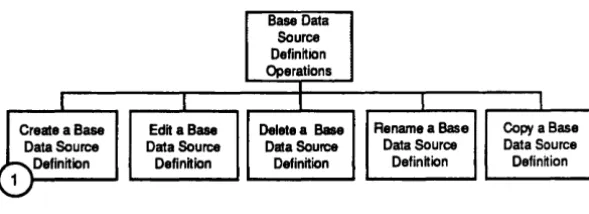
Figure 2 shows the location of the Dialog form you will use.
Base Data Source Definition Operations
I
I I I I I
lr
Data Source a BaH Data Source Edit aBase Delete a Base Data Source Rename a Base Data Source Copy a Base Data SourceDefinition Definition Definition Definition Defin~ion
1
FOO2-064S-0'
UNIFY Developer Notes
CD
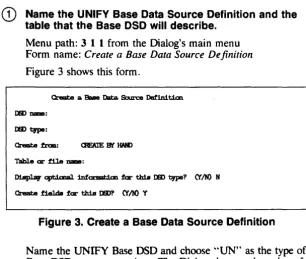
Name the UNIFY Base Data Source Definition and thetable that the Base DSD will describe.
Menu path: 3 I I from the Dialog's main menu Form name: Create a Base Data Source Definition
Figure 3 shows this form.
IB) qpe:
Table ar file DilIII8:
01Bpl.ay c:pt.i.c.mal infar:mat.ian far thiJI JB) qpe? CfM N Create :fiel.dll :far tldB IS)? CfM Y
Figure 3. Create a Base Data Source Definition
Name the UNIFY Base DSD and choose ""UN" as the type of Base DSD you are creating. The Dialog changes the value of the ""Create from" field to CREATE FROM TABLE and moves the cursor to the ""Table or file name" field.
Optional Steps for Base DSD Fields
The Base DSD Field Characteristics menu (menu path 3 1 2
<
>
2 2<
>
from the Dialog's main menu) provides access to six Dialog forms that allow you to display or edit a Base DSD field's:• status and names
• initial and null values and data formats • minimum and maximum values
• options inheritable hy a form/report field
• ALLY (internal) data type
• storage (UNIFY) data type
Define Field Status and Names
Menu path: 3 1 2
<
>
2 2<
>
1 from the Dialog's main menu Form name: UNIFY Field-Major CharacteristicsThis form allows you to indicate whether a Base DSD field is also a physical field in the UNIFY database. By default. a field is a physical field. If you remove a field from the UNIFY database, remove the ..
x.,
from the field of this form labeled ··Physical field. "You can also use this form to change a field's short name and long name so that the field names in the Base DSD correspond to the field names in your UNIFY table. However. changing a name in the Base DSD does not alter the name of the field in the corresponding UNIFY table. Do not change the short name and long name in the Base DSD field definition unless you have changed. or you plan to change, the names in the UNIFY table.
UNIFY Developer Notes
Display Field Initial and Null Values and Data Formats
Menu path: 3 1 2
< >
2 2< >
2 from the Dialog's main menu Form name: Field-Initial lind Null Values, Data FormatsThis form allows you to specify the initial and null values of a Base DSD field and the data format of the field.
Chapter 4 of the Dialog User's Guide discusses ALLY formats. By default, ALLY provides the following initial and null values and input and output formats for character, number, and date fields.
Table 1. Default DSD Field Values and Formats
Data Initial Null Input Output
Type Value Value Format Format
Character none none none none
Number none none free format* free format*
Date none none MMlDO/YY· MMlOO/YY·
*
These formats are the Dialog's global defaults and are used when no format is specified for a OSO field.For numeric, time, and float fields, UNIFY initializes all null values to zero. Therefore, when the initial value of a Base DSD
field corresponding to a numeric, time, or float field is null, the value that will appear in a form/report referencing the Base DSD
will be zero.
Define Field Minimum and Maximum Values
Menu path: 3 I 2
< >
2 2< >
3 from the Dialog's main menu Form name: Field-Field ValidationDefine Inheritable Form/Report Options
Menu path: 3 I 2
<
>
2 2<
>
4 from the Dialog's main menu Form name: Options Inheritable by a Form/Report FieldThis form allows you to specify the options that will be inherited by all form/report fields that reference the Base DSD field. These options allow the field to require a valid value, be addable only, be enterable only, or accept no blank characters.
Display
a
Field's Internal Data TypeMenu path: 3 1 2
< >
2 2< >
5 from the Dialog's main menu Form name: Base DSD Field-Imernal Data InformationThis form allows you to display a Base DSD field's ALLY (inter-nal) data type.
This form is provided for reference only. You cannot change any of the information.
Display
a
Field's External Data TypeMenu path: 3 I 2
<
>
2 2<
>
6 from the Dialog's main menu Form name: UNIFY Field-External Data StorageThis form allows you to display a Base DSD field's external (UNIFY) data type.
This form is provided for reference only. You cannot change any of the information.
Options Inheritable by Forms/Reports
Menu path: 3 I 2
< >
1 from the Dialog's main menu Form name: UNIFY Base DSD-CharacteristicsUNIFY Developer Notes
Opt.:ic:ms inberltable b.r a. farm/report.
Delete depardmt. rec:arda
I~ mill. rec:arda
Recard amaita, net. autcmat.ic
AlLY dcea net. log 1:zamIact.icm& X
Figure 4. Options Inheritable by a Form/Report Subform
Delete dependent records (default off)
This option refers to subordinate records in a form/report. It determines whether ALLY will delete dependent records from this Base DSD when a user deletes the records' parent record.
Ignore null records (default off)
This option determines whether ALLY will ignore a record when all of the fields of the record contain null values.
Record commits not automatic (default off)
This option determines whether record changes will be made automatically or only when the user invokes the 'commit' command. If this option is off, a commit is done automatically when the cursor moves from a changed record. If this option is on, ALLY allows no changes to be made until a user invokes the 'commit' command. When this option is off, the" ALL Y does not log transactions" option should be on. This is the default condition.
ALL Y does not log transactions (default on)
Update not allowed (default off)
This option determines whether ALLY will prevent records from being updated in a UNIFY database.
Insert not allowed (default off)
This option determines whether ALLY will prevent records from being inserted into a UNIFY database.
Delete not allowed (default off)
This option determines whether ALLY will prevent records from being deleted from a UNIFY database.
Base DSD Keys
Menu path: 3 I 2
< >
3 2< >
from the Dialog"s main menu Form name: Base Definition KeyALLY allows you to assign one or more Base DSD fields to a Base DSD key.
In a Base DSD, keys can:
• uniquely identify a record (such keys are called primary keys)
• be used with foreign key links to establish hierarchical rela-tionships between Base DSDs
• indicate how records should be sorted
When you define a key in a UNIFY Base DSD. ALLY allows you to specify that the key is a primary key. Figure 5 shows the sub-form that allows you to assign this characteristic to a key.
Cbme1t.:
UNIFY Developer Notes
To optimize performance. ALLY primary keys should correspond to UNIFY primary keys. Any time an ALLY primary key corresponds to a UNIFY field (or set of fields) that is not a UNIFY primary key, you should build a UNIFY index on the field ( s) assigned to the ALLY primary key.
When you define a key, you must assign one or more Base DSD
fields to the key. Figure 6 shows the subform that allows you to assign fields to a key.
Field. IUIIbar 1
Naae of field
italUd
1.clJua
DeeanHng &art. ardar N
2 Y
Figure 6. Fields Assigned to a Key Subform
The .. Descending sort order" field of this form allows you to specify the order in which records should be sorted.
Reading Records in Sorted Order
ALLY can read a UNIFY table in sorted order if you:
• create an ALLY key that references the fields used for sorting
• indicate whether records should be sorted in ascending or descending order
• create a View Definition and specify the Base DSD key to be used as its sort key
The UNIFY index can include more fields than are referenced b\ the Base DSD key. However, the additional fields of the index -cannot occur before or between the fields referenced by the Base DSD key. For example, a Base DSD key that references fields A, B, and C (in that order) can use a UNIFY index that contains the fields A, B, C. and D-as long as the ascending/descending order characteristics are the same. However, ALLY would be unable to use a UNIFY index containing the fields A. D. B, and C because the order of the fields is not the same as the order of the Base DSD key's fields. ALLY would also be unable to use an index containing the fields D, A, B, and C because the fields referenced by the Base DSD key are not at the beginning of the index.
ALLY does not look for an appropriate UNIFY index at define time. Therefore. you can create the Base DSD key before you create the corresponding index in the UNIFY environment. At runtime, if ALLY cannot find an index to support its sort key. it displays the following error message:
I
lbIble 1bare iJI to DO lMFY padam aact.iJIg. Udale tnat, UJL1espads to the ltILy aart. key.Modifying a UNIFY Base DSD
You can use ALLY to modify the values of the fields of a UNIFY database, but you cannot modify the structure or de~ign of the database.
If you change the name of a field in your UNIFY database. you must change the short name that has been saved as part of the definition of the corresponding Base DSD field. We recommend that you change the long name in the Base DSD also.
UNIFY Developer Notes
ALLY Development Language (ADL)
and UNIFY
You can use ADL generic Data Manipulation Language (DML) functions to manipulate the data in a UNIFY database file through ADL procedures. These functions are described in the ALLY Development Language (ADL) User's Guide (UP-12507).
Concurrency
ALL Y does not lock UNIFY records to prevent concurrent access to data. Because UNIFY uses field-level 110 rather than record-level 110, record locking is not necessary.
Just before a change is made to a field, UNIFY locks the database to prevent write access by another user. The lock is released as soon as the change to the field has been made.
During a Dialog session, do not go to the operating system to modify your UNIFY database design. If you do, the changes you make will not appear when you return to the Dialog. If you need to modify the database design, exit from the Dialog first.
(,Q
(J)
(,Q
m ::J
C.
o
-»
"C "C CD
::J
C.
;C'
»
--m
-o
(Q
en
..
~C»
!l-c
C-c
~<D
<D::J
-tic.
o --
~><c::»
z
-."
~
C
ALLY does not log transactions. 12
Base DSD field options, 9
Base DSD keys, 13
Combination fields. 4 Commit. 12
Concurrency, 16
Data dictionary, 1 Date fields, 4
Delete dependent records. 12 Delete not allowed, 13
Existing UNIFY Base DSDs. modifying. 15
External data type, 11
Field options. 9 ALLY data type. 11 external data type. 11 inheritable form/report, 11 internal data type. 11 physical field. 9 target list. 9 UNIFY data type, 11 validation, 10 values and formats. 10 Field validation, 10 Field values. 10
Form/report inheritable options. 11 ALLY does not log transactions, 12 delete dependent records, 12
Ignore null records. 12 Indexes, 14
Inheritable form/report options. II
Initial formats of DSD fields. 10 Initial values of DSD fields. 10 Insert not allowed, 13 Internal data type, II
Keys. 13
Locking records. 16
Minimum and maximum field values, 10
Modifying UNIFY Base DSDs, 15
Null values of DSD fields. 10
Options, Base DSD field,9
form/report inheritable, 11
Primary keys, 13
Record commits not automatic. 12 Record locking, 16
Record types. 1 Rollback,12
Sorting records, 14
Tables, 1
Transaction log file. 12
delete not allowed, 13 Transactions. commit and rollback. I~
ignore null records. 12 insert not allowed. 13
record commits not automatic, 12 update not allowed, 13
UNIFY Base DSD. modifying. 15 UNIFY indexes. l-l
Update not allowed. 13