Suite 64
Integrated
Communications
Exchange
PCS
digital
Advanced Features
Competitive Pricing
Proven Performance
The information contained in this document is proprietary and is subject to all relevant
copyright, patent and other laws protecting intellectual property, as well as any specific
agreement protecting PCS Digital, LLC. (herein referred to as the “Manufacturer”) rights in the
aforesaid information. Neither this document nor the information contained herein may be
published, reproduced or disclosed to third parties, in whole or in part, without the express,
prior, written permission of the Manufacturer. In addition, any use of this document or the
information contained herein for any purposes other than those for which it was disclosed is
strictly forbidden.
The Manufacturer reserves the right, without prior notice or liability, to make changes in
equipment design or specifications.
Information supplied by the Manufacturer is believed to be accurate and reliable. However, no
responsibility is assumed by the Manufacturer for the use there of nor for the rights of third
parties which may be affected in any way by the use thereof.
Any representation(s) in this document concerning performance of the Manufacturerʹs
product(s) are for informational purposes only and are not warranties of future performance
either express or implied. The Manufacturerʹs standard limited warranty, stated in its sales
contract or order confirmation form, is the only warranty offered by the Manufacturer in
relation thereto.
This document may contain flaws, omissions or typesetting errors; no warranty is granted nor
liability assumed in relation thereto unless specifically undertaken in the Manufacturerʹs sales
contract or order confirmation. Information contained herein is periodically updated and
changes will be incorporated into subsequent editions. If you have encountered an error, please
notify the Manufacturer. All specifications are subject to change without prior notice.
© Copyright by PCS Digital, LLC., 2003.
Record of Revisions
Revision Date of Issue Supercedes Major Changes - Brief Description
TC
1 Introduction ...1
‐
1
1.1 About The Suite 64. . . . 1‐1 1.2 Suite 64 31‐Button Display Telephone . . . . 1‐2 1.3 Document Overview . . . . 1‐3 1.4 Applicable Documents . . . . 1‐3
2 Telephone
Setup ...2
‐
1
2.1 Reminder‐Extension . . . . 2‐1 2.2 Auto Hold . . . . 2‐2 2.3 Automated Attendant . . . . 2‐4 2.4 Preference . . . . 2‐9 2.5 Background Music (BGM) . . . . 2‐10 2.6 Busy Ring (Allow/Deny) . . . . 2‐11 2.7 Call Forward . . . . 2‐12 2.8 Caller ID . . . . 2‐19 2.9 Caller ID Log. . . . 2‐20 2.10 Default Extension. . . . 2‐21 2.11 Touch Tone (On/Off) . . . . 2‐22 2.12 Extension Ring Adjustment . . . . 2‐23 2.13 Do Not Disturb . . . . 2‐24 2.14 Extension Feature Status . . . . 2‐25 2.15 Extension Password . . . . 2‐27 2.16 Feature/DSS Button Reset . . . . 2‐28 2.17 Directory/Feature/Suffix Code Lookup . . . . 2‐29 2.18 Feature/DSS Button Programming . . . . 2‐30 2.19 Headset Mode. . . . 2‐32 2.20 Access Codes . . . . 2‐34 2.21 Hot Key Enable/Disable . . . . 2‐35 2.22 Hot Line. . . . 2‐36 2.23 Voice Announce . . . . 2‐37 2.24 Messaging‐Status Text. . . . 2‐40 2.25 Night Mode/Activate. . . . 2‐42 2.26 Voice Page (Allow/Deny) . . . . 2‐43 2.27 Pause Insertion . . . . 2‐44 2.28 Phone Lock/Unlock . . . . 2‐45 2.29 Speakerphone . . . . 2‐47 2.30 Volume Control . . . . 2‐48
3 MakingSuite
64
Calls ...3
‐
1
3.1 Making an Outgoing Call . . . . 3‐1 3.2 Making an Intercom Call . . . . 3‐2 3.3 Making a Call Using Account Code . . . . 3‐3 3.4 Auto Redial . . . . 3‐4 3.5 Calling the Operator/Attendant. . . . 3‐5 3.6 Meet‐Me Conference . . . . 3‐5 3.7 Supervised/Unsupervised Conference . . . . 3‐7
TC
3.8 Direct Inward System Access (DISA). . . 3‐11 3.9 Last Number Redial . . . 3‐13 3.10 Making Off‐Hook Voice Announcements. . . 3‐14 3.11 On‐Hook Dialing. . . 3‐15 3.12 Paging . . . 3‐15 3.13 Saved Number Redial . . . 3‐16 3.14 Speed Dial . . . 3‐17
4 Calling
Features... 4
‐
1
In
tr
oduc
tion
1
1
Introduction
The Suite 64, is a versatile, Digital Hybrid Key Telephone System that includes
many advanced features. The System Configuration is comprised of a Main
Service Unit and optional expansion boards per specific configuration
requirement. The components of a basic system include a KSU Main Service Unit
with 31‐Button Model Telephones or a Standard Model Telephone. An Analog
Telephone is optionally available.
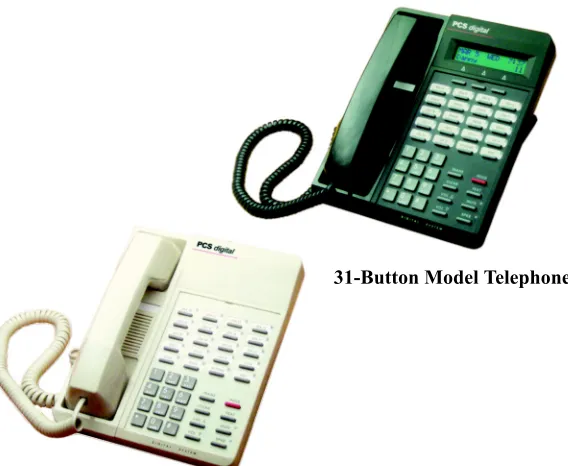
An illustration of the KSU Main Service Unit, the 31‐Button Model Telephone and
the Standard Model Telephone are shown below in Figure 1-1.
Figure 1-1 31-Button Telephone and 28-Button Telephone
1.1
About The Suite 64
31-Button Model Telephone
In
tr
oduc
tion
1
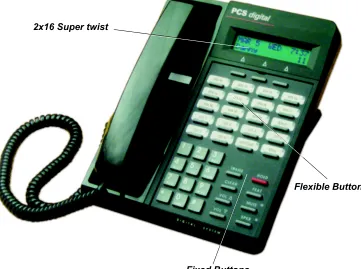
The Suite 64 31‐Button Model Telephone features an LCD Display (2 cm x16 cm) with speakerphone, three Interactive Soft Buttons, 20 Programmable DSS keys (dual color LED), 8 fixed feature keys (Trans (Transfer), Hold, Clear, Feat (Feature), Volume Up, Mute, Volume down and Speaker.
Figure 1-2 below shows the keys necessary for use with this manual.
Figure 1-2 Suite 64 31-Button Telephone
1.2
Suite 64 31-Button Display Telephone
Flexible Buttons 2x16 Super twist
In
tr
oduc
tion
1
The purpose of this manual is to provide operational instructions on the use of the
main features of the Suite 64 31‐Button Telephone keyset. It is divided in to several
sections, designed to clearly and quickly provide information to the user. The
sections are:
Section 1 ‐ Introduction ‐ this section describes the basic Suite 64 system
components, the 31‐Button Model Telephone, an overview of this manual and
the applicable documentation.
Section 2 ‐ Telephone Setup ‐ this section provides descriptions of the 31‐Button
Telephone Setups including; Setting Defaults, Do Not Disturb, Call
Forwarding, Passwords, Feature/DSS Button Programming, Phone
Locking/Unlocking and Night Mode operation as well as basic telephone use.
Section 3 ‐ Making Calls‐ this section provides operational descriptions of the
basic call features such as Intercom, Speed Dial, Conference, Paging and Last
Number Redial, among other features.
Section 4 ‐ Calling Features‐ this section provides operational descriptions of
some of the in‐progress call features such as Hold, Intrusion, Memo Pad,
Monitor, and Answering Machine Emulation among other topics.
The following manuals should be available for use in conjunction with this
manual.
• Suite 64 Installation and Maintenance Manual
1.3
Document Overview
In
tr
oduc
tion
1
Te
le
ph
on
e
Set
u
p
2
2
Telephone Setup
Feature Code:
f92
Description
The Suite 64 allows you to activate your own private alarm on your telephone to
remind you of special appointments, events, etc. When the alarm activates, you
will hear tone ringing. After the alarm rings, it is automatically canceled. You can
program the alarm to operate one time or repeatedly. When programmed for
repeated calls, the alarm will sound at the same time everyday.
Activate Reminder-Extension
1. Press
f92.
The current time displays (NULL=none).2. Press [chg] to enter a new alarm alert time.
3. Enter new time in HHMM 24‐hour format.
4. Press [save].
5. Select [one], for a one‐time alarm or [always] for repeated.
Notification
1. Alarm sounds and the display shows:
2. Press [ack] to stop the alarm or wait for it to stop. The display will
remain until [ack] is pressed.
2.1
Reminder-Extension
Te
le
ph
on
e
Set
u
p
2
Deactivate Alarm Clock-Extension
1. Press
f
92
. The current time displays (NULL=none).2. Press [del].
Operational Notes
• The Reminder‐Extension feature code
f
92
can be programmed underany programmable Feature/DSS Button.
• Reminder‐Extension will be automatically canceled after the programmed
Alarm Play Time is reached.
• The display will be unchanged until [ack] is pressed or when the tele‐
phone is used for another call.
Feature Code:
f
94
Description
The Auto Hold feature will automatically place the current call on hold if you are
on a call and you press an outside line button. For example, if you are currently on
a call on the first line and you press a second line, the call on the first line will be
placed on Exclusive Hold automatically. Similarly, if you are currently on an
intercom call with another Suite 64 extension and you press an outside line button,
the intercom call will be placed on Exclusive Hold. You do not need to press Hold
unless you want to place a call on System Hold.
Setup Auto Hold
1. Press
f
94
.2. You hear confirmation tone and the display shows:
3. The extension returns to an idle state.
2.2
Auto Hold
Te
le
ph
on
e
Set
u
p
2
Enable Auto Hold
1. While connected to an intercom or outside line call, press another outside
line button, if programmed.
2. The current connection is placed on hold and the next connection is
established.
Cancel
1. Press
f*94
. You hear confirmation tone and the display shows:2. The extension returns to an idle state.
Operational Notes
• The Feature Code
f94
can be programmed under a flexible button ona 31‐Button Telephone. To enable/disable the feature, toggle the Feature/DSS
Button.
• If you access an idle line and skip to another line before dialing, the first line
will not be automatically placed on Hold. (A line must be connected with an
active call; either you dialed a number or answered a ringing line.)
• Auto Hold places a call on Exclusive Hold.
• If you have the Auto Hold feature programmed on a Feature/DSS Button, the
Feature/DSS Button LED will light when the feature is enabled.
Te
le
ph
on
e
Set
u
p
2
Feature Code: PGM
p#0
The Automated Attendant features will not be available unless a 4VAA card is installed in the Suite 64 System.
Description
The Suite 64 Auto Attendant option can greatly enhance business office
productivity by providing either a full‐duty automated attendant to handle all
incoming system calls or a part‐duty automated attendant to handle overflow
traffic only when the primary attendant cannot handle calls or after hours when
the position may not be staffed.
The optional 4VAA Automated Attendant card may be added to the Suite 64
System. It is installed inside of KSU1 and provides a maximum of 120 seconds of
programmable voice announcements. The 4VAA provides four ports to handle
four (4) simultaneous callers. These voice announcements include: Day, Evening,
Noon and Temporary greeting messages; Waiting, Invalid, Busy, No Answer,
Good‐Bye and Inquiry prompts/instructions. The maximum recording time for
each greeting/message and the actual recording for each voice announcement is
setup via Attendant Administration.
Automatic CO Line Ringing time settings must be programmed in Time Switching
and completely set for a seven (7) day week for Automatic CO Line Ringing
Modes to properly follow a automatic switching schedule.
Setup Automated Attendant
Proper setup of the automated attendant will require some planning prior to
entering the setup session. Adequate planning of announcements and the required
results are essential to deploying a successful automated attendant operation.
Consider the ten (10) messages/greetings and any specific telephone system
dialing operations that have been established.
Te le ph on e Set u p
2
The following should be considered:
• What are the extension numbers that should be listed in the greeting, if any?
• Should any UCD Group directory numbers be announced? (For example,
dial 410 for Sales.)
• Will you be using the “Inquiry” message? (The Inquiry “*” may be dialed
during the DAY, ALT, or EVE Greeting to provide a recorded announcement
to the caller – for example, directions to the office: “To get recorded directions to
our office, dial *. Otherwise, stay on the line and we’ll be with you soon.”)
• Do you want to advise callers of the “Waiting Code”? (The Waiting Code, “#”
may be dialed when the called party’s extension is busy. When the caller
hears the “BUSY MSG” she may dial the Waiting Code to wait 10 seconds.
When ten seconds have expired Suite 64 will automatically try the extension
again.)
• Prepare a written announcement for each message/greeting.
The Messages/Greetings are as follows:
DAY GREETING ‐ This is the greeting the callers hear when they are answered
while the system is in “DAY” mode of operation. (For example, “Hello, this is
xyz company. If you know your party’s extension number, dial it now. Dial
0
for the system attendant. For sales, dial
410
To get recorded directions toour office, dial ‘*’. Otherwise stay on the line, we will be with you shortly.”)
ALT GREETING ‐ This is the greeting that callers hear when they are
answered while the system is in “ALTernate” mode of operation.
EVE GREETING ‐ This is the greeting that callers hear when they are
answered while the system is in EVEning mode of operation. (For example,
“Hello, this is xyz company. You have reached us after our regular business hours. If you know your party’s extension number, dial it now. To get recorded directions to our office, dial ‘*’. Thank you for calling.”)
WAITING MSG. ‐ This is the message that callers hear after their call has been
processed. (E.g., “Your call is being transferred.”)
INVALID MSG. ‐ This is the message that callers hear when they have dialed a
number that is not defined in the system directory. (E.g., “We’re sorry that is not
a valid extension on our system.”)
BUSY MSG. ‐ This is the message that callers hear when they have dialed an
extension number that is busy. (E.g., “We’re sorry, that extension is currently busy.
To wait for this extension, dial “#” or dial another extension now.”)
NO_ANS MSG. ‐ This is the message that callers hear when the extension they
entered does not answer the call. Another extension request may be made at
this time. (E.g., “Your party does not answer, please enter another extension number
or dial zero for the system attendant.”)
BYE MSG. ‐ This is the message that callers hear when the system is about to
disconnect them. This occurs when the caller dials nothing after a Busy
Te
le
ph
on
e
Set
u
p
2
INQUIRY MSG. ‐ This is a special message that can provide callers with
information without ever having to be handled by a live person. (E.g.,
directions to the office... “From service road one‐oh‐one, take the Via deVentura exit
‐ West, two blocks to Hayden ‐ North to one‐four‐six‐four‐five North Hayden Road”)
TEMP MSG. ‐ This is a message that can be used to announce periodic
planned or planned events. (E.g., “Our offices are closed in observance of the
holiday.”)
Proceed with the following:
1. Enter Attendant Administration from any digital speakerphone by:
a. Pressing
f#0
.b. Entering the Tenant Group (1,2, or 3) for which settings will be made
and press the softkey beneath save.
c. Entering the Attendant Password for the selected Tenant Group and
press the softkey beneath show . The display shows SVC MODE
CHANGE. (The default password is
9999
.)d. Pressing [next. The display shows:
2. Press the softkey beneath show. The display shows:
This is the greeting that callers will hear when they are answered by the
Automated Attendant and the system is in the “DAY” mode of operation.
The button LED is lit during the Automated Attendant setup session. This indicates that the speakerphone microphone will be active during the record portions of setup. Alternatively, the handset may be used for recording.
⌧
Te
le
ph
on
e
Set
u
p
2
3. To record this greeting, press the softkey beneath show. The display will
show:
xx is the current time allotted to this message.
a. To change the total length allotted to this message, press the softkey
beneath chg. Enter the new time in seconds (
00
‐99
) then pressthe softkey beneath save.
b. Press the softkey beneath play to hear the current contents of this
greeting/message. The display shows:
This indicates that you will hear the recorded greeting for the first
port. There are four ports‐each recorded simultaneously during the
“record” operation. You may use the the softkey beneath chg function
to playback each individual port to test each for proper operation.
c. Press the softkey beneath record to begin recording this greeting.
Once the softkey beneath record has been pressed, the record
operation is immediately begun.
The length of the message/greeting to be recorded cannot exceed the allotted time length for this greeting/message.)
d. Press the softkey beneath stop to end the recording of this message.
If the Record Time is exceeded, the record operation will end automatically.
e. Press the
h
button to return to the previous level of setup.(1.DAY GREETING) To skip to the next greeting/message, press the
softkey beneath next. The display will show:
⌧
⌧
Te
le
ph
on
e
Set
u
p
2
4. Use the conventions described for 1.DAY GREETING to playback and
record all greeting/messages.
5. When finished with setup of the automated attendant, press or hang up
the handset to end the setup session.
Operational Notes
• Automatic CO Line Ringing time settings must be programmed in Time
Switching and completely set for a seven (7) day week for Automatic CO
Te
le
ph
on
e
Set
u
p
2
Feature Code: f95
Description
The Preference feature allows you to access specific outside lines or intercom
automatically when you lift the handset or press the
S
button.Setup
1. Press
f95
. The current selection displays. (“ICM” = Intercom).2. Press [icm] to select Intercom.
3. Press [co] to select a specific outside line.
4. Enter the outside line Directory Number (
700
–756
).5. Press [save].
6. Press [route] to select a specific outside line Group.
7. Enter the valid outside line Group Directory Number 9 for outside line
Group 1.
8. Press [save].
9.
Lift the handset to access the line you selected.Operational Notes
• The system will not allow invalid directory numbers to be programmed dur‐
ing setup.
• When a CO Line or CO Line Group is programmed as your Preference that
CO line or group must be programmed as available for access by the exten‐
sion in the system programming.
• The feature code
f95
can be programmed on a Feature/DSS buttonon a 31‐Button Telephone.
Te
le
ph
on
e
Set
u
p
2
Feature Code: 800
/
801
Description
Background Music can be activated on either of the two music channels to monitor
music at the extension. An External music source is required.
While the extension is idle enter the music channel you want to monitor:
800
for Music Channel 1801
for Music Channel 2 (Enter the same number again to cancel.)Operational Notes
• Background Music automatically turns off when you receive or make a call. • Background Music turns on again when the telephone return to idle status.
Te
le
ph
on
e
Set
u
p
2
Feature Code: f#2
Description
Your phone will ring at the lowest volume setting whenever it is busy. You can
eliminate this low (busy) ring entirely if you prefer.
Cancel (deny) Busy Ring
Press
f#2
. The display shows:Activate (allow) Busy Ring
Press
f#2
. The display shows:Operational Notes
• This feature can be programmed
f#2
for a Feature/DSS Button. NoLED’s will be in use and the button can be depressed and toggled to
allow/deny this feature.
2.6
Busy Ring (Allow/Deny)
BUSY RING DENY
Te
le
ph
on
e
Set
u
p
2
Feature Code:
f2
Description
There are several choices for forwarding your calls:
• Direct – Forward all of your calls,
• Busy – Forward your calls when your telephone is busy.
• Follow Me – Forward calls at your extension to the extension where you are
currently working (conference room, associate’s office, etc.)
• Follow Preset – Invoke call forward at your extension so that it can be
changed from another extension.
• No Answer – Forward your calls for no answer conditions.
• External – Forward calls transferred to your extension to a different tele‐
phone number. This feature must be enabled for your extension in database
administration
Forward conditions can be set as follows for each call forward type:
• Intercom calls only.
• Intercom and outside line (including transferred outside lines) calls.
• Outside line (CO Line) calls only.
Setup
Direct Call Forward
1. Press f2 or the Feature/DSS Button designated as CALL FWD (if
programmed). The display shows:
2. Press [direct]. The display shows:
2.7
Call Forward
CALL FORWARD direct busy next
Te
le
ph
on
e
Set
u
p
2
3. Enter the extension number to which calls are to be forwarded.
4. Press [save]. The display shows:
5. Select the type of calls to forward.
a. co = outside line incoming or transferred calls
b. icm/co = both intercom and outside line calls
c. icm = intercom calls only.
6. You hear a confirmation tone and the extension returns to idle. The Status
Lamp is lit green and the display shows FWD in the middle of the bottom
row.
Busy Call Forward
1. Press
f2
or the Feature/DSS Button designated as CALL FWD (ifprogrammed). The display shows:
2. Press [busy]. The display shows:
3. Enter the extension number to which calls are to be forwarded.
4. Press [save]. The display shows:
5. Select desired type of calls to forward.
a. co = outside line incoming or transferred calls
b. icm/co = both intercom and outside line calls
c. icm = intercom calls only.
6. You hear a confirmation tone and the extension returns to idle. The Status
Bar is lit green and the display shows FWDin the middle of the bottom row.
DIRECT FWD XXX co icm/co icm
CALL FORWARD all busy next
BUSY FWD.
bksp save chg
Te
le
ph
on
e
Set
u
p
2
No Answer Call Forward
1. Press
f2
or the Feature/DSS Button designated as CALL FWD (ifprogrammed). The display shows:
2. Press [next]. The display shows:
3. Press [n_ans]. The display shows:
4. Enter the extension number to which calls are to be forwarded.
5. Press [save]. The display shows:
6. Select the type of calls to forward.
a. co = outside line incoming or transferred calls
b. icm/co = both intercom and outside line calls
c. icm = intercom calls only.
7. You hear a confirmation tone and the extension returns to idle. The Status
Bar is lit green and the display shows FWD in the middle of the bottom
row.
CALL FORWARD all busy next
CALL FORWARD n_ans ext follow
NO_ANS FWD.
bksp save chg
Te
le
ph
on
e
Set
u
p
2
External Call Forward
1. Press
f2
or the Feature/DSS Button designated as CALL FWD (ifprogrammed). The display shows:
2. Press [next]. The display shows:
3. Press [ext]. The display shows:
4. Enter the telephone number (cell phone, other office, etc.) where calls are
to be forwarded.
5. Press [save].
6. You hear a confirmation tone and the display briefly shows the telephone
number where outside line transfers will be routed. The extension returns
to idle, the Status Bar is lit green, and the display shows FWD in the
middle of the bottom row.
CALL FORWARD direct busy next
CALL FORWARD n_ans ext follow
_
Te
le
ph
on
e
Set
u
p
2
Follow Call Forward
1. Press
f2
or the Feature/DSS Button designated as CALL FWD (ifprogrammed). The display shows:
2. Press [next]. The display shows:
3. Press [follow]. The display shows:
Follow Me (From Another Extension to This Extension)
1. Press
f2
or the Feature/DSS Button designated as CALL FWD (ifprogrammed). The display shows:
2. Press [remote]. The display shows:
3. Press [set]. The display shows:
4. Enter the extension number where calls are to be forwarded from.
5. Press [save]. The display shows:
CALL FORWARD direct busy next
CALL FORWARD n_ans ext follow
FOLLOW ME
preset remote
CALL FORWARD direct busy next
REMOTE SELECTION del set
FOLLOW FM
bksp save chg
Te
le
ph
on
e
Set
u
p
2
6. Select the type of calls to forward.
a. co = outside line incoming or transferred calls
b. icm/co = both intercom and outside line calls
c. icm = intercom calls only.
7. The display shows:
8. Enter the password of the extension from which the calls will be
forwarded.
9. Press [save]. You hear a confirmation tone and the extension returns to
idle. The display shows:
Follow Me (From This Extension to Another Extension)
1. Press
f2
or the Feature/DSS Button designated as CALL FWD (ifprogrammed). The display shows:
2. Press [preset]. The display shows:
3. Enter the extension number from which calls will be forwarded.
4. Press [save]. The display shows:
5. Select the type of calls to forward.
a. co = outside line incoming or transferred calls
b. icm/co = both intercom and outside line calls
c. icm = intercom calls only.
PSWD :_
bksp save chg
FORWARD FROM XXX
CALL FORWARD direct busy next
FOLLOW TO _ bksp save chg
Te
le
ph
on
e
Set
u
p
2
6. You hear a confirmation tone and the extension returns to idle. The display
shows:
Delete Forward
1. Press the middle Interactive Soft Button (under the FWD in the display).
2. Each active mode of forward will be displayed, e.g.:
3. If you want to delete this forward, press [del].
Or…
4. Press [more] for other active forward settings.
Operational Notes
• Regardless of whether the extension where calls are being forwarded is a
31‐Button Telephone or single line telephone, the user at the forwarded
extension will hear special Intercom Reminder tone signifying that Call For‐
ward is activated.
• The Status Bar light will not light green in call forward mode if that function.
• External Call Forward will forward only transferred CO Line calls.
FORWARD FROM XXX
Te
le
ph
on
e
Set
u
p
2
Description
The Caller ID feature requires a Caller ID (CID) service subscription from the
telephone company. The Suite 64 system will receive Type 1 Caller ID data from
the telephone company on all outside lines and will display this data on the LCD.
Options at a 31-Button Telephone
1. When an outside line with CID data has been answered, the left LCD
Interactive button can be used to toggle the displayed data between Name
received and Number received. An example follows:
2. Press the Left Interactive button to view the telephone number:
3. Press the Left Soft Interactive Button to return to the name display.
Operational Notes
• The center Soft Interactive Button can be used while active on a CO line call
to momentarily view the idle extension display information (time and date,
etc.)
• CID data will only be displayed when it is received from the telephone com‐
pany as part of the service subscription.
2.8
Caller ID
LINE 3 00:25 JOHN SMITH
Te
le
ph
on
e
Set
u
p
2
Feature Code: f6#
Description
Caller ID data for one hundred calls is stored in a Caller ID (CID) Table. You can
review all call data, dial a stored number, or delete call data.
1. While the extension is idle (no active calls), press the Caller ID (CID) Table
code
f6#
.2. Enter the attendant extension password.
3. Press [show]. The display shows:
4. Use the
<>
bar (up and down) to go through the Caller ID Table.Up reviews the list from the most recent. Down reviews the list from the
oldest recorded.
a. Each logged call has three screens that can be viewed: Name, Number,
Time and Date.
b. Press [more] to view the screens.
c. Press [del] to delete a logged call.
d. Press [dial] to dial a logged call.
2.9
Caller ID Log
CID CALL TABLE USE VOL +/- KEYS
SMITH JOHN dial more del
2125553456 dial more del
Te
le
ph
on
e
Set
u
p
2
Operational Notes
• You can at any time exit the Caller ID Log mode.
• Proper programming of local area code(s) and long distance prefix are
required to assure accurate redial of CID numbers from the Caller ID Table.
• If no name is delivered from the telephone company, the number only will be
displayed.
• Any 31‐Button Telephone user can review the Caller ID Table if the Atten‐
dant Password is known (default password = 9999), but the table can be
reviewed by only one telephone at a time.
Feature Code:
f69
Description
The Default Set feature can be used to clear all active settings at your extension
(Call Forward, DND, etc.)
1. Press
f69
.2. The display shows the following screen to confirm the intention:
3. Press [go] to invoke the operation.
4. A confirmation tone will be played.
2.10
Default Extension
Te
le
ph
on
e
Set
u
p
2
Operational Notes
The following extension parameters are reset to the value shown:
LNR = empty
SNR = No Saved Number
Memo = No Saved Number
Telephone Lock = No
Auto Hold = No
Page Receive = Yes
Busy Ring = Yes
Hotline = NULL (none)
Feature Code: f#1
Description
Dial Pad Confirmation or Touch Tone is the tone you hear to confirm that you have
pressed a button on the Dial Pad. Touch Tone can be disabled.
While the telephone is idle, press
f#1
. You hear a confirmation tone andthe display indicates the current status.
Operational Notes
N/A
2.11
Touch Tone (On/Off)
TOUCH TONE ON
Te
le
ph
on
e
Set
u
p
2
Feature Code:
f#7
Description
You can choose one of eight Extension Ring Adjustment for your extension to
differentiate your ringing tone from others.
1. Press the ringing code
f#7
.2. You hear the current tone and the setting displays.
3. Press [chg] until you hear the Extension Ring Adjustment that you want
and it will be displayed.
Operational Notes
• The Extension Ring Adjustment code can be programmed on any available
Feature/DSS Button.
• A CO Line – ringing type overrides an extension’s ringing type.
2.12
Extension Ring Adjustment
Te
le
ph
on
e
Set
u
p
2
Feature Code:
f4
Description
The Do Not Disturb (DND) feature blocks all outside line and intercom call ringing.
You can activate Do Not Disturb while your telephone is idle or busy. Some
extensions with a higher Class Of Service can override the active Do Not Disturb
condition.
When you have activated Do Not Disturb, you will hear special intercom (short
stutter tone followed by continuous dial tone) reminder tone when you lift the
handset or use the speakerphone. If you have assigned a button on your 31‐Button
Telephone specifically for Do Not Disturb, that button will light whenever you
activate the feature.
Set Do Not Disturb
1. While your extension is idle (no other call activity), press
f
4
. Do NotDisturb is activated, and the display momentarily shows:
3. When the display reverts back to idle condition, the set condition shows in
the bottom row of the display:
Cancel Do Not Disturb
1. While your extension is idle (no other call activity), press
f
4
.2. Do Not Disturb is deactivated, and the display momentarily shows:
3. When the display reverts back to idle condition, “Do Not Disturb" is
removed from the display.
2.13
Do Not Disturb
DO NOT DISTURB
SEP 18 THU 1:25 EXT DND 403
Te
le
ph
on
e
Set
u
p
2
Operational Notes
• Do Not Disturb is not enabled if you have activated Call Forward.
• At any time while your 31‐Button Telephone is idle, you can immediately
divert an incoming tone ringing intercom call to the attendant by using the
Do Not Disturb feature – Forced Intercom Call Forward.
• Any Feature/DSS button of your extension will flash when you activate Do
Not Disturb.
• The Do Not Disturb feature code can be programmed on a programmable
Feature/DSS Button.
• A Feature/DSS Button programmed for the Do Not Disturb code will light
steady whenever Do Not Disturb is active.
Feature Code: f#8
Description
To find out the current condition of features on your telephone, press
f#8
and review the following features:
LNR :EMPTY
SNR :NO SAVED NUMBER
MEMO:NO SAVED NUMBER
TELEPHONE LOCK:N
AUTO HOLD:N
PAGE RECEIVE:Y
BUSY RING :Y
HOTLINE TO :NULL
POSITION:X-XX-XX
TENANT GROUP:X
PICKUP GROUP:X
PAGING GROUP:X
Te
le
ph
on
e
Set
u
p
2
DAY COS :0
EVE COS:0
MONITOR COS:5
WARNING TONE:N
DROP CALL OUT:N
DROP CALL IN:N
INTRUS. ACTIVE:Y
INTRUS. ACCEPT:Y
INTRUS. TONE:Y
ECF OPERATION:N
SMDR OUTPUT:Y
ICM MODE:VC-HF/PR/TN
1. Press
f#8
.2. The display first shows the contents of LNR (Last Number Redial).
3. Use the right Interactive button [next] to advance through all of the
various features.
Operational Notes
Te
le
ph
on
e
Set
u
p
2
Feature Code:
f97
Description
All extensions of the Suite 64 system have an associated User Password. Passwords
are used to activate Phone Lock, Call Forward Remote and Attendant features.
Password length is from four to eight characters, depending on system
programming.
Change Your Password
1. Press
f97
.2. Enter the current password and then press [show].
3. Press [pswd].
4. Enter the new password and then press [save].
Operational Notes
N/A
2.15
Extension Password
PSWD :
bksp show chg
LOCK PHONE pswd yes no
N_PSWD :_
Te
le
ph
on
e
Set
u
p
2
Feature Code:
f58
Description
This feature is used to reset all Feature/DSS Buttons to factory settings.
1. While the extension is idle, press
f58
. The display prompts for thepassword:
2. Enter the extension password and then press [show]. The display
prompts for confirmation:
3. Press [go] to complete the operation. A confirmation tone will be played.
Operational Notes
N/A
2.16
Feature/DSS Button Reset
PSWD :
bksp show chg
Te
le
ph
on
e
Set
u
p
2
Feature Code: f#5
Description
The Directory/Suffix Code Lookup feature to find the directory number, Feature
Codes, and Suffix Codes required to operate system features.
1. While the telephone is idle, press
f#5
. The display shows:a. Press [dir]to find a system Directory Number.
b. Press (pgm)to find a system Feature Access Code.
c. To find a Suffix Code, press [suffix]. The list displays digits dialed
after system resource directory numbers.
2. Use the [back] and [next] buttons to move through the display
categories.
3. Use
h
to return to a previous menu level.4. Press the
s
button twice to exit Directory/Feature/Suffix Code Lookup.Operational Notes
N/A
2.17
Directory/Feature/Suffix Code Lookup
Te
le
ph
on
e
Set
u
p
2
Feature Code:
f#3
Description
Suite 64 31‐Button Telephones have 28 dual‐colored programmable Feature/DSS
Buttons. You can program any system feature code on any Feature/DSS Button for
one‐button operation. Certain programmed Feature/DSS Buttons will light when
activated (Do Not Disturb, Call Forward, DSS/BLF, etc.), while others such as Call
Pick‐Up, Background Music, Last Number Redial, do not.
Features are separated into two distinct categories for programming onto Flexible
Buttons: Directory Numbers or Feature Codes.
1. While the phone is idle, press
f#3
. The display indicates that youare in Feature button programming mode by prompting you to press a
key:
2. Press the Feature/DSS Button that you want to program. The current
programming displays:
3. Press [chg]. The following will be displayed.
4. To program the button, you must know the code type. Use
Feature/Directory/Suffix Code Lookup (Refer to Section 2.17) to locate the
feature and code you want to program.
a. To program a directory number, press [dir].
b. Enter the appropriate directory number and then press [save]. If
you make a mistake, use [bksp] and [chg] to re‐enter the number.
2.18
Feature/DSS Button Programming
PRESS FTR KEY
P4____
show chg
SELECT FUNCTION dir pgm
Te
le
ph
on
e
Set
u
p
2
c. To program a feature code, press [pgm].
d. Press the
f
button.e. Enter the feature code for example, enter
#4
for DND and then press[save].
5. Continue programming other Feature/DSS Buttons or lift/replace the
handset to exit this programming.
Operational Notes
• If you dial an invalid code you will hear error tone and the 31‐Button Tele‐
phone display will show “CODE UNAVAILABLE.”
• In some cases a user can program a Feature/DSS Button for a specific CO line
although access is restricted to that line via database programming. In this
situation, the telephone is still governed by database programming and
would still be unable to access the CO line if restricted.
• Valid feature codes must be in the form of either “Pn” or “Pnn” where “P” is
the Feature/DSS Button and “n” is either a single‐digit or two‐digit code,
including asterisk (*) and pound (#) dialed from the dial pad.
• Any Feature/DSS Button programmed with a code previously assigned to a
different Feature/DSS Button will cause the previously programmed Fea‐
ture/DSS Button to become unassigned.
• Feature/DSS Buttons can be cleared of any feature code/directory number by
pressing [save ] before entering a code/number.
PGM CODE:_
Te
le
ph
on
e
Set
u
p
2
Feature Code: f9#
Description
When Headset Mode is selected the
s
button is used to activate/deactivate theheadset.
Activate Headset Mode
1. While the telephone is idle, press
f9#
or press the Feature/DSSButton designated as HEADSET MODE (if programmed). The display
indicates the new status:
Deactivate Headset Mode
1. While the telephone is idle, press
f*9#
or press the Feature/DSSButton programmed with the Headset Mode code (if programmed). The
display indicates the new status:
Use the Headset to Place a Call
1. While the telephone is idle, press
s,
a DSS button, or outside linebutton. The
s
button LED flashes to indicate that the headset is active.You hear Intercom dial tone, outside line dial tone, or Intercom ring‐back
tone, depending on the function invoked.
2. Press
s
again to disconnect the current call.2.19
Headset Mode
HEADSET ENABLED
Te
le
ph
on
e
Set
u
p
2
Use the Headset to Answer a Call
1. While the telephone is ringing, press
s.
Thes
button LED flashesto indicate that the headset is active. The ringing call is answered and
connected to the headset.
2. Press
s
again to disconnect the current call.Operational Notes
• You can assign a Feature/DSS Button with the Headset feature code and use
the button to turn the headset on and off. When the headset is enabled that
button will light.
• While using the headset, you can pick up Intercom Voice calls by pressing
the
s
button.• Incoming CO line calls can be answered by pressing the
s
button or bypressing the specific CO line button.
• Features like background music and muted ring continue to operate in the
same manner while you are on‐hook.
• Non‐amplified headsets can be powered directly from the key telephone. In
most cases this interface permits the key telephone to control the
<>
andm features.
Some headsets can require the use of theheadset adapter keys to adjust the volume, mute and other headset func‐
tions.
Te
le
ph
on
e
Set
u
p
2
Feature Code:
f
61
Description
The Access Code feature allows you to store a four‐digit code so you can dial it by
pressing only one button. To operate, the Access Code must be stored on a
Feature/DSS Button. This feature is typically used to store a password for the voice
mail mailbox.
Storing a Code
1. While the telephone is idle, access Feature/DSS Button Programming
(f
#3
) and then press the Feature/DSS Button to be stored with yourAccess Code.
2. Press [chg].
3. Press [feat].
4. Press
f
61
+ {the four‐digit code to store}.5. Press [save].
6. Press
s
to exit Feature/DSS Button Programming.Using the Access Code
1. Access the voice mail system (either the Suite 64 Voice or an external voice
mail system) by pressing the Feature/DSS Button designated as VOICE
MAIL (if programmed).
2. When you hear the prompt to enter your password, press the Access Code
button.
2.20
Access Codes
AVAILABLE KEY chg
SELECT FUNCTION dir pgm
FTR CODE:
Te
le
ph
on
e
Set
u
p
2
Operational Notes
• The Access Code feature can only be used when stored on a Feature/DSS But‐
ton.
Feature Code:
f
#6
Description
Hot Key enables you to dial directly using the keypad without pressing the
s
button first.
Disable
While the telephone is idle, press
f
#6
. The display will momentarily showthe feature status as follows:
Enable
While the telephone is idle, press
f
#6
. The display will momentarily showthe feature status as follows:
Operational Notes
N/A
2.21
Hot Key Enable/Disable
HOT KEY DISABLED
Te
le
ph
on
e
Set
u
p
2
Feature Code:
f
9*
Description
The Hot Line feature allows the user to access an extension or Speed Dial Directory
number simply by going off hook. This feature is useful for elevator phones and
some other applications.
Setup
1. While the telephone is idle, press
f
9*
.2. Press [chg].
3. Enter the speed dial directory number or extension number to which this
extension is to be connected when the phone goes off hook. Then press
[save].
4. Select if this destination is to be immediate or delayed.
a. If you select [immediate], you hear a confirmation tone and the
function is invoked.
b. If you select [delay]:
1) Press [chg] until the appropriate delay time (in seconds)
displays.
2.22
Hot Line
HOTLINE TO :NULL chg
HOTLINE TO : bksp save chg
HOTLINE TO :XXX immediate delay
Te le ph on e Set u p
2
Invoke Hotline
1. While the telephone is idle, lift the handset or press the
s
button. Acall is placed to the selected destination either immediately or after the
delay time.
2. Hang up to finish the call.
Operational Notes
• If delay mode is selected other calls can be placed during the delay period.
• The Hotline feature code
f
9*
can be programmed on an availableFeature/DSS Button.
Feature Code:
f
98
Description
A 31‐Button Telephone has the benefit of receiving intercom calls in three ways:
• Voice Announce Hands‐free reply mode
• Voice Announce Privacy Mode
• Tone Ringing Mode
The Status Bar Lamp and Feature/DSS Button (if programmed) will indicate:
2.23
Voice Announce
Mode Button Lamp Momentary Confirmation Confirmati on Tone Heard Status Bar (when intercom call rec’d) Voice Announce – Handsfree
Green LED VA-HF MODE single burst tone
Solid Red LED
Voice Announce – Private
Red LED VA-PRIVACYMODE single burst tone
Slow Flashing Red LED
Tone Ring Mode
No LED lit TONE RING MODE single burst tone
Te
le
ph
on
e
Set
u
p
2
Setup
1. While your extension is idle, press
f
98
. You hear a confirmationtone and the display indicates the new mode set:
2. Press
f
98
again to advance through each of the available modes.Receiving a Call in VA-HF Mode
When your extension is idle, you will be alerted of intercom calls by one tone
burst. The voice connection is then established immediately and you can respond
to the calling extension via the speakerphone.
Receiving a Call in VA-Privacy Mode
1. When your extension is idle, you will be alerted of an intercom call by one
tone burst. The voice connection is then established immediately with the
Mute function activated at your extension. You hear the calling extension
voice announcement over the speaker, but the microphone in your
telephone is disabled.
2. You can:
a. Lift the handset for privacy.
b. Press the m button to deactivate the Mute feature and speak with
the caller using the speakerphone.
Receiving a Call in Tone Mode
1. When your extension is idle, you will be alerted of an intercom call by a
double‐burst tone which is repeated until you respond or until the call
follows a Call Forward route.
2. You can:
a. Lift the handset for privacy.
VA-PRIVACY MODE
VA-HF MODE
Te
le
ph
on
e
Set
u
p
2
b. Press the
s
button to activate the speakerphone and speak withthe caller using the speakerphone.
Operational Notes
• During Tone Ring, the red LED associated with the
s
button will flash.If a Feature/DSS Button has been programmed with the Intercom Mode
Selection Code (f
98
) the LED associated to that button will indicate thecurrent mode selection as follows:
•Voice Announce – Hands‐free, LED will light steady green. •Voice Announce – Privacy, LED will light steady red.
Te
le
ph
on
e
Set
u
p
2
Feature Code:
f
90
Description
You can invoke a display message to inform other users of the current status of
your extension. There are six programmed messages and one custom message that
you can use. Whenever another 31‐Button Telephone user calls an extension with
an active Status message, the message is displayed at the calling extension.
Setup
1. From idle, press
f
90
. The display shows the first message choice:a. To enter a custom message, press [chg] and then use the
alpha‐numeric chart and dial‐pad to write the message.:
b. Press # to advance to the next character position or to enter a space.
c. Press [save].
Or...
d. Press [next] until the appropriate pre‐programmed message
displays.
3. To activate the message, press [store].
Deactivate
1. The extension must be idle.
2. Press
f
*90
. The following display momentarily shows:2.24
Messaging-Status Text
EMPTY
store next chg
Te
le
ph
on
e
Set
u
p
2
Operational Notes
• Dial Pad Key 1 is used to select special characters.
• Dial
*
before any dial pad key to insert the numeral on the dial pad keyinstead of a letter in this character position.
• When
*
is pressed after a letter has been selected for this character is forcedto lower case.
• Use
#
to insert a space.• Use
#
to advance to the next character position.• Messages can be 16 letters/symbols maximum.
• The Message – Status feature code can be stored on an available Feature/DSS
Button.
• When the Message – Status feature code is stored on a Feature/DSS Button,
Te
le
ph
on
e
Set
u
p
2
Feature Code:
f
63
Description
After‐hours operation can require different ringing patterns than those during
normal business operations. The system can be placed into Night Mode as one of
the available Service Modes.
Any extension can manually switch the system service from day to night mode, or
vice‐versa, using the Attendant Administration (password is required). The
attendant extension can set the system mode of operation using the Night Mode
code or a Feature/DSS Button programmed with the code for simple one‐button
operation.
Change Service Mode
1. At the attendant extension:
a. Press the Feature/DSS button programmed with the Service Mode
feature code or enter the feature code
f
63
. The following willbe displayed.
b. Enter the attendant extension password.
2. The Service Mode is advanced to the next mode.
3. Repeat until the appropriate mode of service displays.
2.25
Night Mode/Activate
Te
le
ph
on
e
Set
u
p
2
Feature Code:
f
#9
Description
You can block one‐way page announcements at your extension by dialing the Page
Deny code. The Voice Page (Allow/Deny) feature does not affect enabled
Background Music.
1. When the extension is idle, press
f
#9
. The following will bemomentarily displayed if the previous setting was PAGING ACCEPT.
2. To enable page announcements at your extension press
f
#9
again.2.26
Voice Page (Allow/Deny)
PAGING DENY
Te
le
ph
on
e
Set
u
p
2
Operational Notes
• You will still hear intercom calls and private voice announcements.
• The Page Allow/Deny feature code can be programmed on a Feature/DSS
Button.
Feature Code:
f
70
Description
Pause Insertion is used to add a delay in dialing on outgoing outside line calls. You
can store a pause or a combination of pauses in the Speed Dial bins to allow timed
access to special services while allowing you to monitor the progress of the call.
A pause will appear as “P” on the display.
When storing numbers in speed dial, use the feature code
f
70
to insert apause.
Operational Notes
• A pause occupies one digit position when stored in speed dial.