PHANTOM Series PS2000
25 Watt VHF/FM ITU Class D DSC Marine TransceiverOwner's Manual
ITU-R Class D Commercial Grade remote mount VHF
Independent channel 70 receiver for continuous DSC watching
Capable of using up to two optional enhanced RAM+ type
micro-phones
30W PA/Fog signaling with bells and whistles
DSC position request, send functions and NMEA In/output for
con-nection to Standard Horizon plotters.
RAM+ to RAM+ intercom capability
Versatile user programmable scan, priority scan and dual watch
One button access to channel 16 and 9 with RAM+ microphones
TABLE OF CONTENTS
1 GENERAL INFORMATION ... 4
2 PACKING LIST ... 4
3 OPTIONS ... 4
4 SAFETY / WARNING INFORMATION ... 5
5 FCC RADIO LICENSE INFORMATION ... 6
6 FCC NOTICE ... 7
7 GETTING STARTED ... 8
7.1 ABOUT VHF RADIO ... 8
7.2 SELECTING AN ANTENNA ... 8
7.3 COAXIAL CABLE ... 9
8 INSTALLATION ... 10
8.1 LOCATION ... 10
8.2 ELECTRICAL CONNECTIONS ... 10
8.3 CMP25 RAM+ MICROPHONE INSTALLATION ... 11
8.4 ACCESSORY CABLE ... 12
8.5 CONNECTION OF GPS WITH NMEA OUTPUT ... 13
8.6 CHECKING GPS CONNECTIONS ... 13
8.7 CHANGING THE GPS TIME ... 14
8.8 CHANGING THE TIME LOCATION ... 15
8.9 CHANGING COG TO TRUE OR MAGNETIC ... 16
8.10 CHANGING GPS INFORMATION TO VESSEL POSITION OR COG .... 16
8.11 OPTIONAL MMB-84 FLUSH MOUNT INSTALLATION ... 17
9 CONTROLS AND INDICATORS ... 18
9.1 PS2000 TRANSCEIVER ... 18
9.2 CMP25 RAM+ MICROPHONE ... 20
10 BASIC OPERATION ... 22
10.1 RECEPTION ... 22
10.2 TRANSMISSION ... 22
10.3 TRANSMIT TIME-OUT TIMER (TOT) ... 22
10.4 SIMPLEX / DUPLEX CHANNEL USE ... 23
10.5 USA, CANADA, AND INTERNATIONAL MODE ... 23
10.6 NOAA WEATHER CHANNELS ... 23
10.6.1 NOAA Weather Alert ... 23
10.6.2 NOAA Weather Alert Testing ... 24
10.7 EMERGENCY (CHANNEL 16 USE) ... 24
10.8 CALLING ANOTHER VESSEL (CHANNEL 16 OR 9) ... 25
10.9 MAKING TELEPHONE CALLS ... 26
10.10 OPERATING ON CHANNELS 13 AND 67 ... 26
10.11 DUAL WATCH (TO CH16) ... 26
10.12 SCANNING ... 27
10.12.1 Selecting the Scan Mode ... 27
10.12.2 Memory Scanning (M-SCAN) ... 27
10.12.3 Priority Scanning (P-SCAN) ... 28
10.13 PA / FOG OPERATION ... 29
10.13.1 Operating the PA HAIL Mode ... 29
10.13.2 Operating the PA FOG HORN Mode ... 30
10.14 NAVIGATION INDICATION ... 31
10.15 INTERCOM OPERATION ... 31
10.15.1 Communication ... 31
11 DIGITAL SELECTIVE CALLING ... 32
11.1 GENERAL ... 32
11.2 MARITIME MOBILE SERVICE IDENTITY (MMSI) ... 33
11.2.1 What is an MMSI? ... 33
11.2.2 Programming the MMSI ... 33
11.3 DSC DISTRESS CALL ... 34
11.3.1 Tansmitting a DSC Distress Call ... 34
11.3.2 Receiving a DSC Distress Call ... 36
11.4 ALL SHIPS CALL ... 36
11.4.1 Transmitting an All Ships Call ... 37
11.4.2 Receiving an All Ships Call ... 37
11.5 INDIVIDUAL CALL ... 38
11.5.1 Setting up the Individual / Position Call Directory ... 38
11.5.2 Setting up Individual Ringer ... 39
11.5.3 Setting up Individual / Group Call Ringer ... 39
11.5.4 Transmitting an Individual Call ... 40
11.5.5 Receiving an Individual Call ... 41
11.5.6 Setting up the Call Waiting Function ... 41
11.6 GROUP CALL ... 42
11.6.1 Setting up a Group Call ... 42
11.6.2 Transmitting a Group Call ... 43
11.6.3 Receiving a Group Call ... 44
11.7 POSITION REQUEST ... 44
11.7.1 Setting up Position Reply ... 44
11.7.2 Transmitting a Position Request to Another Vessel ... 45
11.7.3 Receiving a Position Request ... 46
11.8 POSITION SEND ... 47
11.8.1 Setting up Position Send Ringer ... 47
11.8.2 Transmitting a DSC Position Send Call ... 47
11.8.3 Receiving a DSC Position Send Call ... 48
12 RADIO SETUP MODE ... 49
12.1 LCD DIMMER ... 49
12.2 LCD CONTRAST ... 49
12.3 TIME OFFSET ... 50
12.4 TIME LOCATION ... 51
12.5 CHANGING GPS INFORMATION TO VESSEL POSITION OR COG .... 51
12.6 CHANGING COG TO TRUE OR MAGNETIC ... 52
12.7 PRIORITY CHANNEL SET ... 52
12.8 SCAN TYPE ... 53
12.9 SCAN RESUME TIME ... 53
12.10 KEY BEEP (ON/OFF) ... 54
12.11 WX ALERT ... 54
12.12 CHANNEL NAME CHANGE ... 55
12.13 FOG ALERT TONE FREQUENCY ... 56
12.14 EXTERNAL SPEAKER SELECTION ... 56
13 MAINTENANCE ... 58
13.1 REPLACEMENT PARTS ... 58
13.2 FACTORY SERVICE ... 58
14.3 TROUBLESHOOTING CHART ... 59
14 CHANNEL ASSIGNMENTS ... 60
15 WARRANTY ... 66
16 SPECIFICATIONS ... 69
17 APPENDIX ... 70
1 GENERAL INFORMATION
The Phantom PS2000 is a revolutionary Commercial Grade remote control ITU-R Class D Marine VHF transceiver. The design allows the transceiver to be mounted in a protected area on vessels that may not have space to mount a full size VHF.
The Phantom PS2000 is capable of using up to 2 enhanced full function RAM+ type microphones which are supplied seperately.
When the optional RAM+ type microphone(s) are connected, the Phantom PS2000 allows full control of all VHF functions, Digital Selective calling includ-ing DSC Distress, All ship calls, and Position pollinclud-ing with in/output to a Standard Horizon GPS chart plotter. In addition when the optional RAM+ microphone(s) are connected the 30Watt PA/Fog signalling and bells and whistles may be activated.
2 PACKING LIST
When the package containing the transceiver is first opened, please check it for the following contents:
Phantom PS2000 Transceiver
Mounting Bracket and attaching hardware Owner’s Manual
Power Cord
3 OPTIONS
4 SAFETY / WARNING INFORMATION
This radio is restricted to occupational use, work related operations only where the radio operator must have the knowledge to control the exposure conditions of its passengers and bystanders by maintaining the minimum separation dis-tance of 0.6 m (2 feet).
Failure to observe these restrictions will result in exceeding the FCC RF expo-sure limits.
Antenna Installation:
The antenna must be located at least 0.6 m (2 feet) away from passengers in order to comply with the FCC RF exposure requirements.
ON-LINE WARRANTY REGISTRATION
Please visit www.standardhorizon.com to register the Phantom PS2000
Marine VHF. It should be noted that visiting the Web site from time to time may be beneficial to you, as new products are released they will appear on the Marine Division of Vertex Standard Web site.
PRODUCT SUPPORT INQUIRIES
5 FCC RADIO LICENSE INFORMATION
Vertex Standard radios comply with the Federal Communication Commission (FCC) requirements that regulate the Maritime Radio Service.
STATION LICENSE
An FCC ship station license is no longer required for any vessel traveling in U.S. waters (except Hawaii) which is under 20 meters in length. However, any vessel required to carry a marine radio on an international voyage, carrying a HF single side band radiotelephone or marine satellite terminal is required to have a ship station license. FCC license forms, including applications for ship (506) and land station licenses can be downloaded via the Internet at www.fcc.gov/forms. To obtain a form from the FCC, call (888) 225-5322.
RADIO CALL SIGN
Currently the FCC does not require recreational boaters to have a Ship Radio Station License. The USCG recommends the boats registration number and the state to be used.
CANADIAN SHIP STATION LICENSING
You may need a license when traveling in Canada. If you do need a license contact their nearest field office or regional office or write:
Industry Canada
Radio Regulatory Branch Attn: DOSP
300 Slater Street Ottawa, Ontario Canada, KIA 0C8
FCC / INDUSTRY CANADA INFORMATION
The following data pertaining to the transceiver is necessary to fill out the li-cense application.
6 FCC NOTICE
NOTICE
Unauthorized changes or modifications to this equipment may void com-pliance with FCC Rules. Any change or modification must be approved in writing by Marine Division of Vertex Standard.
NOTICE
This equipment has been tested and found to comply with the limits for a Class B digital device, pursuant to Part 15 of the FCC Rules. These limits are designed to provide reasonable protection against harmful in-terference in a residential installation. This equipment generates, uses and can radiate radio frequency energy and, if not installed and used in accordance with the instructions, may cause harmful interference to ra-dio communications. However, there is no guarantee that interference will not occur in a particular installation. If this equipment does cause harmful interference to radio or television reception, which can be deter-mined by turning the equipment off and on, the user is encouraged to try to correct the interference by one or more of the following measures:
- Reorient or relocate the receiving antenna.
- Increase the separation between the equipment and receiver.
- Connect the equipment into an outlet on a circuit different from that to which the receiver is connected.
7 GETTING STARTED
7.1 ABOUT VHF RADIO
The radio frequencies used in the VHF marine band lie between 156 and 158 MHz with some shore stations available between 161 and 163 MHz. The ma-rine VHF band provides communications over distances that are essentially “line of sight” (VHF signals do not travel well through objects such as buildings, hills or trees). Actual transmission range depends much more on antenna type, gain and height than on the power output of the transmitter. On a fixed mount 25W radio transmission expected distances can be greater than 15 miles.
7.2 SELECTING AN ANTENNA
Marine antennas are made to radiate signals equally in all horizontal directions, but not straight up. The objective of a marine antenna is to enhance the signal toward the horizon. The degree to which this is accomplished is called the antenna’s gain. It is measured in decibels (dB) and is one of the major factors in choosing an antenna. In terms of effective radiated power (ERP), antennas are rated on the basis of how much gain they have over a theoretical antenna with zero gain. A 3 foot, 3dB gain antenna represents twice as much gain over the imaginary antenna.
7.3 COAXIAL CABLE
VHF antennas are connected to the transceiver by means of a coaxial cable – a shielded transmission line. Coaxial cable is specified by it’s diameter and construction.
For runs less than 20 feet, RG-58/U, about 1/4 inch in diameter is a good choice. For runs over 20 feet but less than 50 feet, the larger RG-8X or RG-213/U should be used for cable runs over 50 feet RG-8X should be used. For installa-tion of the connector onto the coaxial cable refer to the figure below.
To get your coax cable through a fitting and into your boat’s interior, you may have to cut off the end plug and reattach it later. You can do this if you follow the directions that come with the connector. Be sure to make good soldered connections.
1/16''
3/4''
3/4'' 1 1/8''
1/8''
8 INSTALLATION
8.1
LOCATION
The radio can be mounted at any angle. Choose a mounting location that: • is far enough from any compass to avoid any deviation in compass
read-ing due to the speaker magnet
• allows connection to a power source and an antenna
• It is recommended not to mount the antenna closer than three feet from the Phantom PS2000.
Note: To insure the radio does not affect the compass or radios performance is not affected by the antenna location, temporarily connect the radio in the de-sired location and:
a. Examine the compass to see if the radio causes any deviation
b. Connect the antenna and key the radio. Check to ensure the radio is operating correctly by requesting a radio check.
8.2 ELECTRICAL CONNECTIONS
CAUTION
Reverse polarity connections will damage the radio!
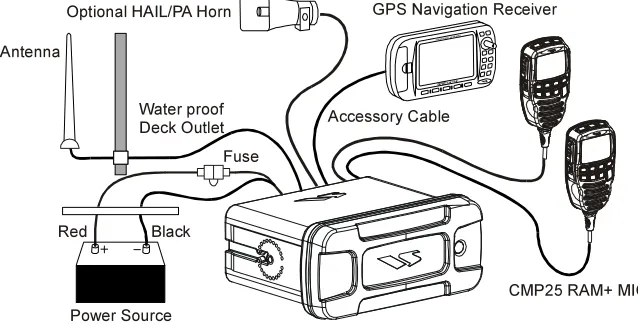
Connect the CMP25 RAM+ microphone, power cord, and antenna to the radio as shown bellow:
1. Mount the antenna at least 3 feet away from the radio. At the rear of the radio, connect the antenna cable. It must have a PL259 connector. RG-8/U
Figure 1. General Installation
GPS Navigation Receiver
Accessory Cable Antenna
Fuse
Red
Power Source Black Water proof Deck Outlet Optional HAIL/PA Horn
2. Connect the red power wire to a 13.8 VDC ±20% power source. Connect the black power wire to a negative ground.
3. If an optional remote extension speaker is to be used, refer to next section for connections.
4. It is advisable to have a Certified Marine Technician check the power output and the standing wave ratio of the antenna after installation.
8.3 CMP25 RAM+ MICROPHONE(S) INSTALLATION
NOTE
The Phantom PS2000 is capable of connecting 2 RAM+ microphones to control all functions.
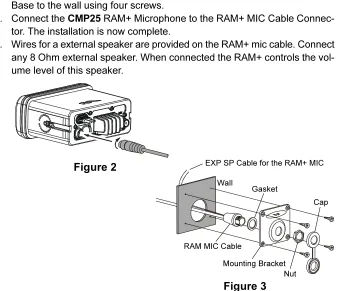
1. Connect the RAM+ MIC Cable to the RAM MIC CONNECTOR on the rear panel of the Phantom PS2000, then tighten the Cable Nut (See Figure 2). 2. Referring to Figure 3, make a 1.2” (30 mm) hole in the wall, then insert the RAM+ MIC Cable into this hole. Connect the Gasket and Mount Base to the RAM+ MIC Cable Connector using the Nut.
3. Drill the four Screw holes (approx. 2 mm) on the wall, then install the Mounting Base to the wall using four screws.
4. Connect the CMP25 RAM+ Microphone to the RAM+ MIC Cable Connec-tor. The installation is now complete.
5. Wires for a external speaker are provided on the RAM+ mic cable. Connect any 8 Ohm external speaker. When connected the RAM+ controls the vol-ume level of this speaker.
Wall
Gasket
Mounting Bracket RAM MIC Cable
Cap
Nut EXP SP Cable for the RAM+ MIC Figure 2
Wire Color/Description
RED - PA Speaker (+) SHIELD - PA Speaker (–) BLUE- NMEA Input (+) GREEN - NMEA Input (–) GRAY- NMEA Output (+)
Connection Examples
Connect to external 4 Ohm PA speaker Connect to external 4 Ohm PA speaker Connect to NMEA (+) output of GPS Connect to NMEA (–) output of GPS Connect to NMEA (+) input of GPS
GPS Receiver PA Speaker
Green
Blue NMEA OUT NMEA OUT NMEA IN NMEA IN
( )
( ) ( )
( ) Gray
Brown Shield Red
RAM+ or External Speaker Selection
By default the CMP25 RAM+ internal speaker is turned on, however using the RAM+ mic this speaker can be turned off so the external speaker can be used. 1. Press and hold down the [CALL(SET)MENU] key until
“RADIO SETUP” menu appears.
2. Press the [CALL(SET)MENU] key, then press the [] or [] key to select “EXT SPK” menu.
3. Press the [CALL(SET)MENU] key.
4. Press the [] or [] key to turn the External Speaker “on.” 5. Press the [CALL(SET)MENU] key to store the selected
set-ting.
6. Press the [16/9] key to return to radio operation.
8.4 ACCESSORY CABLE
Red: PA speaker (+)
Shield: PA speaker (–)
Blue: NMEA IN (+) from GPS navigation receiver
Green: NMEA IN (–) from GPS navigation receiver
Gray: NMEA OUT (+) to GPS navigation receiver
Brown: NMEA OUT (–) to GPS navigation receiver
8.5 CONNECTION OF GPS WITH NMEA OUTPUT
• The GPS must have the NMEA Output turned on and set to 4800 Baud in the setup menu. If there is a selection for parity select none.
• For further information on interfacing /setting up your GPS. Please contact the manufacturer of the GPS receiver.
• Phantom PS2000 can read NMEA-0183 version 2.0 or higher. • The NMEA supported sentences are:
Input: GLL, GGA, RMC and GNS (RMC sentence is recommended) Output: DSC and DSE
(DSC sentences to Standard Horizon Plotter for Position Polling) If you have further inquires, please feel free to contact Product Support at:
Phone: (800) 767-2450
Email: [email protected]
8.6 CHECKING GPS CONNECTIONS
After battery, GPS and the RAM+ microphone(s) have been connected, press the power switch ton the Phantom PS2000 and press and hold the power key on a RAM+ mic, a small satellite icon will apper on the top right
corner of the LCD display. To see additional GPS information, press the [NAV] key momentarily. The Phantom PS2000 shows “time,” “latitude,” and “Longitude” alternately every two seconds. To hide the navigation information, press the [NAV] key again.
Manufacturer/Model
Lowrance Portable
Magellan Fixed Mount
Magellan Portable
Northstar
Raytheon 420
Raytheon 520 / 620
Raytheon RL SERIES
Simrad
Sitex Neptune, Nautilus
Wires Orange Black (GND) Gray Black (GND) Orange Black (GND) Yellow Black (GND) Yellow Brown Blue Brown White Brown White Brown Gray Brown PS2000 Blue Green Blue Green Blue Green Blue Green Blue Green Blue Green Blue Green Blue Green Blue Green Wires Green Blue Brown White Blue White Black Blue Black (GND) Brown Black (GND) Yellow Green Green Black White Black White Black (GND) Manufacturer/Model STANDARD HORIZON
Furuno GP30, 36
Furuno GP1650, 1850
Garmin Fixed Mounts
Garmin Portables
JRC GPS500
JRC 100 SERIES
JRC 200 SERIES
Lowrance Fixed Mount
8.7 CHANGING THE GPS TIME
You may select the time display between “Local time” and “UTC time” (GPS sends to Phantom PS2000). Time is displayed when GPS position (LAT/LON) is displayed by pressing the [NAV] key on the RAM+ mic.
1. On the RAM+ mic, press and hold down the [CALL(SET)MENU] key until
“RARIO SETUP” menu appears.
2. Press the [CALL(SET)MENU] key, then press the [] or [] key to select “LOCAL TIME” menu.
3. Press the [CALL(SET)MENU] key.
4. Press the [] or [] key to select “oF” (GPS Time dispaly) or “on” (Local Time dispaly).
5. Press the [CALL(SET)MENU] key to store the selected setting.
6. Press the [16/9] key to return to radio operation.
8.8 CHANGING THE TIME OFFSET
If you change the time display to “Local time” in the previous section, you need change the time offset to show the local time correctly in your area.
1. Press and hold down the [CALL(SET)MENU] key until
“RADIO SETUP” menu appears.
2. Press the [CALL(SET)MENU] key, then press the [] or [] key to select “TIME” menu.
3. Press the [CALL(SET)MENU] key.
4. Press the [] or [] key to select time offset from UTC. See illustration below to find your offset time from UTC. If “00” is assigned, the time is the same as UTC (Universal Time Coordinated or GMT Greenwich Mean Time). 5. Press the [CALL(SET)MENU] key to store the time offset. 6. Press the [16/9] key to return to radio operation.
8.9 CHANGING COG TO TRUE OR MAGNETIC
Allows customizing the NAV data showing GPS Course Over Ground (COG). Factory default is “True,” however, following the steps below the COG can be changed to “Magnetic.”
1. Press and hold down the [CALL(SET)MENU] key until
“RADIO SETUP” menu appears.
2. Press the [CALL(SET)MENU] key, then press the [] or [] key to select “MAGNETIC” menu.
3. Press the [CALL(SET)MENU] key.
4. Press the [] or [] key to select “on (Magnetic)” or “of
(True).”
5. Press the [CALL(SET)MENU] key to store the selected set-ting.
6. Press the [16/9] key to return to radio operation.
8.10 CHANGING GPS INFORMATION TO
VESSEL POSITION OR COG
Allows customizing the NAV data showing GPS Information. Factory default is “Your Vessel’s Current Position,” however, following the steps below the GPS Information can be changed to Cruise Information (COG: Course Over Ground and SOG: Speed Over Ground).”
1. Press and hold down the [CALL(SET)MENU] key until
“RADIO SETUP” menu appears.
2. Press the [CALL(SET)MENU] key, then press the [] or [] key to select “NAV DISPLAY” menu.
3. Press the [CALL(SET)MENU] key.
4. Press the [] or [] key to select “Pos (Your Vessel’s Cur-rent Position)” or “Cru (Course Over Ground).”
5. Press the [CALL(SET)MENU] key to store the selected set-ting.
8.11 OPTIONAL MMB-84 FLUSH MOUNT INSTALLATION
1. To assist in flush mounting, a template has been included. Use thistem-plate to find the mounting location.
2. Use the template to mark the location where the rectangular hole is to be cut. Confirm the space behind the dash or panel is deep enough to accom-modate the transceiver (at least 15 cm deep).
There should be at least 1 cm between the transceiver’s heatsink and any wiring, cables or structures.
3. Cut out the rectangular hole and insert the transceiver.
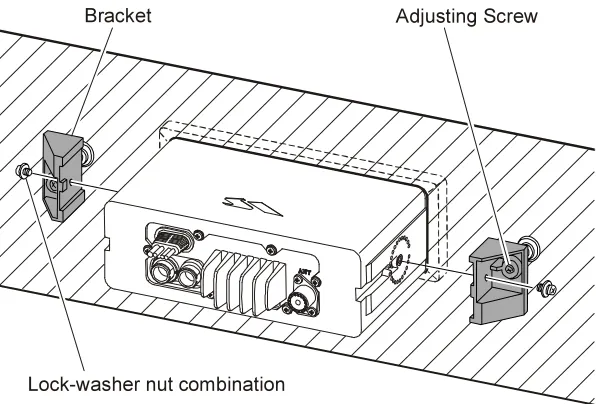
4. Fasten the brackets to the sides of the transceiver with the lock washer nut combination; so that the mounting screw base faces the mounting surface (see Figure 4).
5. Turn the adjusting screw to adjust the tension so that the transceiver is tight against the mounting surface.
Figure 4. MMB-84 Flush Mount Installation
Bracket Adjusting Screw
9 CONTROLS AND INDICATORS
NOTE
PWR key
NOTE
The Phantom PS2000 is designed to be flush mounted or bracket mounted in a dry cool area when there is limited mounting areas. When it is bracket mounted the power switch on the Phantom PS2000 is not used instead use the PWR key located on the top of the RAM+ mic(s). Turns the transceiver on and off. To turn the transceiver on, press and hold this key until this switch illuminates orange. To turn it off, press and hold this key until the illumination turns off. When the power is turned on, the trans-ceiver is set to the last selected channel.
This switch is connected in parallel wityh the switch with the same name on the front panel of the CMP25 RAM+ Microphone.
ACCESSORY CONNECTION CABLE
Connects the Phantom PS2000 to a GPS and a PA speaker. See section “3. OPTION” for a list of speakers STANDARD HORIZON offers.
DC INPUT CABLE
Connects the radio to a DC power supply capable of delivering 12V DC.
RAM+ MIC CONNECTORS
Connects the Phantom PS2000 to the CMP25 RAM+ Microphone.
ANTENNA JACK
9.2 CMP25 RAM+ MICROPHONE
SQUELCH CONTROL (SQL) Activates the squelch adjusting mode.
Press this key to activate the squelch adjusting mode. Press the [] or [] key to adjust the squelch.
VOLUME KEY (VOL)
Activates the volume adjusting mode.
Press this key to activate the volume adjusting mode. Press the [] or [] to adjust the volume.
POWER SWITCH (PWR)
Press and hold down this key to turn to the transceiver and RAM+ Mic on and off.
PTT (Push-To-Talk) SWITCH
Activates transmission. [H/L] KEY
Toggles between high and low power. When the [H/L] key is pressed while the transceiver is on channel 13 or 67, the power will temporarily switch from “LO” to “HI” power until the PTT is released. The [H/L] key does not function on transmit inhibited and low power only channels.
[] / [] KEY
These keys are used to select channels, adjust the volume and squelch level, and to choose the item selection of different functions (such as the DSC operation).
[16/9] KEY
Immediately recalls channel 16 from any channel location. Holding down this key recalls channel 9. Pressing the [16/9] key reverts to the previous selected working channel.
Secondary use
Press and hold the [16/9] key then press the [WX] key to switch the USA, International or Canadian channels.
SCAN DW
NAV WX
CALL SET
MEM IC
U.I.C
MENU 16
KEY PAD
[SCAN] Key
Starts and stops scanning of programmed channels.
If held while the [] or [] key is pressed, the radio will show the channels programmed in scan memory. This function will not work if the unit is scanning.
NOTE: The priority channel by default is Channel 16, however the priority channel can be changed. To select a different priority channel refer to section “12.8 SCAN TYPE.”
[CALL(SET)MENU] Key
The [CALL(SET)MENU] key functions as the enter key.
Secondary use
Press the [CALL(SET)MENU] key to access the DSC OPERATION menu. The “INDIVIDUAL CALL,” “GROUP CALL,” “ALL SHIP CALL,” “POSI-TION REQUEST,” POSI“POSI-TION SEND,” STANDBY MODE,” and “CALL WAITING” functions can be accessed from the DSC OPERATION menu. Press and hold the [CALL(SET)MENU] key to access the RADIO SETUP (refer ro section “8. ) or DSC SETUP menu (refer ro section 7).
[DW(IC)] Key
Watches for a transmission on CH16 and another selected channel until either signal is received. (Dual watch)
Secondary use
Press and hold the [DW(IC)] key, intercom operation will operate be-tween the two CMP25 RAM+ Microphones, if installed.
[NAV] Key
Press the [NAV] key, when connected to the GPS receiver, the LCD dis-plays Position Information or Cruise Information from the GPS.
Secondary use
Press and hold the [NAV] key to access PA/FOG function menu. [WX] Key
Immediately recalls the previously selected US NOAA weather channel from any channel location.
Secondary use
Holding down the [16/9] key while pressing the [WX] key switch the Chan-nel Group.
[DISTRESS] KEY
10 BASIC OPERATION
10.1 RECEPTION
1. After the transceiver has been installed, ensure that the power supply and antenna are properly connected.
2. Press and hold the [PWR] key on the RAM+ mic or on the front panel of the
Phantom PS2000 until the radio turns on.
3. Press the [SQL] key, then press the [] key until the “ ” icon will appears. This state is known as “squelch off”.
4. Press the [VOL] key, then press the [] key until the noise or audio from the speaker is at a comfortable level.
5. Press the [] or [] key to select the clear channel.
6. Press the [SQL] key, then press the [] until the random noise disappears (and “ ” icon will disappears). This state is known as the “squelch threshold.”
7. Press the [] or [] key to select the desired channel. Refer to the channel chart on page 61 for available channels.
8. When a message is received, adjust the volume to the desired listening level. The “ ” indicator in the LCD is displayed indicating that the channel is being used.
10.2 TRANSMISSION
1. Perform steps 1 through 7 of RECEPTION.
2. Before transmitting, monitor the channel to ensure it is clear.
THIS IS AN FCC REQUIREMENT!
3 Press the PTT (push-to-talk) switch. The “ ” indicator in the LCD is displayed.
4. Speak slowly and clearly into the microphone.
5. When the transmission is finished, release the PTT switch.
10.3 TRANSMIT TIME - OUT TIMER
(
TOT
)
10.4 SIMPLEX/DUPLEX CHANNEL USE
Refer to the VHF MARINE CHANNEL CHART (page 61) for instructions on use of simplex and duplex channels.
NOTE
All channels are factory-programmed in accordance with International, Industry Canada (Canada), and FCC (USA) regulations. Mode of opera-tion cannot be altered from simplex to duplex or vice-versa.
10.5 INTERNATIONAL, USA, AND CANADA MODE
1. To change the modes, hold the [16/9] key and press the [WX] key. The mode changes from “USA” to “International” to “Canadian” with each press of the [WX] key.
2. “U” will be displayed on the LCD for USA mode, and “I” will be displayed for International mode, and “C” will be displayed for Canadian mode.
3. Refer to the VHF MARINE CHANNEL CHART (page 61) for allocated chan-nels in each mode.
10.6 NOAA WEATHER CHANNELS
NOTE
NOAA Weather channels are available in the waters of USA and Canada only.
1. To receive a NOAA weather channel, press the [WX] key from any channel. The transceiver will go to the last selected weather channel.
2. Press the [] or [] keys to select a different NOAA weather channel. 3. To exit from the NOAA weather channels, press the [WX] key. The
trans-ceiver returns to the channel it was on prior to a weather channel.
10.6.1 NOAA Weather Alert
In the event of extreme weather disturbances, such as storms and hurricanes, the NOAA (National Oceanic and Atmospheric Administration) sends a weather alert accompanied by a 1050 Hz tone and subsequent weather report on one of the NOAA weather channels. When the Weather Alert feature is enabled (see section “11.9 WX ALERT”), the transceiver is capable of receiving this alert if the following is performed:
1. Program NOAA weather channels into the transceiver’s memory for scan-ning. Follow the same procedure as for regular channels under section “10.12 SCANNING.”
3. The programmed NOAA weather channels will be scanned along with the regular-programmed channels. However, scanning will not stop on a nor-mal weather broadcast unless a NOAA alert is received.
4. When an alert is received on a NOAA weather channel, scanning will stop and the transceiver will emit a loud beep to alert the user of a NOAA broadcast. 5. Press the [WX] key to stop the alert tone and receive the weather report.
NOTE
If the [WX] key is not pressed the alert tone will be emitted for 5 minutes and then the weather report will be received.
10.6.2 NOAA Weather Alert Testing
NOAA tests the alert system ever Wednesday between 11AM and 1PM. To test the Phantom PS2000’s NOAA Weather feature, on Wednesday between 11AM and 1PM, setup as in previous section and confirm the alert is heard.
10.7 EMERGENCY
(
CHANNEL 16 USE
)
Channel 16 is known as the Hail and Distress Channel. An emergency is de-fined as a threat to life or property. In such instances, be sure the transceiver is on and set to CHANNEL 16. Then use the following procedure:
1. Press the microphone push-to-talk switch and say “Mayday, Mayday, May-day. This is , , ” (your vessel’s name).
2. Then repeat once: “Mayday, ” (your vessel’s name).
3. Now report your position in latitude/longitude, or by giving a true or mag-netic bearing (state which) to a well-known landmark such as a navigation aid or geographic feature such as an island or harbor entry.
4. Explain the nature of your distress (sinking, collision, aground, fire, heart attack, life-threatening injury, etc.).
5. State the kind of assistance your desire (pumps, medical aid, etc.). 6. Report the number of persons aboard and condition of any injured. 7. Estimate the present seaworthiness and condition of your vessel.
8. Give your vessel’s description: length, design (power or sail), color and other distinguishing marks. The total transmission should not exceed 1 minute. 9. End the message by saying “OVER.” Release the microphone button and
listen.
10.8 CALLING ANOTHER VESSEL
(
CHANNEL 16 OR 9
)
Channel 16 may be used for initial contact (hailing) with another vessel. However, its most important use is for emergency messages. This channel must be monitored at all times except when actually using another channel. It is monitored by the U.S. and Canadian Coast Guards and by other vessels.
Use of channel 16 for hailing must be limited to initial contact only. Calling should not exceed 30 seconds, but may be repeated 3 times at 2-minute inter-vals. In areas of heavy radio traffic, congestion on channel 16 resulting from its use as a hailing channel can be reduced significantly in U.S. waters by using
channel 9 as the initial contact (hailing) channel for non-emergency communi-cations. Here, also, calling time should not exceed 30 seconds but may be repeated 3 times at 2-minute intervals.
Prior to making contact with another vessel, refer to the channel charts in this manual, and select an appropriate channel for communications after initial con-tact. For example, Channels 68 and 69 are some of the channels available to non-commercial (recreational) boaters. Monitor your desired channel in advance to make sure you will not be interrupting other traffic, and then go back to either channel 16 or 9 for your initial contact.
When the hailing channel (16 or 9) is clear, state the name of the other vessel you wish to call and then “this is” followed by the name of your vessel and your Station License (Call Sign). When the other vessel returns your call, immedi-ately request another channel by saying “go to,” the number of the other chan-nel, and “over.” Then switch to the new channel. When the new channel is not busy, call the other vessel.
After a transmission, say “over,” and release the microphone’s push-to-talk (PTT) switch. When all communication with the other vessel is completed, end the last transmission by stating your Call Sign and the word “out.” Note that it is not necessary to state your Call Sign with each transmission, only at the begin-ning and end of the contact.
10.9 MAKING TELEPHONE CALLS
To make a radiotelephone call, use a channel designated for this purpose, The fastest way to learn which channels are used for radiotelephone traffic is to ask at a local marina. Channels available for such traffic are designated Public Correspondence channels on the channel charts in this manual. Some ex-amples for USA use are Channels 24, 25, 26, 27, 28, 84, 85, 86, and 87. Call the marine operator and identify yourself by your vessel’s name, The marine operator will then ask you how you will pay for the call (telephone credit card, collect, etc.) and then link your radio transmission to the telephone lines. The marine telephone company managing the VHF channel you are using may charge a link-up fee in addition to the cost of the call.
10.10 OPERATING ON CHANNELS 13 AND 67
Channel 13 is used at docks and bridges and by vessels maneuvering in port. Messages on this channel must concern navigation only, such as meeting and passing in restricted waters.
Channel 67 is used for navigational traffic between vessels.
By regulation, power is normally limited to 1 Watt on these channels. Your radio is programmed to automatically reduce power to this limit on these channels. However, in certain situations it may be necessary to temporarily use a higher power. See page 20 ([H/L] key) for means to temporarily override the low-power limit on these two channels.
10.11 DUAL WATCH
(
TO PRIORITY CHANNEL
)
Dual watch allows the radio to monitor one channel and the assigned Priority channel. By default the priority channel is set to 16, however the priority chan-nel may be changed by referring to section “12.7 PRIORITY CHANNEL SET.” 1. Set the squelch level to the “squelch threshold” (the background noise is
disappeared).
2. Select the channel you wish to dual watch to “Priority channel.” 3. Press the [DW] key momentarily.
The Phantom PS2000 will scan between Priority channel and the channel that was selected in step 2.
If a transmission is received on the channel selected in step
2, the Phantom PS2000 will dual watch between the working channel and the Priority channel.
10.12 SCANNING
Allows the user to select the scan type from Memory scan or Priority scan. “Memory scan” scans the channels that were programmed into memory. “Pri-ority scan” scans the channels programmed in memory with the pri“Pri-ority chan-nel.
10.12.1 Selecting the Scan Type
1. Press and hold down the [CALL(SET)MENU] key until “RADIO SETUP” menu appears.
2. Press the [CALL(SET)MENU] key, then press the [] key to select “SCAN TYPE” menu.
3. Press the [CALL(SET)MENU] key.
4. Press the [] or [] key to select “PRIORITY” or
“MEMORY.”
5. Press the [CALL(SET)MENU] key to store the se-lected setting.
6. To exit this menu and return to radio operation mode press the [16/9] key.
10.12.2 Memory Scanning (M-SCAN)
1. Set the squelch level to the “squelch threshold” (the background noise is disappeared).
2. Select a desired channel to be scanned using the [] or [] key, then press and hold the [SCAN] key. “MEM” will appear on the LCD which indicates the channel has been pro-grammed into the transceivers memory.
3. Repeat step 2 for all the desired channels to be scanned.
4. To DELETE a channel from the transceiver’s memory, select the channel then press and hold the [SCAN] key, “MEM” will disappear in the LCD. 5. To start scanning, press the [SCAN] key momentarily.
“M-SCAN” appears on the LCD. Scanning will proceed from
the lowest to the highest programmed channel number and will stop on a channel when a transmission is received. 6. The channel number will blink during reception.
10.12.3 Priority Scanning (P-SCAN)
In the default setting, Channel 16 is set as the priority channel. You may change the priority channel to the desired channel from the Channel 16 by the Radio Setup Mode, refer to section “12.7 PRIORITY CHANNEL SET.”
1. Set the squelch level to the “squelch threshold” (the background noise is disappeared).
2. Select a desired channel to be scanned using the [] or [] key, then press and hold the [SCAN] key. “MEM” will appear on the LCD which indicates the channel has been pro-grammed into the transceivers memory.
3. Repeat step 2 for all the desired channels to be scanned.
4. To DELETE a channel from the transceiver’s memory, select the channel then press and hold the [SCAN] key, “MEM” will disappear in the LCD. 5. To start priority scanning, press the [SCAN] key momantarily
(“P-SCAN” appears on the LCD). Scanning will proceed
be-tween the memorized channels and the priority channel. CH 16 the priority channel will be scanned after each pro-grammed channel.
6. To stop scanning, press the [SCAN], [16/9], [WX], or PTT key.
You may change the scan resume time by the Radio Setup Mode, refer to section “12.9 SCAN RESUME TIME.”
10.13 PA/FOG OPERATION
PA/FOG mode allows the transceiver to be used as a 30W hailer when an optional STANDARD HORIZON 220SW or 240SW HAIL/PA Horn is installed. When in Hail mode the HAIL/PA Listen’s Back (acts as a microphone and sends sound to the CMP25 RAM+ Microhone’s speaker) through the HAIL/PA speaker which provides two-way communications through the HAIL/PA speaker.
NOTE
When in PA or FOG mode the PS2000 will receive the last selected VHF channel before entering into the PA or FOG mode and receive DSC calls.
PA HAIL mode: Allows the transceiver to be used as a power hailer when an optional STANDARD HORIZON 220SW or 240SW HAIL/PA Horn is installed. The Hail mode has a listen-back feature which provides two way communication through the HAIL/PA speaker.
FOG HORN mode: Automatic signaling is transmitted through the HAIL/PA speaker.
10.13.1 Operating the PA HAIL Mode
1. Press and hold down the [NAV] key until “PUBLIC
ADRESS” notation appears.
2. Press the [CALL(SET)MENU] key to activate the PA HAIL mode.
Listen-back the sound through the HAIL/PA speaker. 3. Press the PTT switch to speak through the HAIL/PA
speaker.
4. Press the [] or [] key while press and holding the PTT switch to control the AF output level. The AF output level can be set from 0 to 30 watts. 5. To exit the PA HAIL mode and return to radio
10.13.2 Operating the FOG HORN Mode
Operator can select from Underway, Stop, Sail, Tow, Aground, Anchor, Horn, or Siren. Please refer to page 70 for FOG Horn Timing Chart.
1. Press and hold down the [NAV] key until “PUBLIC
ADRESS” notation appears.
2. Press the [] key to select “FOG” menu, then press the [CALL(SET)MENU] key to activate the FOG HORN mode.
3. Press the [] or [] key to select the one of the eight functions described above, then press the [CALL(SET)MENU] key to activate its function. 4. Press the [] or [] key to control the monitor
(lis-ten-back) level from the HAIL/PA speaker.
5. On the “Horn” and “Siren” modes, Listen-back the sound through the HAIL/PA speaker and activate the tone through the HAIL/PA speaker by pressing the
PTT switch.
Press the [] or [] key while press and holding the PTT switch to control the AF output level. The AF output level can be set from 0 to 30 watts.
10.14 NAVIGATION INDICATION
The transceiver has the ability to display the time and your vessel position (LAT/ LOG), when connected to a GPS receiver.
1. Press the [NAV] key momentarily, display “time,” “latitude,” and “longitude” informations alternately every
two seconds. If the GPS re-ceiver is not receiving a fix, the display will be shown “NO POS” notation in the LCD.
2. To hide the navigation information, press the [NAV] key again. You may display the COG (Course Over Ground) data in the LCD instead of your vessel position (LAT/LOG) by the Radio Setup Mode, refer to section “12.5 CHANGING GPS INFOR-MATION TO VESSEL POSITION OR COF.”
10.15 INTERCOM OPERATION
If you connect the two CMP25 RAM+ Microphone to the Phantom PS2000, you may communicate between the both CMP25 RAM+ Microphones.
10.15.1 Communication
1. Press and hold down the [DW(IC)] key until the channel number is changed to “IC” notation. ThePhantom PS2000
is changed to “INTERCOM” mode from the “Radio” opera-tion mode.
2. Press the PTT switch. “TALK” will be shown on the display.
NOTE: A warning beep will be emitted when the PTT switch is pressed while the “LISTEN” notation is appeared. 3. Speak slowly and clearly into the microphone, hold the
mi-crophone about 1/2 inch away from your mouth. 4. When finished, release the PTT switch.
5. To exit the “INTERCOM” mode and return to “Radio” opera-tion mode, press the [DW(IC)] key again.
10.16.2 Calling
Press and hold the [DW(IC)] key for one second when the “INTERCOM” opera-tion is activated, a calling beep is emitted twice from the transceiver speaker.
(Time) (Longitude)
11 DIGITAL SELECTIVE CALLING
11.1 GENERAL
WARNING
This radio is designed to generate a digital maritime distress and safety call to facilitate search and rescue. To be effective as a safety device, this equipment must be used only within communication range of a shore-based VHF marine channel 70 distress and safety watch system. The range of signal may vary but under normal conditions should be approxi-mately 20 nautical miles.
NOTE
A DSC Warning sticker is included with the Phantom PS2000. To com-ply with FCC regulations this sticker must be mounted in a location that can be easily viewed from the location of the CMP25 RAM+ Microphone. Make sure the chosen location is clean and dry before applying the sticker.
Digital Selective Calling is a semi-automated method of establishing a radio call, it has been designated by the International Maritime Organization (IMO) as an international standard for establishing VHF, MF and HF radio calls. It has also been designated as part of the Global Maritime Distress and Safety Sys-tem (GMDSS). It is planned that DSC will eventually replace aural watches on distress frequencies and will be used to announce routine and urgent maritime safety information broadcasts.
This new system allows mariners to instantly send a distress call with GPS posi-tion (when connected to the transceiver) to the Coast Guard and other vessels within range of the transmission. DSC will also allow mariners to initiate or receive Distress, Urgency, Safety, Routine, POSITION REQUEST, POSITION SEND, and Group calls to or from another vessel equipped with a DSC transceiver.
11.2 MARITIME MOBILE SERVICE IDENTITY
(
MMSI
)
11.2.1 What is an MMSI?An MMSI is a nine digit number used on Marine Transceivers capable of using Digital Selective Calling (DSC). This number is used like a telephone number to selectively call other vessels.
THIS NUMBER MUST BE PROGRAMMED INTO THE RADIO TO OPERATE THE PHANTOM PS2000 DSC FUCTIONS.
How can I obtain an MMSI assignment?
Boat US offers online registration of a MMSI. Visit www.boatus.com/mmsi
11.2.2 Programming the MMSI
WARNING
User MMSI can be input only twice. If the user tries to input an MMSI more than twice, “ERROR TOO MANY ENTRIES”
nota-tion will appear on the display. If the user needs to change the MMSI more than twice, the transceiver will have to be sent to Factory Service. Refer to the section “13.2. FAC-TORY SERVICE.”
1. Press and hold down the [CALL(SET)MENU] key until “RADIO SETUP” menu appears.
2. Press the [] key to select “DSC SETUP” menu, then press the [CALL(SET)MENU] key.
3. Press the [] or [] key to select “USER MMSI.” 4. Press the [CALL(SET)MENU] key. The User MMSI
number will appear, and the first digit will be flash-ing.
5. Press the [] or [] key to select first number of your MMSI, then press the [CALL(SET)MENU] key to save the number.
6. Repeat the above step to set your MMSI (up to nine digits).
When the last number of your MMSI is in place, press and hold the [CALL(SET)MENU] key to store your MMSI.
11.3 DSC DISTRESS CALL
The Phantom PS2000 is capable of transmitting and receiving DSC Distress messages to all DSC radios. The Phantom PS2000 may be connected to a GPS to also transmit the Latitude, Longitude of the vessel in a distress.
11.3.1 Transmitting a DSC Distress Call
NOTE
To be able to transmit a DSC distress call an MMSI number must be programmed, refer to section “11.2.2 Programming the MMSI.”
In order for your ships location to be transmitted a GPS must be connected to thePhantom PS2000, refer to section “8.4 CONNECTION OF GPS WITH NMEA OUTPUT.”
1. Lift the red rubber cover, then press the [DISTRESS] key. The “DISTRESS” notation will appear on the LCD.
2. Press and hold the [DISTRESS] key. The radios display will count down (3-2-1) and then transmit the Distress call. 3. When the distress signal is sent, CH70 and “ ” icon will
appear on the LCD. After the message has been sent, the radio will sound a Distress Alarm.
4. The transceiver will watch for a DSC acknowledgment trans-mission on CH70 and also receive calls on CH16.
5. If an acknowledgement is received, select channel 16 and advise your distress situation.
6. If no acknowledgment is received, the distress call is
re-peated in 4 minute intervals until a DSC acknowledgment is received. 7. When a DSC Distress acknowledgment is received, a
dis-tress alarm sounds and channel 16 is automatically selected. The LCD shows the MMSI of the ship responding to your distress.
RECEIVED ACK: acknowledgment signal is received.
RECEIVED RLY: relay signal is received from another vessel or coast station.
Transmitting a DSC Distress Call with Nature of Distress
ThePhantom PS2000 is capable of transmitting a DSC Distress Call with the following “Nature of Distress” categories:
Undesignated, Fire, Flooding, Collision, Grounding, Capsizing, Sinking, Adrift, Abandoning, Piracy, MOB
1. Lift the red rubber cover, then press the [DISTRESS] key. The “DISTRESS” notation will appear on the LCD.
2. Press the [] key to select “NATURE OF” menu,then press the [CALL(SET)MENU] key.
3. Press the [] or [] key to select the desired nature of dis-tress category,then press the [CALL(SET)MENU] key. 4. Press and hold the [DISTRESS] key. The radios display will
count down (3-2-1) and then transmit the Distress call. 5. When the distress signal is sent, CH70 and “ ” icon will
appear on the LCD. After the message has been sent, the radio will sound a Distress Alarm.
6. The transceiver will watch for a DSC acknowledgment trans-mission on CH70 and also receive calls on CH16.
7. If an acknowledgement is received, select channel 16 and advise your distress situation.
8. If no acknowledgment is received, the distress call is re-peated in 4 minute intervals until a DSC acknowledgment is received.
9. When a DSC Distress acknowledgment is received, a dis-tress alarm sounds and channel 16 is automatically selected. The LCD shows the MMSI of the ship responding to your distress.
RECEIVED ACK: acknowledgment signal is received.
Cancel a DSC Distress Call
If a DSC Distress call was sent by error the Phantom PS2000 allows you to send a message to other vessels to cancel the Distress Call that was made in error.
1. Press the [16/9] key.
2. Press the [DISTRESS] key again. The “DISTRESS” notation will appear on the LCD.
3. Press the [] or [] key to select “CANCEL.” 4. Press the [CALL(SET)MENU] key to send a
Dis-tress Cannel.
11.3.2 Receiving a DSC Distress Call
1. When a DSC Distress call is received, “RECEIVED
DISTRESS” notation will appear on the LCD, and an
emergency alarm will sound.
Then channel 16 is automatically selected. 2. Press any key to stop the alarm.
3. Press the [] or [] key to change the display to show the information of the vessel in distress. 4 If the position of the vessel distress data does not
include position, the LCD will show “NO POSITION” notation instead of position (LAT/LON) data.
NOTE
11.4 ALL SHIPS CALL
The All Ships Call function allows contact to be established with other vessel stations without having their ID in the individual calling directory. Also, priority for the call can be designated as Urgency or Safety.
URGENCY Call: This type of call is used when a vessel may not truly be in distress, but have a potential problem that may lead to a dis-tress situation. This call is the same as saying PAN PAN PAN on channel 16.
SAFETY Call: Used to transmit boating safety information to other vessels. This message usually contains information about an overdue boat, debris in the water, loss of a navigation aid or an impor-tant meteorological message. This call is the same as saying Securite, Securite, Securite.”
11.4.1 Transmitting an All Ships Call
1. Press the [CALL(SET)MENU] key momentarily. The DSC Operation menu will appear.
2. Press the [] or [] key to select “ALL SHIPS” menu, then press the [CALL(SET)MENU] key. (To cancel, press the [16/9] key)
3. Press the [] or [] key to select the call type (“
UR-GENCY” or “SAFETY”).
4. Press the [CALL(SET)MENU] key to transmit the selected type of all ships DSC call.
5. After the ALL SHIPS CALL is transmitted, the trans-ceiver will switch to CH16.
6. Listen to the channel to make sure it is not busy,
then key the microphone and say “PAN PAN PAN” or “Securite, Securite, Securite” depending on the priority of the call. Say your call sign and an-nounce the channel you wish to switch to for communications.
11.4.2 Receiving an All Ships Call
1. When an all ships call is received, an emergency alarm sounds.
The radio will automatically change to channel 16. 2. Press any key to stop the alarm.
3. Press the [] or [] key to see the MMSI of the vessel transmitting the All Ships Call.
11.5 INDIVIDUAL CALL
This feature allows the PS2000 to contact another vessel with a DSC VHF radio and automatically switch the receiving radio to a desired communications channel. This feature is similar to calling a vessel on CH16 and requesting to go to another channel (switching to the channel is private between the two stations).
11.5.1 Setting up the Individual / Position Call Directory
The Phantom PS2000 has a DSC directory that allows you to store a vessel or person’s name and the MMSI number associated with vessels you wish to transmit Individual calls, Position Requests and Position Send transmissions. To transmit an Individual call you must program this directory with information of the persons you wish to call, similar to a cellular phones telephone directory. 1. Press and hold down the [CALL(SET)MENU] key
until “RADIO SETUP” menu appears.
2. Press the [] key to select “DSC SETUP” menu, then press the [CALL(SET)MENU] key.
3. Press the [] key to select “INDIVIDUAL DIR” menu, then press the [CALL(SET)MENU] key.
4. Press the [] or [] key to select “Add.”
5. Press the [CALL(SET)MENU] key to enabling this item.
6. Press the [] or [] key to select the first letter of the name of the vessel or person you want to refer-ence in the directory.
7. Press the [CALL(SET)MENU] key to store the first letter in the name and step to the next letter to the right.
8. Repeat step 6 and 7 until the name is complete. The name can consist of up to eleven characters, if you do not use all eleven
charac-ters press the [CALL(SET)MENU] key to move to the next space. This method can also be used to enter a blank space in the name. To clear the previous letter, press the [H/L] key. 9. After the eleventh letter or space has been entered, press and hold the [CALL(SET)MENU] key to advance to the MMSI (Maritime Mobile Service Identity Number) number entry. 10. Press the [] or [] key to select the first digit of the MMSI
num-11. Repeat step 10 as many times as necessary to com-plete the MMSI code (nine digits).
12 Press and hold the [CALL(SET)MENU] key to store the individual address.
12. To enter another individual address, repeat steps 5 through 12.
13. To exit this menu and return to radio operation mode press the [16/9] key.
11.5.2 Setting up Individual Reply
Allows setting up the radio to automatically (default setting) or manually re-spond to a DSC Individual call requesting you to switch to a working channel for voice communications. When Manual is selected the MMSI of the calling ves-sel is shown allowing you to see who is calling. This function is similar to caller id on a cellular phone.
1. Press and hold down the [CALL(SET)MENU] key until “RADIO SETUP” menu appears.
2. Press the [] key to select “DSC SETUP” menu, then press the [CALL(SET)MENU] key.
3. Press the [] or [] key to select “INDIVIDUAL RE-PLY” menu, then press the [CALL(SET)MENU] key. 4. Press the [] or [] key to select “AU (Automatic)”
or “oF (Manual).”
5. Press the [CALL(SET)MENU]key to store the selected set-ting.
6. To exit this menu and return to radio operation mode press the [16/9] key.
11.5.3 Setting up the Individual / Group Call Ringer
When a Individual Call or Group Call is received the radio will produce a ringing tone for 3 minutes. This selection allows the Individual / Group Call ringer time to be changed.
1. Press and hold down the [CALL(SET)MENU] key until “RADIO SETUP” menu appears.
2. Press the [] key to select “DSC SETUP” menu, then press the [CALL(SET)MENU] key.
3. Press the [] or [] key to select “INDIVIDUAL
RENGER” menu, then press the [CALL(SET)MENU]
key.
4. Press the [] or [] key to select ringing time of a Individual/Group Call.
3: 15 times
2: 10 times
1: 5 times
5. Press the [CALL(SET)MENU]key to store the selected setting.
6. To exit this menu and return to radio operation mode press the [16/9] key. The Phantom PS2000 has the capability to turn off the Individual or Group call ringer.
1. Press and hold down the [CALL(SET)MENU] key until “RADIO SETUP” menu appears.
2. Press the [] key to select “DSC SETUP” menu, then press the [CALL(SET)MENU] key.
3. Press the [] or [] key to select “DSC BEEP” menu, then press the [CALL(SET)MENU] key.
4. Press the [] or [] key to select “INDIVIDUAL” if you wish to disable the Individual call ringer, or
“GROUP” if you wish to disable the Group call ringer,
then press the [CALL(SET)MENU] key. 5. Press the [] or [] key to select “oF.”
6. Press the [CALL(SET)MENU] key to store the se-lected setting.
7. To exit this menu and return to radio operation mode press the [16/9] key. If you wish to return to enabling the ringer tone, just repeat the above proce-dure, pressing the [] or [] key to select “on” in step “5” above.
11.5.4 Transmitting an Individual Call
This feature allows the user to contact another vessel with a DSC radio. This feature is similar to calling a vessel on CH16 and requesting to go to another channel.
1. Press the [CALL(SET)MENU] key. The DSC Op-eration menu will appear.
2. Press the [] or [] key to select “INDIVIDUAL” menu, then press the [CALL(SET)MENU] key. The transceiver will beep, and the “Individual directory” will appear. (To cancel, press the [16/9] key) 3. Press the [] or [] key to select the “Individual”
you want to contact.
If the reply signal is not received, the transceiver will transmit again. 6. After the second INDIVIDUAL CALL is transmitted,
if the reply signal is not received, “NO REPLY” notition will appear. To send the call again, press the [] key to select the “SEND,” then press the [CALL(SET)MENU] key.
7. When an individual call acknowledgment is received, the established channel is automatically selected and a ringing tone sounds.
8. Press any key to listen to the channel to make sure it is not busy, then key the microphone and call the other vessel you desire to communicate with.
11.5.5 Receiving an Individual Call
When receiving an individual call, an acknowledgment must be sent back to the calling station. Please refer to a selection in the “11.5.2 Setting up Indi-vidual Reply” that allows the acknowledgment to be transmitted manually or automatically.
Automatic Reply:
1. An individual call is received. “RECEIVED
INDI-VIDUAL” will appear on the LCD, and an individual
call alarm sounds. Then the radio automatically switches to the requested channel.
2. Press any key to stop the alarm, then acknowledg-ment is transmitted automatically.
3. Press the [] or [] key to see the MMSI of the vessel transmitting the Individual Call.
4. Press the PTT on the microphone and talk to the calling ship.
Manual Reply:
1. An individual call is received. “RECEIVED
INDI-VIDUAL” will appear on the LCD, and an individual
call alarm sounds. Then the radio automatically switches to the requested channel.
2. Press any key to stop the alarm.
3. Select type of reply function “ABLE” or “UNABLE” by using the [] or [] key, then press the [CALL(SET)MENU] key to transmit the individual DSC signal.
11.5.6 Setting Up the Call Waiting Function
Allows the Phantom PS2000 to be setup to reply (ABLE) or set the radio so it transmits a call that advises the calling vessel the person is UNABLE to reply to the call at this time. This function is similar to an answering machine. When set up in UNABLE and a individual call is received the Individual call from the other vessel is logged in the CALL WAITING directory for you to review and call back at a later time. 1. Press and hold down the [CALL(SET)MENU] key
until “RADIO SETUP” menu appears.
2. Press the [] key to select “DSC SETUP” menu, then press the [CALL(SET)MENU] key.
3. Press the [] or [] key to select “INDIVIDUAL ACK” menu, then press the [CALL(SET)MENU] key. 4. Press the [] or [] key to select “Ab (Able)” or “Un
(Unable).”
5. Press the [CALL(SET)MENU] key to store the selected set-ting.
6. To exit this menu and return to radio operation mode press the [16/9] key.
11.6 GROUP CALL
This feature allows the user to contact a group of specific vessels (example members of a yacht club) using DSC radios with Group call function to auto-matically switch to a desired channel for voice communications.
11.6.1 Setting up a Group Call
For this function to operate the same Group MMSI must be programmed into all the DSC VHF radios within the group of vessels that will be using this fea-ture. The group MMSI is a nine digit (first digit permanently set to “0”) that will allow other radios to call your vessel along with others to automatically switch to a working channel for voice communications. This function is very useful for yacht clubs and vessels traveling together that want to collectively make an-nouncements on a predetermined channel.
1. Press and hold down the [CALL(SET)MENU] key until “RADIO SETUP” menu appears.
2. Press the [] key to select “DSC SETUP” menu, then press the [CALL(SET)MENU] key.
3. Press the [] or [] key to select “GROUP DIR” menu, then press the [CALL(SET)MENU] key. 4. Press the [] or [] key to select “Add.”
6. Press the [] or [] key to select the first letter of the name of the group you want to reference in the directory.
7. Press the [CALL(SET)MENU] key to store the first letter in the name and step to the next letter to the right.
8. Repeat step 6 and 7 until the name is complete. The name can consist of up to eleven characters, if you do not use all eleven characters press the [CALL(SET)MENU] key to move to the next space. This method can also be used to enter a
blank space in the name. To clear the previous letter, press the [H/L] key. 9. After the eleventh letter or space has been entered,
press and hold the [CALL(SET)MENU] key to ad-vance to the MMSI (Maritime Mobile Service Iden-tity Number) number entry.
10. Press the [] or [] key to select the first digit of the MMSI number, then press the [CALL(SET)MENU] key to move to
the next digit. If a mistake was made entering in the number, pressing the [H/L] key to delete the wrong digit.
11. Repeat step 10 as many times as necessary to com-plete the MMSI code (nine digits).
12 Press and hold the [CALL(SET)MENU] key to store the group address.
13. To enter another group address, repeat steps 5 through 12. 14. To exit this menu and return to radio operation mode press
the [16/9] key.
11.6.2 Transmitting a Group Call
1. Press the [CALL(SET)MENU] key. The DSC Op-eration menu will appear.
2. Press the [] or [] key to select “GROUP” menu, then press the [CALL(SET)MENU] key. The trans-ceiver will beep, and the “Group directory” will ap-pear. (To cancel, press the [16/9] key)
3. Press the [] or [] key to select the “Group” you want to contact.
4. Press the [CALL(SET)MENU] key to transmit the Group DSC signal.
5. After the GROUP CALL is transmitted, all the radios in the group will switch to the designated channel.
11.6.3 Receiving a Group Call
1. When a group call is received, “RECEIVED GROUP” will ap-pear on the LCD, and a ringing alarm sound.
2. The radio automatically switches to the requested channel. 3. Press any key to stop the alarm.
4. Press the [] or [] key to see the MMSI of the vessel transmitting the Group Call.
5. Monitor the channel for the person calling the Group for a message.
6. If you want to respond, monitor the channel to make sure it is clear, then press the PTT on the mic and talk to the calling ship(s).
NOTE
After a Group call is received, the time the call was made and the ships MMSI or vessels name will appear on the LCD.
11.7 POSITION REQUEST
Advancements in DSC have made it possible to poll the location of another vessel and show the position of that vessel on the display of the Phantom PS2000. Standard Horizon has taken this feature one step further, if any Stan-dard Horizon GPS is connected to the Phantom PS2000, the polled position of the vessel is shown on the display of the GPS chart plotter making it easy to navigate to the location of the polled vessel. This is a great feature for anyone wanting to know the position of another vessel. For example your buddy that is catching fish, or finding the location of a person you are cruising with.
NOTE
The other vessel must have an operating GPS receiver connected to its DSC transceiver and must not have its transceiver set to deny position requests. (Refer the section 11.5.1 to enter information into the indi-vidual directory).
11.7.1 Setting up Position Reply
1. Press and hold down the [CALL(SET)MENU] key until “RADIO SETUP” menu appears.
2. Press the [] key to select “DSC SETUP” menu, then press the [CALL(SET)MENU] key.
3. Press the [] or [] key to select “POS REQUEST” menu, then press the [CALL(SET)MENU] key. 4. Press the [] or [] key to select “Au” or “oF.”
In “Au” mode, after a DSC Position Request is
re-ceived, the radio will automatically transmit your vessels po-sition. In “oF” mode, the CMP25 RAM+ Microphone’s dis-play will show who is requesting the position.
5. Press the [CALL(SET)MENU]] key to store the selected setting. 6. To exit this menu and return to radio operation mode press the [16/9] key. The PS2000 has the capability to turn off the Position Request ringer. 1. Press and hold down the [CALL(SET)MENU] key
until “RADIO SETUP” menu appears.
2. Press the [] key to select “DSC SETUP” menu, then press the [CALL(SET)MENU] key.
3. Press the [] or [] key to select “DSC BEEP” menu, then press the [CALL(SET)MENU] key.
4. Press the [] or [] key to select “POS REQUEST,” then press the [CALL(SET)MENU] key.
5. Press the [] or [] key to select “oF.”
6. Press the [CALL(SET)MENU] key to store the se-lected setting.
7. To exit this menu and return to radio operation mode press the [16/9] key.
If you wish to return to enabling the ringer tone, just repeat the above proce-dure, pressing the [] or [] key to select “on” in step “5” above.
11.7.2 Transmitting a Position Request to Another Vessel
1. Press the [CALL(SET)MENU] key. The DSC Op-eration menu will appear.
2. Press the [] or [] key to select “POS REQUEST” menu, then press the [CALL(SET)MENU] key. The transceiver will beep, and the “Position Request direc-tory” will appear. (To cancel, press the [16/9] key) 3. Press the [] or [] key to select the “name” you
want to contact.
Position Request DSC signal.
5. After a DSC position request is transmitted, the trans-ceiver remains on channel 70 until position data is received from the polled vessel.
6. When the Phantom PS2000 receives the position from the polled vessel, RECEIVED POS REPLY” will appear on the LCD.
7. Press the [] or [] key to see the name and posi-tion (LAT/LOG) of the vessel polled vessel.
8. If the Phantom PS2000 does not receive a reply, the LCD will display “NO REPLY.” Press the [] key and select “SEND” to transmit the call again or “EXIT” to exit the Position Request mode.
NOTE
If the Phantom PS2000 does not receive position data from the polled vessel, the LCD will show “NO POSITION
DATA.”
11.7.3 Receiving a Position Request
When a position request call is received from another vessel, a ringing alarm will sound and POS REQUEST will be show in the LCD. Operation and trans-ceiver function differs depending on the setting of section “11.7.1 Setting up Position Reply.”
Automatically reply:
1. When a position request call is received, a calling alarm sounds 4 times. Then requested position coordinates are transmitted automatically to the vessel requesting your ves-sels position.
2. To exit from position request display, press any key.
Manually reply:
3 Select type of reply function “SEND” or “NO REPLY” by using the [] or [] key.
4. W h e n “S E N D” i s s e l e c t e d , p r e s s t h e [CALL(SET)MENU] key. And your position will be transmitted to the requesting vessel.
5. To exit from position request display, press the [16/9] key.
11.8 POSITION SEND
The feature is similar to Position Request, however instead of requesting a position of another vessel this function allows you to send your position to an-other vessel. Your vessel must have an operating GPS receiver connected for the Phantom PS2000 to send the position.
11.8.1 Setting up a Position Send Ringer
The PS2000 has the capability to turn off the Position Send ringer. 1. Press and hold down the [CALL(SET)MENU] key
until “RADIO SETUP” menu appears.
2. Press the [] key to select “DCS SETUP” menu, then press the [CALL(SET)MENU] key.
3. Press the [] or [] key to select “DSC BEEP” menu, then press the [CALL(SET)MENU] key.
4. Press the [] or [] key to select “POS SEND” menu, then press the [CALL(SET)MENU] key. 5. Press the [] or [] key to select “oF.”
6. Press the [CALL(SET)MENU] key to store the se-lected setting.
7. To exit this menu and return to radio operation mode press the [16/9] key.
If you wish to return to enabling the ringer tone, just repeat the above proce-dure, pressing the [] or [] key to select “on” in step “5” above.
11.8.2 Transmitting a DSC Position Send Call
1. Press the [CALL(SET)MENU] key. The DSC Op-eration menu will appear.
2. Press the [] or [] key to select “POS SEND” menu, then press the [CALL(SET)MENU] key. The trans-ceiver will beep, and the “Position Send directory” will appear. (To cancel, press the [16/9] key) 3. Press the [] or [] key to select the “name” you
want to contact.
11.8.3 Receiving a DSC Position Send Call
When another vessel transmits their vessels location to the PS2000 the follow-ing will happen:
1. When the Position Send Call is received, “RECEIVED POS SEND” will appear on the LCD and a ringing sound will be produced.
2. Press any key to stop ringing.