Greenstone gsdl-2.60 March 2005
GREENSTONE DIGITAL LIBRARY
USER’S GUIDE
Ian H. Witten, Stefan Boddie and John Thompson
Department of Computer Science University of Waikato, New Zealand
Greenstone is a suite of software for building and distributing digital library collections. It provides a new way of organizing information and publishing it on the Internet or on CD-ROM. Greenstone is produced by the New Zealand Digital Library Project at the University of Waikato, and developed and distributed in cooperation with UNESCO and the Human Info NGO. It is open-source software, available from http://greenstone.org under the terms of the GNU General Public License.
We want to ensure that this software works well for you. Please report any problems to [email protected]
ii
About this manual
This manual provides a comprehensive description of how to use the Greenstone software for accessing and building digital library collections. Section 1 gives an overview of the capabilities of the software. Section 2 explains how to use Greenstone collections. The interface is self-explanatory—the best way to learn is by doing—and this section comprises the on-line help information for a typical collection. Section 3 explains how to build your own library collections using the Greenstone Librarian Interface. Section 4 introduces the administration facility that allows the system administrator to monitor what is going on and control who can build collections.
Appendices list the features of the Greenstone software, and give a glossary of terms used throughout the Greenstone documentation.
Companion documents
The complete set of Greenstone documents includes four volumes:
•Greenstone Digital Library Installer’s Guide
•Greenstone Digital Library User’s Guide (this document)
•Greenstone Digital Library Developer’s Guide
iii
Acknowledgements
The Greenstone software is a collaborative effort between many people. Rodger McNab and Stefan Boddie are the principal architects and implementors. Contributions have been made by David Bainbridge, George Buchanan, Hong Chen, Michael Dewsnip, Katherine Don, Elke Duncker, Carl Gutwin, Geoff Holmes, Dana McKay, John McPherson, Craig Nevill-Manning, Dynal Patel, Gordon Paynter, Bernhard Pfahringer, Todd Reed, Bill Rogers, John Thompson, and Stuart Yeates. Other members of the New Zealand Digital Library project provided advice and inspiration in the design of the system: Mark Apperley, Sally Jo Cunningham, Matt Jones, Steve Jones, Te Taka Keegan, Michel Loots, Malika Mahoui, Gary Marsden, Dave Nichols and Lloyd Smith. We would also like to acknowledge all those who have contributed to the GNU-licensed packages included in this distribution: MG, GDBM, PDFTOHTML, PERL, WGET, WVWARE and XLHTML.
greenstone.org
Contents
About this manual ii
1 OVERVIEW OF GREENSTONE
1
1.1 Collections 1
1.2 Finding information 2
1.3 Document formats 2
1.4 Multimedia and multilingual documents 3
1.5 Distributing Greenstone 3
2 USING GREENSTONE COLLECTIONS
5
2.1 Using a Greenstone CD-ROM 5
2.2 Finding information 6
How to find information 7
How to read the documents 8
What the icons mean 9
How to search for particular words 9
Scope of queries 11
Advanced search features 11
2.3 Changing the preferences 13
Collection preferences 13
Language preferences 13
Presentation preferences 14
Search preferences 15
3 MAKING GREENSTONE COLLECTIONS
17
3.1 The librarian’s interface 18
v
Assembling the source material 20
Enriching the documents 22
Designing the collection 28
Building the collection 30
Previewing 30
Help 31
3.2 Librarian Interface user guide 31
Starting Off 31
Downloading Files From the Internet 32
Collecting Files for Your Collection 33
Enriching the Collection with Metadata 36
Designing Your Collection's Appearance 41
Producing Your Collection 49
Miscellaneous 50
3.3 Tagging document files 52
3.4 The Collector 55
Logging in 56
Dialog structure 57
Collection information 58
Source data 59
Configuring the collection 63
Building the collection 64
Viewing the collection 65
Working with existing collections 65
Document formats 67
4 ADMINISTRATION
69
4.1 Configuration files 72 4.2 Logs 72 4.3 User management 73 4.4 Technical information 74APPENDIX A SOFTWARE FEATURES
75
greenstone.org
1
Overview of Greenstone
Greenstone is a comprehensive system for constructing and presenting collections of thousands or millions of documents, including text, images, audio and video.1.1 Collections
A typical digital library built with Greenstone will contain many collections, individually organized—though they bear a strong family resemblance. Easily maintained, collections can be augmented and rebuilt automatically.
There are several ways to find information in most Greenstone collections. For example, you can search for particular words that appear in the text, or within a section of a document. You can browse documents by title: just click on a book to read it. You can browse documents by subject. Subjects are represented by bookshelves: just click on a bookshelf to look at the books. Where appropriate, documents come complete with a table of contents: you can click on a chapter or subsection to open it, expand the full table of contents, or expand the full document into your browser window (useful for printing). The New Zealand Digital Library website (nzdl.org) provides numerous example collections.
On the front page of each collection is a statement of its purpose and coverage, and an explanation of how the collection is organized. Most collections can be accessed by both searching and browsing. When searching, the Greenstone software looks through the entire text of all documents in the collection (this is called “full-text search”). In most collections the user can choose between indexes built from different parts of the documents. Some collections have an index of full documents, an index of paragraphs, and an index of titles, each of which can be searched for particular words or phrases. Using these you can find all documents that contain a particular set of words (the words may be scattered far and
2 OVERVIEW OF GREENSTONE
wide throughout the document), or all paragraphs that contain the set of words (which must all appear in the same paragraph), or all documents whose titles contain the words (the words must all appear in the document’s title). There might be other indexes, perhaps an index of sections, and an index of section headings. Browsing involves lists that the user can examine: lists of authors, lists of titles, lists of dates, hierarchical classification structures, and so on. Different collections offer different browsing facilities.
1.2 Finding information
Greenstone constructs full-text indexes from the document text—that is, indexes that enable searching on any words in the full text of the document. Indexes can be searched for particular words, combinations of words, or phrases, and results are ordered according to how relevant they are to the query.
In most collections, descriptive data such as author, title, date, keywords, and so on, is associated with each document. This information is called
metadata. Many document collections also contain full-text indexes of certain kinds of metadata. For example, many collections have a searchable index of document titles.
Users can browse interactively around lists, and hierarchical structures, that are generated from the metadata that is associated with each document in the collection. Metadata forms the raw material for browsing. It must be provided explicitly or be derivable automatically from the documents themselves. Different collections offer different searching and browsing facilities. Indexes for both searching and browsing are constructed during a “building” process, according to information in a collection configuration file.
Greenstone creates all index structures automatically from the documents and suppporting files: nothing is done manually. If new documents in the same format become available, they can be merged into the collection automatically. Indeed, for many collections this is done by processes that awake regularly, scout for new material, and rebuild the indexes—all without manual intervention.
1.3 Document formats
Source documents come in a variety of formats, and are converted into a standard XML form for indexing by “plugins.” Plugins distributed with Greenstone process plain text, HTML, WORD and PDF documents, and Usenet and E-mail messages. New ones can be written for different
OVERVIEW OF GREENSTONE 3 document types (to do this you need to study the Greenstone Digital Library Developer’s Guide). To build browsing structures from metadata, an analogous scheme of “classifiers” is used. These create browsing indexes of various kinds: scrollable lists, alphabetic selectors, dates, and arbitrary hierarchies. Again, Greenstone programmers can create new browsing structures.
1.4 Multimedia and multilingual documents
Collections can contain text, pictures, audio and video. Non-textual material is either linked into the textual documents or accompanied by textual descriptions (such as figure captions) to allow full-text searching and browsing.
Unicode, which is a standard scheme for representing the character sets used in the world’s languages, is used throughout Greenstone. This allows any language to be processed and displayed in a consistent manner. Collections have been built containing Arabic, Chinese, English, French, Mäori and Spanish. Multilingual collections embody automatic language recognition, and the interface is available in all the above languages (and more).
1.5 Distributing Greenstone
Collections are accessed over the Internet or published, in precisely the same form, on a self-installing Windows CD-ROM. Compression is used to compact the text and indexes. A Corba protocol supports distributed collections and graphical query interfaces.
The New Zealand Digital Library (nzdl.org) provides many example collections, including historical documents, humanitarian and development information, technical reports and bibliographies, literary works, and magazines.
Being open source, Greenstone is readily extensible, and benefits from the inclusion of GNU-licensed modules for full-text retrieval, database management, and text extraction from proprietary document formats. Only through international cooperative efforts will digital library software become sufficiently comprehensive to meet the world’s needs with the richness and flexibility that users deserve.
greenstone.org
2
Using Greenstone Collections
The Greenstone software is designed to be easy to use. Web-based and CD-ROM collections have interfaces that are identical. Installing the Greenstone software from CD-ROM on any Windows or Linux computer is very easy indeed; a standard installation setup program is used in conjunction with pre-compiled binaries. A collection can be used locally on the computer where it is installed; also, if this computer is connected to a network, the software automatically and transparently allows all other computers on the network to access the same collection.The next section describes how to install a Greenstone CD-ROM. Then we look at the searching and browsing facilities offered by a typical Greenstone collection, the “Demo” collection that is supplied with the Greenstone software. Other collections offer similar facilities; if you can use one, you can use them all. The following section explains how to customize the interface for your own requirements using the Preferences page.
2.1 Using a Greenstone CD-ROM
The Greenstone digital library software itself comes on a CD-ROM, and you or your system manager have probably installed it on your system, following the instructions in the Greenstone Digital Library Installer’s Guide. If so, Greenstone is already installed on your computer and you should skip the rest of this section.
Some Greenstone collections come on a self-contained Greenstone CD-ROM that includes enough of the software to run just that collection. To use it, simply put it into the CD-ROM drive on any Windows PC. Most likely (if “autorun” is enabled on your PC), a window will appear inviting you to install the Greenstone software. If not, find the CD-ROM disk drive (on current Windows systems you can get this by clicking on the My Computer icon on the desktop) and double-click it, then the Setup.exe file inside it. The Greenstone Setup program will be entered, which guides
6 USING GREENSTONE COLLECTIONS
you through the setup procedure. Most people respond yes to all the questions.
When the installation procedure has finished, you’ll find the library in the
Programs submenu of the Windows Start menu, under the name of the collection (for example, “Development Library” or “United Nations University”).
Once the software has been installed, the library will be entered automatically every time you re-insert the CD-ROM if autorun is enabled.
2.2 Finding information
The easiest way to learn how to use a Greenstone collection is to try it out. Don’t worry—you can’t break anything. Click liberally: most images that appear on the screen are clickable. If you hold the mouse stationary over an image, most browsers will soon pop up a message that tells you what will happen if you click.
Experiment! Choose common words like “the” and “and” to search for— that should evoke some responses, and nothing will break.
Greenstone digital library systems usually comprise several separate collections—for example, computer science technical reports, literary works, internet FAQs, magazines. There will be a home page for the digital library system which allows you to access any publicly-accessible collection; in addition, each collection has its own “about” page that gives you information about how the collection is organized and the principles governing what is included in it. To get back to the “about” page at any time, just click on the “collection” icon that appears at the top left side of all searching and browsing pages.
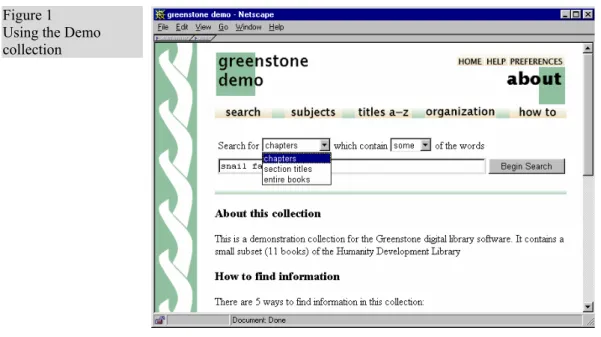
Figure 1 shows a screenshot of the “Demo” collection supplied with the Greenstone software, which is a very small subset of the Development Library collection; we will use it as an example to describe the different ways of finding information. (If you can’t find the Demo collection, use the Development Library instead; it looks just the same.) First, almost all icons are clickable. Several icons appear at the top of almost every page; Table 1 shows you what they mean.
USING GREENSTONE COLLECTIONS 7
The “search … subjects … titles a-z … organization … how to” bar underneath gives access to the searching and browsing facilities. The leftmost button is for searching, and the ones to the right of it—four, in this collection—evoke different browsing facilities. These last four may differ from one collection to another.
How to find information
Table 2 shows the five ways to find information in the Demo collection. You can search for particular words that appear in the text from the “search” page. (This is just like the “about” page shown in Figure 1, except that it doesn’t contain the about this collection text.) The search page can be reached from other pages by pressing the search button. You can access publications by subject by pressing the subjects button. This Table 1 What the icons at the top of each page mean
This takes you to the “about” page
This takes you to the Digital Library’s home page, from which you can select another collection
This provides help text similar to what you are reading now
This allows you to set some user interface and searching options that will then be used henceforth
Figure 1 Using the Demo collection
8 USING GREENSTONE COLLECTIONS
brings up a list of subjects, represented by bookshelves that can be further expanded by clicking on them. You can access publications by title by pressing the titles a-z button. This brings up a list of books in alphabetic order. You can access publications by organization by pressing the
organization button. This brings up a list of organizations. You can
access publications by how to listing by pressing the how to button. This brings up a list of “how to” hints. All these buttons are visible in Figure 1.
How to read the documents
In the Demo collection, you can tell when you have arrived at an individual book because there is a photograph of its front cover (Figure 2). Beside the photograph is a table of contents: the entry in bold face marks where you are, in this case Introduction and Summary—Section 1 of the chosen book. This table is expandable: click on the folders to open them or close them. Click on the open book at the top to close it.
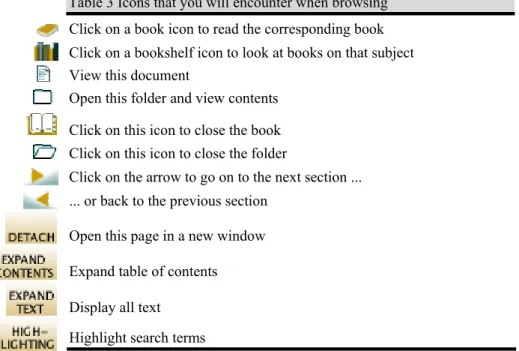
Underneath is the text of the current section (“The international demand for tropical butterflies …” in the example, beginning at the very bottom of the illustration). When you have read through it, there are arrows at the end to take you on to the next section or back to the previous one. Below the photograph are four buttons. Click on detach to make a new browser window for this book. (This is useful if you want to compare books, or read two at once.) If you have reached this book through a search, the search terms will be highlighted: the no highlighting button turns this off. Click on expand text to expand out the whole text of the current section, or book. Click on expand contents to expand out the whole table of contents so that you can see the titles of all chapters and subsections.
In some collections, the documents do not have this kind of hierarchical structure. In this case, no table of contents is displayed when you get to an individual document—just the document text. In some cases, the document is split into pages, and you can read sequentially or jump about Table 2 What the icons on the search/browse bar mean
Search for particular words Access publications by subject Access publications by title
Access publications by organization Access publications by “how to” listing
USING GREENSTONE COLLECTIONS 9
from one page to another. What the icons mean
When you are browsing around the collection, you will encounter the items shown in Table 3.
How to search for particular words
From the search page, follow these simple steps to make a query:
•Specify what units you want to search: in the Demo collection you can search section titles or the full text of the books.
Figure 2
A book in the Demo collection
10 USING GREENSTONE COLLECTIONS
•Say whether you want to search for all or just some of the words
•Type in the words you want to search for into the query box
•Click the Begin Search button
When you make a query, the titles of up to twenty matching documents will be shown. There is a button at the end to take you on to the next twenty. From there you will find buttons to take you on to the third twenty or back to the first twenty, and so on. However, for efficiency reasons a maximum of 100 is imposed on the number of documents returned. You can change these numbers by clicking the preferences
button at the top of the page.
Click the title of any document, or the little icon beside it, to open it. The icon may show a book, or a folder, or a page: it will be a book icon if you are searching books; otherwise if you are searching sections it will be a folder or page icon depending on whether or not the section found has subsections.
Search terms Whatever you type into the query box is interpreted as a list of words called “search terms.” Each search term contains nothing but alphabetic characters and digits. Terms are separated by white space. If any other characters such as punctuation appear, they serve to separate terms just as though they were spaces. And then they are ignored. You can’t search for
Table 3 Icons that you will encounter when browsing Click on a book icon to read the corresponding book Click on a bookshelf icon to look at books on that subject View this document
Open this folder and view contents Click on this icon to close the book Click on this icon to close the folder
Click on the arrow to go on to the next section ... ... or back to the previous section
Open this page in a new window Expand table of contents Display all text
USING GREENSTONE COLLECTIONS 11 words that include punctuation.
For example, the query
Agro-forestry in the Pacific Islands: Systems for Sustainability (1993)
will be treated the same as
Agro forestry in the Pacific Islands Systems for Sustainability 1993
Query type There are two different kinds of query.
•Queries for all the words. These look for documents (or chapters, or titles) that contain all the words you have specified. Documents that satisfy the query are displayed.
•Queries for some of the words. Just list some terms that are likely to appear in the documents you are looking for. Documents are displayed in order of how closely they match the query. When determining the degree of match,
•the more search terms a document contains, the closer it matches;
•rare terms are more important than common ones;
•short documents match better than long ones.
Use as many search terms as you like—a whole sentence, or even a whole paragraph. If you specify only one term, it doesn’t much matter whether you use an all or a some query, except that in the second case the results will be sorted by the search term’s frequency of occurrence.
Scope of queries
In most collections you can choose different indexes to search. For example, there might be author or title indexes. Or there might be chapter or paragraph indexes. Generally, the full matching document is returned regardless of which index you search.
If documents are books, they will be opened at the appropriate place. Advanced search features
While the above is enough to meet most searching needs, some more advanced search features are provided. These are activated from the Preferences page, which is reached by clicking the preferences button at the top of the page—see Section 2.3 below. After changing your preferences, do not click your browser’s Back button—that would undo the changes. Instead, click any of the buttons on the search/browse bar.
12 USING GREENSTONE COLLECTIONS Case sensitivity and stemming
When you specify search terms, you can choose whether upper and lower case must match between the query and the document: this is called “case sensitivity.” You can also choose whether to ignore word endings or not: this is called “stemming.”
Under Search options on the Preferences page you will see a pair of buttons labeled ignore case differences and upper/lower case must match; these control the case sensitivity of your queries. Below is a pair of buttons labeled ignore word endings and whole word must match: these control stemming.
For example, if the buttons ignore case differences and ignore word endings are selected, the query
African building
will be treated the same as
africa builds
because the uppercase letter in “African” will be transformed to lowercase, and the suffixes “n” and “ing” will be removed from “African” and “building” respectively (also, “s” would be removed from “builds”). Generally case differences and word endings should be ignored unless you are querying for particular names or acronyms.
Phrase searching If your query includes a phrase in quotation marks, only documents containing that phrase, exactly as typed, will be returned.
If you want to use phrase searching, you need to learn a little about how it works. Phrases are processed by a post-retrieval scan. First the query is issued in the normal way—all the words in the phrase are included as search terms—and then the documents returned are scanned to eliminate those in which that phrase does not appear.
During the post-retrieval scan, phrases are checked just as they are, including any punctuation. For example, the query
what’s a “post-retrieval scan?”
will first retrieve all documents that match all of the words
what s a post retrieval scan
and then the documents returned will be checked for the phrase
post-retrieval scan?
USING GREENSTONE COLLECTIONS 13 Preferences page.
Advanced query mode In advanced query mode, which can be selected on the Preferences page, the queries for all of the words, described above, are actually Boolean queries. They consist of a list of terms joined by logical operators & (and), | (or), and ! (not). Absent operators between search terms are interpreted as & (and): thus a query without any operators returns documents that match all the terms.
If the words AND, OR, and NOT appear in your query they are treated as ordinary search terms, not operators. For operators you must use &, |, and !. In addition, parentheses can be used for grouping.
Using search history When you switch on the “search history” feature on the Preferencespage you will be shown your last few searches, along with a summary of how many results they generated. Click the button beside one of the previous searches to copy the text into the search box. This makes it easy to repeat slightly modified versions of previous queries.
2.3 Changing the preferences
When you click the preferences button at the top of the page you will be able to change some features of the interface to suit your own requirements. The preferences depend on the collection; an example is shown in Figure 3. When you adjust your search preferences, you should press the set preferences button shown in Figure 3. After setting preferences, do not use your browser’s “back” button—that would unset them! Instead, click one of the buttons on the access bar near the top of the page.
Collection preferences
Some collections comprise several subcollections, which can be searched independently or together, as one unit. If so, you can select which subcollections to include in your searches on the Preferences page. Language preferences
Each collection has a default presentation language, but you can switch to a different language if you like. You can also alter the encoding scheme used by Greenstone for output to the browser—the software chooses sensible defaults, but with some browsers better visual results can be used by switching to a different encoding scheme. All collections allow you to switch from the standard graphical interface format to a textual one. This
14 USING GREENSTONE COLLECTIONS
is particularly useful for visually impaired users who use large screen fonts or speech synthesizers for output.
Presentation preferences
Depending on the collection, there may be other options you can set that control the presentation. Collections of web pages allow you to suppress the Greenstone navigation bar at the top of each document page, so that once you have done a search you land at the exact web page that matches without any Greenstone header. To do another search you will have to use your browser’s “back” button. These collections also allow you to suppress Greenstone’s warning message when you click a link that takes you out of the digital library collection and on to the web itself. And in some web collections you can control whether the links on the “Search Results” page take you straight to the actual URL in question, rather than to the digital library’s copy of the page.
Figure 3
USING GREENSTONE COLLECTIONS 15 Search preferences
Under Search preferences in Figure 3, the first pair of buttons allows you to get a large query box, so that you can easily do paragraph-sized searching. In Greenstone, it is surprisingly quick to search for large amounts of text. The next two pairs of buttons control the kind of text matching in the searches that you make. The first set (labeled “case differences”) controls whether upper and lower case must match. The second (“word endings”) controls whether to ignore word endings or not. Using the next button pair you can switch to the “advanced” query mode described above, which allows you to specify more precise queries by combining terms using AND (&), OR (|), and NOT (!). You can turn the search history feature, described above, on and off. Finally, you can control the number of hits returned, and the number presented on each screenful, through the last entry in Figure 3.
greenstone.org
3
Making Greenstone
Collections
The simplest way to build new collections is to use Greenstone’s “librarian” interface (GLI). This allows you to collect sets of documents, import or assign metadata, and build them into a Greenstone collection. It supports five basic activities, which can be interleaved but are nominally undertaken in this order:1.Copy documents from the computer’s file space, including existing collections, into the new collection. Any existing metadata remains “attached” to these documents. Documents may also be gathered from the web through a built-in mirroring facility.
2.Enrich the documents by adding further metadata to individual documents or groups of documents.
3.Design the collection by determining its appearance and the access facilities that it will support.
4.Build the collection using Greenstone.
5.Preview the newly created collection, which will have been installed on your Greenstone home page as one of the regular collections. The librarian interface allows you to add what people call “external” metadata to documents, metadata that pertains to the document as a whole. But documents often need to be structured into sections and subsections, and “internal” metadata might be associated with each part. In Greenstone, source documents can be tagged with this information, and we explain this in Section 3.3.
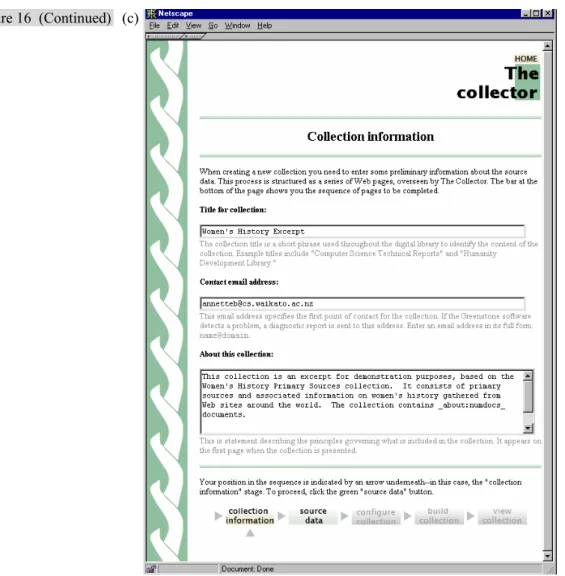
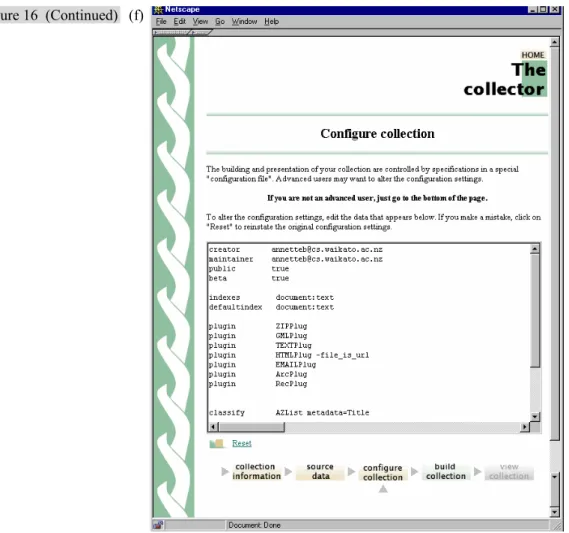
Finally, an alternative way of building collections is provided by the Collector, which helps you create new collections, modify or add to existing ones, or delete collections. It predates the librarian interface, and for most practical purposes the librarian interface should be used instead of the Collector. It is described in Section 3.4.
18 MAKING GREENSTONE COLLECTIONS
To harness the full power of Greenstone to build advanced collections, you will also need to read Chapter 2 of the Developer’s Guide.
3.1 The librarian’s interface
To convey the operation of Greenstone’s librarian interface, we work through a simple example. Figures 4 to 15 are screen snapshots at various points during the interaction. This example uses documents in the Development Library Subset (DLS) collection, which is distributed with Greenstone. For expository purposes, the walkthrough takes the form of a single pass through the steps listed above. A more realistic pattern of use, however, is for users to switch back and forth through the various stages as the task proceeds.
The librarian interface can be run in one of four modes: Librarian Assistant, Librarian, Library Systems Specialist, and Expert. Modes control the level of detail within the interface, and can be changed through ‘Preferences’ in the ‘File’ menu. The walkthrough in this section assumes that the librarian interface is operating in the default mode, Librarian.
Getting started
Launch the librarian interface under Windows by selecting Greenstone Digital Library from the Programs section of the Start menu and choosing Librarian Interface. If you are using Unix, instead type
cd ~/gsdl cd gli ./gli.sh
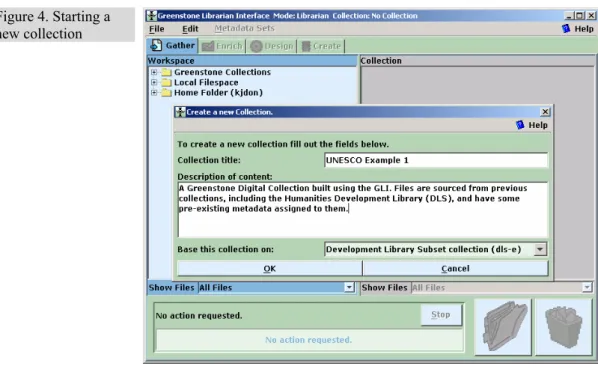
where ~/gsdl is the directory containing your Greenstone system. To begin, you must either open an existing collection or start a new one. Figure 4 shows the user in the process of starting a new collection. She has selected New from the file menu and begun to fill out general information about the collection—its title, the E-mail address of the person responsible for it, and a brief description of the content—in the popup window. The collection title is a short phrase used throughout the digital library to identify the collection’s content: existing collections have names like Food and Nutrition Library, World Environmental Library, and so on. When you type the title, the system assigns a unique mnemonic identifier, the collection “name”, for internal use (you can change it if you like). The E-mail address specifies the first point of contact for any problems encountered with the collection.
The brief description is a statement describing the principles that govern what is included in the collection. It appears under the heading About this collection on the collection’s initial page.
MAKING GREENSTONE COLLECTIONS 19 Figure 4. Starting a
new collection
Figure 5. Exploring the local file space
20 MAKING GREENSTONE COLLECTIONS
At this point, the user decides whether to base the new collection on the same structure as an existing collection, or to build an entirely new kind of collection. In Figure 4 she has chosen to base it on the Development Library Subset collection. This implies that the “DLS” metadata set which is used in this collection will be used for the new collection. (In fact, this metadata set has been used to build several Greenstone collections that share a common structure and organization but with different content, including the Development Library Subset and Demo collections delivered as samples with Greenstone.)
The DLS metadata set contains these items:
•Title
•Subject
•Language
•Organization
•Keyword (i.e.”Howto”).
(There is, in addition, a metadata item called AZList which is used to determine which bucket of the alphabetic list contains the document’s title, with values like “A-B” or “C-D-E”. This is used to give precise control over the divisions in the list. For most other collections it is absent, and Greenstone assigns the buckets itself.)
If, instead, the user had chosen “New Collection” at this point, she would have been asked to select what metadata sets should be used in the new collection. Three standard sets are pre-supplied: Dublin Core, the DLS metadata set mentioned above, and a set that comprises metadata elements extracted automatically by Greenstone from the documents in the collection. The user can also create new metadata sets using a popup panel activated through the “metadata” menu.
Several different metadata sets can be associated with the same collection; the system keeps them distinct (so that, for example, documents can have both a Dublin Core Title and a DLS Title). The different sets are clearly distinguished in the interface. Behind the scenes, metadata sets are represented in XML.
Assembling the source material
After clicking the OK button on the “new collection” popup, the remaining parts of the interface, which were grayed out before, become active. The Gather panel, selected by the eponymous tab near the top of Figure 4, is displayed initially. This allows the user to explore the local file space and existing collections, gathering up selected documents for the new collection. The panel is divided into two sections, the left for
MAKING GREENSTONE COLLECTIONS 21 browsing existing structures and the right for the documents in the collection.
Operations available at this stage include:
•Navigating the existing file structure hierarchy, and the one being created, in the usual way.
•Dragging and dropping files into the new collection.
•Multiple selection of files.
•Dragging and dropping entire sub-hierarchies.
•Deleting documents from the nascent collection.
•Creating new sub-hierarchies within the collection.
•Filtering the files that are visible, in both the local file system and the collection, based on predetermined groups or on standard file matching terms.
•Invoking the appropriate program to display the contents of a selected file, by double-clicking it.
Care is taken to deal appropriately with name clashes when files of the same name in different parts of the computer’s directory structure are copied into the same folder of the collection.
In Figure 5 the user is using the interactive file tree display to explore the local file system. At this stage, the collection on the right is empty; the user populates it by dragging and dropping files of interest from the left to the right panel. Such files are “copied” rather than “moved”: so as not to disturb the original file system. The usual techniques for multiple selection, dragging and dropping, structuring the new collection by creating subdirectories (“folders”), and deleting files from it by moving them to a trashcan, are all available.
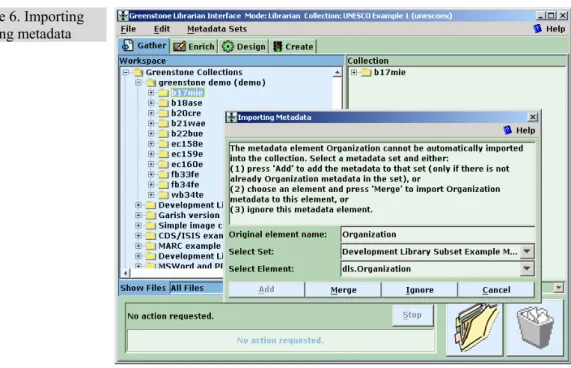
Existing collections are represented by a subdirectory on the left called “Greenstone Collections,” which can be opened and explored like any other directory. However, the documents therein differ from ordinary files because they already have metadata attached, and this is preserved when they are moved into the new collection. Conflicts may arise because their metadata may have been assigned using a different metadata set from the one in use for the new collection, and the user must resolve these. In Figure 6 the user has selected some documents from an existing collection and dragged them into the new one. The popup window explains that the metadata element Organization cannot be automatically imported, and asks the user to either select a metadata set and press Add to add the
22 MAKING GREENSTONE COLLECTIONS
metadata element to that set,1 or choose a metadata set, then an element, and press Merge to effectively rename the old metadata element to the new one by merging the two. Metadata in subsequent documents from the same collection will automatically be handled in the same way.
When large file sets are selected, dragged, and dropped into the new collection, the copying operation may take some time—particularly if metadata conversion is involved. To indicate progress, the interface shows which file is being copied and what percentage of files has been processed.
Special facilities are provided for dealing with large file sets. For example, the user can choose to filter the file tree to show only certain files, using a dropdown menu of file types displayed underneath the trees. In Figure 7, only the HTM and HTML files are being shown (and only these files will be copied by drag and drop).
Enriching the documents
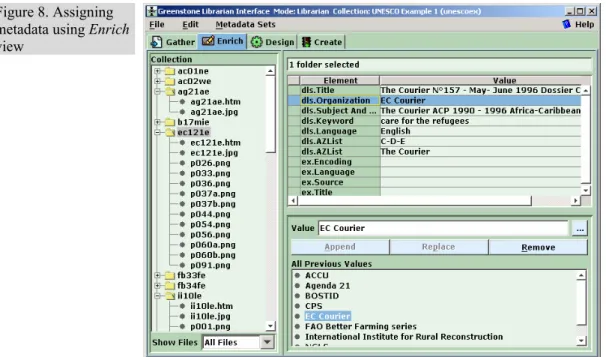
The next phase in collection building is to enrich the documents by adding metadata. The Enrich tab brings up a new panel of information (Figure 8), which shows the document tree representing the collection on the left and on the right allows metadata to be added to individual documents, or groups of documents.
Documents that are copied during the first step come with any applicable metadata attached. If a document is part of a Greenstone collection, previously defined metadata is carried over to the new collection. Of course, this new collection may have a different metadata set, or perhaps just a subset of the defined metadata, and only metadata that pertains to the new collection’s set is carried over. Resolution of such conflicts may require user intervention via a supplementary dialog (Figure 6). Any choices made are remembered for subsequent file copies.
The Enrich panel allows metadata values to be assigned to documents in the collection. For example, new values can be added to the set of existing values for an element. If the element’s values have a hierarchical structure, the hierarchy can be extended in the same way.
MAKING GREENSTONE COLLECTIONS 23 Figure 6. Importing
existing metadata
Figure 7. Filtering the file trees
24 MAKING GREENSTONE COLLECTIONS Figure 8. Assigning
metadata using Enrich
view
Figure 9. Viewing all metadata for selected files
MAKING GREENSTONE COLLECTIONS 25 Metadata values can also be assigned to folders, in just the same way. Documents in these folders for which this metadata is unspecified inherit the metadata values. However, they can subsequently be overridden by supplying different ones for the document itself.
Operations at this stage include:
•Assigning new and existing metadata values to documents.
•Assigning metadata to an individual document.
•Assigning metadata to a folder (this is inherited by all documents in the folder, including those in nested folders).
•Assigning hierarchical metadata, whose structure can be dynamically updated if required.
•Editing or updating assigned metadata.
•Reviewing the metadata assigned to a selection of files and directories.
For our walkthrough example, in Figure 8 the user has selected the folder
ec121e and assigned “EC Courier” as its Organization metadata. The buttons for updating and removing metadata become active depending on what selections have been made.
During the enrichment phase, or indeed at any other time, the user can choose to view all the metadata that has been assigned to documents in the collection. This is done by selecting a set of documents and choosing
Assigned Metadata from the metadata sets menu, which brings up a popup window like that in Figure 9 that shows the metadata in spreadsheet form. For large collections it is useful to be able to view the metadata associated with certain document types only, and if the user has specified a file filter as mentioned above, only the selected documents are shown in the metadata display.
The panel in Figure 10 allows the user to edit metadata sets. Here, the user is looking at the Subject element of the DLS set. The values of this element form a hierarchy, and the user is examining, and perhaps changing, the list of values assigned to it. The same panel also allows you to change the “profile” for mapping elements of one metadata set to another. This profile is created when importing documents from collections that have pre-assigned metadata.
26 MAKING GREENSTONE COLLECTIONS Figure 10. Editing the
metadata set
Figure 11. Designing the collection
MAKING GREENSTONE COLLECTIONS 27 Figure 12. Specifying
which plug-ins to use
Figure 13. Configuring
28 MAKING GREENSTONE COLLECTIONS Designing the collection
The Design panel (Figures 11–13) allows one to specify the structure, organization, and presentation of the collection being created. As noted earlier, the result of this process is recorded in a “collection configuration file,” which is Greenstone’s way of expressing the facilities that a collection requires. This step involves a series of separate interaction screens, each dealing with one aspect of the collection design. In effect, it serves as a graphical equivalent to the usual process of editing the configuration file manually.
Operations include:
•Reviewing and editing collection-level metadata such as title, author and public availability of the collection.
•Defining what full-text indexes are to be built.
•Creating sub-collections and having indexes built for them.
•Adding or removing support for predefined interface languages.
•Constructing a list of plug-ins to be used, and their arguments.
•Presenting the list to the user for review and modification.
•Configuring individual plug-ins.
•Constructing a list of “classifiers,” their arguments, assignment and configuration.
•Assigning formatting strings to various controls within the collection, thus altering its appearance.
•Reviewing the metadata sets, and their elements, used in the collection.
In Figure 11 the user has clicked the Design tab and is reviewing the general information about the collection, entered when the new collection was created. On the left are listed the various facets that the user can configure: General, Document Plug-ins, Search Types, Search Indexes, Partition Indexes, Cross-Collection Search, Browsing Classifiers, Format Features, Translate Text, Metadata Sets. Appearance and functionality varies between these. For example, clicking the Plug-in button brings up the screen shown in Figure 12, which allows you to add, remove or configure plug-ins, and change the order in which the plug-ins are applied to documents.
MAKING GREENSTONE COLLECTIONS 29 Figure 14. Getting
ready to create new collection
Figure 15. Previewing the newly built collection
30 MAKING GREENSTONE COLLECTIONS
Plug-ins and classifiers have many different arguments or “options” that the user can supply. The dialog box in Figure 13 shows the user specifying arguments to some of the plug-ins. The grayed-out fields become active when the user adds the option by clicking the tick-box beside it. Because Greenstone is a continually growing open-source system, the number of options tends to increase as developers add new facilities. To help cope with this, Greenstone has a “plug-in information” utility program that lists the options available for each plug-in, and the librarian interface automatically invokes this to determine what options to show. This allows the interactive user interface to automatically keep pace with developments in the software.
Building the collection
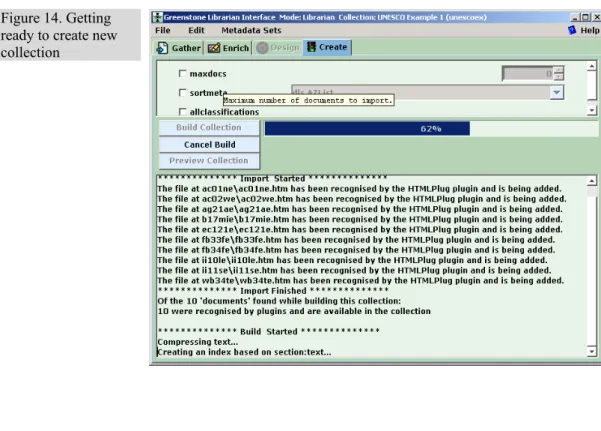
The Create panel (Figure 14) is used to construct a collection based on the documents and assigned metadata. The brunt of this work is borne by the Greenstone code itself. The user controls this external process through a series of separate interaction screens, each dealing with the arguments provided to a certain stage of the creation process.
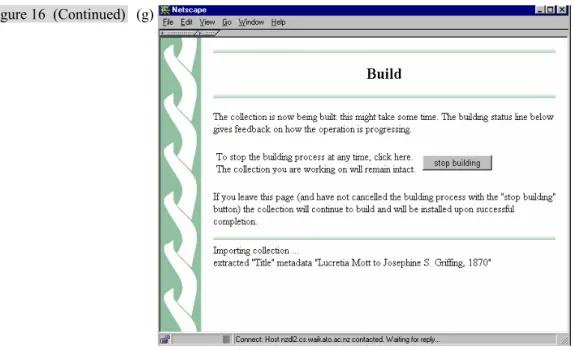
The user observes the building process though a window that shows not only the text output generated by Greenstone’s importing and index-building scripts, but also progress bars that indicate the overall degree of completion of each script.
Figure 14 shows the Create view. At the top are shown some options that can be applied during the creation process. The user selects appropriate values for the options. This figure illustrates a popup “tool tip” that is available throughout the interface to explain the function of each argument.
When satisfied with the arguments, the user clicks Build Collection. Greenstone continually prints text that indicates progress, and this is shown along with a more informative progress bar.
Previewing
The Preview Collection button (Figure 14) is used to view the collection that has been built. Clicking this button launches a web browser showing the home page of the collection (Figure 15). In practice, previewing often shows up deficiencies in the collection design, or in the individual metadata values, and the user frequently returns to earlier stages to correct these. This button becomes active once the collection has been created. The newly created collection will also have been installed on your Greenstone home page as one of the regular collections.
MAKING GREENSTONE COLLECTIONS 31 Help
On-line help is always available, and is invoked using the Help item at the right of the main menu bar at the top of each of the Figures. This opens up a hierarchically structured file of help text, and account is taken of the user’s current context to highlight the section that is appropriate to the present stage of the interaction. Furthermore, as noted above, whenever the mouse is held still over any interactive object a small window pops up to give a textual “tool tip,” as illustrated near the bottom of Figure 14.
3.2 Librarian Interface user guide
Starting Off
This section covers how to create, load, save and delete collections. Creating a New Collection
To create a new collection, open the "File" menu and choose "New". Several fields need to be filled out -- but you can change their values later if you need to, in the design view.
"Collection title" is the text displayed at the top of your collection's home page. It can be any length.
"Description of content" should describe, in as much detail as possible, what the collection is about. Use the [Enter] key to break it into paragraphs.
Finally you must specify whether the new collection will have the same appearance and metadata sets as an existing collection, or whether to start a default "New Collection".
Click "OK" to create the collection. If you chose "New Collection" you are prompted for the metadata sets to use in it. You can choose more than one, and you can add others later.
Clicking "Cancel" returns you to the main screen immediately. Buttons, like menus, have one character underlined. To "click" the button, press [ALT] and the underlined character at the same time.
Saving the Collection
Save your work regularly by opening the "File" menu and choosing "Save". Saving a collection is not the same as making it ready for use in
32 MAKING GREENSTONE COLLECTIONS
Greenstone (see Producing Your Collection).
The Librarian Interface protects your work by saving it whenever you exit the program or load another collection. Saved collections are written to a file named for the collection and with file extension ".col", located in a folder of the same name within your Greenstone installation's "collect" folder.
Opening an Existing Collection
To open an existing collection, choose "Open" from the "File" menu to get the Open Collection prompt. A list of your Greenstone collections appears. Select one to see its description, and click "Open" to load it. If you seek a collection that resides outside Greenstone's "collect" folder, click "Browse" for a file system browsing dialog. In case more than one Greenstone Librarian Interface program is running concurrently, the relevant directories are "locked" to prevent interference. On opening a collection, a small temporary lock file is created in its folder. Before opening a collection, the Librarian Interface checks to ensure that no lock file already exists. You can tell whether a collection is locked by the colour of its icon: green for a normal collection, red for a locked one. However, when the Librarian Interface is exited prematurely the lock file is sometimes left in place. When you open such a collection, the Librarian asks if you want to "steal" control of it. Never steal a collection that someone else is currently working on.
When you open a collection that the Greenstone Librarian Interface did not create, you will be asked to select a metadata set (or sets). If none are selected, any existing metadata will be ignored. Otherwise, metadata will be imported just as it is when you drag in files with existing metadata. The process is described in the Importing Previously Assigned Metadata section.
Deleting Collections
To permanently delete collections from your Greenstone installation, choose "Delete..." from the "File" menu. A list of your Greenstone collections appears. Select one to see its description, then tick the box at the bottom of the dialog and click "Delete" to delete the collection. This action is irreversible, so check carefully that you no longer need the collection before proceeding!
Downloading Files From the Internet
MAKING GREENSTONE COLLECTIONS 33 This section explains the Librarian Interface's mirroring process.
The Download view
This section describes how to configure a download task and control the downloading process.
Access the "Download" view by clicking its tab. The top half of the screen shows the downloading controls. The bottom half is initially empty, but will show a list of pending and completed downloading jobs. Files are downloaded into a folder in the workspace called "Downloaded Files" (only present when mirroring is enabled), and can be used in all collections built with the Librarian Interface. Files in this area are named by their full web URL. A new folder is created for each host, followed by others for each part of the path. This ensures that each file is distinct. Use the first of the download configuration controls, "Source URL", to enter the URL of a target resource. Use the "Download Depth" control to limit how many hyperlinks to follow when downloading: Set this to 0 to download a single web page; set it to 1 to download a page and all the pages it points to. The depth limit is ignored when downloading media other than html pages. Next, there are several checkbox controls which can be set to turn on the specified feature for a specific download. Once the configuration is set up, click "Download" to start the new download job. There are two other button controls: "Preferences", which links to the connection section of the Preferences where proxy settings can be edited; and "Clear Cache", which deletes all previously downloaded files. The download list has an entry for each web page download. Each entry has a text region that gives details of the task along with a progress bar showing current activity. Three buttons appear to the left of each entry. "Pause" is used for pausing a currently downloading task. "View Log" opens a window showing the download log file. "Close" terminates the download and removes the task from the list. The Preferences section describes how to establish an Internet connection via a proxy. If authentication is needed, the proxy server prompts for identification and password. The Librarian Interface does not store passwords between sessions.
Collecting Files for Your Collection
Once you have a new collection you need to get some files into it. These may come from your ordinary file space, or from other Greenstone collections. Some may already have attached metadata. This section
34 MAKING GREENSTONE COLLECTIONS describes how to import files. The Gather View
This section introduces the Gather area that you use to select what files to include in the collection you are building.
The Librarian Interface starts with the Gather view. To return to this view later, click the "Gather" tab directly below the menu bar.
The two large areas titled "Workspace" and "Collection" are used to move files into your collection. They contain "file trees", graphical structures that represent files and folders.
Select an item in the tree by clicking it. (There are other ways; see below.) Double-click a folder, or single-click the switch symbol beside it, to expand (or collapse) its contents. Double-click a file to open it using its associated application program (see File Associations).
The Workspace file tree shows the sources of data available to the Librarian Interface -- the local file system (including disk and CD-ROM drives), the contents of existing Greenstone collections, and the cache of downloaded files if Web mirroring is enabled. You can copy and view these files but you cannot move, delete, or edit them, with the exception of the downloaded files, which can be deleted. Navigate this space to find the files you want to include in the collection.
The Collection file tree represents the contents of the collection so far. Initially, it is empty.
You can resize the spaces by mousing over the grey bar that separates the trees (the shape of the pointer changes) and dragging.
At the bottom of the window is a status area that shows the progress of actions involving files (copying, moving and deleting). These can take some time to complete. The "Stop" button stops any action that is currently in progress.
Two large buttons occupy the lower right corner of the screen. "New Folder", with a picture of a folder, creates new folders (see Creating folders). "Delete", with a garbage can, removes files. Clicking the Delete button will remove any selected files from the Collection file tree. Alternatively, files can be deleted by dragging them onto the Delete button. To select several sequential items, select the first and then hold down [Shift] and click on the last -- the selection will encompass all
MAKING GREENSTONE COLLECTIONS 35 intervening items. Select non-sequential files by holding down [Ctrl] while clicking. Use these two methods together to select groups of non-adjacent items.
Certain folders -- such as the one containing your own web pages -- sometimes have special significance. The Librarian Interface can map such folders to the first level of the file tree. To do this, right-click the desired folder. Select "Create Shortcut", and enter a name for the folder. To remove an item, right-click the mapped folder and select "Remove Shortcut".
Creating Folders
Use folders in the Collection file tree to group files together and make them easier to find. Folders can be placed inside folders. There is virtually no limit to how many folders you can have or how deeply they can be nested.
To create a new folder, optionally select an existing folder in the Collection Tree and click the New Folder button. The new folder appears within the selected one, or at the top level if none is selected. You are prompted for the folder's name (default "New Folder").
Folders can also be created by right-clicking over a folder, choosing "New Folder" and proceeding as above.
Adding Files
Files can be copied into the collection by dragging and dropping. The mouse pointer becomes a ghost of the selected item (or, if more than one is selected, the number of them). Drop the selection into the Collection Tree to copy the files there (if the source was the Workspace Tree) or move them around within the collection (if the source was the Collection Tree).
When copying multiple files, they are all placed in the target folder at the same level, irrespective of the folder structure they occupied originally. When you copy a second file with the same name into the same folder, you are asked whether to overwrite the first one. Respond "No" and the file will not be copied, but the others will be. To cancel all remaining copy actions, click the "stop" button.
Only the "highest" items in a selection are moved. A folder is higher than its children. You cannot select files within a folder and also the folder itself. When you add a file, the Librarian Interface searches through the
36 MAKING GREENSTONE COLLECTIONS
source folders for auxiliary files containing metadata previously assigned to the added file and, if it finds one, begins to import this metadata. As the operation proceeds, you may be prompted (perhaps several times) for extra information to match the imported metadata to the metadata sets in your collection. This process involves many different prompts, described in the Importing Previously Assigned Metadata section. For a more detailed explanation of associating metadata with files read Chapter 2 of the Greenstone Developer's Guide -- Getting the most out of your documents.
Removing Files
There are several methods for removing files and folders. You must first indicate what items to remove by selecting one or more files and folders as described in The Gather View.
Once files have been selected, click the "delete" button to remove them, or press the [Delete] key on your keyboard, or drag them from the collection to the delete button and drop them there.
Filtering the Tree
"Filtering" the collection tree allows you to narrow down the search for particular files.
The "Show Files" pull-down menu underneath each tree shows a list of predefined filters, such as "Images". Choosing this temporarily hides all other files in the tree. To restore the tree, change the filter back to "All Files". These operations do not alter the collection, nor do they affect the folders in the tree. You can specify a custom filter by typing in a pattern to match files against. Use standard file system abbreviations such as "*.*" or "*.doc" ("*" matches any characters).
Enriching the Collection with Metadata
Having gathered several files into the collection, now enrich them with additional information called "metadata". This section explains how metadata is created, edited, assigned and retrieved, and how to use external metadata sources (also see Chapter 2 of the Greenstone Developer's Guide -- Getting the most out of your documents).
The Enrich View
Use the Enrich view to assign metadata to the documents in the collection. Metadata is data about data -- typically title, author, creation
MAKING GREENSTONE COLLECTIONS 37 date, and so on. Each metadata item has two parts: "element" tells what kind of item it is (such as author), and "value" gives the value of that metadata element (such as the author's name).
On the left of the "Enrich" view is the Collection Tree. To the right is the Metadata Table, which shows metadata for any selected files or folders in the Collection Tree. Columns are named in grey at the top, and can be resized by dragging the separating line. Clicking any row transfers its details to the metadata editing controls below. If several files are selected, black text indicates that the value is common to all of the selected files, while grey text indicates that it is not. Black values may be updated or removed, while grey ones can be removed from those that have it, or appended to the others.
A folder icon may appear beside some metadata entries. This indicates that the values are inherited from a parent (or ancestor) folder. Inherited metadata cannot be edited or removed, only appended to or overwritten. Click on the folder icon to go immediately to the folder where the metadata is assigned.
The metadata editing controls at the lower right appear only when a file is selected from the tree and a row is selected from the table. Use them to update, append, and remove the metadata value. The value field is for entering or editing the metadata value. Beside it is a button labelled "..." which, when clicked, opens a larger editing box. In the buttons below, "Append" assigns the value as new metadata and adds it to any existing values for the selected element, "Replace" overwrites the selected existing value with the new one, and "Remove" clears the selected value. Underneath, labelled "All Previous Values", is the "Value Tree".
The Value Tree expands and collapses. Usually it is a list that shows all values entered previously for the selected element. Clicking an entry automatically places it into the value field. Conversely, typing in the text field selects the Value Tree entry that starts with the characters you have typed. Pressing [Tab] auto-completes the typing with the selected value. Metadata values can be organised into a hierarchy. This is shown in the Value Tree using folders for internal levels. Hierarchical values can be entered using the character "|" to separate the levels. For example, "Cards|Red|Diamonds|Seven" might be used in a hierarchy that represents a pack of playing cards. This enables values to be grouped together. Groups can also be assigned as metadata to files.
Greenstone extracts metadata automatically from documents into a metadata set whose elements are prefixed by "ex.". This has no value tree
38 MAKING GREENSTONE COLLECTIONS
and cannot be edited, so the edit controls are hidden if such an entry is selected. The "..." button still serves to expand the value, but the text cannot be edited.
Selecting Metadata Sets
Sets of predefined metadata elements are known as "metadata sets". An example is the Dublin Core metadata set. When you add a metadata set to your collection, its elements become available for selection. You can have more than one set; to prevent name clashes a short identifier that identifies the metadata set is pre-pended to the element name. For instance the Dublin Core element Creator becomes "dc.Creator". Metadata sets are stored in the Librarian Interface's metadata folder and have the suffix ".mds".
To control the metadata sets used in a collection, use the "Metadata Sets" entry on the Design view.
Appending New Metadata
We now add a metadata item -- both element and value -- to a file. First select the file from the Collection file tree on the left. The action causes any metadata previously assigned to this file to appear in the table at the right.
Next select the metadata element you want to add by clicking its row in the table.
Type the value into the value field. Do not use the character "|", as it is used for constructing hierarchies. When finished, click "Append" to add the new value as metadata for the chosen file. The value immediately appears in the Metadata table.
You can also add metadata to a folder, or to several multiply selected files at once. It is added to all files within the folder or selection, and to child folders. Keep in mind that if you assign metadata to a folder, any new files in it automatically inherit the folder's values.
If you choose metadata that occurs in some of the selected files and click "Append", it is added to the other files in the selection too. You can add structure to metadata values by using paths as described in The Enrich View.
MAKING GREENSTONE COLLECTIONS 39 Adding Previously Defined Metadata
To add metadata that has an existing value, first select the file, then select the required value from the value tree, expanding hierarchy folders as necessary. The value of the selected entry automatically appears in the Value text field (alternatively, use the value tree's select and auto-complete features). Click "Append" to add the metadata to the selected file.
The process of adding metadata with already-existing values to folders or multiple files is just the same.
Updating Metadata
To update the value of a piece of metadata, first choose the file to which that value applies, and then the metadata element whose value you want to change. Your selection appears in the metadata edit controls. Edit the value field and click "Replace" to alter the metadata.
The process is the same when updating a folder with child folders or multiple files, but you can only update metadata that is common to all files/folders selected.
The value tree shows all previous values, not just those currently assigned. Thus the value you have replaced will remain in the value tree. Removing Metadata
You remove metadata the same way as you update it. First select a file from the file tree, then use the metadata table to select the metadata. If the metadata has a value assigned, the "Remove" button becomes active. Click it to remove the metadata from the specified file. Other files remain unchanged, and the value remains in the Value Tree.
Removing metadata from folders or multiple files works the same way. Reviewing Assigned Metadata
Sometimes you need to see the metadata assigned to many or all files at once -- for instance, to determine how many files are left to work on, or to get some idea of the spread of dates.
Select the files you wish to examine, then right-click and choose "Assigned Metadata...". A window called "All Metadata", dominated by a large table with many columns, appears. The first column shows file