Instant Wireless
®Series
Wireless-B
PCI Adapter
Use this guide to install:
WMP11
Linksys is a registered trademark of Linksys. Microsoft, Windows, and the Windows logo are registered trademarks of Microsoft Corporation. All other trademarks and brand names are the property of their respective proprietors.
LIMITED WARRANTY
Linksys guarantees that every Instant Wireless® Wireless-B PCI Adapter will be free from phys-ical defects in material and workmanship under normal use for one year from the date of pur-chase, when used within the limits set forth in the Specifications chapter of this User Guide. If these products prove defective during this warranty period, call Linksys Technical Support in order to obtain a Return Authorization Number. BE SURE TO HAVE YOUR PROOF OF PUR-CHASE AND A BARCODE FROM THE PRODUCT'S PACKAGING ON HAND WHEN CALLING. RETURN REQUESTS CANNOT BE PROCESSED WITHOUT PROOF OF PURCHASE. When returning a product, mark the Return Authorization Number clearly on the outside of the pack-age and include a copy of your original proof of purchase. All customers located outside of the United States of America and Canada shall be held responsible for shipping and handling charges.
IN NO EVENT SHALL LINKSYS’S LIABILITY EXCEED THE PRICE PAID FOR THE PRODUCT FROM DIRECT, INDIRECT, SPECIAL, INCIDENTAL, OR CONSEQUENTIAL DAMAGES RESULTING FROM THE USE OF THE PRODUCT, ITS ACCOMPANYING SOFTWARE, OR ITS DOCUMENTATION. LINKSYS DOES NOT OFFER REFUNDS FOR ANY PRODUCT. Linksys makes no warranty or representation, expressed, implied, or statutory, with respect to its prod-ucts or the contents or use of this documentation and all accompanying software, and specif-ically disclaims its quality, performance, merchantability, or fitness for any particular purpose. Linksys reserves the right to revise or update its products, software, or documentation without obligation to notify any individual or entity. Please direct all inquiries to:
Linksys P.O. Box 18558, Irvine, CA 92623.
FCC STATEMENT
This Instant Wireless®Wireless-B PCI Adapter has been tested and complies with the specifi-cations for a Class B digital device, pursuant to Part 15 of the FCC Rules. These limits are designed to provide reasonable protection against harmful interference in a residential installa-tion. This equipment generates, uses, and can radiate radio frequency energy and, if not installed and used according to the instructions, may cause harmful interference to radio communications. However, there is no guarantee that interference will not occur in a particular installation. If this equipment does cause harmful interference to radio or television reception, which is found by turning the equipment off and on, the user is encouraged to try to correct the interference by one or more of the following measures:
• Reorient or relocate the receiving antenna
• Increase the separation between the equipment or devices • Connect the equipment to an outlet other than the receiver’s
• Consult a dealer or an experienced radio/TV technician for assistance
FCC Caution: Any changes or modifications nor expressly approved by the party responsible for compliance could void the user's authority to operate this equipment.
This device complies with Part 15 of the FCC Rules. Operation is subject to the following two conditions: (1) This device may not cause harmful interference, and (2) This device must accept any interference received, including interference that may cause undesired operation.
FCC RF Radiation Exposure Statement
This device and its antenna(s) must operate with a separation distance of at least 20 cm from all persons and must not be co-located or operating in conjunction with any other antenna or transmitter. End-users must be provided with specific operations for satisfying RF exposure compliance.
Wireless-B PCI Adapter
Table of Contents
Chapter 1: Introduction 1
The Wireless-B PCI Adapter 1
Features 1
Chapter 2: Planning Your Wireless Network 2
Network Topology 2
Ad-Hoc versus Infrastructure Mode 2
Chapter 3: Getting to Know the Wireless-B
PCI Adapter 4
The Wireless-B PCI Adapter’s Port and LEDs 4 Chapter 4: Hardware and Driver Installation and
Configuration for Windows XP 5
Overview 5
Hardware Installation for Windows XP 5
Driver Installation for Windows XP 6
Windows XP Wireless Zero Configuration 9
Chapter 5: Software Installation and Configuration
for Windows 98SE, Me, and 2000 11
Chapter 6: Hardware Installation for
Windows 98SE, Me, and 2000 16
Hardware Detection for Windows 98SE, Me, and 2000 17 Chapter 7: Using the WLAN Monitor for
Windows 98SE, Me, and 2000 18
Overview 18
Starting the WLAN Monitor 18
Link Information 19
Site Survey 20
Profiles 22
Creating a New Profile 24
Instant Wireless®Series EC DECLARATION OF CONFORMITY (EUROPE)
Linksys Group declares that the Instant Wireless®Series products included in the Instant
Wireless®Series conform to the specifications listed below, following the provisions of the
EMC Directive 89/336/EEC and Low Voltage Directive 73/23/EEC:
• ETS 300-826, 301 489-1 General EMC requirements for Radio equipment. • EN 609 50 Safety
• ETS 300-328-2 Technical requirements for Radio equipment.
Note: This equipment is intended to be used in all EU and EFTA countries. Outdoor use may be restricted to certain frequencies and/or may require a license for operation. For more details, contact Linksys Corporate Compliance.
Note: Combinations of power levels and antennas resulting in a radiated power level of above 100 mW are considered as not compliant with the above mentioned directive and are not allowed for use within the European community and countries that have adopted the European R&TTE directive 1999/5/EC and/or the CEPT recommendation Rec 70.03. For more details on legal combinations of power levels and antennas, contact Linksys Corporate Compliance.
• Linksys Group™ vakuuttaa täten että Instant Wireless IEEE 802.11 Wireless-B PC Adapter tyyppinen laite on direktiivin 1999/5/EY, direktiivin 89/336/EEC ja direktiivin 73/23/EEC oleellisten vaatimusten ja sitä koskevien näiden direktiivien muiden ehtojen mukainen.
• Linksys Group™ déclare que la carte PC Instant Wireless IEEE 802.11 est conforme aux conditions essentielles et aux dispositions relatives à la directive 1999/5/EC, la directive 89/336/EEC, et à la directive 73/23/EEC.
• Belgique B L’utilisation en extérieur est autorisé sur le canal 11 (2462 MHz), 12 (2467 MHz), et 13 (2472 MHz).
Dans le cas d’une utilisation privée, à l’extérieur d’un bâtiment, au-dessus d’un espace public, aucun enregistrement n’est nécessaire pour une distance de moins de 300m. Pour une distance supérieure à 300m un enregistrement auprès de l’IBPT est requise. Pour une utilisation publique à l’extérieur de bâtiments, une licence de l’IBPT est req-uise. Pour les enregistrements et licences, veuillez contacter l’IBPT.
• France F: Bande de fréquence restreinte: seuls les canaux 10, 11, 12, 13 (2457, 2462, 2467, et 2472 MHz respectivement) doivent être utilisés en France. Toute utilisation, qu'elle soit intérieure ou extérieure, est soumise à autorisation. Vous pouvez contacter l'Autorité de Régulation des Télécommuniations (http://www.art-telecom.fr) pour la procédure à suivre.
• France F: Restricted frequency band: only channels 10, 11, 12, 13 (2457, 2462, 2467, and 2472 MHz respectively) may be used in France. License required for every indoor and outdoor installations. Please contact ART for procedure to follow.
• Deutschland D: Anmeldung im Outdoor-Bereich notwending, aber nicht genehmi-gungspflichtig. Bitte mit Händler die Vorgehensweise abstimmen.
• Germany D: License required for outdoor installations. Check with reseller for procedure to follow.
• Italia I: E' necessaria la concessione ministeriale anche per l'uso interno. Verificare con i rivenditori la procedura da seguire. L'uso per installazione in esterni non e' permessa. • Italy I: License required for indoor use. Use with outdoor installations not allowed. • the Netherlands NL License required for outdoor installations. Check with reseller for
procedure to follow.
• Nederlands NL Licentie verplicht voor gebruik met buitenantennes. Neem contact op met verkoper voor juiste procedure.
Chapter 1: Introduction
Connect your desktop computer to a wireless network with the Linksys Wireless-B PCI Adapter. This card installs in an expansion slot of most desk-top computers, and comes with a Setup Wizard that walks you through config-uring the adapter to your wireless network settings, step by step.
The Wireless-B PCI Adapter lets you put your computer almost anywhere in the building, without the cost and hassle of running cables. Now you don't have to drill holes in your walls and climb through the attic or cellar to get connect-ed to the network. Once you're connectconnect-ed, you can keep in touch with your e-mail, access the Internet, use instant messaging to chat with friends, and share files and other resources such as printers and network storage with other com-puters on the network.
The Linksys Wireless-B PCI Adapter is fully compliant with the 802.11b wire-less network standard, transferring data at up to 11Mbps in the 2.4GHz radio band. And your wireless communications are protected by up to 128-bit encryption, so your data stays secure.
So don't hassle with running cables through your house -- get your desktop con-nected the easy way with the Linksys Wireless-B PCI Adapter..
• Wireless-B (802.11b) connectivity for your desktop PC • Data rates up to 11Mbps in the 2.4GHz radio band • Put your PC wherever you want, with no cabling hassle
• Included Setup Wizard takes you through configuration, step by step • Free Technical Support—24 Hours a Day, 7 Days a Week, Toll-Free US
Calls
• 1-Year Limited Warranty
The Wireless-B PCI Adapter
Features
Appendix A: Troubleshooting 29
Common Problems and Solutions 29
Frequently Asked Questions 29
Appendix B: Glossary 33
Appendix C: Specifications 38
Environmental 39
Appendix D: Warranty Information 40
Wireless-B PCI Adapter
If the wireless network is relatively small and needs to share resources only with the other computers on the wireless network, then the ad-hoc mode can be used. (See Figure 2-2.) Ad-hoc mode allows computers equipped with wire-less transmitters and receivers to communicate directly with each other, elimi-nating the need for an access point. The drawback of this mode is that, in Ad-Hoc mode, wireless-equipped computers are not able to communicate with computers on a wired network. And, of course, communication between the wireless-equipped computers is limited by the distance and interference direct-ly between them.
Instant Wireless®Series
Figure 2-2
Chapter 2: Planning Your Wireless
Network
A wireless local area network (WLAN) is exactly like a regular local area net-work (LAN), except that each computer in the WLAN uses a wireless device to connect to the network. Computers in a WLAN share the same frequency channel and SSID, which is an identification name for wireless devices.
Unlike wired networks, wireless networks have two different modes in which they may be set up: infrastructureand ad-hoc. An infrastructure configura-tion is a WLAN and wired LAN communicating to each other through an access point. An ad-hoc configuration is wireless-equipped computers com-municating directly with each other. Choosing between these two modes depends on whether or not the wireless network needs to share data or periph-erals with a wired network or not.
If the computers on the wireless network need to be accessed by a wired network or need to share a peripheral, such as a print-er, with the wired network computers, the wireless network should be set up in infrastructure mode. (See Figure 2-1.) The basis of infrastructure mode centers around an
access point, which serves
as the main point of communications in a wireless network. Access points transmit data to PCs equipped with wireless network cards, which can roam
within a certain radial range of the access point. Multiple access points can be arranged to work in succession to extend the roaming range, and can be set up to communicate with your Ethernet (wired) hardware as well.
Network Topology
Ad-Hoc versus Infrastructure Mode
Chapter 3: Getting to Know the
Wireless-B PCI Adapter
The port to connect the Wireless PCI Adapter’s Antenna and lights displaying the Adapter’s activity are shown in Figure 3-1.
Port
Antenna The Antenna port is where you will connect the Adapter’s external antenna.
LED Indicators
Power Green. The PowerLED lights up when the Adapter is pow-ered on.
Link Green. The LinkLED blinks when the Adapter is function-ing in ad-hoc mode. It is solidly lit when the Adapter is func-tioning in infrastructure mode.
The Wireless-B PCI Adapter’s Port and LEDs
Figure 3-1
Chapter 4: Hardware and Driver
Installation and Configuration for
Windows XP
After connecting the Wireless-B PCI Adapter to your computer, you will install the driver and configure the Adapter.
1. Remove any CDs or disks from their drives, and turn off your desktop PC. 2. Open your PC’s case, and locate an available PCI slot on the motherboard.
Check with your computer manufacturer for instructions.
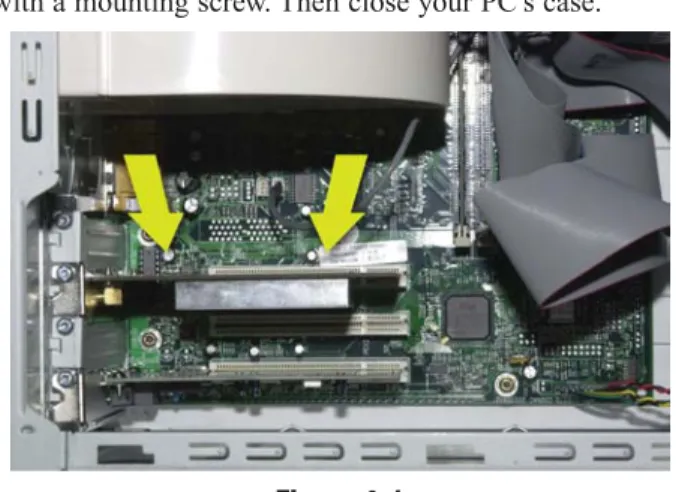
3. Slide the Adapter into the PCI slot. Make sure that all of its pins are touch-ing the slot’s contacts. You may have to apply a bit of pressure to slide the Adapter all the way in. (See Figure 4-1.)
4. After the Adapter is set firmly in place, secure its fastening tab to your PC’s chassis with a mounting screw. Then close your PC’s case.
Windows 98SE, Me, and 2000 users: Go to Chapter 5: Software Installation and Configuration for Windows 98SE, Me, and 2000.
Figure 4-1
Overview
Instant Wireless®Series Wireless-B PCI Adapter
2. Windows will notify you that the driver has not passed Windows Logo test-ing (See Figure 4-4.) Click the Continue Anywaybutton.
Figure 4-3
5. Attach the external antenna to the Adapter’s antenna port, as shown in Figure 4-2.
6. Power on your desktop PC.
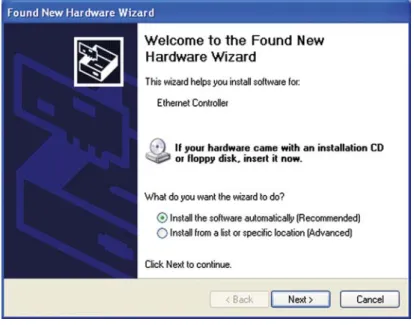
1. Windows XP will automatically detect the Adapter and Figure 4-3 will appear. Insert the Setup Wizard CD-ROM into your CD-ROM drive. Click the radio button next to Install the software automatically (Recommended). Then click the Next button.
Figure 4-2
Important:Make sure the antenna is positioned straight up into the air, at a 90º angle from the Adapter (see Figure 5-2). This will ensure optimum wireless operating range and performance.
Driver Installation for Windows XP
Important for Windows XP users:Do NOTrun the Wireless-B PCI Adapter Setup Wizard. If the Setup Wizard runs automatically after the Setup Wizard CD-ROM has been inserted, click the Exit tab.
1. After installing the Adapter, the Windows XP Wireless Zero Configuration icon will appear in your comput-er’s system tray (see Figure 4-7). Double-click the icon.
2. The screen that appears will show any available wireless network. Select the network you want.
If this network has WEP encryption enabled, go to step 3. If this network does not have WEP encryption enabled, then the screen in Figure 4-8 will appear. Check the box next to Allow me to connect to the selected wireless network, even though it is not secure. Then click the Connect button and go to step 4.
Windows XP Wireless Zero Configuration
Important for Windows XP users:Windows XP has a built-in con-figuration tool. Use the Windows XP Wireless Zero Concon-figuration (in the system tray at the bottom of your screen) to configure the Adapter.
Figure 4-7
Figure 4-8
Note:Steps 2 and 3 are instructions and screenshots for Windows XP with Service Pack 1 installed. If you have not installed Service Pack 1, select the network you want, and click the Connect button. If the network has WEP encryption enabled, enter the WEP key in the
Network keyfield, and then click the Connectbutton. 3. The screen in Figure 4-5 may appear while the files are being copied.
4. After Windows has finished installing the driver, click the Finishbutton from the screen shown in Figure 4-6.
The driver installation is complete. To configure the Adapter, proceed to the next section, “Windows XP Wireless Zero Configuration.”
Figure 4-5
Instant Wireless®Series Wireless-B PCI Adapter
Chapter 5: Software Installation
and Configuration for Windows
98SE, Me, and 2000
The Wireless-B PCI Adapter Setup Wizard will guide you through the installa-tion procedure for Windows 98SE, Me, and 2000. The Setup Wizard will install the WLAN Monitor and Device Driver, as well as configure the Adapter.
Insert the Setup Wizard CD-ROM into your CD-ROM drive. The Setup Wizard should run automatically, and Figure 5-1 should appear. If it does not, click the Start button and choose Run. In the field that appears, enter D:\setup.exe(where “D” is the letter of your CD-ROM drive).
Important for Windows 98SE, Me, and 2000 users:You must run the Setup Wizard to install the software before installing the hardware.
Figure 5-1
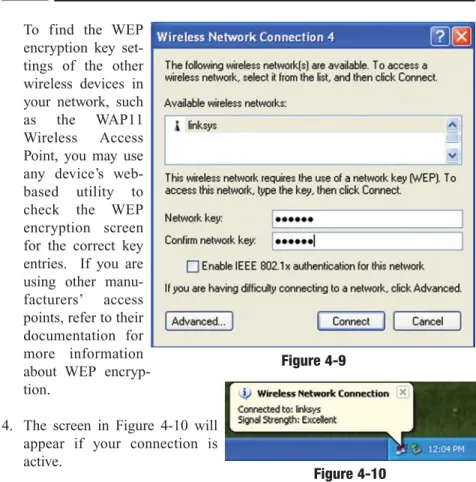
3. The screen in Figure 4-9 will appear. Enter the WEP key of your wireless network in the Network keyfield, and re-enter it in the Confirm network key
field. Click the Connect button.
To find the WEP encryption key set-tings of the other wireless devices in your network, such as the WAP11 Wireless Access Point, you may use any device’s web-based utility to check the WEP encryption screen for the correct key entries. If you are using other manu-facturers’ access points, refer to their documentation for more information about WEP encryp-tion.
4. The screen in Figure 4-10 will appear if your connection is active.
For more information about WEP, refer to your access point’s user guide, or visit www.linksys.com.
For more information about wireless networking on a Windows XP computer, click Start and then Help and Support. Enter the keyword wireless in the field provided, and press the Enterkey.
Congratulations! The installation of the Wireless-B PCI Adapter is complete.
Figure 4-9
Note:Windows XP does not support the use of a passphrase. Enter the exact WEP key used by your access point.
3. The Setup Wizard will ask you to choose a wireless mode, as shown in Figure 5-3. Click the Infrastructure Moderadio button if you want your wireless computers to network with computers on your wired network using a wireless access point. Click the Ad-Hoc Moderadio button if you want multiple wireless computers to network directly with each other. Do not use the Ad-Hoc mode if you want your wireless computers to communicate with computers on your wired network.
In the SSIDfield, enter the SSIDof your wireless network. The SSID must be identical for all devices in the network. The default setting is linksys (all lowercase). Click the Nextbutton.
Figure 5-3
• Install- Click the Install button to begin the software installation process. • User Guide- Click the User Guidebutton to open the PDF file of this User
Guide.
• Exit- Click the Exitbutton to exit the Setup Wizard.
1. To install the Adapter, click the Installbutton on theWelcomescreen. 2. After reading the License Agreement, shown in Figure 5-2, click the Next
button if you agree, or click the Cancelbutton to end the installation.
Wireless-B PCI Adapter Instant Wireless®Series
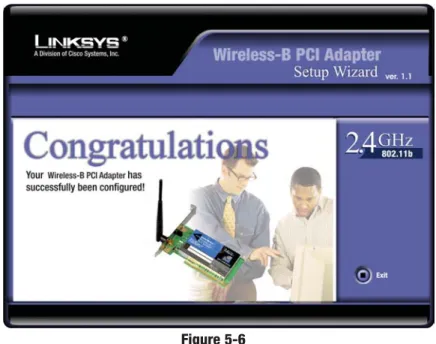
6. After the files have been successfully copied, the screen in Figure 5-6 will appear. Click the Finishbutton.
Proceed to “Chapter 6: Hardware Installation for Windows 98SE, Me, and 2000.”
Figure 5-6
4. If you chose Infrastructure Mode,go to Step 5now. If you chose Ad-Hoc Mode, , as shown in Figure 5-4, select the correct operating channel for your network. The channel you choose should match the channel set on the other devices in your wireless network. Click the Nextbutton, and go to Step 5.
5. The screen shown in Figure 5-5 will ask you to review your settings before it starts to copy files. Click the Nextbutton to save these settings, or click the Backbutton to change any settings.
Figure 5-4
5. Attach the external antenna to the Adapter’s antenna port, as shown in Figure 6-2.
5. Power on your desktop PC.
After the Adapter has been physically connected to your computer, Windows will detect the new hardware.
Windows will begin installing the driver files in your operating system. If Windows asks you for the original Windows CD-ROM, insert the CD-ROM, and direct Windows to the proper location for the CD-ROM (e.g., D:\).
Congratulations! The installation of the Wireless-B PCI Adapter is complete.
If you want to check the link information, search for available wireless networks, or make additional configuration changes, proceed to “Chapter 7: Using the WLAN Monitor for Windows 98SE, Me, and
2000.”
Figure 6-2
Hardware Detection for Windows 98SE, Me, and 2000
Important:Make sure the antenna is positioned straight up into the air, at a 90º angle from the Adapter (see Figure 5-2). This will ensure optimum wireless operating range and performance.
Chapter 6: Hardware Installation
for Windows 98SE, Me, and 2000
1. Remove any CDs or disks from their drives, and turn off your desktop PC. 2. Open your PC’s case, and locate an available PCI slot on the motherboard.
Check with your computer manufacturer for instructions.
3. Slide the Adapter into the PCI slot, as shown in Figure 6-1. Make sure that all of its pins are touching the slot’s contacts. You may have to apply a bit of pressure to slide the Adapter all the way in.
4. After the Adapter is set firmly in place, secure its fastening tab to your PC’s chassis with a mounting screw. Then close your PC’s case.
Make sure that you do Chapter 5 and install the software with the Setup Wizard before you install the hardware.
Wireless-B PCI Adapter
The Link Informationscreen (Figure 7-3) shows you the settings of your cur-rent connection.
TCP/IP Setting
IP Address- The IP Address of the Adapter. Subnet Mask- The Subnet Mask of the Adapter.
Default Gateway- The Default Gateway address of the Adapter. DNS- The DNS address of the Adapter.
DHCP- The status of the DHCP client. Wireless Network Status
State- The status of the wireless network connection. SSID- The SSID of the wireless network.
Network Type- The wireless mode currently in use.
Transfer Rate- The data transfer rate of the current connection. Channel- The channel to which the wireless network devices are set. WEP- The status of the WEP encryption security feature.
MAC- The MAC address of the wireless network’s access point.
Signal Strength- The Signal Strength bar indicates signal strength, from 0 to 100%.
Link Quality- The Link Quality bar indicates the quality of the wireless net-work connection, from 0 to 100%.
Click the X (Close) button in the upper right corner to exit the WLAN Monitor.
Instant Wireless®Series
Link Information
Figure 7-3
Chapter 7: Using the WLAN Monitor
for Windows 98SE, Me, and 2000
Use the WLAN Monitor to check the link information, search for available wireless networks, or make additional configuration changes.
After installing the Adapter, the Wireless-B PCI Adapter WLAN Monitor icon will appear in your system tray. Double-click the icon (see Figure 7-1).
The Link Informationscreen will appear, displaying the settings for your cur-rent wireless connection. To search for available wireless networks, click the Site Surveytab. To perform configuration changes, click the Profilestab.
Figure 7-1
Figure 7-2
Important for Windows XP users: Windows XP has a built-in configuration tool. Use the Windows XP Wireless Zero Configuration (in the system tray at the bottom of your screen) to configure the Adapter. See “Chapter 6: Driver Installation and Configuration for Windows XP.”
Starting the WLAN Monitor Overview
Connect- To connect to one of the networks on the list, select the wireless net-work,and click the Connect button to connect. If the wireless network has WEP encryption enabled, you will see the screen shown in Figure 7-5.
In the WEP drop-down box, select the type of WEP encryption used by the wireless network: 64-bitor 128-bit WEP.
If the wireless network uses a passphrase, enter the passphrase in the
Passphrasefield. If the wireless network uses a WEP key, enter the WEP key in the Key 1field.
Click the OKbutton to complete the network connection and return to the Site Surveyscreen, or click the Cancelbutton to cancel the network connection and return to the Site Surveyscreen.
On the Site Surveyscreen, click the X (Close) button in the upper right corner to exit the WLAN Monitor.
Figure 7-5
The Site Surveyscreen, shown in Figure 7-4, displays a list of infrastructure and ad-hoc networks available for connection.
SSID- The SSID of the wireless network.
Signal- The percentage of signal strength, from 0 to 100%. Site Information
Network Type- The wireless mode currently in use.
Channel- The channel to which the wireless network devices are set. WEP- The status of the WEP encryption security feature.
MAC- The MAC address of the wireless network’s access point. Surveyed at - The time at which the wireless network was scanned.
Refresh - Click the Refresh button to perform a new search for wireless devices.
Figure 7-4
Wireless-B PCI Adapter
• Import- Click the Importbutton to import a profile that has been saved in another location. Select the appropriate file, and click the Open button.
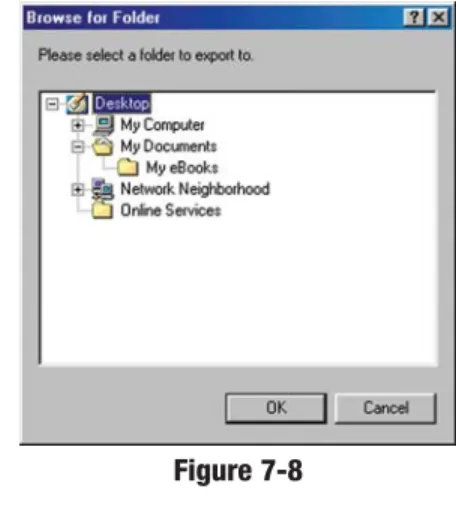
• Export - Select the profile you want to save in a different location, and click the Export button. Direct Windows to the appropriate folder, and click the OKbutton.
• Delete - Click the Deletebutton to delete a profile.
Click the X (Close) button in the upper right corner to exit the WLAN Monitor.
Instant Wireless®Series
Figure 7-7
Figure 7-8
Note:If you want to export more than one profile, you have to export them one at a time.
The Profiles screen lets you save different configuration profiles for different network setups. You can also import or export profiles. The default profile holds the initial configuration saved when you installed the Adapter.
Profile- Name of the connection profile.
SSID- The wireless network’s SSID, as set in the connection profile. Profile Information
Network Type- The wireless mode currently in use.
Transfer Rate - The data transfer rate of the current connection: 1Mbps,
2Mbps, 1 or 2Mbps, 5.5Mbps, 11Mbps, or Auto (in Auto mode, the Adapter dynamically shifts to the fastest data transfer rate possible at any given time). Channel- The channel to which the wireless network devices are set. WEP- The status of the WEP encryption security feature.
Connect- To connect to a wireless network using a specific profile, select the profile,and click the Connectbutton. If the wireless network has WEP encryp-tion enabled, you will see the screen shown in Figure 7-7.
Edit- Select a profile, and click the Editbutton to change an existing profile. New - Click the New button to create a new profile. See the next section, “Creating a New Profile.”
Figure 7-6
1. On the Profilesscreen, shown in Figure 7-6, click the Newbutton to create a new profile.
2. When the Create connection pro-file screen appears (Figure 7-9), enter a name for the new profile. Click OK to save the profile name or click Cancelto return to the previous screen.
3. The Wireless Mode screen (Figure 7-10) shows a choice of two wireless modes. Click the Infrastructure Moderadio button if you want your wire-less computers to communicate with computers on your wired network via a wireless access point. Click the Ad-Hoc Moderadio button if you want multiple wireless computers to communicate directly with each other. Click the Nextbutton to continue or the Backbutton to return to the previous screen.
Infrastructure Mode - This mode allows wireless and wired networks to communicate through an access point.
Ad-Hoc Mode - This mode allows wireless-equipped computers to com-municate directly with each other. No access point is used.
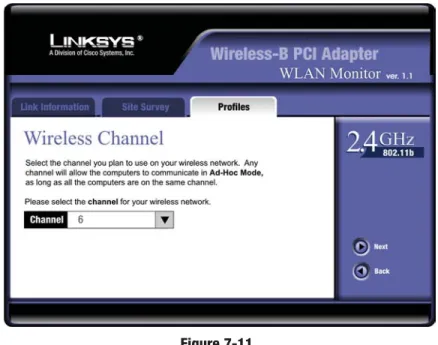
4. The Wireless Channel screen (Figure 7-11) will appear. If you chose Infrastructure Mode, go to Step 5now. If you chose Ad-Hoc Mode, select the correct operating channel for your network from the Channel drop-down menu. Click the Nextbutton, and go to Step 5. Click the Back but-ton to change any settings.
Channel - The channel you choose should match the channel set on the other devices in your wireless network. If you are unsure about which chan-nel to use, select the default chanchan-nel (Chanchan-nel 6).
Figure 7-11
Creating a New Profile
Figure 7-9
Wireless-B PCI Adapter Instant Wireless®Series
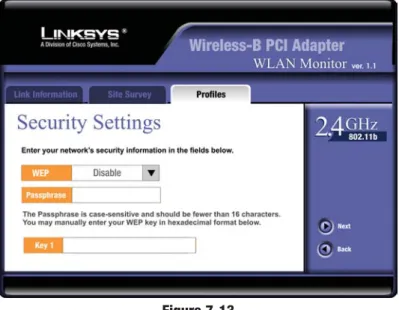
6. The Security Settingsscreen (Figure 7-13) will appear. Enable or disable Wired Equivalent Privacy (WEP) encryption for your wireless network. If you enable WEP, enter a Passphrase or WEP key. Click the Nextbutton to continue or the Backbutton to return to the previous screen.
WEP (Disabled/64-bit WEP/128-bit WEP) - If you do not want to use WEP encryption, choose Disabled. To use WEP encryption (recommended to increase network security), select 64-bitor 128-bit WEPfrom the drop-down menu, and enter either a Passphrase or WEP key.
Passphrase - Instead of manually entering WEP keys, you can enter a Passphrase, so that a WEP key is automatically generated. It is case-sensi-tive and should not be longer than 16 alphanumeric characters. This passphrase must match the passphrase of your wireless network and is com-patible with other Linksys wireless products only. (If you have any non-Linksys wireless products, enter the WEP key(s) manually on those prod-ucts.)
Key 1 - This WEP key must match the WEP key of your wireless network. If you are using 64-bit WEP encryption, then the key must consist of exact-ly 10 hexadecimal characters. If you are using 128-bit WEP encryption, then the key must consist of exactly 26 hexadecimal characters. Valid hexa-decimal characters are “0” to “9” and “A” to “F”.
Figure 7-13
5. The Network Settingscreen (Figure 7-12) will appear.
If your network has a DHCP server, click the radio button next to Obtain an IP address automatically (DHCP). Click the Nextbutton to continue, or click the Backbutton to return to the previous screen.
If your network does not have a DHCP server, click the radio button next to Specify the IP address. Enter an IP Address, Subnet Mask, Default Gateway, and DNSappropriate for your network. Enter each address in this format: xxx.xxx.xxx.xxx (the x’s represent the numbers that make up each address). You must specify the IP Address and Subnet Mask on this screen. If you are unsure about the Default Gateway and DNS addresses, then leave these fields alone.
IP Address - This IP Address must be unique to your network.
Subnet Mask - The Adapter’s Subnet Mask must be the same as your wired network’s Subnet Mask.
Default Gateway - Enter the IP address of your network’s Gateway here. DNS - Enter the DNS addresses of your Ethernet (wired) network here. Click the Nextbutton to continue or the Backbutton to return to the previ-ous screen.
Appendix A: Troubleshooting
This chapter provides solutions to problems that may occur during the installa-tion and operainstalla-tion of the Wireless-B PCI Adapter. Read the descripinstalla-tions below to solve your problems. If you can’t find an answer here, check the Linksys website at www.linksys.com.
1. The Wireless-B PCI Adapter does not work properly.
• Reinsert the Adapter into the PC’s PCI slot.
• For Windows 98 or Me, right-click My Computer, and select Properties. Select the Device Manager tab, and select the Adapter. You will find the Adapter if it has been installed successfully. If you see a yellow exclamation mark, the resources may be in conflict, and you must follow the steps below: • Uninstall the driver software from your PC.
• Restart your PC and repeat the hardware and software installation as spec-ified in this User Guide.
2. I cannot communicate with a wired computer linked via an access point in the infrastructure configuration.
• Make sure that the notebook or desktop PC is powered on.
• Make sure that the Wireless-B PCI Adapter is configured with the same channel, SSID, and WEP encryption as the other computers in the infra-structure LAN.
Can I run an application from a remote computer over the wireless network?
This will depend on whether or not the application is designed to be used over a network. Consult the application’s user guide to determine if it supports oper-ation over a network.
Can I play computer games with other members of the wireless network?
Yes, as long as the game supports multiple players over a LAN (local area net-work). Refer to the game’s user guide for more information.
What is the IEEE 802.11b standard?
It is one of the IEEE standards for wireless networks. The 802.11b standard allows wireless networking hardware from different manufacturers to commu-nicate, provided that the hardware complies with the 802.11b standard. The
Common Problems and Solutions
Frequently Asked Questions
7. The Confirm New Settings screen (Figure 7-14) will appear. If these set-tings are correct, click Yes. If they are not, click No.
8. The Congratula-tions screen (Figure 7-15) will appear next. Click Activate new settings nowto implement the new settings immediately and finish the WLAN Monitor.
Click Activate new settings laterto keep the current settings active, and return to the Profilesscreen so that you can edit your profile or create another profile.
You have successfully created a connection profile. Click the X (Close) button in the upper right corner to exit the WLAN Monitor.
Figure 7-14
Wireless-B PCI Adapter Instant Wireless®Series
As the user moves on, the end node’s RF transmitter regularly checks the sys-tem to determine whether it is in touch with the original access point or whether it should seek a new one. When a node no longer receives acknowledgment from its original access point, it undertakes a new search. Upon finding a new access point, it then re-registers, and the communication process continues.
What is ISM band?
The FCC and their counterparts outside of the U.S. have set aside bandwidth for unlicensed use in the ISM (Industrial, Scientific and Medical) band. Spectrum in the vicinity of 2.4 GHz, in particular, is being made available worldwide. This presents a truly revolutionary opportunity to place convenient high-speed wireless capabilities in the hands of users around the globe.
What is Spread Spectrum?
Spread Spectrum technology is a wideband radio frequency technique devel-oped by the military for use in reliable, secure, mission-critical communica-tions systems. It is designed to trade off bandwidth efficiency for reliability, integrity, and security. In other words, more bandwidth is consumed than in the case of narrowband transmission, but the trade-off produces a signal that is, in effect, louder and thus easier to detect, provided that the receiver knows the parameters of the spread-spectrum signal being broadcast. If a receiver is not tuned to the right frequency, a spread-spectrum signal looks like background noise. There are two main alternatives, Direct Sequence Spread Spectrum (DSSS) and Frequency Hopping Spread Spectrum (FHSS).
What is DSSS? What is FHSS? And what are their differences?
Frequency-Hopping Spread-Spectrum (FHSS) uses a narrowband carrier that changes frequency in a pattern that is known to both transmitter and receiver. Properly synchronized, the net effect is to maintain a single logical channel. To an unintended receiver, FHSS appears to be short-duration impulse noise. Direct-Sequence Spread-Spectrum (DSSS) generates a redundant bit pattern for each bit to be transmitted. This bit pattern is called a chip (or chipping code). The longer the chip, the greater the probability that the original data can be recovered. Even if one or more bits in the chip are damaged during trans-mission, statistical techniques embedded in the radio can recover the original data without the need for retransmission. To an unintended receiver, DSSS appears as low power wideband noise and is rejected (ignored) by most nar-rowband receivers.
Would the information be intercepted while transmitting on air?
WLAN features two-fold protection in security. On the hardware side, as with Direct Sequence Spread Spectrum technology, it has the inherent security fea-802.11b standard states a maximum data transfer rate of 11Mbps and an
oper-ating frequency of 2.4GHz.
What IEEE 802.11b features are supported?
The product supports the following IEEE 802.11b functions: • CSMA/CA plus Acknowledge protocol
• Multi-Channel Roaming • Automatic Rate Selection • RTS/CTS feature
• Fragmentation • Power Management
What is ad-hoc mode?
When a wireless network is set to ad-hoc mode, the wireless-equipped com-puters are configured to communicate directly with each other. The ad-hoc wireless network will not communicate with any wired network.
What is infrastructure mode?
When a wireless network is set to infrastructure mode, the wireless network is configured to communicate with a wired network through a wireless access point.
What is roaming?
Roaming is the ability of a portable computer user to communicate continu-ously while moving freely throughout an area greater than that covered by a sin-gle access point. Before using the roaming function, the workstation must make sure that it is the same channel number with the access point of dedicated cov-erage area.
To achieve true seamless connectivity, the wireless LAN must incorporate a number of different functions. Each node and access point, for example, must always acknowledge receipt of each message. Each node must maintain contact with the wireless network even when not actually transmitting data. Achieving these functions simultaneously requires a dynamic RF networking technology that links access points and nodes. In such a system, the user’s end node under-takes a search for the best possible access to the system. First, it evaluates such factors as signal strength and quality, as well as the message load currently being carried by each access point and the distance of each access point to the wired backbone. Based on that information, the node next selects the right access point and registers its address. Communications between end node and host computer can then be transmitted up and down the backbone.
ture of scrambling. On the software side, WLAN offers the encryption function (WEP) to enhance security and access control.
Can Instant Wireless products support printer sharing?
Instant Wireless products perform the same function as LAN products. Therefore, Instant Wireless products can work with NetWare, Windows NT/2000, or other network operating systems to support printer or file sharing.
What is WEP?
WEP is Wired Equivalent Privacy, a data privacy mechanism based on a 40/104 bit shared key algorithm, as described in the IEEE 802.11 standard.
Appendix B: Glossary
802.11b - One of the IEEE standards for wireless networking hardware. Products that adhere to a specific IEEE standard will work with each other, even if they are manufactured by different companies. The 802.11b standard specifies a maximum data transfer rate of 11Mbps, an operating frequency of 2.4GHz, and WEP encryption for security. 802.11b networks are also referred to as Wi-Fi networks.
Ad-hoc Network - An ad-hoc network is a group of computers, each with a wireless adapter, connected as an independent 802.11 wireless LAN. Ad-hoc wireless computers operate on a peer-to-peer basis, communicating directly with each other without the use of an access point. Ad-hoc mode is also referred to as an Independent Basic Service Set (IBSS) or as peer-to-peer mode, and is useful at a departmental scale or SOHO operation.
CTS(Clear To Send) - An RS-232 signal sent from the receiving station to the transmitting station that indicates it is ready to accept data.
Default Gateway- The router used to forward all traffic that is not addressed to a station within the local subnet.
DHCP(Dynamic Host Configuration Protocol) - A protocol that lets network administrators manage centrally and automate the assignment of Internet Protocol (IP) addresses in an organization’s network. Using the Internet’s set of protocol (TCP/IP), each machine that can connect to the Internet needs a unique IP address. When an organization sets up its computer users with a con-nection to the Internet, an IP address must be assigned to each machine. Without DHCP, the IP address must be entered manually at each computer and, if computers move to another location in another part of the network, a new IP address must be entered. DHCP lets a network administrator supervise and dis-tribute IP addresses from a central point and automatically sends a new IP address when a computer is plugged into a different place in the network. DHCP uses the concept of a “lease” or amount of time that a given IP address will be valid for a computer. The lease time can vary depending on how long a user is likely to require the Internet connection at a particular location. It’s espe-cially useful in education and other environments where users change fre-quently. Using very short leases, DHCP can dynamically reconfigure networks in which there are more computers than there are available IP addresses.
Wireless-B PCI Adapter Instant Wireless®Series
LAN. In infrastructure mode, the wireless devices communicate with each other and to a wired network by first going through an access point. An infra-structure wireless network connected to a wired network is referred to as a Basic Service Set (BSS). A set of two or more BSS in a single network is referred to as an Extended Service Set (ESS). Infrastructure mode is useful at a corporation scale, or when it is necessary to connect the wired and wireless networks.
IP Address- In the most widely installed level of the Internet Protocol (IP) today, an IP address is a 32-binary digit number that identifies each sender or receiver of information that is sent in packet across the Internet. When you request an HTML page or send e-mail, the Internet Protocol part of TCP/IP includes your IP address in the message (actually, in each of the packets if more than one is required) and sends it to the IP address that is obtained by looking up the domain name in the Uniform Resource Locator you requested or in the e-mail address you're sending a note to. At the other end, the recipient can see the IP address of the Web page requester or the e-mail sender and can respond by sending another message using the IP address it received.
IPCONFIG- A utility that provides for querying, defining and managing IP addresses within a network. A commonly used utility, under Windows NT and 2000, for configuring networks with static IP addresses.
ISP- An ISP (Internet service provider) is a company that provides individuals and companies access to the Internet and other related services such as Web site building and virtual hosting.
LAN- A local area network (LAN) is a group of computers and associated devices that share a common communications line and typically share the resources of a single processor or server within a small geographic area (for example, within an office building).
MAC Address- The MAC (Media Access Control) address is your computer’s unique hardware number.
mIRC - mIRC runs under Windows and provides a graphical interface for log-ging onto IRC servers and listing, joining and leaving channels.
Network Mask- also known as the “Subnet Mask.”
Plug-and-Play - The ability of a computer system to configure expansion boards and other devices automatically without requiring the user to turn off the system during installation.
DHCP supports static addresses for computers containing Web servers that need a permanent IP address.
DNS- The domain name system (DNS) is the way that Internet domain name are located and translated into Internet Protocol (IP) addresses. A domain name is a meaningful and easy-to-remember “handle” for an Internet address. DSSS (Direct-Sequence Spread Spectrum) - DSSS generates a redundant bit pattern for all transmitted data. This bit pattern is called a chip (or chipping code). Even if one or more bits in the chip are damaged during transmission, statistical techniques embedded in the receiver can recover the original data without the need for retransmission. To an unintended receiver, DSSS appears as low power wideband noise and is rejected (ignored) by most narrowband receivers. However, to an intended receiver (i.e. another wireless LAN end-point), the DSSS signal is recognized as the only valid signal, and interference is inherently rejected (ignored).
Dynamic IP Address- An IP address that is automatically assigned to a client station in a TCP/IP network, typically by a DHCP server. Network devices that serve multiple users, such as servers and printers, are usually assigned static IP addresses.
ESS (Extended Service Set) - A set of more than two or more BSSs (multiple access points) forming a single network.
Firmware - Code that is written onto read-only memory (ROM) or program-mable read-only memory (PROM). Once firmware has been written onto the ROM or PROM, it is retained even when the device is turned off.
IEEE - The Institute of Electrical and Electronics Engineers. The IEEE describes itself as “the world’s largest technical professional society—promot-ing the development and application of electrotechnology and allied sciences for the benefit of humanity, the advancement of the profession, and the well-being of our members.”
The IEEE fosters the development of standards that often become national and international standards. The organization publishes a number of journals, has many local chapters, and several large societies in special areas, such as the IEEE Computer Society.
Infrastructure Network- An infrastructure network is a group of computers or other devices, each with a wireless adapter, connected as an 802.11 wireless
cient delivery over the network. UDP is known as a “connection-less” protocol due to NOT requiring the receiver of a packet to return an acknowledgment of receipt to the sender of the packet (as opposed to TCP).
WEP(Wired Equivalent Privacy) - A data privacy mechanism based on a 64-bit shared key algorithm, as described in the IEEE 802.11b standard.
WINIPCFG - Configuration utility based on the Win32 API for querying, defining and managing IP addresses within a network. A commonly used util-ity under Windows 95, 98, and Me.
WLAN(Wireless Local Area Network) - A group of computers and associat-ed devices that communicate with each other wirelessly.
Roaming - In an infrastructure mode wireless network, this refers to the abili-ty to move out of one access point's range and into another and transparently reassociate and reauthenticate to the new access point. This reassociation and reauthentication should occur without user intervention and ideally without interruption to network connectivity. A typical scenario would be a location with multiple access points, where users can physically relocate from one area to another and easily maintain connectivity.
SSID (Service Set Identifier) - An identification name that wireless devices use to make connections. In order for wireless devices to communicate, they must all be set to the same channel and they all must use the same SSID. For instance, if you are using an access point to connect two computers using wire-less devices, the access point and each of the wirewire-less devices must use the same SSID. Even if they are set to the same channel, they cannot communicate unless the SSID is the same.
Static IP Address - A permanent IP address that is assigned to a node in a TCP/IP network.
Subnet Mask- The method used for splitting IP networks into a series of sub-groups, or subnets. The mask is a binary pattern that is matched up with the IP address to turn part of the host ID address field into a field for subnets. TCP(Transmission Control Protocol) - A method (protocol) used along with the IP (Internet Protocol) to send data in the form of message units (datagram) between network devices over a LAN or WAN. While IP takes care of handling the actual delivery of the data (routing), TCP takes care of keeping track of the individual units of data (called packets) that a message is divided into for effi-cient delivery over the network. TCP is known as a "connection oriented" pro-tocol due to requiring the receiver of a packet to return an acknowledgment of receipt to the sender of the packet resulting in transmission control.
TCP/IP (Transmission Control Protocol/Internet Protocol) - The basic com-munication language or set of protocols for comcom-munications over a network (developed specifically for the Internet). TCP/IP defines a suite or group of protocols and not only TCP and IP.
UDP(User Datagram Protocol) - A method (protocol) used along with the IP (Internet Protocol) to send data in the form of message units (datagram) between network devices over a LAN or WAN. While IP takes care of handling the actual delivery of the data (routing), UDP takes care of keeping track of the individual units of data (called packets) that a message is divided into for
effi-Wireless-B PCI Adapter
Dimensions
4.80" x 4.76" x 0.75" (122 mm x 121 mm x 19 mm)Unit Weight
3.88 oz. (0.11 kg)Power
3.3 or 5V DCCertifications
FCC Class B, IC-03Operating Temp.
32ºF to 131ºF (0ºC to 55ºC)Storage Temp.
-4ºF to 158ºF (-20ºC to 70ºC)Operating Humidity
0% to 90%, Non-CondensingStorage Humidity
0% to 95%, Non-CondensingInstant Wireless®Series
Environmental
Appendix C: Specifications
Model Number
WMP11Standards
IEEE 802.11bChannels
11 Channels (USA)
13 Channels (Europe)
14 Channels (Japan)
Port
One AntennaTransmit
19 dBmReceive Sensitivity
-82 dBmModulation
BPSK, QPSK, CCKNetwork Protocols
IPX/SPX, TCP/IP, NetBEUIAppendix E: Contact Information
For help with the installation or operation of the Wireless-B PCI Adapter, con-tact Linksys Technical Support at one of the phone numbers or Internet addresses below.Sales Information 800-546-5797 (LINKSYS) Technical Support 800-326-7114
RMA (Return Merchandise
Authorization) Issues www.linksys.com (or call 949-271-5461)
Fax 949-265-6655
Email [email protected]
Web http://www.linksys.com
FTP Site ftp.linksys.com
Appendix D: Warranty Information
BE SURE TO HAVE YOUR PROOF OF PURCHASE AND A BARCODE FROM THE PRODUCT’S PACKAGING ON HAND WHEN CALLING. RETURN REQUESTS CANNOT BE PROCESSED WITHOUT PROOF OF PURCHASE.
IN NO EVENT SHALL LINKSYS’ LIABILITY EXCEED THE PRICE PAID FOR THE PRODUCT FROM DIRECT, INDIRECT, SPECIAL, INCIDEN-TAL, OR CONSEQUENTIAL DAMAGES RESULTING FROM THE USE OF THE PRODUCT, ITS ACCOMPANYING SOFTWARE, OR ITS DOCU-MENTATION. LINKSYS DOES NOT OFFER REFUNDS FOR ANY PROD-UCT.
LINKSYS OFFERS CROSS SHIPMENTS, A FASTER PROCESS FOR PRO-CESSING AND RECEIVING YOUR REPLACEMENT. LINKSYS PAYS FOR UPS GROUND ONLY. ALL CUSTOMERS LOCATED OUTSIDE OF THE UNITED STATES OF AMERICA AND CANADA SHALL BE HELD RESPONSIBLE FOR SHIPPING AND HANDLING CHARGES. PLEASE CALL LINKSYS FOR MORE DETAILS.
© Copyright 2003 Linksys, All Rights Reserved.