Copy Controller
Copyright © 2007 ACARD Technology Corp. Release: November 2007
User’s Manual
Attention:
Wait over 5 seconds to power on after shutdown to prevent the abnormal operation of the system.
The information in this manual is subject to change without prior notice and does not represent a commitment on the part of vendor, who assumes no liability or re-sponsibility for any errors that may appear in this manual.
ACARD is the trademark of ACARD Technology Corp.
This manual contains materials protected under International Copyright Laws. All rights reserved. No part of this manual may be reproduced, transmitted or transcribed without the expressed written permission of the manufacturer and author of this manual.
ACARD’s ARS-2039A Copy Controller is used for copying and editing personal audio and video data. Violating Copy Right is a criminal act. ACARD's Copy Con-troller only supports legal backup operation.
Chapter 1 Introduction ... 6
1.1 Overview ... 6
1.2 Features ... 6
1.3 Specifications ... 7
1.4 System Requirement ... 7
Chapter 2 Hardware Installation... 8
2.1 Copy Controller Only ... 8
2.2 A Whole System ... 8
2.3 A System without DVD Drives ... 8
2.4 Install ARS-2039A ... 9
2.5 The Board Layout ... 12
Chapter 3 Basic Instructions ...13
3.1 Buttons and LCD ... 14
3.2 About HDD Installation ... 14
3.2.1 With a HDD ... 14
3.2.2 Without a HDD ... 15
Chapter 4 Functions...16
4.1 Copy ... 19
4.2 Test & Copy ... 20
4.3 Prescan ... 21
4.4 Disc Info ... 21
4.5 Select Source ... 22
4.6 Image ... 23
4.6.1 Load ... 23
4.6.2 Delete Image ... 25
4.6.3 Image Info ... 25
4.6.4 Compare Image ... 25
4.6.5 Select Image ... 27
4.6.6 Image Src Drive ... 27
4.7 Setup ... 30
4.7.1 Language ... 31
4.7.2 CD Burn Speed ... 31
4.7.3 DVD Burn Speed... 32
4.7.4 Read Speed ... 32
4.7.5 Auto Start Drive ... 33
4.7.6 Startup Menu ... 33
4.7.7 Auto Verify ... 34
4.7.8 Auto Compare ... 35
4.7.9 Burn On The Fly ... 35
4.7.10 Burn Mode ... 36
4.7.11 Display Time ... 37
4.7.12 Button Sound ... 37
4.7.13 Device Info ... 38
4.7.14 System Info ... 39
4.7.15 Quick Erase ... 39
4.7.16 Full Erase ... 40
4.7.17 Auto Close Tray ... 41
4.7.18 Quick Compare ... 42
4.7.19 Audio Burn Speed... 43
4.8 Adv Setup ... 43
4.8.1 Overburn ... 44
4.8.2 Read Error Skip ... 44
4.8.3 Format HDD ... 45
4.8.4 Verify HDD ... 45
4.8.5 Burn-in ... 46
4.8.6 Update Firmware ... 47
4.8.7 Compare Firmware ... 48
4.8.8 H/W Diagnostic ... 48
4.8.9 Load Default ... 49
4.8.10 USB Option... 50
4.8.11 Auto Save Image ... 51
4.8.12 Update Drive F/W ... 52
5.2 About Error Messages ... 53
5.3 About DVD-ROM/DVD Writers ... 53
5.4 About Buttons ... 53
5.5 About DVD Writer Not Readable ... 54
5.6 About High Failure Rate ... 54
5.7 About Firmware Update ... 54
5.8 About Function 13 and Cancellation ... 54
Chapter 1 Introduction
ARS-2039A is a 1-to-9 copy controller supporting 16X DVD writers. Through the LCD and the 4 buttons on the panels, you can copy text, audio or video CD/DVD easily and quickly. It is fit for companies’ small amount of reproduction.
1.2 Features
l
Standalone IDE to IDE DVD copy controllerl
Totally independent without installing hardware or softwarel
Supports a 3.5” SATA hard drivel
Supports high-speed 1-to-9 DVD copyingl
A user-friendly interface with LCD showing messagel
Optional functions for applications1.1 Overview
Usually if you want to back up a lot of CD/DVDs, you have to boot the computer, and do the job via a recording program. It takes time to learn how to use the software and more time to execute the recording. In view of this, ACARD has launched ARS-2039A for you to copy discs without efforts.
ARS-2039A is a valuable product of technology. You can use it as a standalone copy controller.
1.3 Specifications
l
ACARD ARC810 CPUl
ACARD 866 IDE processorl
64MB DDR memoryl
10 independent IDE channelsl
One SATA channell
2×
16 LCDl
Four membraned buttons on the panell
512 KB flash memory for copy codel
Firmware update via DVD-ROMl
Power Voltage: 5V±5%, Current: 1.5A Maxl
Environment Operation: 0°C to 60°CNonoperation:
-20
°Cto 85°Cl
Humidity 15% to 90%l
Dimension D 225×
W 150×
H 42 mm1.4 System Requirement
l
Upright external case 11/12×
5.25”l
Power supply : 300 watt or abovel
ATA133 cable (35 cm)l
DVD-ROM×
1l
DVD writer×
9l
Hard drive (optional)Chapter 2 Hardware Installation
Before installing 2039A, notice that there are three kinds of packages: the copy controller only, a whole copying system and a system without DVD drives.
l
Unpack the package, and examine if there is any defect or malfunction.l
Prepare a 3.5” hard drive (optional).
l
Be sure that the wattage of power supply is sufficient.2.2 A Whole System
l
Unpack the package, and examine if there is any defect or malfunction.l
Prepare a DVD-ROM.l
Prepare 9 DVD writers.l
Prepare a 3.5” hard drive(optional).
l
Be sure that the wattage of power supply is sufficient.2.3 A System without DVD Drives
2.1 Copy Controller Only
l
Unpack the package, and examine if there is any defect or malfunction.l
Prepare a DVD-ROM.l
Prepare 9 DVD writers.l
Prepare a 3.5” hard drive (optional).l
All IDE devices are in Master mode.2.4 Install ARS-2039A
The installation of ARS-2039A with an IDE DVD-ROM and 9 IDE DVD writers.
DVD-ROM’s IDE connector DVD writers’ IDE connectors
1 2 3 6 5 4 7 8 9 DVD-ROM (Slave) DVD Writer DVD Writer DVD Writer DVD Writer DVD Writer DVD Writer DVD Writer DVD Writer DVD Writer LCD Copy Controller ARS-2039A
The installation ARS-2039A with a SATA hard drive, an IDE DVD-ROM and 9 IDE DVD writers.
Don’t connect writers to IDE bus 4 and 5 when 2039A is used as 1-to-7 model.
DVD-ROM’s IDE connector DVD writers’ IDE connectors
SATA HDD’s connector 1 2 3 6 5 4 7 8 9 DVD-ROM (Slave) DVD Writer DVD Writer DVD Writer DVD Writer DVD Writer DVD Writer DVD Writer DVD Writer DVD Writer LCD Copy Controller ARS-2039A SATA HDD
1 2 3 6 5 4 7 8 9 IDE HDD (Slave) DVD Writer DVD Writer DVD Writer DVD Writer DVD Writer DVD Writer DVD Writer DVD Writer DVD Writer LCD Copy Controller ARS-2039A SATA DVD-ROM
The following diagram and pictures indicate the installation of ARS-2039A Copy Controller with Hybrid Source. The controller could use either IDE or SATA HDD as copy source. 1 2 3 6 5 4 7 8 9 DVD-ROM (Slave) DVD Writer DVD Writer DVD Writer DVD Writer DVD Writer DVD Writer DVD Writer DVD Writer DVD Writer LCD Copy Controller ARS-2039A SATA HDD
Hybrid
2.5 The Board Layout
Control panel LCD
Writers SATA HDD DVD-ROM Power
Red
2-pin signal line
Chapter 3 Basic Instructions
3.1 Buttons and LCD
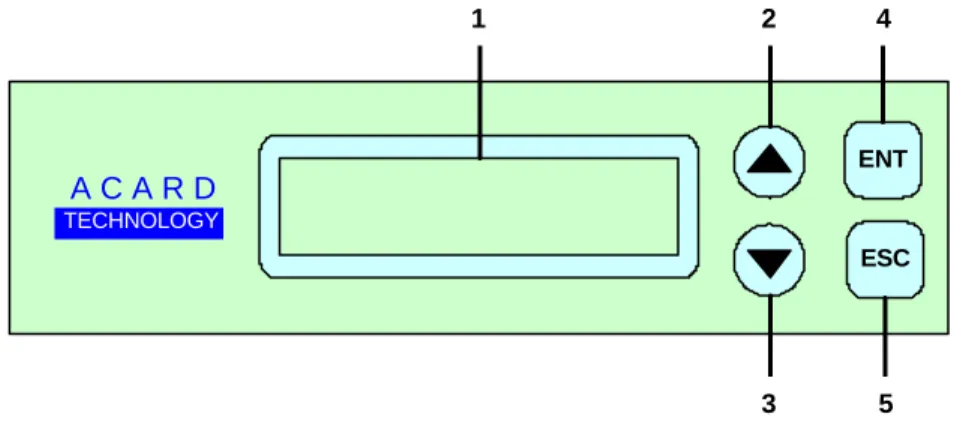
There are 4 membraned buttons and an LCD on the panel of ARS-2030A/2035A/ 2037P.
1. It shows all functions and messages.
2. It is used to scroll up through functions or menus. 3. It is used to scroll down through functions or menus. 4. It is used to execute a selected function.
5. It is used to cancel a selected function.
Here we take ARS-2037P to demonstrate.
Figure 1 shows the firmware version of ARS-2037P. Figure 2 shows that OS booting takes 20 seconds or so. It depends on how many writers you have installed.
OS booting...
1
1. 2.DVD Duplicator
2037P ver: 1.11S
ENT ESC A C A R D TECHNOLOGY 1 2 3 4 53.
1. Copy
3.2 About HDD Installation
HDD installation is not necessary, but with a hard disk you can use the function of Image. In other words, you have one more choice to reproduce a DVD from an image file stored in the hard drive. The following two subsections are about installing a 3.5” SATA hard drive and not installing respectively.
Figure 3 shows the first function Copy. There are 12 functions. You can press
▼
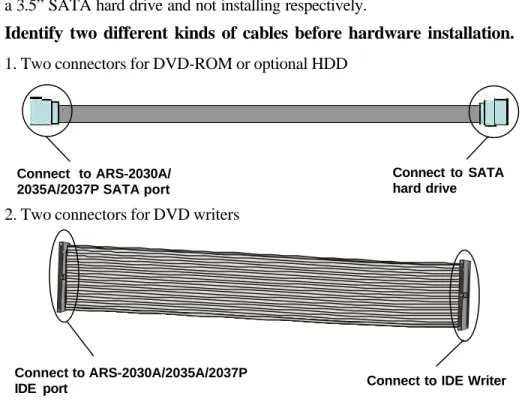
to see other functions.Identify two different kinds of cables before hardware installation.
1. Two connectors for DVD-ROM or optional HDD
2. Two connectors for DVD writers
Connect to ARS-2030A/ 2035A/2037P SATA port
Connect to SATA hard drive
Connect to ARS-2030A/2035A/2037P
IDE port Connect to IDE Writer
3.2.1 With a HDD
If you have installed a 3.5” SATA hard drive to your copy controller, you need to operate according to the following procedures.
3.2.2 Without a HDD
If you haven’t installed a 3.5” SATA hard drive to your copy controller, you need to operate according to the following procedures.
l
Place a source DVD into DVD-ROM.l
Switch to function 1 Copy by pressing▲
. Place blank DVDs into DVD writers, and press ENT to start copying.l
When copying comes to an end, the passed DVDs will eject automatically. The default is ejecting automatically, but you can change it.l
The failed DVDs will remain in the writers. The default is keeping failed DVDs in the writers, but you can change it. To take the failed DVDs you need to press the “eject” buttons on the writers.l
Once your copy controller detects the hard disk, it will ask if you want to format. A 30GB of hard drive can be divided into 6 partitions. In DVD a partition occupies 5GB, in CD 1GB and in DL 10GB.l
Use function 8 Select Source to set the hard drive as the source.l
In function 9 Image, select a partition to store the data.l
If there is no data in a selected partition, place a source DVD into DVD-ROM, and use function 9-01 Load to transmit data from DVD into the selected partition by pressing ENT. Different data can be stored in different partitions.l
Switch to function 1 Copy by pressing▲
. Place blank DVDs into DVD writers, and press ENT to start copying.l
When copying comes to an end, the passed DVDs will eject automatically. The default is ejecting automatically, but you can change it.l
The failed DVDs will remain in the writers. The default is keeping failed DVDs in the writers, but you can change it. To take the failed DVDs you need to press the “eject” buttons on the writers.l
During operation do not press any button on your copy controller, because interruption will harm the device, and DVDs will be damaged, too.Chapter 4 Functions
There are 8 major functions in the copy controller, and there are subfunctions in Function 6, 7, and 8 as the following figures show.
Copy Controller
1. Copy
2. Test & Copy 3. Prescan 4. Disc Info 5. Select Source 6. Image 7. Setup 8. Advanced Setup 6. Image 6.1 Load 6.2 Delete Image 6.3 Image Info 6.4 Compare Image 6.5 Select Image 6.6 Image Src Drive 6.7 Image Format Info
In Function 7 there are 19 subfunctions.
7.1 Language 7.2 CD Burn Speed 7.3 DVD Burn Speed 7.4 Read Speed 7.5 Auto Start Drive 7.6 Startup menu 7.7 Auto Verify 7.8 Auto Compare 7.9 Burn On the Fly 7.10 Burn Mode 7.11 Display Time 7.12 Button Sound 7.13 Device Info 7.14 System Info 7.15 Quick Erase 7.16 Full Erase 7.17 Auto Close Tray 7.18 Quick Compare
7.19 Audio Burn Speed
In Function 8 there are 12 subfunctions.
* This is a special function. See P. 50.
8.1 Overburn 8.2 Read Error Skip
8.3 Format HDD 8.4 Verify HDD 8.5 Burn-in 8.6 Update Firmware 8.7 Compare Firmware 8.8 H/W Diagnostic 8.9 Load Default 8.10 USB Option
*
8.11 Auto Save Image8.12 Update Drive F/W 8. Advanced Setup
When copying is in progress, MB and time will decrease while the percentage of completion will increase. “MB” means the size of data that you want to copy.
When copying comes to an end, LCD will show the results as follows. The passed DVDs will eject automatically.
4.1 Copy
Function 1 Copy is to copy data from a source DVD directly into blank DVDs. Before copying be sure that the source DVD is placed into DVD-ROM, or there are data in a certain HDD partition if you have installed a hard drive.
Select function 1. Put a source DVD into DVD-ROM and blank DVDs into the DVD writers. A rewriteable DVD containing old data is also usable, but the old data will be automatically erased.
After the DVD-ROM and DVD writers detect DVDs, press ENT to start copying. LCD will show the copying information as follows.
Copying- DVD 0%
4384MB 7:30
1.Copy
1.Copy
OK: 09
4.2 Test & Copy
Select function 2. Put a source DVD into DVD-ROM and blank DVDs into the DVD writers.
Press ENT to start simulation. LCD will show the testing information as follows. Function 2 Test & Copy is to test first and then copy actually.
2.Test & Copy
Testing- DVD 0%
4384MB 7:30
When the test finishes, actual copying will begin as shown below.
When the whole process finishes, LCD will show the results as follows.
Copying- DVD 0%
4384MB 7:30
2.Test & Copy
OK: 09
Note that those discs that have passed the test will be copied right away while those that haven’t won’t be.
4.3 Prescan
Function 3 Prescan is to scan if the source DVD can be read correctly, and by the way to test the reading speed.
Select function 3. Put the source DVD into DVD-ROM.
3.Prescan
Press ENT to prescan. LCD will show the scanning information as follows.
When scanning finishes, and the source DVD can be read correctly, LCD will show the results as follows.
PreScan OK!
Scaning- DVD 0%
4384MB 7:30
4.4 Disc Info
Function 4 Disc Info is to show the basic information of source DVD.
Select function 4. Put the source DVD into DVD-ROM.
Press ENT, and LCD will show the DVD information as follows.
Disc Type: DVD-ROM
Capacity: 4384MB
Function 5 Select Source is to let you select the data on DVD-ROM, DVD writers or HDD as the source from which copying will be done.
5.Select Source
Select function 5.
Press ENT, and then press
▲ ▼
to select the source as shown below.Src: DVD-ROM
01 IDE1 Master
After selecting the source such as DVD-ROM, you can press ENT, and LCD will show the message as follows.
DVD-ROM selected!
4.5 Select Source
Suppose you select HDD as the source and try to copy from one of its partitions, but the partition contains no data, an error message will appear on LCD. At this moment,
you can switch to another partition that contains data, or use function 6 Image to load the data into the chosen partition first.
Function 6 Image is valid only when you have installed a hard drive. This function includes 8 subfunctions: Load, Delete Image, Image Info, Compare Image, Select Image, Image Src Drive, Image Format Info, and Edit. The loaded data is called an image file.
Select function 6.
4.6.1 Load
Now press ENT, and you will see the following figure. Here the function Load is to let you load data from DVD-ROM or any one of the DVD writers into the current partition of the hard drive. “P:A” means partition A.
Press ENT to load. LCD will show the loading information as follows.
6.Image
4.6 Image
Load- A - DVD 0%
4384MB 7:30
6-01. Image P: A
Load
After the image file is successfully loaded, LCD will show the results as follows.
If there is an image file existing in the current partition, the system will ask you whether to overwrite it or not. Please use
▲ ▼
to confirm Yes or No.Image Exists
Overwrite?Yes
4.6.2 Delete Image
If you want to delete an image file stored in a particular partition, you can use the function Delete Image to do so. First, select the function by pressing
▼
.6-02. Image P: A
Delete Image
The system will ask if you are sure to delete. Use
▲ ▼
to confirm Yes or No.Delete Image in
Partition A?Yes
Image load OK
After the image file is deleted, LCD will show the results as follows.
4.6.3 Image Info
This function is to show the basic information of an image file stored in a particular partition. First, select the function by pressing
▼
.Press ENT, and LCD will show the information of the image file as follows.
Disc Type: DVD-ROM
Capacity: 4384MB
4.6.4 Compare Image
This function is to compare the contents of the source DVD and those of the image file in the partition. First, select the function by pressing
▼
.6-04. Image P: A
Compare Image
Partition A:
Image is deleted
6-03. Image P: A
Image Info
Press ENT, and LCD will show the comparison information as follows.
When comparison comes to an end, LCD will show the results as follows.
Compare OK: 1
Fail: 0 Diff: 0
Press ENT to see the details of the source as shown below.
Src: 01 DVD-ROM
Total: 4384MB
Press ENT to see the details of the target. If the comparison is identical, LCD will show the message as follows.
Tgt: 00 HDD P: A
Identical
If comparison fails, LCD will show the failure. By pressing ENT twice, LCD will show that the contents of the source and those of the target don’t match as follows.
Tgt: 00 HDD P: A
TOC not match
Compare- DVD 0%
4384MB 7:30
4.6.5 Select Image
This function is to select a partition in the hard drive. First, select the function by pressing
▼
.After installing a hard drive, your copy controller will format it automatically. Each partition occupies 5GB. The number of partitions is dependent on the hard drive’s capacity. The partitions are alphabetically arranged. Select a partition by pressing
▲ ▼
, and LCD willshow the message as follows.After the partition is selected, LCD will show the results as follows.
4.6.6 Image Src Drive
This function is to select DVD-ROM or any of the DVD writers as the source from which you can load data into a particular partition as an image file.
Select Partition
A: DVD 4384MB
6-05. Image P: A
Select Image
Set Partition to
A
First, select the function by pressing
▼
.Then, use
▲ ▼
to select DVD-ROM or any of the DVD writers as the source.Select Img Src:
01 IDE1 DVD-ROM
After selecting the source such as DVD-ROM, you can press ENT, and LCD will show the message as follows.
Load image from
Drive ID-01
6-06. Image P: A
Image Src Drive
4.6.7 Image Format Info
This function is to see how you have formatted your hard drive. It is related to function 13.4 Format HDD. There are 3 formats for choice: CD, DVD, and DL (Double Layer).
Now press ESC and to see the following figure.
6-07. Image P: A
Image Format Info
▼
Press ENT to see the following figure. This figure shows that the hard drive has been formatted as DVD.
Image Format Info
DVD
If your hard drive is a new one and not formatted yet, LCD will show the message as follows after powering on.
Press ENT to confirm Yes, and you will see the following figure.
You can press
▼
to select CD or DL.4.6.8 Edit
HD00 not Format!
Format HDD? Yes
HD Partition
Format Select? DVD
This function is to name a certain partition, but only when the partition contains an image file can title editing be valid. First, select the function by pressing
▼
.6-08. Image P: A
Edit
Press ENT. A title should be composed of 1 to 13 characters. The character can be A, B, C, etc. or 1, 2, 3, etc. or the combination of both. Use
▲ ▼
to select the number or alphabet. After selecting a desired one, press ENT.Edit Title
?
After keying in the title, press ENT to see the following figure.
Edit Sub1 Title
?
Sub1 Title lets you key in a subtitle 1. You can press ENT again to key in a subtitle 2. When title editing is completed, you will see the next figure.
Edit Title
OK!
4.7 Setup
Function 7 Setup lets you change the default settings. Once you change a setting, remember to press ENT to save it. However, it is suggested to use the defaults for the optimal operation. This function includes 19 subfunctions: Language, CD Burn Speed, DVD Burn Speed, Read Speed, Auto Start Drive, Startup Menu, Auto Verify, Auto Compare, Burn On The Fly, Burn Mode, Display Time, Button Sound, Device Info, System Info, Quick Erase, Full Erase, Auto Close Tray, Quick Compare, and Audio Burn Speed.
Select function 7.
4.7.1 Language
Now press ENT, and you will see the following figure. The function Language lets you select a language in which messages can be shown on LCD.
Press ENT to see the following figure. The default is English. Spanish, Japanese, Traditional Chinese and Simplified Chinese are made to order.
4.7.2 CD Burn Speed
Now press ESC and
▼
to see the following figure. This function lets you control the burning speed of CD writers.Press ENT to see the following figure. The default is auto.
Language
English
7-01. Setup
Language
CD Burn Speed
Auto
7-02. Setup
CD Burn Speed
Press ENT to see the following figure. The default is maximum, but there are other choices: 32X, 16X and 8X.
7-04. Setup
Read Speed
4.7.3 DVD Burn Speed
Now press ESC and
▼
to see the following figure. The function DVD Burn Speed lets you control the burning speed of DVD writers.7-03. Setup
DVD Burn Speed
Press ENT to see the following figure. The default is maximum.
DVD Burn Speed
Maximum
4.7.4 Read Speed
Now press ESC and
▼
to see the following figure. The function Read Speed lets you control the reading speed of target CDs.Read Speed
Maximum
4.7.5 Auto Start Drive
Now press ESC and
▼
to see the following figure. Auto Start Drive is to copy or test automatically once you put blank DVDs into the writers.Press ENT to see the following figure. The default is Off. Press
▼
to select 1 (one blank DVD).7-05. Setup
Auto Start Drive
Auto Start Drive
Off
4.7.6 Startup Menu
Now press ESC and
▼
to see the following figure. Startup Menu lets you select any one of the functions except Adv Setup as the first item appearing on the menu whenever you turn on the copy controller.7-06. Setup
Startup Menu
4.7.7 Auto Verify
Now press ESC and
▼
to see the following figure. Auto Verify is to verify automatically if the target DVDs can be read after copying.Press ENT to see the following figure. The default is Off.
7-07. Setup
Auto Verify
Press ENT to see the following figure. The default is Copy. You can certainly select any other function as the first item, but remember to press ENT to confirm.
Startup Menu
1.Copy
Auto Verify
Off
You can press
▼
to select On.Auto Verify
On
4.7.9 Burn On The Fly
Now press ESC and
▼
to see the following figure. Burn On The Fly lets you control the copying methods. When the setting is On, the data will be copied directly from the source DVD to the target DVDs. When the setting is Off, the data will be loaded into a partition of HDD first, and hence copying will be done.4.7.8 Auto Compare
Now press ESC and
▼
to see the following figure. Auto Compare is to compare automatically the source DVD and the target DVDs after copying.7-08. Setup
Auto Compare
Press ENT to see the following figure. The default is Off. Press
▼
to select On.Auto Compare
Off
7-9. Setup
Press ENT to see the following figure. The default is On. Press
▼
to select Off.No Valid HDD !
4.7.10 Burn Mode
Now press ESC to return to Function 9, and then select part 10 Burn Mode as the following figure shows. Burn Mode lets you control the burning modes. There are two modes: DAO (Disc At Once) and TAO (Track At Once). They only support CD. If the DVD writer doesn’t support the mode you have selected, the copy controller will automatically switch to another mode.
Press ENT to see the next figure. The default is DAO. Press
▼
to select TAO.7-10. Setup
Burn Mode
Burn On The Fly
On
If your copy controller doesn’t connect a hard drive, LCD will show the message as follows.
Burn Mode
DAO
4.7.12 Button Sound
Now press ESC and
▼
to see the following figure. Button Sound lets you control the sound of a button when you press it.4.7.11 Display Time
Now press ESC and
▼
to see the following figure. Display Time is to show the copying time.7-11. Setup
Display Time
Press ENT to see the following figure. The default is On. Press
▼
to select Off.Display Time
On
7-12. Setup
Button Sound
Press ENT to see the next figure. The default is On. Press
▼
to select Off.Button Sound
On
4.7.13 Device Info
Now press ESC and
▼
to see the following figure. Device Info shows the information of the DVD-ROM and any of the DVD writers you have installed.Press ENT to see the next figure.
01 IDE1 Master DVD-ROM : PIONEER
Press ENT to see the next figure.
DVD-ROM DVD-121
1.07
Press
▼
twice to see the next figure.02 IDE2 Master DVD-RW : PIONEER
Press ENT to see the next figure.
DVD-RW DVR-107D
1.05
7-13. Setup
Device Info
Press ENT to see the next figure.
Now press ESC and
▼
to see the following figure. Quick Erase is to erase the data on the DVD rewriteable discs quickly.4.7.14 System Info
Now press ESC and
▼
to see the following figure. System Info shows the information of the system.Press ENT to see the next figure.
Fujitsu 29LV320B
2007/03/30 ACARD
4.7.15 Quick Erase
7-15. Setup
Quick Erase
7-14. Setup
System Info
DVD Duplicator
2039A ver: 1.11D
Press ENT to see the next figure. Use
▲ ▼
to confirm Yes or No.All data will be
lost, erase?Yes
After confirming Yes and pressing ENT, LCD will show the message as follows.
Erasing disc
00:25 (Quick)
When erasing finishes, LCD will show the results as follows.
Quick Erase
OK:05 Fail:00
4.7.16 Full Erase
Now press ESC and
▼
to see the following figure. Full Erase is to erase the data on the DVD rewriteable discs completely. Compared with Quick Erase, Full Erase takes much more time.7-16. Setup
Full Erase
Press ENT to see the next figure. Use
▲ ▼
to confirm Yes or No.All data will be
lost, erase?Yes
After confirming Yes and pressing ENT, LCD will show the message as follows.
Erasing disc
45:00 (Full)
When erasing finishes, LCD will show the results as follows.
Full Erase
OK:05 Fail:00
4.7.17 Auto Close Tray
Now press ESC and
▼
to see the following figure. Auto Close Tray is to close the writer’s tray automatically. It is related to function 11.5 Auto Start Drive. If you haven’t set any writer to copy in function 11.5, this function will be invalid.7-17. Setup
Auto Close Tray
Press ENT to see the following figure.
Auto Close Tray
5
Here 5 means that it takes 5 seconds to close the writer’s tray automatically after copying finishes and the tray is ejected. Besides 5 seconds, there are 10, 15, 20, 25, 30, 35, 40, 45, and 50 seconds for choice. If you have set one or all seven writers in function 11.5, and choose 10 seconds here, then one writer’s tray or all seven writers’ trays will be closed in 10 seconds after copying finishes.
4.7.18 Quick Compare
Now press ESC and
▼
to see the following figure. Quick Compare is related to function 5 Compare. It lets you set a certain byte. When the error of a target DVD is beyond the set byte, the comparison between the source DVD and the target DVD will stop. Yet the comparison of the other 6 target DVDs will continue.7-18. Setup
Quick Compare
Press ENT to see the following figure. The default is Off, but you can press
▼
to choose a certain byte like 1 Byte, 1 KB, 10 KB, 1 MB, 10 MB, etc.Quick Compare
Off
4.7.19 Audio Burn Speed
Now press ESC and
▼
to see the following figure. Audio Burn Speed lets you control the burning speed of audio CDs.7-19. Setup
Audio Burn Speed
Press ENT to see the following figure. The default is auto, but there are maximum, 52X, 48X, 40X, 32X, 24X, 20X, etc. for choice.
Audio Burn Speed
Auto
4.8 Adv Setup
Function 8 Adv Setup lets you change the system configuration. This function includes 12 subfunctions: Overburn, Read Error Skip, Format HDD, Verify HDD, Burn-in, Update Firmware, Compare Firmware, H/W Diagnostic, Load Default, USB Option, Auto Save Image, and Update Drive F/W.
Now press ESC to return to Function 7. Then, pressESC for 2 seconds to enter Function 8-01 as the following figure shows.
8-01. Adv Setup
Overburn
4.8.1 Overburn
Overburn lets you decide whether to copy beyond the limit of a disc or not. Press
ENT to see the following figure. The default is Off. Press
▼
to select On. Overburn may make a DVD writer damaged and data incomplete.Overburn
Off
4.8.2 Read Error Skip
Now press ESC and
▼
to see the following figure. Read Error Skip is to ignore any error that occurs during copying. Under normal circumstances, when an error occurs during copying, a message will appear on LCD. Yet, you can use Read Error Skip to copy some defective DVDs.Press ENT to see the following figure. The default is Off. Press
▼
to select On.8-02. Adv Setup
Read Error Skip
Read Error Skip
Off
4.8.4 Verify HDD
Now press ESC to return to Function 8, and then select part 4 Verify HDD. Verify HDD is to verify if the hard drive or any of its partitions can work well.
8-04. Adv Setup
Verify HDD
Use
▲ ▼
to select A/T. A/T means that the system searches consecutive and enough space automatically for you to load an image file according to the hard drive’s capacity.HD Partition
Format Select? A/T
4.8.3 Format HDD
Now press ESC and
▼
to see the following figure. Format HDD is to partition the hard drive. But before formatting, all data on the hard drive will be deleted.Press ENT to see the next figure. In DVD a partition occupies 5GB, in CD 1GB and in DL 10GB. If you format once more, the old data will be lost.
HD Partition
FormatSelect? DVD
8-03. Adv Setup
Format HDD
Press ENT to see the next figure. Use
▲ ▼
to confirm Disk or Partition.Press ENT to verify. After verification LCD will show the results as follows.
Verify Disk or
Partition? Disk
Verify Hard Disk
OK!
4.8.5 Burn-in
Now press ESC and
▼
to see the following figure. Burn-in is to simulate the copying progress many times. The time can be from 1 to 1000. After each cycle of simulation, the DVDs on the DVD writers will eject automatically and recede for the next bout of simulation.Press ENT to see the next figure. Test is simply a simulation.
8-05. Adv Setup
Burn-in
Burn-in
Test
Press ENT and use
▲ ▼
to select the time of simulation such as 1, 2, 3...1000 or Run Continuous. The figure below shows Run Continuous.4.8.6 Update Firmware
Now press ESC and
▼
to see the following figure. Update Firmware is to update the firmware to the latest version. But you should get the version first.Sel burn-in num:
Run Continuous
Press ENT and use
▲ ▼
to select the time of simulation such as 1, 2, 3...1000 or Run Continuous. The figure below shows Run Continuous.Press ESC, ENT,
▼
to select Erase & Copy as the following figure shows. Erase & Copy is to erase and write repeatedly. It is only for DVD rewriteable discs.Sel burn-in num:
Run Continuous
Burn-in
Erase&Copy
8-06. Adv Setup
Update Firmware
You can get the newest version from ACARD by e-mail, or download it directly from the Web site: http://www.acard.com Then, unzip the file of .zip and copy it into a CD-RW. If the file is .bin, you don’t need to unzip.
After placing the DVD into the DVD-ROM , press ENT. The system will begin searching the new firmware and show the message on LCD as follows after it finds the new firmware. Then press ENT to update.
Searching
F/W---XXX/XXXXX
4.8.7 Compare Firmware
Now press ESC and
▼
to see the following figure. Compare Firmware is to compare the current firmware version and the newly downloaded version. It can prove if the downloaded version is the newest one.8-07. Adv Setup
Compare Firmware
4.8.8 H/W Diagnostic
Press ESC and
▼
to see the next figure. H/W Diagnostic is to test the system.8-08. Adv Setup
H/W Diagnostic
4.8.9 Load Default
When all tests finish, LCD will show the message as follows.
Press ENT to see the next figure. The system will do the button test, self-test of SDRAM, the hardware connection test and flash test. All test results will be shown on LCD. It is the easiest way to know if the system is normal.
LCD Test Start
Test finished
Press ESC and
▼
. Load Default is to make all changed settings return to defaults.Press ENT to see the next figure. Use
▲ ▼
to confirm Yes or No.Load Default
Config? Yes
When default loading finishes, LCD will show the results as follows.
Load Default
OK
8-09. Adv Setup
Load Default
4.8.10 USB Option
Now press ESC and
▼
to see the next figure. USB Option lets you switch to the USB mode if your copy controller has connected a PC.Press ENT to see the following figure. The default is Off. Press
▼
to select On.8-10. Adv Setup
USB Option
USB Option
Off
When USB option is On, the original “8. Adv Setup” will change to “9. Adv Setup”, and the hidden “8. USB Mode” will appear in the first layer of function menu.
USB L.H Mode
The above figure means the connection with a PC. Now press
▼
.Back to SA-Mode?
Yes
Press ENT to return to standalone mode, and the following figure will appear.
4.8.11 Auto Save Image
Press ESC and
▼
to see the following figure. Auto Save Image can save an image file automatically into your designated partition of HDD.Press ENT to see the following figure.
Auto Save Image
On
8-11. Adv Setup
Auto Save Image
Press ENT to see the following figure. Use
▲ ▼
to select a partition in which there is no image file such as C.Select Partition
No Image in C
Press ENT to see the following figure.
Set Partition to
C
4.8.12 Update Drive F/W
Now press ESC and
▼
. Only when you have installed some types of CD\DVD drives produced by ASUS or Plextor can this figure appear. This function lets you udpate the firmware of some ASUS or Plextor CD\DVD drives. For the detailed types, visit the Web site:www.acard.com.Press ENT to enter the next figure. No F/W File means that there is no file of firmware on the source CD. So, in the beginning you have to download the firmware of a certain type of CD\DVD drive from the Web site of ASUS or Plextor. Then record the firmware into a CD-RW.
No F/W File
8-12. Adv Setup
Update Drive F/W
5.4 About Buttons
If you press any one of the four buttons on the panel, but there is no response, it is perhaps that the button cannot function well. Inspect the jumper setting.
Chapter 5 Troubleshooting
5.1 About LCD
After you power on if there is no display on the LCD, check if the connection of power cord is firm and the environment of power outlet is normal.
5.2 About Error Messages
During Copy, Test, Compare and Verify, etc. if you press ESC to abort, an error message will appear on LCD. Abortion may cause the copy controller to hang up, therefore you have to power on again.
If a DVD-ROM or a DVD writer cannot read, confirm the format of the source DVD and check if it is damaged.
5.3 About DVD-ROM/DVD Writers
If reading fails, an error message will appear on LCD. Get a new source DVD to try. If the copy controller hasn’t detected any device after powering on, an error message will appear on LCD.
Use any DVD writer to read the source DVD. If it works, the DVD-ROM is probably defective or not compatible with the source DVD.
5.5 About DVD Writer Not Readable
After copying if the DVD writer is not readable, use Compare to examine, or get another DVD-ROM to test.
5.6 About High Failure Rate
If the failure rate of copying is high, do the following things to improve.
l
Lower the speed of DVD writer.l
Inspect if the blank disc’s quality is good.l
Update the firmware.l
Inspect the DVD writer’s maximum writing speed. If the speed is over 8X, copy the data to a hard drive first, and then transmit to the disc5.7 About Firmware Update
If you cannot update the firmware, inspect the firmware. Perhaps you have downloaded a wrong file. Failure in firmware update may cause the copy controller to fail in booting. Under the circumstances, return the control board to distributor for repair.
5.8 About Function 13 and Cancellation
Press ESC for 2 seconds to execute function 13 Advanced Setup. During operation if you want to cancel a function like Copy, Test, Verify, etc., press ESC for 2 seconds, too.
Appendix LCD Messages
1. Normal Conditions:
All data will be lost, erase?...All data on the disc will be lost. Confirm the erasing of data.
Analyzing...Analyze the source disc.
Audio Disc!!! Can’t compare!... The system cannot compare the audio discs.
Cannot read TOC... The system cannot read the contents of disc.
Check Target Please Wait ...The system is checking the target device.
Detect Drives...Detect what drives are connected with the system.
DVD-RW does not Support the Func... DVD-RW doesn’t support this function.
Erase Finished... The erasing of data comes to an end.
Erasing disc...The system is erasing the data on the disc.
Fail to get Drive Info!... The drive information cannot be obtained.
Fail to get Src Disc Info!... The information of source disc cannot be obtained.
Hold ESC to exit... Press ESC for a second to terminate the test.
Identical... The comparison results are the same.
Initialize SDRAM...Initialize the memory of the system.
Load Default Config?...Do you want to load the default settings?
No Erasable Disc in DVD-RW!!...The disc on the DVD-RW device is not rewritable.
Preparing... The system is preparing to record.
Press a Key to Eject Fail Disc...Press any key to eject the failed disc after copying.
Press a Key to Eject Good Disc... Press any ket to eject the good disc after copying.
Read disc error ...During comparison the disc cannot be read.
Save new config Fail!... The new setting of configuration cannot be saved.
Source Disc Empty!!!... The source disc doesn’t contain any data.
Source Disc Not Ready... Source disc is not ready to be read.
Src&Tgt can’t in the same channel...During comparison the source and target discs cannot be in the same channel.
Target Disc Not Empty!!!... The target disc still has data.
Target Disc Not Ready... Target disc is not ready to be written into.
Target Drive Not Ready...Target drive is not ready to write.
Target overflow... The target disc hasn’t enough capacity to store new data.
TOC not match... The comparison results are not the same.
User Abort!...Cancel the job during operation.
2. Connecting with a HDD:
All data will be lost, format?...All data on the hard disk will be lost. Confirm the formatting of hard disk.
Delete Image in Partition xx?....Confirm the deleting of data image in partition xx.
Format HDD?... Ask if you want to format the hard disk.
Format HDD OK! ...The Formatting of hard disk has been completed.
HDD not Format!...The hard disk hasn’t been formatted yet.
HDD too small ... The capacity of hard disk is too small.
HDD too small to handle image!...The hard disk hasn’t enough capacity to store the data image (at least 5Gbytes).
Image Exists Overwrite?...There is a data image in the current partition. Confirm the overwriting of data.
Image load Fail...The image isn’t successfully loaded from DVD to the hard disk.
Image load OK... The image is successfully loaded from DVD to the hard disk.
No Image in Partition xx...There is no data image in partition xx.
No Valid HDD!... The system cannot find a hard disk.
Partition Damage...The partition is damaged.
Select HD First!... Select a formatted hard disk at first.
Verify Disk or Partition?... Do you want to verify the hard disk or just a partition?
Verify Hard Disk OK!... The hard disk is verified successfully.
Verify Partition Header!... Verify the partition header.
3. Audio Editing:
Burn or Move to partition?... Do you want to directly copy the data into disc or move them to the partition.
Can’t edit HDD.... The hard disk cannot be edited as a source audio disc.
Close all disc’s session?.... Confirm the closing of disc sessions.
Continue edit next Disc?... Ask if you want to continue the music disc editing.
End edit disc and burn?... Finish the music disc editing and start to copy.
Erase selected Tracks?... Abort the selected tracks and delete them.
Ins empty disc Continue?.. Do you want to insert a blank disc and continue copying?
Insert next disc.... Insert the next audio disc.
NO AUDIO track in this disc... The source disc has no audio track.
Sessions were closed already!... The disc sessions have already been closed.
Target Overflow Re-Select... The disc capacity is not enough to store the selected tracks. Please select again.
Tgt overflow, del last trk?.... The disc capacity is not enough to store the selected tracks. So, do you want to delete the last track?
4. Firmware Update:
Check Sum Error!.... The udpated firmware has errors.
Flash ROM fail!.... Data cannot be written into Flash ROM.
Invalid firmware ... The disc doesn’t contain a valid firmware.
Last update F/W Fail!... The firmware is not updated successfully.
Last update F/W OK!... The firmware is updated successfully.
Searching F/W ... The system is searching for a valid firmware.
Update F/W xxx to yyy?... Do you want to update the firmware version from xxx to yyy?
Technical Support Form
Email: [email protected]
http://www.acard.com