Chapter 6
DNS, DHCP, WINS
In This Chapter
Learning DNS Learning DHCP Learning WINSComparing and contrasting DNS, DHCP, and WINS Learning about Dynamic DNS
T
hree big topics and only one chapter available to cover them. Each topic, Domain Name System (or Domain Name Service, DNS), Dynamic Host Configuration Protocol (DHCP), and Windows Internet Name Service (WINS), is worthy of its own individual book. However, by studying these topics together, you may see how each has a different, yet integrated, role. In essence, Microsoft has implemented DNS, DHCP, and WINS so that they complement each other when used on the same network. Observe the following:■ DNS.Using DNS, clients can locate host resources via dynamic and static mappings maintained in the DNS database. In addition, any non-WINS-aware client that uses DNS to resolve names and has a static mapping to the DNS service can locate a WINS client, provided you configure the Microsoft DNS server to use a WINS server for additional names resolution. DNS and WINS typically are integrated for legacy support reasons.
■ DHCP.The DHCP service enables you to allocate dynamic IP addresses automatically to DHCP clients that move among subnets.
■ WINS.By using WINS, which typically is seen on legacy Windows NT Server networks, clients can register their computer name and IP address automatically, every time they start up their computer. If the computer moves among subnets, this information is updated automatically as well.
Be Resolved
First, a review of name resolution. And I’m not talking about the pop ’90s “resolution” therapy where you deal with your resentments and make amends. This is network-based name resolution in which computer
identifiers (typically hardware or IP addresses) are resolved to some form of name that is meaningful (computer name). “Names” on a computer network are really the following:
NetBIOS Name(for instance, TCI1) TCP/IP Address(121.133.2.44) Host Name(Abbey)
Media Access Control (MAC) —this is the network adapter hardware address
Note that these are four generally accepted naming conventions used on a Windows 2000 Server network. (I’ve omitted the names based on curses sometimes uttered by end users at misbehaving machines!) In the next few pages, I’ll discuss the NetBIOS and Host name resolution process.
NetBIOS name resolution
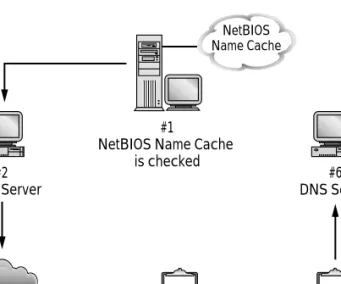
As you know, these names must be resolved so that you can find someone or something on the network with which to interact. For NetBIOS names (such as those called from UNC commands), Microsoft uses a six-step resolution approach, as shown in Figure 6-1.
Figure 6-1: The Microsoft method for resolving NetBIOS names #2 WINS Server #3 WINS B-Node Broadcast #5 HOSTS file #6 DNS Server #1
NetBIOS Name Cache is checked #4 LMHOSTS file NetBIOS Name Cache
STEPS:
To resolve NetBIOS names
Step 1. Check the cache. The NetBIOS name cache, built by the computer browser, is checked for the NetBIOS name/IP address mapping. If found, the resolution is complete.
Step 2. If the name isn’t resolved from Step 1, the first of three attempts is made to contact the WINS server (if one is present). If the name is resolved, the IP address is returned to the source host. If the three attempts are unsuccessful, the resolution process continues. Step 3. If the WINS server does not resolve the name, the client sends
three b-node broadcasts on the local network. If the proper NetBIOS name is found on the local network, the resolution to the IP address is complete.
Step 4. Next, the LMHOSTS file is consulted. Here again, if resolution is reached, the name resolution process terminates.
Step 5. The HOSTS file is consulted, assuming none of the previous steps have worked.
Step 6. Finally, as a final name-resolution step, the source host sends a request to its respective domain name server, which resolves the host name to an IP address if successful.
Host name resolution
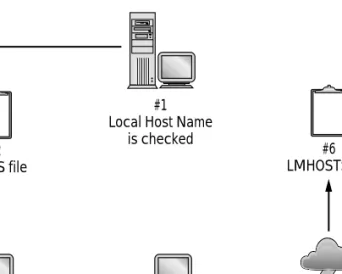
A similar, six-step name resolution approach is used for host name resolution in Windows 2000 Server (see Figure 6-2)
STEPS:
To resolve host names
Step 1. The host name typed by the user is compared to the local host name. If the two names match, resolution occurs without generating any network activity.
Step 2. Next, the HOSTS file is checked if the user-typed host name and the local name are not the same. Address resolution occurs if the user-typed host name is found in the HOSTS file. The host name is mapped to an IP address.
STEPS:
To resolve host names
(continued)Step 3. If the host name is still unresolved, the source host sends a request to the domain name server. If the host name is resolved by a DNS, an IP address is mapped to it. If resolution doesn’t occur initially, more attempts are made on the DNS at 5, 10, 20, and 40-second intervals.
Step 4. Assuming name resolution hasn’t occurred, the local NetBIOS name cache is checked next, followed by three attempts to contact and achieve resolution via configured WINS servers. Step 5. The local host initiates three b-node broadcasts if name resolution
still hasn’t occurred.
Step 6. Last, the local LMHOSTS file is checked.
Figure 6-2: The Microsoft method for resolving host names
If all six steps fail and you are unable to resolve a host name to an IP address, then darn it, you’re stuck with contacting the remote host via IP address (not host name). And most likely, a round of troubleshooting follows.
#2 HOSTS file #3 DNS Server #4 DNS Server #5 B-Node Broadcast #6 LMHOSTS file #1
Local Host Name is checked
One sign that DNS is unsuccessful is when it has a timeout condition. This typically results in some form of error message being returned to the user’s terminal (see Figure 6-3). Resolution failure may be the result of hardware or software configuration errors. Determining what might be causing your resolution failure is the ongoing DNS challenge. My advice on DNS troubleshooting? First, read this entire chapter carefully. I share DNS administration insights along the way that will help facilitate your
troubleshooting efforts. Second, simple as this may sound, start at one end of the equation, such as the DNS server located at your Internet Service
Provider (ISP), and work backwards to your client workstation.
Figure 6-3: Host name resolution failure
DNS tries to resolve names by making resolution attempts at 5-, 10-, 20-, and 40-second intervals.
DNS
At the most basic level, the Domain Name System (DNS)is a group of protocols and services widely used over the Internet and TCP/IP-based networks. Why? Because DNS provides name registration and name-to-address resolution capabilities. And DNS drastically lowers the need to remember numeric IP addresses when accessing hosts on the Internet or any other TCP/IP-based network. As an example, instead of typing ping 131.107.6.200to ping a specific host, you can type ping harryb.com, which is much easier (of course, my example assumes that 131.107.6.200 maps to the host name harryb.com). This user-friendly functionality of DNS can be employed on your private Windows 2000 Server network by running DNS locally (which is the default Windows 2000 network configuration). That, of course, is the purpose of this section and the DNS installation section in Chapter 4.
So hopefully, it is clear that DNS enables you to interact with your computer, its network, and the Internet using street or “friendly” names while, largely in the background, these friendly names are resolved to an address. Likewise, addresses may be reverse-engineered back to a friendly name. This reverse engineering is akin to this example involving cars. Suppose you’re interested in a car driving alongside you. Perhaps you would like to purchase the car and it has a small “For Sale” sign with a telephone number to call. But at 70 miles per hour on the freeway, you only are able to safely write down the license number. Once home, you reverse-engineer the license number to its
owner by scanning the Department of Motor Vehicles car registration lists. This is a real-world example of reverse engineering an address or numeric value back to a friendly name. Of course, in most states, motor vehicle records are confidential and unavailable. (But early in my computing career, I did have occasion to legally purchase a computer database of car owners in Alaska that was used for marketing purposes.)
DNS is well suited for the enterprise given its method of managing host names and other name resolution information via a distributed system of replicated and delegated name databases. Based on specifications RFC 1034 and RFC 1035, DNS is based on the hierarchical and logical tree structure known as the domain name space. The top of the tree is the Internet Network Information Center (InterNIC), which can be accessed at
www.ds.internic.net. InterNIC truly can be thought of as the Internet god in its role of performing domain registration and administration tasks. Once entered into the master database at InterNIC, domain names are replicated and managed through the use of distributed databases. These databases reside on numerous name servers located across the Internet. Each name server maintains a zone file that contains pertinent database information for its use, given its position in the tree hierarchy.
Microsoft’s DNS service is something that separates Windows 2000 Server from other popular networking alternatives such as Novell’s NetWare, Artisoft’s LANtastic, and Macintosh. Those other NOSes historically have not provided the same level of DNS support out of the box. And that’s something to consider as networks become increasingly Internet-centric. Plus, Windows 2000 Server introduces Dynamic DNS — something that I discuss later in the chapter.
Before DNS, the practice of mapping friendly host or computer names to IP addresses was handled via host files. Host files are easy to understand. These are static ASCII text files that simply map a host name to an IP address in a table-like format. Windows 2000 Server ships with a HOSTS file in the
\winnt\system32\drivers\etcsubdirectory. I discuss the Windows 2000 Server HOSTS file at length in Chapter 5.
The fundamental problem with the host files was that these files were labor intensive. A host file is modified manually, and typically it is administrated centrally. What a pain as your network grows, especially if your network is the Internet! Much of that pain and agony has disappeared because DNS is a much more distributed and automated approach.
And before I go any further, mind if I speak about a little DNS expectation management? DNS isn’t perfect, even in Windows 2000 Server. Why not? Because there still exists this gray area of uncontrollable variables, such as interacting with the Internet. Whereas you may deploy DNS on your Windows 2000 Server network in top form, in all likelihood, you’re still subject to the comings and goings of the Internet: How long until your new domain name actually is registered? How long until a change to a MX record is propagated? And so on. It’s not perfect yet.
Be sure that you verify that two DNS servers are associated with your Internet domain name (see Figure 6-4). The dual DNS server requirement is your responsibility and is in place to ensure that your Internet domain name is resolved properly on the Internet. Clearly, that is to your benefit. And if you’re involved in electronic commerce, it is essential. Could you imagine customers not being able to find your storefront? Not having two DNS servers associated with your Internet domain name places you at risk of exactly this: lost sales because customers can’t successfully find and use your Web site.
Figure 6-4: The DNS servers for idgbooks.com
As a network professional, you have the opportunity to work with a wide range of applications that, being TCP/IP-based, depend on DNS functioning properly. One example is from a small law firm that I advise. This law firm
WHOIS
When using the WHOIS command, which is not native to Windows 2000 Server and is discussed in Chapter 5, you may note that every Internet domain registered with the InterNIC has at least two DNS servers associated with the domain name. Why? Believe it or not, this Internet-related feature is a much-appreciated U.S. Department of Defense design feature. According to my good friend, a highly placed
source who has worked in government and academic computing communities since the Eisenhower era, this design paradigm stems from the Cold War. In the event of a thermonuclear war, the Internet as we know it would survive, in part due to its inherent redundancy. Having two separate DNS servers tied to each domain account is part of this redundancy.
uses WestMate, an application from WestLaw, for its legal research. Older versions of this application used modem dial-up connections to a local telephone number or CompuServe. A later version, version 7.x, uses a Winsock-based connection to the law firm’s existing Internet service to operate correctly. More specifically, the application uses FTP port 23 to communicate over the Internet. This application depends heavily on DNS operating properly because it connects to the site westmate.westmate.com
when it launches and attempts to log on and authenticate the research-minded attorney. If DNS is somehow not working, the application fails, the lawyers are “researchless,” and I receive a call to fix it.
As another example, observe how Internet Explorer — Microsoft’s Web browser — works. When you type in the Uniform Resource Locator (URL), that name is resolved via DNS. So typing www.idgbooks.comtriggers a series of events that connects you and your browser with the distant site on the Internet.
Finally, you may use DNS with your Microsoft Exchange application. A common configuration with the Internet Mail Service (IMS) in Microsoft Exchange is to have DNS perform the outgoing mail resolution. And even if you don’t explicitly have DNS selected, providing a mail host name such as smtp.nwnexus.com
when configuring the IMS assumes you have DNS capabilities that can resolve this street-friendly host name.
Exceptions to the rule of generally connecting to any Internet site you desire include little-known sites that literally are located in distant lands; these sites can be too many hops away. An example of this includes sites such as the far reaches of Alaska (if you are located in the 48 contiguous states). Perhaps these sites haven’t had their domain names replicated across the DNS databases of the world. So, when you attempt to access this site, and the domain name can’t be resolved easily, your browser may return a “host not found” error. In reality, the host exists but can’t be resolved within the time window your browser supports. I typically refer to this problem as a host that is too many hops away.
The preceding problem has two solutions. First, request that the remote site mirror or publish its Web page to another server somewhere else in the world. This is what Microsoft, Novell, and other vendors do with their well-traveled Web pages. These large sites mirror their sites to other servers not for resolution purposes but for load balancing and reliability. When you have a popular Web site, you may need to use mirror servers just to keep up with the traffic demands. Just ask Microsoft and Novell. The second solution is my next secret, so read on.
One possible way to get around the problem of finding a site that is too many hops away and by all account appears unbrowsable is to use a search engine for your name resolution tasks and then click the hot link from the search engine hit list. Search engines to consider include Yahoo! (www.yahoo.com), Alta Vista (www.altavista.com), or Infoseek (www.infoseek.com). As you know, these search engines may be selected via the search button on the taskbar of your browser. Ideally, this would provide you another pathway to that faraway site. And the domain name resolution would have occurred
differently, that is, via the search engine. By the way, do you want to know my favorite search engine? For a single search engine, I prefer Infoseek for reasons I fully explain (such as robust drill down) in Part VI, “Optimizing and Troubleshooting Windows 2000 Server.” But here, where I want to find a little-known domain name or Web site, I want to cast as wide a net as possible so I typically perform these “domain-seeking” searches from a site that is a “clearinghouse” for search engines. This site is www.dogpile.com. Dogpile is a search engine of search engines. By executing your search here, you effectively search all the other engines.
How DNS really works
By now, you can appreciate that Windows 2000 Server administrators can (and should!) use DNS to manage domain names.
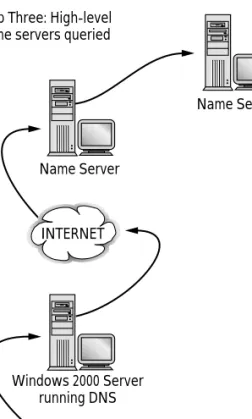
DNS uses a client/server model in which the DNS server maintains a static database of domain names mapped to IP addresses. The DNS client, known as the resolver, performs queries against the DNS servers. The bottom line? DNS resolves domain names to IP address using these steps (see Figure 6-5):
Figure 6-5: How DNS works
Client Workstation running Internet Explorer Sends URL www.idgbooks.com
Name Server
Name Server
Windows 2000 Server running DNS
INTERNET Step Three: High-level name servers queried
Step Two: Additional name server queried
Step One: Query local name server
STEPS:
To resolve domain names to an IP address with DNS
Step 1. A client (or “resolver”) passes its request to its local name server. For example, the URL term www.idgbooks.comtyped into Internet Explorer is passed to the DNS server identified in the client TCP/IP configuration. This DNS server is known as the local name server.
Step 2. If, as often happens, the local name server is unable to resolve the request, other name servers are queried to satisfy the resolver. Step 3. If all else fails, the request is passed to more and more higher-level
name servers until the query resolution process starts with the far-right term (for instance, com) or at the top of the DNS tree with root name servers.
DNS benefits
Several benefits accrue to Windows 2000 Server administrators who have deployed DNS correctly in their networks:
■ DNS provides the proper Windows 2000 Server name resolution management framework. It’s just the right way to do it.
■ Computer users may connect to UNIX systems via friendly names. ■ Users may fully exploit the Internet via Internet naming conventions such
as URLs (for instance, www.idgbooks.com).
■ Enterprises can maintain a consistent naming structure for both external Internet resources and internal network resources.
DNS details and definitions
I use the next several pages to get into the details of DNS, now that you’ve considered DNS from several vantage points.
Defining domain name space
The DNS database is known as the domain name space and assumes a tree form. Each position in the tree is called a domain. Just as a tree can have branches shooting out from its trunk, a domain may have subdomains. The main thing to remember is that entries in the domain name space must adhere to the accepted DNS naming conventions. These conventions are quite simple. At each level, a period (.) is used to separate each child domain (or subdomain) from its parent. If you would like some more information on this topic, refer to the Windows 2000 Server Resource Kit.
Defining domains
Domains contain both hosts and other domains. A domain has five
components, all of which may be present in any given domain name space, but not all five components (such as the subdomain name component) always are present in smaller domain name spaces.
The domain root
Considered to be the root node of the DNS tree, the domain root is known as the unnamed or null entry. You may see this referred to as the trailing period, which typically is not listed when displaying a domain name.
However, to display a fully qualified domain name (FQDN) requires this period (“.”) as the last term displayed on the far right of the domain name.
The top-level domain
In reality, the top-level domain is the far-right term in a typical Internet domain name as displayed. This domain level is managed specifically by InterNIC and is divided into three areas:
■ Organizational.This is the three-character code any network
professional or Internet surfer is familiar with. Table 6-1 lists these codes. ■ Geographical.Based on ISO-3166 (a standard), these typically are
country designations (such as .nzfor New Zealand). Perhaps you’ve encountered these top-level domain designations in e-mail messages you’ve received from overseas.
■ In-addr.arpa.This is the least known of the three top-level domains. It is a special, reserved domain used for IP-address-to-name mappings, also known as reverse lookups.
Did you know the United States has a geographic top-level domain of “us”? It does! Perhaps you haven’t encountered this form, because it is seldom used. Table 6-1 provides a list of top-level domain names in a DNS tree. The number of these names continues to grow, however.
Table 6-1 Top-Level DNS Domain Names
Domain Name DesignationCOM Commercial (businesses, corporations) EDU Education (schools, universities) GOV Government (local, state, federal) INT International (such as the United Nations) MIL Military (such as the Navy and the Army)
NET Internet service providers (for instance, ibm.net) ORG Nonprofit organizations (such as mssociety.org)
Second-level domains
Second-level domains are the names most familiar to network
professionals, Internet surfers, and even the general audience. Such a name typically consists of a company name or a product name that is meaningful, useful, and memorable. For example, the publisher of this book, IDG Books Worldwide, has registered the second-level domain name idgbooks.com
with the InterNIC. Not surprisingly, second-level domain names indeed are managed by the InterNIC in order to ensure that each name is unique.
Third-level domain names (subdomains)
The third-level domain name is an optional term in DNS. Typically, it is used to append or further subdivide the “regular” domain name. For example, perhaps you want to subdivide functional departments at the imaginary company Springers Unlimited. If the “regular” domain name known to all is
springers.comand you want to further subdivide the domain name to better reflect your organization, you may have domain names such as
marketing.springers.comand legal.springers.com. Another use of subdomains is to create distinctions by location. Following my example, if you further subdivide springers.comby locations, you may have a third-level domain titled west.springers.com. You get the picture.
Note that Microsoft makes extensive use of third-level domain names appended to its regular domain name of microsoft.comto distinguish different departments, programs, promotions, and such.
You, the network administrator, manage third-level domain names — not the InterNIC. You may, in theory, append as many third-level domain names to your regular or second-level domain name as you wish! In effect, all the employees in your organization can have their own domain names. Such names mean that name resolution occurs locally on your server designated to handle second-level domain name activity after the path is resolved correctly by DNS servers on the Internet that deliver the session
communications. This process is shown in Figure 6-6, where traffic destined for springers.comfrom the Internet is further subdivided internally according to, in this example, departments.
In the preceding example, having the local Windows 2000 Server perform the third-level domain name resolution would require that the DNS service be installed and fully functional on the local Windows 2000 Server.
One instance when you might use third-level domain names is when you run the Internet Connection Wizard in Small Business Server (see Chapter 16). Here, the Internet Connection Wizard (ICW) offers the opportunity to create a third-level domain name when you open an account with an SBS-compliant Internet Service Provider (ISP). Note the ICW also enables you to create a second-level domain name as well with the new SBS 4.5 release. If I had registered Springers Unlimited with Northwest Nexus (a Pacific Northwest ISP), the third-level domain address that automatically would be created for me might be springers.nwnexus-sbs.com.
Figure 6-6: Using third-level domain names on your network
In reality, the use of third-level domain names is rare in the business community. Blame it on the marketing departments of companies across the land, but second-level domain names are in and third-level domain names look both cheap and kind of weird. The business community, which has no shortage of egos and public relations specialists, very much demands second-level domain names because image is everything. You are more likely to see a company use a second-level domain name and a virtual directory.
Make darn sure you understand the difference between a subdomain and a virtual directory. The key point is that subdomains are a way to divide your domain name space, and virtual directories point to storage areas on your server’s hard drive. A virtual subdirectory typically is displayed as a forward slash after the top-level domain term (for instance, /harryb), and a
The Windows 2000 Server running DNS service resolves the third-level domain names Windows 2000 Server springers.com (running DNS service) legal.springers.com marketing.springers.com manufacturing.springers.com executive.springers.com INTERNET
Second-level litigation
Second-level domains are causing lots of fun and litigation in the business community right now! Speculators are registering trademark names (with InterNIC) prior to the trademark holders doing so. Often, the company that holds the trademark then “purchases” the second-level domain registration from the speculator, who typically makes a handsome profit on his or her $50 InterNIC domain registration fee (although some trademark holders are suing, rather than paying, to recover trademark names being used as domain names). All in a day’s work for some;
but for others, the implicit message should be to register your second-level domain names as soon as possible before someone else does! By analogy, yesterday’s mad rush to acquire 1-800 telephone numbers is today’s rush to acquire the second-level domain name of your choice. And also be advised that the courts are casting a weary eye towards domain name speculators; more often than not, they now find for the trademark holder (for example, Pepsi) over the speculator who happens to register a domain name before the trademark holder does.
subdomain name is displayed as a term to the left of the second-level domain name (as discussed previously).
It is not uncommon to see both a subdomain and a virtual directory displayed in a URL on the Internet. For example, springers.nwnexus-sbs.com/~dawgs
shows the subdomain name springersand the virtual directory ~dawgs. Virtual directories are discussed in Chapter 8.
Host names
Host names are, by default, the same as the computer name in Windows 2000 Server, but they need not be. In DNS, the host name appears to the left of the top-level and second-level domain names. This is similar to how third-level domain names appear.
As an example, the host name harrybin the domain springers.comwould appear as: harryb.springers.com. Note that a Windows 2000 Server on your network would perform the host name resolution similar to the process discussed previously in relation to Figure 6-2.
Evaluating domain names
Evaluating a domain name is different from other activities you probably are used to performing. It is not like reading a printed page, such as this, where you read from left to right. It is not like finding a position on a map, where you use a column and row grid. And it is not like finding your physical location with a Global Positioning System (GPS) device, where you rely on high-altitude satellites.
You read a fully qualified domain name from right to left. A second-level domain name such as idgbooks.comis evaluated first as a commercial top-level domain, and then as the second domain term idgbooks. A third-level domain name may appear as springers.nwnexus-sbs.com. And once again, if you haven’t noticed, a period is used to divide each domain name level. To assist you in your efforts to better interpret domain names, Table 6-2 breaks down a sample Internet domain name into each domain level.
Table 6-2 Evaluating a Third-Level Domain Name
Domain Name Level Term Comments
Top-level domain name com Designates a commercial entity. Second-level domain name nwnexus-sbs Registered with InterNIC (the Internet
domain registration authority).
Third-level domain name springers Not registered with InterNIC. Typically, the holder of the second-level domain name creates as many third-level domain names as necessary. Third-level domain names are resolved by DNS running on a Windows 2000 Server on the local network (although this configuration isn’t required).
Be advised that the term “domain” in the context of DNS relates to Internet domains, not Windows 2000 Server domains.
Take a moment to analyze your own Internet domain name if you have one. Does the preceding discussion help you to better understand how your domain name is structured? If not, take a few minutes to revisit the preceding discussion or consider my earlier suggestion that you peruse the Windows 2000 Server Resource Kit for a second take on the DNS discussion. No hard feelings! I just want you to get it.
DNS names that do not conclude with a trailing period (such as “.com”) are not fully qualified domain names (FQDN).
Zones
In the MCSE certification course lectures that I deliver as an MCT, I often refer to Windows 2000 Server domains as administrative units. In the language of DNS, zonesalso can be thought of as administrative units. Database records relating to a particular portion of the domain name space, called a zone, are saved in a file known as a zone file.
Understand that a zone can consist of a single domain (DNS-style, not Windows 2000) or a domain with subdomains. A single DNS server can be configured to manage one or more zone files. A discrete domain node (known as a zone’s root domain) anchors each zone.
Let’s take a moment to make a distinction between a zone and a DNS-style domain. A domain refers to a single node and all of its child nodes. A zone is a full and complete set of resource records that is delegated to a specific name server. Another take on the matter is this: Domains represent a logical, hierarchical organization of name space. Zones represent the physical arrangement of how names and resource data are distributed or delegated to name servers.
Files used by DNS
Remember this as you master DNS with Windows 2000 Server: The underlying files in a DNS system are text files. The good news is that with Windows 2000 Server, you will enjoy using its graphical user interface, MMC-based DNS toolset, to edit and manage the DNS zone files.
Zone files
A database file or zone file is a file of resource records (RRs) for the portion of the domain for which the zone is granted responsibility. A resource record
can be defined as an individual data entry containing a domain name and other information related to this named domain or host. Note that resource records may be either of the following:
■ Record type.Type is used to indicate the type of data stored by each record. Type defines the format or individual field structures for each particular resource record. In other words, different types of records occur in zone files; you may elect to query for only one type of record.
■ Record class.Class is used to indicate the class of network or type of software that this record supports. In most cases, the only class used for DNS data that is stored and used in most TCP/IP networks is the Internet Class (IC).
I define the important zone files that you need to know — ranging from Start of Authority (SOA) to Canonical Name (CNAME) — in Table 6-3, “Selected Zone Record Definitions” in the section “Configuring DNS.”
Cache files
Cache files contain host names and addresses of root name servers. You can observe the default cache file (cache.dns) provided by DNS in Windows 2000 Server.
Cache file: ;
; Root Name Server Hints File: ;
; These entries enable the DNS server to locate the root name servers
; (the DNS servers authoritative for the root zone).
; For historical reasons this is known often referred to as the ; “Cache File” ; @ NS b.root-servers.net. b.root-servers.net A 128.9.0.107 @ NS c.root-servers.net. c.root-servers.net A 192.33.4.12 @ NS d.root-servers.net. d.root-servers.net A 128.8.10.90 @ NS e.root-servers.net. e.root-servers.net A 192.203.230.10 @ NS i.root-servers.net. i.root-servers.net A 192.36.148.17 @ NS f.root-servers.net. f.root-servers.net A 192.5.5.241 @ NS g.root-servers.net. g.root-servers.net A 192.112.36.4 @ NS j.root-servers.net. j.root-servers.net A 198.41.0.10 @ NS k.root-servers.net. k.root-servers.net A 193.0.14.129 @ NS l.root-servers.net. l.root-servers.net A 198.32.64.12 @ NS m.root-servers.net. m.root-servers.net A 202.12.27.33 @ NS a.root-servers.net. a.root-servers.net A 198.41.0.4 @ NS h.root-servers.net. h.root-servers.net A 128.63.2.53
For DNS installations not connected to the Internet, you may replace or modify this file. If you manage your own domain name space privately, you
should include host records for root name servers within your private network that can be contacted to authoritatively resolve names not managed by the server’s zone files.
To see the current Internet cache files for the worldwide Internet, go to
ftp://rs.internic.net/domain/named.cacheon the Internet.
Reverse lookup files
As the name implies, reverse lookup filesare the files consulted when a reverse lookup is undertaken in the in-addr.arpadomain. A reverse lookup is performed when you supply the IP address and the computer, via a reverse lookup, returns the matching domain host name. The key point about reverse lookup files is that some applications depend on these types of reverse resolutions. One application area that takes advantage of them consists of NFS clients.
In Windows 2000 Server, a sample reverse lookup file titled 192.dns may be found at c:\winnt\system32\dns\samplesand looks similar to the following:
;
; 192.dns ;
; Reverse lookup file for 29.5.192.in-addr.arpa. domain. ;
; This file provides address to name matching (reverse lookup) ; for addresses 192.5.29.?.
; ;
; Note that all domain names given in this file, which are not ; terminated by a “.” and hence fully qualified domain names (FQDN), ; are implicitly appended with “29.5.192.in-addr.arpa.”
;
; Examples:
; “6” => 6.29.5.192.in-addr.arpa. ;
; If a name outside of “29.5.192.in-addr.arpa.” is required, then it ; must be explicitly terminated with a dot, to indicate that it is a ; FQDN. ; ; Example: ; “7.30.5.192.in-addr.arpa.” => 7.30.5.192.in-addr.arpa. ; ; ; START OF AUTHORITY ;
; The first record in any database file should be a “Start of Authority”
; (SOA) record. The fields of this record are: ;
; IN SOA <source machine> <contact email> <serial number> <refresh time>
; <retry time> <expiration time> <minimum time to live> ;
; <source machine> is the machine on which this file was created. ;
; <contact email> is the email address if the person responsible ; for this domain’s database file. Instead of ; writing an ‘@’ in the email name, write a ‘.’ ;
; <serial number> The “version number” of this database file. ; Increase this number each time you edit a ; database file.
;
; <refresh time> A time, in seconds, that a secondary server ; will wait between checks to your server, when ; deciding if it is time to download a new copy ; of this domain’s data.
;
; <retry time> A time, in seconds, that a secondary server ; will wait before retrying a failed zone download. ;
; <expire time> A time, in seconds, that a secondary server will ; keep trying to download a zone. After this time ; limit expires, the old zone information will be ; discarded.
;
; In order for a resource record to span a line in a database file, ; parentheses must enclose the line breaks, as in the following ; example.
; ;
; YOU SHOULD CHANGE:
; - “machine.place.dom.” to the name of your name server. ; - “postmaster.machine.place.dom.” to your email name. ; @ IN SOA nameserver.place.dom. postmaster.nameserver.place.dom. ( 1 ; serial number 36000 ; refresh [1h] 600 ; retry [10m] 86400 ; expire [1d] 3600 ) ; min TTL [1h] ; ; NAME SERVERS ;
; The following entries list the name servers for this domain. ; This information allows other name servers to lookup names in ; your domain.
;
; YOU SHOULD CHANGE:
; - The names of the DNS servers. @ IN NS nameserver.place.dom. @ IN NS nameserver2.place.dom.
;
; WINS Reverse Record ;
; The WINS-R RR is specific to WindowsNT and may be attached ONLY ; to the zone root of a reverse lookup domain.
;
; Presence of a WINS-R record at the zone root instructs the name server
; to use a netBIOS node status (nbstat) request for any reverse lookup
; requests for IP addresses which are NOT given in PTR records below.
;
; Examples: ;
; 1) A query for 135.29.5.192.in-addr.arpa. (192.5.29.135) ; 192.5.29.135 has a PTR record below, so DNS server responds ; with the PTR record without nbstat lookup.
;
; 2) A query for 206.29.5.192.in-addr.arpa. (192.5.29.206) ; 192.5.29.206 is within the 29.5.192.in-addr.arpa zone, but ; there is no PTR record for it in this zone file.
; DNS will issue an nbstat query to 192.5.29.206.
; If a response is received, the hostname in the response will be
; appended to the result domain in the NBSTAT record and used ; as the hostname corresponding to 192.5.29.206. The PTR ; record will be cached and a response sent to the client. ; If a response is NOT received, the DNS server responds to ; the client with a name error.
;
; 3) A query for 29.5.192.in-addr.arpa. (192.5.29)
; 192.5.29 is within the 29.5.192.in-addr.arpa zone, but is NOT ; an IP address. Hence no nbstat lookup is done, and the server ; responds with a name error.
; ;
; WINS-R and zone transfer: ;
; The MS DNS server, will configure WINS-R information as a resource ; record to allow it to be transferred to MS DNS secondary servers. ;
; If you have MS DNS secondaries, and want them to use exactly the ; same WINS-R info as the primary server, then omit the LOCAL flag ; in the WINS-R record.
;
; If you have UNIX secondaries, or MS secondaries using different ; WINS-R information, then use the “LOCAL” flag after the “WINS-R” ; flag and the WINS-R information will NOT be considered part of the ; zone’s resource records and will NOT be sent in the zone transfer. ;
; YOU SHOULD CHANGE:
; - Change the resulting domain that should be appended to ; names found with WINS-R lookup.
; - Uncomment the line with LOCAL flag, if WINS-R information should
; not be transferred as part of the zone data. ; - Uncomment the line without the LOCAL flag, if WINS-R information
; should be transferred to MS DNS secondaries. ; OR
; - Leave this line commented out, if WINS-R lookup not desired. ;@ IN WINS-R place.dom.
;@ IN WINS-R LOCAL place.dom. ;
; PTR RECORDS ;
; The PTR record is used to map IP numbers to hostnames. IP numbers ; are written in backward order and prepended to “in-addr.arpa” for ; this process. As an example, looking up the name for “1.2.3.4” ; requires a PTR query for the name “4.3.2.1.in-addr.arpa.” ;
; Since this is the domain file for 29.5.192.in-addr.arpa., this file
; provides lookup for IP addresses 192.5.29.?. ;
; YOU SHOULD CHANGE:
; - The final IP address digits. ; - The corresponding host names. 2 IN PTR WINSsrv1.place.dom. 3 IN PTR WINSsrv2.place.dom. 7 IN PTR nameserver.place.dom. 8 IN PTR nameserver2.place.dom. 17 IN PTR mailserver.place.dom. 18 IN PTR mailserver2.place.dom. 112 IN PTR host.nt.place.dom. ;
; Apparently, “host.place.dom.” has two interfaces running TCP/IP, ; and each of these interfaces’ addresses needs to be listed in the ; reverse-lookup files. ; 135 IN PTR host.place.dom. 82 IN PTR host.place.dom. 11 IN PTR other-host.place.dom. 21 IN PTR other-host.place.dom. 111 IN PTR other-host.place.dom.
Boot files
Boot files are used to configure the startup environment of DNS servers that use Berkeley Internet Name Domain (BIND). However, Microsoft DNS does not have complete BIND conformance, and thus boot files are present to support migrations from other BIND environments. The boot file contained at
;
; DNS boot file ;
; NOTE: It is NOT necessary to use a boot file to run the DNS server.
;
; The Microsoft DNS server is capable of reading configuration, zone ; and cache information from a “boot” file or from the registry. ;
; To take full advantage of the capabilities of the Microsoft DNS ; server we suggest using the DNS Administration tool
(dnsadmin.exe).
; If you are new to DNS or are setting up a new installation, then we
; strongly recommend using the Admin tool, in which case you need not
; setup a boot file. ;
; However, if you are porting an existing BIND DNS installation, then
; the DNS server will be able to read your existing boot file. Note,
; that the file MUST be named “boot”. ;
;
; Boot file syntax: ;
; Directives in this file instruct the DNS service when it is starting.
; Anything on a line following a semicolon ‘;’ is a comment, and is ignored.
;
; This file and all files listed in this file must be in ; %SystemRoot%\system32\dns directory.
; ;
; CACHE FILE ;
; The “cache” file is not really cache information. Rather it contains
; name server and IP address information necessary to contact the ROOT
; domain name servers. ;
; The syntax of this command is: ;
; cache . <filename> ;
; YOU SHOULD CHANGE: ;
; => Nothing - do NOT change this line, if you are NOT a root domain
; (Note: if you are not connected to the Internet, be sure and edit
; the cache file to point at the root servers for your intranet.)
;
; OR ;
; => Comment out this line, if this DNS server is the ROOT domain ; server for a private intranet.
;
cache . cache.dns ;
; PRIMARY DOMAINS ;
; “Primary” domains are listed below. The second column is the name of the
; domain for which this name server is authoritative. The third column is
; the name if the database file which contains the authoritative data.
;
; The syntax of this command is: ;
; primary <domain> <filename> ;
; YOU SHOULD CHANGE:
; - The names of the domains. ; - The names of the database files.
; - Comment out domains for which server will be secondary. ;
;primary place.dom place.dns ;primary 29.5.192.in-addr.arpa 192.dns ;
; SECONDARY DOMAINS ;
; “Secondary” domains are listed below. ;
; The syntax of this command is: ;
; secondary <domain> <master DNS ip address> <filename> ;
; YOU SHOULD CHANGE:
; - The names of the domains. ; - The names of the database files.
; - The IP address of the primary DNS server (192.255.255.7). ; - Uncomment domains for which server will be secondary, then ; comment out the primary statement for that domain above. ;
;secondary place.dom 192.5.29.7 place.dns ;secondary 29.5.192.in-addr.arpa 192.5.29.7 192.dns
Name servers
Simply stated, a name serveris any server that retains and stores information about the domain name space. Known on the network as DNS servers, these machines run vendor-specific DNS implementations such as DNS in Windows 2000 Server.
It is important that you understand that name servers have one or more zones for which they are responsible. To respond affirmatively to a name query, a name server must have the authority to do so for the zone in which the queried name resides. This authority is handled by the Start of Authority (SOA) record at the top of the zone file. SOA is discussed later, in Table 6-4 (see the section “Configuring DNS”).
Three types of name servers
When building your DNS environment, you may implement three types of name servers. These servers are primary, secondary, and caching. Most of us working in smaller and medium-sized organizations use a primary domain server. However, if you work at the enterprise level (especially with geograph-ical dispersed operations), you not only benefit from, but also seek to use, secondary and caching servers. The number and types of name servers you use directly correlate to the size of your network.
Primary servers
A primary server is a single server for each zone that contains the master database files (resource records for all subdomains, hostnames, and so on) for the zone it is permitted to service. This server retrieves its resolution information or zone data locally, and likewise, changes are made locally.
Secondary servers
If I were discussing Microsoft System Management Server (SMS), I would be referring to helper servers. That’s what secondary servers are for DNS: helper servers. Secondary servers have a copy of the appropriate domain name space data from another name server on the network. The server that provides the copy has the authority to do so and is known as an authoritative server. The mechanism for copying the information to the secondary server? Replication. The replication process occurs via a regular zone transfer from the other name server.
Three important reasons exist for having secondary servers in the enterprise: ■ Load reduction.Having secondary servers reduces the load on the
primary name servers.
■ Distant locations.Secondary servers, similar to BDCs in the context of Windows 2000 Server, should be placed at remote locations that have significant client activity. This avoids having clients suffer from slow WAN links when trying to query DNS.
■ Redundancy.It is necessary to have at least two DNS servers for each zone. One server is the primary; the other(s) is/are secondary. Typically, these machines are placed on separate networks for sake of fault
Caching-only servers
The caching-only type of name server doesn’t contain any active database files and isn’t associated with any specific DNS zone. It relies on other name servers for its knowledge of the DNS domain structure. Every time a caching-only server queries a name server, the information it receives back is stored in its name cache.
Keep this perspective when discussing caching. All DNS servers perform caching. That’s because a name, once resolved, is stored for a discrete period of time.
Forwarders and slaves
Suppose the DNS server on your Windows 2000 Server network is unable to resolve the name query. In this case, additional DNS servers are consulted to satisfy the name query. Assuming you correctly configure your internal DNS servers to use forwarders, then other servers on the Internet typically are consulted, resulting in name resolution.
Remember that specific DNS servers, via the DNS Manager (discussed later in this chapter), are configured to use forwarders. Only forwarders may contact Internet-based DNS name servers.
Slaves are configured to use forwarders and return error messages if a request fails.
Resolvers
You can think of resolvers as client services that execute name queries against name servers. More specifically, resolvers typically are the parts of the client’s operating system (such as the TCP/IP DNS configuration information in Windows 95/98) that:
■ Oversee and manage communications between TCP/IP client programs using DNS and name servers
■ Format the DNS query packets that are sent to name servers ■ Cache previous DNS query replies to speed future name resolutions Resolver programs perform the following three functions on behalf of the DNS client:
■ General lookup function.Involves finding records with a specific name, type, or class.
■ Address-to-name translation.This is reverse name resolution. When presented with a 32-bit IP address, the program returns a host name. ■ Name-to-address translation.When given a host or domain name, the
program locates the appropriate 32-bit IP address. This is the most common use of DNS.
Name resolution — how it works
By now, you certainly understand that the key point to DNS is name resolution. Users provide friendly names that are resolved to IP addresses. The IP addresses are necessary for many programs, such as your browser (for instance, Internet Explorer), to operate. In the next few sections, I discuss four types of name resolution: recursion, iteration, caching, and reverse lookup.
Recursion
First, your DNS name server must be configured to support recursive forwarding of name queries. In this scenario, your name server assumes responsibility for forwarding unresolved name queries until it receives either a positive or negative response. Stated another way, when a recursion-compliant DNS server is contacted, it contacts other name servers until a clear and definitive answer for the original name query is received.
The default condition for the DNS service in Windows 2000 Server allows for recursive requests.
Iteration
In the case of iteration, a name server responds to a resolver based on its most complete or best knowledge of the data being queried. That’s it. A best effort. With iteration, the name server may provide the address of another name server for the resolver to use if the best efforts aren’t good enough. It is worth noting that clients typically are configured, via the client’s TCP/IP setup, to use other DNS servers if the first DNS server can’t resolve the name query.
Caching
The concept of caching is easily understood. As local name servers perform name queries for resolvers on a network, these servers build a name cache based on their findings. In effect, these local name servers learn along the way. Once name resolution information is stored in cache memory of the local name server, this information may be accessed again quickly when the local name server receives other name queries. Simply stated, the name cache — a very fast resolution approach — is consulted for the benefit of the resolvers. Note that a Time to Live (TTL) value applies to records that are cached. That way, older records that may not be relevant or readily accessed again are deleted from cache memory. This benefits name server performance. The contents of the cache.dnsfile found on Windows 2000 Server is loaded into cache memory when a Windows 2000 server running DNS is started. The file cache.dnsis displayed earlier in the chapter.
Reverse lookup
Most lookups via DNS are forward lookups, where a “friendly” name is resolved to an IP address. But what about this scenario: Suppose you see the following graffiti at a road stop on the Information Superhighway, “For a good time visit 131.107.6.200.” Being the curious Windows 2000 Server engineer that you are, you decide to see just who 131.107.6.200 is before finding out whether a good time can be had. A reverse lookup, presented to the special domain in-addr.arpa, reveals the identity of this address. It’s as if you found a telephone number and wanted to know to whom it belonged. In fact, for a brief period in the 1980s when I was living in Alaska, a reverse telephone book was published before privacy concerns quashed it.
Zone transfer
Zone transfers are transmissions of name space information among DNS servers. Historically, this occurred when, periodically, the entire zone file from one name server was transferred to another name server. Now, this also is done by the incremental zone transfer method. Here, just the delta (or changed) information is transferred. Incremental zone transfer is discussed in RFC 1995.
Zone transfers among name servers are what we MCSE types in the real world view as propagation delays when implementing domain name transfers, starting new domain names, and such.
Configuring DNS
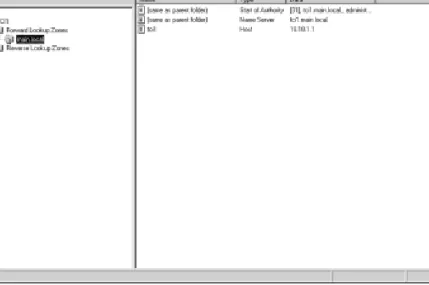
The DNS MMC, shown in Figure 6-7, has as its primary function the
configuration of DNS objects. Each object has a discrete set of manageable properties. The DNS MMC is a visual interface or GUI-based tool used to configure the DNS objects. Windows 2000 Server’s DNS is configured largely in a generic way during the installation. But let’s face it. You’ve got some hours ahead of you if you really want to implement DNS properly. This section assists you with that journey.
Figure 6-7: DNS MMC
Properties
There are numerous places that you make DNS configurations. The first is the property sheet of the host object and the second is the zone property sheet. Figure 6-8 shows the property sheet for the host object.
A brief explanation of each tab found on the Host properties follows: ■ Interfaces.This configuration means that the DNS server (Host) should
listen for DNS query traffic. Note that I display what DNS query traffic looks like in Chapter 19.
■ Forwarders.This configuration specifies whether the DNS server first uses the forwarders specified in the list box (listed by IP address). Communications with forwarders is first-in, first-out (FIFO). ■ Advanced.Several advanced server options are offered, including:
•
Disable Recursion•
BIND Secondaries•
Fail On Load if Bad Data Zone•
Enable Round Robin•
Enable Netmask Ordering•
Secure Cache Against Pollution■ Root Hints.The contents of the available Name Server (NS) resource records are listed.
■ Logging.This tab enables you to set numerous DNS debugging logging options. Use this when you are attempting to troubleshoot DNS.
■ Monitoring.This is one of the cooler tabs in the DNS management area. It is here that you may configure and perform DNS-related tests. Test options include simple query and recursive query, as seen in Figure 6-9. You also may set the testing polling interval in seconds, minutes, and hours.
The shortest time interval that you may set with the polling interval is 30 seconds. It is not possible to set a shorter time interval.
■ Security.This sets object permissions by user and group.
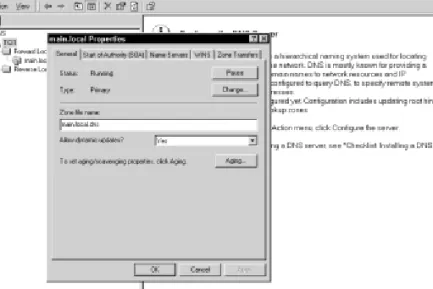
You also may perform a variety of DNS configurations via the zone properties sheet (see Figure 6-10).
Figure 6-10: Domain properties
■ General.This enables you to observe the status of the DNS service and the zone file name.
It is on the General tab that you invoke Dynamic DNS with the Dynamic update drop box. Dynamic DNS, one of the impressive new DNS features introduced in Windows 2000 Server, is discussed later in this chapter.
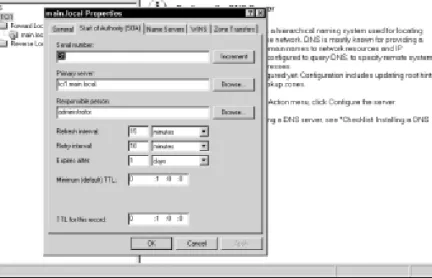
■ Start of Authority (SOA).This relates to the Start of Authority record (see Figure 6-11). One of the settings that may be modified is the
minimum default setting for Time to Live (TTL). Note that the TTL setting may be modified for seconds, minutes, hours, and days. Note that in Windows NT Server 4.0, this value also can accommodate weeks, months, and years.
Figure 6-11: Start of Authority
■ Name Servers.Lists the available name servers.
■ WINS.This is where you integrate WINS and DNS (see Figure 6-12); it is a critical tab if this situation applies to you. This configuration is invoked to support older Windows NT Server machines on your Windows 2000 Server network. As far as I’m concerned, that’s enough about WINS and DNS integration. Don’t you agree?
■ Zone Transfer.Enables you to configure zone transfers from this server to other servers.
There are other ways to configure DNS in Windows 2000 Server. I review two of the ways here. First, there is the much appreciated Create New Zone Wizard. The other is a way to modify information at a more granular level (records types).
Create New Zone Wizard
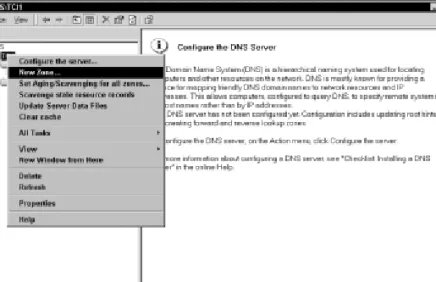
Windows 2000 Server has introduced network professionals to an array of configuration wizards. One that you certainly will enjoy is the Create New Zone Wizard. This is launched from the secondary menu when you right-click the host in the left pane (see Figure 6-13). Select the Create a new Zone menu option to launch the Create New Zone Wizard (see Figure 6-14). The following steps help you to create a new zone.
Figure 6-14: Create New Zone Wizard
STEPS:
Create a new zone
Step 1. Launch the Create New Zone Wizard. Click Next at the introductory screen.
Step 2. Make your choice on the Select a Zone Type screen (see Figure 6-15). The default is Standard primary. Click Next.
Step 3. Make your choice on the Select the Zone Lookup Type (see Figure 6-16). The default is Forward lookup. Click Next.
Figure 6-16: Select the Zone Lookup Type
Step 4. Provide a zone name (see Figure 6-17). Click Next.
Figure 6-17: Zone Name
STEPS:
Create a new zone
(continued)Step 5. Provide a file name or accept the default file name on the File Name screen. Click Next.
Step 6. Click Finish on the Completing the Create New Zone Wizard. Congratulations. You have created a new zone.
Granular configurations
Once you create a new zone, you may perform granular-level configurations, such as configuring different record types for the zone. One popular record to configure is the Mail Exchange (MX) record so that you may send and receive e-mail.
To configure record types, select the zone in the left pane of the DNS MMC. Right-click to display the secondary menu and select New. You should see a submenu appear with several options to select from, including host, alias, mail exchanger, domain, delegation, as well as other records. If you select Other Record, the Record Type dialog box appears (see Figure 6-18).
Figure 6-18: Record Type
Some of the record types you may select and configure are presented in Table 6-3.
Table 6-3 Selected Zone Record Definitions
Record Type Definition
Host (A) Maps host name to IP address in a DNS zone. Has three fields: Domain, Host Name, Host IP Address.
AAAA (IPNG) Known as the address resource record, this maps a host name to an IPv6 address. This record will assume greater importance as the next generations of IP are implemented. Fields include: Domain, Host Name, IPv6 Address. AFS Database (AFSDB) Provides the location of either an AFS (Andrew File System)
cell database server or a DCE (Distributed Computing Environment) cell’s authenticated name server. Transac’s AFS is a network file system, similar to NFS, but designed for WANs. The AFS system uses DNS to map a DNS domain name to the name of an AFS cell database server. The Open Software Foundation’s DCE Naming Service uses DNS for a similar function, mapping the DNS domain name of a DCS cell to authenticated name servers for that cell. Fields include: Domain, Host Name (Optional), Server DNS Name, Server Type.
ATM (ATMA) This is used to map a DNS domain name to an ATM address.
Aliases (CNAME) Canonical name resource record that creates an alias for a host name. CNAME records typically are used to hide implementation details from clients. Fields include: Domain, Alias Name, For Host DNS Name.
Host Information (HINFO) Identifies a host’s hardware type and operating system. The CPU Type and Operating System identifiers should come from the MACHINE NAMES and SYSTEM NAMES listed in RFC 1700 (Assigned Numbers). Fields include: Domain, Host Name, CPU Type, Operating System.
Integrated Services This is used to map an ISDN telephone number to a DNS Digital Network (ISDN) domain name.
Mailbox (MB) This is used to map a specified domain mailbox name to a host address (A) record in the current zone that hosts this mailbox (RFC 1035).
Mail Group (MG) This is used to add domain mailboxes via an individual MB record to the domain mailing group identified by name in this record (RFC 1035).
Name Servers (NS) Identifies the DNS name servers in the DNS domain. NS records appear in all DNS zones and reverse zones. Fields include: Domain, Name Server DNS Name.
Table 6-3
(continued)Pointer (PTR) Maps IP address to host name in a DNS reverse zone. Fields include: IP Address, Host DNS Name.
Mail Exchange (MX) Specifies a mail exchange server for a DNS domain name. Note that the term “exchange” does not refer to Microsoft Exchange, a BackOffice e-mail application. However, to connect Microsoft Exchange to the Internet via the Internet Mail Server (IMS), the MX record must be configured correctly by your ISP. A mail exchange server is a host that either processes or forwards mail for the DNS domain name. Processing the mail means either delivering it to the addressee or passing it to a different type of mail transport. Forwarding the mail means sending it to its final destination server via Simple Mail Transfer Protocol to another mail server that is closer to the final destination, or queuing it for a specified amount of time. Fields include: Domain, Host Name (Optional), Mail Exchange Server DNS Name, Preference Number.
Text (TXT) Associates text with an item in the DNS database. A typical use might be to communicate a computer location such as Build 10, Room 1a. The Text string is limited to 256 characters. Fields include: Domain, Host Name (Optional), Text.
Well Known Services Describes the services provided by a particular protocol on (WKS) a particular interface. Typically, this is the TCP or UDP
protocol; but it can be any protocol listed in the PROTOCOLS file (located at \winnt\system32\ drivers\etc). The services specifically are below Port 256 from the SERVICES file (located at
\winnt\system32\drivers\etc). Fields include: Domain, Host Name, Host IP Address, Available Services, Available Protocol.
Responsible Person (RP) This indicates who is responsible for the DNS domain or host. Multiple RP records may be specified for a single DNS domain. The record is divided into two parts: electronic mail address and a DNS domain name that points to additional information about the contact. Fields include: Domain, Host Name (Optional), Responsible Person Mailbox DNS Name, DNS Name for TXT Reference.
X.25 (X25) A variation of the A record, the X25 record maps the host name to an X.121 address. Fields include: Domain, Host Name (Optional), X.121 PSDN Address.
DNS standards and revisions
I now end the DNS section with a return to the standards. Not surprisingly, additional DNS-related resources such as the RFC-type standards are available for you to continue your DNS education. Table 6-4 provides a list of DNS-related RFCs. If you want to learn more about this area, be my guest and feel free to tackle the RFCs.
Table 6-4 DNS RFC Standards
RFC Title
1034 Domain Names — Concepts and Facilities
1035 Domain Names — Implementation and Specification 1101 DNS Encoding of Network Names and Other Types
1464 Using the Domain Name System to Store Arbitrary Strong Attributes 1536 Common DNS Implementation Errors and Suggested Fixes
1591 Domain Name System Structure and Delegation
1664 Using The Internet DNS to Distribute Mail Address Mapping Tables 1706 DNS NSAP Resource Records
1712 DNS Encoding of Geographical Location 1713 Tools for DNS Debugging
1794 DNS Support for Load Balancing 1886 DNS Extensions to Support IP version 6
1912 Common DNS Operational and Configuration Errors 1995 Incremental Zone Transfer in DNS
1996 A Mechanism for Prompt Notification of Zone Changes 2052 A DNS RR for Specifying the Location of Services 2065 Domain Name System Security Extensions
2136 Dynamic Updates in the Domain Name System (DNS UPDATE) 2137 Secure Domain Name System Dynamic Update
And finally, remember that DNS servers require static IP addresses. This fact is fair game on the MCSE exams.
DHCP
As you know, computers running TCP/IP must identify themselves via specific information that is unique to the network on which it resides. Such identification includes having a unique host name and a unique IP address. In this section of the book, you already have learned that the IP address for the computer may be assigned either manually (or statically) or dynamically via DHCP services in Windows 2000 Server. This part of Chapter 6 discusses configuring DHCP and using the DHCP MMC.
Benefits and overview of DHCP
Historically, TCP/IP environments have been difficult to configure. That is because you, as the network administrator and engineer, had to manage pesky TPC/IP configuration details that were easy to misconfigure. Have you ever transposed TCP/IP address values when fatigued late at night? Of course you have!
Enter the Dynamic Host Configuration Protocol (DHCP) approach that reduces, but does not eliminate, the configuration effort needed when using the TCP/IP protocol suite. DHCP is defined in RFCs 1533, 1534, 1541, and 1542. At the 50,000-foot level, you can view DHCP as centralizing TCP/IP
configuration information and automatically assigning IP addresses to client systems configured to use DHCP.
Two types of systems use DHCP:
■ DHCP servers.To use DHCP on your Windows 2000 Server-based network, you must have at least one Windows 2000 Server running the Microsoft DHCP service. This server needs to have a DHCP scope defined that specifies TCP/IP configurations and a pool of IP addresses that may be assigned to DHCP-compliant clients.
The DHCP server accomplishes this by responding to a request from the DHCP client for an IP address lease. The DHCP server then selects from its address pool an unused address that it may lease out to the client. Typically, the DHCP server also provides additional TCP/IP configuration information for the client (which I discuss in more detail later in this section).
■ DHCP clients.When installing TCP/IP on a DHCP client (such as Windows 2000 Professional or Windows 95/98), you can invoke the ability to have IP addresses assigned automatically by properly configuring the client. For example, in Windows 98 (see Figure 6-19), this is accomplished by selecting the Obtain an IP address automatically radio button from the IP Address tab sheet for TCP/IP Properties.
Figure 6-19: Enabling a DHCP client
Upon reboot of the Windows 98 client machine, you have created a DHCP client. Note that for Windows for Workgroups, this type of configuration requires that TCP/IP 32 be installed and that you configure several *.INI
files manually.
As long as a DHCP server on the same network as the client responds with an IP address to lease, then the DHCP server fully loads the TCP/IP
configuration information on the client and uses TCP/IP to communicate. Typically, the administrator or user supplies no additional configuration information, but there are exceptions. The biggest exception that I see involves people who don’t take advantage of DHCP’s rich configuration capabilities. For example, when the system is configured properly, you can supply DNS server information to the DHCP client automatically. But alas, I often see DHCP used only to assign IP addresses; rarely do I see it fully exploited with rich configuration information being supplied to the client. So the benefits of using DHCP on your network are really twofold:
■ The administrator can centrally define global and local subnet TCP/IP parameters for the entire internetwork or just the local LAN segment. ■ Client computers do not require manual TCP/IP configuration. When a
client computer crosses subnets, it can be reconfigured easily. Whereas the DHCP server service may be started and stopped via the Services applet in the Control Panel, such is not the case with DHCP clients. To stop the DHCP client service in Windows 98, you must first disable the DHCP client capabilities by selecting the Specify an IP address radio button shown in Figure 6-19 and restart the computer.