Application Note
for IP Manager and DNS
If you have a fleet of AirLink modems or even if you only have one, it can be difficult to keep track of the current IP addresses, especially if the addresses aren’t static but change every time the modems connect to your cellular provider. If you need to connect to a modem, or the device behind it, it is so much easier when you have a domain name (car54.mydomain.com, where are you?).
A dynamic IP address is suitable for many Internet activities such as web browsing, looking up data on another computer system, data only being sent out, or data only being received after an initial request (also called Mobile Originated). However, if you need to contact your modem directly, a device connected to the modem, or a host system using your modem (also called Mobile Termi-nated), a dynamic IP won’t give you a reliable address to contact (since it may have changed since the last time it was assigned).
Domain names are often only connected to static IP addresses because of the way most domain name (DNS) servers are set-up. Dynamic DNS servers require notification of IP Address changes so they can update their DNS records and link a dynamic IP address to the correct name.
Reasons to contact the modem and/or the connected device:
•
Contacting a surveillance camera to download logs or survey a specific area.•
Updating advertisements to be displayed in a cab.•
Monitoring and troubleshooting the status of the modem itself without needing to bring it in or go out to it.Since many cellular providers, like wire-based ISPs, do not offer static IP addresses or static address accounts cost a premium vs. dynamic accounts, AirLink developed IP Manager to work with a Dynamic DNS server to receive notification from AirLink modems to translate the modem’s dynamic IP address to a fully qualified domain name. Thus, you can contact your AirLink modem (PinPoint X, Raven X, PinPoint-E, Raven-E, Raven, or PinPoint) directly from the Internet using a domain name.
Fully Qualified Domain Name
A domain name is a name of a server or device on the Internet which is associated with an IP address. Similar to how the street address of your house is one way to contact you and your phone number is another, both the IP address and the domain name can be used to contact a server or device on the Internet. While contacting you at your house address or with your phone number employ different methods, using a domain name instead of the IP address actually uses the same method, just a word based name is commonly easier to remember for most people than a string of numbers.
Understanding the parts of a domain name can help to understand how IP Manager works and what you need to be able to configure the modem. A fully qualified domain name (FQDN) generally has several parts.
•
Top Level Domain (TLD): The TLD is the ending suffix for a domain name (.com, .net, .org, etc.)•
Country Code Top Level Domain (ccTLD): This suffix is often used after the TLD for most countries except the US (.ca, .uk, .au, etc.)•
Domain name: This is the name registered with ICANN (Internet Corporation for Assigned Names and Numbers) or the registry for a the country of the ccTLD (i.e. if a domain is part of the .ca TLD, it would be registered with the Canadian domain registry). It is necessary to have a name registered before it can be used.•
Sub-domain or server name: A domain name can have many sub-domain or server names associated with it. Sub-domains need to be registered with the domain, but do not need to be registered with ICANN or any other registry. It is the responsibility of a domain to keep track of its own subs.car54.mydomain.com
•
.com is the TLD•
mydomain is the domain (usually noted as mydomain.com since the domain is specific to the TLD)•
car54 is the subdomain or server name associated with the device, computer, or modem regis-tered with mydomain.comcar54.mydomain.com.ca
This would be the same as above, but with the addition of the country code. In this example, the country code (.ca) is for Canada.
Dynamic Names
When an IP address is not expected to change, the DNS server can indicate to all queries that the address can be cached and not looked up for a long period of time. Dynamic DNS servers, con-versely, have a short caching period for the domain information to prevent other Internet sites or queries from using the old information. Since the IP address of a modem with a dynamic account can change frequently, if the old information was used (such as with a DNS server which indicates the address can be cached for a long period of time) when the IP address changed, the domain would no longer point to the new and correct IP address of the modem.
If your modem is configured for Dynamic IP, when it first connects to the Internet, it sends a IP change notification to IP Manager. IP Manger will acknowledge the change and update the Dynamic DNS server. The new IP address will then be the address for your modem’s configured name.
Once your modem’s IP address has been updated in IP Manager, it can be contacted via name. If the IP address is needed, you can use the domain name to determine the IP address.
Configuring Your Modem
Software Required
•
Wireless ACE - Graphical interface for entering most AT Commands. You can download Wireless ACE from the AirLink website: http://www.airlink.com/support/modems/utilities/.Software Recommended
•
AceView - Status and connection monitor for your modem. You can download AceView from the AirLink website: http://www.airlink.com/support/modems/utilities/.•
AceNet - Multiple modem configuration and monitoring utility for all AirLink modems. With AceNet, you can save a working configuration in Wireless Ace and then load it into several modems concurrently saving time and ensuring all the modems are configured the same. AceNet is available for seperate purchase from your AirLink representative.A URL (Universal Resource Locator) is different from a domain name in that it also indicates information on the protocol used by a web browser to contact that address, such as http://www.airlink.com. www.airlink.com is a fully qualified domain name, but the http://, the protocol identifier, is what makes the whole thing a URL.
Note: The fully qualified domain name of your modem will be a subdomain of the domain used by the IP Manager server.
Connecting to your modem with Wireless Ace
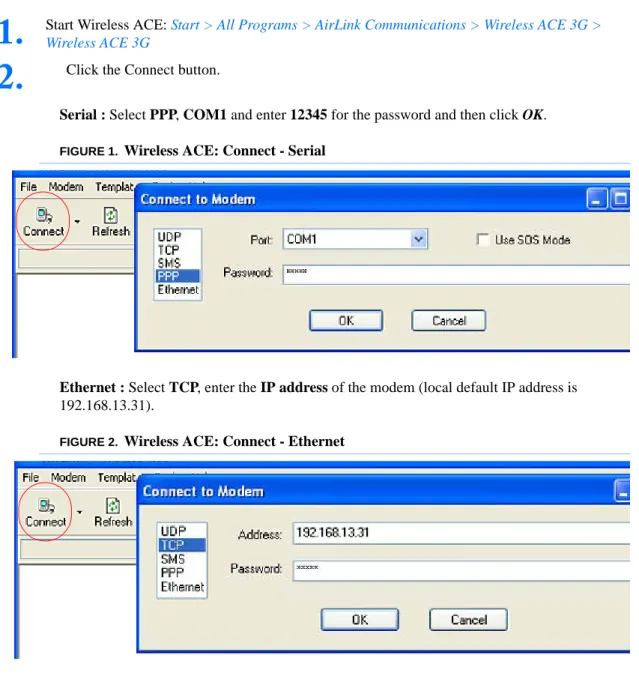
Serial : Select PPP, COM1 and enter 12345 for the password and then click OK.
FIGURE 1. Wireless ACE: Connect - Serial
Ethernet : Select TCP, enter the IP address of the modem (local default IP address is 192.168.13.31).
FIGURE 2. Wireless ACE: Connect - Ethernet
On the left side of Wireless Ace is the Groups menu. Select the appropriate group as directed below. Enter your changes in the New Value column. Type in the desired change or using the drop down menus. The current configuration will be shown in the Value column.
1.
Start Wireless ACE: Start > All Programs > AirLink Communications > Wireless ACE 3G > Wireless ACE 3G2.
Click the Connect button.FIGURE 3. Wireless Ace: Changing Configuration Options
Click the Write button on the tool bar of Wireless ACE and wait for the message “Write Suc-cessful” to appear in the status bar.
FIGURE 4. Wireless ACE: Write
Configuring Dynamic IP Domain Name
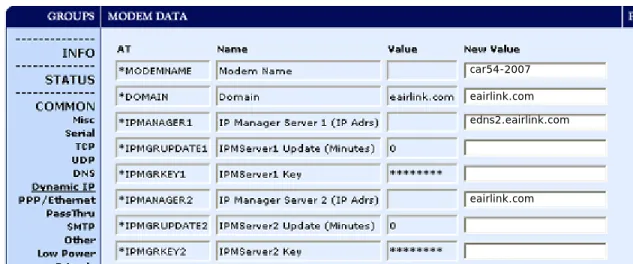
To configure your AirLink modem to be addressed by name, the modem needs to have 4 elements configured. You can configure a second dynamic server as a backup, secondary, or alternate server. In Wireless Ace, select Dynamic IP.
FIGURE 5. Wireless Ace: Dynamic IP
4.
Write the changes to the modem.car54-2007 eairlink.com edns2.eairlink.com
*MODEMNAME: The name you want for the modem. *DOMAIN: The domain name to be used by the modem.
*IPMANAGER1 and *IPMANAGER2: The IP address or domain name of the dynamic DNS server which is running IP Manager.
*IPMGRUPDATE1 and *IPMGRUPDATE2: How often, in minutes, you want the address sent to IP Manager. If this is set to zero, the modem will only send an update if the IP address changes (example, if your modem is reset or is assigned a different IP address).
*IPMGRKEY1 and *IPMGRKEY2: User defined password key which is used instead of Air-Link secret key when using an IP Manager server other than the one provided by AirAir-Link.
Restrictions for Modem Name
For the Modem Name, you should use something which is unique but also easy to remember. Your company name or the intended function of the modem are recommended. If you have more than one modem and want to name them the same, you can append a number for each. Since it is an Internet domain name, there are some restrictions for the name.
•
Must begin with a letter or number•
Can include a hyphen (-)•
Cannot contain spaces•
Must be no longer than 20 characters totalData Usage for IP Manager Server Updates
The IP Manager update is a small packet sent to the server with a response sent back to the modem. If you have *IPMGRUPDATE1 or *IPMGRUPDATE2 set to any number but zero, the modem will send the update not only when it receives a new IP address but at the time interval as well. The data traffic could be billed by your carrier.
Each update is a total of 68 bytes from the modem with a 50 byte total response from the server for a round trip update of 118 bytes.
Eairlink.com
As a service, Airlink maintains a IP Manager servers which can be used for any AirLink modem.
•
*DOMAIN: eairlink.com•
*IPMANAGER1 : edns2.eairlink.com•
*IPMANAGER2 : eairlink.cominterval (minutes)
total bytes per day (24 hours)
interval (minutes)
total bytes per day (24 hours) 10 16992 bytes 60 2832 bytes 30 5664 bytes 500 339.84 bytes
DNS: Using Names Instead of IP addresses
The modem has the ability to query DNS servers in order to translate domain names into IP addresses. This allows you to use domain names in place of IP addresses for most of the configu-ration options requiring IP addresses. This is important if your modem will need to contact another modem or other device that has a domain name but an unknown or dynamic IP address (such as another remote modem using IP Manager).
Configuring DNS
Generally, when your modem receives its IP address from your cellular provider, as part of the con-nection process, it will also receive your cellular provider’s DNS servers to use for resolving (or translating) names to IP addresses which it will automatically configure in the modem settings. Unless your modem will be used on a network with other modems or devices which have names internal to the local network or frequently changing IP addresses, the DNS servers provided by your cellular provider should be all you need.
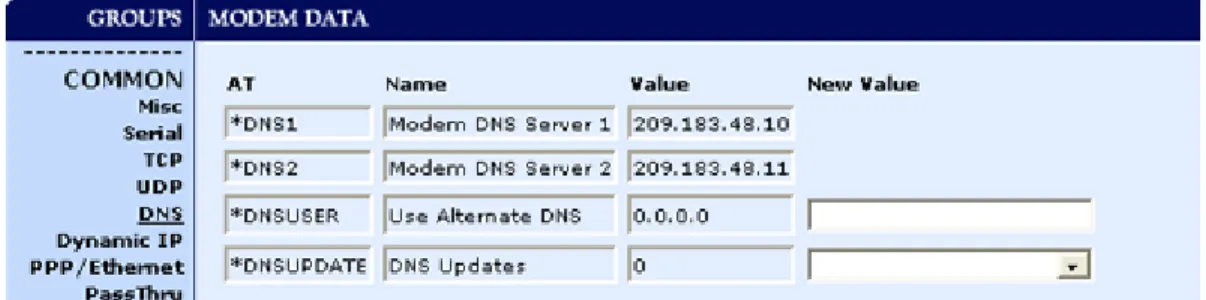
If the modem will be communicating with a device that has a domain name but changes its IP address frequently (such as another AirLink modem using IP Manager) or is on a network where devices are accessed by names rather than IP addresses, you will want to put in an alternate DNS (*DNSUSER) where that domain is updated, such as the IP Manager server the remote modem is using or the listing of IP addresses to names is kept.
FIGURE 6. Wireless Ace: DNS
*DNS1 and *DNS2 - The primary and secondary DNS servers set by your cellular provider when your modem gets its IP address.
*DNSUSER - Set this, if desired, to an additional DNS server to query first before the primary or secondary (just as a hosts file is queried first on a computer). If *DNSUSER is set to 0.0.0.0, it will be ignored.
Note: The IP Manager service from AirLink is currently not a guaranteed service though every effort is made to keep it operational 24/7.
When using AirLink’s IP Manager servers, since there are many AirLink modems using the service, it is even more imperative to have a unique name for your modem.
PPP-Peer
If you encounter problems with operation of your AirLink product, AirLink’s support staff can help.
AirLink Support Web Site
The AirLink web site is updated frequently with Setup Wizards, Utilities, How-To Guides, and other documentation: http://www.airlink.com/support.
AirLink Documentation and Guides
•
Modem User Guides - These guides are specific to your modem type, cellular provider, and cellular technology and contain comprehensive information about the operation of the modem and its features.•
Modem Quick Start guides - These guides are also specific to the modem type, cellular pro-vider, and cellular technology and are a step by step guide to activating the modem using the Setup Wizard or other steps as applicable.•
Utility Guides - These guides focus on the features of one of the AirLink modem utilities: Wireless Ace, AceView, AceNet, Modem Doctor, etc.•
Application Notes and How-To Guides - These guides detail configuring the modem to work Note: If you will be using your modem to communicate with another AirLink modem and both are using IP Manager to translate dynamic IP addresses to domain names, it is recommended that you set *DNSUSER to the IP address for IP Manager. IP Manager’s updates occur more frequently than your cellular pro-vider’s DNS servers decreasing the time between IP address change and address resolution. Likewise, if your Wireless Ace modem routinely needs to contact another modem or device with a Dynamic DNS domain and that modem or device frequently changes its IP address, you may need to set *DNSUPDATE for fre-quent updates.The Raven and PinPoint use the unqualified domain name of “ppp-peer” when it is in PPP or SLIP address mode to resolve the address of the device or computer connected via PPP or SLIP address. If the modem is not in PPP or SLIP address mode, “ppp-peer” will resolve to 0.0.0.0.
AirLink Technical Support
Caution: The configuration suggestions offered in this guide are not supported nor is any equipment other than AirLink products. Only the operation of the modem or software obtained directly from AirLink is supported.
Refer to the User Guide for your modem or the AirLink website for AirLink prod-uct warranties.
•
Data Sheets and White Papers - These are technology based information documents.Contacting Technical Support
For support assistance please email [email protected] or call 510-781-9760 Monday through Friday 5 AM to 5 PM Pacific Time (8 AM to 8 PM Eastern Time). Support is not available week-ends or holidays.
Information in this document is subject to change without notice. ©Copyright AirLink Communications, Inc., 1993-2007. All rights reserved.