Guide to Using Page Description Languages
Version 7.1 August 2000
El Segundo, CA 90245
©1997, 1998, 1999, 2000 by Xerox Corporation. All rights reserved. Copyright protection claimed includes all forms and matters of copyrightable material and information now allowed by statutory or judicial law or hereinafter granted, including without limitation, material generated from the software programs which are displayed on the screen, such as icons, screen displays, looks, etc.
Printed in the United States of America. Publication number: 721P87491
Xerox® and all Xerox products mentioned in this publication are trademarks of Xerox Corporation. Products and trademarks of other companies are also acknowledged.
Changes are periodically made to this document. Changes, technical inaccuracies, and typographic errors will be corrected in subsequent editions.
!
Warning:procedures other than those specified herein may result in Adjustments, use of controls, or performance of hazardous light exposure.The Xerox DocuPrint printers are certified to comply with the performance standards of the U.S. Department of Health, Education, and Welfare for Class 1 laser products. Class 1 laser products do not emit hazardous radiation. The DocuPrint printers do not emit hazardous radiation because the laser beam is completely enclosed during all modes of customer operation.
The laser danger labels on the system are for Xerox service representatives and are on or near panels or shields that must be removed with a tool. DO NOT REMOVE LABELED PANELS OR PANELS NEAR LABELS. ONLY XEROX SERVICE
REPRESENTATIVES HAVE ACCESS TO THESE PANELS.
This label is inside the left door, on the machine frame just above the directions for clearing a jam in area 4.
Ozone information
This product produces ozone during normal operation. The amount of ozone produced depends on copy volume. Ozone is heavier than air. The environmental parameters specified in the Xerox installation instructions ensure that concentration levels are within safe limits. If you need additional information concerning ozone, call 1-800-828-6571 to request the Xerox publication 600P83222, OZONE.
Operation safety
Your Xerox equipment and supplies have been designed and tested to meet strict safety requirements. They have been approved by safety agencies, and they comply with environmental standards. Please observe the following precautions to ensure your continued safety.
•
Always connect equipment to a properly grounded electrical outlet. If in doubt, have the outlet checked by a qualified electrician.•
Never use a ground adapter plug to connect equipment to an electrical outlet that lacks a ground connection terminal.•
Always place equipment on a solid support surface with adequate strength for its weight.•
Always use materials and supplies specifically designed for your Xerox equipment. Use of unsuitable materials may result in poor performance and may create a hazardous situation.•
Never move either the printer or the Printer Controller without first contacting Xerox for approval.•
Never attempt any maintenance that is not specifically described in this documentation.•
Never remove any covers or guards that are fastened with screws. There are no operator-serviceable areas within these covers.•
Never override electrical or mechanical interlocks.•
Never use supplies or cleaning materials for other than their intended purposes. Keep all materials out of the reach of children.•
Never operate the equipment if you notice unusual noises or odors. Disconnect the power cord from the electrical outlet and call service to correct the problem.If you need any additional safety information concerning the equipment or materials Xerox supplies, call Xerox Product Safety at the following toll-free number in the United States:
1-800-828-6571
For customers outside the United States, contatct your local Xerox operating company.
Laser safety iii
Ozone information iii
Operation safety iii
Introduction
ixAbout this guide ix
Contents ix Conventions ix Related publications xi Related information xi PostScript publications xi HP PCL 5 publications xii
VIPP publication xii
1.
PCL 5
1-1Maintaining image quality 1-1
PCL 5 media support 1-3 PCL 5 font support 1-3 PCL command support 1-5 PJL commands 1-5 PCL Copy command 1-5 PCL Duplex commands 1-7
PCL Job Separation command 1-8
PCL media selection 1-9
PCL Paper Source command (tray assignment) 1-9 Precedence in selecting media 1-10
PCL Output Bin command 1-11
PCL Offset Registration commands 1-11 PCL 5 coding recommendations 1-12
PCL 5c support 1-12
PCL 5c coding recommendations 1-13 PCL 5c functions not applicable to DocuPrint NPS 1-13 Driver recommendations for PCL 5c 1-14 Limitations for custom PCL 5c drivers 1-14
2.
PostScript
2-1Implementation-dependent operations 2-1
Floating-point arithmetic and math operators 2-1 Coordinate system default matrix 2-1
Fonts 2-2
Loading fonts 2-3
User-defined fonts 2-3
Type 1 fonts 2-4
Using Adobe Type 1 fonts 2-4
Producing Type 1 fonts for use with DocuPrint 2-5 Using a Type 1 font in a document 2-5 PostScript with embedded PJL commands 2-6
PostScript language extensions 2-6
System Dict 2-6
User Dict 2-7
Server Dict 2-7
Status Dict 2-8
Miscellaneous: IdleTime Dict, Printer Dict, and Execution Dict 2-8
IdleTime Dictionary 2-8
Printer Dictionary 2-9
Execution Dictionary 2-9
Nonstandard definitions 2-9
Examples of nonstandard definitions 2-10
Appearance consistency 2-10
Printer resolution and resolution enhancement 2-10 Printer imaging characteristics 2-12
Font consistency 2-13
Proprietary PostScript extensions 2-13 Control-D as binary data and end-of-job 2-14
Control-Z and superfluous errors 2-14
Solution to control-Z and control-D problems 2-15 Multiple jobs in one input file 2-16 DocuPrint NPS implementation of PostScript Level 2 2-17
Simulated mixed plex 2-17
Printer Controller operations 2-18
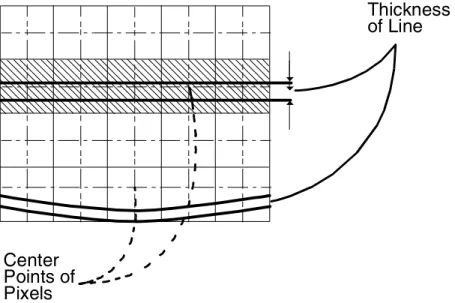
Scan conversion details 2-18
Stroke 2-18
Fill 2-19
Shapes 2-19
Curved shapes 2-20
Images 2-20
Image quality 2-21
Rendering of color and gray values: transfer function 2-22 PostScript printer description (PPD) files 2-23
Implementation limits 2-23
File operators and standard devices 2-24
Path limits 2-25
PostScript VM limits 2-25
SetCacheDevice 2-25
Device orientation and setscreen operator 2-25 PostScript storage object size limits 2-26 Obsolete operators—banddevice, framedevice, renderbands 2-26 Arc to Bezier conversion—pathforall 2-26 Creating the necessary PostScript CCITT Group 3 and 4 2-27 Print performance related to image printing 2-27
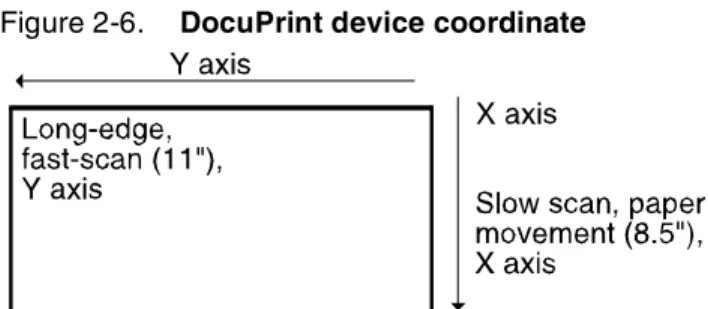
Scan order and rotation 2-27
Purpose 2-28
Considerations 2-31
Summary 2-31
Scan resolution and scaling 2-32
3.
VIPP
3-1Functionality 3-2
Operating environment 3-2
VIPP line mode extension (XGFNub) 3-3
The Xerox DocuPrint Network Printing Series Guide to Using PDL
describes how the PostScript, HP PCL 5, and VIPP (formerly XGF) page description languages (PDLs) are implemented on the Xerox DocuPrint NPS printers.
About this guide
This document is for users who will be submitting PostScript, HP PCL 5, Decomposition Service, and VIPP jobs to the DocuPrint printers. These users should be familiar with the applications they are using to generate print jobs. This document is also for PostScript, HP PCL 5, and VIPP programmers who will be creating applications since it defines the features that are not supported for each PDL. It is assumed that these programmers have a working knowledge of the language they are working in. For specific reference information, refer to the “Related information” section in this guide.
Before using this guide, become familiar with its contents and conventions.
Contents
This section lists the contents of this guide:
•
Chapter 1, “PCL 5,” provides information about how to use PCL 5 with your DocuPrint printer.•
Chapter 2, “PostScript,” contains the information you need to use PostScript with your DocuPrint printer.•
Chapter 3, “VIPP,” provides instructions for using Variable Data Intelligent PostScript PrintWare (formerly XGF) with your DocuPrint.Conventions
This document uses the following conventions:
•
All caps and angle brackets—Within procedures, the names of keys are shown in all caps within angle brackets (for example, press <RETURN>).•
Angle brackets—Variable information, or the position of a specified argument in the command syntax, appears in angle brackets (for example, List Fonts <Pattern>).•
Bold—Within procedures, text and numbers that you enter are shown in bold (for example, enter privilege operator).•
“Enter”—Within procedures, the two-step process of keying in data and pressing <RETURN> <ENTER> (for example, enter y).•
Italics—Document and library names are shown in italics (for example, the Xerox DocuPrint Publishing Series Guide to Performing Routine Maintenance).•
Quotes—Keywords you can enter as arguments appear in quotes (for example, “USLetter”).•
Vertical bars—Alternatives to specified arguments are separated by vertical bars (for example, Set Time <Time | Remote Host Name | IP Address>).Note: Notes are hints that help you perform a task or understand the text.
Caution: Cautions alert you to an action that could damage hardware or software.
Related publications
The Xerox DocuPrint Network Printer Series includes the following documents:
Decomposition Service and Tools Guide Guide to Configuring and Managing the System Guide to Managing Print Jobs
Guide to Performing Routine Maintenance Guide to Submitting Jobs from the Client Guide to Using Page Description Language Installation Planning Guide
Messages Guide System Overview Guide Troubleshooting Guide Glossary
Master Index
Customer Information Quick Reference Card Printer Controller Commands Quick Reference Card
Submitting your Jobs from Macintosh Quick Reference Card Submitting your Jobs from UNIX & DOS Quick Reference Card Submitting your Jobs from Windows NT 4.0 (QuickPrint) Quick Reference Card
Submitting your Jobs Using Windows NT 4.0 Drivers Quick Reference Card
The documentation set also includes an electronic version, the
DocuPrint NPS Interactive Customer Documentation CD.
Related information
You can locate additional information related to PostScript or HP PCL 5 in the publications listed in this section. For a complete list and description of available documentation, refer to the Xerox
Documentation Catalog or call the Xerox Documentation and Software Services at 1-800-445-5554 for ordering information in the United States. For customers outside the United States, contact your local Xerox operating company.
PostScript publications
The following is a list of PostScript publications:
•
PostScript Language Reference Manual, first edition, sixth printing, Addison-Wesley, April 1987, Adobe Systems, Incorporated•
PostScript Language Reference Manual, second edition, Addison-Wesley, January 1991, Adobe Systems, Incorporated. (This document defines both PostScript Level 1 and Level 2.)•
Adobe Type 1 Font Format, 1990, Adobe Systems, Incorporated•
LaserWriter Reference, Addison-Wesley, October 1988, Apple Computer, Incorporated•
PostScript Language Program Design, 1988, Adobe Systems, Incorporated•
PostScript Language Tutorial and Cookbook, 1986, Adobe Systems, Incorporated•
PostScript Printer Description File Format Specification, Version 4.2, March 29, 1994, Adobe Systems, Incorporated•
Real World PostScript, 1988, Addison-WesleyHP PCL 5 publications
The following is a list of HP PCL 5 publications:
•
Hewlett Packard Printer Job Language Technical Reference Manual, September 1994•
Hewlett Packard PCL 5 Printer Language Technical Reference Manual, October 1992•
Hewlett Packard PCL 5 Comparison Guide, October 1997•
Hewlett Packard PCL 5 Color Technical Reference Manual, May 1996VIPP publication
Xerox Variable Data Intelligent PostScript PrintWare (VIPP) Reference Manual
The DocuPrint NPS system supports the following functions for source documents:
•
On monochrome systems, printing of PCL 5e masters containing PCL commands, HP-GL/2 commands, fonts, and data to be printed.•
On highlight color models, printing of PCL 5e monochrome or PCL 5c color masters containing PCL commands, HP-GL/2 commands, fonts, and data to be printed.Jobs can be submitted using the HP LaserJet 4 or LaserJet 4Si print drivers for monochrome printing with PCL 5e, or the HP Color LaserJet for highlight color printing with PCL 5c.
DocuPrint NPS supports most HP PCL commands, features, and fonts, including those for PCL (the printer control language) and HP-GL/2 (the vector graphics language). The implementation of PCL 5e on DocuPrint NPS emulates the HP LaserJet 4. The implementation of PCL 5c on DocuPrint NPS emulates the HP Color LaserJet. This chapter provides specific information about the support available. Refer to your Hewlett Packard PCL 5 printer language publications for more information on PCL.
There is a DocuPrint NPS Change PCL Parameters command that allows you to configure your PCL printing environment. Refer to the
Guide to Configuring and Managing the System, “Utility commands” for more information.
Note: In PCL commands referenced in this chapter, the sign # is replaced by a number.
Maintaining image quality
DocuPrint Models 4050, 4090, 4850, and 4890 NPS provide a resolution of 300 dots per inch (dpi), and Models 92C, 96, 4635 and 180 NPS provide resolution of 600 dots per inch. If your PDL contains scalable fonts or simple vector graphics and line art generated at 600 dpi, the differences in printing at 300 or 600 dpi are subtle. However, if your PDL contains bitmaps with a resolution of 600 dpi, printing at 300 dpi causes a degradation in image quality. To preserve image quality, regenerate the bitmaps at the printer resolution of 300 dpi or regenerate them as simple line art. The 600 dpi printers can accept jobs with resources in either 300 or 600 dpi.
Note: Though you can print documents containing 300 dpi bitmaps on a 600 dpi printer, there can be an impact on performance as the printer processes the image for 600 dpi printing.
Note: For PCL jobs, DocuPrint NPS supports 300 and 600 dpi printing only.
To obtain the best image quality on the DocuPrint NPS, choose the correct printer setup attributes when generating a document on your personal computer.
Refer to the “Appearance Consistency” section in the “PostScript” chapter for more information on resolution.
The following table shows the recommended printer settings in order of preference:
•
The recommended choice is listed in the 300 dpi vector graphics settings column. The print quality of an object that is created in HP-GL/2 mode is very consistent. Because the image is not a bitmap, the data is not skewed.•
The second choice is listed in the 600 dpi vector graphics settings column. Because you are using an image that is not a bitmap, the data will not be skewed and the differences would be difficult to detect.•
The last choice is listed in the 300 dpi raster graphics settings column. The print quality deteriorates if the image is arasterized bitmap, which leaves some white space where the bits are not formulated.
Keep the following points in mind when preparing your images and setting print attributes:
•
Page protection, orientation, and memory are not values that affect the image quality.•
Setting the graphics quality to HIGH allows for the best possible output.•
Setting print quality to printer default allows the printer to determine the best match for the job.•
The DocuPrint 92C NPS can produce a single-pixel line. However, because of the many variables involved, such as print Table 1-1. PCL settings Setting 300 dpi vector graphics 600 dpi vector graphics 300 dpi raster graphics Resolution 300 600 300Page protection OFF OFF OFF
Orientation Portrait Portrait Portrait
Memory 2 2 2 Option… Graphics mode HP-GL/2 HP-GL/2 RASTER Option… Graphics quality
HIGH HIGH HIGH
Option… Halftoning
Photographic images Photographic images Photographic images
Option… Print quality
density settings and line placement on the page, Xerox cannot guarantee the quality of these single-pixel lines. Specific questions regarding single-pixel line printing for your application should be directed to your Xerox service engineer.
PCL 5 media support
Acceptable sizes for DocuPrint Models 4050, 4090, 4850, 4890, or 92C are “USLetter,” “USLegal,” “A4,” and “nxn.”
Acceptable sizes for DocuPrint Model 96, 4635, and 180 are “USLetter,” “USLegal,” “USLedger,” “Tabloid,” “A3,” “A4,” and “B4.”
Note: For PCL jobs, custom paper sizes and mixed paper sizes within a PCL job are supported as of release 7.x.
For more information on how PCL media commands are interpreted on DocuPrint NPS, refer to the section “PCL media selection” in this chapter.
PCL 5 font support
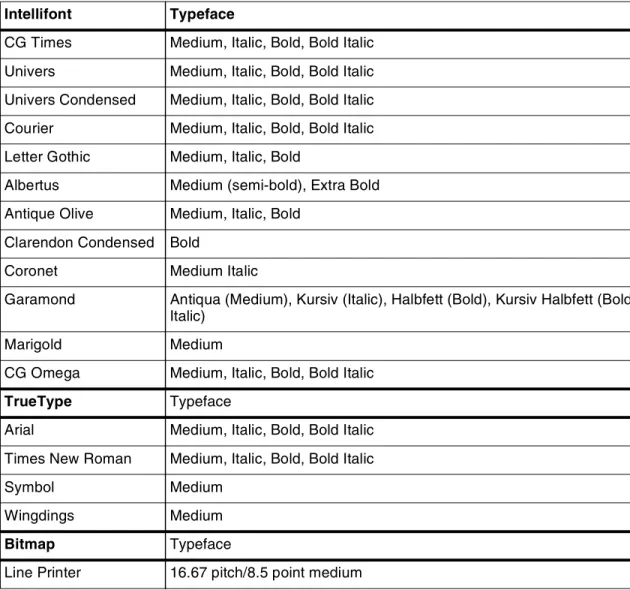
DocuPrint supports most PCL 5 fonts. Table 1-2 lists the internal, HP LaserJet compatible fonts installed with the system:
•
One bitmap font•
45 scalable fonts:— 35 Intellifont FAIS typefaces — 10 TrueType typefaces
PCL fonts may be downloaded within a PCL job.
Note: The DocuPrint NPS PCL 5e and 5c interpreters support use of downloaded PCL fonts or macros by setting the proper parameter using the Change PCL Parameters command. Refer to the Guide to Configuring and Managing the System chapter “Setting system defaults.”
PCL Intellifont FAIS typefaces and PCL bitmap fonts may be permanently installed using the Install PCL Fonts From Floppy command.
PCL bitmap fonts must be in the PCL soft font format for HP LaserJet printers. A PCL bitmap font contains a font header and a set of character definitions. The PCL format 0 (zero) and format 20 font headers are supported for PCL bitmap fonts. Refer to your Hewlett Packard PCL 5 printer language publications for details on the font header and character descriptions.
Installation of other font types is not supported.
For MICR systems, a special DocuPrint NPS MICR font floppy is available. It contains the PCL bitmap font named E13B required for MICR applications. See the Guide to Configuring and Managing the
System chapter on “MICR Printing” for more information. Refer also to the Generic MICR Fundamentals Guide.
Note: Fonts installed using the “Install PCL Fonts from Floppy” command cannot be selected by font ID. They must be selected by characteristics.
Only fonts installed using this command can be deleted using the Delete Fonts command. PCL fonts installed with the system software cannot be deleted.
Refer to the Xerox DocuPrint Network Printer SeriesGuide for Configuring and Managing the System for information on loading fonts from floppy and from CD-ROM.
Table 1-2.PCL 5 fonts installed with NPS software Intellifont Typeface
CG Times Medium, Italic, Bold, Bold Italic Univers Medium, Italic, Bold, Bold Italic Univers Condensed Medium, Italic, Bold, Bold Italic Courier Medium, Italic, Bold, Bold Italic Letter Gothic Medium, Italic, Bold
Albertus Medium (semi-bold), Extra Bold Antique Olive Medium, Italic, Bold
Clarendon Condensed Bold
Coronet Medium Italic
Garamond Antiqua (Medium), Kursiv (Italic), Halbfett (Bold), Kursiv Halbfett (Bold Italic)
Marigold Medium
CG Omega Medium, Italic, Bold, Bold Italic
TrueType Typeface
Arial Medium, Italic, Bold, Bold Italic Times New Roman Medium, Italic, Bold, Bold Italic
Symbol Medium
Wingdings Medium
Bitmap Typeface
PCL command support
The following sections explain the differences in processing and how DocuPrint NPS interprets various PCL commands.
PJL commands
DocuPrint NPS does not support Printer Job Language (PJL) commands embedded within a job. When PJL commands are embedded within a PCL job, the job prints but the PJL commands are ignored.
Note: PJL commands specifying the resolution of the job are ignored. This can cause a PCL job to be printed at an incorrect resolution. Use the DefaultResolution option or the virtual printer to specify the correct resolution.
PCL Copy command
DocuPrint’s behavior with the PCL Copy command (<ESX>&|#X) differs slightly from the behavior of the HP LaserJet 4si or Color LaserJet. This section describes these differences.
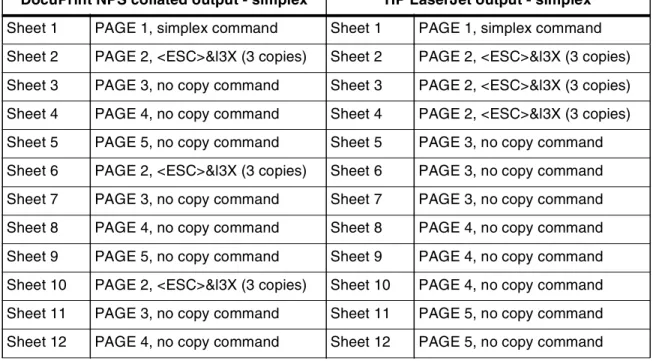
If a document is printed as simplex, the behavior of the HP LaserJet 4si or Color LaserJet and the DocuPrint NPS is nearly identical, except that DocuPrint collates the copy output when one copy command is used to print copies of multiple output pages.
The following is an example for a 9 page document with a “3 copies” command on page 2, a “2 copies” command on pages 6 and 7, and a “1 copy” command on page 8:
Table 1-3. PCL Copy command example
DocuPrint NPS collated output - simplex HP LaserJet output - simplex
Sheet 1 PAGE 1, simplex command Sheet 1 PAGE 1, simplex command Sheet 2 PAGE 2, <ESC>&l3X (3 copies) Sheet 2 PAGE 2, <ESC>&l3X (3 copies) Sheet 3 PAGE 3, no copy command Sheet 3 PAGE 2, <ESC>&l3X (3 copies) Sheet 4 PAGE 4, no copy command Sheet 4 PAGE 2, <ESC>&l3X (3 copies) Sheet 5 PAGE 5, no copy command Sheet 5 PAGE 3, no copy command Sheet 6 PAGE 2, <ESC>&l3X (3 copies) Sheet 6 PAGE 3, no copy command Sheet 7 PAGE 3, no copy command Sheet 7 PAGE 3, no copy command Sheet 8 PAGE 4, no copy command Sheet 8 PAGE 4, no copy command Sheet 9 PAGE 5, no copy command Sheet 9 PAGE 4, no copy command Sheet 10 PAGE 2, <ESC>&l3X (3 copies) Sheet 10 PAGE 4, no copy command Sheet 11 PAGE 3, no copy command Sheet 11 PAGE 5, no copy command Sheet 12 PAGE 4, no copy command Sheet 12 PAGE 5, no copy command
In addition, if the stapling attribute is set for the document on a DocuPrint equipped with a High-Capacity Stitcher/Stacker, pages 2, 3, 4, and 5 will be stapled together on all copies but pages 6 and 7 will not be stapled together because the copy command is given explicitly on each of pages 6 and 7. When the PCL Copy command is used on the DocuPrint, all of the pages cannot be stapled together automatically.
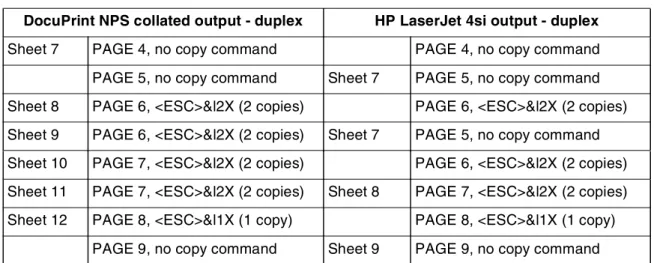
If the document is printed as duplex (refer to the “PCL Duplex command” section), the behavior differences between the HP LaserJet 4si and the DocuPrint are greater. The simplex issue in which DocuPrint copies are collated and HP LaserJet 4si copies are uncollated also applies to duplex printing. Additionally, the DocuPrint will blank the back side of the sheet and pull a new sheet if the copy command occurs on what is normally the back side of a sheet. However, the HP LaserJet 4si does not pull a new sheet of paper when the copy command appears on the back side of a sheet. Instead, the HP LaserJet 4si will place multiple copies of both the front and back sides of that sheet into the output, even though multiple copies are not requested for the front side.
The following is an example of the same job as shown above, printed as duplex:
Sheet 13 PAGE 5, no copy command Sheet 13 PAGE 5, no copy command Sheet 14 PAGE 6, <ESC>&l2X (2 copies) Sheet 14 PAGE 6, <ESC>&l2X (2 copies) Sheet 15 PAGE 6, <ESC>&l2X (2 copies) Sheet 15 PAGE 6, <ESC>&l2X (2 copies) Sheet 14 PAGE 7, <ESC>&l2X (2 copies) Sheet 14 PAGE 7, <ESC>&l2X (2 copies) Sheet 15 PAGE 7, <ESC>&l2X (2 copies) Sheet 15 PAGE 7, <ESC>&l2X (2 copies) Sheet 16 PAGE 8, <ESC>&l1X (1 copy) Sheet 16 PAGE 8, <ESC>&l1X (1 copy) Sheet 17 PAGE 9, no copy command Sheet 17 PAGE 9, no copy command
Table 1-3. PCL Copy command example (continued)
DocuPrint NPS collated output - simplex HP LaserJet output - simplex
Table 1-4. Duplex PCL Copy command example DocuPrint NPS collated output - duplex HP LaserJet 4si output - duplex
Sheet 1 PAGE 1, duplex command Sheet 1 PAGE 1, duplex command Sheet 2 PAGE 2, <ESC>&l3X (3 copies) PAGE 2, <ESC>&l3X (3 copies)
PAGE 3, no copy command Sheet 2 PAGE 1, duplex command Sheet 3 PAGE 4, no copy command PAGE 2, <ESC>&l3X (3 copies)
PAGE 5, no copy command Sheet 3 PAGE 1, duplex command Sheet 4 PAGE 2, <ESC>&l3X (3 copies) PAGE 2, <ESC>&l3X (3 copies)
PAGE 3, no copy command Sheet 4 PAGE 3, no copy command Sheet 5 PAGE 4, no copy command PAGE 4, no copy command PAGE 5, no copy command Sheet 5 PAGE 3, no copy command Sheet 6 PAGE 2, <ESC>&l3X (3 copies) PAGE 4, no copy command PAGE 3, no copy command Sheet 6 PAGE 3, no copy command
As with simplex, if the stapling attribute is set for the document on a DocuPrint equipped with a High-Capacity Stitcher/Stacker, pages 2, 3, 4 and 5 are stapled together on all copies, but pages 6 and 7 are not stapled together because the copy command is given explicitly on each of pages 6 and 7.
PCL Duplex commands
The following table summarizes the behavior of a selection of PCL Duplex commands (<ESC>&|#S and <ESC>&a#G) with respect to blanking the back-sides of sheets.
Note: These commands force new sheets to be pulled regardless of the value of the PlexChangesDynamic attribute.
Note: For releases prior to 7.x, the NPS plex attribute must be set to Duplex in order to use the PCL Duplex commands. If the NPS plex attribute is set to tumbleDuplex then the job is printed as tumble duplex regardless of the PCL Duplex command.
Sheet 7 PAGE 4, no copy command PAGE 4, no copy command PAGE 5, no copy command Sheet 7 PAGE 5, no copy command Sheet 8 PAGE 6, <ESC>&l2X (2 copies) PAGE 6, <ESC>&l2X (2 copies) Sheet 9 PAGE 6, <ESC>&l2X (2 copies) Sheet 7 PAGE 5, no copy command Sheet 10 PAGE 7, <ESC>&l2X (2 copies) PAGE 6, <ESC>&l2X (2 copies) Sheet 11 PAGE 7, <ESC>&l2X (2 copies) Sheet 8 PAGE 7, <ESC>&l2X (2 copies) Sheet 12 PAGE 8, <ESC>&l1X (1 copy) PAGE 8, <ESC>&l1X (1 copy)
PAGE 9, no copy command Sheet 9 PAGE 9, no copy command Table 1-4. Duplex PCL Copy command example (continued)
DocuPrint NPS collated output - duplex HP LaserJet 4si output - duplex
Table 1-5. PCL Duplex commands DocuPrint NPS
(collated) HP LaserJet 4si
Next-side command (<ESC>&a0G) no new sheet no new sheet Front-side command (<ESC>&a1G) forces new sheet forces new sheet Back-side command (<ESC>&a2G) no new sheet no new sheet Simplex command (<ESC>&l0S) forces new sheet forces new sheet Duplex command (<ESC>&l1S) forces new sheet forces new sheet *Feed from upper tray (<ESC>&l1H) forces new sheet forces new sheet *Feed from manual feeder (<ESC>&l2H) forces new sheet forces new sheet *Feed from lower tray (<ESC>&l4H) forces new sheet forces new sheet Number of copies command (<ESC>&l#X) forces new sheet no new sheet
*DocuPrint implements the Paper Source command by corresponding the number specified in the command to the
correlating media in the media list of the Media document attribute. Therefore, the "Feed from upper tray" command specifies the first media in a media list in the document attribute and the "Feed from lower tray" command specifies the fourth media in a media list in the document attribute. Refer to the “PCL Paper Source command” section for more information.
For information on mixed plex jobs for Models 96, 4635, and 180, see the chapter “Mixed plex applications” in the Guide to Managing Print Jobs.
PCL Job Separation command
PCL uses the Job Separation command (<ESC>&l1T) to separate distinct portions of the output by offsetting a set of sheets in the output from a succeeding set of sheets.
There is a short description of the PCL Job Separation command in the HP documentation. This command is only supported on the HP LaserJet IIISi. HP recommends that the Job Separation command be included at the end of each job. There is no mention of possible side effects when this practice is not followed.
This PCL Job Separation command description is based on the printing behavior observed on the HP LaserJet IIISi. Job Separation toggles the output tray offset. It is primarily a printer hardware function. There were no observed page processing effects. The PCL Job Separation command has these major features:
•
The Job Separation command operates independent of all other PCL commands. This command is the only PCL command that changes the output tray offset.•
The Job Separation command toggles the output tray offset. The output tray offset is switched between two positions. This command does not set the output tray offset to a specific position.•
The Job Separation command sends a hardware command to toggle the output tray offset that is executed immediately.•
The Job Separation command takes effect on the current page that is being processed. It will be observed when this page is ejected.•
The output tray offset is retained between print jobs. This offset consistency cannot be guaranteed since there are ways to change the output tray offset between print jobs.When a PCL Job Separation command is encountered on a page, DocuPrint NPS will offset that page from the previous page. If the job is printed duplex and the command is encountered on the backside of the page, DocuPrint NPS will not offset the current page. In this case, the next page will be offset. There are other conditions that result in different sets of paper being offset in the output tray. The DocuPrint NPS currently provides consistent support of the PCL Job Separation command when it appears at the beginning of the print job section that should be offset. There are several
recommendations to consider for the use of the PCL Job Separation command in DocuPrint NPS printing environments:
•
Use DocuPrint NPS facilities for offsetting at the print job level. Do not rely on the use of the Job Separation command at the end of every PCL job. Although this is the HP recommendation, a consistent offsetting of print jobs cannot be guaranteed. For example, actions such as resetting the HP LaserJet IIISi at the printer change the output tray offset. The printer does not keep track of the offset tray position under all conditions.•
The Job Separation command can be used within a print job to offset sections of the print job. (This feature is sometimes referred to as creating report offsets within a print job.) The recommended job structure is to insert PCL commands before the section that should be offset.The sequence of PCL commands is a Printer Reset command, other PCL setup commands, and the Job Separation command. This PCL setup produces consistent results on the HP LaserJet IIISi and the Xerox DocuPrint NPS.
•
Do not place the Job Separation command at the end of a page that starts a section with a new output tray offset. There are significantly different results when printing the same print job on the HP LaserJet IIISi and the Xerox DocuPrint NPS.•
Use a PCL copy count of 1 (one).Inconsistent offsetting takes place when multiple copies are specified. Sheets in the printer output are not stacked with the desired offset.
PCL media selection
There are three ways to specify media for a given page. You can use the PCL Page Size command (<Esc>&l#A), the PCL Paper Source command, or you can use the DocuPrint NPS ExceptionPages attribute.
PCL Paper Source command (tray assignment)
PCL uses the Paper Source command (<Esc>&l#H) to specify the tray definition (# is a number from 0-6).
0=don’t change paper source
1=feed paper from printer specific tray 2=feed paper from manual input 3=feed envelope from manual input 4=feed paper from lower tray
5=feed paper from optional paper source 6=feed paper from optional envelope
Note: These are the documented values of HP printers. However, the DocuPrint NPS changes paper by media definition and not by tray definition.
These numbers map directly to the media list set for the Media document attribute on the virtual printer or in the job submission so that if:
Media List: A4::blue,A4::white,A4::green,A4::yellow then:
Esc&l1H selects A4:: blue Esc&l2H selects A4:: white Esc&l3H selects A4:: green Esc&l4H selects A4:: yellow
“Media list” is the list of media assigned to the Media document attribute.
Note: Refer to the Xerox DocuPrint Network Printer Series Guide to Managing Print Jobs for information on using virtual printers to create media lists.
Tray assignments are independent so that if the trays are set as: Tray 1: A4::white
Tray 2: A4::yellow Tray 3: A4::blue Tray 4: A4::green then:
Esc &|1H selecting A4::blue will use Tray 3 Esc &|2H selecting A4::white will use Tray 1 Esc &|3H selecting A4::green will use Tray 4 Esc &|4H selecting A4::yellow will use Tray 2
When Esc&l0H is used at the start of the job, then media 1 is used, otherwise it uses the media previously selected.
Note: If an HP LaserJet driver is used that does not support certain media (for example, manual or envelope feeders), it may be difficult to specify that media in the media list.
Precedence in selecting media
When more than one method of specifying media is used for the same page, the order of precedence used by the system to select the medium is:
1. ExceptionPages attribute 2. PCL Paper Source command 3. PCL Page Size command
If a given page has a media exception (that is, the ExceptionPages attribute) associated with it, the attribute determines the medium that the page uses, regardless of whether there is a Paper Source (tray selection) or Page Size specification.
If a given page does not have a media exception, but has both the Page Size and Paper Source specified, then the medium specified by the Paper Source command is checked against the media list. If the medium is of the appropriate size, it is used. If it is not of the appropriate size, then the Paper Source command specification is ignored.
If a given page has only a Page Size specification, it is used to identify the required medium in the media list. If no exact match is available, the medium closest in size is used. If there is more than one medium of the chosen size (differing in color or weight), the one appearing first in the media list is used.
If a given page contains only a Paper Source specification, this determines the medium for the page. The medium used is the nth medium in the media list, where n is the tray that has been specified in the Paper Source command. If the number of the tray specified in the Paper Source command is greater than the number of media in the media list, then the paper source command is ignored.
If none of three methods of specifying media is available for a given page, then the medium specified for the previous page is used, with two exceptions: an ExceptionPages specification is not used, and if the page is a first page, then the first medium in the media list is used. For duplex jobs, the medium for the front side of a given sheet is the medium used for the sheet, regardless of the medium selected for the back side.
PCL Output Bin command
Caution: Do not use the DocuPrint NPS Output Bin attribute when using the PCL Output Bin command, otherwise the PCL command will be ignored.
PCL uses the Output Bin command (<Esc>&l#G) to select an output bin (where # is replaced by a number):
•
When # = 1, then the Stacker Group will be 1.•
When # = 2, then the Stacker Group will be 2.PCL Offset Registration commands
The PCL Left Offset Registration command (<Esc>&l#U) and Top Offset Registration command (<Esc>&l#Z) are not supported when the job is duplexed. (The # symbol is used to indicate the size of the offset.)
The Left and Top Offset Registration commands instruct the printer to shift the entire page image in a desired direction. Unfortunately, the PCL specification has made the direction of the requested shift dependent on which page-side (front or back) and in which plex (long-edge binding or short-edge binding) the page is printed. The PCL interpreter on DocuPrint NPS is designed to emulate the HP LaserJet 4, a simplex-only printer. Therefore, it does not perform the correct registration offset when plex and page-side PCL commands are used.
The page images passed from the PCL interpreter to the DocuPrint sequencer are images as they would appear on an HP LaserJet 4. In addition to the page images, certain switches are passed to the sequencer to indicate desired output behaviors. The switches can control the plex, requested page-side, media index, number of copies, and output bin. These switches make it possible for the sequencer to emulate most of the behaviors of duplexing PCL
printers even though the PCL interpreter is emulating a simplex PCL printer. There are no switches that control how the image is shifted, because the DocuPrint sequencer does not perform image shifting on a page-by-page basis, but only on a job-by-job basis.
PCL 5 coding recommendations
When creating PCL 5 jobs, there are some general recommendations for optimal performance:
•
Use PCL Fill Rectangle Area for horizontal and vertical lines and rectangles.•
Use HPGL for other synthetic graphics (curves, diagonal lines).•
Minimize raster usage (avoid translating fonts or lines into raster data); on fast (100Mbit) networks, send uncompressed data.•
Maximize use of internal scalable fonts.•
Define logos as fonts rather than raster graphics.•
Rotate rasters to align with printer edge feed, using the Raster Graphics Presentation Mode, if possible.•
Minimize switching between HPGL and PCL modes.•
Download resources outside of macros.PCL 5c support
This section provides specific information related to the DocuPrint NPS implementation of PCL 5c on the 4850, 4890, 92C. For more information on PCL 5c, see the HP PCL 5 Color Technical Reference Manual.
The DocuPrint NPS implementation of PCL 5c is tuned for optimal print quality on the 4850, 4890, 92C highlight color printers.
Note: If the same document is printed with PostScript and with PCL 5c, the highlight color may not match exactly.
When the DocuPrint NPS PCL 5c interpreter is installed on the highlight color printers, the decomposer can switch between highlight color and monochrome modes dynamically on a per-job basis. You can specify monochrome printing (that is, Executive Black mode) by setting the highlight color attribute to black. The PCL 5e interpreter is used for monochrome mode.
In general, PCL 5c jobs can be expected to have much larger file sizes than PCL 5e jobs because of the nature of the PCL 5c driver. This is not a function of DocuPrint NPS.
The default highlight color rendering algorithm, Automatic, is not recommended for use with PCL 5c jobs. Presentation and Pictorial rendering algorithms produce the best appearance. The
ColorToHighlight algorithm is also supported for PCL 5c. For PCL 5c jobs, the Thicken attribute has no effect.
User-defined dither patterns are ignored. The default highlight color dither pattern is used instead.
PCL 5c coding recommendations
When creating PCL 5c jobs, there are some color-related commands you should be aware of for optimal performance and print quality.
•
Use the Simple Color command whenever possible; when greater color palette control is required, use Configure Image Data (short form) with either Device RGB or Device CMY color space.•
For defining gray shade fills:— Use RGB color values which provide a wider range of gray shades.
— Alternatively, use the Built-in shade fills (Fill Rectangle Area with shade fill command or HPGL FT10); this is less than optimal.
•
When using Configure Image Data (short form), use the Direct by Plane pixel encoding mode for optimal performance. The Direct by Pixel and Indexed by Pixel are the second and third recommended choices, respectively.•
Avoid using the following commands: — Logical Operation and HPGL MC— Fill Rectangle Area with user-defined pattern fill and HPGL FT11
PCL 5c functions not applicable to DocuPrint NPS
The following PCL 5c functions are not applicable to NPS printers and, therefore, it is recommended that they not be included in PCL 5c jobs:
•
Halftone Render Algorithms•
Download Dither Matrix•
Gamma Correction•
Color Lookup Tables•
Viewing Illuminant•
Driver ConfigurationThe following PCL 5c functions are not fully functional on the NPS printers and their usage is discouraged.
•
Logical Operation – The highlight color print model is not fully compatible with the complete set of 256 logical operations. Use of logical operators, which either negate (NOT) or exclusive-or (XOR) the Destination or Texture, such as 90, will result in incorrect color output.•
HPGL Merge Control - This is the HPGL equivalent of the Logical Operation command.Driver recommendations for PCL 5c
This section identifies drivers that are recommended for the Windows 95 and the Windows NT 4.0 environments.
For Windows 95, the HP Color LaserJet 5/5M PCL 5C driver, version vF2.2 is recommended. For the driver’s Color Setup option, select Manual mode with the No Adjustment option to allow using device RGB Color Space in the document. An alternative driver for this environment is the Xerox DocuPrint C55 driver.
For Windows NT 4.0, the HP Color LaserJet 5/5M PCL 5C driver is recommended. For the driver’s color Color Setup option, select Manual mode with the No Adjustment option to allow using device RGB Color Space in the document. For Graphic Mode, select HP-GL/2 mode for all the graphics in the document.
Limitations for custom PCL 5c drivers
If you write your own PCL 5c drivers, the following are recommended restrictions:
•
Do not use Logical Operations that negate (NOT) either the Texture or Destination.•
Do not use Logical Operations that involve using XOR for Destination or Texture.•
Avoid using Logical Operation 136 in standalone mode. PCL 5C highlight color has been tailored to accommodate a special way of using the Logical Operator sequence (136, 90)generated by some applications. Therefore, using Logical Operation 136 may cause the output to print incorrectly.
This chapter provides an overview of standard PostScript operations and guidelines for ensuring consistent printer output.
Implementation-dependent operations
The following operations are implementation-dependent.
Floating-point arithmetic and math operators
All PostScript floating-point arithmetic and math operators are implementation-dependent if you use very large or very small floating-point numbers. This is rarely a problem with PostScript masters generated by “real world” creators; that is, commercial PostScript creators such as Word or Excel. Handwritten test masters, however, can cause problems.
Some handwritten test masters print out the limits of floating point numbers and various floating-point operations. Because these values may vary based on the PostScript implementation, the test master output also varies, making these tests useless for testing consistency across different PostScript printers.
Coordinate system default matrix
The PostScript current transformation matrix (CTM) controls the mapping of user coordinates to device coordinates. You can describe pages in your own coordinate system and let the PostScript software transform your requests into the device space. PostScript masters are device independent only when they do not use the actual CTM values. When a master needs CTM values, it becomes device-dependent. The occasional need for CTM values causes inconsistent output across different PostScript printers.
Some handwritten test masters print out CTM values. Since these values vary, depending on the device resolution and positioning, the test master output also varies, making these tests useless for consistency testing across different PostScript printers.
Fonts
DocuPrint NPS contains 51 PostScript Type 1 fonts listed in the following table. These fonts are standard Type 1 fonts licensed through Adobe Systems, Inc. However, because DocuPrint NPS may contain different versions of fonts than other PostScript devices, there could be slight differences in shapes of characters and the character sets of certain fonts.
A set of Type 0 OCF Chinese fonts is also available from Xerox. These fonts are composite, “double-byte” fonts.
Note: Type 0 fonts that you load on the printer controller must be either fonts purchased from Xerox, or fonts that meet specifications provided by Xerox. Each composite font is stored in its own subdirectory. Loading of Type 0 CID fonts is not supported.
Type 3 fonts can be installed from a DOS-formatted floppy using the Install Fonts From Floppy command. Type 3 fonts will install only if:
•
The fonts are in the floppy’s root directory.•
Each font is in a separate file.•
Each font file has a .ps extension.•
Each font file contains a “/FontName” definition with a unique name.For MICR systems, MICR PostScript E13B font is provided on diskette. These fonts are in Type 3 format. For more information, Table 2-1. Adobe Type1 PostScript fonts
Font Typeface
Courier Courier, Bold, Oblique, BoldOblique
Helvetica
•
Helvetica, Bold, Oblique, BoldOblique, Light, LightOblique, Black, BlackOblique•
Condensed, Condensed Oblique, Condensed Bold, Condensed BoldOblique•
Narrow, Narrow Bold, Narrow Oblique, Narrow BoldOblique ITC Avant Garde Gothic Book, BookOblique, Demi, DemiObliqueITC Bookman Demi, DemiItalic, Light, LightItalic ITC Garamond Light, LightItalic, Bold, BoldItalic
ITC Korinna Korinna, KursivRegular, Bold, KursivBold ITC Zapf Chancery MediumItalic
ITC Zapf Dingbats Medium
New Century Schoolbook Roman, Bold, Italic, BoldItalic Palatino Roman, Bold, Italic, BoldItalic
Symbol Medium
see the Generic MICR Fundamentals Guide and the “MICR printing”” chapter in the Guide to Configuring and Managing the System. DocuPrint NPS is capable of processing any legal Type 0, Type 1, or Type 3 font. Fonts of any of these types may be included in a document when it is sent to DocuPrint. Type 0, Type 1 and Type 3 fonts may also be installed on the system using the font installation utility.
Note: Only Type 0 OCF fonts are supported. Type 0 CID fonts are not supported, even when downloaded.
The DocuPrint PostScript interpreter does not use the “additional metrics” entry in a font dictionary.
PostScript font substitution error messages appear on the “JOB MESSAGES AND ERRORS” page only when the requested font is not present.
DocuPrint NPS uses Courier when a requested font is not available.
Loading fonts
DocuPrint NPS accepts downloaded legal Type 0, 1 or 3 fonts through the standard means used on other PostScript devices for downloading fonts. Type 0, Type 1, or Type 3 fonts may be loaded permanently on the system by the system administrator using the font installation utility. This method ensures that the desired fonts are available on the system and saves time later by avoiding the repeated transfer of fonts through the network.
Note: Only Type 0 OCF fonts are supported. Type 0 CID fonts are not supported.
Caution: Downloading fonts with a PostScript file is discouraged because printer performance may be degraded significantly. Instead, install the desired fonts on the controller, then reference them from within the PostScript file.
User-defined fonts
User-defined fonts can contain bitmaps or define the shape of characters through PostScript operators (lineto, curveto, fill). User-defined bitmap fonts are not portable across different output devices. You may notice a marked difference in the quality of rendering for bitmap fonts as printed on different laser printers. The differences are attributable to device-dependent features such as resolution, shape of device pixels, and other characteristics. For further information on these characteristics, see “Scan conversion details” in this chapter.
Type 1 fonts
Type 1 fonts are base fonts with character shapes defined by using specially encoded PostScript procedures. Because characters are drawn by PostScript procedures, many visual elements that are not associated with fonts can be represented as characters in a Type 1 font.
The multiple master font format is an extension of the Adobe Type 1 font format and is supported by DocuPrint NPS.
Refer to the Adobe PostScript Language Reference Manual for more information, and the Adobe Type 1 Font Format document for encoding information.
Type 1 fonts are available on DOS formatted diskettes and can be loaded on the DocuPrint system using the font installation utility. According to the Adobe Type 1 Font Format, a conforming Type 1 font program contains the following first line:
%! FontType1 - SpecVersion. Font Name FontVersion
SpecVersion is the version of the Adobe Type 1 Font format to which the font program conforms.
FontName is the name of the font understood by the PostScript interpreter.
FontVersion is the version number of the font program.
The first line of the Type 1 font, which is available by reading the header of the Type 1 font program, can aid in determining differences between fonts on PostScript devices.
Using Adobe Type 1 fonts
One of the factors that can negatively impact performance on DocuPrint NPS is the use of small graphic images, logos, and signatures embedded in PostScript masters. When these graphic items are used on each page of a document, DocuPrint performance can be slowed down.
The Type 1 font capabilities of DocuPrint can handle commonly referenced, small or large graphic elements such as logos and signatures. You can install and remove any Adobe Type 1 font from a DocuPrint system using standard administrator commands in the DocuPrint Printer Controller. Fonts used only occasionally for a single job can be included in the PostScript master for the jobs that require them.
Caution: Type 1 fonts should not be downloaded with a PostScript file because printer performance will be degraded significantly. Instead, use the Install Fonts From Floppy or CDROM command, and then reference the font in the PostScript file.
Using fonts for small graphic elements has the following advantages over using referenced content files:
•
You do not need to perform the NFS setup required for referenced content files. DocuPrint can be used in a standard configuration.•
Visual elements stored as fonts can be easily rotated and scaled.•
Font characters are cached so that multiple uses of a visual element in a document are rendered quicker if the elements are taken from a font than if they are read from supplementary files.•
Including graphic images is easier when creating the document.Producing Type 1 fonts for use with DocuPrint
Third-party software for font editing and creation is available for most popular personal computing systems. With these programs, you can edit or produce outlines from a bitmap obtained by scanning existing line art.
Each graphical item that is referenced must be assigned to a character code in a font. You can incorporate many graphic elements in a single font by assigning each element to a different character code, or you can place each item in its own font.
Once created, you must save Type 1 fonts on an MS-DOS diskette as files with the .pfb extension. You can then load the fonts from diskette onto a DocuPrint system using the administrator Install Fonts From Floppy command.
Using a Type 1 font in a document
When you create a document using a standard document editor, you enter the character that refers to the graphic image you want, assign the appropriate font to it, and size and place it to fit the document. If you are using Adobe Type Manager, the image is scaled and displayed.
The PostScript driver of the document editor selects the font using the PostScript operator findfont and scales the font using scalefont. Once the font is installed as current by the setfont operator, any
show of a character images the figure associated with that character code.
For example, you can create a font containing a corporate logo, assigned to the character a. The following PostScript example shows how the specific size of the logo font is assigned a name within a master, and how the logo is placed on a page.
/Logo /XYZCorpLogos findfont 20 scalefont def Logo setfont
PostScript with embedded PJL commands
PostScript files created for some Hewlett-Packard printers and other compatible printers include PJL commands that specify the use of a PostScript interpreter. DocuPrint NPS can recognize a file as PostScript if it starts with code similar to the following:
^[%-12345X@PJL ENTER LANGUAGE=POSTSCRIPT
Other PJL commands can be included at the start of the job, but will be ignored.
Note: PJL commands in locations other than at the start of the PostScript job will cause the job to be aborted.
PostScript language extensions
DocuPrint NPS emulates some, but not all, of the LaserWriter II NTX (containing version 47 of Adobe PostScript) product-specific functionality as noted in this section.
When unimplemented operators are encountered in the PostScript master, the standard error message “Undefined” appears on the job messages page.
This section contains PostScript dictionary entries that are defined in the LaserWriter II NTX. These PostScript definitions are not part of the PostScript language.
System Dict
The following System Dictionary operators are implemented:
The following System Dictionary operators are implemented:
•
ISOLatin1EncodingThis is a 256-entry font encoding array based on the
International Standards Organization Latin1 encoding vector.
•
eexecThis is a decryption operator typically used for decoding Type 1 fonts. For a detailed description, refer to the Adobe Type 1 Font Format, version 1.1.
•
cexecThe DocuPrint 1.5 and higher cexec implementation simply consumes and ignores the data fed to cexec. The cexec
operator is used to download machine code patches. As such,
cexec is Motorola 6800 cpu-dependent and is not completely implemented. DocuPrint NPS does not handle PostScript
•
=print {dup type /stringtype ne {=string cvs}}•
Run {dup == flush run}•
error The common error handling routine used by all of the standard error handlersmasters using cexec. Usage of cexec is typically hidden by the encryption of eexec.
LaserWriter defines other entries in the System Dictionary that are specific to its device characteristics, such as extra operators that deal with the hard disk. Such operators are not part of the standard as defined in the PostScript Language Reference Manual, second edition, and are not implemented on DocuPrint NPS.
User Dict
User dictionary entries that are implemented include:
DocuPrint implements print-level commands provided by the client print command. PostScript-level print commands are ignored. The following operators, which are specific to the LaserWriter implementation of PostScript, are defined with null functionality in DocuPrint NPS.
The DocuPrint NPSUser Dictionary contains the following definitions of values and procedures that mimic the LaserWriter II NTX but are not used by DocuPrint:
Note: #copies may be used to set the number of copies prior to the first showpage of a job.
Server Dict
Server Dictionary operators that are implemented include:
With the exception of exitserver (see the “Printer Controller” section of this chapter), these operators allow you to bypass the save or restore context around each PostScript job. These changes can be reset only by stopping and restarting job processing.
cleardictstact {countdictstack 2 sub {end}repeat}
startpage Prints a startup page
start {(Init.ps)run} a4 legaltray a4small letter a4tray lettersmall b5 lettertray b5tray note legal aa xu xs xv xt xw #copies dexch exitserver exchdef fontname
Server Dictionary entries that contain defined values and routines to mimic the LaserWriter, but are not used by DocuPrint, include:
No other Server Dictionary operators defined in the LaserWriter are implemented in DocuPrint 1.5 and higher.
Status Dict
The following Status Dictionary entries are implemented:
The following Status Dictionary entries contain defined values or routines to mimic the LaserWriter but are not used by DocuPrint:
Miscellaneous: IdleTime Dict, Printer Dict, and Execution Dict
IdleTime Dictionary
IdleTime Dictionary ($idleTimeDict) entries that are implemented include:
The following $idleTimeDict entries contain defined values or routines to mimic the LaserWriter II NTX, but are not used by DocuPrint: baud25 parity9 baud9 secretdict execjob setrealdevice parity25 checkpassword product dostartpage revision jobname setpassword jobstate setmargins jobsource setdostartpage idlefonts setidlefonts margins setprintername printername defaulttimeouts printererror eerom sccbatch eescratch sccinteractive jobtimeout setdefaulttimeouts manualfeed seteescratch manualfeedtimeout setjobtimeout pagecount setpagetype pagestacktorder setsccbatch pagetype setsccinteractive prefeed waittimeout dfltkIdleArry needflush bmpl ReadIdleFonts boundsCheck stopPred exitWhenDone ROMnames idleA
Printer Dictionary
Printer Dictionary ($printerdict) entries that are implemented include:
The following $printerdict print command operators are defined with null functionality. DocuPrint implements print-level commands as provided by the DocuPrint Client print commands. PostScript-level print commands are ignored.
Execution Dictionary
Execution Dictionary (execdict) entries that are implemented include:
Nonstandard definitions
Commercial PostScript creators commonly use nonstandard (product-specific) definitions without encapsulating the definitions with an existence check. This check searches for the existence of a nonstandard definition and bypasses the definition if it is undefined.
framelimit width height xoffset mtx yoffset 0 19 1 24 2 25 3 dopage 8 proc 9 setpage 18 checkquit print execdepth quitflag idleproc stmtfile
Examples of nonstandard definitions
The following two dictionaries and their operators are examples of nonstandard (product-specific) definitions.
Appearance consistency
To control the consistency of output between more than one printer, you must consider the following:
•
printer resolution and resolution enhancement•
printer imaging characteristics•
font consistency•
proprietary Postscript extensionsThe following sections provide guidelines for ensuring consistency between printers.
Printer resolution and resolution enhancement
The most obvious reason for inconsistent output between two printing devices is that they have different resolutions. For example, a 600 by 600 dpi printer has much smoother looking fonts and curves than a 300 by 300 dpi device. For the same physical size (constant frequency) of halftone, you get four times the number of gray levels on a 600 by 600 dpi printer as on a 300 by 300 dpi device. If your document contains scalable fonts or simple line art generated at 600 dpi, the differences between printing it at 300 and 600 dpi are subtle. However, if your document contains bitmaps with a resolution of 600 dpi, printing it at 300 dpi causes a degradation in image quality. Figure 2-1 provides an example of a 300 dpi image and a 600 dpi
Statusdict Userdict a4tray a4 b5tray a4small checkpassword b5 defaulttimeouts legal jobtimeout letter legaltray lettersmall lettertray note margins manualfeedtimeout pagecount printername product revision sccbatch sccinteractive setdefaulttimeouts setjobtimeout setmargins setpassword setprintername setsccbatch setsccinteractive waittimeout
image output on a 300 dpi printer. The 600 dpi image appears larger and in a different position on the page.
Figure 2-1. 300 and 600 dpi image output
In Figure 2-2, the 600 dpi halftone is distorted and only a portion of the image appears.
Figure 2-2. 300 dpi image output
Figure 2-3. 600 dpi image output
300 dpi image
To preserve image quality when printing on 300 dpi printers, regenerate the bitmaps at 300 dpi. The 600 dpi printers can accept jobs with resources in either 300 or 600 dpi. See “Maintaining image quality” in the “PCL5e” chapter for information about the
recommended attribute settings to use when generating a document on your system.
Some manufacturers have added hardware imaging enhancements to 300 by 300 dpi printers that effectively boost the apparent dpi by micro-controlling the laser beam. The function is called post-enhancement because it is performed by the hardware after the PostScript interpreter has imaged into the frame buffer. The frame buffer is still only 300 by 300 dpi, but the hardware is controlling the laser beam to produce smoother edges.
Other manufacturers have added pre-enhancements that involve the PostScript interpreter. In these printers, the frame buffer is actually larger because the PostScript interpreter is effectively rendering at a higher resolution. The hardware performs some of the halftoning function to provide finer halftoning, resulting in picture output that looks smoother.
You can only accurately compare two different printers if both are using the same enhancement techniques or if all enhancement techniques are turned off.
Printer imaging characteristics
Most xerographic printers do not image perfect circular dots with even dry ink distribution. The dry ink “spread” is typically Gaussian, with dry ink density being the greatest at the center of the dot and fading off toward the edges.
The terms “write-white” and “write-black” are broad generalizations. The specific print imaging characteristics of some products may not represent other products with the same write-white or write-black classification. For example, the HewlettPackard (HP) LaserJet and the LaserWriter II NTX use a write-black laser printer engine that uses the laser beam to “write” where dry ink should go. Therefore, single pixel dry ink dots are approximately round and are visible on an HP LaserJet. In contrast, write-white laser printer engines “write” the dry ink free areas, which can create single dots that have four concave sides.
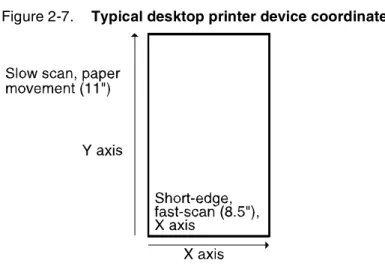
It is important to distinguish the fast scan direction, which is the direction the laser beam moves across the page before jumping back to do the next line. Remember that a laser printer scans a page in a raster method, just like a television set. Fast scan directions are not the same for a LaserWriter and the Xerox engine.
In general, when turning on the same pixels, the write-white engine produces output that appears lighter than output produced by a write-black engine. Xerox device-parameterized PostScript interpreters are able to partially compensate for this by rendering thicker strokes and fonts. Device-dependent PostScript cannot be compensated for because it is sending user-created bit images instead of
mathematical descriptions of the desired output.
•
User-defined PostScript fonts—Some user-defined fonts use bitmaps that are tuned to write-black engines. These fonts appear light on certain write-white printers.•
Image data at output device resolution—PostScript image data that has a resolution matching the output device is typically transferred directly to the frame buffer with no modification. These images appear light on certain write-white printers.•
Black lines on a color background print white—PostScript (or PCL) jobs that have black lines on a color background will print the lines with white borders. This is a characteristic of write-white printing.•
Single-pixel fills—Single isolated dots are visible on a LaserWriter but not on some write-white printers; therefore, single-pixel isolated fills in PostScript may not be visible on your product.You may be able to correct the above situation by means of the Change Imager Parameters command. Set the
FatScanConversion option to Yes. This should only be used if needed, because it may degrade performance.
Note: When the copypage operator and darkening are used together either via the Thicken attribute or a Change Imager Parameters command, the data printed on every page generated by copypage becomes progressively darker.
In addition to these PostScript issues, your output may not meet your expectations if your printer is not set within the Xerox print quality specification range. Please make sure your printer has been adjusted by a qualified technician.
Font consistency
If you do not use exactly the same fonts on both printers, you cannot expect the output to look the same. The actual shape of the
characters in any given font varies among different font
manufacturers. In fact, different versions of a font from the same manufacturer may have different shapes and character sets. Because some PostScript printers have fonts permanently installed, it is likely that newer models may have newer versions of the same fonts. The font rasterizer software may vary between printer models, also resulting in output differences.
Proprietary PostScript extensions
Some PostScript printers contain proprietary PostScript extensions. In general, PostScript masters that use proprietary printer features may cause appearance inconsistencies between different PostScript printers.