PLAN 4000
™
Print Server
NESTAR SYSTEMS, INCORPORATED
PLAN 4000 (TM)
PRINT SERVER
DISCLAIMER OF WARRANTIES
The information in this document has been carefully reviewed and is believed to be reliable; nevertheless. Nestar Systems, Incorporated makes no warranties. either express or implied. with respect to this manual or with respect to the software described in this manual, its quality. performance, merchantability, or fitness for any particular purpose. The entire risk as to its quality and performance is with the buyer. The software herein is transferred "AS IS".
Nestar Systems. Incorporated. reserves the right to make changes to any products described herein to improve their functioning or design. Nestar programs are licensed products whose use is defined in the Nestar System Software License Agreement. Server Programs usually require a separate license for each machine on which they run.
In no event will Nestar Systems, Incorporated be liable for direct, indirect, incidental, or consequential damages at law or in equity resulting from any defect in the software, even if.~estar Systems, Incorporated·has been advised of the possibility of such damages. Some states do not allow the exclusion or limitation of implied warranties or liability for incidental or consequential damages. so the above limitation or exclusion may not apply to you.
The Regents of the University of California, Apple Computer. Inc. and International Business ~~chines,
Inc., make no warranties, either express or implied, regarding the computer software programs described herein, their merchantability or their fitness for any particular purpose. UCSD. UCSD Pascal, and UCSD p-System are all trademarks of the Regents of the University of California. CP/M is a registered of Digital Research, Inc. Z-80 is a registered trademark of Zilog, Inc. Softcard is a trademark of Microsoft Consumer Products.
This document is copyrighted and all rights are reserved. This document may not, in whole or part, be copied, photocopied, reproduced, translated, or reduced to any electronic medium or machine-readable form without prior consent, in writing, from Nestar Systems, Incorporated.
Copyright 1981, 1982, 1983 by Nestar Systems. Inc. 2585 E. Bayshore, Palo Alto, California, 94303 (415) 493-2223 Telex 171420 Nestar PLA
HOW TO
How to Use This Nanual
This document is directed to those who are
installing, configuring and maintaining the
Print Server Subsystem software. It assumes a general knowledge of the PLAN 4000 system and its use in the various network user and server station environments. For more information refer to the following manuals:
The PLAN 4000 General Information Manual
The PLAN 4000 File Server User's Manual
The PLAN 4000 File Server User Guides for your environments
The PLAN 4000 Physical Planning and Installation Manual.
Chapters 1 and 2 of this manual are
introductory. Chapter 1 explains how the print servers are integrated into networks which have
more than one print server, and how print
servers are used when an installation has more than one connected segment. Chapter 2 provides an overview of how the print server software is booted on the print server. It also explains how the server software processes and performs the requests which are queued up by the users.
The tasks of the system manager with respect to
the print system are detailed in Chapters 3
through 5. They are:
1. Determining how many print servers, printers and setups will be supported and what they will be called (Chapter 3).
HOW TO
3. Configuring the print server software so that it knows what print servers, printers, and setups are available (Chapter 4).
4. Maintaining system print server queues and assisting users who require special printer setups (Chapter 5).
5. Understanding use of print server user software in appropriate user environments, as explained in the appendices of the Print Server User's ~~nual.
The appendices of this manual contain environment specific instructions for installation, configuration and maintenance of the Print Server Subsystem software. Refer to the appropriate appendices for the environments that your installation supports.
The material in this document applies to Version
2.2 of the Print Server Subsystem software.
CONTENTS
Contents
Disclaimer. • • • • • • • • • • • • • • • • • • • • • • • • • • • • • • • • • • • ii
How to Use This }~nual ••••••••••••••••••••••• iii
Contents. . . . . . . . . . . . . • . . . . . . . . . . . . . . . v
Chapter 1 Introduction to the Print
Server Subsystem
1.0 The Print Server Subsystem... 1-1
1.1 Multiple Printers and Multiple
Setups... 1-2
1. 2 Multiple File Servers and t1ultiple
Networks •... ~ ....
e.. ... ... ....
1-2Chapter 2 The Print Server Station Operation Overview
2.0
2.1 2.2 2.3
Introduction ••••••••••••••••••••••••••• Executing the Server Program ••••••••••• Server Program Operation ••••••.••••••••• Finding and Printing a Request •••••••••
Chapter 3 Installing the Print Server Subsystem
2-1 2-9 2-14 2-16
3.0 Introduction ••••••••••••••••••••••••••• 3-1
3.1 Print System Installation •••••••••••••• 3-1
Chapter 4 Configuring the Print Server Subsystem
4.0 Introduction .•••••.•.•••..•••••••••••• 4-1
4.1 Access and Usage: Protecting
/MAIN/SYSTEH/QUEUE •••• o 0 . 0 0 • • • • • 0 . . . 4-1
4.2 File Installation When Nultiple Network
Segments are Present •. 0 • • o • • 0 • 0 • • • • • • • • 4-3
CONTENTS
4.4 Naming the Print Servers:
SETPROFILE ... 0 • • • .. • • • • • • • • • .. 4-19
Chapter 5 Maintaining the Print Server Subsystem
5.0 Intr·oduction... 5-1
5.1 Reconfiguring the System Parameters:
the SET Codes ••••••••••••••••••••••.••• 5-2 5.2 Other Print Server Console
COlDDlands. • • • • • • • • • • • • • • • • • • • • • • • • • • • • • • 5-10
5.3 Monitoring the QUEUE Files ••••••••••••• 5-13
Appendices
Appendix A Installation Configuration and Maintenance of Print Server Subsystem in the Apple II DOS Environment"
A.D Introduction ••••••••••••••••••••••••••• A-1
A.1 Installation of Print Server
Software .• e • • • • • • • • • • • • • 0 • •
C'...
A-2A.2 Configuration of Print Server
Software . . . • . • CP • • • • • • • • • • • • • A-5
A.3 Maintenance of the Print Server
Subsystem. . . . . . . . . . • . . . . . . . . . • ••. . . . A-5
Appendix B Installation, Configuration, and Maintenance of the Print Server Subsystem in the Apple II
Pascal Environment
B.O Introduction ••••••••••••••••••••••••••• B-1
B.1 Installation of Print Server
Software •••••••••••••••••••••••••••••••• B-2 B.2 Configuration of Print Server
Software . . . • . . . . B-5
B.3 :t-1aintenance of the Print Server
CONTENTS
Appendix C Installation, Configuration and Maintenance of Print Server
Subsystem in the Apple
II CpIM
Environment
C.O Introduction... C-1
C.l Installation of Print Server
Software... C-2
C.2 Configuration of Print Server
Software •••••••••••••••••••••••••••••••• C-S
C.3 Maintenance of the Print Server
Subsystem ••••••••••••••••••••••••••••••• C-6
Appendix D Installation, Configuration, and Maintenance of Print Server
Subsystem in the Apple
III
soS
Environment
D.O Introduction ••••••••••••••••••••••••••• D-1
D.l Installation of Print Server
Software. . . . . . . . . . . . . . . . . . . . • . . . . . . . . . 0-2
D.2 Configuration of Print Server
Software... 0-5
D.3 Maintenance of the Print Server
Subsys tern ••• • '. • • • • • • • • • • • • • • • • • • • • • • • • • • D- 9
Appendix E Installation, Configuration and
Maintenance of the Print Server Subsystem in the IBM PC UCSD p-System Environment
E.O Introduction •••••••••••.••••••••••••••• E-1
E.l Installation of Print Server
Software . . . E-2 E.2 Editing the Defaults.Text Files to
Preset Option Defaults •••••••..••••.••• E-S
CONTENTS
Appendix F Installation, Configuration and Maintenance of the Print Server Subsystem in the IBM PC DOS Environment
FeD Introduction... F-l
F.l Installation of Print Server
Software... F-2
F.2 Editing the Defaults.Text File to Preset Option Defaults ••••••••••••••••••••••••• F-5 F.3 Maintenance of the Print Server
Subsystem ••••••••••••••••••••••••••••••• F-6
Index
Bibliography
INTRODUCTION
Chapter 1
Introduction to the Print Server Subsystem
1.0 The Print Server Subsystem
The Print Server Subsystem is designed for ease of use. To print a file, users simply execute a
print request program from their operating
system environment.
These print request programs prompt for the
names of the files that the user wants printed, the number of copies to be printed, type of paper to be used, and other options for the job.
The options on the· prtnt request menu are
discussed in detail in Chapter 2 of the Print Server User's Manual.
The print request programs take the information given them and place it on one of the network's hard disks, in a newly created "request" volume.
Meanwhile, the printers on the network are
controlled by " print server" stations. Each print server station runs a server program that causes it to check the request queue on the file server disk. every minute or so.
When a server station finds a new request, it transfers it to a different queue where it waits its turn to be printed. The options that the users specified when issuing the requests may prevent those requests from being processed in
the exact order that they were issued. We
INTRODUCTION.
1.1 Multiple Printers and Multiple Setups
The PLAN 4000 system may have more print server available. In some cases, workstations are dedicated as print with each workstation controlling printers.
than one several servers, several
The print programs allow users to choose the printer and print server to do their job. If any printer or print server is acceptable, the programs allow users to specify "ANY".
Many printers can be set up in more than one way. For example, different colored ribbons or sizes of paper may be used for different jobs. For instance, one ·printer might be used to print labels, checks, and documents. lfhen a printer is set up to print checks, it can not print documents because the parameters and paper are not appropriate. The print server software checks the requirements for a particular job against the current printer configuration. If it can perform the job according to user print request specifications, the job will be completed as soon as it reaches the top of the queue. If the job can not be completed with the current printer setup, it will be left in the queue until the system manager has reconfigured the printer and used the Configure Server utility to change the Server program's current setup.
1.2 Multiple File Servers and Multiple Networks
INTRODUCTION
In all operating system environments, users can specify files to be printed from any file server in the network that the system manager allows. Print requests queued on the default file server
can specify files to be printed that reside on
other file servers.
A single print server can serve several physical
network segments at once. The server is simply
connected to the different segments by network
interface cards placed iri different slots in the
server. If a print server is connected to
multiple segments, the users of these segments can issue requests involving files stored on any connected segment's file server.
The system manager will configure the print
server software to know the names of available
file servers, print servers, printers and
setups. After configuration is completed, the
SYSTEM OPERATION
Chapter 2
The Print Server Station Operation Overview
2.0 Introduction
The print server software consists of programs that run at the server stations and other programs that run in various user workstation environments. These server and user station programs also have text files that are associated with them. In some of the environments, the print programs draw default values from text files that the user and system manager can create. The server software relies on textfiles for much of its configuration information. The system manager configures these textfiles using the text editor under the appropriate environment. Chapter 4 of this manual describes configuration of the prlnt server software.
SYSTEM OPERATION"
USER STATION
Figure 1
PAINTS REOUESTEO
FilE
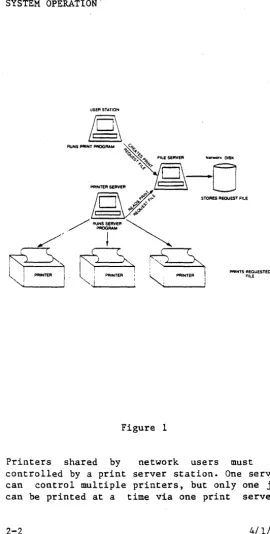
Printers shared by network users must be
controlled by a print server station. One server can control multiple printers, but only one job
[image:15.402.39.309.37.571.2]SYSTEM OPERATION
Multiple print servers are required to print multiple jobs simultaneously.
Print server stations can be used to control as many printers as they have interface capability
to support. Server stations can be used as
workstations when print server duties are not required.
Print servers can access multiple file servers on one network and can be connected to more than
one network at a time. The capacity of the
dedicated server to support network and printer
interface determines how many printers and
network segments can be suppo~ted. An Apple II
dedicated as a print server can support a
combination of up to seven network interface and
printer interface cards. For example, one
Apple II can support four printers and serve three network segments. If many interface cards are installed in an Apple II, an external power supply and a cooling device may be required for
reliable operation. Print Server Subsystem
SYSTEM OPERATION
User runl Pnnt ReQuest program
Prlnl Reauest hies are createa on IMAlNlSYSTIMIQUlUflNEW
Pront SeMJf Xecule. SeIver program. reaas Pronl ReQuest F,les vIa Speclhedll" _
=-:..=
Sool VOlumeIn ,-/SYSTEM/QUEUE/IlEC
~""IIIIIS _ _ ers
IHllnu _ _ ayat _ _ _
...
1-1-"--_pnn*_
User Slallon
Seconc:tary File SeMJf
Figure 2
\
Customl zIng prontlng carameter
In Detaults I ~J(!
/ ...
\
\
\,. /
I
[image:17.397.25.319.30.583.2]SYSTEM OPERATION
PRINT SERVER STATION BOOTS
I MAIN/SYSTEM / PRINTER
!
READS Startcmd.text
on •
I MAIN/SYSTEM / PRINTER sets Network Passwords for
/MAIN/SYSTEM/QUEUE
~---~I
I~
____
~
•
~__
~l~______
~Reads Reads
Servercmd.Text Printcmd.Text
sets Network slots in
: environments that use them . sets orinter names . sets participating file servers . sets Setup types . sets print server password
i
.---.1 _____
Issues "CS" Command: Set server Code then edits Servercmd.Text
r
System Managerat Console
Figure 3
Issues "CP" command: Setprinter Code then edits Printcmd.Text
r
[image:18.399.46.380.49.608.2]SYSTEM OPERATION
the chapters to follow.
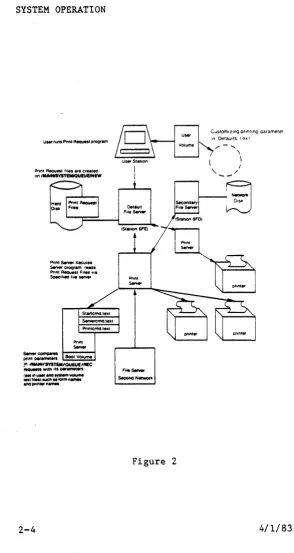
1. Users execute a print request from their
operating system environments (Figure 2). The
PRINT programs create network files that are
listed in the network directory
/!1AIN/SYSTEM/QUEUE/NEW
on the workstation's current default file
server. The print request files contain the
names of files to be printed, together with
various scheduling and formatting options
that users may specify for the printing job.
(All Network files beginning with the
pathname /MAIN/SYSTEM/QUEUE and used by the
print server software are created by the
print request program or by the print server programs the first time that the programs are run, or in advance, by the system manager).
2. Some of the environment software packages are
configured such that the print request
program is invoked when it has been selected from a menu. These environments also allow the print request program to be invoked
directly. In any case, the procedure for
invoking the print request menu is described
in the appendix for your environment.
3. The print request form is used to specify
options for printing jobs. Chapter 2 of the
Print Server User's Manual explains this in detail.
In most environments there are two defaults
files; o'ne resides on the user's volume and
one resides on the shared library volume. The
user can edit his or her defaults file to
SYSTEM OPERATION
and which type of printer he or she usually
wants. The system manager can edit the
shared library defaults file to specify the names of the file server and print server that the workstations will most frequently use. When the print request form is invoked, the user's defaults are automatically read into the form. If the user has not specified defaults for all the blanks, then the shared library volume defaults file will be read in to fill in the remaining default values. If neither file specifies defaults for one or more types of options, those lines will be empty and the user can fill them in at the time of the request.
The user can replace any defaults displayed in the form with different values if his or her particular request requires different values for some of the options.
The procedure of setting defaults under
different operating system environments
varies somewhat. The above description is a generalized example. Refer to the appendices
of the Print Server User's Manual for
specific instructions for specifying print option defaults.
4. The Apple // becomes a dedicated print server when it boots from a virtual volume called
/MAIN/SYSTEM/PRINTER. If there are multiple
print servers on a network segment, each must boot its own volume. Sample volume names:
/~~IN/SYSTEM/PRINTERA
SYSTEM OPERATION
5. After the print server boots, a program
called SERVER runs automatically_ It checks for new volumes in /~~IN/SYSTEM/QUEUE/NEW on each file server on each network segment that it serves, SERVER reads new request volumes
when they are found, moves them to
/MAIN/SYSTEM/QUEUE/REC, lists them in the
volume /MAIN/SYSTEM/QUEUE/MASTER (o"ne request per block), and transfers control to a driver program, which prints the specified files on the correct or "any" printer. SERVER then
removes the request file names from
/MAIN/SYSTEM/QUEUE/REC.
Some requests remain waiting in the queue
because print system parameters that they
specify are not currently available. For
example, the wrong form may be in the printer
or the user may have made a mistake in
entering the print request. Such requests
remain in /MAIN/SYSTEM/QUEUE/REC, and are
also listed in /MAIN/SYSTEM/MASTER. The Queue _ Maintenance option available from the server menu allows the system manager to display and
kill old print requests. This option is
described in Chapter 5.
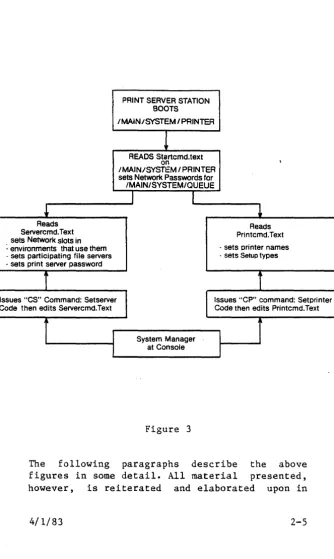
6. Parameters such as printer names, setup
types, and file server addresses are set by
SERVER from values found in Servercmd.Text
and Printcmd.Text on the print server's boot
volume /MAIN/SYSTEM/PRINTER (Figure 3). The
SERVER program reads Servercmd.Text and
Printcmd.Text each time that it is executed,
and uses the names set there to identify
printers, the paper or forms they use, other details of printer setup, and the names of the server boot volume header files that contain title page formats for the printers.
SYSTEM OPERATION
physically configured), can be "attached" and "detached" using values set and changed in these files.
The system manager configures Servercmd.Text and Printcmd.Text print system is installed.
(edits) when the
7. All default parameters for the print system set by Servercmd.Text and Printcmd.Text can be changed from within the server program (that is, at the print server console), using the "CS" (Configure Server) and "CP" (Configure Printer) commands. The CS and CP commands, typed in from the server menu, cause the programs Setserver.Code and Setprinter.Code on the print server boot volume to be executed.
8. Textfiles are also used to set header formats for print jobs. These textfiles, can be edited using the Pascal Editor.
9. The system manager is responsible for customizing and maintaining the system textfiles. This responsibility includes setting various system parameters and defaults, cleaning out the queue files, and reconfiguring (editing) the textfiles as needed, to allow waiting jobs to be printed. These tasks are discussed in Chapters S.
2.1 Executing the Server Program
All print servers boot from volumes identical to
/MAIN/SYSTEM/PRINTER
SYSTEM OPERATION
mount them READ/WRITE UPDATE.
When a print server boots its
I~~IN/SYSTEM/PRINTER volume, the volume's "Startcmd.text file is read and any passwords necessary are set. Then the server program on that volume is chained to and executed. (SERVER passwords are discussed below in Section 2.1.3)
. The server program checks for new print requests once a minute on network file server disks, and processes any requests that are found, if the request's print parameters match those set by the system manager.
2. 1. 1 Automatic Startup of P"rint Server Software
A
profile record must be set up for each print server in order for the print server to boot thelMAIN/SYSTEM/pRINTER volume automatically at
power on. The file server user's guides for each
environment explain automatic start up
features. If the Apple II is being used as a print server, refer to the PLAN ~OO Apple II User's Guide.
2.1.2 The Server Program's Startup Commands
Bootable file server volumes such as
lMAIN/SYSTEM/pRINTER
may contain a textfile of "startup" commands. These are commands that are read and executed automatically by the system whenever the volume
is booted. Again, these automatic startup
SYSTEM OPERATION
User's Guide.
The only startup commands required ih the
/MAIN/SYSTEMS/PRINTER start command text file
(unless passwords are set) are: SWAP ON to
cause swapping to be turned on and a CHAIN
command line that causes the SERVER program to be chained to and executed.
When /MAIN/SYSTEM/PRINTER is booted, the
volume's start command text file is read. This
file contains the command line necessary to
invoke the SERVER program.
The start command text file serves ~ne other
purpose. If a network password has been set
(Section 4.1) on the print request files and master list of requests residing within
/MAIN/SYSTEM/QUEUE
the Startcmd.text file provides the password, so that the Server program can read request files listed in the directory
/MAIN/SYSTEM/QUEUE!NEW
and change their pathnames, moving them to
/MAIN!SYSTEM/QUEUE/REC
and recording them in the volume
/MAIN/SYSTEt-1/QUEUE/MASTER
If no passwords have been
/MAIN/SYSTEM/QUEUE files and
Startcmd.Text format is simply
; Comment lines SWAP ON
set on the·
SYSTEM OPERATION
CHAIN SERVER,INITCHECK
Here, by virtue of the "INITCHECK" command, Startcmd causes all server parameters to be
reset to those listed in Servercmd.Text and
Printcmd.Text. The server program then checks
all print request queues and begins operation.
2.1.3 Password Protection on /MAIN/SYSTEM/QUEUE
The usage and access facilities of the PLAN 4000 system are discussed fully in the File Server
User's Manual. This manual assumes a general
knowledge of the use of passwords to control access to network files. The use of passwords to protect print request files is discussed in
Section 4.1 of this manual. Users must have
create access to
/MAIN/SYSTEM/QUEUE/NEW
and read access to
/MAIN/SYSTEM/QUEUE/MASTER
When the Server program checks directory
/MAIN/SYSTEM/QUEUE/NEW
for new print request files, it renames any new files found, placing them in
/MAIN/SYSTEM/QUEUE/REC
In this way, the program differentiates between new, unprocessed requests and those being acted
upon or held in the queue pending
system-parameter changes. In addition,
SYSTEM OPERATION
/MAIN/SYSTEM/QUEUE/MASTER
For this reason, SERVER must have delete access to
/MAIN / SYSTEM/ QUEUE /NE\v
and erase access to the files within it, as well as create and write access to
/MAIN/SYSTEM/QUEUE/REC
and its files. SERVER must also have create and write access to
/MAIN/SYSTEM/QUEUE/MASTER
whether or not any passwords may have been 'set for those directories and files. Passwords set must be placed in Startcmd.Text, for use by the printer program. (See Section 4.1)
If only one file server is to be serviced, the password can be set with a single line:
NOECHO NET SET PRVPW=XYZ
If passwords are to be set for more than one
file server, file server slot and station
numbers for each file server must be specified before the password is set:
NOECHO NET SET FS SLOT N STN $nn NOECHO NET SET PRVPW=XYZ
Here, N=network interface card slots, and
$nn=file server address (hexadecimal). For
example,
SYSTEM OPERATION
NOECHO NET SET FS SLOT 6 STN $FE NOECHO NET SET PRVPW=XYZ
NOECHO NET SET FS SLOT 4 STN $FE NOECHO NET SET PRVPW=XYZ
NOECHO NET SET FS SLOT 6 STN $FD NOECHO NET SET PRVPW=XYZ
NOECHO ; NOW START THE PRINT SERVER ••• NOECHO SWAP ON
NOECHO CHAIN SERVER,INITCHECK
In this sample STARTCMD.TEXT, the print server workstation is connected to two local network segments via interface cards in slots 4 and 6, and serves file servers $FD and $FE on the Slot 6 net and file server $FE on the Slot 4 net.
The server boots by default from slot 6, $FE. Password XYZ is set. Startcmd.text then changes the default channel to slot 4. Password XYZ is
set. The default channel is changed back to
slot 6 (but to station $FD). Password XYZ is set. The default channel is then returned to the original Slot 6, Station $FE by server.
The word "NOECHO" at the beginning of each
will supress the screen display of
commands.
Startcmd.text then chains to SERVER.CODE.
2.2 Server Program Operation
line these
When /MAIN/SYSTEM/PRINTER is booted, and
Startcmd.Text chains to Server.Code, the server
program first reads two text files on the
/MAIN/SYSTEM/PRINTER boot volume, named
SYSTEM OPERATION
the system, such as printer and file server
names and addresses, the setup types currently available to the printers, and the numbers of those slots containing FS interface cards.
Having read these files, the server program will connect to any networks/file servers specified in them, and check for print request files.
As the server program begins execution, the
print server screen will display the print server welcome banner and text that tracks the server's startup activity:
16:18 CONNECTING TO FS CENTRAL ••••
16:18 CONNECTING TO FS SECONDARy ••••
16:18 CONNECTING TO FS OTHERNET ••••
WAITING ••• [45]
In this examplet Server.Code has read the file's
Servercmd.Text and Printcmd.Text on its boot
volume, to configure printer and server
parameters. In this example these textfiles
specify three file servers, on two networks, to
be serviced: CENTRAL and SECONDARY on one
network, and OTHERNET on another.
Checking the QUEUE files for the CENTRAL and SECONDARY file servers on the boot network, and the OTHERNET file server on a second network, and finding no requests, the print server waits,
rechecking the queue directories every 60
seconds.
SYSTEM OPERATION
server programs. In the event that the file
servers are not named, SERVER will display the
station addresses, in hexadecimal; e.g., $FE,
$FD, and $FEt instead of "CENTRAL", "SECONDARY",
and "OTHERNET". Print Server station names can
be assigned by the system manager. All file
server and print server names should be unique.
2.3 Finding and Printing a Request
When the server finds evidence of a new print request (in /MAIN/SYSTEM/QUEUE/NEW), a message such as
15:21 CENTRAL PRINT REQ 411"QUEUED
will be displayed on the server station screen.
When the user print request programs queue print requests, they also trigger the server program
to examine /MAIN/SYSTEM/QUEUE/NEW. In the
SYSTEM OPERATION
This request will contain:
- name of the file(s) to be printed
- file server pathname of volume containing the file(s)
- file server for disk containing the file(s) - title to be printed at the top of each page of
the job
- number of copies to be printed - print server to be used
- printer to be used
- page length (eject value) - setup to be used
- priority
When Server.Code is first executed, it reads
Servercmd.Text and Printcmd.Text on its boot volume. From this text file it takes the current names and addresses of the file servers and
printers online. It also takes the setup
associated with each printer. If the print
server specified in the text file is the one reading the request file, and if the necessary file server is online, and if the printers and
setup parameters in the request match those
currently set in Servercmd.Text and
Printcmd.Text, a message such as
or
13:21 PRINT: CENTRAL REQUEST 411: ACCOUNTING SETUP=STANDARD PASCAL /MAIN/USERS/SMITH/A File EXAMPLE
13:21 PRINT: SECONDARY REQUEST 511: FISCAL SETUP=STANDARD SPOOLED OUTPUT
SYSTEM OPERATION
The Print Server User's Manual discusses how the user specifies the parameters that go into the print request file. Chapter 5 of this manual discusses how parameters such as printer names
and setup types are changed for the print
servers by the system manager, by changing
Servercmd.Text and Printcmd.Text files.
(The times listed in the display above are best
used as. approximations of the times when
requests were made, due to the manipulation of request files by the server program after they are queued. The exact chronological sequence of queued requests may not be reflected exactly by the times displayed.)
Having matched the job parameters specified in a
request file with the system parameters
currently set, the server program chains to the appropriate driver program, also on the boot volume, to print out the specified file(s). In
the first example, file EXAMPLE, located on
/MAIN/USERS/SMITH/A is to be printed on the
printer named "ACCOUNTING", using the setup named "STANDARD". As the job·is begun, the message
PRINTING ••• HEADER PAGE FOR SMITH
will appear.
SYSTEM OPERATION
NOTE: When multiple print servers are present, a server will occasionally display one of the following messages:
CAN'T MOUNT VOLUME 31, IN USE
WAITING FOR QUEUE LOCK
These messages are displayed when two print
servers attempt to access /MAIN/SYSTEM/QUEUE
files simultaneously, or when a user is creating a new request just as a print server is reading
the /MAIN/SYSTEM/QUEUE/NEW request files. Su~h
"errors" reflect a temporary situation and may be disregarded.
2.3.1 Printing the Header Page
A header page is printed for each job •. The format of the header page is taken from one of the header textfiles located on the server boot
volume (discussed in Section 2.3.2). If
different printers are to print different
headers, textfiles for each different header
must be present on the boot volume.
The server program will print a user logo on the header page if configured to do so. This logo consists of the "user" value set in the user's Defaults.Text, or the user's station number (in
hexadecimal). The formatting information that
governs the shape of this logo is placed in the
header file(s) and is implemented by
SYSTEM OPERATION
2.3.2 Printing the Body of the File
After the header page for the job has been
printed, the server program tracks the progress
of the job by displaying the page and line
currently being printed:
PRINTING ••• PAGE 3, LINE 4
If any key is pressed
while the job is being
options
on the server's keyboard
printed, the line of
C(ONTINUE R(ESTART) K(ILL) D(EFER)
will appear. The printer will stop and wait for
"C", "R", "K", or "D" to be entered.
Pressing "C" (or <Return> will cause the job to continue printing.
Pressing "R" will cause the print server to
immediately restart the job, printing it from
the beginning.
Pressing "K" will stop printing the job, leave
it in the queue, and recheck the queue. The
oldest/highest priority job in the queue (which
may be the job just deferred) will then be
printed.
If a console password has been set (Section 4.1)
the server program will prompt for it before
'displaying this line of options:
ENTER PASSWORD?
If an incorrect password is provided, the
program will display
and return to the job it was printing.
Queued requests that specify parameters other than those currently set in Servercmd.Text and Printcmd.Text are skipped:
12:19 PRINT: CENTRAL REQUEST 411: NOTE: NEEDS FISCAL FORMS STANDARD
Here, a request is waiting because it specifies that the printer named "FISCAL" be used, and no such printer is currently on line (or currently named "FISCAL").
The Server Command Menu described in 2.3.3
below, can be used to select the "M" or "CP"
options. These functions allow the system
manager to kill waiting requests that can~t be printed because they were initiated in error, or to reconfigure the printer parameters when a job
can~t be done because the current configuration
doesn~t provide the needed parameters.
2.3.3 The SERVER Menu: Commands Available in the SERVER Program
Pressing the space bar while the server program is waiting for requests or searching the request queues causes a menu to be displayed:
PRINT SERVER COMMANDS ARE:
F
=
FS COMMANDM = QUEUE MAINTENANCE CS
=
CONFIGURE SERVER CP = CONFIGURE PRINTERI SERVER INFO
SYSTEM OPERATION
Q = QUIT
COMMAND?
Again, if a password has been set for the
console, the server program will prompt for it
before displaying this menu, and return to
waiting mode if the correct password is not
provided.
Pressing <Return> when the menu is displayed causes the server program to resume its wait for requests. Typing one of the command options in
the menu causes an associated program to be
executed. These commands are discussed in detail
in Chapter 5 of this manual. Commands to
INSTALL
Chapter 3
Installing the Print Server Software
3.0 Introduction
Every printer shared by the network users must be controlled by a print server station; one server can control mUltiple printers. Print servers print only one job at a time. Multiple print servers are required to print multiple files simultaneously.
Print server stations can be used to control as many printers as they have slots available for printer controller cards, and can also function as network user stations when not required for print server duties.
Print servers can access mUltiple file servers on one network, and can be connected to more than one network at a time via network interface cards in different slots. The total of printers and networks may not exceed 7.
3.1 Print System Installation
INSTALL
If you ordered your software after ordering your
system, it has been distributed on a tape
cartridge. Before following the installation
instructions, you must restore the software on tape to the hard disk. To do this,
a. from the File Server, type QUIT
b. from the utilities menu, select b) partial tape dump/restore
c. from the option b menu, select L)ist to determine the specific pathnames on your tape
d. now select R)estore. The program prompts you for pathnames you wish to restore.
Enter those pathnames you found in step
c).
3.1.1 Transferring Server Files to Print Server Boot Volume
Note that the following instructions are
designed to handle two situations:
- the initial installation of your print server software
- an update to previously installed print server software
Unless an instruction explicitly refers to one or the other of these situations, it applies to both:
Boot· into an Apple / / Pascal volume.
When you turn on your Apple // and it prompts for "volume to boot", enter the name of a Pascal virtual volume. You can enter:
INSTALL
This is the Pascal Library that is a part of the print server package. It is required for print server station operation and can be booted from during this installation procedure.
Type the following:
X (for execute)
LIB:NET
Now type the following after the prompt:
LIST /MAIN/PRODUCTS/PS
Select the most recent version number from this listing of subdirectories and replace X.X with
that directory name in the following
instructions. This version number should
correspond exactly to the version number on the
packing list document that you received with
your software.
Enter the following MOUNT command on one screen line and the SET DRIVE command on another line:
MOUNT /MAIN/PRODUCTS/PS/X.X/A2SERVER/SERVER,D6
SET DRIVE 6 VIRTUAL
If you are installing a software update, first rename the existing print server volume:
REN~IE /MAIN/SYSTEM/PRINTER,OLDPRINTER
(Note that after you finish installing the
updated software you will need to reconfigure the STARTCMD, PRINTCMD and SERVERCMD text files on the new print server boot volume.)
INSTALL
print server. Our recommended (not required)
name for this volume is:
/MAIN/SYSTEM/PRINTER
Type the following:
CREATE /MAIN/SYSTEM/PRINTER,T=P,SZ=600B,D3,RW
SET DRIVE 3 VIRTUAL
Next you need to use the Pascal Filer to Zero the directory and specify the size and name of the volume for Pascal.
To do this type the following:
Q (to exit the NET.CODE and return to the main Pascal command line)
F (to invoke the Pascal Filer)
Z (to invoke the Zero function)
The prompt will be:
"ZERO DIR OF WHAT VOL ? ..
Resppnd with:
113 :
The prompt will be:
"DUPLICATE DIR?"
Respond with:
N
INSTALL
# OF BLOCKS ON THE DISK?
Respond with:
600 .
The prompt will be:
NEW VOL NAME?
Respond by typing PS
The prompt will be:
CORRECT?
Respond with:
Y
The prompt will be:
Volume name: Zeroed
Next you need to use the Pascal Filer to Transfer all of the contents of
/11AIN/PRODUCTS/PS/X.X/A2SERVER/SERVER
to
/MAIN/SYSTEM/PRINTER
To do this type the following:
T (to invoke the transfer utility)
The prompt will be:
INSTALL
Respond with:
116:=
The prompt will be:
"To where?"
Respond with:
113:$
You have finished the first stage of print server software installatione
3.1.2 Copy Appropriate Driver Code to Print Server Boot Volume
You should also have another virtual volume with software needed by the print server to print the files for each subsystem for which you ordered
print server support. For instance, if you
purchased support for the Apple
1/
CP/Menvironment, you should have a volume called:
/MAIN/PRODUCTS/PS/X.X/A2SERVER/APPLE2/CPM
If you purchased support for more than one
. environment , you should have a driver volume for each environment.
In Section 3.1.1 we asked you to Create
/MAIN/SYSTEM/PRINTER
(Your exact name for this volume may differ from ours.) This is to be the boot volume for your
print server. You have already copied the
INSTALL
/MAIN/PRODUCTS/PS/X.X/A2SERVER/SERVER
into this volume.
In the appendices of this manual we explain how to copy the driver code from the
/MAIN/PRODUCTS/PS/X.X/A2SERVER/APPLE2/CPM
(or other appropriate volume for your
environment) volume into the print server boot volume. Be sure to turn to your appendices and accomplish this task for each environment that your Print Server Subsystem package supports.
In the appendices we specify the appropriate
volume name for your environment(s). The
example above pertains to the Apple // CP/M
environment only. The driver code is vital to printing from your particular environment(s).
3.1.3 Transfering the User Request Software to the Shared Library Volume
This step must be done from the appropriate user
environment(s). This may mean that you will
have to change computers if your installation uses a different type of computer for the print server station than for the user workstations, or if you have more than one type of computer which is being used as a user workstation.
CONFIGURING
Chapter 4
Configuring the Print Server Software
4.0 Introduction
This chapter describes Print Server subsystem configuration which consists of:
1. Protecting appropriate print system textfiles
and directories by setting file server
passwords to control access and usage.
2. Making special file installation
considerations when multiple networks and file servers are present.
3. Editing text files to establish print server subsystem parameters.
4. Establishing the name of the stations.
s.
Setting printer parameters.There are other configuring tasks which are specific to each operating system environment. See the appendices for instructions.
4.1 Access and Usage: Protecting /MAIN/SYSTEM/QUEUE
When Server.Code is first executed, it will
create the directories:
/HAIN/SYSTEM/QUEUE / MAIN / SYSTEM/ QUEUE / NEtv"
_/MAIN/SYSTEM/QUEUE/REC
CONFIGURING
/MAIN/SYSTEM/QUEUE/MASTER
It is a good idea to protect the volume
/MAIN/SYSTEM/QUEUE/MASTER and the print requests listed in the /MAIN/SYSTEM/QUEUE directories by
setting file server passwords. The system
default is no protection.
The PLAN ~OO optional file protection
facilities are discussed in detail in the File
Server User's Manual. Briefly, the system
manager can prevent access to the
/MAIN/SYSTEM/QUEUE files by setting passwords in the file pathnames and limiting public and group access rights to the files. This is accomplished by issuing file server PROTECT commands from the LIB:NET program (typed on one line):
CREATE /MAIN/SYSTEM/QUEUE, T=Y
PROTECT /MAIN/SYSTEM/QUEUE,PUBACC=R,GRPACC=R, PRVACC=RWECD, PRVPW=XYZ
CREATE /MAIN/SYSTEM/QUEUE/NEW, T=Y
PROTECT /~~IN/SYSTEM/QUEUE/NEW,PUBACC=C,GRPACC=C,
PRVACC=RWECD, PRVPW=XYZ
CREATE /MAIN/SYSTEM/QUEUE/REC, T=Y
PROTECT /MAIN/SYSTEM/QUEUE/REC,PUBACC=,GRPACC=, PRVACC=RWECD, PRVPW=XYZ
CREATE /MAIN/SYSTEM/QUEUE/MASTER,T=P,SIZE=200.B PROTECT /MAIN/SYSTEM/QUEUE/MASTER,PUBACC=R,
GRPACC=R, PRVACC=RWECD, PRVPW=XYZ
Use passwords unique to your installation in
place of the "XYZ" shown above.
These commands provide the
which must be present
function:
CONFIGURING
1. Public and group CREATE access to the
/MAIN/SYSTEM/QUEUE/NEW files; private
CREATE/ERASE/READ/WRITE/DELETE access for the /MAIN/SYSTEM/QUEUE/NEW files.
2. No public or group
/MAIN/SYSTEM/QUEUE/REC access.
access to the
files; private RWECD
3. Public and group READ access to the
/MAIN/SYSTEM/QUEUE; private RWECD access.
(The system will create a
/MAIN/SYSTEM/QUEUE/MASTER volume of 200
Blocks, if no volume exists. If the system
manager creates the volume, it can be made
any convenient size: the volume keeps a
record of active, waiting, and completed
requests, about one request per block. The
default /MAIN/SYSTEM/QUEUE/MASTER volume will keep a record of the 194 most recent print requests-waiting, active, or completed.)
Note: Passwords are set by Startcmd.Text each
time that the Server volume is booted. See
Section 2.1.2 for details on how to enter
passwords into the Startcmd file.
4.2 File Installation When Multiple Network Segments/File Servers are Present
Use of the print server subsystem with multiple
file servers and multiple network segments is
straightforward. However, the system manager
should give some thought to the matter, and only
hands-on experience at the individual
installation will show how the system files must
be situated on network disks for greatest
CONFIGURING
A number of points can be made at the outset:
1. The print server software need reside on only one network.
2. The user software must be available on a shared library volume for every file server that is part of the print system.
3. A print server will print only one job at a time. For simultaneous output, mUltiple print servers must be present.
4.3 Setting System Parameters
Every printer to be shared on the network must be controlled by a print se,rver station; one
server can control multiple printers. Each
printer is defined for the server program by:
1. The printer controller card slot
2. The printer name
3. The setup name
4. The header text file name
The file server(s)' are defined for the server program by slot number (which slot in the print server station is the network interface card in).
These parameters are present in order to allow
system users to attach and serve multiple
networks, file servers, print servers, and
printers, while still defining each uniquely.
Further, multiple parameters allow a single
CONFIGURING
The system manager defines these system
parameters by listing them in textfiles on the print server boot volume. One exception to this is the print server name; setting of this name is discribed in Section 4.4.
These textfiles are discussed in detail below.
We provide the information that they should
contain, how that information should be
formatted, how the information is originally
placed in the files, and how it can later be changed.
These textfiles can be edited using the Pascal editor, or changed from the server program using the "CP" and ,·CS.. menu items (discussed in Chapter 5).
The textfiles .to be edited, in order to
configure the system are:
Servercmd.Text: Sets server parameters such as Server console password, file server slots, file server station addresses, and overnight hours.
Printcmd.Text: Sets printer setup names, printer names, and forms width.
parameters such as header file names,
Block.Charset: Sets size and shape of user logo optionally printed on header pages. (Cannot be edited.)
4.3.1 Setting Print Server Parameters: Servercmd.text
CONFIGURING
1. The name of the print server program itself (usually SERVER).
2. The name of the driver codefile(s) that the print server program will call to actually print the queued request files.
3. The names of console commands available to
the system manager in the print server
program (used at the print server console when the print server program is running),
the prompts for those commands, and the
programs called by those commands.
4 .. The hours for "Overnight" print jobs.
5. Network interface card slot numbers and file
server stations to be checked for print
requests.
6. Print Server console password.
The format for Servercmd.Text is
1) ;Comment lines
2) PROGRAM <Print Server program name> 3) REQUEST <print> PROGRAM <program name> 4) COMMAND <name> PROGRAM <volume:filename>
PROMPT N=<name> 5) NIGHT <nl, n2>
6) FS SLOT=<n>, STATION=<$nn> 7) PASSl~ORD <XYZ>
(Reference numbers to the left are not part of the file)
To explain the format:
CONFIGURING
2. The line "PROGRAM <print name)" simply names the print server is using:
server program
program that the
PROGRAM SERVER
3. Print commands to be found in the user print request files ("REQUEST PRINT") must be related to the program that SERVER will call to service the command:
REQUEST PRINT PROGRAM DRVPCPM
4. The lines beginning "COMMAND" format the
print server menu of console commands and
define the programs that can be executed by
the system manager from the console by
selecting the appropriate item from the menu (see sample file below).
For exa1!lple, typing "F" from the Print Server Menu (shown on page 5-2) causes the FS NET
program to be loaded at the Print Server
station, allowing the system manager to enter FS commands before returning to the server program. The Servercmd line would read:
COMMAND FS PROGRAM LIB:NET PROMPT F=FS COMMAND
"Programs" reference
preceded routines server program:
by an internal
ampersand, "&", to the print
COMMAND INFO PROGRAM &INFO PROMPT I=SERVER INFO
The console commands, prompts, and referenced
programs and routines are shown in the
example textfile below, and programs are
CONFIGURING
5. "NIGHT" defines the "Overnight" priority is hour clock).
hours during which
in effect (on a 24
6. Lines begining with "FS" define the print server slots containing file server interface cards, and the addresses of the network file servers on those networks that are to be checked for print requests. In the example below, the print server is connected to two networks via interface cards in slots 4 and 6. The server will check for print requests on the file server with hexadecimal address FE on the slot 6 network and the file servers with hexadecimal addresses FE and FD on the slot 4 network. Any number of file servers can be listed here.
Increase or decrease file servers to be checked by adding or subtracting "FS" lines using the Pascal editor (or the "CS" console command, discussed in Section 5.1.2).
Although file servers can and should have
unique names, in addition to their addresses,
file server names are set by creating a
Profile record, not by the print server
programs, and are not referenced in
Servercmd.text.
7. A password can be set in Servercmd.Text that will limit access to the Print server command menu. The format is
PASSWORD XYZ
The print server command menu is
wherever the print server program
"Waiting" mode and the spacebar is With a password set, the prompt
displayed
is ~n
CONFIGURING
ENTER PASSWORD?
appears. If an incorrect password is entered, the message
ILLEGAL PASSWORD
is displayed and the
"Waiting" mode.
program returns to
The password must also be given in order to stop a printing job in progress, to display the line
C(ontinue), R(estart), K(ill), Q(uit)?
Servercmd.Text can be edited like any other
Pascal text file. However, from within the
print server program, changes to it are most easily accomplished using the CONFIGURE SERVER
command from the p'rintserver menu (Section
5.1.1).
A sample Servercmd.Text:
; LAST MODIFIED: WED 07-0ct-1981 .11:14:05 ; THIS IS SERVERCMD.TEXT ••• 8/81
PROGRAM SERVER
CONFIGURING
COMMAND FS PROGRAH LIB:NET PROMPT F=
FILE SERVER COMMAND
COMMAND CS PROGRAM SETSERVER PROMPT CS=
CONFIGURE SERVER
CO~urnD CP PROGRAM SETPRINTER PROMPT CP=
CONFIGURE PRINTER
COMMAND MAINTAIN PROGRAM QMAINTAIN PROMPT M=
MAINTAIN QUEUES
COMMAND INFO PROGRAM &INFO PROMPT 1=
SERVER INFO
CO~UlliD CHECK PROGRAM &CHECK PROMPT CH=
CHECK QUEUES
COMMAND QUIT PROGRAM &QUIT PROMPT Q=
- QUIT
;*** Set console password if desired*** PASSWORD XYZ
NIGHT 3,6
FS SLOT=6, STATION=$FE
FS SLOT=4,
STATION=$FE-FS SLOT=4, STATION=$FD
4.3.2 Formatting Header Pages: the Header Files
Before printing
printer and setup,
any file on SERVER will
CONFIGURING
page using information found in the header file
specified for the given printer in
Servercmd.Text. Header files reside on the boot
volume /MAIN/SYSTEM/PRINTER and are created,
edited, and changed as needed by the system
manager.
Any text found in
be printed as
constructed from entered.
a printer's header file will
found. Text and designs
text characters may be
Any of the reference values listed in the table
below can also be entered into the header file,
which should be formatted to resemble the header page. Arrange the desired values in any order on
the page, with any associated text. When the
header page is printed, the print server program
will find the referenced values in the queued
print request.
Or, the system manager might create the company
logo out of, for instance, asterisks, and enter
the design into the header file, using the
Pascal Editor. The design will be printed out at the start of each job on that printer that uses that header file •. A sample file is shown below.
For example, typing
Copies: &COPIES
into the header textfile in line 1 will cause
the header page to have
Copies: n
printed on its first line, where n is the number of copies specified for the job.
CONFIGURING
output to a printer. For example, these
characters may be used as escape sequences. The "&HEX" keyword in the header file allows the use of such characters. The syntax is
&HEX=xxyyzz ••••
where each hex number.
character pair For example,
represents an 8-bit
&HEX=1B1A49
in a header file sends the ASCII sequence
ESC/SUB/I ($lB/$1A/$49) to the printer. Many
daisywheel printers interpret such a sequence as a RESET command.
& DATE &QNUM
&USER
& NAME Value
& STATION
&ID
& PATH
&FILE &ERRMSG
Meaning
Date and time
Queue number assigned by SERVER to the request
User identification, such as
initials, set in user defaults file
User's "name" such as full name, as set in user defaults file
"name"
User station number
($hexadecimal)
"User" value as set in user defaults file (Pascal, 50S, and CP/M), or user station number. Can be used by BLOCK.CHARSET to
print header logo (see next
section)
Network pathname of volume on which the file to be printed resides
File(s) to'be printed
&COPIES &EJECT &FS
&FSNO & SERVER &SERVNO &PRINTER &SETUP &PRIORITY &TITLE
&HEX=XXXX •••
CONFIGURING
cannot be printed (e.g., "File Not Found")
Number of copies to be printed Page length
File server for files to be
printed (name if set; address
otherwise)
File server station number Printer server name, if set Printer server station number Printer name
Printer setup name Job priority
Page title set in user or system
defaults file, or from print
request program
Provides a mechanism for
entering ASCII characters in
hexadecimal format. (For
example, if a printer required an <ESCAPE> 3 sequence to
initialize the printer, this
would be entered as:
&HEX=lB33.)
Note: In addition to text, designs constructed from text characters, and referenced "&" values, the header page can contain an eight-line logo of the user value as set in the user's defaults file, or of the user station address. This is discussed in the following section.
CONFIGURING
Print Request Number &QNUM
Station: &STATION·
Name: &NAME
<LOGO constructed by BLOCK.CHARSET using &ID>
Date: &DATE FS Pathname: &PATH
<LOGO DESIGN>
File Server: &FS(&FSNO) Filename (s): &FILE
&FILE $FILE &FILE
Print Server: &SERVER (&SERVNO) Setup: &SETUP
Priority: &PRIORITY Copies: &COPIES
Eject: &EJECT
&ERRMSG
4.3.3 Setting Printer Parameters: PRINTCMD.TEXT
Printcmd.Text is located on the print server's boot volume and is used by the server program to set the following printer parameters:
1. Printer names (one word each)
2. Printer controller card slot number in server station
3. Setup names
4. Printer width (II of columns)
CONFIGURING
contain the formats of the headers to be
printed by a printer before each job).
6. BLOCK.CHARSET reference (CHARSET prints a
user logo on the header page if the header file references it).
Printcmd.Text has the following form:
1. ; Comment line
2. CHARSET *:BLOCK.CHARSET
3. PRINTER <name> SETUP~<name> SLOT=<n>
WIDTH~<nnn> HEADER <name>
Reference numbers to the left are not part of the file.
1. ";" signifies a comment line.
2. CHARSET is the file on the boot volume that contains the format information for the user logo printed on the header pages (Section
4.3.4).
3. The PRINTER line sets printer name, printer contol card slot number, forms name, and the name of the textfile containing the specific
header format for· each printer that the
server station serves:
a. The word "PRINTER" is followed by the name
chosen for the printer. In the example
below, two printers are served and are named MARKETING and LINEPRINTER. Printer names must be one word.
b. "SLOT=" is followed by the slot number in
which the printer controller card is
CONFIGURING
c. The word "SETUP=" is followed by the name chosen for the type of paper, the length and width of the printable surface, ribbon etc.
currently installed in a printer. In the
example below, one printer has the form
installed that the system manager has defined as STANDARD for the system. The other printer has CHECKS installed.
s.
Printer "WIDTH=" is· a number between 0 and 200 that indicates how many columns are in a print line for this printer. If a text line greater than the printer width value is to be printed, the line will be truncated at the width set and the remainder of the line will be printed on the following line.WIDTH=O disables this feature, and textlines are printed as found, regardless of width. Text processing programs include a variety of control characters in textlines (to right
justify the text, for example, and to
backspace for underlining). All such
characters are counted when line width is calculated by the print server program. For
this reason, some textlines in processed
textfiles may be truncated by the print
server program incorrectly unless WIDTH=O is used.
If a particular printer at your installation is completely dedicated to printing word
processed output, set the printer WIDTH
parameter for the printer to 0, so that no
length checking will be done on the text
lines being printed.
If a printer is never used for word processed
output, a reasonable number should be
CONFIGURING
or 132 is usually adequate).
If one printer will be used to print both. types of output, configure 2 printer entries so that both involve the same printer name and slot but have different values for SETUP