May 2015
Modifying Card Accounts
Program Administrator
1 With account management, you can review, and with appropriate permissions, change information (such as
addresses, card limits, etc.) for the card accounts associated with your user ID.
If you have access to only one active account, the account is displayed when you access the Account
Management page. The following guide contains detailed information about fields that can be displayed for
the card. Card account fields that can be updated are highligted in yellow.
Account Data Fields
Important: The data fields associated with accounts are dependent on specifications set by your financial institution. If the fields displayed in your application do not match those described in this help topic, contact your financial institution for assistance. Required fields are marked with an asterisk (*).
Depending on your financial institution’s specifications, the Account Management page could contain the following sections. Check the online help topic, Creating or modifying accounts, for information about additional sections and fields.
Card Information Address Information General information Account Holder Information Account Status
Authorization
3 Card Information
Account Number (shown for both new account creation and existing account modification): Account number for the card. The account number cannot be modified.
Card line 1: Name on the card account, as it appears on the card. Do not use punctuation. Use an asterisk (*) after the first name or middle initial but before the last name to ensure proper alphabetization of names. If the name on the card does not include a person's name, place and asterisk at the end of the line. For example:
John Q*Adams
Alex*Hamilton
Jefferson Resources*
Card line 2: Additional account information that is displayed under Card line 1. Typically used to display the organization name. Do not use punctuation.
Master Accounting Code: Default account allocation code to be assigned to transactions made with the card. Contact your bank representative about how you can use information in this field.
4
Address Information
The following fields are displayed for address support.
Address Line 1: Billing or identifying addresses for the account. Do not use punctuation. Address Line 2
Address Line 3 Address Line 4
City: City for the account address. Do not use punctuation.
State/Province: Two-character state or province code for the account address.
Postal code: Postal code or ZIP Code for the account address. Do not use hyphens or spaces. For a ZIP Code, enter either the 5-digit or 9-digit code. For information about non-U.S. addresses, contact your financial institution.
Country: Country for the account address. Select the country name from the drop-down list. Email Address: Account holder’s email address.
Home Phone: - Account holder's home telephone number. Work Phone: Account holder's work telephone number.
Additional Phone: - Additional phone number for the account holder, if required. Fax Number:-Account holder's fax number.
Note: For the account holder's home, work, and fax numbers, specify the full telephone number. Do not use hyphens, spaces, parentheses, or other punctuation. Example 3035551234
5
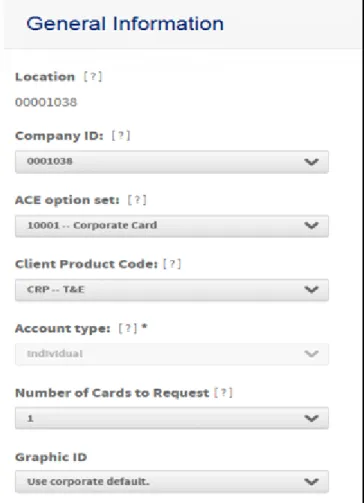
General Information
Some or all of the fields described may be displayed depending on the site settings and use permissions:
Location: Department or division associated with the account. This field is used primarily for reporting Company ID: Processor's billing system ID number for the site the account is assigned to. Contact your financial institution for more information.
Account type: Type of account. Possible values are Individual and Corporate. Number of Cards to Request: Number of plastic cards to be created for the account
Graphic ID - Set whether the Graphic ID option on the plastic card will be set using corporate defaults.
6 Account Holder Information
Employee ID: Account holder's company issued number. You can use numerals, letters, punctuation, and spaces.
Date of birth: Date of account holder’s birth. Select the date from the drop-down lists.
Unique Identifier: Account holder identifier, used for verification. Depending on your site settings, examples can include Social Security Number (SSN), Social Insurance Number (SIN), or other identifiers. Use numerals only, without hyphens, spaces, or other punctuation. This field can have a maximum of 10 characters.
Note: The label of the Unique Identifier field can be different, depending on the setting specified in the Custom Label field during site setup.
7 Account Status
Expiration date: Date the account expires (YYYYMM).
# Of Cards Outstanding: - Number of plastic cards that have been issued for the account. Accounts with 0 (zero) cards outstanding cannot order replacement cards.
Order replacement cards: Click this button to order new cards (plastic) for the account. Request new cards: Indicates whether to request new cards (plastic) for the account.
Account status: Status of the account. Multiple statuses are listed in reverse chronological order. Request PIN Number: Option that indicates whether to have the system generate a personal identification number (PIN) and mail it to the cardholder's primary address. A confirmation box will display the address to which the mailer will be sent.
8
Authorization
Note: Click Add Temporary Credit Limit to display the Add Temporary Credit Limit Control page where you can add a temporary credit limit to the account . See the quick reference guide, Managing Temporary Credit Limits, for more information..
9
Authorization (continued)
Card Limits
Account option set: Authorization option set that is assigned to the account. Select the option set from a drop-down list. Note: This field is available only if Account Authorization Option Sets, on Site Setup, is set to Display.
Card: Total charge amount allowed for this card, in whole numbers only and no punctuation. For example, type 5000 for five thousand dollars.
Single purchase: Maximum monetary amount allowed for a single purchase, in whole numbers only and no punctuation. For example, type 5000 for five thousand dollars.
Cash advance: Percentage or monetary amount of the total card limit allowed for cash advances. Do not include decimals or punctuation.
Cycle Limits
For each of the cycle limit fields, leave blank or type 0 (zero) to indicate that the field is not used. Cycle Amount: Total spending amount allowed per cycle.
Cycle # of Transactions: Total number of purchases allowed per cycle. Daily Amount: Total spending amount allowed per day.
Daily # of Transactions: Total number of purchases allowed per day. Monthly Amount: Total spending amount allowed per month.
Monthly # of Transactions: Total number of purchases allowed per month. Custom Amount: Total spending amount allowed per custom time period.
Custom # of Transactions: Total number of purchases allowed per custom time period.
Number of days (required if values entered in Custom fields above): Number of days before card limit is reset.
Start date (required if values entered in Custom fields above): Start date of period. Click the Calendar icon to select a date from the calendar.
Additional Restrictions using Parent Account Limits
Check single purchase limit for parent account: Select to apply parent account purchase limits to the account.
Check cycle limits for parent account: Select to apply parent account cycle limits to the account. Check MCCG table for parent account: - Select to apply parent account Merchant Category Code Group (MCCG) limits to the account.
10 MCC Group Authorizations
11
MCC Group Authorizations (continued)
The Merchant Category Code (MCC) Group Authorization fields define card limits for MCC groups. Up to eleven MCC groups can be assigned to one account.
Add MCC Group: Assigns an additional MCC group limit to the account. The fields for another MCC group are added below the existing group listings.
Remove: Removes the MCC group.
Option set: Bank-defined group of MCC groups that is to be assigned to the account. This field is displayed only if MCC Group Authorization Option Sets, on Site Setup, is set to Display.
Group: Select an MCC group from the Group list. The MCC group controls the type of merchants the account holder is allowed to make purchases with.
Action: Select one of the following actions for this MCC group from the Action list.
Include - Allows the account holder to make purchases with merchants with MCC codes within the selected group.
Exclude - Prevents the account holder from making purchases with merchants with MCC codes within the selected group.
Refer - Refers all authorizations to customer service.
Divert - Activates the Diversion Account field and allows you to select a different diversion account from the list. This action will divert the authorization to the specified diversion account. When this action is selected, you must also select the appropriate diversion account using the Diversion Account field.
Bypass - Ignores the card's available credit limit and uses the corporate account's authorization limits set for the MCC group.
Default - Applies single purchase limit and velocity checks to authorizations.
Single purchase: Maximum monetary amount allowed for a single purchase for this MCC group, in whole numbers only and no punctuation. For example, enter 5000 for five thousand dollars.
Cycle Limits
For each of the following fields, leave blank or type 0 (zero) to indicate that the field is not used. Cycle Amount: Total spending amount allowed per cycle for this MCC group.
Cycle # of Transactions: Total number of purchases allowed per cycle for this MCC group. Daily Amount: Total spending amount allowed per day for this MCC group.
Daily # of Transactions: Total number of purchases allowed per day for this MCC group. Monthly Amount: Total spending amount allowed per month for this MCC group.
Monthly # of Transactions: Total number of purchases allowed per month for this MCC group. Custom Amount: Total spending amount allowed per custom time period for this MCC group. Custom # of Transactions: Total number of purchases allowed per custom time period for this MCC group.
Number of days (required if values entered in Custom fields above): Number of days before card limit is reset.
12 Start date (required if values entered in Custom fields above): Start date of period. Click the Calendar icon by each field to select a date from a calendar.
Additional Restrictions using Parent Account Limits
The MCCG restrictions override parent account limits only if parent account limits are set for the account and they apply only to the MCC group for which they are set.
Check single purchase limit for parent account: Select to override the account's parent account purchase limits for this MCC group.
Check cycle limits for parent account: Select to override the account's parent account cycle limits for this MCC group.
Check MCCG table for parent account: - Select to override the account's parent account MCCG limits for this MCC group.