CHAPTER 2: SERVICE MANAGEMENT SETUP
Objectives
The objectives are:
Set up Service Management. Set up default service hours. Create work-hour templates.
Define service zones and skill codes. Define service order and repair status. Set up fault reporting codes.
Set up service item groups, loaners and shelves.
Introduction
Before you can start creating service orders, signing contracts, adjusting service prices, and so on, you need to set up the Microsoft Dynamics® NAV 2009 Service Management application area. You can set up the program in the Service Mgt. Setup window according to the way your company runs its service
management. There are also other areas you need to set up, and which relate to the way your company has its service issues organized. For example:
Service hours General planning Service types Fault reporting Service order handling
Role Center Setup
The RoleTailored client in Microsoft Dynamic NAV 2009 provides you with a quick overview of the information relevant to your job and gives you the ability to focus on your own tasks over all others.
The new user interface (UI) design enables you to: Focus, prioritize and apply your expertise.
Visualize and understand the key data pertaining to your job. Reduce the amount of time you spend navigating in the program. For working within the Service Management application area, the
recommendation is that you perform the following setup:
1. In the navigation pane, click Departments > Administration > Application Setup > RoleTailored Client.
2. Under Lists, click Profiles.
3. Right-click Dispatcher and then click Edit.
4. Select the Default Role Center check box and click OK. 5. Restart the RoleTailored client.
The layouts of the navigation pane and the Role Center have changed so that they contain the links to most of the objects the dispatcher will require while working with services.
The Service Management Setup Window
In the Service Mgt. Setup window, you can specify the way the program will perform the service management. To open the Service Mgt. Setup window:
1. Click Departments > Service > Administration 2. UnderSetup,clickService Setup
The Service Mgt. Setup window contains five FastTabs: General
Mandatory Fields Defaults
Contracts Numbering
General
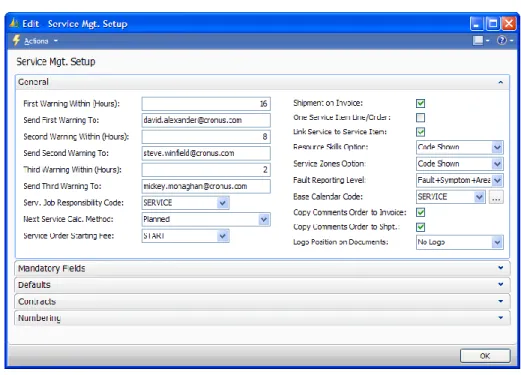
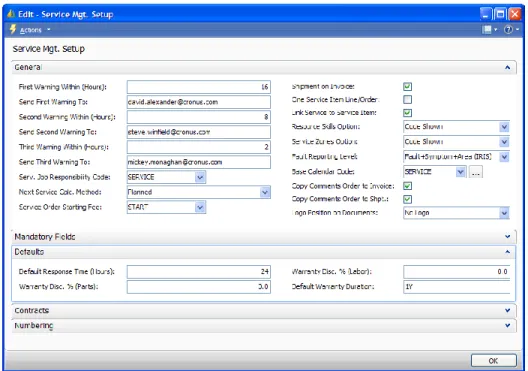
The General FastTab in the Service Mgt. Setup window offers a number of features that can help you manage your services. For example, you can set up:
Automatic e-mail warnings for the response time that you define for your service orders.
Service zones and resource skills for managing planning. Multidimensional fault reporting for service items.
Whether you assign one or more service items to a service order. Whether the program copies comments from a service order to the correspondent service shipment and invoice.
FIGURE 2.1 THE GENERAL FASTTAB IN THE SERVICE MGT. SETUP WINDOW
Warnings About Response Time Approaching
You can set up the program to send e-mail warning messages automatically. If the response time for service orders or quotes is approaching and service has not started yet, the program will send an e-mail to alert the responsible people. You can have the program send up to three warnings for each service order. For example, the first warning is sent eight hours, the second warning – five hours, and the third one – an hour before the response time. You specify this data in the following fields:
First Warning Within (Hours) Second Warning Within (Hours) Third Warning Within (Hours)
The program sends each warning to the e-mail address of the responsibility center assigned to the service order (you specify this information in the Responsibility Center field of the Service Order window). If you have not specified the e-mail address for the responsibility center, the program sends the warning to the e-mail address you have specified in the following fields:
Send First Warning To Send Second Warning To Send Third Warning To
The Warning Status field on the Details FastTab in the Service Order/Service Quote window contains the current warning status for the response time for the service order or quote. There are four options:
Blank (no warning is sent) First Warning
Second Warning Third Warning
Service Job Responsibility
You can designate a job responsibility for the Service Management application area. When you assign customers to service orders, the program selects the contact with this job responsibility from among the contacts assigned to the customer. For example, a job responsibility can be:
Sales Responsible. Service Responsible.
Marketing Responsible, and so on.
Next Service Calculation Method
The Next Service Calc. Method field specifies how the program will calculate the next planned service date for service items included in service contracts. The program calculates the next planned service date when you post service orders that belong to a service contract. There are two options: Planned and Actual.
Planned – The program calculates the next planned service date by adding the service item’s service period to the last planned service date. In this calculation, the program disregards when the last service actually took place.
Actual – The program calculates the next planned service date by adding the service item’s service period to the last service date.
Service Order Starting Fee
When working on service items in service orders, you may need to record a starting fee for the service. You can insert a starting fee for a service order or a specific service item within an order.
In the Service Order Starting Fee field, you define which of the service costs the starting fee is.
Shipment on Invoice
The program uses the Shipment on Invoice check box to determine whether to create a posted shipment document along with a posted invoice when posting an invoice created manually:
A check mark in the field indicates that the program will
automatically produce a posted shipment linked to a service invoice. If the field is blank, the program will create only a posted invoice document when posting.
One Service Item Line per Service Order
In the One Service Item Line/Service Order field, you can set up the program to have one service order include many service item lines, or just one line. A check mark in this field indicates that you can enter only one service item line for each service order.
Link Service to Service Item Line
In the Link Service to Service Item field:
You can set up your system to automatically insert a link from a service line of the Item or Resources type to a service item line in a service order/quote.
o This means that if you allow multiple service item lines in a service order, you can trace the labor and spare part cost registered for servicing a specific service item on the service lines.
o If you allow multiple service item lines, but do not require a link from the service lines to the service item lines, the program links all the service lines (including the labor and spare part cost) to the whole service order. In this case, the information about the service item that the service was carried out for will be lost. A check mark in this field indicates that service lines for resources and items must be linked to the corresponding service item lines. You can change the way of linking for each service order. The program uses the value in this field only as the default value in the Link Service to Service Item field in the service header when a service order is created.
Resource Skill/Service Zones Option
If your company uses allocation of resources to service items, then you can allocate resources to service the service items in question depending on their skill or depending on their availability in the same service zone as the customer. In the Resource Availability window, the program shows whether the resource is located in the customer zone and whether he or she has the required skills. Use the Resource Skills Option and the Service Zones Option fields to select whether the program:
Shows the information and displays a warning if you select an unqualified resource or a resource not located in the customer zone (Warning Displayed).
Does not show this information at all (Not Used).
Fault Reporting Level
You can set up fault codes:
To describe the typical service item faults or the actions taken on service items.
To group fault codes further by defining them for fault areas that describe areas of service items faults, or for a combination of fault areas and symptom codes that describe possible symptoms of service item faults.
To specify which level to use.
The Fault Reporting Level field specifies the level of fault reporting that your company uses in the Service Management application area. There are four options:
None Fault
Fault+Symptom
Fault+Symptom+Area (IRIS)
Base Calendar
In the Base Calendar Code field, you can select the type of base calendar that you use to run your Service Department’s activities:
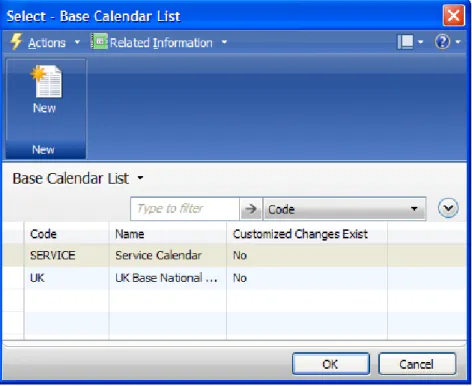
1. Click the AssistButton in the field, and then click Advanced at the bottom of the dropdown list. The Base Calendar List window appears.
FIGURE 2.2 THE BASE CALENDAR LIST WINDOW
Select the type of base calendar to use for your Service Department. You can set up a base calendar in the Base Calendar Card window. To do this:
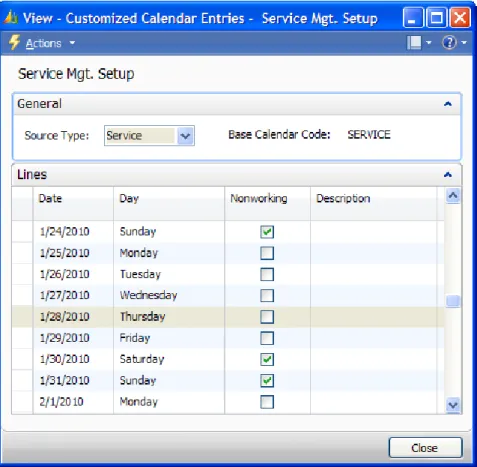
2. Click the AssistButton in the Base Calendar Code field to open the Customized Calendar Entries window.
FIGURE 2.3 THE CUSTOMIZED CALENDAR ENTRIES WINDOW
Modify the details of the selected calendar. For example, you can choose to set all the corporate days off or country-specific holidays to appear in the calendar as nonworking days. Modifications made in this window do not affect your base calendar. Your Service Department calendar only changes.
Copy Comments from Service Order
The user can specify whether the program will copy comments from service orders to service invoices and service shipments:
A check mark in the Copy Comments Order to Invoice field indicates that the comments entered on a service order will be copied to the correspondent service invoice posted from the order.
A check mark in the Copy Comments Order to Shpt. field denotes that the program will copy comments entered on a service order to the corresponding posted shipment document.
Logo Position on Documents
Use this field to specify the position of the logo used by a company on its letterhead and outcoming business documents, such as service invoices, shipments and credit memos. Choose from one of the options:
No Logo Left Center Right
The default option for the field is No Logo.
Mandatory Fields
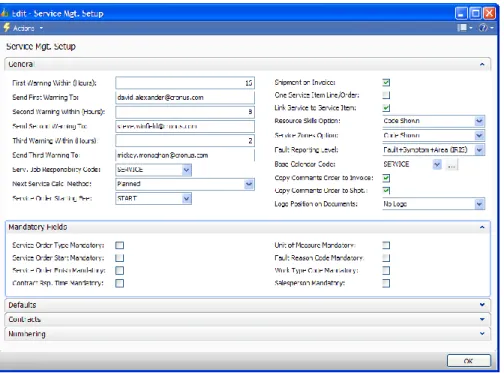
You use this FastTab to point out what information is obligatory for your service transactions. When trying to post a service document where the required
information is not specified, the program displays a message prompting you to fill in the appropriate fields.
FIGURE 2.4 THE MANDATORY FIELDS FASTTAB IN THE SERVICE MGT. SETUP WINDOW
For example:
For each service order or service contract to be linked to a salesperson, insert a check mark in the Salesperson Mandatory field on the Mandatory FastTab of the Service Mgt. Setup window. If you create a service order or service contract and then post it without specifying the salesperson code, the program will display an error message to remind you that the Salesperson Code field must be filled in for the transaction to be successful.
Defaults
You can define default values for certain information in the Service Management application area.
FIGURE 2.5 THE DEFAULTS FASTTAB IN THE SERVICE MGT. SETUP WINDOW
For example, if you want the program to automatically assign a one year warranty to the service items, enter “1Y” in the Default Warranty Duration field.
Default Response Time
You must fill in the Default Response Time (Hours) field. The program uses the default response time:
As the default response time in service orders that do not belong to service contracts.
To calculate the response time on service item lines that belong to service quotes.
The program calculates the default response time on a service item line in a service order or quote in the following way:
If the service item on the line is registered, the program uses the response time assigned to the registered service item on the line. If the service item on the line is not registered and the service item group on the line is assigned a default response time, the program
Otherwise, the program uses the default response time on the service order that the service item line belongs to. This default time
originates from the Default Response Time (Hours) field.
Default Warranty
You can specify the default warranty percentage on parts and labor as well as the default warranty duration for service items. The program uses the default
warranty settings in two cases:
When you create a registered service item automatically from a sales order or sales invoice. The starting date of the warranty is the posting date of the sales order or invoice.
When you mark a service item line as having a warranty (place a check mark in the Warranty field in the Service Order/Service Quote window). The starting date of the warranty is the order date of the service order/quote.
Contracts
When you use contracts, you have to set up certain features.
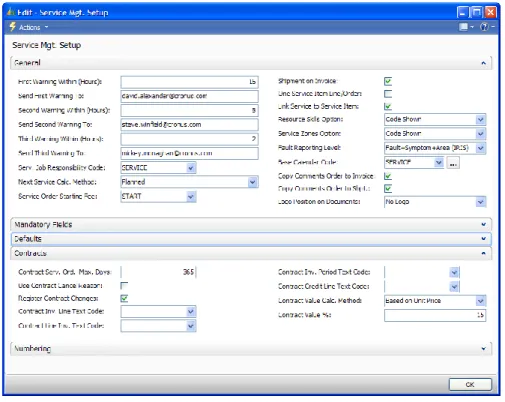
FIGURE 2.6 THE CONTRACTS FASTTAB IN THE SERVICE MGT. SETUP WINDOW
The Contract Serv. Ord. Max. Days field is obligatory to fill in. It contains the maximum number of days that you can use as the date range when you use the Create Contract Service Orders batch job.
Use Contract Cancel Reasons
A check mark in the Use Contract Cancel Reason field indicates that the program asks you to enter a reason code when cancelling a service contract, or removing a contract line from a contract.
Register Contract Changes
A check mark in the Register Contract Changes field indicates that you want the program to register changes to your service contracts in the contract change log.
Standard Texts on Contact Invoices and Credit Memos
The program allows for entering standard texts on service invoices and credit memos related to service contracts.
The Contract Inv. Line Text Code field contains the code for the standard text that the program enters in the Description field on the line in a contract invoice. This line is created when you invoice a service contract.
If you select the Contract Lines on Invoice check box in a service contract, the Contract Line Inv. Text Code field will contain the code for the standard text that the program enters in the Description field on the line in a contract invoice. These lines are created for each contract line when you invoice the service contract.
The Contract Inv. Period Text Code field contains the code for the standard text that the program enters in the Description field on the line in a contract invoice to indicate the invoicing period. The standard text is entered on the lines in the invoice when the user invoices a service contract. The program adds the period dates to the standard text.
The Contract Credit Line Text Code field contains the code for the standard text that the program enters in the Description field on the service lines of the contract credit memo. When the user creates a credit memo for a contract, the program inserts the lines with the standard code to describe the credit memo line below.
Contract Value Calculation Method
This field contains the method the program uses to calculate the default contract value and the default quote value of service items. There are three options:
None – The program does not calculate a default value Based on Unit Price – The program uses this formula:
Value = Sales Unit Price of the service item x Contract Value %/ 100
Based on Unit Cost – The program uses this formula:
Value = Sales Unit Cost of the service item x Contract Value %/ 100
Numbering
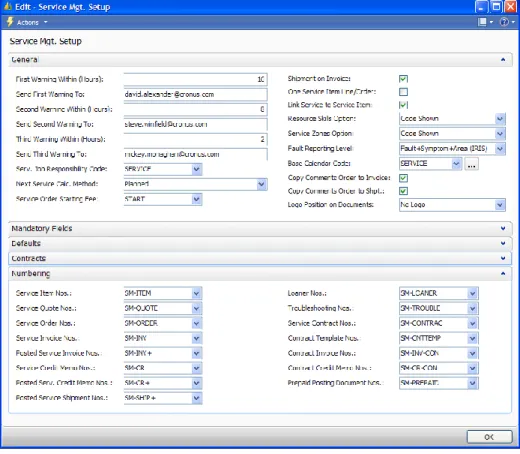
You can set up number series for: Service items. Service quotes. Service orders. Service invoices. Service credit memos.
Posted service shipments, invoices and credit memos. Service contracts.
Contract templates. Troubleshooting. Contact invoices. Contract credit memos. Prepaid posting documents. Loaners.
The program automatically enters the next available number, or allows manual numbering according to the setup of each number series.
FIGURE 2.7 THE NUMBERING FASTTAB IN THE SERVICE MGT. SETUP WINDOW
The fields that are shown in the screenshot contain the code for the number series that the program uses to assign a document number. This number belongs to the journal lines of a contract created when you run the Post Prepaid Contract Entries batch job. When the program transfers the prepaid amount from the prepaid account to the income account of the contract, the program creates two journal lines:
For the prepaid account. For the income account.
Time Management and Planning Setup
The Service Management application area contains functionality that helps you manage your service tasks in terms of time and planning.
The time management setup is mandatory. It consists of setting up a base calendar and default service hours in your company. The program uses the calendar and service hours to calculate:
The response dates and time for the service items that fall within your normal work days and service hours.
When to send warnings that the response time is approaching. The planning management setup consists of setting up:
Work-hour templates Skill codes
Service zones
If you use allocation in your company, this enables you to allocate service tasks to resources based on their:
Work capacity Skill codes Service zones
Default Service Hours
Use the Default Service Hours window to:
Specify the usual service working hours your company keeps on each day of a typical week.
Define work hours for weekdays in periods by using a starting date for each entry. For example, you can have special summer service hours.
The program uses these service hours when it calculates the response date and time for service orders and quotes. Unless you specify special service hours for a service contract, the program uses the default service hours.
Before creating service orders, you should first set up the default service work hours for your company for at least five weekdays.
To set up default service hours, do the following:
1. Click Departments > Service > Administration.
2. Under Setup, click Default Service Hours. The Default Service Hours window appears.
FIGURE 2.8 THE DEFAULT SERVICE HOURS WINDOW
3. In the Action Pane, click New to enter a new entry.
4. In the Starting Date field, enter the date from which the service hours are valid. If you leave this field blank, the service hours are always valid.
5. In the Day field, select the day of the week for which you are defining the service hours.
6. In the Starting Time and Ending Time fields, insert the starting and ending time of the service hours for this particular day of the week. 7. In the Valid on Holidays field, place a check mark if you want the
service hours entry to be valid on holidays.
NOTE: If you leave the lines in the Default Service Hours window empty, the program will use 24 hours as a default value, valid only for calendar working days.
Repeat steps 3 to 6 for each day of the week when your company services items.
Work-Hour Templates
Work-hour templates contain lists of typical working hours in your company. For example:
You can create templates for full-time technicians and part-time technicians.
You can use work-hour templates when you add work capacity to resources (for example, technicians), that is, when you set up how many hours the resources are available for work each day of the week.
You can set up as many templates as you want. Each template contains the number of work-hours for each weekday.
To set up work-hour templates, do the following:
1. Click Departments > Service > Administration.
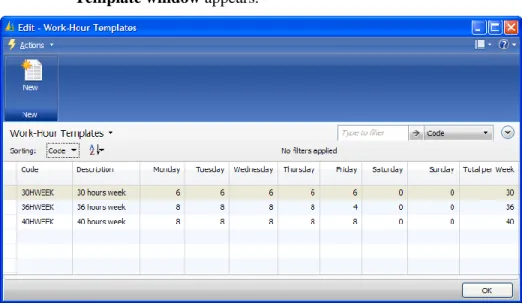
2. Under Setup, click Work-Hour Templates. The Work-Hour Template window appears.
FIGURE 2.9 THE WORK-HOUR TEMPLATES WINDOW
3. In the Action Pane, click New to enter a new work-hour template. 4. Fill in the Code and Description fields.
5. In the Monday, Tuesday, Wednesday, Thursday, Friday, Saturday, and Sunday fields, enter the quantity of working hours for each day of the week. The program automatically updates the Total per Week field.
Repeat steps 3 to 4 for each work-hour template that you want to create. When you set up the work capacity for resources, you select the work-hour template closest to the work-hours of the resource. You can change the hours manually. The program then adds the quantity of working hours for each day in the period you have chosen.
Service Zones
In the Service Management application area, service zones are the geographical regions that you split your company’s market into, for example:
West
Central, and so on
When allocating a resource (for example, a technician) to a service task that is to be performed at the customer’s site, you can select a resource that is assigned to the same service zone as the customer.
After setting up the service zones, you can assign them to customers in the Customer Card window and to resources in the Resource Service Zones window.
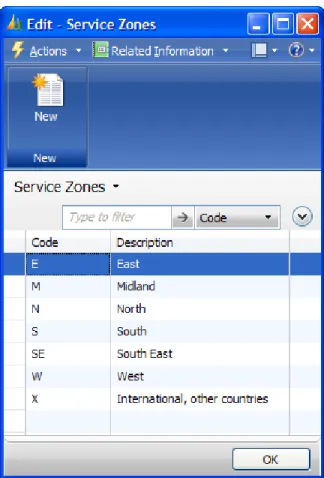
To set up service zones, do the following:
1. Click Departments > Service > Administration.
2. Under General, click Service Zones. The Service Zones window appears.
FIGURE 2.10 THE SERVICE ZONES WINDOW
3. In the Action Pane, click New to enter a new service zone. 4. Fill in the Code and Description fields.
Skill Codes
In the Service Management application area, skill codes are the codes that identify the skills needed to repair and maintain service items. For example, specific skills are needed to repair computers, radios, televisions.
To set up skill codes, do the following:
1. Click Departments > Service > Administration.
2. Under General, click Skill Codes. The Skill Codes window appears.
FIGURE 2.11 THE SKILL CODES WINDOW
3. In the Action Pane, click New to enter a new skill code. 4. Fill in the Code and Description fields.
Repeat steps 2 and 3 for each skill code that you want to create. After setting up the skill codes, you can assign them to:
Items
Service item groups Service items Resources
To access the Skill Codes window, use the following windows: Resource Skills
Item Card
Service Item Groups Service Item Card Resource Card
Service Order Setup
The Service Management application area offers several ways of managing service orders. Choosing how to manage service orders determines what you have to set up in the program.
To create and work on service orders: Set up repair status options.
Assign priority to service order status options.
Link the repair status options to a service order status. It is also possible to set up:
Service order types to group service orders together.
Customer templates to create unregistered customers within service orders.
Four types of fault reporting codes for a structured approach to repair administration.
Fault reason codes to exclude warranty and contract discounts on services.
Service Order and Repair Status
The Status field (the service order status) and the Repair Status Code field in the Service Order window (the service item repair status) have a close relationship in the Service Management application area.
The status of the service order reflects the repair status of all the service items in the service order.
The repair status of the service item refers to the individual service items on the lines.
The following screenshot of the Service Order window shows the Status field options.
FIGURE 2.12 THE OPTIONS AVAILABLE IN THE STATUS FIELD OF THE SERVICE ORDER WINDOW
To open the Repair Status window:
1. Click the AssistButton in the Repair Status Code field on one of the service order lines.
FIGURE 2.13 THE REPAIR STATUS WINDOW
Each time the repair status of a service item in a service order changes, the program updates the status of this order.
If you want the program to show the overall repair status of the individual service items, set up:
The priority level for each of the four service order status options. The nine repair status options necessary for the program to function properly.
The service order status each repair status is linked to.
Assigning Priority to Service Order Status
When a repair status for a service item changes, the program links the service order status options to the different repair status options for all service items in the order.
If the service items are linked to two or more service order status options, the program selects the service order status option that has the highest priority.
Setup which service order status contains the most important information on the status of the service order and assign that status the highest priority, and so on. A typical priority level assignment could be:
In Process – High Pending – Medium High On Hold – Medium Low Finished – Low
For example, if one service item has the repair status Initial (linked to the service order status Pending), another service item has the repair status In Process (linked to the service order status In Process) and the third service item has the repair status Spare Part Ordered (linked to the service order status On Hold), the resulting service order status will then be In Process because it has the highest priority.
FIGURE 2.14 THE STATUS AND REPAIR STATUS CODES FIELDS ON THE SALES ORDER
To assign priority to service order status, do the following: 1. Click Departments > Service > Administration.
2. Under Order Processing, Status, click Service Order Status Setup. The Service Order Status Setup window opens. 3. In the Service Order Status field, select the needed status.
4. In the Priority field, select the priority needed for this service order status.
Repeat steps 3 to 4 until the priority is set for each of the four status options: Pending
In Process Finished On Hold.
FIGURE 2.15 THE SERVICE ORDER STATUS SETUP WINDOW
Setting Up Repair Status Options
Use the Repair Status Setup window to set up the repair status options that identify the progress of repair and maintenance of the service items in the service orders. Set up at least nine repair status options that identify situations or actions taken when servicing service items. The options are:
Initial In Process Referred Partly Serviced Quote Finished
Waiting for Customer Spare Part Ordered Spare Part Received Finished
To set up repair status, do the following:
1. Click Departments > Service > Administration.
2. Under Order Processing, Status, click Repair Status Setup. The Repair Status Setup window opens.
3. In the Action Pane, click New to enter a new repair status. 4. Fill in the Code and Description fields.
5. In the Service Order Status field, select one of the four service order status options (Pending, In Process, Finished, or On Hold) to link the repair status to. The program fills in the Priority field with the priority of the service order status selected.
6. Insert a check mark (in one field only) in either the Initial, In Process, Finished, Partly Serviced, Referred, Spare Part
Ordered, Spare Part Received, Waiting for Customer, or Quote Finished field, that is relevant to the function of the repair status. Two different repair status options cannot be linked to the same function.
7. Insert a check mark in the Posting Allowed field to post service orders including the service items with this repair status.
8. Insert a check mark in the Pending Status Allowed field to be able to manually change the service order status to Pending if the service order includes the service items with this repair status.
9. Fill in the In Process Status Allowed, Finished Status Allowed, and On Hold Status Allowed fields the same way.
FIGURE 2.16 THE REPAIR STATUS SETUP WINDOW
Linking Repair Status to Service Order Status
Each repair status is linked to a particular service order status. The linking depends on the functionality of each service order status option:
The Pending service order status indicates that the service can start or continue at any time. Therefore, the following four repair status options can be linked to this service order status:
o Initial
o Referred
o Partly Serviced
o Spare Part Received
The On Hold service order status indicates that the service is
temporarily on hold, because you are waiting for a response from the customer or spare parts before the service can commence. Therefore, the following three repair status options can be linked to this service order status:
o Quote Finished
o Spare Part Ordered
o Waiting for Customer
The In Process service order status indicates that the service is in process. Therefore, the following two repair status options can both be linked to this service order status:
o In Process
o Spare Part Ordered
If the Spare Part Ordered status is linked to the In Process service order status, it is necessary to also link the Spare Part Received status to this service order status.
The Finished service order status indicates that the service is completed. Therefore, the Finished repair status is linked to this status.
Service Order Types
The program allows setting up codes to identify the different types of service orders already established. For example, repair of:
Hardware
Software, and so on
Use these service order types to group your service orders together for statistical or other purposes.
To set up service order types, do the following:
1. Click Departments > Service > Administration.
2. Under Order Processing, Setup, click Service Order Types. The Service Order Types window opens.
FIGURE 2.17 THE SERVICE ORDER TYPES WINDOW
3. In the Action Pane, click New to enter a new service order type. 4. Fill in the Code and Description fields.
When the service order types are set up, assign them to service orders in the Service Order window.
Fault Reporting
Fault reporting in the Service Management application area: Enables a structured approach to repair administration.
Consists of setting up predefined fault codes and resolution codes that apply to service items or service item groups in service orders. Spare parts for service items can also have fault and resolution codes that can be different from the fault and resolution codes assigned to the individual service items.
The program can periodically register the most common resolution codes for a fault code. This can be done either manually, or through the Insert Fault/Resol. Codes Relationships batch job.
There are four types of fault reporting codes:
Fault codes that identify the different service item faults or the actions taken on service items.
Fault area codes that identify the different areas of faults encountered with service items, for example, printing, sound, color,
cooling/heating, and so on.
Symptom codes that identify the symptoms of service item faults, for example, no function, level, quality, noise, and so on.
Resolution codes that identify the methods used to solve typical service problems, for example, cleaned, replaced, and so on. Fault codes, symptom codes, and area codes represent different levels of
identifying service item faults. You set up the fault reporting level to use for your company on the General FastTab in the Service Mgt. Setup window. This level indicates whether you:
Use no fault reporting codes. Use fault codes only.
Use both fault and symptom codes.
Use fault, symptom, and area codes (as necessary for the IRIS fault reporting system).
FIGURE 2.18 THE FAULT REPORTING LEVEL FIELD IN THE SERVICE MGT. SETUP WINDOW
If you decide to choose the Fault+Symptom+Area (IRIS) fault reporting level, the fault code must be unique for each combination of fault area code and symptom code. These codes are three-digit alphanumeric codes.
The first digit represents the fault area code. The second one represents the symptom code.
The third one is used to describe the fault in further detail. For example, according to the IRIS Repair Coding System, fault code 753 Internal Peripherals Failure belongs to the Data Processing fault area (7) and has the Unstable symptom code (5).
You can learn more about the IRIS International Repair Coding System at the Web site of the European Information and Communications Technology Industry Association (EICTA): http://www.eicta.org/index.php?id=162.
Setting Up Fault Areas
You can use the Fault Areas window to set up fault areas to describe areas of service items faults. The level of fault reporting in your company determines whether you use fault area codes.
To set up fault areas, do the following:
1. Click Departments > Service > Administration.
2. Under Order Processing, Fault Reporting, click Fault Areas. The Fault Areas window opens.
FIGURE 2.19 THE FAULT AREAS WINDOW
3. In the Action Pane, click New to enter a new fault area code. 4. Fill in the Code and Description fields.
Repeat steps 3 and 4 to set up as many fault area codes as you want.
Setting Up Symptom Codes
The level of fault reporting in a company determines whether to use symptom codes. To describe possible symptoms of service item faults use the Symptom Codes window to set up symptom codes.
To set up symptom codes, do the following:
1. Click Departments > Service > Administration.
2. Under Order Processing, Fault Reporting, click Symptom Codes. The Symptom Codes window opens.
FIGURE 2.20 THE SYMPTOM CODES WINDOW
3. In the Action Pane, click New to set up a new symptom code. 4. Fill in the Code and Description fields.
Repeat steps 3 and 4 for each symptom code that you want to create.
Setting Up Fault Codes
You can use the Fault Codes window to set up the codes that describe the typical service item faults or the actions taken on service items.
Depending on the level of fault reporting in your company, you might need to set up fault area codes and symptom codes before you set up fault codes. Steps 3 and 4 are only relevant to companies that include fault areas and symptoms in their fault reporting.
1. Click Departments > Service > Administration.
2. Under Order Processing, Fault Reporting, click Fault Codes. The Fault Codes window opens.
FIGURE 2.21 THE FAULT CODES WINDOW
3. In the Action Pane, click New to set up a new fault area code. 4. In the Fault Area Code field, click the AssistButton to select the
relevant fault area code from the drop-down list that appears. 5. In the Symptom Code field, click the AssistButton to select the
relevant symptom code from the drop-down list that appears.
6. In the Code and Description fields, enter the code and description of the fault code you create.
Repeat steps 3 to 6 for each fault code you want to create.
Setting Up Resolution Codes
You can use the Resolution Codes window to set up resolution codes to identify a particular method or procedure used to solve a service problem.
To set up resolution codes, do the following:
2. Under Order Processing, Fault Reporting, click Resolution Codes. The Resolution Codes window opens.
FIGURE 2.22 THE RESOLUTION CODES WINDOW
3. In the Action Pane, click New to set up a new resolution code. 4. Fill in the Code and Description fields.
Repeat steps 3 and 4 for each resolution code you want to create.
Importing IRIS Codes
In Microsoft Dynamics NAV, it is also possible to import the IRIS codes to: Fault area codes
Symptom codes Fault codes Resolution codes To do this, go to:
Import IRIS to Fault Area/Symptom Codes Import IRIS to Fault Codes
Import IRIS to Resolution Codes
You can only import a file in the .txt format using the Import IRIS function. You can download a Microsoft® Office Excel® file containing the IRIS codes from http://www.eicta.org/fileadmin/user_upload/AfterSalesIssueGroup/IrisFiles/IRIS _rev6.6_br.xls, IRIS excel sheet Version 6.6: the complete IRIS table including all translations in an Excel format, and then transfer (copy-paste) the codes you want to import to Microsoft Dynamics NAV to a text file.
The names of code groups in IRIS and Microsoft Dynamics NAV may differ for some of the groups. The following is the table of corresponding codes.
Microsoft Dynamics NAV IRIS
Resolution Codes Repair Codes
Fault Areas Vertical Main Symptom Codes Symptom Codes Horizontal Main Symptom Codes Fault Codes Symptom Codes
Fault Reason Codes Defect Codes and Non-Technical Fault (NTF) Codes
Inserting Fault/Resolution Codes Relationships
You can insert the fault/resolution codes relationships to be able to view the most common methods of repair for particular item faults when you service the items. Do it manually in the Fault/Resolution Codes Relationships window:
1. Click Departments > Service > Administration.
2. Under Order Processing, Fault Reporting, click Fault/Resol. Codes Relationships.
3. Create combinations of fault and resolution codes.
Alternatively, you can let the program find all the combinations of fault and resolution codes in posted service orders and record these in your system. To automatically insert fault/resolution codes relationships, do the following:
1. Click Departments > Service > Order Processing.
2. Under Tasks, Periodic Activities, click Insert Fault/Resolution Codes Relationships. The Insert Fault/Resol. Codes Relationships request window appears.
FIGURE 2.23 THE INSERT FAULT/RESOL. CODES RELATIONSHIPS WINDOW
3. In the From Date field, enter the starting date of the period that needs to be included in the batch job.
4. In the To Date field, enter the ending date of the period that needs to be included in the batch job.
5. Select the Relation Based on Service Item Group check box, for the relationships to be grouped by service item groups.
6. Select the Retain Manually Inserted Rec. check box, to retain the records that have already been inserted manually in the Fault/Resol. Codes Relationships window.
7. Click OK.
Setting Up Fault Reason Codes
You can use the Fault Reason Codes window to:Set up the fault reason codes to describe the reason for the service item faults.
Exclude warranty and contract discounts, if necessary.
For example, you may want to exclude the warranty and contract discounts when the customer spills water on a service item.
To set up fault reason codes, do the following:
1. Click Departments > Service > Administration.
2. Under Order Processing, Fault Reporting, click Fault Reason Codes. The Fault Reason Codes window opens.
FIGURE 2.24 THE FAULT REASON CODES WINDOW
3. In the Action Pane, click New to enter a new fault reason code. 4. Fill in the Code and Description fields.
5. Select the Exclude Warranty Discount and/or Exclude Contract Discount check boxes if appropriate for this fault reason code. Repeat steps 3 to 5 to set up as many fault reason codes as you want.
Setting Up Customer Templates
Often contacts or potential customers may ask for quotes. These contacts or potential customers may not yet be registered as customers in the program. To process service quotes for these requests, do the following:
Create and define one or more customer templates to be used in the quotation phase, without having to create a customer.
Use this template to pass on information that is necessary to create a customer from a contact card.
Set up the customer templates:
1. Click Departments > Sales & Marketing > Administration. 2. Under Sales, Setup, click Customer Templates. The Customer
FIGURE 2.25 THE CUSTOMER TEMPLATE LIST WINDOW
3. In the Action Pane, click New to open the Customer Template Card window.
FIGURE 2.26 THE CUSTOMER TEMPLATE CARD WINDOW
4. Fill in the Code and Description fields.
5. Click the AssistButtons in the Country/Region Code, Territory Code and Currency Code fields to fill them in. The program uses
the values in these fields as search criteria, so the fields are not obligatory to fill in.
6. Fill in the General Business Posting Group and the Customer Posting Group fields, which is mandatory.
7. The remaining fields do not have to be filled in and can be filled in only to specify information for these fields.
Service Item Setup
To manage registered service items and items generally in service orders, set up: Service item groups that group together related items and contain certain default values for service items.
Loaners that you lend out temporarily to customers to replace the items that they have in service.
Numbers that identify shelves where service items are stored while they are in the repair shop.
Service Item Groups
Service item groups combine items that are related in terms of repair and maintenance, for example:
Servers Televisions Monitors Radios
You can define the default values for service items in a service item group, for example:
Contract discount percentages Service price group codes Response times
For items in a service item group, select whether you want them to be automatically registered as service items when they are sold.
Assign service item groups to items on the: Item card
Service item card
The Item Relations diagram provides an overview of how the different items are related.
Service Item Group
Contract Discount
Service Item Service Item Line
Item Service Line
FIGURE 2.27 ITEM RELATIONS
To set up service item groups, do the following:
1. Click Departments > Service > Administration.
2. Under Contract Management, Setup, click Service Item Groups. The Service Item Groups window appears.
FIGURE 2.28 THE SERVICE ITEM GROUPS WINDOW
3. In the Action Pane, click New to enter a new service item group. 4. Fill in the relevant fields.
Repeat steps 3 to 4 for each service item group you want to create.
After setting up the service item groups, assign them to items, service items, and service item lines in service orders.
Service Shelves
You can assign numbers that identify the shelves where service items are stored while they are in the repair shop.
Setting Up Service Shelves
Use the Service Shelves window to set up the service shelves that identify where the service items are stored while they are in the repair shop.
Assign the service shelves to the service items in the Service Order window and in the Service Item Worksheet window.
1. Click Departments > Service > Administration.
2. Under Order Processing, Setup, click Service Shelves. The Service Shelves window appears.
FIGURE 2.29 THE SERVICE SHELVES WINDOW
3. In the Action Pane, click New to enter a new service shelf. 4. Fill in the No. and Description fields.
Repeat steps 3 and 4 for each service shelf you want to create.
Loaners
Loaners are the items that you lend out temporarily to customers to replace the items that they have in service.
Setting Up Loaners
Use the loaner cardto set up the loaners that you can lend to customers to replace service items while they are in service.
To set up loaners, do the following:
1. Click Departments > Service > Order Processing. 2. Under Lists, click Loaners.
3. In the Action Pane of the Loaners list place, click New to set up a new loaner. The Loaner Card window appears.
FIGURE 2.30 THE LOANER CARD WINDOW
4. In the No. field, enter a number for the loaner.
5. Fill in the Description, Description 2, Item No., and Serial No. fields as appropriate.
6. In the Unit of Measure Code field, click the AssistButton and select the relevant unit of measure.
7. Select the Blocked check box if the loaner cannot be lent to customers and there is a need for it to be blocked.
Repeat steps 4 to 7 for each loaner you want to create.
After setting up the loaners, you can lend them to customers to replace service items in the Service Order window.
Lab 2.1 – Establishing Rules for Service Orders and Service
Contracts
In this lab, you will practice establishing rules for controlling the process of generating a contract and a service order.
Scenario
You are an employee in the Service Department at CRONUS International Ltd, and you have to configure your system before serving customers. While you configure, it is really important that you consider the general policy and the specific needs of your company towards servicing customers.
Challenge Yourself
Perform the basic setup in the Service Mgt. Setup window.
Need a Little Help
1. Set up an e-mail address for the lead technician, and set up a time frame between the first, second, and the third warning.
2. Configure the program to calculate the next planned service date by adding the service period to the previous planned service date. 3. Apply a new traveling fee of 25 for technicians who travel to the
south of Europe and a new starting fee of 0.8 for service orders. 4. Set up the program to always link the service order lines to the
service invoice lines when creating a service order.
5. Set up the program to notify you with a message if the resource that you choose is not skilled to service the service item and is not assigned to the same service zone as the customer.
6. Set up the program to create a posted shipment every time it posts a service invoice created manually.
7. Select the highest reporting level.
8. Make sure that the system keeps track of the type of service orders you create.
9. Make sure that a response time is always entered before converting service contract lines of a contract quote to a service contract. 10. Make sure that before posting a service order, a fault reason code has
to be selected.
11. Register 12 hours as a default response time for service orders/quotes and service item lines.
12. Set up the program to always give a 100 percent discount on parts and labor, and default warranty duration of one year.
13. Make sure that the cancellation reason is registered when a contract line is cancelled.
14. Set up the program to calculate the contract value for a service item as 30 percent of the sales unit price.
15. Make sure that the logo of Cronus International Ltd. is placed in the left-hand corner on the business document printouts.
Step by Step
1. Click Departments > Service > Administration.
2. Under Setup, click Service Setup. The Service Mgt. Setup window opens.
3. On the General FastTab, fill in the fields as shown in the following table.
Field Name Value
Send First Warning To The e-mail address of the lead technician
Next Service Calc. Method Planned Service Order Starting Fee START Shipment on Invoice Yes
Resource Skills Option Warning Displayed Service Zones Option Warning Displayed
Fault Reporting Level Fault+Symptom+Area (IRIS) Logo Position on Documents Left
To change the default unit price for the service order starting fee, do the following:
4. Click the AssisButton in the Service Order Starting Fee field. 5. At the bottom of the drop-down list that opens, click Advanced. 6. For a line with service cost START, change the value in the Default
Unit Price field to 0.8. 7. Click OK.
8. On the Mandatory Fields FastTab, fill in the fields as shown in the following table.
Field Name Value
Service Order Type Mandatory Yes Contract Rsp. Time Mandatory Yes Fault Reason Code Yes
9. On the Defaults FastTab, fill in the fields as shown in the following table.
Field Name Value
Default Response Time (Hours) 12 Warranty Disc. % (Parts) 100.0 Warranty Disc. % (Labor) 100.0 Default Warranty Duration 1Y
10. On the Contracts FastTab, fill in the fields as shown in the following table.
Field Name Value
Use Contract Cancel Reason Yes Contract Value % 30
Lab 2.2 – Setting Up Service Zones and Working Hours
In this lab, you will practice establishing the policy for service zones and working hours.
Scenario
The Service Department of CRONUS International Ltd is open from 08:00 until 18:00 during weekdays. Not all technicians have agreed on this, so a group of them works six hours per day from Monday to Thursday, and only four hours on Friday. Another group works four hours each day during weekdays, and eight hours on Saturday. It has been decided that the company’s resource Kate should serve the North, South, East, and West zones.
Challenge Yourself
Perform the basic setup in the Work-Hour Templates, Skill Codes, Service Costs and Service Zones windows.
Need a Little Help
1. Create a new work hour template.
2. Set up a particular skill for the technicians to fix CD drives.
3. Create a new travel cost, which should be posted in G/L Account no. 6810.
4. Create a service zone for southern Europe.
Step by Step
Create a new work hour template.
1. Click Departments > Service > Administration.
2. Under Setup, click Work-Hour Templates. The Work-Hour Templates window opens.
3. In the Action Pane, click New to create a new work-hour template for the first group of technicians.
4. Fill in the fields as shown in the following table.
Field Name Value
Code 28HWEEK
Description 28 hours week
Monday 6
Tuesday 6
Wednesday 6
Thursday 6
5. Repeat steps 3 to 4 to create a work-hour template for the second group of technicians.
Field Name Value
Code 28HWEEK+
Description 28 hours week+Saturday
Monday 4
Tuesday 4
Wednesday 4
Thursday 4
Friday 4
Saturday 8
Set up a skill to fix CD drives.
1. Click Departments > Service > Administration.
2. Under General, click Skill Codes. The Skill Codes window opens. 3. In the Action Pane, click New to create a new skill code for CD
drives.
4. Fill in the fields as shown in the following table.
Field Name Value
Code CD
Description CD Drives
Create a new travel cost.
1. Click Departments > Service > Administration.
2. Under Order Processing, Setup, click Service Costs. The Service Costs window opens.
3. In the Action Pane, click New to create a new travel cost for travelling to Greece.
4. Fill in the fields as shown in the following table.
Field Name Value
Code TR_GREECE
Description Travel Fee
Account No. 6810
Service Zone Code X
Default Quantity 1
Unit of Measure Code PCS Default Unit Price 0.80 Create a service zone for southern Europe.
1. Click Departments > Service > Administration.
2. Under General, click Service Zones. The Service Zones window opens.
3. In the Action Pane, click New to create a service zone for southern Europe.
4. Fill in the fields as shown in the following table.
Field Name Value
Code SOUTHEUR
Summary
Performing the basic setup is the main precondition for working within the Service Management application area.
In the Microsoft Dynamics NAV 2009 RoleTailored client, you perform the setup through the Departments button. The chapter elaborates on the following:
Service management setup
Time management and planning setup Service order setup
Service item setup
The features of the Service Management application area help to configure and set up your service management system. Set the defaults, numbering series, and the required fields that you want a customer service representative to fill in. In addition, you can establish coding for standard services, symptom, and fault codes, and set up service item types that your company's customer service needs require.
When you define a service, you can associate it with the skills required to perform the service. To help your service representatives be efficient, you can also set up real time troubleshooting guidelines and assign typical startup costs, such as travel costs or other fees.
Test Your Knowledge
1. What are the two cases when the program uses the default warranty settings?
2. How would the program react if you decide not to set up the default service work hours?
3. Complete the following sentence:
After setting up the service zones, you can assign them to _______________ in the Customer Card window and to _________________ in the Resource Service Zones window.
4. Which of the four service order status has the highest priority level? ( ) On Hold
( ) Pending ( ) In process ( ) Finished
5. What are items called that are lent out temporarily to customers to replace the items they have in service?
Quick Interaction: Lessons Learned
Take a moment to write down three Key Points you have learned from this chapter:
1.
2.
Solutions
Test Your Knowledge
1. What are the two cases when the program uses the default warranty settings? MODEL ANSWER:
When you create a registered service item automatically from a sales order or sales invoice.
When you mark a service item line as having a warranty (place a check mark in the Warranty field in the Service Order/Service Quote window).
2. How would the program react if you decide not to set up the default service work hours?
MODEL ANSWER:
If you decide not to set up the default service work hours, the program would use 24 hours as a default value, valid only for calendar working days.
3. Complete the following sentence:
After setting up the service zones, you can assign them to _______________ in the Customer Card window and to _________________ in the Resource Service Zones window.
MODEL ANSWER:
After setting up the service zones, you can assign them to customers in the Customer Card window and to resources in the Resource Service Zones window. 4. Which of the four service order status has the highest priority level?
( ) On Hold ( ) Pending (√ ) In process ( ) Finished
5. What are items called that are lent out temporarily to customers to replace the items they have in service?
MODEL ANSWER:
Loaners are the items that you lend out temporarily to customers to replace the items that they have in service.