• Prerequisites, page 1
• Guidelines and Limitations, page 2
• Basic Topology, page 2
• Intercloud Fabric Firewall Installation Workflow, page 2
Information About the Intercloud Fabric Firewall
The Intercloud Fabric Firewall (VSG) is a virtual appliance that provides trusted access to secure virtualized data centers in provider cloud environments while meeting the requirements of dynamic policy-based operations, mobility-transparent enforcement, and scale-out deployment for dense multi-tenancy. The Intercloud Fabric Firewall helps ensure that access to trust zones is controlled and monitored through established security policies.
The Intercloud Fabric Firewall offers the benefits of workload virtualization, enhanced compliance with corporate security policies and industry regulations, and simplified security audits.
It provides protection to virtual machines in cloud environments from potentially harmful network traffic, including unauthorized Internet users trying to access virtual machines through the public interface of an Intercloud Fabric Router (CSR) or a cloud virtual machine and from unauthorized internal users trying to access through a site-to-site secure tunnel.
Deploying the Intercloud Fabric Firewall can help customers extend their private cloud security policy to protect their application workloads running at provider clouds. The Intercloud Fabric Firewall also provides logical isolations between virtual machine groups through support for three-tiered applications in an Intercloud Fabric environment. Based on security requirements, virtual machines can be defined as part of logical groups and the Intercloud Fabric Firewall can be applied on the virtual machine groups.
Prerequisites
•Infrastructure setup and Intercloud Fabric Cloud setup is complete.
•Promiscuous mode is enabled on the Intercloud Fabric Extender trunk port if a port group is used for the Intercloud Fabric Extender trunk interface.
•The complete VLAN range is enabled in the port group that is bound to the trunk interface in the Intercloud Fabric Extender.
Guidelines and Limitations
•You can also add the Intercloud Fabric Firewall service after you create the Intercloud Fabric Cloud instance. SeeManaging Services
Basic Topology
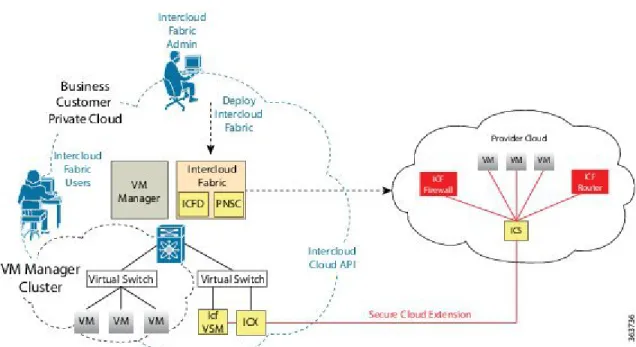
The following figure displays the basic topology for the Intercloud Fabric Firewall. Figure 1: Intercloud Fabric Firewall Basic Topology
Intercloud Fabric Firewall Installation Workflow
The installation workflow for the Intercloud Fabric Firewall includes these steps:Step 1 Create the Intercloud Fabric Firewall template and service interface from Intercloud Fabric.
•SeeCreating an Intercloud Fabric Cloud, if you plan to enable the service, while creating an Intercloud Fabric Cloud.
•SeeManaging Servicesif you have not enabled the service while creating an Intercloud Fabric Cloud.
Step 2 Instantiate Intercloud Fabric Firewall
SeeInstantiating Intercloud Fabric Firewall, on page 12.
Step 3 Configure compute security profiles.
SeeConfiguring Compute Security Profiles, on page 14.
Step 4 Create a service path.
SeeCreating a Service Path, on page 15.
Step 5 Bind the service path to the port profile. SeeBinding a Service Path to a Port Profile.
Step 6 Edit the port profile for the cloud virtual machine to enable firewall services. See Editing Port Profiles for the Intercloud Fabric Firewall, on page 17.
Step 7 Verify the installation.
SeeVerifying the Installation of Intercloud Fabric Firewall, on page 18.
Creating an Intercloud Fabric Cloud
Use this procedure to create an Intercloud Fabric Cloud.
Before You Begin
•You have created a provider account.
•You know the credentials for the cloud provider.
•You have created a tunnel network with the name icfTunnelNet. This is applicable only for Intercloud Fabric in OpenStack environments.
•You have installed the infrastructure components.
•You have configured the port profiles for the Distributed Virtual Switch such as Cisco Nexus 1000V, VMware vSwitch, or VMware VDS, or Microsoft Hyper-V switch in the private cloud.
•You have created Intercloud Fabric infrastructure policies such as the MAC pool, tunnel profile, and static IP pool.
•Optionally, you can configure Native VLAN as the VLAN used for your VM Network in vCenter. Native VLAN is useful in flat network environments where only one VLAN is present in the network.
•If you are using Cisco Nexus 1000V in the private cloud, you have added the Cisco Nexus 1000V switch to Intercloud Fabric. SeeAdding a Network Element.
•Configure the required VLANs for the networks that needs to be extended into the Intercloud Fabric Extender trunk port profile.
•You have uploaded the services bundle to manage services. ChooseIntercloud>Infrastructure>
Upload Services Bundleto upload the services bundle.
It is not required to upload the services bundle to manage Intercloud Fabric Router (Integrated).
Note
Procedure
Step 1 Log in to the Intercloud Fabric.
Step 2 ChooseIntercloud>IcfCloud.
Step 3 In theIcfCloudwindow, choose theIcfCloudtab.
Step 4 In theIcfCloudtab, click theSetupbutton. TheCloud Setupwizard appears.
Step 5 Complete the following fields forAccount Credentials:
Many of the fields in the following table are displayed only if you choose to create a new provider account. In addition, the fields that are displayed are specific to the provider.
Note
Description Name
The name of the virtual account that you are creating in Intercloud Fabric Director. This name can contain from 1 to 16 alphanumeric characters, including hyphens, underscores, periods, and colons. You cannot change this name after the object has been saved.
Cloud Namefield
Choose the provider cloud type.
Cloud Typedrop-down list
Choose the sub type (Classic or VPC) for Amazon Web Services.
Sub Typedrop-down list
Choose an existing provider or choose to create a new provider account.
Based on the selected provider account, the appropriate fields are displayed.
Provider Accountdrop-down list
The name of the provider account.
Provider Account Namefield
The alphanumeric text string that identifies the account owner.
The unique key for the account.
Access Keyfield
The unique resource identifier for the account.
URIfield
The username.
Usernamefield
The password.
Passwordfield
Click to validate credentials. You must validate the credentials to populate the remaining fields.
Validate Credentialsbutton
Choose the location of the provider cloud.
Locationdrop-down list
Choose the provider VPC for the provider cloud.
Provider VPCdrop-down list
Choose the provider private subnet for the provider cloud.
Provider Private Subnetdrop-down list
Step 6 ClickNext.
Step 7 Complete the following fields forConfiguration Details:
Description Name
Check theAdvancedcheck box to create new polices or clickNextto proceed with the default values.
Network Configuration
Choose a default or existing MAC pool, or choose to create a new MAC pool.
SeeAdding a MAC Address Poolto create a new MAC pool.
MAC Pooldrop-down list
Choose a default or existing tunnel profile, or choose to create a new tunnel profile.
SeeConfiguring a Tunnel Profileto create a new tunnel profile.
Tunnel Profiledrop-down list
Choose a default or existing IP group, or choose to create a new IP group.
SeeAdding an IP Groupto create a new IP group.
IP Groupdrop-down list
Choose a default or existing private subnet, or choose to create a private subnet.
SeeAdding a Private Subnetto create a new private subnet.
Private Subnetdrop-down list
Description Name
Check theICF Firewallcheck box to create an Intercloud Fabric Firewall (VSG) template. Selecting the service results in the service template being made available for this cloud. To configure the service, use PNSC.
SeeInstalling Intercloud Fabric Firewall, on page 1.
ICF Firewall (VSG)check box
Supported on Azure clouds only.
Check theICF Router (Integrated)check box to create anICF Router (Integrated)instance on the associated Intercloud Fabric Cloud instance. After theICF Router (Integrated)is instantiated, you can configure it in Prime Network Services Controller as described inInstalling and Configuring Intercloud Fabric Router (Integrated) Workflow.
ICF Router (Integrated)check box
Check theICF Router (CSR)check box to create an Intercloud Fabric Router (CSR ) template.
Selecting the service results in the service template being made available for this cloud. To configure the service, use PNSC.
SeeInstalling and Configuring Intercloud Fabric Router (CSR).
ICF Router (CSR)check box
Enter the management VLAN ID for the Intercloud Fabric Router (CSR).
This VLAN is used to manage Intercloud Fabric Router (CSR)
To be able to select this property, you must check the
ICF Router (CSR)check box.
Cloud Services Router (CSR) Management VLAN
field
Step 8 ClickNext.
Step 9 Complete the following fields forSecure Cloud Extension:
Description Name
Complete the following fields for the Intercloud Fabric Extender.
Intercloud Extender Network
Choose a VM manager for the Intercloud Fabric Extender.
Choose a datacenter to deploy the Intercloud Fabric Extender.
This field is not applicable when you create an Intercloud Fabric Cloud in Microsoft environments.
Datacenterdrop-down list
Choose the trunk interface on the Intercloud Fabric Extender for data traffic.
This field is not applicable when you create an Intercloud Fabric Cloud in Microsoft environments.
Data Trunk Networkdrop-down list
Choose the management interface on the Intercloud Fabric Extender for data traffic.
This field is not applicable when you create an Intercloud Fabric Cloud in Microsoft environments.
Management Interface Networkdrop-down list
Choose the VLAN for the management interface. This VLAN must match the VLAN specified in the management IP pool policy.
Management VLANfield
Choose the IP pool policy for the management interface or create a new IP pool policy.
SeeCreating a Static IP Pool Policyto create a new IP pool policy.
This field is not applicable when you create an Intercloud Fabric Cloud in Microsoft environments.
Management IP Pool Policydrop-down list
Check this check box to use different VLANs for the management interface and tunnel interface. If this check box is not checked, then by default, the same VLAN is used for the tunnel interface and the management interface.
To be able to select this property, you must check the
Advancedcheck box.
This field is not applicable when you create an Intercloud Fabric Cloud in Microsoft environments.
Separate Mgmt and Tunnel Interfacecheck box
Choose the tunnel interface on the Intercloud Fabric Extender for data traffic.
This drop-down list displays only if you check the
Separate Mgmt and Tunnel Interfacecheck box. This field is not applicable when you create an Intercloud Fabric Cloud in Microsoft environments.
Description Name
Choose the VLAN for the tunnel interface. This field displays only if you check theSeparate Mgmt and Tunnel Interfacecheck box.
This field is not applicable when you create an Intercloud Fabric Cloud in Microsoft environments.
Tunnel VLANfield
Choose the IP pool policy for the tunnel interface or create a new IP pool policy.
SeeCreating a Static IP Pool Policyto create a new IP pool policy.
This drop-down list displays only if you check the
Separate Mgmt and Tunnel Interfacecheck box. This field is not applicable when you create an Intercloud Fabric Cloud in Microsoft environments.
Tunnel IP Pool Policydrop-down list
Intercloud Extender Placement / Association
(Microsoft environments only) Select the host for the Intercloud Fabric Extender.
To specify the datastore for aPrimary Intercloud ExtenderandSecondary Intercloud Extender, check theAdvancedcheck box and then check the High Availability check box.
ICXdrop-down list
Select the host for the Intercloud Fabric Extender. For high availability, check theAdvancedcheck box and then check theHigh-Availabilitycheck box to specify the host for thePrimary Intercloud ExtenderandSecondary Intercloud Extender. This field is not applicable when you create an Intercloud Fabric Cloud in Microsoft environments.
Hostdrop-down list
Select the datastore for the Intercloud Fabric Extender. For high availability, check theAdvancedcheck box and then check theHigh-Availabilitycheck box to specify the datastore for thePrimary Intercloud ExtenderandSecondary Intercloud Extender. To be able to select this property, you must check the
Advancedcheck box.
This field is not applicable when you create an Intercloud Fabric Cloud in Microsoft environments.
Complete the following fields for the Intercloud Fabric Switch in the cloud.
To be able to select this property, you must check the
Advancedcheck box.
Intercloud Switch Network
Choose the VLAN for the management interface.
Management VLANfield
Choose the IP policy for the management interface or create a new IP pool policy.
SeeCreating a Static IP Pool Policyto create a new IP pool policy.
Management IP Pool Policydrop-down list
Native VLAN (Optional)
Optionally, you can configure Native VLAN as the VLAN used for your VM Network in vCenter. Native VLAN is useful in flat network environments where only one VLAN is present in the network.
Native VLANfield
To be able to select this property, you must check the
ICF Firewall (VSG)check box.
This service interface is created on the Intercloud Fabric Switch and is used to communicate with the Intercloud Fabric Firewall data interface.
VSG Service Interface
Choose the VLAN for the service interface. The VLAN is used to communicate between the Intercloud Fabric Switch and Intercloud Fabric Firewall and can be a private VLAN, completely isolated from other VLANs.
VLANfield
Choose the IP policy for the service interface or create a new IP pool policy.
IP Pool Policydrop-down list
To be able to select this property, you must check the
ICF Firewall (VSG)check box.
VSG Management
Choose the VLAN for the management interface. This VLAN is used to manage Intercloud Fabric Firewall.
VSG Management VLANfield
Step 10 ClickNext.
Step 11 ClickSubmitto create the Intercloud Fabric Cloud.
Step 12 To view the status of the task, in theIcfCloudtab, locate the service request number of the task.
Step 13 ChooseOrganizations>Service Requests.
Step 14 Choose theService Requesttab. Locate your service request number or enter the service request number in the search field.
Step 15 ClickViewto view detailed information such as workflow status, logs, and input information for the service request.
Managing Services
Use this procedure to manage services after creating an Intercloud Fabric Cloud.
Before You Begin
•You have created an Intercloud Fabric Cloud.
•You have uploaded the services bundle to manage services. ChooseIntercloud>Infrastructure>
Upload Services Bundleto upload the services bundle.
It is not required to upload the services bundle to manage Intercloud Fabric Router (Integrated).
Note
Procedure
Step 1 Log in to the Intercloud Fabric.
Step 2 ChooseIntercloud>IcfCloud.
Step 3 Select the IcfCloud and clickManage Services. TheManage Serviceswindow appears.
Step 4 Complete the following fields forManage Services:
Description Name
Check theICF Firewallcheck box to create an Intercloud Fabric Firewall (VSG) template.
This service interface is created on the Intercloud Fabric Switch and is used to communicate with the Intercloud Fabric Firewall data interface.
The VLAN for the service interface. The VLAN is used to communicate between the Intercloud Fabric Switch and the Intercloud Fabric Firewall and can be a private VLAN, completely isolated from other VLANs.
This field displays only if you check theICF Firewall
check box.
Service Interface VLANfield
Choose the IP policy for the service interface or create a new IP pool policy.
SeeCreating a Static IP Pool Policyto create a new IP pool policy.
This field displays only if you check theICF Firewall
check box.
Service Interface IP Pool Policydrop-down list
The VLAN for the management interface. This VLAN is used to manage the Intercloud Fabric Firewall. This field displays only if you check theICF Firewall
check box.
The firewall management port profile is automatically created when you select the Intercloud Fabric Firewall service while creating an Intercloud Fabric Cloud. The Intercloud Fabric Cloud name is added as a prefix to the name of the port profile and the VLAN ID is added as a suffix to the name of the port profile; for example,
icf-amz1_VSG_Management_72. Note
VSG Management VLANfield
Check theICF Router (CSR)check box to create an Intercloud Fabric Router (CSR) template.
ICF Router (CSR)check box
Enter the management VLAN ID for the Intercloud Fabric Router (CSR).
This field displays only if you check theICF Router
(CSR) check box.
CSR Management VLAN
Check theICF Router (Integrated)check box to create an ICF Router (Integrated).
ICF Router (Integrated)check box
Instantiating Intercloud Fabric Firewall
After you have configured the Intercloud Fabric Cloud and deployed Intercloud Fabric Firewall template, you can instantiate it from PNSC. To instantiate Intercloud Fabric Firewall, complete the following tasks:
Before You Begin
Ensure that you have:
•Created and configured Intercloud Fabric Cloud.
•Deployed the Intercloud Fabric Firewall template.
Procedure
Step 1 Log in to the Intercloud Fabric.
Step 2 ChooseIntercloud>Infrastructure.
Step 3 In theInfrastructuretab, click theLaunch PNSCbutton. ThePNSCGUI appears.
Step 4 ClickResource Managementtab.
Step 5 Navigate the root structure and select the tenant where you plan to instantiate Intercloud Fabric Firewall.
Step 6 In thetenantpane, click theActionsdrop-down list and selectAdd Compute Firewall.
Step 7 In theAdd Compute Firewalldialog box, enter the following:
Description Name
Name of the Intercloud Fabric Firewall.
Namefield
Description for the Intercloud Fabric Firewall.
Description field
Host Name for the Intercloud Fabric Firewall.
Host Namefield
Step 8 ClickSelectto select the device profile and then clickOK.
Step 9 ClickNext.
Step 10 On theSelect Service Devicepage, selectInstantiate in Cloudoption.
Step 11 Select a Intercloud Fabric Firewall template from the list.
Step 12 Under the VM Access section, enter and confirm password for the administrator access.
Step 13 ClickNext.
Step 14 In theSelect Intercloud Linksection under theVPCpage, navigate and select an appropriate Intercloud Fabric Cloud.
Step 15 ClickNext.
Step 16 On theConfigure Service VM Interfacespage, clickAdd Interface.
IP address for the management interface.
IP Addressfield
Subnet mask for the management interface.
Subnet field
Gateway for the management interface.
Gatewayfield
Firewall management port profile that you created from Intercloud Fabric.
Firewall management port profile is automatically created from Intercloud Fabric. The Intercloud Fabric Cloud name is added as a prefix to the name of the port profile and the VLAN ID is added as an suffix to the name of the port profile. For Example, icf-amz1_VSG_Management_72
Note Port Groupdrop-down list
Step 18 ClickOKto close theAdd Interfacedialog box.
Step 19 On theConfigure Service VM Interfacespage, clickAdd Interface.
Step 20 In theAdd Interfacedialog box, Select interface type as Data and enter the following details:
Description Name
IP address for the data interface.
IP Addressfield
Subnet mask for the data interface.
Subnet field
Firewall data port profile that you created from Intercloud Fabric.
Firewall data port profile is automatically created from Intercloud Fabric. The Intercloud Fabric Cloud name is added as a prefix to the name of the port profile and the VLAN ID is added as an suffix to the name of the port profile. For Example,
icf-amz1_VSG_Data_710 Note
Port Groupdrop-down list
Step 21 ClickOK.
Step 22 ClickNext.
Configuring Compute Security Profiles
Cisco Prime Network Services Controller (PNSC) lets you create compute security profiles at the tenant level.
Procedure
Step 1 Log in to the Intercloud Fabric.
Step 2 ChooseIntercloud>Infrastructure.
Step 3 In theInfrastructuretab, click theLaunch PNSCbutton. The PNSC GUI appears.
Step 4 In the PNSC GUI, choosePolicy Management >Service Profiles>root>tenant>Compute Firewall>
Compute Security Profiles.
Step 5 In the General tab, clickAdd Compute Security Profile.
Step 6 Complete the following fields forAdd Compute Security Profile: Only the following attributes are supported for Intercloud Fabric:
Note
•VM name
•Port profile name
•Operating system name
•User-defined (custom) Table 1: General Tab
Description Field
Profile name, which can be between 2 and 32 identifier characters. You can use alphanumeric characters including hyphens, underscores, periods, and colons. You cannot change this name after it is saved.
Name
Brief profile description, which can be between 1 and 256 identifier characters. You can use alphanumeric characters including hyphens, underscores, periods, and colons.
Description
Drop-down list of policy sets. Policy Set
Click the link to add an ACL policy set. Add ACL Policy Set
Click the link to edit the resolved policy set. Resolved Policy Set
Resolved Policies Area
Click the link to assign or unassign a policy. (Un)assign Policy
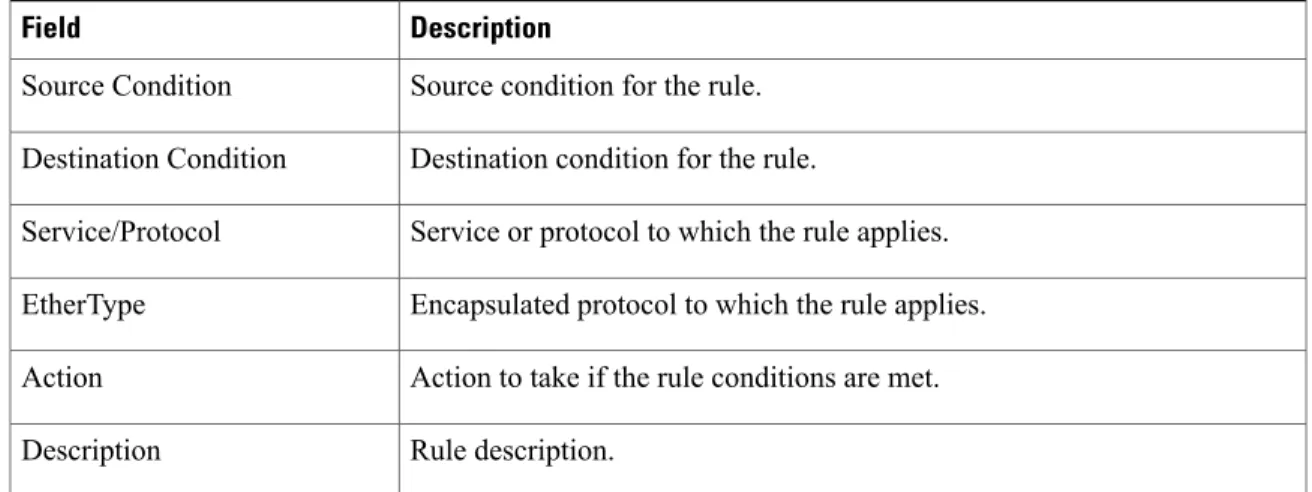
Rule name. Name
Source condition for the rule. Source Condition
Destination condition for the rule. Destination Condition
Service or protocol to which the rule applies. Service/Protocol
Encapsulated protocol to which the rule applies. EtherType
Action to take if the rule conditions are met. Action
Rule description. Description
Table 2: Attributes Tab
Description Field
Opens a dialog box for adding an attribute. Add User Defined Attribute
Attribute name. Name
Attribute value. Value
Step 7 ClickOK.
Creating a Service Path
Use this procedure to create a service path.
You cannot use a service node more than once in a service path. Note
Procedure
Step 1 Log in to the Intercloud Fabric.
Step 2 ChooseIntercloud>Infrastructure.
Step 3 In theInfrastructuretab, click theLaunch PNSCbutton. The PNSC GUI appears.
Step 4 In the PNSC GUI, choosePolicy Management > Service Policies > root > tenant > Policies > Service Path, and then clickAdd Service Path.
Step 5 In the Add Service Path dialog box, enter a name and description for the service path, and then clickAdd Service Entry.
Step 6 Complete the following details:
Description Name
Choose the service type.
Service Typeradio button
Choose an existing service node or create a new one.
Service Nodedrop-down list
Name of the service node.
This field displays only if you create a new service node.
Namefield
Choose the service type.
This field displays only if you create a new service node.
Service Typeradio button
Name of the logical service device.
This field displays only if you create a new service node.
Network Service
drop-down list
Action to take if the service node loses connectivity. This field displays only if you create a new service node.
Fail Moderadio button
Choose the Layer 3 adjacency type.
This field displays only if you create a new service node.
Adjacency Typeradio button
Choose the service profile.
The service profile identifies the policies that apply to the traffic using the service path.
Service Profile
drop-down list
Step 7 Add additional service entries as needed for the service path and clickOK.
Binding a Service Path to a Port Profile
Binding a service path to a port profile ensures that all traffic using that port profile follows the configured service path.
Before You Begin
Step 1 Log in to the Intercloud Fabric.
Step 2 ChooseIntercloud>Infrastructure.
Step 3 In theInfrastructuretab, click theLaunch PNSCbutton. ThePNSCGUI appears.
Step 4 In the PNSC GUI, chooseResource Management>Resources>VSMs>vsm>Edit.
Step 5 In the Port Profiles table, select the port profile to which you want to bind the service path, then clickEdit.
Step 6 In the Service Path field, clickSelect.
Step 7 In the Select Service Path dialog box, select the required service path, then clickOK.
Step 8 In the Edit Port Profile dialog box, clickApplyand thenOKto apply and save the change.
Editing Port Profiles for the Intercloud Fabric Firewall
Use the following procedure to edit port profiles for the Intercloud Fabric Firewall.
Procedure
Step 1 Log in to the Intercloud Fabric.
Step 2 ChooseIntercloud>Network.
Step 3 Select the cloud from theAll Cloudsdrop-down list.
Step 4 In thePort Profiletab, select the port profile.
Step 5 Click theEdit button.
TheEdit Port Profilewindow appears.
Step 6 Complete the following fields for the port profile:
Description Name
The VLAN ID of the port profile.
VLAN IDfield
Check the check box to enable the port profile for services.
Do not select this option if you are creating a management or data port profile. This option is applicable only for enabling firewall services on a cloud VM. Note
Description Name
Choose an existing org or create a new one. An org is a structure to store IP binding information. You can enable IP binding learning on the Intercloud Fabric Switch (VEM) by using theorg org_name
command. When IP bindings are learned on VEM, the information is synchronized to PNSC and Intercloud Fabric Firewall.
This field displays only if you check theEnable for Servicescheck box.
Orgdrop-down list
The name of the org.
This field displays only if you check theEnable for Servicescheck box.
New Org Namefield
Step 7 ClickSubmit.
Verifying the Installation of Intercloud Fabric Firewall
Use this procedure to verify the installation of Intercloud Fabric Firewall.Procedure
Step 1 Log in to the Intercloud Fabric.
Step 2 ChooseIntercloud>Infrastructure.
Step 3 In theInfrastructuretab, click theLaunch PNSCbutton. ThePNSCGUI appears.
Step 4 In the PNSC GUI, chooseResource Management>Managed Resources.
Step 5 Select the icfCloud and chooseNetwork Services.