EventTracker Enterprise v7.3
Installation Guide
Abstract
This guide will help the users to install and configure EventTracker Enterprise, and verify the expected functionality of all its components.
EventTracker is a reliable, policy driven solution to monitor and manage critical events generated by Windows XP/Vista/Win 7/2003/2008/2008R2/2012
Solaris BSM, Unix (SYSLOG), SYSLOG-NG and SNMP devices. EventTracker is an enterprise grade solution that provides real-time alerts, secure warehousing, and flexible reporting.
The information contained in this document represents the current view of Prism Microsystems, Inc. on the issues discussed as of the date of publication. Because Prism Microsystems, Inc. must respond to changing market conditions, it should not be interpreted to be a commitment on the part of Prism Microsystems, Inc. and Prism Microsystems, Inc. cannot guarantee the accuracy of any information presented after the date of publication. This document is for informational purposes only. Prism Microsystems, Inc. MAKES NO WARRANTIES, EXPRESS OR IMPLIED, AS TO THE INFORMATION IN THIS DOCUMENT.
Complying with all applicable copyright laws is the responsibility of the user. Without limiting the rights under copyright, this Guide may be freely distributed without permission from Prism, as long as its content is unaltered, nothing is added to the content and credit to Prism is provided.
Prism Microsystems, Inc. may have patents, patent applications, trademarks, copyrights, or other intellectual property rights covering subject matter in this document. Except as expressly provided in any written license agreement from Prism Microsystems, Inc. the furnishing of this document does not give you any license to these patents, trademarks, copyrights, or other intellectual property.
The example companies, organizations, products, people and events depicted herein are fictitious. No association with any real company, organization, product, person or event is intended or should be inferred.
© 2012 Prism Microsystems, Inc. All rights reserved.
The names of actual companies and products mentioned herein may be the trademarks of their respective owners.
Table of Contents
Introduction ... 3
System Requirements ... 4
Hardware Requirements [Min. Configuration] ... 4
Software Requirements ... 4
EventTracker Manager ... 4
EventTracker Manager ... 5
Pre-installation Instructions ... 6
Creating Local User and Group Accounts ... 6
Creating EventTracker User Group... 7
Creating User ... 10
Adding User to EventTracker Group ... 12
Creating Active Directory User and Group Accounts ... 17
Creating EventTracker Group ... 18
Creating User ... 22
Adding User to EventTracker Group ... 25
Adding User to Local Administrators group ... 29
Adding cross-domain users ... 30
Adding cross-forest users ... 31
EventTracker Manager Installation Procedure ... 32
Pre- installation Checklist ... 32
Installation Process ... 33
Deploying EventTracker Windows Agent ... 51
Pre-installation Instructions ... 51
Introduction
EventTracker Enterprise provides a unique combination of capabilities, including:
• Enterprise-wide, Single Console Event Management
• Rapid Integration with Active Directory
• USB Device Monitoring
• Automatic Remediation
• Reporting
• Analytics
• Real-time Alerting
• Enterprise Activity Monitoring
• File Integrity Monitoring
• Virtual Infrastructure Monitoring
This is the good time to familiarize you with the various product features as described on the Web site brochure of this package. This installation guide is designed as an easy reference, since we recognize the imperative importance of error free and painless installation experience.
***IMPORTANT: Prism strongly recommends users thoroughly read
System Requirements
For optimal performance, following are the hardware and software requirements to host EventTracker Enterprise.
Hardware Requirements [Min. Configuration]
Minimum hardware required to install and smoothly run EventTracker Enterprise.
32-bit Installation:
CPU 2GHz, 32-bit (x86) Xeon ® Quad Core or equivalent
RAM 3 GB
HDD 10 GB Free Hard disk space for the application
64-bit Installation:
CPU 2.80 GHz, 64-bit (x64) Xeon ® Dual Core or equivalent RAM 4 GB
HDD 10 GB Free Hard disk space for the application
Software Requirements
EventTracker Manager
Windows Platforms 32 bit 64 bit
Server 2012 Not Applicable Supported
Web Browsers:
• Internet Explorer 7.0 and above
• Firefox Browser 3.5 and above
Note: EventTracker Enterprise installation on Windows 2012/2008/2008R2 Server Core edition not supported.
EventTracker Manager
Windows Platforms 32 bit 64 bit
Server 2012 Not Applicable Supported
Server 2008 R2 Not Applicable Supported
Server 2008 Supported Supported
Server 2003 R2 Supported Supported
Server 2003 Supported Supported
Windows 7 Supported Supported
2000 Server Supported Supported
Windows XP Supported Supported
2000 Professional Supported Supported
EventTracker Agent for Solaris: Solaris 9, Solaris10
Components:
• Microsoft .NET Framework 2.0 and above.
Pre-installation Instructions
• EventTracker Enterprise users are authenticated locally or against the Windows Active Directory.
• If you want “Local Account” authentication, then user accounts and group accounts should preexist on the target computer where EventTracker Enterprise is to be installed. So, create user accounts and group accounts on the target computer before you attempt to install EventTracker Enterprise.
• If you want “Active Directory” authentication, then user accounts and group accounts should preexist in the Active Directory. So, create user accounts and group accounts in the Active Directory before you attempt to install EventTracker Enterprise.
Creating Local User and Group Accounts
NOTE: To perform this procedure, you must be a member of the administrators group on the local computer, or you must have been delegated the appropriate authority. If the computer is joined to a domain, then members of the ‘Domain Admins’ group might be able to perform this procedure. Summary
• What is the significance of creating “EventTracker” user group?
√ To log on to EventTracker Enterprise, the user must be a member of “EventTracker” group.
√ EventTracker Enterprise user authentication operates locally, that is confined to a particular computer or within Active Directory context.
• Create a local user group “EventTracker**” on the computer where EventTracker Enterprise is to be installed.
√ Create a local user e.g. ETAdmin**.
√ Add ETAdmin user to EventTracker group. Members of this group can log on to EventTracker Enterprise.
Figure 1
Creating EventTracker User Group
1. Click Start -> Settings -> Control Panel -> Administrative Tools -> Computer Management -> Local Users and Groups.
2. Expand the Local Users and Groups node 3. Right – click Groups, and then select New Group
4. Type the name of the group in the Group name field.
Figure 4
5. Click Create 6. Click Close
Creating User
1. Right-click Users, and then select New User.
Figure 6
2. Type appropriate user credentials. For example, you can type “ETAdmin” as user name. 3. Provide a strong password and confirm the same.
4. Select the Password never expires check box.
Figure 7
5. Click Create 6. Click Close
Adding User to EventTracker Group
1. Right-click the newly created user group, and then select Properties
EventTracker displays EventTracker Properties pop – up window.
Figure 10
2. Click Add
3. Click Locations
Figure 12
Figure 14
6. Type the user name in the Enter the object names to select field
Figure 15
7. Click Check Names
8. Click OK
Figure 17
Creating Active Directory User and Group Accounts
NOTE: To perform this procedure, you must be a member of the ‘Account Operators’ group, ‘Domain Admins’ group, or the ‘Enterprise Admins’ group in Active Directory, or you must have been delegated the appropriate authority.
Summary:
a. Create a user group e.g. EventTracker** in the domain where EventTracker Enterprise is to be installed.
b. Create a domain user e.g. ETAdmin**.
Add ETAdmin user to EventTracker group. Members of this group can log on to EventTracker Enterprise.
c. Add ETAdmin user to local Administrators group on the computer where EventTracker Enterprise is to be installed.
** You can name user group and user with any name you prefer and need not necessarily be EventTracker and ETAdmin.
Creating EventTracker Group
1. Click Start -> Settings -> Control Panel -> Administrative Tools -> Active Directory Users and Computers.
Figure 19
Create a Global Scope Security Group in the domain where EventTracker Enterprise s to be installed.
2. Right-click the domain name, point to New, and then select Group.
3. Type the name of the group in the Group name field. 4. Select Group scope as Global, if not selected.
5. Select Group type as Security, if not selected.
Figure 22
Creating User
1. Right-click Users, point to New, and then User.
2. Type appropriately in the respective fields. For example, you can type “ETAdmin” as user name.
Figure 26
3. Click Next >.
4. Type the password in the Password and Confirm Password fields.
Figure 27
Figure 29
Adding User to EventTracker Group
1. Right-click the EventTracker group, and then select Properties.
2. Click the Members tab.
Figure 32
3. Click Add.
4. Type the user name in the Enter the object names to select field.
Figure 34
5. Click Check Names.
Figure35
Figure 36
7. Click Apply. 8. Click OK.
Adding User to Local Administrators group
Add user to the ‘Administrators’ group on the computer where EventTracker Enterprise is to be installed.
Adding cross-domain users
Consider Domain A and Domain B exist in Forest 1 and EventTracker Enterprise server is a member of Domain A. If a user in Domain B needs to access and administer EventTracker Enterprise, add that user to EventTracker user group in Domain A. Since these two domains exist in the same forest, Windows creates automatic trust relationship between these two domains.
Adding cross-forest users
Consider Domain A and Domain B exist in Forest 1 and Domain C and Domain D exists in Forest 2. EventTracker Enterprise server is a member of Domain A. If a user in Domain C needs to access and administer EventTracker Enterprise, add that user to EventTracker user group in Domain A. Since these two domains exist in different forests, you need to create trust prior to adding users.
Figure 39
Windows Server 2003 forests: Create a forest trust. A forest trust lets you create a trust relationship between two separate Active Directory forests.
EventTracker Manager Installation
Procedure
Prism recommends you read “EventTracker Architecture” guide before you begin installation. This guide explains the architecture and sample deployment methods with illustrations.
Installation can be initiated by the following methods.
1. Use the CD to execute etwrel73.exe.
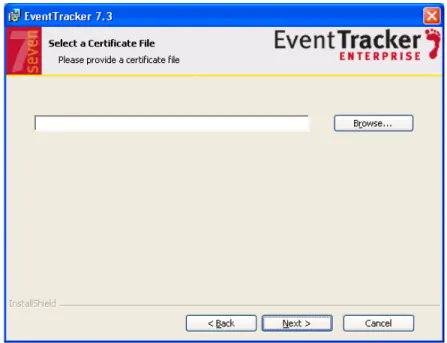
2. Launch the downloaded self-extracting, executable program. The installation is geared to be intuitive and friendly. During install you will be asked to provide the path of the digital certificate. Certificate is validated against the latest CRL. Installation proceeds further only if the Certificate found to be valid.
The installation procedure is identical for XP, 2003, 2008, 2012, and Vista.
Pre- installation Checklist
The pre-installation checklist describes the specific settings, permissions, and privileges that are required for installing EventTracker manager. Read the checklist before
installation to avoid installation failure.
EN
SU
RE
User is a member of ‘Local Administrators’ group MSI package installation is allowed
User has ‘Logon As Service’ rights User has ‘Logon As Batch job’ rights Network Discovery is enabled
System cryptography: Use FIPS 140 compliant cryptographic algorithms, with encryption, hashing and signing algorithms
Installation Process
1. Uninstall fully if any previous version of EventTracker exists on the computer. 2. Insert the CD in the CD-ROM, and the installation wizard should start automatically.
If it does not, click Start -> Run, and type G:\etwrel73.exe (assuming your CDROM is drive G).
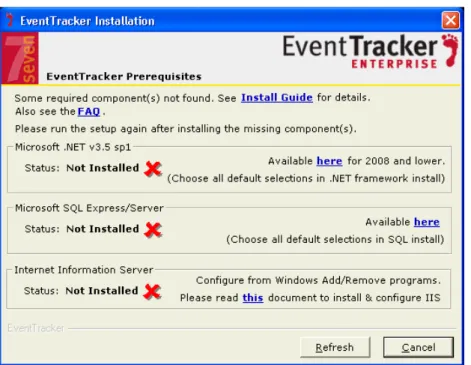
Setup prepares the InstallShield[R] Wizard for installation. 3. EventTracker checks for all the prerequisites.
Figure 40: EventTracker Prerequisites
4. Click the OK to proceed with installation.
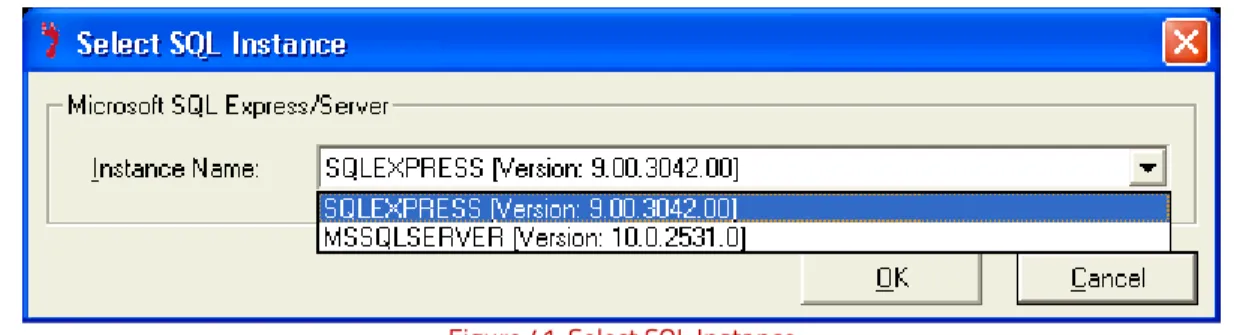
In case of multiple SQL instances, select the appropriate instance name from Instance name dropdown, and then click the OK button.
Figure 41: Select SQL Instance
NOTE: If default instance of SQLEXPRESS is present in the system, then EventTracker won’t prompt for this screen. If the selected SQL Instance is not running then EventTracker Installation wizard will display a message.
Figure 42
Click Yes to continue (OR) click No to abort the installation process, and then click the Finish button.
5. If the mandatory components are found to be installed, InstallShield[R] Wizard displays the EventTracker dialog box.
Figure 43
6. Click Yes to continue, had you created local / Active Directory user group and added users to that group prior to this installation attempt.
Figure 44
(OR)
Click No to abort the installation process, and then click the Finish button.
PLEASE NOTE:
If the required components are not installed or found to be missing, InstallShield[R] Wizard displays the EventTracker Prerequisites dialog box with appropriate message.
Figure 45: EventTracker Prerequisites
InstallShield[R] Wizard safely exits the installation process.
After installing the mandatory components, start installing EventTracker Enterprise afresh. (OR)
Keep the installation wizard open, install the prerequisites, and then click the Refresh button.
Click the OK button to continue with the installation process.
7. Click Next>.
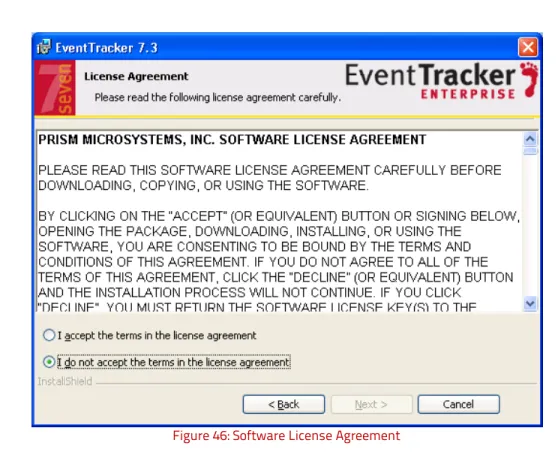
InstallShield[R] Wizard displays the License Agreement screen.
Figure 46: Software License Agreement
8. Read the license agreement, and then click ‘I accept the terms in the license agreement’ option to accept the terms and condition.
Figure 47: Certificate File
10. Click the Browse button.
InstallShield[R] Wizard displays the Select File window. 11. Go to the appropriate folder, and then select the file. 12.Click Open.
InstallShield[R] Wizard updates the folder path.
Figure 48
InstallShield[R] Wizard displays the Select Components screen.
Figure 49: Select Components
EventTracker Components Description
EventTracker Console Select this option to install manager console on the target computer.
Change Audit
Optional component.
Installing this component enables you to monitor and manage change over the enterprise.
Agent component will also be installed along with the Manager Console.
Click To
Select different destination folder to install EventTracker.
14.Click Next >
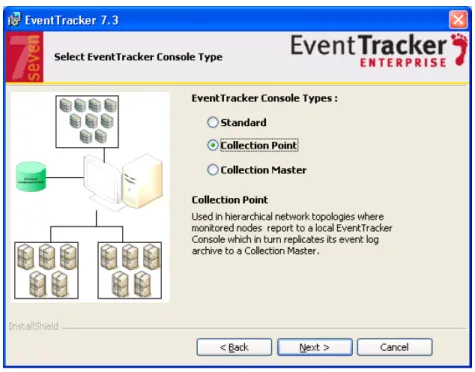
InstallShield[R] Wizard displays the Select EventTracker Console Type screen. Standard Console:
Best for flat network topologies where all monitored nodes report directly to one (or redundant) EventTracker Console (See Figure 50).
Collection point:
Used in hierarchical network topologies where monitored nodes report to a local EventTracker Console which in turn replicates its event log archive to a Collection Master. (See Figure 51).
Figure 51: Collection Point Console
Select the console type as Collection Point, and then click Next >.
Type an appropriate group/site name for the Collection Point, and then click Next >.
NOTE
Some special characters are not allowed while providing site/group name. InstallShield[R] Wizard will display a pop-up window if site or group name is provided with such special characters.
Figure 53
Collection Master:
Used in hierarchical network topologies where collection points replicate their event log archives to a Collection Master. (See Figure 54)
Figure 55
Click the Next > button to keep the default store location. (OR)
Click the Change button to change the snapshot store location
Figure 56
NOTE
The Change audit snapshot store location can be changed only during fresh install and if snapshots are not retained during uninstall.
In case of upgrade installation, if the change audit snapshots are retained during product uninstallation, then the snapshot store location path cannot be changed. (See Figure 57).
Figure 57
17. If you have not selected to install Change Audit then InstallShield[R] Wizard displays the Ready to Install the Program screen.
Figure 58: Ready to Install the Program
18.Select the Install Remedial Action EXEs on this machine option, and then click Install. Remedial Action EXEs are copied to <InstallDir>\EventTracker\Agent\Script folder. 19. Click Install.
InstallShield[R] Wizard installs the selected components.
Figure 59: Installing EventTracker
After initializing the necessary configuration settings, InstallShield[R] Wizard displays the Basic configuration dialog box.
Figure 61: Alert and Report generation settings
21.Select/enter appropriately in the relevant fields, and then click Add. (OR)
Click Skip if you do not wish to add the basic settings. 22. InstallShield[R] Wizard displays the last screen.
Click Import existing event log entries option to import event logs into EventTracker. Windows Security Alert message will be displayed if Firewall is on.
Figure 63
Firewall blocks the incoming network connection, if getallevt.exe does not exist in the Program and Services Exceptions and displays a notification.
Click Unblock for the getallevt.exe to import event logs.
Check Add a shortcut to the desktop option, to add the shortcuts to the EventTracker application on the desktop.
Add EventTracker diagnostics as a startup program option is selected by default to notify problems about EventTracker, if any.
23.Click Finish to conclude the installation process.
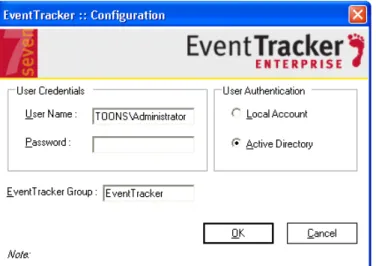
InstallShield[R] Wizard displays the EventTracker Configuration screen.
Figure 64: Configuration
24. Type valid user credentials in the User Name and Password fields respectively.
Note: EventTracker services run under this account. By default this user is assigned the ‘Administrator’ role to manage users.
25.Select a User Authentication option.
Local Account: Authentication is done locally on the computer where EventTracker is being installed. For more information see: Creating Local User and Group Accounts
Active Directory: Authentication is done in the Active Directory. For more information see: Creating Active Directory User and Group Accounts.
26. Type the EventTracker group name in the EventTracker Group field. 27.Click OK.
After successfully validating the user credentials, InstallShield[R] Wizard displays the EventTracker Configuration message box.
Figure 65
NOTE
Whenever you change the EventTracker logon password, please update the same in EventTracker Configuration. You can find ‘EventTracker configuration’ in
Start > Programs > Prism Microsystems > EventTracker > EventTracker Configuration
Deploying EventTracker Windows Agent
Pre-installation Instructions
• You MUST have Local Admin privileges on the remote systems where you want to remotely install the Agents.
• You can also install Agents with Domain Admin privileges.
• Make sure that the systems that you are selecting to monitor are accessible through the network, have disks that are shared for the Admin, and have disk space up to 50MB that can be used by the Agent.
• If the remote system is accessed through a VPN with a slow line speed, the install may take time and it is recommended that you schedule your activities accordingly.
• To monitor a system that supports SYSLOG messages (e.g. Unix, Linux, and Cisco etc); configure that specific system to forward the SYSLOG messages to EventTracker Manager.
Pre- installation Checklist
The pre-installation checklist describes the specific settings, permissions, and privileges that are required for deploying EventTracker agent. Read the checklist before installation to ensure safe and smooth agent installation.
EN
SU
RE
User is a member of ‘Local Administrators’ group MSI package installation is allowed
User has ‘Logon As Service’ rights Network Discovery is enabled File sharing is allowed
Access this computer from network
VERI
FY
User has permission on ‘Application install directory’ (Folders and sub folders).
User must have create service permission on the target system(SCM- service control manager)
User has Read/Write permission on windows registry.
User has permission to Admin share(C$) of Target systems and C$ should be accessible from EventTracker Manager system.
Installation Methods
There are 2 methods to deploy EventTracker Agents
a. Using the System Manager that is installed as part of the EventTracker Manager. From this System Manager, EventTracker Agents can be deployed onto all computers
identified as EventTracker Agents. OR
b. Using the Manual Agent Installation package on all computers identified as EventTracker Agents.
Deploying EventTracker Windows Agent Using System Manager
Installation procedure is identical for Windows XP/Vista/Win 7/2003/2008/2008R2/2012 systems.1. Click Start -> Programs -> Prism Microsystems -> EventTracker -> EventTracker Enterprise.
EventTracker displays the login page. 2. Logon with valid user credentials.
EventTracker displays the Incident dashboard.
3. Click the Admin drop-down list at the upper-right corner, and select Systems. EventTracker displays the System manager page.
This console displays the list of systems that are members of all trusted domains. It will also indicate the operating system type, asset value, port number, and managed system status through which the agent communicates with the ‘EventTracker Receiver’.
4. Right-click the system group on the right-pane in which the target systems exist. EventTracker displays the shortcut menu.
Figure 67
From the shortcut menu, click the Install agent/Start poll option. EventTracker displays the Install agent/Start poll dialog box.
Click Next
Option To
All systems in the selected group Click this option to install agents on all the systems present in the selected group.
Take systems from the text file
Create a text file containing agent system names on which the agent is to be installed. The text file should contain one system name per line.
If you select this option then browse the text file to select the agent system names.
Agent type Select the agent type to be Installed
Specific systems in the selected
In the System manager page, move the mouse pointer over the system where you wish to install the agent, and then click the dropdown.
EventTracker displays the drop-down list. Click Install agent/ Start poll.
Figure 70
EventTracker displays the Install Agent/Start poll dialog box.
Check the EventTracker option to install EventTracker agent. Check the Change Audit option to install Change Audit agent. 5. Click Next.
6. Select EventTracker Agent Type.
Figure 72
Agent based (Full featured)
Install default Remedial Action EXEs on this system
Remedial Actions are scripts or executable files that can be launched at either the agent or the manager side, in response to events.
If this option is enabled, predefined scripts will be placed in the EventTracker\Agent\Script folder at the manager side. These may be installed at the agent side also, during
7. If agent type is selected as ‘Agent based (Full Featured)’, then remedial actions EXEs can be installed on the system.
Select the Install default Remedial Action EXEs on this system check box to install remedial action scripts.
EventTracker displays a message box.
Figure 73: Caution
NOTE: ‘Install default Remedial Action EXEs on this system’ option is available for ‘Agent based (Full featured)’ installation.
8. Click OK to install remedial action EXEs (OR) Cancel to not to install remedial action EXEs. 9. Click Next.
EventTracker displays the Install agent/Start poll dialog box with default client installation path on the remote computer.
Figure 74
10.To install the agent in a different drive apart from the default one, type the new installation path in the Select installation path on the remote machines field.
12.Enter valid Account name and Password. 13.Reenter the password in Confirm Password. 14. Click Install.
The agent will be installed on the selected machine with the default etaconfig.ini configuration.
(OR)
To set a more specific configuration, click Advanced.
• The Default option is selected by default to apply manager side ‘Agent configuration’ settings (etaconfig.ini).
(OR)
Figure 75: Apply Configuration – Default
• Select the Custom config option to select a custom configuration file.
The custom configuration will provide you the templates which you have created in Agent configuration and two more predefined templates.
Figure 76: Apply Configuration – Custom
Select the configuration file from the File dropdown, and then click the Install button. EventTracker displays the pop-up window with appropriate message.
Figure 77: Installation Progress
15. Click OK
Figure 78: Agent Installation Status
Select To
Application Sort the Installation Status results by the application installed. Available options are EventTracker & Change Audit.
Status Sort the Installation Status results by status of the application installed. Available options are All, New, Success, and Failed.
Sort by Sort the Installation Status results by Date application was installed /on which System it is installed / Type of activity performed/ Status of the application.
Configuring EventTracker Windows Agent
All configurations for agent(s) are set by default during installation. If you are interested in changing the default configuration settings, then
1. Click the Admin drop-down list at the upper-right corner. 2. Click the Windows Agent Config.
Figure 79: Windows Agent Configuration
(OR)
1. Open EventTracker Control Panel.
Figure 81: EventTracker Agent Configuration
Deploying EventTracker Windows Agent – Vista
Prerequisites
Following are the mandatory settings you ought to do on Vista systems before you deploy Vista Agent.
1. By default, the Startup Type of Remote Registry is manual. Modify the Startup Type as Automatic and Start the service.
2. Enable File and Printer Sharing.
3. Turn on and enable Network Discovery.
4. To configure Vista agent remotely, on Vista system add port no 14506 TCP to Firewall Exceptions.
5. The user must be domain administrator, member of domain admin, or must be added to the local administrator group the Vista system where the agent has to be deployed.
Installing / Uninstalling Vista Agent
Install and uninstall procedure for Vista Agent is identical to the procedures for other Windows Agents. No other additional configuration settings are required.