maxView Storage
Manager User's Guide
CDP-00285-05-A Rev. A
Copyright © 2014 PMC-Sierra, Inc. All rights reserved.
The information in this document is proprietary and confidential to PMC-Sierra, Inc. In any event, no part of this document may be reproduced or redistributed in any form without the express written consent of PMC-Sierra, Inc.
CDP-00285-05-A Rev. A, Issue
None of the information contained in this document constitutes an express or implied warranty by PMC-Sierra, Inc. as to the sufficiency, fitness or suitability for a particular purpose of any such information or the fitness, or suitability for a particular purpose, merchantability, performance, compatibility with other parts or systems, of any of the products of PMC-Sierra, Inc., or any portion thereof, referred to in this document. PMC-Sierra, Inc. expressly disclaims all representations and warranties of any kind regarding the contents or use of the information, including, but not limited to, express and implied warranties of accuracy, completeness, merchantability, fitness for a particular use, or non-infringement.
In no event will PMC-Sierra, Inc. be liable for any direct, indirect, special, incidental or consequential damages, including, but not limited to, lost profits, lost business or lost data resulting from any use of or reliance upon the information, whether or not PMC-Sierra, Inc. has been advised of the possibility of such damage.
For a complete list of PMC-Sierra’s trademarks and registered trademarks, visit: http://www.pmc-sierra.com/legal/.
Other product and company names mentioned herein may be the trademarks of their respective owners.
Revision History
Details of Change Issue Date
Issue
Adaptec maxView Storage Manager Version 1.07 December 12,
2014 1.07
Contents
Adaptec by PMC Product Support...10
Software License Agreement...11
1 About this Guide...14
What You Need to Know Before You Begin...14
Terminology Used in this Guide...14
How to Find More Information...15
2 Introduction to maxView Storage Manager...16
Getting Started...16
About maxView Storage Manager ...16
About the maxView Storage Manager Agent ...17
About the maxView Storage Manager Web Server...17
About the maxView Storage Manager CIM Server...17
System Requirements...18
Browser Support...18
Typical Storage Space Configurations...19
A Simple Storage Space...19
An Advanced Storage Space...19
Continuing to Grow Your Storage Space...20
3 Installing maxView Storage Manager...21
Before You Begin the Installation...21
Gather Installation Information...21
Download the Installation Packages...21
Installing on Windows...22
Installing on Red Hat, Cent OS, SuSE, or Fedora Linux...23
Installing on Debian or Ubuntu Linux...24
Installing on Solaris...24
Installing on VMware ESX 4.1...24
Installing on VMware ESXi 5.x...25
Installing on Citrix XenServer...26
Installing on a Guest Operating System...26
Installing on a Windows Guest OS...26
Installing on a Linux Guest OS...27
Running maxView Storage Manager from a Bootable USB Image ...28
Uninstalling maxView Storage Manager...29
Uninstalling from Windows...29
Uninstalling from Red Hat, Cent OS, SuSE, or Fedora Linux...29
Uninstalling from Debian or Ubuntu Linux...29
Uninstalling from Solaris...29
Uninstalling from VMware ESX 4.1...29
Uninstalling from VMware ESXi 5.x...30
4 Exploring maxView Storage Manager...31
Starting maxView Storage Manager and Logging In ...31
Working in maxView Storage Manager...31
Overview of the Main Window...31
The Enterprise View ...32
What do the Enterprise View Icons Mean? ...33
The Ribbon ...34
The Storage Dashboard...34
Checking System Status from the Main Window...35
Revealing More Device Information ...36
Getting Help...38
Logging Out of maxView Storage Manager...39 maxView Storage Manager User's Guide
5 Building Your Storage Space...40
Overview...40
Choosing a Management System...40
‘Local’ or ‘Remote’?...40
Logging in on the Local System ...41
Starting maxView Storage Manager on Remote Systems...41
Starting the Agent Only ...41
Windows...42
Linux or VMware...42
Solaris...43
Logging into Remote Systems from the Local System...43
Creating Logical Drives...44
Express Configuration ...44
Custom Configuration...47
Partitioning and Formatting Your Logical Drives...50
Creating Logical Drives on Other Systems in Your Storage Space...50
6 Protecting Your Data...51
Creating and Managing Hot Spares...51
Hot Spare Limitations...51
Global Spare or Dedicated Spare?...51
Designating a Global Hot Spare...51
Assigning a Dedicated Hot Spare or Pool Hot Spare...52
Deleting a Global Hot Spare ...53
Removing or Deleting a Dedicated Hot Spare...54
Enabling Copyback...55
Enabling Automatic Failover...56
Enabling Controller Cache Preservation...57
7 Modifying Your Storage Space...58
Understanding Logical Drives...58
Creating and Modifying Logical Drives...58
Including Different-sized Disk Drives in a Logical Drive...59
Creating a Logical Drive Using Available Segments...60
Creating a Hybrid RAID Logical Drive ...60
Fine-tuning Logical Drives...61
Renaming a Logical Drive...61
Changing the Read Cache Setting...62
Changing the Write Cache Setting...62
Changing the Stripe Size ...63
Changing the Initialize Method ...63
Optimizing Logical Drive Performance...63
Verifying Logical Drives...64
Verifying and Fixing a Logical Drive...65
Enabling/Disabling Background Consistency Check...66
Increasing the Capacity of a Logical Drive...66
Changing the RAID Level of a Logical Drive...67
Erasing a Logical Drive...68
Deleting a Logical Drive...68
Maintaining an Energy-Efficient Storage Space...69
Setting Power Management Options for a Logical Drive...69
Setting Power Management Options for a Controller...70
Disabling Power Management for a Logical Drive...71
8 Optimizing the Structure of Your Storage Space...73
Adding Caching and Tiering to Your Storage Space...73
About maxCache Plus ...73
Tiers, Virtual Pools, and Virtual Volumes ...74
Creating a Virtual Pool...76
Modifying a Virtual Pool ...77
Deleting a Virtual Pool...77
Creating and Managing Virtual Volumes...78
Creating a Tiered Volume...78
Creating a Cached Volume or Cached LD Volume...80
Modifying a Virtual Volume ...82
Deleting a Virtual Volume...83
Adding maxCache to Local Storage ...83
Creating a maxCache Device...83
Changing maxCache Settings for a Logical Drive...84
Changing maxCache Settings for a Controller...85
Setting the maxCache Flush and Fetch Rate ...85
Verifying and Fixing the maxCache Device...86
Deleting the maxCache Device...86
Using maxCache with Adaptec Series 6Q Controllers...87
Analyzing maxCache Performance ...88
9 Working with Scheduled Tasks...89
Scheduling a Task...89
Monitoring Tasks ...90
What if a Task Misses its Start Time?...91
Modifying a Task ...91
Deleting a Task ...92
10 Maintaining Physical Devices...93
Viewing Device Properties ...93
Locating Drives in Your Storage Space...93
Locating a Disk Drive...94
Locating Physical Disks in a Logical Drive...94
Locating SSDs in the maxCache Device...95
Working with Failed or Failing Disk Drives...96
Replacing Disk Drives in a Logical Drive...96
Setting a Disk Drive to ‘Failed’...96
Initializing, Uninitializing, and Erasing Disk Drives...97
Initializing Disk Drives...97
Erasing Disk Drives...98
Uninitializing Disk Drives...98
Verifying and Fixing a Disk Drive...99
Configuring the Physical Drive Write Cache Policy...100
Configuring the Global Physical Drive Write Cache Policy...100
Configuring the Write Cache Policy for an Individual Drive...101
Working with Controllers...101
Silencing a Controller Alarm...102
Disabling a Controller Alarm...102
Rescanning a Controller...102
Setting a Controller's Default Task Priority...103
Enabling Native Command Queuing on a Controller...103
Setting the Connection Speed for a Controller...103
Working with System Alarms...104
Updating Controller, Enclosure, and Disk Drive Firmware...105
Before You Begin...105
Updating the Controller Firmware ...105
Updating the Disk Drive Firmware ...108
Updating the Enclosure Firmware ...109
11 Monitoring Status and Activity...111
Monitoring Options...111
Checking Status from the Main Window ...111
Viewing Activity Status in the Event Log...112
What Do the Event Status Icons Mean?...112 maxView Storage Manager User's Guide
Viewing Task Status in the Task Log...113
Viewing Component Status in the Storage Dashboard...113
Monitoring Enclosure Status...115
Viewing SMART Statistics...116
Viewing Storage Space Usage in Chart View...116
Notifying Users by Email About Status and Activity ...117
Setting Up Email Notifications...118
Sending a Test Message...120
Modifying or Removing an Email Recipient ...121
Modifying Email Server Settings...122
Disabling Email Notifications...122
Broadcasting Alerts About Status and Activity ...122
Monitoring Status and Activity with SNMP Traps ...123
Monitoring Advanced Statistics about Activity in Your Storage Space...123
Setting up Statistics Logging...124
Viewing Advanced Statistics...125
Resetting the Statistics Counters...126
Changing an Operating System's Event Log Setting...126
12 Managing Your Storage Space...128
Deploying Servers ...128
Creating a Server Template File...128
Duplicating the Server Template...128
Managing Remote Systems...130
Adding Remote Systems with the Wizard...130
Manually Adding a Remote System...130
Removing a Remote System...131
Changing the Auto-Discovery Settings...132
Clearing the Controller Configuration...133
Changing the Agent Base Port Setting...134
13 Solving Problems...136
General Troubleshooting Tips...136
Identifying a Failed or Failing Component...136
Recovering from a Disk Drive Failure...137
Failed Disk Drive Protected by a Hot Spare...137
Failed Disk Drive Not Protected by a Hot Spare...137
Failure in Multiple Logical Drives Simultaneously...137
Disk Drive Failure in a RAID 0 Logical Drive...138
Multiple Disk Drive Failures in the Same Logical Drive ...138
Forcing a Logical Drive with Multiple Drive Failures Back Online ...139
Rebuilding Logical Drives...139
Creating a Support Archive File...139
Appendix A Silent Installation on Windows and Linux...141
Completing a Silent Installation...141
Windows Silent Installation...141
Switches, Properties, and Values ...142
Linux Silent Installation...142
Example Command Line Installations...143
Appendix B Configuring SNMP Notifications on Windows and Linux...144
Setting Up SNMP Notifications on Windows...144
Setting Up SNMP Notifications on Linux...145
Appendix C Using the maxView Plugin for VMware vSphere Web Client...146
Installing the maxView Plugin for vSphere Web Client...146
Starting the maxView Plugin for vSphere Web Client...147
Comparing RAID Levels...151
Understanding Drive Segments...151
Non-redundant Logical Drives (RAID 0)...152
RAID 1 Logical Drives ...152
RAID 1 Enhanced Logical Drives...153
RAID 10 Logical Drives...154
RAID 5 Logical Drives...155
RAID 5EE Logical Drives...156
RAID 50 Logical Drive...157
RAID 6 Logical Drives...158
RAID 60 Logical Drives...158
Appendix E Virtual Volume Advanced Statistics...159
Appendix F Using the maxConf Command Line Utility...160
Installing maxConf...160
Starting the Command Line Utility...160
maxConf Commands...160 maxconf create...160 maxconf delete...161 maxconf getconfig...162 maxconf getstats...163 maxconf modify...163
Appendix G Icons At-a-Glance...165 maxView Storage Manager User's Guide
List of Tables
Adaptec by PMC Product Support
If you have questions about installing or using your Adaptec by PMC product, check this document first—you will find answers to most of your questions. If you need further assistance, use the support options listed below. To expedite your service, have your computer in front of you.
Note: The phone numbers below are subject to change. Please visit the Support
section ofwww.adaptec.comfor the most up to date contact information.
Self Help and Support in English
• Visit our Web site atwww.adaptec.com.
• Search the Adaptec Support Knowledgebase (ASK) atask.adaptec.comfor articles, troubleshooting tips, and frequently asked questions for your product.
• For support via e-mail, submit your question atask.adaptec.com.
• To speak with a Technical Support Specialist, call +1 408 934 7274 or +49 89 4366 5544 or +44 845 266 8773.
Technische Informationen und Support in Deutsch
• Besuchen Sie unsere Webseitewww.adaptec.com/de-de
• Suchen Sie in der Adaptec Support Knowledgebase (ASK) unterask-de.adaptec.comnach Artikeln, Tipps zur Fehlerbehebung und häufig gestellten Fragen zu Ihrem Produkt.
• Support per Email erhalten Sie unterask-de.adaptec.com. • Für telefonischen Support wählen Sie +49 89 4366 5522.
Техническая поддержка и информация на русском языке
• Посещаете наш сайтwww.adaptec.com/ru-ru/.
• База знаний Adaptec (ASK) на сайтеask-ru.adaptec.comask-ru.adaptec.com – статьи, советы по устранению неисправностей и часто задаваемые вопросы о Вашем продукте. • Для поддержки по электронной почте отправьте Ваш запрос на сайтеask-ru.adaptec.com • Чтобы обратиться к специалисту технической поддержки по телефону, звоните на +7 499 918 7200 или +49 89 4366 5555. 日本語での技術情報とサポート • 弊社のウェブサイト、www.adaptec.com/ja-jpをご覧ください。
• ask.adaptec.co.jpのAdaptec Support Knowledgebase (ASK)で、お使いの製品の情報 トラブルシュー
ティングのヒント、よくある質問を検索してください。
• Eメールでのサポートにはask.adaptec.co.jpから質問を送ってください。
Information Technique et d'assistance en Français
• Visitez notre site Web à l'adressewww.adaptec.com/fr-fr.
• Rechercher dans le base de connaissances Adaptec (ASK)ask-fr.adaptec.compour des articles, conseils de dépannage et les questions fréquemment posées pour votre produit.
Software License Agreement
PLEASE READ CAREFULLY: THE USE OF THIS SOFTWARE IS SUBJECT TO THE SOFTWARE LICENSE TERMS OF PMC-SIERRA, INC. AND OTHER LICENSORS WHOSE SOFTWARE MAY BE BUNDLED WITH THIS PRODUCT. BY YOUR USE OF THE SOFTWARE INCLUDED WITH THIS PRODUCT YOU AGREE TO THE LICENSE TERMS REQUIRED BY THE LICENSOR OF THAT SOFTWARE, AS SET FORTH DURING THE INSTALLATION PROCESS. IF YOU DO NOT AGREE TO THE LICENSE TERMS APPLICABLE TO THE SOFTWARE, YOU MAY RETURN THE ENTIRE UNUSED PRODUCT FOR A FULL REFUND.
In return for acquiring a license to use the PMC-Sierra software, which may include software from third party licensors and patches made available by PMC-Sierra (“Software”), and the related documentation, you agree to the following terms and conditions:
1. License. This Agreement grants you, the Licensee, a license to:
a. Use the Software on a single computer system, which is not intended for use by more than five
(5) users; and:
b. Make one copy of the Software in machine readable form solely for back-up purposes, provided
you reproduce PMC-Sierra's copyright proprietary legends. Notwithstanding the foregoing, the Software may be used on the home, laptop or other secondary computer of the principal user of the Software, and an additional copy of the Software may be made to support such use. As used in this license, the Software is “in use” when it is either loaded into RAM or installed on a hard disk or other permanent memory device. The Software may be “in use” on only one computer at any given time. (Different license terms and fees are applicable for networked or multiple user applications.) As a specific condition of this license, you agree to use the Software in compliance with all applicable laws, including copyright laws, and that you will not copy, transmit, perform or distribute any audio or other content using the Software without obtaining all necessary licenses or permissions from the owner of the content.
2. Restrictions. You may not distribute copies of the Software to others or electronically transfer the
Software from one computer to another over a network. You may not post or otherwise make available the Software, or any portion thereof, in any form, on the Internet. You may not use the Software in a computer service business, including in time sharing applications. The Software contains trade secrets and, in order to protect them, you may not decompile, reverse engineer, disassemble, or otherwise reduce the Software to a human-perceivable form. YOU MAY NOT MODIFY, ADAPT, TRANSLATE, RENT, LEASE, LOAN, RESELL FOR PROFIT, DISTRIBUTE, NETWORK OR CREATE DERIVATIVE WORKS BASED UPON THE SOFTWARE OR ANY PART THEREOF.
3. Ownership of Software. As Licensee, you own the media upon which the software is recorded or
fixed, but PMC-Sierra and its licensors retain title and ownership of the Software recorded on the original media and all subsequent copies of the Software, regardless of the form or media in which or on which the original and other copies may exist. This license is not a sale of the Software or any copy.
4. Confidentiality. You agree to maintain the Software in confidence and that you will not disclose the
Software to any third party without the express written consent of PMC-Sierra. You further agree to take all reasonable precautions to preclude access of unauthorized persons to the Software.
5. Term. This license is effective until January 1, 2045, unless terminated earlier. You may terminate
the license at any time by destroying the Software (including the related documentation) together with all copies or modifications in any form. PMC-Sierra will have the right to terminate our license immediately if you fail to comply with any term or condition of this Agreement. Upon any termination, including termination by you, you must destroy the Software (including the related documentation), together with all copies or modifications in any form.
6. Special Terms Applicable to Databases. Where a database is included with the Software, you
acknowledge that it is licensed only in connection with the use of the Software to perform disc creation, and that the database and all data derived therefrom must be maintained in confidence
in accordance with the provisions of Section 4. This license does not grant you any rights to distribute or disclose such database or data.
7. Limited Warranty. PMC-Sierra and its Licensor warrant only that the media upon which the Software
is furnished will be free from defects in material or workmanship under normal use and service for a period of thirty (30) days from the date of delivery to you. PMC-SIERRA AND ITS LICENSORS DO NOT AND CANNOT WARRANT THE PERFORMANCE OR RESULTS YOU MAY OBTAIN BY USING THE SOFTWARE OR DOCUMENTATION. THE FOREGOING STATES THE SOLE AND EXCLUSIVE REMEDIES PMC-SIERRA AND ITS LICENSORS WILL PROVIDE FOR BREACH OF WARRANTY. EXCEPT FOR THE FOREGOING LIMITED WARRANTY, PMC-SIERRA AND ITS LICENSORS MAKE NO WARRANTIES, EXPRESSED OR IMPLIED, INCLUDING, BUT NOT LIMITED, AS TO NON-INFRINGEMENT OF THIRD PARTY RIGHTS, MERCHANTABILITY OR FITNESS FOR A PARTICULAR PURPOSE. Some states do not allow the exclusion of implied warranties or limitations on how long an implied warranty may last, so the above limitations may not apply to you. This warranty gives you specific legal rights and you may also have other rights which vary from state to state.
8. The entire liability of PMC-Sierra and its licensors, and your exclusive remedy for a breach of this
warranty, shall be:
a. The replacement of any media not meeting the above limited warranty which is returned to
PMC-Sierra; or:
b. if PMC-Sierra or its distributor is unable to deliver replacement media which is free from defects
in materials or workmanship, you may terminate this Agreement by returning the Software and your money will be refunded.
9. Limitation of Liability. IN NO EVENT WILL PMC-SIERRA OR ITS LICENSORS BE LIABLE TO YOU FOR ANY
INCIDENTAL, CONSEQUENTIAL OR INDIRECT DAMAGES, INCLUDING ANY LOST PROFITS, LOST SAVINGS, OR LOSS OF DATA, EVEN IF PMC-SIERRA OR A LICENSOR HAS BEEN ADVISED OF THE POSSIBILITY OF SUCH DAMAGES, OR FOR ANY CLAIM BY ANY OTHER PARTY. Some states do not allow the exclusion or limitation of special, incidental, or consequential damages, so the above limitation or exclusion may not apply to you.
10. Export. You acknowledge that the laws and regulations of the United States and other countries
may restrict the export and re-export of the Software. You agree that you will not export or re-export the Software or documentation in any form in violation of applicable United States and foreign law.
11. Government Restricted Rights. The Software is subject to restricted rights as follows. If the Software
is acquired under the terms of a GSA contract: use, reproduction or disclosure is subject to the restrictions set forth in the applicable ADP Schedule contract. If the Software is acquired under the terms of a DoD or civilian agency contract, use, duplication or disclosure by the Government is subject to the restrictions of this Agreement in accordance with 48 C.F.R. 12.212 of the Federal Acquisition Regulations and its successors and 49 C.F.R. 227.7202-1 of the DoD FAR Supplement and its successors.
12. General. You acknowledge that you have read this Agreement, understand it, and that by using the
Software you agree to be bound by its terms and conditions. You further agree that it is the complete and exclusive statement of the agreement between PMC-Sierra and you, and supersedes any proposal or prior agreement, oral or written, and any other communication between PMC-Sierra and you relating to the subject matter of this Agreement. No additional or any different terms will be enforceable against PMC-Sierra unless PMC-Sierra gives its express consent, including an express waiver of the terms of this Agreement, in writing signed by an officer of PMC-Sierra. You assume full responsibility for the use of the Software and agree to use the Software legally and responsibly. This Agreement shall be governed by California law, except as to copyright matters, which are covered by Federal law. This Agreement is deemed entered into at Sunnyvale, California by both parties. Should any provision of this Agreement be declared unenforceable in any jurisdiction, then such provision shall be deemed severable from this Agreement and shall not affect the remainder hereof. All rights in the Software not specifically granted in this Agreement are reserved by PMC-Sierra.
Should you have any questions concerning this license, contact: PMC-Sierra, Inc. Legal Department 1380 Bordeaux Drive Sunnyvale, CA 94089 (408) 239-8000
1
About this Guide
Adaptec maxView Storage Manager™ is a browser-based software application that helps you build a storage space using Adaptec RAID controllers, disk drives, and enclosures, and then manage your stored data, whether you have a single RAID controller installed in a server or multiple RAID controllers, servers, and enclosures.
This guide describes how to install and use Adaptec maxView Storage Manager (called simply maxView Storage Manager in the remainder of this guide) to build and manage direct attached storage—a RAID controller and disk drives which reside inside, or are directly attached to, the computer accessing them, similar to the basic configurations shown in the figures below:
Server with Adaptec RAID controller and disk drives
System running maxView Storage Manager
Server with Adaptec RAID controller and disk drives
System running maxView Storage Manager
Server with Adaptec RAID controller running maxView Storage Manager
Storage enclosures with disk drives installed Network
Connection
What You Need to Know Before You Begin
This guide is written for data storage and IT professionals who want to create a storage space for their online data. You should be familiar with computer hardware, operating system administration, and Redundant Array of Independent Disks (RAID) technology.
If you are using maxView Storage Manager as part of a complex storage system, with multiple servers, enclosures and RAID controllers, you should be familiar with network administration, have knowledge of Local Area Networks (knowledge of storage area networks (SANs) is not required), and be familiar with the input/output (I/O) technology of the storage devices on your network, such as Serial ATA (SATA) or Serial Attached SCSI (SAS).
Note: Because this guide covers multiple Adaptec RAID products, some of the features
and functions described may not be available for your controller or enclosure.
Terminology Used in this Guide
Because this guide provides information that can be used to manage multiple Adaptec RAID products in a variety of configurations, the generic term “storage space” is used to refer to the controller(s), disk drives, and systems being managed with maxView Storage Manager.
For efficiency, the term “component” or “components” is used when referring generically to the physical and virtual parts of your storage space, such as systems, disk drives, controllers, and logical drives.
Many of the terms and concepts referred to in this guide are known to computer users by multiple names. In this guide, this terminology is used:
• Controller (also known as adapter, board, or I/O card)
• Disk drive (also known as hard disk, hard drive, or hard disk drive) • Solid State Drive (also known as SSD or non-rotating storage media) • Logical drive (also known as logical device or array)
• System (also known as a server, workstation, or computer)
• Enclosure (also known as a storage enclosure, disk enclosure, or expander)
How to Find More Information
You can find more information about your Adaptec RAID controller, management software, and utilities by referring to these documents, available in the Documentation section of the Adaptec Web site at start.adaptec.com:
• Readme.txt—Includes product information and known issues.
• Adaptec RAID Controllers Installation and User's Guide—Provides complete information on how to install and configure your Adaptec RAID controller and attach devices.
• Adaptec RAID Controllers Command Line Utility User's Guide—Describes how to use ARCCONF, the Adaptec RAID Controller Configuration command line utility, to perform basic storage management tasks.
2
Introduction to maxView Storage Manager
This section introduces the maxView Storage Manager software, explains the concept of a “storage space,” and provides a checklist of getting-started tasks.
Getting Started
The first part of this guide provides the information you need to install, start, and begin to use maxView Storage Manager. Follow these general steps:
Step 1: Familiarize yourself with the software components of maxView Storage Manager, review the
system requirements, and study the configuration examples that illustrate how to build and grow your storage space (described in the remainder of this chapter).
Step 2: Install maxView Storage Manager on every system that will be part of your storage space (see
Installing maxView Storage Manageron page 21).
Step 3: Start maxView Storage Manager and explore its graphical user interface (seeExploring maxView Storage Manageron page 31).
Step 4: Build your storage space (seeBuilding Your Storage Spaceon page 40).
About maxView Storage Manager
maxView Storage Manager is a browser-based software application that helps you build a storage space for your data, using Adaptec RAID controllers, disk drives, Solid State Drives (SSDs), and enclosures. With maxView Storage Manager, you can group disk drives into logical drives and build in redundancy to protect your data and improve system performance. You can also use maxView Storage Manager to monitor and maintain all the controllers, enclosures, and disk drives in your storage space from a single location.
The maxView Storage Manager GUI (or graphical user interface) runs on most contemporary Web browsers (for a list of supported browsers, seeBrowser Supporton page 18). A software stack comprising a Web server, Agent, and CIMOM server allows maxView Storage Manager to communicate with your RAID controller and coordinate activity in your storage space.
Browser maxView Storage Manager Client Web Server Apache Tomcat maxView Servlet CIMOM Driver Adaptec Controller HTTPS RMI SMI-S maxView Storage Manager Agent
About the maxView Storage Manager Agent
When maxView Storage Manager is installed on a system, the maxView Storage Manager Agent is also installed automatically. The Agent is designed to run in the background, without user intervention. Its job is to monitor system health, manage event notifications, task schedules, and other on-going processes on a system. It sends notices when tasks are completed successfully, and notifies you when errors or failures occur on that system.
If your storage space includes systems that won't be connected to monitors (and therefore won't require the graphical user interface), you can choose to run the Agent only on those systems instead of the full application.
You can manage and monitor systems running the Agent only by logging into them as remote systems (seeStarting maxView Storage Manager on Remote Systemson page 41).
About the maxView Storage Manager Web Server
The maxView Storage Manager Web Server is an instance of the open-source Apache Tomcat servlet container. It runs the maxView Storage Manager Web application, and serves static and dynamic content to the maxView Storage Manager GUI. The maxView Web Server is installed automatically with maxView Storage Manager and the maxView Storage Manager Agent.
About the maxView Storage Manager CIM Server
The maxView Storage Manager CIM Server is an instance of the open-source Pegasus CIM Object Manager, or CIMOM. In maxView Storage Manager, the CIM Server manages the SMI-S hardware provider and notification provider, which monitor the RAID controllers in your system and notify the maxView Storage Manager Agent. The standards-based SMI-S provider enables your Adaptec RAID controller to be managed with any standard CIM client. (For more information, contact your Adaptec support representative.) The maxView Storage Manager CIM Server is installed automatically with maxView Storage Manager and the maxView Storage Manager Agent.
System Requirements
To install maxView Storage Manager, each system in your storage space must meet these requirements: • PC-compatible computer with Intel Pentium processor, or equivalent
• At least 4 GB of RAM
• 350 MB of free disk drive space • 256-color video mode
• One of these operating systems:
• Microsoft® Windows® Server 2012 (64-bit), Windows Server 2012 R2 (64-bit), Windows Server 2008 R2 (64-bit), Windows SBS 2011, Windows 7, Windows 8, and Windows 8.1 (32-bit and 64-bit)
• Red Hat® Enterprise Linux 6.5, 6.4, 5.10 (32-bit and 64-bit) • SuSE Linux Enterprise Server 11, 10 (32-bit and 64-bit) • Debian Linux 7 (32-bit and 64-bit)
• Ubuntu Linux 12, 11, 10 (32-bit and 64-bit) • Fedora Linux 19, 18 (32-bit and 64-bit) • CentOS 6.4, 5.10 (32-bit and 64-bit)
• Solaris 10, Solaris 11 Express (32-bit and 64-bit) • VMware ESXi 5.5, VMware ESX 4.1 Classic • Citrix XenServer 6.2
For the latest on operating system version support check the Readme, available in the Documentation section of the Adaptec Web Site, athttp://start.adaptec.com.
Note: maxView Storage Manager can also be used before an operating system is
installed. SeeRunning maxView Storage Manager from a Bootable USB Image on page 28 for more information.
Browser Support
To run the maxView Storage Manager GUI, each system in your storage space must be running one of these Web browsers:
• Microsoft® Internet Explorer® 9, 10, 11 or newer • Google® Chrome™ 32 or newer
• Mozilla Firefox® 24 or newer
Typical Storage Space Configurations
The following examples show typical storage spaces that you can build with maxView Storage Manager. You can grow your storage space as your requirements change by adding more systems, controllers, disk drives, and enclosures, and by adding redundant logical drives for protection against data loss.
A Simple Storage Space
This example shows a simple storage space that might be appropriate for a small business. This storage space includes one RAID controller and three disk drives installed in a server. For data protection, the disk drives have been used to build a RAID 5 logical drive.
Business and Customer Data
Server with Adaptec RAID controller and 3 disk drives
System running maxView Storage Manager
An Advanced Storage Space
This example shows how you can grow your storage space as the requirements of your application change. On the first server, segments from each disk drive have been used to build two RAID 5 logical drives. A second server connected to two 12-disk enclosures has been added. The additional storage space has been used to create two RAID 50 logical drives. The Administrator of this storage space can create and modify logical drives and monitor both controllers, disk drives, and enclosures from a single system running the maxView Storage Manager GUI.
RAID 5
RAID 5
Server with Adaptec RAID
controllers and disk drives Local system running maxView Storage Manager
Server with Adaptec RAID controller running
maxView Storage Manager Agent Storage enclosure withdisk drives installed
Customer Data RAID 50 RAID 50 Network connection Business Data
Continuing to Grow Your Storage Space
For more advanced applications, such as high-volume transaction processing in "cloud" or data center environments, maxView Storage Manager helps you grow your storage space to include multiple controllers, storage enclosures, and disk drives in multiple locations.
In this example, multiple systems, servers, disk drives, and enclosures have been added to the storage space. The Administrator can create and modify logical drives and monitor all the controllers, enclosures, and disk drives in the storage space from any system running the maxView Storage Manager GUI.
Server running maxView
Storage Manager Agent Storage enclosures withdisk drives installed
RAID 50
System running maxView Storage Manager
Server with RAID controller and disk drives installed
RAID 5
RAID 5
Server running maxView Storage Manager Agent
RAID 60
System running maxView Storage Manager
Storage enclosures with disk drives installed
RAID 6
Network
Connection
Server running maxView Storage Manager Agent
RAID 6
RAID 6
3
Installing maxView Storage Manager
This section describes how to install and uninstall maxView Storage Manager on different operating systems. It also describes how to run maxView Storage Manager from a bootable USB image, before the application is installed on an operating system.
Note: To perform a silent installation without messages or user interaction, follow
the instructions inSilent Installation on Windows and Linuxon page 141.
Note: VMware users running vSphere Web Client for Windows can install the maxView
plugin for vSphere and monitor storage resources without using the maxView Storage Manager GUI. For more information, seeUsing the maxView Plugin for VMware vSphere Web Clienton page 146.
Before You Begin the Installation
Complete the following steps before you begin the installation.
Gather Installation Information
Prepare the following information:
• Administrator account user name and password for your operating system.
• CIM Server port number. The default port is recommended (5988). If you want to use a different port, select any one between 65500 and 65535 and it will be assigned as the CIM Server http port for maxView Storage Manager installation. (The selected port must be free at installation time.) The installation will verify the availability of this port. There is no guarantee that any port number besides the default will work in the future as any other application can claim this port. For more information on the CIM Server, seeAbout the maxView Storage Manager CIM Serveron page 17. • maxView Web Server port number. The default port is recommended (8443). If the default port is
not available, another port number will be automatically assigned. For more information on the Web Server, seeAbout the maxView Storage Manager Web Serveron page 17.
Note: You can install over an existing maxView Storage Manager installation if it is
no more than two versions older than the current release. Otherwise, you must remove the old version before beginning a new installation. SeeUninstalling maxView Storage Manageron page 29 for details.
Download the Installation Packages
Complete these steps to download the installation package for your operating system(s) from the Adaptec Web site:
1. Open a browser window, then typestart.adaptec.comin the address bar.
2. Select your RAID controller family (Series 7, Series 8, and so on) and controller model.
3. Select Storage Manager Downloads, then select the appropriate installer package from the list; for
instance, maxView Storage Manager for Windows x64 or maxView Storage Manager for Linux.
4. Click Download Now and accept the license agreement.
5. When the download completes, extract the contents of the installer archive file to a temporary
location. If the archive includes installers for multiple operating system versions (VMware, for instance), each installer is stored in a separate folder, including one each for 32-bit and 64-bit operating systems.
Note: If you are installing maxView Storage Manager on a different machine ̶ for
instance, you downloaded the Linux installer onto a Windows machine ̶ copy the installer from the download location to a temporary location on the target machine. Use whatever method you prefer to copy the file: USB flash drive; network transfer; Telnet/SSH; whatever is most convenient.
Installing on Windows
This section describes how to install maxView Storage Manager on Windows systems.
Note: You need administrator privileges to install maxView Storage Manager. For
details on verifying privileges, refer to your operating system documentation.
1. Open Windows Explorer or My Computer, then change to the directory where the Windows setup
program is located (seeDownload the Installation Packageson page 21 for details).
2. Double-click the setup program for your operating system version: Description Options setup_asm_x64.exe Windows 64-bit setup_asm_x86.exe Windows 32-bit
The Installation wizard opens.
3. Click Next to begin the installation, click I accept..., then click Next.
4. In the Configuration Settings screen, accept or modify the default settings, as needed:
a) CIM Server Port default: 5988. b) Web Server Port default: 8443. c) User Name default: Administrator
5. Enter and confirm your operating system password, then click Next. Click OK on the password
verification window and on the CIM Server and Web Server port number verification window.
6. In the Features screen, ensure that GUI and Agent is selected. Optionally, select CLI Tools and maxCache Plus. Then click Next.
Note: maxCache Plus is supported on qualifying Adaptec Series Q controllers only
(see the Readme for a complete list). For non-qualifying controllers, the maxCache Plus option is grayed out.
7. Click Install to begin the installation.
8. Repeat these steps to install maxView Storage Manager on every Windows system that will be part
of your storage space.
When the installation is complete you receive a confirmation message and the maxView Storage Manager icon is placed on your desktop.
Installing on Red Hat, Cent OS, SuSE, or Fedora Linux
This section describes how to install maxView Storage Manager on systems running Red Hat Linux, Cent OS, SuSE Linux, or Fedora Linux. For information about installing maxView Storage Manager on Debian and Ubuntu Linux, see the next section. For a list of supported Linux operating systems, seeSystem Requirementson page 18.
1. Open a shell window, then change to the directory where the Linux installer package is located (see
Download the Installation Packageson page 21 for details).
2. To install maxView Storage Manager with maxCache Plus support, run the maxCache Plus installation
script,install.sh; otherwise skip to Step[3]. chmod +x install.sh
./install.sh
If the installer detects a qualifying Adaptec Series Q controller and one of the supported Linux operating systems, it installs the maxCache Plus driver software, then it continues with the maxView Storage Manager installation. (See the Readme for a complete list of controllers and operating systems that support maxCache Plus.)
3. To install maxView Storage Manager without maxCache Plus support, run the . bin file for your
operating system version:
Description Options ./StorMan-1.02.x86_64.bin Linux 64-bit ./StorMan-1.02.i386.bin Linux 32-bit
4. When prompted for configuration details, enter the following:
Enter your username [default: root] Enter your operating system password
When the installation completes a confirmation message is displayed and the maxView Storage Manager icon is placed on your desktop.
5. Repeat these steps to install maxView Storage Manager on every Linux system that will be part of
your storage space.
Installing on Debian or Ubuntu Linux
This section describes how to install maxView Storage Manager on systems running Debian or Ubuntu Linux. For a list of supported Linux operating systems, seeSystem Requirementson page 18.
1. Open a shell window, then change to the directory where the Linux installer package is located (see
Download the Installation Packageson page 21 for details).
2. Install the .deb package for your operating system version (xxxxx=build number). Description Options dpkg -i StorMan-1.06-XXXXX_amd64.deb Linux 64-bit dpkg -i StorMan-1.06-XXXXX_i386.deb Linux 32-bit
Enter your username [default: root]. Enter your password.
Enter the CIM Server HTTP Port: [default:5988].
3. Repeat these steps to install maxView Storage Manager on every Debian and Ubuntu Linux system
that will be part of your storage space.
When the installation is complete you receive a confirmation message and the maxView Storage Manager icon is placed on your desktop.
Installing on Solaris
This section describes how to install maxView Storage Manager on systems running Solaris.
1. On the Solaris machine, change to the directory where the Solaris installer package is located (see
Download the Installation Packageson page 21 for details).
2. Install maxView Storage Manager:
pkgadd -d StorMan.pkg
3. At the prompt to continue, selecty, then pressEnter.
4. Enter the following configuration details:
Enter your username [default: root]. Enter your operating system password.
Enter the CIM Server HTTP Port: [default:5988].
5. Repeat these steps to install maxView Storage Manager on every Solaris system that will be part of
your storage space.
When the installation is complete you receive a confirmation message and the maxView Storage Manager icon is placed on your desktop.
Installing on VMware ESX 4.1
Use the following procedure to install the .vib files for a VMware ESX 4.1 system. Perform the installation from an ESX 4.1 console or from a remote system running a Telnet/SSH client.
1. Copy the following files from the installer download location to your local ESX 4.1 /tmp directory
(seeDownload the Installation Packageson page 21 for details): • vmware-esx-provider-arcconf.vib
• vmware-esx-provider-arc-cim-provider.vib The arcconf.vib is for command line communication.
The arc-cim-provider.vib is for remote management communication.
2. Check for an existing installation of arcconf.
esxupdate --vib-view query | grep arcconf
3. Remove the existing installation of arcconf.
esxupdate -b <arcconf module name> --maintenancemode remove
When the package is removed, you receive the message "The update completed successfully, but the system needs to be rebooted for the changes to be effective".
4. Check for an existing installation of arc-cim-provider.
esxupdate --vib-view query | grep arc-cim-provider
5. Remove the existing installation of arc-cim-provider.
esxupdate -b <arc-cim-provider module name> --maintenancemode remove When the package is removed, you receive the message "The update completed successfully, but the system needs to be rebooted for the changes to be effective."
6. Reboot the system. 7. Install the arcconf package.
esxupdate -b /tmp/vmware-esx-provider-arcconf.vib --nosigcheck update When the package is installed, you receive the message "The update completed successfully, but the system needs to be rebooted for the changes to be effective."
8. Install the arc-cim-provider package.
esxupdate -b /tmp/vmware-esx-provider-arc-cim-provider.vib --nosigcheck update
When the package is installed, you receive the message "The update completed successfully, but the system needs to be rebooted for the changes to be effective."
9. Reboot the system.
10. Continue withInstalling on a Guest Operating Systemon page 26.
Installing on VMware ESXi 5.x
Use the following procedure to install the .vib files for a VMware ESXi 5.x system. Perform the installation from a remote system running a Telnet/SSH client. Use a terminal emulator to access the ESXi 5.x server remotely.
1. Copy the following files from the installer download location to your local ESXi 5.x /tmp directory
(seeDownload the Installation Packageson page 21 for details): • vmware-esx-provider-arcconf.vib
• vmware-esx-provider-arc-cim-provider.vib The arcconf.vib is for command line communication.
The arc-cim-provider.vib is for remote management communication.
2. Check for existing installation of arcconf.
esxcli software vib list | grep arcconf
3. Remove the existing arcconf package.
esxcli software vib remove -n arcconf
When the package is removed, you receive the message "Reboot Required: false."
4. Check for an existing installation of arc-cim-provider.
esxcli software vib list | grep arc-cim-provider
5. Remove the existing arc-cim-provider package.
When the package is removed, you receive the message "Reboot Required: true."
6. Set the installation acceptance level to either PartnerSupported or CommunitySupported:
esxcli software acceptance set –-level=PartnerSupported
7. Install the arcconf package.
esxcli software vib install --no-sig-check -v /tmp/vmware-esx-provider-arcconf.vib
When the package is installed, you receive the message "Reboot Required: false."
8. Install the arc-cim-provider package.
esxcli software vib install -v /tmp/vmware-esx-provider-arc-cim-provider.vib When the package is installed, you receive the message "Reboot Required: true."
9. Reboot the system.
10. Continue withInstalling on a Guest Operating Systemon page 26.
Installing on Citrix XenServer
Use the following procedure to install the maxView Storage Manager support package on a Citrix XenServer host. This package installs and configures all the components necessary to run maxView Storage Manager from a XenServer guest operating system.
Note: Before installing the maxView Storage Manager support package on the
XenServer host, you must install the XenServer Integration Suite Supplemental Pack. Do not continue until you complete this task. See your XenServer installation guide for details.
1. Copy the XenServer module rpm from the installer download location to your XenServer /tmp
directory (seeDownload the Installation Packageson page 21 for details).
2. Install the rpm package for your operating system version (xxxxx=build number). Description
Options
rpm -i StorMan-1.02-XXXXX_i386.rpm
XenServer 32-bit
3. Continue withInstalling on a Guest Operating Systemon page 26.
Installing on a Guest Operating System
This section describes how to install maxView Storage Manager on a VMware or Citrix XenServer guest operating system. You can install maxView Storage Manager on a Windows guest OS or Linux guest OS.
Installing on a Windows Guest OS
Use the following procedure to install maxView Storage Manager on a Windows guest OS running on VMware or Citrix XenServer.
1. On the VMware or XenServer guest OS, change to the directory where the guest OS installer package
is located (seeDownload the Installation Packageson page 21 for details).
2. Double-click the setup program for your operating system: Description
Options
setup_maxview_gos_x64.exe (VMware only)
Windows GOS 64-bit
setup_maxview_gos_x86.exe
Windows GOS 32-bit
The Installation wizard opens.
3. Choose the hypervisor type (ESXi Server or XenServer), then click Next.
4. Enter the following configuration details:
a) Host IP Address (ESXi or XenServer host) b) Web Server Port: 8443
c) Host user name (default: root)
d) Operating system password/password confirmation
Note: The configuration details screen differs slightly for VMware and Xenserver.
However, the information you need to enter is the same for both operating systems.
5. Click Next, then click Install.
When the installation is complete you receive a confirmation message.
Installing on a Linux Guest OS
Use the following procedure to install maxView Storage Manager on a Linux guest OS running on VMware or Citrix XenServer.
1. On the VMware or XenServer guest OS, change to the directory where the Linux installer package
is located (seeDownload the Installation Packageson page 21 for details).
Description Options
./Storman-1.06.GOS86_64.bin (VMware only)
Linux GOS 64-bit
./Storman-1.06.GOS32.bin
Linux GOS 32-bit
3. At the prompt, choose the GOS type. Enter1for ESXi,2for XenServer: Select the GOS Type. 1.ESXi Server 2.XenServer:
4. Enter the following configuration details:
Hypervisor IP address
Hypervisor username [default: root] Hypervisor password
Event Listener Port [default: 65500]
When the installation is complete you receive a confirmation message.
Running maxView Storage Manager from a Bootable USB Image
Running maxView Storage Manager from a bootable USB image allows you to configure your controller before you install the operating system. The procedure consists of three basic steps:
1. Download the bootable USB image from the Adaptec Web Site 2. Create a "live" image on a USB flash drive
Note: We recommend using LiveUSB Creator, available atfedorahosted.org(see Step[2], below).
3. Boot from the USB flash drive, login to maxView Storage Manager and configure your controller
The bootable USB image is not a substitute for running maxView Storage Manager as an installed application. Many of the features and functions described in this guide are not available when you run maxView Storage Manager from a bootable USB image. Use the bootable USB image only to configure your controller before you install an operating system.
Note: Before you begin, ensure that your system is set up to boot from a USB drive.
Check the system BIOS to see if the USB drive is included in the boot sequence. (For more information, see your system's documentation.) You will need a USB drive with at least 1GB of storage to complete this task. To run the bootable USB image, the target machine must have at least 4GB of memory.
To run maxView Storage Manager from a bootable USB image:
1. Download the bootable USB image from the Adatepec Web site:
a) Open a browser window, then typestart.adaptec.comin the address bar. b) Locate the bootable USB image on the Adaptec Start page.
c) Download the bootable USB image.
d) Extract the contents of the bootable image archive file to a temporary location. The archive contains one file: the maxView Storage Manager bootable iso image.
2. Create a "live" image on the USB drive:
a) Run the LiveUSB Creator utility setup program at
https://fedorahosted.org/releases/l/i/liveusb-creator/liveusb-creator- 3.11.8-setup.exe. b) Start LiveUSB Creator from the Windows All Programs menu.
c) In the Use Existing Live CD field, click Browse, then locate and select the maxView Storage Manager bootable iso image.
d) In the Target Device field, select the USB flash drive (e:\, for instance). e) Click Create Live USB.
3. Insert the USB drive on the machine you want to configure.
The Boot menu opens in a shell window.
4. Select Launch maxView from the menu.
After a minute or so, the maxView Storage Manager login screen opens in a browser window.
Note: If you prefer to configure the controller from the command line, select Launch arcconf from the Boot menu, then enterroot, with no password, for the login credentials.
5. Enterroot/rootfor the login credentials.
6. Continue withCreating Logical Driveson page 44.
Uninstalling maxView Storage Manager
To uninstall maxView Storage Manager, follow the instructions for your operating system.
Uninstalling from Windows
To uninstall maxView Storage Manager from a Windows system, use the Add or Remove Programs tool in the Control Panel. All maxView Storage Manager components are uninstalled.
When the uninstall process is complete, you receive a confirmation message and the maxView icon is removed from your desktop.
Uninstalling from Red Hat, Cent OS, SuSE, or Fedora Linux
This section describes how to uninstall maxView Storage Manager from systems running Red Hat, Cent OS, SuSE, or Fedora Linux.
Type the commandrpm -e StorMan
When the uninstall process is complete, you receive a confirmation message and the maxView icon is removed from your desktop.
Uninstalling from Debian or Ubuntu Linux
This section describes how to uninstall maxView Storage Manager from systems running Debian or Ubuntu Linux.
Type the commanddpkg -r StorMan
When the uninstall process is complete, you receive a confirmation message and the maxView icon is removed from your desktop.
Uninstalling from Solaris
This section describes how to uninstall maxView Storage Manager from systems running Solaris.
1. Type the commandpkgrm StorMan
2. At the prompt to remove the package select y, then press Enter. 3. At the confirmation prompt select y, then press Enter.
When the uninstall process is complete, you receive a confirmation message and the maxView icon is removed from your desktop.
Uninstalling from VMware ESX 4.1
Use the following procedure to remove maxView Storage Manager from a VMware ESX 4.1 system.
1. Log in with the user name: root 2. List the installed packages:
esxupdate -–vib-view query | grep arcconf
3. Remove the arcconf package:
esxupdate -b <arcconf module> --maintenancemode remove
4. Remove the arc-cim-provider package:
esxupdate -b <arc-cim-provider module> --maintenancemode remove
5. Reboot the system.
To verify that maxView Storage Manager is uninstalled, repeat Step 2. If no results are shown, the software was uninstalled successfully.
Uninstalling from VMware ESXi 5.x
Use the following procedure to remove maxView Storage Manager from a VMware ESXi 5.x system.
1. Log in with the user name: root 2. List the installed packages:
esxcli software vib list | grep arcconf
esxcli software vib list | grep arc-cim-provider
3. Remove the arcconf package:
esxcli software vib remove -n arcconf
4. Remove the arc-cim-provider package:
esxcli software vib remove -n arc-cim-provider
5. Reboot the system.
To verify that maxView Storage Manager is uninstalled, repeat Step 2. If no results are shown, the software was uninstalled successfully.
4
Exploring maxView Storage Manager
This section describes how to start and log into maxView Storage Manager, and familiarizes you with the main features of the graphical user interface. It also explains how to get help and log out of maxView Storage Manager when you are finished working with the application.
Starting maxView Storage Manager and Logging In
The procedure for starting and logging in to maxView Storage Manager is the same for all operating systems with a graphical desktop.
Note: You need Administrator or root privileges to run the maxView Storage Manager
application.
1. On the desktop, double-click the maxView Storage Manager desktop icon.
The login window opens in the default browser.
Note: If you do not have an icon for maxView Storage Manager on your desktop,
open a browser window, type this URL in the address bar:
https://127.0.0.1:8443/maxview/manager/login.xhtml, then pressReturn.
2. Enter Administrator account username and password from your operating system, then click Login.
The maxView Storage Manager main window opens.
Working in maxView Storage Manager
Most options in maxView Storage Manager are available by:• Selecting components in the Enterprise View
• Clicking icons on the ribbon, at the top of the main window
• Working with information in the Storage Dashboard and Chart View • Checking status in the Event Log and Task Log
The following sections describe how to work with these features in the main window of maxView Storage Manager.
Overview of the Main Window
The main window of maxView Storage Manager has three main panels—left, right, and bottom—plus the ribbon, at the top of the window.
The left panel shows always the Enterprise View. The bottom panel shows the Event Log and Task Log. The right panel shows the Storage Dashboard and Chart View. Different information appears in the right panel depending on which component is selected in the Enterprise View.
In example below, a controller is selected in the Enterprise View, and the right panel displays the Storage Dashboard for the controller, with a chart view of its storage space.
Event Log Task Log Ribbon Enterprise View Storage Dashboard
You can resize the panels and scroll horizontally or vertically as needed, to view more or less information.
The Enterprise View
The Enterprise View is an expandable “tree” that shows the physical and logical components of your storage space. The Enterprise View lists the local system (the system you're working on) and any remote systems that you have logged in to from the local system. (See‘Local’ or ‘Remote’?on page 40 for more information.) It also lists the maxCache Devices in your system, including virtual volumes and virtual pools.
Note: maxCache is supported on Adaptec Series Q controllers only. SeeOptimizing the Structure of Your Storage Spaceon page 73 for more information about maxCache.
Remote system maxCache devices Local system
Expand a system in the Enterprise View to the see its controllers, logical drives (“devices”), physical drives, enclosures, and maxCache Devices.
In the figure below, a controller is expanded in the Enterprise View, revealing the physical and logical devices associated with that controller.
By selecting a controller in the Enterprise View...
...the disk drives or enclosures and disk drives connected to it and the logical drives created with those disk drives appear in the Physical and Logical Devices trees.
You can perform most tasks in maxView Storage Manager by selecting a component in the Enterprise View, such as a controller or disk drive, then using the related commands on the ribbon, described next.
What do the Enterprise View Icons Mean?
Description Icon
System with controller and directly attached disk drives or enclosures Controller
Enclosure Logical device
maxCache device (healthy)1 Hard disk drive
Description Icon
Solid State Drive (SSD)
Connector or other physical device
The Ribbon
Most tasks in maxView Storage Manager are available from the ribbon, at the top of the main window. The ribbon replaces toolbars and menus in maxView Storage Manager to help you quickly find the commands you need to complete a task.
The ribbon is organized into groups of related tasks for Systems, Controllers, Logical Devices, Physical Devices, and maxCache Devices, including Virtual Pools and Virtual Volumes; the Home group (on the left) provides commands for working with remote systems (seeManaging Remote Systemson page 130). Active options on the ribbon vary, depending on which type of component is selected in the Enterprise View.
For instance, if you select a controller in the Enterprise View, these options are activated: • Create Logical Drive and Delete Logical Drive in the Logical Device group
• Initialize Physical Device in the Physical Device group • Create maxCache Device in maxCache group • All options in the Controller group
If you select a disk drive or SSD in the Enterprise View, options in the Physical Device group are highlighted; and so on.
Note: For clarity, the figure above shows all options in the activated (highlighted)
state. Normally, options are activated or dimmed, depending on which type of component you select in the Enterprise View.
For a description of the icons on the ribbon, seeIcons At-a-Glanceon page 165.
The Storage Dashboard
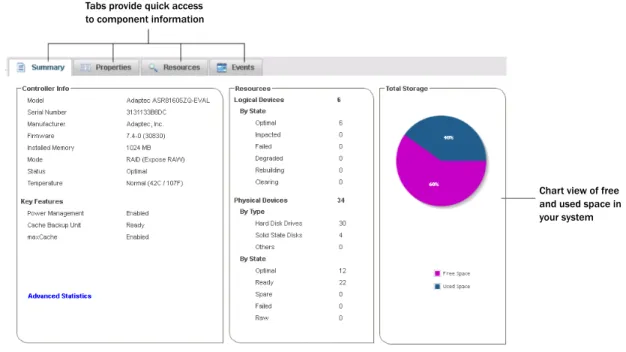
When you select a component in the Enterprise View, maxView Storage Manager displays detailed information about that component on the Storage Dashboard. Occupying the largest portion of the main window in maxView Storage Manager, the Storage Dashboard provides status information, physical and logical device properties, resources, usage statistics, and reliability indicators for hard drives and SSDs. It also provides a chart view of free and used space in your system.
Tabs provide quick access to component information
Chart view of free and used space in your system
For more information about the types of information provided on the Storage Dashboard for each component in your storage space, seeViewing Component Status in the Storage Dashboardon page 113; also seeRevealing More Device Information on page 36.
Checking System Status from the Main Window
maxView Storage Manager includes an Event Log and Task Log for at-a-glance status and activity information for all managed systems. The Event Log provides status information and messages about activity (or events) occurring in your storage space. The Task Log provides information about current or recurring processes in your storage space, such as verifying or rebuilding a logical device. Single-click any event or task to see more information in an easier-to-read format. For more information about the Event Log and Task Log, seeViewing Activity Status in the Event Logon page 112 andWorking with Scheduled Taskson page 89.
Click this tab to open the Task Log Click this tab to open the Event Log
Warning- and Error-level icons appear next to components in the Enterprise View affected by a failure or error, creating a trail, or rapid fault isolation, that helps you identify the source of a problem when it occurs. SeeIdentifying a Failed or Failing Componenton page 136 for more information.
If your storage space includes a drive enclosure with a temperature sensor, temperature, fan, and power module status is displayed on the Storage Dashboard (seeMonitoring Enclosure Statuson page 115). For more information about checking status from the main window, seeMonitoring Status and Activity on page 111.
Revealing More Device Information
You can reveal more information about disk drive, logical drive, and maxCache Device usage in your storage space with the Resources view on the Storage Dashboard.
To reveal disk drive usage by logical drive (and vice-versa), select a controller in the Enterprise View, then open the Resources tab on the Storage Dashboard. As shown in the figures below, you can click a logical drive to see its member disk drives or SSDs (including the maxCache Device); similarly, you can click a physical disk to see which (if any) logical drive it belongs to.
Note: Click the Arrow icons, on the right side of the Resources table, to jump to that
resource in the Enterprise View tree.
Two disk drives plus a hot spare comprise the selected logical drive
The maxCache Device is comprised of three SSDs
To reveal logical device usage for maxCache Plus virtual pools and virtual volumes, select the maxCache
Plus node in the Enterprise view, then open the Resources tab on the Storage Dashboard. You can click
a virtual pool to see its member logical drives, or a virtual volume to see its virtual pool members. (See Optimizing the Structure of Your Storage Spaceon page 73 for more about maxCache Plus.)
The virtual pool is comprised of one logical device.
Getting Help
maxView Storage Manager provides online help that includes conceptual information and descriptions of on-screen items and dialog boxes, in addition to step-by-step instructions for completing tasks. To open the online help, click the Help button at the upper-right corner of the main window.
Click here to open the Help window For help with a dialog box or wizard, click the question-mark icon, in the lower corner of the dialog box, for help with that specific procedure.
Click here for help with this procedure
For help with individual options in the Set Properties dialog box (for controllers, logical drives, and physical drives), or specific information fields on the Storage Dashboard, mouse over any option name or field for a brief description of that field.
Logging Out of maxView Storage Manager
To log out of maxView Storage Manager:1. In the Enterprise View, click on the local system.
2. Click the Logout button at the upper-right corner of the main window:
Click here to log out You are logged out of maxView Storage Manager and the main window is closed.
5
Building Your Storage Space
Follow the instructions in this section to choose a management system, log in to each system in your storage space, and create logical drives. (For more information, seeUnderstanding Logical Driveson page 58.)
Note: Before beginning the tasks in this chapter, ensure that maxView Storage
Manager is installed on every system that will be part of your storage space.
Overview
To build your storage space, complete these steps:
1. Choose at least one management system (seeChoosing a Management Systemon page 40).
2. Start and log in to maxView Storage Manager on the management system (seeStarting maxView Storage Manager and Logging In on page 31).
3. Start maxView Storage Manager or the Agent on all other systems (seeStarting maxView Storage Manager on Remote Systemson page 41).
4. Log in to all other systems from the management system (seeLogging into Remote Systems from the Local Systemon page 43).
5. Create logical drives for all systems in your storage space (seeCreating Logical Driveson page 44). As your storage requirements change, you can add systems, controllers, and disk drives, then modify the logical drives in your storage space by following the instructions inModifying Your Storage Space on page 58.
Choosing a Management System
You must designate at least one system as a management system, a system from which you will manage the storage on all systems in your storage space.
The management system can be any system on your network that has a video monitor and can run the full maxView Storage Manager application.
‘Local’ or ‘Remote’?
Whenever you're working in maxView Storage Manager, the system that you're working on is the local system. All other systems in your storage space are remote systems. ‘Local’ and ‘remote’ are relative terms, as shown in the following figure—when you are working on system A (local system), system B is a remote system; when you are working on system B (local system), system A is a remote system. For the purposes of this guide, the ‘local system’ is the management system.