1
AsebA secure browser Launcher Application
AsebA secure browser Launcher Application
User Guide
CONTENTS
1. INTRODUCTION 3
2. STARTING THE APPLICATION 3
2.1. UseR ReGIsTRATION 6
2.2. ReNeWAL OF e-ZAbA CeRTIFICATe 6
2.3. STARTING THE ZAGREBAČKA BANKA HOMEPAGE IN A SECURE ENVIRONMENT 7
2.4. USB KEY ADMINISTRATION 7
2.5. FILE SIGNING 7
3. APPLICATION UPGRADE 8
3.1. DOWNLOADING UPGRADES FROM THE SERVER 9
3.2. DOWNLOADING UPGRADES FROM A LOCAL DISK 12
3.3. NOTIFICATIONS ON AVAILABLE UPGRADES 13
4. FREQUENTLY ASKED QUESTIONS 15
4.1. WINDOWS 7 OPERATING SYSTEM 15
ENABLING “AUTOPLAY” 15
4.2. WINDOWS XP OPERATING SYSTEM 16
ADMINISTRATOR AUTHORIZATION REQUIRED FOR UPGRADING 16
AsebA secure browser Launcher Application
User Guide
3
1. INTRODUCTION
In order to use the e-zaba business banking service with the USB Key Secure Browser device, your computer needs to meet the following requirements:
The ASEBA Secure Browser Launcher application is started from the USB Key and enables you to:
nstart the Bank’s webpage for completing the user registration and certificate renewal processes nstart the application for the USB Key administration
nstart the application for the electronic signing of files with orders nstart an application upgrade
nstart the Bank homepage www.zaba.hr.
2. sTARTING THe APPLICATION
Upon inserting the USB Key in an available USB port, your computer will automatically perform all required installations. After the message “Device driver software installed successfully” appears, you can continue using the USB device (Fig. 1).
Other hardware requirements Usb port
Operating system Windows 7 (32-bit, 64-bit) Windows 8 (32-bit, 64-bit)
AsebA secure browser Launcher Application
User Guide
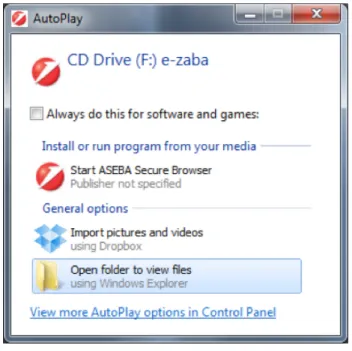
By inserting the USB Key in an available USB port on your computer, click “Start ASEBA Secure Browser” to start the ASEBA Secure Browser application (Fig. 2).
A window will open, as shown in Fig. 3.
Upon completion of loading, the application icon will appear on the System Tray. Fig. 2 – AsebA secure browser – starting the application
Fig. 3 – Loading the application
AsebA secure browser Launcher Application
User Guide
5 If the “AutoPlay” window fails to open (Fig. 2), you need to start the application directly from the USB Key. For the direct starting of the application from the USB Key, choose the option “My Computer” on your computer, and double click to select the icon
Once the directory folder of the USB device opens, you can start the application by double clicking on the file SecureBrowserLauncher.exe located
in the directory \Asseco\ASEBAPKISecureBrowserLauncher.
If you have saved the e-zaba certificate on your USB Key, a window for unlocking the device will open. Enter the PIN and confirm it by clicking on (Fig. 5).
After confirming the PIN, the Zagrebačka banka homepage will automatically appear in the Mozilla Firefox browser (Fig. 6). Fig. 5 – Entering the PIN
AsebA secure browser Launcher Application
User Guide
By selecting the option in the PIN entering window (Fig. 5), further applications and all of the menus will be in English.
2.1. UseR ReGIsTRATION
If you do not have the e-zaba certificate saved on your USB Key, you need to complete the registration process.
Upon inserting the USB Key in your computer, the page “e-zaba User Registration” will automatically open.
In order to start the registration process, choose the option “Start Registration” in the main menu of the ASEBA Secure Browser Launcher application (Fig. 7).
Detailed instructions for the e-zaba user registration process are available in the User Registration and USB Key Secure Browser Device Administration Guide, Chapter 3 – “User Registration”.
In order to access the Guide, choose the option “More information on www.zaba.hr” in the main menu of the ASEBA Secure Browser Launcher application (menu , Business entities, information and instructions, INSTRUCTIONS).
2.2. ReNeWAL OF e-zaba CeRTIFICATe
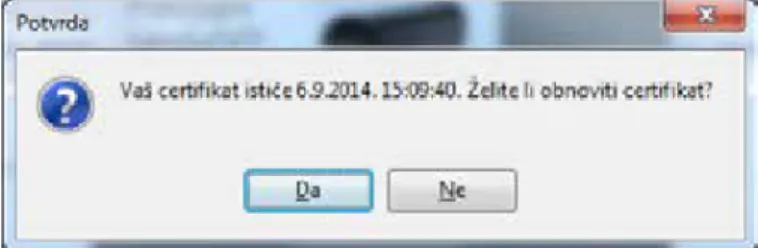
If 30 days or less have remained until the certificate expiry date, a certificate renewal procedure must be implemented. When starting the ASEBA Secure Browser Launcher application, a message such as the one shown in Fig. 8 will appear.
Fig. 7 – Starting the registration
AsebA secure browser Launcher Application
User Guide
7 If you select the option , the certificate renewal page will automatically open, and then you need to follow the renewal instructions.
If you do not wish to renew the certificate, select the option and continue using the application.
The certificate renewal process can be started from the main menu of the ASEBA Secure Browser Launcher application (Fig. 7) by selecting the option . Once the certificate renewal page opens, follow the renewal instructions.
We kindly ask you to renew the certificate before the expiry date, so that you could continue using the ASEBA Secure Browser Launcher application, and thus e-zaba.
The certificate can be renewed 30 days before the expiry date and 30 days after the expiry date, however, after the expiry of the certificate validity the use of e-zaba will no longer be possible.
2.3. STARTING THE ZAGREBAČKA BANKA HOMEPAGE IN A SECURE ENVIRONMENT
In order to start the Zagrebačka banka homepage www.zaba.hr in a secure environment, select the optionin the main menu of the ASEBA Secure Browser Launcher application, after which the Zagrebačka banka homepage will open (Fig. 6).
2.4. USB KEY ADMINISTRATION
The USB Key administration can be started from the main menu by selecting the option (Fig. 7), after which the application “ASEBA PKI Device Client” administration will open.
Detailed instructions for the USB Key administration are available in the User Registration and USB Key Secure Browser Device Administration Guide. In order to access the Guide, choose the option “More information on www.zaba.hr” in the main menu of the ASEBA Secure Browser Launcher application (menu , Business entities, information and instructions, INSTRUCTIONS).
2.5. FILe sIGNING
For signing files use the application ASEBA FileSecure, which enables you to check the Bank’s electronic signature.
The file signing application can be started from the main menu, by selecting the option (Fig. 7), after which the file signing application “ASEBA FileSecure” will open.
Detailed instructions are available in the Guide for the File Signing Application. In order to access the Guide, select the option “More information on www.zaba.hr” in the main menu of the ASEBA Secure Browser Launcher application (menu
, Business entities, information and instructions, INSTRUCTIONS).
AsebA secure browser Launcher Application
User Guide
3. APPLICATION UPGRADe
An ASEBA Secure Browser Launcher application upgrade can be started from the main menu, by selecting the option (Fig. 7). If there is an updated version of the application on your USB Key, but no newer version for upgrade is available on the server, a message with the information that the software support is up-to-date will appear, along with the list of the currently installed components of the version (Fig. 9).
If a newer application version is available on the server, a window as shown in Fig. 10 will appear. Fig. 9 – Up-to-date application version
AsebA secure browser Launcher Application
User Guide
9 The option “Select language” defines the language of the application upon upgrade completion. Once you have selected the desired language in this option, each time you start the Secure Browser Launcher application it will be in the language you chose during the upgrade process.
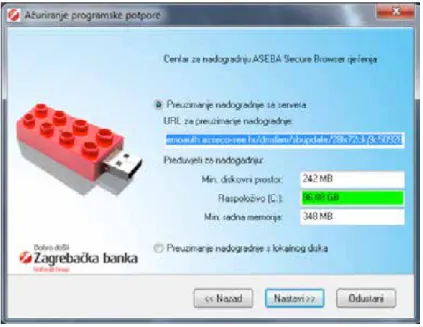
To continue with the upgrade, select the option after which a window with the information on downloading the upgrade and the requirements of the application for downloading the upgrade (RAM, disk space, availability) will appear - (Fig. 11).
By selecting the option the upgrade process will be cancelled and you can continue using the e-zaba service and the Secure browser Launcher application.
An application upgrade can be downloaded
nfrom the server, or nfrom a local disk.
Fig. 11 – Downloading an upgrade
3.1. DOWNLOADING UPGRADES FROM THE SERVER
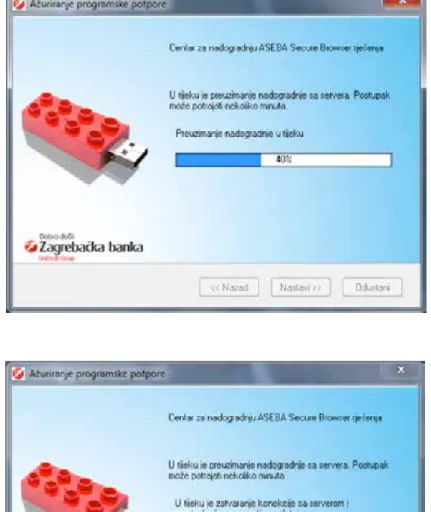
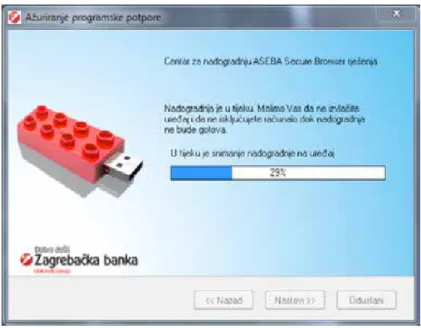
If you select the option to download upgrades from the server, the upgrade process will continue by clicking on . During the upgrade process, the messages shown in Fig. 12 and 13 will appear. Upon successful completion, the message “Upgrading completed successfully” will appear (Fig. 14).
AsebA secure browser Launcher Application
User Guide
AsebA secure browser Launcher Application
User Guide
11 Fig. 13 – saving the upgrade to the Usb device
Fig. 14 – Upgrading completed successfully
AsebA secure browser Launcher Application
User Guide
3.2. DOWNLOADING UPGRADES FROM A LOCAL DISK
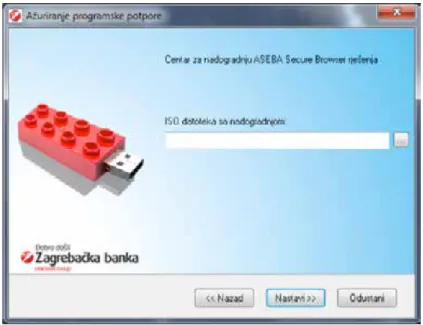
Upgrades can be run from a local disk, as well.In order to do that, select the option “Download an upgrade from a local disk” (Fig. 11) and by clicking on a window will appear as shown in Fig. 15, in which you have to select the ISO file with the upgrade.
Fig. 15 – Upgrading from a local disk
Fig. 16 – File downloading
Select the file “e-zaba_60_hr.iso” from the local disk and click on . Further upgrade procedure is identical to the process of downloading upgrades from the server.
You can download the file for local upgrading by copying the URL location from the option “Downloading an upgrade from the server” to any Internet browser on your computer, after which downloading of the file will begin automatically as shown in Fig. 16.
AsebA secure browser Launcher Application
User Guide
13 Click on the option and wait for the file to download. Open the file folder where you saved the file. Open the WinZip tool you have installed on your computer to unzip the file and save it in .iso format required for upgrading.
3.3. NOTIFICATIONS ON AVAILABLE UPGRADES
Notifications on available upgrades appear above the ASEBA Secure Browser Launcher application icon on the System Tray:
1. Software upgrade available – a notification on the availability of a newer version of the software and available upgrades (Fig. 17). By clicking on the notification a software upgrade window will appear as shown in Fig. 10.
2. Software upgrade required – a notification on the software upgrade you need to install in order to continue using the ASEBA Secure Browser Launcher application and e-zaba (Fig. 18).
Fig. 17 – Software upgrade available
Fig. 18 – Software upgrade required
After the notification on the required software upgrade has appeared, the software update window will appear automatically as shown in Fig 19.
AsebA secure browser Launcher Application
User Guide
Fig. 19 – Required software upgrade window
Fig. 20 – Upgrade cancelling
If you cancel the Secure Browser Launcher application upgrade, you will not be able to use e-zaba and the Secure Browser Launcher application until you have completed the upgrade process.
After clicking on a window will appear as shown in Fig. 20, where you can confirm the cancelling or continue the upgrade process by clicking on .
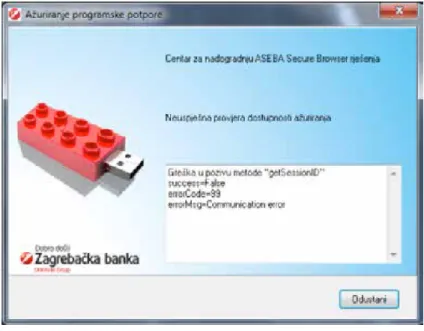
3. Checking available upgrades failed – in case of a server communication error, a message will appear as shown in Fig. 21.
AsebA secure browser Launcher Application
User Guide
15 By clicking on the above message or by selecting the software upgrade from the main menu, a window containing the message details will appear as shown in Fig. 22.
Fig. 22– error details
If the above error appears, contact us on e-mail [email protected] or at telephone numbers: 0800 5678 or 01/3789 100 on workdays from 7.00 to 20.30 or Saturdays from 8.00 to 12.30.
4. FREQUENTLY ASKED QUESTIONS
4.1. WINDOWS 7 OPERATING SYSTEM
ENABLING “AUTOPLAY“
If a window as shown in Fig. 1 fails to appear after you have inserted your USB Key device, do the following:
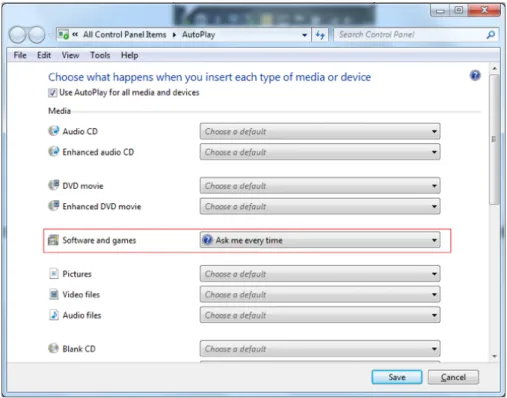
1. Choose “Start” , enter “AutoPlay” in the search field (Fig. 23) and press “Enter”, after which a window will appear as shown in Fig. 24.
AsebA secure browser Launcher Application
User Guide
Fig. 24 – “AutoPlay” window
Choose “Software and games” option, select “Ask me every time” from the dropdown menu and then click on . Insert your USB Key once again and a window as shown in Fig. 2 should appear.
4.2. WINDOWS XP OPERATING SYSTEM
ADMINISTRATOR AUTHORIZATION REQUIRED FOR UPGRADING
Administrator authorization is required for successful upgrading of the ASEBA Secure Browser Launcher application on a computer with the Windows XP operating system.
In case you lack the administrator authorization but still try to upgrade the application, a message about the error will appear as shown in Fig 25.
AsebA secure browser Launcher Application
User Guide
17
4.3. PROBLEMS CAUSED BY IMPROPER HANDLING OF THE USB KEY
We kindly ask you to follow the eject procedure after using your USB Key device. Otherwise, you may encounter problems when using your USB device or connecting to e-zaba.
PROPER HANDLING
1. After using your USB Key or applications on the USB Key (e.g. Mozilla Firefox, ASEBA FileSecure etc.), close all the running applications and exit the ASEBA Secure Browser Launcher application by clicking on in the main menu (Fig. 7).
2. Right-click to select the icon on the System Tray and then click on the option (Fig. 26).
3. Wait for the message shown in Fig. 27 to appear on the screen, and then remove your USB device from the USB port. Fig. 26 – Ejecting USB device
Fig. 27 – USB device safely removed
Improper handling of the USB device may disable the starting of e-zaba via the Mozilla Firefox portable browser on your USB device.
If this occurs, a window as shown in Fig. 28 will appear on your computer screen when starting the USB device and the AsebA secure browser Launcher application.
AsebA secure browser Launcher Application
User Guide
Fig. 28 – ”Scan and fix” option
Fig. 29 – Fixing errors on the USB device
sOLUTION
1. Select the option “Scan and fix (recommended)” as shown in Fig 28. A window will appear – tick both options (Fig. 29) and click on to start the error fixing process on your USB device. After the process has been completed, enter the main menu of the ASEBA secure browser Launcher application and select to open the webpage www.zaba.hr. In case the page fails to open, perform step 2.
2. Open “My Computer” and double-click on ETOKEN 7300 (G:) to select the disk. Delete the “Temp” directory and try to restart e-zaba by selecting from the main menu of the ASEBA Secure Browser Launcher application. In case Mozilla Firefox fails to open, perform step 3.
3. Open “My Computer”. Right-click on the ETOKEN 7300 (G:) disk icon and select the option “Format”. A window will appear as shown in Fig. 30. Select “Start” and wait for the formatting to finish. Enter the main menu of the ASEBA Secure Browser launcher application
AsebA secure browser Launcher Application
User Guide
19 Save the data/documents from your ETOKEN 7300 (G:) disk to a local disk before selecting “Format” because they will be erased.
Fig. 30 – Formatting
February