C H A P T E R
1
An Overview of the Cisco Unified
Wireless IP Phone 7921G
The Cisco Unified Wireless IP Phone 7921G provides wireless voice
communication over an Internet Protocol (IP) network. Like traditional analog telephones, you can place and receive phone calls and access features such as hold, transfer, and speed dial. In addition, because the phone connects to your wireless LAN, you can place and receive phone calls from anywhere in your wireless environment.
This chapter includes the following topics:
• Understanding the Cisco Unified Wireless IP Phone 7921G, page 1-1
• Features Supported on the Cisco Unified Wireless IP Phone 7921G, page 1-6
• Understanding Security Features for Cisco Unified IP Phones, page 1-10
• Overview of Configuring and Installing the Cisco Unified Wireless IP Phone 7921G, page 1-16
Understanding the Cisco Unified Wireless IP Phone
7921G
The Cisco Unified Wireless IP Phone 7921G is an 802.11 dual band wireless device that provides comprehensive voice communications in conjunction with Cisco Unified CallManager and Cisco Aironet 802.11b/g and Cisco Aironet 802.11a Access Points (APs) in a private business communications network. This phone model supports G.711a, G.711u, G.729a and G.729ab audio compression
Chapter 1 An Overview of the Cisco Unified Wireless IP Phone 7921G Understanding the Cisco Unified Wireless IP Phone 7921G
coder-decoders (codecs). You must configure and manage a wireless IP phone like other IP phones and wireless devices on your network. The wireless IP phone supports multiple lines and most of the IP phone features of other Cisco Unified IP Phones.
Figure 1-1 shows the Cisco Unified Wireless IP Phone 7921G. The table that follows describes the functions of the keys on the phone.
Figure 1-1 Cisco Unified Wireless IP Phone 7921G Buttons and Keys
180258
WXYZ
0
1@
2ABC 3 DEF
4
5 JKL 6MNO
GHI
7
8 TUV 9
PQRS
#
*
10 13 12 14 15 16
11 17
1
4
8 9
7
6 5 2 3
Chapter 1 An Overview of the Cisco Unified Wireless IP Phone 7921G
Understanding the Cisco Unified Wireless IP Phone 7921G
1 Indicator light (LED)
Provides these indications:
• Solid red—Phone is connected to AC power source and battery is charging.
• Solid green—Phone is connected to AC power source and battery is fully charged.
• Fast blinking red—Incoming call. (Phone can be charging or fully charged.)
• Slow blinking red—Voice message. (When connected to AC power source, red light displays longer than when phone is using only the battery.)
• Slow blinking green—Phone is using only battery power. Phone is registered with the wireless network and is within service coverage area.
2 Headset port Port for plugging in a headset or ear bud.
3 Speaker button Toggles the speaker mode on or off for the phone.
4 Right softkey button
Activates the Options menu for access to the list of softkeys. Sometimes displays a softkey label.
Chapter 1 An Overview of the Cisco Unified Wireless IP Phone 7921G Understanding the Cisco Unified Wireless IP Phone 7921G
5 Navigation button
Accesses these menus and lists from the main screen:
Directory
Line View
Settings
Services
Allows you to scroll up and down menus to highlight options and to move left and right through phone numbers and text entries.
6 Select button Activates the Help menu from the main screen.
Allows you to select a menu item, a softkey, a call, or an action.
7 Power/End button (red)
Turns the phone on or off, silences a ringing call, or ends a connected call. When using menus, acts as a shortcut to return to the main screen.
8 Pound (#) key Toggles between locking and unlocking the keypad.
Allows you to enter these special characters when you are entering text:
# ? ( ) [ ] { }
9 Zero (0) key Enters “0” when dialing a number. Allows you to enter a space or these special characters when you are entering text:
, . ‘ “ | _ ~ ’
10 Asterisk (*) key
Toggles between Ring and Vibrate mode.
Allows you to enter these special characters when you are entering text:
* + - / = \ : ;
11 Keypad Allows you to dial numbers, enter letters, and choose menu items by number. Press and hold key 1 to access your voice messaging system.
#
0
Chapter 1 An Overview of the Cisco Unified Wireless IP Phone 7921G
Understanding the Cisco Unified Wireless IP Phone 7921G
For more information about phone features and how they operate, refer to the Cisco Unified Wireless IP Phone 7921G Guide.
Related Topics
• Features Supported on the Cisco Unified Wireless IP Phone 7921G, page 1-6
• Overview of Configuring and Installing the Cisco Unified Wireless IP Phone 7921G, page 1-16
12 One (1) key Enters “1” when dialing a number. Allows you to access the voice messaging system.
Allows you to enter these special characters when you are entering text:
! @ < > $ % ^ &
13 Answer/Send button (green)
Allows you to answer a ringing call or, after dialing a number, to place the call.
14 Left softkey button
Activates the softkey option displayed on the screen.
15 Mute button Toggles the mute feature on or off.
16 Volume button When the phone is idle, controls the ring volume, vibrate option, or turns off the ring.
During a call, controls the volume for the handset, headset, and speaker mode.
17 Applications button
Configurable button that is used with XML applications, such as Push to Talk or Directory services. See “Setting Up Services” section on page 6-19.
Chapter 1 An Overview of the Cisco Unified Wireless IP Phone 7921G Features Supported on the Cisco Unified Wireless IP Phone 7921G
Features Supported on the Cisco Unified Wireless
IP Phone 7921G
The Cisco Unified Wireless IP Phone 7921G functions much like traditional IP phones allowing you to place and receive telephone calls while connected to the wireless LAN. In addition to traditional phone features, the Cisco Unified Wireless IP Phone includes features that enable you to administer and monitor the phone as a network device.
Caution This product is not intended for use with patient monitoring devices or other patient care devices. Do not use this product as the primary communications tool in health care environments, as it may use an unregulated frequency band that is susceptible to interference from other devices or equipment.
This section provides information about these topics:
• Feature Overview, page 1-6
• Configuring Telephony Features, page 1-7
• Configuring Security for the Phone, page 1-7
• Configuring Network Access for the Phone, page 1-8
• Providing Users with Feature Information, page 1-9
Feature Overview
The Cisco Unified Wireless IP Phone 7921G provides traditional telephony functionality, such as call forwarding and transferring, call pickup, redialing, speed dialing, conference calling, and voice messaging system access, as well as these features:
• Wireless access to your phone number and the corporate directory.
• Access to network data, XML applications, and web-based services.
• Online customizing of phone features and services from your User Options web pages.
Chapter 1 An Overview of the Cisco Unified Wireless IP Phone 7921G
Features Supported on the Cisco Unified Wireless IP Phone 7921G
Related Topics
• Configuring Network Profiles, page 4-10
• Configuring Features, Templates, Services, and Users, page 6-1
Configuring Telephony Features
You can use the Cisco Unified CallManager Administration application to set up phone registration criteria and calling search spaces, and to modify softkey templates, among other tasks. For more information, see Chapter 6, “Configuring Features, Templates, Services, and Users.”
In some places, this manual provides partial instructions for procedures that involve Cisco Unified CallManager Administration. These instructions are intended to point you to the appropriate page in the Cisco Unified CallManager application and to provide some initial guidance.
For more information about the Cisco Unified CallManager Administration application, refer to Cisco Unified CallManager documentation, including Cisco Unified CallManager Administration Guide. You can also use the
context-sensitive help that is available within the application. Access context-sensitive help by choosing
Help > For this screen from the main menu bar.
You can access the complete Cisco Unified CallManager documentation for your version at this location:
http://www.cisco.com/en/US/products/sw/voicesw/ps556/tsd_products_support_ series_home.html
Related Topics
• Methods for Adding Phones to Cisco Unified CallManager, page 3-3
• Configuring Features, Templates, Services, and Users, page 6-1
Configuring Security for the Phone
Implementing security in the wireless network (WLAN) protects against data tampering threats and identity theft of phones. To alleviate these threats, the Cisco wireless LAN provides many options for user authentication with servers and for encrypting communications streams between phones and network devices.
Chapter 1 An Overview of the Cisco Unified Wireless IP Phone 7921G Features Supported on the Cisco Unified Wireless IP Phone 7921G
For information about supported security options for the Cisco Unified Wireless IP Phone 7921G, see the “Authentication Mechanisms in the Wireless Network” section on page 2-19.
For information about security features supported by Cisco Unified CallManager and Cisco Unified IP Phones, see the “Understanding Security Features for Cisco Unified IP Phones” section on page 1-10.
Related Topics
• Security for Voice Communications, page 2-6
• Choosing Authentication and Encryption Methods, page 2-21
• Understanding Security Features for Cisco Unified IP Phones, page 1-10
Configuring Network Access for the Phone
Like other network devices, you must configure IP phones to access Cisco Unified CallManager and the rest of the IP network using the wireless LAN. There are two methods for configuring network settings such as DHCP, TFTP, and for wireless settings for the phone.
• Cisco Unified Wireless IP Phone 7921G web pages
• Network Profiles menu on the Cisco Unified Wireless IP Phone 7921G You can access the configuration web pages by using a browser from your PC. For more information, see Chapter 4, “Using the Cisco Unified Wireless IP Phone 7921G Web Pages.”
You can also configure network settings on the phone itself. For more information about configuring features from the phone, see Chapter 5, “Configuring Settings on the Cisco Unified Wireless IP Phone 7921G.”
Because the Cisco Unified Wireless IP Phone is a network device, you can obtain detailed status information about it. This information can assist you in
troubleshooting problems that users might encounter when using their IP phones. See Chapter 8, “Monitoring the Cisco Unified Wireless IP Phone Remotely,” for tips on using this information.
Related Topics
Chapter 1 An Overview of the Cisco Unified Wireless IP Phone 7921G
Features Supported on the Cisco Unified Wireless IP Phone 7921G
• Configuring Settings on the Cisco Unified Wireless IP Phone 7921G, page 5-1
• Monitoring the Cisco Unified Wireless IP Phone Remotely, page 8-1
Providing Users with Feature Information
If you are a system administrator, you are the primary source of information for Cisco Unified Wireless IP Phone users in your network or company. To ensure that you distribute the most current feature and procedural information,
familiarize yourself with Cisco Unified Wireless IP Phone 7921G documentation. Make sure to visit the Cisco Unified IP Phone web site:
http://www.cisco.com/en/US/products/hw/phones/ps379/tsd_products_support_ maintain_and_operate.html
From this site, you can view additional phone documentation. For complete ordering information, see the “Obtaining Documentation” section on page xviii. In addition to providing documentation, it is important to inform users about available Cisco Unified IP Phone features—including features specific to your company or network—and about how to access and customize those features, if appropriate.
For a summary of the key information that you can provide to phone users, see
Appendix A, “Providing Information to Users By Using a Website.”
Note The radio frequency (RF) for the Cisco Unified Wireless IP Phone 7921G is configured for a specific regulatory domain. If users attempt to use this phone outside of the regulatory domain, the phone will not function properly and they might violate local regulations.
Related Topic
Chapter 1 An Overview of the Cisco Unified Wireless IP Phone 7921G Understanding Security Features for Cisco Unified IP Phones
Understanding Security Features for Cisco Unified
IP Phones
Implementing security in the Cisco Unified CallManager system prevents identity theft of the phone and Cisco Unified CallManager server, and also prevents data, call signaling, and media stream tampering.
To alleviate these threats, the Cisco IP telephony network establishes and maintains authenticated and encrypted communication streams between a phone and the server, digitally signs files before they are transferred to a phone, and encrypts media streams and call signaling between Cisco Unified IP phones.
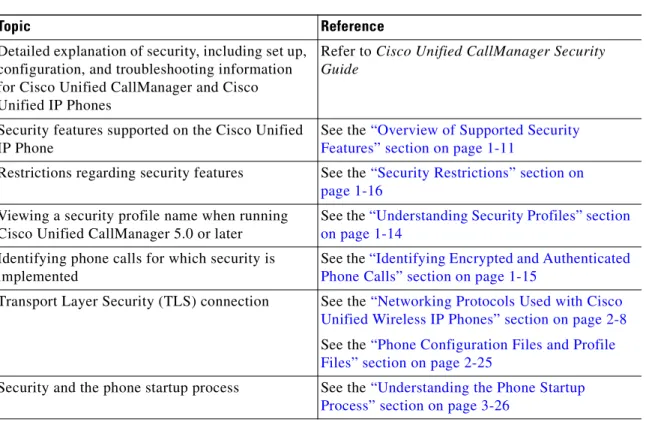
Table 1-1 shows where you can find additional information about security in this and other documents.
Table 1-1 Cisco Unified IP Phone and Cisco Unified CallManager Security Topics
Topic Reference
Detailed explanation of security, including set up, configuration, and troubleshooting information for Cisco Unified CallManager and Cisco Unified IP Phones
Refer to Cisco Unified CallManager Security Guide
Security features supported on the Cisco Unified IP Phone
See the “Overview of Supported Security Features” section on page 1-11
Restrictions regarding security features See the “Security Restrictions” section on page 1-16
Viewing a security profile name when running Cisco Unified CallManager 5.0 or later
See the “Understanding Security Profiles” section on page 1-14
Identifying phone calls for which security is implemented
See the “Identifying Encrypted and Authenticated Phone Calls” section on page 1-15
Transport Layer Security (TLS) connection See the “Networking Protocols Used with Cisco Unified Wireless IP Phones” section on page 2-8
See the “Phone Configuration Files and Profile Files” section on page 2-25
Security and the phone startup process See the “Understanding the Phone Startup Process” section on page 3-26
Chapter 1 An Overview of the Cisco Unified Wireless IP Phone 7921G
Understanding Security Features for Cisco Unified IP Phones
Overview of Supported Security Features
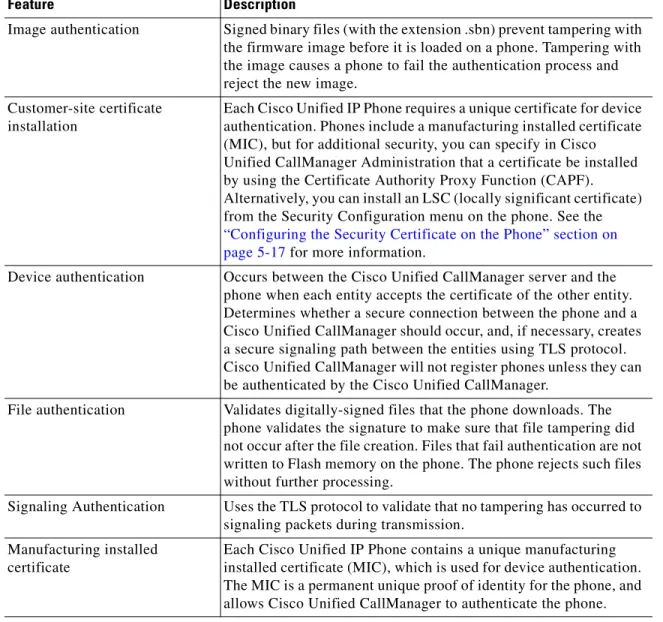
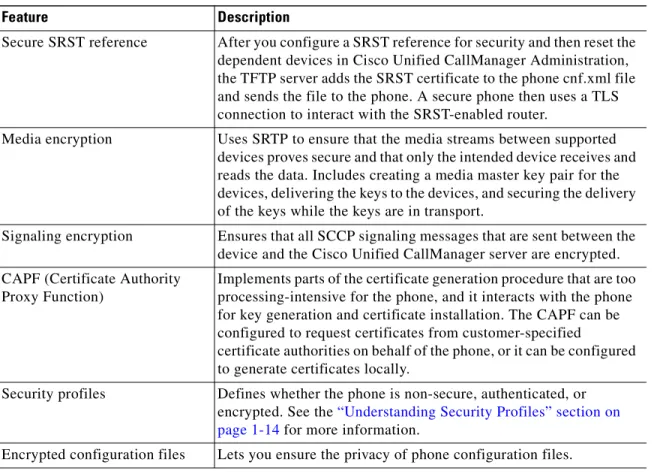
Table 1-2 provides an overview of the security features that the Cisco Unified Wireless IP Phone 7921G supports. For more information about these features and about Cisco Unified CallManager and Cisco Unified IP Phone security, refer to Cisco Unified CallManager Security Guide.
For information about current security settings on a phone, choose Settings > Security Configuration. For more information, see the “Viewing Security Information” section on page 7-2.
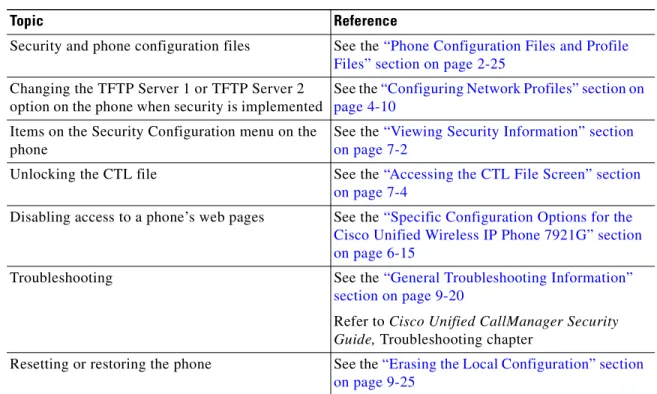
Note Most security features are available only if a certificate trust list (CTL) is installed on the phone. For more information about the CTL, refer to “Configuring the Cisco CTL Client” chapter in the Cisco Unified CallManager Security Guide. Security and phone configuration files See the “Phone Configuration Files and Profile
Files” section on page 2-25
Changing the TFTP Server 1 or TFTP Server 2 option on the phone when security is implemented
See the “Configuring Network Profiles” section on page 4-10
Items on the Security Configuration menu on the phone
See the “Viewing Security Information” section on page 7-2
Unlocking the CTL file See the “Accessing the CTL File Screen” section on page 7-4
Disabling access to a phone’s web pages See the “Specific Configuration Options for the Cisco Unified Wireless IP Phone 7921G” section on page 6-15
Troubleshooting See the “General Troubleshooting Information” section on page 9-20
Refer to Cisco Unified CallManager Security Guide, Troubleshooting chapter
Resetting or restoring the phone See the “Erasing the Local Configuration” section on page 9-25
Table 1-1 Cisco Unified IP Phone and Cisco Unified CallManager Security Topics (continued)
Chapter 1 An Overview of the Cisco Unified Wireless IP Phone 7921G Understanding Security Features for Cisco Unified IP Phones
Table 1-2 Overview of Security Features
Feature Description
Image authentication Signed binary files (with the extension .sbn) prevent tampering with the firmware image before it is loaded on a phone. Tampering with the image causes a phone to fail the authentication process and reject the new image.
Customer-site certificate installation
Each Cisco Unified IP Phone requires a unique certificate for device authentication. Phones include a manufacturing installed certificate (MIC), but for additional security, you can specify in Cisco Unified CallManager Administration that a certificate be installed by using the Certificate Authority Proxy Function (CAPF). Alternatively, you can install an LSC (locally significant certificate) from the Security Configuration menu on the phone. See the
“Configuring the Security Certificate on the Phone” section on page 5-17 for more information.
Device authentication Occurs between the Cisco Unified CallManager server and the phone when each entity accepts the certificate of the other entity. Determines whether a secure connection between the phone and a Cisco Unified CallManager should occur, and, if necessary, creates a secure signaling path between the entities using TLS protocol. Cisco Unified CallManager will not register phones unless they can be authenticated by the Cisco Unified CallManager.
File authentication Validates digitally-signed files that the phone downloads. The phone validates the signature to make sure that file tampering did not occur after the file creation. Files that fail authentication are not written to Flash memory on the phone. The phone rejects such files without further processing.
Signaling Authentication Uses the TLS protocol to validate that no tampering has occurred to signaling packets during transmission.
Manufacturing installed certificate
Each Cisco Unified IP Phone contains a unique manufacturing installed certificate (MIC), which is used for device authentication. The MIC is a permanent unique proof of identity for the phone, and allows Cisco Unified CallManager to authenticate the phone.
Chapter 1 An Overview of the Cisco Unified Wireless IP Phone 7921G
Understanding Security Features for Cisco Unified IP Phones
Secure SRST reference After you configure a SRST reference for security and then reset the dependent devices in Cisco Unified CallManager Administration, the TFTP server adds the SRST certificate to the phone cnf.xml file and sends the file to the phone. A secure phone then uses a TLS connection to interact with the SRST-enabled router.
Media encryption Uses SRTP to ensure that the media streams between supported devices proves secure and that only the intended device receives and reads the data. Includes creating a media master key pair for the devices, delivering the keys to the devices, and securing the delivery of the keys while the keys are in transport.
Signaling encryption Ensures that all SCCP signaling messages that are sent between the device and the Cisco Unified CallManager server are encrypted. CAPF (Certificate Authority
Proxy Function)
Implements parts of the certificate generation procedure that are too processing-intensive for the phone, and it interacts with the phone for key generation and certificate installation. The CAPF can be configured to request certificates from customer-specified
certificate authorities on behalf of the phone, or it can be configured to generate certificates locally.
Security profiles Defines whether the phone is non-secure, authenticated, or encrypted. See the “Understanding Security Profiles” section on page 1-14 for more information.
Encrypted configuration files Lets you ensure the privacy of phone configuration files.
Table 1-2 Overview of Security Features (continued)
Chapter 1 An Overview of the Cisco Unified Wireless IP Phone 7921G Understanding Security Features for Cisco Unified IP Phones
Related Topics
• Understanding Security Profiles, page 1-14
• Identifying Encrypted and Authenticated Phone Calls, page 1-15
• Viewing Device Information, page 7-6
• Security Restrictions, page 1-16
Understanding Security Profiles
A security profile, which defines whether the phone is non-secure, authenticated, or encrypted, is associated with every Cisco Unified IP Phone that is supported in Cisco Unified CallManager 5.0 and later. For information about configuring the security profile and applying the profile to the phone, refer to Cisco Unified CallManager Security Guide, Release 5.0.
Note For Cisco Unified IP Phones using Cisco Unified CallManager 4.1 and later, security is configured on each phone. For more information about configuring security, refer to Cisco Unified CallManager Security Guide, Release 4.1 (2) or a later release document.
Optional disabling of the web server functionality for a phone
You can prevent access to a phone’s web page, which displays a variety of operational statistics for the phone.
Phone hardening Additional security options, which you control from Cisco Unified CallManager Administration:
• Disabling Gratuitous ARP (GARP)
• Disabling access to the Setting menus
• Disabling access to web pages for a phone
Note You can view current settings for the GARP Enabled, and Web Access options by looking at the phone’s Device Information menu. For more information, see the “Viewing Security Information” section on page 7-2.
Table 1-2 Overview of Security Features (continued)
Chapter 1 An Overview of the Cisco Unified Wireless IP Phone 7921G
Understanding Security Features for Cisco Unified IP Phones
To view the security mode that is set for the phone, from the phone screen, choose
Settings > Device Information > Security > Security Mode. For more information, see the “Viewing Security Information” section on page 7-2.
Related Topics
• Identifying Encrypted and Authenticated Phone Calls, page 1-15
• Viewing Device Information, page 7-6
• Security Restrictions, page 1-16
Identifying Encrypted and Authenticated Phone Calls
When security is implemented for a phone, you can identify authenticated or encrypted phone calls by icons on the screen on the phone.
In an authenticated call, all devices participating in the establishment of the call are authenticated by the Cisco Unified CallManager. When a call in progress is authenticated, the call progress icon to the right of the call duration timer in the phone screen changes to this icon:
In an encrypted call, all devices participating in the establishment of the call are authenticated by the Cisco Unified CallManager. In addition, call signaling and media streams are encrypted. An encrypted call offers the highest level of security, providing integrity and privacy to the call. When a call in progress is being encrypted, the call progress icon to the right of the call duration timer in the phone screen changes to this icon:
Note If the call is routed through non-IP call legs, such as the PSTN, the call might be non-secure even though it is encrypted within the IP network and has a lock icon associated with it.
Related Topics
• Understanding Security Features for Cisco Unified IP Phones, page 1-10
• Understanding Security Profiles, page 1-14
Chapter 1 An Overview of the Cisco Unified Wireless IP Phone 7921G Overview of Configuring and Installing the Cisco Unified Wireless IP Phone 7921G
Security Restrictions
When using a phone that is not configured for encryption, the user cannot barge into an encrypted call. When barge fails in this case, a reorder tone (fast busy tone) plays on the barge initiator’s phone.
If the phone is configured for encryption, the user can barge into an authenticated or non-secure call from the encrypted phone. After the barge occurs,
Cisco Unified CallManager classifies the call as non-secure.
If the phone is configured for encryption, the user can barge into an encrypted call, and the phone indicates that the call is encrypted.
A user can barge into an authenticated call, even if the phone that is used to barge is non-secure. The authentication icon continues to display on the authenticated phones in the call, even if the initiator’s phone does not support security.
Overview of Configuring and Installing the Cisco
Unified Wireless IP Phone 7921G
When deploying a new IP telephony system, system administrators and network administrators must complete several initial configuration tasks to prepare the network for IP telephony service. For information and a checklist for setting up and configuring a complete Cisco IP telephony network, refer to the “System Configuration Overview” chapter in the Cisco Unified CallManager System Guide.
To add wireless IP phones to the IP network, system administrators also must perform a site survey to determine where to place and install access points (APs) for wireless voice coverage. For detailed information about a voice over WLAN deployment, refer to the Cisco Enterprise Mobility 3.0 Design Guide.
After you have set up the IP telephony system and configured system-wide features in Cisco Unified CallManager, you can add IP phones to the system. The following topics provide an overview of procedures for adding Cisco Unified IP Phones to your network:
• Configuring the Cisco Unified Wireless IP Phone 7921G in Cisco Unified CallManager, page 1-17
Chapter 1 An Overview of the Cisco Unified Wireless IP Phone 7921G
Overview of Configuring and Installing the Cisco Unified Wireless IP Phone 7921G
Configuring the Cisco Unified Wireless IP Phone 7921G in Cisco
Unified CallManager
To add phones to the Cisco Unified CallManager database, you can use:
• Auto-registration
• Cisco Unified CallManager Administration
• Bulk Administration Tool (BAT)
• BAT and the Tool for Auto-Registered Phones Support (TAPS)
For more information about these choices, see the “Methods for Adding Phones to Cisco Unified CallManager” section on page 3-3.
For general information about configuring phones in Cisco Unified CallManager, refer to the “Cisco Unified IP Phone” chapter in the Cisco Unified CallManager System Guide.
Related Topic
Checklist for Configuring the Cisco Unified Wireless IP Phone 7921G in Cisco Unified CallManager, page 1-17
Checklist for Configuring the Cisco Unified Wireless IP Phone 7921G in Cisco
Unified CallManager
Table 1-3 provides an overview and checklist of configuration tasks for the Cisco Unified Wireless IP Phone 7921G in Cisco Unified CallManager Administration. The list presents a suggested order to guide you through the phone configuration process. Some tasks are optional, depending on your system and user needs. For detailed procedures and information, refer to the sources in the list.
Chapter 1 An Overview of the Cisco Unified Wireless IP Phone 7921G Overview of Configuring and Installing the Cisco Unified Wireless IP Phone 7921G
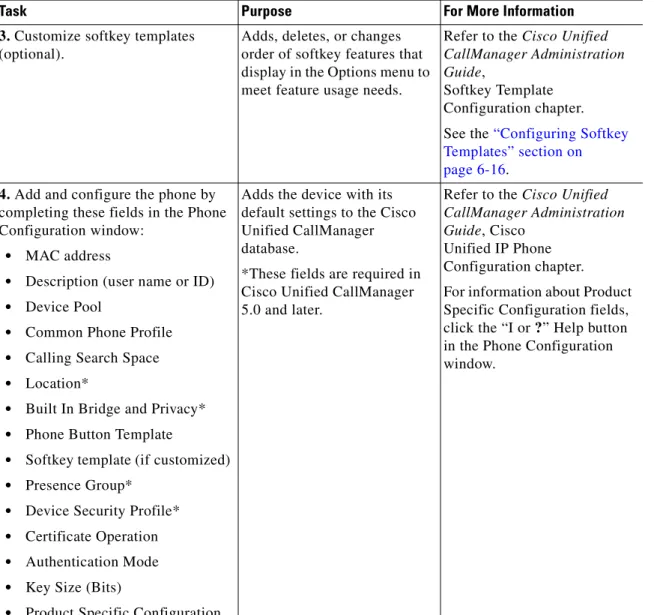
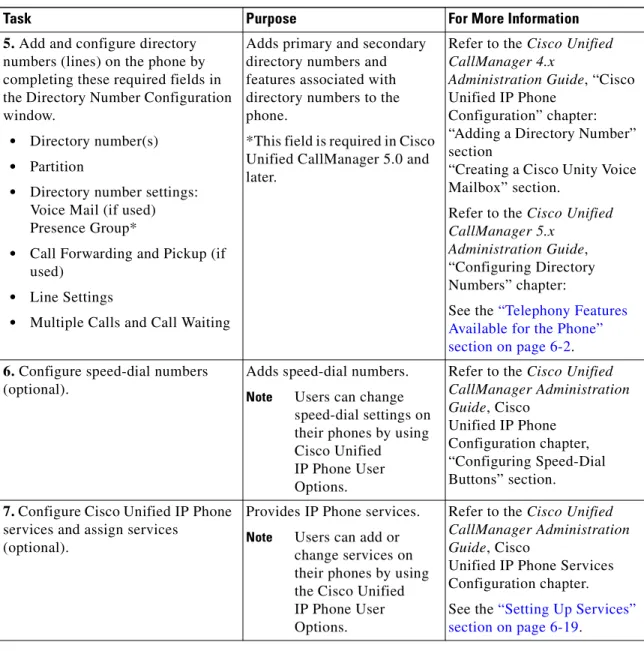
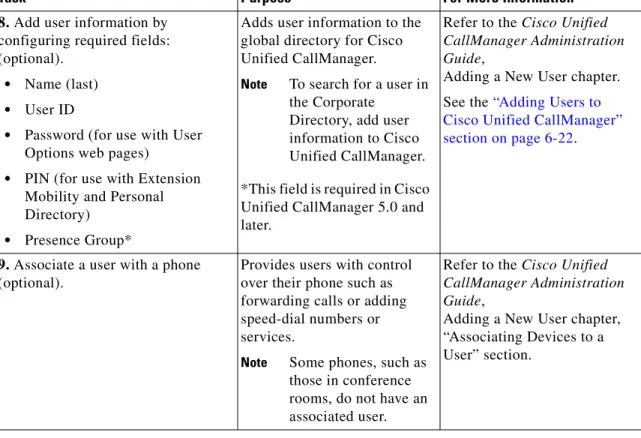
Table 1-3 Checklist for Configuring the Cisco Unified Wireless IP Phone 7921G in Cisco Unified CallManager
Task Purpose For More Information
1. Gather the following information about the phone:
• MAC address
• Name or user ID of phone user
• Device pool
• Calling search space and location information (if used)
• Security (authentication mode and encryption)
• Number of lines, associated directory numbers (DNs), and partitions to assign to the phone
• User to associate with the phone
• Phone usage information
Provides list of configuration requirements for setting up phones.
Identifies preliminary
configuration that you need to perform before configuring individual phones, such as button and softkey templates.
Applies to softkey template, phone features, IP Phone services, or phone applications.
Refer to the Cisco Unified CallManager System Guide,
Cisco Unified IP Phone chapter.
See the “Telephony Features Available for the Phone” section on page 6-2.
2. Customize phone button templates (if required).
Changes the number of lines, speed-dial, Service URLs or adds a Privacy feature to Line View list to meet user needs. Changes softkey positions in Options menu
Refer to Cisco Unified CallManager Administration Guide,
“Phone Button Template Configuration” chapter. See the “Modifying Phone Button Templates” section on page 6-18.
Chapter 1 An Overview of the Cisco Unified Wireless IP Phone 7921G
Overview of Configuring and Installing the Cisco Unified Wireless IP Phone 7921G
3. Customize softkey templates (optional).
Adds, deletes, or changes order of softkey features that display in the Options menu to meet feature usage needs.
Refer to the Cisco Unified CallManager Administration Guide,
Softkey Template Configuration chapter. See the “Configuring Softkey Templates” section on page 6-16.
4. Add and configure the phone by completing these fields in the Phone Configuration window:
• MAC address
• Description (user name or ID)
• Device Pool
• Common Phone Profile
• Calling Search Space
• Location*
• Built In Bridge and Privacy*
• Phone Button Template
• Softkey template (if customized)
• Presence Group*
• Device Security Profile*
• Certificate Operation
• Authentication Mode
• Key Size (Bits)
• Product Specific Configuration
Adds the device with its default settings to the Cisco Unified CallManager database.
*These fields are required in Cisco Unified CallManager 5.0 and later.
Refer to the Cisco Unified CallManager Administration Guide, Cisco
Unified IP Phone Configuration chapter.
For information about Product Specific Configuration fields, click the “I or ?” Help button in the Phone Configuration window.
Table 1-3 Checklist for Configuring the Cisco Unified Wireless IP Phone 7921G in Cisco Unified CallManager (continued)
Chapter 1 An Overview of the Cisco Unified Wireless IP Phone 7921G Overview of Configuring and Installing the Cisco Unified Wireless IP Phone 7921G
5. Add and configure directory numbers (lines) on the phone by completing these required fields in the Directory Number Configuration window.
• Directory number(s)
• Partition
• Directory number settings: Voice Mail (if used) Presence Group*
• Call Forwarding and Pickup (if used)
• Line Settings
• Multiple Calls and Call Waiting
Adds primary and secondary directory numbers and features associated with directory numbers to the phone.
*This field is required in Cisco Unified CallManager 5.0 and later.
Refer to the Cisco Unified CallManager 4.x
Administration Guide, “Cisco Unified IP Phone
Configuration” chapter: “Adding a Directory Number” section
“Creating a Cisco Unity Voice Mailbox” section.
Refer to the Cisco Unified CallManager 5.x
Administration Guide, “Configuring Directory Numbers” chapter:
See the “Telephony Features Available for the Phone” section on page 6-2.
6. Configure speed-dial numbers (optional).
Adds speed-dial numbers.
Note Users can change speed-dial settings on their phones by using Cisco Unified IP Phone User Options.
Refer to the Cisco Unified CallManager Administration Guide, Cisco
Unified IP Phone Configuration chapter, “Configuring Speed-Dial Buttons” section.
7. Configure Cisco Unified IP Phone services and assign services
(optional).
Provides IP Phone services.
Note Users can add or change services on their phones by using the Cisco Unified IP Phone User Options.
Refer to the Cisco Unified CallManager Administration Guide, Cisco
Unified IP Phone Services Configuration chapter.
See the “Setting Up Services” section on page 6-19.
Table 1-3 Checklist for Configuring the Cisco Unified Wireless IP Phone 7921G in Cisco Unified CallManager (continued)
Chapter 1 An Overview of the Cisco Unified Wireless IP Phone 7921G
Overview of Configuring and Installing the Cisco Unified Wireless IP Phone 7921G
Related Topics
• Installing the Cisco Unified Wireless IP Phone 7921G, page 1-22
• Checklist for Installing the Cisco Unified Wireless IP Phone 7921G, page 1-22
• Configuring Features, Templates, Services, and Users, page 6-1
8. Add user information by configuring required fields: (optional).
• Name (last)
• User ID
• Password (for use with User Options web pages)
• PIN (for use with Extension Mobility and Personal Directory)
• Presence Group*
Adds user information to the global directory for Cisco Unified CallManager.
Note To search for a user in the Corporate
Directory, add user information to Cisco Unified CallManager. *This field is required in Cisco Unified CallManager 5.0 and later.
Refer to the Cisco Unified CallManager Administration Guide,
Adding a New User chapter. See the “Adding Users to Cisco Unified CallManager” section on page 6-22.
9. Associate a user with a phone (optional).
Provides users with control over their phone such as forwarding calls or adding speed-dial numbers or services.
Note Some phones, such as those in conference rooms, do not have an associated user.
Refer to the Cisco Unified CallManager Administration Guide,
Adding a New User chapter, “Associating Devices to a User” section.
Table 1-3 Checklist for Configuring the Cisco Unified Wireless IP Phone 7921G in Cisco Unified CallManager (continued)
Chapter 1 An Overview of the Cisco Unified Wireless IP Phone 7921G Overview of Configuring and Installing the Cisco Unified Wireless IP Phone 7921G
Installing the Cisco Unified Wireless IP Phone 7921G
After you have added the phones to the Cisco Unified CallManager database, you can complete the phone installation. You (or the phone users) can install the phone at the users’s location. The Cisco Unified Wireless IP Phone Installation Guide that ships in the box with each phone provides directions for assembling the phone and accessories and charging the battery.
Prior to using the phone to connect to the wireless LAN, you need to configure a network profile for the phone. You can use the Cisco Unified Wireless IP Phone 7921G web pages to set up the network profile and other phone settings, or you can configure the network profile using phone menus.
If you use auto-registration with Cisco Unified CallManager, you need to update the specific configuration information for the phone such as associating the phone with a user, changing the softkey template, or directory number.
Note Before you install a phone, even if it is new, upgrade the phone to the current firmware image. For information about upgrading, refer to the Readme file for your phone which is located at:
http://www.cisco.com/cgi-bin/tablebuild.pl/ip-7900ser-crypto
Related Topic
Checklist for Installing the Cisco Unified Wireless IP Phone 7921G, page 1-22
Checklist for Installing the Cisco Unified Wireless IP Phone 7921G
Table 1-4 provides an overview and checklist of installation tasks for the Cisco Unified Wireless IP Phone 7921G. The list presents a suggested order to guide you through the phone installation. Some tasks are optional, depending on your system and user needs. For detailed procedures and information, refer to the sources in the list.
Chapter 1 An Overview of the Cisco Unified Wireless IP Phone 7921G
Overview of Configuring and Installing the Cisco Unified Wireless IP Phone 7921G
Related Topics
• Understanding the Cisco Unified Wireless IP Phone 7921G, page 1-1
• Configuring the Cisco Unified Wireless IP Phone 7921G in Cisco Unified CallManager, page 1-17
• Troubleshooting the Cisco Unified Wireless IP Phone 7921G, page 9-1
Table 1-4 Checklist for Installing the Cisco Unified Wireless IP Phone 7921G
Task Purpose For More Information
1. Assemble the phone components and charge the battery.
Charges the phone for use. See Providing Power to the Phone, page 3-10.
2. Configure the network profile by using the USB cable and the Cisco Unified Wireless IP Phone 7921G web pages.
Sets up IP network and WLAN configuration for the phone.
See Using the Cisco Unified Wireless IP Phone 7921G Web Pages, page 4-1.
3. Configure other phone settings by using the Settings menu on the phone.
Sets up phone settings such as sounds, display, and keypad settings.
See Configuring Settings on the Cisco Unified Wireless IP Phone 7921G, page 5-1.
4. Power on the phone and monitor the phone startup process.
Verifies that phone is configured properly.
See Understanding the Phone Startup Process, page 3-26.
See Resolving Startup and Connectivity Problems, page 9-1.
5. Make calls with the wireless IP phone. Verifies that the phone and features work correctly.
Refer to the Cisco Unified Wireless IP Phone 7921G Guide. See Resolving Voice Quality and Roaming Problems, page 9-11.
6. Provide information to end users about how to use their phones and how to configure their phone options.
Ensures that users have adequate information to successfully use their wireless IP phone.
See Appendix A,
“Providing Information to Users By Using a