Managing Microsoft Hyper-V Server 2008 R2 with
HP Insight Management
Integration note, 4th Edition
Introduction ... 2
Overview ... 2
Comparing Insight Management software Hyper-V R2 and VMware ESX management ... 2
How you can use Insight Management software with Hyper-V R2 ... 4
Identifying and monitoring VMs ... 4
Viewing and monitoring the cluster ... 5
Recovering virtual machines ... 6
Moving virtual machines ... 6
Matrix capacity planning ... 6
Requesting resources using a self-service portal ... 6
Planning for Using Insight Management and Matrix OE software with Hyper-V R2 ... 7
Disk and memory considerations ... 7
Cluster discovery and management with HP SIM ... 7
Required patches for a Hyper-V R2 host server ... 8
Upgrading QLogic HBA drivers for Hyper-V R2 quick/live migration ... 8
CMS hardware requirements for running Insight Management software ... 9
NIC teaming with Windows Server 2008 Hyper-V ... 9
Conclusion ... 9
2
Introduction
If your IT role includes managing physical and virtual servers or utilizing multiple hypervisor vendors you need the ability to manage from a single console. This technology brief defines the products in the HP Insight Management family that let you manage Microsoft Hyper-V Server 2008 R2, a hypervisor-based virtualization platform that provisions and manages virtual server workloads. This paper also discusses typical use cases and installation considerations.
Overview
Insight Management and Matrix Operating Environment work together to manage the physical and virtual infrastructure lifecycle for HP CloudSystem Matrix. HP CloudSystem Matrix is a platform for private cloud and Infrastructure as a Service (IaaS). HP CloudSystem Matrix capabilities include the ability to provision infrastructure and applications in minutes rather than months. You can also use built-in lifecycle management to optimize infrastructure, monitor applications, and increase uptime for your cloud.
HP CloudSystem Matrix includes a portfolio of integrated, yet modular products that let you manage physical and virtual servers. They include: HP iLO Management Engine, HP Insight Control, and HP Matrix Operating Environment. The modular architecture of the software allows you to tailor deployment according to specific functions, choice of platforms, and virtualization methods.
Comparing Insight Management software Hyper-V R2 and
VMware ESX management
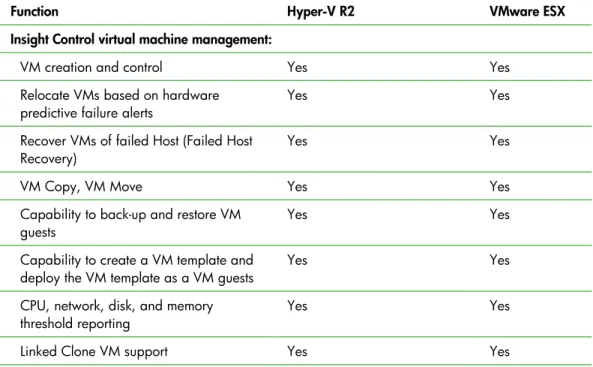
HP Insight Management and Matrix Operating Environment provide a common method for managing both Hyper-V R2 and VMware ESX virtual machines (VMs). Table 1 compares the capabilities of Insight Management and Matrix Operating Environment.
Table 1. Insight Management and Matrix Operating Environment software have management functions that apply to Hyper-V R2 and VMware ESX.
Function Hyper-V R2 VMware ESX
Insight Control virtual machine management:
VM creation and control Yes Yes Relocate VMs based on hardware
predictive failure alerts Yes Yes Recover VMs of failed Host (Failed Host
Recovery) Yes Yes
VM Copy, VM Move Yes Yes
Capability to back-up and restore VM
guests Yes Yes
Capability to create a VM template and
deploy the VM template as a VM guests Yes Yes CPU, network, disk, and memory
threshold reporting Yes Yes
3
Function Hyper-V R2 VMware ESX
Insight Control server migration:
Physical-to-virtual migrations Yes Yes Virtual-to-ProLiant migrations Yes Yes Virtual-to-virtual migrations Yes Yes
Matrix Operating Environment – Logical Servers:
Copy move Yes Yes
Quick move Yes Not applicable
SAN move Yes, requires a Hyper-V R2 Cluster Shared Volume (CSV) Cluster
Yes
Live move Yes, requires a Hyper-V R2
CSV Cluster Yes
Matrix Operating Environment—Matrix capacity planning:
Collect and view historical performance
data Yes Yes
Configure utilization limits for VM hosts
and guests Yes Yes
Matrix capacity planning scenarios Yes Yes Matrix capacity planning reports Yes Yes
Matrix Operating Environment—Unified control:
Discover networked, booted VMs Requires configuration: To discover VMs and clusters, add the IP addresses for virtual machines and cluster aliases to the HP Systems Insight Manager (HP SIM) discovery task.
Automatic
Discover clusters Requires configuration: To VMs and clusters, add the IP addresses for virtual machines and cluster aliases to the HP SIM discovery task.
Automatic
Visualize clusters Yes Yes
Visualize performance Yes Yes
Drag and drop VMs Yes Yes
Matrix infrastructure orchestration:
Visual design Yes Yes
4
How you can use Insight Management software with
Hyper-V R2
The following sections describe usage scenarios for Insight Management software.
Identifying and monitoring VMs
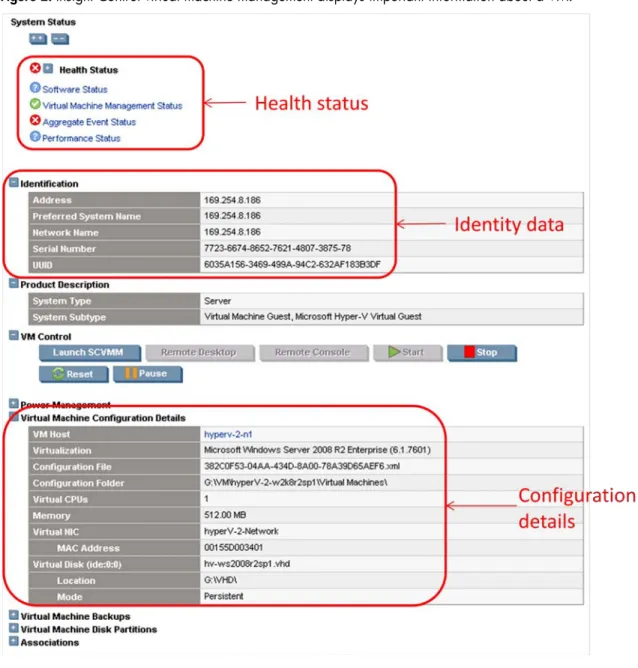
HP SIM unifies physical and virtual server management into one central application. As shown in Figure 2, HP SIM displays the health status and basic identity information for an individual Hyper-V R2 VM. If you add Insight Control virtual machine management, you can control the VM operation and view its detailed configuration from the same page.
5
Viewing and monitoring the cluster
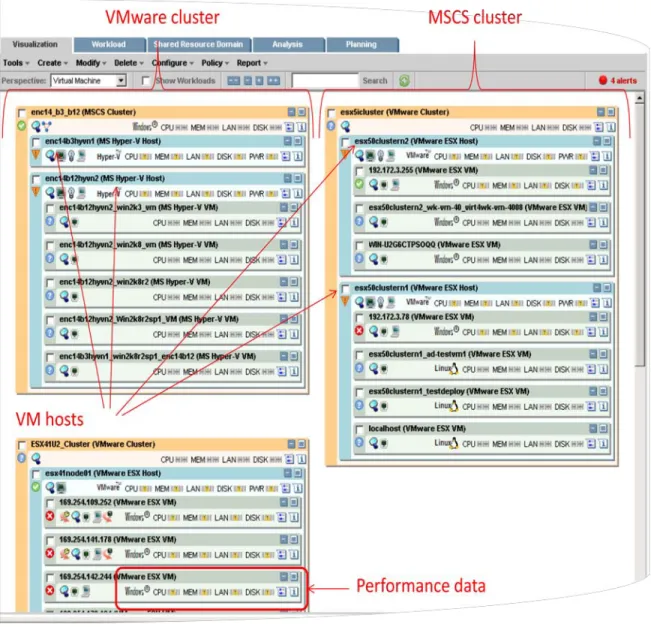
The Matrix OE plugs into the HP SIM, which allows you to manage physical and virtual environments. The GUI of the Matrix Operating Environment uses color, location, and icons to organize servers into a display that identifies either systems in the same cluster or virtual machines running the same host. You can group all Hyper-V R2 hosts on one screen or list them with other virtualization hosts and servers. Refer to Figure 3 for an example of the information that displays in the Matrix Operating Environment Virtualization Manager.
The same display also provides key monitoring information. For each server, a health status icon and performance data for processor, memory, disk, network, and power display. Other icons allow administrators to launch management tools: the HP SIM System Page, Integrated Lights Out remote console, and power management.
Figure 3. The Matrix Operating Environment Virtualization Manager organizes systems and displays important cluster information.
6
Recovering virtual machines
HP Matrix Operating Environment recovery management provides recovery of physical and virtual logical server environments. Matrix recovery management can transfer workloads to a recovery site located as far as a continent away. It integrates the replication capabilities of HP storage
environments to ensure that application data is properly replicated at the recovery location within minutes. For details about Matrix recovery management, see the “HP Insight Recovery” technical white paper at
Moving virtual machines
HP SIM agents monitor HP hardware and send notifications when they detect pre-failure conditions. The notifications go to the HP SIM central management server, which can respond by emailing or paging an administrator.
Using the Matrix Operating Environment logical server capability, you can drag and drop virtual machines onto another Hyper-V R2 host. The Matrix Operating Environment can use the Matrix capacity planning information to recommend where to place virtual machines. And, it can help you identify which Hyper-V R2 host has the following components available to support the VMs that you need to move:
• Microsoft Cluster Server • LAN connectivity • Storage connectivity
After you decide on a target, the Matrix Operating Environment uses the quickest method to move the VMs:
• “Copy moves” if the VMs are not on a Hyper-V R2 failover cluster • “Quick moves” if the VMs are on a Hyper-V R2 failover cluster
After you fix the problem on the server, you can drag and drop the virtual machines in the Matrix Operating Environment display to move them back to their original host.
Matrix capacity planning
To address an increasing demand for processing capacity, Capacity Advisor lets you restore a previously configured logical server. Matrix Operating Environment uses data from utilization monitoring daemons and HP SIM agents to give each host a multi-star rating. The performance and configuration requirements determine the rating. It calculates what the resource allocation would be like if the load were increased or decreased and what the resource utilization would be with combined loads. This “what if” analysis allows you to determine the best strategy for improving performance, such as balancing the loads between two Hyper-V R2 host servers. You can also generate historical usage reports, and then leverage these reports for show back and charge back.
Requesting resources using a self-service portal
Using Matrix infrastructure orchestration capabilities within the Matrix OE, you can provision infrastructure in minutes. You can activate physical and virtual servers, storage, and networking from pools of shared resources automatically. Whether you need a single virtual machine or infrastructure for a complex three-tier application, the Matrix OE finds available resources, streamlines the approval process, and automatically provisions and configures what is needed across infrastructure silos.
7 As an example, Matrix infrastructure orchestration can automatically provision authorized test and development templates. They can request resources through a self-service portal and its standard catalog of infrastructure services. After making their requests, they can use the self-service portal to track the status of resource requests from approval through the provisioning process. IT administrators no longer need to respond to frequent questions on the status of resource requests.
Once a new service has been designed and tested it is ready to go into production, Matrix
infrastructure orchestration can repurpose the test and development infrastructure for other uses. Based on best practice templates called Cloud Maps, you can provision certified infrastructure for production use.
Planning for Using Insight Management and Matrix OE
software with Hyper-V R2
Using Insight Management software with Hyper-V R2 involves the following resources: • Disk and memory
• Cluster discovery and management • Required Microsoft patches
• QLogic HBA driver upgrades, if using a QLogic HBA
Disk and memory considerations
You can create the volume on disk in Windows in three ways: • Assign a drive letter to the disk volume created
• Mount the disk volume to an empty folder in an existing partition
• Reference the disk directly using Volume GUID (Global Unique Identifier) if there is no drive letter or mount point assigned
Insight Management software supports disk access for Hyper-V R2 virtual machines. This resolves the limitation in the previous software release of 24 VMs per host and cluster.
In the Matrix capacity planning screens, Hyper-V R2 host headroom may have a one star rating. The headroom of the host and the headroom of each guest running on the host determine the rating. For Hyper-V R2 guests, memory reports at 100 percent (no headroom) because Microsoft Hyper-V R2 statically allocates memory for VMs and returns this value as the utilization. To work around this, remove the default Memory Utilization limit from the Workload Utilization Limits configuration for each guest.
Cluster discovery and management with HP SIM
HP SIM requires HP ProLiant Support Pack 8.20 (or later) to discover and associate members of a Windows 2008 Failover Cluster correctly. Install the support pack on cluster members before discovering and managing Windows 2008 Failover Clusters.
Microsoft Failover Cluster Manager does not set up reverse DNS lookup records in a way that allows HP SIM to discover and associate the cluster members with the cluster ID. For steps to correct the reverse DNS lookup records after creating a cluster, see the article “Registration of DNS PTR Records for a Failover Cluster on 2008 Server.” It is available at For the Matrix Operating Environment to manage a cluster host, use domain credentials to discover the cluster in HP SIM. You can discover cluster aliases and VMs using administrator credentials. In HP
8 SIM, you should not discover any other cluster services by name or IP address (a file or print server running on the cluster, for example).
Required patches for a Hyper-V R2 host server
After installing the following Microsoft updates, Insight Management software can manage
Hyper-V R2 hosts on Windows Server 2008 SP2 and Windows Server 2008 R2, as well as Hyper-V Server SP2:
• kb974605: Fixes memory leak in Windows Server 2008 and Windows Server 2008 SP2 resulting in improper Hyper-V systems management. Find this article at
• kb980081: Prevent deadlock situation and VM crash on highly loaded Windows Server 2008 SP2 system. Find this article at
• kb2410263: Fixes the problem in getting iSCSI disk information from Windows server 2008 R2 host using Insight Management software installed on 64-bit OS. Find this article at
The previous versions of Insight Management software, Insight Control, and Matrix Operating Environment 4.1 also support the original release of Windows Server 2008 (without SP2). For this configuration, either apply the following patches or apply SP2, which contains them:
• kb2568088: Fixes the inability to start a virtual machine on a server with an AMD processor that supports the Advanced Vector Extensions (AVX) feature—
• kb969266: Problem with SCSI controller configured when no disks are attached. Find this article at
• kb950050: Hyper-V RTM update
• kb956697: Hyper-V VSS writer is not used during a backup job—
• kb951308: Update for Failover Clustering
• kb956589: Disk performance counter patch
• kb956710: Increase the number of logical processors
• kb961730: Fix perflib memory leak on Windows Server 2008—
Upgrading QLogic HBA drivers for Hyper-V R2 quick/live migration
Earlier versions of the QLogic HBA driver can prevent Insight Management software from accessing detailed disk information. This can prevent you from selecting SAN disks as backup storage for virtual machine logical servers. That can also prevent you from using Hyper-V R2 quick migration or live migration. To solve the problem, install the QLogic HBA driver 9.1.8.25 (or later) using the following procedure:1. Go toSupport & Drivers.
2. Select Download drivers and software (and firmware). 3. Enter the product number for your QLogic HBA. 4. Select the operating system you are using.
5. Download the Storport Driver Component for QLogic FC HBAs and QLogic-based FC
9
CMS hardware requirements for running Insight Management software
For detailed information about CMS hardware requirements for running Insight Management software, refer to the HP Insight Management Support Matrix. Go to
NIC teaming with Windows Server 2008 Hyper-V
HP ProLiant Network Teaming Software lets your ProLiant systems running Windows Server 2008 Hyper-V take advantage of NIC teaming technology.
NIC teaming groups several physical NICs into a single logical NIC. It enhances fault tolerance by increasing availability of a server’s network connection. Multiple network paths let you balance network traffic for better performance.
To implement NIC teaming, see the HOWTO paper “Using HP ProLiant Network Teaming Software with Microsoft Windows Server 2008 Hyper-V or with Microsoft Window Server 2008 R2 Hyper-V” at
Conclusion
The Insight Management and Matrix Operating Environment portfolio of management software gives you tools to manage both physical and virtual servers from a single console, as well as manage your clusters. Its modular architecture allows you to deploy systems according to specific functions, choice of platforms, and virtualization methods. This integrated set of capabilities helps you manage your virtualization platforms throughout the lifecycle of the products.
© Copyright 2010−2012 Hewlett-Packard Development Company, L.P. The
information contained herein is subject to change without notice. The only warranties for HP products and services are set forth in the express warranty statements
accompanying such products and services. Nothing herein should be construed as constituting an additional warranty. HP shall not be liable for technical or editorial errors or omissions contained herein.
Microsoft and Windows are U.S. registered trademarks of Microsoft Corporation. AMD is a trademark of Advanced Micro Devices, Inc.
TC1112830, May 2012
For more information
Visit the URLs listed below if you need additional information. Resource description Web address
HP Insight Management
HP Systems Insight Manager
HP Insight Control
HP Matrix Operating Environment
Using HP ProLiant Network Teaming Software with Microsoft Windows Server 2008 Hyper-V or with Microsoft Window Server 2008 R2 Hyper-V
Send comments about this paper to