Graphic Generation Tool Installation Instructions
Code No. LIT-12011685
Software Release 1.3
Issued December 5, 2014
Refer to theQuickLIT websitefor the most up-to-date version of this document.Introduction...2
Related Documentation...2
Prerequisites...2
Upgrade Considerations...3
Detailed Procedures...4
Installing Microsoft .NET Framework Version 4.0...4
Installing the Graphic Generation Tool...4
Upgrading the Graphic Generation Tool...8
Changing the Default Language for GGT...11
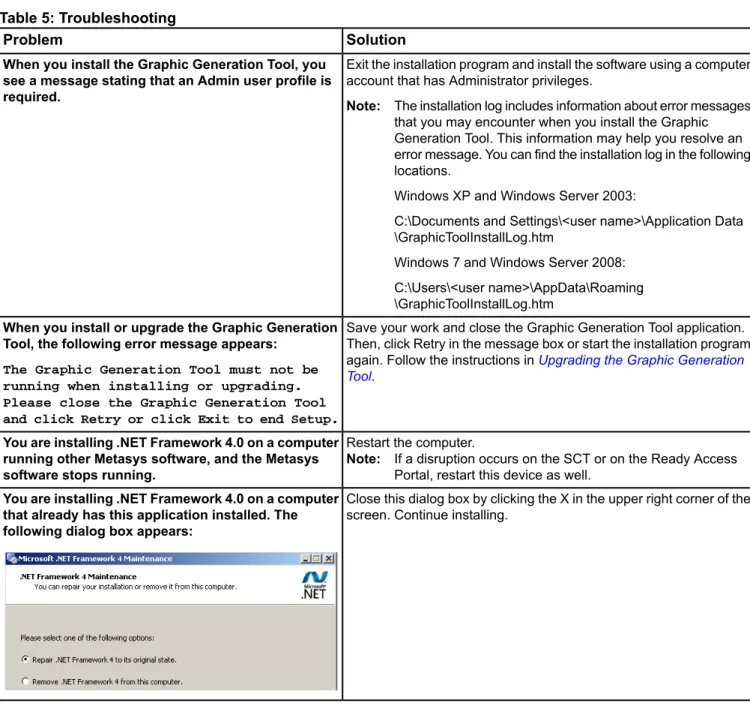
Troubleshooting...12
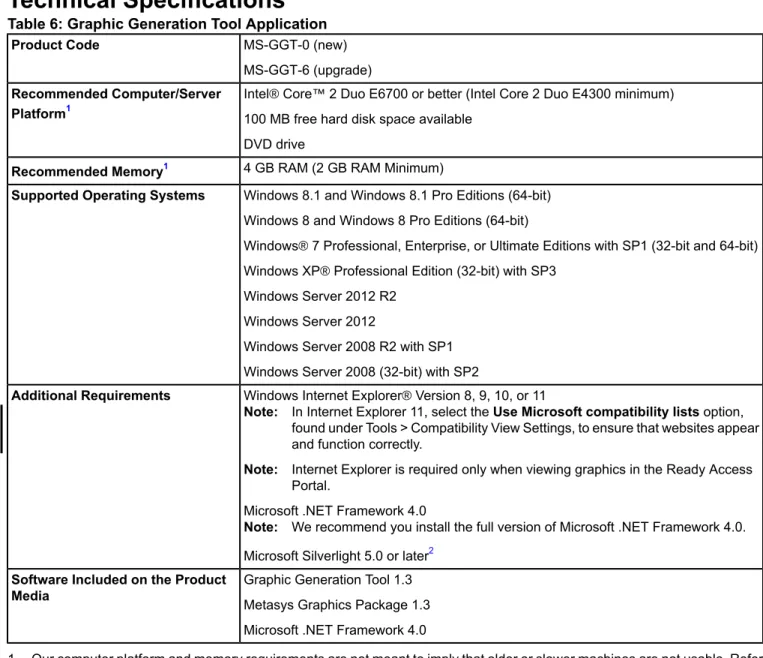
Technical Specifications...13
1 Graphic Generation Tool Installation Instructions
Introduction
This document describes how to install or upgrade the Graphic Generation Tool application for use with the Metasys
®
system.
The Graphic Generation Tool is used to create, open, save, customize, and configure Microsoft
®
Silverlight
™
based
graphics. The Graphic Generation Tool provides a palette of graphic elements, known as the Graphic Enterprise
Library (GEL), that lets you create detailed graphic representations of your building automation system. The tool
also lets you communicate with Metasys hosts and child devices. In turn, this communication allows you to be more
productive when creating, saving and modifying graphics because the graphics communicate directly with their
Metasys system.
Related Documentation
Table 1
lists documentation related to the Graphic Generation Tool.
Table 1: Related Documentation
See Document
For Information On
Metasys®System Configuration Guide (LIT-12011832) Metasys System
ADS, ADX, and SCT Installation and Upgrade Instructions Wizard (LIT-12011521)1
How to Install Microsoft Silverlight
Graphic Generation Tool Help (LIT-12011697) How to Use the Graphic Generation Tool and the
Graphic Enterprise Library (GEL)
Graphics+ Product Bulletin (LIT-12011698) Features Included in the Graphic Generation Tool
Graphics+ Style Guide Help (LIT-12011705) How to Build Standard Johnson Controls®Graphics
1 Use the wizard to generate instructions specific to your system.
Prerequisites
The prerequisites for using the Graphic Generation Tool depend on whether you intend to use the tool to create
graphics and use the Site Management Portal or Ready Access Portal to view graphics. Use of the GGT in a language
other than English requires an additional prerequisite.
If you need to create graphics only:
•
verify the computer has Microsoft
®
.NET Framework Version 4.0 software before you install the Graphic Generation
Tool. This application is included on the Graphic Generation Tool product media. See
Installing Microsoft .NET
Framework Version 4.0
if you need to install this application.
Note:
The full version of Microsoft
®
.NET Framework Version 4.0 software is included in the product media. If
you do not have access to the product media, you can download the software from here:
http://www.microsoft.com/en-us/download/details.aspx?id=24872
.
If you need to create and view graphics:
•
verify the computer has Microsoft
®
.NET Framework Version 4.0 software before you install the Graphic Generation
Tool. See
Installing Microsoft .NET Framework Version 4.0
if you need to install this application.
Note:
The full version of Microsoft
®
.NET Framework Version 4.0 software is included in the product media. If
you do not have access to the product media, you can download the software from here:
http://www.microsoft.com/en-us/download/details.aspx?id=24872
.
•
install Microsoft Silverlight 5.0 or later.
•
install Metasys system Patch 5.2.12 (or later). For details, refer to the
Metasys Software Patch 5.2.12 Flash
Sheet (LIT-2013F5)
.
Note:
You only need to install Metasys system patch 5.2.12 if you are working with Metasys Release 5.2.
2 Graphic Generation Tool Installation Instructions
If you require the Graphic Generation Tool in a language other than English, you need to install the Language
Installation Program (LIP) and apply the appropriate translated language pack on the same computer as the GGT.
For details, refer to the
Language Installation Program Installation Instructions (LIT-12011793)
.
Upgrade Considerations
If you are upgrading GGT, the upgrade process does not affect any existing Graphics+ objects in the Metasys
system; it simply updates the Metasys Graphics package. The functionality of all existing graphics is retained. After
you complete the upgrade, some new Version 1.3 features become available automatically, while others require
user action. See
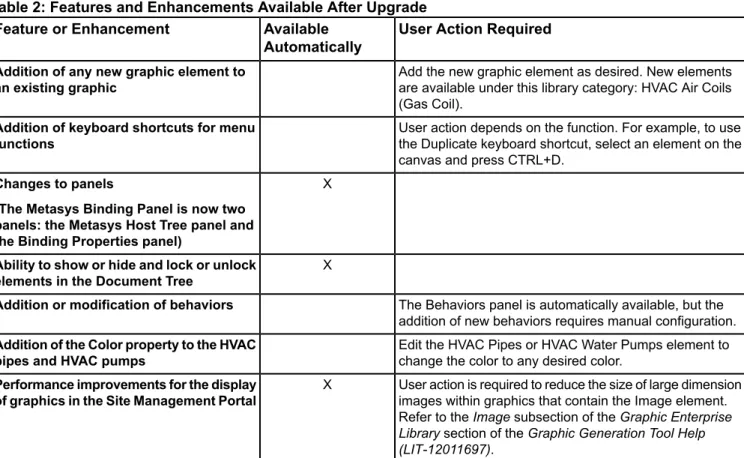
Table 2
.
Table 2: Features and Enhancements Available After Upgrade
User Action Required
Available
Automatically
Feature or Enhancement
Add the new graphic element as desired. New elements are available under this library category: HVAC Air Coils (Gas Coil).
Addition of any new graphic element to an existing graphic
User action depends on the function. For example, to use the Duplicate keyboard shortcut, select an element on the canvas and press CTRL+D.
Addition of keyboard shortcuts for menu functions
X
Changes to panels
(The Metasys Binding Panel is now two panels: the Metasys Host Tree panel and the Binding Properties panel)
X
Ability to show or hide and lock or unlock elements in the Document Tree
The Behaviors panel is automatically available, but the addition of new behaviors requires manual configuration.
Addition or modification of behaviors
Edit the HVAC Pipes or HVAC Water Pumps element to change the color to any desired color.
Addition of the Color property to the HVAC pipes and HVAC pumps
User action is required to reduce the size of large dimension images within graphics that contain the Image element. Refer to theImagesubsection of theGraphic Enterprise Librarysection of theGraphic Generation Tool Help (LIT-12011697).
X
Performance improvements for the display of graphics in the Site Management Portal
3 Graphic Generation Tool Installation Instructions
Detailed Procedures
Installing Microsoft .NET Framework Version 4.0
To install the Full version of Microsoft
®
.NET Framework Version 4.0 software:
1. Insert the Graphic Generation Tool product disc.
2. Browse to the .NET Framework 4.0 folder on the product disc.
3. Double-click
dotNETFx40_Full_x86_x64.exe.
4. Follow the .NET Framework Setup installation instructions until the installation is complete.
Note:
After installing .NET Framework 4.0 on a computer running other Metasys software, you may need to restart
the computer. For example, on an Application and Data Server (ADS), the Metasys III Device Manager service
may stop while you are installing .NET Framework 4.0. Normal operation of the System Configuration Tool
(SCT) and Ready Access Portal may be disrupted as well.
Note:
We recommend that you do not install the GGT on an ADS or ADX directly.
Installing the Graphic Generation Tool
When you install the Graphic Generation Tool, the install program installs both the Graphic Generation Tool and the
Metasys Graphics Package.
You use the Graphic Generation Tool to create and modify graphics. You deploy the Metasys Graphics Package to
a Metasys host during a host update that you can initiate through the tool. This package contains the graphics
libraries that let you view the graphics using the Metasys Site Management Portal and Ready Access Portal. For
more information on the Metasys Graphics Package, refer to the Deploying Graphics Package Updates section of
the Graphic Generation Tool
Help (LIT-12011697)
.
Note:
To upgrade the Graphic Generation Tool, see
Upgrading the Graphic Generation Tool
.
4 Graphic Generation Tool Installation Instructions
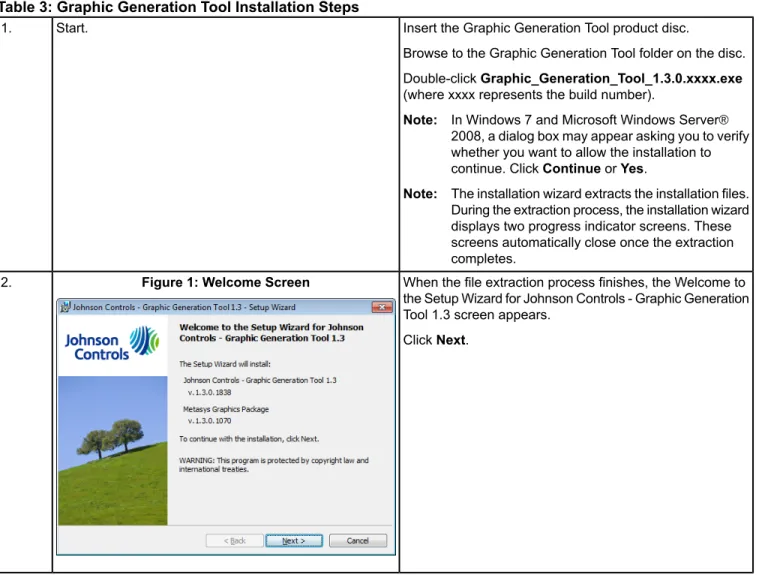
Table 3: Graphic Generation Tool Installation Steps
Insert the Graphic Generation Tool product disc.
Browse to the Graphic Generation Tool folder on the disc. Double-clickGraphic_Generation_Tool_1.3.0.xxxx.exe
(where xxxx represents the build number).
Note: In Windows 7 and Microsoft Windows Server®
2008, a dialog box may appear asking you to verify whether you want to allow the installation to continue. ClickContinueorYes.
Note: The installation wizard extracts the installation files. During the extraction process, the installation wizard displays two progress indicator screens. These screens automatically close once the extraction completes.
Start. 1.
When the file extraction process finishes, the Welcome to the Setup Wizard for Johnson Controls - Graphic Generation Tool 1.3 screen appears.
ClickNext.
Figure 1: Welcome Screen
2.
5 Graphic Generation Tool Installation Instructions
Table 3: Graphic Generation Tool Installation Steps
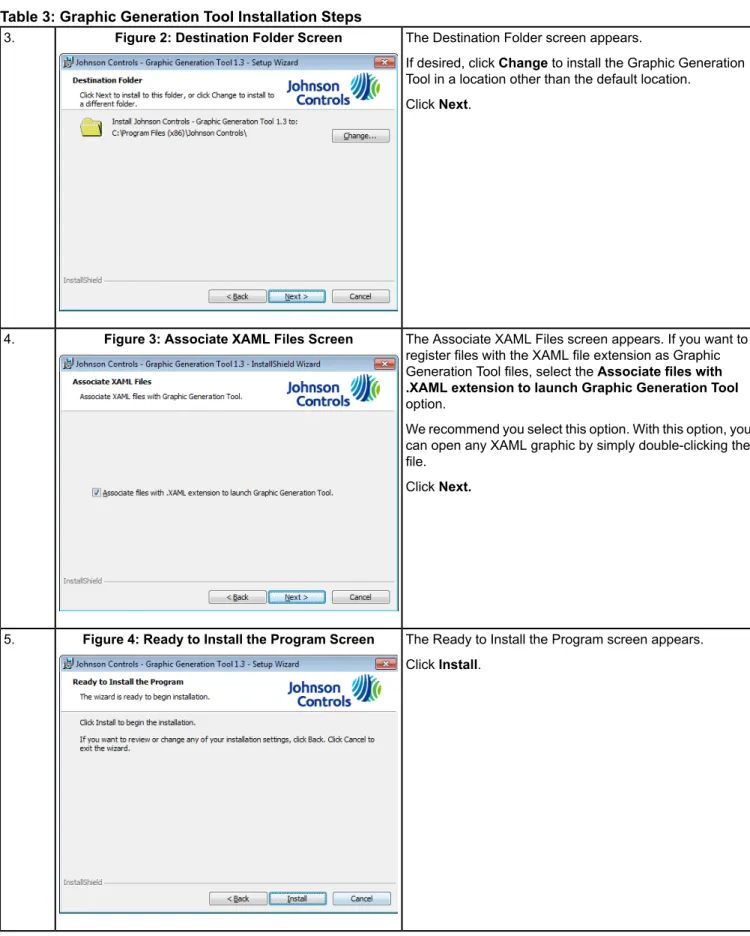
The Destination Folder screen appears.
If desired, clickChangeto install the Graphic Generation Tool in a location other than the default location.
ClickNext.
Figure 2: Destination Folder Screen
3.
The Associate XAML Files screen appears. If you want to register files with the XAML file extension as Graphic Generation Tool files, select theAssociate files with .XAML extension to launch Graphic Generation Tool
option.
We recommend you select this option. With this option, you can open any XAML graphic by simply double-clicking the file.
ClickNext. Figure 3: Associate XAML Files Screen
4.
The Ready to Install the Program screen appears. ClickInstall.
Figure 4: Ready to Install the Program Screen
5.
6 Graphic Generation Tool Installation Instructions
Table 3: Graphic Generation Tool Installation Steps
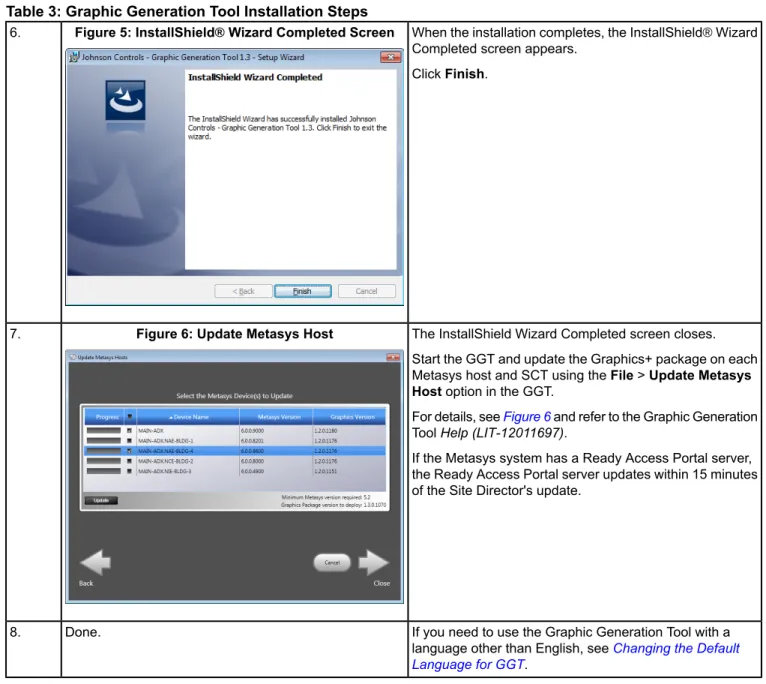
When the installation completes, the InstallShield®Wizard Completed screen appears.
ClickFinish.
Figure 5: InstallShield®Wizard Completed Screen
6.
The InstallShield Wizard Completed screen closes. Start the GGT and update the Graphics+ package on each Metasys host and SCT using theFile>Update Metasys Hostoption in the GGT.
For details, seeFigure 6and refer to the Graphic Generation ToolHelp (LIT-12011697).
If the Metasys system has a Ready Access Portal server, the Ready Access Portal server updates within 15 minutes of the Site Director's update.
Figure 6: Update Metasys Host
7.
If you need to use the Graphic Generation Tool with a language other than English, seeChanging the Default Language for GGT.
Done. 8.
7 Graphic Generation Tool Installation Instructions
Upgrading the Graphic Generation Tool
If you need to upgrade the Graphic Generation Tool to a new version, you do not need to uninstall the existing
version. The upgrade product media automatically overwrites the existing version. Before you begin the upgrade
procedure, however, be sure that the Graphic Generation Tool is not running.
Table 4: Graphic Generation Tool Upgrade Steps
Insert the Graphic Generation Tool upgrade product disc. Browse to the Graphic Generation Tool folder on the disc. Double-clickGraphic_Generation_Tool_1.3.0.xxxx.exe
(where xxxx represents the build number).
Note: In Windows 7 and Windows Server 2008, a dialog box may appear asking you to verify whether you want to allow the installation to continue. Click
ContinueorYes.
Note: The installation wizard extracts the installation files. During the extraction process, the installation wizard displays two progress indicator screens. These screens automatically close once the extraction completes.
Start. 1.
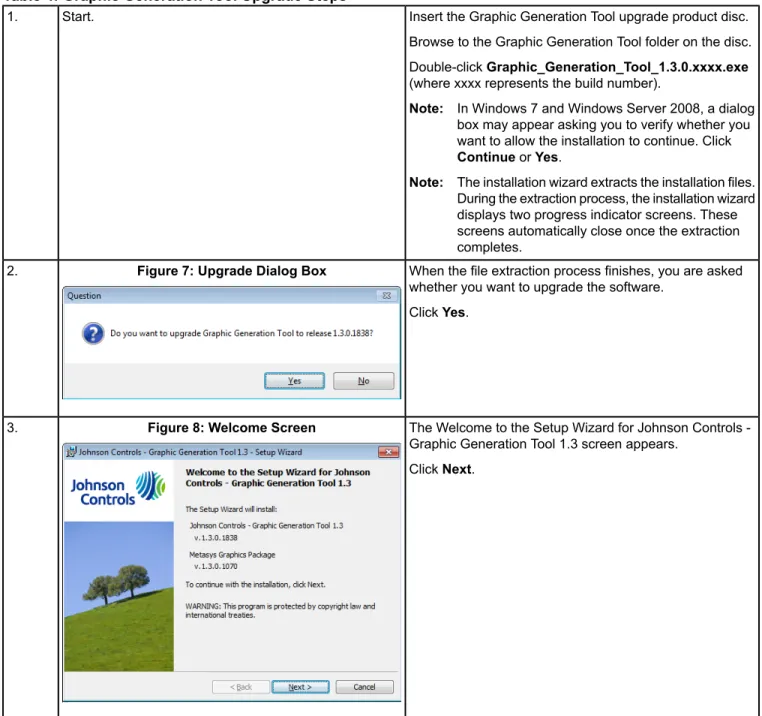
When the file extraction process finishes, you are asked whether you want to upgrade the software.
ClickYes.
Figure 7: Upgrade Dialog Box
2.
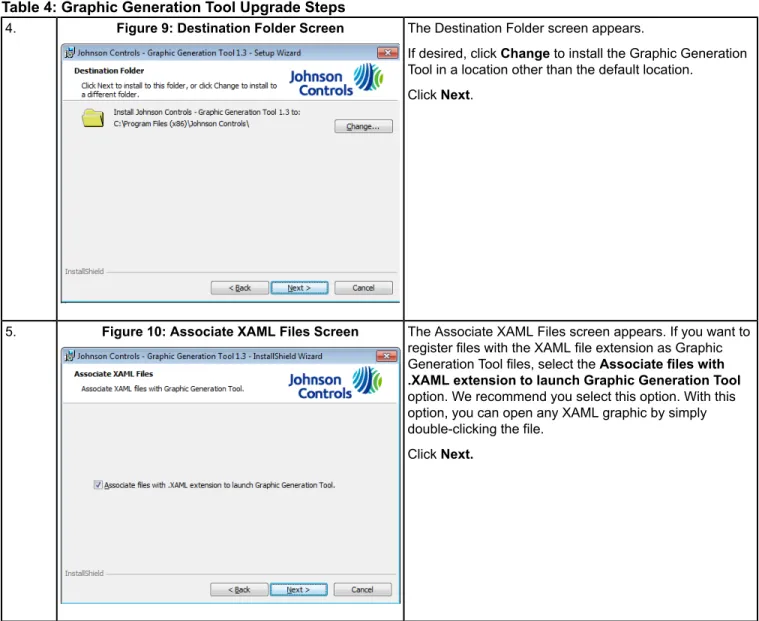
The Welcome to the Setup Wizard for Johnson Controls -Graphic Generation Tool 1.3 screen appears.
ClickNext.
Figure 8: Welcome Screen
3.
8 Graphic Generation Tool Installation Instructions
Table 4: Graphic Generation Tool Upgrade Steps
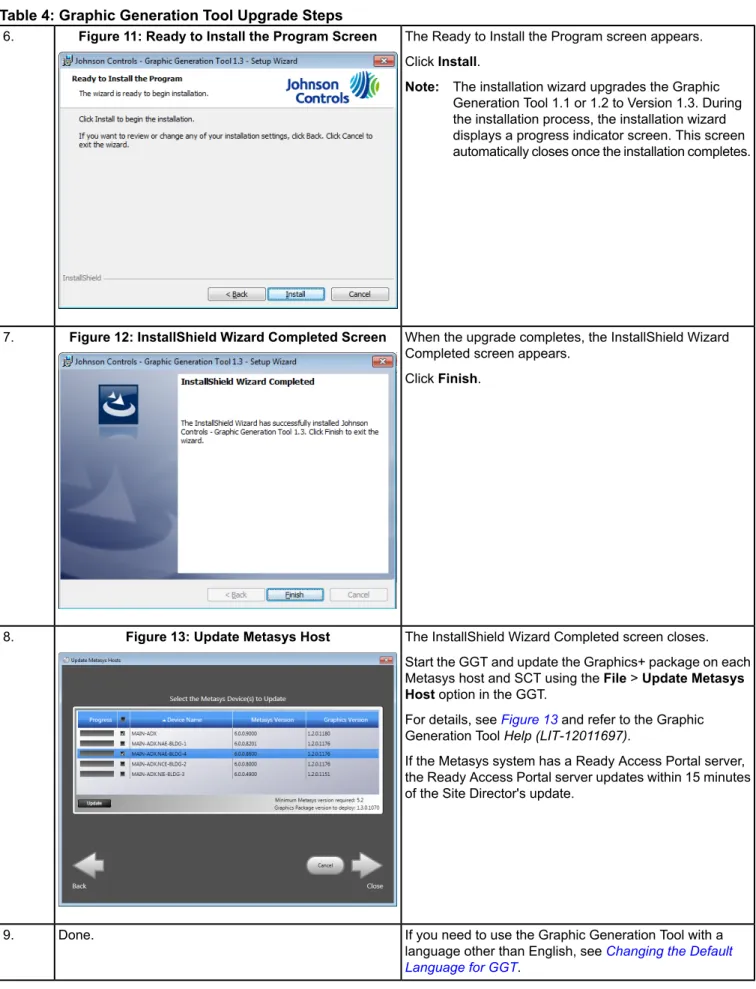
The Destination Folder screen appears.
If desired, clickChangeto install the Graphic Generation Tool in a location other than the default location.
ClickNext.
Figure 9: Destination Folder Screen
4.
The Associate XAML Files screen appears. If you want to register files with the XAML file extension as Graphic Generation Tool files, select theAssociate files with .XAML extension to launch Graphic Generation Tool
option. We recommend you select this option. With this option, you can open any XAML graphic by simply double-clicking the file.
ClickNext. Figure 10: Associate XAML Files Screen
5.
9 Graphic Generation Tool Installation Instructions
Table 4: Graphic Generation Tool Upgrade Steps
The Ready to Install the Program screen appears. ClickInstall.
Note: The installation wizard upgrades the Graphic Generation Tool 1.1 or 1.2 to Version 1.3. During the installation process, the installation wizard displays a progress indicator screen. This screen automatically closes once the installation completes.
Figure 11: Ready to Install the Program Screen
6.
When the upgrade completes, the InstallShield Wizard Completed screen appears.
ClickFinish.
Figure 12: InstallShield Wizard Completed Screen
7.
The InstallShield Wizard Completed screen closes. Start the GGT and update the Graphics+ package on each Metasys host and SCT using theFile>Update Metasys Hostoption in the GGT.
For details, seeFigure 13and refer to the Graphic Generation ToolHelp (LIT-12011697).
If the Metasys system has a Ready Access Portal server, the Ready Access Portal server updates within 15 minutes of the Site Director's update.
Figure 13: Update Metasys Host
8.
If you need to use the Graphic Generation Tool with a language other than English, seeChanging the Default Language for GGT.
Done. 9.
10 Graphic Generation Tool Installation Instructions
Changing the Default Language for GGT
Note:
Use the following procedure to change the language used for menus, messages, and tool tips in the Graphic
Generation Tool. The LIP tool is required for these steps.
1. Using the LIP tool, add any languages you need to support.
2. Start GGT.
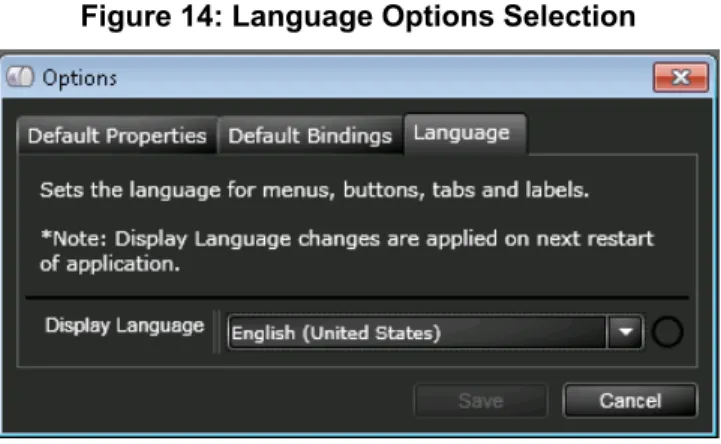
3. Click the
View
>
Options
menu item. The Options dialog box appears.
Figure 14: Language Options Selection
4. Click the language tab.
5. In the Display Language field, select your language.
6. Click
Save
, and then click
OK
in the Changing Language alert box..
Figure 15: Language Change Confirmation
7. Restart the GGT for the language change to take effect.
11 Graphic Generation Tool Installation Instructions
Troubleshooting
Table 5
provides troubleshooting information for the Graphic Generation Tool application.
Table 5: Troubleshooting
Solution
Problem
Exit the installation program and install the software using a computer account that has Administrator privileges.
Note: The installation log includes information about error messages that you may encounter when you install the Graphic Generation Tool. This information may help you resolve an error message. You can find the installation log in the following locations.
Windows XP and Windows Server 2003:
C:\Documents and Settings\<user name>\Application Data \GraphicToolInstallLog.htm
Windows 7 and Windows Server 2008: C:\Users\<user name>\AppData\Roaming \GraphicToolInstallLog.htm
When you install the Graphic Generation Tool, you see a message stating that an Admin user profile is required.
Save your work and close the Graphic Generation Tool application. Then, click Retry in the message box or start the installation program again. Follow the instructions inUpgrading the Graphic Generation Tool.
When you install or upgrade the Graphic Generation Tool, the following error message appears:
The Graphic Generation Tool must not be running when installing or upgrading. Please close the Graphic Generation Tool and click Retry or click Exit to end Setup.
Restart the computer.
Note: If a disruption occurs on the SCT or on the Ready Access Portal, restart this device as well.
You are installing .NET Framework 4.0 on a computer running other Metasys software, and the Metasys software stops running.
Close this dialog box by clicking the X in the upper right corner of the screen. Continue installing.
You are installing .NET Framework 4.0 on a computer that already has this application installed. The following dialog box appears:
12 Graphic Generation Tool Installation Instructions
Technical Specifications
Table 6: Graphic Generation Tool Application
MS-GGT-0 (new) MS-GGT-6 (upgrade)Product Code
Intel®Core™2 Duo E6700 or better (Intel Core 2 Duo E4300 minimum) 100 MB free hard disk space available
DVD drive
Recommended Computer/Server Platform1
4 GB RAM (2 GB RAM Minimum)
Recommended Memory1
Windows 8.1 and Windows 8.1 Pro Editions (64-bit) Windows 8 and Windows 8 Pro Editions (64-bit)
Windows®7 Professional, Enterprise, or Ultimate Editions with SP1 (32-bit and 64-bit) Windows XP®Professional Edition (32-bit) with SP3
Windows Server 2012 R2 Windows Server 2012
Windows Server 2008 R2 with SP1 Windows Server 2008 (32-bit) with SP2
Supported Operating Systems
Windows Internet Explorer®Version 8, 9, 10, or 11
Note: In Internet Explorer 11, select theUse Microsoft compatibility listsoption, found under Tools > Compatibility View Settings, to ensure that websites appear and function correctly.
Note: Internet Explorer is required only when viewing graphics in the Ready Access Portal.
Microsoft .NET Framework 4.0
Note: We recommend you install the full version of Microsoft .NET Framework 4.0. Microsoft Silverlight 5.0 or later2
Additional Requirements
Graphic Generation Tool 1.3 Metasys Graphics Package 1.3 Microsoft .NET Framework 4.0
Software Included on the Product Media
1 Our computer platform and memory requirements are not meant to imply that older or slower machines are not usable. Refer to theNetwork and IT Guidance for the BAS Professional Technical Bulletin (LIT-12011279)for more information regarding computer/server recommendations.
2 Microsoft Silverlight is only required for viewing the graphics that were created using the Graphic Generation Tool. For instructions on installing Microsoft Silverlight, refer to theADS, ADX, and SCT Installation and Upgrade Instructions Wizard (LIT-12011521)or theReady Access Portal Software Installation Instructions (LIT-12011523).
Building Efficiency 507 E. Michigan Street, Milwaukee, WI 53202 Metasys®and Johnson Controls®are registered trademarks of Johnson Controls, Inc. All other marks herein are the marks of their respective owners.©2014 Johnson Controls, Inc. www.johnsoncontrols.com Published in U.S.A.
13 Graphic Generation Tool Installation Instructions