Cisco Small Business Pro
Cisco Unified Communications Manager Express for the
Cisco Small Business Pro IP Phone SPA525G (SPCP)
Federal Communication Commission Interference Statement
This equipment has been tested and found to comply with the limits for a Class B digital device, pursuant to Part 15 of the FCC Rules. These limits are designed to provide reasonable protection against harmful interference in a residential installation. This equipment generates, uses and can radiate radio frequency energy and, if not installed and used in accordance with the instructions, may cause harmful interference to radio communications. However, there is no guarantee that
interference will not occur in a particular installation. If this equipment does cause harmful
interference to radio or television reception, which can be determined by turning the equipment off and on, the user is encouraged to try to correct the interference by one of the following measures: - Reorient or relocate the receiving antenna.
- Increase the separation between the equipment and receiver.
- Connect the equipment into an outlet on a circuit different from that to which the receiver is connected.
- Consult the dealer or an experienced radio/TV technician for help.
FCC Caution: Any changes or modifications not expressly approved by the party responsible for compliance could void the user's authority to operate this equipment.
This device complies with Part 15 of the FCC Rules. Operation is subject to the following two conditions: (1) This device may not cause harmful interference, and (2) this device must accept any interference received, including interference that may cause undesired operation.
IMPORTANT NOTE:
FCC Radiation Exposure Statement:
This equipment complies with FCC radiation exposure limits set forth for an uncontrolled environment. This equipment should be installed and operated with minimum distance 20cm between the radiator & your body.
This transmitter must not be co-located or operating in conjunction with any other antenna or transmitter.
Industry Canada statement:
This device complies with RSS-210 of the Industry Canada Rules. Operation is subject to the following two conditions:
(1) This device may not cause harmful interference, and (2) this device must accept any interference received, including interference that may cause undesired operation.
IMPORTANT NOTE:
Radiation Exposure Statement:
This equipment complies with IC radiation exposure limits set forth for an uncontrolled environment. This equipment should be installed and operated with minimum distance 20cm between the radiator & your body.
CCDE, CCSI, CCENT, Cisco Eos, Cisco HealthPresence, the Cisco logo, Cisco Lumin, Cisco Nexus, Cisco Nurse Connect, Cisco Stackpower, Cisco StadiumVision, Cisco TelePresence, Cisco WebEx, DCE, and Welcome to the Human Network are trademarks; Changing the Way We Work, Live, Play, and Learn and Cisco Store are service marks; and Access Registrar, Aironet, AsyncOS, Bringing the Meeting To You, Catalyst, CCDA, CCDP, CCIE, CCIP, CCNA, CCNP, CCSP, CCVP, Cisco, the Cisco Certified Internetwork Expert logo, Cisco IOS, Cisco Press, Cisco Systems, Cisco Systems Capital, the Cisco Systems logo, Cisco Unity, Collaboration Without Limitation, EtherFast, EtherSwitch, Event Center, Fast Step, Follow Me Browsing, FormShare, GigaDrive, HomeLink, Internet Quotient, IOS, iPhone, iQuick Study, IronPort, the IronPort logo, LightStream, Linksys, MediaTone, MeetingPlace, MeetingPlace Chime Sound, MGX, Networkers, Networking Academy, Network Registrar, PCNow, PIX, PowerPanels, ProConnect, ScriptShare, SenderBase, SMARTnet, Spectrum Expert, StackWise, The Fastest Way to Increase Your Internet Quotient, TransPath, WebEx, and the WebEx logo are registered trademarks of Cisco Systems, Inc. and/or its affiliates in the United States and certain other countries.
All other trademarks mentioned in this document or website are the property of their respective owners. The use of the word partner does not imply a partnership relationship between Cisco and any other company. (0903R)
Contents
Chapter 1: Getting Started
8
Overview of the Cisco SPA525G IP Phone
8
Caring for Your Phone 9
Understanding Your Phone’s Lines and Buttons
10
Phone Components 10
Softkey Buttons 12
Using the Keypad and Buttons with Menus
15
Using Keypad Shortcuts 15
Using the Navigation Button 15
Entering Numbers and Text in Fields
15
Using Phone Hardware and Accessories
16
Using the Speakerphone 16
Using Wired and Wireless Headsets 16 Switching Between the Handset, Headset, and Speakerphone 19
Chapter 2: Installing Your Phone
20
Before You Begin
20
Connecting the Handset
21
(Optional) Attaching the Desk Stand
23
(Optional) Mounting the Phone to the Wall
24
Reverse the Handset Retention Tab 26
Connecting Your Phone’s Power
27
Connecting Your Phone to the Computer Network
28
Connecting Your Phone to the Wired Network 28 Connecting Your Phone to the Wireless Network 28
Verifying Phone Startup
36
Chapter 3: Using Basic Phone Functions
37
Placing or Answering a Call
38
Adjusting Call Volume and Muting
39
Contents
Using Mute 39
Putting a Call on Hold
39
Resuming a Call
39
Ending a Call
39
Transferring Calls
40
Managing Call Waiting
40
Recording a Live Call
41
Viewing and Returning Missed Calls
41
Viewing a List of Missed Calls 41
Forwarding Calls
42
Setting Do Not Disturb
43
Picking Up a Call
43
Parking a Call
44
Placing a Three-Way Conference Call
44
Using the Phone Directories
45
Using Your Personal Address Book 45 Using the Corporate Directory 48
Using the Call History Lists
48
Viewing the Call History Lists 48
Deleting a Call History List 49
Calling from the Call History Lists 49 Deleting an Entry from the Call History Lists 50 Saving a Call History List Number to Your Directory 50
Accessing Voicemail
50
Chapter 4: Using Advanced Phone Features
51
Playing MP3 Files on Your Phone
51
Creating the Playlist 51
Contents
Setting the Screen Backlight Timer 54 Configuring the Phone Screen Saver 55
Changing the Phone Wallpaper 56
Restarting Your Phone
56
Viewing Phone, Network, and Call Information
57
Viewing Phone Information 57
Viewing Network Information 57
Viewing Peripheral Status 58
Viewing the Wireless Connection Status
58
Advanced Menus for Technical Support Personnel
59
Chapter 5: Using the Web Interface
60
Logging in to the Web Interface
60
Configuring Speed Dials and Fast Dials
61
Changing Your Password and PIN
63
Setting Up Voice Mail Notifications
63
Appendix A: Where to Go From Here
65
Preface
About This Document
Purpose
This guide describes the concepts and tasks necessary to use and configure your Cisco SPA525G IP Phone.
NOTE The SPA525G features vary, depending on the type of call control system that you are using. This document describes using the SPA525G with a SCCP phone system, such as the Cisco Unified Communications 500 Series. If you are using the SPA525G phone with the Cisco SPA9000 Voice System or a Broadsoft or Asterisk system, see the Cisco Unified Communications Manager Express for Cisco Unified IP Phone 525G User Guide.
Organization
This table describes the contents of each chapter in this document.
Chapter Title Description
Chapter 1 Getting Started Provides an overview of the SPA525G IP phone.
Chapter 2 Installing Your Phone Connecting your hardware and the SPA525G phone to the network. Chapter 3 Using Basic Phone
Functions
Performing basic phone functions, such as making, transferring, forwarding, and parking calls, creating conference calls, and using the phone directory and call history lists.
Preface
Finding Information in PDF Files
The FrameMaker documents are published as PDF files. The PDF Find/Search tool within Adobe® Reader® lets you find information quickly and easily online. You can perform the following tasks:
•
Search an individual PDF file.•
Search multiple PDF files at once (for example, all PDFs in a specific folder or disk drive).•
Perform advanced searches.Finding Text in a PDF
Follow this procedure to find text in a PDF file.
STEP 1 Enter your search terms in the Find text box on the toolbar.
NOTE By default, the Find tool is available at the right end of the Acrobat toolbar. If the Find tool does not appear, choose Edit > Find.
STEP 2 Optionally, click the arrow next to the Find text box to refine your search by choosing special options such as Whole Words Only.
Chapter 5 Using the Web Interface Accessing the web user interface for your phone to configure your
address book, speed dials, and other phone features.
Appendix A Additional Information Additional information for your product.
Appendix B Where to Go From Here Provides URLs for related product documentation and resources available on Cisco.com.
Preface
STEP 3 Press Enter.
STEP 4 Acrobat displays the first instance of the search term. STEP 5 Press Enter again to continue to more instances of the term.
Finding Text in Multiple PDF Files
The Search window lets you search for terms in multiple PDF files that are stored on your PC or local network. The PDF files do not need to be open.
STEP 1 Start Acrobat Professional or Adobe Reader.
STEP 2 Choose Edit > Search, or click the arrow next to the Find box and then choose
Open Full Acrobat Search.
STEP 3 In the Search window, complete the following steps: a. Enter the text that you want to find.
b. Choose All PDF Documents in.
From the drop-down box, choose Browse for Location. Then choose the location on your computer or local network, and click OK.
c. If you want to specify additional search criteria, click Use Advanced Search Options, and choose the options you want.
Preface
STEP 4 When the Results appear, click + to open a folder, and then click any link to open the file where the search terms appear.
For more information about the Find and Search functions, see the Adobe Acrobat online help.
1
Getting Started
This chapter provides an overview of your SPA525G IP phone. contains the following sections:
•
Overview of the Cisco SPA525G IP Phone, page 8•
Understanding Your Phone’s Lines and Buttons, page10•
Using the Keypad and Buttons with Menus, page15•
Entering Numbers and Text in Fields, page15•
Using Phone Hardware and Accessories, page16Getting Started
Overview of the Cisco SPA525G IP Phone
1
The Cisco SPA525G IP Phone is a full-featured VoIP (Voice over Internet Protocol) phone that provide voice communication over an IP network. It provides traditional features, such as call forwarding, redialing, speed dialing, transferring calls,
conference calling and accessing voice mail. Calls can be made or received with a handset, headset or speaker.
The SPA525G phone is connected to the network through its Ethernet connection or the built-in Wireless-G connection. If you are using the Wireless-G connection, a separate power adapter (PA-100) is required. The SPA525G provides an additional Ethernet port that allows a computer to be connected to the network through the IP phone. (This option is only available when phone is connected to the network via the wired Ethernet connection).
Unlike traditional phones, the Cisco SPA525G requires a separate power source. Either connect your phone to an Ethernet switch that provides Power over Ethernet (PoE), or use a separate power adapter (PA-100).
The SPA525G has a 320 x 240 color, 3.2" inch LCD screen and provides up to five telephone extensions. It provides the following hardware features:
•
2 Ethernet 10/100 Mbps ports•
802.3af Power over Ethernet support•
USB 2.0 host port for connecting a USB memory device to play MP3 music files•
AUX port•
Bluetooth capability for headset support•
2.5mm stereo earphone jack for headset•
Wireless-G client support•
Kensington security slot supportCaring for Your Phone
The Cisco Small Business Pro IP phones are electronic devices that should not be exposed to excessive heat, sun, cold or water. To clean the equipment, use a slightly moistened paper or cloth towel. Do not spray or pour cleaning solution directly onto the hardware unit.
Getting Started
Understanding Your Phone’s Lines and Buttons
1
Understanding Your Phone’s Lines and Buttons
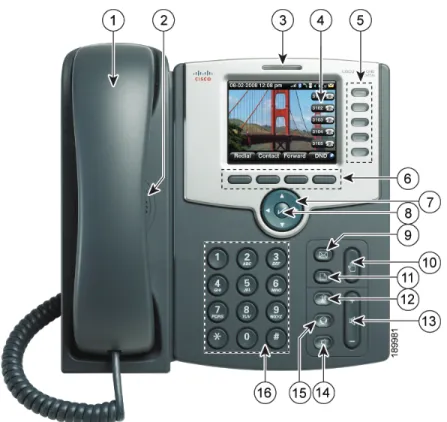
Use the following graphic and table to identify the parts of your phone.
Phone Components
Figure 1 SPA525G Phone Components
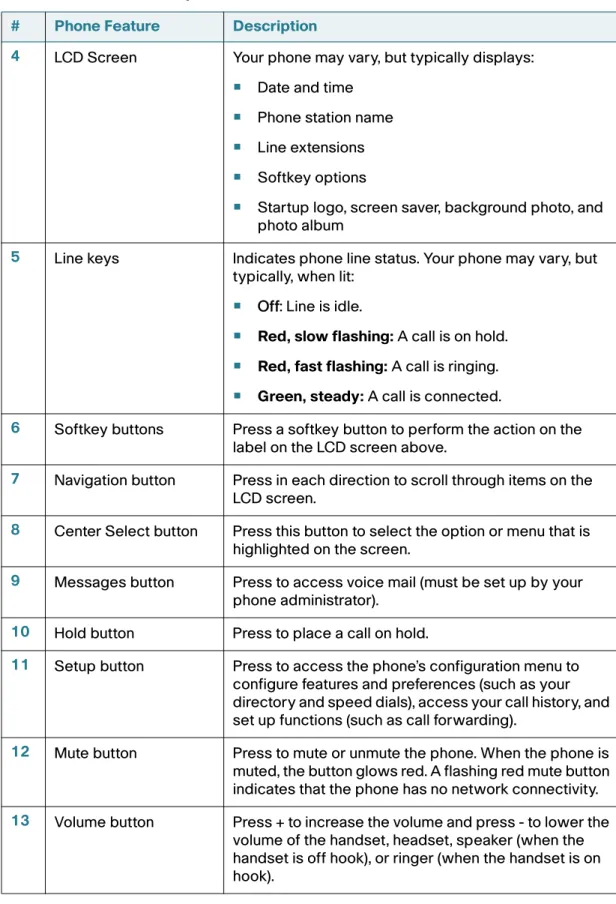
Table 1 IP Phone Components
# Phone Feature Description
1 Handset Pick up to answer or place calls.
2 Speaker Speaker for phone.
Getting Started
Understanding Your Phone’s Lines and Buttons
1
4 LCD Screen Your phone may vary, but typically displays:
•
Date and time•
Phone station name•
Line extensions•
Softkey options•
Startup logo, screen saver, background photo, and photo album5 Line keys Indicates phone line status. Your phone may vary, but typically, when lit:
•
Off: Line is idle.•
Red, slow flashing: A call is on hold.•
Red, fast flashing: A call is ringing.•
Green, steady: A call is connected.6 Softkey buttons Press a softkey button to perform the action on the label on the LCD screen above.
7 Navigation button Press in each direction to scroll through items on the LCD screen.
8 Center Select button Press this button to select the option or menu that is highlighted on the screen.
9 Messages button Press to access voice mail (must be set up by your phone administrator).
10 Hold button Press to place a call on hold.
11 Setup button Press to access the phone’s configuration menu to configure features and preferences (such as your directory and speed dials), access your call history, and set up functions (such as call forwarding).
12 Mute button Press to mute or unmute the phone. When the phone is muted, the button glows red. A flashing red mute button indicates that the phone has no network connectivity.
13 Volume button Press + to increase the volume and press - to lower the volume of the handset, headset, speaker (when the handset is off hook), or ringer (when the handset is on hook).
Table 1 IP Phone Components
Getting Started
Understanding Your Phone’s Lines and Buttons
1
Softkey Buttons
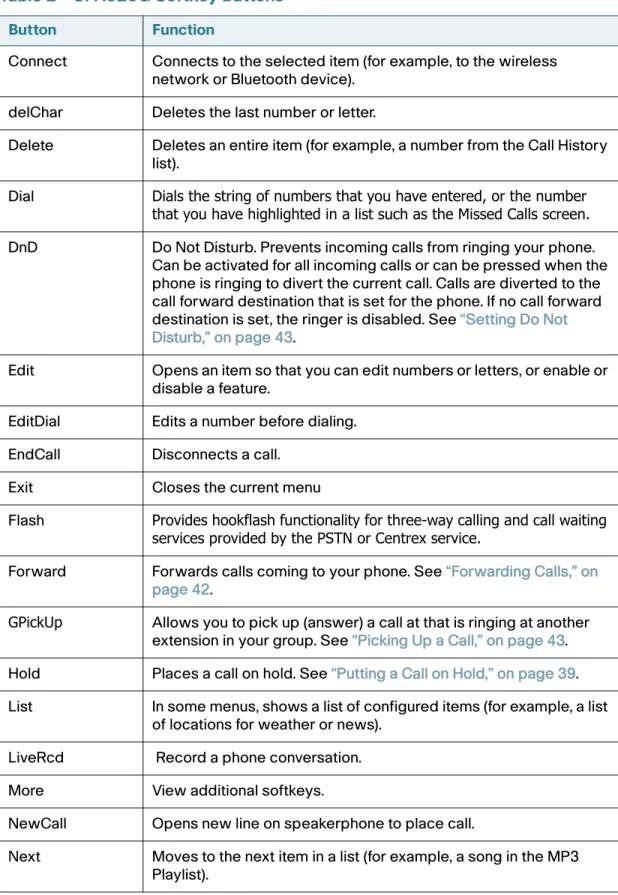
The four softkey buttons have different functions depending on the phone screen or menu that is shown. The following table shows the SPA525G softkey buttons that are available (in alphabetical order).
NOTE The availability of buttons depends on your phone system setup. Some buttons may not be available on your phone.
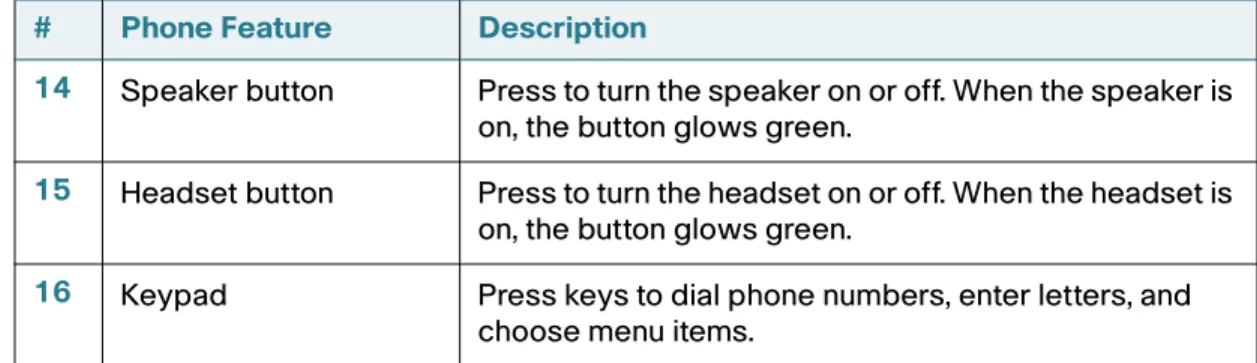
14 Speaker button Press to turn the speaker on or off. When the speaker is on, the button glows green.
15 Headset button Press to turn the headset on or off. When the headset is on, the button glows green.
16 Keypad Press keys to dial phone numbers, enter letters, and choose menu items.
Table 1 IP Phone Components
# Phone Feature Description
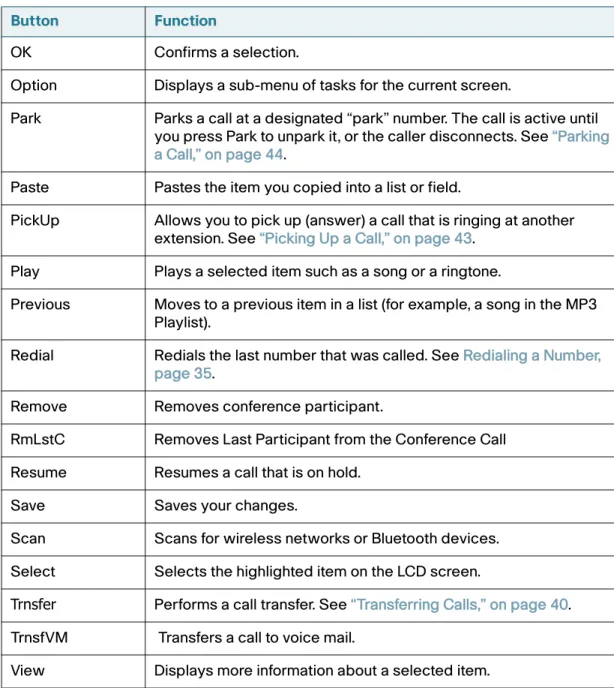
Table 2 SPA525G Softkey Buttons Button Function
Add Adds a new item (for example, a new directory entry). AddList Creates a list (for example, of MP3 files to play). Back Returns you to the previous screen.
Callback Notifies callers that called line is free. Cbarge Allows callers to join a shared-line call.
CFwdALL Forwards all calls to a specified number. When forwarding is active, press this button to cancel forwarding.
Clear Deletes an entire text/number field.
Getting Started
Understanding Your Phone’s Lines and Buttons
1
Connect Connects to the selected item (for example, to the wireless network or Bluetooth device).
delChar Deletes the last number or letter.
Delete Deletes an entire item (for example, a number from the Call History list).
Dial Dials the string of numbers that you have entered, or the number
that you have highlighted in a list such as the Missed Calls screen.
DnD Do Not Disturb. Prevents incoming calls from ringing your phone. Can be activated for all incoming calls or can be pressed when the phone is ringing to divert the current call. Calls are diverted to the call forward destination that is set for the phone. If no call forward destination is set, the ringer is disabled. See “Setting Do Not Disturb,” on page 43.
Edit Opens an item so that you can edit numbers or letters, or enable or disable a feature.
EditDial Edits a number before dialing. EndCall Disconnects a call.
Exit Closes the current menu
Flash Provides hookflash functionality for three-way calling and call waiting
services provided by the PSTN or Centrex service.
Forward Forwards calls coming to your phone. See “Forwarding Calls,” on page 42.
GPickUp Allows you to pick up (answer) a call at that is ringing at another extension in your group. See “Picking Up a Call,” on page 43. Hold Places a call on hold. See “Putting a Call on Hold,” on page 39. List In some menus, shows a list of configured items (for example, a list
of locations for weather or news). LiveRcd Record a phone conversation. More View additional softkeys.
NewCall Opens new line on speakerphone to place call.
Next Moves to the next item in a list (for example, a song in the MP3 Playlist).
Table 2 SPA525G Softkey Buttons Button Function
Getting Started
Understanding Your Phone’s Lines and Buttons
1
OK Confirms a selection.
Option Displays a sub-menu of tasks for the current screen.
Park Parks a call at a designated “park” number. The call is active until you press Park to unpark it, or the caller disconnects. See “Parking a Call,” on page 44.
Paste Pastes the item you copied into a list or field.
PickUp Allows you to pick up (answer) a call that is ringing at another extension. See “Picking Up a Call,” on page 43.
Play Plays a selected item such as a song or a ringtone.
Previous Moves to a previous item in a list (for example, a song in the MP3 Playlist).
Redial Redials the last number that was called. See Redialing a Number, page 35.
Remove Removes conference participant.
RmLstC Removes Last Participant from the Conference Call Resume Resumes a call that is on hold.
Save Saves your changes.
Scan Scans for wireless networks or Bluetooth devices. Select Selects the highlighted item on the LCD screen.
Trnsfer Performs a call transfer. See “Transferring Calls,” on page 40. TrnsfVM Transfers a call to voice mail.
View Displays more information about a selected item.
Table 2 SPA525G Softkey Buttons Button Function
Getting Started
Using the Keypad and Buttons with Menus
1
Using the Keypad and Buttons with Menus
You press a softkey button or other buttons to enter menus on the LCD screen.
Using Keypad Shortcuts
Use the keypad to enter the number of the menu or sub-menu item. For example, to open a menu that is labeled with number 2, press 2.
NOTE Menus and options can change depending on the software release.
Using the Navigation Button
Use the navigation button to scroll up or down through the menu items, and then press the Select softkey button or the center Select button to choose the highlighted item.
Entering Numbers and Text in Fields
Some fields on the IP phones require you to enter numbers and text using the keypad and/or softkey buttons. In general, the following guidelines apply:
•
Use the keypad to enter numbers and characters, pressing the key multiple times to select the correct number or letter.•
Press the number key multiple times to move to a different letter under that number. (For example, to enter “Mary,” you would press 6 five times rapidly and then pause (for M); press 2 and then pause (for A), press 7 three times rapidly (for r), then press 9 three times rapidly (for y).Available characters are shown in the following table:
Key Character Set
1 1 / : \ , ! ; $ ^ |
Getting Started
Using Phone Hardware and Accessories
1
Use the delChar softkey button to backspace and delete the last character. Use the Option > Clear softkey button to remove the entire entry.
Using Phone Hardware and Accessories
Using the Speakerphone
The SPA IP Phones provide a speakerphone. To use the speakerphone, press the Speaker button (the handset can be either on or off hook).
Using Wired and Wireless Headsets
The SPA IP Phones support headsets from different manufacturers. For the latest supported models, contact your reseller. Additional information can be found at the manufacturer’s websites:
http://www.plantronics.com http://www.jabra.com
3 def3DEF
4 ghi4GHI
5 jkl5JKL
6 mno6MNO
7 pqrs7PQRS
8 tuv8TUV
9 wxyz9WXYZ
0 Space 0 ~ ? > ‘ < “
* . @ * & % [ ] _
#/P # + - = ( ) { }
Getting Started
Using Phone Hardware and Accessories
1
Connecting the Headset
Each brand and type of headset may require different steps for connection. Consult the documentation for your particular headset for more information. In general, to connect a headset:
•
For Bluetooth headsets: See the ”Connecting Bluetooth Headsets” section on page18.•
For wireless, non-Bluetooth headsets (such as Plantronics or Jabra): Connect the headset’s telephone cord into the telephone port on the back of the SPA IP Phone.•
For wired headsets: Connect the 2.5mm connector from the headset into the headset port on the right side of the IP phone, as shown in the following illustration:Getting Started
Using Phone Hardware and Accessories
1
Connecting Bluetooth Headsets
Your phone is Bluetooth compatible and works with Bluetooth devices such as headsets.
To configure the phone to work with your headset, first enable Bluetooth:
STEP 1 Press the Setup button. STEP 2 Select User Preferences. STEP 3 Select Bluetooth.
STEP 4 With Bluetooth selected, press the Right Arrow key to turn Bluetooth On. STEP 5 Press Save.
After enabling Bluetooth, create a profile for your headset:
STEP 1 In the Bluetooth Configuration screen, scroll to Bluetooth Profiles. Press the Right Arrow key to enter the profile screen.
STEP 2 Press Scan to scan for your headset.
STEP 3 In the list of found devices, select your headset and press the Select button to edit the profile.
STEP 4 Scroll to PIN and enter the PIN for your Bluetooth headset.
STEP 5 Scroll to Connect Automatically and press the Right Arrow key to turn to On. STEP 6 Press Connect. The profile screen displays and a check mark appears next to the
Getting Started
Using Phone Hardware and Accessories
1
Using a Headset with Your IP Phone
•
To use a wired headset, press the Headset button on your phone and dial the number to place a call, or press the headset button to answer a ringing call.•
To use a non-Bluetooth wireless headset (such as Jabra or Plantronics), lift the receiver off hook before speaking or listening through the headset.•
To use a Bluetooth headset, make sure your headset is powered on. Press the Headset button on your phone (or, if supported, press the Answer button on your Bluetooth headset twice) and dial the number to place a call. Press the Answer button on your Bluetooth headset to answer a ringing call. See the user documentation for your Bluetooth headset for moreinformation.
Switching Between the Handset, Headset, and
Speakerphone
Any of these audio devices can be used during a call. Only one device can be used at a time. The handset can be on the hook when using the speakerphone or headset function.
To switch from the handset to the speakerphone, press the Speakerphone button and place the handset back on the hook.
To switch from the speakerphone to a headset, press the Headset button. To switch from the speakerphone to the handset, pick up the handset.
To switch from the headset to the speakerphone, press the Speakerphone button.
NOTE: Steps to use your headset with the SPA IP Phone may vary. Consult the user documentation for your headset for more information.
2
Installing Your Phone
This chapter describes how to install and connect your Cisco SPA525G IP Phone. It contains the following sections:
•
Before You Begin, page 20•
Connecting the Handset, page 21•
(Optional) Attaching the Desk Stand, page 23•
(Optional) Mounting the Phone to the Wall, page 24•
Connecting Your Phone’s Power, page 27•
Connecting Your Phone to the Computer Network, page 28•
Verifying Phone Startup, page 36Before You Begin
Before you install and connect your phone, verify with your System Administrator (if applicable) that the network is ready for the phone, read the safety notices, and make sure you have all the phone parts and documentation available.
NOTE: The RJ-11 port marked “AUX” is not for use as a telephone line port.
Installing Your Phone
Connecting the Handset
2
Connecting the Handset
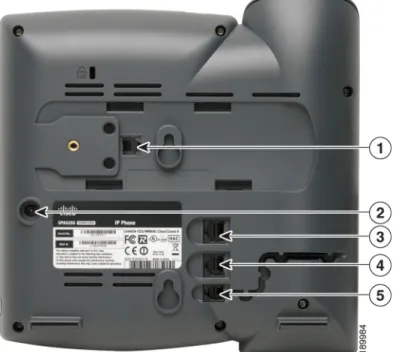
STEP 1 Find the longer end of the coiled phone cord. Insert it into the back of the phone base in the slot marked with a phone symbol. This port is labeled #6 on the Cisco SPA525G IP Phone Connections graphic.
STEP 2 Insert the short end of the handset cord into the jack at the bottom of the handset (not shown).
Installing Your Phone
Connecting the Handset
2
Number Component 1 Auxiliary port.
2 Power port. Insert the power adapter plug into this port.
3 Additional Ethernet port. Connect an Ethernet cable to this port to provide network connectivity to a PC. (This port cannot be used when the phone is connected to the network via the built-in Wireless-G client.)
4 Ethernet port. Connect the network cable to this port.
5 Phone cord slot. Insert one end of the phone cord into this slot and the other into the jack at the bottom of the phone handset.
not numbered
Installing Your Phone
(Optional) Attaching the Desk Stand
2
(Optional) Attaching the Desk Stand
STEP 1 Line up the tabs on the desk stand with the slots on the back of the phone. STEP 2 Slide the bottom tabs into the slots
STEP 3 Lightly press down on the top of the desk stand. It should easily slide into the top slots. Do not force.
NOTE: Do not attach the desk stand if you want to mount the phone to the wall.
Installing Your Phone
(Optional) Mounting the Phone to the Wall
2
(Optional) Mounting the Phone to the Wall
To mount the phone to the wall, you must purchase the MB100 wall mount bracket kit.
Installing Your Phone
(Optional) Mounting the Phone to the Wall
2
STEP 1 To attach the Mounting Bracket (MB), align the two cleats on the MB with the holes in the phone’s base.
STEP 2 Orient the MB such that the phone’s Ethernet and handset ports are accessible after installation.
STEP 3 Push the MB onto the phone’s base. Slide the MB upwards to lock it in place.
Installing Your Phone
(Optional) Mounting the Phone to the Wall
2
STEP 5 Hang onto screws mounted in the wall.
Reverse the Handset Retention Tab
If you mount the phone to a vertical surface, you must reverse the handset retention tab on the phone body so that the handset does not fall off the phone when it is placed on the cradle.
STEP 1 Push the latch in.
Installing Your Phone
Connecting Your Phone’s Power
2
STEP 3 Rotate the tab 180° and re-insert into the phone base. The tab now catches the slot in the handset when the handset is placed onto the cradle.
Connecting Your Phone’s Power
If you are using an external power source, plug it into the building’s power source, and plug the power supply into the phone base. See Figure 2 on page 21, item #2.
NOTE: The SPA525G does not ship with a power supply. If you are not using Power over Ethernet (PoE), you must order the PA-100 power supply separately from Cisco.
Installing Your Phone
Connecting Your Phone to the Computer Network
2
If you are using Power over Ethernet (PoE) to power the phone, the phone will receive power when you connect an Ethernet cable from the phone’s SW port to a switch in your network that provides PoE. See the ”Connecting Your Phone to the Wired Network” section on page 28.
Connecting Your Phone to the Computer Network
Connecting Your Phone to the Wired Network
You connect your phone to the local network by using an Ethernet cable:
STEP 1 Plug the Ethernet cable into the back of the base station into the slot marked “SW.” This port is labeled #4 on Figure 2 on page 21.
STEP 2 Plug the other end of the Ethernet cable into the appropriate device on your network, such as a network switch.
Connecting Your Phone to the Wireless Network
NOTE The PC port is not supported in wireless operation. The PC port is only supported in a wired operation.
NOTE: The SPA525G provides a second Ethernet port. You can connect a PC to this port to provide network access to the PC. This port is labeled #4 in the Cisco SPA525G IP Phone Connectionsfigure. This port cannot be used when the phone is connected to the network via the built-in Wireless-G client.
Installing Your Phone
Connecting Your Phone to the Computer Network
2
The SPA525G works with the following security types:
•
WEP—Wired Equivalent Privacy. With this type of security, you need to enter a 64 or 128-bit key on the phone (or a more easily remembered passphrase to generate the key). The phone then authenticates with your router to provide a secure connection.•
WPA—Wi-Fi Protected Access. The SPA525G supports WPA PSK, WPA2 PSK, WPA Enterprise, and WPA2 Enterprise. With this type of security, you will at the very minimum be required to enter a password on the phone. The phone then authenticates with your router to provide a secure connection.Determining Your Wireless Router Security Type
If you do not know your wireless router security type, you need to log in to the router interface to get this information. The steps below are written for a Linksys router, but procedures for other routers should be similar.
STEP 1 Log in to your wireless router’s web interface using a web browser. Your computer must be connected to your wireless network. Enter the IP address of the wireless router in the browser toolbar.
STEP 2 If required, enter the user name and password. (By default, Linksys routers typically use “admin” for the user name and “admin” for the password.)
STEP 3 View the Wireless tab or screen. Note the network name (SSID) and the type of security (WEP, WPA Personal, or WPA2 Personal).
If your router is using WEP, note the following information:
•
WEP encryption: 64 bit or 128 bit. You need to choose this later.•
Default transmit key, or TX key: The default key (of the 4) that the router transmits to authenticate. This value will be 1, 2, 3, or 4.•
Passphrase and keys: You choose one of two methods to enter the WEP key. You either directly enter the WEP key, or enter a more simpleInstalling Your Phone
Connecting Your Phone to the Computer Network
2
The following example shows WEP information for a Linksys WRV200 router:
If your router is using WPA, note the WPA shared key, or passphrase that you need to enter later.
Installing Your Phone
Connecting Your Phone to the Computer Network
2
The following example shows WPA information for a Linksys WRT160N router:
To set up the SPA525G wireless connection:
STEP 1 If you have plugged in an Ethernet cable to connect the phone to the wired network, remove it and reboot the phone. If an Ethernet connection is present on the phone, it is used instead of the Wi-Fi connection.
STEP 2 Press the Setup button on your phone.
STEP 3 Scroll to Network Configuration and press the Select button.
STEP 4 In the Wi-Fi field, press the Left or Right Arrow key to turn Wi-Fi On. Press the Save softkey button.
Installing Your Phone
Connecting Your Phone to the Computer Network
2
STEP 6 Choose one of the following options:
•
Wireless Profile—Use this option to add a new wireless profile (either manually or by scanning for available networks), edit an existing wireless profile, or connect to a previously configured network. See Manually Adding a Wireless Profile on the SPA525G, page 33.•
Wi-Fi Protected Setup—If your wireless router supports Wi-Fi Protected Setup, use this method to set up your wireless connection. See Using Wi-Fi Protected Setup with the SPA525G, page 32.Using Wi-Fi Protected Setup with the SPA525G
STEP 1 In the Wireless Configuration screen, select Wi-Fi Protected Setup. STEP 2 Choose one of the following options:
Push Button Configuration:
a. Press the WPS button on your router.
b. On your phone, with Push Button Configuration highlighted, press the Select button. Your phone may reboot before the Wi-Fi connection is working.
PIN Configuration
a. After selecting PIN Configuration on your phone, note the PIN displayed. b. Connect to your router’s web interface using a web browser. Your computer
must be connected to your wireless network. Enter the IP address of the wireless router in the browser address bar.
c. If required, enter the user name and password. (By default, Linksys routers typically use “admin” for the user name and “admin” for the password.) d. View the Wireless tab or screen. Locate the Wireless Protected Setup If your router has a WPS button, you can use Wi-Fi Protected
Installing Your Phone
Connecting Your Phone to the Computer Network
2
e. Enter the PIN into the field that allows you to setup wireless devices using a PIN.
f. Save your changes.
g. On the SPA525G, with PIN Configuration highlighted, press the Select button. To add the connection as a profile, press OK. Your phone may reboot before the Wi-Fi connection is working.
Manually Adding a Wireless Profile on the SPA525G
To add a new wireless network profile:
STEP 1 In the Network Configuration screen, ensure Wi-Fi is enabled.
STEP 2 Scroll to Wi-Fi Configuration. Press the Right Arrow key to enter the Wi-Fi Configuration screen.
STEP 3 Select Wireless Profile. Any previously configured wireless profiles are displayed. STEP 4 Do one of the following tasks:
•
Scan for available networks. See Scanning for Available Networks, page 33.•
Manually add the network. See Manually Adding a Network, page 34.Scanning for Available Networks
NOTE If your router has SSID (router name) broadcast disabled, it may not appear in the list of networks. In that case, you need to manually add it (see Manually Adding a Network, page 34).
STEP 1 In the Wireless Profile screen, press Scan.
STEP 2 In the list of available networks, scroll to the desired network and click Add to select the highlighted network.
Installing Your Phone
Connecting Your Phone to the Computer Network
2
STEP 3 (Optional) Press the Right Arrow key under Security Mode to set the security options:
•
WEP—Wired Equivalent Privacy: You must enter the Default Transmit Key, Key Type and Length, and the keys.•
WPA PSK or WPA2 PSK: You must enter the Cipher Type (TKIP or AES CCMP) and the shared key.•
WPA/WPA2 Enterprise: This type of authentication requires some advanced expertise because it involves setting up a radius server for authentication and, in some cases, creation of certificates for both the radius server and the phone. SeeYou must enter the Cipher Type (TKIP or AES CCMP) and the EAP Type:
-
TTLS—Enter the anonymous ID, choose whether the phone should check for the server certificate, choose the TTLS Inner Protocol (MSCHV2, MSCHAP, PAP, CHAP, or MD5), and enter the User ID and password.-
LEAP—Enter the User ID and password.-
TLS—Enter the User ID, choose whether the phone should check for the server certificate, enter the User ID, and configure the Root certificate and User certificate (see the ”Uploading Security Certificates to the Phone” section on page 35).STEP 4 To save as a wireless profile, press Save.
Manually Adding a Network
STEP 1 From the Wireless Profile screen, press Option and select Add New to manually add the network.
STEP 2 (Optional) Press the Right Arrow key under Security Mode to set the security options:
•
WEP—Wired Equivalent Privacy: You must enter the Default Transmit Key, Key Type and Length, and the keys.•
WPA PSK or WPA2 PSK: You must enter the Cipher Type (TKIP or AES CCMP) and the shared key.Installing Your Phone
Connecting Your Phone to the Computer Network
2
•
WPA/WPA2 Enterprise: You must enter the Cipher Type (TKIP or AES CCMP) and the EAP Type:-
TTLS: Enter the anonymous ID (typically, “anonymous” unless the radius server has other rules), choose whether the phone should check for the server certificate, choose the TTLS Inner Protocol (MSCHV2, MSCHAP, PAP, CHAP, or MD5), and enter the User ID and password.-
LEAP: Enter the User ID and password.-
TLS: Enter the User ID, choose whether the phone should check for the server certificate, enter the User ID, and configure the Root certificate and User certificate (see the ”Uploading Security Certificates to the Phone” section on page 35).STEP 3 To save as a wireless profile, press Save.
Uploading Security Certificates to the Phone
If you are using some types of wireless security (for example, WPA2 Enterprise), you will need to upload security certificates to the phone. Certificates must be in the following format:
•
Root certificate: DER encoded binary x.509 (CER)•
User certificate: Personal Information Exchange (PKCS#12(.PFX))STEP 1 Connect a USB storage device to your PC.
STEP 2 Create a directory named “ca” on the USB device and copy the certificate files into that directory.
STEP 3 Remove the USB device from your PC and insert it into the USB slot on the SPA525G.
STEP 4 After creating a wireless profile, in the Profile screen, press the Right Arrow key under Security Mode to set the security options (WPA Enterprise or WPA2 Enterprise).
STEP 5 Scroll to Root Certificate and press the Right Arrow key. All files in the “ca” folder are displayed.
Installing Your Phone
Verifying Phone Startup
2
STEP 6 Use the Up Arrow or Down Arrow key to choose the certificate you want to install (for example, the root certificate). Press the Select softkey.
STEP 7 Press Save to save the profile.
Verifying Phone Startup
After receiving power and network connectivity, the phone executes a boot-up sequence. During this sequence, the display shows the Cisco logo. All of the lights on the phone will flash. After the sequence, which should take about five seconds, the phone will display the standard menu for the phone. The date, name and number of the phone appear on the top line of the LCD screen. At the bottom of the LCD screen, softkeys appear over their associated soft buttons.
If the phone does not display this screen, confirm your installation and
connections. If these are correct, try unplugging the phone and plugging it back in again. If you still don’t see the display, then contact your Phone Administrator or Internet Telephony Service Provider (ITSP).
3
Using Basic Phone Functions
This chapter describes how to use the basic functions of your SPA525G IP phone. It includes the following sections:
•
Placing or Answering a Call, page 38•
Adjusting Call Volume and Muting, page 39•
Putting a Call on Hold, page 39•
Resuming a Call, page 39•
Ending a Call, page 39•
Transferring Calls, page 40•
Managing Call Waiting, on page 40•
Recording a Live Call, on page 41•
Viewing and Returning Missed Calls, page 41•
Forwarding Calls, page 42•
Setting Do Not Disturb, page 43•
Picking Up a Call, page 43•
Parking a Call, page 44•
Placing a Three-Way Conference Call, page 44•
Using the Phone Directories, page 45•
Using the Call History Lists, page 48Using Basic Phone Functions
Placing or Answering a Call
3
Placing or Answering a Call
Depending on the phone system setup, you may be able to place or answer calls by using various methods.
To place or answer a call, do one of these tasks:
•
Pick up the receiver.•
Press the Speaker button.•
Press the Headset button.•
Press a line button.•
Dial the number, and then lift the handset.•
Dial the number, and then press the Dial soft key.•
Press the New Call soft key, and then dial.•
Select a number from the directory, and then press the Dial soft key.•
Press Redial to dial the last number that you called.•
If you are on a call and another call comes in, press the Answer soft key to place the current call on hold and answer the incoming call. To return to the first call, select it using the Up Arrow key or the Down Arrow key and then press the Resume softkey.•
To place a new call while another call is active on the same line, press the Holdbutton, and then press New Call and enter the number.
NOTE: You may have to dial a number or numbers to reach an outside line. Ask your system administrator.
Using Basic Phone Functions
Adjusting Call Volume and Muting
3
Adjusting Call Volume and Muting
Adjusting Call Volume
To adjust the volume while you are on a call, press + on the Volume button to increase the volume, or press - to decrease the volume. Press Save.
Pressing the Volume button while not on a call adjusts the volume of the phone’s ringer.
Using Mute
To mute the phone microphone, speaker, or headset microphone, press the Mute button on the phone. The button lights red. Press the Mute button again to unmute.
Putting a Call on Hold
To put a call on hold, press the Hold button. A series of beeps indicates the call is on hold.
Resuming a Call
To resume the call, press the flashing red line button for the call. If you have multiple calls, all calls are put on hold except the active call.
Ending a Call
To end a call:
•
If you are using the handset, hang up.•
If you are using the speakerphone, press the Speaker button.•
If you are using the headset, either press the Headset button (wired) or replace the receiver (wireless).Using Basic Phone Functions
Transferring Calls
3
Transferring Calls
You can transfer a call to another extension.
STEP 1 During an active call, or a call on hold, press Trnsfer. STEP 2 Do one of the following tasks:
•
Enter the number to which you want to transfer the call; or•
Use the directory to choose a number from the personal directory. STEP 3 Press Dial or wait a few seconds. The call is placed on hold and a new line isopened to dial the number. STEP 4 Do one of the following tasks:
•
To transfer the call without waiting for the other person to answer, pressTrnsfer after the call begins to ring and hang up. If you hang up before the second call rings, the transfer fails and the first call is disconnected. If you misdial, press the second line button again to receive a dial tone.
•
To transfer after speaking privately to the other person, press Trnsfer at any time during the conversation.Managing Call Waiting
If you are on a call when a second call comes in, you will hear a call-waiting tone and, or, see a flashing indicator light on the handset rest, depending on the configuration of your phone.
To answer the new call on the same line, use the following method:
STEP 1 Use the navigation button to select the call.
STEP 2 Press Answer to answer the call. The call on the other line is automatically put on hold.
Using Basic Phone Functions
Recording a Live Call
3
To return to the original call, use the following method:
STEP 1 Use the navigation button to reselect the call. STEP 2 Press Resume to reconnect to the call.
Recording a Live Call
If this feature is available on your phone, you can record a call.
STEP 1 Press LiveRcd. This puts the other party on-hold and initiates a call to the configured live record number.
STEP 2 Press LiveRcd again to stop the recording.
Viewing and Returning Missed Calls
The LCD screen on your IP phone notifies you if a call came in that was unanswered.
Viewing a List of Missed Calls
To view a list of all missed calls:STEP 1 Press the Setup button.
STEP 2 Scroll to Call History and press the Select button.
STEP 3 Scroll to Missed Calls and press the Select button. You can do one of the following tasks:
•
Press Dial to dial the number that called you.Using Basic Phone Functions
Forwarding Calls
3
NOTE If a call is from a long distance number, you may have to edit the call before returning it. For example, you may need to enter the prefix digit that your system requires for an outgoing call.
•
Press the Option softkey and choose one of the following options:•
Delete Entry—Delete the entry from the Missed Calls list.•
Delete List—Delete all entries from the Missed Calls list.•
Add to Address Book—Add the entry to your personal address book.Forwarding Calls
When you will be away from your phone, you can press a button to forward all calls to a specified number. The number can be an extension, the voice mail system, an external number, or one of your programmed speed dial numbers.
STEP 1 Press the CFwdAll soft key.
STEP 2 Enter the number, including any prefix digit that your system requires for an outgoing call.
OR press a speed dial button to forward calls to a programmed speed dial number.
STEP 3 Press EndCall to save your settings.
Using Basic Phone Functions
Setting Do Not Disturb
3
Setting Do Not Disturb
Use the Do Not Disturb feature to prevent incoming calls from ringing your phone. The call is forwarded to the call forward destination for the phone. If no call forward destination is set, the phone simply stops ringing.
You can activate Do Not Disturb for all incoming calls or for a call that is currently ringing.
To set Do Not Disturb for all new calls:
STEP 1 Press the DnD softkey on your phone. The LCD screen indicates that Do Not Disturb is turned on for your phone. No new calls will ring the phone.
STEP 2 To turn off Do Not Disturb, press the DnD softkey on your phone.
To set Do Not Disturb for a call that is currently ringing:
STEP 1 Press the DnD softkey on your phone. The ringing stops.
When the call ends, the LCD screen indicates that there is a Missed Call. Do Not Disturb is inactivated. The next new call will ring the phone.
Picking Up a Call
You can pick up a call that is ringing at another extension. Depending on the way your phone network is configured, you can pick up a call ringing at any extension, or you may have a group of phones configured where members of the group can pick up a call ringing at any group member’s phone.
To pick up a call ringing at an extension in your group:
STEP 1 Press GPickUp. The phone displays any extensions in the group that have ringing calls.
Using Basic Phone Functions
Parking a Call
3
To pick up a call ringing at any extension:
STEP 1 Press the PickUp softkey.
STEP 2 Enter the extension number of the phone that you want to pick up.
Parking a Call
You can “park” a call on a designated line so that another person in your company can pick up the call. The call is active until it is “unparked” or the caller hangs up. To park a call:
STEP 1 While on an active call, press the Park softkey. The call is then parked on that line, and the caller hears “on hold” music or messages.
STEP 2 To retrieve the call from another phone, enter the park line number and press Dial.
Placing a Three-Way Conference Call
To initiate a conference call:
STEP 1 Press the Confrn button during an active call. The first call is placed on hold, a second line is opened, and you hear a dial tone.
STEP 2 Dial the second person’s telephone number.
STEP 3 Press the Confrn button again. All three parties are connected in the conference call.
When you hang up, the other two parties are disconnected. To keep the other parties in a call, but disconnect yourself from the call, press Join (if available on your phone system).
Using Basic Phone Functions
Using the Phone Directories
3
Using the Phone Directories
The SPA525G IP phone provides several different types of phone directories, depending on the phone model and what the system administrator has set up for the company.
In general, the phones provide the following types of directories:
•
Personal Address Book—The personal directory provides a place for you to store and view frequently dialed numbers. You can also dial numbers from the directory.•
Corporate Directories—Depending on your phone network configuration, you may have one or more of the following directories available:-
Corporate Directory (XML)-
Corporate Directory (LDAP)Using Your Personal Address Book
To access the Phone Directory, press the Setup button, select Directories, and select Personal Address Book.
You have the following options in the Address Book:
•
Options—Press Options and choose one of the following options:-
Search—Search for a name.-
Delete—Delete a contact.-
Copy—Copy a contact.-
Paste—Paste a contact.-
Edit Dial—Edit a contact’s number before dialing.•
Dial—Press to dial a highlighted contact.•
Add—Choose to add a new contact.Use the Down Arrow key to scroll through entries in the address book. Use the Right Arrow key to scroll through the phone numbers available for the highlighted contact.
Using Basic Phone Functions
Using the Phone Directories
3
Adding a New Contact
To add a new entry to the directory:
STEP 1 In the Personal Address Book screen, press Add.
STEP 2 Use the keypad to enter the name of the directory entry. When finished with the name, use the Down Arrow to navigate to the other fields.
TIP To enter numbers and letters, press Option and select Input All. To enter only numbers, press Option and select Input Num. To clear all characters from an entry, press Option and select Clear.
STEP 3 Enter the office, mobile, or home phone number, including any digits you must dial to access an outside line and the appropriate area code, if necessary. You must enter at least one phone number for a contact.
TIP To enter numbers and letters, press Option and choose Input All. To enter only numbers, press Option and select Input Num. To enter an IP address, press Option and select Input IP. To clear all characters from an entry, press Option and select Clear.
STEP 4 Scroll down to Ring Tone and press the Right Arrow key.
STEP 5 Scroll down to the ring tone that you want, and then press Select. STEP 6 Press Save to save the entry.
Copying a Contact
You can copy a contact to create a new contact, changing information as necessary on the second contact. To copy a contact:
Using Basic Phone Functions
Using the Phone Directories
3
STEP 4 Edit any necessary fields and press Save.
Searching for a Contact
To search for a contact:
STEP 1 In the Personal Address Book screen, press Option and select Search.
STEP 2 Begin to enter the person’s name. The list below displays entries as you type in characters. Scroll to highlight the entry you want.
You can press Dial to call the contact, or Option to delete, copy, or edit the contact.
Deleting a Contact
To delete a contact:
STEP 1 In the Personal Address Book screen, highlight the contact you want to delete. STEP 2 Press Option and select Delete.
STEP 3 Press OK to delete the contact.
Editing a Contact
To edit a contact’s phone information:
STEP 1 In the Personal Address Book screen, highlight the contact you want to edit. STEP 2 Choose one of the following options:
•
Press the center Select button to choose the contact and edit the numbers in the entry. Use the delChar key to delete numbers individually, or press Option and choose Clear to delete all numbers and start over.Using Basic Phone Functions
Using the Call History Lists
3
Using the Corporate Directory
To use the corporate directory:
STEP 1 Press the Setup button and select Directories.
STEP 2 Scroll to the Corporate Directory you want to view and press the Select button.
Using the Call History Lists
Viewing the Call History Lists
To view the Call History lists:STEP 1 Press the Setup button.
STEP 2 Scroll to Call History and press the Select button.
STEP 3 Select the Call History list you want to view. Available Call History lists are:
•
All Calls—Shows all calls placed, received, and missed on the phone.•
Missed Calls—Shows the last 60 missed calls.•
Received Calls—Shows the caller ID of the last 60 answered calls.•
Placed Calls—Shows all calls placed from the phone. STEP 4 Press the Select button to view the list.NOTE: Depending on your Internet Telephony Service Provider or corporate network setup, you may not have a corporate directory available to you.
Using Basic Phone Functions
Using the Call History Lists
3
Deleting a Call History List
STEP 1 Press the Setup button.STEP 2 Scroll to Call History and press the Select button. STEP 3 Scroll to the Call History list you want to delete. STEP 4 Press Option and select Delete List.
STEP 5 Press OK to delete the list.
Calling from the Call History Lists
To dial a number from one of the Call History lists:STEP 1 Choose the call. STEP 2 Press Dial.
NOTE If the call was from a long distance number, you may have to edit the call before dialing it. Press the EditDial button to edit the call and use the softkey buttons and keypad to edit the number.
Using Basic Phone Functions
Accessing Voicemail
3
Deleting an Entry from the Call History Lists
STEP 1 In the call history list, choose the call.STEP 2 Press Option and select Delete Entry. STEP 3 Press OK.
Saving a Call History List Number to Your Directory
STEP 1 In the call history list, choose the call.STEP 2 Press Option and select Add to Address Book.
STEP 3 Press the Select button. The Address Book entry screen appears.
STEP 4 Edit the information (if desired) and press Save again. The entry is added to your directory.
Accessing Voicemail
To access voicemail, press the Messages button on your phone. Your system administrator should configure your phone with the correct voicemail number so that pressing the Messages button automatically dials your voicemail system.
4
Using Advanced Phone Features
This chapter describes how to configure advanced features on your Cisco SPA525G IP phone. It contains the following sections:
•
“Playing MP3 Files on Your Phone,” on page 51•
“Customizing Your LCD Screen,” on page 54•
“Restarting Your Phone,” on page 56•
“Viewing Phone, Network, and Call Information,” on page 57•
Viewing the Wireless Connection Status, page 58•
“Advanced Menus for Technical Support Personnel,” on page 59Playing MP3 Files on Your Phone
Your phone contains an audio player that can play .mp3 files. To play music on your phone, you must load the audio files onto a USB memory device (not sold with the phone). The phone reads the files from the device, so the device must remain inserted while playing the files.
NOTE Only MP3 music without Digital Media Rights protection can be played on the SPA525G IP Phone.
Creating the Playlist
Using Advanced Phone Features
Playing MP3 Files on Your Phone
4
STEP 1 Connect a USB storage device to your PC.
STEP 2 Create a directory named “mp3” on the USB device and copy the audio files into that directory.
STEP 3 Remove the USB device from your PC and insert it into the USB slot on the SPA525G.
STEP 4 Press the Setup button.
STEP 5 Scroll to MP3 Player and press the Select button.
STEP 6 Press Add List to create a playlist from the songs on the USB device. STEP 7 Choose songs by choosing one of the following methods:
•
Choose individual songs by scrolling to the song you want and pressing the Right Arrow key or the Select button.•
Choose all songs on the USB device by pressing SelectAll. You can clear all selected songs by pressing ClearAll.STEP 8 After choosing songs, the songs will be marked with a check in the box next to the song. Press Add to add the selected songs to the playlist.
Playing Songs
In the Playlist, scroll to the song you want to begin playing and press Play. You have the following controls:
•
Stop—Stop the song. Pressing play will restart song play.•
Previous—Move to the previous song in the playlist.•
Next—Move to the next song in the playlist.•
Back—Move back one screen to the playlist.Controlling the Audio
Using Advanced Phone Features
Playing MP3 Files on Your Phone
4
Changing the Left and Right Channel for Stereo Headsets
When using a stereo headset inserted into the SPA525G, you may need to switch the audio left and right channels to hear the correct audio channel in the right or left ear.
To change the audio:
STEP 1 Press the Setup button.
STEP 2 Scroll to User Preferences and press Select. STEP 3 Scroll to Audio Preferences and press Select.
STEP 4 Press the Right Arrow key to set Swap L/R Channel to On. STEP 5 Press Save.
Using Advanced Phone Features
Customizing Your LCD Screen
4
Customizing Your LCD Screen
You can customize your LCD screen in the ways described below.
Changing the LCD Screen Contrast
To adjust the contrast of the LCD screen:STEP 1 Press the Setup button.
STEP 2 Scroll to User Preferences and press the Select button. STEP 3 Scroll to Screen Preferences and press the Select button.
STEP 4 Scroll to Display Brightness. The default contrast is 15. Enter a number between 1 (lowest) and 15 (greatest) to change the contrast.
STEP 5 Press Save.
Setting the Screen Backlight Timer
You can set a timer for your screen so that your LCD screen becomes dark after a specified time when the phone is idle.
STEP 1 Press the Setup button.
STEP 2 Scroll to User Preferences and press the Select button. STEP 3 Scroll to Screen Preferences and press the Select button.
STEP 4 Scroll to Backlight. Press the Right Arrow key to choose On, which means that the darkening feature is enabled.
STEP 5 Scroll to Backlight Timer. Enter the number of seconds before the display should shut off after the phone is idle.
Using Advanced Phone Features
Customizing Your LCD Screen
4
Configuring the Phone Screen Saver
You can enable your phone’s screen saver and specify its appearance and the amount of time for the phone to be idle before it begins.
To configure your screen saver:
STEP 1 Press the Setup button.
STEP 2 Scroll to User Preferences and press the Select button. STEP 3 Scroll to Screen Preferences and press the Select button.
STEP 4 With Screen Saver highlighted, press the Right Arrow key to choose On. STEP 5 Scroll to Screen Saver Settings and press the Right Arrow key to choose the
settings:
•
Screen Saver Type—Choose from:-
Black Background—Displays a black screen.-
Gray Background—Displays a gray screen.-
Black/Gray Rotation—The screen incrementally cycles from black to gray.-
Picture Rotation—The screen rotates through available pictures that your system administrator has made available on the phone.-
Digital Frame—Shows the background picture.•
Trigger Interval—Enter the number of seconds that the phone remains idle before the screen saver turns on.•
Refresh Interval—Enter the number of seconds before the screen saver should refresh (if, for example, you chose a rotation of pictures).Using Advanced Phone Features
Restarting Your Phone
4
Changing the Phone Wallpaper
To change the background picture on your phone:
STEP 1 Press the Setup button.
STEP 2 Scroll to User Preferences and press the Select button. STEP 3 Scroll to Screen Preferences and press the Select button.
STEP 4 Scroll to Wallpaper. Press the Right Arrow key to select an image to use as the wallpaper.
STEP 5 Use the navigation arrows to choose an image. Press the Select button to choose the image, or to preview how the image will look on your phone, select the image and press View. Press Select to choose the image, or use the Previous, Next, and Back keys.
STEP 6 Press Save.
Restarting Your Phone
Occasionally you may need to restart your phone if the screen locks up. To restart your phone:
STEP 1 Press the Setup button.
STEP 2 Scroll to Device Administration and press the Select button. STEP 3 Scroll to Restart and press the Select button.
Using Advanced Phone Features
Viewing Phone, Network, and Call Information
4
Viewing Phone, Network, and Call Information
The SPA525G provides menus to view information about your phone.
Viewing Phone Information
To view information about your phone:STEP 1 Press the Setup button.
STEP 2 Scroll to Status and press the Select button.
STEP 3 Select Product Information. You can view the following information:
•
Product Name•
Serial Number•
MAC (Hardware) Address•
Software Version•
Hardware Version•
Certificate•
CustomizationViewing Network Information
To view network information for your phone:STEP 1 Press the Setup button.
STEP 2 Scroll to Status and press the Select button.
STEP 3 Scroll to Network Status and press the Select button. You can view the following information: