Sybex’s Best of
Exchange Server 2007
10 Full-Length Chapters
•
350 Pages of “Must-Know” Information
SeriouS SkillS.
Microsoft
®Exchange Server 2007 Infrastructure Design:
A Service-Oriented Approach
David W. Tschanz
Chapter 4: Applying Planning Principles to Exchange Sever 2007
Mastering Exchange Server 2007
Barry Gerber, Jim McBee
Chapter 2: Exchange Server Architecture
Chapter 6: Scaling Upward and Outward
Exchange Server 2007 Implementation & Administration
Jim McBee, Benjamin Craig
Chapter 2: Exchange Server Administration
Chapter 4: Installing Exchange Server 2007
Chapter 12: Sizing Storage Groups and Databases
MCTS: Microsoft Exchange Server 2007 Configuration
Study Guide (Exam 70-236)
Will Schmied, Kevin Miller
Chapter 10: Creating, Managing Highly Available Exchange Server Solutions
MCITP: Microsoft Exchange Server 2007 Messaging, Design
and Deployment Study Guide (Exams 70-237 & 70-238)
Rawlinson
Rivera
Chapter 5: Defining Policies and Security Procedures
Chapter 10: Planning a Backup and Recovery Solution for Exchange Server 2007
Chapter 15: Planning Exchange Server 2007 Security
Wiley , the Wiley logo, the Sybex logo, and related trademarks and trade dress are trademarks or registered trademarks
of John Wiley & Sons, Inc. and/or its affiliates. All other trademarks are the property of their respective owners
Copyright (c) 2008 Wiley Publishing, Inc. All rights reserved.
For more information about these and all of Sybex’s Exchange Server
books go to
www.sybex.com/go/exchange
Exchange Server 2007 Architecture
What separates a good Exchange Server administrator or implementer from a great one? Well, certainly there are a lot of factors, including an eye for details, patience with users, and knowledge of Exchange. However, truly effective Exchange Server 2007 planning, deployment, administra-tion, performance optimizaadministra-tion, and troubleshooting depend at least partially on understanding what is going on behind the scenes. This includes knowledge of the Exchange Server architecture, installation options, database configuration, and server roles.In this chapter, we will introduce you to some of the basics of Exchange Server architecture and how you can make some of the right decisions early in your Exchange Server deployments. Certainly understanding what Exchange Server 2007 requires of its underlying operating system is a good start. And it’s important to understand the differences between Exchange Server 2007 editions and client access licenses so you can pick the edition with the features and scalability that your organization requires.
A lot of changes have occurred for Exchange 2007 from the perspective of architecture and the choices that are available to the Exchange designer, implementer, or administrator. Although we introduced a lot of these concepts in Chapter 1, we will go in to more depth on the architectural changes in this chapter.
Topics in this chapter include the following: ◆ Exchange 2007 requirements
◆ How to plan for disk space ◆ The move to 64-bit Windows
◆ Active Directory and Exchange Server ◆ The basics of a client/server system
Exchange Server 2007 Requirements
To properly support Exchange 2007, you need to make sure the hardware you are using meets certain minimum requirements. This is certainly true if you are expecting Exchange 2007 to per-form as expected and you expect to run in an environment supported by Microsoft. The hardware and software requirements are a bit more complex than they were for previous generations of Exchange.
Hardware Requirements
In the past, Microsoft has made recommendations for hardware based on the absolute minimums required to run Exchange Server. Now, however, the recommendations are much more practical
for real-world deployments. The goal is optimal performance, and the recommendations are now made with consideration for supporting applications that often run in concert with Exchange Server, such as antivirus, anti-spam, archiving, management, monitoring, and reporting software. Processors
The requirement for 64-bit processors is the first big change for Exchange 2007. The processor should be at least an 800MHz processor, though you will certainly benefit from processors faster than 2GHz or dual-core processors. The processor must be either an Intel Xeon or Intel Pentium x64 processor that supports the Intel Extended Memory 64 Technology (EM64 T) or an AMD Opteron or Athlon 64-bit processor that supports the AMD64 platform. The Intel Itanium IA64 processor family is not supported. Table 2.1 shows the processor recommendations from Microsoft for different Exchange Server 2007 roles.
Table 2.1: Processor Recommendations Based on Server Role Exchange 2007
Server Role
Minimum Recommended Recommended
Maximum
Edge Transport 1×processor core 2×processor cores 4×processor cores Hub Transport 1×processor core 4×processor cores 4×processor cores Client Access 1×processor core 4×processor cores 4×processor cores Unified Messaging 1×processor core 4×processor cores 4×processor cores Mailbox 1×processor core 4×processor cores 8×processor cores Multiple server roles
(combinations of Hub Transport, Client Access, Unified Messaging, and Mailbox server roles)
1×processor core 4×processor cores 4×processor cores
You may have noticed in Table 2.1 that for some server roles, the maximum number of pro-cessors or processor cores is less than the maximum that Windows can actually support. Most all multithreaded applications will reach a point of diminishing returns when more processors are added, so it may not be worth it to add the maximum number of processors that Windows supports.
In environments that scale past a few hundred mailboxes, certainly dual- or quad-processor systems will be put to good use. For organizations that deploy Exchange Server in a combination of roles to different physical machines, you will almost always benefit from a dual-processor or dual-core processor system.
Physical Memory
As we have mentioned previously, the advantage that Exchange 2007 really gets out of the 64-bit architecture is the ability to access more physical memory. Additional physical memory improves caching, reduces the disk I/O profile, and allows for the addition of more features.
Microsoft is recommending a minimum of 1GB of RAM in each Exchange 2007 server or 2GB for each server supporting the Mailbox server role. This will, of course, depend on the roles that
the server is supporting. Table 2.2 shows the minimum recommended memory for each of the server roles.
Table 2.2: Minimum and Recommended RAM for Exchange Server 2007 Roles
Server Role Minimum Recommendation Maximum
Mailbox 2GB 2GB base memory plus per mailbox
calculation.
32GB
Hub Transport 1GB 1GB per CPU core 16GB
Client Access 1GB 1GB per CPU core 4GB
Unified Messaging 1GB 1GB minimum plus 512MB for each additional CPU core
4GB
Edge Transport 1GB 1GB per CPU core 16GB
Multiple roles 2GB 4GB for combination Hub Transport, Client Access, and Unified Messaging plus the per-mailbox calculation
8GB
Once you have calculated the minimum amount of RAM that you require for the server, if you are configuring a mailbox server, you will need to add some additional RAM for each mailbox. This will depend on your user community’s estimated load profile. Table 2.3 shows the additional memory required based on the number of mailboxes supported.
Table 2.3: Additional Memory Factor for Mailbox Servers
User profile Mailbox Memory Recommendation
Light Add 2MB per mailbox
Average Add 3.5MB per mailbox
Heavy Add 5MB per mailbox
Tip
If you are curious what constitutes light, average, and heavy users, these are defined later in this chapter in Table 2.5.
So for example, a server handling a Mailbox server role should have 2GB of memory plus the additional RAM per mailbox shown in Table 2.3. If the Mailbox server is supporting 1,000 mailboxes and it is estimated that 500 of the users are average (1.75GB of RAM) and 500 are heavy users (2.5GB of RAM), the server should have about 6.3GB of RAM. For good measure, we would
recommend going with 8GB of RAM so that there is additional RAM just in case it is required. Seasoned administrators of previous versions of Exchange will immediately notice that restrictions on usable physical memory no longer apply to Exchange 2007.
Remember that these RAM estimates are just that, estimates. Additional factors may require more or less RAM (usually more) than the calculations and recommendations here. For example, antivirus and anti-spam software on Mailbox servers can place a significant burden on RAM.
An alternate way to size memory for Mailbox servers is to estimate the amount of RAM required based on the number of storage groups. This method is calculated to ensure that each storage group (and mailbox database) that is in use is allocated sufficient memory for database caching. Table 2.4 shows the minimum memory recommendations based on storage groups.
Table 2.4: Minimum RAM Recommendations Based on Storage Groups Number of Storage Groups Minimum RAM Required
1–4 2GB 5–8 4GB 9–12 6GB 13–16 8GB 17–20 10GB 21–24 12GB 25–28 14GB 29–32 16GB 33–36 18GB 37–40 20GB 41–44 22GB 45–38 24GB 49–50 26GB
If you calculate two different minimum recommendations for RAM, we strongly encourage you to use the larger of the two calculations. Up to 32GB, Exchange 2007 Mailbox servers will always benefit from additional performance. Of course, 32GB of RAM may not be required on a Mailbox server that is supporting only 200 mailboxes, so approach RAM sizing with a certain cautious exuberance.
Optical Media
Exchange Server 2007 ships only on DVD media. Although installing from a network share does work, it is generally a good idea to ensure that your servers have DVD drives available rather
than CD-ROM drives. If your servers do not have DVD drives, you can still copy the Exchange software across the network or install from a network share folder.
File System
The FAT and FAT32 file systems are not supported. All disks must be formatted using the NTFS file system.
Disk Space
Exchange Server 2007 is certainly not the first edition of Exchange for which administrators or designers have improperly sized the amount of available disk space. More than a few times, we have seen administrators scrambling for more disk space, adding additional hard drives, moving databases and transaction logs around, or begging the storage area network (SAN) administrator for more disk space. This is so important, in fact, that we are dedicating an entire section to this in Chapter 3, ‘‘Designing a New Exchange 2007 System.’’
For now, let’s just leave the disk requirements at the utmost basics. We recommend that each system disk on an Exchange Server have at least 10GB of free disk space prior to the installation of Exchange 2007. The actual recommendation from Microsoft is 1.2GB disk space free and 200MB of free space on the system disk, but that is a bare minimum. The amount of disk space that each of the servers will actually require will depend on the server role, the number of users you support, mailbox limits, and leaving room to grow.
Operating System Requirements
There are a few requirements for the Windows Server operating system. For the release to manu-facturing (RTM) version of Exchange 2007, the only version of Windows Server that can be used is the Windows Server 2003 x64 SP1 (or later) or Windows Server 2003 x64 R2 family. Windows 2003 with the Multilingual User Interface (MUI) pack can also be used.
Exchange 2007 can be installed on either the Standard Edition or Enterprise Edition of Win-dows Server 2003. WinWin-dows 2003 Enterprise Edition is required if you will be installing clustered mailbox servers.
At some point in the future, Microsoft will include support for Exchange 2007 to run on top of the new Windows Server operating system that is currently code-named Longhorn. This will be in the time frame of Exchange 2007 Service Pack 1. Do not try to install Exchange 2007 on Longhorn Server in production until you have specific instructions from Microsoft as to how to support it.
The following list includes other requirements for preparing the Windows server to run Exchange 2007:
◆ Install the Microsoft .NET Framework v2.0.
◆ Install the Windows PowerShell. The released version can be downloaded from http://preview.tinyurl.com/e5x2t.
◆ Install Microsoft Management Console 3.0. You can find more information and download links in Microsoft Knowledge Base article 907265, ‘‘MMC 3.0 update is available for Win-dows Server 2003 and for WinWin-dows XP.’’
Note
Unlike with previous versions of Exchange, the Internet Information Server components Network News Transfer Protocol (NNTP) and Simple Mail Transfer Protocol (SMTP) should not be installed.
All additional applications that you run on an Exchange 2007 server should be 64-bit appli-cations. Although Windows x64 supports 32-bit applications in WOW64 emulation provided the applications’ kernel mode components are 64-bit, it remains to be seen whether mixing and matching 32-bit and 64-bit applications on an Exchange 2007 server is a good idea. Many of us still remember poorly performing and unstable 16-bit Windows applications that adversely affected Windows NT 4.0, so this may potentially be true with 32-bit Windows applications on Windows 64-bit.
The 64-bit versions of Windowssupport applications in WOW64 to support Exchange. The only requirement is that kernel mode components of those applications have to work, so those have to be x64. The main application can be 32 bit running in WOW64. In our opinion, any third-party tools and utilities that run on an Exchange 2007 server should be 64-bit versions.
The Move to 64-Bit Architecture
The move to a 64-bit architecture has been a controversial decision on the part of Microsoft, but in our opinion this certainly makes a lot of sense. Additional accessible memory is the number one reason for moving to the 64-bit architecture. Exchange 2003 Server quickly becomes short on RAM available for caching and other Exchange operations. Microsoft could not add too many additional server-side features to Exchange 2007 without getting around this constraint.
Although the 32-bit architecture certainly leaves a lot of room to grow when fewer mailboxes per server are supported, servers with more mailboxes begin to hit limitations. Microsoft was faced with a decision to support both 32-bit and 64-bit versions of Exchange or to require everyone to move to the 64-bit version. Supporting two different processors’ architectures for the same product is both more difficult and more costly than supporting a single version. This is certainly the case with Microsoft, but it is true to a certain degree for the customer as well. As third-party products are released, as fixes are released, and as customizations or tweaks are documented, there will be more possible choices for processors, editions, and operating systems and the customer’s support responsibilities will become more difficult.
Room to Grow
For servers supporting larger numbers of mailboxes, the Exchange team had clearly exceeded the limits of the 32-bit architecture with Exchange 2003. Adding additional server-side processes such as messaging records management, improved calendaring and scheduling, transport rules, Unified Messaging services, integration with Windows Rights Management Services, and other new features would not have been possible without additional room to grow.
Improved Caching and Reduced I/O Profiles
Even on a server with only a few hundred mailboxes, Exchange Server 2000/2003 quickly reaches the maximum amount of RAM available for caching (1.2GB maximum). As more and more users vie for the same physical memory for caching, Exchange Server quickly becomes con-strained by the amount of I/O (input output) operations that the Exchange server’s disk subsystem can support.
Hundreds of pages of material have been written on the concept of optimizing Exchange Server for maximizing performance by improving I/O performance with Exchange, and we certainly can’t do the concept justice in just a few paragraphs, but understanding the basic input/output per second (IOPS) requirements of users is helpful. Microsoft and hardware vendors have done much research on I/O requirements based on the mailbox size and the average load that each user places on the server. Table 2.5 shows the estimated IOPS given a user type and an estimated
mailbox size for Exchange 2003. IOPS requirements climb as the number of messages sent and received increases and as the mailbox size increases.
Table 2.5: User Profile, Mailbox Size, and Estimated IOPS for Exchange 2003
User Type Database Volume IOPS Messages Sent/Received per Day Mailbox Size
Light .5 20 sent/50 received 50MB
Average .75 30 sent/75 received 100MB
Heavy 1.0 40 sent/100 received 200MB
Large 1.5 60 sent/150 received 500MB
For an Exchange 2003 server that is supporting 3,000 heavy mailbox users, the disk subsystem would have to support at least 3,000 IOPS. In order to meet this requirement, the disk subsystem may have too many additional disks; thus, the disk subsystem may have far more disk space than is actually necessary in order to support the IOPS profile. Failure to plan for sufficient IOPS capacity on the disk subsystem will significantly hurt performance.
The 64-bit architectural improvements to Exchange 2007 allow the operating system and Exchange Server 2007 to access more physical memory. With additional physical memory avail-able for caching, disk I/O is significantly reduced. Microsoft estimates that I/O requirements are reduced by approximately 70 percent provided the Exchange 2007 server has the recommended amount of RAM. Table 2.6 shows the estimated IOPS requirements for Exchange 2007 Mailbox servers. Please keep in mind that these are estimates and may change over time. These num-bers are also calculated when the Mailbox server is configured with more than the recommended amount of RAM.
Table 2.6: User Profile, Mailbox Size, and Estimated IOPS for Exchange 2007
User Type Database Volume IOPS Messages Sent/Received per day Mailbox Size
Light .14 20 sent/50 received 50MB
Average .20 30 sent/75 received 100MB
Heavy .27 40 sent/100 received 200MB
Large .41 60 sent/150 received 500MB
With this significant improvement in caching Exchange data, the Extensible Storage Engine (ESE) database engine needs to read and write from the disk less frequently and thus reduces the IOPS requirements. When the IOPS requirements are reduced, fewer disks are required to support the I/O load.
Active Directory and Exchange Server 2007
Active Directory is a grand repository for information about such objects as users, domains, com-puters, domain controllers, groups, contacts, and shared resources (such as files and printers).
Active Directory lets you log into very large domains and use resources across the domain with ease. All objects in Active Directory are protected by a security system based on Kerberos, an industry-standard secret-key encryption network authentication protocol developed at the Mas-sachusetts Institute of Technology. (For more on Kerberos, seehttp://web.mit.edu/kerberos /www/.)
Windows Server controls who can see each object in Active Directory, what attributes each user can see, and what actions a user can perform on an object. The Windows Active Directory permissions model is richer and more complex under the hood than directory services permissions in earlier versions of Windows such as Windows NT 4, but it’s quite easy to manage at the user interface level.
Exchange Depends on Active Directory
Exchange Server 2007, like Exchange 2000/2003, depends entirely on a healthy and function-ing Active Directory and the availability of Domain Name Service (DNS) services. In order for Exchange servers to properly locate domain controllers and global catalogs, DNS must accurately resolve domain controller and global catalog service location records and host information as well as information about Active Directory sites. Exchange must retrieve configuration and recipient information from Active Directory as well; if either DNS or Active Directory does not respond to an Exchange 2007 server’s queries, clients will not be able to authenticate, address lookups will not occur, and e-mail will not flow.
Almost the entire Exchange 2007 configuration is stored in the Active Directory; this infor-mation is stored in a partition of the Active Directory called the Configuration partition. The Configuration partition (Figure 2.1) is replicated to all domain controllers in the entire forest, not just the domain in which the Exchange server is installed.
Figure 2.1
Viewing the configura-tion from ADSI Edit
The information you see in Figure 2.1 represents the Exchange 2007 configuration as viewed using the Windows 2003 Support Tools utility ADSI Edit. This is a very primitive view of the Exchange configuration in much the same way that REGEDIT gives you an inside look at the Windows Registry. Actually configuring Exchange properties is much easier (and safer!) to do
when you use the Exchange Management Console (EMC) or the Exchange Management Shell (EMS). You should only use ADSI Edit to manipulate your Exchange organization’s configuration when you have specific guidance from Microsoft or a trustworthy source.
When an Exchange server starts running services such as the Microsoft Exchange System Atten-dant, the Microsoft Exchange Active Directory Topology service determines in which Active Directory site the Exchange server is located and then locates all domain controllers and global catalog servers in that site. Exchange Server then reads its configuration from Active Directory; this would include determining which roles that server supports, the mailbox databases to mount, and more.
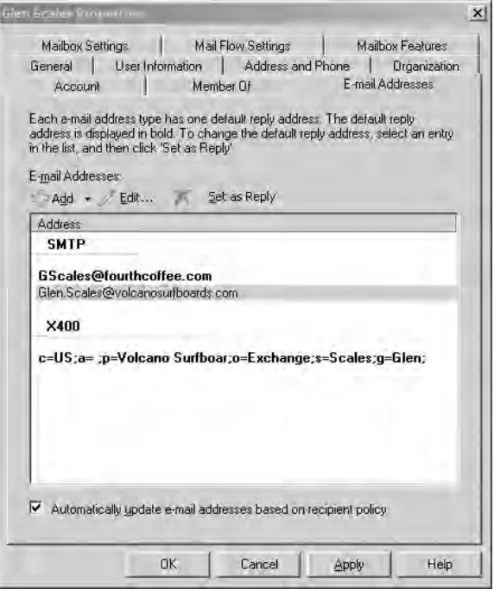
When Exchange 2007 Hub Transport server is routing messages to Exchange recipients, t it must query a global catalog server in order to determine properties of the recipient such as proxy addresses, home mailbox server, and mailbox restrictions. Figure 2.2 shows the E-mail Addresses property page of a mailbox recipient; mail recipients are managed through the Exchange Management Console (EMC).
Figure 2.2 E-mail Addresses properties
All recipient information is stored in the Active Directory, so information regarding e-mail addresses, home server, mailbox limits, message size limits, and so on are found in the Active Directory. Exchange server must retrieve this information from an Active Directory global catalog
server. Exchange server is dependent on the availability and health of domain controllers and global catalog servers; if Active Directory resources are not available, Exchange will not function.
Active Directory Site Membership
Exchange Server 2007 is an Active-Directory-site-aware application. Exchange 2007 uses Active Directory site information for a couple of purposes.
Exchange 2007 servers automatically learn the Active Directory topology and determine in which Active Directory site each Exchange 2007 server is located. Exchange Server uses the IP subnets to locate the sites; if the subnet information is incomplete or incorrect, Exchange Server will not be able to correctly determine site membership and mail may not be delivered properly. Different Exchange Server 2007 server roles use the Active Directory site information in differ-ent ways:
◆ All Exchange 2007 server roles use the site architecture to locate domain controllers and global catalog servers closest to them from the network’s perspective.
◆ Hub Transport servers determine the remote Hub Transport servers names in other Active Directory sites to which they need to transmit messages intended for remote Mailbox servers.
◆ Mailbox servers determine which Hub Transport servers are in their own site so they can notify those servers that they have messages that must be transferred.
◆ Unified Messaging servers submit voicemail messages and faxes to Hub Transport servers in their own site for routing to Mailbox servers. Unified Messaging servers do not transfer voicemail and fax messages directly to a Mailbox server.
◆ Client Access servers look for site information in order to determine if they are located in the same Active Directory site mailboxes that they are being asked to provide access to. If not, the Client Access server refers the client to a Client Access server that is in the same site as the required Mailbox server.
◆ Exchange Server refers Outlook 2000, 2002, and 2003 clients to global catalog servers that are in the same site as the Exchange server for global address list lookups.
If there are weaknesses in your Active Directory site design, Exchange 2007 will certainly expose them. You should ensure that for Active Directory forests with more than one Active Directory site, subnets are properly defined and associated with the appropriate site.
Warning
Active Directory IP subnet information must be correct. If it’s not, Exchange components might not function properly and messages might not be delivered.
Domain Controllers and Global Catalog Servers
The simplest way to describe the Exchange 2007 requirements for Active Directory is to say that all domain controllers should be running (at a minimum) Windows 2003 Service Pack 1 or later, each domain should be at Windows 2003 domain functional level, and the forest should be at Win-dows 2003 functional level. Although that is the best case scenario, it might not be practical and
it is not correct. The following are the actual minimum requirements for Windows 2003 domain controllers and Active Directory:
◆ Each Active Directory site that has Exchange 2007 servers must have at least one Windows 2003 Service Pack 1 or later global catalog server. For redundancy, an additional global catalog server should be available. The recommended ratio of Exchange servers to global catalog servers is based on the number of CPUs; that ratio is 4:1. For each quad processor Exchange server, a single processor global catalog server should be available in the site, but that may not take in to consideration redundancy requirements.
◆ Each domain that will host Exchange 2007 servers or mail-enabled recipients must be at a minimum Windows 2000 native functional level.
◆ If you are supporting the Exchange 2007 Outlook Web Access browsable global address list, you must use Windows 2003 Service Pack 1 or later global catalog servers.
◆ The schema master flexible single master of operations role must be hosted on a domain controller running Windows 2003 Service Pack 1 or later.
◆ If you have Exchange organizations in multiple forests and require forest-to-forest trusts, then all forests involved in forest-to-forests trusts must be at Windows 2003 forest func-tional mode.
Tips for Healthy Interaction with Active Directory
Any experienced Exchange administrator will tell you that a healthy Active Directory goes a long way toward ensuring that Exchange Server is healthy and trouble free. We have learned a number of lessons (sometimes the hard way) over the years and can offer some useful tips for ensuring that Active Directory provides consistent and reliable directory services to Exchange.
◆ Even in small and medium-sized organizations, redundant domain controllers and global catalog servers help ensure higher availability.
◆ In large organizations, each Active Directory site that hosts Exchange servers should have at least two domain controllers that host the global catalog server role.
◆ In large organizations with many thousands of mailboxes, implementing dedicated domain controller/global catalog server sites that are exclusively for use by Exchange servers will ensure that Exchange does not interfere with Active Directory’s other functions (such as authenticating users) and vice versa.
◆ All clients and member servers should have a primary DNS server and a secondary DNS server address configured.
◆ In large organizations, clients and member servers should have a primary, secondary, and tertiary DNS server IP addresses configured.
◆ Either Windows 2003 32-bit or 64-bit can be used for domain controllers and global cat-alog servers, but if the Active Directory database (NTDS.DIT) exceeds 1GB, then better performance will be achieved with 64-bit Windows 2003. For organizations withNTDS.DIT files larger than a few hundred megabytes, separating the database transaction logs to a RAID 1 volume array and theNTDS.DITdatabase file to a RAID 5 array can also improve performance.
◆ Installing the DNS service on all domain controllers and using Active Directory–integrated DNS zones on all domain controllers in the forest will improve the reliability of DNS and therefore Active Directory. If you have more than two domain controllers/DNS servers in your organizations, all domain controllers and member servers should be configured with a primary DNS server, a secondary DNS server, and a tertiary DNS server.
Exchange Editions
When you plan to purchase Exchange 2007, you need to make sure you purchase the correct edition of Exchange server and purchase the client access licenses to license the features that you will require. Table 2.7 lists some of the features that are included with Exchange 2007 Standard Edition and Enterprise Edition.
Table 2.7: Exchange 2007 Standard Edition versus Enterprise Edition
Feature Standard Enterprise
Maximum database size 16TB (unlimited) 16TB (unlimited)
Maximum number of storage groups 5 50
Supports Recovery Storage Group
Number of databases 5 50
Supports Client Access server role
Supports single-copy clustered Mailbox servers
Supports clustered continuous replication Mailbox servers
Supports Edge Transport role
Supports Hub Transport role
Supports local continuous replication
Supports Mailbox role
Supports Unified Messaging role
In the past, you only had a single option when purchasing Exchange Server client access licenses (CALs). Exchange 2007 introduces the Exchange Enterprise CAL and Exchange Standard CAL. Either can be used against either Exchange Server Enterprise Edition or Exchange Server Standard Edition. The choice for which CAL you require will depend on which premium features of Exchange Server 2007 you are going to require.
The Exchange Enterprise CAL adds additional features above and beyond the Exchange Stan-dard CAL. The Exchange StanStan-dard CAL provides your users with the ability to use Exchange features such as accessing their mailbox from a MAPI client, Outlook Web Access, ActiveSync
devices, and Outlook Anywhere (RPC over HTTP). The Exchange Enterprise CAL includes the following additional functions:
◆ Unified Messaging services
◆ Microsoft Forefront Security for Exchange Server
◆ Advanced compliance capabilities such as per-user and per-distribution group journaling ◆ Messaging records management features
◆ Anti-spam and antivirus protection using Microsoft Exchange Hosted Filtering Services as an external service provider
Standard client access licenses must be purchased for each mailbox that is accessed on your system. If you have users that use multiple devices (Outlook, Outlook Web Access, Windows Mobile, ActiveSync, Outlook Anywhere) to access their mailbox and their total percentage of time accessing their mailbox from their primary device is less than 80 percent, then you must purchase an additional CAL for each user.
If you use Exchange Enterprise CALs for all of your users, then you get to use all of the features available for Enterprise CALs. However, if you purchase Enterprise CALs only for a subset of your users that require a feature such as Unified Messaging and Journaling and also choose to use Forefront Security for Exchange, then the remainder of the users must be licensed separately for Forefront Security for Exchange.
Server Roles
The best way to think of Exchange 2007 server roles is to think of a server that has the necessary software and configuration to perform only a specific set of functions. This makes installing servers with dedicated functions much easier. Dedicated server roles are also more secure because only the necessary software is installed, thus reducing the attack surface.
The concept of server roles is not really new. In Exchange 2000/2003, to build a server for han-dling Internet messaging or inter-routing group messaging, you would install Exchange Server, flag the machine as a front-end server (optionally), and disable services such as the web ser-vice. To configure a machine as an Outlook Web Access or ActiveSync server, you would install Exchange, flag the Exchange server as a front-end server, and disable the information store and SMTP services. With Exchange 2007, the server roles are assigned when Setup is run.
Server Roles Overview
Exchange 2007 has made the assignment of specific server roles simpler by allowing the server roles to be designated at installation time. When you group together and install only the necessary services for a specific function, server installation is simpler and more secure and the server has less overhead. There are five basic server roles:
◆ Mailbox ◆ Client Access ◆ Hub Transport ◆ Unified Messaging ◆ Edge Transport
The Mailbox server role can be installed as a clustered mailbox server. In small and medium-size organizations, a single physical server will usually host more than one server role except in the case of the Edge Transport role. Edge Transport must run on its own server. Mailbox Server Role
The Mailbox server role is responsible for mailbox and public folder databases and for allowing direct connectivity from MAPI/RPC clients. Clients such as Outlook 2003 or Outlook 2007 using MAPI/RPC will connect directly to the MAPI interface on the Mailbox server role. The Hub Trans-port and Client Access server roles are required for a fully functioning e-mail environment, but they do not necessarily have to be on the same physical server.
The Mailbox server role must exist on its own physical server if it is being installed as part of a clustered mailbox server environment. In that case, the Hub Transport, Client Access, and Unified Messaging server roles must be on separate physical hardware. A server handling a mailbox server role will typically be configured with significantly more RAM, hard disk space, and processor capacity than the other server roles.
High-availability options for Mailbox servers include local continuous replication, single copy clusters, and clustered continuous replication.
Local Continuous Replication
Local continuous replication (LCR) is a new technology for Exchange 2007. LCR is designed so that a production copy of a database can be synchronized and have a backup copy always ready to be put in to production if the primary copy becomes corrupted; the administrator initiates the switch over to the backup copy of the database. LCR is configured storage group by storage group, and each storage group can have only a single database in it.
When a server is configured to support LCR, an additional set of local disks should be allocated for the LCR transaction logs and for the backup copy of the database. These disks can be directly attached to the server or attached via storage area network (SAN) or Internet small computer systems interface (iSCSI). As transaction logs are completely filled and closed on the production copy of the database, they are copied to the backup location and committed to the backup copy of the database.
Note
Local continuous replication is resource intensive since transaction logs are being copied and replayed to backup copies of a database.
Clustered Continuous Replication
Clustered continuous replication (CCR) is also a new technology for Exchange Server 2007. This technology is similar to LCR in that as transaction logs are filled, they are copied to a backup location and committed to a backup (or passive) copy of the database. However, with CCR, the implementation is in the form of a two-node active-passive cluster. When Windows 2003 cluster-ing services are used, both the active and passive nodes must reside on the same IP subnet. The backup location is on the passive node; the transaction log files are pulled to the passive node and committed to the database on the passive node.
If the primary node of the cluster fails, the passive node automatically comes online and takes over handling the clustered mailbox server. Unlike Microsoft’s previous implementation
of Exchange clustering (single-copy clusters), there is not a single copy of the database and transaction logs that is shared by all nodes of the cluster.
Single-Copy Clusters
A Single-copy cluster (SCC) is the same technology that existed in earlier versions of Exchange. An active node of the cluster owns shared disks (usually on a storage area network or on network attached storage, or NAS). The cluster can consist of from two to eight nodes, but there must always be at least one passive node. There is only a single copy of the database and transaction log files, and they are located on the shared storage.
If an active node of the cluster fails, then one of the passive nodes will take ownership of the shared disks and database, mount the shared database, and start servicing clients for that particular clustered mailbox server (CMS); the CMS was formerly known as an Exchange virtual server (EVS) in previous Exchange cluster implementations.
Client Access Server Role
The Client Access server is considered a middle-tier server; this server role handles communica-tions between non-MAPI clients and the Mailbox server role. In order to have a fully functioning e-mail environment, the Client Access server role must be functioning. The following are some of the functions of the Client Access server role supports:
◆ Outlook Web Access clients ◆ ActiveSync-enabled mobile devices
◆ Outlook Anywhere (RPC over HTTP) clients ◆ POP3 and IMAP4 clients
◆ Offline Address Book Web distribution
◆ Web services such as Autodiscover and the Availability service ◆ Web Services that require access to user mailboxes
The Client Access server accepts connections from these clients via HTTP, POP3, or IMAP4 and then passes requests on to the Mailbox server via MAPI over RPC. Each Active Directory site that contains a Mailbox server role must also contain at least one Client Access server.
High-availability options for the Client Access server role include implementing some type of network load-balancing solution such as the Cisco Local Director or Windows Network Load Balancing. The Client Access role cannot be configured on a clustered mailbox server.
Hub Transport Server Role
The Hub Transport server role is responsible for all message delivery regardless of whether the message is being delivered from one mailbox to another in the same mailbox database, a Mailbox server in the same Active Directory site, a server in a remote Active Directory site, or outside of the organization. At least one Hub Transport server role is required in each Active Directory site that contains a Mailbox server.
For internal mail routing, Exchange Server 2007 will automatically load-balance and fail over if more than one Hub Transport server exists in an Active Directory site. For redundancy in inbound SMTP mail from outside the organization, you have a couple of options. If inbound mail is com-ing directly into the Hub Transport servers, multiple MX records or network load balanccom-ing are good solutions. If mail is coming into a perimeter network solution such as Edge Transport or
a third-party SMTP gateway, configure these solutions to use multiple internal Hub Transport servers.
For smaller organizations with a single server Exchange implementation, the Hub Transport server can perform most of the message hygiene functions performed by the Edge Transport server role to connect Exchange to outside world. However, separating message hygiene functions to a separate server role located on the perimeter network is more secure.
Unified Messaging Role
The Unified Message server role is considered a middle-tier system and is an entirely new con-cept for Exchange 2007. This server role integrates voicemail and inbound faxing with Exchange mailboxes. The Unified Messaging server requires an IP-based telephone switch or a traditional PBX-to-IP gateway (PBX stands for public branch exchange). The following functions are handled by the Unified Messaging server role:
◆ Provides voicemail for users of the IP-based phone system or through the PBX-to-IP gate-way including voicemail greetings and options. Inbound voicemail is recorded as a WMA file and stored as a message in a user’s Inbox.
◆ Accepts inbound faxes that are designated for specific mailboxes, converts the fax to a TIFF file, and stores that message in a user’s Inbox.
◆ Allows a user to dial in to the Unified Messaging server to retrieve voicemail, listen to e-mail messages, review their calendar, or change appointments.
◆ Provides voice menus and prompting call menus acting as an auto-attendant system. Edge Transport Role
The Edge Transport server role is an entirely new role. In the past, Exchange servers could be implemented as an additional tier of message hygiene protection. However, there are a number of reasons that you might not want to use Exchange servers as perimeter message hygiene systems:
◆ In order to process delivery reports, nondelivery reports, and address rewrites, the infor-mation store service must be running and the default mailbox database must be mounted. ◆ Placing an Exchange 2000/2003 server in the perimeter network requires many ports to be
opened on the firewall from the perimeter network to the internal network.
◆ Allowing inbound e-mail directly to an Exchange server could jeopardize both Exchange and Active Directory.
For these reasons, a server role was developed that has many of the advantages of an Exchange 2007 server but can be made much more secure since it can run in the perimeter network as a stand-alone computer and does not require Active Directory membership. The following are some of the characteristics of the Edge Transport server role:
◆ The Edge Transport server role should be deployed in the perimeter network.
◆ It can be managed with Exchange Management Shell scripts and the Exchange Manage-ment Console in much the same way a regular Exchange server is managed.
◆ The only components required to run the Edge Transport role are the message transport system and an instance of the Active Directory Application Mode (ADAM) database.
◆ Features such as transport rules can be implemented in the perimeter network and provide message policy enforcement for messages entering or leaving the organization that is sepa-rate from that provided on the internal network.
◆ Connectivity between internal Hub Transport servers and Edge Transport servers can be authenticated and the data stream encrypted.
◆ The content filter functionality and other anti-spam and message security tools are built in, as is the ability to add third-party content filtering/message hygiene tools.
◆ Microsoft Forefront Security for Exchange Server can be employed on the Edge Transport server role for virus detection and quarantine.
For medium and large organizations, higher availability comes in the form of installing mul-tiple Edge Transport servers and providing load balancing either using mulmul-tiple DNS mail exchanger (MX) records, network load balancing, DNS round robin, or failover using multiple Internet connections.
Microsoft and Deployment Planning
Early in the Exchange 2007 life cycle, Microsoft defined some new terminologies, acronyms, and organization types that are used when designing and deploying an Exchange 2007 organization for businesses of different sizes. We felt it important to define these terms here so that there will be less confusion when reading both this book and the Microsoft documentation.
Using some of these terms, Microsoft has attempted to more clearly standardize design method-ologies and approaches to deployment of Exchange in order to simplify Exchange operations.
The first of these terms is Service Delivery Location (SDL). The SDL is essentially the location of your servers. In a small organization, the SDL may be a secured and environmentally controlled closet within your own facility or it could be operated by a service provider or located at a coloca-tion site. In a medium-size or large organizacoloca-tion, an SDL may be distributed through many data centers in dozens or hundreds of locations throughout the world or it could be a consolidated, centralized data center with hundreds of servers servicing clients worldwide.
This brings us to the location of the actual clients, or the Client Service Location (CSL). This is the location from which your clients access the services you are providing. In a small organization, the CSL may be on the same physical LAN as the SDL, while larger organizations may see the CSL span countries, continents, or the entire world.
To simplify deployment concepts, Microsoft has defined four types of organization models representing topologies in which Exchange 2007 may be deployed. These are the simple, stan-dard, large, and complex organization types. There is no exact formula for figuring out exactly which organization type might describe your organization. The physical distribution of your user community, your organization’s high-availability requirements, your organization’s fault toler-ance requirements, the volume of data that your users process, and other factors will all influence the organization model that you choose or a variation on these models that you choose to create yourself.
Tip
It’s important to understand that there might not be an organization model that describes your organization exactly.
Simple Exchange Organizations
A simple Exchange organization is well suited for organizations with under approximately 200 mailboxes. Please note that ‘‘200 mailboxes’’ is somewhat arbitrary since organizations with either more or fewer mailboxes may fit in to this category depending on their user community, require-ments, and messaging load. The simple organization has a single Exchange 2007 server that is running on the same physical machine as the organization’s domain controller. The Exchange 2007 server handles the Mailbox, Hub Transport, Client Access, and Unified Messaging roles. The optional Edge Transport server role must still be on a separate physical server and should be located in the perimeter network.
In a simple Exchange organization, the users and the Exchange server are usually located in the same physical location, but that is not fixed rule. Even small organizations have telecommuters and users that access their organization using mobile technologies. Although the SDL is usually in the same location as the users, an emerging trend is for even smaller organizations to locate their server resources in a colocation site that provides Internet connectivity, power condition-ing, backup power, air coolcondition-ing, and physical security services. Another trend is to outsource the messaging functions entirely.
Note
Organizations considering a single-server deployment that fits the simple Exchange organization model should consider a Microsoft Windows Small Business Server deployment. All of the components are tested together much more thoroughly (such as running Exchange Server on a domain controller).
Providing multiple layers of message hygiene and security for simple Exchange organiza-tions would come in the form of a reverse proxy to handle inbound HTTP requests and an Edge Transport server in the organization’s perimeter network. Figure 2.3 shows a simple Exchange Figure 2.3 Protecting a simple Exchange organization Edge Transport server in perimeter network for message hygiene Domain controller/ Exchange 2007 server Internal clients Internet clients
ISA Server 2006 for firewall and reverse
organization that is separated from the Internet using Microsoft ISA server and a perimeter network.
Microsoft also offers an additional service called Exchange Hosted Filtering that allows orga-nizations to direct their inbound mail to Microsoft’s servers. The Hosted Filtering service inspects mail for viruses and spam and then passes the mail on to your servers. If you have purchased Enterprise client access licenses for all of your users, then this service is included.
Inbound SMTP mail from the Internet is directed to the Edge Transport server, which is located in the perimeter/DMZ network. Inbound e-mail is inspected in the perimeter network for viruses or spam and message transport rules can enforce organizational policies on messages arriving from the Internet.
Inbound Outlook Web Access, ActiveSync, and Outlook RPC over HTTP connections termi-nate at the Microsoft ISA Server 2006 firewall; ISA Server acts as a reverse proxy, inspecting the inbound HTTP requests and then passing them on to the internal Exchange 2007 server’s client access components.
Standard Exchange Organizations
The standard Exchange model is by far the most common and flexible of the four Exchange server organization models. It will also be the organizational model most commonly found in organizations with from a few hundred to potentially tens of thousands of mailboxes. An organi-zation will choose the standard Exchange model if any one of the following is true:
◆ Need to support more than approximately 200 mailboxes ◆ Require dedicated Exchange servers
◆ May need to split Exchange server roles among multiple physical servers ◆ Require dedicated domain controllers
◆ Need to support clustered mailbox servers
◆ Need to support more than one service delivery location (SDL)
◆ Require more scalability or infrastructure fault tolerance than the simple Exchange model can support
The standard Exchange organization is more scalable than the simple Exchange organization. Exchange servers are usually installed as member servers rather than on a domain controller. Exchange servers may span multiple Active Directory sites and server roles may be dedicated to specific physical servers rather than a single physical server. In this model, a single Active Directory forest is also required.
A standard Exchange organization with between a few hundred and a few thousand mail-boxes might look like the one in Figure 2.4. In Figure 2.4, this organization has only a single SDL and requires high availability and redundancy. The Mailbox server is clustered to provide high availability for the mailbox databases while the Client Access and Hub Transport roles are both installed on two physical servers. By combining these two roles on two servers, the organization can provide better availability for message transport and web clients.
The organization could scale to as many as five Active Directory sites with Exchange 2007 servers and multiple Internet access points but still be considered a standard organization. The number of mailboxes is somewhat less of a factor here than the organization’s needs. A com-pany that places greater importance on its messaging needs and availability will find itself with dedicated servers and Exchange servers installed as member servers. When designing an Exchange
organization for a company that meets this profile, the administrator will have to take into consid-eration the business needs, budget constraints, and availability requirements of the organization. Figure 2.4
A standard Exchange organization
Perimeter network services
ISA Server 2006 for reverse proxy
services
Edge Transport server for message
hygiene
Combined Client Access and Hub
Transport servers Active/Passive Exchange 2007 mailbox clustered servers Domain controllers/ global catalog servers Internal clients Internet clients
Large Exchange Organizations
Large Exchange organizations are the most scalable of the Exchange organizational models; they allow an Exchange organization to support tens of thousands or hundreds of thousands of mail-boxes. A large Exchange organization can have the same characteristics a standard Exchange organization has plus the following:
◆ More than five Active Directory sites and multiple SDLs ◆ Multiple CSLs
◆ Multiple Active Directory domains within a single Active Directory forest
Although the large Exchange organization is certainly more scalable than the standard Exchange organization, the skills required to manage and build a standard Exchange organization do transfer upward to the large Exchange organization.
Complex Exchange Organizations
Complex Exchange 2007 organizations represent increasing complexity of Exchange 2007 in businesses that might have multiple Active Directory forests and resource forests or that host multiple companies within the same Exchange organization. In addition to the scalable features
of a standard or large Exchange organization, the following are some of the characteristics of a complex organization:
◆ Multiple Active Directory forests with recipient replication using tools such as Microsoft Identity Integration services
◆ Multiple-organization support or support for multiple subsidiaries or business units in a single Exchange organization
◆ Integration with external Exchange organizations such as when a new business unit has been acquired but not merged in to a single organization
◆ Public folders, free and busy information, or shared calendaring between multiple organi-zations all using Exchange Server 2007
Size is often not the determining factor when designing and deploying a complex Exchange organization. In some cases, due to business requirements, even an organization with fewer than 1,000 mailboxes may find itself requiring multiple forests or other situations that require a complex Exchange organizational design.
Combining or Splitting Server Roles
A common question with respect to Exchange 2007 and server roles is, When should server roles be split across multiple physical machines? With few exceptions, there is not a rule that says that server roles should be split across multiple pieces of hardware. However, even for a smaller organization, the need for high availability will drive the need for multiple Exchange 2007 servers. The only server role that can be installed on a clustered mailbox server is the Mailbox role. This means an environment that requires clustering of the Mailbox server role will require the other server roles (Hub Transport and Client Access) to be located on separate physical server.
In a small environment, the Hub Transport and Client Access roles can exist on the same physi-cal server. In a medium-sized environment that requires high availability of the Client Access and Hub Transport servers, two Windows servers could be installed and load-balanced. Both of those servers could then host the Client Access and Hub Transport server roles.
What are some other reasons multiple Exchange servers might be required? The justification for additional hardware will be different from one organization to the next and will often depend on the organization’s size, but here are a few:
◆ Server load is too great for a single machine. For example, a server supporting 1,000 mail-boxes may be using local continuous replication and thus have an IO profile that precludes having additional disk-intensive, processor-intensive, or Active Directory–intensive roles. ◆ Redundancy in message routing is required and thus multiple servers with the Hub
Trans-port role are required.
◆ Redundancy when providing Web Services or Internet access to messaging data requires multiple Client Access servers.
◆ Simplifying server recovery and rebuilds may require placing different server roles on dif-ferent physical servers.
Major Components
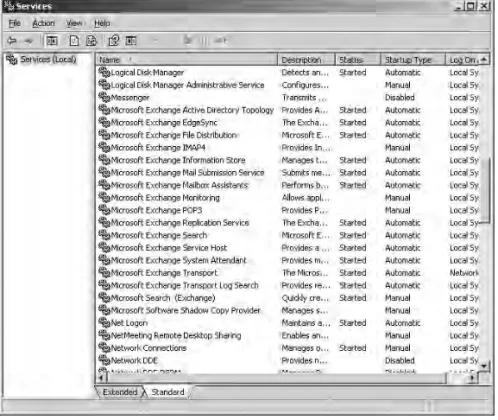
The services and components that you find on an Exchange 2007 server will vary depending on which roles are installed for that server. Figure 2.5 shows some of the Exchange 2007 services that are found in the services console.
Figure 2.5 Common Exchange Server 2007 services
If you are an experienced Exchange 2000/2003 administrator, you will also find that many of the services and executables are not recognizable. Exchange 2000/2003 has fewer core components and they were all installed on any Exchange server that you built. The Exchange 2007 components are shown in Table 2.8.
Table 2.8: Exchange 2007 Components Service Name/
Short Service Name
Executable Name Function
Microsoft Exchange Active Directory Topology/ MSExchangeADTopology MSExchangeADTopology Service.exe
Provides Exchange Server 2007 with Active Directory site, domain controller, and global catalog server information. This component is found on all Exchange 2007 server roles except the Edge Transport.
Microsoft Exchange ADAM/
ADAM MSExchange
Dsamain.exe This is the ADAM instance that holds the Edge Transport server role’s configuration, recipient information, safe sender lists, and blocked sender lists. This service is only found on the Edge Transport role.
Table 2.8: Exchange 2007 Components (CONTINUED) Service Name/
Short Service Name
Executable Name Function
Microsoft Exchange Anti-spam Update/ MSExchange AntispamUpdate Microsoft.Exchange .AntispamUpdateSvc .exe
This service provides updates for the content filter service. This service is found on the Edge Transport and Hub Transport server roles.
Microsoft Exchange Credential Service/ EdgeCredentialSvc
EdgeCredentialSvc .exe
This service monitors credential changes for the ADAM database and updates the Edge Transport server. This service is found only on the Edge Transport server role.
Microsoft Exchange EdgeSync/
MSExchangeEdgeSync
Microsoft.Exchange .EdgeSyncSvc.exe
Handles synchronization of recipient and hub transport information to Edge Transport servers in the perimeter network. The EdgeSync process synchronizes to the Edge Transport server’s ADAM database; the synchronization is a push synchronization from the Hub Transport role out to the Edge Transport server. This component is found on Exchange 2007 Hub Transport server roles.
Microsoft Exchange File Distribution/
MSExchangeFDS
MSExchangeFDS.exe The File Distribution Service handles distribution of offline address books on Client Access servers and custom Unified Messaging prompts on UM servers. It is found on Exchange 2007 Client Access and Unified Messaging server roles. Microsoft Exchange
IMAP4/
MSExchangeIMAP4
Microsoft.Exchange .Imap4Service.exe
Provides IMAP4 client connectivity and is found on Exchange 2007 Client Access server roles. This service is set to manual by default and must be enabled to support IMAP4 clients.
Microsoft Exchange Information Store/MSExchangeIS
Store.exe The information store service runs the database engine and provides client access for MAPI clients as well as access to mailboxes for connections from Client Access and Hub Transport servers. This service is only found on Exchange 2007 servers with the Mailbox server role. This service also consumes the most RAM of any of the Exchange 2007 services.
Microsoft Exchange Mail Submission Service/ MSExchangeMail Submission
MSExchangeMail Submission.exe
Handles notifying Hub Transport servers that a message is waiting to be retrieved from a local database. This service attempts to distribute the message delivery load if multiple Hub Transport servers are found. This service is found on the Exchange 2007 Mailbox server role.
Table 2.8: Exchange 2007 Components (CONTINUED) Service Name/
Short Service Name
Executable Name Function
Microsoft Exchange Mailbox Assistants/ MSExchangeMailbox Assistants Microsoft.Exchange .InfoWorker .Assistants.exe
The Mailbox Assistants service handles calendaring functionality such as Calendar Assistant, Resource Booking Assistant,
Out-of-Office Assistant, and the Managed Folder Mailbox Assistant. This service is found only on Exchange 2007 Mailbox servers.
Microsoft Exchange Monitoring/
MSExchangeMonitoring
Microsoft.Exchange .Monitoring.exe
Provides an interface for applications to use Exchange 2007 monitoring tasks. This service is found on all Exchange 2007 server roles. Microsoft Exchange
POP3/MSExchangePOP3
Microsoft.Exchange .Pop3Service.exe
Provides POP3 client connectivity and is found on Exchange 2007 Client Access server roles. This service is set to manual by default and must be enabled to support POP3 clients.
Microsoft Exchange Replication Service/ MSExchangeRepl Microsoft.Exchange .Cluster .ReplayService.exe
This service handles copying log files from their original location to the backup log location on Exchange 2007 Mailbox servers that have the local continuous replication or clustered continuous replication functions enabled. This service is found only on Exchange 2007 Mailbox server roles. Microsoft Exchange Search Indexer/ MSExchangeSearch Microsoft.Exchange. Search. ExSearch.exe
The Microsoft Exchange Search Indexer provides content to the Microsoft Search (Exchange Server) service for full-text indexing. This service is found only on Mailbox server roles
Microsoft Exchange Service Host/
MSExchangeServiceHost
Microsoft.Exchange. ServiceHost.exe
This service handles the configuration of RPC virtual directories and Registry information necessary to support OutlookAnywhere (RPC over HTTP). This service is found on Exchange Mailbox and Client Access server roles.
Microsoft Exchange Speech Engine/MSS
MSSService
.SpeechService.exe
The Speech Engine service provides the speech processing capabilities that are used by Unified Messaging services. This service is found only on Unified Messaging server roles.
Microsoft Exchange System Attendant/ MSExchangeSA
Mad.exe This service provides monitoring and directory lookup services for Exchange server. This service is found only on Mailbox server roles.
Microsoft Exchange Transport/
MSExchangeTransport
MSExchangeTransport .exe
This service provides the SMTP transport functions. Mail will not flow at all if this service is halted. This service is found on all Exchange 2007 Hub Transport and Edge Transport server roles.
Table 2.8: Exchange 2007 Components (CONTINUED) Service Name/
Short Service Name
Executable Name Function
Microsoft Exchange Transport Log Search/ MSExchangeTransport LogSearch
MSExchange TransportLog Search.exe
Provides the ability to search the Exchange message transport logs. This service is found on all Exchange 2007 Mailbox, Hub Transport, and Edge Transport server roles.
Microsoft Exchange Unified Messaging/ MSExchangeUM
umservice.exe The Unified Messaging service handles access to user’s mailbox via Outlook Voice Access, the creation of voicemail messages, and the creation of fax messages. This service is found only on the Unified Messaging server role.
Microsoft Search (Exchange)/ MSFTESQL-Exchange
Msftesql.exe This Search service creates full-text indexes on mailbox content. This service is found only on the Exchange 2007 Mailbox server role.
World Wide Web Publishing Service
svchost.exe/ inetinfo
A component of Internet Information Services that is required on all Exchange 2007 Client Access server roles in order to provide access to web services. This service is required on Exchange 2007 Mailbox servers if you will be managing public folders using Exchange System Manager or PFDAVAdmin.
Depending on the server’s role(s), you will see many of these executables in the Windows Task Manager (shown in Figure 2.6). One frequently misunderstood service is the Microsoft Exchange Information Store service, orstore.exe. By design this service will attempt to allocate as much physical memory as possible. On a server with 32GB of physical memory, it may not be unusual to see this service using 80 to 90 percent of that RAM.
Databases and Database Sizing
Exchange 2007 includes a number of noteworthy improvements with respect to the Exchange mail-box and public folder databases. Although Exchange databases still uses the Extensible Storage Engine (ESE), aka Jet database engine, rather than a SQL Server database, improvements allow greater scalability. The following are some of the changes that have been designed to improve scalability, improve performance, and make replication of data more feasible:
◆ The 64-bit version of the ESE database engine can access far more RAM for caching than previous versions.
◆ Each Exchange Server 2007 Enterprise Edition server supports up to 50 storage groups. ◆ Each Exchange Server 2007 Enterprise Edition server supports up to 50 databases. ◆ The database page size has been increased from 4KB (in previous editions) to
◆ Transaction log files are now 1MB in size rather than 5MB; this allows data to be replicated to a backup database location (in the case of LCR or CCR) much more quickly.
◆ The streaming store (STM) file found in previous versions of Exchange has been removed. Each Exchange database consists of a single EDB database file in which all content is stored. Figure 2.6
Exchange 2007 services in Task Manager
We talked earlier about calculating the amount of disk space that you may require for Exchange Server 2007 mailbox servers. In Chapter 1, we reviewed the changing nature of e-mail and messag-ing technologies and emphasized that mail storage requirements are greater than ever. We always recommended planning for more disk space and e-mail capacity than you think you will require.
However, more e-mail storage means including in your Exchange server design a maximum size for each database. Why specify a maximum size for your database? As you saw earlier, speci-fying a maximum size gives you guidelines for distribution mailboxes and the maximum number of databases that your server must support. In general, there are a number of good reasons for limiting the maximum size of each database. Here are some thoughts and pointers on calculating maximum database size:
◆ Maximum database size when using streaming backups and restores should be around 50GB to 100GB.
◆ When using LCR as the primary database restoration mechanism, databases can be allowed to grow to 200GB.
◆ Always take into consideration the restoration time when calculating maximum database size and ensure that you can restore within a timeline specified by your service level agreement (SLA).
◆ Restoring from streaming tape backups can take significantly longer than restoring from backups on disk.
◆ Larger databases take longer for online maintenance procedures to run. Microsoft recommends online maintenance at least once every two weeks on each database for best performance.
One popular reason for limiting the size of a database or maximum mailbox sizes is the length of time it takes to restore a server. On one hand, this represents good planning, but often mail administrators wield that excuse like a sword in order to keep their user storage limits lower. An Exchange administrator commented one time that ‘‘keeping mailboxes smaller is easier on us,’’ meaning the IT department.
Storage limits and maximum mailbox sizes are all fine and good, but limits should not be set for the sake of IT. You should set limits that allow users to effectively do their jobs and to access the information they need to access, but you should also consider the needs of operations, archiving, and budgeting. Also keep in mind that the default mailbox limit for mailbox databases is 2GB unless you change it, so make sure when you create new mailboxes databases that you also configure the correct limits. See more about establishing limits in Chapter 9, ‘‘Imposing Limits and Why.’’
Message Routing
In earlier versions of Exchange (2000 and 2003), if more than physical or geographic location existed, the Exchange servers could be broken up based on their physical location. The architecture of message routing is based on routing groups. By placing Exchange servers in different routing groups, the administrator can control messaging traffic between those locations and can more accurately focus public folder connectivity by Outlook clients. In almost all situations, the servers located in routing groups correspond to the location of an Active Directory site, though not all Active Directory sites might actually have an Exchange server.
Exchange 2007 simplifies the management of the physical layout of Exchange by eliminating the need for routing groups and relying on the Active Directory site architecture instead. Servers with the Hub Transport role accept messages from Mailbox servers, determine the location of the destination mailbox database, and deliver the message to a Hub Transport server in the remote Active Directory site.
Message Routing and the Hub Transport Server
The Hub Transport server role is at the center of the message transport architecture. The Hub Transport server maintains Send and Receive connectors that are responsible for receiving mail from the Internet, sending mail to the Internet, sending mail to remote Hub Transport servers, and receiving mail from remote Hub Transport servers. All messages must be processed by the Hub Transport system regardless of whether they will be delivered to a local mailbox or a remote recipient.
Note
In Exchange 2000/2003 there was the concept of SMTP virtual servers, which could either send or receive SMTP mail. Send connectors are responsible for outbound SMTP mail only and Receive con-nectors are responsible for inbound mail only. One big advantage of this is separation of logging.
The message transport architecture and dependencies are illustrated in Figure 2.7. Messages enter the Exchange 2007 message transport system through one of three possible mechanisms: a message can be submitted to the Hub Transport via SMTP, a Mailbox server’s store driver, or the file system’s Pickup folder on the Hub Transport server. The Hub Transport relies on Active Directory for configuration, topology, and recipient information and thus must have access to domain controllers and global catalog servers.
Figure 2.7 Basics of the Hub Transport architecture SMTP to remote Hub Transport servers SMTP to Edge Transport servers Hub Transport Mailbox server Domain controllers/ global catalog servers MAP/RPC connections (Store driver) Global Catalog queries
Once a message is submitted to the Hub Transport system, it enters the message queuing system where the message Categorizer reviews it and determines how to deliver it. There are five possible queues that can be found on a Hub Transport server:
◆ The submission queue is the queue in which messages are placed when they enter the Hub Transport server (via SMTP, store driver, or pickup folder). The categorizer processes the messages as they arrive in this queue. The submission queue is also called the categorizer queue or the submit queue.
◆ The poison message queue is the queue in which messages are placed if there is a problem that prevents the message from being categorized.
◆ The unreachable domain queue is the queue in which messages are placed if there is no route available.
◆ Local delivery queues are queues in which messages are placed if they are to be delivered to a
Mailbox server in the same Active Directory site.
◆ Remote delivery queues are queues in which messages are placed to be delivered to remote
Hub Transport servers or outside of the organization. The remote delivery queue is the only type of queue available on the Edge Transport server role.
The Categorizer component is the Hub Transport component that watches the submission queue. As messages arrive in the submission queue, the Categorizer picks them up and processes