Informatica
®
PowerCenter
®
(Version 8.6.1)
Mapping Analyst for Excel
Guide
Informatica Mapping Analyst for Excel Guide Version 8.6.1
March 2009
Copyright (c) 1998–2009 Informatica Corporation. All rights reserved.
This software and documentation contain proprietary information of Informatica Corporation and are provided under a license agreement containing restrictions on use and disclosure and are also protected by copyright law. Reverse engineering of the software is prohibited. No part of this document may be reproduced or transmitted in any form, by any means (electronic, photocopying, recording or otherwise) without prior consent of Informatica Corporation. This Software may be protected by U.S. and/or international Patents and other Patents Pending.
Use, duplication, or disclosure of the Software by the U.S. Government is subject to the restrictions set forth in the applicable software license agreement and as provided in DFARS 227.7202-1(a) and 227.7702-3(a) (1995), DFARS 252.227-7013(c)(1)(ii) (OCT 1988), FAR 12.212(a) (1995), FAR 52.227-19, or FAR 52.227-14 (ALT III), as applicable.
The information in this product or documentation is subject to change without notice. If you find any problems in this product or documentation, please report them to us in writing.
Informatica, PowerCenter, PowerCenterRT, PowerCenter Connect, PowerCenter Data Analyzer, PowerExchange, PowerMart, Metadata Manager, Informatica Data Quality, Informatica Data Explorer, Informatica B2B Data Exchange and Informatica On Demand are trademarks or registered trademarks of Informatica Corporation in the United States and in jurisdictions throughout the world. All other company and product names may be trade names or trademarks of their respective owners.
This software and/or documentation are subject to copyright held by third parties, including without limitation: Copyright © Meta Integration Technology, Inc. All rights reserved.
DISCLAIMER: Informatica Corporation provides this documentation “as is” without warranty of any kind, either express or implied, including, but not limited to, the implied warranties of non-infringement, merchantability, or use for a particular purpose. Informatica Corporation does not warrant that this software or documentation is error free. The information provided in this software or documentation may include technical inaccuracies or typographical errors. The information in this software and documentation is subject to change at any time without notice.
iii
Table of Contents
Preface . . . . vii
Informatica Resources . . . vii
Informatica Customer Portal . . . vii
Informatica Documentation . . . vii
Informatica Web Site . . . vii
Informatica How-To Library . . . vii
Informatica Knowledge Base . . . viii
Informatica Global Customer Support . . . viii
Chapter 1: Understanding Mapping Analyst for Excel . . . 1
Overview . . . 1
Architecture . . . 1
Mapping Specifications . . . 1
Metamaps . . . 2
Mapping Analyst for Excel Process . . . 2
Mapping Specification Templates . . . 3
Mapping Template . . . 3
Source-Target-Matrix Template . . . 3
Chapter 2: Configuring One Mapping . . . 5
Overview . . . 5
Copying and Renaming the Mapping Template . . . 6
Main Worksheet . . . 6
Source and Target Worksheets . . . 7
Database/Schema Name Section . . . 7
Classes/Entities/Tables/Records Section . . . 7
Attributes/Columns/Fields Section . . . 7
Types Section . . . 8
Mapping Analyst for Excel Datatypes . . . 8
Configuring Target Ports . . . 8
Functions . . . 9 Transformations . . . 9 Joiner Transformation . . . 9 Lookup Transformation . . . 10 Filter Transformation . . . 11 Aggregator Transformation . . . 11 Expression Transformation . . . 12
Validating the Mapping Specification . . . 12
Chapter 3: Configuring One Mapping - Example . . . 15
Overview . . . 15
iv Table of Contents
Step 2. Configure the Mapping Specification in Microsoft Excel . . . 16
Create a Mapping Specification . . . 17
Configure the Main Worksheet . . . 17
Configure the Source Worksheet . . . 17
Configure the Target Worksheet . . . 18
Step 3. Validate the Mapping Specification . . . 19
Step 4. Save the Mapping Specification to a Shared Location . . . 20
Step 5. Import the Mapping Specification . . . 20
Step 6. Edit the PowerCenter Mapping and Generate a Workflow . . . 21
Edit the PowerCenter Mapping . . . 21
Generate and Run a Workflow from the Mapping . . . 22
Chapter 4: Configuring Multiple Mappings . . . 23
Overview . . . 23
Copying and Renaming the Source-Target-Matrix Template . . . 23
Mapping Names . . . 24
Sources . . . 24
Expression Transformations . . . 25
Targets . . . 25
Chapter 5: Configuring Multiple Mappings - Example . . . 27
Overview . . . 27
Step 1. Establish the PowerCenter Environment . . . 28
Create the Source Flat File . . . 28
Create Target Tables . . . 28
Step 2. Configure the Mapping Specification in Microsoft Excel . . . 28
Create a Mapping Specification . . . 29
Configure the Mappings . . . 29
Step 3. Save the Mapping Specification to a Shared Location . . . 30
Step 4. Import the Mapping Specification . . . 30
Step 5. Edit the PowerCenter Mappings and Generate Workflows . . . 31
Edit the PowerCenter Mappings . . . 31
Generate and Run Workflows from the Mappings . . . 32
Chapter 6: Importing and Exporting Mapping Specifications . . . 33
Overview . . . 33
Importing Mapping Specifications . . . 34
Exporting Mappings . . . 36
Troubleshooting . . . 37
Chapter 7: Customizing Mapping Specification Templates . . . 39
Overview . . . 39
Metamap Hierarchy . . . 39
Rules and Guidelines . . . 41
Table of Contents v
Copying and Renaming the Metamap . . . 42
Associating the Metamap with the Custom Template or Repeating Sheet File . . . 42
Model, Source, Target, and Mapping Worksheet Types in the Metamap . . . 43
Excel Table Parameters . . . 43
Required Properties . . . 44
User-Defined Properties . . . 45
Modifying the Cell Location of Metadata . . . 46
Import and Export Parameters in the Metamap . . . 48
Import Parameters . . . 48
Export Parameters . . . 49
Saving the Metamap as an XML Spreadsheet . . . 49
Chapter 8: Customizing Mapping Specification Templates - Example . . . 51
Overview . . . 51
Step 1. Copy the Mapping Specification Template, Repeating Sheet File, and Metamap . . . 52
Step 2. Associate the Metamap with the Repeating Sheet File . . . 52
Step 3. Edit the Mapping Specification Template and the Repeating Sheet File . . . 53
Step 4. Edit the Metamap . . . 53
Edit the TargetClasses Worksheet . . . 54
Edit the TargetAttributes Worksheet . . . 55
Edit the FeatureMaps Worksheet . . . 56
Save the Metamap as an XML Spreadsheet . . . 57
Appendix A: Metamap Worksheets . . . 59
Overview Worksheet . . . 59
Models Worksheet . . . 59
Source and Target Worksheets . . . 60
DataPackages Worksheets . . . 60 Schemas Worksheets . . . 60 Classes Worksheets . . . 60 Attributes Worksheets . . . 61 DataTypes Worksheets . . . 61 Mapping Worksheets . . . 62 MappingDesignPackages Worksheet . . . 62 TransformationTasks Worksheet . . . 62 Filters Worksheet . . . 62 Lookups Worksheet . . . 63 Joins Worksheet . . . 63 FeatureMaps Worksheet . . . 63 MITI_SystemTypes Worksheet . . . 64 MITI_DataTypes Worksheet . . . 64
Appendix B: Glossary . . . 65
vi Table of Contents
vii
Preface
The PowerCenter Mapping Analyst for Excel Guide is written for business analysts who want to use Microsoft Excel to develop PowerCenter mappings. It is also written for PowerCenter developers who want to use the Microsoft Excel files to begin developing PowerCenter mappings. This book assumes you have a working knowledge of Microsoft Excel.
Informatica Resources
Informatica Customer Portal
As an Informatica customer, you can access the Informatica Customer Portal site at http://my.informatica.com. The site contains product information, user group information, newsletters, access to the Informatica customer support case management system (ATLAS), the Informatica How-To Library, the Informatica Knowledge Base, Informatica Documentation Center, and access to the Informatica user community.
Informatica Documentation
The Informatica Documentation team takes every effort to create accurate, usable documentation. If you have questions, comments, or ideas about this documentation, contact the Informatica Documentation team through email at [email protected]. We will use your feedback to improve our documentation. Let us know if we can contact you regarding your comments.
The Documentation team updates documentation as needed. To get the latest documentation for your product, navigate to the Informatica Documentation Center from http://my.informatica.com.
Informatica Web Site
You can access the Informatica corporate web site at http://www.informatica.com. The site contains
information about Informatica, its background, upcoming events, and sales offices. You will also find product and partner information. The services area of the site includes important information about technical support, training and education, and implementation services.
Informatica How-To Library
As an Informatica customer, you can access the Informatica How-To Library at http://my.informatica.com. The How-To Library is a collection of resources to help you learn more about Informatica products and features. It includes articles and interactive demonstrations that provide solutions to common problems, compare features and behaviors, and guide you through performing specific real-world tasks.
viii Preface
Informatica Knowledge Base
As an Informatica customer, you can access the Informatica Knowledge Base at http://my.informatica.com. Use the Knowledge Base to search for documented solutions to known technical issues about Informatica products. You can also find answers to frequently asked questions, technical white papers, and technical tips.
Informatica Global Customer Support
There are many ways to access Informatica Global Customer Support. You can contact a Customer Support Center through telephone, email, or the WebSupport Service.
Use the following email addresses to contact Informatica Global Customer Support:
♦ [email protected] for technical inquiries
♦ [email protected] for general customer service requests
WebSupport requires a user name and password. You can request a user name and password at http:// my.informatica.com.
Use the following telephone numbers to contact Informatica Global Customer Support:
North America / South America Europe / Middle East / Africa Asia / Australia Informatica Corporation
Headquarters 100 Cardinal Way Redwood City, California 94063 United States Toll Free +1 877 463 2435 Standard Rate Brazil: +55 11 3523 7761 Mexico: +52 55 1168 9763 United States: +1 650 385 5800 Informatica Software Ltd. 6 Waltham Park
Waltham Road, White Waltham Maidenhead, Berkshire SL6 3TN United Kingdom Toll Free 00 800 4632 4357 Standard Rate Belgium: +32 15 281 702 France: +33 1 41 38 92 26 Germany: +49 1805 702 702 Netherlands: +31 306 022 797 Spain and Portugal: +34 93 480 3760 United Kingdom: +44 1628 511 445 Informatica Business Solutions Pvt. Ltd. Diamond District Tower B, 3rd Floor 150 Airport Road Bangalore 560 008 India Toll Free Australia: 1 800 151 830 Singapore: 001 800 4632 4357 Standard Rate India: +91 80 4112 5738
Overview 1
C
H A P T E R
1
Understanding Mapping Analyst for
Excel
This chapter includes the following topics:
♦ Overview, 1
♦ Architecture, 1
♦ Mapping Specification Templates, 3
Overview
Use Mapping Analyst for Excel to configure PowerCenter mappings in Microsoft Office Excel. The following individuals can collaborate when creating PowerCenter mappings:
♦ Business analyst. Creates a mapping specification in Microsoft Office Excel to define a mapping that can include sources, targets, and transformations. A business analyst is familiar with project requirements and source and target data, but is not a PowerCenter user.
♦ PowerCenter developer. Imports the mapping specification using the Repository Manager to create the
corresponding PowerCenter objects. The PowerCenter developer can edit the objects, implement additional functionality that might be required, and run a workflow generated from the mapping. The PowerCenter developer can use the Repository Manager to export any valid mapping to a mapping specification for a business analyst to review in Microsoft Excel.
For example, a business analyst wants to merge employee data from multiple sources into a single data warehouse but is not familiar enough with the PowerCenter Client to create the required mapping. The business analyst can use the templates included with the PowerCenter Client to create a mapping specification that describes the required sources, transformations, and targets. A PowerCenter developer can then import the mapping specification into a PowerCenter repository, continue development of the mapping in the
PowerCenter Client, and export the completed mapping for review by the business analyst.
Architecture
Mapping Analyst for Excel includes mapping specifications and metamaps.
Mapping Specifications
A mapping specification is a Microsoft Excel file that includes metadata to import into the PowerCenter repository. Use a mapping specification to define sources or targets or to define a mapping by describing the
2 Chapter 1: Understanding Mapping Analyst for Excel
sources and targets and the transformations between sources and targets. Mapping Analyst for Excel includes templates for mapping specifications. Use the mapping specification templates as a starting point to develop mapping specifications in Excel. You can also create a custom mapping specification template.
When you create a mapping specification, you do not have to define all objects. For example, if you do not define transformations, the Repository Service imports only sources and targets.
Metamaps
A metamap is a hierarchical representation of the metadata in a mapping specification. A metamap determines how the Repository Service reads the metadata. Each mapping specification has an associated metamap. You must use the same metamap for each mapping specification you create from a template.
The metamap contains multiple worksheets that define import and export options and the cell location of metadata in a mapping specification.
Mapping Analyst for Excel includes metamaps in XML and Excel formats. Use the XML version of the metamap when you import mapping specifications or export mappings. Use the Excel version of the metamap to modify metamap properties when you create a custom mapping specification template.
Note: If you create a mapping specification from a template included with Mapping Analyst for Excel, you do not need to modify the metamap.
Mapping Analyst for Excel Process
The following figure describes the Mapping Analyst for Excel process:
To work with Mapping Analyst for Excel, use the following process:
1. Create a mapping specification based on a Mapping Analyst for Excel template or on a custom mapping specification template.
2. If you create a custom mapping specification template, modify the associated metamap to read the custom template.
3. Use the Repository Manager to import the mapping specification. The Repository Service creates the PowerCenter objects.
4. Complete the PowerCenter mapping in the PowerCenter Designer.
5. Use the Repository Manager to export PowerCenter metadata to a mapping specification for review by a business analyst. Mapping Specification Metamap Repository Manager PowerCenter Repository Transformations Targets Sources PowerCenter Designer 1. 2. 3. 5. 4. Mapping
Mapping Specification Templates 3
Mapping Specification Templates
Mapping Analyst for Excel includes the following mapping specification templates and metamaps:
The mapping specification templates and metamaps are located in the following directory:
<PowerCenter_Client_installation_directory>\bin\Sample Specifications
Mapping Template
The Mapping template contains separate worksheets for overview information, sources, targets, and functions. Use this template to create a mapping specification for a single mapping. Mapping specifications based on the Mapping template can contain sources and targets and Joiner, Filter, Expression, Lookup, and Aggregator transformations.
The Mapping template includes a template with validation and a template without validation. Use the template with validation to validate metadata values in the mapping specification. Use the template without validation if you want to avoid enabling macros on your machine.
Source-Target-Matrix Template
The Source-Target-Matrix template includes a separate worksheet for each mapping in the mapping specification. Use this template to create multiple mappings in a single mapping specification. Mapping specifications based on the Source-Target-Matrix template can contain sources, targets, and Expression transformations.
The Source-Target-Matrix repeating sheet file, source-target-matrix-mirrepeatingsheet.xls, defines the common structure for multiple mappings defined in a mapping specification that is based on the Source-Target-Matrix template. The metamap for the Source-Target-Matrix template reads from the repeating sheet file to define the cell location of metadata in the template.
Template Name Template File Associated Metamap
Mapping template (with validation)
MappingTemplate.xls MappingTemplate-MetaMap.xls MappingTemplate-MetaMap.xml Mapping template
(without validation) MappingTemplate_NoValidation.xls MappingTemplate-MetaMap.xlsMappingTemplate-MetaMap.xml
Source-Target-Matrix template
source-target-matrix.xls source-target-matrix-metamap.xls source-target-matrix-metamap.xml
Overview 5
C
H A P T E R
2
Configuring One Mapping
This chapter includes the following topics:
♦ Overview, 5
♦ Copying and Renaming the Mapping Template, 6
♦ Main Worksheet, 6
♦ Source and Target Worksheets, 7
♦ Functions, 9
♦ Transformations, 9
♦ Validating the Mapping Specification, 12
Overview
A business analyst uses the Mapping template to create a mapping specification for a single mapping. The Mapping template contains separate worksheets for overview information, sources, targets, and functions. Mapping specifications based on the Mapping template can contain sources and targets and Joiner, Filter, Expression, Lookup, and Aggregator transformations. A PowerCenter developer imports the mapping specification using the Repository Manager to create the corresponding PowerCenter objects. During import, the Repository Service names each mapping “Mapping.” The PowerCenter developer can change the mapping name in the Designer.
Before you create a mapping specification based on the Mapping template, choose whether to use a template with or without validation. The structure of the template without validation is the same as the template with validation.
To create a mapping specification based on the Mapping template, a business analyst completes the following steps:
1. Copy and rename the template. 2. Configure the Main worksheet. 3. Configure sources and targets.
4. Optionally add functions to the Functions worksheet. 5. Configure transformations.
6 Chapter 2: Configuring One Mapping
Copying and Renaming the Mapping Template
To create a mapping specification based on the Informatica Mapping template, copy and rename the template. You can find the Mapping template, MappingTemplate.xls, in the following directory:
<PowerCenter Client installation directory>\bin\Sample Specifications
Main Worksheet
Use the Main worksheet to enter general information for the mapping, such as the name of the source or target database or file system. The Main worksheet includes the following sections:
♦ Model. Entity that contains all mapping metadata.
♦ Data Store. Contains the source and target database name and type.
In general, when you configure a mapping specification, you do not need to enter all requested metadata. However, certain metadata is required to import the mapping specification into the repository.
Enter the following properties in the Model section:
Enter the following properties in the Source Data Store and Target Data Store sections:
Property Required/
Optional Description
Model Name Required Name of the model. Mapping Analyst for Excel requires a model name during the import process. However, the Repository Service does not import this value.
Model Description Optional Description for the model. The Repository Service does not import this value.
Model Creation Time Optional Time the model was created. The Repository Service does not import this value.
Property Required/Optional Description
Name Required Name of the source or target data store. Source and target data stores must have different names. During import, the Repository Service concatenates the Source Data Store Name and the Source Schema Name using the format
<SourceDataStoreName>_<SourceSchemaName>. It assigns the concatenated name to the database name for the source definition. Description Optional Description for the source or target data store. The Repository
Service does not import this value.
System Type Required Source or target database or file system type. The Repository Service assigns this database type to the source or target definition. Schema Names Required Name of the source or target database or file system. During import, the Repository Service concatenates the Source Data Store Name and the Source Schema Name using the format
<SourceDataStoreName>_<SourceSchemaName>. It assigns the concatenated name to the database name for the source definition. Description Optional Description for the source or target database or file system. The
Source and Target Worksheets 7
Source and Target Worksheets
Use the Source and Target worksheets to configure the sources and targets for the mapping. You can also configure transformations. The Source and Target worksheets include the following sections:
♦ Database/Schema Name. Name of the source or target database or file system.
♦ Classes/Entities/Tables/Records. Source or target table and file information.
♦ Attributes/Columns/Fields. Source or target column and field details.
♦ Types. Datatype for each column or field.
♦ Transformations. Transformations to include in the mapping. The worksheet you configure determines the
type of transformations you can configure. For more information, see “Transformations” on page 9.
Database/Schema Name Section
In the Database/Schema name column, optionally enter the name of the source or target database or file system. This property must be blank or must match the value for the Schema Name property on the Main worksheet.
Classes/Entities/Tables/Records Section
The Classes/Entities/Tables/Records section includes source or target table and file information. Enter the following information for each source and target in the mapping:
Attributes/Columns/Fields Section
The Attributes/Columns/Fields section contains source or target column and field details. Enter the following information for each source and target in the mapping:
Column Name Required/Optional Description
Physical Name Required Table or file name. The Repository Service creates a PowerCenter source or target definition with this name.
Business Name Optional Business name for the table or file name. The Repository Service assigns this value to the business name of the source or target definition. If you do not enter a value, the Repository Service uses the physical name for the business name.
Description Optional Description for the table or file name. The Repository Service assigns this value to the description of the source or target definition.
Column Name Required/
Optional Description
Physical Name Required Column name. The Repository Service creates a port in the source or target definition with this name.
Business Name Optional Business name for the column. The Repository Service assigns this value to the port business name. If you do not enter a value, the Repository Service uses the physical name for the business name.
Description Optional Description for the column. The Repository Service assigns this value to the port description.
8 Chapter 2: Configuring One Mapping
Types Section
The Types section contains the datatype for each column or field.
Enter the following information for each source and target in the mapping:
Mapping Analyst for Excel Datatypes
When you import a mapping specification, the Repository Service uses the associated metamap to define mapping datatypes. The metamap lists native datatypes for each supported system or file type and the corresponding Mapping Analyst for Excel datatype.
To ensure the accuracy of source and target datatypes for relational databases after you import a mapping specification, use the Mapping Analyst for Excel datatypes when you configure relational sources and targets. For example, to create an Integer column for a Microsoft SQL Server table, enter SQL_INTEGER for the datatype in the mapping specification.
The metamap lists source and target datatypes and the corresponding Mapping Analyst for Excel datatypes. You can locate the list on the MITI_Datatypes worksheet. Mapping Analyst for Excel datatypes appear in the MIR Datatype column.
Tip: If you do not have exact or complete datatype information, you can use the description column in the mapping specification to provide information for the PowerCenter developer.
Configuring Target Ports
To configure a target port, enter an expression in the Formula/Expression column for the target port. The expression can be the name of a source or lookup table port or an aggregate or non-aggregate expression. Unconfigured target ports appear in a PowerCenter target definition but are not connected to the PowerCenter mapping pipeline.
To avoid validation errors when defining target ports, use the source table name and column name as follows:
<TableName>.<portname>
Table and port names are case sensitive.
The following table describes how target port configuration corresponds to a PowerCenter mapping:
Column Name Required/Optional Description
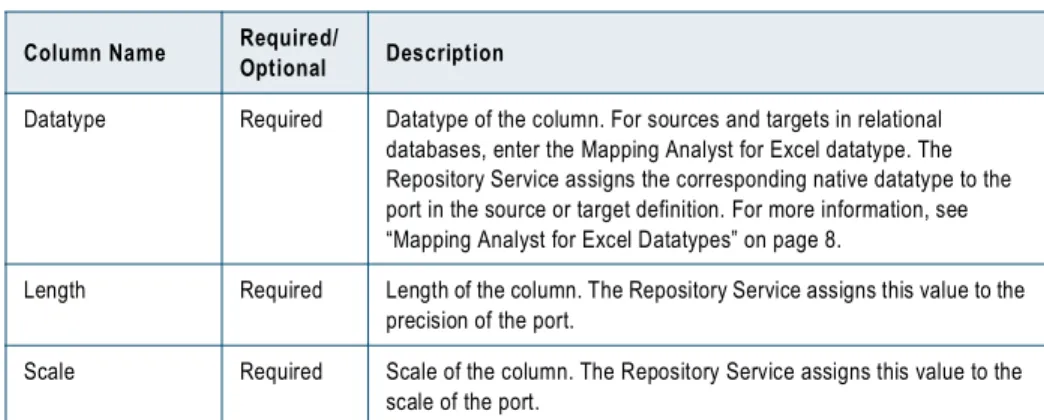
Datatype Required Datatype of the column. For sources and targets in relational databases, enter the Mapping Analyst for Excel datatype. The Repository Service assigns the corresponding native datatype to the port in the source or target definition. For more information, see “Mapping Analyst for Excel Datatypes” on page 8.
Length Required Length of the column. The Repository Service assigns this value to the precision of the port.
Scale Required Scale of the column. The Repository Service assigns this value to the scale of the port.
Formula/Expression Example PowerCenter Mapping Results
Name of a source port INVENTORY.ItemName Connects the pipeline related to the source port to the target port.
Name of a lookup table
port REVENUE.MonthlyRecognizedRevenue Includes return values from the lookup table that the Integration Service returns when the lookup condition is met. Use when the mapping pipeline includes a Lookup transformation. For more information, see “Lookup Transformation” on page 10.
Functions 9
Functions
The Functions worksheet lists the PowerCenter functions that you can use to configure transformation expressions. Functions that you can use in aggregate expressions are labeled Aggregation. You can add custom functions to the Functions worksheet.
The validation macros compare functions used in expressions with the list on the Functions worksheet.
To add functions:
1. On the Functions worksheet, add the custom function name to the list.
2. If the function is an aggregate function, label the function Aggregation in the Type column.
Transformations
You add transformations to a mapping specification on the following worksheets:
♦ Source worksheet. Configure Joiner, Lookup, and Filter transformations.
♦ Target worksheet. Configure Expression and Aggregator transformations.
Joiner Transformation
You can join source data from two related heterogeneous sources residing in different locations or file systems. You join source data by matching one or more pairs of columns between the two sources. You configure a join on the Source worksheet of the mapping specification. A join in the mapping specification becomes a Joiner transformation in a PowerCenter mapping.
On the Source worksheet, enter the join information for the appropriate port in the left or master table. For example, if you are joining two sources by a column named StoreID, enter the join information in the row that describes the StoreID port of the left or master table.
The following table describes the information you configure for a Joiner transformation: Aggregate expression AVG (INVENTORY.Cost) Creates an Aggregator transformation. For
more information, see “Aggregator Transformation” on page 11. Non-aggregate
expression INVENTORY.Price – INVENTORY.Cost Creates an Expression transformation. For more information, see “Expression Transformation” on page 12.
Column Name Description
Right Table Name of the right or detail table to join with the left or master table. The table must be configured on the Source worksheet.
10 Chapter 2: Configuring One Mapping
The following figure shows a left or master table named SALES joined with a right or detail table named REVENUE by the StoreID column with an Outer join:
Lookup Transformation
You can configure a lookup to find data outside of the mapping pipeline. You configure a lookup on the Source worksheet of the mapping specification. A lookup in the mapping specification becomes a connected Lookup transformation in a PowerCenter mapping.
You can perform a lookup on any source defined in the mapping specification. To perform a lookup on a table that is not used as a mapping source, you can include the lookup table in the file as a source table without connecting it to mapping targets.
To create a lookup, define the following information:
♦ Lookup condition
♦ Return values
Lookup Condition
The Integration Service finds data in the lookup source with a lookup condition. The lookup condition is similar to the WHERE clause in an SQL query.
Define the condition for the appropriate column in the lookup table. For example, to return values from a REVENUE lookup table for matching store IDs, enter the following lookup condition in the Lookups column for the row that describes the StoreID port of the REVENUE table:
REVENUE.StoreID=SALES.StoreID
Return Values
Return values are the values from the lookup table that the Integration Service returns when the lookup condition is met.
Right Column Column name in the right or detail table to match with the column in the left or master table. The Repository Service uses these columns to define the join condition. Type Type of join for the Joiner transformation. Enter one of the following types:
- LEFT. Left outer join. The Repository Service creates a Joiner transformation with a Master Outer join.
- RIGHT. Right outer join. The Repository Service creates a Joiner transformation with a Detail Outer join.
- INNER. Inner join. The Repository Service creates a Joiner transformation with a Normal join.
- OUTER. Outer join. The Repository Service creates a Joiner transformation with a Full Outer join.
Column Name Description
Left or master table Right or detail table joined by the StoreID column with an Outer join
Transformations 11
Define return values by entering the name of a lookup table column as an expression for a target column on the Target worksheet. For example, to include monthly revenue data from the lookup table in the mapping, define REVENUE.MonthlyRecognizedRevenue as the expression for the MonthlyRecognizedRevenue target column on the Target worksheet.
Filter Transformation
You can configure a filter to remove source data from the mapping pipeline. You configure a filter on the Source worksheet of the mapping specification. A filter defined in the mapping specification becomes a Filter
transformation in a PowerCenter mapping.
Configure a filter by defining a filter condition. The filter condition is an expression that returns TRUE or FALSE. For example, use the following expression to filter out transactions with negative values, such as returns:
TransactionAmount > 0
You can also specify multiple components for a condition using the AND and OR logical operators.
Define a filter condition for the appropriate port in the source table. For example, enter the TransactionAmount condition in the Filters column for the row that describes the TransactionAmount port.
Aggregator Transformation
You can configure an aggregate expression to perform calculations on multiple values in a port. You configure an aggregate expression on the Target worksheet. An aggregate expression defined in the mapping specification becomes an Aggregator transformation in a PowerCenter mapping.
Use aggregate functions to perform calculations on multiple values in a port. For example, the following aggregate expression evaluates all values in the Quantity port of the SALES table and returns the highest value:
MAX(SALES.Quantity)
You can use an aggregate function, conditional clauses, and non-aggregate functions in an aggregate expression. You can also nest one aggregate function within another aggregate function, for example:
MAX( COUNT( SALES.Quantity))
In the Mapping template, aggregate functions are marked “Aggregation” in the list of functions on the Functions worksheet.
Define an aggregate expression in the Formula/Expression column for the row where you want return values to be written.
When you validate the Target worksheet in the mapping specification, Microsoft Excel defines the expression type in the Transformations Type column.
The following figure shows an aggregate expression configured for the StoreSales port of the T_SALES target table:
Aggregate expression defined for the StoreSales port
Validation defines the expression type as aggregate
12 Chapter 2: Configuring One Mapping
Grouping Values
In PowerCenter, you use group by ports in the Aggregator transformation to group values for aggregate calculations. The result of an aggregate expression varies depending on the group by ports you configure. For example, when the Integration Service calculates the following aggregate expression with no group by ports defined, it finds the total sales from all transactions:
SUM( SALES.TransactionAmount )
However, if you use the same expression, and you group by the StoreID port, the Integration Service returns the total sales for each store ID.
When a PowerCenter developer imports a mapping specification, the Repository Service creates a single Aggregator transformation for all aggregate expressions defined for the target. Any port in the Aggregator transformation without an aggregate expression becomes a group by port.
Use the Transformations Description column to indicate which group by ports you want to use. After importing the mapping specification, the PowerCenter developer can view that information in the Aggregator transformation and configure group by ports appropriately.
Expression Transformation
You can configure an expression to calculate values in a single row for each row in a port. You configure an expression on the Target worksheet of the mapping specification. An expression defined in the mapping specification becomes an Expression transformation in a PowerCenter mapping.
Use an expression to calculate values in a single row for each row in a port. For example, the following expression increases the cost of each item by five percent:
INVENTORY.Cost + (INVENTORY.Cost * .05)
You can use conditional clauses and non-aggregate functions in non-aggregate expressions. You can also nest non-aggregate functions.
When you validate the Target worksheet in the mapping specification, Microsoft Excel defines the expression type in the Transformations Type column.
Validating the Mapping Specification
The Mapping template with validation includes macros to perform validation of the Source and Target worksheets. The macros perform the following validation:
♦ Expressions contain columns that are defined on the Source or Target worksheet.
♦ Functions used in the mapping are listed on the Functions worksheet.
♦ Function types are defined in the Type column in the Target worksheet based on the definitions on the Functions worksheet.
To perform validation:
1. On the Source worksheet, click Validate. The validation notifies you of any error.
2. Correct errors and click Validate again.
3. On the Target worksheet, click Validate.
The validation fills in the transformation types, “expr” for expression and “aggr” for aggregation and notifies you of any error.
Validating the Mapping Specification 13
Overview 15
C
H A P T E R
3
Configuring One Mapping -
Example
This chapter includes the following topics:
♦ Overview, 15
♦ Step 1. Establish the PowerCenter Environment, 16
♦ Step 2. Configure the Mapping Specification in Microsoft Excel, 16
♦ Step 3. Validate the Mapping Specification, 19
♦ Step 4. Save the Mapping Specification to a Shared Location, 20
♦ Step 5. Import the Mapping Specification, 20
♦ Step 6. Edit the PowerCenter Mapping and Generate a Workflow, 21
Overview
This example uses the Mapping template with validation to configure a mapping that aggregates sales and revenue data into a data warehouse for analysis. In addition, the example mapping performs the following tasks:
♦ Uses the store ID to look up monthly revenue values in a source table.
♦ Filters negative transactions, such as returns, out of the pipeline.
♦ Calculates the total sales for each store.
The mapping reads from the following source tables located in an Oracle schema named Sales:
♦ Sales. Stores the current month's sales data for each store.
♦ Revenue. Stores the revenue recognized in the current month from sales that have been occurring at each
store.
The mapping writes the aggregated data to a target table named T_Sales located in an Oracle schema named DM.
To create this example mapping, the business analyst and PowerCenter developer complete the following steps: 1. Establish the PowerCenter environment (Developer). The PowerCenter developer configures the database connectivity, designates a repository folder to store the imported objects, and creates the source and target tables.
2. Configure the mapping specification in Microsoft Excel (Business Analyst). The business analyst creates a mapping specification from the Mapping template and configures the Main, Source, and Target
worksheets.
16 Chapter 3: Configuring One Mapping - Example
4. Save the mapping specification to a shared location (Business Analyst). 5. Import the mapping specification (Developer).
6. Edit the PowerCenter mapping and generate a workflow (Developer).
Step 1. Establish the PowerCenter Environment
Before the business analyst creates a mapping specification, the PowerCenter developer completes the following tasks to establish the PowerCenter environment:
♦ Configure database connections. Use the Workflow Manager to configure connection objects so that the
Integration Service can connect to the source and target databases.
♦ Designate a repository folder to store the imported objects. Use the Repository Manager to select an
existing folder or to create a folder for the PowerCenter objects that are imported from the mapping specification.
♦ Create source and target tables. Use Oracle SQL Plus to run SQL statements to use the sample data in this
example.
To use the source tables included in this example, use Oracle SQL Plus to run the following SQL statements to create the Sales and Revenue source tables in an Oracle schema named Sales:
Connect sales/sales
CREATE TABLE sales.sales (StoreID NUMBER, OldTransactionNumber NUMBER, TransactionDate DATE, TransactionAmount NUMBER);
Insert into sales.sales values (1,100,'1-JAN-2008',1000); Insert into sales.sales values (1,101,'1-JAN-2008',2000); Insert into sales.sales values (1,102,'3-JAN-2008',3000); Insert into sales.sales values (1,103,'3-JAN-2008',4000); Insert into sales.sales values (2,104,'2-JAN-2008',1000); Insert into sales.sales values (2,105,'2-JAN-2008',2000); Insert into sales.sales values (2,106,'4-JAN-2008',2000); Insert into sales.sales values (2,107,'4-JAN-2008',3000);
CREATE TABLE sales.revenue (StoreID NUMBER, MonthlyRecognizedRevenue NUMBER);
Insert into sales.revenue values (1,8000); Insert into sales.revenue values (2,7000); Commit;
To use the target table included in this example, use Oracle SQL Plus to run the following SQL statements to create the T_Sales target table in an Oracle schema named DM:
Connect DM/DM
CREATE TABLE DM.T_Sales (StoreID NUMBER, TransactionDate DATE, StoreSales NUMBER, MonthlyRecognizedRevenue NUMBER);
Step 2. Configure the Mapping Specification in Microsoft
Excel
The business analyst completes the following tasks to configure the mapping specification in Microsoft Excel:
♦ Create a mapping specification based on the Mapping template.
♦ Configure the Main worksheet.
Step 2. Configure the Mapping Specification in Microsoft Excel 17 ♦ Configure the Target worksheet.
The Functions worksheet lists a set of functions that you can use to configure transformation expressions. In this example, you do not need to configure the Functions worksheet.
Create a Mapping Specification
To create a mapping specification based on the Informatica Mapping template, copy and rename the template. You can find the Mapping template, MappingTemplate.xls, in the following directory:
<PowerCenter Client installation directory>\bin\Sample Specifications
For example, copy and rename the template AggregateMapping.xls.
Configure the Main Worksheet
The Main worksheet defines metadata about the mapping specification, mapping, and source and target data sources.
In general, when you configure a mapping specification, you do not need to enter all requested metadata. However, certain metadata is required to import the mapping specification into the repository.
The following table describes the required metadata on the Main worksheet:
Optionally, you can enter a model description and creation time as well as descriptions for the source, source schemas, target, and target schemas.
Configure the Source Worksheet
Use the Source worksheet to define the sources. You can also define join, lookup, and filter metadata for the mapping. In this example, you configure the following metadata:
♦ Source tables named SALES and REVENUE. A source defined in the mapping specification is imported as
a source definition and Source Qualifier transformation in a PowerCenter mapping.
♦ Lookup condition. You can configure a lookup condition to find data in a source defined in the mapping
specification. A lookup in the mapping specification becomes a connected Lookup transformation in a PowerCenter mapping. Define the lookup condition in the appropriate column in the source table. This example uses the following lookup condition to return values from the REVENUE source table for matching store IDs:
REVENUE.StoreID=SALES.StoreID
♦ Filter condition. You can configure a filter to remove source data from the mapping pipeline. A filter defined in the mapping specification becomes a Filter transformation in a PowerCenter mapping. Define the filter condition in the appropriate column in the source table. This example uses the following filter condition to remove transactions with negative values, such as returns:
TransactionAmount > 0 Information Description
Model Name Name of the model that contains all of the mapping metadata. Source Data Store Name Name of the source data store that contains the mapping sources. Source System Type Type of source database. For example, enter Oracle.
Source Schema Names Name of the source schema. For example, enter Sales. Target Data Store Name Name of the target data store that contains the mapping targets.
Cannot be identical to the Source Data Store Name. Target System Type Type of target database. For example, enter Oracle. Target Schema name Name of the target schema. For example, enter DM.
18 Chapter 3: Configuring One Mapping - Example
To configure the Source worksheet:
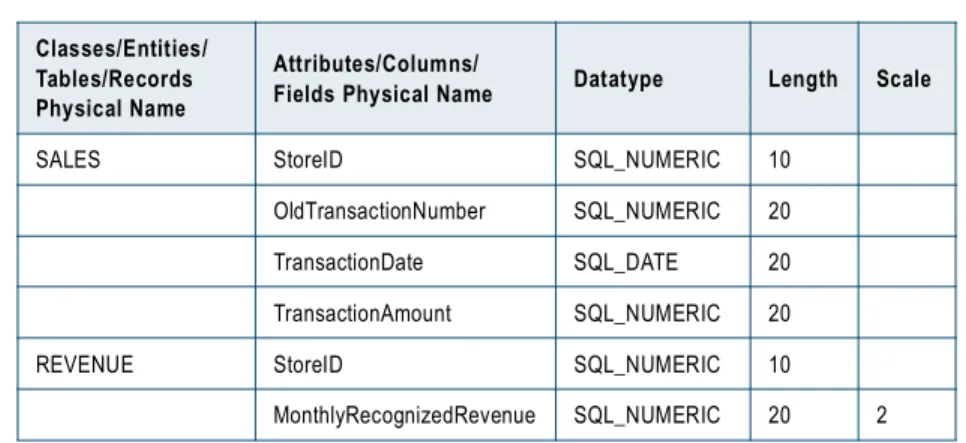
1. On the Source worksheet, enter the following information:
Table and column names are case sensitive.
2. To configure a filter that removes negative transactions, such as returns, enter the following expression in the Filters column for the SALES.TransactionAmount row:
TransactionAmount > 0
3. To configure a lookup condition, enter the following expression in the Lookups column for the REVENUE.StoreID row:
REVENUE.StoreID=SALES.StoreID
4. Save the changes.
The following figure shows the completed Source worksheet:
Configure the Target Worksheet
Use the Target worksheet to define the targets. You can also define aggregate and non-aggregate expressions for the mapping. In this example, you configure the following metadata:
♦ Target table named T_SALES. A target defined in the mapping specification becomes a target definition in
a PowerCenter mapping. To configure a target port in the mapping specification, enter an expression in the Formula/Expression column for the target port. The expression can be the name of a source port or an aggregate or non-aggregate expression. Unconfigured target ports appear in a PowerCenter target definition but are not connected to the PowerCenter mapping pipeline. When defining target ports, use the target table name and column name as follows:
<TableName>.<ColumnName>
♦ Aggregate expression. Use aggregate expressions to perform calculations on multiple values in a port. An aggregate expression defined in a mapping specification becomes an Aggregator transformation in a PowerCenter mapping. Define an aggregate expression in the row where you want return values to be written. This example uses the following aggregate expression to find the total sales from all transactions grouped by store ID:
SUM( SALES.TransactionAmount )
When you import a mapping specification, any port in the Aggregator transformation without an aggregate expression becomes a group by port. Use the Transformations Description column in the Target worksheet to indicate the group by ports you want to use. After importing the mapping specification, the PowerCenter
Classes/Entities/ Tables/Records Physical Name
Attributes/Columns/
Fields Physical Name Datatype Length Scale
SALES StoreID SQL_NUMERIC 10 OldTransactionNumber SQL_NUMERIC 20 TransactionDate SQL_DATE 20 TransactionAmount SQL_NUMERIC 20 REVENUE StoreID SQL_NUMERIC 10
Step 3. Validate the Mapping Specification 19
developer can view that information in the Aggregator transformation and configure the group by ports appropriately.
To configure the Target worksheet:
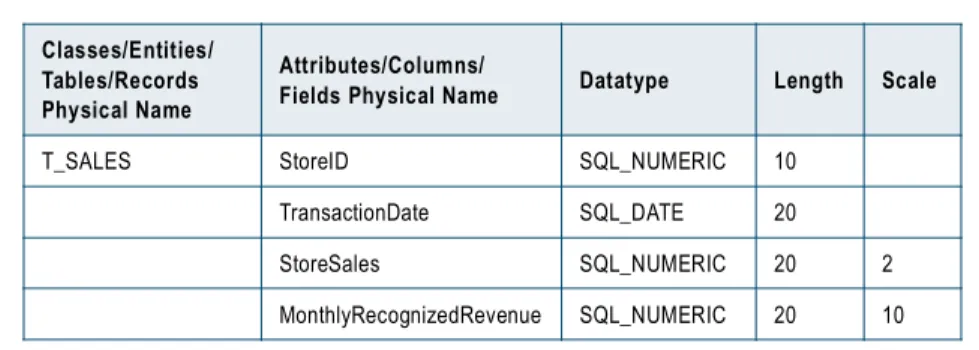
1. On the Target worksheet, enter the following information:
Table and column names are case sensitive.
2. To configure an aggregate expression that calculates total sales by store, enter the following expression in the Transformation Formula/Expression column for the T_SALES.StoreSales row:
SUM(SALES.TransactionAmount)
3. In the Description column, enter the following information for the PowerCenter developer:
group by StoreID
4. To define the return value of the lookup condition of the REVENUE table, enter the following expression in the Transformation Formula/Expression column for the T_SALES.MonthlyRecognizedRevenue row:
REVENUE.MonthlyRecognizedRevenue
5. To configure the remaining target ports, enter the following information:
6. Save the changes.
The following figure shows the completed Target worksheet:
Step 3. Validate the Mapping Specification
The Mapping template with validation includes macros to perform validation of the Source and Target worksheets.
To perform validation:
1. On the Source worksheet, click Validate. The validation notifies you of any error.
Classes/Entities/ Tables/Records Physical Name
Attributes/Columns/
Fields Physical Name Datatype Length Scale
T_SALES StoreID SQL_NUMERIC 10 TransactionDate SQL_DATE 20 StoreSales SQL_NUMERIC 20 2 MonthlyRecognizedRevenue SQL_NUMERIC 20 10 Attributes/Columns/Fields Physical Name Transformations Formula/Expression StoreID SALES.StoreID TransactionDate SALES.TransactionDate
20 Chapter 3: Configuring One Mapping - Example
2. Correct errors and click Validate again.
3. On the Target worksheet, click Validate.
The validation fills in the transformation types, “expr” for expression and “aggr” for aggregation and notifies you of any error.
4. Correct errors and click Validate again.
5. Save the changes.
Step 4. Save the Mapping Specification to a Shared
Location
Save the mapping specification named AggregateMapping.xls to a shared location so that the PowerCenter developer can access the file. The PowerCenter developer imports the mapping specification into PowerCenter.
Step 5. Import the Mapping Specification
The PowerCenter developer uses the Repository Manager to import a Mapping Analyst for Excel mapping specification. The Repository Service exports mapping metadata from the mapping specification and then imports it to the PowerCenter repository as PowerCenter objects.
To import a mapping specification:
1. Copy the mapping specification named AggregateMapping.xls from the shared location to the following directory on your local machine:
<PowerCenter Client installation directory>\bin\Sample Specifications
2. In the Repository Manager, open the folder that you selected to store the imported PowerCenter objects.
3. Click Repository > Import Metadata. The Tool Selection page appears.
4. For Source Tool, select Microsoft Office Excel and click Next. The Microsoft Office Excel Options page appears.
5. Enter the following information:
Use the default values of the remaining options.
6. Click Next.
The PowerCenter Options page appears.
7. For export objects, select Sources, Targets, and Mappings to import the entire mapping.
Microsoft Excel Option Description
File File name for the mapping specification. Click the Value field to locate and select the mapping specification that you created. For example, select AggregateMapping.xls.
With metadata mapping
spreadsheet Metamap associated with the template used to create the file. Click the Value field to locate and select the XML version of the associated metamap, MappingTemplate-MetaMap.xml.
Step 6. Edit the PowerCenter Mapping and Generate a Workflow 21
8. For Code Page, enter the name of the PowerCenter Repository Service code page.
For example, if the PowerCenter Repository Service uses the “MS Windows Latin 1 (ANSI), superset of Latin1” code page, enter the corresponding code page name MS1252. For a list of supported code page names, see the PowerCenter Administrator Guide.
9. Use the default values of the remaining options.
10. Click Next.
In the Import Results dialog box, a message appears if the export from the mapping specification is successful. Error messages display when the export is not successful.
11. Click Show Details to view log events. You can also click Save Log to save the log events to a file.
12. Click Next.
The Selection dialog box displays the sources or targets in the mapping specification with all objects selected by default.
13. Select all objects for import and click Finish.
The Repository Service imports the mapping from the mapping specification. The results of the import appear in the Output window. By default, the mapping is named Mapping. You can change the mapping name when you edit the mapping.
You can view and edit the mapping in the Designer. The following figure shows the imported mapping:
Step 6. Edit the PowerCenter Mapping and Generate a
Workflow
The PowerCenter developer completes the following tasks in the PowerCenter Client:
♦ Edit the PowerCenter mapping.
♦ Generate and run a workflow from the mapping.
Edit the PowerCenter Mapping
The PowerCenter developer uses the Designer to view and edit the PowerCenter mapping. The developer can implement additional functionality that might be required. For this example, edit the mapping to configure the Aggregator transformation group by ports.
To edit the mapping to configure the Aggregator transformation group by ports: 1. In the Mapping Designer, open the mapping for editing.
2. To rename the mapping, click Mapping > Edit, enter a name, and click OK. For example, enter AggregateMappingExample.
3. Double-click the Aggregator transformation.
4. On the Ports tab, click the StoreSales port.
The Description field displays the note to configure StoreID as the group by port.
22 Chapter 3: Configuring One Mapping - Example
6. Click OK.
7. Save the mapping.
Generate and Run a Workflow from the Mapping
The PowerCenter developer uses the Workflow Generation Wizard in the Designer to generate a workflow from the mapping. The developer then runs the workflow to populate the target table. For more information about using the Workflow Generation Wizard, see the PowerCenter Designer Guide.
After the workflow runs, use Oracle SQL Developer to review the contents of the target table. For example, run the following SQL statement to view the contents of the table:
Overview 23
C
H A P T E R
4
Configuring Multiple Mappings
This chapter includes the following topics:
♦ Overview, 23
♦ Copying and Renaming the Source-Target-Matrix Template, 23
♦ Mapping Names, 24
♦ Sources, 24
♦ Expression Transformations, 25
♦ Targets, 25
Overview
A business analyst uses the Source-Target-Matrix template to create a mapping specification for multiple mappings. The Source-Target-Matrix template contains a separate worksheet for each mapping in the mapping specification. Mapping specifications based on the Source-Target-Matrix template can contain sources, targets, and Expression transformations. A PowerCenter developer imports the mapping specification using the Repository Manager to create the corresponding PowerCenter objects.
To create a mapping specification based on the Source-Target-Matrix template, a business analyst completes the following steps:
1. Copy and rename the template. 2. Configure the name for each mapping. 3. Configure sources.
4. Configure Expression transformations. 5. Configure targets.
Note: You can use the Source-Target-Matrix template to create a mapping specification with a single mapping.
Copying and Renaming the Source-Target-Matrix
Template
To create a mapping specification based on the Informatica Source-Target-Matrix template, copy and rename the template. You can find the Source-Target-Matrix template, source-target-matrix.xls, in the following directory:
24 Chapter 4: Configuring Multiple Mappings
Mapping Names
The Source-Target-Matrix template contains three worksheets named mapping1, mapping2, and mapping3. When a PowerCenter developer imports a mapping specification created from the Source-Target-Matrix template, the Repository Service performs the following actions:
♦ Names each mapping and target in the mapping specification with the worksheet name. Rename each worksheet with an appropriate mapping and target name.
♦ Creates a new mapping for every worksheet in the file. To avoid importing unused worksheets, delete all unused worksheets from the file.
Sources
Use the Source section on each worksheet to enter source information for the mapping. Enter the following properties in the Source section:
To specify a database type for the source, the PowerCenter developer can complete one of the following tasks:
♦ Select a database type when importing the mapping specification. On the PowerCenter Options page of
the Import Wizard, select a database type for the Database type option. During import, the Repository Service assigns this database type to all sources and targets for each mapping configured in the mapping specification. For more information, see “Importing Mapping Specifications” on page 34.
♦ Edit the database type for the source definition in the Designer. After importing the mapping specification, open the source definition in the Source Analyzer. In the Table tab, select the database type.
To specify a database name for the source, the PowerCenter developer can enter the database name when importing the mapping specification. On the PowerCenter Options page of the Import Wizard, enter a name for the Database name option. All sources for each mapping configured in the mapping specification will have the same database name. For more information, see “Importing Mapping Specifications” on page 34.
Property Required/Optional Description
File/table Required File or table name. The Repository Service creates a PowerCenter source definition with this name.
Field/column Required Field or column name. The Repository Service creates a port in the source definition with this name.
Add related fields and columns in the same order as in the Target section on the worksheet. When you import the mapping specification, the Reporting Service links transformation ports by position. For example, the Reporting Service links the first output port to the first input port, and the second output port to the second input port.
Field/column Datatype Required Datatype of the field or column. For sources in relational databases, enter the Mapping Analyst for Excel datatype. The Repository Service assigns the corresponding native datatype to the port in the source definition. For more information, see “Mapping Analyst for Excel Datatypes” on page 8.
Field/column
Expression Transformations 25
Expression Transformations
Mapping specifications based on the Source-Target-Matrix template can contain non-aggregate expressions. Use an expression to calculate values in a single row for each row in a port. For example, the following expression increases the salary of each employee by seven percent:
Salary + (Salary * .07)
You can use conditional clauses and non-aggregate functions in non-aggregate expressions. You can also nest non-aggregate functions.
You configure an expression in the Transformation column for the source row on each worksheet of the mapping specification. An expression defined in the mapping specification becomes an Expression transformation in a PowerCenter mapping.
The following figure shows an expression defined for a source row named Salary:
Targets
Use the Target section on each worksheet to enter target information for the mapping.
When a PowerCenter developer imports the mapping specification, the Repository Service uses the worksheet name to define the target definition name.
Enter the following properties in the Target section:
Property Required/
Optional Description
Field/column Required Field or column name. The Repository Service creates a port in the target definition with this name.
Add related fields and columns in the same order as in the Source section on the worksheet. When you import the mapping specification, the Reporting Service links transformation ports by position. For example, the Reporting Service links the first output port to the first input port, the second output port to the second input port, and so forth.
Field/column Datatype Native Name
-or-Field/column Datatype
Required Datatype of the field or column. Enter the datatype in either column. For targets in relational databases, enter the Mapping Analyst for Excel datatype. The Repository Service assigns the corresponding native datatype to the port in the target definition. For more information, see “Mapping Analyst for Excel Datatypes” on page 8. Length Required Length of the column. The Repository Service assigns this value to
the precision of the port in the target definition.
Scale Required Scale of the column. The Repository Service assigns this value to the scale of the port in the target definition.
26 Chapter 4: Configuring Multiple Mappings
To specify a database type for the target, the PowerCenter developer can complete one of the following tasks:
♦ Select a database type when importing the mapping specification. On the PowerCenter Options page of
the Import Wizard, select a database type for the Database type option. During import, the Repository Service assigns this database type to all sources and targets for each mapping configured in the mapping specification. For more information, see “Importing Mapping Specifications” on page 34.
♦ Edit the database type for the target definition in the Designer. After importing the mapping specification, open the target definition in the Target Designer. In the Table tab, select the database type.
Description Optional Description for the field or column. The Repository Service uses this description for the port in the target definition.
Notes Optional Description for the field or column. The Repository Service uses this description for the port in the target definition. When you enter values for both the Description and Notes properties, the Repository Service uses the Notes property.
Overview 27
C
H A P T E R
5
Configuring Multiple Mappings -
Example
This chapter includes the following topics:
♦ Overview, 27
♦ Step 1. Establish the PowerCenter Environment, 28
♦ Step 2. Configure the Mapping Specification in Microsoft Excel, 28
♦ Step 3. Save the Mapping Specification to a Shared Location, 30
♦ Step 4. Import the Mapping Specification, 30
♦ Step 5. Edit the PowerCenter Mappings and Generate Workflows, 31
Overview
This example uses the Source-Target-Matrix mapping specification template to configure mappings that read human resources data from a flat file and write the data to an Oracle database. The mapping specification in this example configures the following mappings:
♦ Employee_Info. Reads a delimited flat file containing employee information and writes the data to a target table named Employee_Info located in an Oracle schema named DM.
♦ Emp_Raises. Reads the same delimited flat file, includes an Expression transformation that calculates a salary increase for each employee, and writes the data to a target table named Emp_Raises located in an Oracle schema named DM.
To create these example mappings, the business analyst and PowerCenter developer complete the following steps:
1. Establish the PowerCenter environment (Developer). The PowerCenter developer configures the database connectivity, designates a repository folder to store the imported objects, and creates the sample flat file source and the target tables.
2. Configure the mapping specification in Microsoft Excel (Business Analyst). The business analyst creates a mapping specification from the Source-Target-Matrix template and configures the Employee_Info and Emp_Raises mappings on separate worksheets.
3. Save the mapping specification to a shared location (Business Analyst). 4. Import the mapping specification (Developer).
28 Chapter 5: Configuring Multiple Mappings - Example
Step 1. Establish the PowerCenter Environment
Before the business analyst creates a mapping specification, the PowerCenter developer completes the following tasks to establish the PowerCenter environment:
♦ Configure database connections. Use the Workflow Manager to configure connection objects so that the
Integration Service can connect to the source and target databases.
♦ Designate a repository folder to store the imported objects. Use the Repository Manager to select an
existing folder or to create a folder for the PowerCenter objects that are imported from the mapping specification.
♦ Create the source flat file. Create a flat file that contains the sample data used in this example.
♦ Create target tables. Use Oracle SQL Plus to run SQL statements to use the sample data in this example.
Create the Source Flat File
To use the source flat file included in this example, create a sample flat file that contains the following data:
♦ EmployeeID ♦ FirstName ♦ LastName ♦ Salary ♦ StartDate ♦ EndDate
For example, create a file named HR.txt that contains the following sample data:
1,John,Baer,100000,1/1/2005 00:00:00,1/1/2006 00:00:00 2,Bobbi,Apperley,120000,1/1/2005 00:00:00,1/1/2007 00:00:00
Save the file to the source file directory for the Integration Service process. The directory is defined in the $PMSourceFileDir service process variable. By default, the variable is set to the following directory:
<PowerCenter installation directory>\server\infa_shared\SrcFiles
Create Target Tables
To use the target tables included in this example, use Oracle SQL Plus to run the following SQL statements to create the Employee_Info and Emp_Raises target tables in an Oracle schema named DM:
Connect DM/DM
CREATE TABLE DM.Employee_Info (Emp_ID number, First_Name varchar2(40), Last_Name varchar2(40), Salary number, ST_Date date, End_Date date);
CREATE TABLE DM.Emp_Raises (Emp_ID number, First_Name varchar2(40), Last_Name varchar2(40), Salary number, ST_Date date, End_Date date);
Step 2. Configure the Mapping Specification in Microsoft
Excel
The business analyst completes the following tasks to configure the mapping specification in Microsoft Excel:
♦ Create a mapping specification based on the Source-Target-Matrix template.
Step 2. Configure the Mapping Specification in Microsoft Excel 29
Create a Mapping Specification
To create a mapping specification based on the Informatica Source-Target-Matrix template, copy and rename the template. You can find the Source-Target-Matrix template, source-target-matrix.xls, in the following directory:
<PowerCenter Client installation directory>\bin\Sample Specifications
For example, copy and rename the template HR_Data_Load.xls.
Configure the Mappings
Configure each mapping on a different worksheet in the mapping specification and name each worksheet. The Source-Target-Matrix template uses the worksheet name for both mapping names and target names in the mapping.
To configure multiple mappings: 1. Open HR_Data_Load.xls.
2. Rename the first worksheet Employee_Info and press Enter.
3. In the Source section of the Employee_Info worksheet, enter the following information:
4. In the Target section of the Employee_Info worksheet, enter the following information:
5. Save the changes.
6. To create the second mapping, copy rows 3 through 8 from the Employee_Info worksheet to the second worksheet.
7. Rename the second worksheet Emp_Raises and press Enter.
8. In the Salary row, enter the following expression in the Transformation column to define a seven percent increase in salary for all employees:
Salary + (Salary * .07)
9. Save the changes.
10. Delete the unused worksheet named mapping3.
File/Table Field/Column Field/Column Datatype
HR EmployeeID Number FirstName String LastName String Salary Decimal StartDate Date EndDate Date
Field/Column Field/Column Datatype Native Name
Emp_ID SQL_INTEGER First_Name SQL_CHAR Last_Name SQL_CHAR Salary SQL_DECIMAL ST_Date SQL_DATE End_Date SQL_DATE