SPSS/Excel Workshop 3 – Summer Semester, 2010
In Assignment 3 of STATS 10x you may want to use Excel to perform some calculations in Questions 1 and 2 such as:
• finding P-values and/or • finding t-multipliers and/or
• checking your ‘by-hand’ calculations for hypothesis tests and confidence
intervals about a single proportion and/or a difference between proportions
You must use SPSS to carry out hypothesis tests and confidence intervals for paired data and a difference between two means in Questions 4 and 5 and to do an appropriate box plot(s) for the data set in Question 4.
The exercises that follow will help you with the computing skills you will need for Assignment 3.
Excel Basics
Finding a P-value using Excel – Calculating t Probabilities
In Assignment 3 of STATS 10x you may want to use Excel to perform some calculations in Questions 1 and 2 such as finding P-values.
Question 1. [ 10 marks ] [Chapter 9] Question 2. [ 9 marks ] [Chapter 9] (a) Notes: (b) Notes:
(ii) Once you have calculated your test statistic,it is necessary to use either a graphics calculator, SPSS,
Excel or t-tables to determine the P-value.
(ii) At step 6 it is necessary to use either a graphics calculator, SPSS,
Excel or t-tables to determine the P-value.
Example: This example is from the lecture workbook, Chapter 9, page 2. Find the P-value when the t-test statistic, t0, = –1.25 and the
degrees of freedom, df, = 49:
1. Click in cell A1.
2. Click the Insert Function button from beside the formula bar.
3. Choose Statistical from the Or select a category box in the Insert Function dialog box.
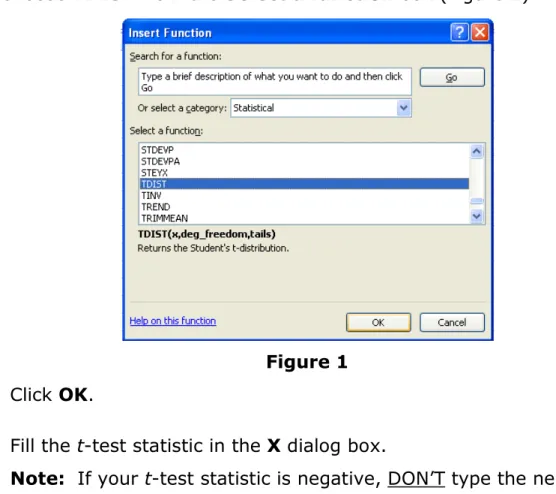
4. Choose TDIST from the Select a function box (Figure 1).
Figure 1 5. Click OK.
6. Fill the t-test statistic in the X dialog box.
Note: If your t-test statistic is negative, DON’T type the negative sign.
7. Type in the degrees of freedom (n – 1).
8. Enter 1 or 2 depending on whether the test is one-tailed or two-tailed (Figure 2).
Figure 2
Finding a t-multipler using Excel – Calculating the Inverse of
the Student t-distribution
In Assignment 3 of STATS 10x you may want to use Excel to perform some calculations in Questions 1 and 2 such as finding t-multipliers.
Example: Find the t-multiplier for a 95% confidence interval with degrees of freedom, df = 30. (That is: t30(0.025), probability 0.025 and 30 degrees of freedom).
1. Click on cell A1.
2. Click the Insert Function button from beside the formula bar.
3. Choose Statistical from the Or select a category box in the Insert Function dialog box.
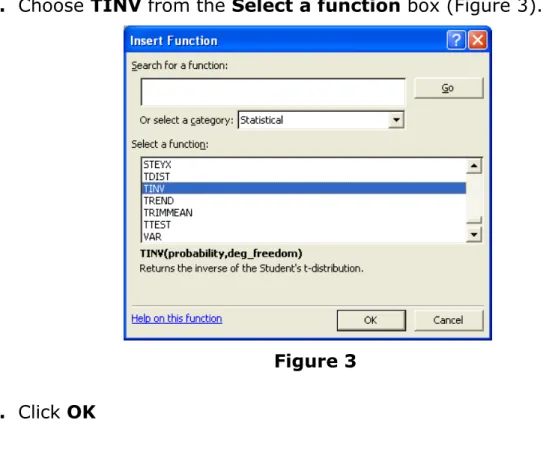
4. Choose TINV from the Select a function box (Figure 3).
Figure 3 5. Click OK
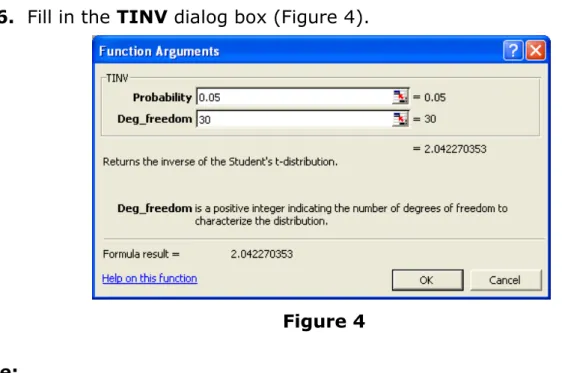
6. Fill in the TINV dialog box (Figure 4).
Figure 4 Note:
The Excel function TINV calculates the t-value for a two–tailed t-distribution. So if we want to find the t-value whose probability to the right is 0.1, then in the TINV function the value for the probability is entered as 0.2, because of the two-tailed nature of the function.
7. Click OK. (The value 2.042 should appear in cell A1.)
Note:
The examples can be solved by directly typing the formula =TINV(p, df) into the cell, where:
p is the probability for the two-tailed distribution
Downloading the
Excel Test and Confidence Interval
Calculators
In Assignment 3 of STATS 10x you may want to use the Excel Test and Confidence Interval Calculators to check your ‘by-hand’ calculations for hypothesis tests and confidence intervals about a single proportion and/or a difference between proportions in Questions 1 and 2. These are available to you in two places:
1. From Cecil (log in to Cecil in the usual way, click on Assignment Resources and look for “Single/One proportion” and “Two proportions”)
2. Go to Leila’s Student Learning Centre STATS 10x webpage
www.stat.auckland.ac.nz/~leila
Question 2. [ 9 marks ] [Chapter 9] (b) Notes:
(iii) You can check your calculations by using the Excel spreadsheet on Cecil. Look under
Assignment Resources.
Whichever way you do it, access Single/One proportion.xls and/or Two proportions.xls now.
Let’s have a go at using these two documents!
On the following two pages are some questions from the Worked Examples
document which you can find on Cecil.
We won’t be doing the calculations by hand, although you are welcome to try later – in this workshop we’ll use Excel to do them!
Question 13 [Chapter 9] (similar to Question 2, Assignment 3) In 2001, the New Zealand Planning Institute (NZPI) conducted a random survey of its members. The NZPI survey included questions about job title, location and the types of organisations members worked for. 324 responses to these questions were received. Some of the information collected from the responses were:
– 78 responses were received from Senior Planners. – 38 responses were received from Managers.
– 116 members were located in Auckland.
– 83 members were located in Wellington/Christchurch.
– Of those members who were located in Auckland, 68 were planners working for a Council.
– Of those members who were located in Wellington/Christchurch, 38 were planners working for a Council.
(a) State the sampling situation for the difference between the proportion of NZPI senior planners and the proportion of NZPI members who are located in Auckland.
(b) By hand, test to see if there is a difference between the proportion of NZPI members who are senior planners and the proportion who are managers. Interpret your results.
1. Parameter = pS – pM, the difference in the true proportion of NZPI members who are senior planners and the true proportion who are managers.
2. H0: pS – pM = 0
3. H1: pS – pM ≠ 0
4. Estimate pˆS -pˆM, the difference in the proportion of the sample that were senior planners and the proportion of the sample that were managers. 1234 . 0 1173 . 0 2407 . 0 324 38 324 78 = = = -
-5. Sampling situation (b): One sample of size n, several response categories. 032526 . 0 324 1234 . 0 1173 . 0 2407 . 0 ) ˆ ˆ ( se 2 = + = -- M S p p 794 . 3 032526 . 0 0 1234 . 0 0 = =
-t , df = ∞ (working with proportions)
6. P-value = pr(T∞ > 3.794) + pr(T∞ < -3.794) = 2 x pr(T∞ > 3.794) =
0.0001 (from Excel)
7. We have very strong evidence: - against H0 in favour of H1.
- that the proportion of senior planners is not the same as the proportion of managers.
The observed difference, 0.1234, is a statistically significant result at the 5% level.
8. Use estimate ± t x se(estimate), estimate = 0.1234, se(estimate) =
0.032526, t = z = 1.96
95% confidence interval is: 0.1234 ± 1.96 × 0.032526
= (0.0596, 0.1872)
9 With 95% confidence, we estimate that the proportion of NZPI members who are senior planners is greater than the proportion who are managers by between 0.06 and 0.19.
Useful places to look for help by assignment question
Assignment question number Worked Examples question number Lecture Workbook page number Q1 Q2 Q3 Q4 Q5 Q6 Q7Also, don’t forget where else you can get assignment help! They are:
• Your lecturer’s office hours! See Cecil for details – if they don’t suit
you, email or call them to book a time.
• Statistics Assistance Area – ask a tutor or your neighbour
• Statistics Computer Lab – ask a lab demonstrator or your neighbour • The STATS 10x forum: www.stat.auckland.ac.nz/forum/10x
SPSS
In Assignment 3 of STATS 10x you must use SPSS to carry out hypothesis tests and confidence intervals for paired data and a difference between two means in Questions 4 and 5 and to do an appropriate box plot(s) for the data set in Question 4. Instructions on the question sheet read:
Hypothesis tests in this assignment
• In questions 4 and 5:
• You must follow steps 1, 2, 3, 7 and 9 in the “Step-by-Step Guide to Performing a t-test
by Hand”, Lecture Workbook, Chapter 9, page 9.
• Replace steps 4 – 6 and 8 in the “Step-by-Step Guide to Performing a t-test by Hand”
with the relevant computer output.
Computer use in this assignment
• Make sure you are prepared for questions 4 and 5 before you begin to use the computer. • Hand in computer output for questions 4 and 5.
• Report P-values to 3 or 4 decimal places.
• When carrying out a two independent sample t-test using SPSS do not assume equal
variances.
To save you typing time, all of the data files required for this workshop can be found on Leila’s SLC STATS 10x website www.stat.auckland.ac.nz/~leila and also on Cecil in SPSS data file (.sav) format.
Paired Data Comparisons
– finding the differences,
plotting the data and carrying out a paired
t
-test
for the
mean
difference and/or a sign test for the
median
difference
Paired
t
-test
Example: Conduct a paired data t-test for a mean difference of 0.
The head diameters of 18 N.Z. Airforce recruits were measured twice, once using cheap cardboard calipers and again using expensive and uncomfortable metal calipers.
What is the correct null hypothesis for this test?
1. Firstly, enter the data into SPSS or open the Calipers.sav file.
2. Secondly find the differences by:
a. Choose the Compute Variable tool: Click Transform → Compute Variable
b. Get the Compute Variable tool to find the differences: i. Type “differences” into the Target Variable field. ii. Click Cardboard.
iii. Click .
iv. Click (the subtraction button). v. Click Metal.
vi. Click . vii. Click OK.
3. Thirdly, plot the differences using a boxplot. a. Choose the Boxplot tool:
Click Graphs → Legacy Dialogs → Interactive → Boxplot
b. Pick up “differences” and drop into the top white field.
c. Do a title for the plot by clicking on the Title tab and type something meaningful into the Chart Title field.
4. Fourthly, carry out the paired t-test.
a. Choose the analysis tool: Paired-Samples T Test.
Click Analyze → Compare Means → Paired-Samples T Test.
b. Select the variables of interest.
i. Cardboard is highlighted. Click .
iii. Click .
iv. Click OK.
The Sign Test
Example: Conduct a sign test for a median difference of 0.
A study was designed to determine the effectiveness of a new diet. Nine people took part in the study. The weight of each person was recorded and then after three months on the diet, their weights were again recorded.
1. Enter the data into SPSS or open the Diet.sav file.
2. Choose the analysis tool: 2 Related Sample Nonparametric Test. Click Analyze → Nonparametric Tests → 2 Related Samples.
What is the correct null hypothesis for this test?
3. Select the relevant variables. Click Before and After. Click .
4. Choose the test type(s).
Click the Wilcoxon box to unselect it. Click the Sign box. Click OK.
5. View the results.
6. To view the P-value
Place the cursor in the Test Statistics output Right click
Place the cursor in the P-value cell Right click
Select Cell Properties
Place the cursor in the P-value cell Right click
Select Cell Properties
Select Format Value
Change the Decimals box to 3 or 4 Click Apply
Click OK
Two Independent Samples
– plotting the data
and carrying out a two independent samples
t
-test
Example: Conduct a two independentsamples t-test for no difference in the means.
A random sample of 40 cellphones of the same make and model were chosen. Half of the cellphones were randomly selected to have a nickel-cadmium battery put in them and the rest had a nickel-metal hydride battery. The talk time (in minutes) before the batteries needed to be recharged was recorded.
1. Enter the data into SPSS or open the Batteries.sav file.
Use a value of 1 for Nickel-cadmium and 2 for Nickel-metal hydride.
2. Assign labels. Label the values:
Label 1 as Cadmium and 2 as Metal.
What is the correct null hypothesis for this test?
3. Plot the data using a boxplot. a. Choose the Explore tool:
Click Analyze → Descriptive Statistics → Explore
b. Assign the variables.
Quantitative (response) variable → Variable box. Click Time.
Click .
Qualitative variable (grouping factor) → Category Axis box. Click Battery.
Click .
c. View and interpret the boxplots.
4. Carry out the two independent sample t-test.
a. Choose the analysis tool: Independent-Samples T Test. Click Analyze → Compare Means → Independent-Samples T Test.
b. Select the variables of interest. Quantitative variable (response) →
Test Variable(s) box. Click Time.
Click top .
Qualitative variable (grouping factor) → Grouping Variable box.
Click Type. Click bottom .
c. Define the direction of the difference (mean 1 – mean 2 or mean 2 – mean 1).
Click Define Groups.
Type 1 in the Group 1 box and type 2 in the Group 2 box. Click Continue and then OK.
F
-test for one-way ANOVA
Example: Conduct a one-way ANOVA F-test for no difference in the groups’ underlying means.
Fifty students learned about the reading methods of ‘mapping’ and ‘scanning’. The method used and increase in reading age was recorded for each student.
1. Enter the data into SPSS or open the ReadingMethods.sav file.
Use a value of 1 for MapOnly, 2 for MapScan, 3 for Neither, and 4
for ScanOnly for the Method variable (Values column in the
Variable View).
Label Score as Increase in reading age and Method as Reading Method.
2. Select the analysis tool: One-Way ANOVA.
Click Analysis → Compare Means → One-Way ANOVA. What is the correct null hypothesis for this test?
3. Select the relevant variables.
Quantitative (response) variable → Dependent List box. Click Increase in Reading Age [Score].
Click .
Qualitative variable (grouping factor) → Factor box. Click Reading Method [Method].
Click .
4. Select the relevant output tables. Click Post Hoc.
Click the Tukey box. Click Continue.
Click Options.
Click the Descriptive box.
Click Continue and then click OK.