• Complete Product Name with Trademarks Version
Dell SonicWALL™ Analyzer 8.0
Release Notes
June 2015
These release notes provide information about the Dell SonicWALL™ Analyzer 8.0 release. Analyzer 8.0 is a major release, with updated features and functionality. See New features.
• New features • Resolved issues • Known issues • System requirements • Upgrading to Analyzer • About Dell
New features
New features in the Analyzer 8.0 release:
• Java Applet Replacement—The TreeControl application (that displays all managed appliances) and the
User Management application (Console > Management > Users) have now been replaced with non-Java
versions. All Java applets in the front-end have been removed, except for NetMonitor and the "Login to Unit" feature from TreeControl.
• SonicOS Support—New features in SonicOS 6.2 are supported.
• Portuguese Support—The Login screen now includes version information and indicates Brazilian
Portuguese support.
• Reporting
• Report Database Rebuild Utility—The Reporting Database Rebuild Utility allows you to submit a
request to rebuild any specific month's report table if it were to become corrupt.
• Report Data Optimization—In previous versions, report data optimization exported sorted
report data into a file and reloaded that data back to the report database. In Analyzer 8.0, instead of using a file to upload the data, a temporary table is created that exports and reimports that data, leading to better performance.
• Botnet Reports—Botnet reporting is added to the Reports panel and includes four report types:
Attempts, Targets, Initiators, and Timeline.
• Geo-IP Reports—Geo IP reports contain information on blocked traffic that is based on the
traffic’s country of origin or destination. Geo-IP Reporting is added to the Reports panel and includes four report types: Attempts, Targets, Initiators, and Timeline.
• MAC Address in Reporting—This feature shows the Media Access Control (MAC) address on the
report page. This adds detail to the current device-specific information in the report panel and the PDF report. New columns “Initiator MAC” and “Responder MAC” are added to the following reports:
• Data Usage > Initiators
• Data Usage > Responders
• Data Usage > Details
• User Activity > Details
• Web Activity > Initiators
• Enhanced Reporting Database— The Reporting Database has been upgraded to a newer version
that offers better performance and higher reliability.
• Distributed Universal Scheduled Report—PDF report generation and uses an engine that can
make better use of your CPU and RAM resources, resulting in faster delivery of scheduled reports with larger volumes and more rows of data.
• Enhanced USR Template Manager—In addition to the PCI Report template, HIPAA and SOX templates
are added to Universal Scheduled Reports as an aid for compliance audits.
• USR-Customizing Sorting Option in PDF—Provides additional sorting options for Scheduled PDF reports
• Log Analyzer—The Firewall > Reports > Analyzers > Log Analyzer page has been updated with an
out-of-the-box default view.
• Packet Data View for Signature Alerts
• The disabling of default Syslog filters is allowed
• Comments Possible for Syslog Filters
• Number of Syslog messages per file configurable through UI
• All Windows Modules of Analyzer 8.0 are now 64-bit—Provides better usage of system resources and
better performance.
• High-level User Interface Changes
• Secure Remote Access (SRA) has been renamed to Secure Mobile Access (SMA).
• The CDP tab is removed.
• SRA tabs are no longer shown by default, but can be activated on Console > Management > Settings.
See also:
Known issues
The following is a list of issues, including those attributed to third-party products, known to exist at the time of release.
Table 1. Reporting known issues
Known issue Issue ID
The Top Threats SRA Signatures, Classification, and Severity columns are shown with the same threat IDs instead of displaying different names, classes, and severity levels.
Occurs when selecting Policies > WAF > Threats Prevented.
160842
System requirements
Before installing Analyzer 8.0, ensure that your system meets the following minimum hardware and software requirements.
Platform compatibility
The Dell SonicWALL Analyzer 8.0 release can be hosted in two deployment scenarios as follows:
• Microsoft Windows Server Software
• VMware ESX/ESXi Virtual Appliance Deployment Considerations:
• Before selecting a platform to use for your Analyzer deployment, use the Capacity Calculator 2. This helps you set up the correct Analyzer system for your deployment.
CAUTION: Dell SonicWALL recommends that you take steps to minimize abrupt shutdowns of the server hosting Analyzer, as this can cause corruption of the Reporting database, potentially leading to loss of data for the current month. A possible solution includes using an Uninterrupted Power Supply (UPS).
Supported platforms
The Dell SonicWALL Analyzer supports the following Microsoft Windows operating systems:
• Windows Server 2012 Standard 64-bit
• Windows Server 2012 R2 Standard 64-bit (English and Japanese language versions)
• Windows Server 2012 R2 Datacenter
• Windows Server 2008 R2 Datacenter
• Windows Server 2008 SBS R2 64-bit
• Windows Server 2008 R2 Standard 64-bit
• Windows Server 2008 SP2 64-bit
• Windows 8.1 64-bit
• Windows 7 64-bit
These Windows systems can either run in physical standalone hardware platforms, or as a virtual machine under Windows Server 2008 and 2012 Hyper-V or VMware ESXi.
TIP: Bundled databases run in 64-bit mode on 64-bit Windows operating systems. All listed operating systems are supported in both virtualized and non-virtualized environments. In a Hyper-V virtualized environment, Windows Server is a guest operating system running on Hyper-V. Analyzer is then installed on the Windows Server virtual machine that is layered over Hyper-V.
NOTE:Analyzer is not supported on MS-Windows Server virtual machines running in cloud services, such as Microsoft Azure and Amazon Web Services EC2.
Hardware requirements
Use the Capacity Calculator 2 to determine the hardware requirements for your deployment.
NOTE:A Windows 64-bit operating system with at least 16GB of RAM is highly recommended for better performance of reporting modules.
Hard drive HDD specifications
The following hard drive HDD specifications are required when using Analyzer software or Analyzer Virtual Appliances:
Table 2. Hardware requirements
Requirement Details
Spindle Speed 7200 RPM and higher Cache 64MB and higher Transfer rate 600MBs or higher Average latency 4 microseconds or lower
Analyzer virtual appliance supported platforms
The elements of basic VMware structure must be implemented prior to deploying the Dell SonicWALL Analyzer Virtual Appliance. SonicWALL Analyzer Virtual Appliance runs on the following VMware platforms:
• ESXi 4.1, 5.0, 5.1 and 5.5
• ESXi 4.0 Update 1 (Build 208167 and newer)
• ESX 4.1
• ESX 4.0 Update 1 (Build 208167 and newer)
Virtual appliance deployment considerations
Consider the following before deploying the Analyzer Virtual Appliance:
• Analyzer management is not supported on Apple MacOS.
• All modules are 64-bit.
The performance of Analyzer Virtual Appliance depends on the underlying hardware. It is highly recommended to dedicate all the resources that are allocated to the Virtual Appliance, especially the hard-disk (datastore). In environments with high volumes of syslogs, you will need to dedicate local datastores to the Analyzer Virtual Appliance.
Starting with Analyzer 7.1 the Virtual Appliances are 64-bit, which take advantage of additional RAM available to it. A minimum of 8GB RAM is required. However, at least 16GB of RAM is highly recommended for better performance of reporting modules.
Browser requirements
Dell SonicWALL Analyzer uses advanced browser technologies such as HTML5, which are supported in most recent browsers. Dell SonicWALL recommends using the latest Chrome, Firefox, Internet Explorer, or Safari browsers for administration of the Dell SonicWALL Analyzer.
This release supports the following Web browsers:
• Chrome 42.0 and higher (recommended browser for dashboard real-time graphics display)
• Firefox 37.0 and higher
• Internet Explorer 10.0 and higher (do not use compatibility mode)
NOTE:Internet Explorer version 10.0 in Metro interfaces of Windows 8 is not currently supported.
NOTE:Turn off Compatibility Mode when accessing Analyzer sites with Internet Explorer. Mobile device browsers are not recommended for Dell SonicWALL Analyzer system administration.
NOTE:If using Chrome version 42 and newer to access Analyzer 7.2 and older, you will need to enable NPAPI support in Chrome, which by default has been disabled starting with version 42.
To enable NPAPI support, complete the following steps:
1 In your URL bar, enter:
chrome://flags/#enable-npapi
2 Click Enable for the Enable NPAPI configuration option:
3 Click Relaunch Now, which now appears at the bottom of the configuration page.
MySQL requirements
Analyzer automatically installs MySQL as part of the base installation package. Separately installed instances of MySQL are not supported with Analyzer.
Dell SonicWALL appliances supported for Analyzer
management
NOTE:Analyzer 8.0 does not support legacy SonicWALL appliance, including:
• Firewall appliances running firmware earlier than SonicOS 5.0
• CSM Series
• CDP Series
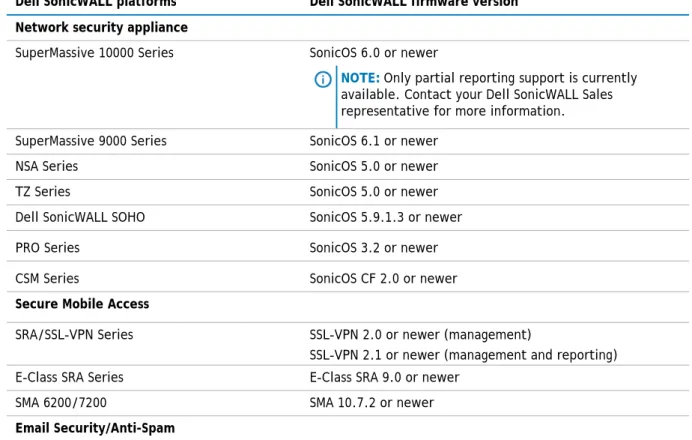
Dell SonicWALL Analyzer 8.0 supports the following Dell SonicWALL appliances and firmware versions:
Table 3. Component requirements
Dell SonicWALL platforms Dell SonicWALL firmware version Network security appliance
SuperMassive 10000 Series SonicOS 6.0 or newer
NOTE:Only partial reporting support is currently available. Contact your Dell SonicWALL Sales representative for more information. SuperMassive 9000 Series SonicOS 6.1 or newer
NSA Series SonicOS 5.0 or newer TZ Series SonicOS 5.0 or newer Dell SonicWALL SOHO SonicOS 5.9.1.3 or newer PRO Series SonicOS 3.2 or newer CSM Series SonicOS CF 2.0 or newer
Secure Mobile Access
SRA/SSL-VPN Series SSL-VPN 2.0 or newer (management)
SSL-VPN 2.1 or newer (management and reporting) E-Class SRA Series E-Class SRA 9.0 or newer
SMA 6200/7200 SMA 10.7.2 or newer
Email Security/Anti-Spam
SonicWALL Email Security Series SonicWALL Email Security 7.2 or newer (management only)
Notes:
• Appliances running firmware newer than this Analyzer release can still generate reports. However, the new features in the firmware release will be supported in an upcoming release of Analyzer.
• Legacy SonicWALL XPRS/XPRS2, SonicWALL SOHO2, SonicWALL Tele2, and SonicWALL Pro/Pro-VX models are not supported for Dell SonicWALL Analyzer reporting. Appliances running SonicWALL legacy firmware including SonicOS Standard 1.x and SonicWALL legacy firmware 6.x.x.x are not supported for SonicWALL Analyzer reporting.
• Dell SonicWALL Analyzer can be connected to SSL-VPN 2000 and 4000 appliances. Use the Log > ViewPoint page to set up the Analyzer connection (in addition to the configuration changes made on the Analyzer). In Dell SonicWALL SRA SSL-VPN 5.5 or later firmware versions, a Log > Analyzer page is provided for configuration of Analyzer settings.
Upgrading to Analyzer 8.0
This section provides procedures for upgrading an existing Dell SonicWALL Analyzer 7.1 or newer installation to Analyzer 8.0. Analyzer 8.0 can be installed as a fresh install or as an upgrade from Analyzer 7.2. If you wish to perform a fresh install of Analyzer 8.0, refer to the Analyzer Getting Started Guide that relates to your Analyzer deployment.
Upgrading considerations
CAUTION: If you are upgrading to 8.0 and still have CDP appliances under management, those appliances will automatically be removed from Analyzer.
CAUTION: If you have a Windows-32 bit Analyzer Server currently in your deployment, you must first migrate or decommission those servers, before upgrading to 8.0.
Consider the following before upgrading to Analyzer 8.0:
• Analyzer 8.0 is not a cumulative installation and cannot be installed as a “fresh install.” It can only be installed as an upgrade from Analyzer 7.2 with Service Packs installed in order. For a fresh install of Analyzer 8.0, refer to the Dell SonicWALL Analyzer Getting Started Guide that relates to your platform.
• The 40GB Analyzer Virtual Appliance should be installed in non-production environments only. Examples of non-production environments include those for Proof of Concept (POC), pilot, and demo deployments. Only the 250GB and 950GB virtual appliances are supported in production
environments. It is not possible to upgrade a 40GB virtual appliance to a 250GB or 950GB virtual appliance. You need to download the 250GB or 950GB virtual appliance if you are planning to use this software now or in the future for a production environment.
• In non-production environments, the amount of syslog data collected by the virtual appliance may exceed the 40GB limit, in which case Dell SonicWALL will be unable to support the 40GB virtual appliance.
• You must disable the User Account Control (UAC) feature on Windows before running the Analyzer installer. In addition, disable Windows Firewall or your personal firewall before running this installer.
• Analyzer can only be configured for a single server.
Upgrading procedure
To upgrade to Analyzer 8.0, complete the following steps:
1 Navigate to www.mysonicwall.com. 2 Download the Analyzer 8.0 software.
3 After the file has downloaded, double-click the file and follow the onscreen instructions. The Installer detects any previous installations of Analyzer. Click Install to proceed with the installation.
4 If you see a Windows Security Alert for Java, click Unblock. The installer displays a progress bar as the
files are installed. Wait a few minutes for the installer to finish installing.
5 After the files are installed, whether or not the system has a Personal Firewall such as Windows Firewall enabled, a dialog is displayed notifying you to either disable the firewall or manually open the syslog and SNMP ports, and to ensure that these ports are open on your network gateway or firewall if you plan to use HTTPS Management mode for managing remote appliances (instead of Analyzer Management Tunnel or Existing Tunnel modes). Click OK. Be sure to adjust the settings as
recommended.
Upgrading the Analyzer virtual appliance
The Analyzer Virtual Appliance can be upgraded from 7.2 to 8.0, but cannot be directly upgraded from Analyzer versions earlier than 7.2. To upgrade the Analyzer Virtual Appliance from a version earlier than 7.2, you need to upgrade to major versions of Analyzer until you reach 7.2, then you can upgrade to Analyzer 8.0. For Dell SonicWALL Analyzer Virtual Appliance deployments, upgrading from the Analyzer 7.2 release to the Analyzer 8.0 release can be performed on the System > Settings page.
In a distributed environment, shut down all Analyzer servers except the one that is running the database. Then upgrade the Console/AIOP first and then the other servers. You must upgrade all Analyzer servers in your deployment to the same version of Dell SonicWALL Analyzer 8.0. You cannot have some servers running version 7.2 and others running 8.0.
For a fresh install of the Analyzer 8.0 64-bit Virtual Appliance, refer to the Analyzer Virtual Appliance Getting
Started Guide.
To upgrade, complete the following:
1 Download the Analyzer 8.0 file from www.mysonicwall.com to your workstation: 2 sw_gmsvp_vm_eng_8.0.xxxx.yyyy.gmsvp-updater.64bit.sh
3 Log in to the /appliance (System) interface of the Analyzer server. 4 Navigate to the System > Settings page.
5 Click Browse, navigate to the location where you saved the above file, and select it.
6 Click Apply to begin the firmware upgrade installation.
7 The Virtual Appliance reboots at the end of the installation process.
Online training materials
Dell SonicWALL Technical Training Services offers Analyzer software for essential security administrator certification. This Certified Dell SonicWALL Security Administrator (CSSA) course provides fundamental instructions to help you understand the basic deployment best practices for Managed Security Service Providers.
The following link provides the latest information regarding Dell SonicWALL Analyzer eLearning courses:
https://support.software.dell.com/training-product-select
Click Find Your Course and search for Analyzer Certification Training.
Technical support resources
Technical support is available to customers who have purchased Dell software with a valid maintenance contract and to customers who have trial versions. To access the Support Portal, go to
http://software.dell.com/support/.
The Support Portal provides self-help tools you can use to solve problems quickly and independently, 24 hours a day, 365 days a year. In addition, the portal provides direct access to product support engineers through an online Service Request system.
The site enables you to:
• Create, update, and manage Service Requests (cases)
• View Knowledge Base articles
• Obtain product notifications
• Download software. For trial software, go to Trial Downloads.
• Engage in community discussions
• Chat with a support engineer
Dell SonicWALL reference documentation is available on the Dell Software Support site:
https://support.software.dell.com/release-notes-product-select
Datasheets, white papers, and other product information are available on the Dell Software Products website:
http://www.sonicwall.com/us/en/products/Firewall-Analyzer.html
Knowledge articles and links to related community forums and other resources are available at:
https://support.software.dell.com/sonicwall-analyzer/analyzer
About Dell
Dell listens to customers and delivers worldwide innovative technology, business solutions and services they trust and value. For more information, visit www.software.dell.com.
Contacting Dell
Technical support:
Online support
Product questions and sales: (800) 306-9329
Email:
Third-party contributions
This product contains third-party components. For third-party license information, go to:
http://software.dell.com/legal/license-agreements.aspx. Source code information for open-source components is available at: http://opensource.dell.com.
© 2015 Dell Inc. ALL RIGHTS RESERVED.
This guide contains proprietary information protected by copyright. The software described in this guide is furnished under a software license or nondisclosure agreement. This software may be used or copied only in accordance with the terms of the applicable agreement. No part of this guide may be reproduced or transmitted in any form or by any means, electronic or mechanical, including photocopying and recording for any purpose other than the purchaser’s personal use without the written permission of Dell Inc.
The information in this document is provided in connection with Dell products. No license, express or implied, by estoppel or otherwise, to any intellectual property right is granted by this document or in connection with the sale of Dell products. EXCEPT AS SET FORTH IN THE TERMS AND CONDITIONS AS SPECIFIED IN THE LICENSE AGREEMENT FOR THIS PRODUCT, DELL ASSUMES NO LIABILITY WHATSOEVER AND DISCLAIMS ANY EXPRESS, IMPLIED OR STATUTORY WARRANTY RELATING TO ITS PRODUCTS INCLUDING, BUT NOT LIMITED TO, THE IMPLIED WARRANTY OF MERCHANTABILITY, FITNESS FOR A PARTICULAR PURPOSE, OR NON-INFRINGEMENT. IN NO EVENT SHALL DELL BE LIABLE FOR ANY DIRECT, INDIRECT, CONSEQUENTIAL, PUNITIVE, SPECIAL OR INCIDENTAL DAMAGES (INCLUDING, WITHOUT LIMITATION, DAMAGES FOR LOSS OF PROFITS, BUSINESS INTERRUPTION OR LOSS OF INFORMATION) ARISING OUT OF THE USE OR INABILITY TO USE THIS DOCUMENT, EVEN IF DELL HAS BEEN ADVISED OF THE POSSIBILITY OF SUCH DAMAGES. Dell makes no representations or warranties with respect to the accuracy or completeness of the contents of this document and reserves the right to make changes to specifications and product descriptions at any time without notice. Dell does not make any commitment to update the information contained in this document.
If you have any questions regarding your potential use of this material, contact: Dell Inc.
Attn: LEGAL Dept 5 Polaris Way Aliso Viejo, CA 92656
Refer to our web site (software.dell.com) for regional and international office information.
Patents
For more information, go to http://software.dell.com/legal/patents.aspx.
Trademarks
Dell, the Dell logo, and SonicWALL are trademarks of Dell Inc. Other trademarks and trade names may be used in this document to refer to either the entities claiming the marks and names or their products. Dell disclaims any proprietary interest in the marks and names of others.
Legend
CAUTION: A CAUTION icon indicates potential damage to hardware or loss of data if instructions are not followed.
WARNING:A WARNING icon indicates a potential for property damage, personal injury, or death.
IMPORTANT NOTE, NOTE, TIP, MOBILE, or VIDEO:An information icon indicates supporting information.
______________________ Last updated: 5/29/2015 232-002888-00 Rev A