EDI / Demand Management
Technical Reference Guide
10
This document is for informational purposes only and is subject to change without notice. This document and its contents, including the viewpoints, dates and functional content expressed herein are believed to be accurate as of its date of publication. However, Epicor Software Corporation makes no guarantee, representations or warranties with regard to the enclosed information and specifically disclaims any applicable implied warranties, such as fitness for a particular purpose, merchantability, satisfactory quality or reasonable skill and care. As each user of Epicor software is likely to be unique in their requirements in the use of such software and their business processes, users of this document are always advised to discuss the content of this document with their Epicor account manager. All information contained herein is subject to change without notice and changes to this document since printing and other important information about the software product are made or published in release notes, and you are urged to obtain the current release notes for the software product. We welcome user comments and reserve the right to revise this publication and/or make improvements or changes to the products or programs described in this publication at any time, without notice. The usage of any Epicor software shall be pursuant to an Epicor end user license agreement and the performance of any consulting services by Epicor personnel shall be pursuant to Epicor's standard services terms and conditions. Usage of the solution(s) described in this document with other Epicor software or third party products may require the purchase of licenses for such other products. Where any software is expressed to be compliant with local laws or requirements in this document, such compliance is not a warranty and is based solely on Epicor's current understanding of such laws and requirements. All laws and requirements are subject to varying interpretations as well as to change and accordingly Epicor cannot guarantee that the software will be compliant and up to date with such changes. All statements of platform and product compatibility in this document shall be considered individually in relation to the products referred to in the relevant statement, i.e., where any Epicor software is stated to be compatible with one product and also stated to be compatible with another product, it should not be interpreted that such Epicor software is compatible with both of the products running at the same time on the same platform or environment. Additionally platform or product compatibility may require the application of Epicor or third-party updates, patches and/or service packs and Epicor has no responsibility for compatibility issues which may be caused by updates, patches and/or service packs released by third parties after the date of publication of this document. Epicor® is a registered trademark and/or
trademark of Epicor Software Corporation in the United States, certain other countries and/or the EU. All other trademarks mentioned are the property of their respective owners. Copyright © Epicor Software Corporation 2014.
All rights reserved. No part of this publication may be reproduced in any form without the prior written consent of Epicor Software Corporation.
DOC0091E9 10
Revision: June 25, 2014 2:27 a.m. Total pages: 212
Contents
Introduction...8
Purpose of this Guide...8
Intended Audience...8
How It is Organized...9
EDI / Demand Management Base Concepts...10
What is Electronic Data Interchange (EDI)?...11
Supported Inbound EDI Documents...11
Supported Outbound EDI Documents...12
What is TIE KINETIX eVisionTM?...13
Importing Inbound EDI Transactions...13
What is Demand Management?...14
Typical EDI / Demand Management Processing Flow...16
Defining the Trading Partner in Customer Maintenance...16
Entering a Demand Contract...17
Processing Inbound Transactions Using the Import EDI Demand Process...18
Correcting Errors Using Demand Workbench...20
Automated and Manual Demand Entry Processing...20
Generating Outbound EDI Transactions...22
Setup Components...24
Prerequisite Installation and Setup Tasks...25
Company Configuration Maintenance...27
Programs and Their Modifiers...27
Customer Periodicity Maintenance...30
Programs and Their Modifiers...31
Defining Trading Partners in Customer Maintenance...32
Customer > Demand...34
Programs and Their Modifiers...35
Documents...47
Programs and Their Modifiers...48
Ship To > Demand...52
Ship To > Documents...54
Defining Outbound EDI Report Formats...55
Create Report Data Definition...56
Programs and Their Modifiers...57
Associate Report Data Definition with a Specific Document Type...59
EDI 856/DESADV (Outbound Order ASN/Manifest) Example...64
EDI 810/INVOIC (AR Invoice) Example...66
EDI 855/865/ORDRSP (Order Acknowledgement) Example...67
Define Auto Print Data Directive...67
Create the Standard Auto Print Data Directive...68
Define the Auto Print Action...72
Processing Components...78
Entering Demand Contracts...78
Header...79
Programs and Their Modifiers...80
Line > Detail...83
Header > Matching...86
Demand Scheduling Matching Example 1...89
Demand Scheduling Matching Example 2...91
Creating Demand Entries for Existing Orders...93
Inbound EDI Transaction File Mappings...95
EDI File Requirements and Formatting Rules...96
Record Hierarchy for Inbound EDI Files...97
Demand_Header Rows (Demand Header Record for DemandHead Table)...98
Table Schematic for Demand_Header Row Sample...99
User_Defined Rows...108
Table Schematic for User_Defined Row Sample...109
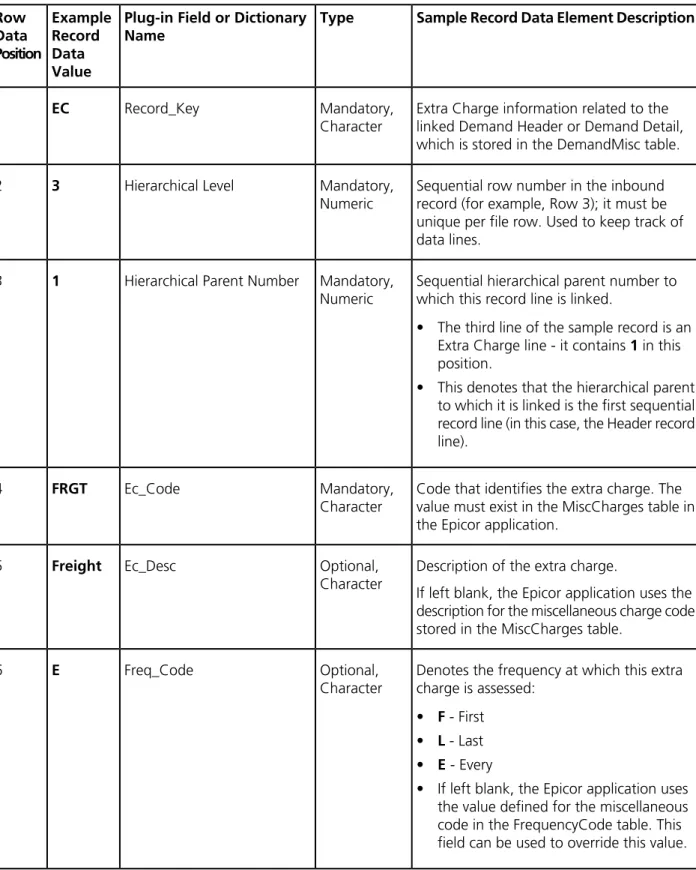
Extra_Charges Rows (DemandMisc Table for DemandHeader and DemandDetail Records)...111
Table Schematic for Extra_Charges Row Sample...112
Demand_Detail Rows (Demand Detail Record for DemandDetail Table)...114
Table Schematic for Demand_Detail Row Sample...115
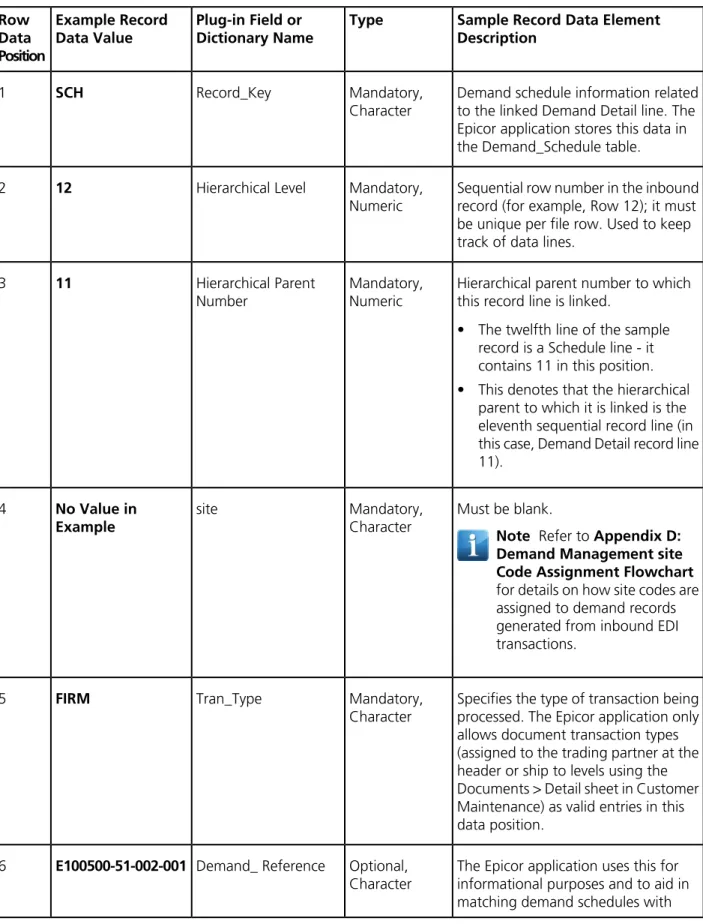
Demand_Schedule Rows (Demand Schedule Record for DemandSchedule Table)...121
Table Schematic for Demand_Schedule Row Sample...122
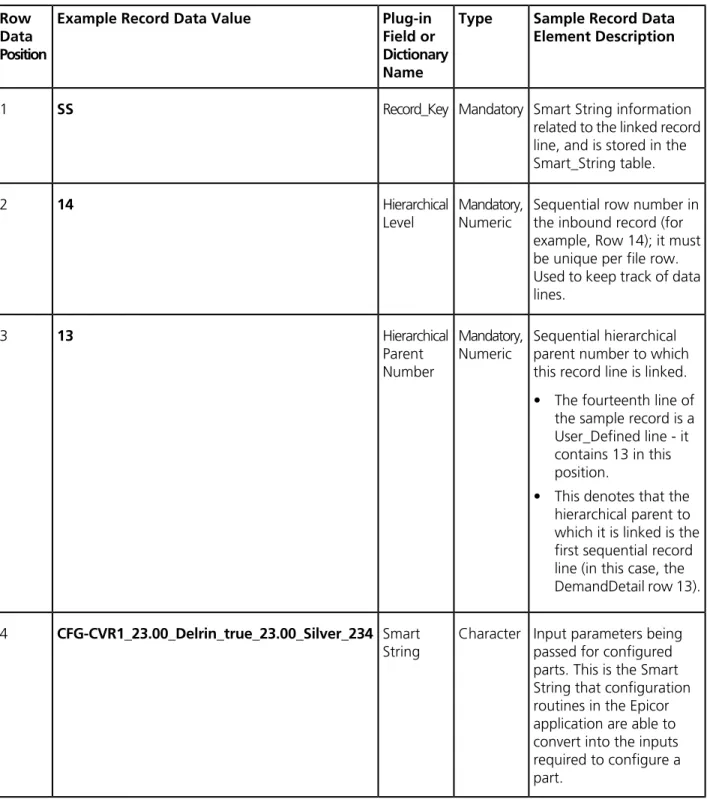
Smart String Rows (for Demand_Detail Table)...129
Table Schematic for Smart String Row Sample...130
Direct Inbound EDI Transaction Import...131
Scheduling and Running the Import EDI Demand Process...131
Programs and Their Modifiers...132
Using the System Agent and Completing the Import EDI Demand Process...133
Using the Demand Workbench for Error Correction...134
Import EDI Demand and User Hook Programs...137
Understanding the User Hook Programs Flowchart...139
Demand Entries Generated from Inbound EDI Transactions...141
Demand Processing Logs and Error Resolution...142
Order Transactions Generated from Inbound EDI Demand...144
Programs and Their Modifiers...146
Forecast Transactions Generated from Inbound EDI Demand...146
EDI 855/865/ORDRSP Transactions (Outbound Purchase/Change Order Acknowledgements)...148
EDI 856/DESADV Transactions (Outbound Advance Shipping Notices)...149
EDI 810/INVOIC Transactions (Outbound Invoices)...151
Demand Review Report...153
Demand to Sales Order Net Change Report...155
Modifiers...157
Where Located...158
Action (Add)...158
Where Located...159
Action (Cancel)...159
Where Located...160
Action (Change)...160
Where Located...161
Action (Check for Part)...161
Where Located...162
Action (Check Partial Shipments)...162
Where Located...163
Action (Check for Revision Level)...163
Where Located...164
Action (Cumulative Check Discrepancies)...164
Where Located...165
Action (Date Change)...165
Where Located...166
Action (New Line)...166
Where Located...167
Action (Quantity Change)...167
Where Located...168
Add...168
Where Located...168
Example...169
Allow Non Perfect Match...169
Where Located...170
Allow Shipments for Orders on Hold...170
Where Located...170
Alt Trading Partner...170
Where Located...171
Automatically Match All...171
Where Located...172
Cancel...172
Where Located...172
Example...172
Cancel Non Matched...173
Where Located...173
Cancel Schedules Action...174
Where Located...174
Change...174
Where Located...174
Example...175
Check Forecast Schedules...175
Where Located...175
Where Located...176
Check Partial Shipments...176
Where Located...176
Check for Revision Level...177
Where Located...177
Close Rejected Schedules...178
Where Located...178
Logic/Algorithms...179
Check Unfirm Schedules...179
Where Located...179
Consider Working Days in the Delivery Days Calculation...179
Where Located...180
Cumulative Check Discrepancies...180
Where Located...180
Daily, Rules...181
Where Located...181
Daily, Include Saturdays and Sunday Shipments...181
Where Located...181
Date Change...182
Where Located...182
Example...182
Date Type...182
Where Located...183
Delivery Days...183
Where Located...184
Logic/Algorithms...185
Example...185
Direction...185
Where Located...185
Exclude From / From (days)...186
Exclude Until / Until (days)...186
Hold Orders for Review...187
Where Located...187
Logic/Algorithms...187
Import Folder (Company Maintenance)...188
Where Located...188
Import Folder...188
Where Located...188
Map ID...188
Where Located...189
Monthly Forward, Rules...189
Where Located...190
Monthly Forward, First Day Ship...190
Where Located...190
Where Located...190
New Line...191
Where Located...191
Example...192
Nth Day of the Week, Rules...192
Where Located...192
Nth Day of the Week, Day of the Week Shipment...192
Where Located...192
Options Available...192
Where Located...193
Options Selected...194
Where Located...195
Outbound Document...195
Where Located...196
Periodicity...196
Where Located...196
Pricing...197
Where Located...197
Quantity Change...198
Where Located...198
Example...198
Split Demand...198
Where Located...199
Test Record...199
Where Located...199
Tolerance...200
Where Located...200
Trading Partner...201
Where Located...201
Type...201
Where Located...202
Unit Price Difference...203
Where Located...203
Example...203
Weekly Forward, Rules...204
Where Located...204
Weekly Forward, Ship Day...204
Where Located...204
Appendices...205
Appendix A: EDI Demand Management / Order Management Pricing Flowcharts...205
Appendix B: EDI / Demand Management Part Validation Processing Flowchart...207
Appendix C: Part Lookup and UOM Determination Flowchart...208
Introduction
Purpose of this Guide
The EDI / Demand Management Technical Reference Guide examines, in detail, the primary components that make up the Electronic Data Interchange (EDI) / Demand Management module interface. Many of the primary components discussed in this guide perform more functions than what is described.
For more information about these features, review the related topics in the Application Help, contact your consultant, or enroll in an appropriate Epicor course. When you finish reading this guide, you should better understand the logic behind the EDI - Demand Management module interface.
Intended Audience
This guide is intended for individuals within your company responsible or partially responsible for Information Technology, Electronic Data Interchange (EDI) and demand management activities.
Individuals who have this responsibility:
• Are responsible for fulfilling and managing demand from your customer trading partners, from initially negotiating demand contracts through creation of orders and outbound documents such as Advanced Shipping Notices (ASNs), sales order acknowledgments, packing slips and invoices.
• Are typically personnel involved in Information System or Information Technology departments in your organization who work with your customer trading partners to manage inbound and outbound data interchange transactions. This includes mapping the data formats required for demand management processing in your Epicor application to your customer trading partner's EDI formats.
How It is Organized
This guide first explores the concepts behind the Demand Management module interface and then details the third-party and Epicor application components that affect this interface. Each subsequent section explores more detailed information than the previous section. The following are the main sections of this guide:
1. EDI / Demand Management Introduction and Base Concepts - This section explores the underlying concepts behind the EDI / Demand Management module interface. We recommend that you read this section first, as the rest of the guide references the information contained in this section.
2. Setup Components - This section explores the main calculations and base values used for the setup of the EDI / Demand Management module interface. Review this material to learn about defining customer trading partner and document processing rules.
3. Processing Components - This section explores the main calculations and base values used in EDI / Demand Management module interface processing. Review this material to learn about mapping the data formats required for demand management processing in your Epicor application to your customer trading partner's EDI processing formats, and how inbound EDI files are converted into actionable demand entries, demand schedules, orders, shipping transactions and invoices.
4. Modifiers - This section documents any fields or functions that you can use to adjust/override the outcome of the EDI / Demand Management module interface.
5. Appendices - This section includes supporting flowcharts related to pricing, part validation, part lookup and site code assignment processing.
Please note that to clarify how the EDI / Demand Management module interface works, the concepts behind each item are often repeated within other items. This is done to show how the various components, calculations, values, and modifiers work together to convert inbound EDI files received from your customer trading partners into actionable demand entries, demand schedules, orders, forecasts, shipping transactions and invoices.
EDI / Demand Management Base Concepts
The EDI / Demand Management module interface is designed to automate sales efforts and facilitate closer supplier-customer partnerships. It allows you to receive inbound electronic demand information from your trading partners into your Epicor application, process the information in an automated manner, generate the appropriate sales order, acknowledgement, forecast, shipping and invoice documents, and in turn, send the required information back to your trading partners via outbound EDI transactions.
It utilizes three major components:
• Electronic Data Interchange Processor (eVision™ by TIE KINETIX™ - Third-Party)
• Direct EDI Import or Epicor Service Connect • Demand Management (Epicor application)
What is Electronic Data Interchange (EDI)?
Electronic Data Interchange (or EDI) is a standardized computer interface that allows for electronic exchange of business information using internationally recognized standards and formats. Hundreds of standardized document types have been created throughout the world that form a universal language that companies using dissimilar systems and processes can utilize to conduct business.
It allows for standardized transfer of files between you and your customer trading partners. Use of EDI allows suppliers and their customers to manage their supply chains more efficiently by increasing efficiency and drastically reducing their requirements for costly and error-prone manual data entry.
The Epicor application supports processing of the following types of standard EDI transactions. The descriptions that follow are based on the formal descriptions issued by the Accredited Standards Committee (ASC) X12 (http://www.x12.org/). This international organization develops EDI transaction standards and related documents for national and global markets. United Nations-sponsored EDIFACT transactions are another
internationally-recognized set of similar standards; both X12 and EDIFACT standards are reflected throughout this document.
Supported Inbound EDI Documents
Epicor ERP and the Demand Management module support processing of the following types of inbound EDI documents:
• 830/DELFOR (Inbound Planning Schedule) - This EDI document is used for the transfer of forecasting/material release information from your customer trading partner. The planning schedule transaction can be used in a combination of ways, such as:
• A simple forecast
• A forecast with the buyer's authorization for the seller to commit to resources, such as labor or material. A forecast that is also used as an order release mechanism containing such elements as resource
authorizations, period-to-date cumulative quantities and specific ship/delivery patterns for requirements that have been represented in "buckets," such as weekly, monthly, or quarterly. The order release forecast may also contain all data related to purchase orders, as required, because the order release capability eliminates the need for discrete generation of purchase orders.
• 850/ORDERS (Inbound Purchase Order) - This EDI document is an electronic version of a paper purchase order you receive from a customer trading partners. Your customer trading partner uses it to communicate to you, the supplier, the specific items, unit prices, and quantities they wish to have delivered. Shipping instructions frequently accompany the purchasing information.
• 860/ORDCHG (Inbound Purchase Order Change) - This EDI document is used by your customer trading partner to request a change to a previously submitted purchase order; or to confirm acceptance of a purchase order change initiated by you the supplier or by mutual agreement of the two parties. Your customer trading partner uses it to communicate to you, the supplier, the specific items, unit prices, and quantities they wish to change.
• 862/DELJIT (Inbound Shipping Schedule) - This EDI document is used by your trading partner to
communicate precise shipping schedule requirements to you, the supplier, and is intended to supplement EDI 830/DELFOR inbound planning schedule transactions.
This type of EDI transaction facilitates the practice of Just-In-Time (JIT) manufacturing by providing your trading partner with the ability to issue precise shipping schedule requirements on a more frequent basis than using EDI 830/DELFOR planning schedule transactions (for example, daily versus weekly planning schedules). It also provides the ability for a specific ship to customer location to issue shipping requirements independent of
other customer locations when planning schedule transactions are issued by a consolidated scheduling organization.
Supported Outbound EDI Documents
Epicor ERP and the Demand Management module support processing of the following types of outbound EDI documents:
• 810/INVOIC (Outbound AR Invoices) - This EDI document is an electronic version of a paper invoice you normally send to your customer. As a supplier, you use 810/INVOIC Invoices to communicate the payment terns, specific items, price, and quantities you have delivered and which now must be paid for by your customer trading partner. In the Epicor application, the foundation for this type of outbound EDI document is the text or XML-based document record that it generates (either automatically or manually) in AR Invoice Entry based on the standard AR Invoice form.
• 855/ORDRSP and 865/ORDRSP (Outbound Purchase Order Acknowledgments) - These EDI documents are electronic version of a phone call or fax you use to inform your customer trading partner (who sent you a purchase order or purchase order change) that you are fulfilling the transactions as requested. This informs them that you are filling the order and shipping the goods by the requested date, or are not able to fulfill the entire order as requested, possibly due to stockouts or disagreement about the purchase terms.
EDI 855/ORDRSP transactions are usually sent in response to an EDI 850/ORDERS or EDI 860/ORDCHG inbound purchase order or purchase order change document you receive from your customer trading partner. In the Epicor application, the foundation for this type of outbound EDI document is the text or XML-based document record that it generates (either automatically or manually) in Sales Order Entry based on the standard Sales Order Acknowledgment report.
• 856/DESADV (Outbound Order Advanced Shipping Notice/Manifest- ASN) - This EDI document is an electronic version of a printed packing slip that tells your customer trading partner how you, the supplier, has packed their items for shipment. The Advance Ship Notice, or ASN, also tells the buyer that the goods have been shipped so they can be expecting the shipment. In the Epicor application, the foundation for this type of outbound EDI document is the text or XML-based document record that it generates (either automatically or manually) in Customer Shipment Entry or Master Pack Shipment Entry based on the standard Packing Slip form.
This type of outbound EDI transaction lets the personnel working on the receiving dock of your trading partner know what you have packed in shipping cartons, and eliminates the need for their receiving personnel open the cartons.
Tip These are the "out-of-box" inbound and outbound EDI transaction types supported in the base Epicor application. Other types of EDI transactions can be implemented as required, based on the development of associated report data definitions. Contact your Epicor consultant or the Custom Solution Group for assistance or for more details.
What is TIE KINETIX eVisionTM?
eVision is a third-party software package provided by TIE KINETIX, and is the only XML/EDI solution that has been formally certified by Epicor for use with the Epicor application.
It uses advanced data transformation, integration, and workflow applications that are easily scalable as the number of trading partners you interact with increase, and your operations grow in size and transaction volume. It allows you to easily exchange critical business data between and within organizations.
• In general, eVision receives inbound EDI 830/DELFOR, 850/ORDERS, 860/ORDCHG and 862/DELJIT files from your customer trading partners, converts them into a pre-defined Epicor-compatible format files, and then deposits them into a designated inbound folder on your Epicor server for processing.
• Conversely, eVision collects outbound Order Acknowledgment, Advanced Shipping Notice and AR Invoice document record files (produced by the Epicor application) from the designated outbound file folder on your Epicor server and directly converts them to outbound EDI 810/INVOIC, 855/ORDRSP, 865/ORDRSP and 856/DESADV files that are sent to your customer trading partners.
Tip Refer to the marketing publications and documentation produced by TIE KINETIX for more information on what this application does and how it functions. eVision is a trademark of TIE KINETIX but appears without the trademark symbol in the remainder of the document. It may also be referred to interchangeably as TIE KINETIX or TIE KINETIX eVision.
Importing Inbound EDI Transactions
Inbound text-based EDI transactions received from your customer trading partners and passed by the eVision
third-party application directly link to the Epicor application using the Import EDI Demand Process. This process server code for significantly improved EDI performance.
File importation occurs based on a processing schedule that you designate in the Import EDI Demand Process. If erroneous data is identified during direct EDI import processing, you can correct it as required using the Demand Workbench
What is Demand Management?
The Demand Management module in the Epicor application allows you to more efficiently manage short and long term customer demand contracts, converting demand from these contracts into sales orders and MRP forecasts.
You can enter this demand information manually, or generate electronic information that passes both to and from your customer trading partners. Demand Management handles creation, analysis, editing, and reconciliation of cumulative totals for releases from your trading partners. The Demand Management module provides an efficient process to manage the data from demand contracts.
It can be used to process EDI files received from customer trading partners, and provides the following functionality: • Using the Customer Maintenance > Customer > Demand or Ship To > Demand sheets, you associate a trading partner identification number with the customer. It is a universal code required on EDI transactions that uniquely identifies the business entity. Using the Customer Maintenance > Documents or Ship To > Documents sheets, you also create user-defined rules for each customer trading partner that specify acceptance and matching criteria for demand transactions received on inbound EDI documents.
• You can specify if inbound EDI transactions should be automatically processed; if you elect to do this, the Epicor application automatically generates order releases or forecasts for all (or just those that are found to be error-free) inbound EDI transactions You can also create user-defined rules for each customer trading partner that specify how and when outbound EDI order acknowledgement, Advanced Shipping Notice and invoice transactions should be generated.
• These data and lead time validations specify how incoming demand should be treated when action requests are received from your customer trading with insufficient lead times with respect to required shipping dates. You also define delivery day and customer periodicity parameters used to calculate Ship By or Need By dates for shipping schedules. You can also specify if extra validations (such as part number, part revision, unit price and partial shipment tests) should be performed to determine if inbound demand transactions received from your customer trading partner should be accepted or rejected.
• You then enter demand contracts for these customers into Demand Contract Entry, using any length of time (days, months, years) that you need for the length of the contact.
• The demand contract structure lets you attach multiple sales order releases to a single demand contract, providing the ability to review the contract quantities with the actual incoming quantities.
• It also contains robust matching logic that allows you to receive and efficiently process changes (quantities, prices and shipping dates) your customer trading partner requests to existing demand schedules and order releases.
• A demand schedule is a schedule of order releases (processed against a demand contract) that defines both the part quantities and the dates on which each release needs to be shipped to your customer trading partner. • You can enter demand schedules for each demand contract manually, or
• If your customer trading partners sends you demand schedules via inbound EDI transactions, they are automatically generated when the EDI transactions are successfully imported in the Epicor application electronically through the Import EDI Demand process.
• The Import EDI Demand process runs using server-based code; it provides a Demand Import Workbench that allows you to modify/correct possible errors during processing; this is as an efficient way to review and detect errors on the received demand. This process exploits the scheduling and multiprocessor capabilities of the Epicor 9 framework, and eliminates Service Connect from the EDI architecture (while keeping the layout of the tilde delimited file); this significantly improves EDI inbound processing times.
• Demand Entry and Demand Mass Review both contain tools that let you manually reject and approve demand schedules.
• This provides you with the ability to view the impact of incoming contract changes before accepting them. The Epicor application also allows you to accept, revise, or reject these changes- and provides you with the appropriate response to the trading partner.
• You can manually reject demand transactions if necessary.
• When you are satisfied with the schedule, you can then process the demand, converting it into firm releases, unfirm releases, or MRP forecasts.
• The Epicor application can be configured to send automated EDI 855/ORDRSP and EDI 865/ORDRSP Purchase Order Acknowledgements to your trading partner. It can also be configured to automatically process shipping schedules and change requests to existing sales orders that have no lead time warnings, immediately allowing quantity or date changes. Only transactions that have errors are displayed within Demand Entry.
• You can also manually override System Rejected demand entries that have not passed validations based on user-defined rules you specify for the customer trading partner in the Customer Maintenance > Customer > Demand or Ship To > Demand sheets. This allows you to efficiently manage differences between demand contract and inbound demand.
• When the part quantity is shipped, customers can be notified electronically through an Advanced Shipping Notification (ASN 856/DESADV). They, in turn, respond with the results of the shipment. The Epicor application can also be configured to send automated EDI 810/INVOIC AR invoices to your trading partner.
• You can use the imported cumulative data (ACCUM) to adjust, or reconcile, the changes that occur during shipping. The ACCUM Setting is used to reconcile the cumulative shipping part quantities (ACCUM) generated through this contract. This setting helps you track the difference between the quantities shipped from your company and the actual quantities received by your customers.
Note If you use EDI to process your demand, you need to install and configure the third-party EDI functionality on your Epicor server. Refer to the EDI TIE KINETIX Integration Guide and the Setup Components section of this document for detailed information on how to configure and integrate the Demand Management module with TIE KINETIX eVision.
Typical EDI / Demand Management Processing Flow
The following section contains an example of a typical processing for flow for an inbound EDI transaction you receive from a customer trading partner.
This workflow usually involves performing the following tasks: • Defining the Trading Partner in Customer Maintenance • Entering a Demand Contract
• Processing Inbound Transactions Using the (Direct) Import EDI Demand Process • Correcting Errors using Demand Workbench
• Automated and Manual Demand Entry Processing • Generating Outbound EDI Transactions
Tip For detailed information about each of these processing steps, refer to the Setup Components and
Processing Components sections of this document.
Defining the Trading Partner in Customer Maintenance
A customer or business entity is identified in inbound and outbound EDI transactions by a unique trading partner identification number. Prior to receiving inbound EDI transactions from a customer, you must assign and associate the trading partner identification number with a specific customer record or ship to customer location in the
Customer Maintenance > Customer > Demand or Ship To > Demand sheets.
A customer or business entity is identified in inbound and outbound EDI transactions by a unique trading partner identification number. Prior to receiving inbound EDI transactions from a customer, you must assign and associate the trading partner identification number with a specific customer record or ship to customer location in the Customer Maintenance > Customer > Demand or Ship To > Demand sheets.
• Using Customer Maintenance > Documents or Ship To > Documents sheets, you also create user-defined rules that specify acceptance and matching criteria for demand transactions received on inbound EDI documents. It also allows you to specify if inbound EDI transactions should be automatically processed; if you elect to do this, the Epicor application automatically generates order releases or forecasts for all (or just error-free) inbound EDI transactions.
Using the same sheets, you can also create user-defined rules for each customer trading partner that specify how and when outbound EDI order acknowledgement, Advanced Shipping Notice and invoice transactions should be generated.
Entering a Demand Contract
Prior to receiving inbound EDI transactions from the customer trading partner, you must first use Demand Contract Entry to manually enter demand contracts.
• The demand contract is the instrument against which the Epicor application receives and processes inbound EDI files received from your customer trading partners.
The demand contract structure lets you attach multiple sales order releases to a single demand contract, providing the ability to review the contract quantities with the actual incoming quantities. It also contains robust matching logic that allows you to receive and efficiently process changes (quantities, prices and shipping dates) your customer trading partner requests to existing demand schedules and order releases.
• Once inbound EDI transactions have been received, the Epicor application uses the demand contract records to automatically generate demand for your parts, allowing you to set up a shipping schedule for order releases or forecasts for MRP processing.
Processing Inbound Transactions Using the Import EDI Demand Process
The Demand Management module in your Epicor application provides a capability to process inbound EDI flat files passed by the TIE Commerce eVision third-party application directly into the Epicor application.
You manage Direct EDI import through use of the Import EDI Demand Process. Use this program to import files based on a specified processing schedule, using an import folder where inbound EDI documents are deposited. It utilizes Epicor ERP framework to process demand records received via EDI transactions from your trading partners.
Tip Use the Company Configuration > Modules > Sales > Demand sheet to set up the default location of an Import process folder. To create a backup folder that archives files that have been processed, enable the Backup Processed File check box. At the bottom of the Import EDI Demand Process, select a schedule of your process.
Tip Use the Schedules sheets within System Agent Maintenance to add schedules to a specific system agent and to review tasks assigned to the selected schedule. The schedule identifies how often the tasks linked to the schedule will run.
Correcting Errors Using Demand Workbench
If wrong data is identified during direct EDI import processing, you can correct it as required using the Demand Workbench, found within the General Operations folder of the Demand Management module.
Data import errors occur primarily due to mismatches between the data sent by your customer trading partner on an inbound EDI transaction and the corresponding data stored in your Epicor application.
Example If the demand contract specified on the inbound EDI transaction is not valid for the trading partner, or cannot be found in the Epicor application database, a Demand Header Invalid Contract message displays on the Detail > Header > Errors sheet.
First, search for any potential errors that occurred during the direct EDI import. Use the Errors sheets found on the Header, Line and Schedule level to identify a reason for the error.
• After you correct invalid data on inbound EDI transactions, from the Actions menu, select Ready To Process. Once you select this option, a document that first failed to be loaded into Demand Management is ready for re-processing next time the Import EDI Demand Process is scheduled to run.
In order to process the corrected demand entries immediately, from the Actions menu, select Process IM Demand. The Import EDI Demand Process window displays, allowing you to submit the process.
Note You cannot create new demand entries using Demand Workbench. This program is only used to correct entries that failed to be processed using direct EDI import.
Automated and Manual Demand Entry Processing
Using the Customer Maintenance > Documents or Ship To > Documents sheets, you can create user-defined rules that designate if inbound demand should be automatically or manually processed for specific types of inbound EDI transactions. The precise timing and method used by the Epicor application is dependent on the setting of the Accept Type field for the customer (or ship to customer) trading partner associated with the inbound EDI transaction.
• If set to Always Accept, the Epicor application automatically processes demand for this customer trading partner, regardless of whether there are failed validations/rejections in the inbound EDI document. It immediately generates sales order and forecast entries at the time the inbound EDI file is successfully processed. In cases where the inbound EDI transaction contains failed validations/rejections (for example, a Date Change action request is received with insufficient lead time, and a Stop or Warning condition would normally be applied), the Epicor application automatically overrides any System Rejection flags, processes the demand and subsequent sales order and forecast entries despite the error condition.
• If set to Accept If No Errors, the Epicor application automatically processes demand and immediately generates sales order and forecast entries for this customer trading partner, regardless only if there are no failed validations/rejections in the inbound EDI document. It handles rejected demand records in the same manner as the Always Accept selection.
• If set to Manually Accept, you must manually process incoming demand on inbound EDI transactions using the Process selection in the Demand Header section in the Demand Entry Actions menu. Order releases and forecast entries are only created at the time you perform this manual processing. Rejected demand records must be manually resolved.
Likewise, the resulting forecast transactions viewed or edited in Forecast Entry:
Refer to Order Transactions Generated from Inbound EDI Demand and Forecast Transactions Generated from Inbound EDI Demand for more details.
Generating Outbound EDI Transactions
The Epicor application uses report data definitions you define to generate the following types of outbound EDI transactions:
• EDI 855/865/ORDRSP- Outbound Order Acknowledgments • EDI 856/DESADV- Outbound Advance Shipping Notices • EDI 810/INVOIC- Outbound Invoices
For example, the EDI 855/865/ORDRSP (Outbound Purchase Order or PO Change Acknowledgement) document is an electronic version of a phone call or fax you use to inform customer trading partner who sent you a purchase order that you are fulfilling the purchase order or change as requested.
• This informs them that you are filling the order and shipping the goods by the requested date, or are not able to fulfill the entire order as requested, possibly due to stockouts or disagreement about the purchase terms. • EDI 855/865/ORDRSP transactions are usually sent in response to EDI 850/ORDERS (Inbound Purchase Order) or EDI 860/ORDCHG (Inbound Purchase Order Change) documents you receive from your customer trading partner.
• If the Automatic check box has been selected for the Sales Order Acknowledgement document type in the Outbound Document section of the Customer Maintenance > Documents or Ship To > Documents sheets (for this customer or ship to trading partner), the Epicor application automatically produces this document record at the same time it generates sales order release for inbound EDI demand requests received from this customer trading partner.
• To manually generate this document record, you use the Print Sales Order Acknowledgement selection on the Sales Order Entry Actions menu.
The Epicor application utilizes the user-customized version of the standard EDIOrdAck report data definition (as designated in Report Style Maintenance for the Sales Order Acknowledgement) to generate the outbound Order Acknowledgement EDI 855 document that confirms that a sales order is in process.
• In essence, the Epicor application sends the Sales Order Acknowledgement report to your customer trading partner. It also uses the same report data definition to produce Reponses to a Sales Order Change and Order Status documents.
• Whether processed automatically or manually, the Epicor application uses the EDIOrdAck report data definition to generate the following Sales Order Acknowledgement document record:
It generates and stores this Sales Order Acknowledgement document record in the designated destination folder for outbound EDI files (for example, c:\epicordata\edi_data\outbound\SOAck).
• Refer to the Customer Maintenance > Documents and Defining Outbound EDI Report Formats sections for more details on setting generation parameters and customizing the format and contents of the supporting report data definition.
• Once the Epicor application has deposited this file in the designated destination folder on your server, the third party TIE KINETIX eVision software retrieves the outbound Sales Order Acknowledgement document record and transmits it as an EDI 855/ORDRSP transaction to your customer trading partner.
The manner in which the outbound the Epicor application processes EDI 856/DESADV (Advanced Shipping Notice) and EDI 810/INVOIC (Invoice) transactions is similar in manner to this example.
Setup Components
EDI / Demand Management module processing in your Epicor application is highly automated, and once set up properly, greatly reduces the amount of time required for your company to efficiently manage customer demand requests and subsequent order fulfilment activities. However, a great deal of initial thought and careful setup is required to install all required software components and define exactly how TIE KINETIX and Epicor ERP interact with each other to automate demand management and order fulfilment.
These initial setup tasks include:
1. Using the companion EDI TIE KINETIX Integration Guide as a starting point for the installation,
configuration and integration of the Demand Management module and Epicor application with Epicor's EDI solution of choice, TIE KINETIX eVision. Refer to the Prerequisite Installation and Setup Tasks sections for complete details.
2. Using Company Configuration > Modules > Sales > Demand sheet, define the parameters that determine how the Demand Management module should operate in a specified company, and the Modules > Materials > Shipping/Receiving sheet to define the parameters that determine how Demand Management should impact shipping and receiving activities in a specified company.
3. When using EDI to receive and send electronic transactions, customers are identified in inbound and outbound EDI transactions by trading partner identification numbers. In the Epicor application, you assign and associate trading partner identification numbers with specific customer records established in Customer Maintenance. Refer to the Defining Trading Partners in Customer Maintenance section for complete details. • Use the Customer > Demand sheet to assign a trading partner identification number and define demand
processing parameters for a specific customer. This includes specifying the lead times required to evaluate and process certain types of action requests on incoming EDI shipping schedules received from your customer.
• Use the Customer > Documents sheet to define the rules that specify acceptance and matching criteria for demand transactions received on inbound EDI documents. This allows you to specify if demand on inbound transactions should be automatically processed; if you elect to do this, the Epicor application automatically generates order releases and forecast entries. You can also create user-defined rules that specify how and when outbound EDI order acknowledgement, Advanced Shipping Notice and invoice transactions should be generated.
• Use the Ship To > Demand sheet as needed to assign trading partner identification numbers and override demand processing parameters for specific customer ship to locations using the Ship To > Demand sheet. • If you have assigned trading partner identification numbers and override demand processing parameters to specific customer ship to locations in the Ship To > Demand To sheet, use the Ship To > Documents sheet in a manner similar to the Customer > Documents sheet.
4. Defining outbound EDI report formats by doing the following:
• Use Report Data Maintenance to create customized report data definition records the Epicor application uses to generate outbound document records that are sent via EDI to your customer trading partners. • Once you have duplicated an existing report data definition, and have modified the duplicated record to your satisfaction, you then associate it with a specific type of document (for example, Packing Slips) using Report Style Maintenance.
• Use the Business Activity Manager to enable auto-generation of outbound EDI files when triggered by specific processing actions or events that take place in within the Epicor application and database. Refer to the Defining Outbound EDI Report Formats section for complete details.
Prerequisite Installation and Setup Tasks
When using the Import EDI Demand Process to directly import inbound EDI transactions into the Epicor application, you must perform the following installation and setup tasks. The following graphic illustrates the steps involved in accomplishing these required tasks:
Note The companion EDI TIE KINETIX Integration Guide is intended as a starting point for the installation, configuration and integration of the Demand Management module. The remaining part of EDI setup is performed directly in Epicor ERP.
Tip The EDI TIE KINETIX Integration Guide document does not describe the installation of the actual TIE KINETIX eVision software; TIE KINETIX provides their own documentation for this purpose. You can use sections of the EDI TIE KINETIX Integration Guide to configure the Demand Management module even if you have chosen a different EDI solution.
1. Verifying prerequisite installations, including:
• Verifying you have completed the TIE KINETIX Planning Documentation.
• Verifying that the TIE KINETIX consultant has properly configured and tested your system. Configurations include:
• Microsoft Internet Information Service (IIS) • ODBC Drivers
• eVision server
• communication interface
• eVision client / Integrator Translation software
2. Configuring your Epicor application server, including manually creating Epicor3Data > EDIData > In > Demand and accompanying folders that support inbound and outbound EDI processing. It must contain the following file structure:
3. Performing post-installation steps, including reviewing EDI file layouts, configuring Demand Management for EDI inbound and outbound EDI automatic generation.
Company Configuration Maintenance
Use the Company Configuration > Modules > Sales > Demand sheet to define the parameters that determine how the Demand Management module should operate in a specified company.
This includes specifying if unfirm and forecast schedules should be included in demand management lead time checking logic for this company, and if scheduled matching should automatically be performed for all orders. You also specify the default location of the direct EDI import folder used by the Import EDI Demand Process
for specific companies.
Programs and Their Modifiers
The following section describes the Company Configuration Maintenance values you can change.
Menu Path
Navigate to this program from the Main Menu:
Select the Modules sheet, select the Sales sheet, and then select the Demand sheet. These are the values you can modify for the item:
• Automatically Match All - Specifies if the Demand Matching selection on the Demand Entry > Actions menu should automatically match all new demand schedules and eligible sales order releases candidates in this company.
• Select the check box if the Demand Matching selection should automatically match all new demand schedules and candidates. In this case, the Epicor application runs it in the background as a continuing process and automatically matches new demand schedules. This eliminates the need for a user to open the Demand Matching program and having to click the Match All button.
• Clear the check box to skip automatic matching of all new demand schedules and candidates in this company. In this case, the user must invoke the Demand Matching selection and perform matching, either by manually selecting sales order releases and then clicking the Match button or automatically matching all eligible sales order releases against demand schedules by clicking the Match All button.
• Check Forecast Schedules - Specifies if forecast schedules should be included in demand management lead time checking logic for this company. Select this check box to include forecast schedules in demand
management lead time checking logic for this company. Clear the check box to exclude forecast schedules. • Check Unfirm Schedules - Specifies if TIE KINETIX schedules should be included in demand management
lead time checking logic for this company. Select this check box to include TIE KINETIX schedules in demand management lead time checking logic for this company. Clear the check box to exclude TIE KINETIX schedules. An order release that you are considering to ship to your customer. Unfirm releases cannot be turned into jobs.
Note Refer to the Customer > Demand Sheet topic in Defining Trading Partners in Customer Maintenance for more information on the use and processing of dates included in inbound EDI transactions.
• Cancel Schedules Action - Specifies if the Epicor application should automatically close or delete cancelled demand schedules received from customer trading partners in this company. Select the action that should be taken for cancelled demand schedules in this company.
• Close - The Epicor application should automatically close all cancelled demand schedules received from customer trading partners in this company.
• Delete - The Epicor application should automatically delete all cancelled demand schedules received from customer trading partners in this company.
• Consider Working Days in the Delivery Days Calculation - The Delivery Days fields in the Customer Maintenance > Customer > Demand and Ship To > Demand sheets can be used to specify the number of days required to ship a part quantity from your manufacturing center to the final destination for a customer trading partner (or ship to customer trading partner). The Epicor application uses this date interval as a buffer to calculate Ship By Dates when you use the Need By date type (as specified in the Date Type field). The manner in which the Epicor application uses the specified delivery days factor for the delivery date calculation is dependent on the setting of the Consider Working Days in the Delivery Days Calculation
check box.
• If the Consider Working Days in the Delivery Days Calculation check box is selected, this factor represents actual working days.
To calculate a Ship By date, the Epicor application subtracts this actual working days factor from the Need By date designated in a demand schedule received from the customer trading partner, taking into consideration any dates that are designated as non-working days in the associated site calendar. • If the Consider Working Days in the Delivery Days Calculation check box is cleared, this factor
To calculate a Ship By date, the Epicor application subtracts this delivery days factor from the Need By date designated in a demand schedule received from the ship to customer trading partner, and then determines if the calculated Ship By date is a working day.
Note Refer to Defining Trading Partners in Customer Maintenance for examples of how Ship By dates are calculated for demand schedules using actual working days and delivery days factors.
Import Folder - Specifies the default location of the direct EDI import folder (located on the Epicor application server) used by the Import EDI Demand Process. This is the path to the import folder where EDI process expects to find .app documents deposited by the TIE KINETIX eVision third-party program.
Example The recommended path, as per the file structure setup designated in Prerequisite Installation and Setup Tasks topic, is c:\Epicor3Data > EDIData > In > Demand. The specified folder path must
use UNC-naming conventions, not a locally-mapped drive letter.
Use the Company Configuration > Modules > Materials > Shipping/Receiving sheet to define parameters that determine how the Demand Management module should impact shipping and receiving activities in a specified company. These are the values you can modify for the item:
• Allow Shipments for Orders on Hold- Specifies if the Epicor application should allow processing of shipments for sales orders that have been placed on hold, either manually or when generated from demand contracts.
This affects shipment programs such as Customer Shipment Entry and Master Pack Shipment Entry throughout the Epicor application. Select the check box to allow processing of shipments for sales orders that have been placed on hold. Clear this check box to prevent processing of shipments for sales orders that have been placed on hold.
Customer Periodicity Maintenance
Use the Customer Periodicity Maintenance to define valid periodicity rules (if any) for a specific customer or ship to customer trading partner.
Periodicity rules defines the regular intervals at which at which deliveries to the customer or ship to location take place (daily, specific day of the week, weekly or monthly).
• The Epicor application uses these periodicity interval values during demand processing to calculate the Ship By dates for shipping schedules that are required for each order release or forecast generated from inbound EDI files for the customer trading partner or ship to location.
• Shipping schedules indicate how often a customer wishes to receive shipments from you.
When you define periodicity intervals, you first create the periodicity rules by first selecting the customer (and optionally ship to identifier) and then defining the delivery interval rules used for this customer.
• While you can define multiple periodicity rules for a customer (for example, you could define Weekly Forward and Monthly, you use the Periodicity field in the Customer Maintenance > Customer > Demand sheet to select the specific periodicity rule that the demand schedule creation process uses for the customer trading partner.
• A specific periodicity rule can also be selected for a specific ship to customer location in the Periodicity
field in the Customer Maintenance > Ship To > Demand sheet. This allows you to assign differing periodicity rules based on the specific shipping location for the customer trading partner. For example, you may ship ordered items bi-weekly to their West Coast site location, but only ship weekly to their East Coast location. • By selecting different periodicity rules, you can schedule order releases and forecasts based on the requirements
of the specific customer and/or ship to locations.
To calculate Ship By dates for a demand schedule, the Epicor application first looks for a periodicity rule linked to a customer or ship to location in the Periodicity field in the Customer Maintenance > Demand sheet, or the Customer Maintenance > Ship To Demand sheet.
• It then uses the selected rule to calculate the Ship By Date on each demand record.
• However, if periodicity rules have not been assigned to the customer or ship to location, the Epicor application calculates Ship By dates for shipping schedules for the customer trading partner or ship to location based on the Need By dates specified in incoming EDI transactions, and the time factor specified in the Delivery Days
field in the Customer Maintenance > Demand sheet, or the Customer Maintenance > Ship To Demand sheet.
Programs and Their Modifiers
The following section describes the Customer Periodicity Maintenance values you can change.
Menu Path
Navigate to this program from the Main Menu:
• Sales Management > Demand Management > Setup > Customer Periodicity
Use the Detail sheet to define the primary attributes of the customized report. You use the controls on this sheet to create a new custom report or find and select an existing report. These are the values you can modify for the item:
• Customer - Specifies the identifier for the customer for whom the periodicity rule is being defined. • You can enter this identifier directly or click Customer to access Customer Search to select the specific
customer. The specified customer must have been established in Customer Maintenance.
• The field to the right allows you to enter a ship to identification number for the customer. This allows you to create periodicity rules for a specific ship to location. The specified ship to identifier must have been established in the Customer Maintenance > Ship To sheet.
• Customer Name - Displays the name of the customer or ship to located associated with the customer and ship to identifiers entered or selected in the Customer field.
• Description - The ID assigned by the user which makes this record unique for the customer. When a customer is created a ShipTo record is automatically created by the system for that customer with a ShipToNum equal to NULL.
• Daily, Rules - Daily periodicity designates that shipments are made to this customer every weekday (Monday through Friday).
• Select this check box to use Daily periodicity rules when calculating shipping schedule dates for this customer.
• If you select this check box, you can also use the Include Saturday and Sunday Shipments check box to indicate that deliveries are also required to this customer on Saturdays and Sundays.
• Daily, Include Saturdays and Sunday Shipments - If you selected the Daily Rules check box, select this check box to include Saturdays and Sundays in the delivery schedule for this customer, or clear it to exclude Saturdays and Sundays deliveries for this customer.
• Monthly Forward, Rules - Monthly Forward periodicity designates that all shipments to this customer are only sent once per month.
• Select this check box to use Monthly Forward periodicity rules when calculating shipping schedule dates for this customer.
• If you select this check box, you can then use the First Ship Day field to specify the day of the week on which shipments to this customer must arrive.
To further define this shipment interval, you can use the Week Number in the Month field to indicate the week during the month (1-5) on which shipments to this customer need to be sent.
• Monthly Forward, First Day Ship - If you selected the Monthly Forward Rules check box, select the day of the week this shipment must arrive to this customer.
• Monthly Forward, Week Number in the Month - If you selected the Monthly Forward Rules check box, select the week during the month (1-5) in which shipments are sent to the customer.
• Weekly Forward, Rules - Weekly Forward periodicity designates that all deliveries to this customer are only sent once per week.
• Select this check box to use Weekly Forward periodicity rules when calculating shipping schedule dates for this customer.
• Optionally, you can use the Ship Day field to specify the day of the week on which shipments must arrive to this customer.
• Weekly Forward, Ship Day - If you selected the Weekly Forward Rules check box, select the day of the week on which shipments must arrive to this customer.
• Nth Day of the Week, Rules - Nth Day of the Week periodicity designates that shipments to this customer can only arrive on a specific work day.
• Select this check box to use Nth Day of the Week periodicity rules when calculating shipping schedule dates for this customer.
• If you select this check box, you can use the Day of the Week Shipment field to specify the day of the week on which shipments must arrive to this customer.
• Nth Day of the Week, Day of the Week Shipment - If you selected the Nth Day of the Week check box, select the specific day of the week (Monday-Sunday) on which shipments must arrive to this customer.
Defining Trading Partners in Customer Maintenance
When using EDI to receive and send electronic transactions, customers are identified in inbound and outbound EDI transactions by trading partner identification numbers. In the Epicor application, you assign and associate trading partner identification numbers with specific customer records established in Customer Maintenance. • Use the Customer > Demand sheet to assign a trading partner identification number and define demand
processing parameters for a specific customer.
This includes specifying the lead times required to evaluate and process certain types of action requests (adding new demand schedule lines, changing or cancelling existing demand schedule lines) on incoming EDI shipping schedules received from your customer. For each request, you specify the actions that should take place in the Epicor application (stop transaction or display a warning message) when incoming EDI transactions are received with insufficient lead times with respect the parameters you have specified for that type of transaction. • Use the Customer > Documents sheet to define the processing parameters for inbound EDI documents you accept from this customer trading partner when sent to you, and the outbound documents you generate and then send back to the customer trading partner via EDI.
Note Be sure to fill in the Alternate Trading Partner field for all outbound document types with the appropriate ID value for each trading partner. This is used by the TIE KINETIX mapping tool to identify which outbound map to use.
The Demand Management functionality uses these definitions when generating Electronic Data Interchange (EDI) documents that create and track unfirm order releases, firm order releases, and/or forecasts.
• Use the Ship To > Demand sheet as needed to assign trading partner identification numbers and override demand processing parameters to specific customer ship to locations using the Ship To > Demand sheet. For example, if Customer ABC has several locations, each generating their own shipping schedules, you can assign alternate trading partner identification numbers and define specific demand processing parameters for each individual location. The shipping lead time parameters for their East Coast location may differ significantly than from those for their West Coast or overseas locations.
• If you have assigned trading partner identification numbers and override demand processing parameters to specific customer ship to locations in the Ship To > Demand sheet, use the Ship To > Documents sheet in a manner similar to the Customer > Documents sheet.
It allows you to define the processing parameters for inbound EDI documents you accept from specific ship to locations for the customer trading partner when sent to you, and the outbound EDI documents you generate and then send to the ship to locations for the customer trading partner. If the particular document definition does not exist at the ship to level, the Epicor application uses the document definition defined at the customer level in the Customer > Documents sheet.
Customer > Demand
Use the Customer > Demand sheet to assign a trading partner identification number and define demand processing parameters that specify how the Epicor application should evaluate incoming EDI shipping transactions received from your customer.
The demand processing parameters you enter for your customer trading partner in this sheet include: • Assigning a trading partner identification number.
• Defining demand processing parameters for a specific customer. This includes assign periodicity, delivery days and date type parameters for used by the Epicor application for calculating Ship By or Need By dates for demand schedules.
• Indicating how differences in unit price and part records and revision levels should be evaluated by the Epicor application during demand processing.
• Specifying the lead times required to evaluate and process certain types of action requests (for example, adding new demand schedule lines, changing or cancelling existing demand schedule lines) on incoming EDI transactions received from this customer trading partner. For each type of action request, you specify the actions that should take place in the Epicor application (stop transaction or process transaction and display a warning message) when incoming EDI transactions are received with insufficient lead times with respect to the parameters you have specified for that type of transaction.
• Entering lead time values used with firm shipping schedules. Each lead time value defines a date range during which the Epicor application notifies you when various actions occur on a firm shipping schedule currently linked to this customer record.
Programs and Their Modifiers
The following section describes the Customer Maintenance values you can change.
Menu Path
Navigate to this program from the Main Menu:
• Financial Management > Accounts Receivable > Setup > Customer
• Financial Management > Deferred Revenue Accounting > Setup > Customer • Financial Management > Multi-Site > Setup > Customer
• Production Management > Material Requirements Planning > Setup > Customer • Sales Management > Customer Relationship Management > Setup > Customer • Sales Management > EDI > Setup > Customer
• Sales Management > Order Management > Setup > Customer • Sales Management > Quote Management > Setup > Customer • Service Management > Field Service > Setup > Customer For CRM users, the Main Menu appears as:
• Customer Relationship Management > Sales and Marketing Management > Setup > Customer • Customer Relationship Management > EDI > Setup > Customer
• Customer Relationship Management > Order Management > Setup > Customer • Customer Relationship Management > Quote Management > Setup > Customer
To create a new customer, select New Customer and enter customer information as needed into the Customer > Detail sheet. To enter trading partner demand parameters for a new customer or for an existing customer, access the Customer > Demand sheet by selecting the Customer sheet, and then select the Demand sheet. These are the values you can modify for the sheet:
• Trading Partner - Specifies the unique trading partner identifier for this customer. It is a universal code required on EDI transactions that uniquely identifies the business entity. The trading partner identifier must be entered in this field exactly as it will appear in inbound EDI files received from this customer trading partner. This identifier is used to validate EDI documents sent and received between your company and this customer trading partner.
• Delivery Days - Specifies the number of days required to ship a part quantity from your manufacturing center to this customer trading partner. The Epicor application uses this date interval as a buffer when calculating Ship By dates when you have specified that you use the Need By date type in the Date Type field. The manner in which the Epicor application uses the specified delivery days factor for the delivery date calculation is dependent on the setting of the Consider Working Days ship to customer trading partner Calculation check box for the associated company in the Company Configuration > Modules > Sales > Demand sheet.
• If the Consider Working Days ship to customer trading partner Calculation check box has been selected, this factor represents actual working days. To calculate a Ship By date, the Epicor application subtracts this factor from the Need By date designated in a demand schedule received from the customer trading partner, taking into consideration any dates that are designated as non-working days in the associated site calendar.
Note For this scenario, the Epicor application performs the following calculations:
• The associated site calendar is configured for a standard Monday through Friday work schedule. • The Delivery Days field is set to 5 for this customer trading partner.