
10x User’s Guide
84
0
0
Full text
(2) User’s Guide. Information in this document is subject to change without notice. 2002 - 2003 InSciTek Microsystems, Inc.. Reproduction in any manner whatsoever without the written permission of InSciTek Microsystems, Inc. is strictly forbidden. Trademarks and trade names may be used in this document to refer to either the entities claiming the marks and names or their products. InSciTek Microsystems, Inc. disclaims any proprietary interest in trademarks and trade names other than its own. June 2003. 063003 Client Release 4.1/Server Release 4.1. ii. Doc No. 5000210.
(3) User’s Guide Table of Contents 1. Welcome to Allworx. 1. 2. Getting Started. 3. 2.1 User PC Requirements..............................................................................................3 2.1.1 Operating System...............................................................................................3 2.1.2 Hardware............................................................................................................3 2.1.3 Browser Software...............................................................................................3 2.2. Installing the Allworx Communication Center Software .........................................4. 2.3. Logging On to the Allworx Communication Center ................................................4. 2.4. Allworx Communication Center Overview..............................................................5. 2.5. Tasks and Reminders................................................................................................8. 3. Creating and Updating Your Personal Information. 11. 4. Creating and Updating Your Telephone Handset Information. 15. 4.1. Handset Features.......................................................................................................15. 4.2 Creating and Managing Presence Profiles................................................................17 4.2.1 Creating Caller ID Filters...................................................................................19 4.2.2 Configuring Call Routes ....................................................................................20 5. Using the Features of Your Handset. 25. 5.1 Making and Receiving Telephone Calls...................................................................25 5.1.1 Dialing External Phone Numbers ......................................................................25 5.1.2 Call Blocking and Restrictive Dialing ...............................................................25 5.1.3 Caller ID Display ...............................................................................................25. 6. 5.2. Allworx Call Handling Feature Operations for Analog Handsets............................26. 5.3. Allworx Call Handling Feature Operations for IP Handsets....................................28. Managing Your Contacts. 29. 6.1. The Allworx Contact Manager .................................................................................29. 6.2. Adding a New Contact .............................................................................................30. 6.3. Updating Contact Information..................................................................................34. 6.4. Deleting Contact Information...................................................................................34. iii.
(4) User’s Guide. 6.5 Contact Features .......................................................................................................34 6.5.1 Searching Contacts.............................................................................................34 6.5.2 Selecting Contact Columns................................................................................34 6.5.3 Column Control .................................................................................................35 6.5.4 Sorting Contacts.................................................................................................35 6.5.5 Printing Contacts................................................................................................35 7. 8. All-in-One™ Inbox PC Message Center 7.1. The Allworx Message Center ...................................................................................37. 7.2. Creating and Sending New Email Messages............................................................40. 7.3. Reading and Responding to Email Messages...........................................................42. 7.4. Reading and Responding to Voicemail Messages....................................................42. 7.5. Reading and Responding to Calendar Messages......................................................44. 7.6. Using the Allworx Message Center Offline .............................................................45. All-in-One™ Inbox Telephone Message Center 8.1. Logging in to the Allworx Message Center..............................................................47. 8.2. Recording Your Name for the First Time ................................................................47. 8.3. Changing Your Name Recording .............................................................................49. 8.4. Recording Your Outgoing Voicemail Message for the First Time ..........................50. 8.5. Changing Your Outgoing Voicemail Message.........................................................51. 8.6. Voicemail Message Playback...................................................................................52. 8.7. Replying to a Message..............................................................................................54. 8.8. Forwarding a Voicemail Message ............................................................................54. 8.9. Sending a Message ...................................................................................................55. 8.10 9. 37. 47. Viewing Message Distribution Lists .....................................................................56. Managing Your Calendar. 59. 9.1. Calendar Overview ...................................................................................................59. 9.2. Scheduling a New Event...........................................................................................61. 9.3. Updating an Existing Event......................................................................................63. 9.4. Deleting an Event .....................................................................................................64. iv.
(5) User’s Guide. 9.5 Sharing Calendar Information ..................................................................................64 9.5.1 Viewing Other Users’ Calendars .......................................................................64 9.5.2 Setting Up Viewing Permissions for Your Calendar.........................................65 10 Sharing Documents. 67. 10.1. Document Sharing through Your PC’s Network Folder.......................................67. 10.2. Document Sharing through a Browser ..................................................................67. 11 Internet and Intranet Access. 69. 11.1. Internet Access ......................................................................................................69. 11.2. Intranet Access ......................................................................................................69. 12 Remote Access to the Allworx Server. 71. 12.1 Setting Up Your Computer for Remote Access ....................................................71 12.1.1 Windows 2000................................................................................................71 12.1.2 Windows XP Professional ..............................................................................72 12.1.3 Windows XP Home ........................................................................................73 12.2. Establishing Remote Connections.........................................................................74. 13 Working Offline from the Allworx Server. 75. List of Figures Figure 2-1 – Logon Dialog Box .....................................................................................................4 Figure 2-2 – The Allworx Communication Center .....................................................................5 Figure 2-3 – The Allworx Communication Center Layout Manager .......................................6 Figure 2-4 – Tasks and Reminders Window ...............................................................................8 Figure 2-5 – New Reminder Dialog Box ......................................................................................9 Figure 3-1 – User Settings – System User Information Dialog Box ........................................12 Figure 3-2 – User Settings – Person Information Dialog Box..................................................13 Figure 3-3 – User Settings – Person Details Dialog Box ...........................................................14 Figure 4-1 – User Settings – Handset Info Dialog Box .............................................................15 Figure 4-2 – Primary Call Route for Caller ID Filter 315* .....................................................18. v.
(6) User’s Guide Figure 4-3 – Primary Call Route for Caller ID Filter * ...........................................................19 Figure 4-4 –Add New Caller ID Rule Dialog Box .....................................................................20 Figure 4-5 – Ring Group and Hunt Sequence Call Route Example .......................................21 Figure 4-6 – Add Connection Attempt Dialog Box ...................................................................21 Figure 6-1 – The Allworx Contact Manager .............................................................................30 Figure 6-2 – Add New Contacts Buttons....................................................................................31 Figure 6-3 – The Add Contact Group Members Dialog Box ...................................................32 Figure 6-4 –Contact Picker Dialog Box .....................................................................................33 Figure 6-5 – Non-Contact Dialog Box ........................................................................................33 Figure 7-1 – Allworx Messages Center ......................................................................................38 Figure 7-2 – Allworx Email Message Window ..........................................................................40 Figure 7-3 – Allworx Voice Message Window...........................................................................43 Figure 7-4 – Allworx Calendar Message Window ....................................................................44 Figure 8-1 – Allworx User Homepage........................................................................................57 Figure 8-2 – Message Distribution Lists ....................................................................................57 Figure 9-1 – Allworx Calendar Month Window .......................................................................59 Figure 9-2 – Allworx Calendar Day View Window ..................................................................60 Figure 9-3 – Appointment Item Window – Attendees Dialog Box ..........................................62 Figure 9-4 – Contact Picker Dialog Box ....................................................................................63 Figure 9-5 – Selecting Shared Calendars...................................................................................64 Figure 9-6 – Resource Sharing – Permissions Dialog Box .......................................................65 Figure 10-1 – Company and User Directory Display Screen...................................................68 Figure 13-1 – My Preferences Dialog Box for Office Synchronization...................................75 Figure 13-2 – Database Synchronization Confirmation Box ...................................................76 Figure 13-3 –Synchronization Progress Window......................................................................77. vi.
(7) User’s Guide 1 Welcome to Allworx The Allworx 10x is an integrated business productivity and communications solution comprising telephone features, networking capabilities and group collaboration tools. The Allworx User’s Guide provides you with the information and instructions needed to: • Set up and manage your personal contact list •. Benefit from the features of the All-in-One™ inbox, the Allworx unified messaging capability. •. Share documents with others in your organization. •. Use the various features of your telephone handset. Key features of the December 2002 release include: System. Key Features. All-in-One™ Unified Messaging. Provides access to and management of voice and email messages from a common message center. Play voicemail messages from your email inbox Listen to email messages over the telephone. Network. Supports local area networking among your peers and internet access. Intranet web server External Internet web server Internet access Secured remote access using the Allworx virtual private network (VPN). Telephone. Fully featured PBX capabilities. Call control functions 3-way conferencing Call hunt groups Auto Attendant Voicemail Caller ID display (Name and number) Distinctive ringing. 1.
(8) User’s Guide. 2.
(9) User’s Guide 2 Getting Started Welcome to Allworx. This section provides information about: PC requirements for users and system administrators Installing the Allworx Communication Center software Making the first connection to the Allworx server Tasks and Reminders List 2.1 User PC Requirements The Allworx features and functions are controlled through a PC client application called the Allworx Communication Center. The Allworx Communication Center provides a window through which you interact with the Allworx system. Your PC must have the Allworx Communication Center installed to access collaboration features such as calendar, email, scheduling and contact management. Check with your system administrator to be sure your PC meets the requirements listed in the following sections. 2.1.1. Operating System. Be sure your PC has one of the following Microsoft® operating environments: Windows XP Home and Professional Windows 2000 2.1.2. Hardware. Your PC should also meet the following minimum requirements: 64 MB of RAM 25 MB of available hard disk space A 10/100 BaseT network interface card (NIC) connected to the Allworx server over a local area network Speaker(s) and sound card Keyboard, mouse and monitor CD drive 2.1.3. Browser Software. The Allworx system supports the following browsers: Internet Explorer 5.5 or greater Netscape 6.2 or greater Opera 7.0.3 or greater Mozilla 1.3 or greater 3.
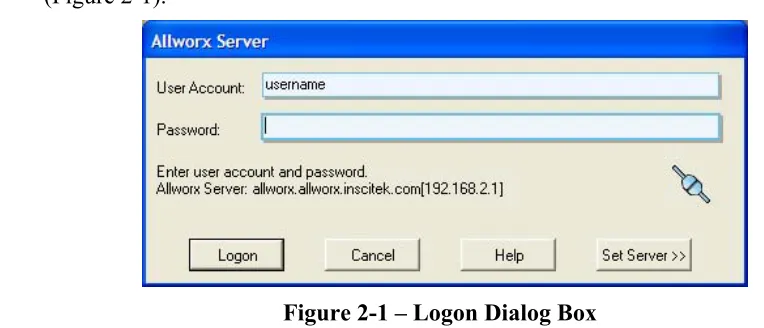
(10) User’s Guide 2.2 Installing the Allworx Communication Center Software Each Allworx system comes with an Allworx Communication Center software CD (part number 6000140). Contact your system administrator to obtain this CD. The Allworx Communication Center is designed to run only on Windows PCs. Note: A copy of the Allworx Communication Center software is also stored on the Allworx website in the event the CD is lost or damaged. Contact your System Administrator if you need to access the Allworx website for the software. To install the Allworx Communication Center software from the CD: 1. Remove the CD from its protective case and insert it in the PC’s CD drive. 2. The Install Wizard will automatically start. Follow the instructions on the screen to complete the installation. Note: If the Install Wizard does not automatically start, open My Computer on the PC desktop, and double-click on the CD drive icon. Locate the file named “Setup.exe” and double-click on it to start the Install Wizard. When the Setup Type window appears, the Wizard offers the options for Typical or Custom installations. Select Typical to ensure only the Allworx Communication Center is installed. When the installation is complete, the Allworx shortcut icon will appear on the desktop.. 2.3 Logging On to the Allworx Communication Center You will need your logon ID and password to access the Allworx Communication Center. This information is on the Welcome Message you may have received previously. Contact your System Administrator if you do not have your logon information. 1. Double-click on the Allworx icon on the desktop. The logon dialog box will appear (Figure 2-1).. Figure 2-1 – Logon Dialog Box 4.
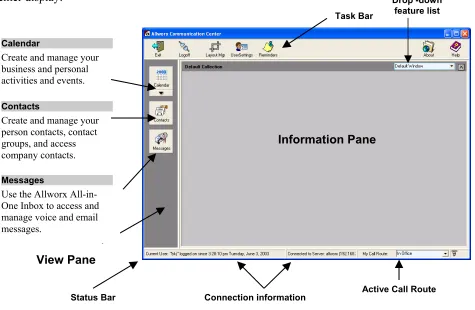
(11) User’s Guide Notes: If the Logon dialog box does not appear and an error is message is displayed, check the network connection to the Allworx server or contact your System Administrator. If the Allworx Communication Center was previously opened, click on the Allworx icon in your PC’s Task bar at the bottom of the Windows screen to log in again. 2. Once you have logged on with the password assigned by your System Administrator, you may want to change it. Refer to Section 3 to change your password. 3. Immediately after logging on the Tasks and Reminders window may appear. Refer to Section 2.5 2.4 Allworx Communication Center Overview The Allworx Communication Center helps you quickly locate and activate the various features and functions of the Allworx system. Figure 2-2 is an example of the Allworx Communication Center display. Drop -down Task Bar. feature list. Calendar. Create and manage your business and personal activities and events. Contacts. Create and manage your person contacts, contact groups, and access company contacts.. Information Pane. Messages. Use the Allworx All-inOne Inbox to access and manage voice and email messages.. View Pane Status Bar. Connection information. Figure 2-2 – The Allworx Communication Center. 5. Active Call Route.
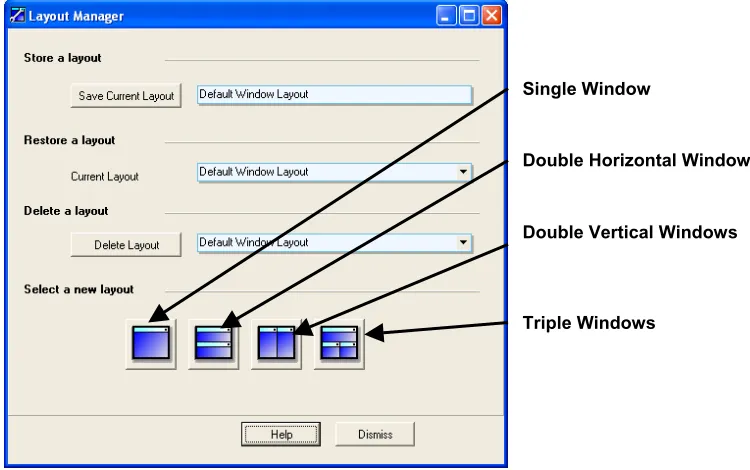
(12) User’s Guide View Pane. The View pane provides single-click access to the Contacts and Calendar functions of the Allworx system. Information Pane. The Information pane provides the details of the function you selected in the View pane. For example, it will display your list of contacts. Task Bar. The Task bar provides single-click access to commonly used functions. The Exit button is used to close the Allworx Communication Center window and application. The Logoff button is used to close the Allworx Communication Center and log off. The Allworx Communication Center will remain active. It can be opened again by double- or right- clicking on the Allworx icon in your PC’s Windows Task bar. You will need to login again next time you open the Allworx Communication Center. The Layout Manager button is used to create multiple information areas as shown in Figure 2-3. You can arrange your Information pane layout in four different ways - single window, double window horizontally split, double window vertically split, or triple window.. Single Window. Double Horizontal Windows. Double Vertical Windows. Triple Windows. Figure 2-3 – The Allworx Communication Center Layout Manager. 6.
(13) User’s Guide To create your preferred Information pane layout: 1. Click on the picture in the Layout Manager dialog box of the Information pane layout you want. The Layout Manager dialog box will close automatically. 2. Click on the icon in the View pane of the desired function to select the function to display in each window. Or make your selection from the drop-down feature list in the upper right corner of the Allworx Communication Center. Repeat this for each window. 3. Set each window to the size you prefer by moving the dividing line(s) up or down, or left or right depending on the layout. Place your mouse pointer on the line. When the pointer changes to a double arrow click and drag the line to the desired location. Release the mouse when the window is the right size. 4. To save the Information pane layout, click the Layout Manager button again. Highlight the contents of the Store a Layout field and type in a name for your new layout. Click Save Current Layout to save the new layout. To restore a particular layout, click the Layout Manager button. Open the pull-down menu in the Restore a Layout section of the dialog box. Highlight the layout you wish to use and click. The dialog box will close and the new layout will appear in the Allworx Communication Center. To delete a particular layout, click the Layout Manager button. Click the Browse button in the Delete a Layout section of the dialog box. Select the location and file name of the desired layout. Click Delete Layout. Close the Layout Manager dialog box. The User Settings button is used to enter and modify your user information including password, business and home addresses, business and home telephone numbers and email, and telephone features. User Settings are discussed in Section 3. The Reminders button provides a list of reminders of calendar events for which you have been scheduled. You can also add your reminders by clicking the Add Reminder button. The About button displays information about the Allworx Communication Center software such as version number. The Help button provides a brief introduction to the features and functions of the Allworx Communication Center. Status Bar. The Status bar provides current information about the following Allworx operations: The Current User field indicates your user name and the date and time when you last logged on. The Connection Status field indicates the name of the Allworx server to which your PC is connected. 7.
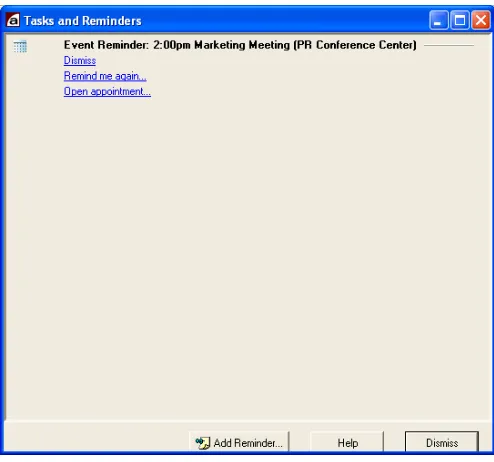
(14) User’s Guide The My Presence field indicates your current location (e.g., In Office, At Home, etc.), which determines how your incoming calls will be handled as explained in Section 4. 2.5 Tasks and Reminders The Allworx system provides reminders for various scheduled and personal activities. Each time you login, the Tasks and Reminders window may appear if reminders have been triggered. You can also check your tasks and reminders by clicking the Reminders icon on the Allworx Communication Center Task bar. You will receive reminders for events scheduled by others through the Allworx Calendar (Section 9). You can also create your own reminders for personal activities.. Figure 2-4 – Tasks and Reminders Window To create a new reminder, click the Add Reminder button. The window in Figure 2-5 will appear. Enter the Subject of the reminder, and the date and time at which the reminder is to expire (i.e., when the reminder should be activated and appear in the Tasks and Reminders List). Click OK to save the reminder. When a reminder is presented, you can: Dismiss – The reminder will be permanently deleted. Remind me again… - Set a later time at which the reminder will reappear. Open Appointment… - Display the details of the event. 8.
(15) User’s Guide. Figure 2-5 – New Reminder Dialog Box. 9.
(16) User’s Guide .. 10.
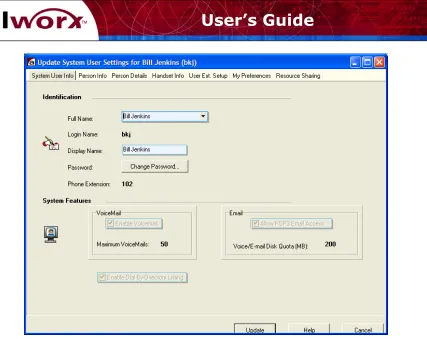
(17) User’s Guide 3 Creating and Updating Your Personal Information The Allworx system allows you to manage your system identification information, personal information, and a variety of system features. This section provides information about: Displaying and changing your system identification Displaying and changing system features Displaying and changing your personal information Click the User Settings button on the Allworx Communication Center task bar. The Update System User Settings for Allworx User (Login ID) dialog box will appear (Figure 3-1). The System User Info tab allows you to update your identification information and certain Allworx system features. Identification You can change your Full Name, Display Name and Password. The Full Name field includes first, last and middle names. Enter the name directly in the field. Or, click the down arrow to fill in the Full Name form, including prefix (Mr., Mrs., etc.) and suffix (Jr., II, etc.). The Login Name field becomes part of the Allworx email name (e.g., [email protected]). The Display Name field is used for Caller ID. It is automatically filled in as the Full Name field is entered, but can be changed. The Password must comprise at least 4 alphanumeric characters, and cannot have special characters (?, /, etc.). Click Change Password to change your password. The Password Reset dialog box will appear. 1. Enter the password in the New Password field. 2. Enter the new password again in the Verify New Password field. Type it exactly the same as in the New Password field. 3. Click the Apply button. If the password is not accepted, an error message will appear. Repeat the Password Reset at step 1. If the password is accepted, the Password Reset dialog box will close. The Phone Extension is the extension number assigned to you by the System Administrator.. 11.
(18) User’s Guide. Figure 3-1 – User Settings – System User Information Dialog Box. System Features The System Features section of the dialog box has been setup by your System Administrator giving you permission for one or more of the following features. Contact your System Administrator if you have questions about your access to these features. Voicemail – If Enable Voicemail is checked you have access to voicemail services. Note the maximum number of voicemail messages you have been allocated. Enable Dial-by-Directory – If this box is checked, your name will be played in the Allworx auto-attendant directory (...John Smith extension 114...). Email – If Allow POP3 Email Access is checked, you have the ability to receive external email in your Allworx Inbox. Note the amount of disk space allocated to you for both voicemail and email messages.. 12.
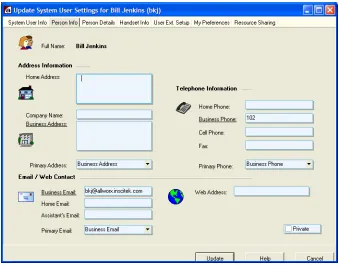
(19) User’s Guide The Person Info tab (Figure 3-2) allows you to enter more information about yourself or update existing information. Your System Administrator may have filled in some of this information previously. The Primary Address, Primary Phone, and Primary Email fields represent information that will be visible throughout the Allworx system. Click the Private box if the information in this form is to be confidential. Click the Update button to save new or changed information.. Figure 3-2 – User Settings – Person Information Dialog Box. 13.
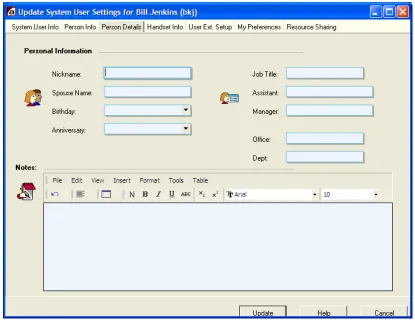
(20) User’s Guide The Person Details tab (Figure 3-3) allows you to enter still more information about yourself. Your System Administrator may have filled in some of this information previously. Click the down arrow next to the Birthday and Anniversary fields to display a calendar. Click the left and right arrows to change the month display. Click the date desired. The Notes field can contain any other information about the user. You can also paste information into the field from other applications such as Microsoft Word. Click the Update button to save the information.. Figure 3-3 – User Settings – Person Details Dialog Box. 14.
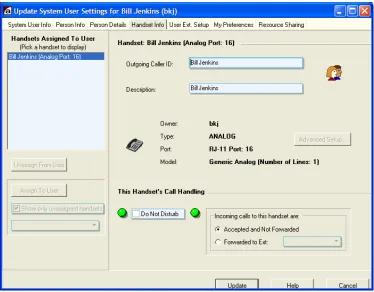
(21) User’s Guide 4 Creating and Updating Your Telephone Handset Information You can enter and update features of the physical telephones, referred to as handsets in the Allworx system. This section provides information about: Modifying handset features Creating and updating presence profiles and call routes 4.1 Handset Features The Handset Info tab (Figure 4-1) allows you to change certain features and settings of any handsets assigned to you.. Figure 4-1 – User Settings – Handset Info Dialog Box Handsets Assigned to User This section of the window provides a list of handsets that have been assigned to you. Select a handset in the left pane to show its associated information in the right pane.. 15.
(22) User’s Guide Phone: (description) The description reflects the name of the handset assigned by the System Administrator and the associated analog port or TCP/IP address. The Outgoing CallerID and Phone Description are automatically filled in by the Allworx or may have been completed by the System Administrator. However, you can change the entries in these fields. Place your mouse pointer in a field and click to change the entry. The Outgoing CallerID field will appear on handsets within your organization that have display capabilities. Note: The Outgoing CallerID is not passed to the telephone company and will not appear on telephones outside your organization. The Phone Description field can be any meaningful description such as Line 2, Marketing Fax Machine, etc. This Handset’s Call Handling The Handset Call Handling features may have been set by the System Administrator. However, you can now make changes. These features apply specifically to the handset for which they are defined as indicated by the Phone Description. To activate Do Not Disturb, check the box. Incoming callers will hear a ring tone, but the handset will not actually ring. Calls to this handset will be routed as defined in User Extension Setup. To activate call forwarding, click the Forward to Ext. button. Open the pull-down menu and click the desired extension. Advanced Setup Advanced Setup features may have been assigned to your handset. You cannot change these features. Contact your System Administrator for information about these features. Item. Description. Allow Making Calls. Indicates whether calls can be made from this handset to internal handsets or outside numbers.. Outside Calls Do Not Require 8 + PINCode. May require users to enter an authorization code to place outside calls. The PIN code must always begin with 8, followed by 5 digits.. When calling outside. Indicates the telephone company lines and the order in which they are used for calling outside.. Enable Receiving Calls. Indicates whether incoming calls are permitted on this handset. If not enabled, callers will hear ring tones and the call will be handled according to the designated call route. 16.
(23) User’s Guide Second Call Handling. Supports the following options for how a second incoming call should be handled: Option. Description. Busy. The caller hears a busy signal and the On the Busy Call Route is followed.. Not Busy. (Only applies to analog handsets.) The caller hears a ring signal and the Primary Route is followed.. Call Waiting. The call recipient receives a beep tone every 16 seconds while the second incoming call is active. The Primary Route is followed.. Enable Message Waiting Stutter Dial Tone. Provides an audio indicator to the user that a message is waiting.. Enable Message Waiting Light*. Provides a visual indicator to the user that a message is waiting. If the handset does not support this feature, be sure this feature is disabled.. Enable Caller ID Display*. Click this box to present the incoming caller’s ID on the handset‘s display. If the handset does not support this feature, be sure this feature is disabled.. Handset Caller ID Select the caller ID code format from the pull-down menu. Type Refer to the manufacturer’s documentation provided with the handset. *Applies to handsets that support this feature. 4.2 Creating and Managing Presence Profiles Allworx allows you to set up inbound call handling plans to accommodate a variety of scenarios. This high degree of flexibility will meet the needs of multi-location organizations, remote management situations, frequent travelers or telecommuters. Calls can be routed and terminated in a variety of ways depending on your active Presence profile. A different call route and termination arrangement can be configured for any or all of the following presence profiles. At a In Office On Vacation Meeting At Home On Business Busy Trip Away 17.
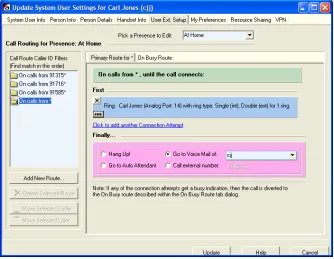
(24) User’s Guide The marketing manager may set her presence profile to “At a Meeting,” so her calls are first be routed to the main receptionist. If the receptionist does not answer or his handset is busy, the call is then routed to the manager’s voicemail. Or, when she changes her presence profile to “On a Business Trip,” her calls might be directly routed to her cell phone. A presence profile is made up of one or more Caller ID Filters and their associated Call Routes. The caller ID information of each incoming call is compared to the caller ID filters in the order defined. When the caller ID information matches a filter, the associated call route and termination plan is applied. For example, the regional sales manager, Carl Jones, sometimes does his paper work at home and wants calls from his western New York territory (area codes 315, 716 and 585) routed to the assistant sales manager, Todd Smith, who is in the office. All other calls should terminate directly to Carl’s voicemail. Figure 4-2 shows the caller ID filters in the left pane of the window. Caller ID filter 91315* is highlighted, and the associated Primary Route is shown in the right pane of the window. (91 is an internal prefix attached to the caller ID filter).. Figure 4-2 – Primary Call Route for Caller ID Filter 315* Figure 4-3 shows the caller ID filter for all other calls outside the western New York territory. All calls are routed directly to Carl’s voicemail after the handset rings one time.. 18.
(25) User’s Guide In addition to the Primary Route, you can also define an On Busy Route to a caller ID filter. If any of the handsets or extensions in the Primary Route ring busy, the call is directed according to this secondary route. Lastly, you can set up a Presence profile even if you don’t have a handset, but have an extension (for example, voicemail boxes only). Consider the telecommuter who has calls directed to a headquarters office. The call may first come to an administrative assistant, but route to the user’s voicemail if that line is busy or not answered.. Figure 4-3 – Primary Call Route for Caller ID Filter * 4.2.1. Creating Caller ID Filters. Creating Caller ID filters is the first step in building a Presence profile. 1. Click the User Settings button in the Task bar of the Allworx Communication Center. The dialog window will display several tabs in the Update User Settings dialog box. 2. Click the User Ext. Setup tab. The dialog box like the one in Figure 4-2 will be displayed. 3. Open the Pick a Presence to Edit pull-down menu and select a presence. The presence you select will contain the caller ID filters defined in the following steps. Call routing plans will be added in the following section.. 19.
(26) User’s Guide 4. Define the first Caller ID filter for the selected Presence profile. The default is all calls will receive the subsequent call route treatment. However, you can specify other Caller ID filters. To add a new filter: Click Add New Route. The window in Figure 4-4 is displayed.. Figure 4-4 –Add New Caller ID Rule Dialog Box Enter the Caller ID pattern for an External inbound call. For example, type 585* to choose all calls from the 585 area code. Or, click Internal User and choose an extension from the pull-down menu. For example, you may want to route all calls from your assistant to your cell phone for your On Business Trip Presence profile. Your assistant wouldn’t need to remember your cellular number, just your internal extension. 5. Add as many Caller ID filters as you need for each Presence profile. 6. To remove a Caller ID filter, highlight the filter name, then click Delete Selected Route. 7. You can change the order of the Caller ID filters using the Move Selected… up and down arrows. 8. To create another Presence profile, open the pull-down menu and Pick a Presence to Edit. Repeat steps 1-7. You can create up to seven different Presence profiles. 4.2.2. Configuring Call Routes. The second step in creating a Presence profile is configuring the Primary or On Busy call routes for each Caller ID filter. Call routes can include simultaneous ring groups and hunt sequences, configurations common to many multi-line businesses (Figure 4-5). The steps below enable you set up call routes that meet the varying needs of your organization.. 20.
(27) User’s Guide Simultaneous Ring Group. Hunt Sequence. Figure 4-5 – Ring Group and Hunt Sequence Call Route Example. Figure 4-6 – Add Connection Attempt Dialog Box To set up a Primary Call routing for a caller ID filter: 1. Be sure you have selected the correct Presence to Edit. 2. Highlight the Caller ID filter for which you want to configure the Primary call route. 3. Click No Connection Attempts Defined! Click to add. The Add Connection Attempt dialog box will appear (Figure 4-6). 21.
(28) User’s Guide 4. Open the pull-down menu and highlight the first handset to which the incoming call will be directed. Click Add. Repeat this if more than one handset is to ring on the first attempt. You can also specify the number of rings and the type of ring for each handset. Ring Type. Default. Description. One standard ring for internal calls. Two standard rings for external calls. Note: Some SIP phones may not support these ring types.. Double (int), Single (ext). Two standard rings for internal calls. One standard ring for external calls. Note: Some SIP phones may not support these ring types.. Single. One standard ring. Double. Two standard rings. Double. One short and one long ring (· –). Double. One long and one short ring (– · ). Triple Triple. Three standard rings Two short and one long ring (· · –). Triple. One short, one long, and one short ring (· – · ). Triple. One long ring and two short rings (– · ·). Click OK to save the first connection attempt telephone list. 5. If there is to be another connection attempt after the first has completed its sequence, click Click to add another connection attempt. Repeat Step 4 above. Repeat Steps 4 and 5 until all connection attempts have been defined. Click the X in the call attempt box to delete a call attempt. 6. Lastly, specify the action to take when the group has been exhausted. Click the appropriate button. If Voice Mail is chosen, open the pull-down menu and select the user. If Call External Number is chosen, select the format that is appropriate for the user and enter the external number. Note: You can enter any domestic or international dialing plan, but no more than 31 digits. Enter asterisks between digits as needed to provide pauses to accommodate your telephone system. Each asterisk provides a 1-second delay. 7. Click Update to save the call route configuration. 22.
(29) User’s Guide Your active Presence profile (My Presence) will appear in the Allworx Communication Center status bar at the bottom of the window (Figure 2-2). Open the pull-down menu to change your call route as your presence changes. If Second Call Handling has been defined as Busy (Advanced set up – check with your System Adminstrator) for any handset in the Primary call route, you can now define an On Busy Route. This route will be followed in the event any of those handsets in the Primary route rings busy. 1. Be sure you have selected the correct Presence to Edit. 2. Highlight the Caller ID filter for which you want to configure the On Busy call route. 3. Repeat steps 1-7 above.. 23.
(30) User’s Guide. 24.
(31) User’s Guide 5 Using the Features of Your Handset The Allworx system supports standard analog handsets and more advanced internet protocol (IP) handsets. The Allworx handset features may operate differently depending on the type of handset and manufacturer. Check with your System Administrator if you are not sure about your handset. This section provides information about making and receiving telephone calls, and about the call handling features of the Allworx system. 5.1 Making and Receiving Telephone Calls 5.1.1. Dialing External Phone Numbers. To dial an outside telephone number, lift your handset, listen for a dial tone, press 9, and dial the external telephone number. Note: You may hear silence for about two seconds as the phone number is sent to your local telephone company. If you receive a busy signal after dialing, this can occur because either there is no available outside line or the called number is busy. 5.1.2. Call Blocking and Restrictive Dialing. Your System Administrator may have established rules for blocking outbound calls and restricting certain dialing patterns. Contact your System Administrator for more information. 5.1.3. Caller ID Display. The Allworx system will provide Caller ID information to your handset if this information is available from your local telephone company. Caller ID information may be stored on your handset and used for dialing back incoming callers. Contact your System Administrator for more information.. 25.
(32) User’s Guide 5.2 Allworx Call Handling Feature Operations for Analog Handsets Feature. Description. Operation. Call Forwarding. Sends an incoming call to 1. Dial 45. another handset if your 2. Enter the extension number to which handset is busy or not all calls will be forwarded (100answered. 299). Note: If the handset to 3. Hang up the handset. which calls have been Dial 450 to turn off the feature. forwarded is not answered, the call will be routed to voicemail for the user assigned to the forwarded handset.. Do Not Disturb. Automatically sends incoming calls for your extension to your voicemail without ringing your handset.. Call Park and Retrieve. 1. Pick up your handset. 2. Dial 420 to turn on the feature. 3. Dial 421 to turn off the feature.. Allows a call to be put on 1. Press the flash button. hold then picked up at 2. Dial 700. Listen to the prompt any extension. carefully. It will say the number of the extension where the call is parked. 3. Hang up the handset. 4. Tell the call recipient the parked number. You can use the Paging to Audio feature if this is activated. 5. The recipient picks up another handset, dials the parked number (701-709), then speaks to the caller.. Blind Call Transfer. Allows a call to be transferred to another extension without talking to the recipient.. 1. Press the flash button. Listen for the dial tone. 2. Dial the number to which the call will be transferred. 3. Hang up the handset immediately.. Continued. 26.
(33) User’s Guide. Feature. Attended Call Transfer. Description. Operation. Allows a call to be transferred to another extension, and talk to the recipient before completing the transfer.. 1. Press the flash button. Listen for the dial tone. 2. Dial the number to which the call will be transferred. 3. Talk with the recipient. 4. Hang up the handset.. Call Pickup. Consultation. Allows you to answer a call ringing at another extension.. 1. Pick up your handset.. Allows you to interrupt the current call to talk with a third party.. 1. Press the flash button. Listen for the dial tone.. 2. Dial 7 and the number of the ringing extension.. 2. Dial the third party and have your conversation. 3. Press the flash button when finished to disconnect the third party and return to the original call.. Call Waiting. Allows you to take a second call while you are currently on a call.. 1. If another calls comes in while you are talking, you will hear a chirp ring tone. 2. Press the flash button to answer the new call. The first caller is put on hold. 3. Press the flash button again to return to the first call. Repeat this to switch between callers. 4. Hang up the handset to disconnect the active party. If the other party is still on the call, you will hear a chirp ring. Pick up the handset to talk with the other party. Hang up to disconnect.. Continued. 27.
(34) User’s Guide. Feature. Paging to Audio (Intercom). Three-way Conference. Description. Operation. Allows you to make general announcements over your organization’s public address or intercom system.. 1. Pick up your handset.. Allows you to include a third person in a conversation.. 1. Establish the first conversation.. 2. Dial 402. 3. Announce your message. Hang up the handset. 2. Press the flash button. 3. Dial *33. 4. Dial the telephone number of the third party. 5. After speaking with the new party, press the flash button to add them to the conversation. 6. To disconnect only the third party, press the flash button again. Hang up to disconnect all parties.. Line on Hold Reminder. Indicates that you currently have a call on hold.. You will hear a chirp-ring every minute while a call is on hold and the receiver is on-hook.. 5.3 Allworx Call Handling Feature Operations for IP Handsets The Allworx call handling feature descriptions for IP handsets are the same as for analog handsets. However, the features may operate differently for various IP handset models depending on the manufacturer of the handset. Consult the user’s guide for your particular handset or contact your System Administrator for more information. Consult the Allworx website (www.allworx.com) for the current list of Allworx qualified handsets.. 28.
(35) User’s Guide 6. Managing Your Contacts. The Allworx Contact manager allows you to create and update your own list of important contacts, and see key organization contacts that are maintained by the System Administrator. This section provides information about: Displaying the organization’s commonly used contact list and your personal contact list. Creating and maintaining your personal contacts, including •. People contacts. •. Business contacts (companies and organizations). •. Personal distribution lists or contact groups. Key features and functions of the Allworx Contact manager 6.1 The Allworx Contact Manager The Allworx contact manager provides a view of all contacts, the functions needed to display, update and delete contacts, and the ability to add new contacts. Click the Allworx Communication Center Contact button in the View pane (Figure 6-1). Task Bar. The Task bar provides the ability to add new contacts and contact groups, delete contacts, open a contact to see more detail or update the information, import contact information from a file, export your contact list to an Excel document, and print contact information. Menu Bar. The Contact pull-down menu provides the same functions as those displayed on the Task bar. The View pull-down menu allows you to select which columns of contact information to display in the Information pane. Contact List Tabs. There are three lists of contacts that may be displayed using the Contact Selection Tabs under the Menu bar. The first list comprises your personal contacts and contact groups and is identified by your user name on the tab below the Task bar. The second list comprises Company contacts that your System Administrator creates and maintains. These are individual contacts and contact groups that are commonly used within your organization, for example suppliers, customers, or emergency contacts. Note: Only the System Administrator can change Company contacts and groups. The third list combines both personal and Company contacts. Click on the tab to select the list you need.. 29.
(36) User’s Guide. Personal Contact View. Company Contact View. Your list of contacts and contact groups.. Contacts and contact groups common to your organization.. Personal and Company Contact View. Combined contact list.. Menu Bar. Task Bar. Contact List Selection Tabs. Contact Listings. Figure 6-1 – The Allworx Contact Manager. 6.2 Adding a New Contact New contacts can be added by clicking on New Person, New Business, New Resource, or New Group on the Task bar (Figure 6-2). New Person – Click on the New Person button to enter information about a new individual contact. Select the tab at the top of the dialog box to enter Person Info and Person Details. The Primary Address, Primary Phone, and Primary Email will appear in the Contact Screen list when the contact is saved. You can choose from any of the available options for these by selecting the desired entry from the pull-down menu associated with the field. Check the Private box if this contact is not to be viewed by others in your organization. After completing your entries and selections, click the Add button to save the new contact and close the window.. 30.
(37) User’s Guide. Business Contacts. Resource Contacts. Contact Groups. Companies and organizations for which you need address, telephone, web site and key contact information. These contacts can be inserted into your email addresses.. Commonly used items such as conference rooms, projectors, or laboratory equipment for which you need to determine location.. Groups of related person, business or resource contacts.. Person Contacts. People for whom you need address, telephone, email, and other related information.. Figure 6-2 – Add New Contacts Buttons New Business - Click on the New Business button to enter information about a new business contact. Note that the business Contact Name will appear in the Assistant’s Name column in the Allworx Contact Manager. After completing the Business Info fields, click the Add button to save the new contact and close the New Business Info window. New Resource - Click on the New Resource button to enter information about a new resource. Resources are commonly used items or facilities that are shared within your organization. Contact name, telephone, and email may represent the person in your organization responsible. 31.
(38) User’s Guide for managing the resource. After completing the Resource Info fields, click the Add button to save the new contact and close the Resource Info window. New Group - Click on the New Group button to enter information about a new contact group The Add New Group Contact dialog box will appear (Figure 6-3). Contact groups are lists of people, businesses, resources or other groups that are related, for example, by function or location. Enter the name of the new contact group in the first field.. Figure 6-3 – The Add Contact Group Members Dialog Box. To add members from your Allworx contact list to your contact group, click the Add Contact Members button. The Contact Picker dialog box in Figure 6-4 will appear. Highlight the entries in the left pane you wish to include in your contact group and click the Members button. If you wish to remove members, highlight the entry in the right pane and click the button. To find a name that does not appear in the left pane, begin keying the last name in the Find Name field. As you type, new contacts will appear that match the letters. Or, click and drag the scroll bar to display more contacts. When you have completed adding contacts, click OK to save the contact group and close the window.. 32.
(39) User’s Guide. Figure 6-4 –Contact Picker Dialog Box To add members that are not currently in your Allworx contact list, click the Add Non-Contact Members button. Enter the information in the dialog box (Figure 6-5) and click OK to save and add the contact to the group. The window will close automatically.. Figure 6-5 – Non-Contact Dialog Box You can remove members by highlighting one or more entries and clicking the Delete button on the Add New Group Contact window.. 33.
(40) User’s Guide When you have finished creating your contact group, press the Add button to save the contact group and close the Add New Group Contact window. 6.3 Updating Contact Information To update a contact, highlight the entry in the Contact Manager window and click the Open button (or just double-click on the entry). When you have finished making changes, click Update to save the contact information and close the window. 6.4 Deleting Contact Information To delete a contact, highlight the entry in the Contact Manager window and click the Delete button on the Task bar. 6.5 Contact Features 6.5.1. Searching Contacts. To search for a particular entry in the contact list: 1. Place your mouse pointer in any field of any contact entry in the list display. 2. Click once in the field. 3. Type the first few letters of the column-specific information for which you are searching. For example, if your are in the Name column, type the first few letters of the last contact’s last name. Or, if you are in the email field, type the first few characters of the contact’s email address. As you type, the Allworx Contact Manager will move to the entry that matches the characters you typed. The characters you typed will be highlighted in the resulting contact listing. 6.5.2. Selecting Contact Columns. You can choose which columns of information are to appear in your Contact Information pane using the View button on the Menu bar. 1. Click the View button, then move your pointer over the word Columns to display the Columns menu. 2. Highlight the column you wish to display or remove. 3. Click to check (select) or uncheck the column. The column will be added to or removed from the display. Repeat this process until all desired columns appear in the Information pane. 4. Click anywhere on the Information pane to close the View Columns menu and save your selections.. 34.
(41) User’s Guide 6.5.3. Column Control. You can change the position of the columns and change column width. To change the position of a column: 1. Highlight the column heading. 2. Click and drag the column to its new location, moving either left or right. 3. Release the mouse when the column heading is in the desired location. To change the width of a column: 1. Place the mouse pointer on the line separating it from the column to the right or left. 2. When the double arrow pointer appears, click and drag the line to the right or left. 3. Release the mouse when the column reaches the desired width. 6.5.4. Sorting Contacts. You can change the order of contacts displayed in the Contact Manager by clicking on the column heading. For example, names are normally shown in ascending (a-z) alphabetical order as indicated by the upward pointing triangle in the column heading. To reverse the alphabetical order (z-a), click on the column heading. The triangle now points downward. 6.5.5. Printing Contacts. To print contact listings: 1. Choose the contact list to be printed by clicking on the desired Contact Selection tab. 2. Click the Print button on the Task bar. Contacts will be printed in the order in which they are displayed. Note: You may click the Print Preview button first to see how the actual printed output will appear.. 35.
(42) User’s Guide. 36.
(43) User’s Guide 7 All-in-One™ Inbox PC Message Center The Allworx All-in-One inbox provides convenient access to email, voicemail and calendar messages from your PC or from your handset. This section provides instructions for accessing and managing messages from your PC. Section 8 provides instructions for accessing and managing messages from a telephone. Important benefits of a unified message center include: Eliminating time and energy spent retrieving messages from multiple points. Increasing your productivity. Reducing communications errors, confusion with contacts and other problems that arise when there are too many messages from too many sources. Reducing message redundancy. Increasing the potential for better customer response time. 7.1 The Allworx Message Center The Allworx Message Center provides a view of all messages and the functions needed to manage messages. Click the Messages button in the Allworx Communication Center View pane (Figure 7-1). The Allworx icon in your PC’s Task bar will change to an “envelope” when a new message is received in your Allworx Inbox. New incoming messages are shown in bold type. Your inbox can include email, voicemail and calendar events messages as indicated by the icon to the left of each message. To read a message, highlight the message and choose File and Open. Or, double-click on a message to open it. Once a message has been read the bold highlight is removed and the Allworx icon returns to normal. To Reply to or Forward a message, highlight the message and click the appropriate command button. If the Preview feature is turned on, you can do the following directly from the Allworx Messages Center: •. See the contents of the incoming message automatically.. •. View message attachments. •. Listen to your voice message directly from the Allworx Messages Center using the Play and Stop buttons and the playback progress control bar.. •. Accept or decline calendar invitations.. Refer to Sections 7.3 – 7.5 for more information on reading and responding to different types of messages.. 37.
(44) User’s Guide Task Bar. The Task bar mail features include: Create New messages or message folders. Delete unwanted messages. Reply only to the sender. Reply to All message recipients. Forward the message. Add a custom Signature to your messages. You can choose the font for your text and indicate whether the signature should be added automatically to new outgoing email messages. Click the appropriate icon to Save and Print messages. Click the Home icon to be automatically connected to the Allworx.com home page. Message Folders. Message Display. Organize and manage your messages. Locate email, voicemail and calendar messages.. Menu Bar Task Bar. Preview Window. Preview the contents of your messages.. Figure 7-1 – Allworx Messages Center 38.
(45) User’s Guide Menu Bar. The File button is used to open, save and print messages and includes Page Setup and Print Preview functions. The Edit button is used to select all messages. The View button allows you to select and change mail message headers, select tool bar options, and collapse or expand the folder list display. You can also choose to display a Preview of messages. The Preview mode allows you to see the contents of a message including attachments, view Appointment Details then Accept or Decline invitations, and Play voicemail messages. The Mail button provides the same functions as those displayed on the Task bar. It also provides the following features: •. Mark Message as Read/Unread – Applies bold face type to the message display as if it were a new message.. •. Set Message Priority – Allows you to indicate message priority as high (! appears), normal, or low (↓ appears). Sort your messages in priority order by clicking the Priority icon at the top of the column.. Changing Column Width. To change the width of a Message Header column, place your mouse pointer on the line between two columns. When the double-arrow appears, click and drag the line to change the column width. Message Folders. The Allworx Message system provides several standard message folders: The Drafts folder stores messages that were started but not yet sent. These messages can be reopened, edited, and sent as needed. The Inbox folder contains all incoming messages. The Outbox folder contains messages that are in the process of being sent. Messages usually stay in this folder a very short time unless there is a network connection fault. It may also contain messages that you created while working offline. These messages will be sent next time you connect to the Allworx server. The Sent folder contains messages that have been sent. You should review this folder periodically and delete unwanted messages to preserve Allworx server disk space.. 39.
(46) User’s Guide The Trash folder contains messages that have been deleted. You should review this folder periodically and delete unwanted messages to preserve Allworx server disk space. Messages deleted from the Trash folder are permanently removed. To move messages from one folder to another: 1. Highlight the message in the message display window. 2. Click and drag the message to the desired folder in the message folder list. You can create additional folders within any of the standard Allworx message folders: 1. Highlight the folder into which the new folder will be placed. 2. Click the drop-down arrow next to New in the Task bar and select Mail Folder. Or, you can just right-click on the folder in which you want to place the new folder and select New Folder. 3. Type the name of the new folder. 4. Press Enter on your keyboard. Click the + or - box to expand or contract the message folder display. 7.2 Creating and Sending New Email Messages To create a new message, click New in Task bar. The Allworx Message box will appear (Figure 7-2). Menu Bar Task Bar Edit Bars. Type your message content here.. Figure 7-2 – Allworx Email Message Window 40.
(47) User’s Guide 1. Enter the names of the message recipients in the To, Cc and Bcc fields. Or, click the button to open the Contact Picker dialog box. Select the contacts in the left window then click the right-arrow button to place the contact in the appropriate recipient box. To remove a contact, highlight the name and click the left-arrow button. Use the Manually Entered tab to enter recipients who are not in any contact list. Click OK when you have completed your message’s recipient lists. 2. Type the Subject of your message. 3. Type your message content using the various formatting and text editing features. The Allworx system provides very powerful text editing capabilities, similar to those found in Microsoft Word. These are shown in the Allworx Message Box Edit bar(s). 4. Click Attachments in the Task bar to include other documents with your message as needed. 5. Click Send in the Task bar when your message is ready. Menu Bar. The File button is used to save and print messages and includes Page Setup and Print Preview functions. You can also open attachments. The Edit button includes many text editing commands, including cut, copy and paste, find and replace, and undo and redo. The View button allows you to select and change tool bar options, zoom in and out, and select various page layout options to simplify editing. The Insert button allows you to embed files, pictures, symbols and links in your message. The Format button is used to change the format of text, paragraphs, bullets and numbering. The Tools button provides features to check spelling and a thesaurus. The Table button is used to insert a table into the text of your message. The Mail button provides the Send and Attachment functions as displayed on the Task bar. The message is automatically saved in the Sent folder when you click the Send button.. 41.
(48) User’s Guide 7.3 Reading and Responding to Email Messages To read a message, highlight the message and choose File and Open. Or, double-click on a message to open it. The Message display window indicates all message recipients, the message sender, date and time the message was received in your Allworx Inbox, subject, and message content. You can also read and manage your message in Preview mode. Task Bar. The Task bar message functions allow you to: Create a New message. Delete the message. Reply only to the sender. Reply to All message recipients. Forward the message. Click the appropriate icon to Save and Print messages. Click the Home icon to be automatically connected to the Allworx.com home page. Menu Bar. The File button is used to open, save and print messages and includes Page Setup and Print Preview functions. The Edit button is used to select and copy message content. The View button allows you to select tool bar options. The Mail button provides the same functions as those displayed on the Task bar. 7.4 Reading and Responding to Voicemail Messages To play a voicemail message, highlight the message and choose File and Open. Or, double-click on a message to open it. The Voicemail Playback window (Figure 7-3) shows the message sender, date and time the message was received in your Allworx Inbox, and the length of the recorded message. You can also read and manage your message in Preview mode. 42.
(49) User’s Guide Menu Bar. Task Bar. Figure 7-3 – Allworx Voice Message Window. Task Bar. The Task bar provides Play and resume, Stop and Pause functions. Other mail functions include: Reply only to the sender. Reply to All message recipients. Forward the message. Delete the message. Click the Home icon to be automatically connected to the Allworx.com home page. Menu Bar. The File button is used to save the message or exit the playback window. The View button allows you to select tool bar options. The Voice button provides the same functions as those displayed on the Task bar. Click and drag the playback progress control bar to select a particular point at which to play the message. 43.
(50) User’s Guide 7.5 Reading and Responding to Calendar Messages To read a calendar message, highlight the message and choose File and Open. Or, double-click on a message to open it. The Message display window (Figure 7-4) shows the Subject of the appointment, the appointment Organizer, all invited Attendees, and the date and time the message was received in your Allworx Inbox. You can also read and manage your message in Preview mode Appointment Details include Start and End dates and times, event Location, and event Priority. The organizer may have also included a Note to Attendees. Menu Bar. Task Bar. Figure 7-4 – Allworx Calendar Message Window. Task Bar. The Task bar message functions include: Accept an appointment invitation. Decline an appointment invitation. Add Response when you Accept or Decline an appointment invitation. New Task and Menu bars are displayed. Click Remove Response to cancel. Delete the message. Click the Print icon to print the message. Click the Home icon to be connected automatically to the Allworx.com home page. 44.
(51) User’s Guide Menu Bar. The File button is used to open, save and print messages, and includes Page Setup and Print Preview functions. The Edit button is used to select, copy, and modify message content. The View button allows you to change the layout of the message display, zoom in and out, and display vertical and horizontal rulers. The Insert button allows you to add files, pictures, symbols, and links to your response message. The Format button provides options for changing the appearance of text in your response message. The Tools button includes options for spelling and grammar correction. The Table button is used to insert a table into your response message. The Calendar button provides the same functions as those displayed on the Task bar.. 7.6 Using the Allworx Message Center Offline You can create and send new messages while offline from the Allworx server. (Refer to Section 12 for information about working offline.) The messages will be stored in the Outbox folder until you reconnect to the Allworx server. Once you have reconnected and synchronized your PC, pending messages will be transmitted to the recipients. While working offline, you cannot: •. Move messages from one message folder to another. •. Create new message folders. •. Delete messages. 45.
(52) User’s Guide. 46.
(53) User’s Guide 8 All-in-One™ Inbox Telephone Message Center The Allworx All-in-One Inbox Telephone Message Center provides a convenient way to play and manage your voicemail and email messages over the telephone. This section provides information about: Creating and updating your outgoing voicemail message. Playing, replying to and managing your messages. 8.1 Logging in to the Allworx Message Center 1. From any activated handset within the organization, dial 6 followed by your extension number. If calling from outside the organization, be sure you call in through the Auto Attendant. You will hear the standard welcome greeting. Press 6 followed by your extension number. You will hear: “Welcome to the Allworx Message Center. Please enter your password followed by the pound sign. Or press pound now to change users. Press star to listen to these choices again.” 2. Enter (or spell) your password using the handset keypad (see the table below), then press the # key. If you don’t know your password, contact your System Administrator. Keypad Number. Number and Letters. Keypad Number. Number and Letters. Keypad Number. Number and Letters. 0. 0. 4. 4GHI. 8. 8TUV. 1. 1. 5. 5JKL. 9. 9WXYZ. 2. 2ABC. 6. 6MNO. 3. 3DEF. 7. 7PQRS. 8.2 Recording Your Name for the First Time As a new user you will need to record your name as part of the your voicemail greeting. The Allworx Auto Attendant will not list your name until you have recorded it. To record your name for the first time: 1. Log in to the Allworx Message Center (Section 8.1). 2. You will hear an announcement indicating the number of new and saved messages in your voicemail inbox and the following options:. 47.
(54) User’s Guide. Command. Function. 3. To send a message. 4. To change your Message Center system settings. 9 or hang up *. To end your call To listen to these choices again. 3. Press 4. The system will announce the following options: Command. Function. 1. To change your password. 2. To change the recording of your name. 3. To change your outgoing message recording. 4. To change the maximum recording time for messages. *. To listen to these choices again. 4. Press 2. Listen to the announcement and instructions, then record your name. Press the # key when you have finished. The system will replay your new name recording and offer the following options: Command. Function. 1. To save your name recording. 2. To change your name recording. 3. To review your name recording. #. To cancel changing your name recording. *. To listen to these choices again. 5. Press 1 to save your new name recording, then hang up.. 48.
(55) User’s Guide 8.3 Changing Your Name Recording To change an existing name recording: 1. Log in to the Allworx Message Center (Section 8.1). 2. You will hear an announcement indicating the number of new and saved messages in your voicemail inbox and the following options: Command. Function. 3. To send a message. 4. To change your Message Center system settings. 9 or hang up *. To end your call To listen to these choices again. 3. Press 4. The system will announce the following options: Command. Function. 1. To change your password. 2. To change the recording of your name. 3. To change your outgoing message recording. 4. To change the maximum recording time for messages. *. To listen to these choices again. 4. Press 2. The system will play your current name recording for your review and offer the following options: Command. Function. 2. To change your name recording. 3. To review your name recording. #. To return to the previous menu. *. To listen to these choices again. 5. Press 2. Listen to the instructions and record your name. Press the # key when you have finished. The system will play your new name recording, then offer the following options:. 49.
(56) User’s Guide Command. Function. 1. To save your name recording. 2. To change your name recording. 3. To review your name recording. #. To cancel changing your name recording. *. To listen to these choices again. 6. Press 1 to save your name recording.. 8.4 Recording Your Outgoing Voicemail Message for the First Time The Allworx system includes a standard message for each new user. Follow the steps below to record a new message. 1. Log in to the Allworx Message Center (Section 8.1). 2. You will hear an announcement indicating the number of new and saved messages in your voicemail inbox and the following options: Command. Function. 3. To send a message. 4. To change your Message Center system settings. 9 or hang up *. To end your call To listen to these choices again. 3. Press 4. The system will announce the following options: Command. Function. 1. To change your password. 2. To change the recording of your name. 3. To change your outgoing message recording. 4. To change the maximum recording time for messages. *. To listen to these choices again. 50.
(57) User’s Guide 4. Press 3. Listen to the announcement and instructions, then record your outgoing message recording. Press the # key when you have finished. The system will replay your new message recording, and offer the following options: Command. Function. 1. To save your outgoing message. 2. To change your outgoing message. 3. To review your outgoing message. #. To cancel changing outgoing message. *. To listen to these choices again. 5. Press 1 to save your new message recording.. 8.5 Changing Your Outgoing Voicemail Message To change an existing outgoing message: 1. Log in to the Allworx Message Center (Section 8.1) 2. You will hear an announcement indicating the number of new and saved messages in your voicemail inbox and the following options: Command. Function. 3. To send a message. 4. To change your Message Center system settings. 9 or hang up *. To end your call To listen to these choices again. 3. Press 4. The system will announce the following options: Command. Function. 1. To change your password. 2. To change the recording of your name. 3. To change your outgoing message recording. 4. To change the maximum recording time for messages. *. To listen to these choices again 51.
(58) User’s Guide 4. Press 3. The system will play your current message for review and offer the following options: Command. Function. 2. To change your outgoing message. 3. To review your outgoing message. #. To return to the previous menu. *. To listen to these choices again. 5. Press 2. Listen to the instructions and record your new message. Press the # key when you have finished. The system will offer the following options: Command. Function. 1. To save your outgoing message. 2. To change your outgoing message. 3. To review your outgoing message. #. To cancel changing your outgoing message. *. To listen to these choices again. Press 1 to save your new message recording.. 8.6 Voicemail Message Playback The Allworx system may turn on the message indicator on your handset when you have a new message. Check your handset’s user’s guide for more information or contact your System Administrator to determine if your handset supports these features. 1. Log in to Allworx Message Center (Section 8.1). 2. You will hear an announcement indicating the number of new and saved voicemail and email messages in your inbox. The system will then prompt with the following options:. 52.
(59) User’s Guide. Command. Function. 1. To listen to voicemail messages. 2. To skip to playing saved voicemail messages. 3. To send a message. 4. To change your Message Center system settings. 5. To listen to email messages. 6. To skip to playing saved email messages. 9 or hang up *. To end your call To listen to these choices again. 3. Press 1, 2, 5, or 6. The system will announce the time the message was received and play the message. For email you will hear the sender’s name, message subject and content. After hearing the message select from the following options: Command. Function. 1. To reply to this message. 2. To forward this message (voicemail messages only). 3. To delete the message. 4. To replay this message. 5. To play the previous message. 6. To play the next message. 7. To rewind the message 10 seconds (while listening to the message). 8. To advance the message forward 10 seconds (while listening to the message). 9. To place a call to the sender of this message. (Only applies to messages sent by other Allworx users). #. To return to the previous menu. *. To listen to these choices again. Notes: Messages are automatically saved unless you choose to delete them. To interrupt message playback and take an immediate action, press * followed by the command number. For example, to reply to a message before hearing the end of the message, press *1. 53.
Figure
+7

Outline
Related documents