SpeedScreen Latency Reduction Explained
SpeedScreen Latency Reduction Explained
SpeedScreen Latency Reduction Explained
SpeedScreen Latency Reduction Explained
By Kala Thennarangam
Notice
The information in this publication is subject to change without notice.
THIS PUBLICATION IS PROVIDED “AS IS” WITHOUT WARRANTIES OF ANY KIND, EXPRESS OR IMPLIED, INCLUDING ANY WARRANTIES OF MERCHANTABILITY, FITNESS FOR A PARTICULAR PURPOSE OR NON-INFRINGEMENT. CITRIX SYSTEMS, INC. (“CITRIX”), SHALL NOT BE LIABLE FOR TECHNICAL OR EDITORIAL ERRORS OR OMISSIONS CONTAINED HEREIN, NOR FOR DIRECT, INCIDENTAL, CONSEQUENTIAL OR ANY OTHER DAMAGES RESULTING FROM THE FURNISHING, PERFORMANCE, OR USE OF THIS PUBLICATION, EVEN IF CITRIX HAS BEEN ADVISED OF THE POSSIBILITY OF SUCH DAMAGES IN ADVANCE.
This publication contains information protected by copyright. Except for internal distribution, no part of this publication may be photocopied or reproduced in any form without prior written consent from Citrix.
The exclusive warranty for any Citrix products discussed in this publication, if any, is stated in the product documentation accompanying such products. Citrix does not warrant products other than its own.
Product names mentioned herein may be trademarks and/or registered trademarks of their respective companies.
© 2000 Citrix Systems, Inc. All rights reserved.
Version History
TABLE OF CONTENTS
BACKGROUND... 1
WHAT IS IT?... 1
PRODUCT AVAILABILITY... 1
HOW DOES IT WORK? ... 2
On the Citrix ICA Client ... 2
On the MetaFrame server ... 2
HOW DO I ENABLE SPEEDSCREEN LATENCY REDUCTION? ... 3
On the ICA Client ... 3
Configuring UI settings for SLR... 3
Configuring SLR through ICA File Parameters ... 4
On the MetaFrame Server (MF FR1 or later) ... 4
SPEEDSCREEN LATENCY REDUCTION MANAGER... 5
What does SLR Manager do?... 6
DEPLOYMENT... 7
On the client-side ... 7
On the server-side... 7
Latency Thresholds... 7
TROUBLE-SHOOTING... 8
How does a user determine if SLR is enabled on a particular connection? ... 8
How can a MetaFrame server administrator determine if SLR is enabled? ... 9
Known Problems ... 10
APPENDIX A: TYPES OF INPUT FIELDS... 12
Edit Controls... 12
RichEdit Controls ... 12
Generic#1 Controls ... 12
Generic#2 Control ... 13
Background
ICA connections across high latency WAN, Internet and Wireless connections can be painfully slow, lowering the overall usability score for published applications across such connections.
Feedback from customers identified two main problem areas with high latency ICA connections.
Keyboard input significant delays between when text is typed at the keyboard and when it is echoed or displayed on the screen.
Mouse input users click the mouse multiple times because there is no visual feedback that a mouse-click resulted in an action.
Investigation into these problems resulted in the technology known as SpeedScreen Latency Reduction.
What is it?
Speed Screen Latency Reduction (referred to as SLR throughout the rest of this document) is a collective term used to describe two separate technologies, namely Local Text Echo and Mouse Click Feedback, which help enhance the user experience over a high latency connection.
Local text echo: On high latency connections, users often experience significant delays between when they enter text at the keyboard and when it is echoed or displayed on the screen.
Local text echo is the technology that accelerates the display of the input text on the client device, effectively shielding the user from experiencing latency on the network.
Mouse click feedback: On high latency connections, users often click the mouse multiple times because there is no visual feedback that a mouse-click resulted in an action.
Mouse click feedback provides visual feedback for mouse-clicks. When the user clicks the mouse, the ICA Client immediately changes the mouse pointer to which indicates that the user’s input is being processed in the background. When the mouse click has been processed at the server, the client reverts the cursor to its previous form, indicating to the user that the mouse click has been processed.
Product Availability
How does it work?
There are two parts to the SpeedScreen Latency Reduction technology: a server side component, and a client side component.
On the Citrix ICA Client
The SLR component on the ICA Client accelerates the display of the input text on the client device.
Suppose you were typing an email in Outlook. Ordinarily, on a high latency connection, you’d notice a substantial time lag between when you typed text, and when it appeared on your email on the screen. This is because, the input text is transmitted to the server over the high latency connection, and the server then sends the screen image back to the ICA client device.
However, when SLR is enabled, you’ll notice a much faster response time. This is because the SLR component on the ICA Client intercepts input keystrokes from the keyboard, makes a ‘best-guess’ at the font type and content, and echoes the information locally on the client. However, the input keystrokes are also transmitted to the server as normal, and the server echoes the screen image back to the client. The screen image sent from the server is used to replace the locally displayed image produced by the local text echo technology. The ‘replacement’ is fairly quick and transparent, and the user rarely, if ever, detects that a change has occurred.
To echo fonts locally, the SLR component on the ICA Client needs information about the font and the input field being used in the application. Information such as font type, font size, font color and the color of the input field background is required. The server side SLR component provides this information.
SLR provides full support for the text input fields, that ship with the Windows Operating System, namely the Edit, and RichEditinput fields.
All other input fields are classed as Generic input fields. Two generic levels of SLR support are provided, namely,
Medium (Generic#1) and Low (Generic#2). These generic settings enable administrators to configure minimal SLR support for applications that contain input field types other than Edit and RichEdit.
See Appendix A for a summary description of the various types of input fields and the level of support that SLR provides for each.
On the MetaFrame server
The server side SLR component provides additional information to connected ICA clients about input fields (for example, text boxes that a user can type into) within a published application or desktop connection on the Citrix server.
The SLR component on the server provides this information to the ICA Client by dynamically querying the current application about fonts, and/or input fields.
When an application uses input fields of type ‘generic’, SLR might be unable to correctly determine font or input field information. As a result, what the client-side SLR component initially displays may be different from what is displayed when the screen update comes back from the server. SLR tries to predict what a particular font will look like on the screen and displays it on the client while it waits for the screen update from the server.
How do I enable SpeedScreen Latency Reduction?
On the ICA Client
You can configure SLR settings on the client using UI controls, or through settings in an ICA file:
Configuring UI settings for SLR
The ICA Win32 implementation is explained here as an example. For specific clients, refer to the online Help for platform-specific GUI controls)
To configure SpeedScreen Latency Reduction for an ICA connection:
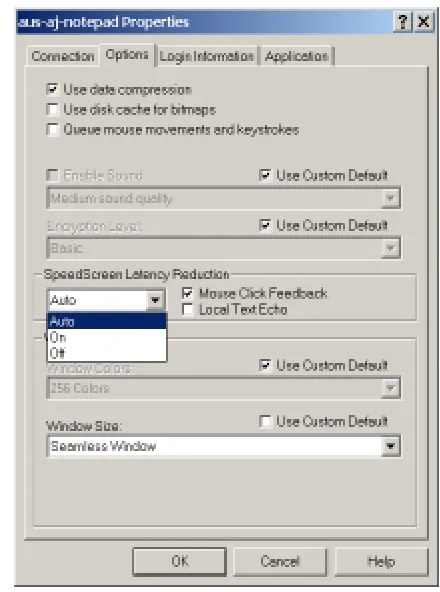
1. In Program Neighborhood window, select the custom ICA connection or Application Set to configure. 2. In the Program Neighborhood toolbar, click the Properties icon.
3. Click the Options tab in the dialog box to display the Options page.
4. In the SpeedScreen Latency Reduction section, select a mode from the drop-down list.
For slower connections (for example if you are connecting over a WAN or a dial-in connection), set mode to On to decrease the delay between user input and screen display. Turn on both local text echo and mouse click feedback.
For faster connections (for example, if you are connecting over a LAN), set mode to Off.
If you are not certain of the connection latency, or the connection latency varies over the life of the connection, set the mode to Auto to turn SLR on or off depending on the current connection latency. You can override Auto mode using the Toggle Latency Reduction hotkey (available in Program Neighborhood under Tools|ICA Settings|Hotkeys).
Note
In Auto mode, the default setting for Local Text Echo is Off. If you are setting SLR to Auto, edit connection Properties and explicitly set Local Text Echo to On.
Configuring SLR through ICA File Parameters
For setting SLR parameters through an ICA file the following parameters are used:
The ZLKeyboardMode parameter is used for Local Text Echo. The permitted values are ZLKeyboardMode=0 [off]
ZLKeyboardMode=1 [on]
ZLKeyboardMode=2 [auto]
The ZLMouseModeparameter is used for Mouse Click Feedback. The permitted values are ZLMouseMode =0 [off]
ZLMouseMode =1 [on]
ZLMouseMode =2 [auto]
On the MetaFrame Server (MF FR1 or later)
SpeedScreen Latency Reduction Manager
Use this tool to set server-wide settings for SpeedScreen latency reduction. Use this tool to configure Latency Reduction settings for single or multiple instances of an application, as well as for individual input fields within an application.
The SpeedScreen Latency Reduction Manager utility is installed and available on every MetaFrame for Windows (Feature Release 1 or later) server in the farm. SpeedScreen configuration settings are server specific, and cannot be applied across a Citrix farm.
To access this tool click on the icon on the MetaFrame toolbar, or click Start>Programs>MetaFrame Tools>SpeedScreen Latency Reduction Manager.
Figure 2: MetaFrame Tools
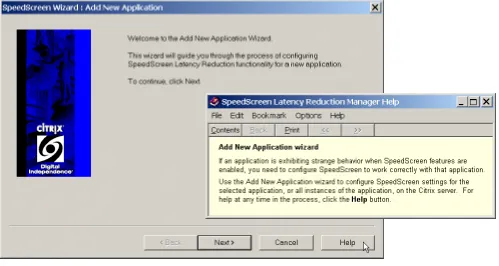
The Latency Reduction Manager window is displayed. Use the configuration wizards to configure latency reduction settings for the server, an application (or all instances of the application), or input fields within an application.
Figure 3: SLR Manager window (shown with configured applications)
How do I use the SLR Manager utility?
Windows applications that use the standard input fields types (Edit and RichEdit input fields) that ship with
Windows Operating Systems, work consistently with SLR. So, most compatibility problems occur with applications that use input fields other than of type Edit or RichEdit. SLR treats inputs fields that are not of type Edit or RichEdit, as Generic input fields. See Appendix A, for a summary description of input fields types.
Use the SpeedScreen Latency Reduction Manager utility on the MetaFrame server to create exception entries for applications that contain Generic input fields. Once exception entries have been created, SpeedScreen
functionality is modified or turned off on the server when the configured application is running in order to protect the user from experiencing unpredictable behavior when local text echo is used.
Figure 4: SpeedScreen Wizards
Deployment
On the client-side
For WAN, dial up, Internet and wireless users, enable SLR on the client for both mouse click feedback and local text echo. Configuration of the client-side settings for SLR is platform-specific in the cases where an ICA file isn’t being used to launch the client. Refer to platform-specific client documentation for details. Click here for a description on enabling SLR on the ICA Win32 Client.
For users connecting over the LAN or a high speed, low latency connection, it is recommended that both local text echo and mouse click feedback be set to Off.
On the server-side
1. Run the SLR Manager utility.
2. Configure SLR settings for each published application on the server.
3. If you are aware of input fields (text-entry fields) within the application that are not of type Edit or RichEdit, use the Advanced Input Field Configuration wizard in the SLR Manager to reduce or disable SLR functionality for that particular input field/s.
4. Quit the SLR Manager.
As a final step, ensure that your users have enabled SLR on their respective client machines.
Latency Thresholds
In a typical MetaFrame environment use the following guidelines for SLR settings: If latency is greater than 250 milliseconds, set SLR to On.
Trouble-shooting
How does a user determine if SLR is enabled on a particular connection?
For non-seamless connections, the message “SpeedScreen Latency Reduction On” is appended to the title bar contents of the ICA session window.
Open the ICA Connection Center; and check the properties for that particular connection. If SLR is enabled, the user will see the flag for SpeedScreen Latency Reduction is ON.
Check the Custom Connection or Application Set properties to make sure that SpeedScreen Latency Reduction is set to On or Auto. If set to Auto, check that there is sufficient latency for Latency Reduction to start
automatically. Speak to your administrator to find out the High and Low Latency Threshold settings. The default high threshold is 500ms and the default low threshold is 50ms.
Clicking on a menu should cause the cursor to change to an hourglass quickly, if not immediately on high latency connections with Mouse Click Feedback enabled.
How can a MetaFrame server administrator determine if SLR is enabled?
Check that Feature Release 1 or later is installed.
Check that the Feature Release 1 license has been installed and activated Check that SLR has been enabled on that server using the SLR Manager.
Check that SLR has not been disabled for a particular application using the SLR Manager.
Known Problems
The following applications are known to exhibit incompatibility with SLR:
1. Problem: Microsoft Project 98
This application crashes unless native mode is used.
Workaround: Enable native mode for this application. To do this:
a. Run the SLR Manager utility, and add Microsoft Project to configured application list.
b. Right-click on the entry (for MS-Project) in the configured application list and select Application Properties.
c. In the Application Properties window, click the Advanced button.
d. In the Advanced Application Settings window, check the Force SpeedScreen to treat all input fields in this application in native mode option.
2. Microsoft Word 95/97
SLR support is not available for these applications.
Workaround: None.
3. Microsoft Word 2000
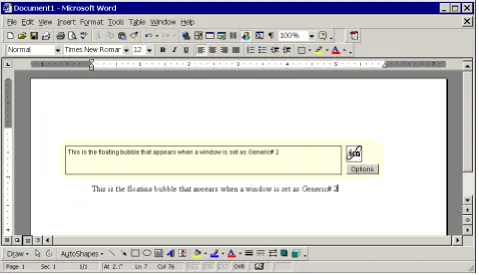
The main input field (document window) is supported in Generic#2 mode only. This means a floating text bubble will be displayed just above where the user is typing and will contain the echoed input keystrokes.
Note: You have to specifically add MS-Word 2000 to the SLR Manager’s configured application list to enable Generic#2 support for the main window.
Workaround: None
4. Powerpoint
The main input field (document window) is supported in Generic#2 mode only. This means a floating text bubble will be displayed just above where the user is typing and will contain the echoed input keystrokes.
Workaround: None
5. Lotus Notes
In Lotus Notes, hidden characters typed into password fields are displayed as plain text when SLR is On.
Input Method Editor (IME) input
SLR support is not available for IME input.
Appendix A: Types of Input Fields
SLR categorizes input controls (also called input fields, or text entry fields) into 4 broad behavioral categories.
Edit RichEdit
Edit and RichEdit input fields are standard Microsoft Windows controls that ship with Windows operating systems
Generic#1 (generic text input field) Generic#2 (ToolTip style window)
SLR treats all input fields that do not fit into the Edit or RichEdit categories as Generic. Generic controls can be configured using the SLR Manager on the MetaFrame server to be either of type Generic#1 or Generic#2
Input field types supported by SLR are described below to provide an understanding of the sort of compatibility problems input fields might exhibit and how you can overcome them.
Edit Controls
An Edit control is the most basic text input field available in Windows applications. An example of this control is the document editing area of Notepad, that is, the page that is displayed when you click File|New.
Edit controls can display different fonts, but can only display one font per control. For example: if the user types half the line in Courier font and then switches to Arial font to type the rest of the line, the initial part in Courier also switches to Arial. This is the normal behavior under Windows, and remains the same when SLR is enabled. If you edit a Notepad document over a high latency connection to the MetaFrame server, you’ll find that the time it takes for the screen to display the characters being typed, is almost equal to that when using Notepad locally. This is because with an Edit control, SLR gets very accurate font information and is able to provide instant feedback. SLR has full built-in support for Edit controls.
RichEdit Controls
The RichEdit control is quite similar to the Edit control, except for a few additional features. The RichEdit control removes the limitation of a single font per control. RichEdit controls also provide information such as font colors, bullets, and indentation formats being used in the input field. This is the normal behavior under Windows, and remains the same when SLR is enabled.
RichEdit controls provide SLR with accurate font information, and so SLR is able to provide instant feedback. SLR has full built-in support for Rich Edit controls.
Generic#1 Controls
When SLR is unable to categorize an application window as Edit or RichEdit, it applies a lower level of compatibility to the control and treats it as a Generic#1 control.
Generic#2 Controls
If input fields provide little or no information about their font attributes, SLR treats such controls as Generic#2 controls.
As SLR is unable to get sufficient font information from Generic#2 controls, the approximation of what was typed by the user (or local text echo) is provided in a tool-tip that appears as a floating bubble above where the user is typing. The font attributes of the echoed content bears no resemblance to the type or size of font being used in the input field.
Figure 5: Floating text bubble for Generic# 2 input fields
Although this style of feedback alters the behavior of the application while typing, the feedback does allow the user to type under conditions of high latency. You can configure the behavior of the tool-tip bubble to follow the point of text entry, or it can be made static on the screen.
6400 NW 6th Way Fort Lauderdale, FL 33309 954-267-3000 http://www.citrix.com