Before
You Start...
Get ready to install Toshiba’s Stratagy DK,
one of the most efficient voice processing systemsavailable! To make this installation go
smoothly, before doing anything else,please read and
complete both sides of this checklist:
1
0 Whenever handling Stratagy DK, always wear the anti-static
wrist strap (included); keep the strap by the unit. Always hbld
Do you know
the unit by its edges. Remember that electrostatic charge from
how to handle
your body, even your own body oils can damage Stratagy DK.
Stratagy DK?
a Never drop or jar Stratagy DK! The unit’s hard drive is
extremely sensitive to dropping or excessive force during
installation.
Ha&/e it wit/~
loving
D Temperature changes greater than 20-F cause condensation on
care and it will last a
Stratagy DK’s hard drive. Wait 24 hours before installation if
long time.. .
there is such a temperature variation.
LJ
1
2
IJ
Do you have
everything you
need?
a
Need more details?
They’re inside the
ins talla tion guide.
a
What comes shipped: Stratagy DK comes complete with
pre-loaded operating software, documentation package and the
anti-static wrist strap. Make sure nothing is missing or damaged.
Local Administration? You’ll need a portable/desktop PC with
DOS 6.2,5MB hard drive space, 3.5” 1.44 floppy drive, and
580KB free RAM. You’ll need a g-pin null-modem serial cable or
Toshiba’s SG-ADMCBL cable to connect your PC to
Stratagy DK.
Remote (modem) Administration? Use Stratagy Admin
software (up to 9600 baud) with Toshiba’s SG-FMOD modem or
a Hayes-compatible, 14.4 baud, V32.bis modem connected to
Stratagy DK’s serial Port 2; don’t forget the g-pin serial cable.
You can also use Stratagy DK’s internal (soft) 2400-baud
modem and administrate through its phone connection.
D
Make sure Strataov DK is compatible with your Strata DK: It
3
Is Strata DK
ready?
See the Strata DK
lnstalla tion /
Maintenance and
Programming
Manuals for details
on a specific Strata
DK product.
CJ
a
rJ
wo.rks with all DKG4/DK280 and DKl 6e/DK16 systems. It also
works with DK24/DK56/DK96 with Release 4 software.
Always program Strata slot assignments before installing the
Stratagy DK. Use these slot assignments:
DK424: use a universal slot, starting with slot 12 or 13 if an
RSIU is in slot 11; never use slots 27,28,31, 37,38,47,48,
51,57, 58,67, 68, 71, 77, or 78.
DK260:
use any universalslot, starting with slot 12 or slot 13 if
an RSIU is in slot 11 (R3 or higher); never use slots 31 or 51.
DK16e/DK16: use any expansion cabinet slot (except slot 18
in the DK16e)
that takes an eight-portcard.
DK24/ DK56/ DK96: use any slot after slot 01.
Be sure to set code 31
inProgram 03 for the slot where
Stratagy DK
will be installed.a
rl
L-l
Is Strata DK%
DTMF tone
detection
enabled?
Strata DK needs to recognize Stratagy DK’s DTMF signaling. Make sure an RRCS is installed in the DK424/DK280, a K4RCU3 in the DKl 6e/DK16, or CRCU in the DK24/DK56/ DK96.
Run Program 03 and assign these code(s) where the DTMF receiver is installed:
DK424/DK280 (RRCS installed on the RCTU): code 92,X3, or 94 for slot 00.
DK16e (K4RCU3): code 92 for slot 00.
DK24/DK56/DK96 (CRCU): code 92 or 93 for slot 00.
5
m Make sure a PDKU card is installed that is currently (or can be) programmed for a DSS Console.
DK424/DK280: When installing Stratagy DK in an odd-numbered cabinet make sure the PDKU is in a
lower-Do you want to
activate the DSSl
Busy Lamp
feature?
numbered slot in the same cabinet. When installing in an even-numbered cabinet, the PDKU must be in a lower-numbered slot in the orecedino odd-lower-numbered cabinet.
DK16e: set slot 11 in’the Base Cabinet to code 64.
DK24/DK56/DK96: the PDKU must reside in slot 01. a Set code 64 using Program 03 for the PDKU slot.
a See the installation guide to program Stratagy DK for this option.
a
6
D
Are you going to cT
have SMDI?
a
DK424/DK280: SMDI is only available on a “B” processor or higher.
Make sure a PIOU/PIOUS/RSSU/RSIU card is available. Set code 43 in Program 03 for PlOU/PIOUS/RSSU or code 49 for RSIUIRSIS.
The PIOU/PIOUS/RSSU/RSIU card must be located close to the Stratagy DK. Install a serial cable between the two.
7
Want to synch.
# You’ll need an LCD telephone physically installed on Strata DK;Stratagy DK
make sure it’s on the first port of the PDKU card (defined in Step5 above).system time
with Strata DK?
8
All set?
Just a few more
things...
a
D
Don’t forget to wear the anti-static wrist strap during handling. Be sure Stratagy DK has a jumper installed on J4.
If you are using an internal modem in the portable/desktop computer, remember that Stratagy Admin only works with COM
1 and 2, not COM 3 or 4.
Do not write over the Stratagy Admin subdirectory on your remote PC when installing the Stratagy Admin VSA.2G version you received. Always retain previous versions of Admin.
Make sure your Strata I&M/Programming Manuals and Stratagy l&M Manuals are handy. Be sure to read the entire installation guide before installing.
Remember to back up your database after installation. If you hg-vg.<ead and completed this checklist, installation will be a breeze!
Contents
Stratagy DK
What’s New? . . . .._..._.._..._... . . . 1
Internal Modem . . . .._ . . . 1...
Enhanced Stratagy Admin Software . . . .._... 1
Parameters . ._. . . ..,... . . ._ 2 Main Menu . . . ...2
Users Menu - Options Screen . . . .._... 4
Tokens ... 4
Features ... 4
Installation ... 5
Step 1: Read Through this Installation Guide First.. ... 5
Step 2: Program the Strata DK ... .5
Step 3: Shut Down the Strata DK ... 6
Step 4: Install the Stratagy DK ... 6
Step 5: Verify Stratagy DK is Functioning Properly ... ... .8
Step 6: Verify that Voice Playback, Basic Auto Attendant and Ports are Functioning Correctly... 10
Step 7: Connect Portable/Desktop Computer to Stratagy DK ... 10
Local Connection ... 10
Remote Connection ... 11
Step 8: Load Stratagy Admin Software (VSA.2G) ... 11
Step 9: Configure Stratagy Admin Software ... .I2 Step 10: Access Stratagy DK... 14
Local Access ... .14
Remote Access ... 15
Step 11: Configure StratagyDK ... .16
Toshiba Plug and Play ... 17
Telephone System Configuration ... 18
Stratagy System Configuration ... .19
Step 12: Program the Mailboxes ... .22
Step 13: Application Programming.. ... 23
Step 14: Stratagy DK Maintenance ... 25
Tools ... 25
Trace Diagnostics ... . ... 31
Upgrading Stratagy DK Voice Ports ... 31
Figures
Figure 1 Figure 2 Figure 3
Figure 4 Figure 5 Figure 6 ,Figure 7 Figure 8
Tables
Table 1 Table 2 Table 3 Table 4 Table 5
Stratagy DK Hardware Components ... .l
Navigating the Tools Menu ... ... 3
Stratagy DK424/DK280 PDKU DDD/Busy Lam Field Slot Assignment Examples ... 8
Stratagy DK ... 9
RS-232 DB9 to DB9 Cabling ... 10
RS-232 DB25 to DB25 Cabling ... 10
Main Menu with Sample Data ... 16
Options Screen with Sample Data ... .23
Stratagy Admin Compatibility ... 2
Stratagy DK Slot Assignment ... 7
Stratagy DK Status/Port LEDs ... 9
Admin PC Configuration Fields ... 13 Stratagy DK System Configuration Parameters - Definitions and Settings . ..2 0
Stratagy DK
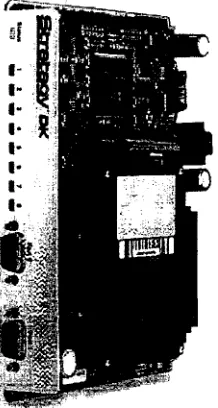
The Stratagy DK voice processing circuit card (see Figure 1 for a photograph) supports up to 8 ports, provides up to 24 hours of storage and is installed in the card slot of a Strata DK Base or Expansion Cabinet/KSU.
The supported systems and recommended software versions are:
+ Strata DK424/DK280 - all releases
+ Strata DK16e/DK16 - all releases
+ Strata DK24/DK56/DK96 - Release 4
The Stratagy DK requires Stratagy Admin software, installed on a separate IBM-compatible portable/desktop computer, for local or remote administration and
maintenance. With the release of the Stratagy DK, a new enhanced version of Stratagy Adrnin (VSA.2G) is available. This enhanced version provides new utilities, explained in detail later in this Guide, for configuring and maintaining the Stratagy DK.
Voice mail integration is provided by Strata DK in-band (DTMF) integration. Strata DK424 and DK280 can also provide integration using the Simplified Message Desk Interface (SMDI) output of the PIOU, PIOUS, RSSU, RSIU, or RSIS SMDI port.
Figure 1 Stratagy DK Hardware Components
What’s New?
Internal Modem
The Stratagy DK has an internal (soft) modem that operates at up to 2400 baud and can be used for remote maintenance.
Enhanced Stratagy Admin Software
What’s New?
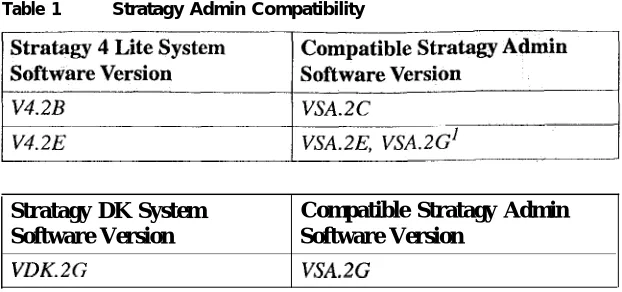
Stratagy DK. Some versions of the Stratagy Admin software are not compatible with the Stratagy system software (see Table 1).
Table 1 Stratagy Admin Compatibility
Stratagy DK System Software Version
VDK.2G
’
Compatible Stratagy Admin Software Version
VSA.2G
Stratagy 4 Lite V4.2E software does not support some of the utilities available in Admin VSA.2G’s new menu selection called Tools (see Page 2). If ONLY per-forming mailbox programming on the
Stratagy 4 Lite (version V4 2E), Admin VSA.2G can be used. Total compatibil-ity will be available with Stratagy 4 Lite Release 3 software.
Parameters
Because of the unique nature of the interaction process between the Stratagy DK and Strata DK, four new parameters have been added for use exclusively with the Stratagy DK (see Table 5 for the definitions and settings for these parameters).
+ console-slot-id: designates the PDKU slot. Stratagy uses*this slot for DSSACD status.
+ &s-active: tells the Stratagy DK to retrieve BLF busy station information for the assigned DSS Port field located on the Users Menu - Options screen (see Step 12 “Program the Mailboxes” on Page 22 for information on programming the field).
+ ksu-time: synchronizes Stratagy DK’s system clock with the system clock of the supporting Strata DK telephone system.
+ trace-cap: defines the size of the trace file in kilobytes.
Main Menu
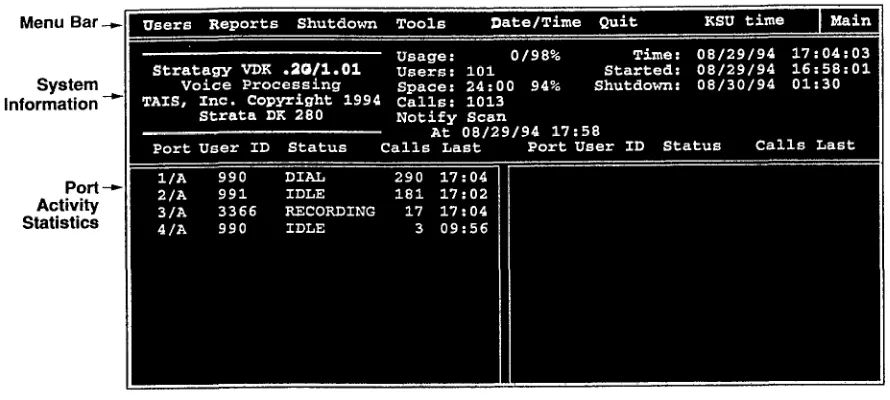
Starting with VSA.2G Admin, the Main Menu has been changed to include a new menu selection, called Tools, and the time display (in the upper right corner of the menu) has an additional feature exclusive to the Stratagy DK. The time display now indicates whether the Stratagy DK is synchronized with the Strata DK KSU (KSU time) or is running on its own system clock (standard, daylight savings).
Tools
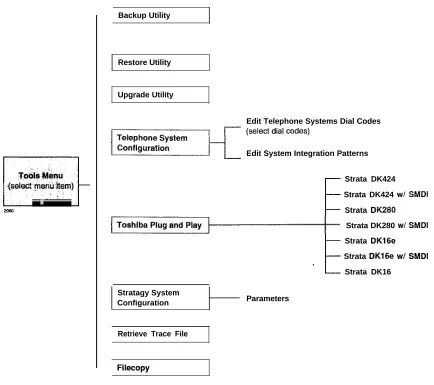
Tools includes the following selections (see Figure 2):
+ Backup Utility + Restore Utility
+ Upgrade Utility + Telephone System Configuration + Toshiba Plug and Play + Stratagy System Configuration’ + Retrieve Trace File + Filecopy’
’ Functions supported by the Stratagy 4 Lite (V4.2E).
Strategy DK
- What’s New?
For complete details on Toshiba Plug and Play, Telephone System Configuration, and Stratagy System Configuration, see Step 11 “Configure Stratagy DK” on Page 16. For details on the remaining selections, see Step 14 “Stratagy DK Maintenance” on Page 25.
T&Is M&u -(sek@ yenti item)
,.:., :
-2080
Backup Utility
Restore Utility
Upgrade Utility
Edit Telephone Systems Dial Codes
Edit System Integration Patterns
- Strata DK424
- Strata DK424 WI SMDI
- Strata DK280
Strata DK280 wl SMDI
- Strata DK16e
- Strata DK16e w/ SMDI .
- Strata DK16
Stratagy System
Configuration Parameters
Retrieve Trace File
Filecopy
Figure 2 Navigating theTools Menu
Stratagy DK System Time
Using the hu-time parameter, you can synchronize Stratagy DK’s system clock with the
system clock of the supporting Strata DK telephone system. Setting-this parameter to true, disables the daylight-saving-time parameter. The Main Menu screen displays KSU time when this feature is enabled.
What’s New?
- - - _ - - - -
---_---Stratagy DK
Users Menu - Options Screen
You’ll notice some changes in the User Menu - Options screen. The changes (see Figure 8) are:
+ A new field called DSS Port has been added. This new field replaces the Alternate Rate feature, which is not available with the Stratagy DK.
+ The Message Volume feature, although displayed on the screen, is not supported by the Stratagy DK.
D S S P o r t
The DSS Port field corresponds to the “physical” port number of a Strata DK station. This field enables the Stratagy DK to monitor the Busy Lamp field of a DSS console port to determine if the station is busy before attempting to transfer.
Tokens
ASwith all Stratagy systems the Stratagy DK retains all of the robust application programming that is provided by tokens. Some new tokens are available exclusively for the Stratagy DK. They are:
+ KM - Enables a portable/desktop computer’s modem to communicate with the Stratagy DK internal modem (2400 baud) by sending the call to User ID 993.
4 KT( ) - Directs calls to a designated User ID when:
+ DSS function is active (dss-active = true)
+ DSS port is assigned in the “answering” mailbox
+ Night Transfer on the DSS console is ON.
Features
Busy Station Identification
The Busy Station Identification feature enables the Stratagy DK to determine if a station is “busy” without performing a “hook-flash” and transfer. Stratagy DK “reads” the data of a DSS console and knows instantly if the station is busy or in Do Not Disturb (DND).
A station in DND mode signals a “busy” condition to a DSS console. DND and busy are processed the same way by the Stratagy DK (i.e., the Busy chain is executed).
To use this feature you must configure the new console-slot-id and &-active parameters, program the new DSS Port field (see Step 12 “Program the Mailboxes” on Page 22), and install/program a PDKU as the DSS console (see “DSS/Busy Lamp Feature” on Page 7).
Important! Once the DSSBusy Lamp feature has been programmed using the two
parameters and the DSS Portjield, Stratagy DK must be re-started two times. The first re-start conjigures the DSSparametersQield. The second re-start “loads” the
DSS parameters/$eld into active memory.
Night Transfer Alternate Routing
Using the new KT( ) token, a new feature called Night Transfer Alternate Routing is now available. The feature monitors the DSS Night Transfer key in order to activate the KT( ) token for alternate routing applications.
4
Stratag)r DK
-Limiting theTrace File Size
Trace is a diagnostic tool that is designed to assist you in troubleshooting Stratagy’s activity.
To log the trace data, you can use a text file called TRACE.OUT. The size of the trace file can be configured using the new trace-cap parameter, which defines the size of the trace file in kilobytes. When the size of the trace file reaches the setting limit, the existing file is overwritten, beginning with the oldest record.
Installation
You will be handling the Stratagy DK when it is most fragile - unpackaged and exposed. The Stratagy DK, if handled properly, will give long, reliable service. To insure that the unit is not damaged during installation or maintenance, follow these precautions.
CAUTION!
Damage may not always be immediately evident (e.g., no physical damage on the outside of the unit) and system failure may result weeks or months later.
. Handle the Stratagy DK with care. Mechanical shock from dropping, shaking, excessive force when seating the board into the slot, rocking a connector on or other activities can severely damage the disk assembly or the disk’s printed circuit board. . Wear the anti-static wrist strap included in the package. It can also be re-used and left
with the Strata DK cabinet. An electrostatic charge from your body can damage the hard drive or other circuitry permanently. *
. Hold the Stratugy DK by the edges or the strap and never touch the board’s surface. Pressure on the printed circuit board or contaminants from your hands (e.g., skin oil, food particles, hand lotion) can cause component failure.
Step I :
Read Through this Installation Guide First
Before starting the installation, read through these instructions thoroughly. Important information is included in this Guide that is crucial to a successful installation.
Step 2:
Program the Strata DK
Note The following instructions are based on the Stratagy DK being installed in a pre-existing Strata DK. If the Strata DK is a new installation, see First Programming in Chapter 1 - Overview of the Strata DK Programming Manual for more information.
Installation
-
-Stratagy DK
Important! The Strata DK may need to be reset to initialize some Strata programming assignments. It is important that ~014 make all such assignments before installing the Stratagy DK.
1. Using Program 03-Flexible PCB Slot Assignments set/verify the following slot assignments:
. Set code 31 for the slot where Stratagy DK is installed (see Step 4 ).
t Enable the Strata DK to receive DTMF signalling from the Stratagy DK:
. For DK424/DK280: Set codes 92, 93, or 94 for slot 00 for the RRCS installed on the RCTU.
l For DKl6e/DK16: Set code 92 for slot 00 for the K4RCU3.
4 For DK24, DK56, DK96: Set codes 92 and 93 for CRCU.
l Set code 64 for the slot where the PDKU resides. Stratagy DK will monitor this slot
for the DSS/Busy Lamp feature (see “Busy Station Identification” on Page 4).
Note For DK16c/DK16: slot 11 in the Base Cabinet must be set for code 64.
l If SMDI is desired with the Strata DK424/DK280: Set PIOU/pIOUS/RSSU for code
43 or RSWRSIS for code 49 to enable the SMDI port (see Program 76 if installing RSIU or RSIS SMDI port).
2. Program the Strata DK system for voice mail integration. See the Strata DK Programming Manual for details.
Step 3:
Shut Down the Strata DK
N Turn off the main power switch to the Strata DK system.
Step 4:
install the Stratagy DK
CAUTION! See cautions under Step 1 on Page 5 before proceeding. - - ..- .._,_ ~
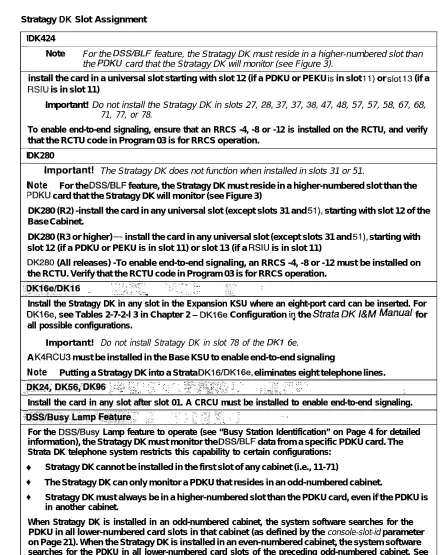
1. Locate the proper slot for the Stratagy DK (see Table 2).
2. Insert the card into the appropriate slot, and apply firm, even pressure to ensure proper mating of connectors. Do not hit the board for proper seating. This may damage the Stratagy DK components.
Stratagy DK Installation
Table 2 Stratagy DK Slot Assignment
DK424
Note For the DSSIBLF feature, the Stratagy DK must reside in a higher-numbered slot than the PDKU card that the Stratagy DK will monitor (see Figure 3).
install the card in a universal slot starting with slot 12 (if a PDKU or PEKU is in slot 11) or slot 13 (if a RSIU is in slot 11)
Important! Do not install the Stratagy DK in slots 27, 28, 37, 37, 38, 47, 48, 57, 57, 58, 67, 68, 71, 77, or 78.
To enable end-to-end signaling, ensure that an RRCS -4, -8 or -12 is installed on the RCTU, and verify that the RCTU code in Program 03 is for RRCS operation.
DK280
hlpOt’kNlt! The Stratagy DK does not function when installed in slots 31 or 51.
Note For the DSS/BLF feature, the Stratagy DK must reside in a higher-numbered slot than the FDKU card that the Stratagy DK will monitor (see Figure 3)
DK280 (R2) -install the card in any universal slot (except slots 31 and 51), starting with slot 12 of the Base Cabinet.
DK280 (R3 or higher) - install the card in any universal slot (except slots 31 and 51), starting with slot 12 (if a PDKU or PEKU is in slot 11) or slot 13 (if a RSIU is in slot 11)
DK280 (All releases) -To enable end-to-end signaling, an RRCS -4, -8 or -12 must be installed on the RCTU. Verify that the RCTU code in Program 03 is for RRCS operation.
DK~~t59D~i6 .~ :;.:;,:;5<.,1. ‘:.::.i:-:;: :.-I‘ :
Install the Stratagy DK in any slot in the Expansion KSU where an eight-port card can be inserted. For DKl6e, see Tables 2-7-2-l 3 in Chapter 2 - DK’t6e Configuration irJ the Strata DK /&Ad Manual for all possible configurations.
Important! Do not install Stratagy DK in slot 78 of the DKf 6e.
A K4RCU3 must be installed in the Base KSU to enable end-to-end signaling
Note Putting a Stratagy DK into a Strata DK16/DK16e, eliminates eight telephone lines. l’&&$; pK56;QKgfj ‘::;.jf:. ;;.:- ‘. -::’ ’ :_: :_ ‘_ $f’,~;&f;,: j ,‘.
.:. .- :‘c.. ‘I.. : m;;,-.;.. ;;:: :_- -. ‘. Install the card in any slot after slot 01. A CRCU must be installed to enable end-to-end signaling.
DSS/Bus)r.karnp.f~~Cr~:~~. ,-. “,’ :. :z <i- ;?::. : _j -.
For the DSS/Busy Lamp feature to operate (see “Busy Station Identification” on Page 4 for detailed information), the Stratagy DK must monitor the DSSlBLF data from a specific PDKU card. The Strata DK telephone system restricts this capability to certain configurations:
+ Stratagy DK cannot be installed in the first slot of any cabinet (i.e., 11-71)
+ The Stratagy DK can only monitor a PDKU that resides in an odd-numbered cabinet.
+ Stratagy DK must always be in a higher-numbered slot than the PDKU card, even if the PDKU is in another cabinet.
Installation
--_.---_ -_- - - Stratagy DK
Stratagy DK in Odd Number Cabinet Stratagy DK in Even Number Cabinet
Stratagy DK
PDKU
I I
! I
Cabinet 1
Cabinet 2
Cabinet 3
Cabinet 4
.-“1
I I
-. I I
! ?
:.
. . - 1
*
I I
I I
.’
I
P D K U
Stratagy DK
Figure 3 Stratagy DK424/DK280 PDKU DSS/Busy Lamp Field Slot Assighment Examples (console-slot-id configured as 0)
Step 5:
Verify Stratagy DK is Functioning Properly
Note Each Stratagy DK has been pre-programmed at the factory for out-of-box (plug and play) operation on the Strata DK280. This includes the integration and configuration parameters, default station (extension number) User ID mailboxes, and company greeting and instructions.
1. Turn on the main power switch to the Strata DK system and the Stratagy DK performs a self test while booting-up.
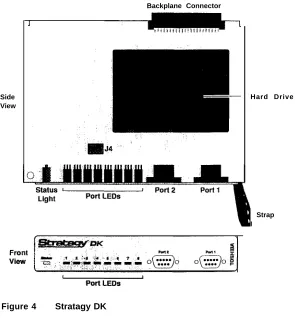
2. Let it proceed without any action from you. During this process the status light is blinking amber and should turn solid green when finished (see Figure 4 and Table 3). The process should take approximately four to five minutes.
8
\/.,
Stratagy IIlK Installation
Side View
Backplane Connector
Figure 4 Stratagy DK
Table 3 Stratagy DK Status/Port LEDs
At boot-up: Dark
Blinking Amber
Red
No power
Power-on, self-test.
Failed self-test. The port LEDs indicate which test(s) failed:
Port LED
Green Test Failed
1 DRAM
2 RTC
3 EEPROM
4 EPROM Checksum
5 Hard Disk
6 Integration Processor
7 DSP #1
. . . While system is operarlonal:
Green System is operational.
Green with System is operational and hard drive Blinking Amber is active.
Hard Drive
I Strap
Dark Green
installation
11.----1_----.-I-.
Stratagy DK
-
-Step 6:
Verifythat Voice Playback, Basic Auto Attendant and Ports are
Functioning
correctly% Dial the extension number for each port, Stratagy should (for each port):
+ Answer and play the Toshiba Plug and Play company greeting (“Thank you for calling.. .“), greeting 1 in User ID mailbox 990.
+ Continue to play the Toshiba Plug and Play caller instructions greeting (“To reach the person.. .“), greeting 1 in User ID mailbox 991.
Step 7:
Connect Portable/Desktop Computer to Stratagy DK
To program the Stratagy DK, a IBM-compatible portable/desktop computer must be connected to the Stratagy and have the following:
+ 3.5” 1.44 (high-density) floppy drive
+ Hard drive with a minimum of 5MB of available disk space
+ DOS V6.2 or higher must be resident on the hard drive
+ 58OKB RAM memory free
Communication between the portable/desktop computer and the Stratagy DK is accomplished by one of two methods: local or remote.
Stratagy DK uses the serial Port 2 by default to communicate with the portable/desktop computer (see Figure 4). This setting can be changed using the admingort parameter in the Stratagy System Configuration file (see Table 5 for detailed information).
Local Connection
%- Using a null-modem cable, connect the portable/desktop computer to the Stratagy DK. A prefabricated cable (SG-ADMCBL), designed expressly for Stratagy Admin
communication with the Stratagy DK, is available from Toshiba.
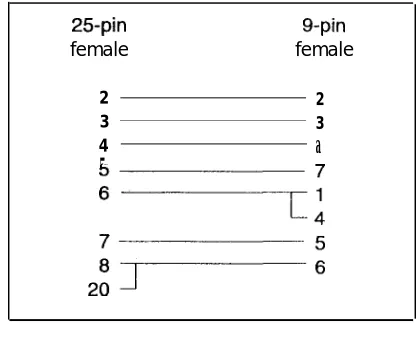
Note For those who wish to purchase individual cabling/connectors/adapters in lieu of purchasing the Toshiba Stratagy Admin cable, we have provided the following wiring diagrams.
g-pin g-pin
female female
I,,,
2 3
3 2
5
+----t~
7 a
a 7
Figure 6 FE-232 DB9 to DB9 Cabling
25pin g-pin
female female
2 2
3 3
4 a
5
---+
,iJ---E
Figure 6 FE-232 DB25 to DB25 Cabling
Stratagy DK Installation
Remote Connection
Portable/Desktop Computer Modem
ip Prepare the portable/desktop computer by installing, connecting and configuring a modem. The modem must be capable of communicating at a minimum of 2400 baud
CAUTION! Internal modems configured for COM ports 3 or 4,are not supported by
Stratagy Admin software.
Stratagy Modem
The Stratagy DK can communicate through either an internal or external modem.
Internal
The Stratagy DK has an internal modem that communicates at up to 2400 baud. No additional equipment is necessary. (See KM token in Step 13 “Application Programming” on Page 23 for programming information.)
External
An external modem can be installed on the Stratagy DK for a communication speed of 9600 baud. If 9600 baud communication is desired:
1. Quip the Stratagy DK with a Hayes-compatible 14400 V32.bis modem. Toshiba’s fax/ modem (SG-FMOD) has been tested for consistent operation and is recommended. Use of other modem models cannot be guaranteed for trouble ff&e operation.
Note The default setting configured for the Stratagy DK remote access is serial port 2 (see Figure 4). Local and remote access utilize the same designated serial port on the Stratagy DK.
2. Connect a telephone line to the modem. Use either a station connected to the telephone system or a dedicated Central Office (CO) he.
Step 8:
Load Stratagy Admin Software (VSA.2G)
1. Insert disk 1 of 1 of the Stratagy Admin software into the floppy-disk drive of the portable/ desktop computer.
Note If currently running Windows@, you will need to obtain a DOS prompt (C: \). Do this
by shutting down Windows or by using the MS-DOS program or shell.
2. Type a : install c : \adminJ to begin the installation procedure. (It is recommended that you not overwrite the current Admin directory but create a new directory.)
Strztagy BK ~I_
3. Press any key to continue and the Stratagy Admin program is installed on drive C: in subdirectory ADMIN3.
Step 9:
Configure Stratagy Admin Software
Settings for the communication port in Stratagy Admin must match the corresponding parameters set in the Stratagy System Configuration file on the Stratagy DK.
For example, if using COM 1 on the portable/desktop computer and serial Port 2 on the Stratagy DK, the Stratagy Admin Serial Port definitions for COMl must be identical to the serial port definitions (i.e., set seriafgort) in the Stratagy System Configuration file on the Stratagy DK.
Note The menu screens detailed in this section are only available with Admin version
1.
VSA.2G or later.
From the C : \ADMIN3 DOS prompt, type admin and press Enter.
The Stratagy Admin Main screen is displayed:
Note Press Fl for help with any settings in the Admin Configuration screen. 2. Press 2 or highlight the Configure Admin option and press
The following screen appears:
Enter.
Note Press F2 in the Serial Port and Baud Rate fields to display a pop-up box with valid entries.
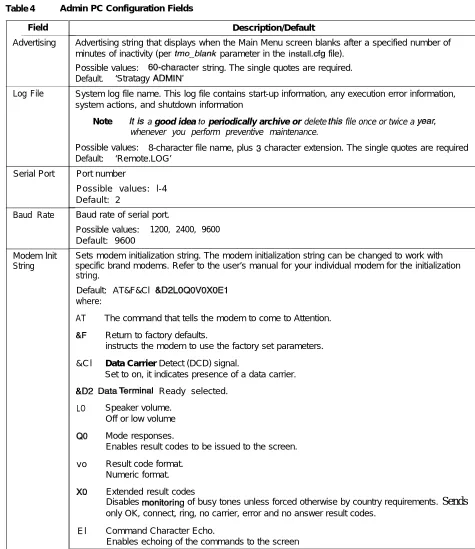
3. See Table 4 for a description of each of the fields. To save your changes, you must press Enter or the arrow down (J) key from the last field (i.e., Modem Init String). The program returns to the Admin Main screen.
Stratagy DK installation
To exit without saving your changes, you may press Esc at any time. The Stratagy Admin Main screen is displayed.
Table 4 Admin PC Configuration Fields
Field Advertising Log File Serial Port Baud Rate Modem lnit String Description/Default
Advertising string that displays when the Main Menu screen blanks after a specified number of minutes of inactivity (per fmo-blank parameter in the install.cfg file).
Possible values: 60-character string. The single quotes are required. Default. ‘Stratagy ADMIN’
System log file name. This log file contains start-up information, any execution error information, system actions, and shutdown information
Note It is a good idea to periodically archive or delete this file once or twice a yea< whenever you perform preventive maintenance.
Possible values: 8-character file name, plus 3 character extension. The single quotes are required Default: ‘Remote.LOG’
Port number
Possible values: l-4 Default: 2
Baud rate of serial port.
Possible values: 1200, 2400, 9600 Default: 9600
Sets modem initialization string. The modem initialization string can be changed to work with specific brand modems. Refer to the user’s manual for your individual modem for the initialization string.
Default: AT&F&Cl &D2LOQOVOXOEl where:
AT
&I=
The command that tells the modem to come to Attention.
Return to factory defaults.
instructs the modem to use the factory set parameters.
&Cl Data Carrier Detect (DCD) signal.
Set to on, it indicates presence of a data carrier.
&D2 DataTerminal Ready selected.
LO Speaker volume. Off or low volume
00 Mode responses.
Enables result codes to be issued to the screen.
v o Result code format. Numeric format.
x0 Extended result codes
Disables mon&oring of busy tones unless forced otherwise by country requirements. Sends only OK, connect, ring, no carrier, error and no answer result codes.
E l Command Character Echo.
Installation Stratagy DK ._-.--__--_..-_ ~__--_--_
---_-l_-_.___.
Step
10: Access Stratagy DK
Prior to accessing Stratagy, verify that Stratagy is operational by making a test call into the system.
Note Menu screens detailed in this section are available only in Admin version VSA.2G or later.
1. From the DOS prompt (C:\ADMIN3), type: admin and press Enter.
The following screen is displayed:.
Important! The portable/desktop computer must be conjigured for the correct serial port in Stratagy Admin prior to performing Substep 2.
2. Press 1 or highlight the Connect to Stratagy option and press Enter.
3. The Admiu software prompts for the Stratagy DK’s system password. Enter the password (the default is Stratagy) and press Enter.
The followingmessagesare displayed while the Stratagy Admin software checks for the
Depending on whether or not the Stratagy Admin software finds an internal/external modem connected to the portable/desktop computer, a local or remote connection is established.
Local Access
If a modem is not detected in Substep 3 above, Admin establishes a direct connection and a version of the standard Main Menu displays (Figure 7). Proceed to Step 11 “Configure Stratagy DK” on Page 16.
Siratfigy Dif
-l-.--.--l--lll- _--- Installation-
-Remote Access
If a modem is detected in Substep 3 on Page 14, Stratagy displays the following screen:
Stratagy Admin software version VSA.2G has two modes of accessing the Stratagy DK remotely:
+ Direct Dialing Mode - the Stratagy modem has a dedicated telephone line, enabling you to dial into the number directly.
+ Manual Dialing Mode - the Stratagy modem does not have a dedicated telephone line and an operator must transfer the call to the modem number.
Note Manual dialing requires a standard telephone be connected to the modem being used on the portable/desktop computer.
Earlier versions of the Admin software, permit only the direccdialing mode.
Direct Dialing Mode
ZB Enter the telephone number (15 digits maximum). Do not use dashes (e.g., 9,7678989). Press Enter.
Once the connection is made to the Stratagy modem, a carrier tone is heard. Admin synchs up to the modem.
A message reading Connect ion established appears briefly on the screen and a version of the standard Main Menu displays (see Figure 7). Proceed to Step 11 “Configure Stratagy DK”.
Manual Dialing Mode
1. Press Enter to go to the Manual Dialing Mode screen.
The following messages appear on the screen:
Dial from analog phone attached to the modem.
To Connect press ENTER once you hear carrier. To Quit press ESC at any time.
2. Go off-hook on the standard telephone and dial the telephone number.
/n.sfal/ation
---....-_--...- -~
-Stratagy DK
A message reading Connect ion established appears briefly on the screen and a
version of the standard Main Menu displays (see Figure 7). Proceed to Step 11 “Configure Stratagy DK”.
Step 11: Configure Stratagy DK
To configure the Stratagy DK, you may need to use the following Tools menu selections:
+ Toshiba Plug and Play
+ Telephone System Configuration
+ Stratagy System Configuration.
For a complete description of the standard menu selections and field descriptions, see the
Stratagy I&M Manual.
Figure 7 Main Menu with Sample Data
Note To dis lay the detailed help for a field, highlight the field and press Fl. Use the arrow keys (P&) to scroll through the information. To exit detailed help, press Est.
1. Press Alt+t for the Tools submenu.
2. Type the password. (The default password is Strata=, with the first letter uppercase.)
Note Menu screens detailed in this section are available only in Admin version VSA.2G or later.
The following screen displays:
Toshiba Plug and Play
The Stratagy DK is pre-installed for the DK280. If you need to change this selection to a different Strata DK telephone system, change it now using this selection. Otherwise, go to “Telephone System Configuration” on Page 18.
Selecting this function will:
+ change all the settings to the new Toshiba telephone system default values
+ delete any User ID mailbox customizations
* install the Strata DK default mailboxes
Note Existing messages and mailbox greetings are not deleied when Plug and Play is selected. For example, if mailbox 200 has messages and greetings and Toshiba Plug and Play for DK280 is run, then mailbox 200 retains the messages and greetings from the previous database.
1. From the Tools menu, press 5. The following menu is displayed:
Note Selection 6 - DK16e with SMDI will be available in a future release of Strata DK.
Installation
--_---._ -I_ _ _ - _ _
-Stratagy DK
-The Stratagy utility automatically defines the telephone system dial codes and tone patterns, system integration patterns and default mailboxes for the specific telephone system.
Note If you only want to change the PBX type, do not use this function. Instead, set the @x-type parameter in the Stratagy System Configuration screen (see “pbx-type” on Page 22 for details).
3. When the Toshiba telephone system is complete, press any key to reboot.
‘4 The DOS prompt is displayed. To continue, re-enter Stratagy Admin and access the Tools submenu.
Note The new telephone system designation will display in the Main Menu.
Telephone System Configuration
This function is to be used to modify the following codes/integration patterns:
+ Telephone system dial codes - Stratagy controls certain actions on your telephone system by using defined telephone system dial codes. To define the dial codes you must modify the telephone system dial code parameters.
+ System integration patterns - Allows modification to the Strata DK integration patterns.
Note The telephone system configuration is set using the pbx-type parameter (see “pbx-type” on Page 22 for details).
If your system is to be configured for system dial codes or system integration patterns, you will need to edit them now. As an example:
1. Press 1 to Edit System Dial Codes.
2. From the Telephone System Dial Codes screen, delete the suffix I- from the line What to &.a1 APPER c!&ding the User ID extension.
3. Press 2 to save your changes without restarting Stratagy.
Otherwise, go to “Stratagy System Configuration” on Page 19.
1. From the Tools menu, press 4. The following menu is displayed:
2. Press 1; the Telephone System Dial Codes screen is displayed (see Figure 4-5 in the Stratagy I&M Manual).
. ..or press 2; the System Integration Patterns screen is displayed (see Figure 4-8 in the Stratagy Z&M Manual).
Stratagy DK installation
3. After making the change, press ESC and the following screen displays:
Press 1; the changes are transmitted to Stratagy and Stratagy is shut down and restarted. By shutting down and restarting Stratagy, the changes take effect.
. ..or press 2; the changes are transmitted to Stratagy but Stratagy is not shut down or restarted. Until you restart Stratagy, the changes do not take effect.
. ..or press 3; the changes you have made are cancelled and not saved.
CAUTION! Care should be taken when making changes and then restarting Stratagy. In some cases, if invalid information has been entered, Stratagy niay not reboot correctly.
Stratagy System Configuration
Use this function to change Stratagy’s system options and parameters, and define time-out values. Most Stratagy System Configuration options do not require modification.
We recommend that you modify the system password immediately. All other options have default values, but may be modified as required.
1. From the Tools menu, press 6. The system configuration file with all parameters in alphabetical order is displayed.
(See Chapter 4 - Configuring Stratagy in the Stratagy Z&M Manual for a complete list of parameters and their descriptions and Table 5 on Page 20 for a description of new
parameters added for the Stratagy DK.)
Note Fax settings are not available to the Stratagy DK.
2. Make changes to the parameters (See “System Configuration” on Page 4- 11 of the Stratugy Z&M Manual for instructions on changing the parameters.)
Stratagy DK
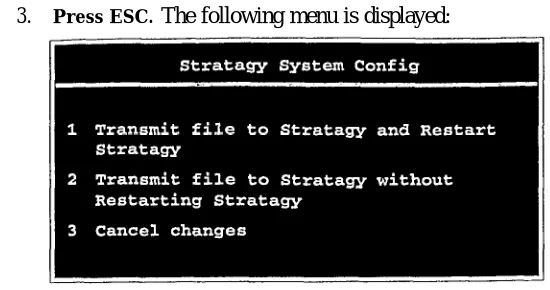
3. Press ESC. The following menu is displayed:
Press 1; the changes are transmitted to Stratagy and Stratagy is shut down and restarted.
By shutting down and restarting Stratagy, the changes take effect.
. ..or press 2; the changes are transmitted to Stratagy but Stratagy is not shut down or restarted. Until you restart Stratagy, the changes do not take effect.
. ..or press 3; the changes you have made are cancelled and not saved.
4. Press 3 to save the changes. Stratagy shuts down and restarts.
5. Press any key to reboot. The DOS prompt is displayed. To continue with Step 11, you must re-enter Stratagy Admin.
Table 5 Stratagy DK System Configuration Parameters - Definitions and Settings
Para~dt;er
admingort In order for Stratagy to communicate with the portable/desktop computer connected to one of its serial ports, Stratagy needs to know which port is to be used. This parameter defines the logical port that Stratagy software uses Assignment of the logical port to the physical port of the computer is made using the set serial-port parameter.
Example: Set this parameter to I for logical serial port 1
CAUTION! The connection may fail if the baud parameter for this port is set higher than 960CJ or the serialport definitions for this porf do not correspond to the
definitions for the COM port being used on the portable/desktop computer. Possible values: 1 (COMl), 2 (COM2)
Default: 2
Stratagy DK Insfallafion
Table 5 Stratagy DK System Configuration Parameters - Definitions and Settings(Confinued)
Parameter :Description
console-slot-id Identifies to Stratagy the physical slot in the Strata DK which contains the PDKU programmed for DSS console in Program 03 (type 64).The Stratagy DK monitors this slot for the busy lamp field (see &s-active parameter), KSU system time, and Night Transfer
For Strata DK16e, DK16, DK24, DK56, and DK96: the console-slot-id is always set to 0 (zero). Slot ID 0 corresponds to card slot Sli for DK16 and DKIGe, or slot 01 for DK24, DK56, and DK96
CAUTION! For Strata DK16: If this parameter is set to 1, Stratagy DK is disabled All ports return Ying no answer” when dialed.
For Strata DK424 and DK280: set this parameter per the following table.
DK280IDK424 Slot Assignment
Console-slot-id
11,31,51 0
12, 32, 52 1
13, 33, 53 2
14, 34, 54 3
15, 35, 55 4
16, 36, 56 5
itYIpOtWIt! For this feature to work, the PDKU must reside in an odd numbered cabinet (see Figure 3 on Page 8 for examples)
In all applicafions, the Sfrafagy DK must reside in a higher-numbered slot in the same cabinet or next even numbered cabinet as the PDKU card (defined as console-slot-id).
Possible values: 0 - 5 Default: 0 (zero)
daylight-saving-time Resets Stratagy’s system time to daylight savings time.
TRUE: Stratagy sets the system automatically to daylight savings time at 2:00 a.m. the first Sunday in April and the last Sunday in October.
FALSE: Stratagy does not reset system time and continues with standard time (Stratagy clock).
important! Setting the ksu-time parameter to true, disables this setting.
Notes
1. This function is available on/y on Stratagy Admin software.
2. The current setting is displayed at the top right corner of the Main Menu.
Possible values: true, false Default: true
dss-active Enables the Stratagy DK to monitor the Busy Lamp Field (BLF) indicators on the Strata DK’s DSS console port to determine if an extension is busy before attempting to transfer. This parameter corresponds with the DSS Port field assignment in the Users Option Menu of a User ID.
Important! If this parameter is set to false, the DSS Port field on the Users Option Menu is disabled.
Installation Stratagy DK
-Table 5 Stratagy DK System Configuration Parameters - Definitions and Settings(Continued)
Parameter Description
ksu-time Synchronizes Stratagy IX’s system clock with the system clock of the supporting Strata DK telephone system.
information obtained by Stratagy DK from the Strata DK system does not contain “second” time; therefore, there may be a 1 - 60 second difference between the Strata DK system and the KSU time displayed on the main menu of the Stratagy Admin program.
Important! Because the Strata DK uses a 24 hour system clock, but does not
notate a.m./p.m. on the LCD display: it is necessary to program the correct date and time in the Stratagy DK Main Menu, Dateflime function, during the initial installation or when the system has been shut down for any extended time.
Note Setting this parameter to true, disables the daylight-saving-time parameter
Possible values: true, false Default: true
pbx-type Defines the model of Strata DK that is used as the host system.
Possible values: DK8, DKI 6, DK16e, DK24, DK56, DK96, DK280 (DMTF in-band), DK280S (SMDI)
Default: DK280
trace-cap Defines the size of the TRACE.OUT file in kilobytes. When the size of the file reaches its defined maximum, new data begins to overwrite the oldest data in the file, generating a continuous loop of information.
Possible values: Values vary depending on the amount of Trace information required and the space available on Stratagy’s hard drive. If this value is set high, it could take an excessive amount of time to copy the file to the portable/desktop computer. A standard setting is 1440 for copying the file to the portable/desktop computer’s floppy-disk drive.
Default: 1000 (kilobytes = 1 megabyte)
Step 12: Program the Mailboxes
B+ Program the User mailboxes for the customer’s application.
You’ll notice some changes in the User Menu - Options screen. The changes (see Figure 8) are:
+ A new field called DSS Port has been added. This new field replaces the Alternate Rate feature, which is not available with the Stratagy DK.
+ The Message Volume feature, although displayed on the screen, is not supported by the Stratagy DK.
Stratagy DK Installafion
-’ Message Volume field is not supported by Stratagy DK
‘Alternate Rate field is replaced by DSS Port field on Stratagy DK
Figure 8 Options Screen with Sample Data
DSS Port
The DSS Port field corresponds to the “physical” port number of a Strata DK station. This field enables the Stratagy DK to monitor the Busy Lamp field of a DSS console port to determine if the station is busy before attempting to transfer.
Due to the Strata DK architecture, only 58 stations can be monitored. User IDS without a DSS Port setting will transfer calls in the normal fashion.
Important! If the dss-active parameter in the install.cfg$le is set to false, thisjeld is disabled.
Example: DK station port 000 equals a value of 0, port 032 equals a value of 32. This value is NOT referenced by the [PDN] number assigned in Program 04, but by the telephone port itself.
Possible values: 0 - 57, -1 disables feature
Default: - 1
Important! Once the DSS/Busy Lamp feature has been programmed using the two
parameters and the DSS Poti$eld, Stratagy DK must be re-started two times. The first re-start configures the DSS parameters/field. The second re-start “loads” the
DSS parameters@ield into active memory.
All other Users Menu, Auto (Scheduling), and Notify screens remain unchanged. See Chapter 6 - Users Menu, Chapter 7 - Auto (Scheduling) Menu and Chapter 8 - Notify Menu in the Stratagy Z&M Manual for complete details on using the screens.
Step 13: Application Programming
Z+ Program the applications.
lnstalla tion Stratagy DK
Some new tokens are available exclusively for the Stratagy DK. They are:
t KM - Enables a portable/desktop computer’s modem to communicate with the Stratagy DK internal modem (2400 baud) by sending the call to User ID 993.
Example: @KM
* KT( ) - Directs calls to a designated User ID when DSS function is active (&s-active = true), the DSS port is assigned in the “answering” mailbox, and the Night Transfer on the DSS console is ON.
Syntax: KT(XXX)G(WY)
where:
Box number used when Night Transfer is ON.
Box number used when Night Transfer is OFF.
Night Transfer Alternate Routing
Using the KT( ) token a new feature called Night Transfer Alternate Routing is now available. The feature monitors the DSS/BLF console’s Night Transfer key in order to activate the KT( ) token for alternate routing applications.
The following is an example on how to program this feature. In this example, we will use:
+ User ID: 900
t User ID when Night Transfer is ON: 901
t User ID when Night Transfer is OFF: 990
Program Procedure:
1. Define the Users record to contain:
DSS Port port number
Note Set this field to the first port of the PDKlJ card designated for DSSBL F
console and defined by the
console-slot-id parameter. If PDKU is in card slot 11, then DSS Port
assignment is 0. Strata DK assigns the first port of the slot 64 card as a DSS “hosYport.
2. In the Stratagy System Configuration file:
+ Select the set box-@ parameter for the specific port and type in 9 0 0.
+ Activate the &s-active parameter and set it to true.
3. Access the User ID 901 mailbox via telephone and record greeting 1.
When the Night Transfer key is enabled, calls for the specific port will be routed to User ID 901. When the Night Transfer key is disabled, calls route to the User ID 990.
Stratagy DK lnstalla tion
Step 14: Stratagy DK Maintenance
To maintain the Stratagy DK, you will need:+ Tools (Main Menu selection)
+ Trace diagnostics
We recommend that before you finish the installation process, you back up your new database, mailbox names and greetings.
Tools
The following Tools menu selections will be needed for maintenance of the Stratagy DK (see Figure 2):
+ Backup Utility
+ Restore Utility
+ Upgrade Stratagy software
+ Retrieve Trace File
+ Filecopy
Backup Utility
The Stratagy Backup Utility is used to back up information from the Stratagy DK hard drive to the hard drive of the portable/desktop computer.
CAUTION! Because of possible errors that can be induced through the telephone network, Toshiba advises that the Backup Utility be performed onsite.
Backup functions are available for either a customer’s database or mailbox names and greetings, or both.They consist of:
+ Database
All mailbox settings and information, Stratagy system configuration settings, notification templates, auto schedules, and all information concerning the selected telephone system’s integration information.
+ Mailbox names and greetings
All names and greetings that have been recorded for all programmed mailboxes (personal and company).
Backing up your Stratagy system regularly enables you to restore your system with minimal data loss if the system fails (hard drive failure, etc.).
Note Messages cannot be backed up.
Installation
- - - -
-Stratagy DK -
-CAUTION! During the Backup and Restore procedures, the Stratagy DK cannot be processing calls. When any Backup or Restore function is selected, Admin will query the Stratagy DK if there are any calls currently in progress. If calls are in progress, Admin will ask if the calls can be terminated. If call termination is selected, any current connection will be disconnected and all ports will be commanded to go off-hook to prevent any further calls. If call termination is denied, the Backup or Restore procedure is halted.
During a Backup or Restore, the Stratagy DK is in full operation, only the ports have been busied out. If the connection between the portable/desktop computer to the Stratagy DK is dropped, communication can be re-established by simply accessing Stratagy Admin in the usual manner.
If the connection between the portable/desktop computer and the
Stratagy DK is by way of the internal modem, that connection will be the only one NOT dropped if a Backup or Restore function is selected. If this type of connection is dropped, the Stratagy port will go idle and will accept new incoming calls. Connection to the internal modem can be re-established through this port.
2. Enter the number of your selection and a second screen requesting a backup directory is displayed. The directory defaults to C : \ADMIN3 \BACKUP. If you want a different directory, type over the default. Be sure to enter the complete path, including the drive letter. Press Enter.
Note Backup of files to the portable/desktop computer’s floppy-disk drive is not supported.
If the directory already exists, you are given the option of entering a new directory or overwriting the file.
3. If you enter selection 2 or 3, you are also asked to enter a beginning and ending mailbox number. Press Enter after each entry.
Note Leaving both fields blank defines all mailboxes.
Once the backup starts, Admin calculates the time the backup will take and displays a status message.
Important! Since the Backup file is copied to your-portable/desktop computer’s hard drive, you should verify that there is enough available disk space to accommodate it.
Use the following chart to estimate the required hard drive space based on the estimated Backup time.
Transmitting at: *
9600 bps
4800 bps 2400 bps
Bytes Per Second being written to hard drive:
800 bytes
400 bytes
200 bytes
26
Stratagy DK Installation
Example: If Admin displays a .5 minute backup time and communication is at 9600 bps, then:
5 min. = 300 sets.
300 sets. x 800 bytes = 240,000 bytes
Bytes Per Second values are not exact. Additional amounts have been factored in to estimate a higher quantity of space than will actually be
required.
4. Press Y to continue.
When the backup is complete, the following status message is displayed.
CAUTION! If Stratagy is not rebooted, all ports will remain in an off-hook condition.
5. Press Y to reboot Stratagy.
The portable/desktop computer returns to the C : \ADMIN3 DOS prompt. When the Stratagy DK status light becomes a solid green, Stratagy is operational.
Note You will not be able to reconnect to Stratagy using Stratagy Admin until the Stratagy DK status light is green. Any attempt prior to that time will fail.
.
Restore Utility
The Stratagy Restore Utility is used to restore information from the portable/desktop computer’s hard drive to Stratagy’s hard drive.
CAUTION! Because of possible errors that can be induced through the telephone network, Toshiba advises that the Restore Utility be performed onsite.
Restore functions are available for either a customer’s database or mailbox names and greetings, or both.
lnsfallafion
~- - - Stratagy DK
CAUTION! Stratagy Voice Processing will be suspended during the restore procedure. Any existing connection is broken. For additional information on the Restore procedure, see the Caution on Page 26.
2. Enter the number of your selection and a second screen requesting the source directory is displayed. The directory defaults to c : \ADMIN3 \BACKUP. If you have the file(s) in a different directory, type over the default. Be sure to enter the complete path, including the drive letter. Press Enter.
Note Restoring files from the portable/desktop computer’s floppy-disk drive is not supported.
3. If you enter selection 2 or 3, you are also asked to enter a beginning and ending mailbox number. Press Enter after each entry.
Note Leaving both fields blank defines all mailboxes.
Once the restore starts, Admin calculates the time the process will take and displays a status message.
4. Press Y to continue.
When the restore is complete, the following status message is displayed.
CAUTION! If Stratagy is not rebooted, all ports will remain in an off-hook condition.
5. Press Yto reboot Stratagy.
The portable/desktop computer returns to the C : \ADMIN3 DOS prompt. When the Stratagy DK status light becomes a solid green, Stratagy is operational.
Note You will not be able to reconnect to Stratagy using Stratagy Admin until the Stratagy DK status light is green. Any attempt prior to that time will fail.
Upgrade Stratagy Software
To upgrade Stratagy system software, you will need the correct set of software.
CAUTION! Because of possible errors that can be induced through the telephone - network, Toshiba advises that the Upgrade Utility be performed onsite.
1. From the Tools menu, press 3.
Stratagy DK lnsfallafion
_ -_- --- _- __---~-~
__--_l__-The following menu is displayed:
2. Place the upgrade disk into the portable/desktop computer’s floppy-disk drive.
3. The default directory is A:. If you need a different drive, type over the default. Piess
Enter.
When the upgrade procedure is complete, the following message is displayed:
4. Press any key.
The portable/desktop computer returns to the C : \ADMPN3 DOS prompt. When the Stratagy DK status light becomes a solid green, Stratagy is operational.
Note You will not be able to reconnect to Stratagy using Stratagy Admin until the Stratagy DK status light is green. Any attempt prior to that time will fail.
Retrieve Trace File
This function can be used to copy the trace data log file (trace.out) to the portable/desktop computer’s hard or floppy-disk drive.
Note The size of the trace file can be set using the truce-cap parameter in the install.cfg file of Stratagy (see “trace-cap” on Page 22 for a description of the parameter).
1. From the Tools menu, press 7. The following menu is displayed:
Installation Stratagy DK c---c-II _ _ _ _ - - - - --II
Note Possible files you might want to retrieve are. TRACE.OUT and Stratagy.log.
3. Enter the directory to which you want the file to be copied. The default is
C : \AJDMIN3 \TRACE . OUT, If you need a different directory, type over the default. Press E n t e r .
If the directory already exists, you are given the option of entering a new directory or overwriting the file.
Note Be sure to enter the complete path.
Filecopy
Use Stratagy Admin’s Filecopy option to copy files to and from the hard drives of the Stratagy DK and the portable/desktop computer.
1. From the Tools menu, press 8. The following menu is displayed:
The following screen displays:
2. In the Source System field (where the file currently resides), press F2 to display a pop-up box of selections. Highlight PC for the portable/desktop computer or Stratagy for Stratagy and press Enter.
3. In the Copy From field, type the directory name, if necessary, and the file name.
Note If a directory name is not entered, Filecopy searches the Stratagy or Admin directory (portable/desktop computer) for the file to be copied.
4. Press Enter when finished.
5. In the Copy To field, type the directory name, if necessary, and the file name.
Note If a directory name is not entered, Filecopy assigns the destination for the file to the Stratagy or Admin directory.
6. Press Enter when finished.While the file is being copied, the following dialog status box is displayed:
Stratagy DK Installation
When the copy is complete, the following status box is displayed:
7. Press any key to continue.
Trace Diagnostics
Trace is a diagnostic tool that is designed to assist you in troubleshooting Stratagy’s activity. When Trace is enabled, it is automatically turned on when Stratagy loads up and logs data until Stratagy software is shut down.
To log the trace data, you can use a text file called TRACE.OUT. The size of the trace file can be configured using the truce-cup parameter (see Table 5). This parameter defines the size of the trace file in kilobytes. When the size of the trace file reaches the setting limit, the existing file is overwritten, beginning with the oldest record.
Enabling Trace Out
N To enable Trace Out
a Using the Shutdown function on the Stratagy Admin Main Menu, select the option “Shutdown and Trace CURRENT Version.” For more details, see Step 15 “Shut Down the Stratagy DK” on Page 32.
Stratagy shuts down, then restarts in TRACE mode. Trace will run continuously until Stratagy is shut down. At that point, the Trace stops but data will still reside in the text file
TRACE.OUT.
Copying Trace Files
The TRACE.OUT file can be copied to a floppy disk and edited.
) To copy a Trace file to the portable/desktop computer’s floppy-disk or hard drive
1. From the Stratagy Admin Main Menu, press Alt+T to select the Tools menu. 2. Press 7 to select the Retrieve Trace File option.
3. Enter the trace file name and the directory to which you want the file to be copied. Press
Enter.
4. The file may be edited using an available editing program on the portable/desktop computer.
Upgrading Stratagy DK Voice Ports
Upgrading the number of voice ports on the Stratagy DK, does not require any hardware. Please call Customer Service with the following information:
+ Dealer Name and Number
-.
Stratagy DK
+ Site telephone number
4 Remote system’s password
And the port upgrade will be activated by Toshiba remotely.
Note The Stratagy DK must be reset for the new ports to be activated.
Step 15: Shut Down the Stratagy DK
Occasionally you will need to shut down, or exit, Stratagy call pro&sing. Circumstances include:
+ Turning power off to perform hardware maintenance
+ Moving the system to another location
CAUTION! Never shut Stratagy down by turning off the Strata DK’s power. Doing so may corrupt the system files that are in use and damage the hard disk. Perform the following first,
1. From Stratagy Admin’s Main Menu, select Shutdown by pressing Al t +S.
2. Enter the password (the default is “Stratagy”) and press Enter.
The following screen displays:
The screen enables you to select one of the following options:
4 Shutdown and Restart CURRENT Version
- Restarts Stratagy (equivalent to pressing the Esc key on the current Stratagy platform).
+ Shutdown and Trace CURRENT Version
- Shuts down, then restarts Stratagy in the TRACE mode (TRACE.OUT file is create& on Stratagy hard drive.
+ Shutdown and Start NEW Version - Shuts down, then restarts Stratagy using the new database and new Stratagy system software, if any (see “Toshiba Plug and Play” on Page 17).
* Shutdown and Start OLD Version - Shuts down, then restarts Stratagy using the software version previous to the upgraded software.
* Shutdown, SCANDISK and Restart - Shuts down, runs ScanDisk program and then restarts Stratagy.
Note There is no screen interaction during the running of the ScanDisk Utility.
* Shutdown and STOP for power off - Takes Stratagy off-line and does not restart it.
Note The “Shutdown and STOP for power off’ option is not available when accessing Stratagy remotely.